By customising the bar chart you can specify how to show the cost for a lease.
You can for example select:
which lease period the bar chart should show the cost for
which months the bar chart should show the cost for
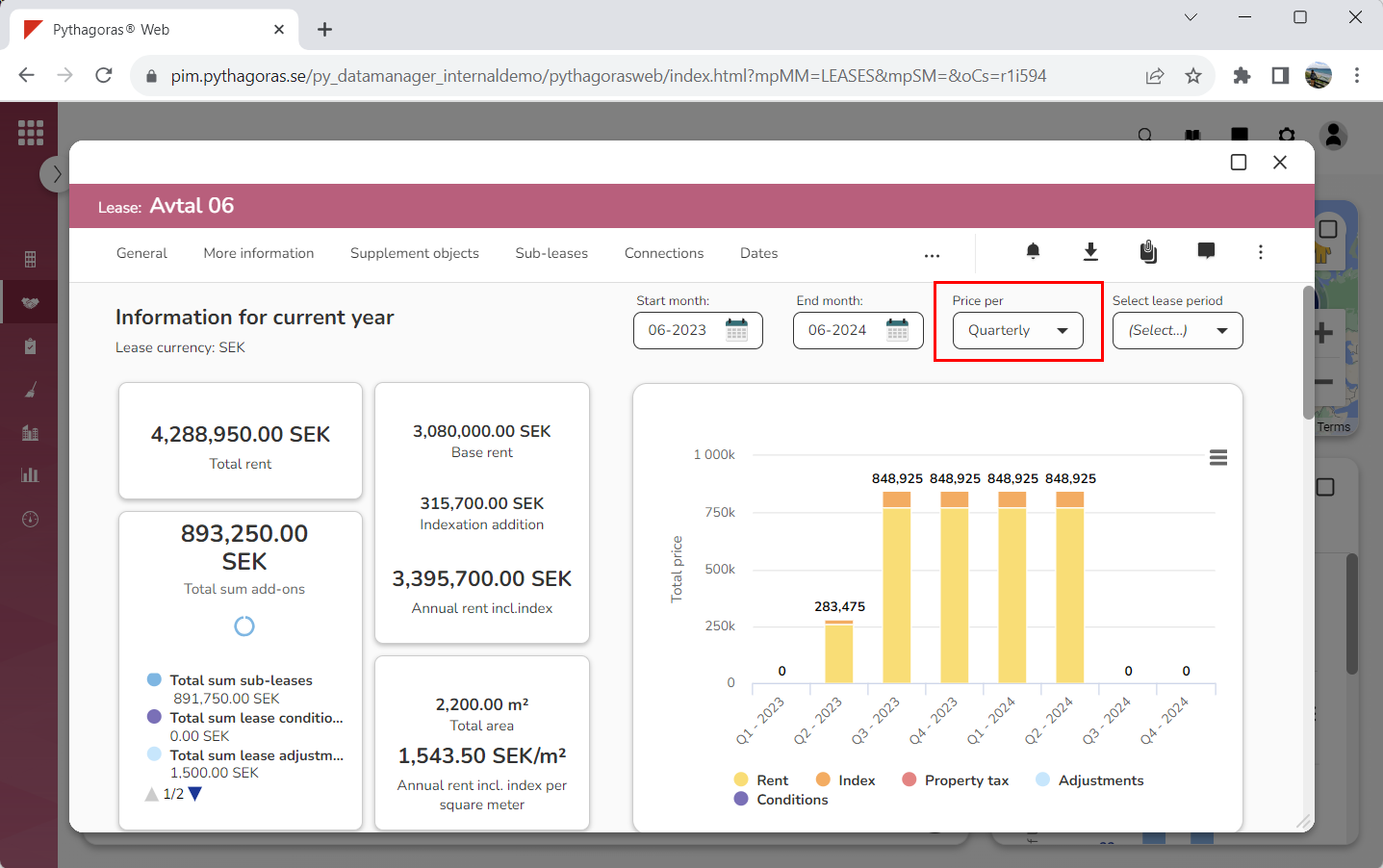
how to show the cost in the bar chart – quarterly, monthly or annually.
To customise the bar chart:
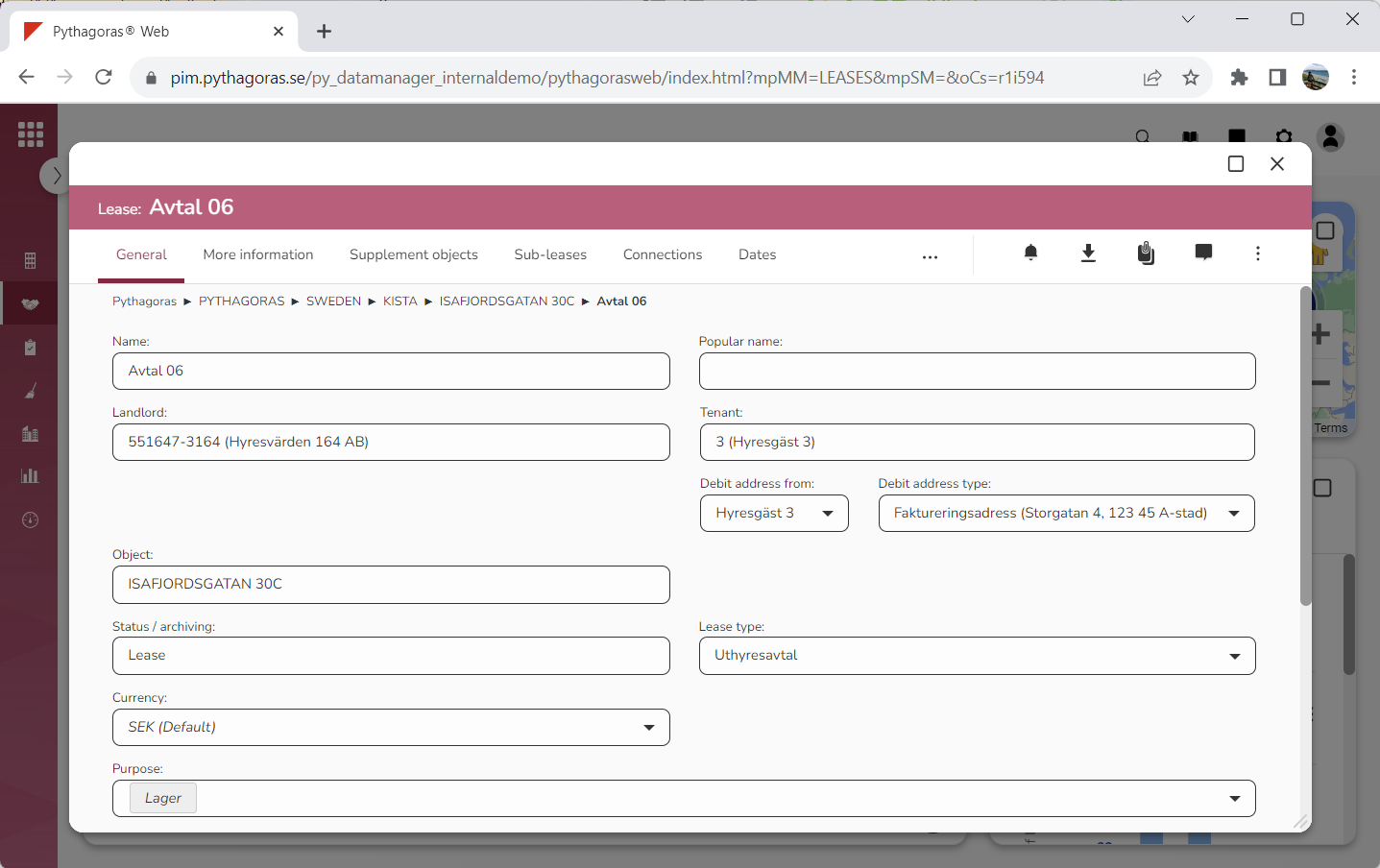
Open a lease. For more information on how to do so, see section 4.6. or 6.1.
Go to the lease card (see image below).
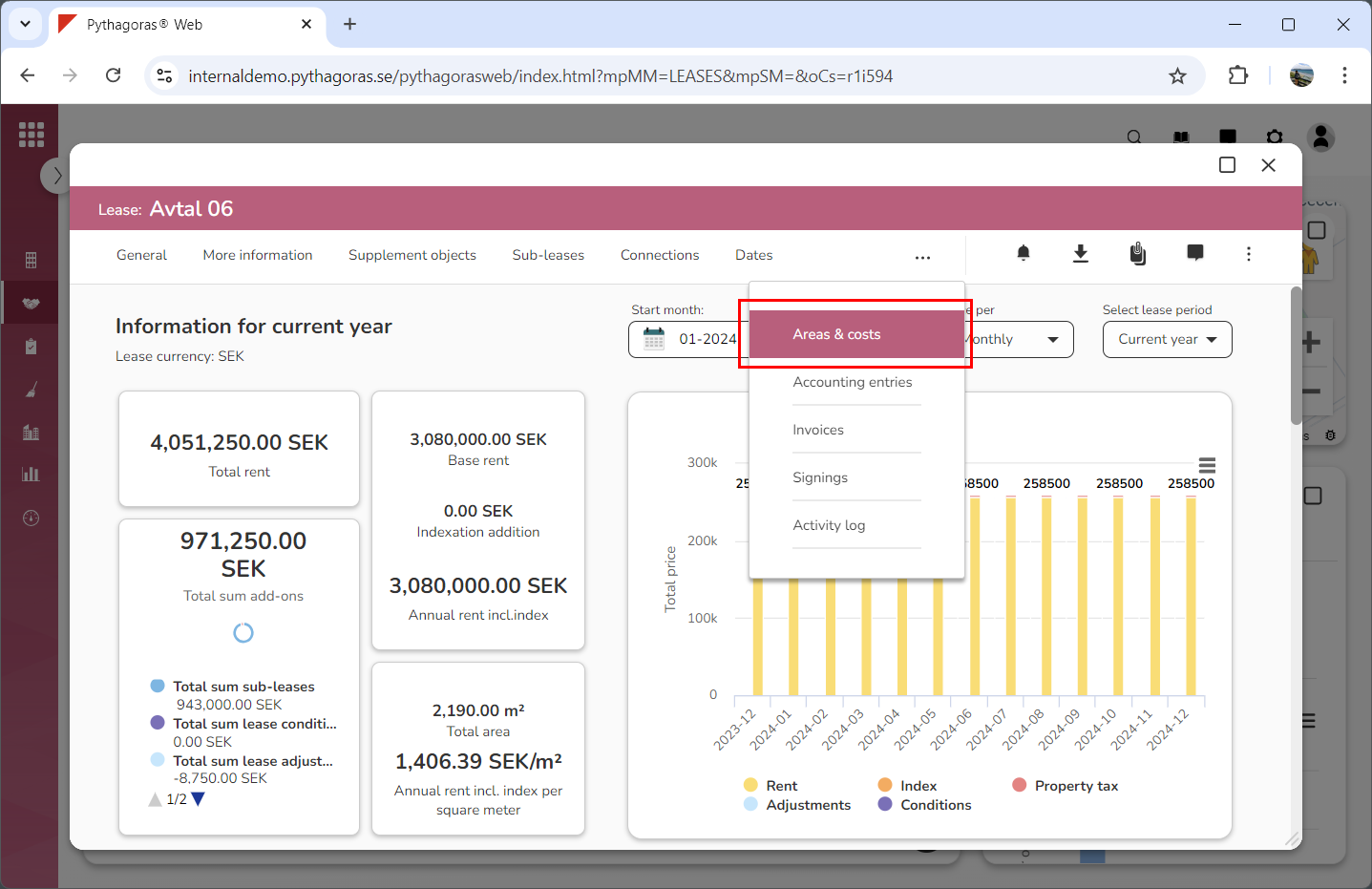
Click the tab called "Areas & costs" (see image below). Within the tab called "Areas & costs" you will, among other things, see a bar chart showing the cost for the lease you are working with.
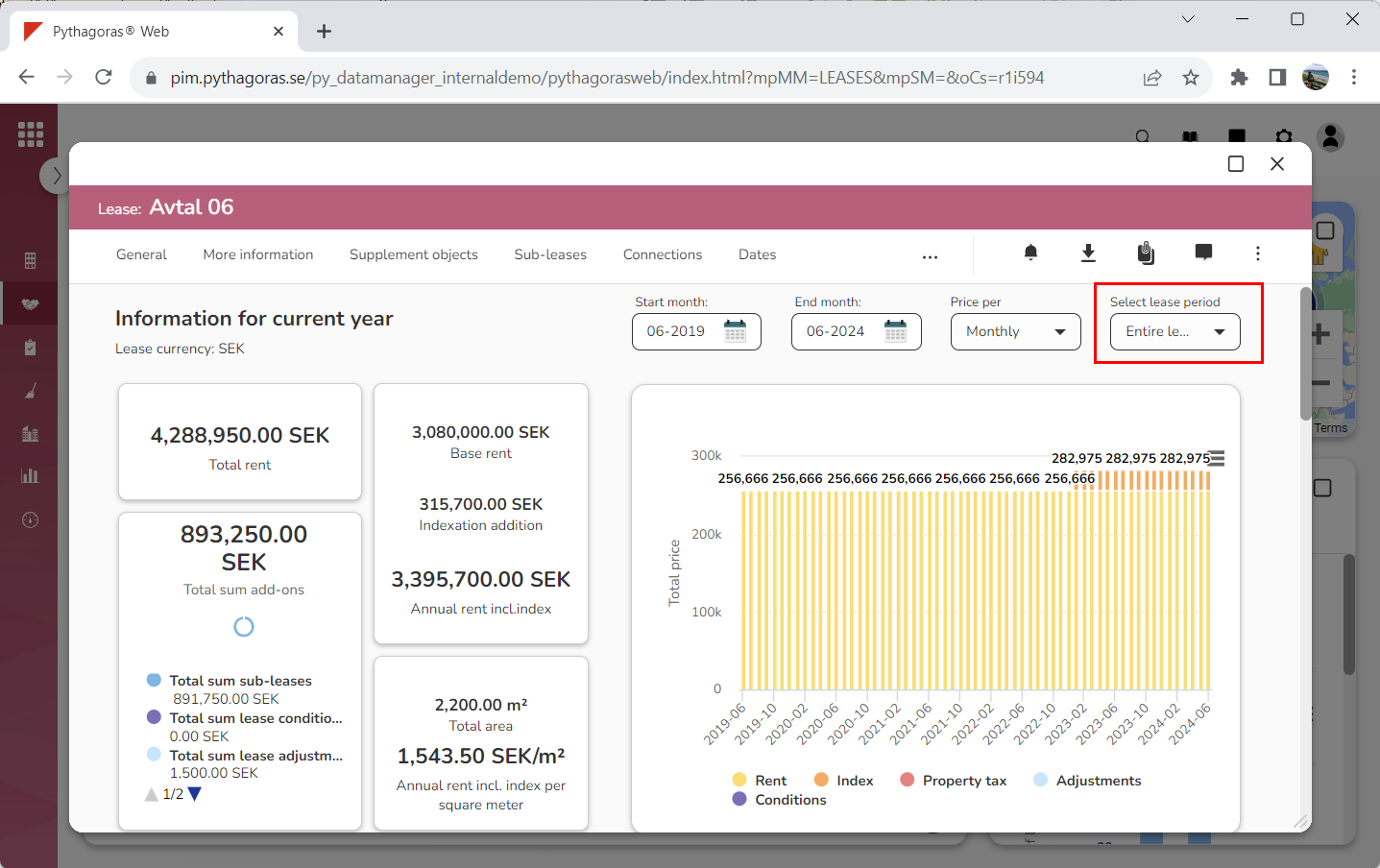
Select which lease period the bar chart should show the cost for by clicking the field "Select lease period" and then selecting a lease period in the list that opens (see image below). Note that if you select a lease period, the selected lease period will overwrite the months you might have selected via the fields called "Start month" and "End month".
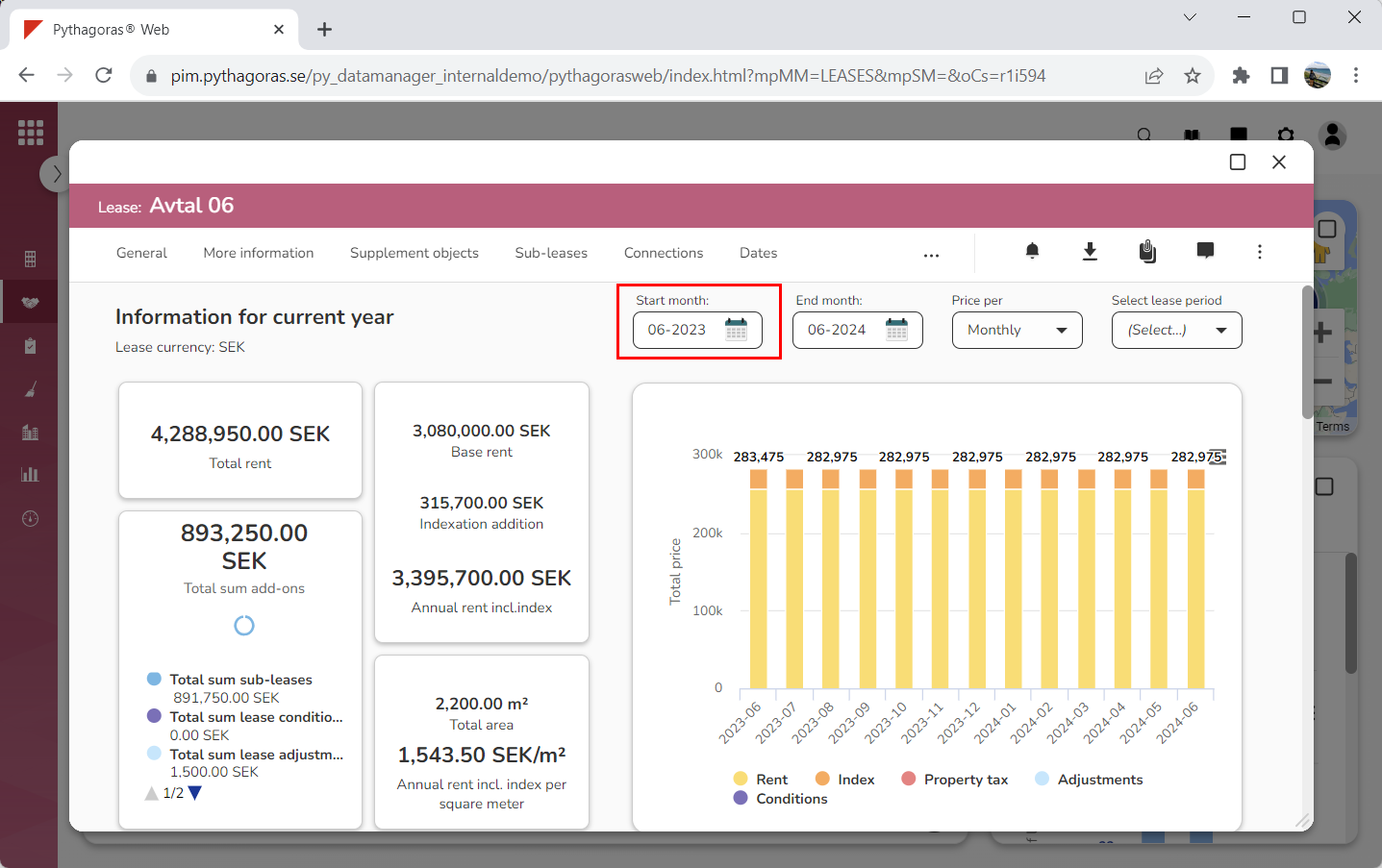
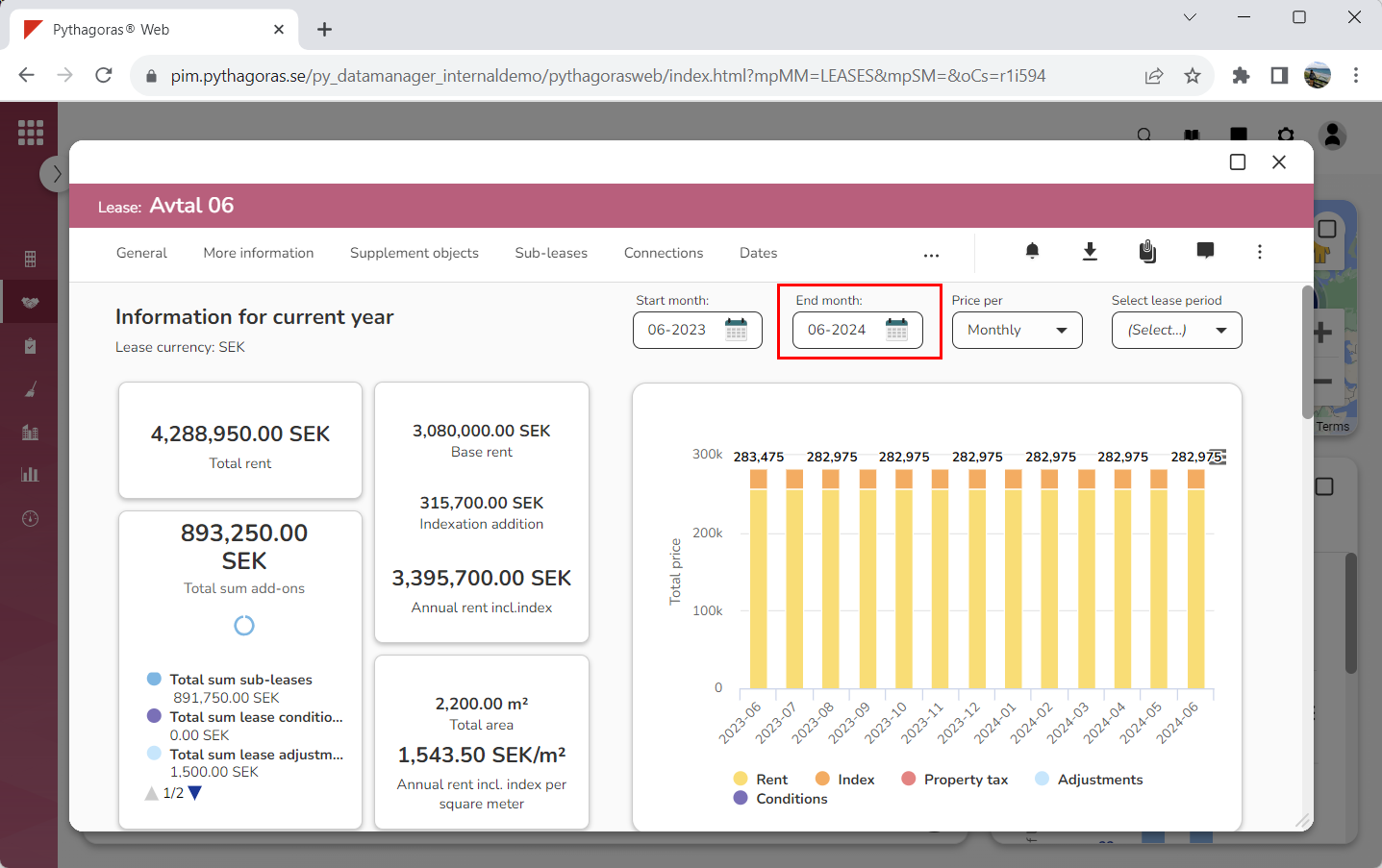
Select which months the bar chart should show the cost for. Note that if you select one or more moths, the selected months will overwrite the lease period you might have selected via the field "Select lease period". To select which months the bar chart should show the cost of:
click the field "Start month" and then select a month in the calendar that opens (see image below)
click the field "End month" and then select a month in the calendar that opens (see image below).
Select how to display the cost in the bar chart by clicking the field "Price per" and then selecting "Monthly", "Quarterly" or "Annually" in the list that opens (see image below).