Open a lease. For more information on how to do so, see section 4.6. or 6.1.
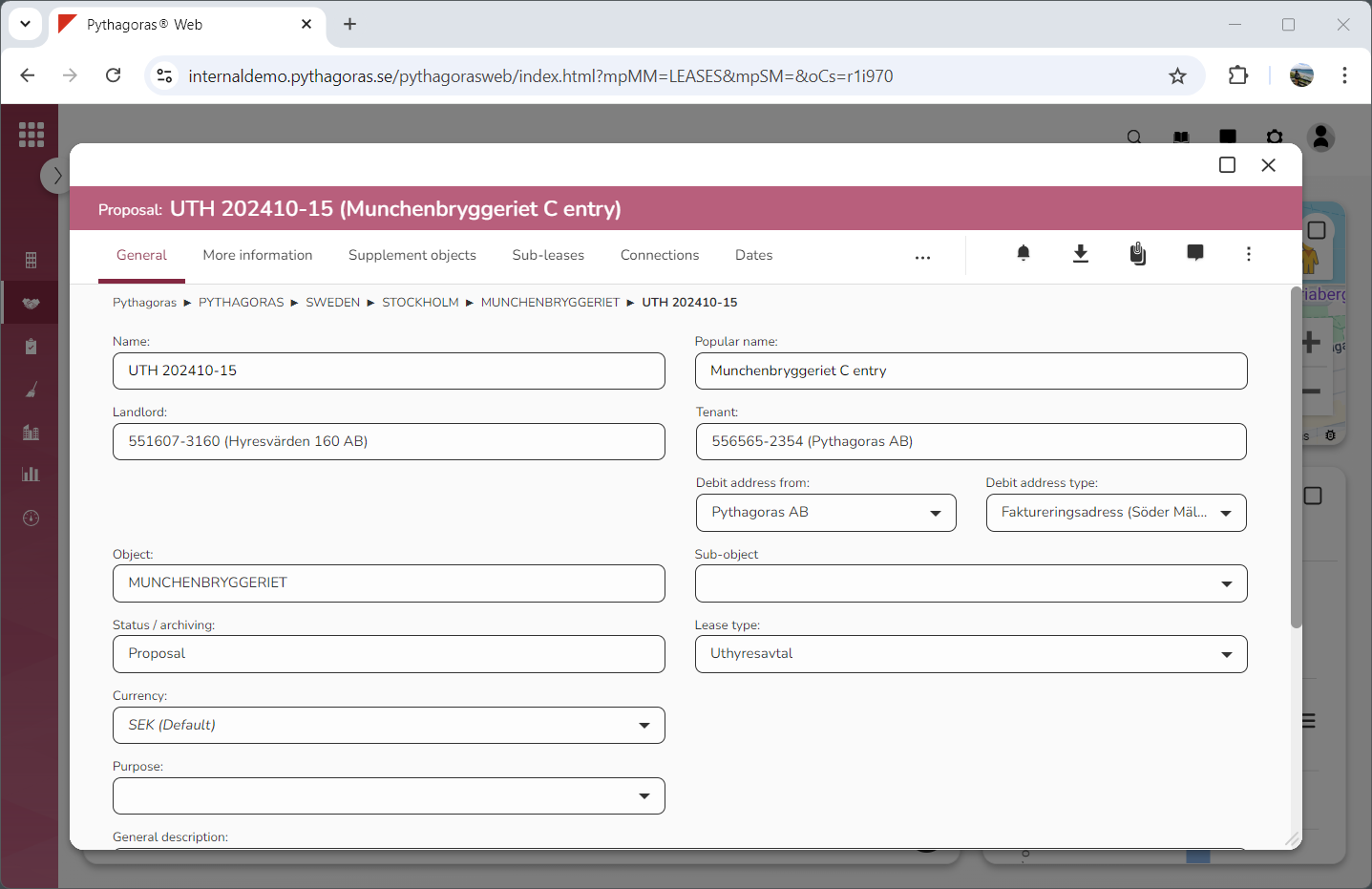
Go to the lease card (see image below).
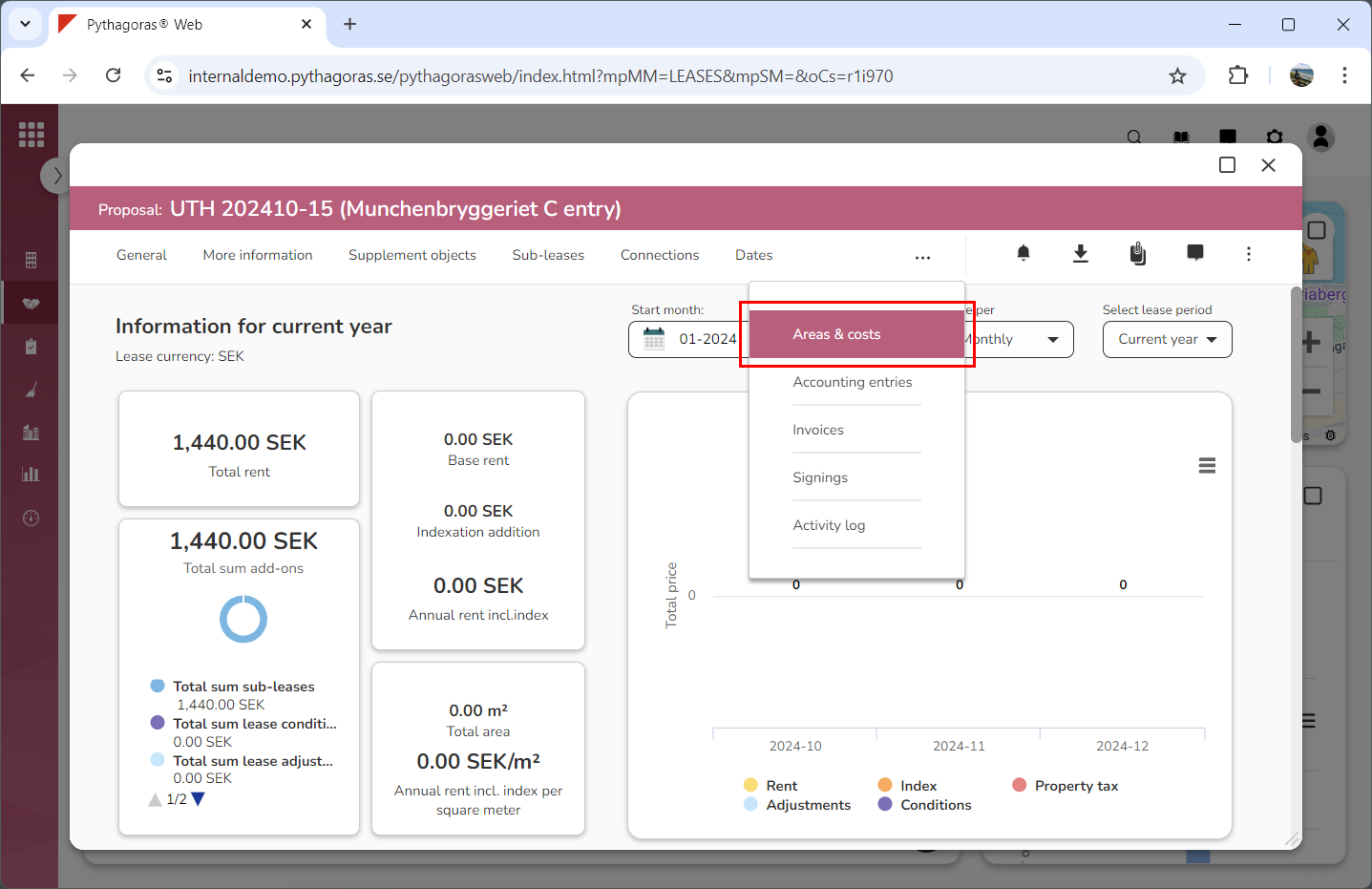
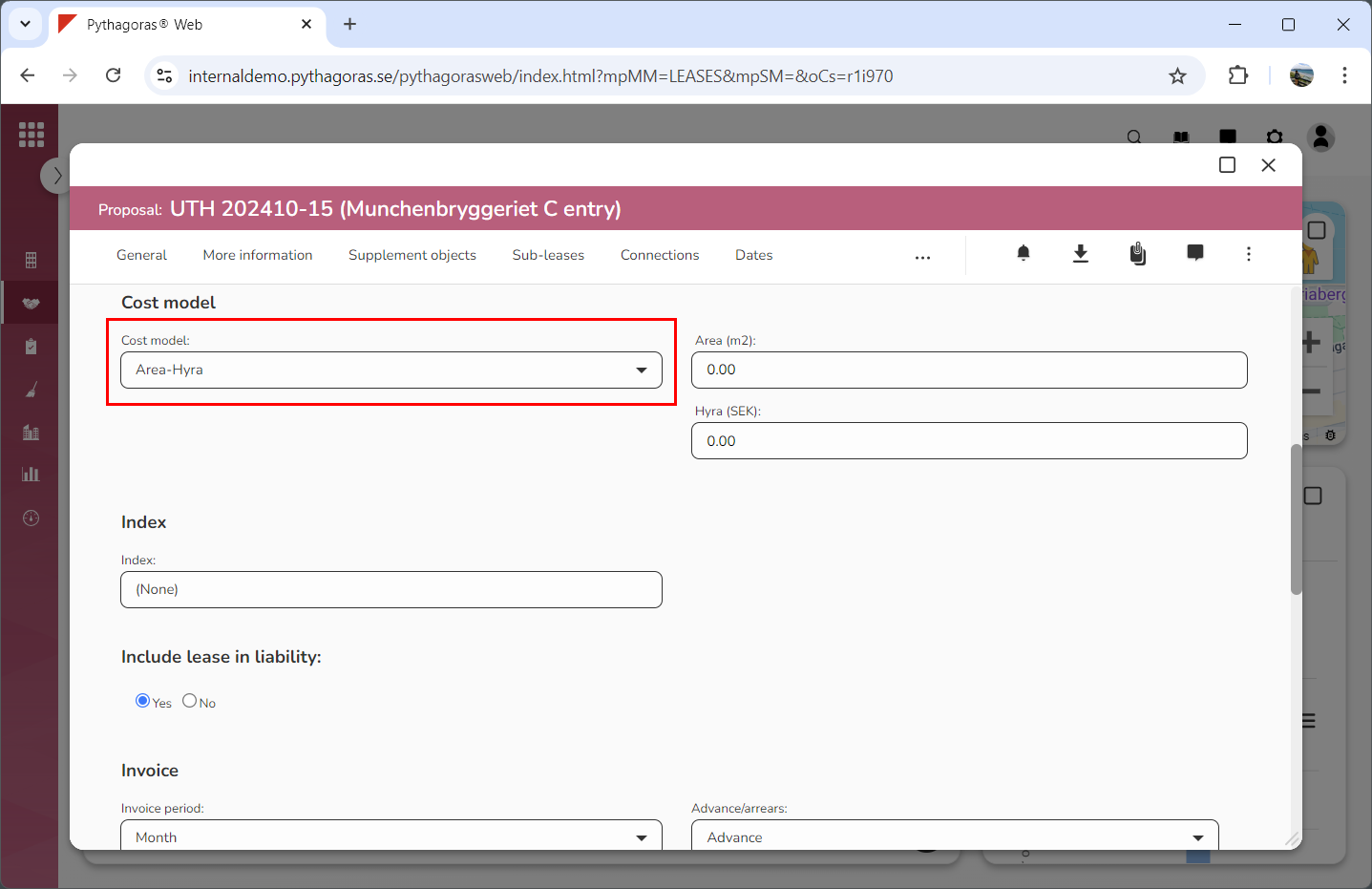
Click the tab called "Areas & costs" (see image below). Within the tab called "Areas & costs" you will, among other things, find a field called "Cost model". Note that you might have to scroll the lease card to find the field "Cost model".
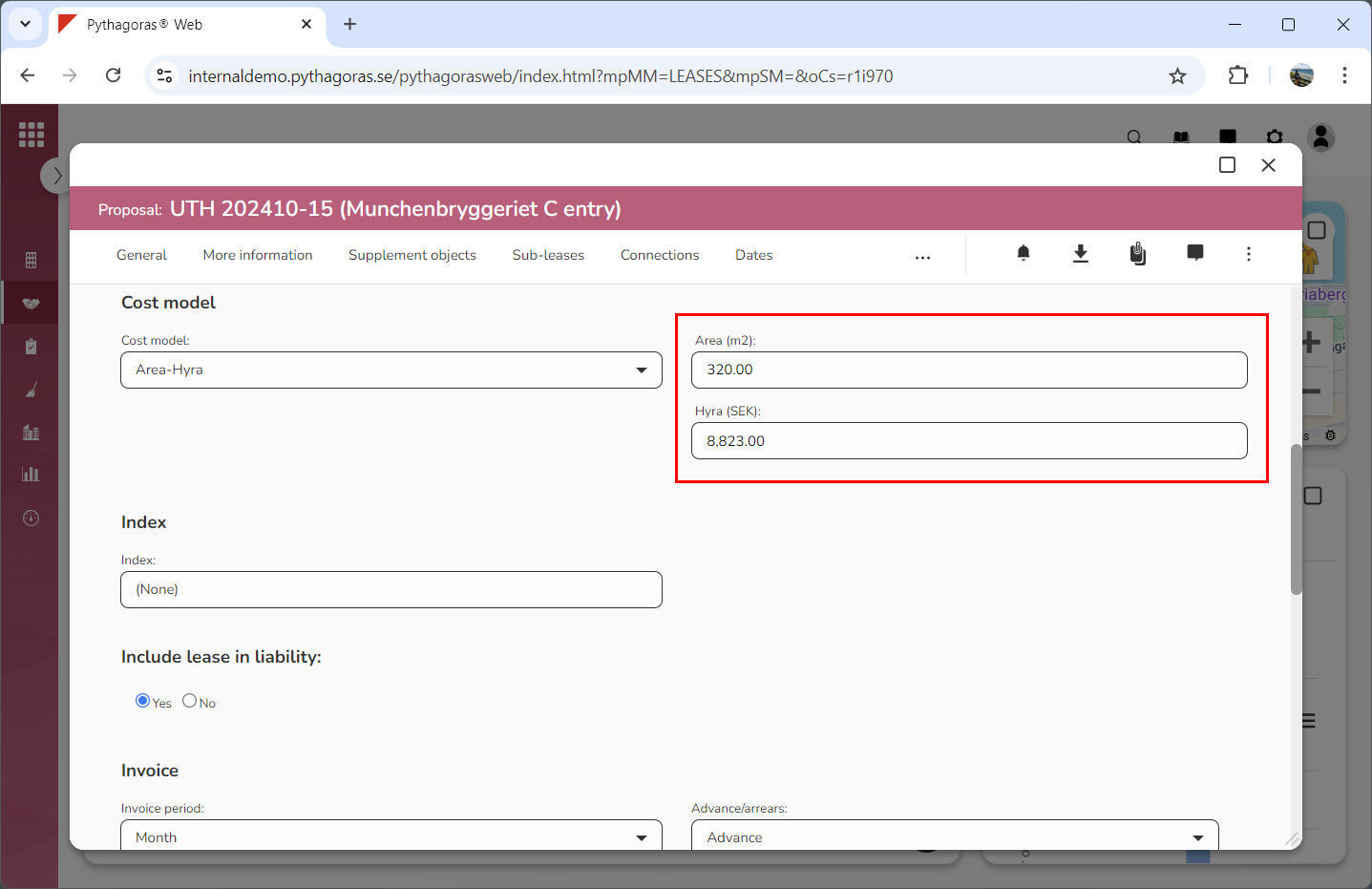
Set a cost model for the lease you are working with by clicking the field "Cost model" and then selecting a cost model in the list that opens (see the first image below). Note that when you set a cost model for a lease, a number of fields associated with the cost model will become available. Via the fields you should set cost information for the lease you are working with (see the second image below). Also note that different cost models can be associated with different fields and that the fields shown in the images below might not be the same as the fields available to you.