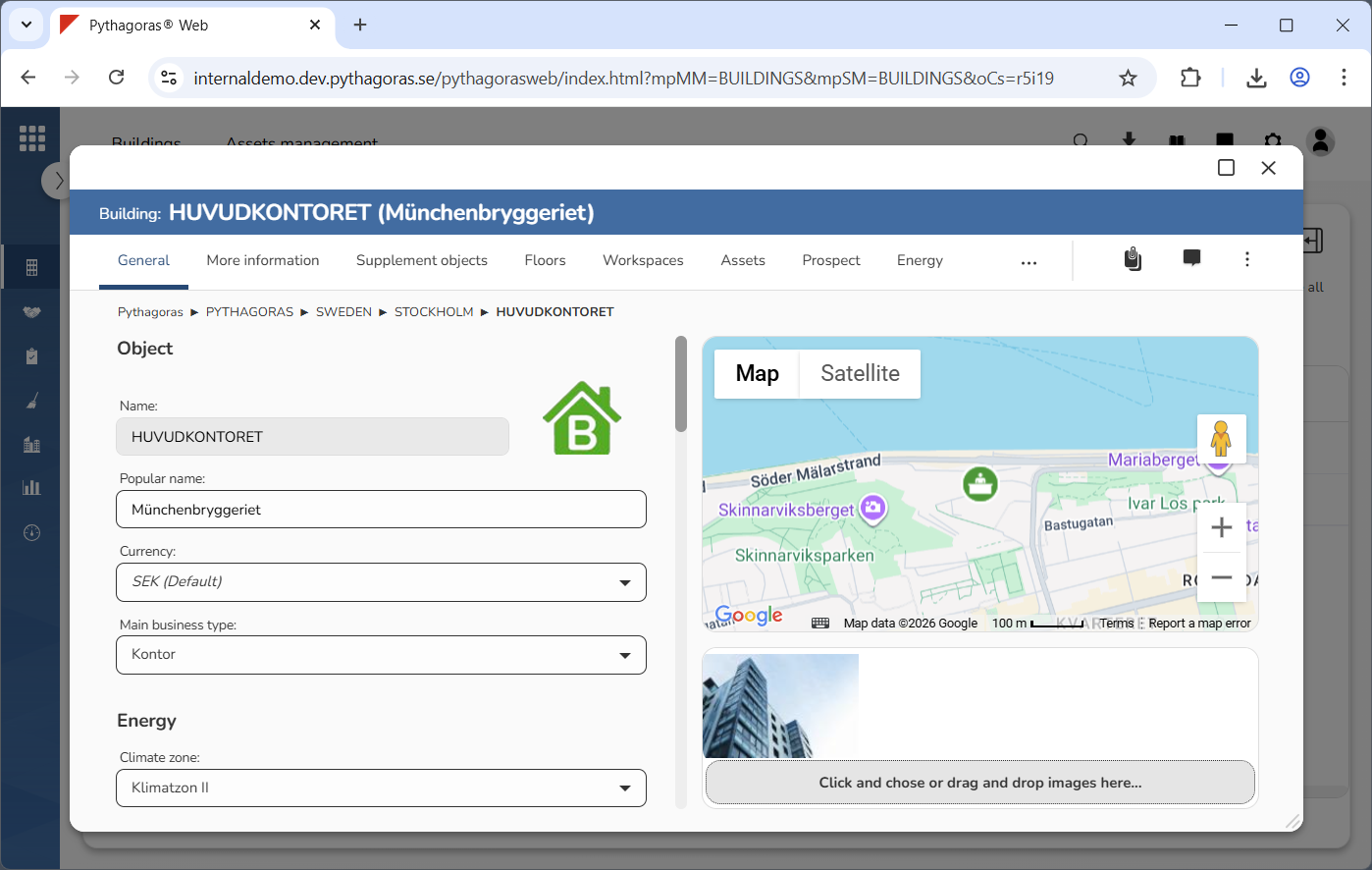
All buildings available in Pythagoras Web are associated with a building card (see image below). Via the building card, you can work with a building. In order to access the building card, you must either open or create a building. There are three ways in which to open a building: via the map, the navigation tree and the object list. To create a building, add a new building to a navigation tree. When you enter any type of information in a field in the building card, you must click outside the field, in another field or the enter key on your keyboard for the information to be saved.
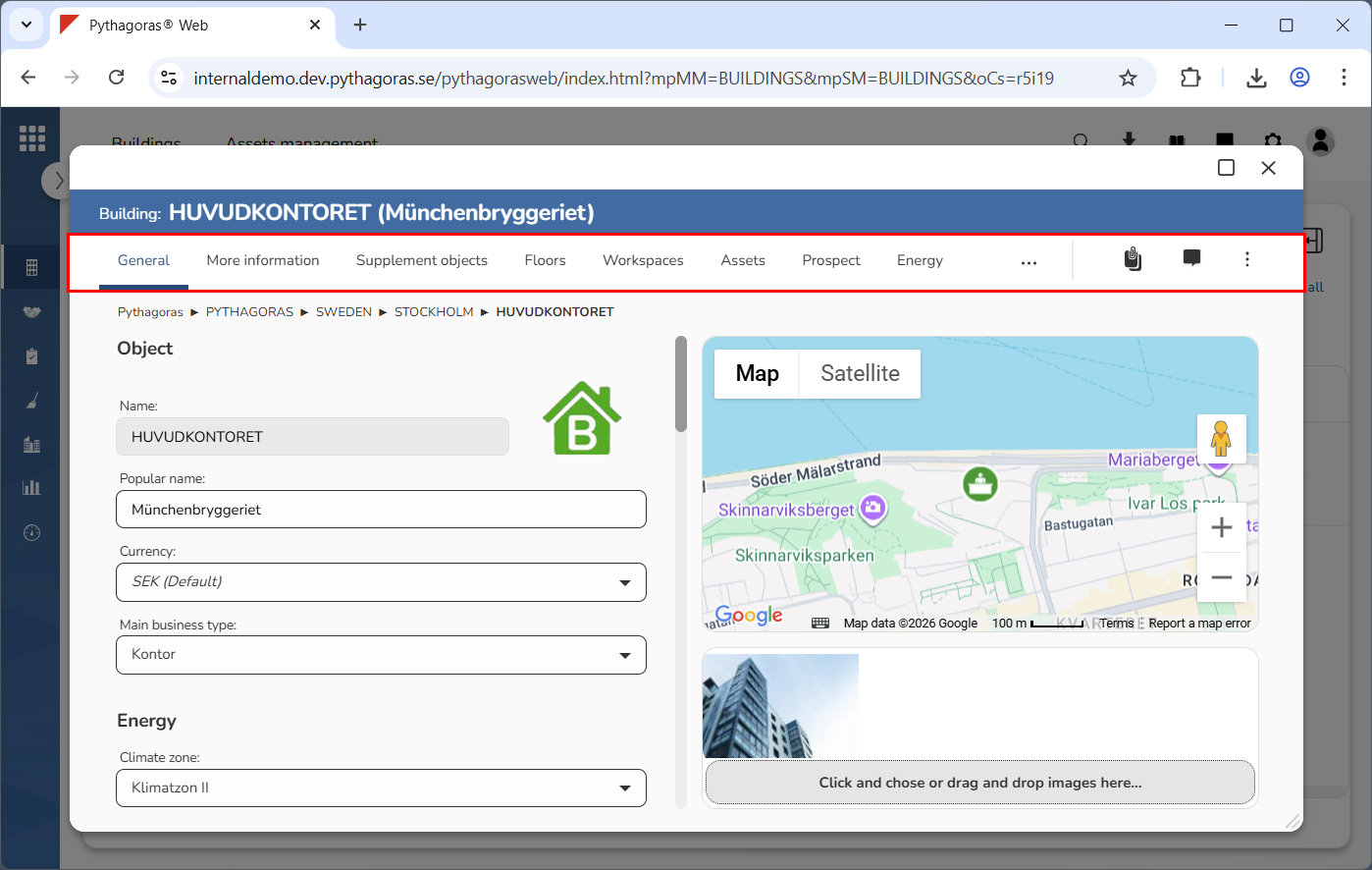
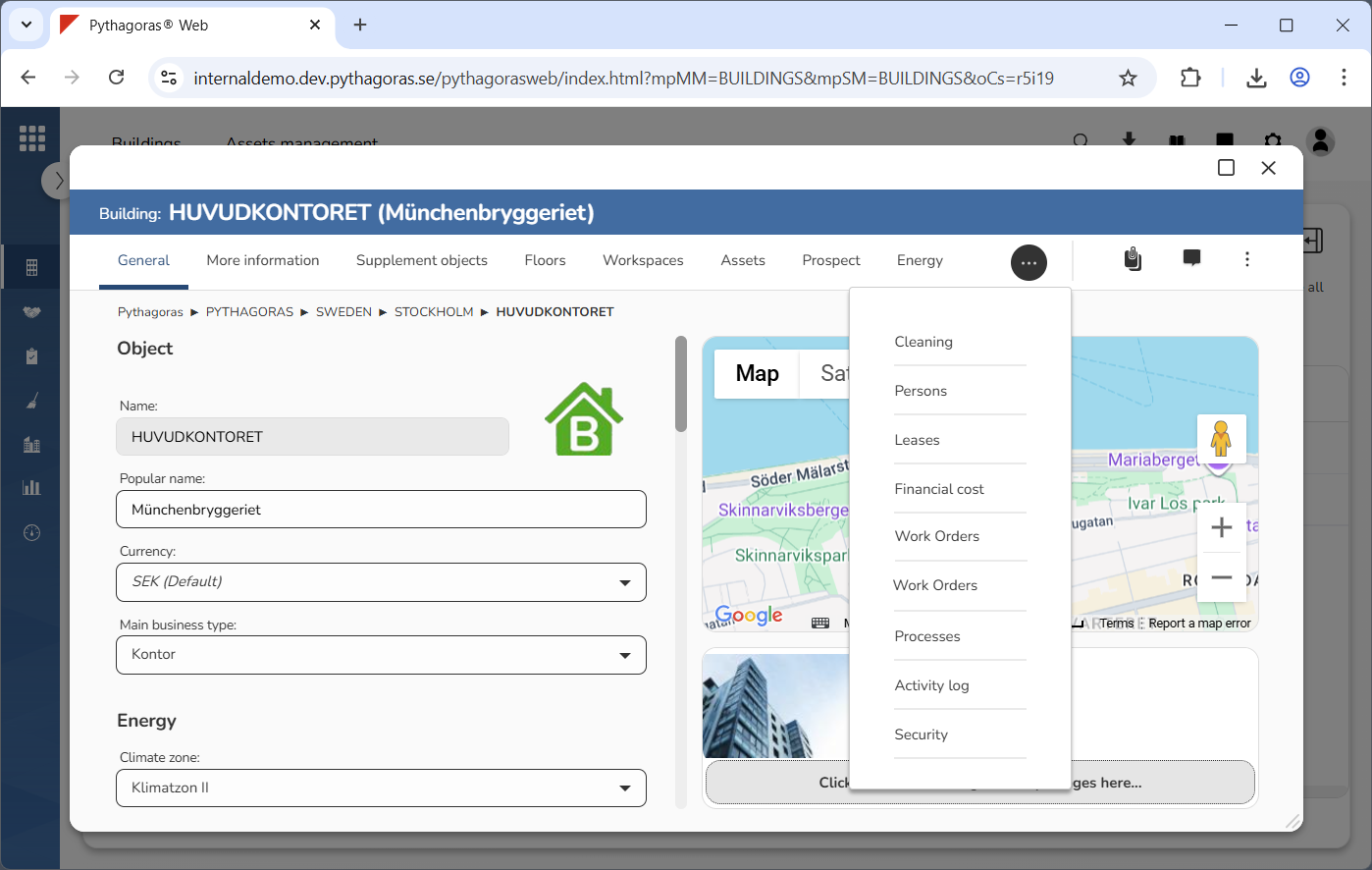
In the building card you will find a menu that contains a number of tabs and icons (see the first image below). Within several of the tabs, you will find lists for which you can manage views. Tabs that may not fit within the building card menu are found by clicking a horizontal icon called "More options" (see the second image below).
For more information about the tab called:
"General", see section 8.1.
"More information", see section 8.2.
"Supplement objects", see section 8.3.
"Floor plans", see section 8.4.
"Workspaces", see section 8.5.
"Assets", see section 8.6.
Accounting entries, see section 8.7.
"Prospect", see section 8.8.
"Energy", see section 8.9.
"Cleaning", see section 8.10.
"Persons", see section 8.11.
"Leases", see section 8.12.
"Financial cost", see section 8.13.
"Work orders", see section 8.14.
"Processes", see section 8.15.
"Activity log", see section 8.16.
"Security", see section 8.17.
For more information about:
the icon "Documents", see section 8.18.
the icon "Comments", see section 8.19.
the icon "More options", see section 8.20.
For more information on how to:
open a building via the map, see section 4.6.1.
open a building via the navigation tree, see section 5.4.3.
open a building via the object list, see section 6.1.1.
add a new building to a navigation tree, see section 5.6.2. Continue reading in the section "Add a new building to a navigation tree"
manage views for lists such as the lists within the tabs in the building card, see chapter 3 in this manual.