Open a building. For more information on how to do so, see section 4.6.1., 5.4.3. or 6.1.1.
Activate the print command. For more information on how to do so, see section 9.11.4.
Go to the graphical search field (see image below).
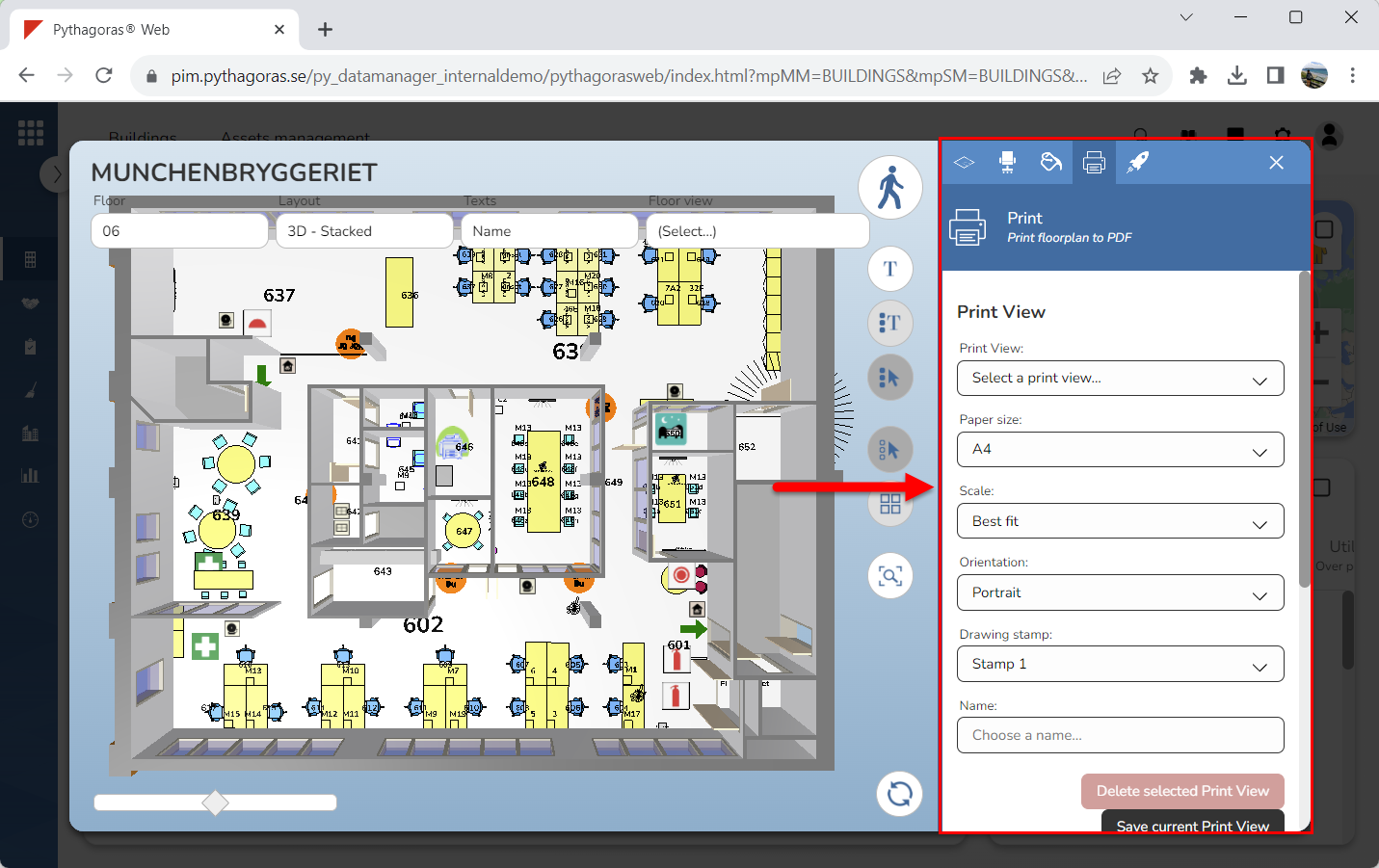
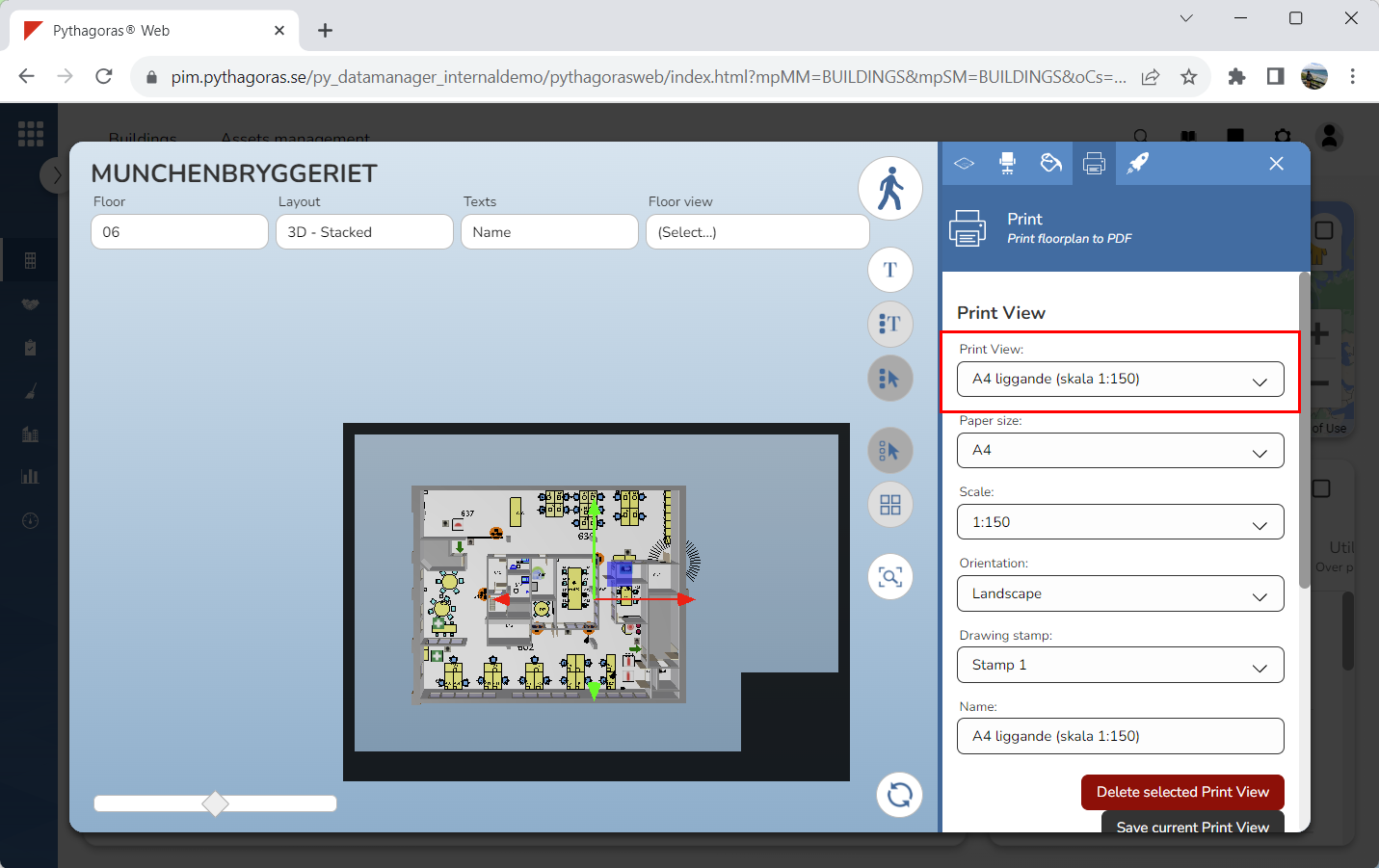
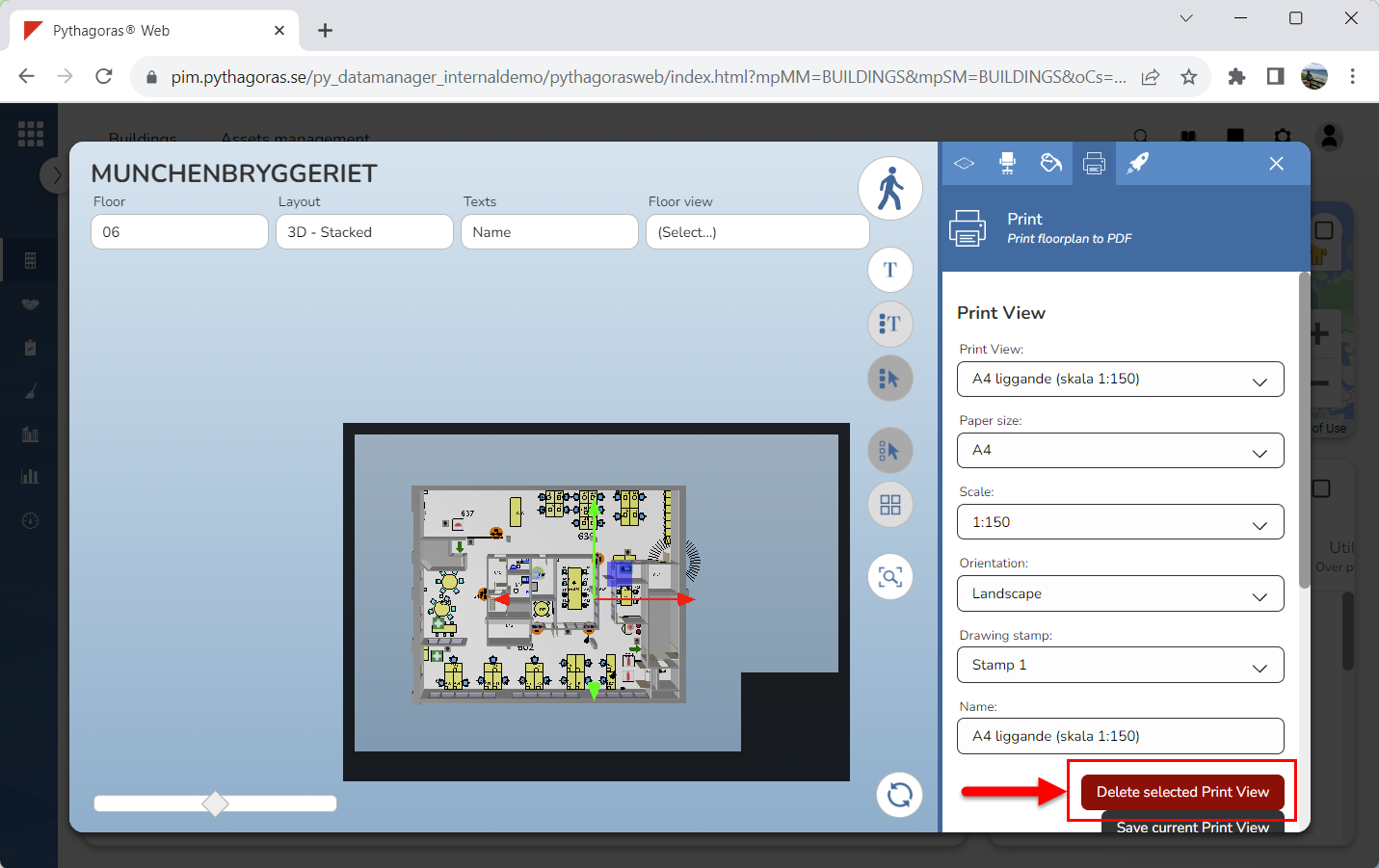
Specify which print view you wish to delete (see the first image below) by clicking the field "Print view" and then select a print view in the list of print views. Selecting a print view will activate the button "Delete selected Print View" (see the second image below). Note that the frame you see next to the model in the second image below will only be visible if you have set a scale for the print view you are working with.
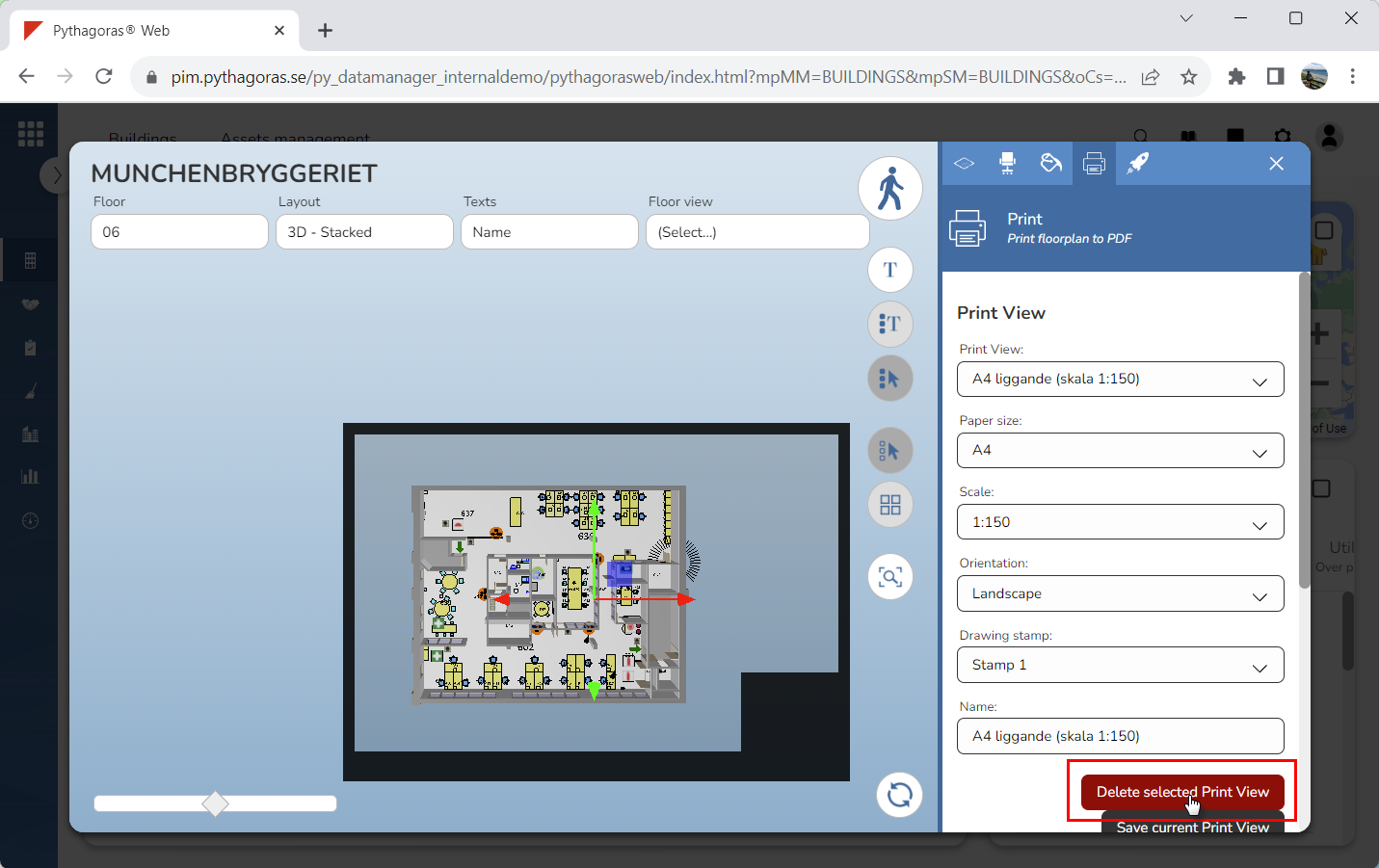
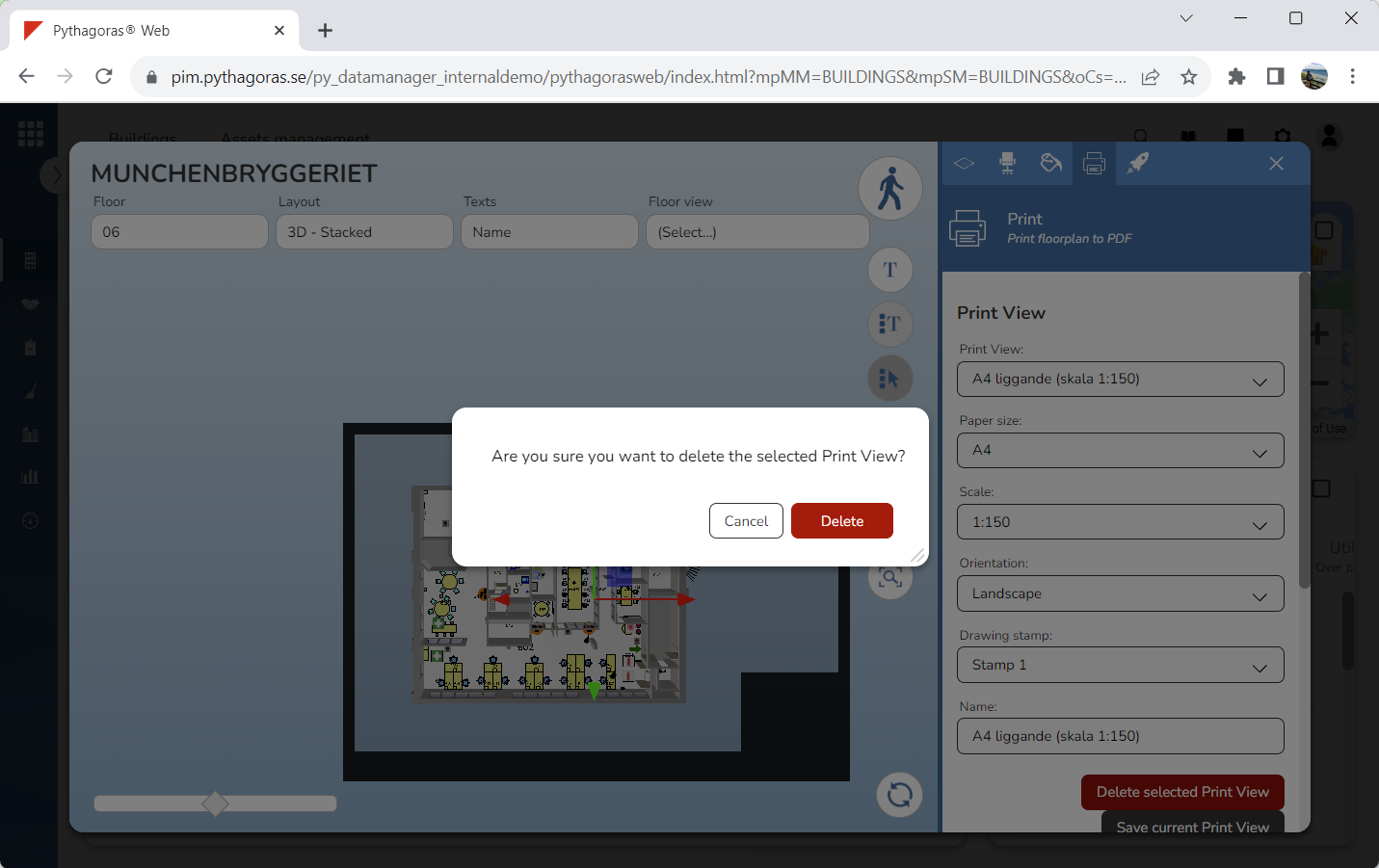
Click "Delete selected Print View" (see the first image below). When you do so, a dialog will open asking the following question: Are you sure you want to delete the selected Print View?" (see the second image below).
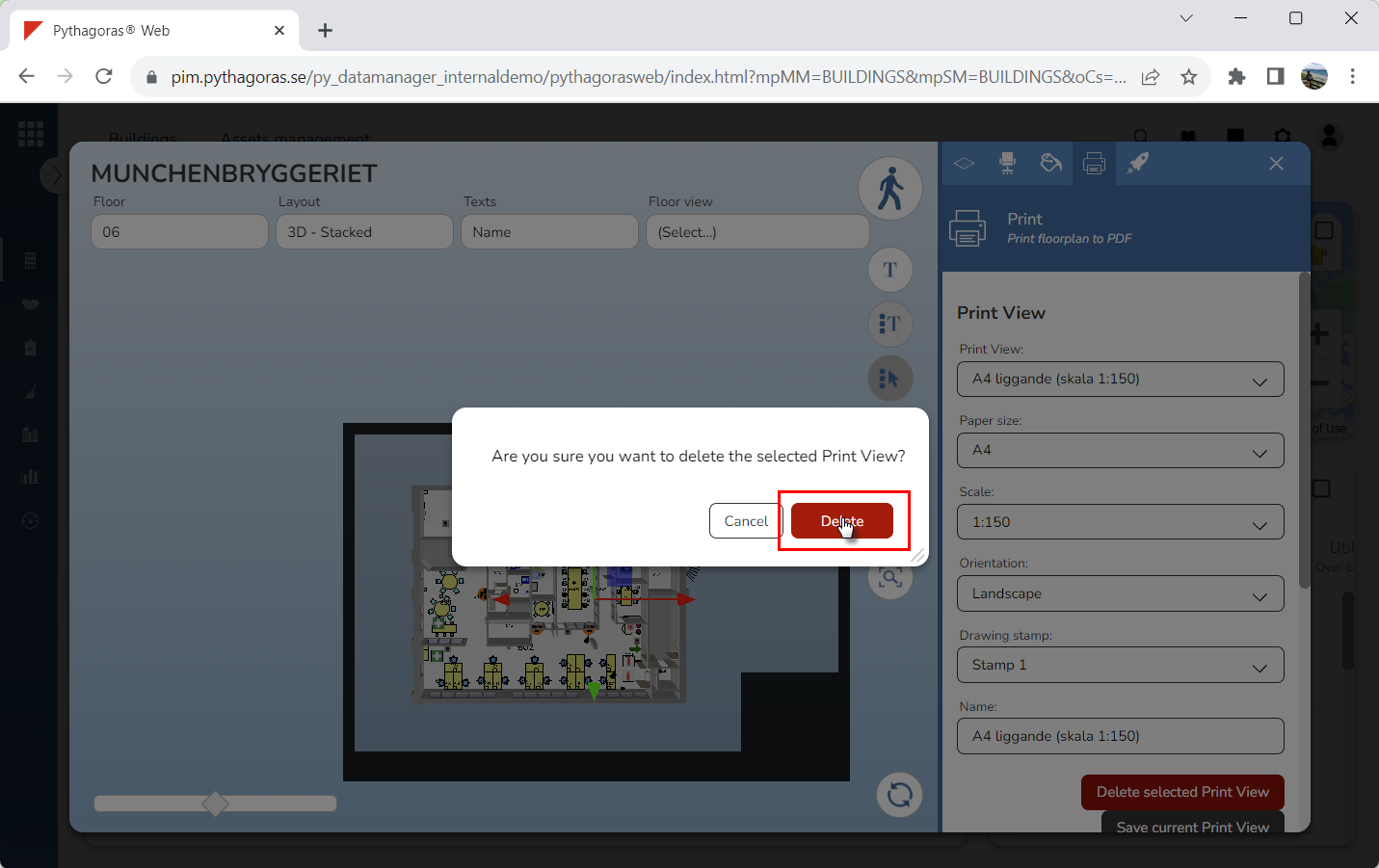
Click "Delete" in the dialog (see image below). When you do so, the print view you are working with will be deleted from Pythagoras Web.