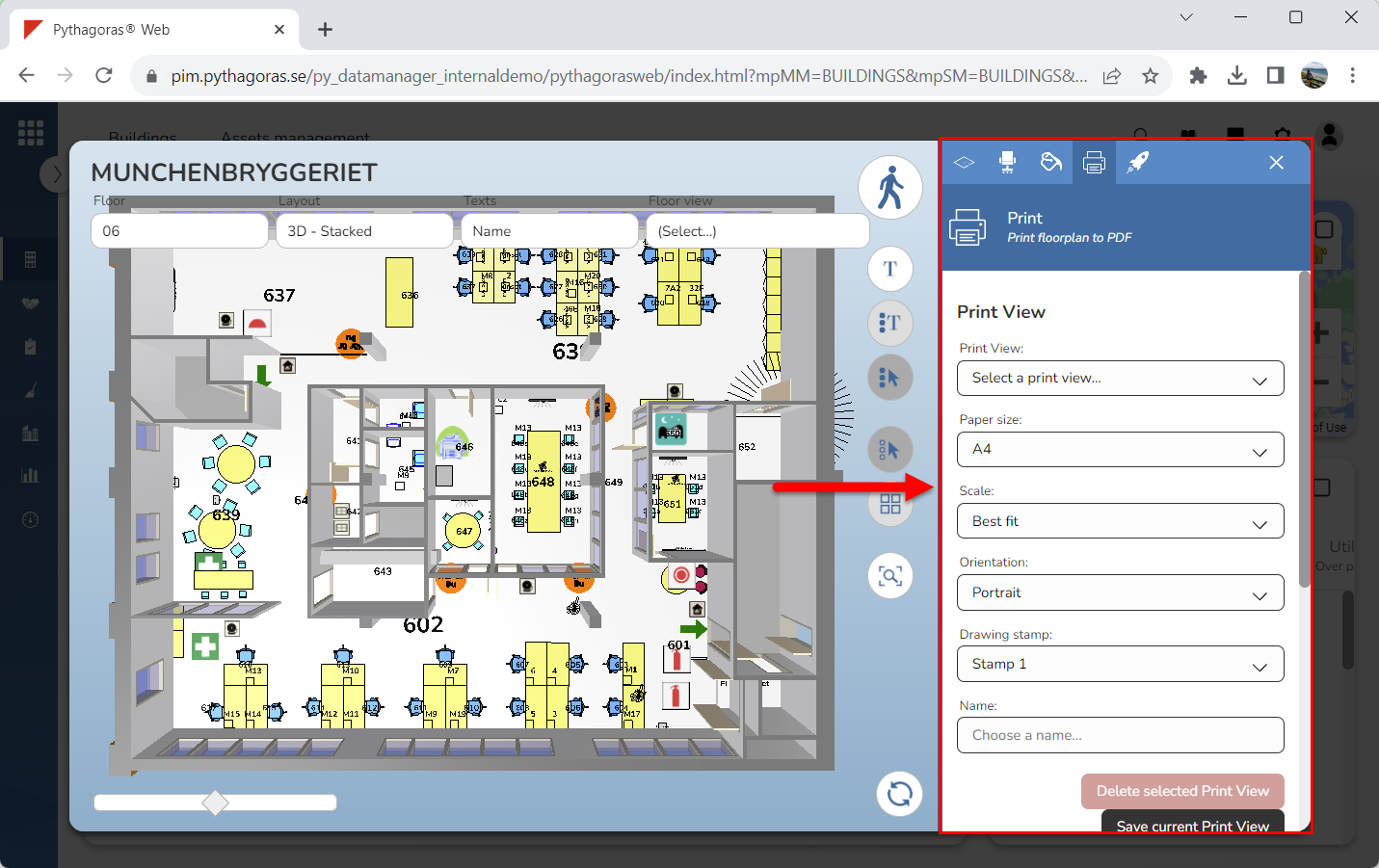
A print view is a building specific view with a predefined paper size, scale, paper orientation and drawing stamp. Print views can come in handy when creating printouts seeing they will help you get the correct basic settings for your printouts in a fast and simple way.
To create a print view:
Activate the print command. For more information on how to do so, see section 9.11.4.
Go to the graphical search field (see image below).
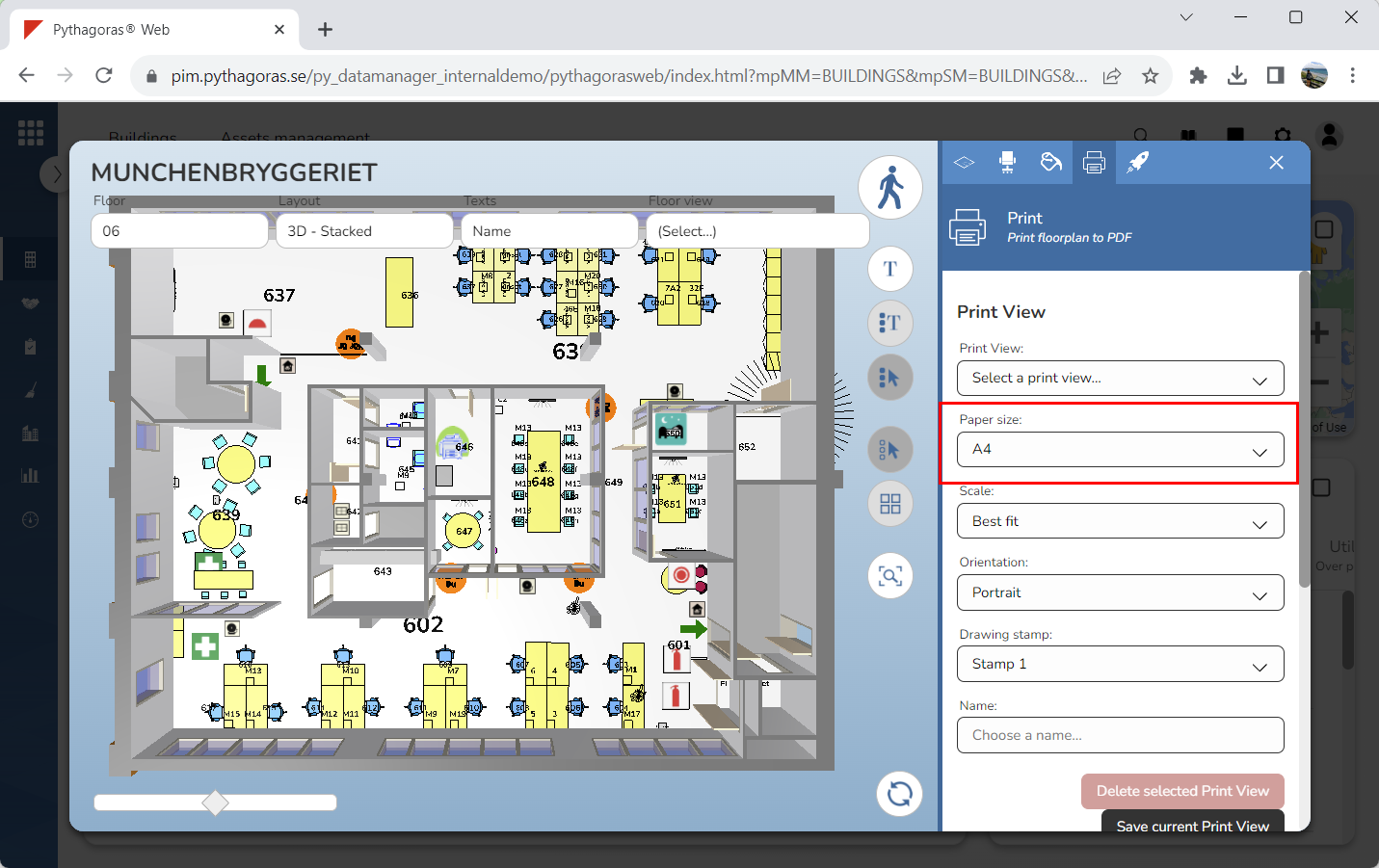
Select a paper size for the print view you are creating (see image below). Click the field "Paper size". Then select a paper size in the list of paper sizes.
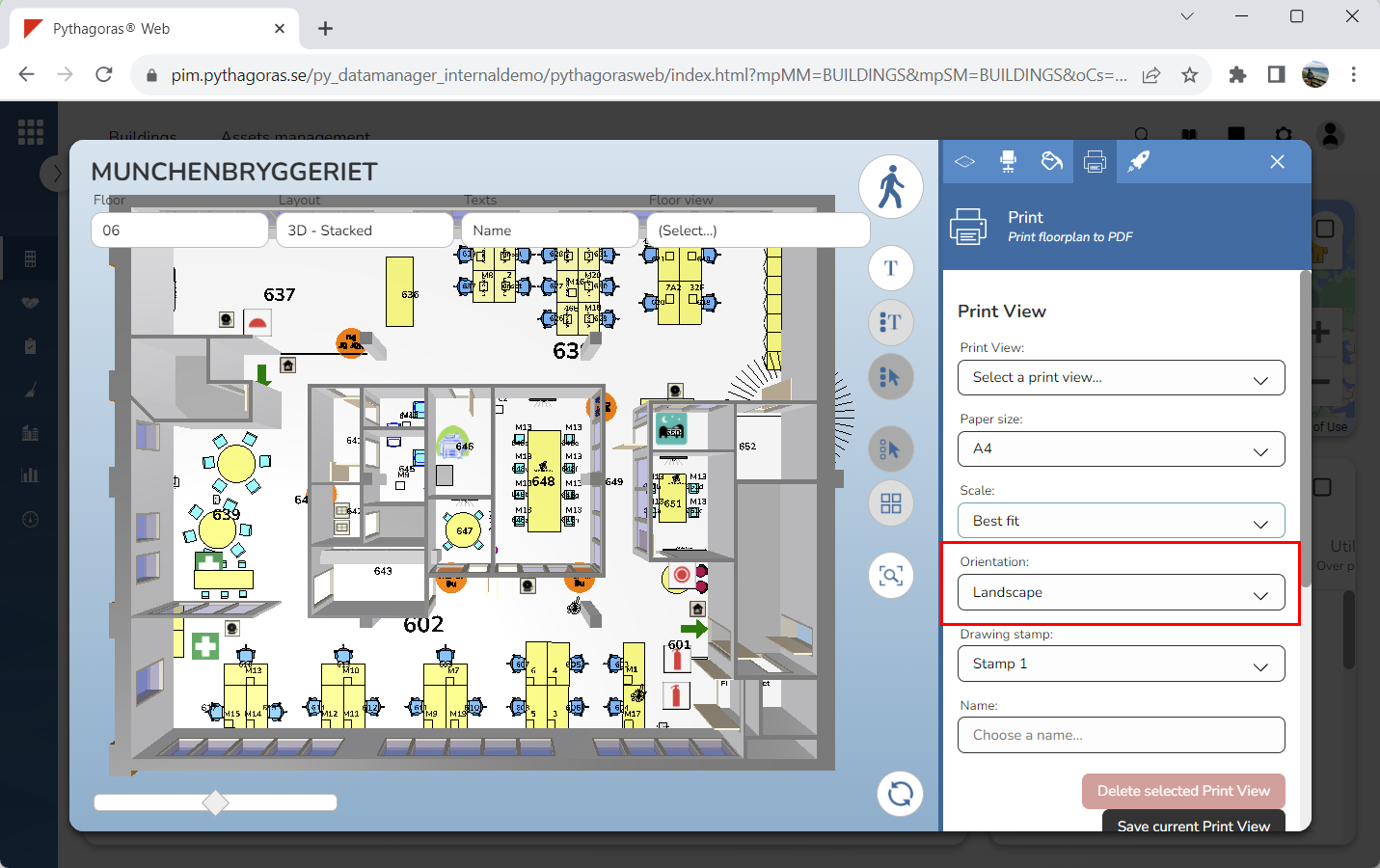
Set a paper orientation for the print view you are creating (see image below). Click the field "Orientation. Then select a paper orientation in the list of paper orientations.
Select a scale for the print view you are creating. Note that this is only if you want the prints you are creating, using the print view, to be in scale. If you do not want the prints you are creating, using the print view, to be in scale you can skip this step and go straight to step 6. To select a scale for the print you are creating:
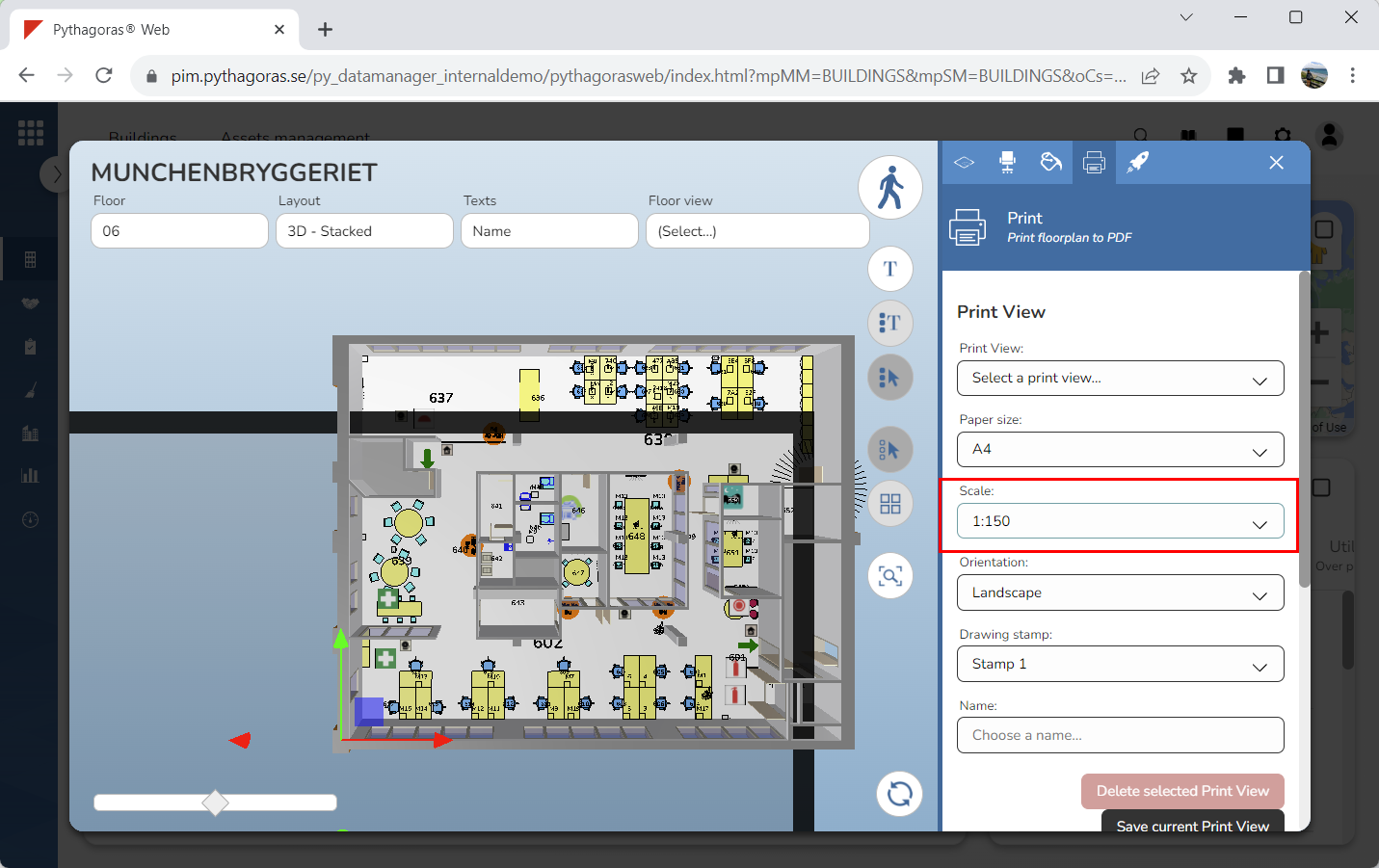
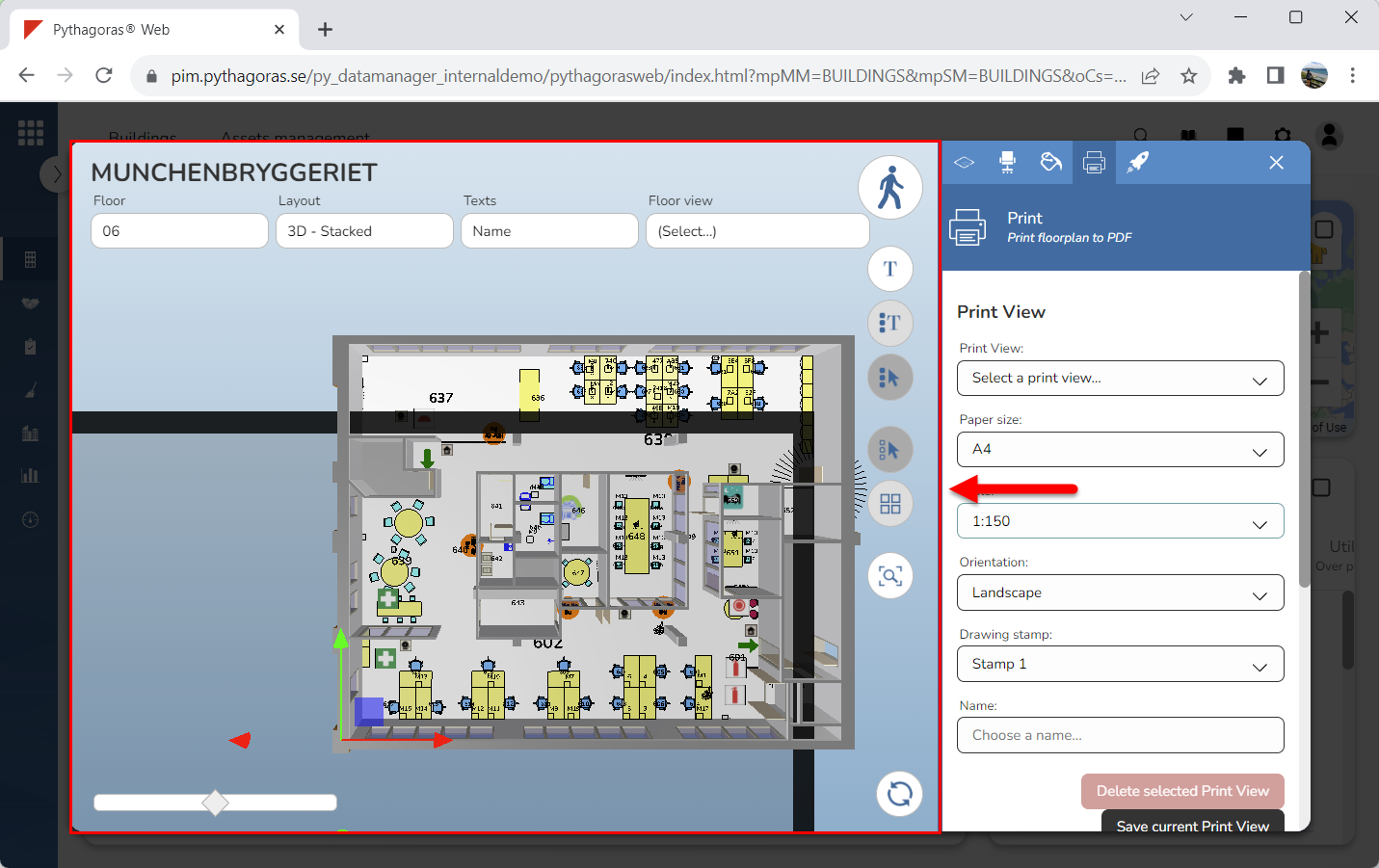
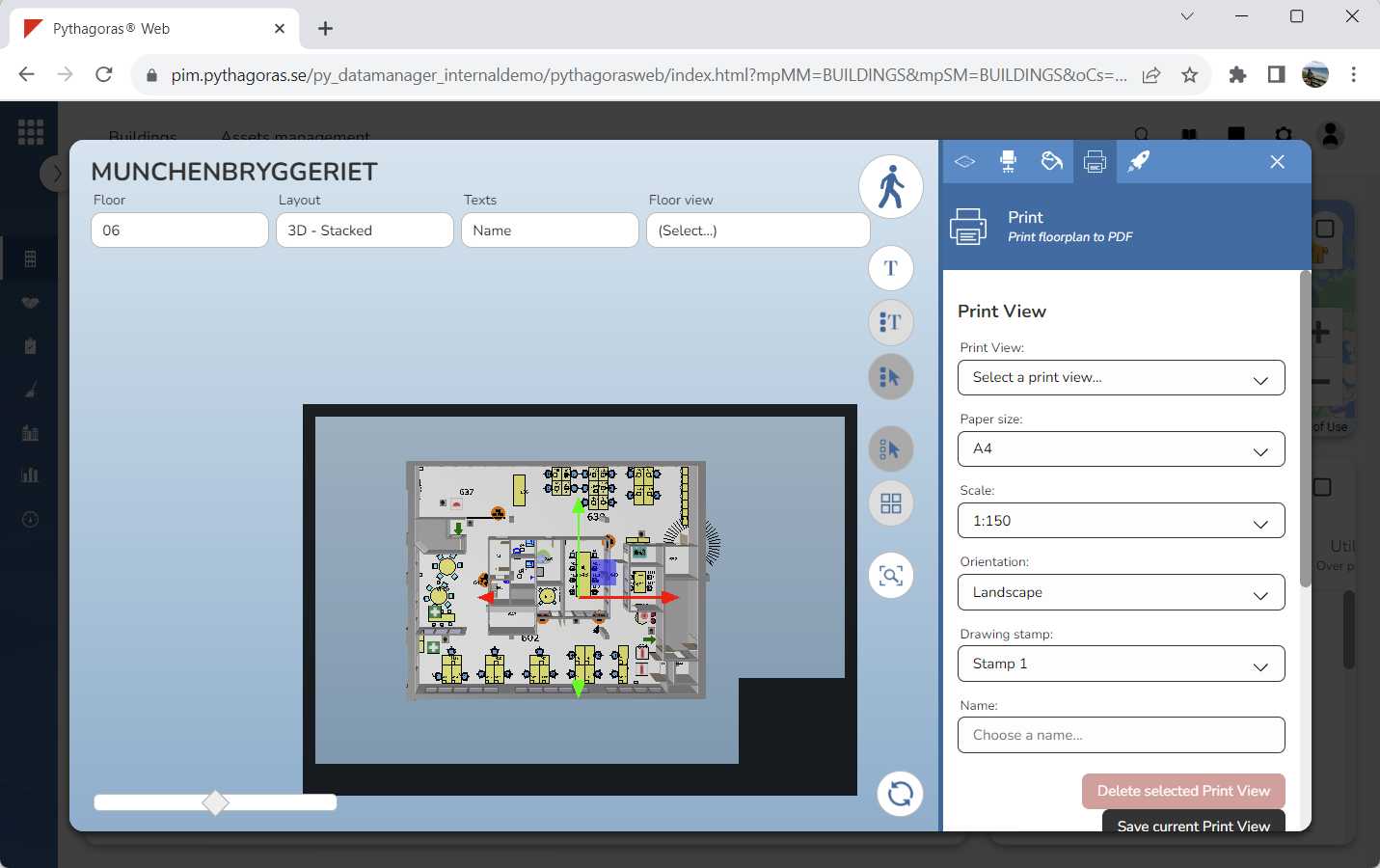
Select a scale by clicking the field "Scale" and then selecting a scale in the list that opens (see the first image below). When you do so, a frame will appear in the drawing window (see the second image below). You might have to zoom out of the drawing window for the frame to be visible.
Move the frame so that the model ends up in a good position in the frame. In the middle of the frame you will find two arrows and a yellow box. Using the red arrow, you can move the frame on the x-axis, that is, to the right or left. Using the green arrow, you can move the frame on the y-axis, that is, up or down. Using the yellow box, you can move the frame on the x and y-axis at the same time, that is, to the right and left and up and down at the same time. It is only the part of the model that is placed within the inner borders of the frame that will be shown on the printouts you create using the print view you are creating (see image below). If you want to show the whole model in the printouts you create, using the print view you are creating, make sure the whole model is placed within the inner borders of the frame.
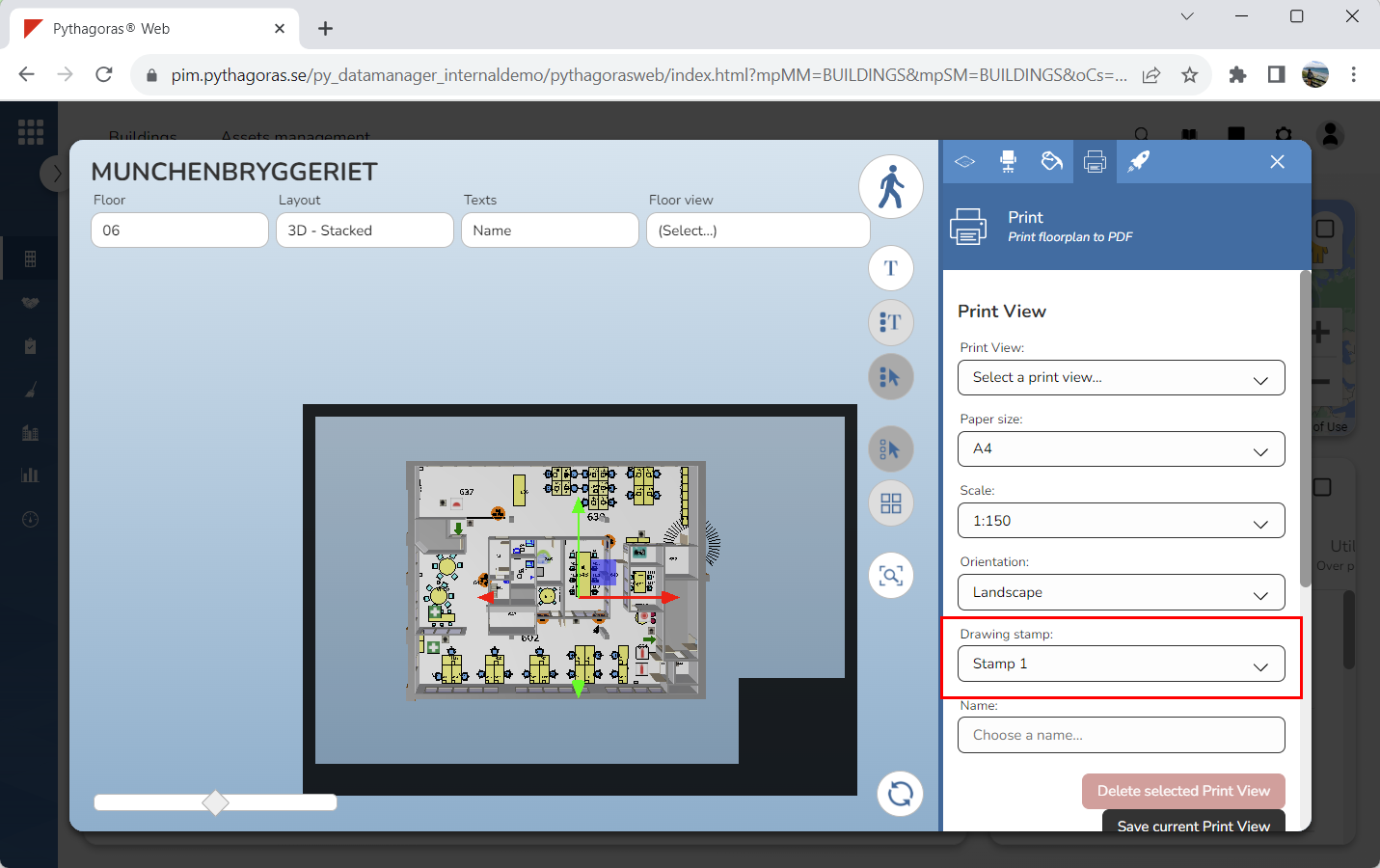
Set a drawing stamp for the print view you are creating (see image below). Click the field "Drawing stamp". Then select a drawing stamp in the list of drawing stamps. Note that the frame you see next to the model in the images below only will be visible if you selected a scale in step 5.
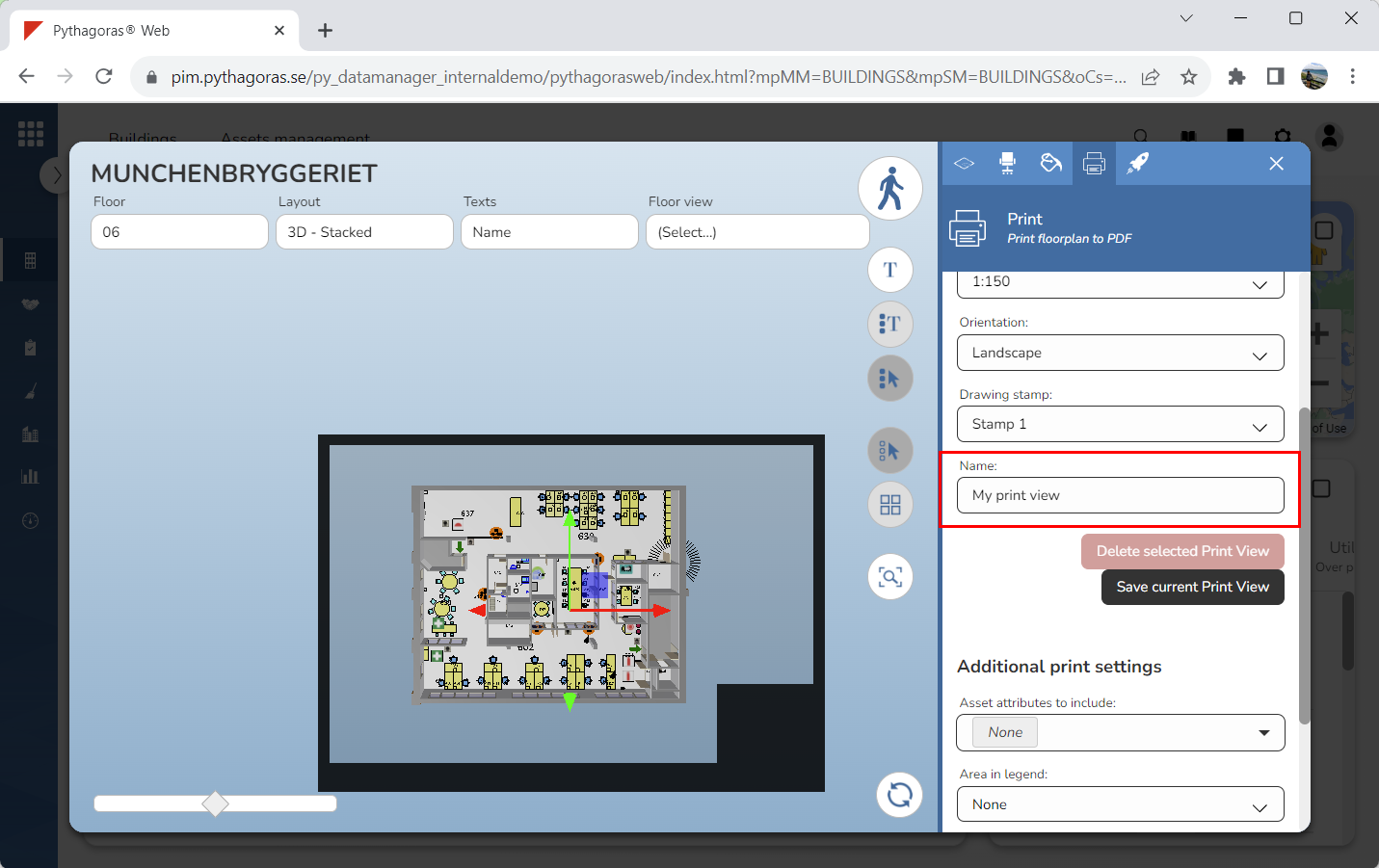
Set a name for the print view you are creating by entering a name in the field "Name" (see image below).
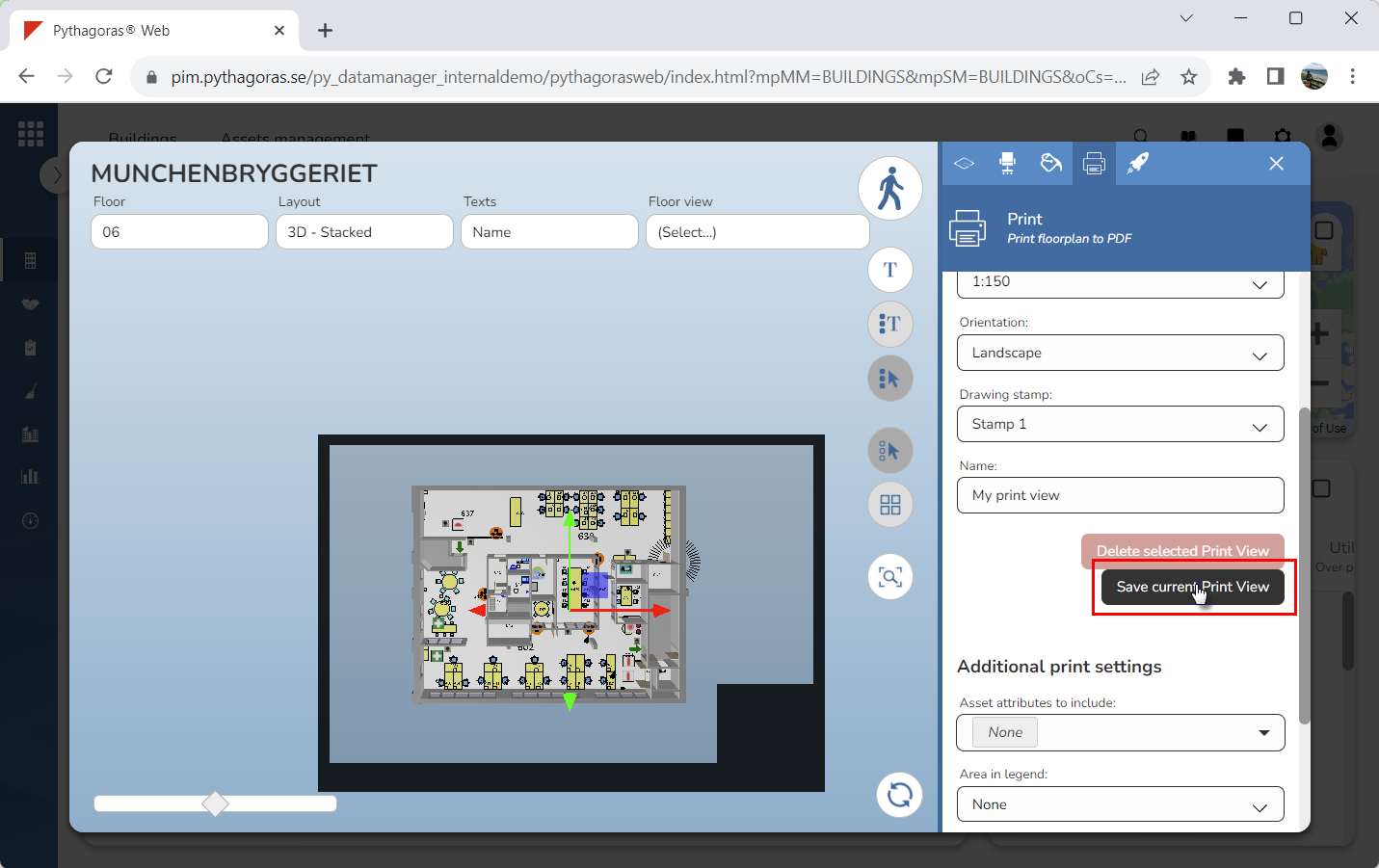
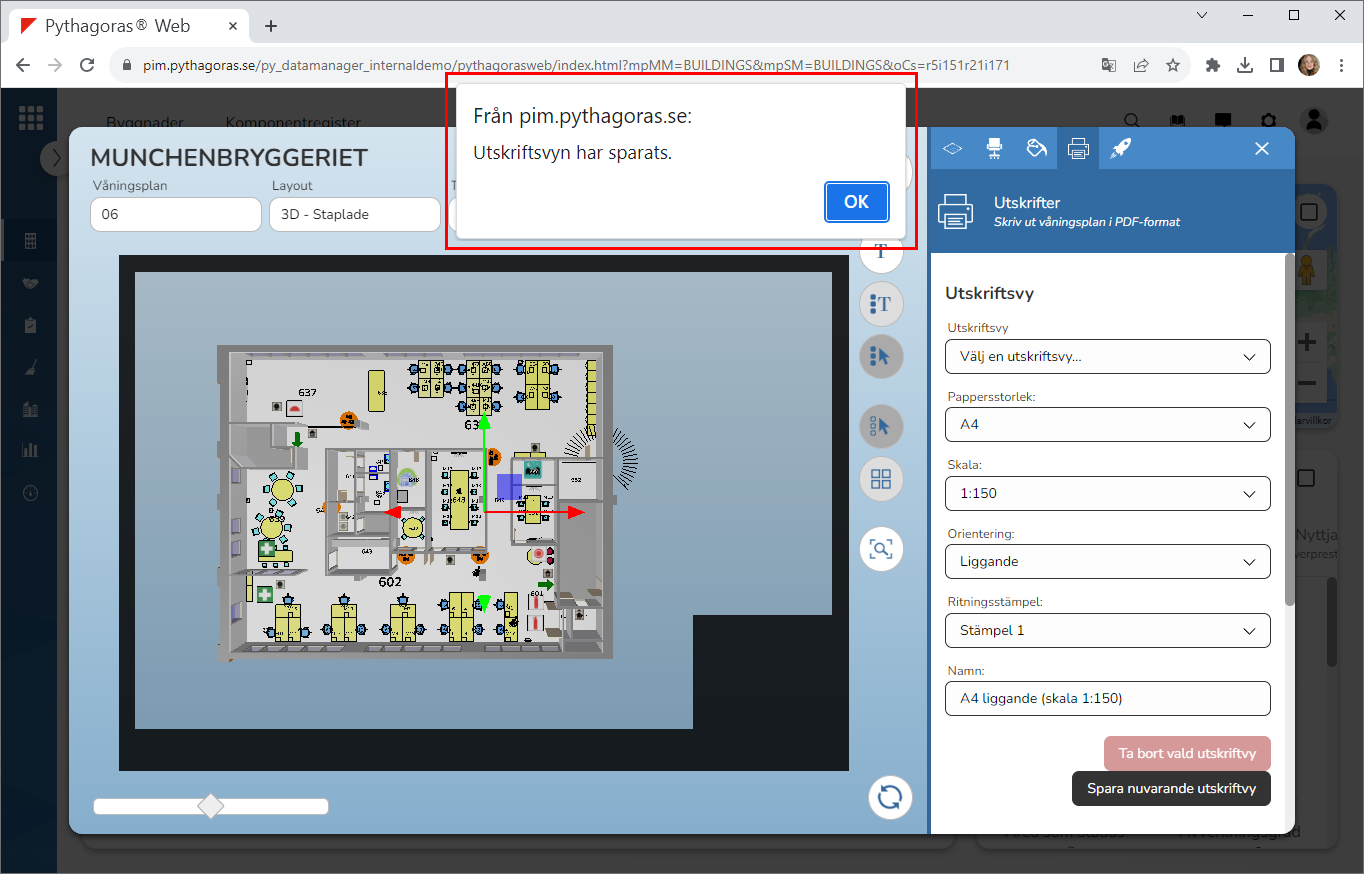
Click "Save current print view" (see the first image below). Clicking "Save current print view" will create a print view with your selected name, paper size, paper orientation, scale and drawing stamp. When a print view has been created, a dialog will open showing the following message: "The print view has been saved" (see the second image below).
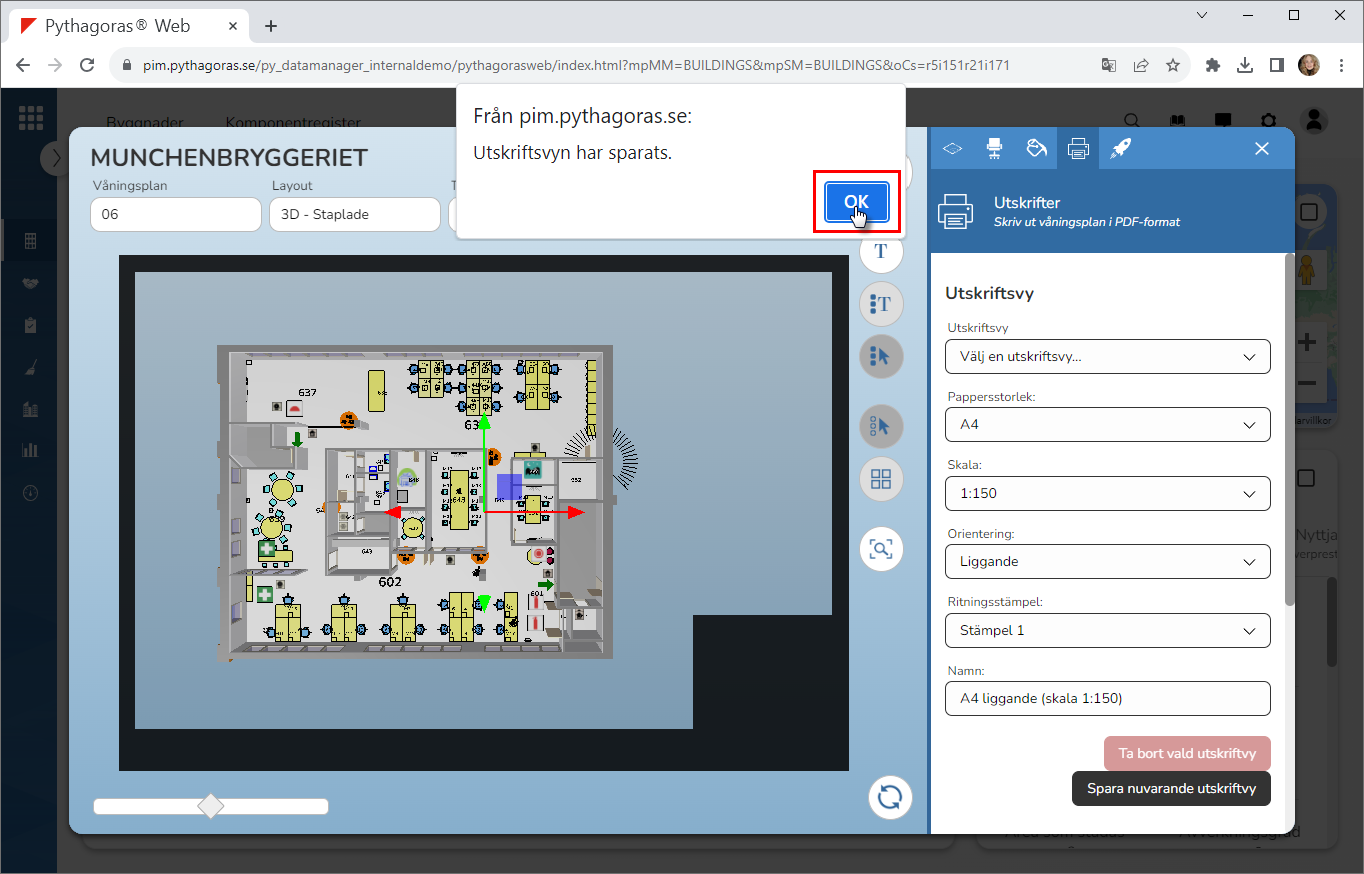
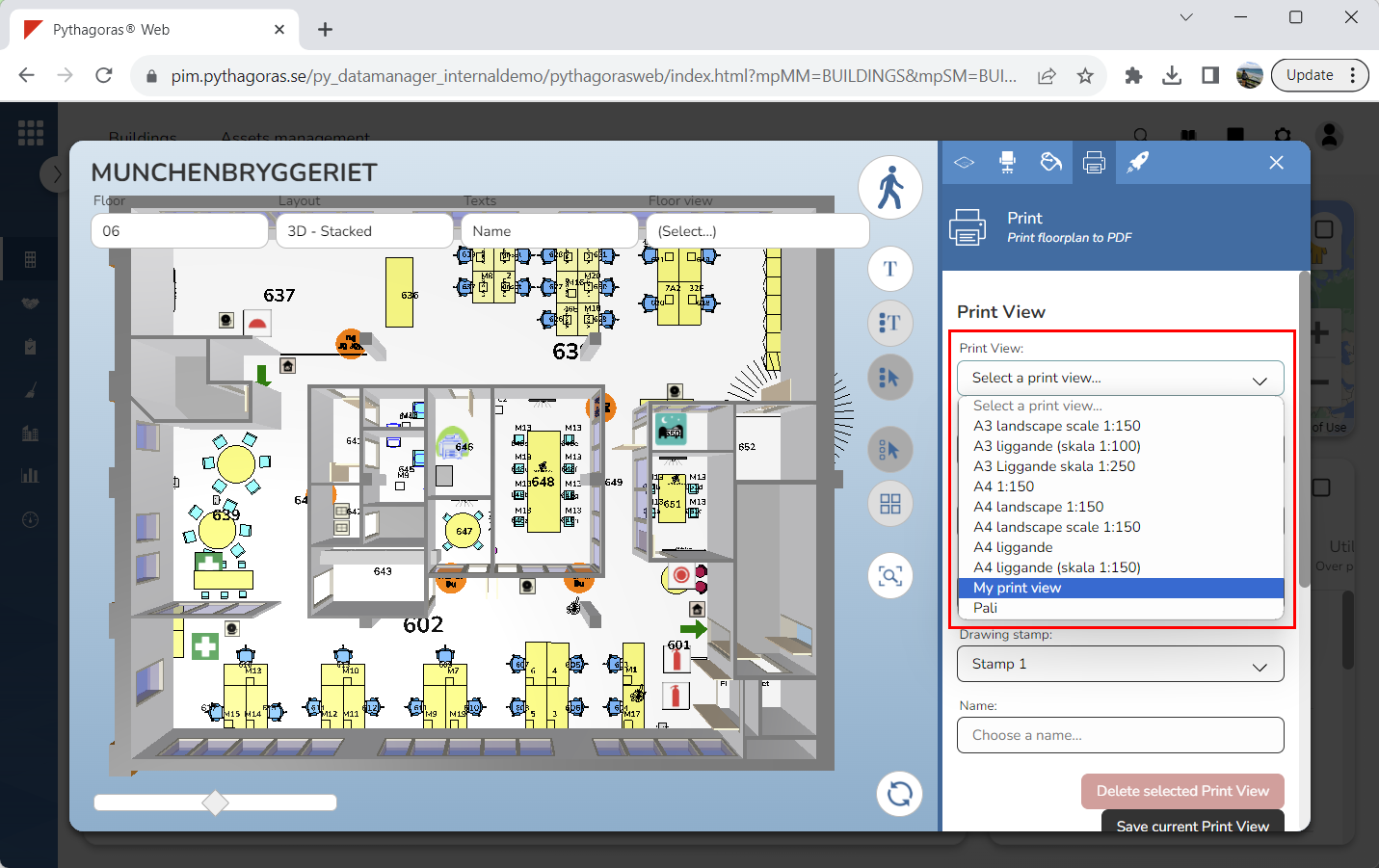
Click "OK" in the dialog (see the first image below). Clicking "OK" in the dialog will make the print view you created available in the list of print views (see the second image below). To open the list of print views, click the field "Print View".