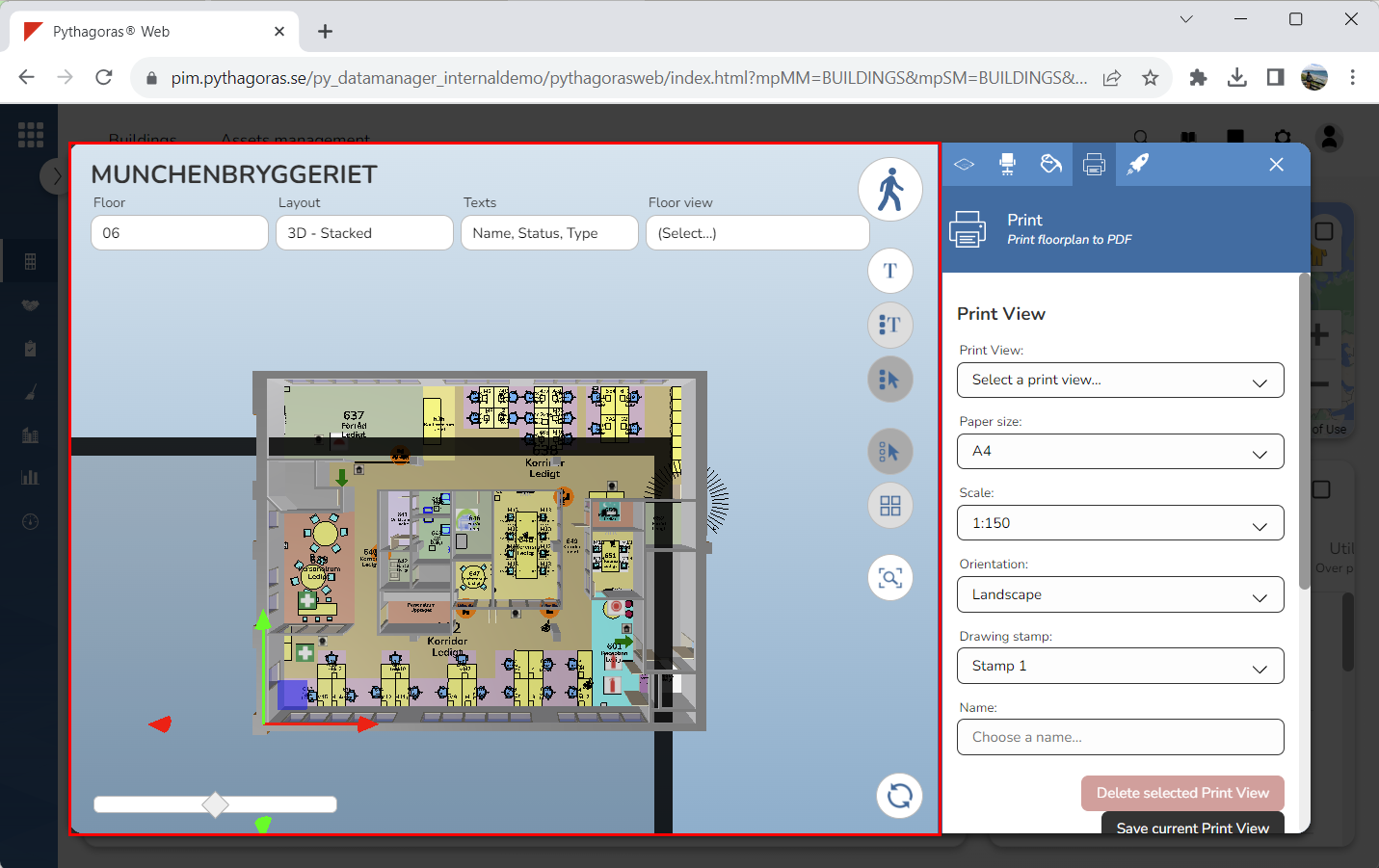
Make sure all floors you wish to include in your printout are open. For more information on how to open floors in a building, see section 9.2.1.
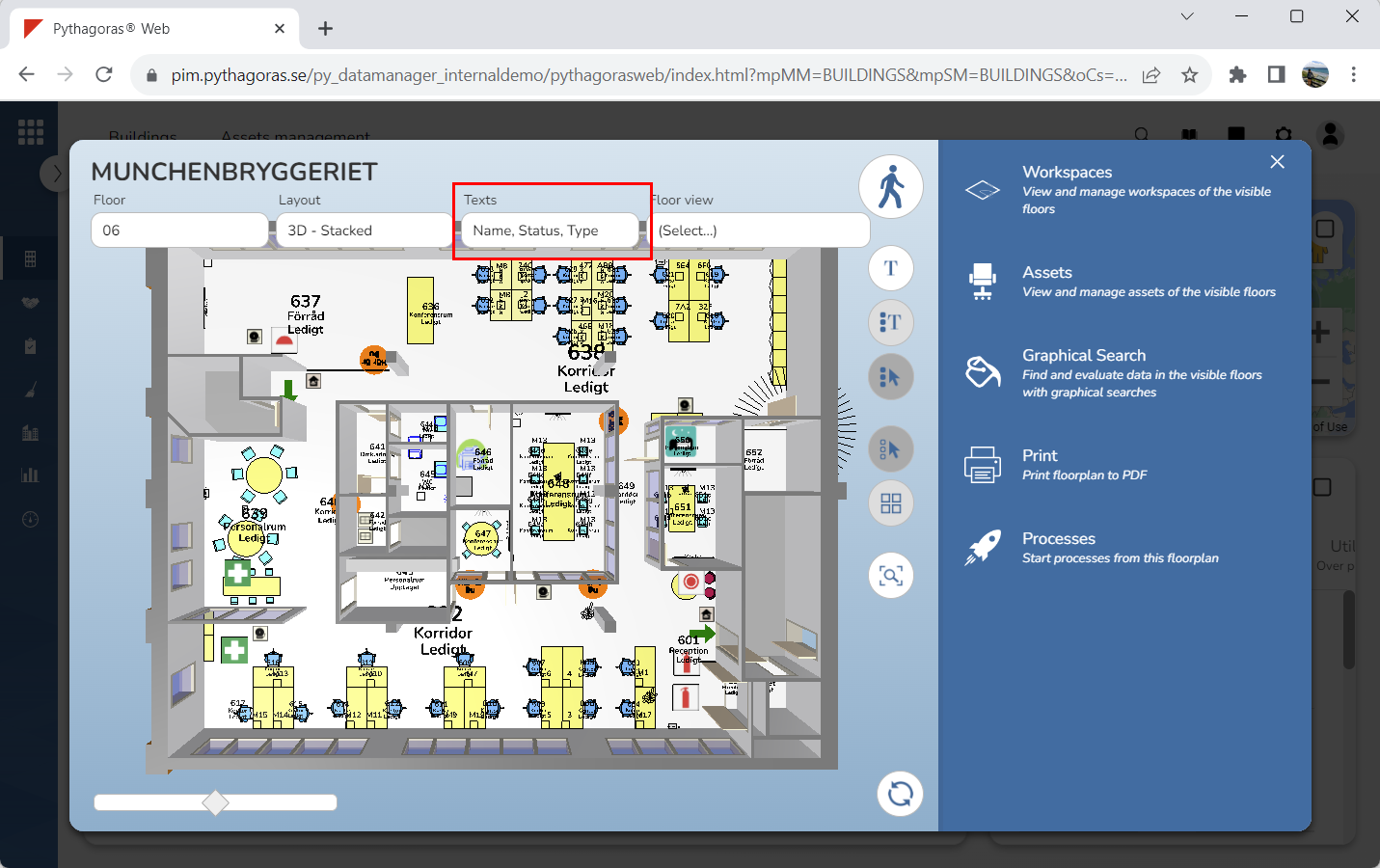
Select which workspace texts to show in your printout (see image below). Click the field "Texts". Then select or deselect one or more texts in the list of workspace texts. If you do not wish to select or deselect any workspace texts, you can skip this step and go straight to step 3.
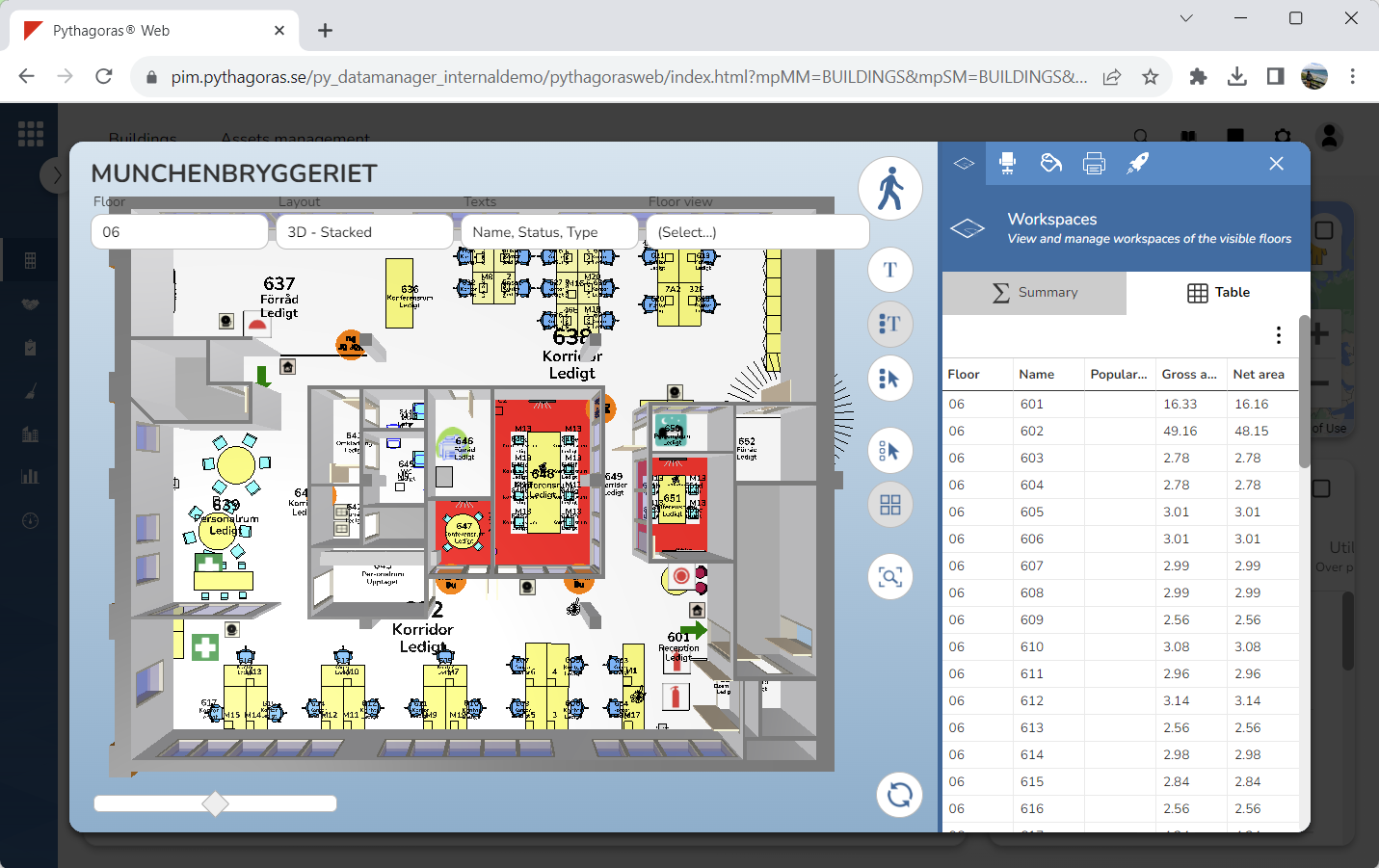
If you wish to show selected workspaces in your printout, select one or more workspaces (see image below). If you do not wish to do so, you can skip this step and go straight to step 4. If you want to show selected workspaces in your printout, you must specify that selected workspaces should be shown in your printout. For more information on how to do so, see point four (iv.) of step 12. For more information on how to select workspaces, see section 9.12.1.
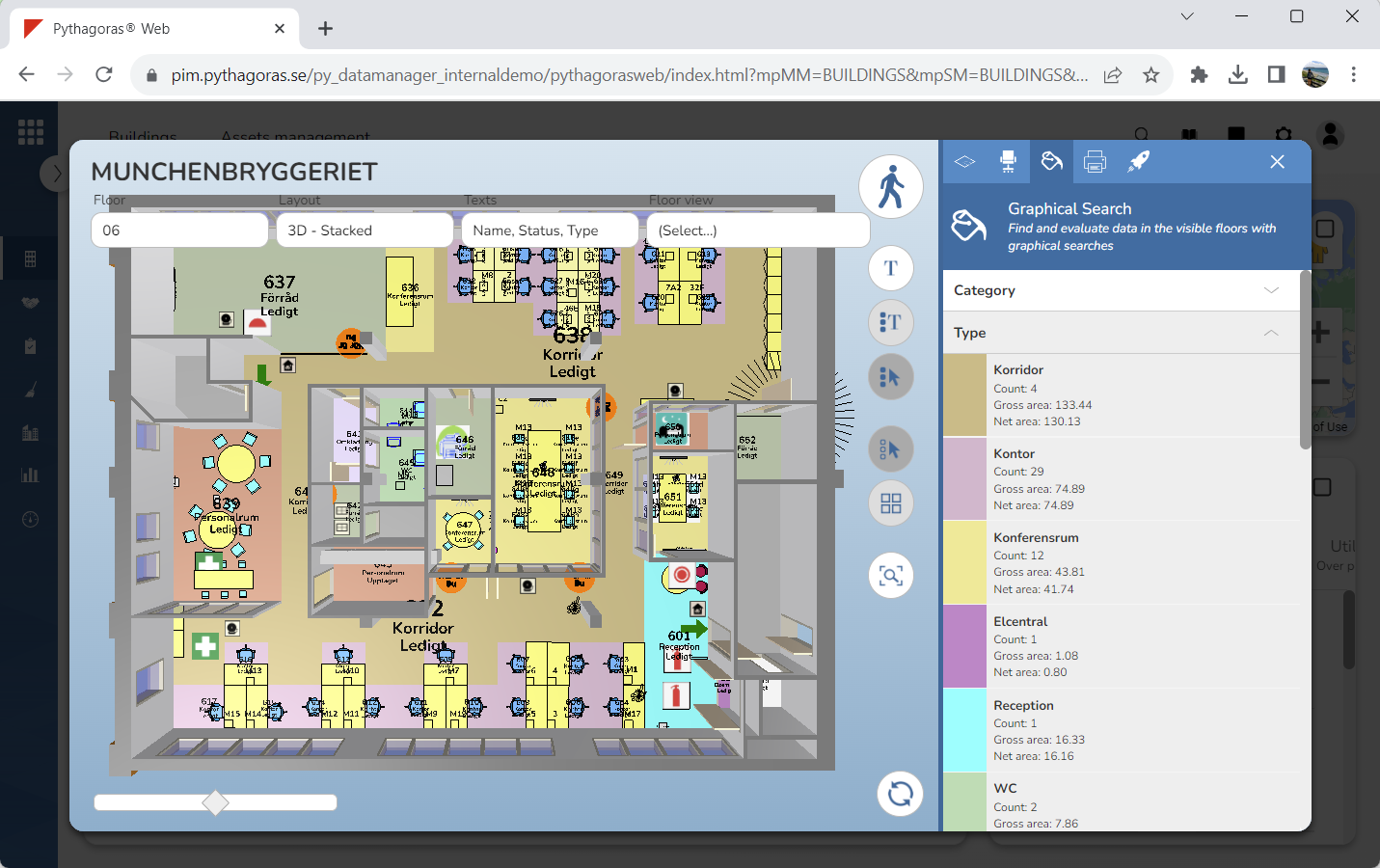
If you wish to show the values and value names from a graphical search in your printout, perform a graphical search in the model (see image below). If you do not wish to do so, you can skip this step and go straight to step 5. If you have selected one or more workspaces and want the graphic search you performed to be shown only in the selected workspace or workspaces, you must specify that the graphic search should only be shown in the workspace or workspaces in question. For more information on how to do so, see point five (v.) of step 12. For more information on how to perform a graphical search in the model, see section 9.14.
Activate the print command. For more information on how to do so, see section 9.11.4.
Go to the graphical search field (see image below).
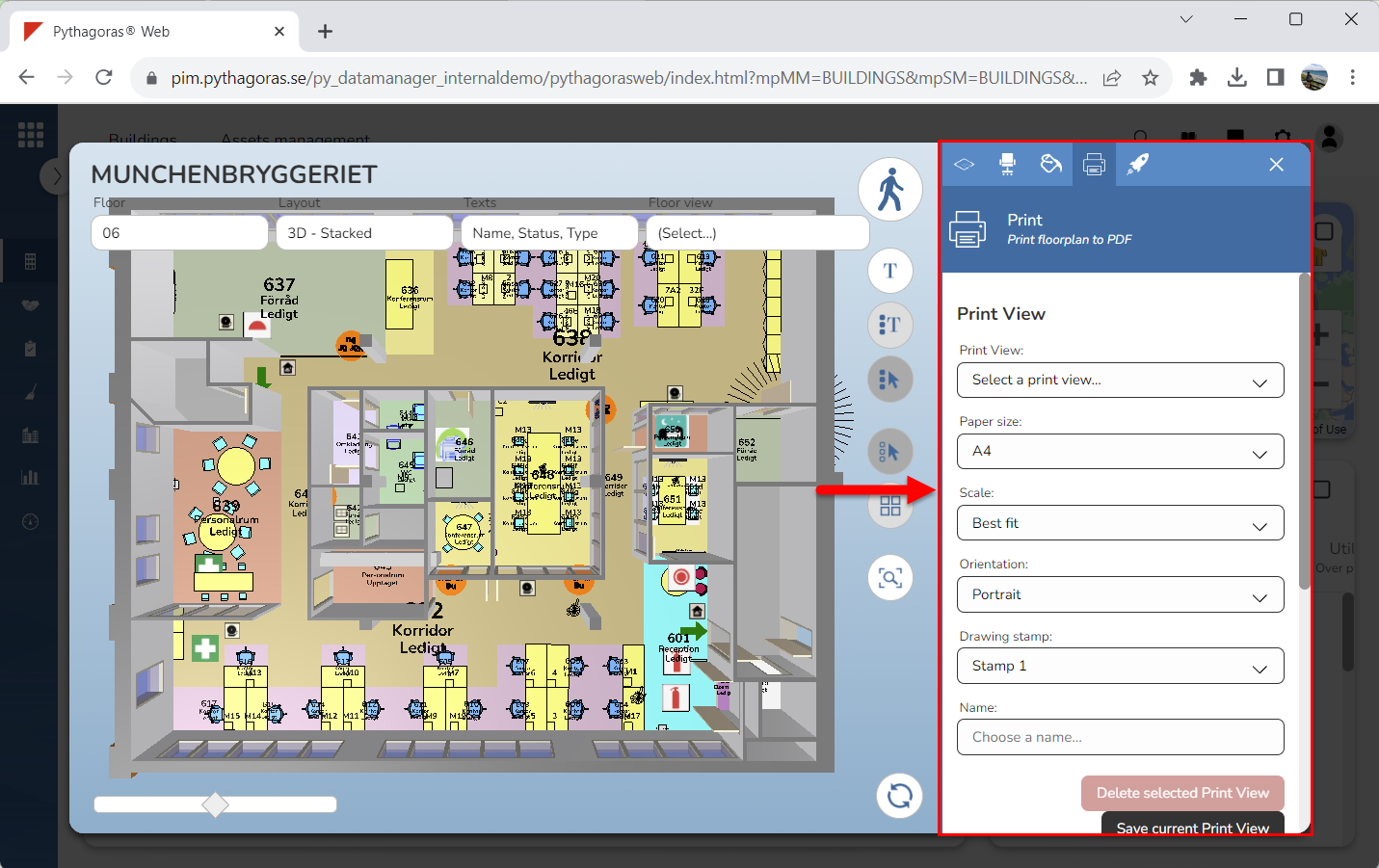
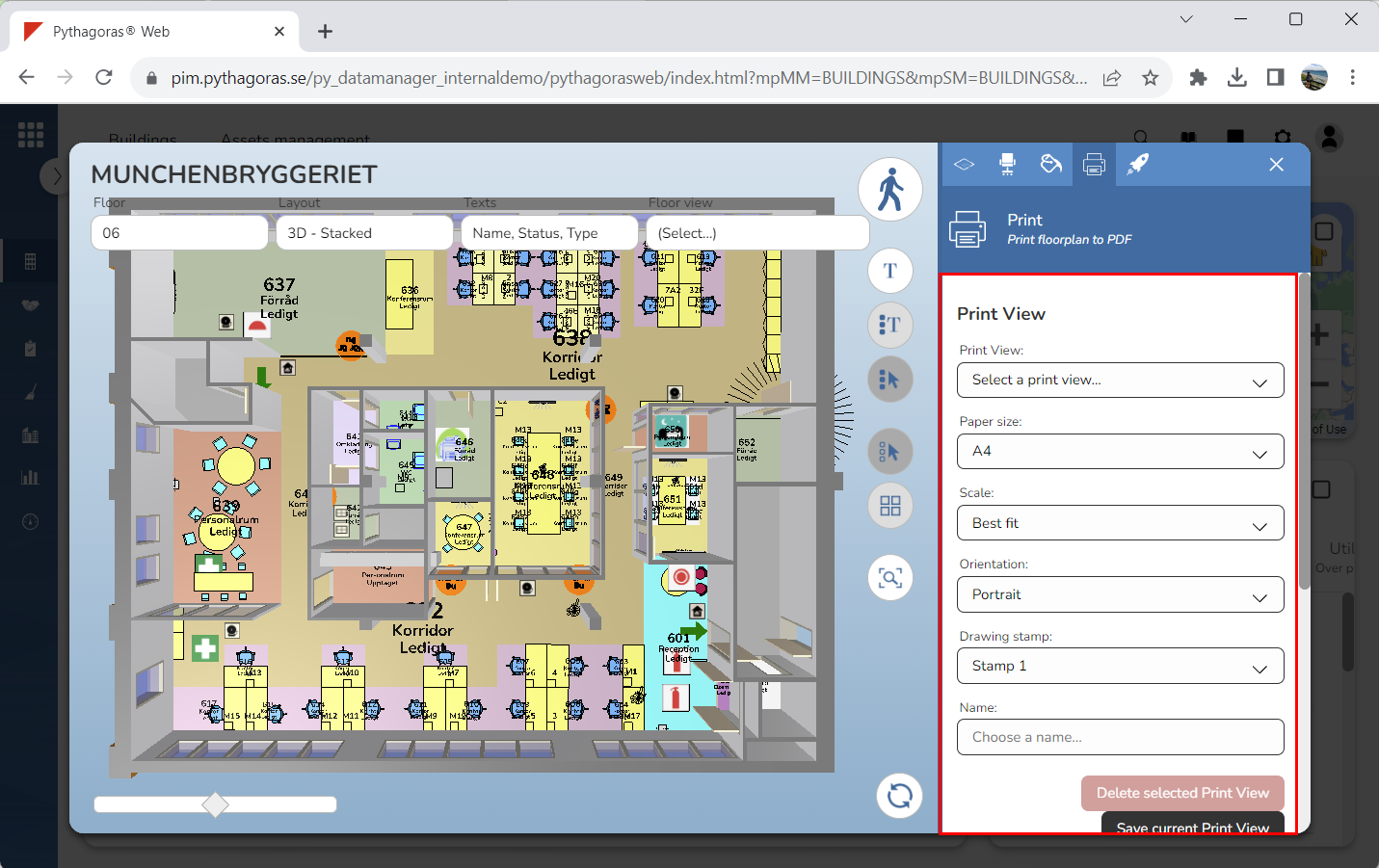
Go to the heading "Print View" (see image below).
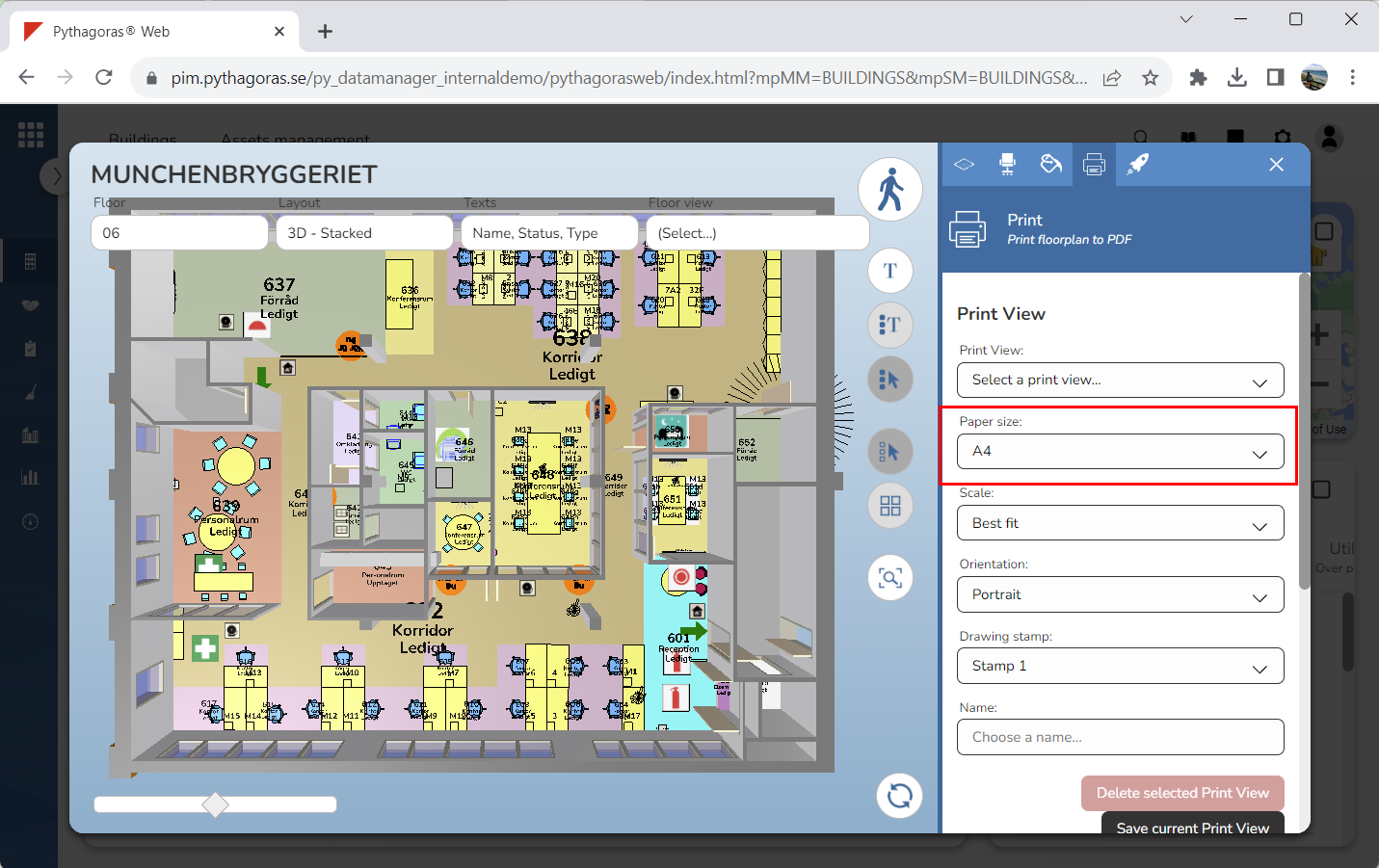
Set a paper size for the printout you are creating (see image below). Click the field "Paper size". Then select a paper size in the list of paper sizes.
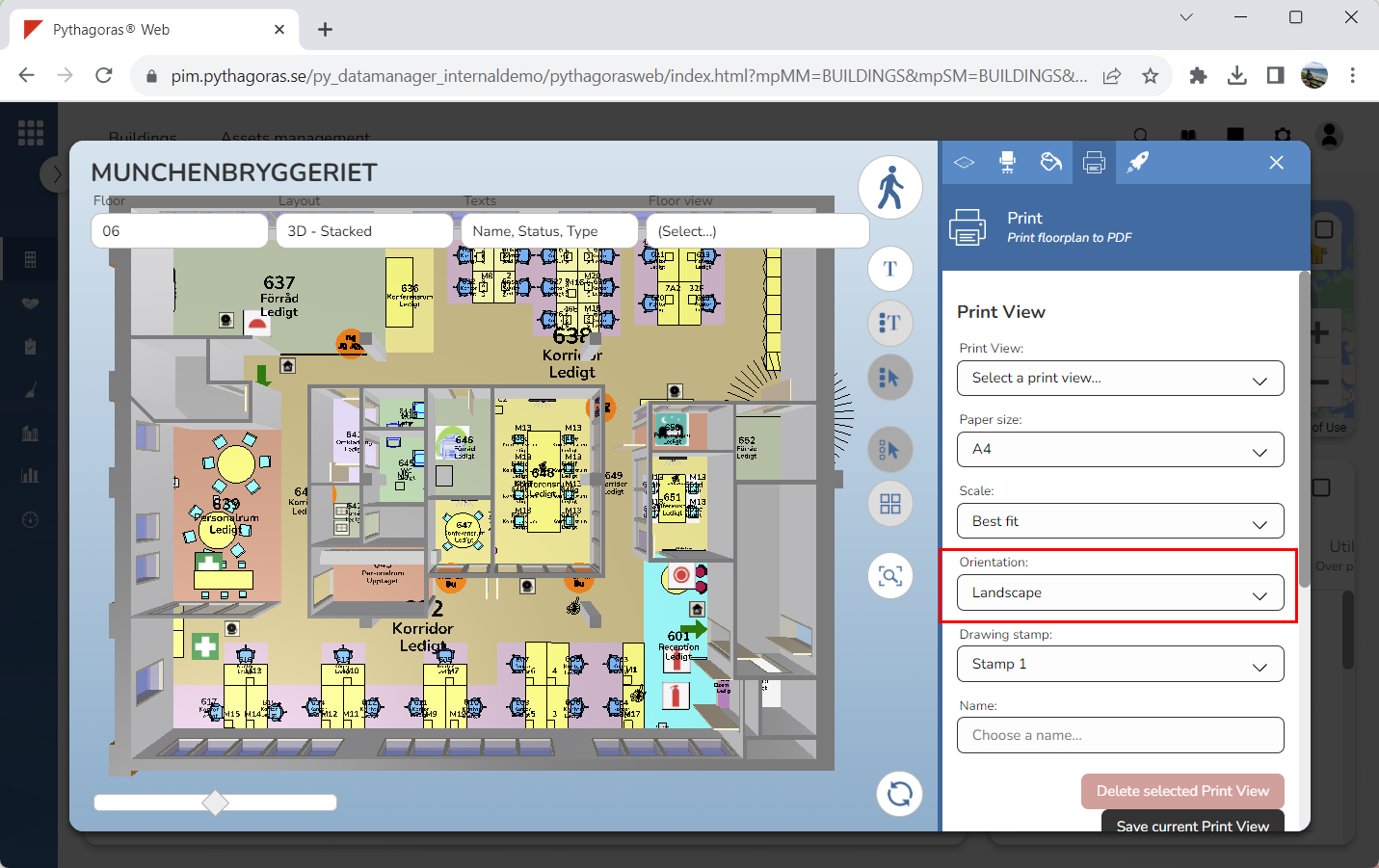
Set a paper orientation for the printout you are creating (see image below). Click the field "Orientation". Then select an orientation in the list of paper orientations.
Set a scale for the printout you are creating. This is if you want your print to be in scale. If you do not want your print to be in scale, you can skip this step and go straight to step 11. To set a scale for a printout:
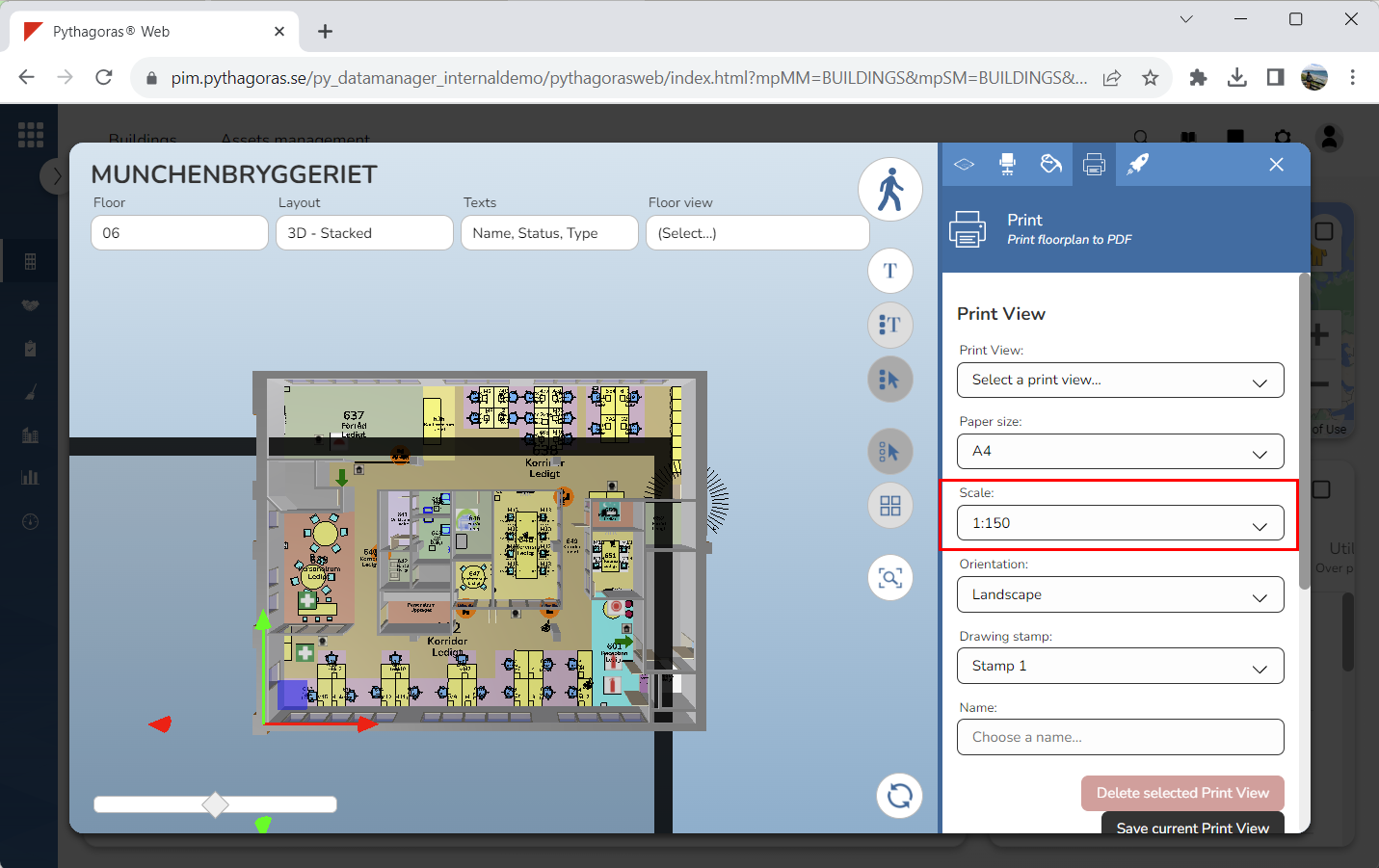
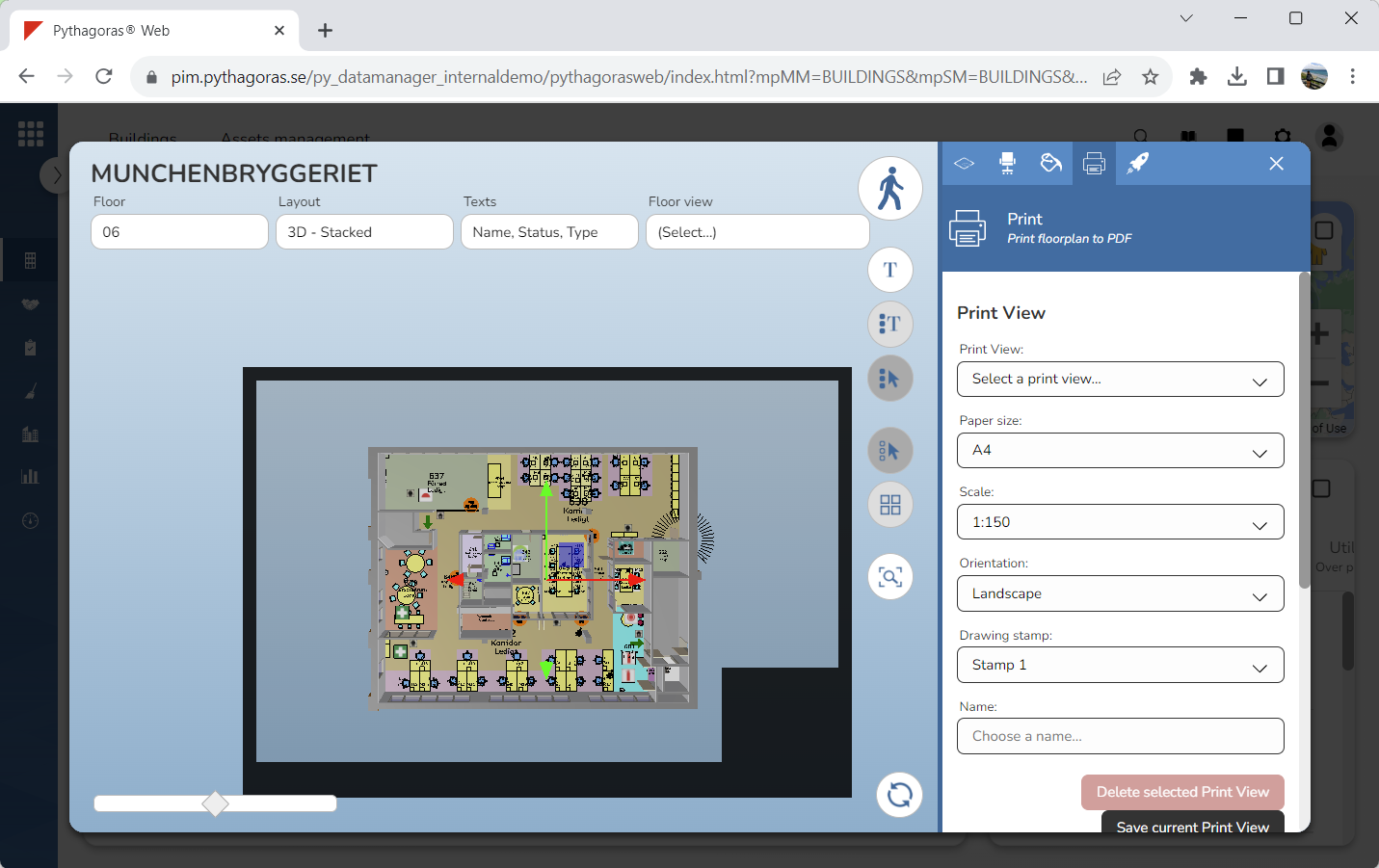
Select a scale (see the first image below) by clicking the field "Scale" and then select a scale in the list of scales. When you do so, a frame will appear in the drawing window (see the second image below). You might have to zoom out of the drawing window for the frame to be visible.
Move the frame so that the model ends up in a good position in the frame. In the middle of the frame you will find two arrows and a yellow box. Using the red arrow, you can move the frame on the x-axis (that is, to the right or left). Using the green arrow, you can move the frame on the y-axis (that is, up or down). Using the yellow box, you can move the frame on the x and y-axis at the same time (that is, to the right and left and up and down at the same time). It is only the part of the model that is placed within the inner borders of the frame that will be shown on the printout you're creating (see image below). If you want to show the entire model in the printout you're creating, make sure the entire model is placed within the inner borders of the frame.
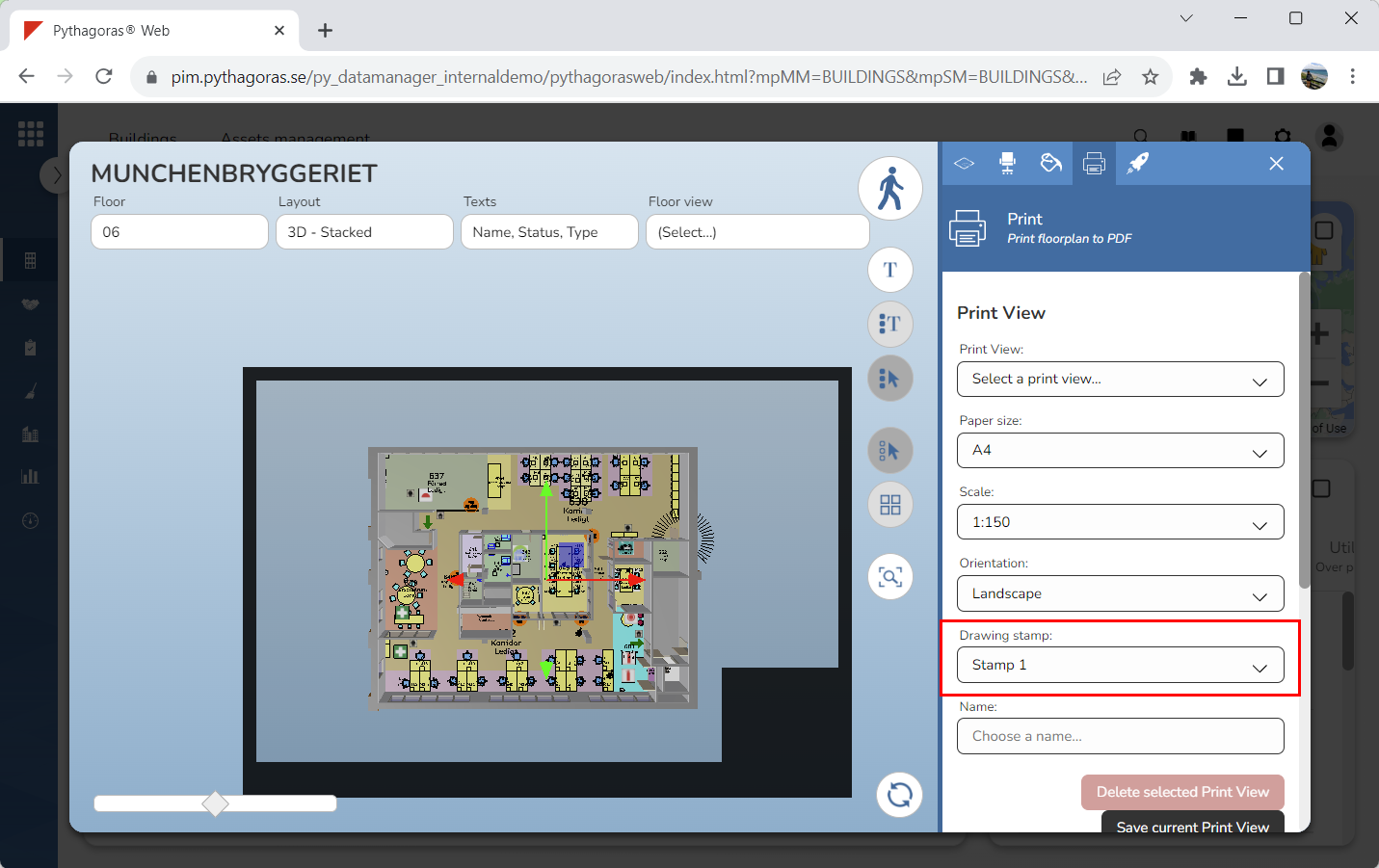
Select a drawing stamp for the printout you are creating (see image below). Click the field "Drawing stamp". Then select a drawing stamp in the list of drawing stamps. The frame you see next to the model in the images below only will be visible if you, in step 10, set a scale for the print view you are creating.
Define additional print settings. To define additional print settings:
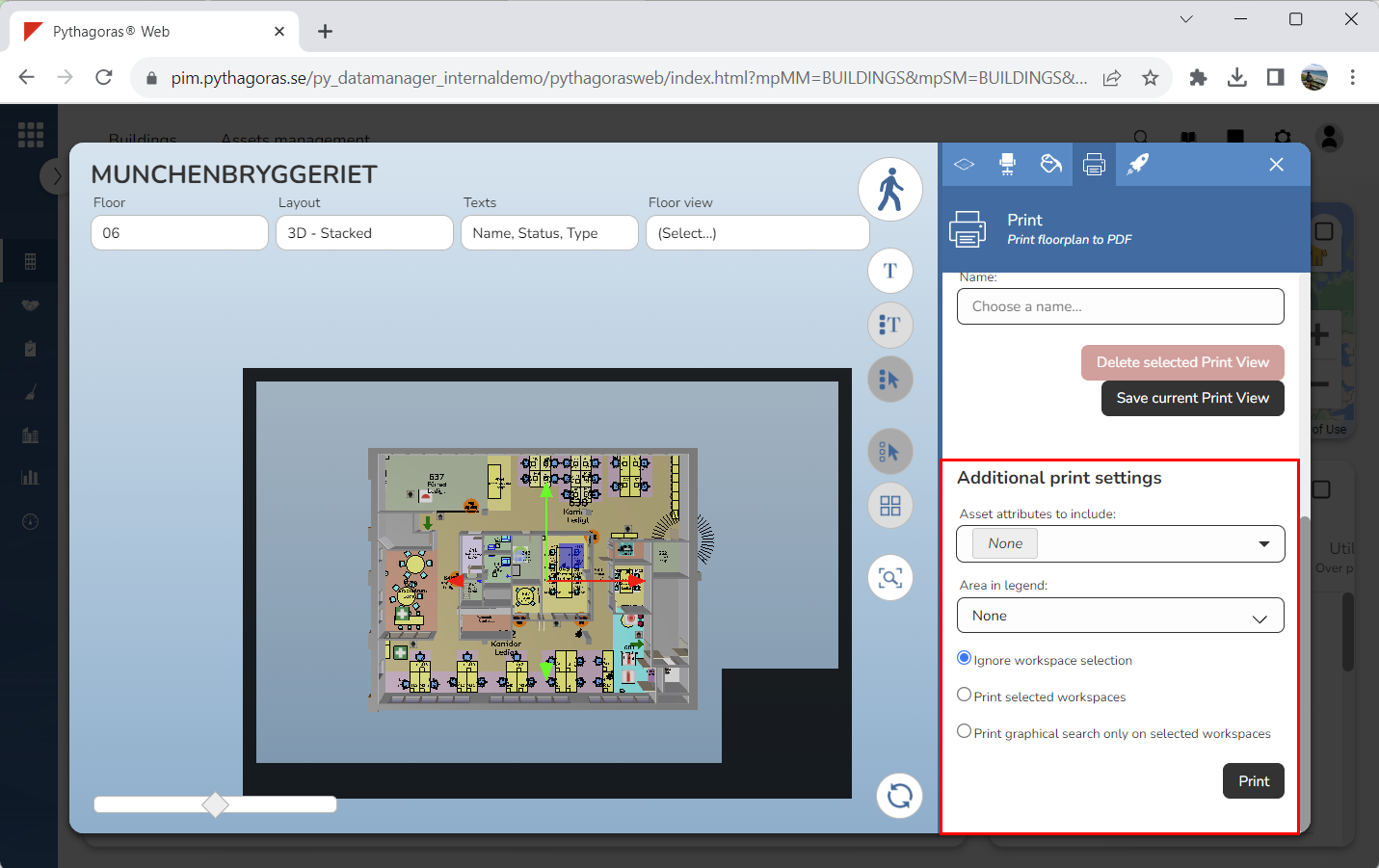
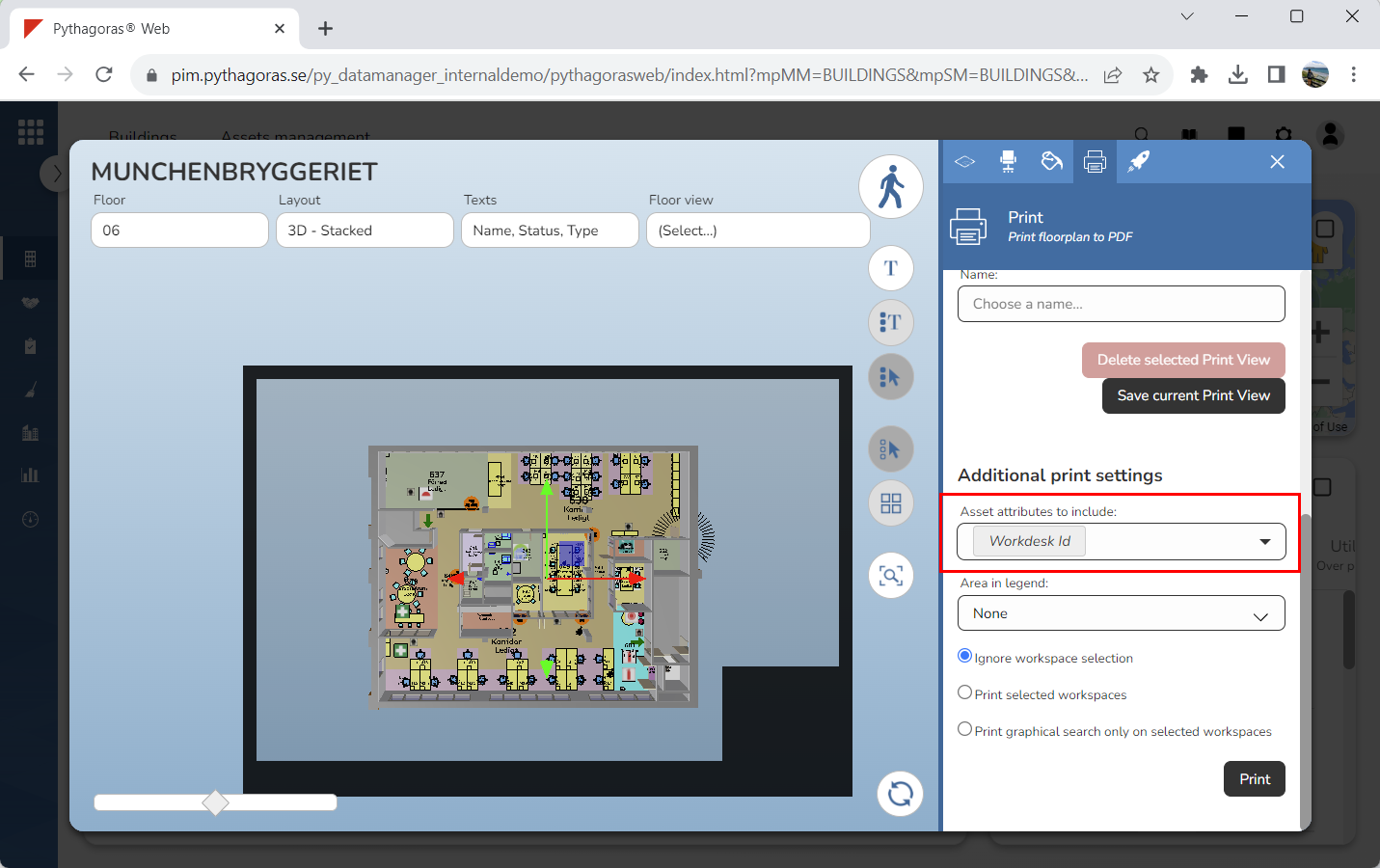
Go to the heading "Additional print settings" (see image below).
Specify that work desk ids should be shown in your printout (see image below. Click the field "Asset attributes to include". Then select "Workdesk Id" in the list "Asset attributes to include". If you do not wish to show the work desk ids in your printout, you can skip this step and go straight to step iii. In order to show the work desk ids in your printout, there must be work desks placed in the model. If there are no work desks placed in the model, you will not be able to show the work desk ids in your printout.
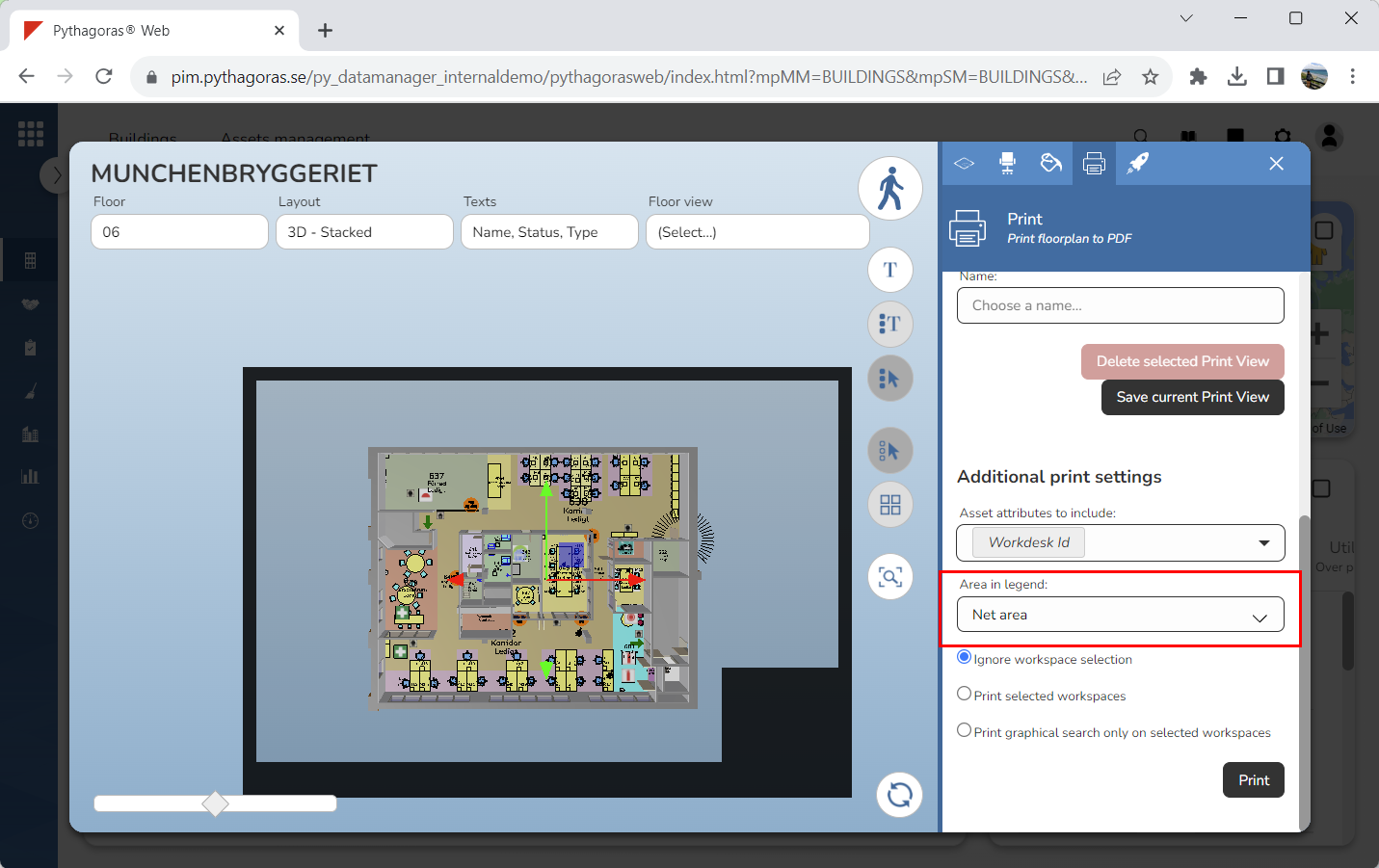
Specify if gross areas or net areas should show in your printout (see image below). Click the field "Area in legend". Then select "Gross area" or "Net area" in the list of areas. If you do not wish to do show gross areas or net areas in your printout you can skip this step and go straight to step iv.
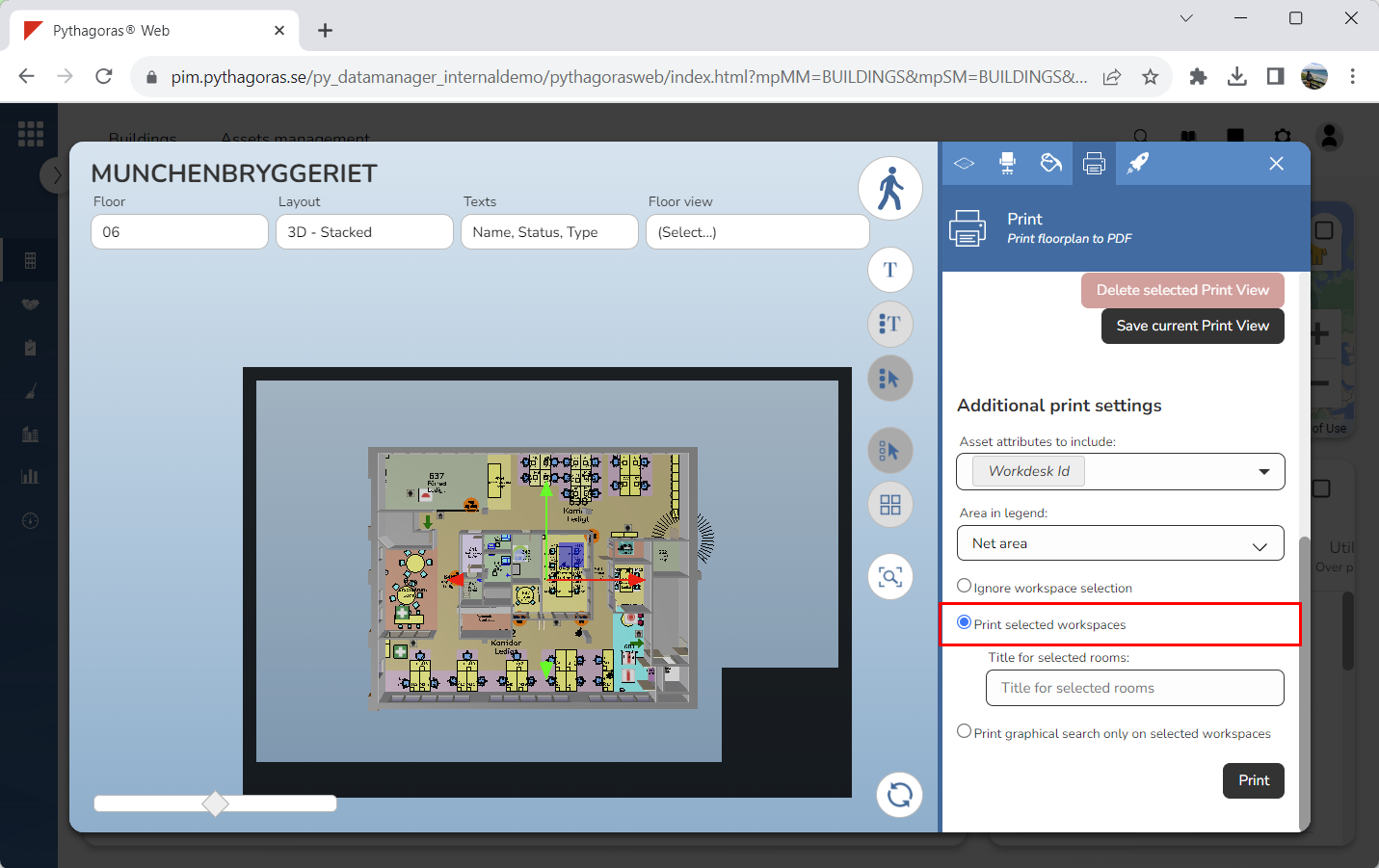
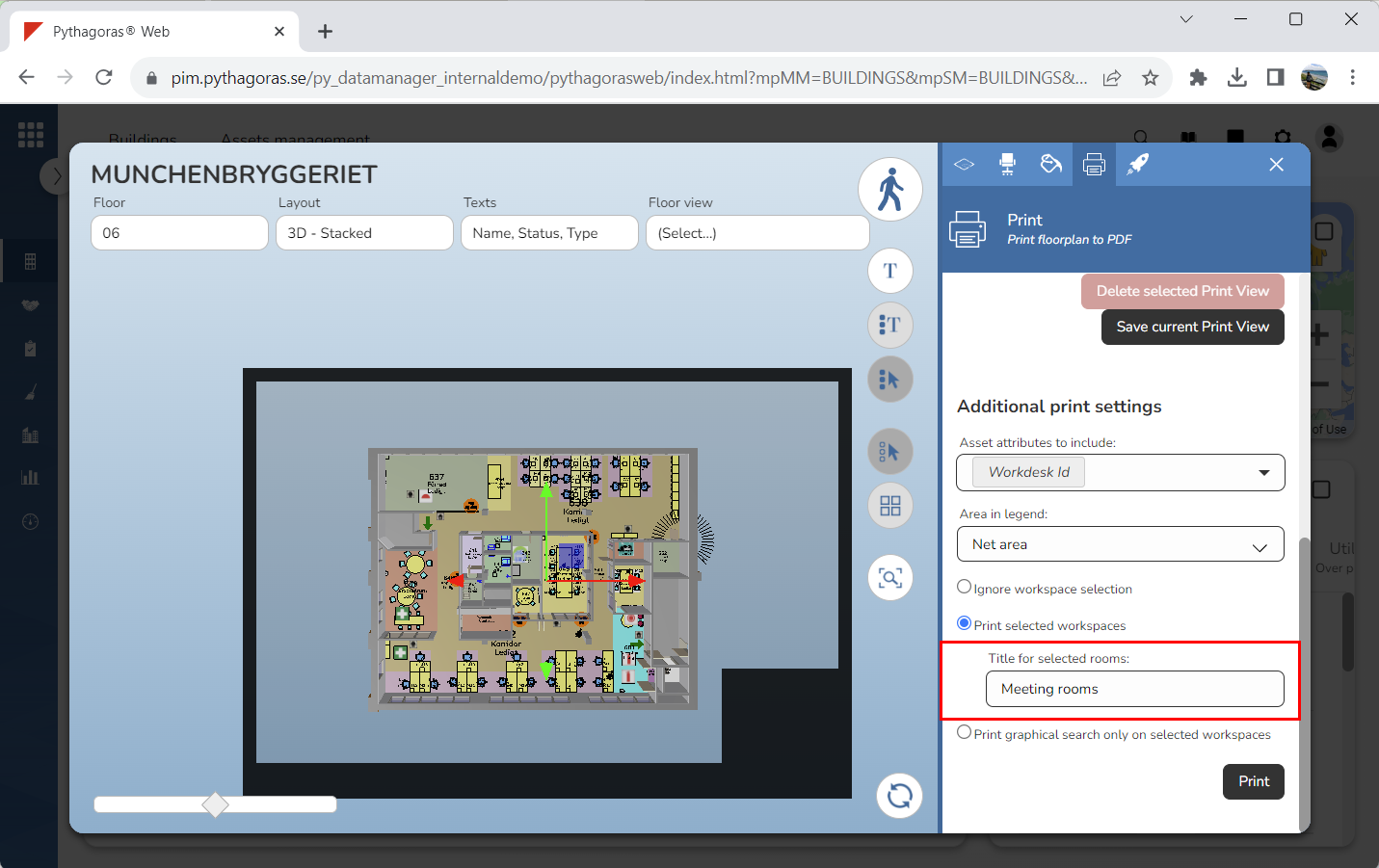
Check the printout option "Print selected workspaces" (see the first image below). This if you wish to show selected workspaces in your printout. If you check the printout option "Print selected workspaces", you can set a title for the selected workspaces via the field "Title for selected rooms" (see the second image below). If you do not wish to show selected workspaces in your printout, you can skip this step and go straight to step v.
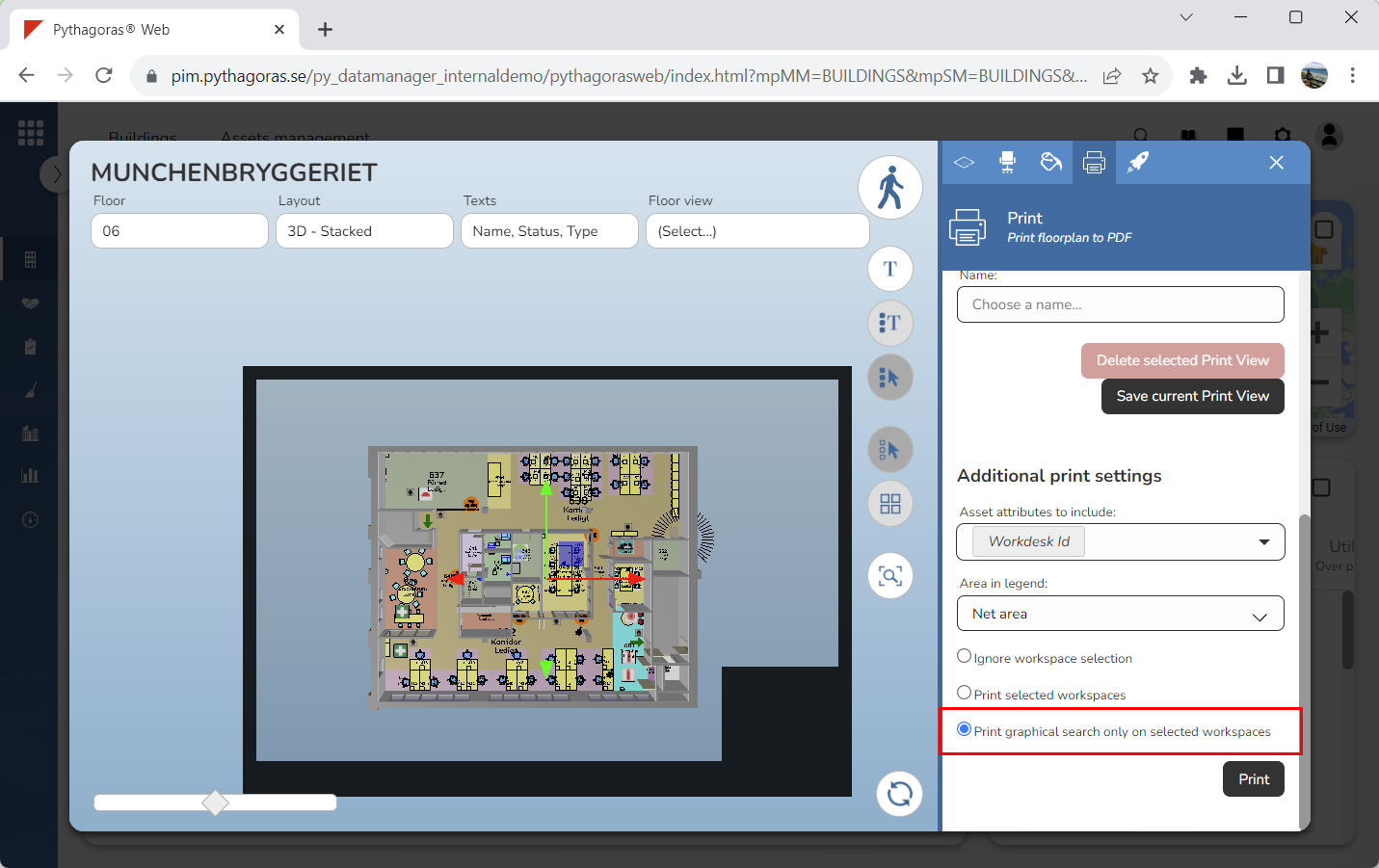
Specify that the graphical search you performed should only show in the selected workspaces by checking the printout option "Print graphical search only on selected workspaces" (see image below). If you do not wish that the graphical search you performed should only show in the selected workspaces, you can skip this step and go straight to step 13.
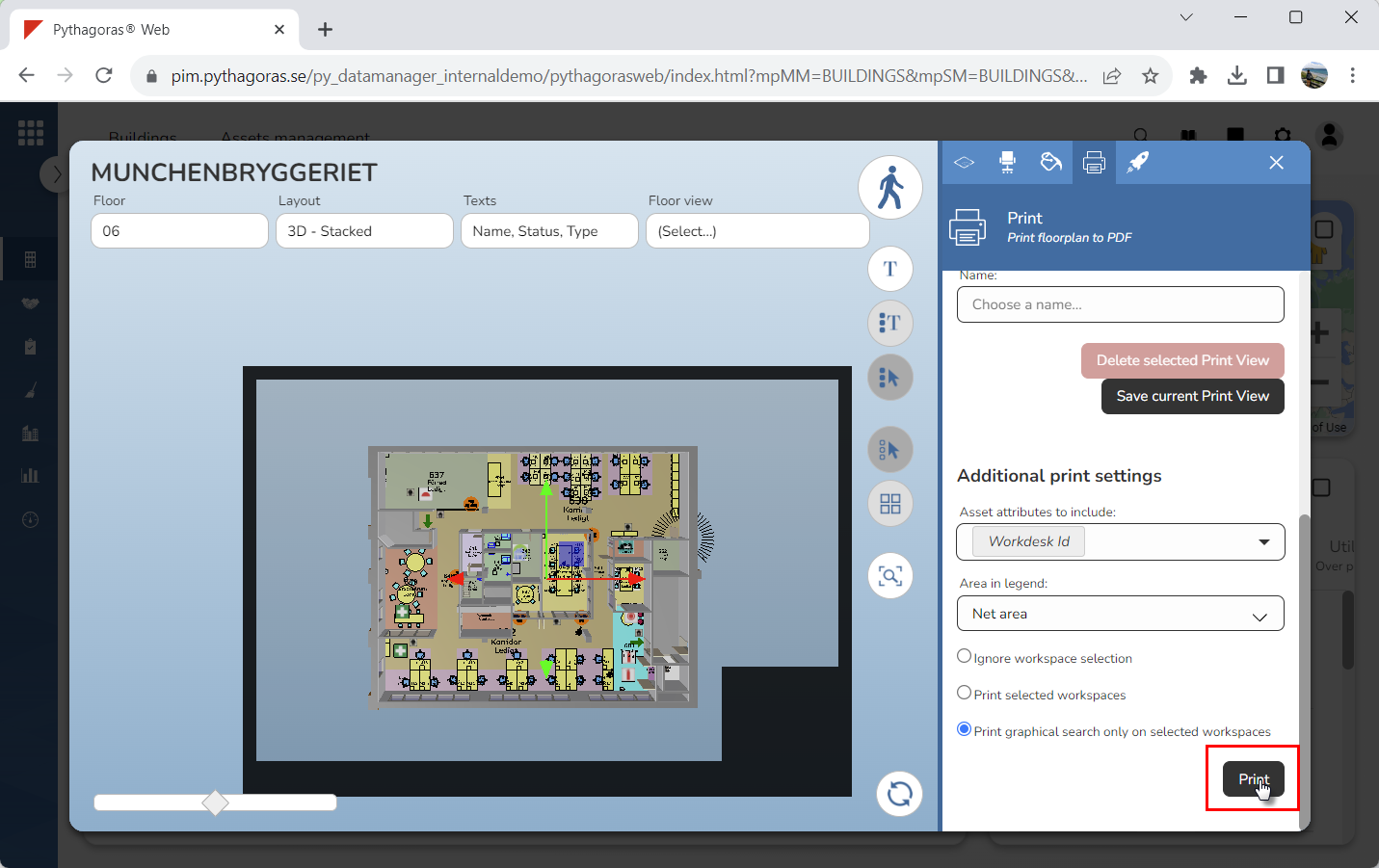
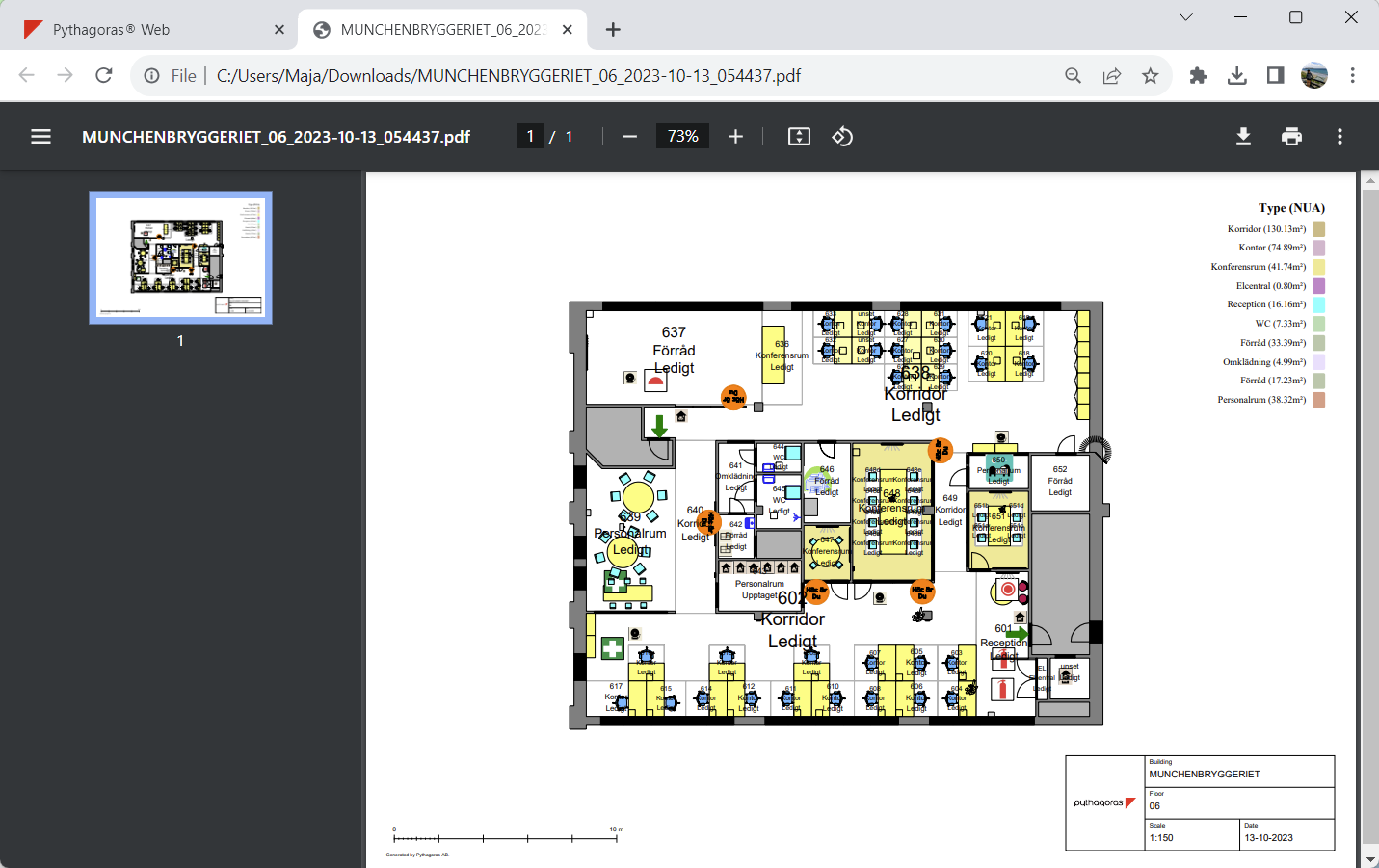
Click "Print" (see the first image below). When you do so, a PDF based on the settings you have made will be created. Once a PDF has been created, it will open in your browser (see the second image below).