Open a lease. For more information on how to do so, see section 4.6. or 6.1.
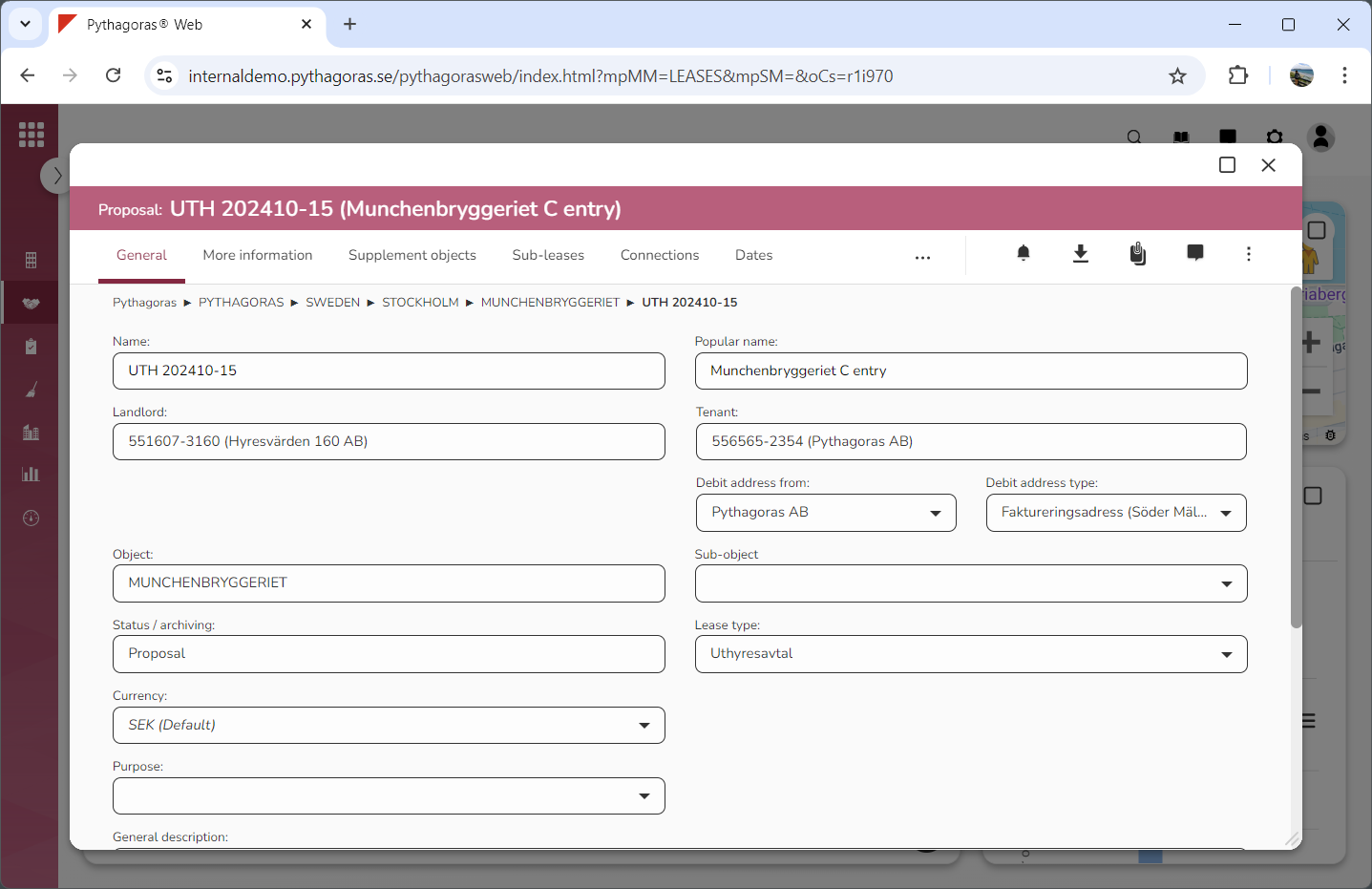
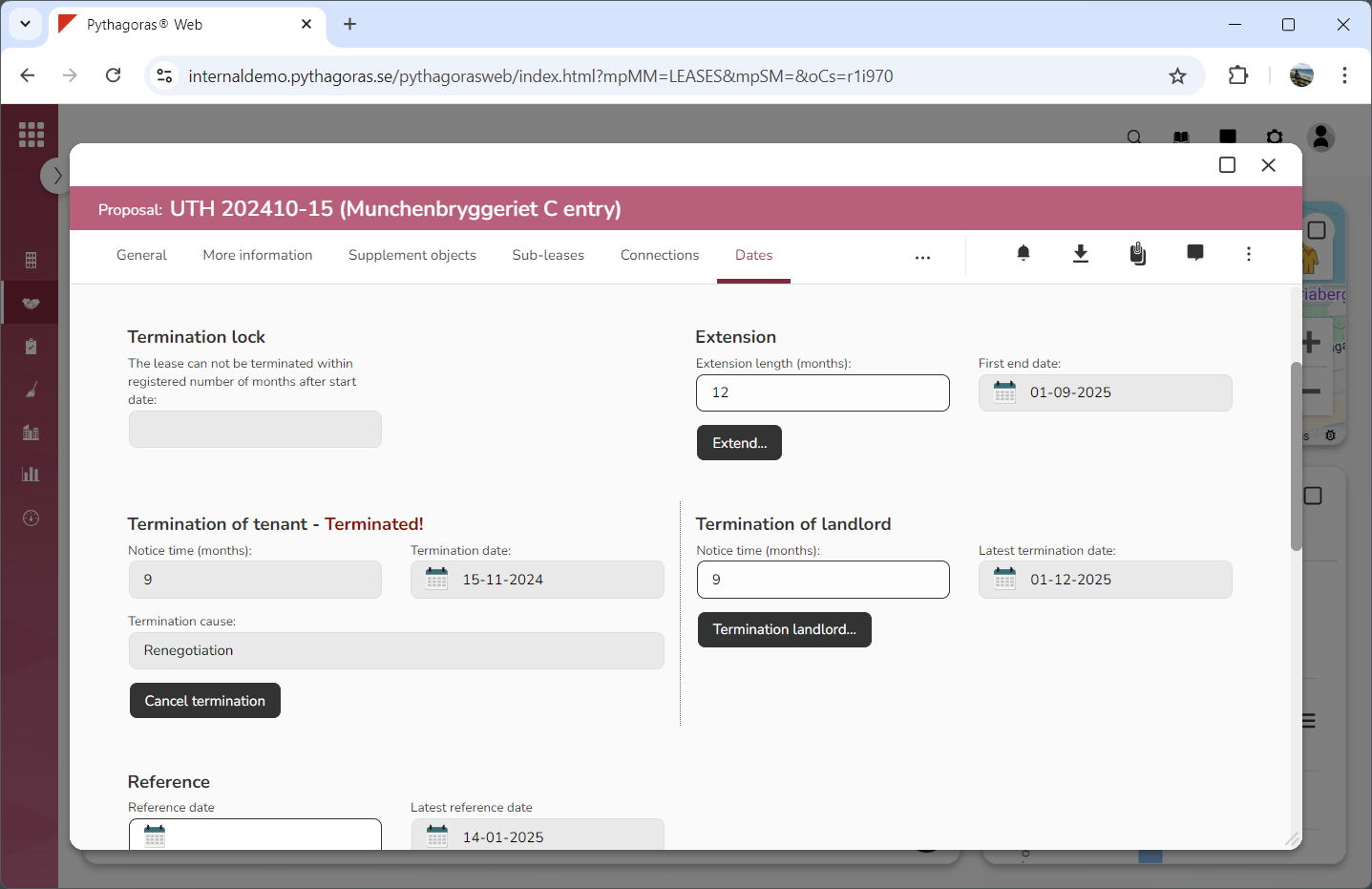
Go to the lease card (see image below).
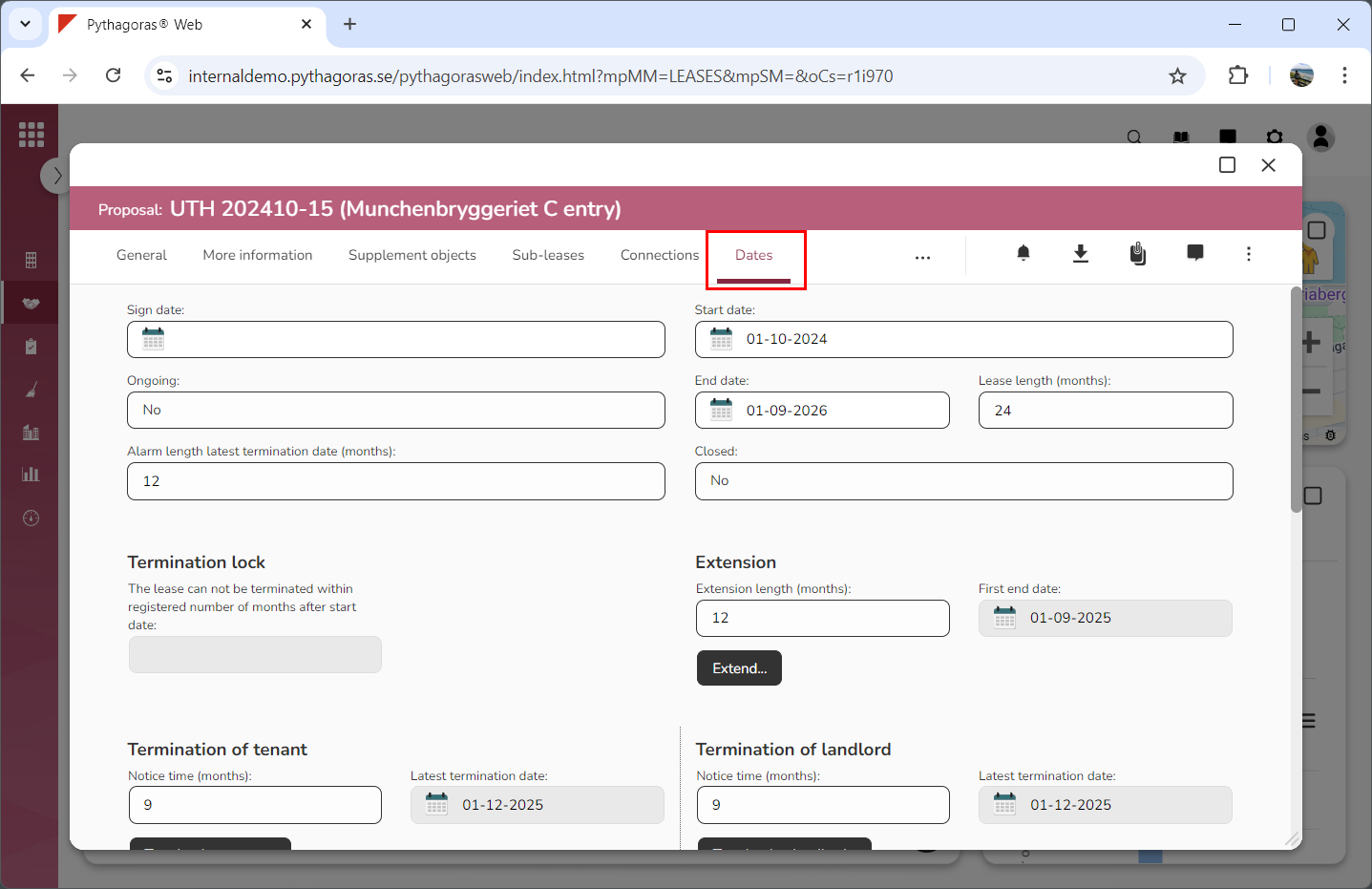
Click the tab called "Dates" (see image below).
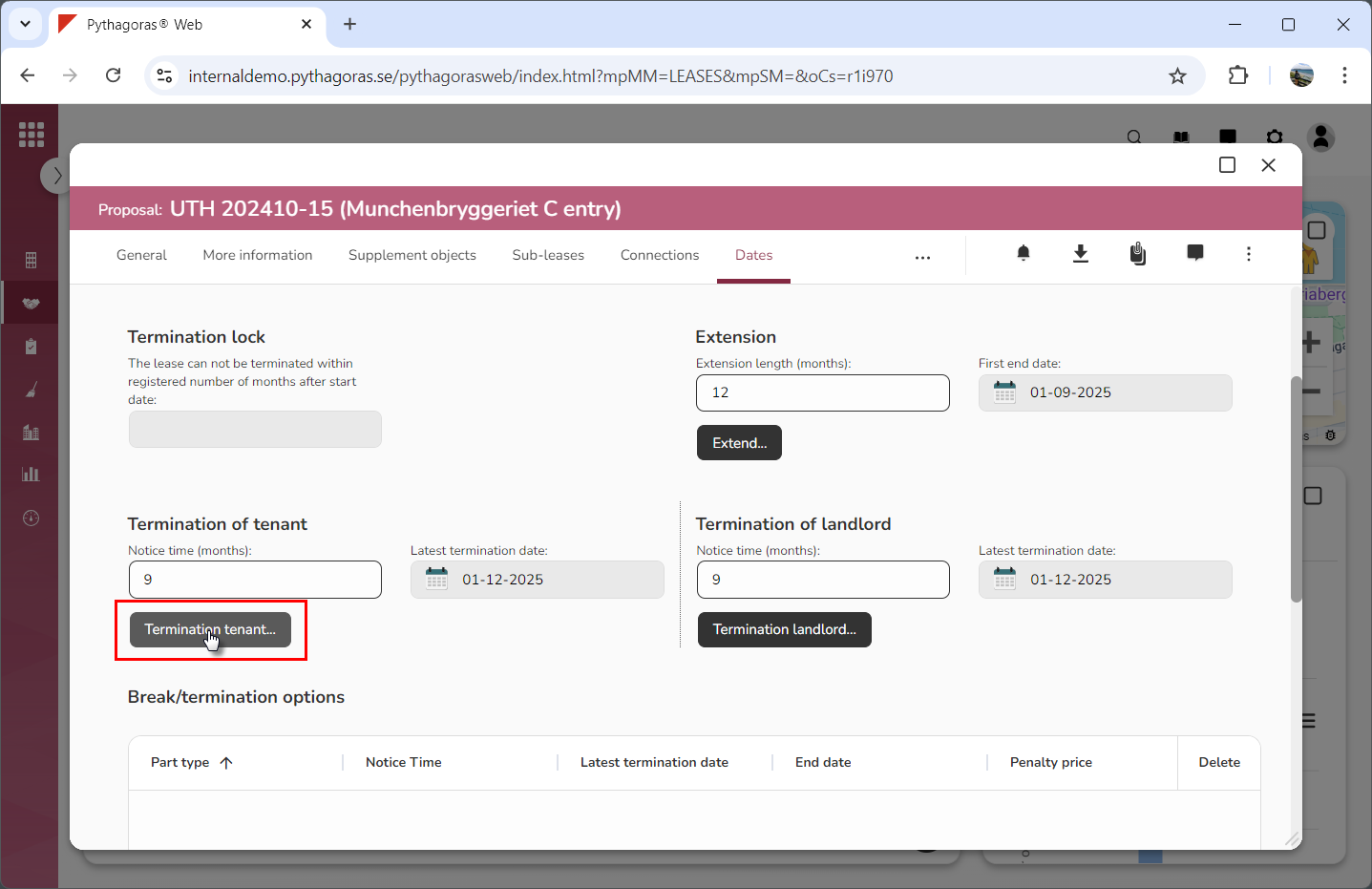
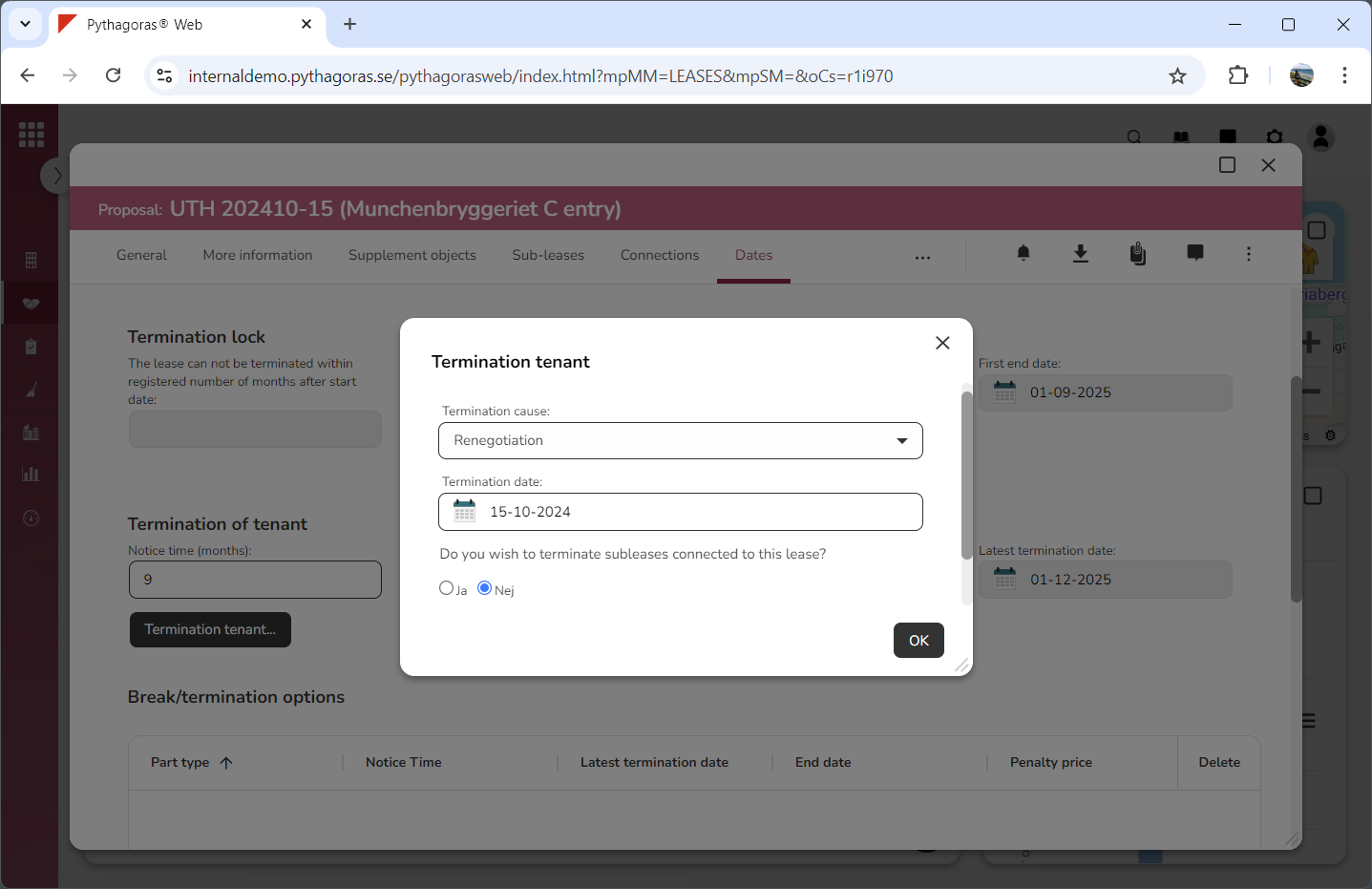
Click "Termination tenant" or the button called "Termination landlord" (see the first image below). When you do so, a window with the same name as the button you clicked will open (see the second image below).
Go to the window.
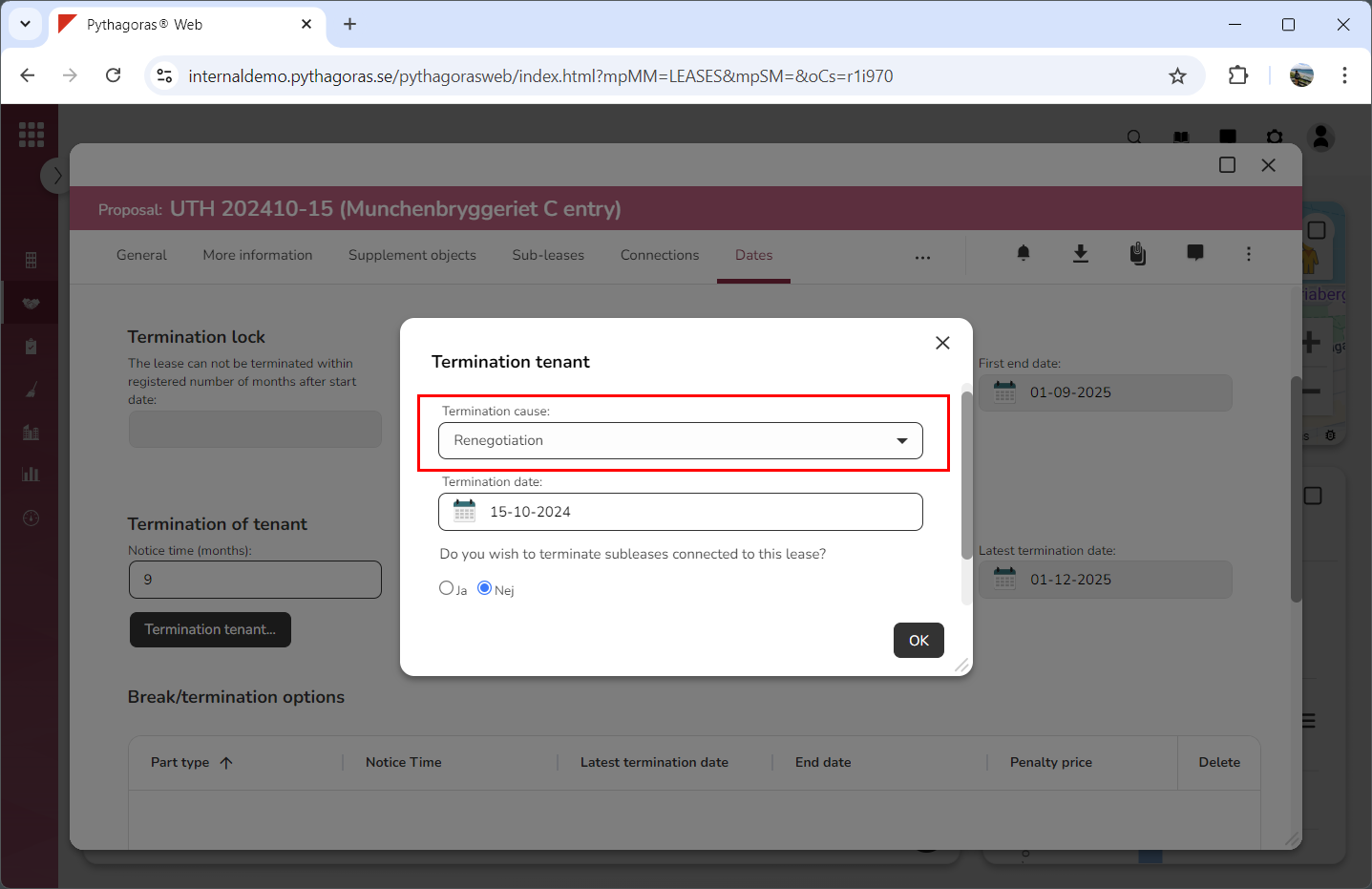
Enter a termination cause for the lease you are working with (see image below). Click the field "Termination cause". Then click a termination cause in the list that opens.
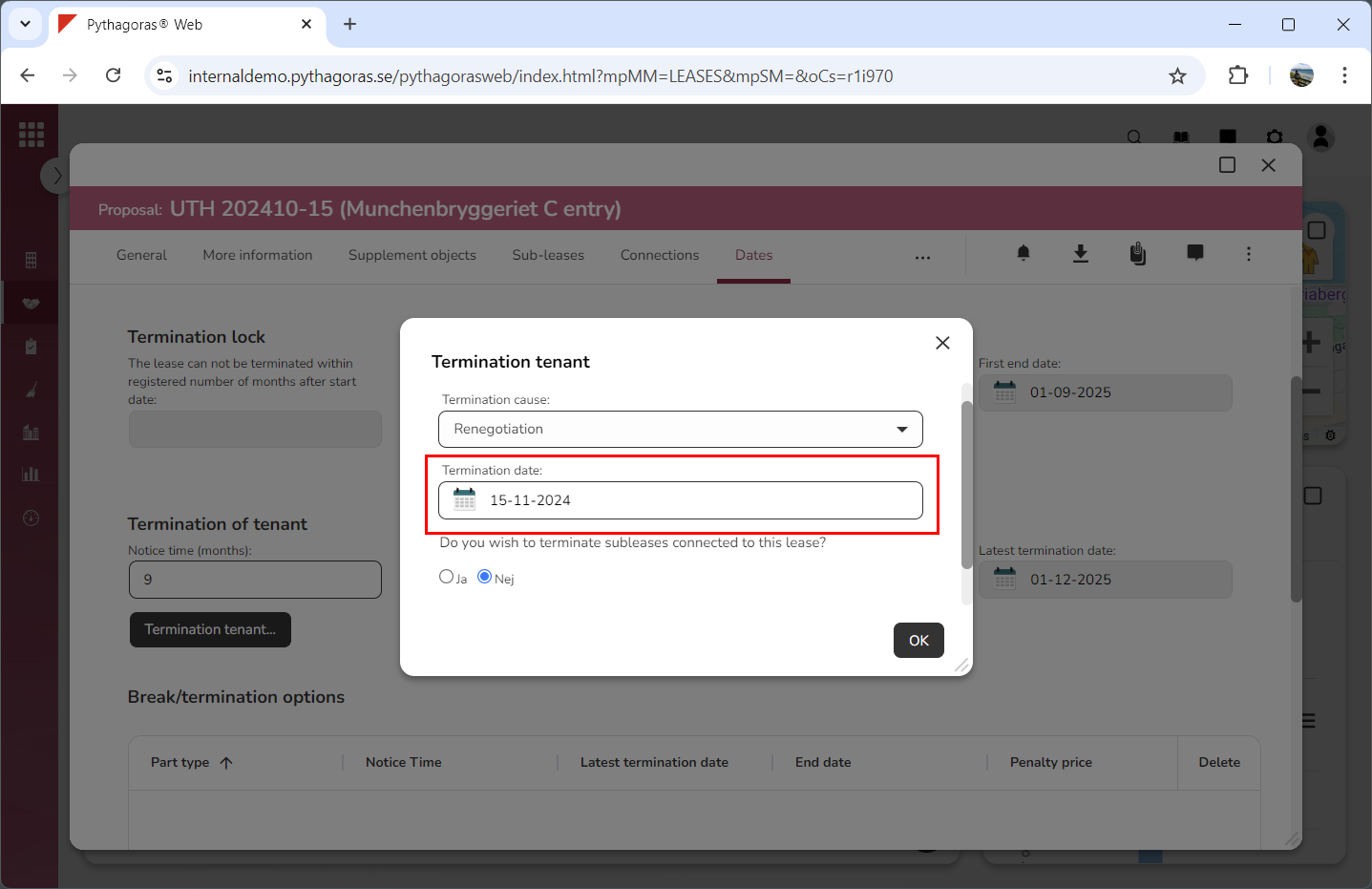
Enter a termination date for the lease you are working with (see image below). Click the field "Termination date". Then select a termination date in the calendar that opens.
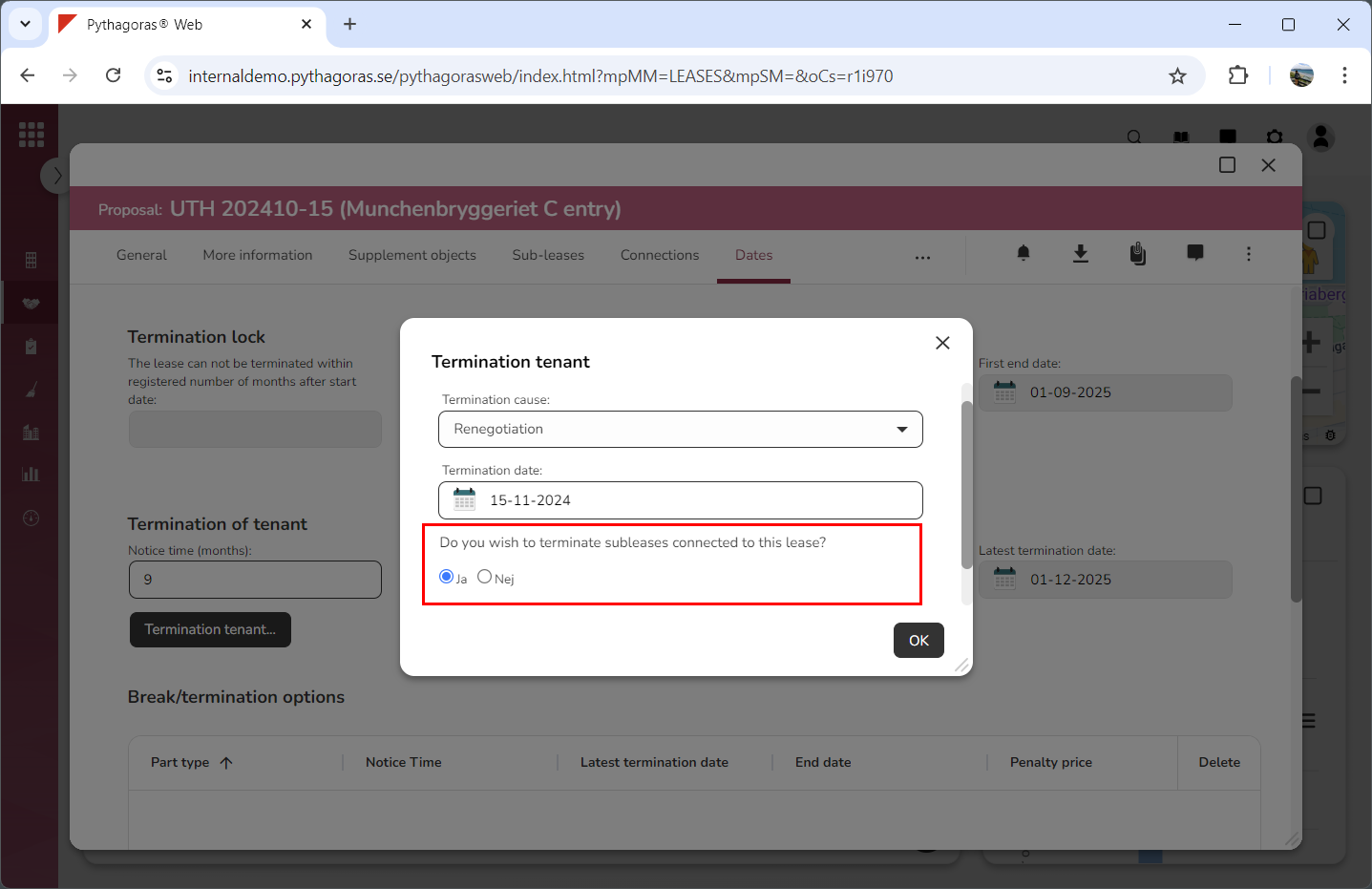
Specify whether or not the sub-leases connected to the lease you are working with should be terminated when the lease you are working with is terminated (see image below). Select "Yes" or "No" below the label "Do you wish to terminate sub-leases connected to this lease?". This can only be done if the lease you are working with has one or more sub-leases connected to it. If it hasn't you can skip this step and go straight to step 9.
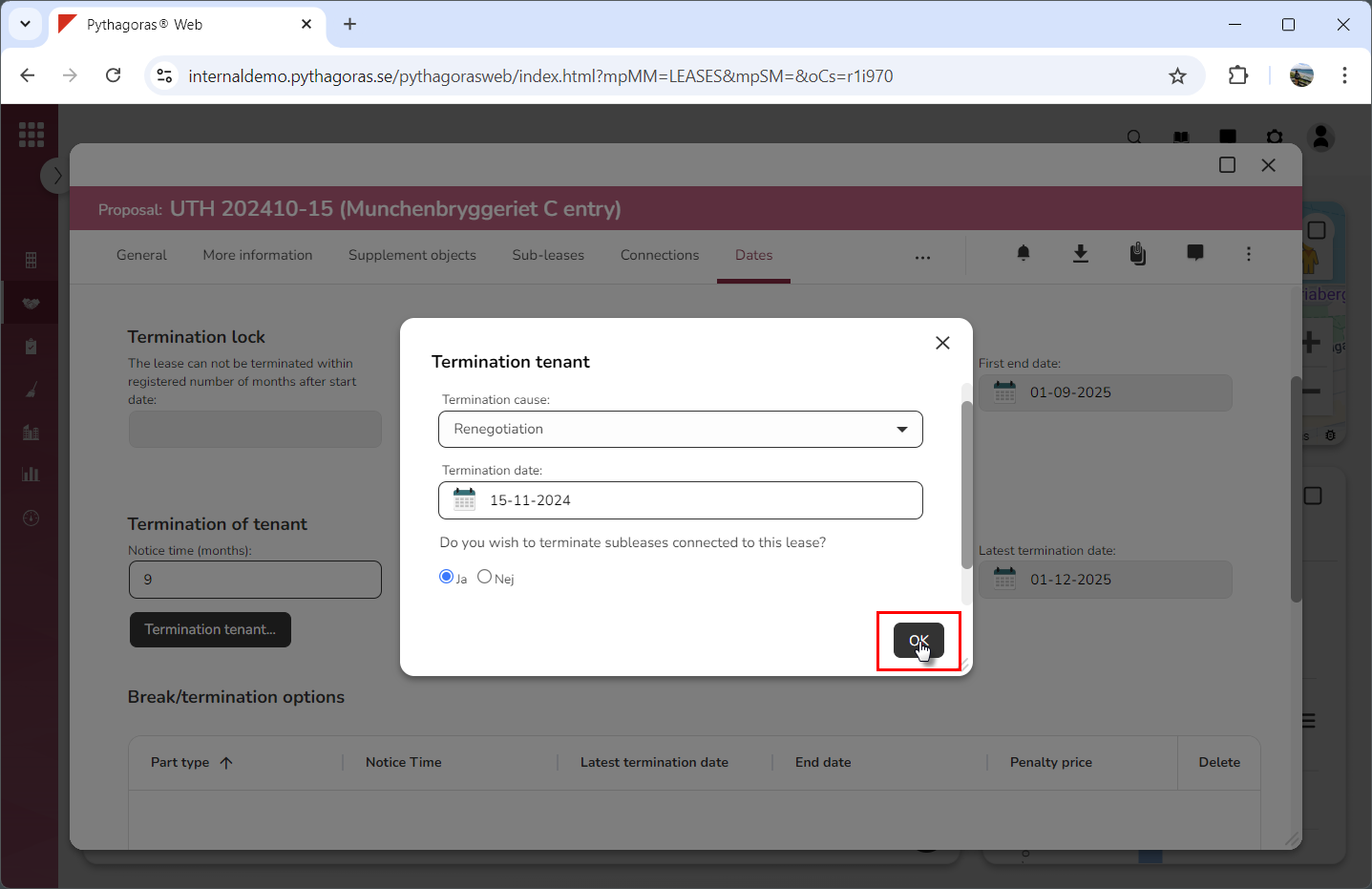
Click "OK" (see the first image below). When you do so, you will be redirected back to the lease card where you will see that the lease you are working with has been terminated (see the second image below). Note that you, at any time, can cancel the termination of a lease. For more information on how to do so, see section 8.6.12. Note! You are not finished yet. See instruction steps 10 and 11 for more information.
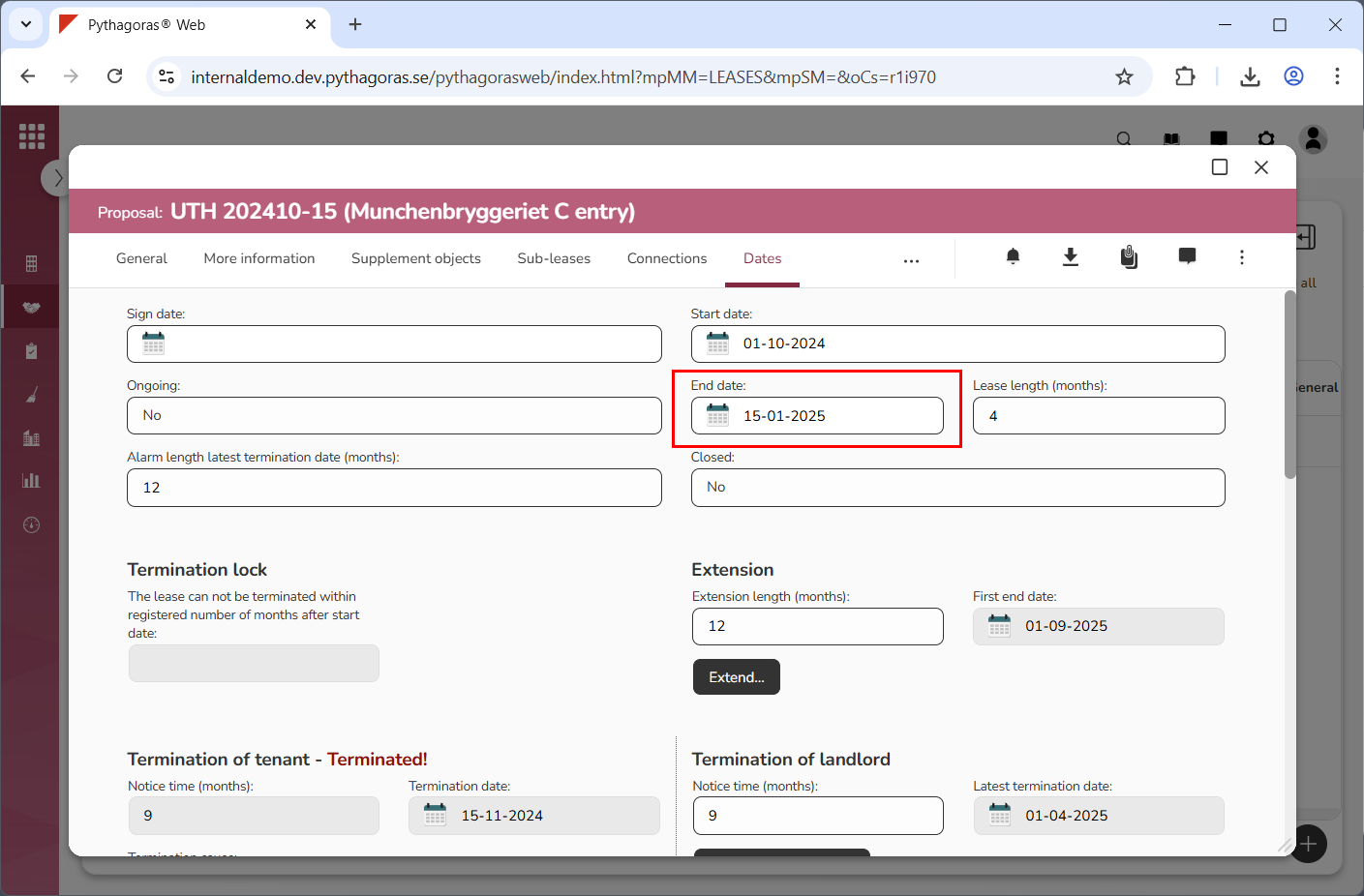
Adjust the end date of the lease you are working with by entering a new end date for it (see image below). For more information on how to do so, go to section 8.6.3. Then continue reading the subsection "Set an end date for a lease". You only need to do this if the tenant has terminated the lease before the agreed rental period has expired. If they have not, you can skip this step and go straight to step 11.
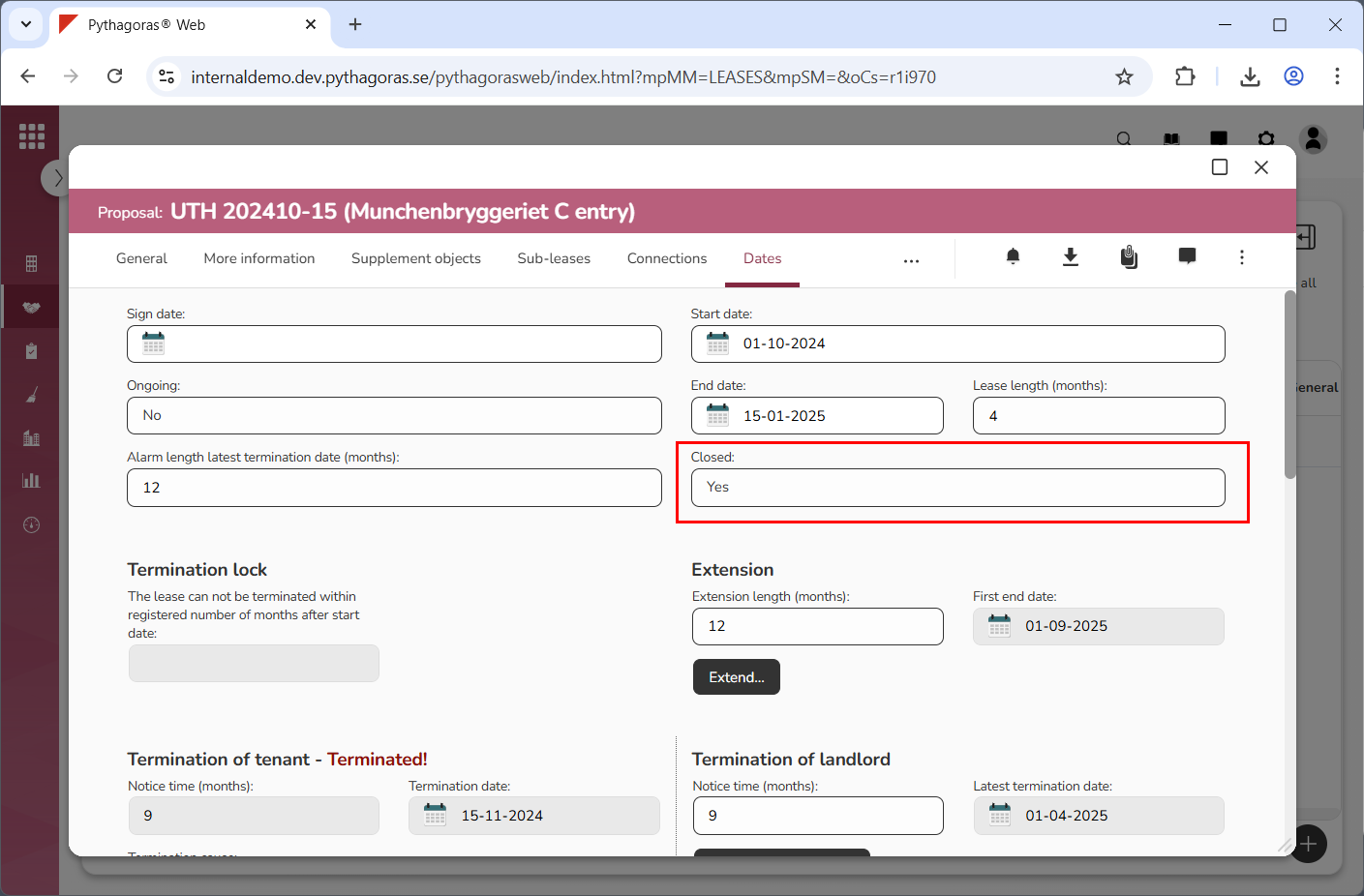
Close the lease you are working with and set an archiving date for it at the same time as you close it (see image below). For more information on how to close a lease, see section 8.6.5. If you close a lease without setting an archiving date, it will remain under "Active" in the object list even after its end date has passed. If you terminate a lease without closing and archiving it, it will still be possible to invoice it even after its end date has passed.