8.5.3. Remove a connection made from a lease to another
To remove a connection made from a lease to another:
Open a lease. For more information on how to do so, see section 4.6. or 6.1.
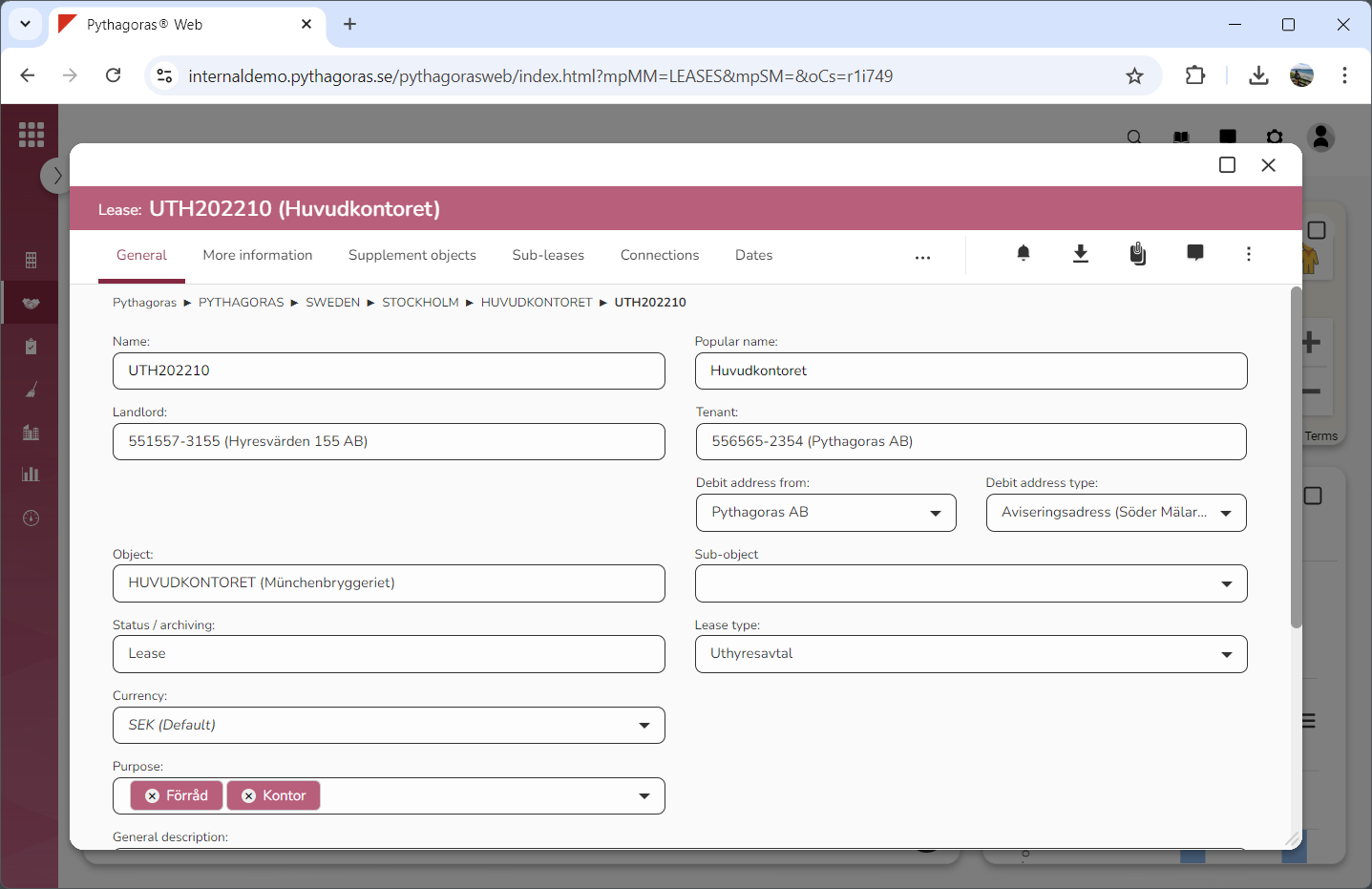
Go to the lease card (see image below).
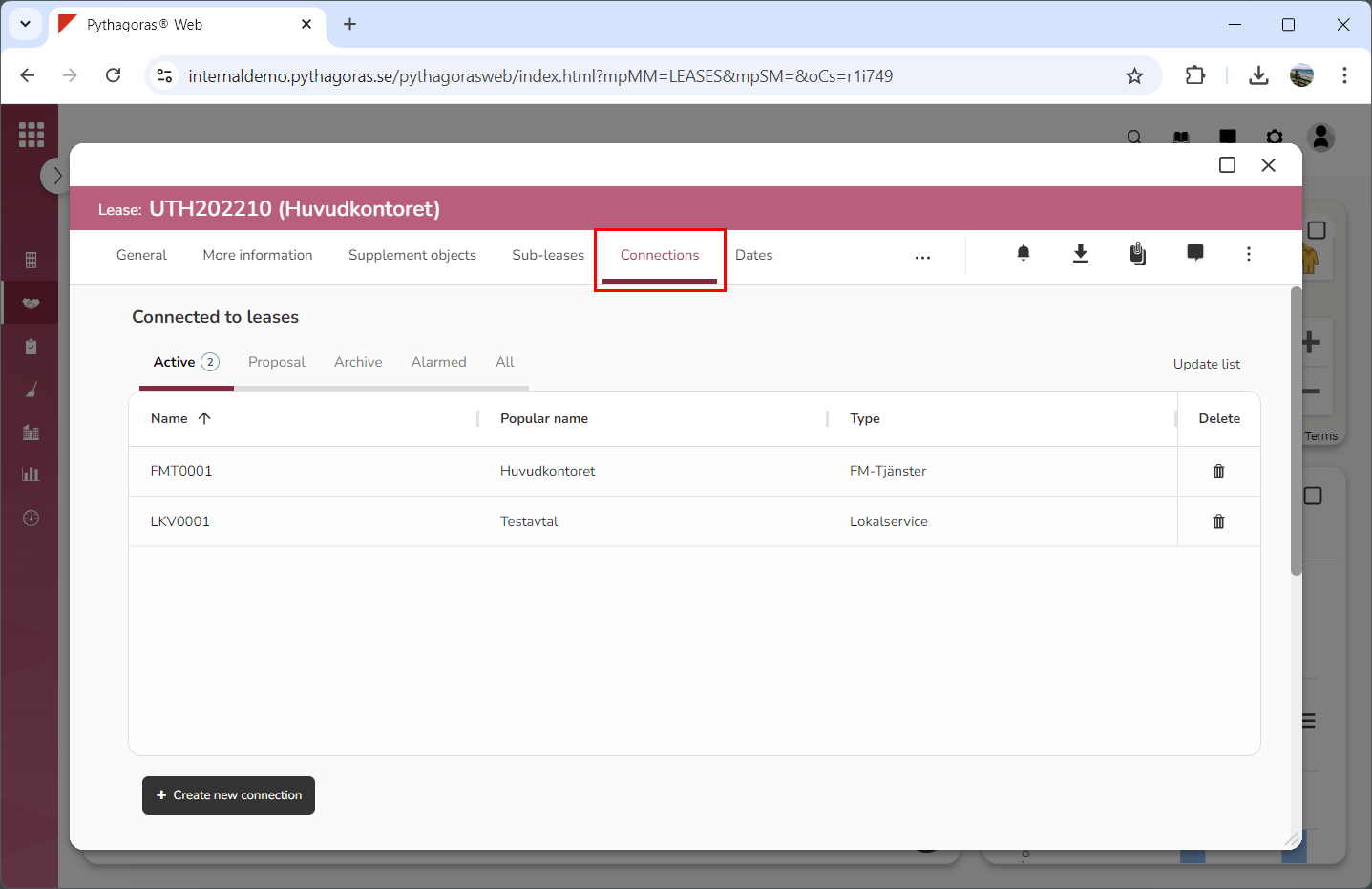
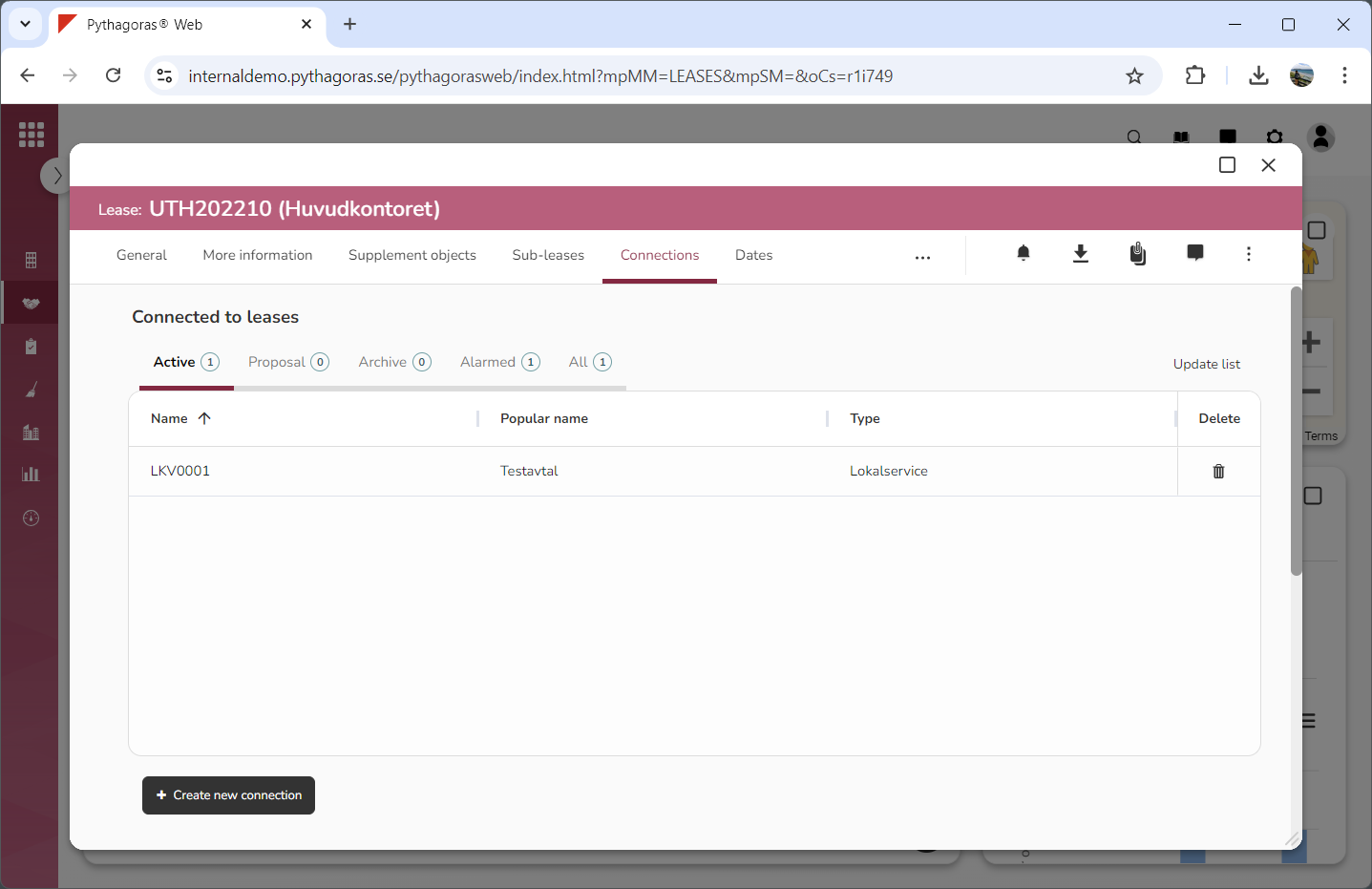
Click the tab called "Connections" (see image below). Within the tab called "Connections" you will find two lists: "Connected to leases" and "Leases connected to this lease".
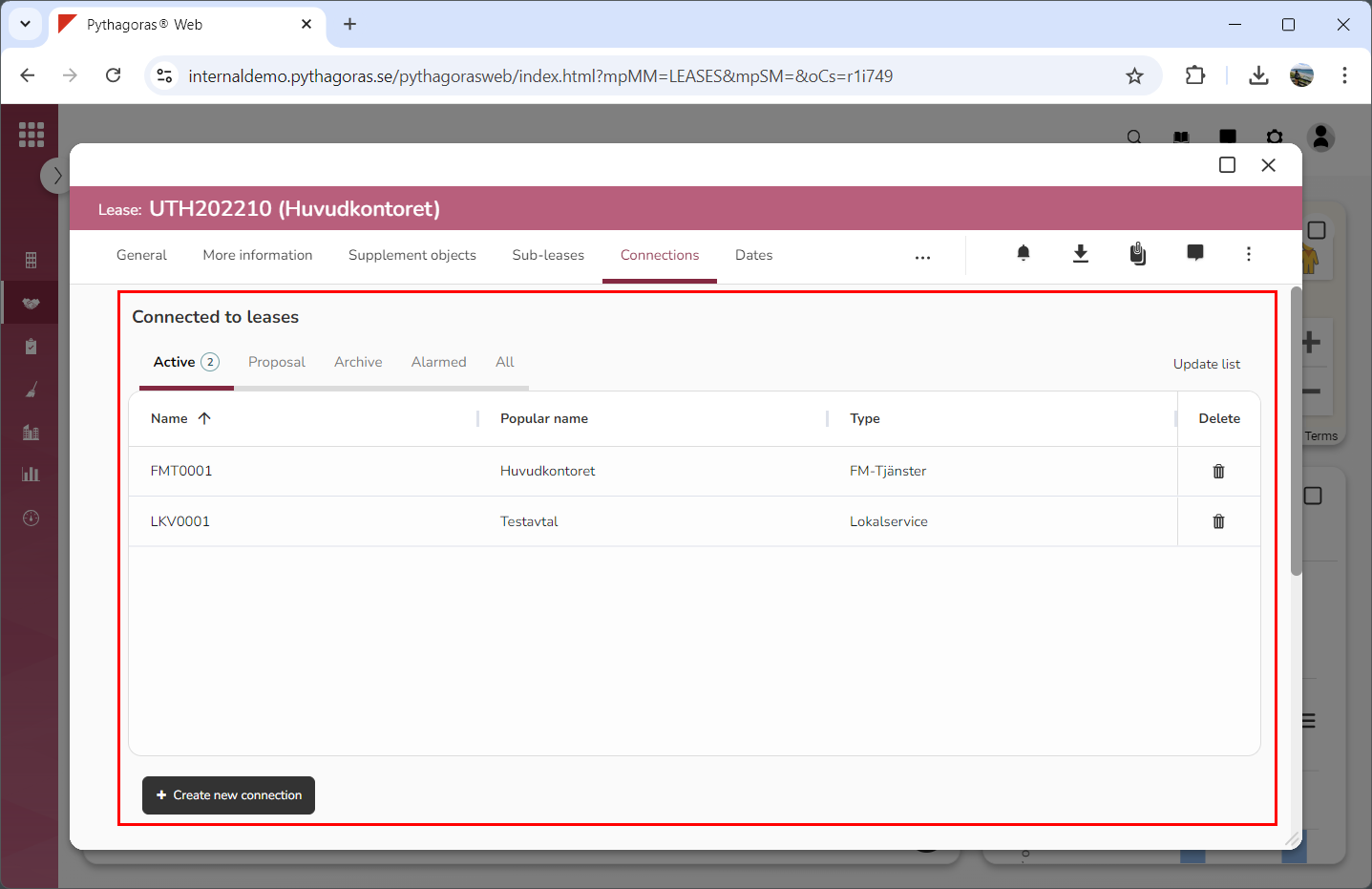
Go to the list called "Connected to leases" (see image below).
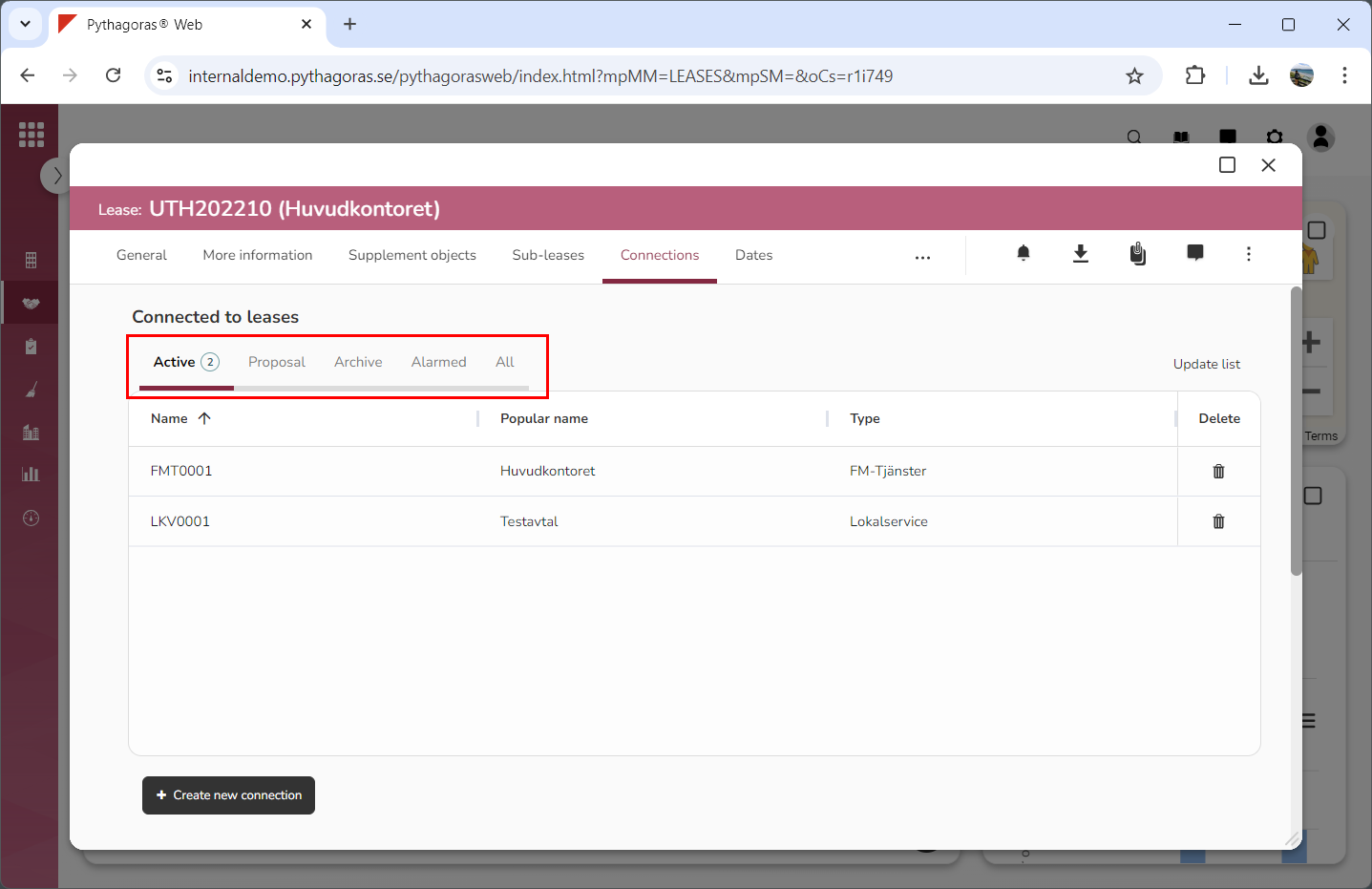
Click the tab within which the lease that the lease you are working with no longer should be connected to, is available: "Active", "Proposal", "Archive", "Alarmed" or "All" (see image below).
Filter the list called "Connected to leases" if you wish to limit its contents. For more information on how to do so, see section 8.5.5. Then continue reading the section "Filter the list called Connected to leases". If you do not wish to filter the list called "Connected to leases", you can skip this step and go straight to step 7.
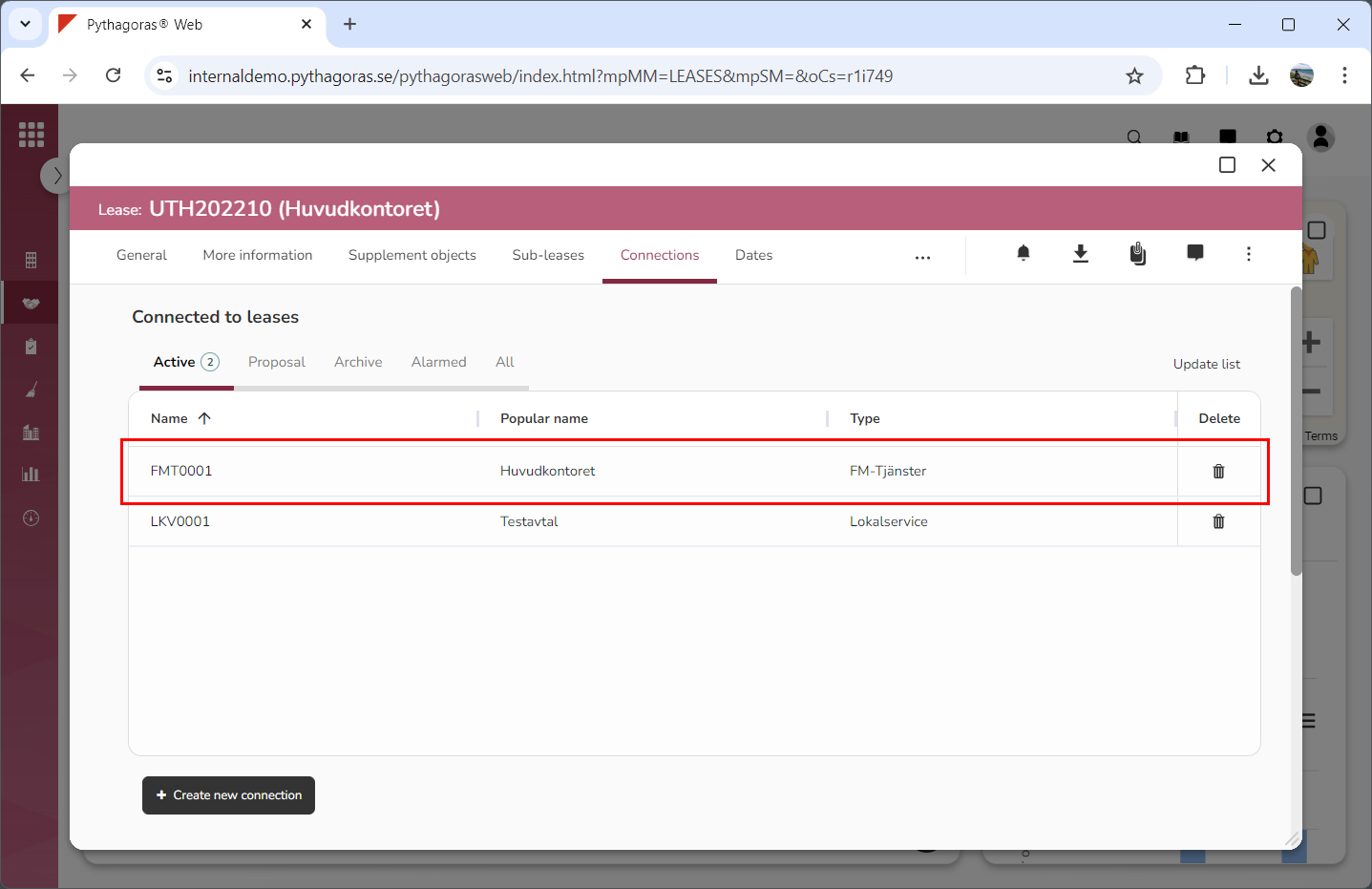
Go to the lease that the lease you are working with should no longer be connected to (see image below).
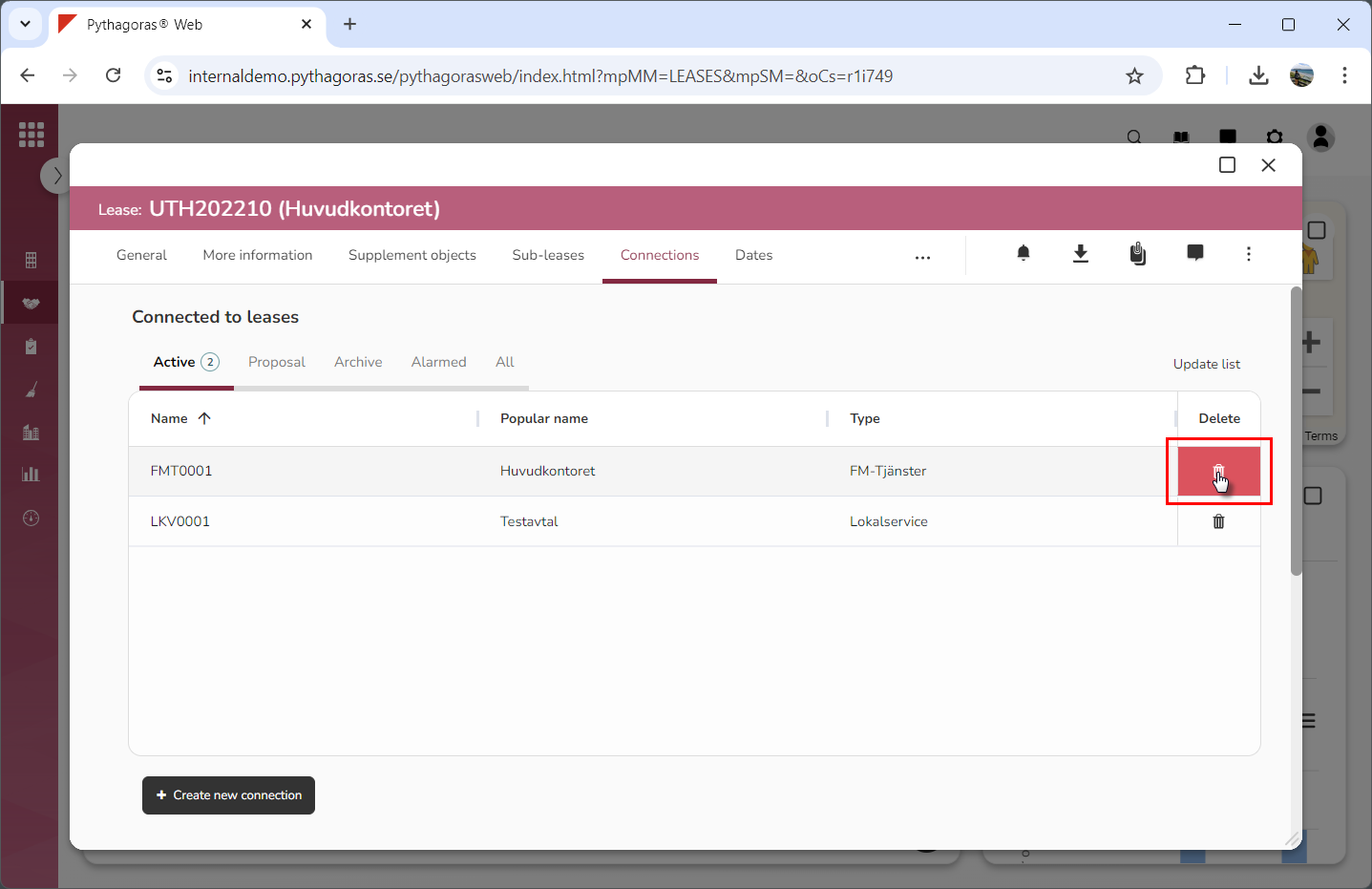
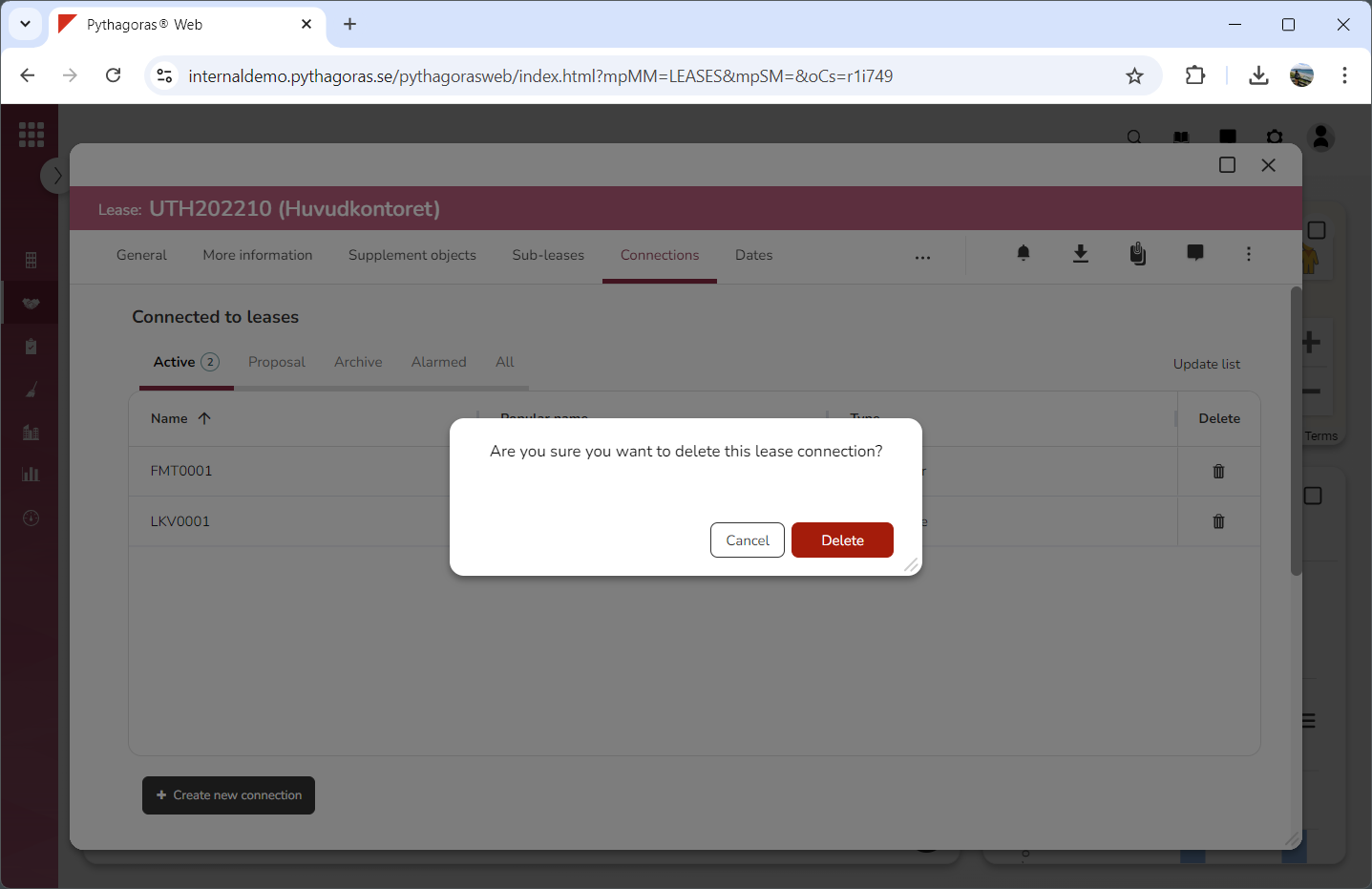
Click "Delete" (see the first image below). When you do so, a dialog will open asking the following question: "Are you sure you want to delete this lease connection?" (see the second image below).
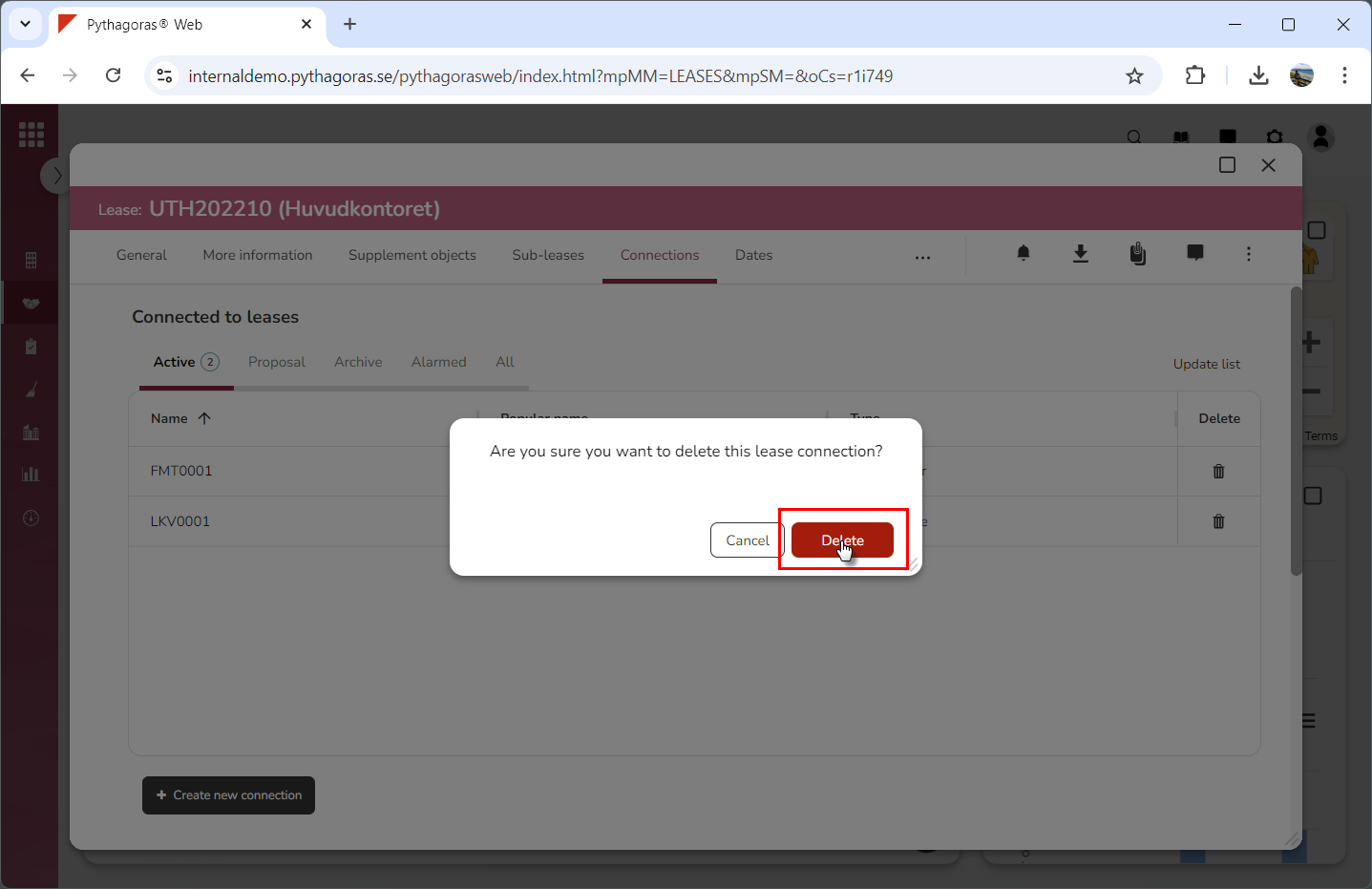
Click "Delete" in the dialog (see the first image below). When you do so, the connection from the lease that you are working with, to the lease whose Delete icon you clicked, will be removed. This will be visible in the list called "Connected to leases" (see the second image below).