Open a lease. For more information on how to do so, see section 4.6. or 6.1.
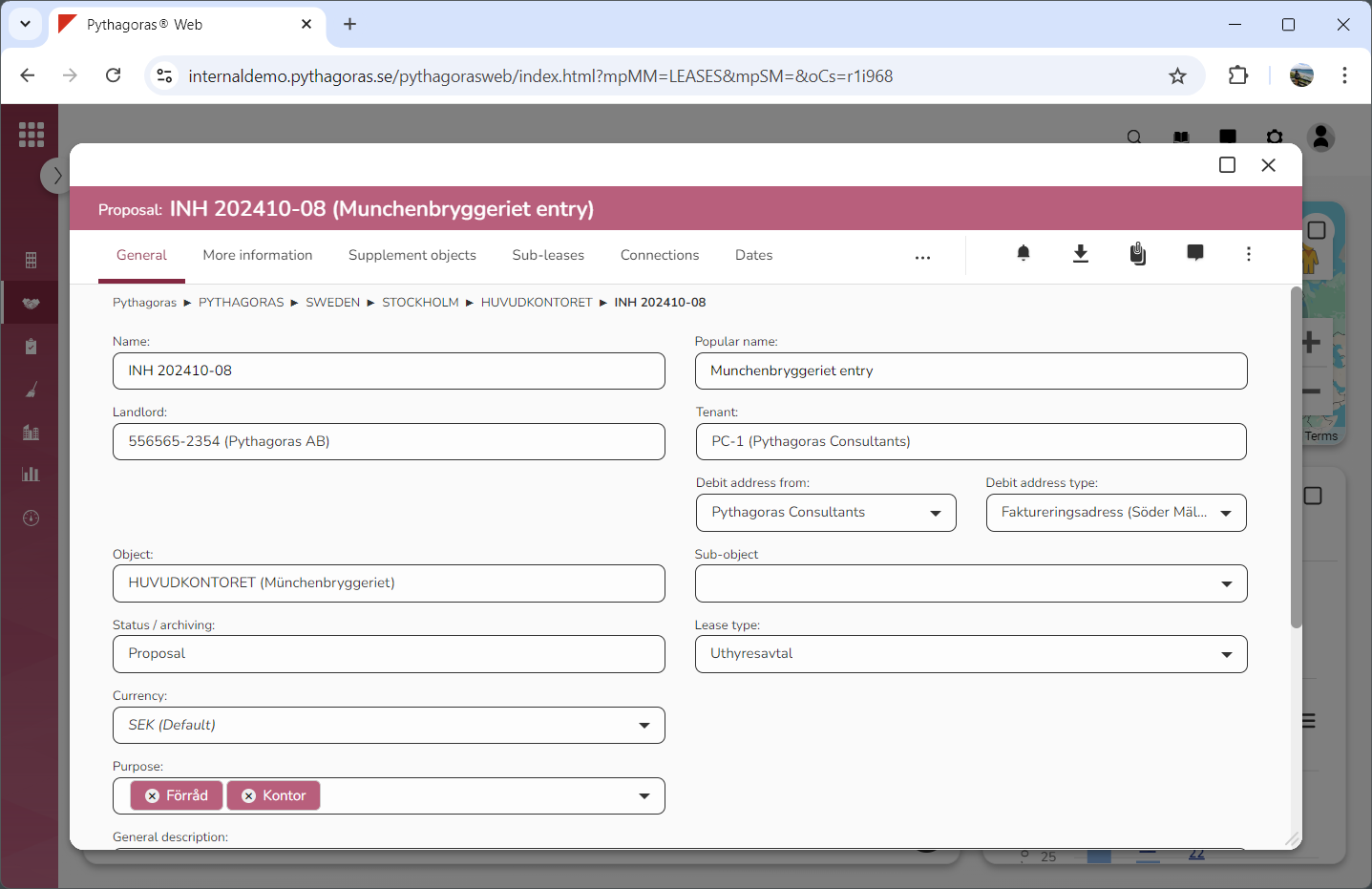
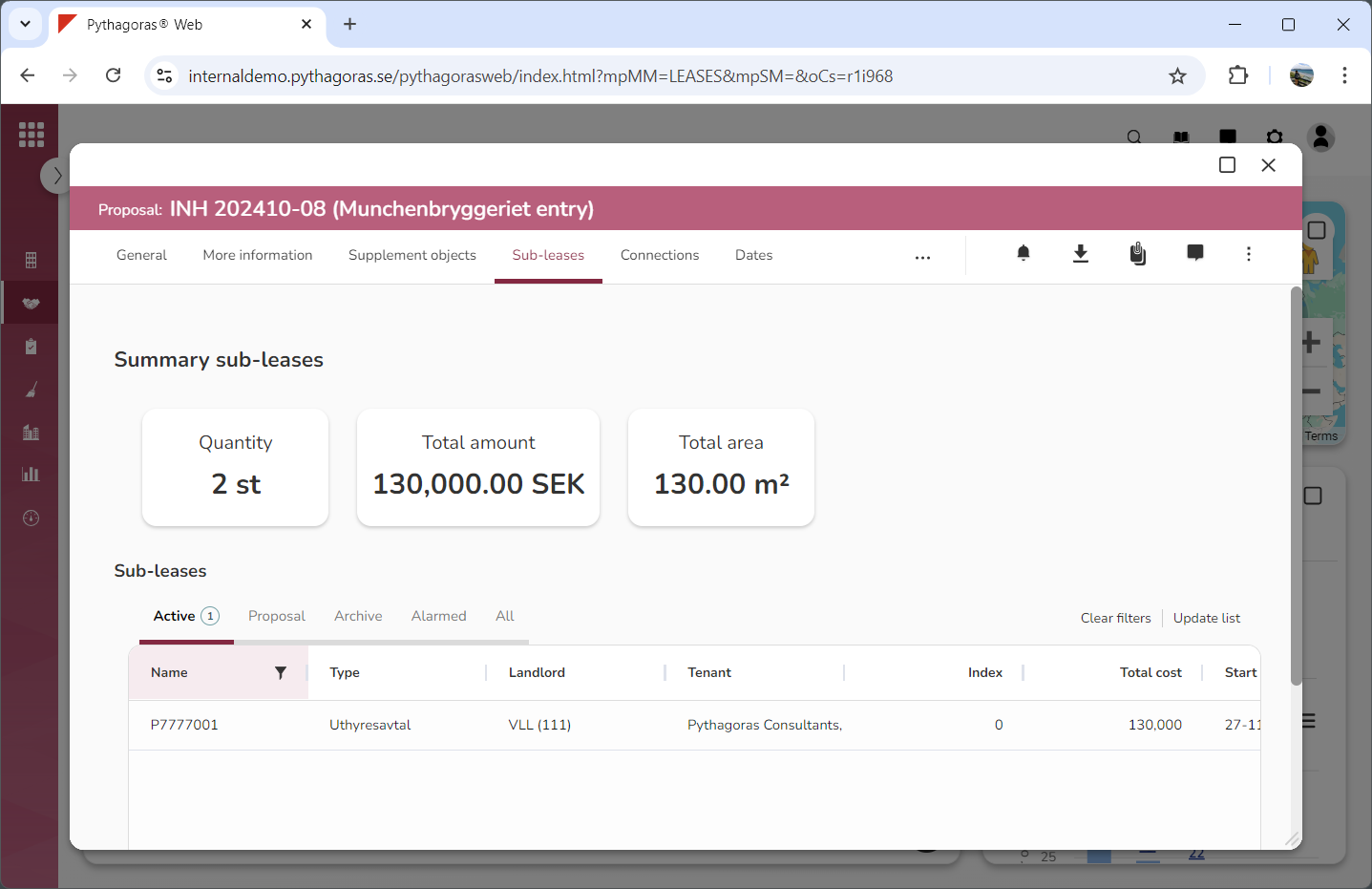
Go to the lease card (see image below).
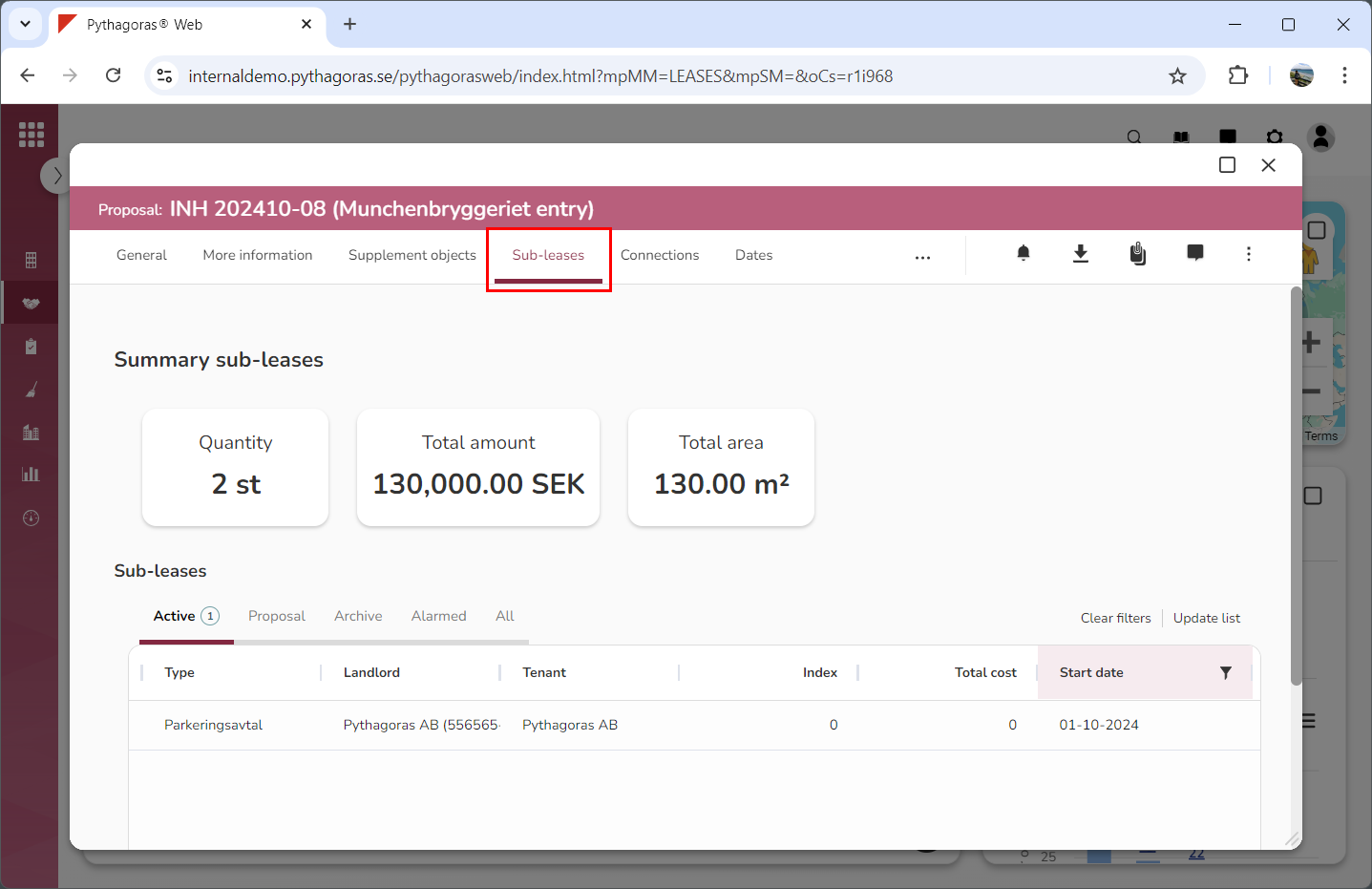
Click the tab called "Sub-leases" (see image below). Within the tab called "Sub-leases" you will find a list of sub-leases associated with the lease you are working with.
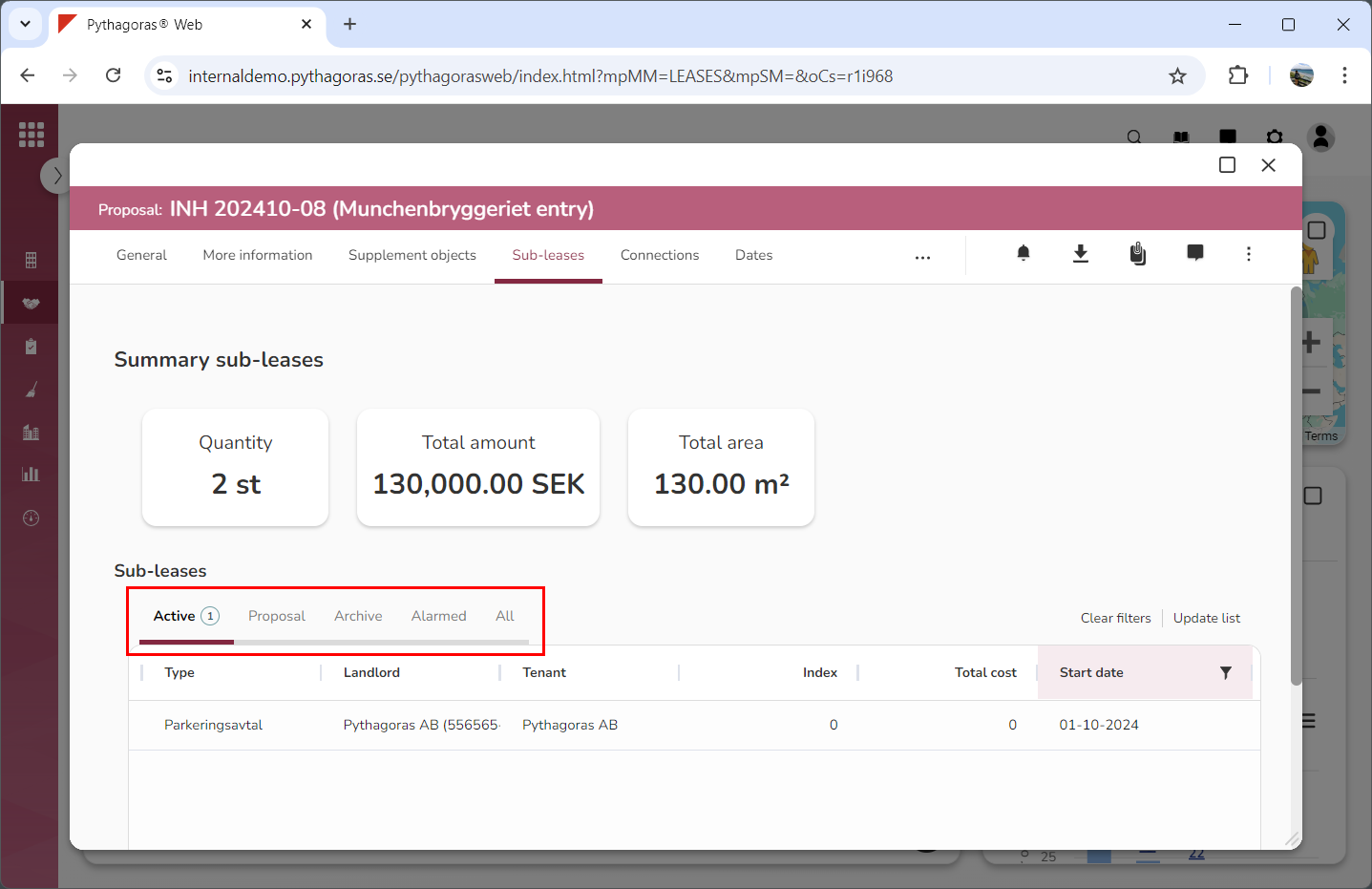
Click the tab you wish to export to Excel: "Active", "Proposal", "Archive", "Alarmed" or "All" (see image below).
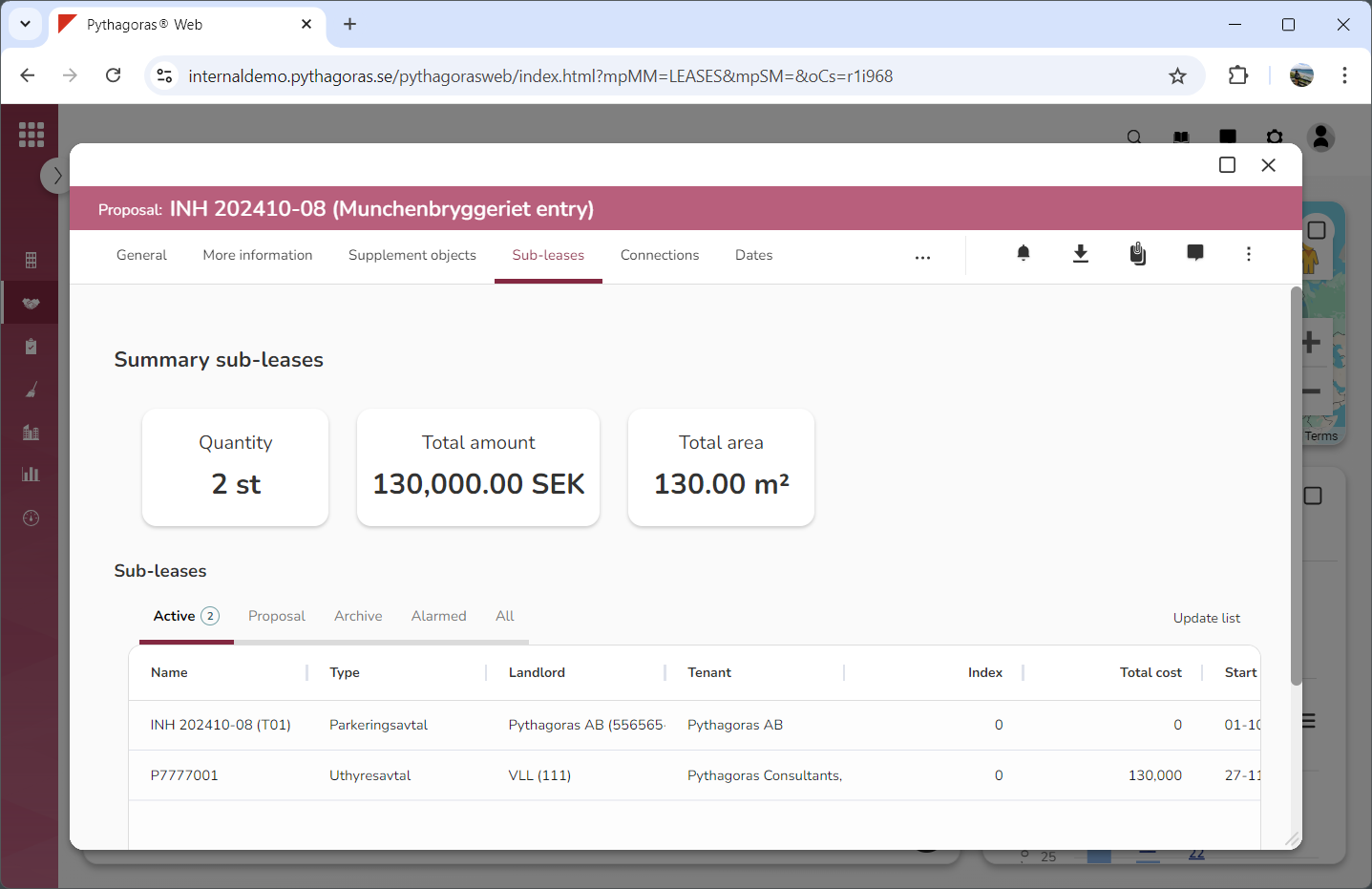
Remove any filtering that should not be included in your Excel export (see image below). To remove filtering from the sub-leases list, clear the list of filters or reset one or more columns. Note that if you neither wish to clear the sub-leases list of filters nor reset one or more columns, you can skip this step and go straight to step 6.
Filter the sub-leases list if you wish to limit the content of the export you are creating (see image below). For more information on how to do so, see section 8.4.3. If you do not wish to filter the sub-leases list you can skip this step and go straight to step 7.
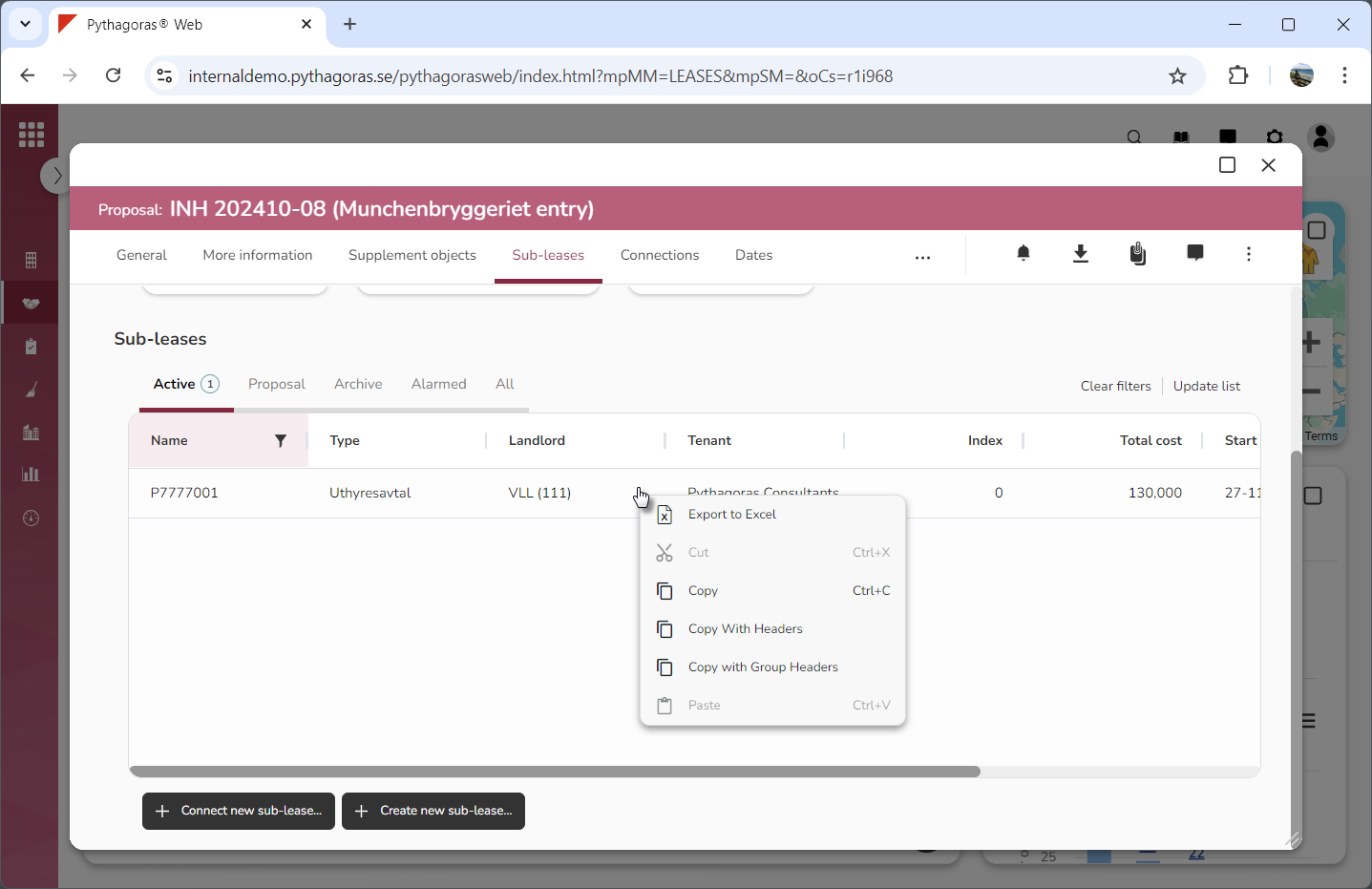
Right click a sub-lease to open a menu (see image below).
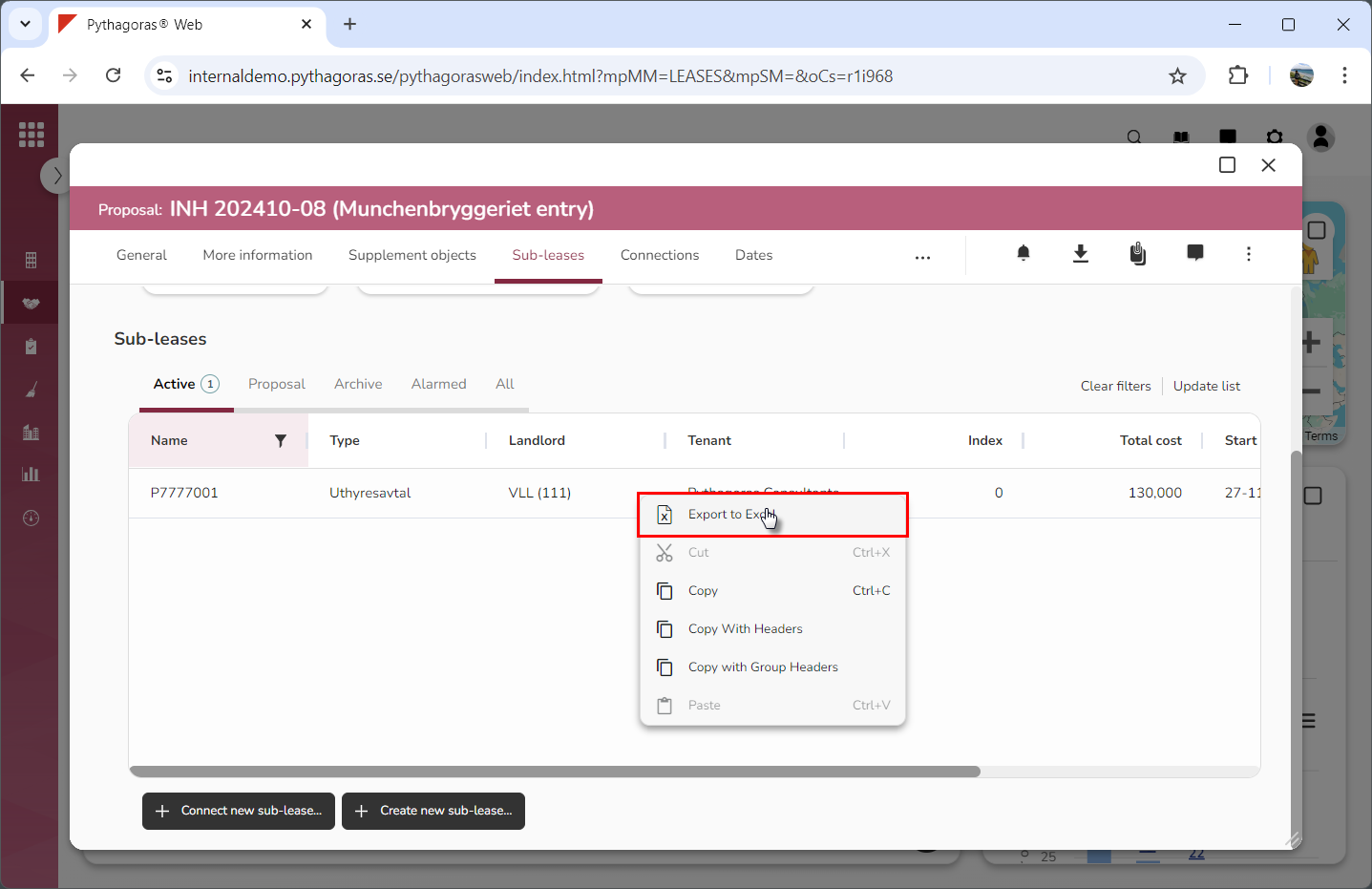
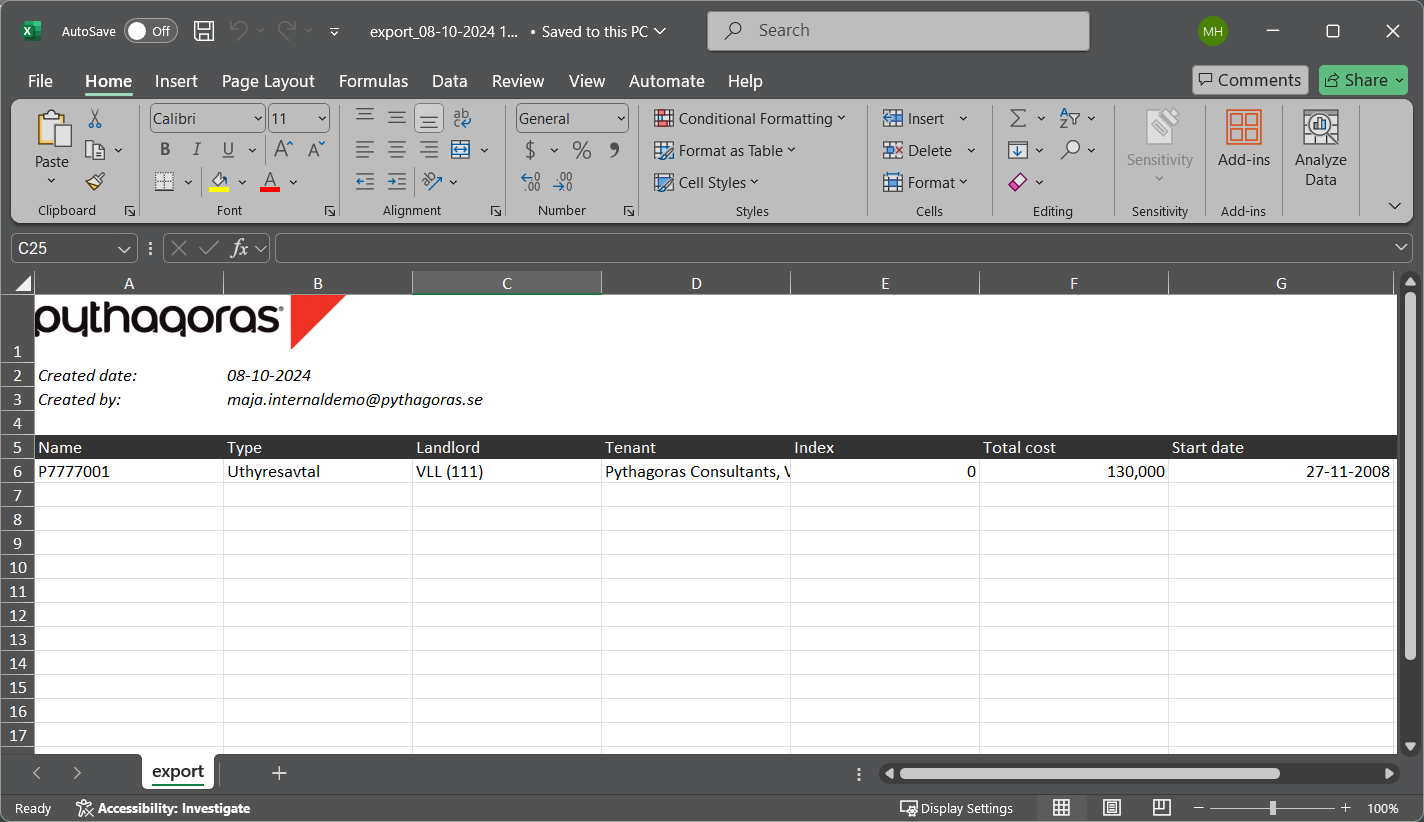
Click "Export to Excel" in the menu (see the first image below). When you do so, the sub-leases list will be exported to Excel (see the second image below).