In order to credit an invoice, credit an invoice basis.
An invoice basis can have one of the following statuses: "Created", "Sent" or "Handled". In other words, it can be in one of the following phases: "Invoice created", "Invoice sent" or "Invoice handled". In order to credit an invoice basis, the invoice basis must be in the the phase called "Invoice handled", which means that is must have been sent from Leases and picked up by the financial system your organisation has integrated with Pythagoras Web.
To credit an invoice basis:
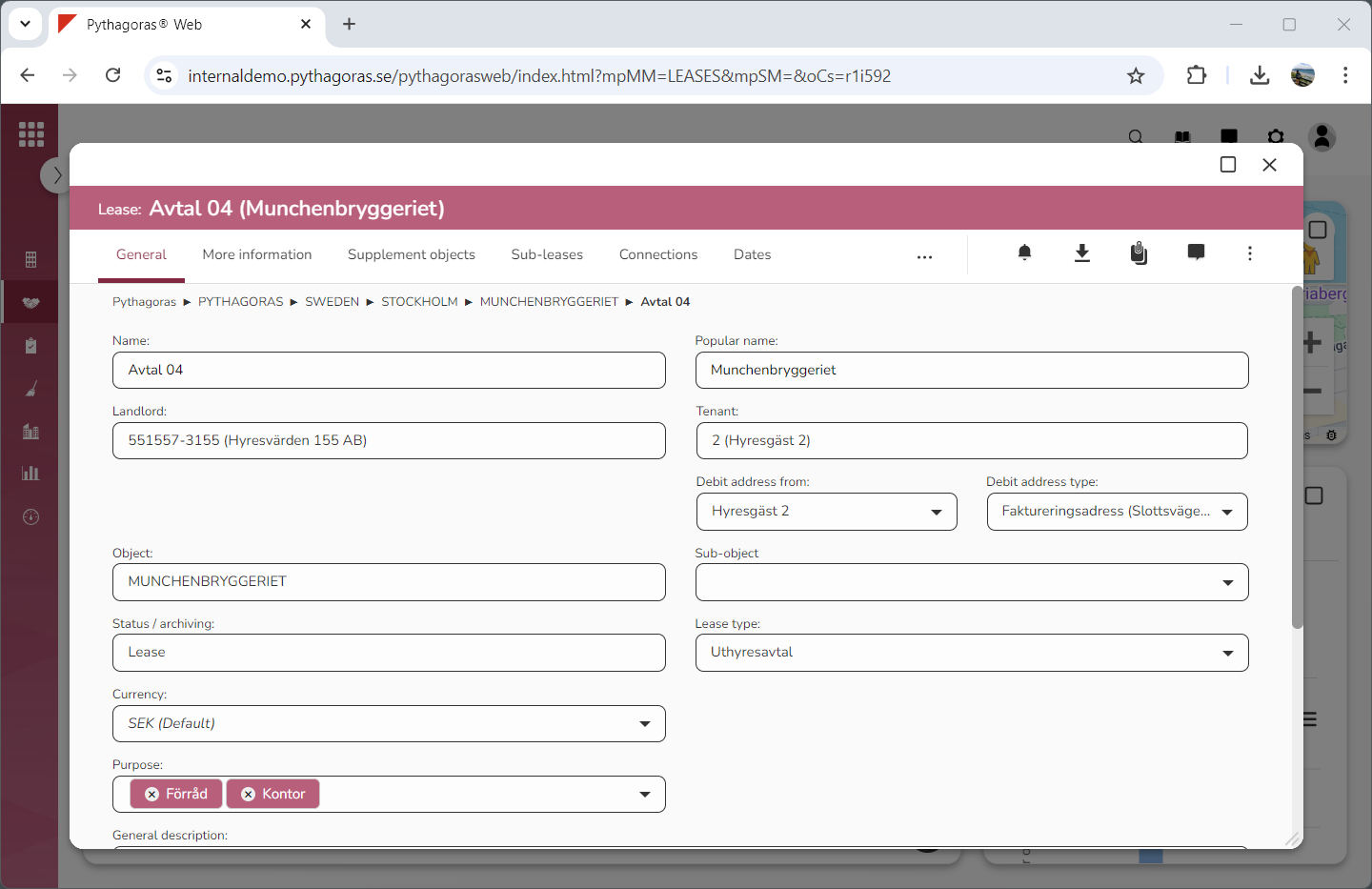
Open a lease. For more information on how to do so, see section 4.6. or 6.1.
Go to the lease card (see image below).
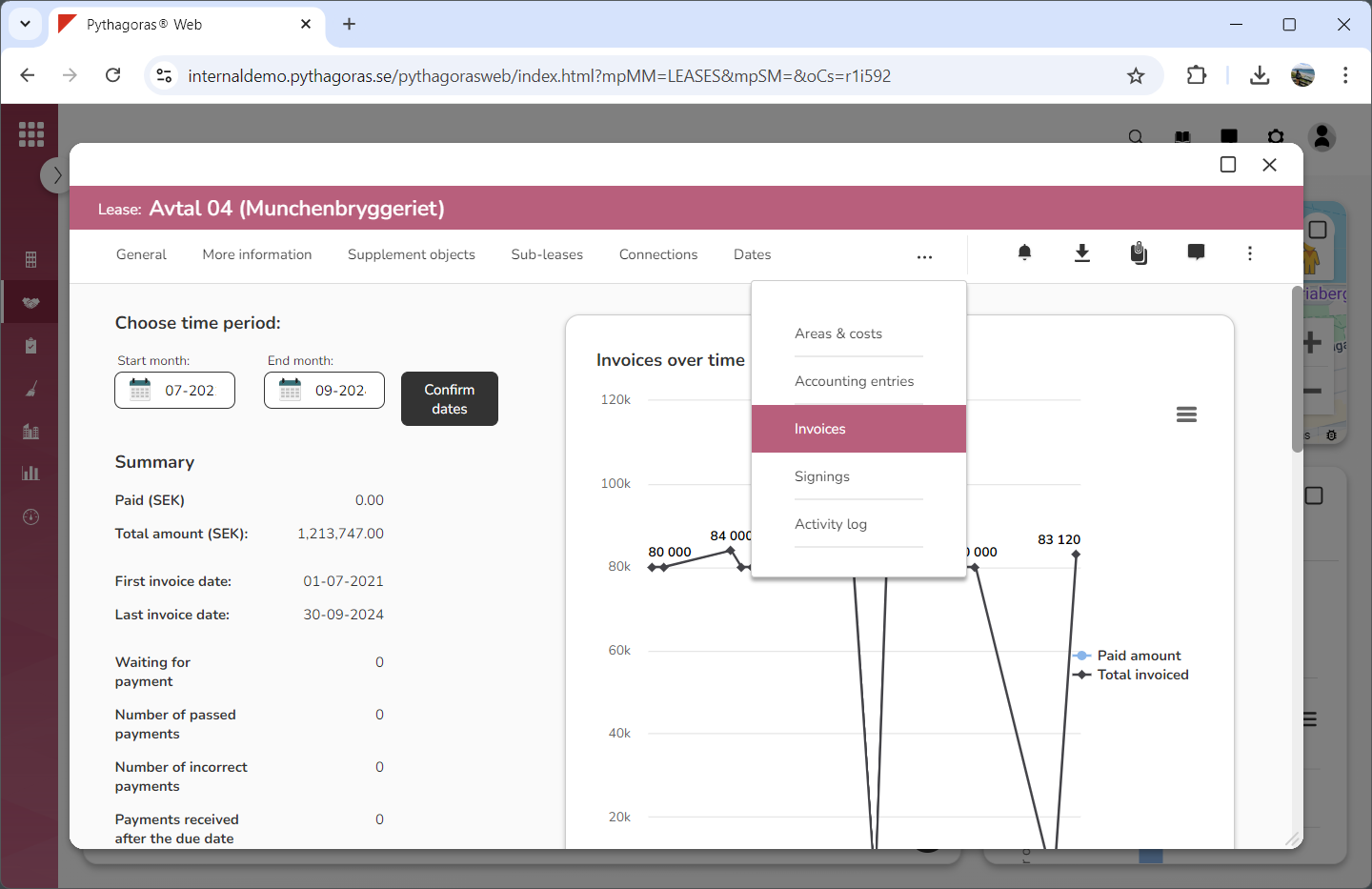
Click the tab called "Invoices" (see image below).
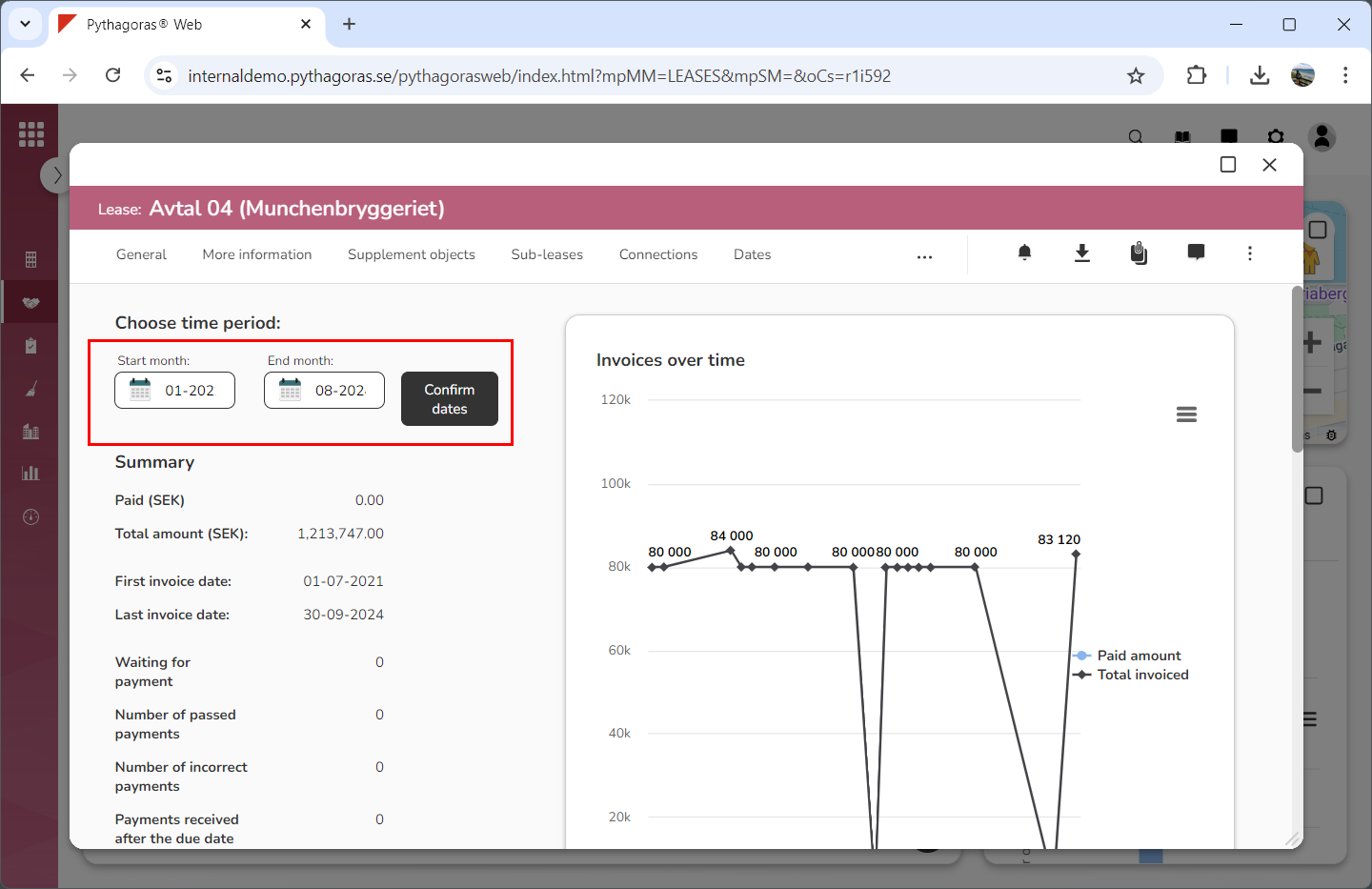
Select which period the lease card should show the invoicing for (see image below). For more information on how to select which period the lease card should show invoicing for, see section 8.9.6. Note that if you do not wish to select a period you can skip this step and go straight to step 5.
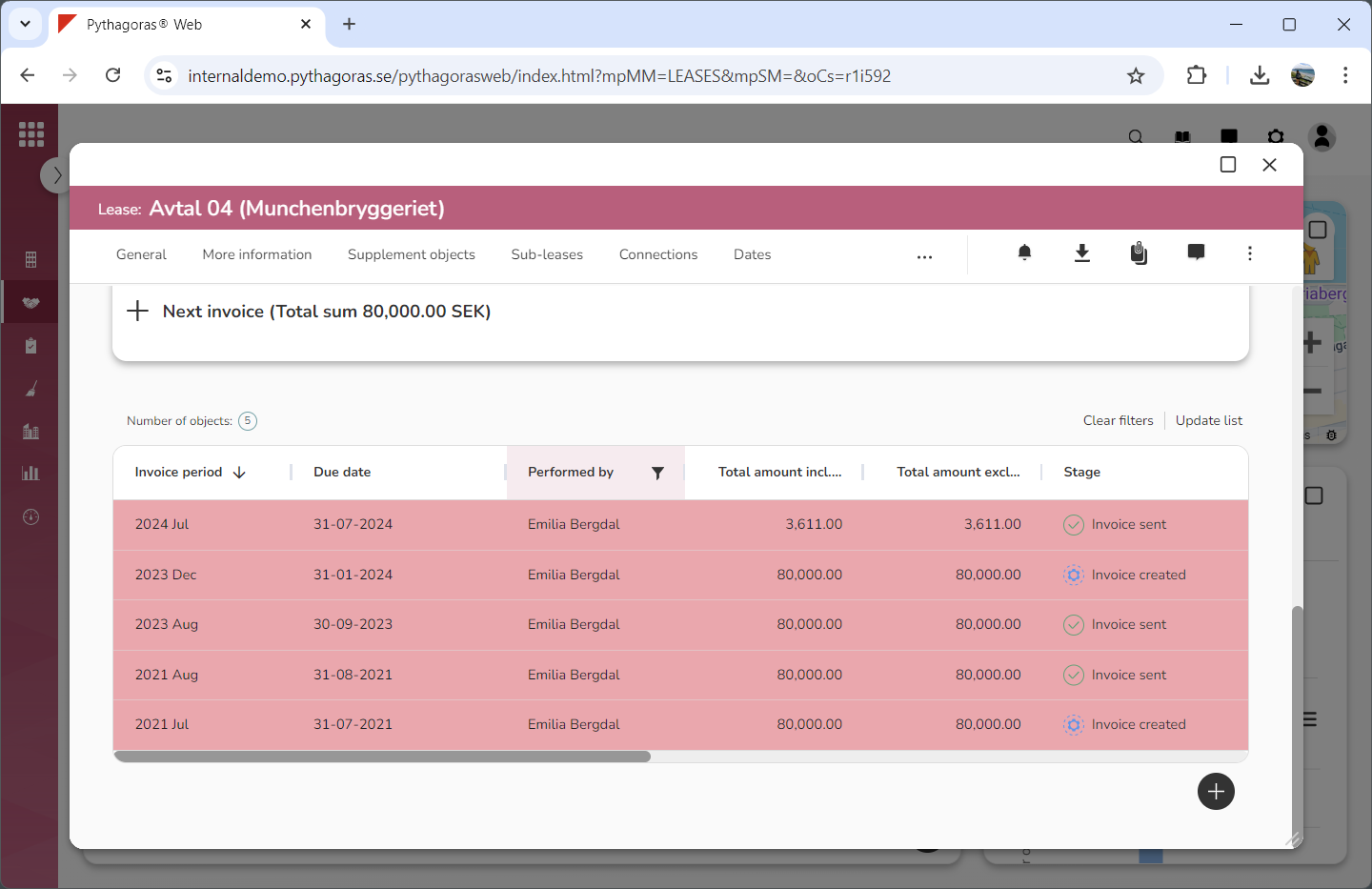
If the number of invoices makes it hard for you to find the invoice basis you wish to credit, filter the invoicing list (see image below). For more information on how to filter the invoicing list, see section 8.9.8. Note that if you do not wish to filter the invoicing list you can skip this step and go straight to step 6.
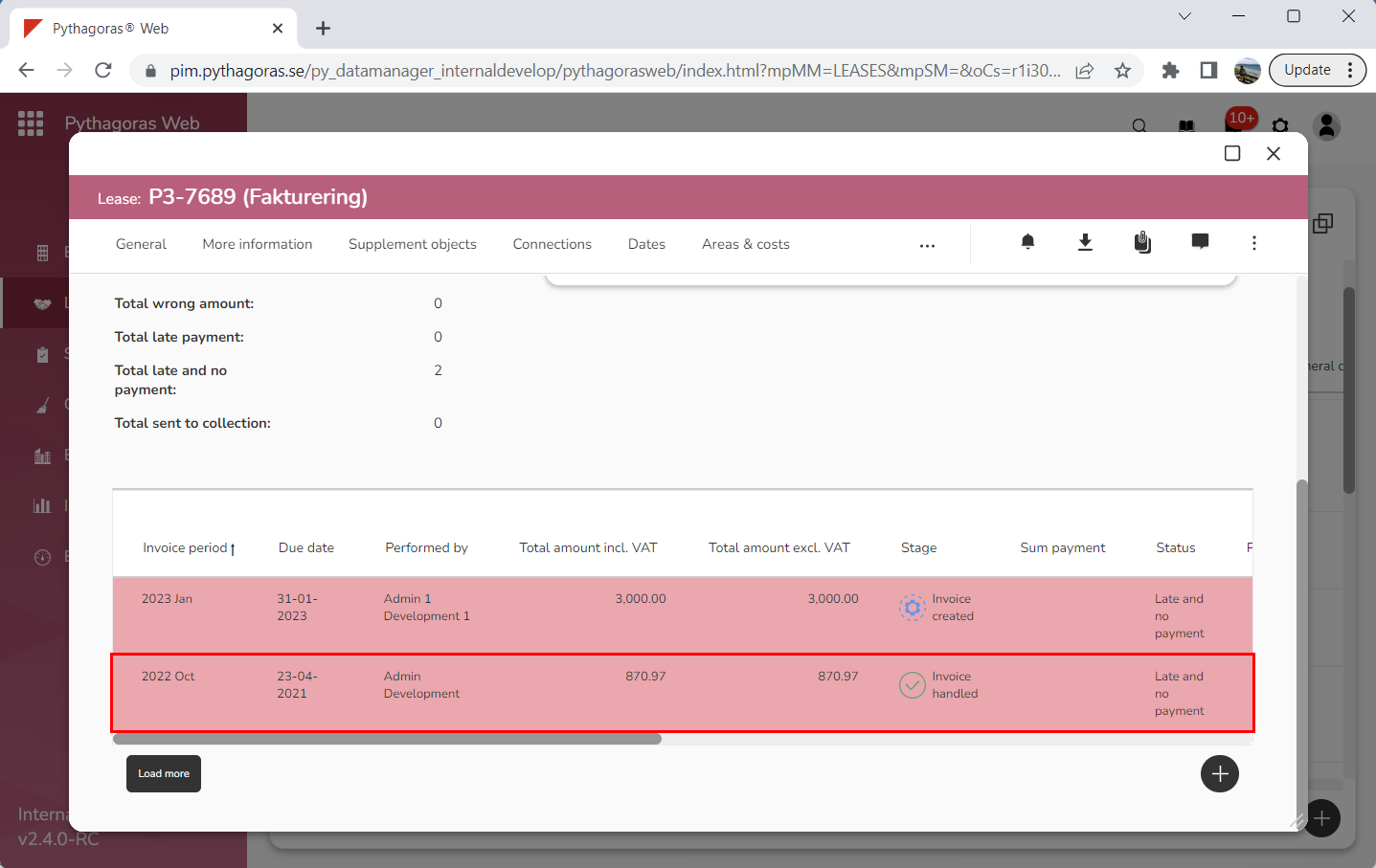
Go to the invoicing basis you wish to credit (see image below).
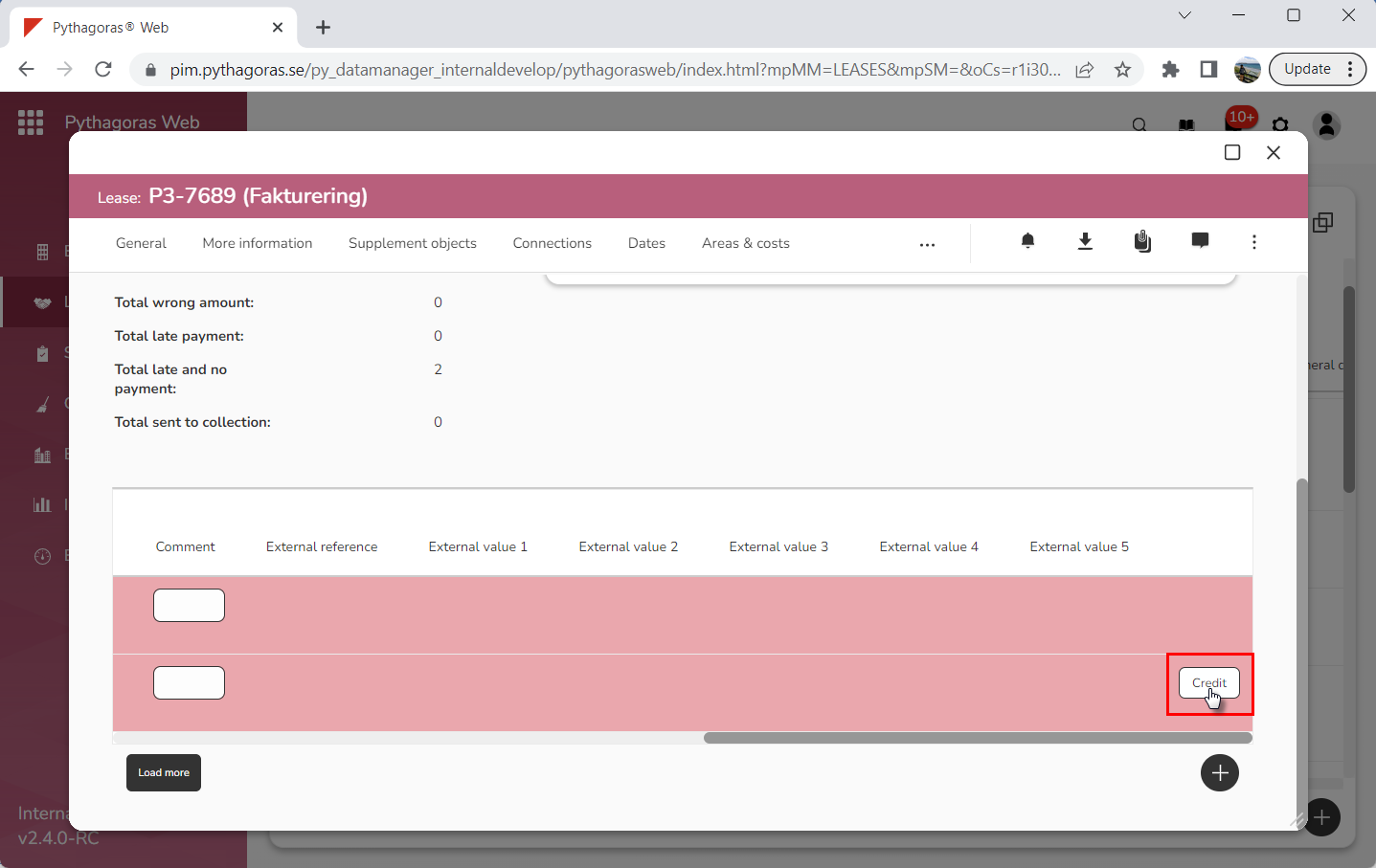
Click "Credit" (see the first image below). When you do so, a window called "Credit" will open(see the second image below).
Go to the window called "Credit".
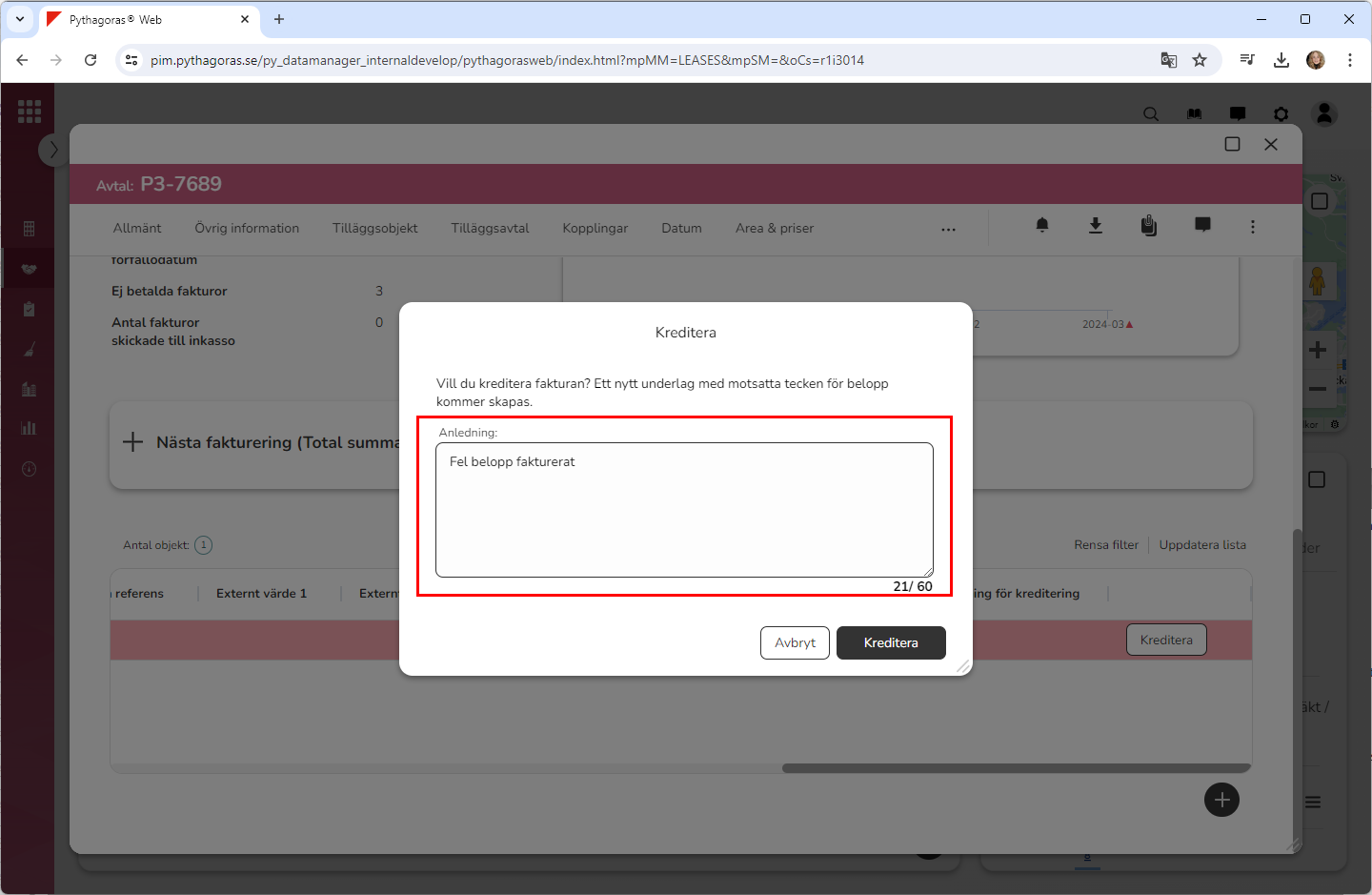
Specify why you wish to credit the invoicing basis you are working with by writing something in the field "Reason" (see image below). Note that if you do not wish to specify why you wish to credit the invoicing basis you are working with you can skip this step and go straight to step 10.
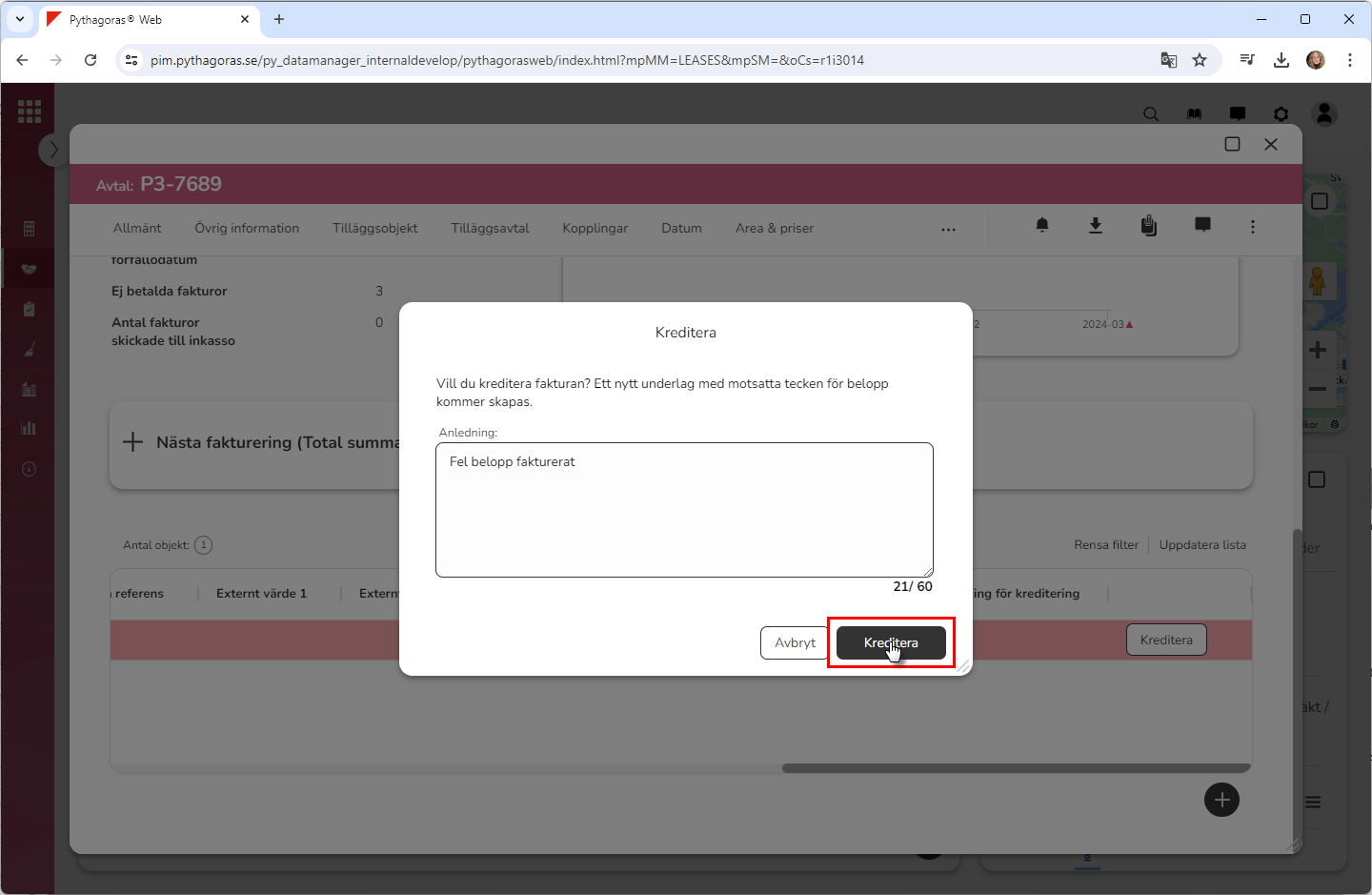
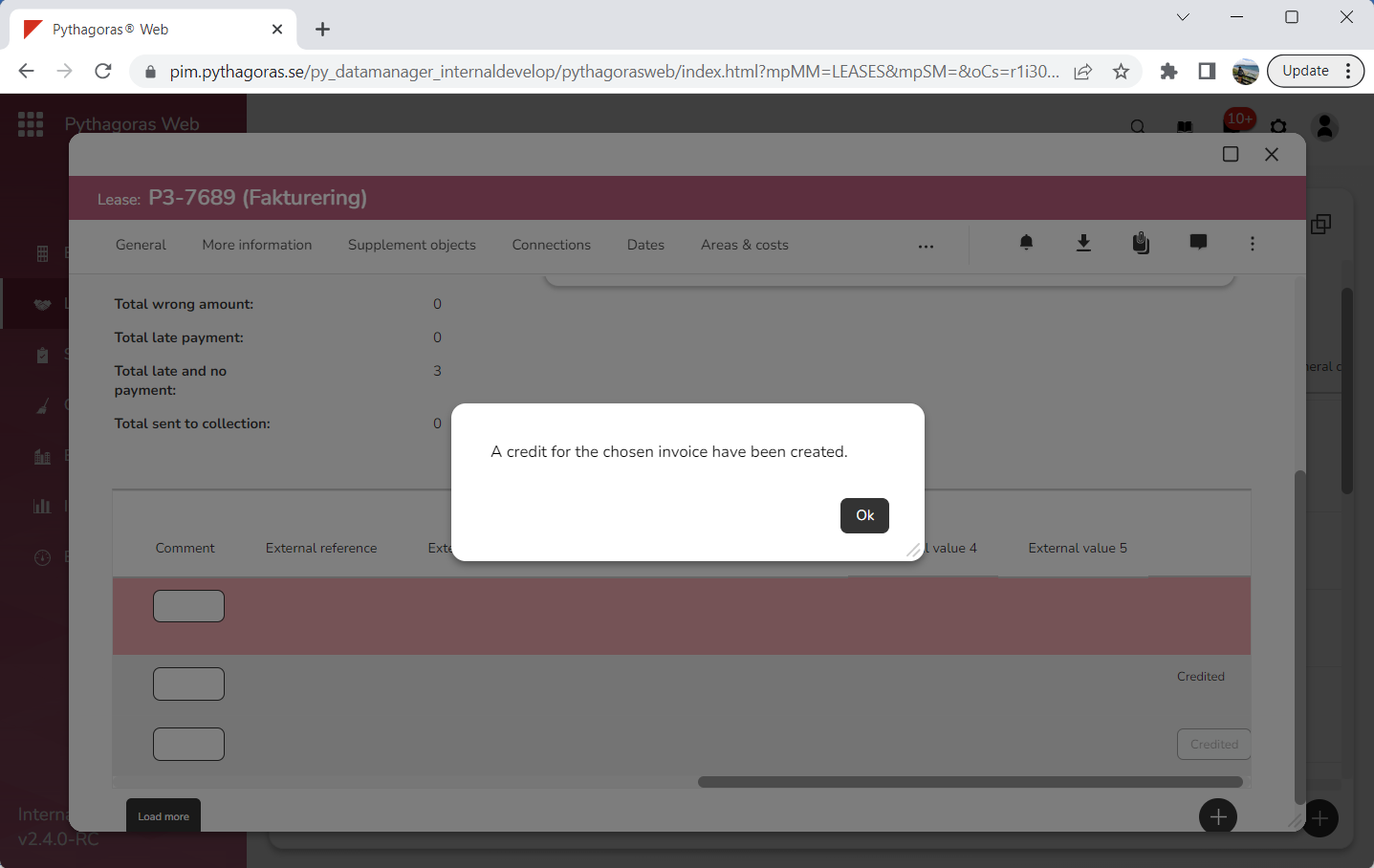
Click "Credit" (see the first image below). When you do so, the invoicing basis you are working with will be credited. At the same time, a dialog will open with the following message: "A credit for the chosen invoice have been created" (see the second image below).
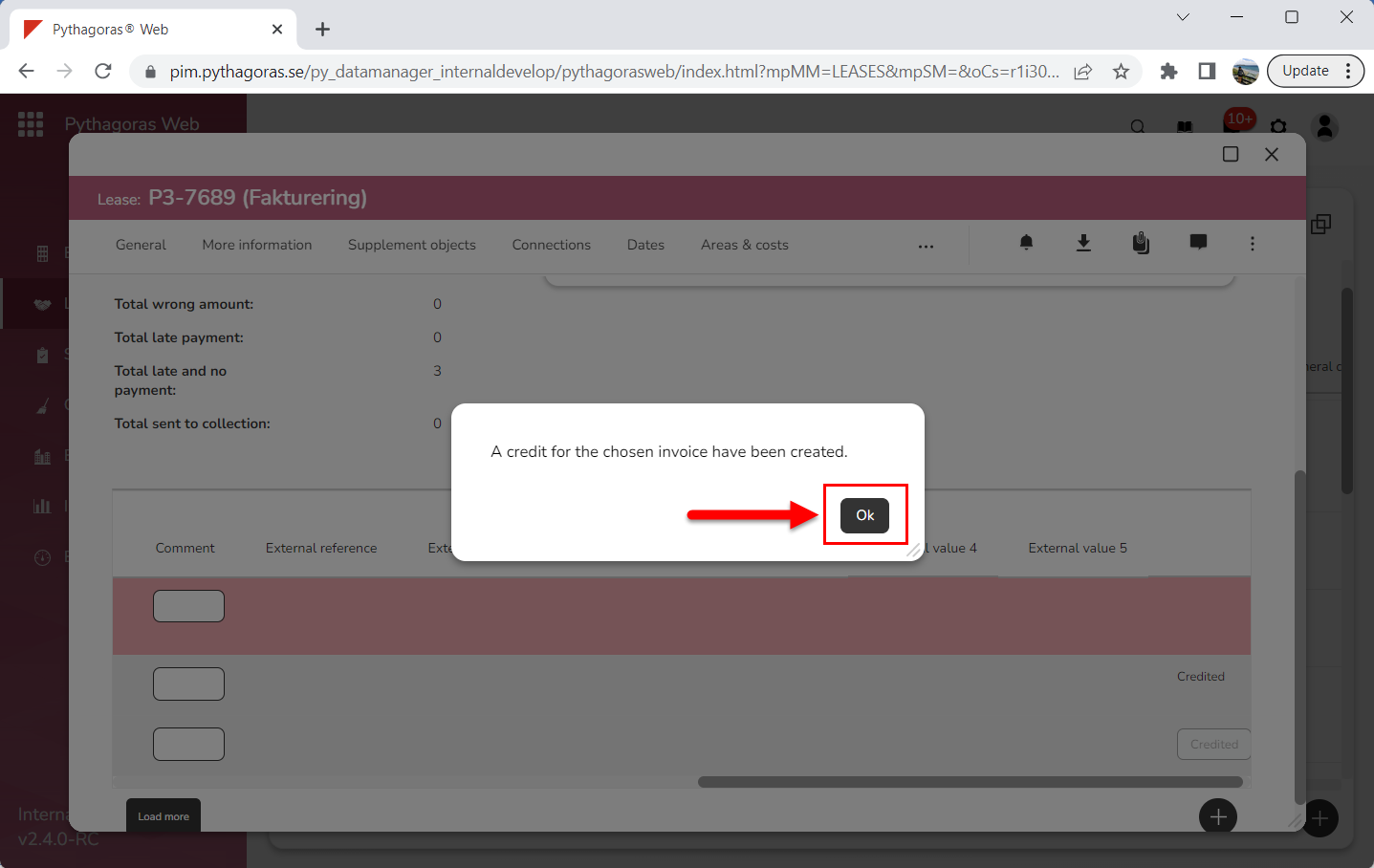
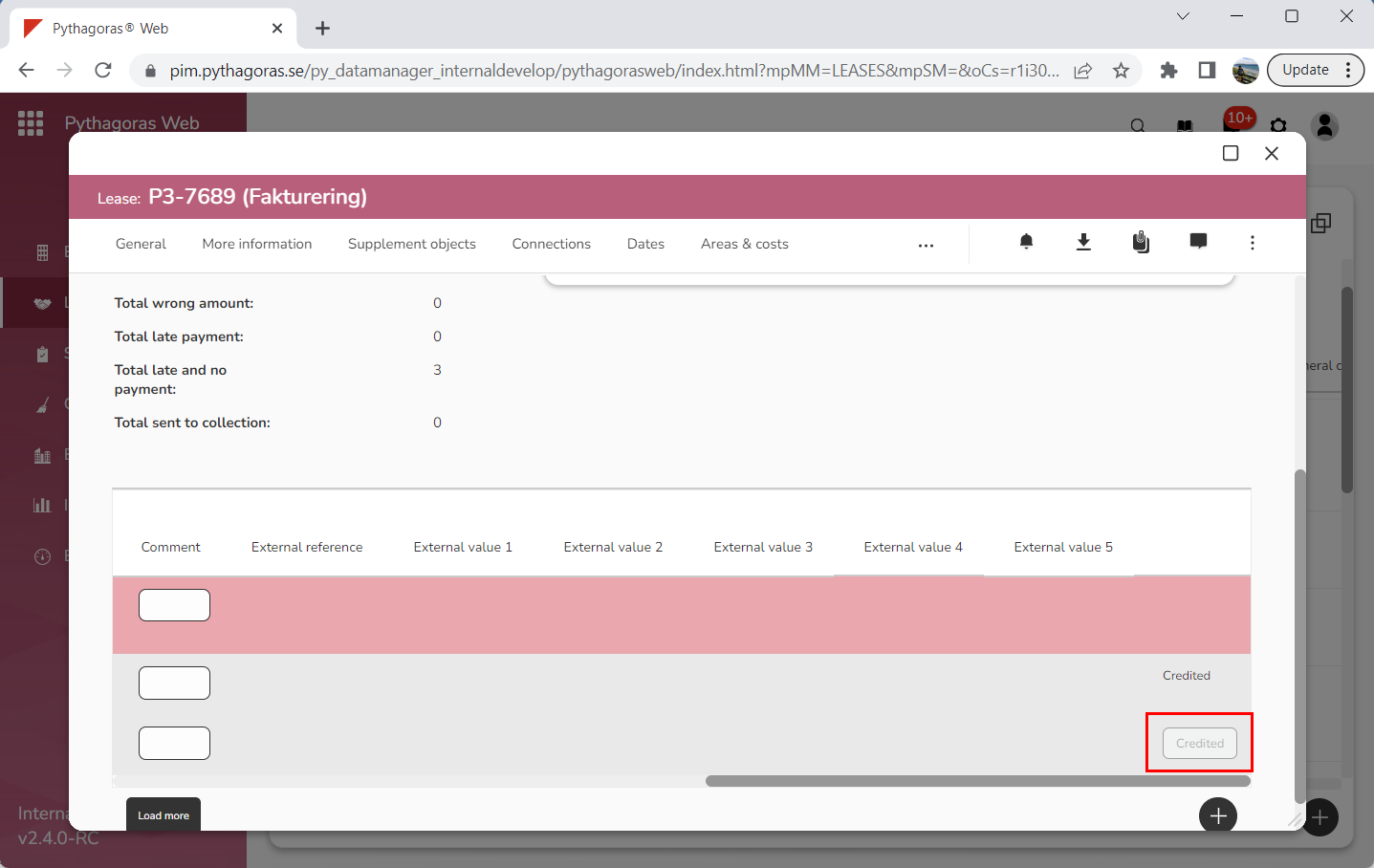
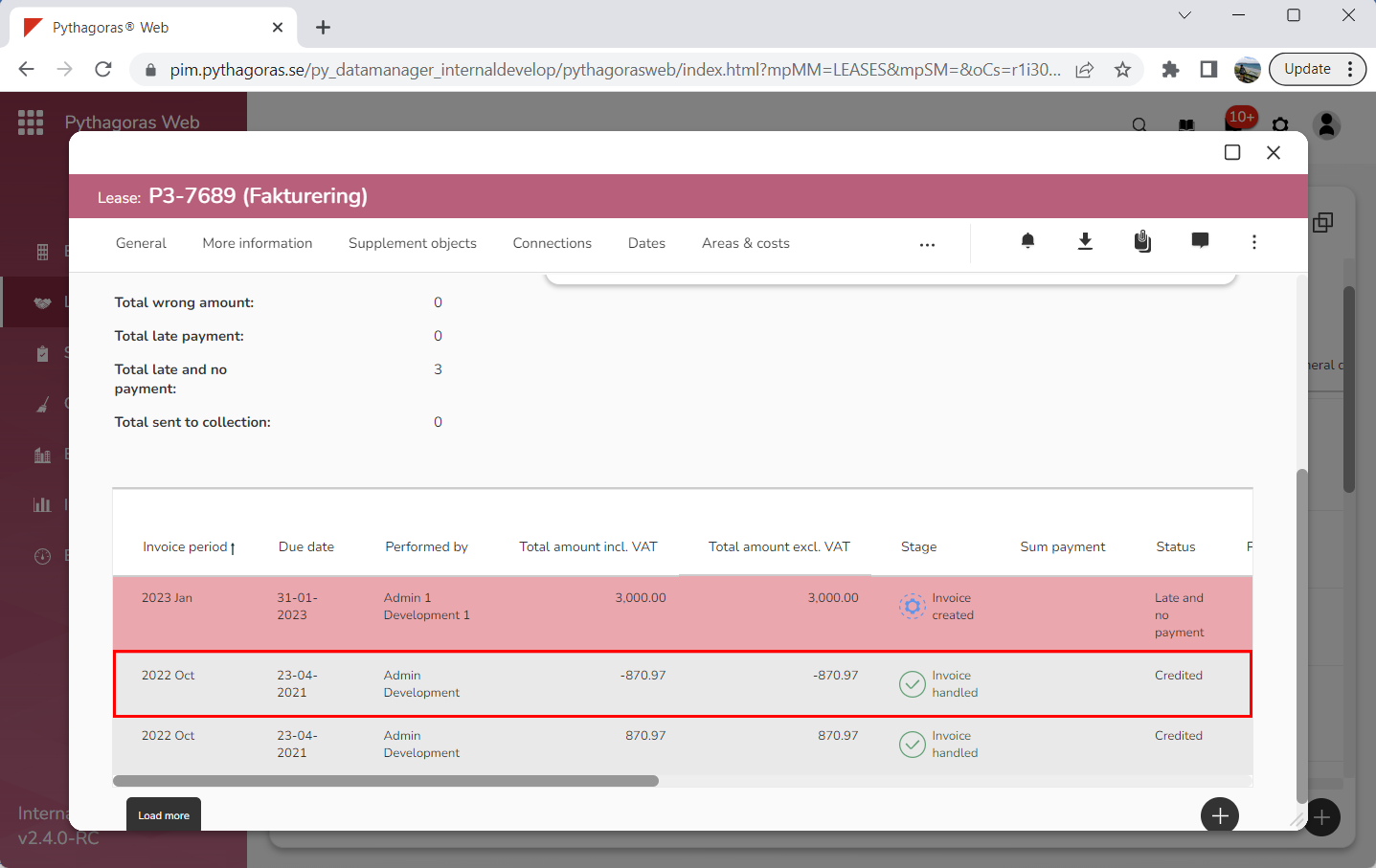
Click "OK" in the dialog (see the first image below). When you do so, you will be redirected back to the lease card where you will see that the invoicing basis you are working with has been credited (see the second image below). Note that when an invoicing basis is credited, a new invoicing basis is created for the lease you are working with (see the third image below).