Open a lease. For more information on how to do so, see section 4.6. or 6.1.
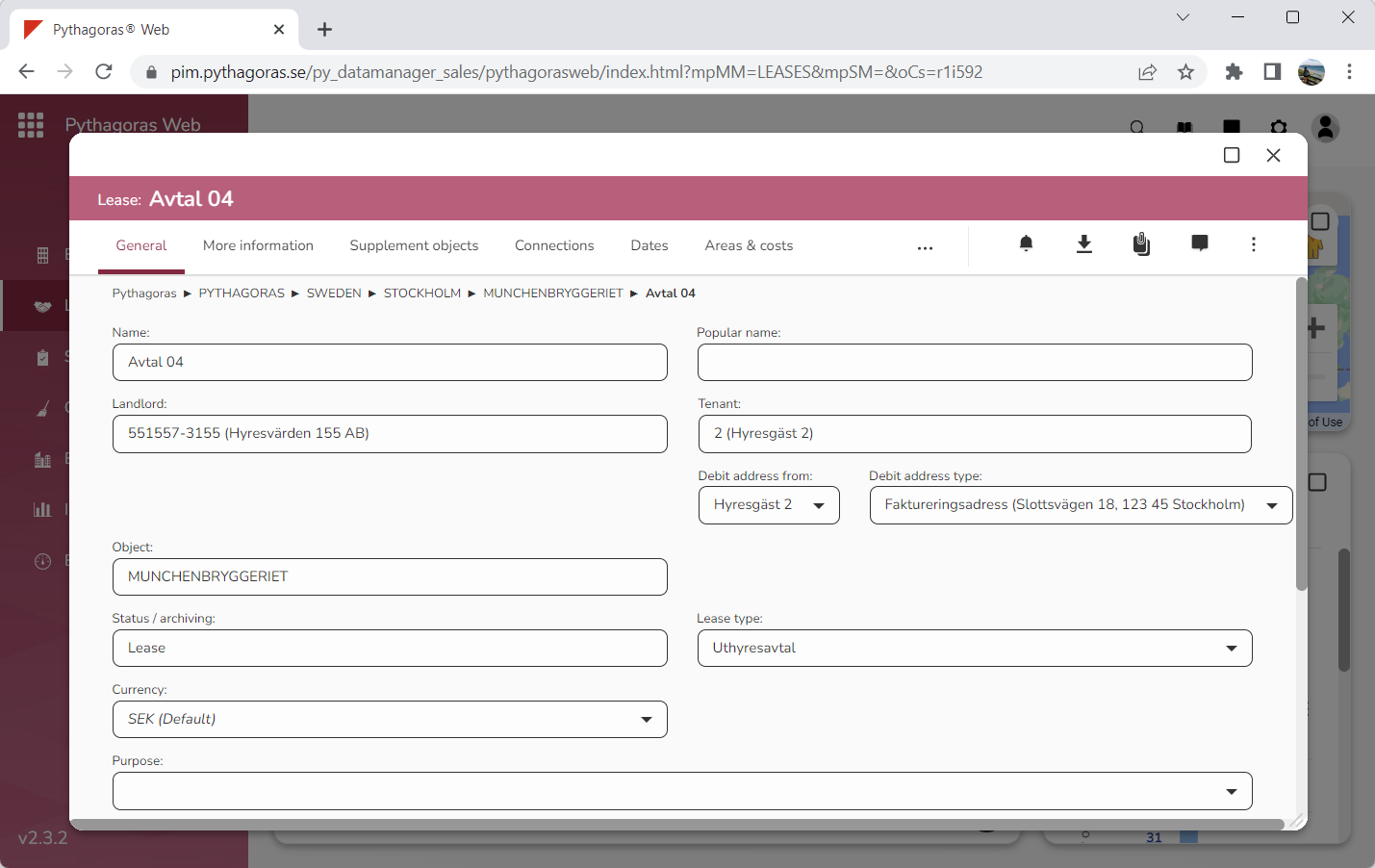
Go to the lease card (see image below).
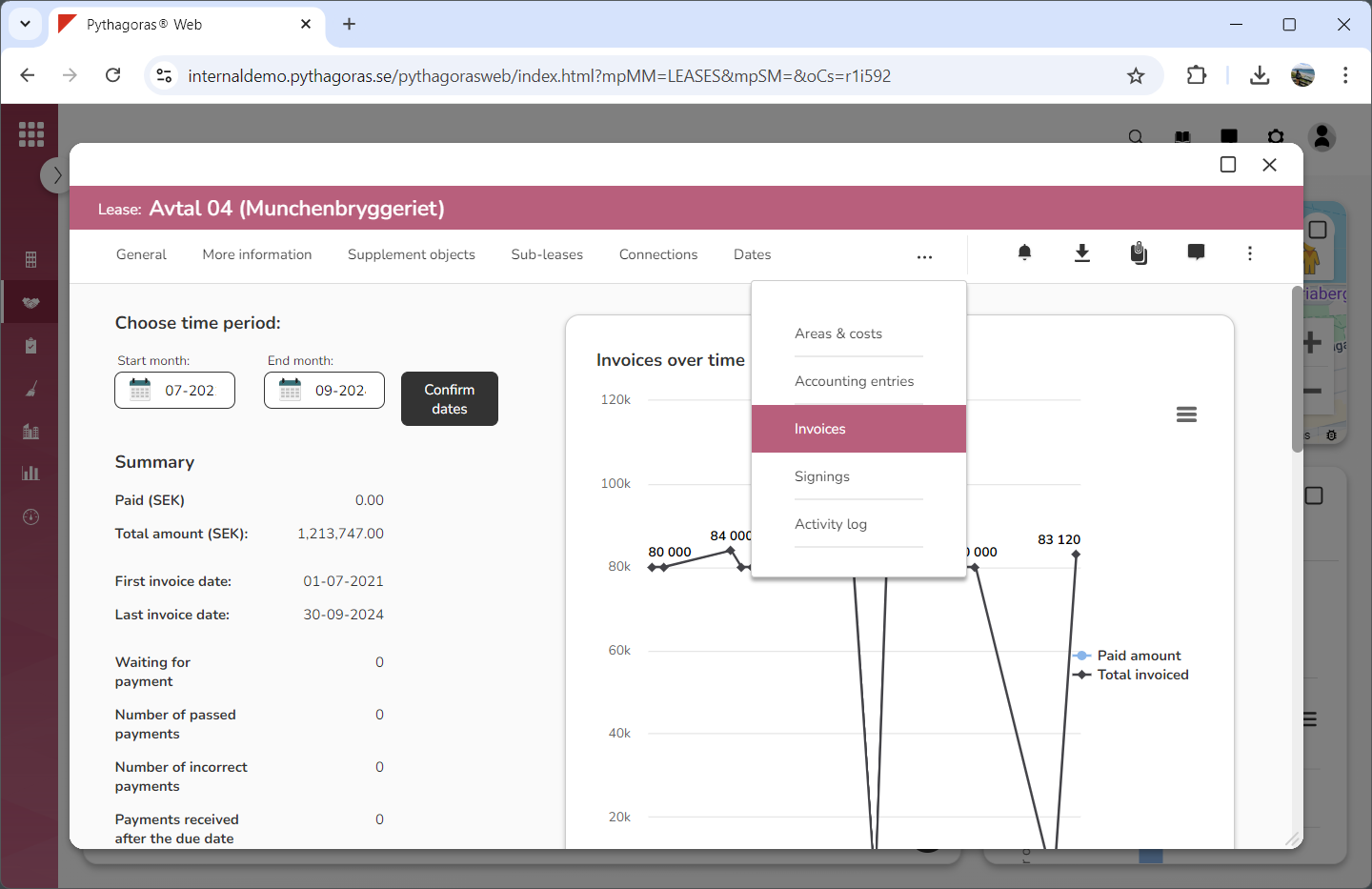
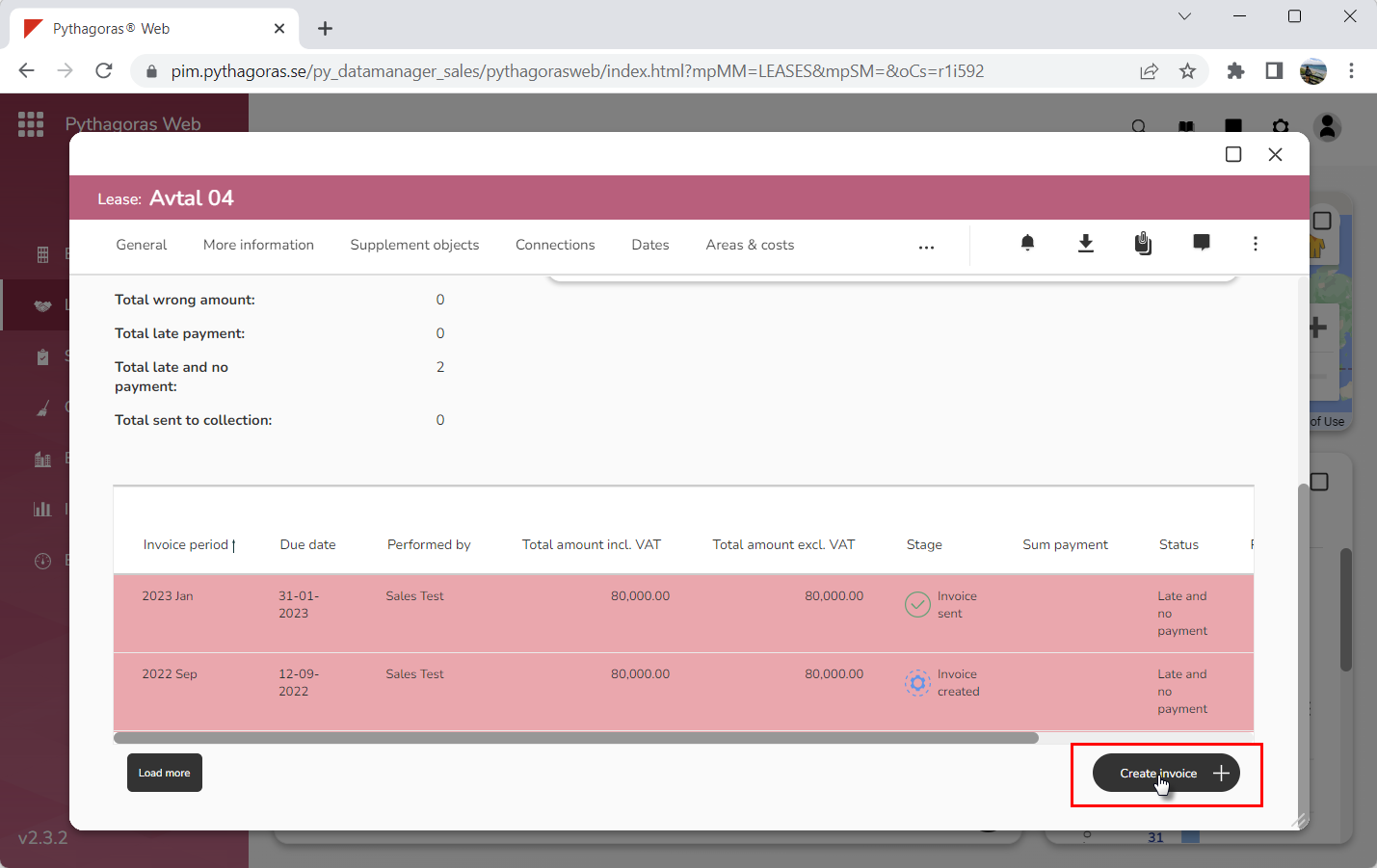
Click the tab called "Invoices" (see image below). Within the tab called "Invoices" you will, among other things, find an icon called "Create invoice". Note that you have to scroll the lease card to find the icon called "Create invoice"
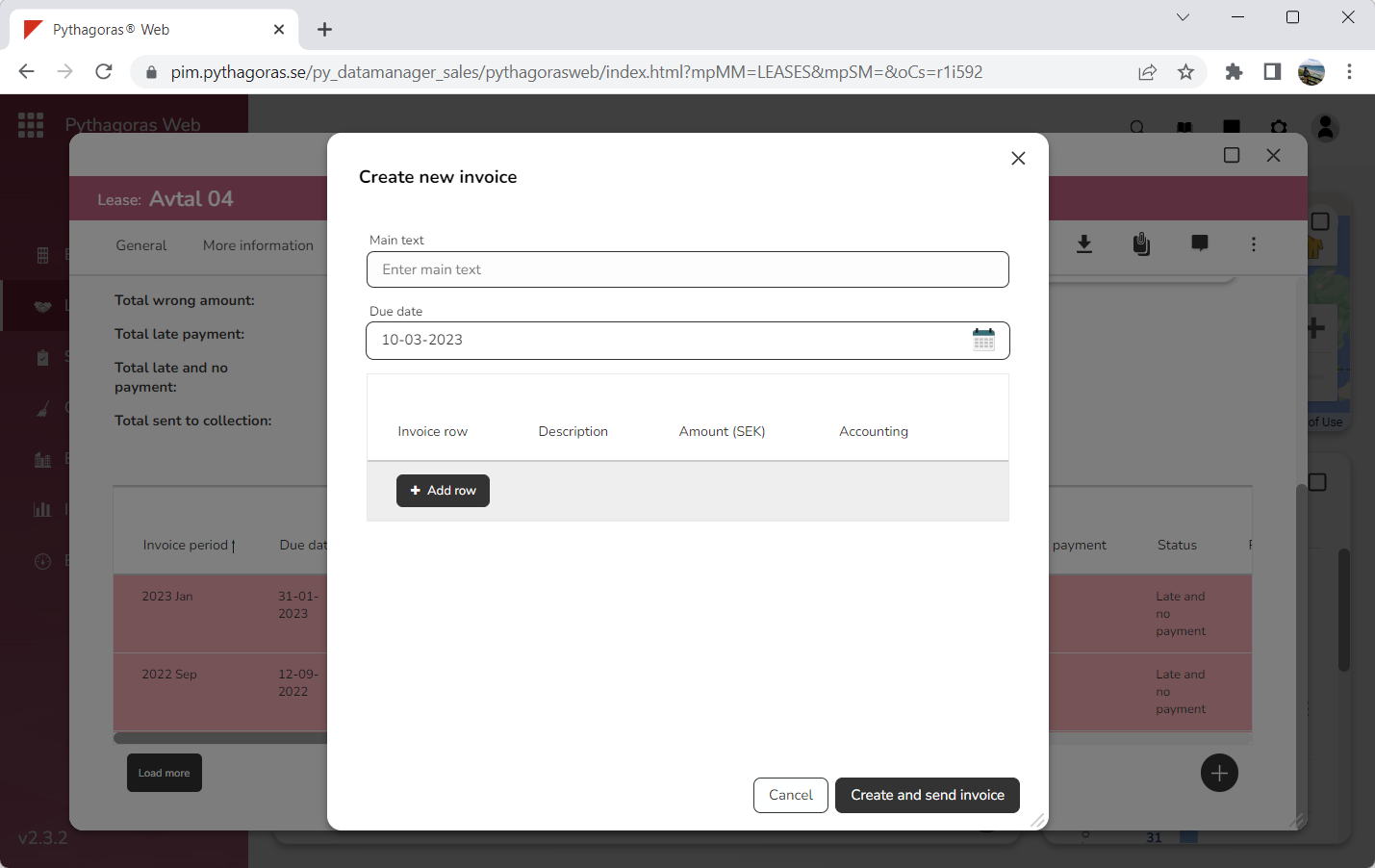
Click "Create invoice" (see the first image below). When you do so, a window called "Create new invoice" will open (see the second image below).
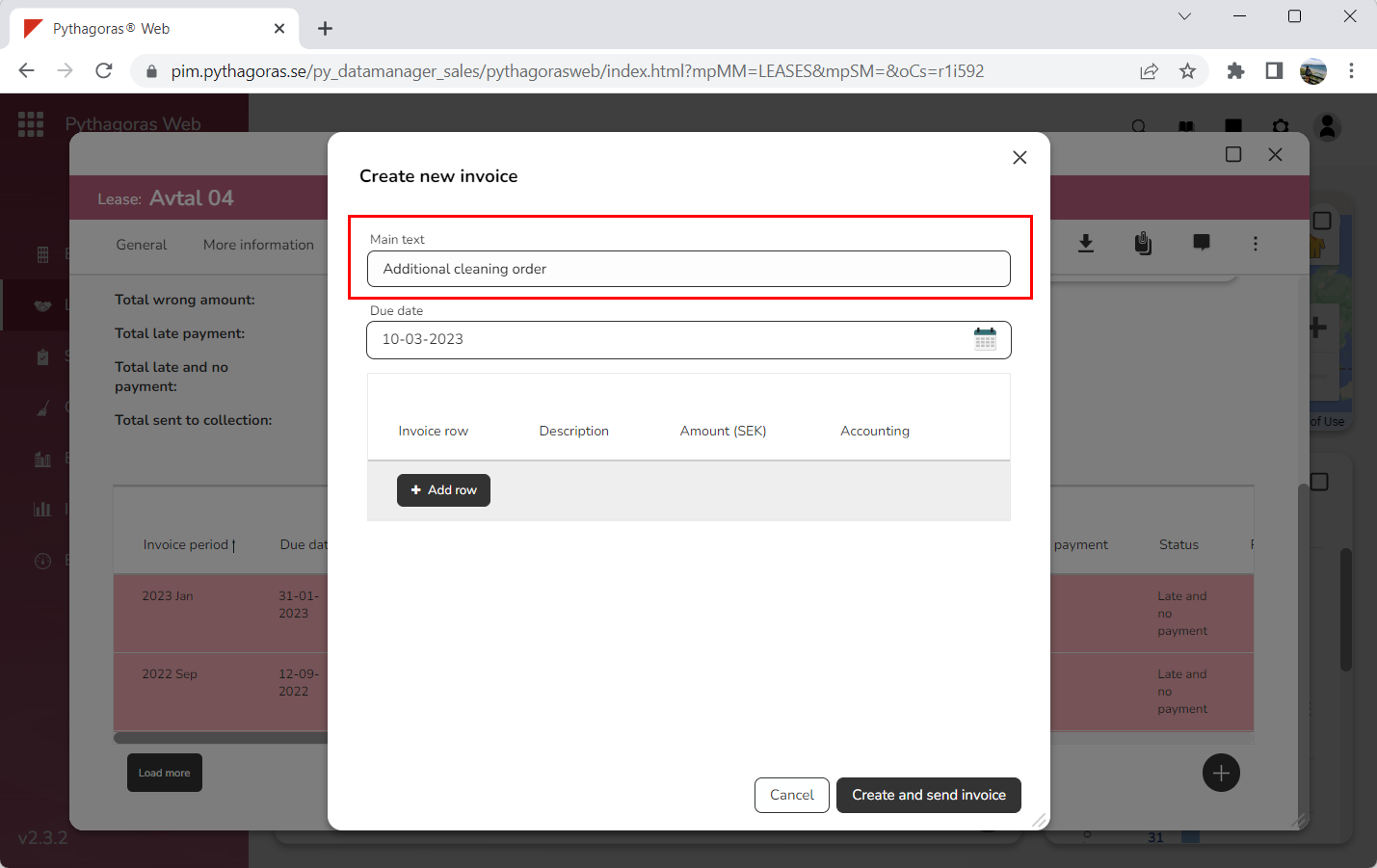
Set a main text for the one-off invoice you are about to create by writing something in the field "Main text" (see image below).
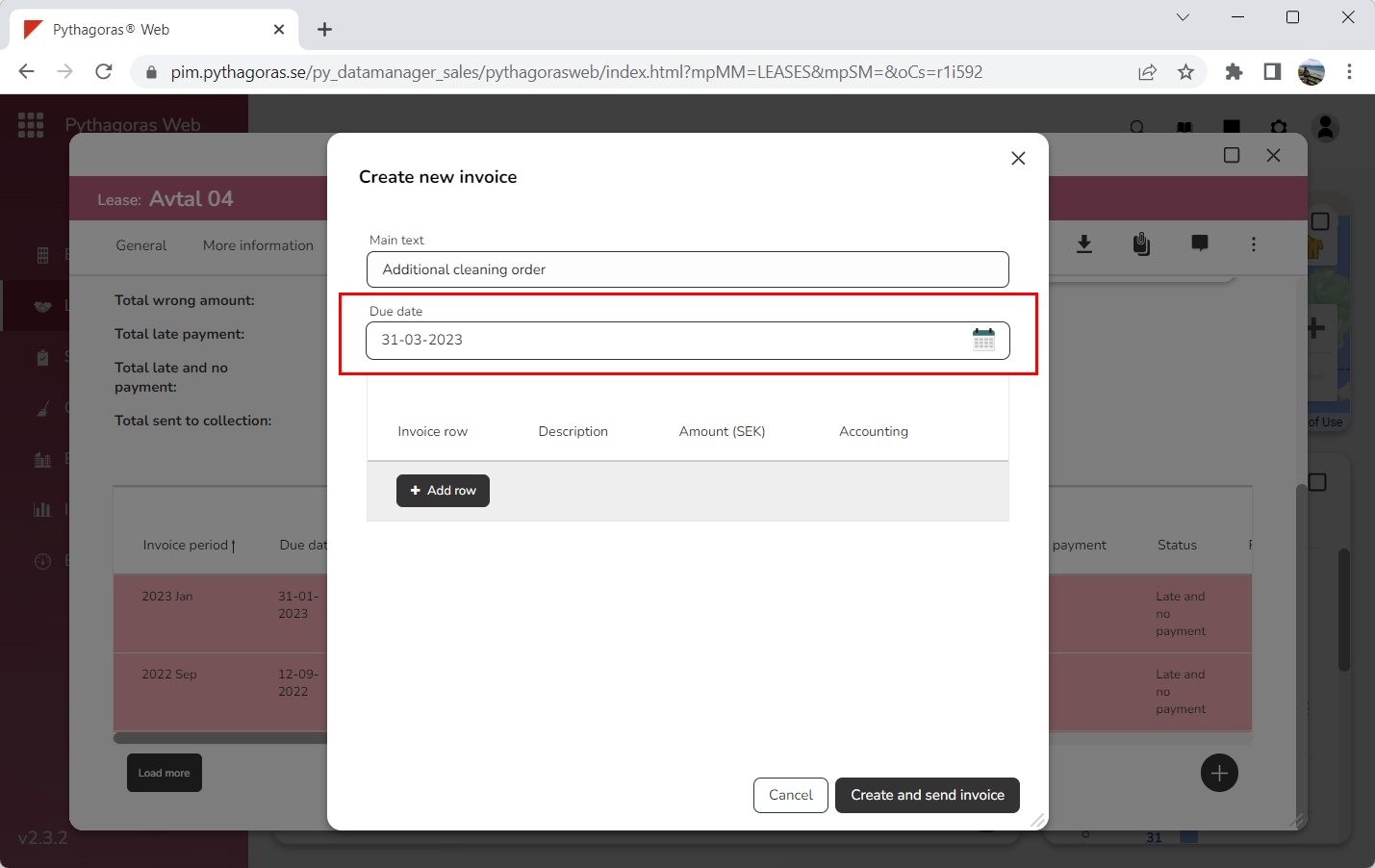
Set a due date for the one-off invoice you are about to create by clicking the field "Due date" and then selecting a due date in the calendar that opens (see image below).
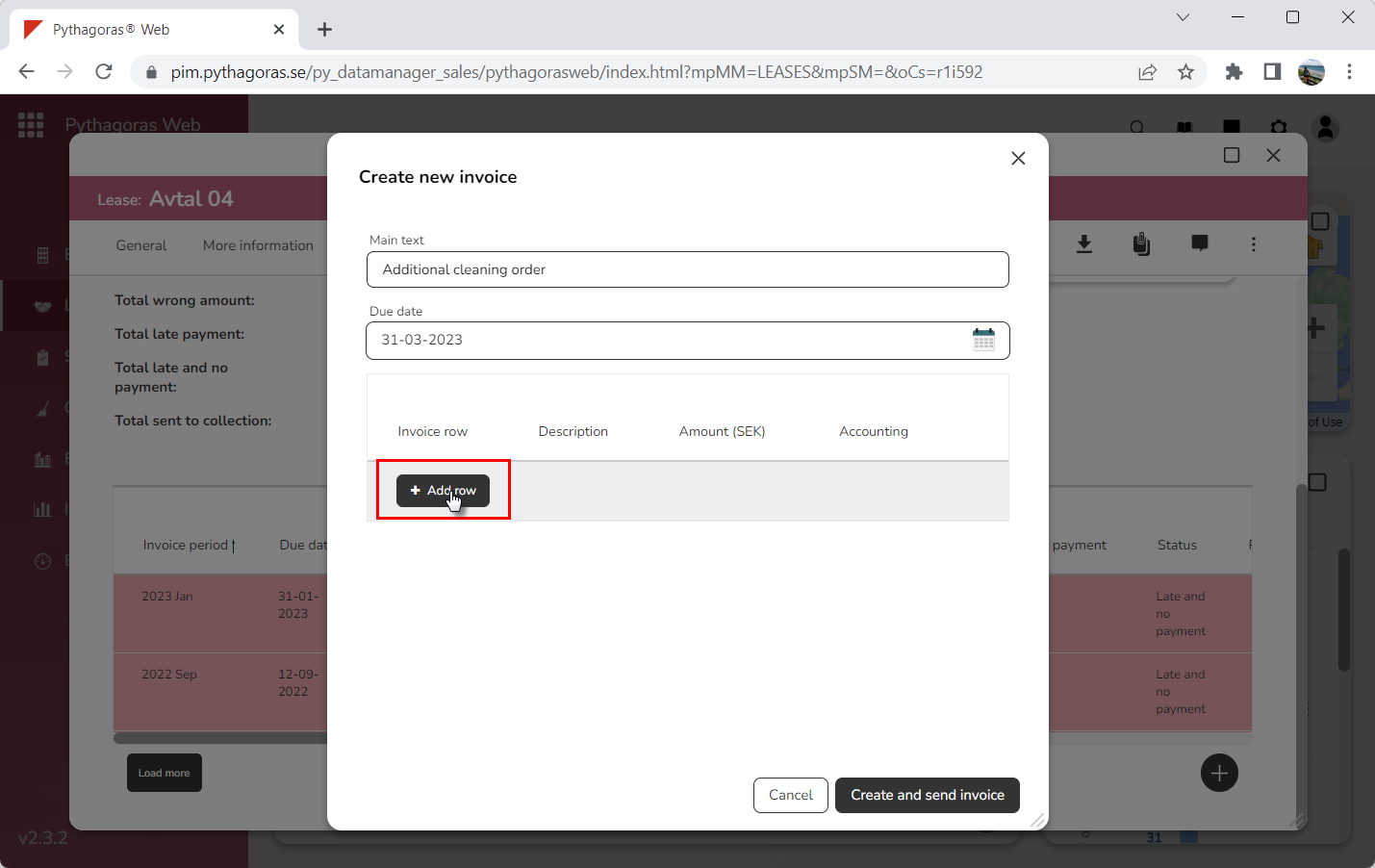
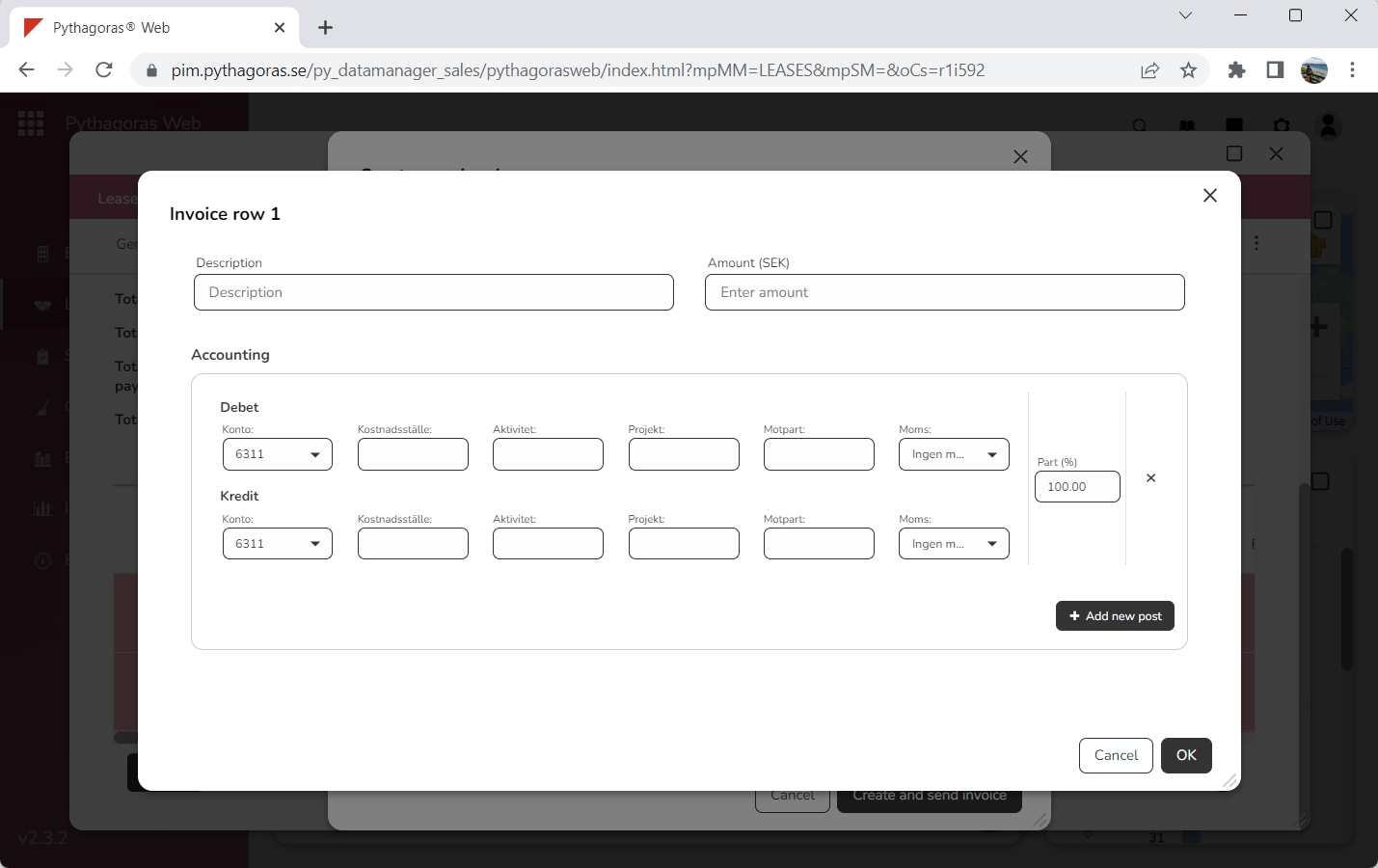
Add an invoice row to the one-off invoice you are about to create by clicking the button called "Add row" (see the first image below). When you do so, a window called "Invoice row 1" will open (see the second image below).
Go to the window called "Invoice row 1".
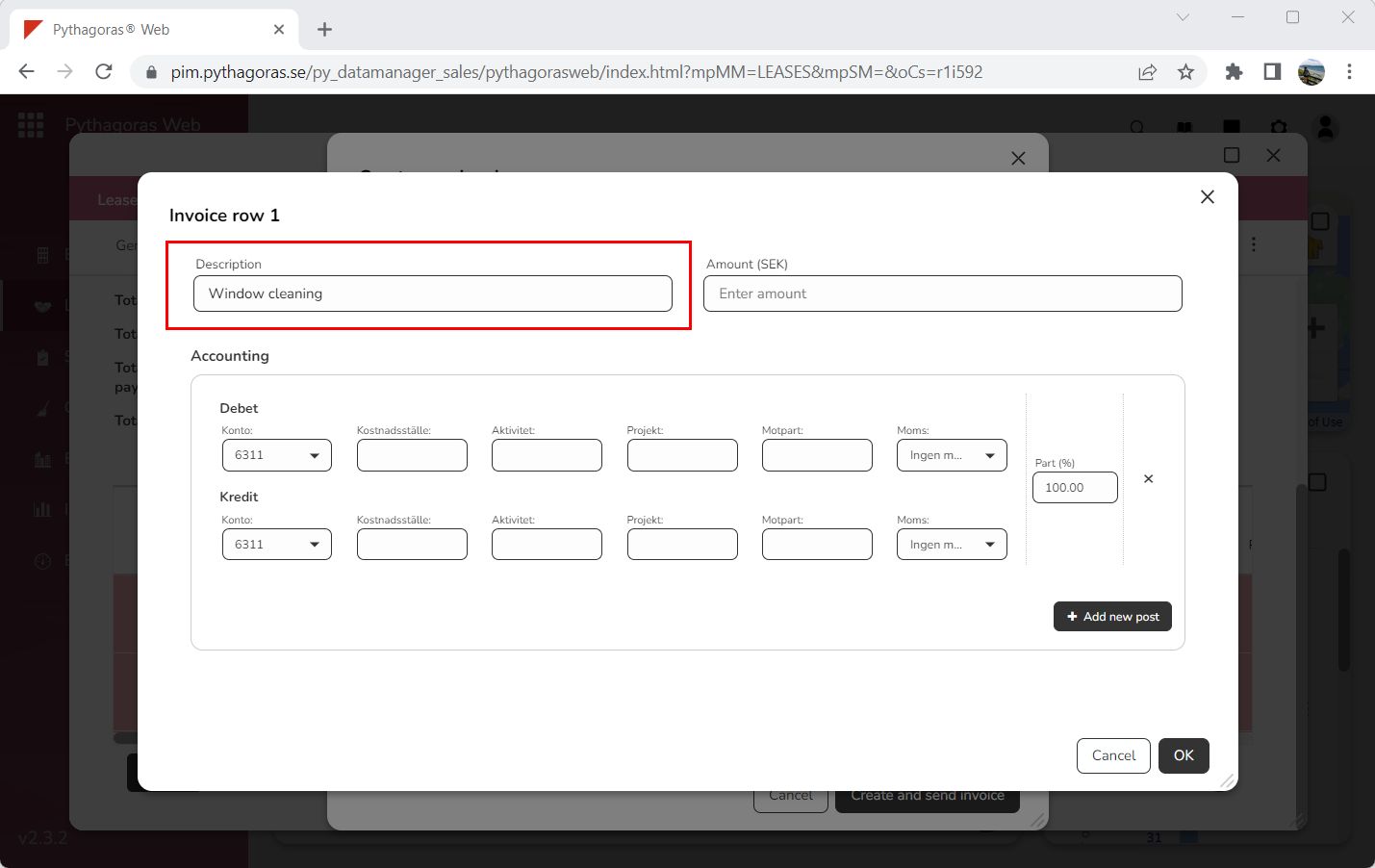
Set a description for the invoice row you are working with by writing something in the field "Description" (see image below).
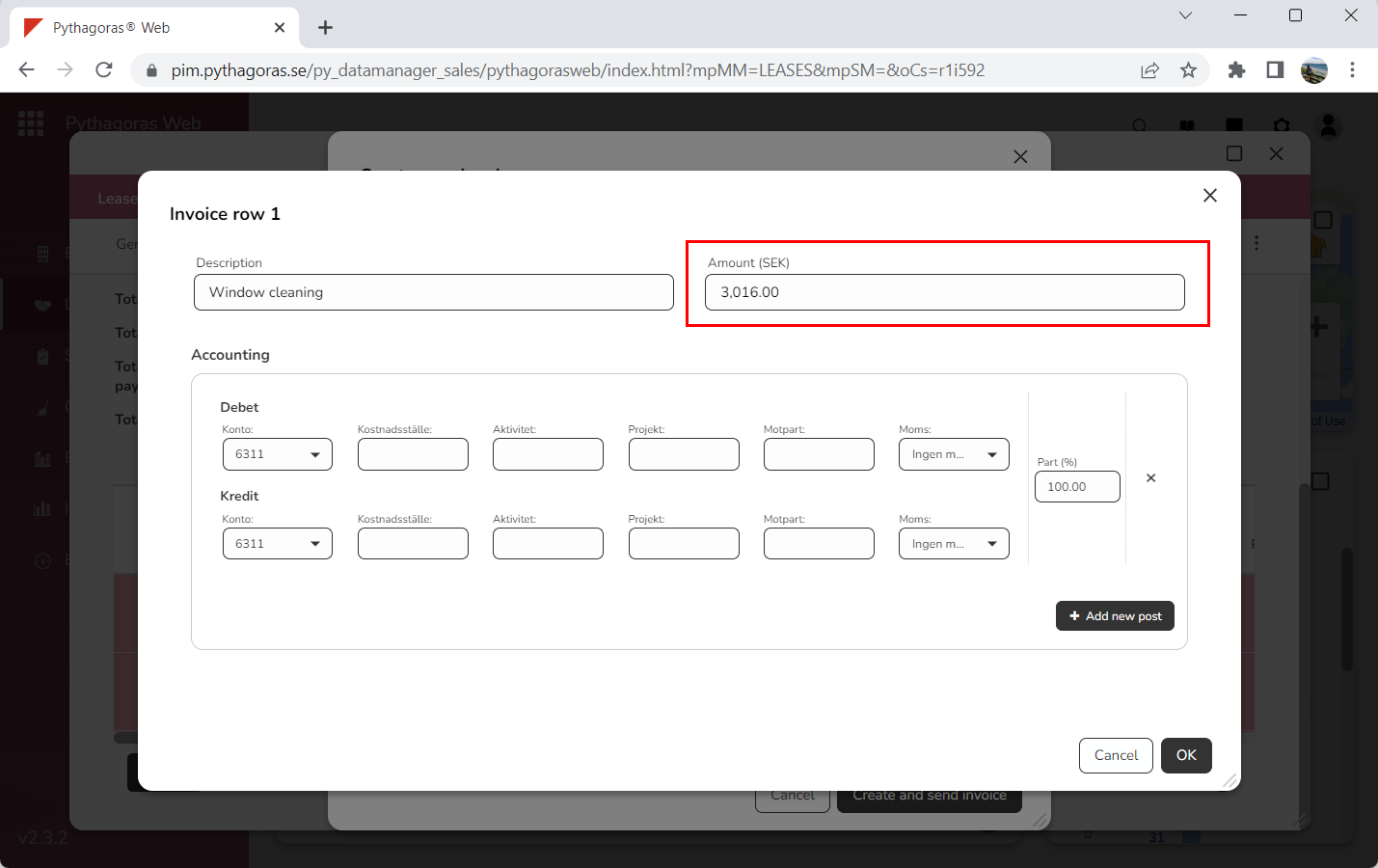
Set an amount for the invoice row you are working with by entering an amount in the field "Amount" (see image below).
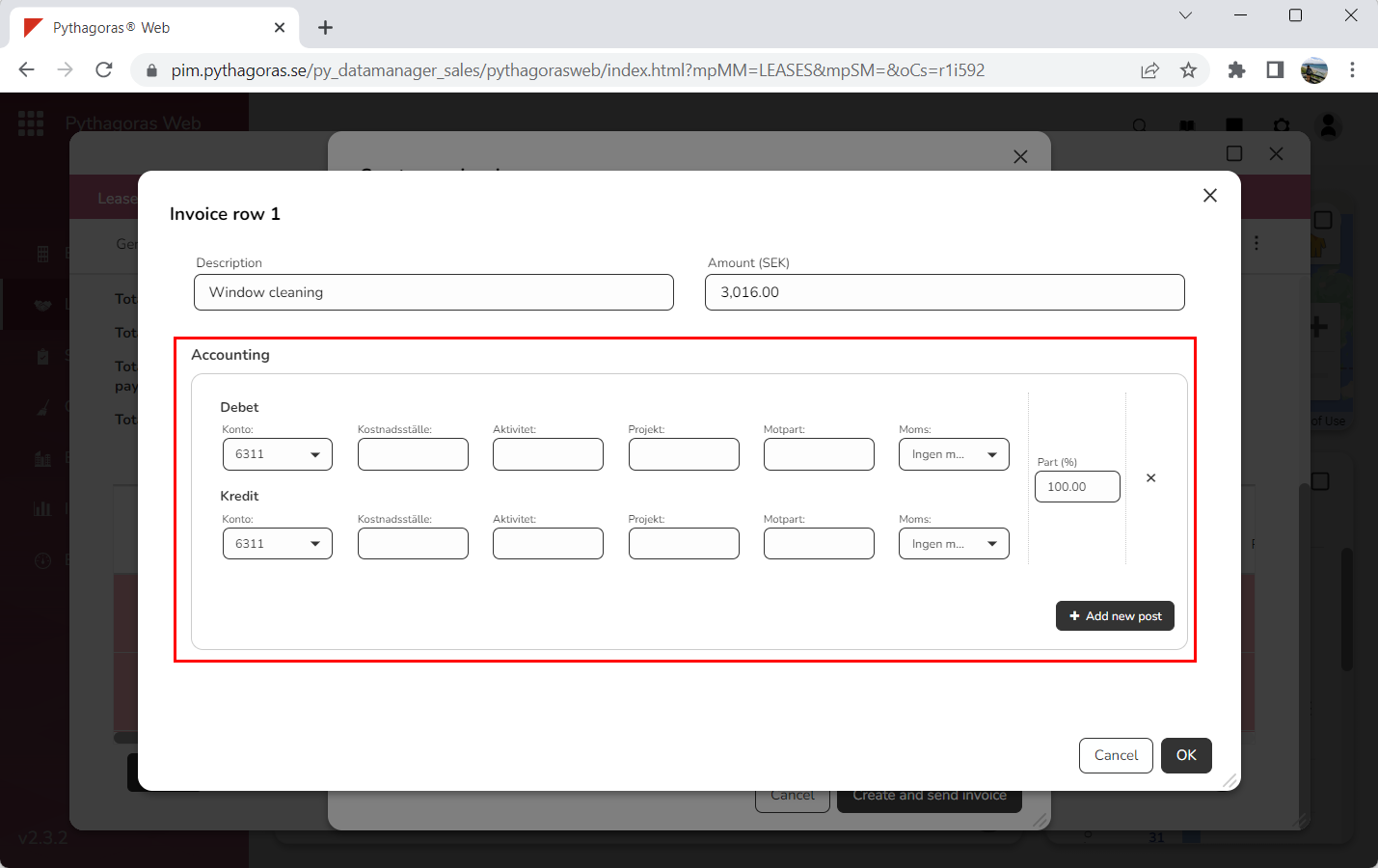
Set an accounting entry post for the invoice row you are working with (see image below).
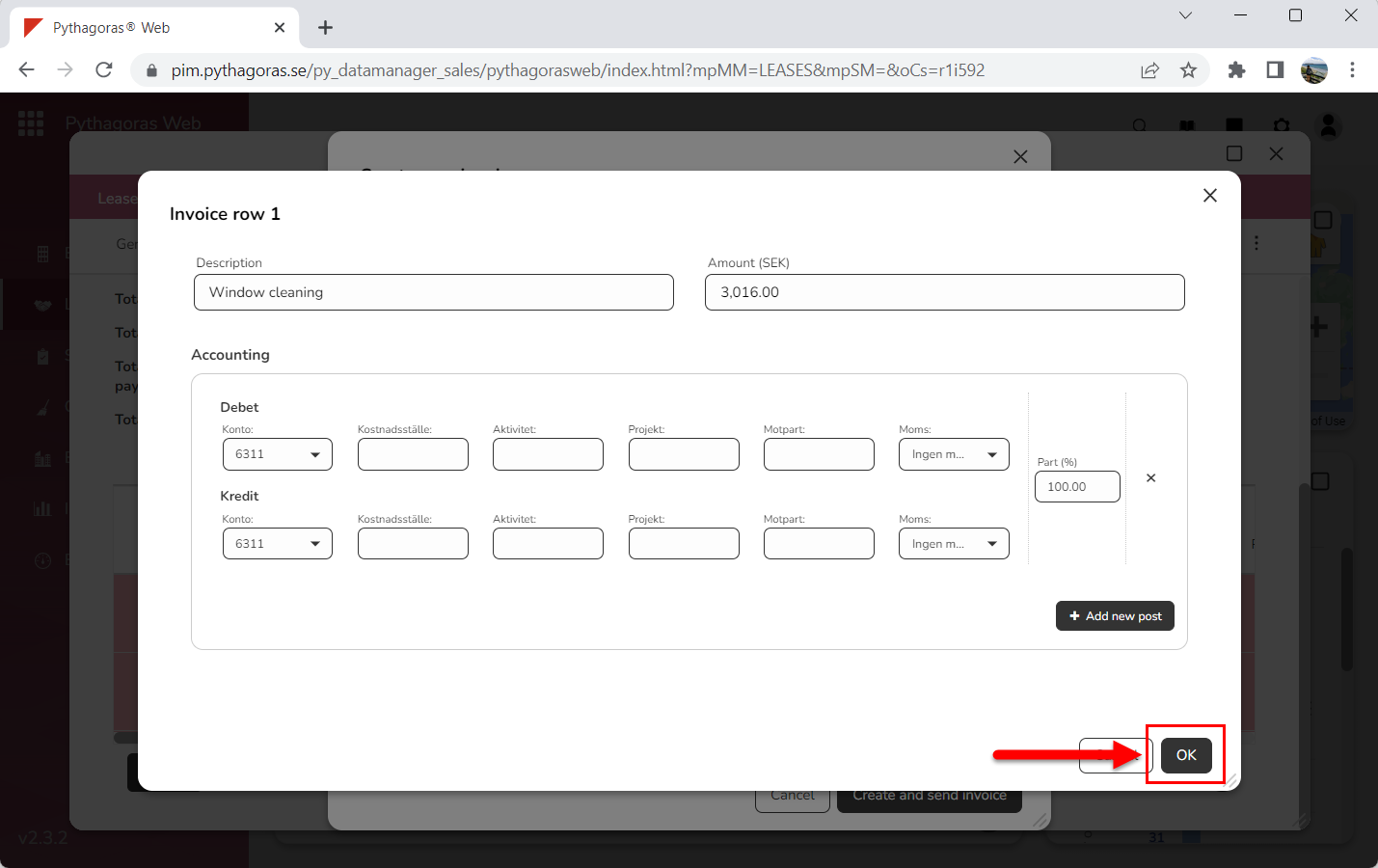
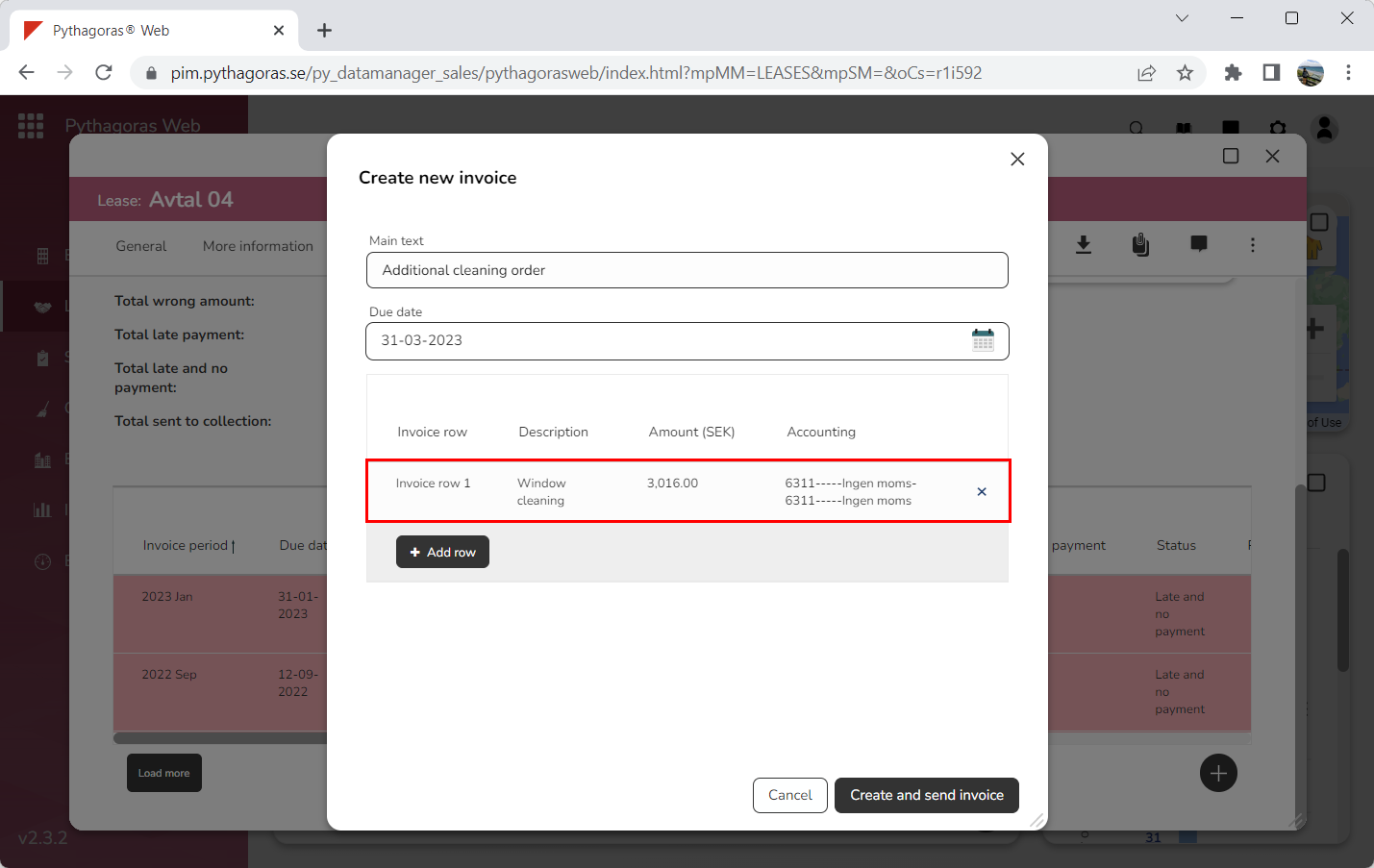
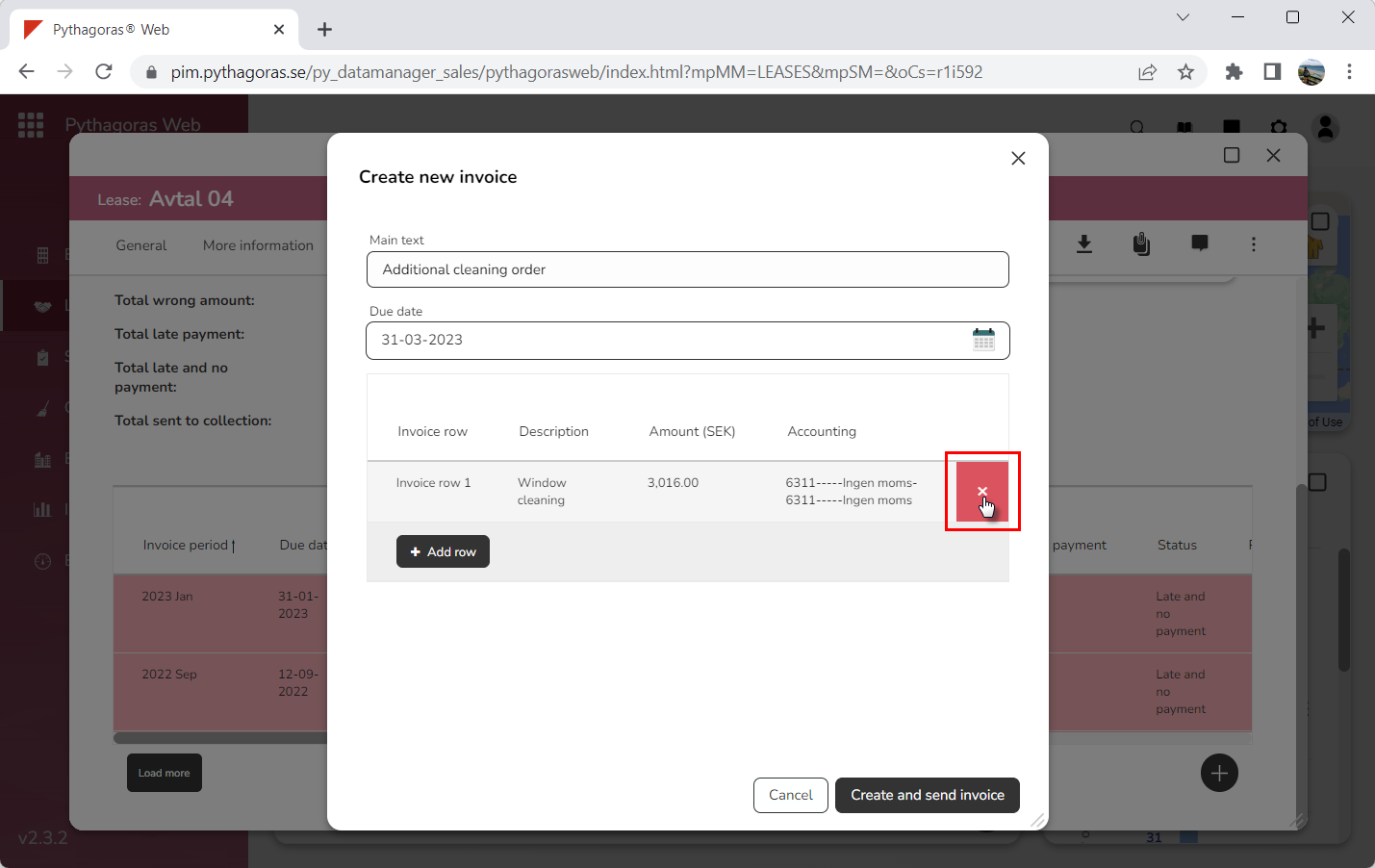
Click "OK" (see the first image below). When you do so, you will be redirected back to the window called "Create new invoice". In the window called "Create new invoice" you will see that an invoice row has been added to the one-off invoice you are about to create (see the second image below). Note that, if you notice any errors, you can remove the invoice row you are working with by clicking the icon called "Delete invoice row" (see the third image below).
Repeat the instructions in step 7-12 until you are satisfied with the amount of invoice rows in the one-off invoice you are about to create.
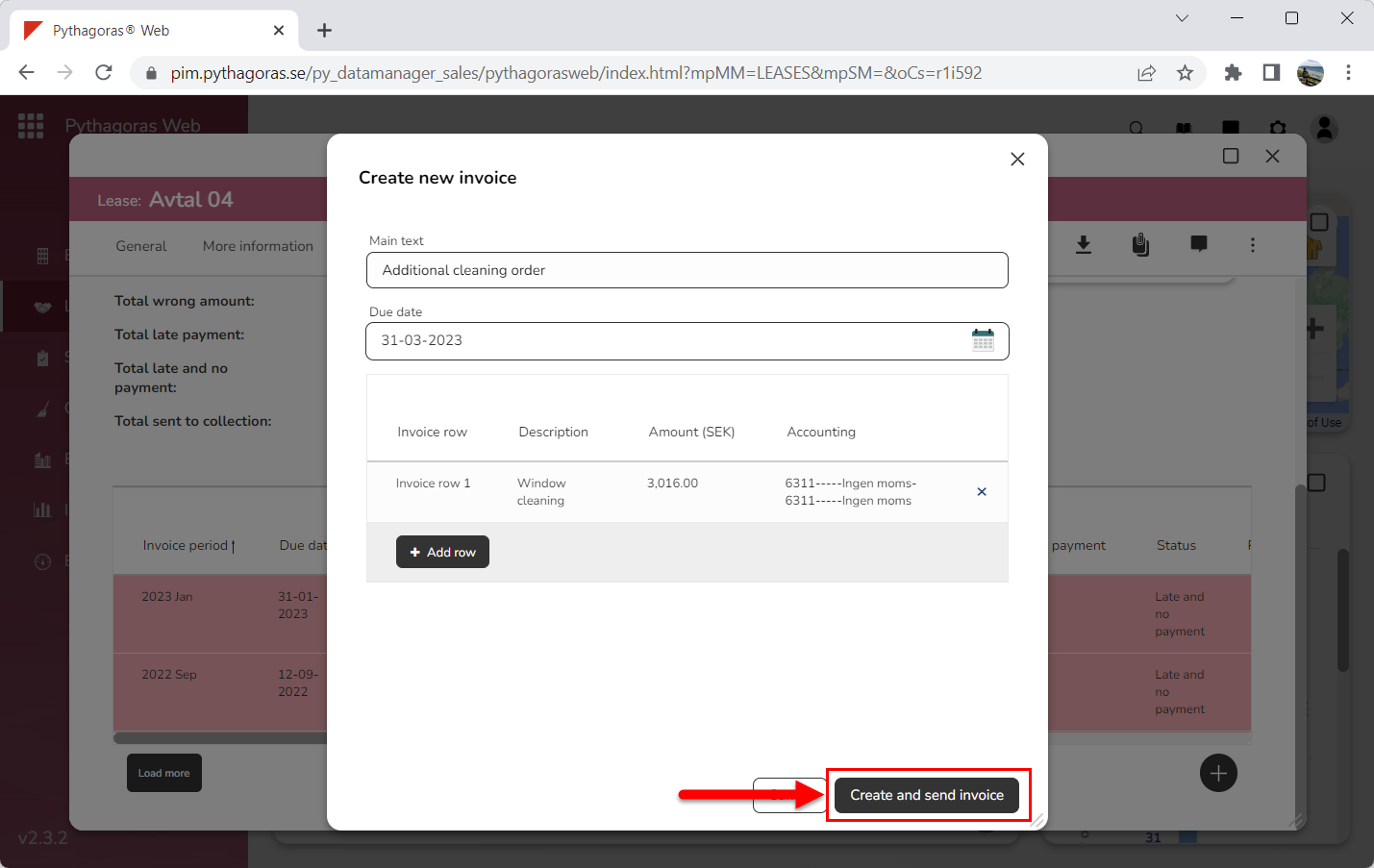
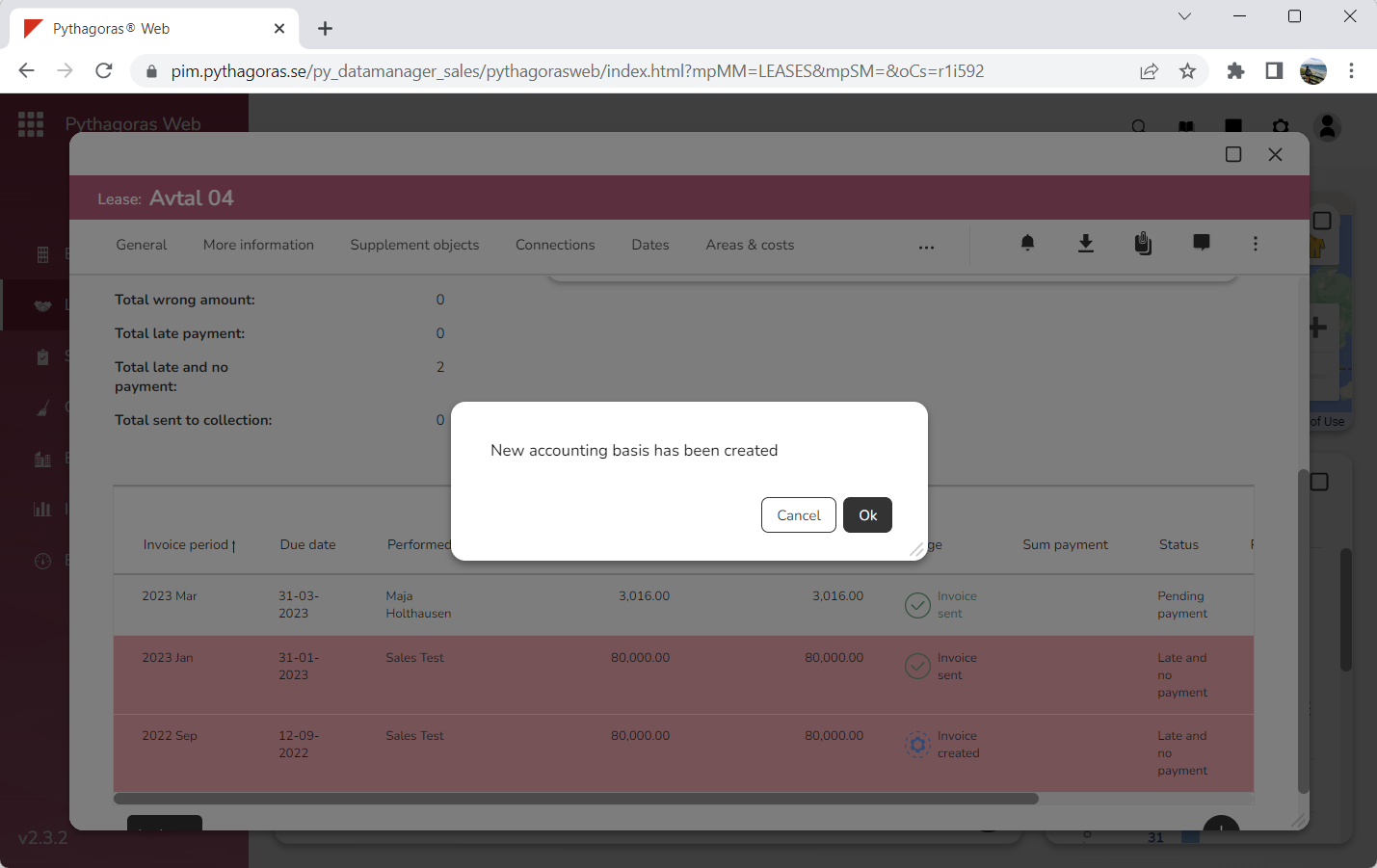
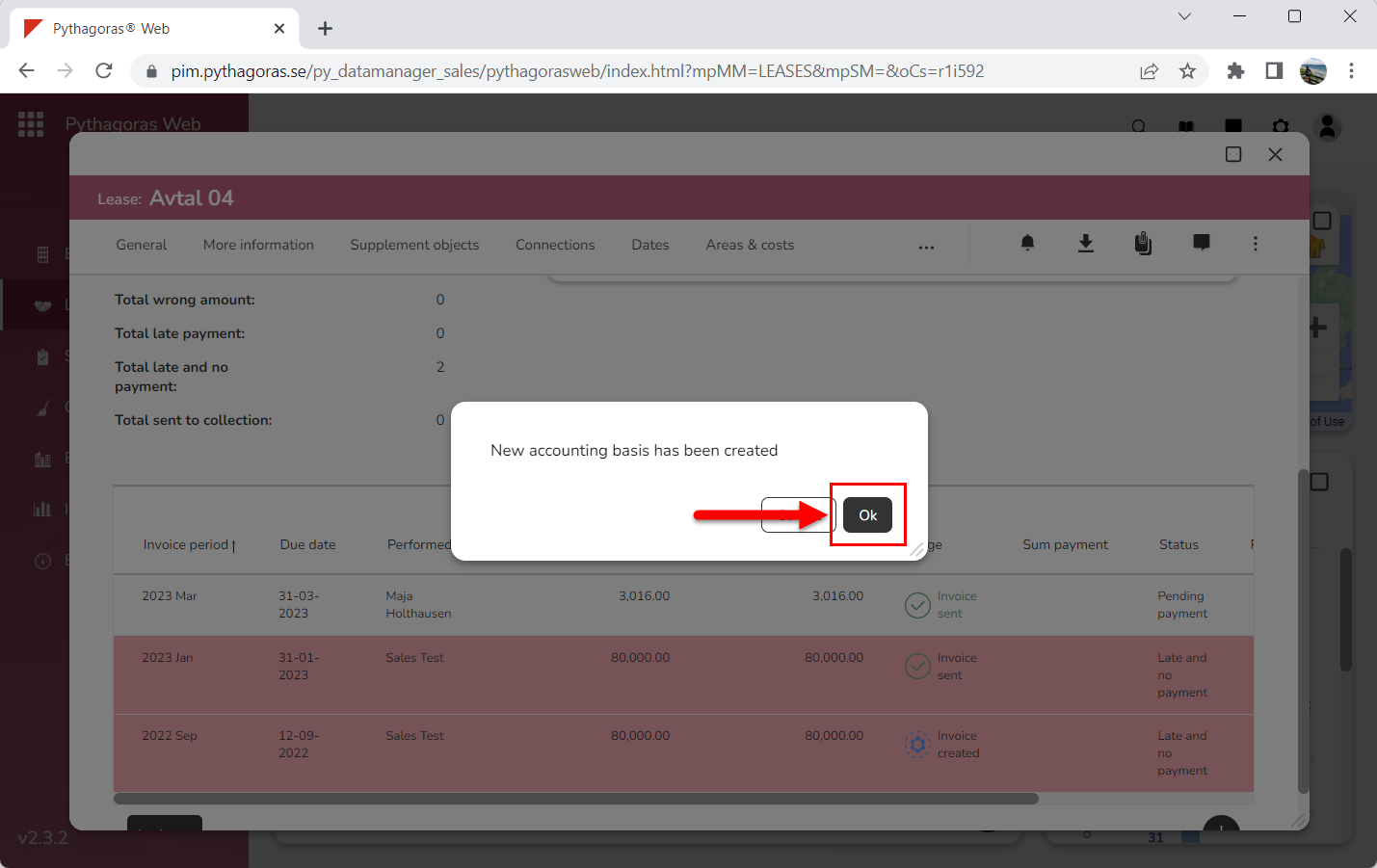
Click "Create and send invoice" (see the first image below). When you do so, a dialog will open with the following message: "New accounting basis has been created" (see the second image below).
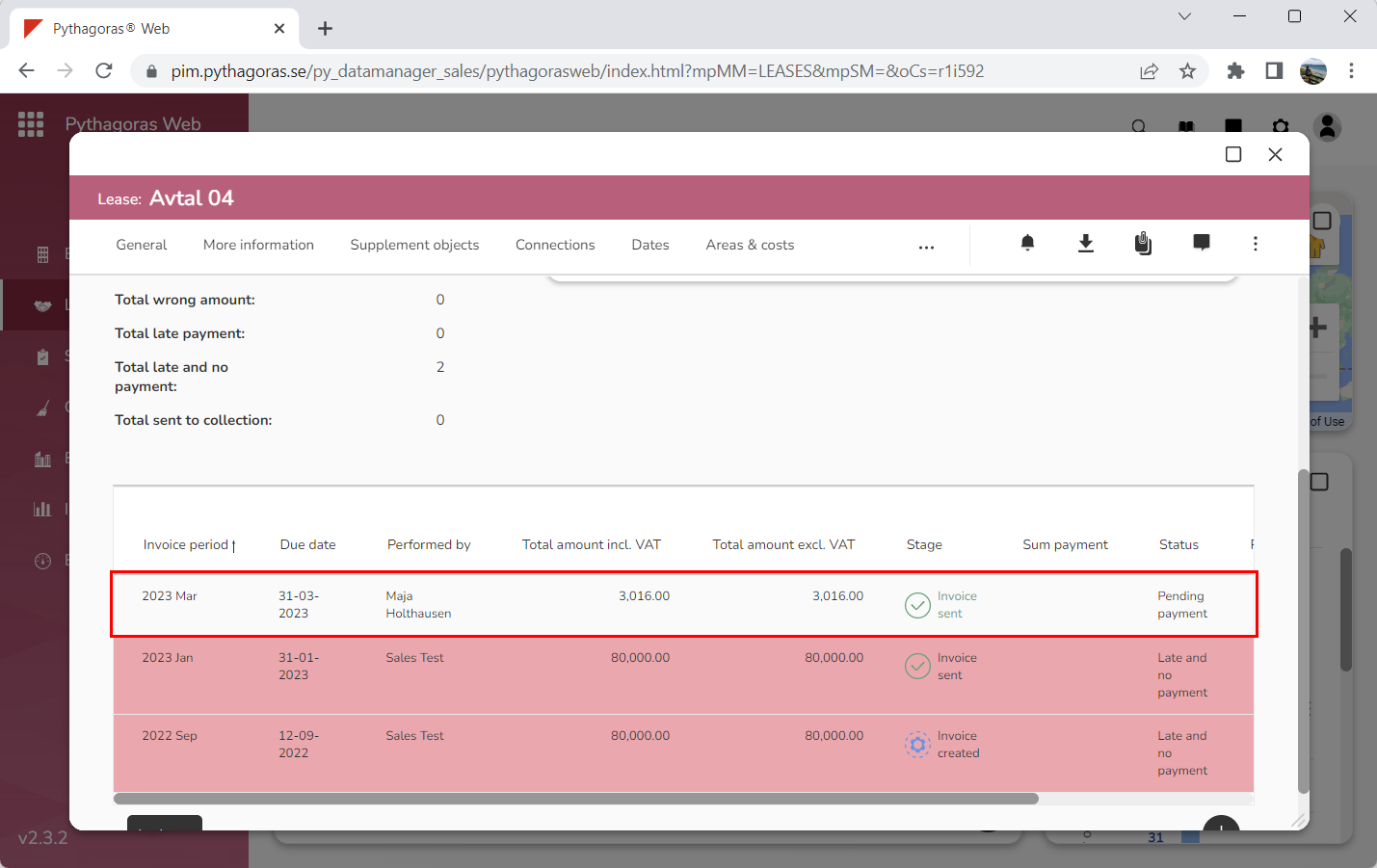
Click "OK" in the dialog (see the first image below). When you do so, you will be redirected back to the lease card where you will see that a invoicing basis has been created and sent to invoicing (see the second image below).