In order to edit a floor view you must belong to a user group which has permission to edit floor views. If you do not, you can disregard the information in this section. Note that after step 6, you choose for yourself which steps you should, and should not, follow. Which steps to follow depend on the changes you want to make. Just skip the steps you are not interested in.
To edit a floor view:
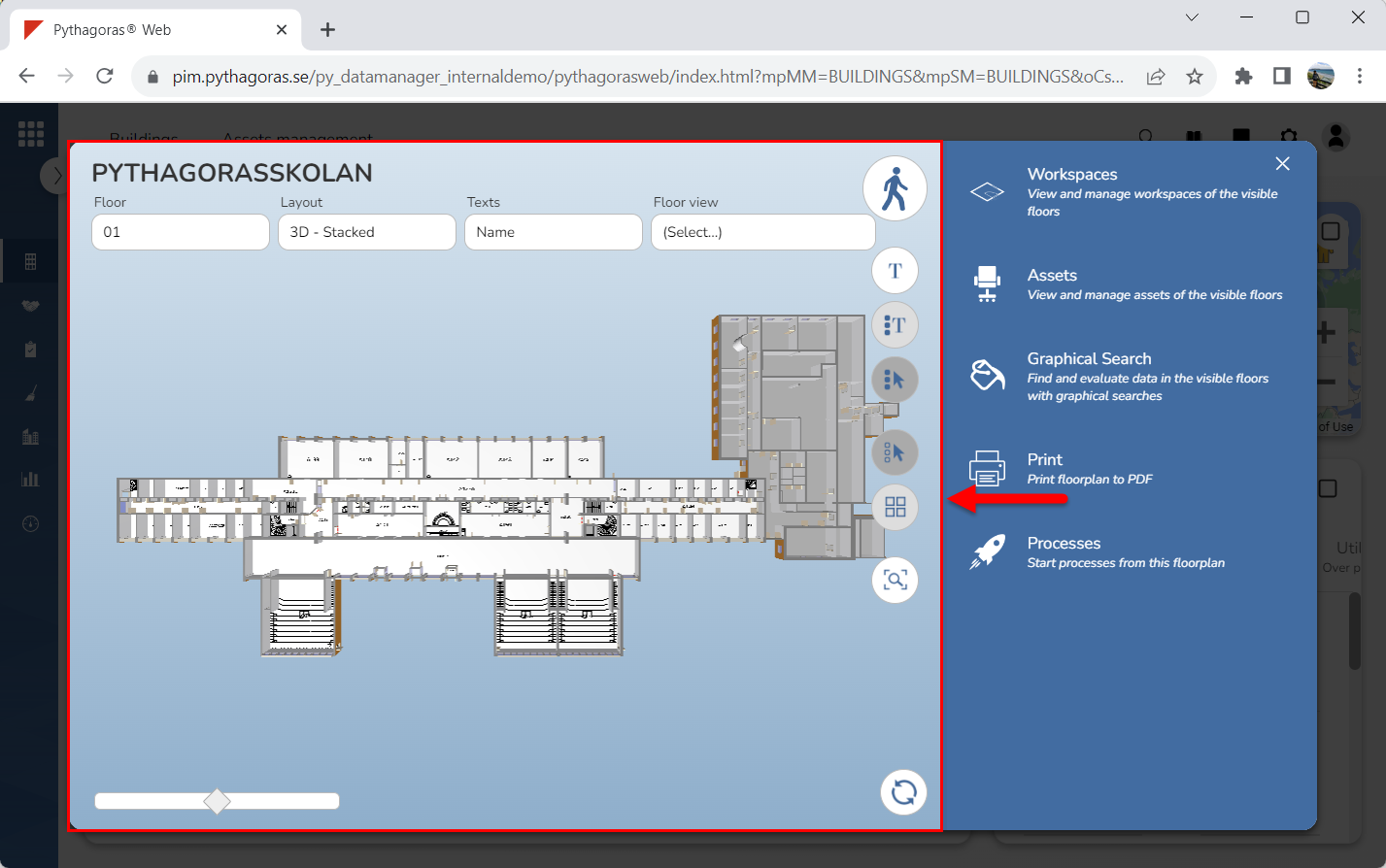
Go to the drawing window (see image below).
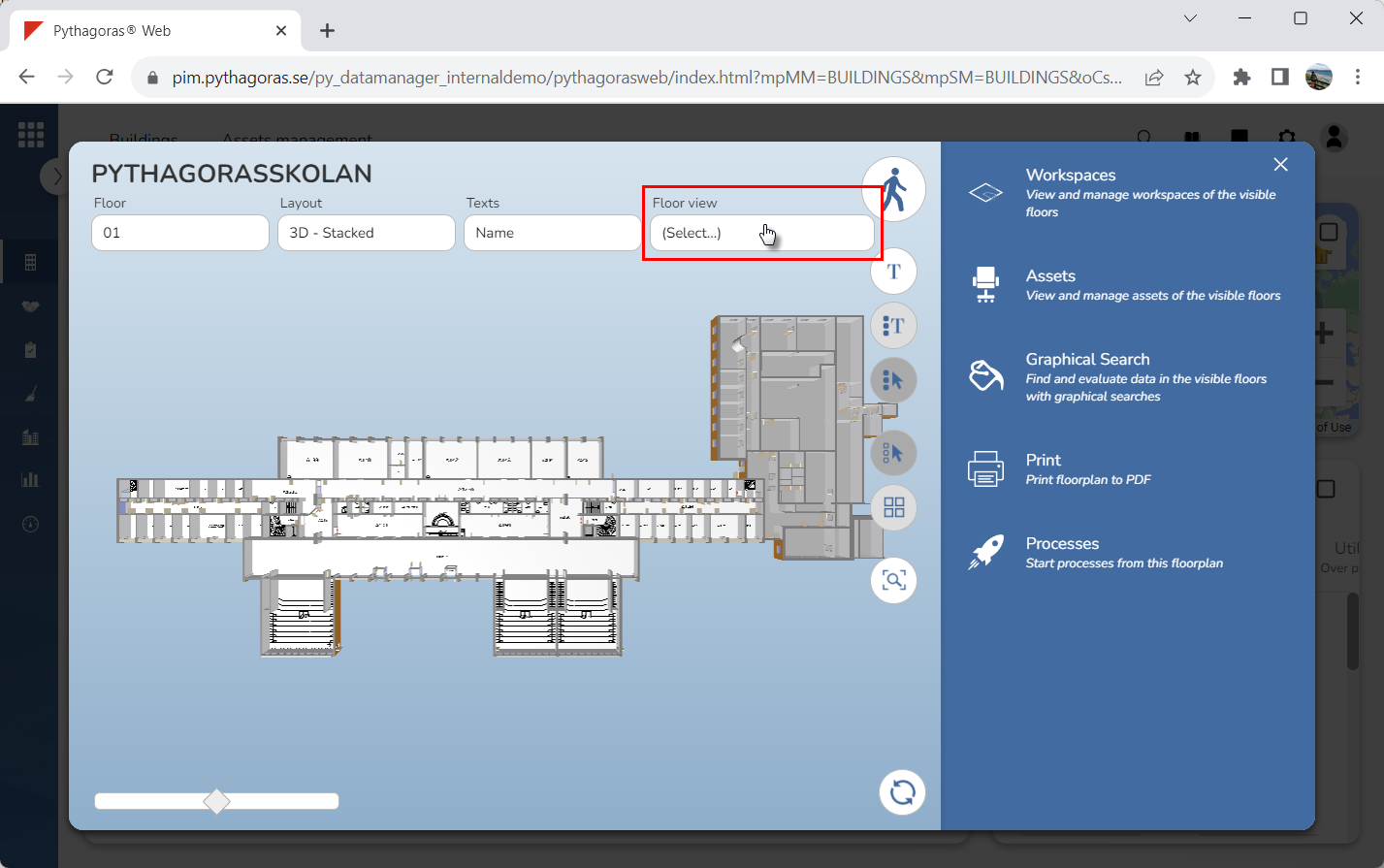
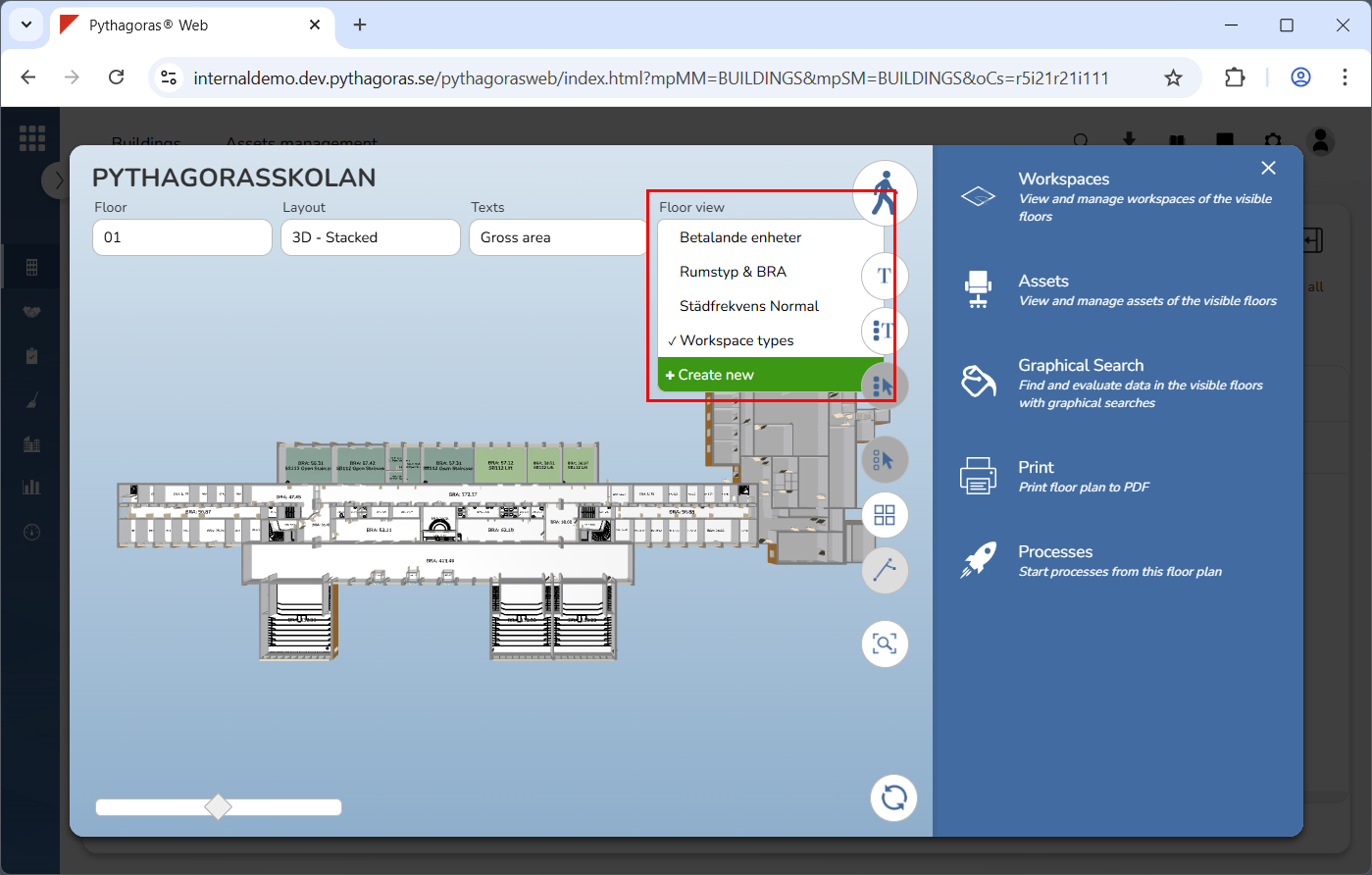
Click the field "Floor view" (see the first image below). When you do so, will a list of floor views available in Pythagoras Web will open (see the second image below).
Go to the list of floor views.
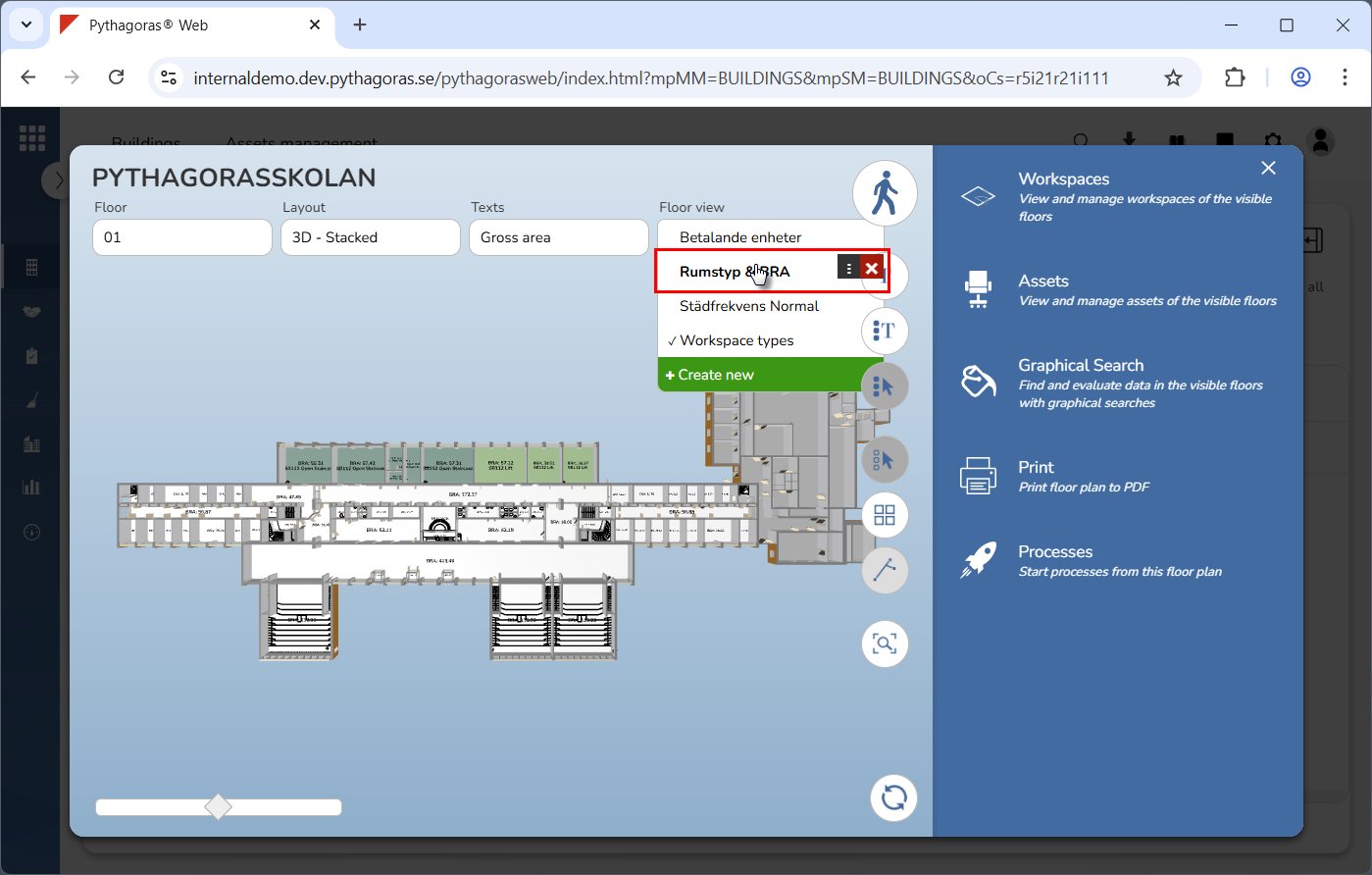
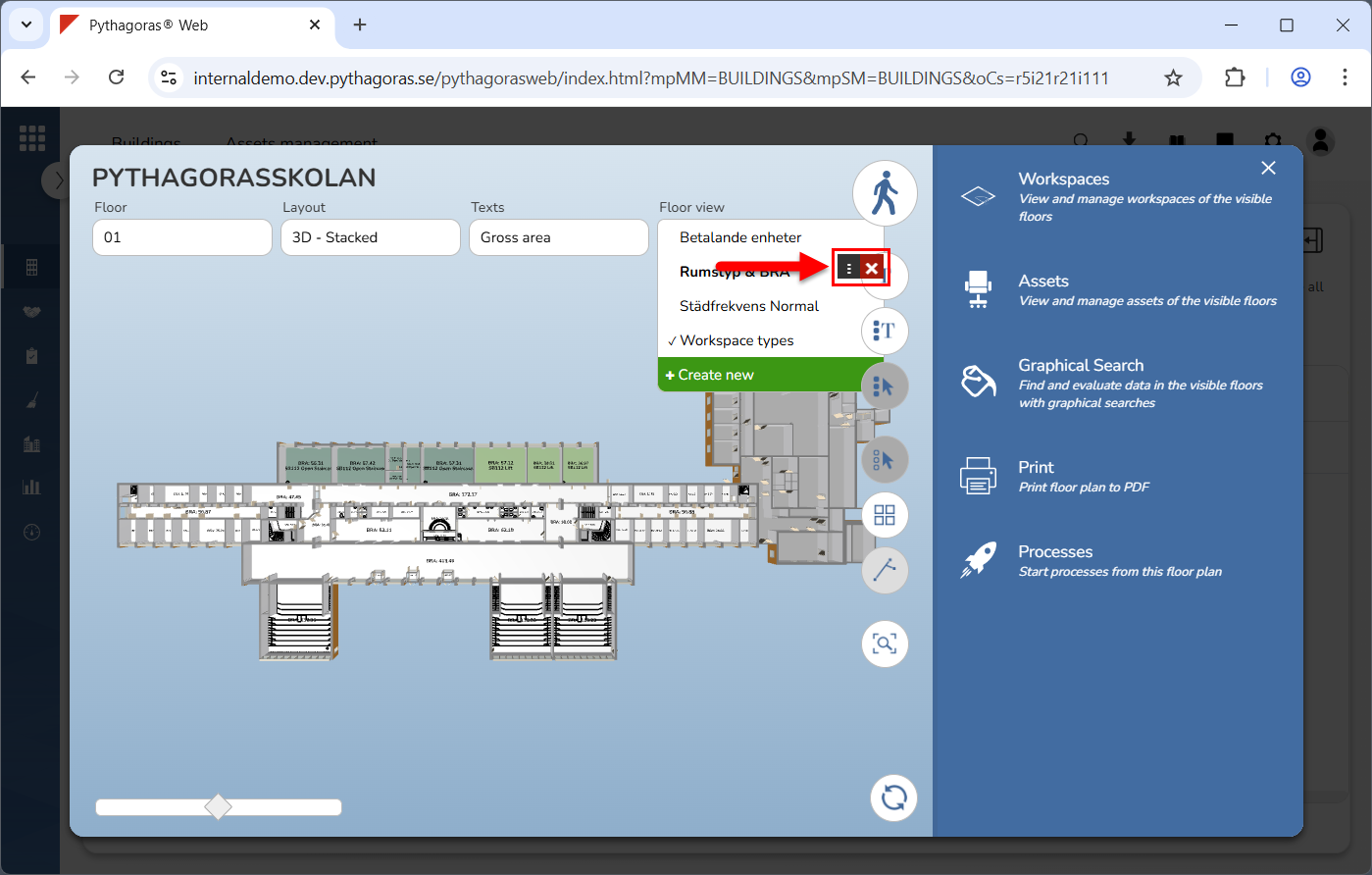
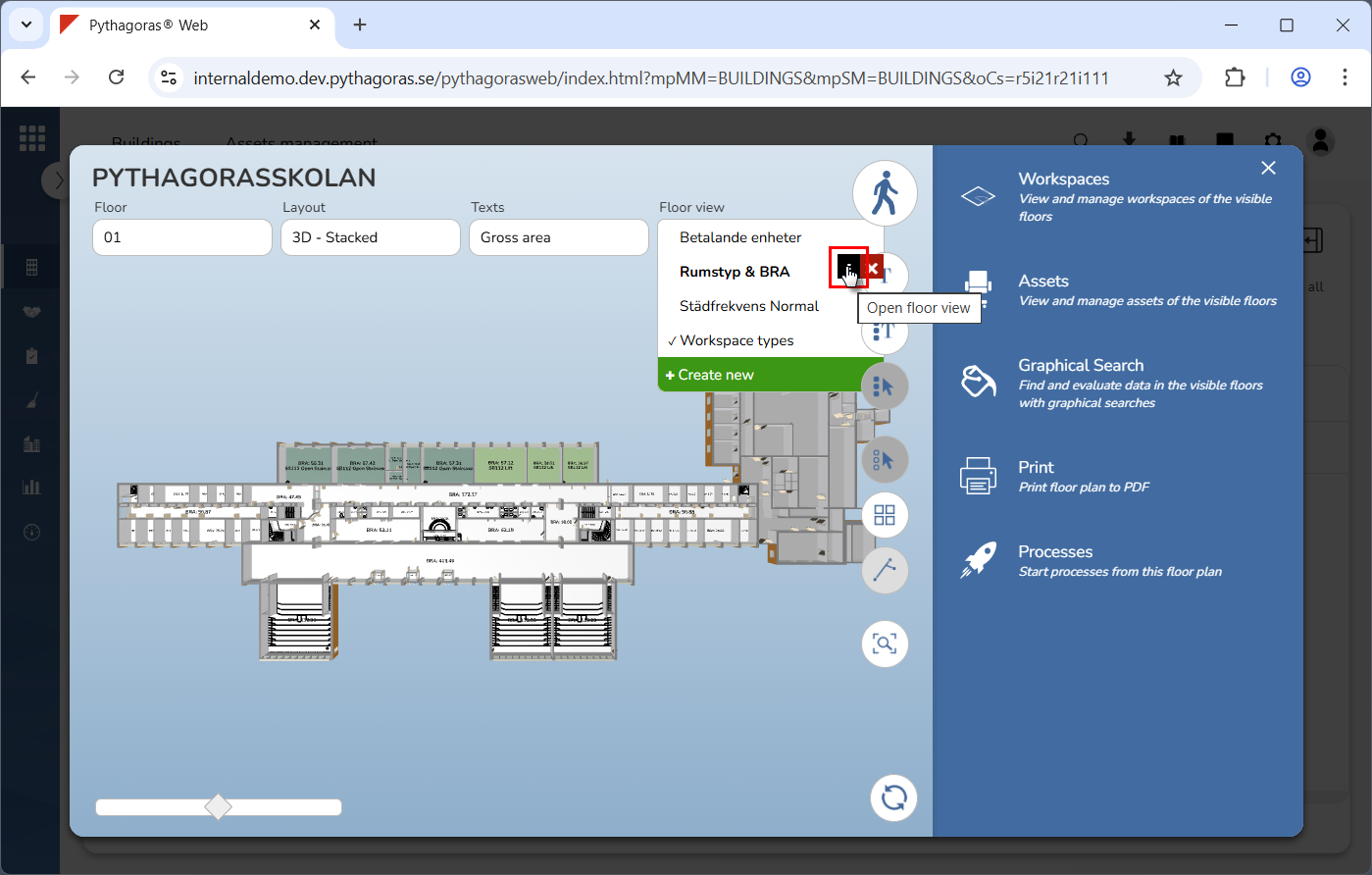
Place your cursor on the floor view you wish to edit (see the first image below). When you do so, two icons will be shown: "Open floor view" and "Delete" (see the second image below).
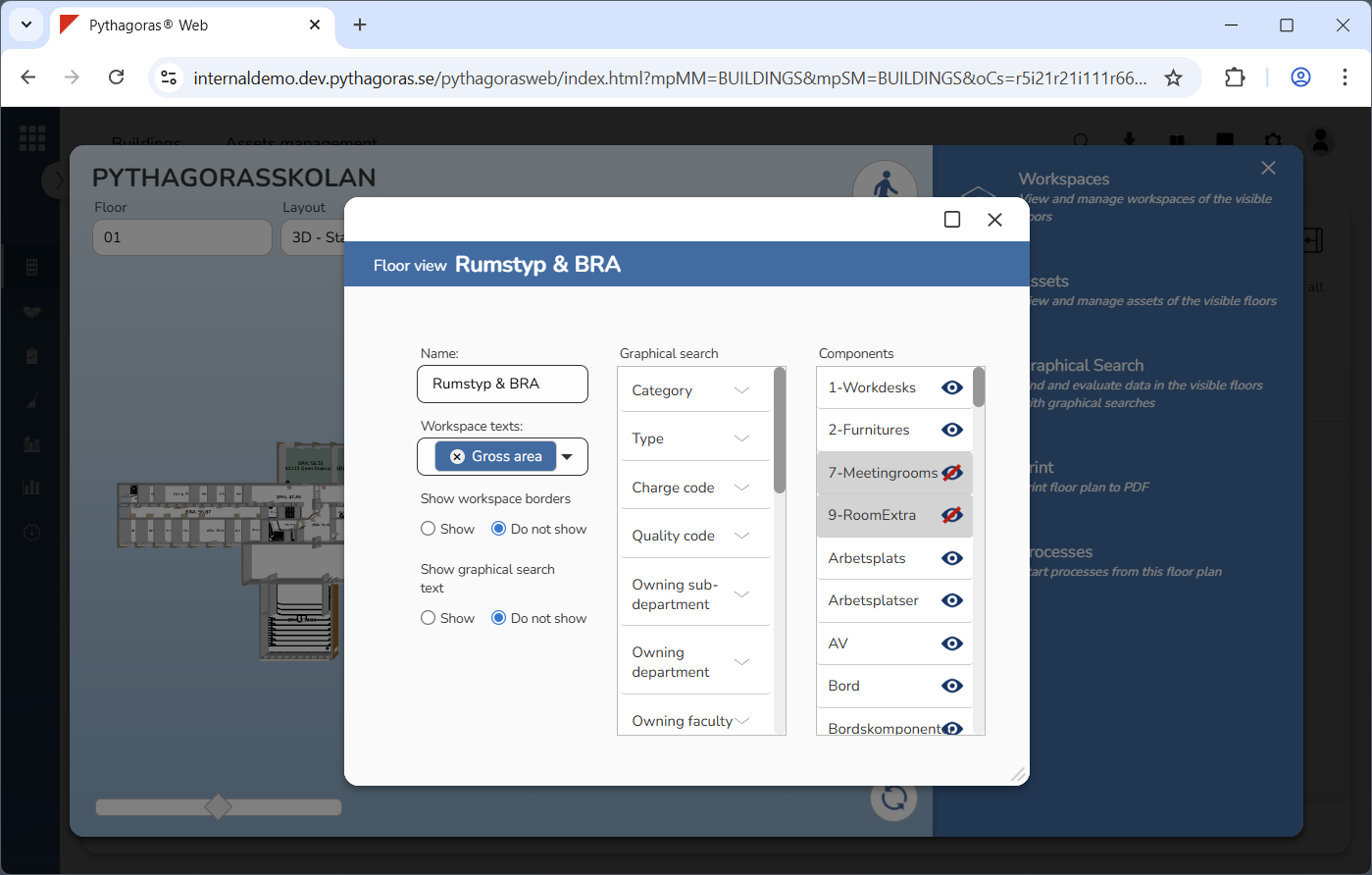
Click "Open floor view" (see the first image below). When you do so, the floor view you are working with will open. When a floor view is opened, so is its view card (see the second image below).
Go to the view card.
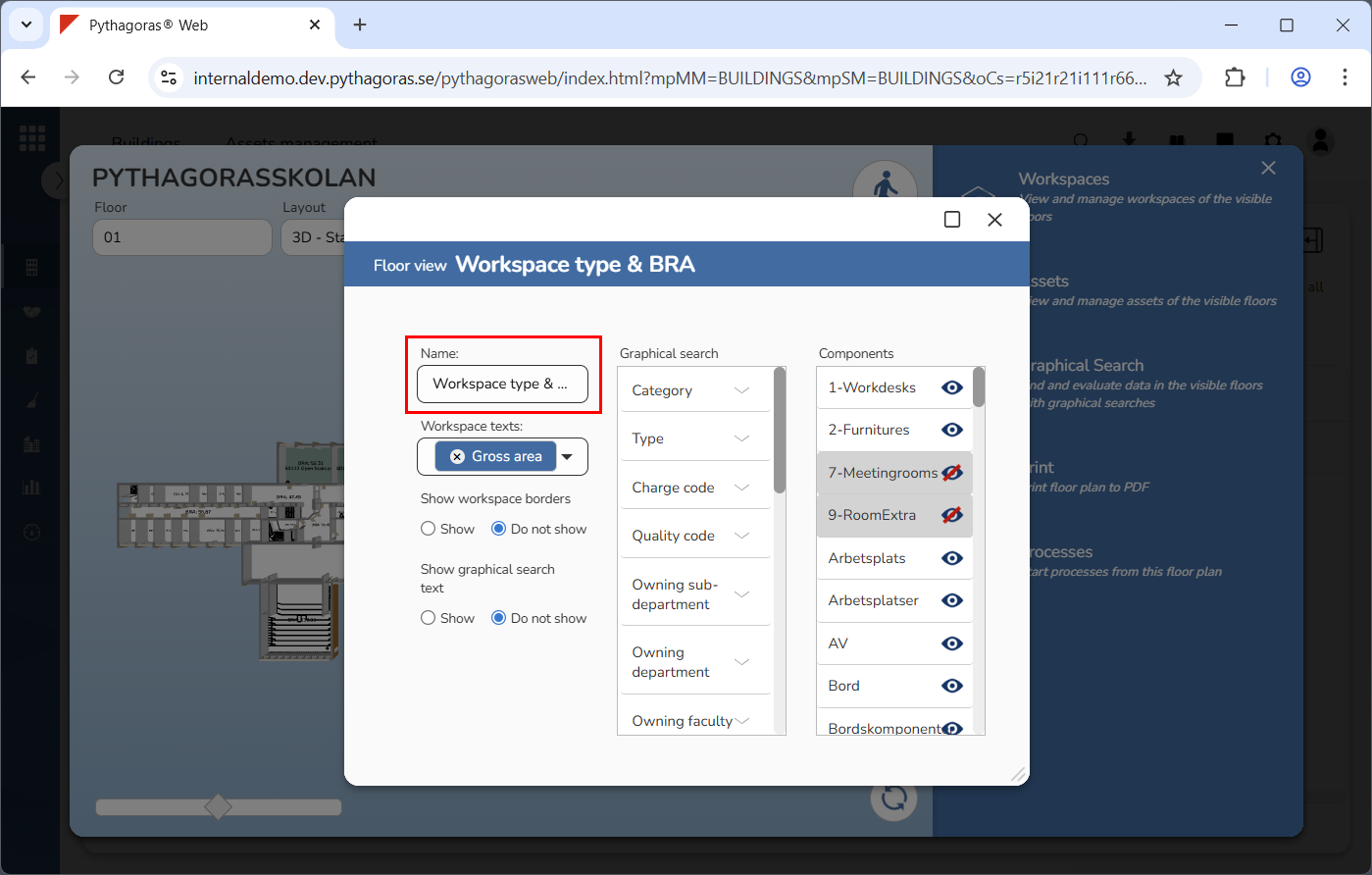
Rename the floor view you are working with (see image below). Enter a new name for it in the name field.
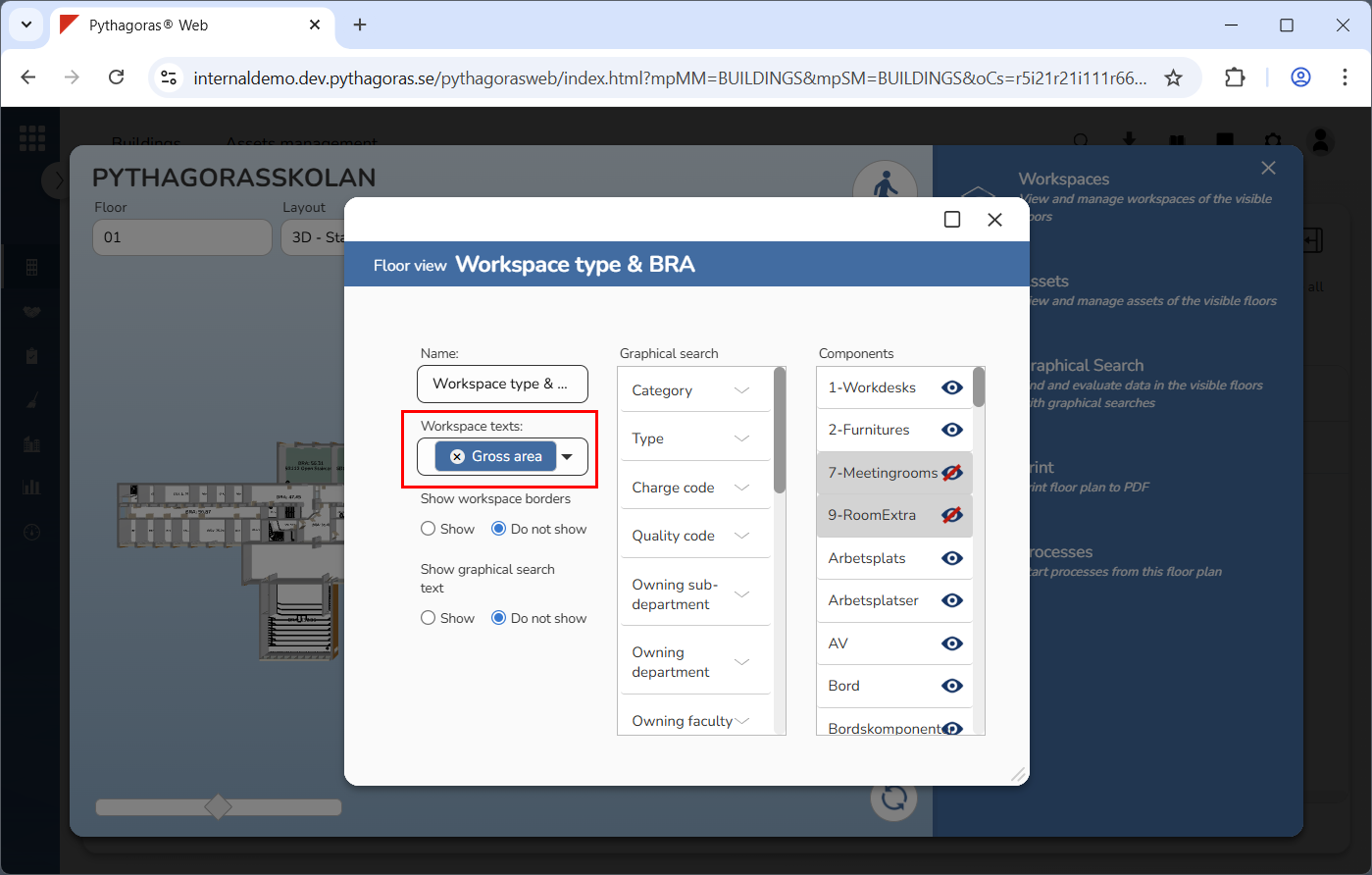
Add or remove workspace texts from the floor view you are working with (see image below). Click the field "Workspace texts" and select or deselect one or more workspace texts in the list that opens. Then click outside the list to close it.
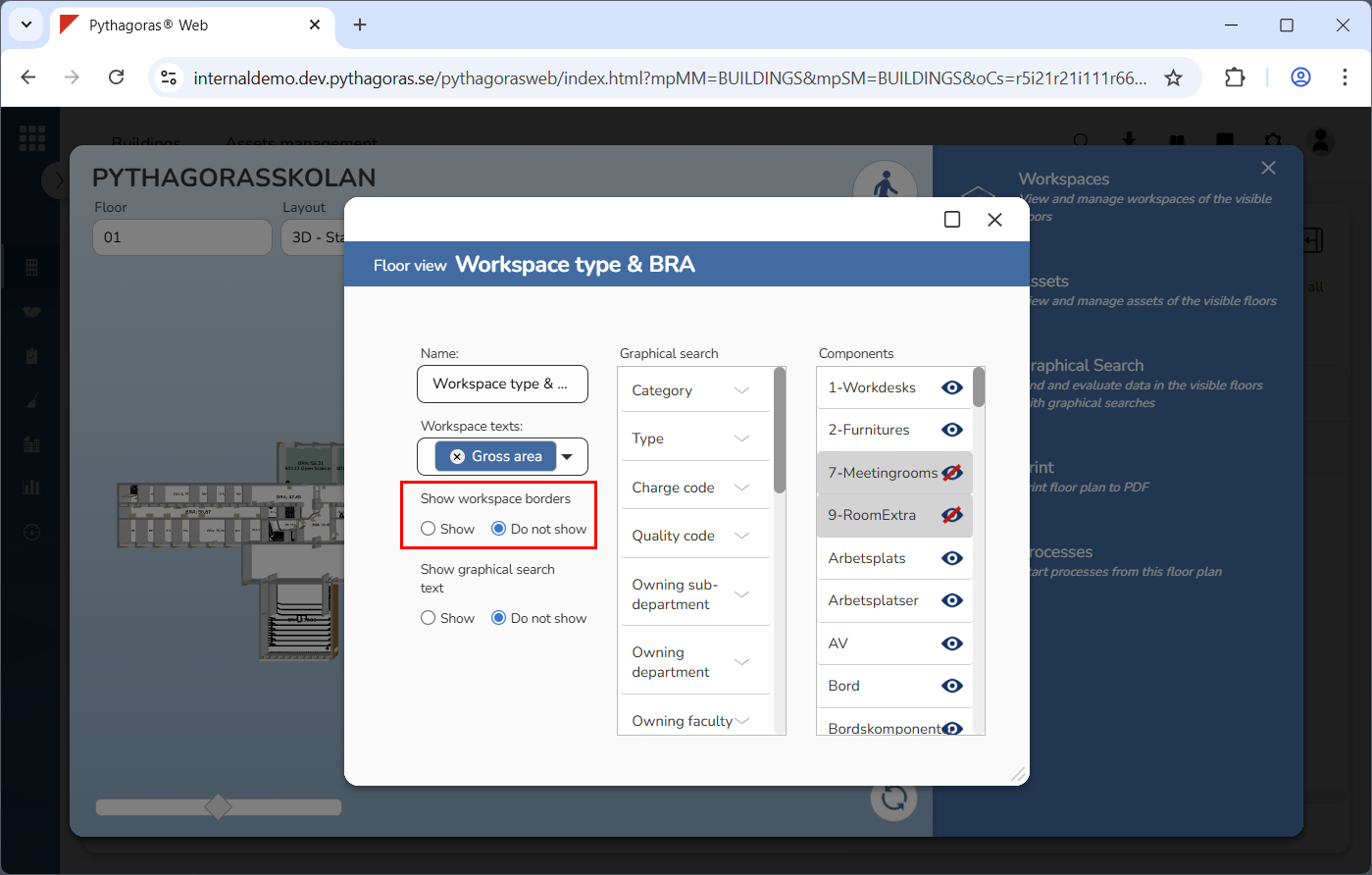
Add or remove workspace borders from the floor view you are working with (see image below). Select "Show" or "Do not show" below the label "Show workspace borders".
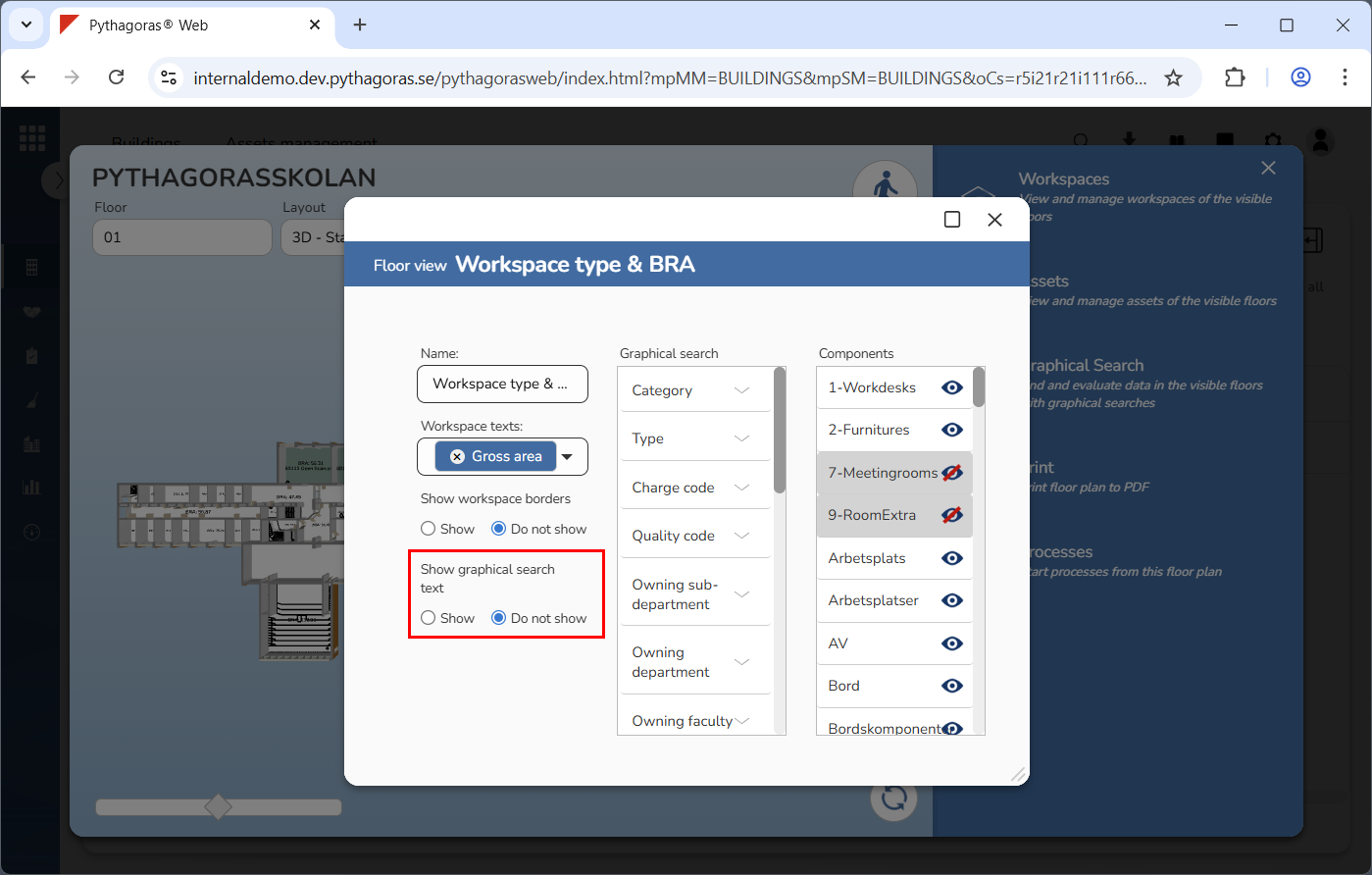
Add or remove value names from the floor view you are working with (see image below). Select "Show" or "Do not show" below the label "Show graphical search text".
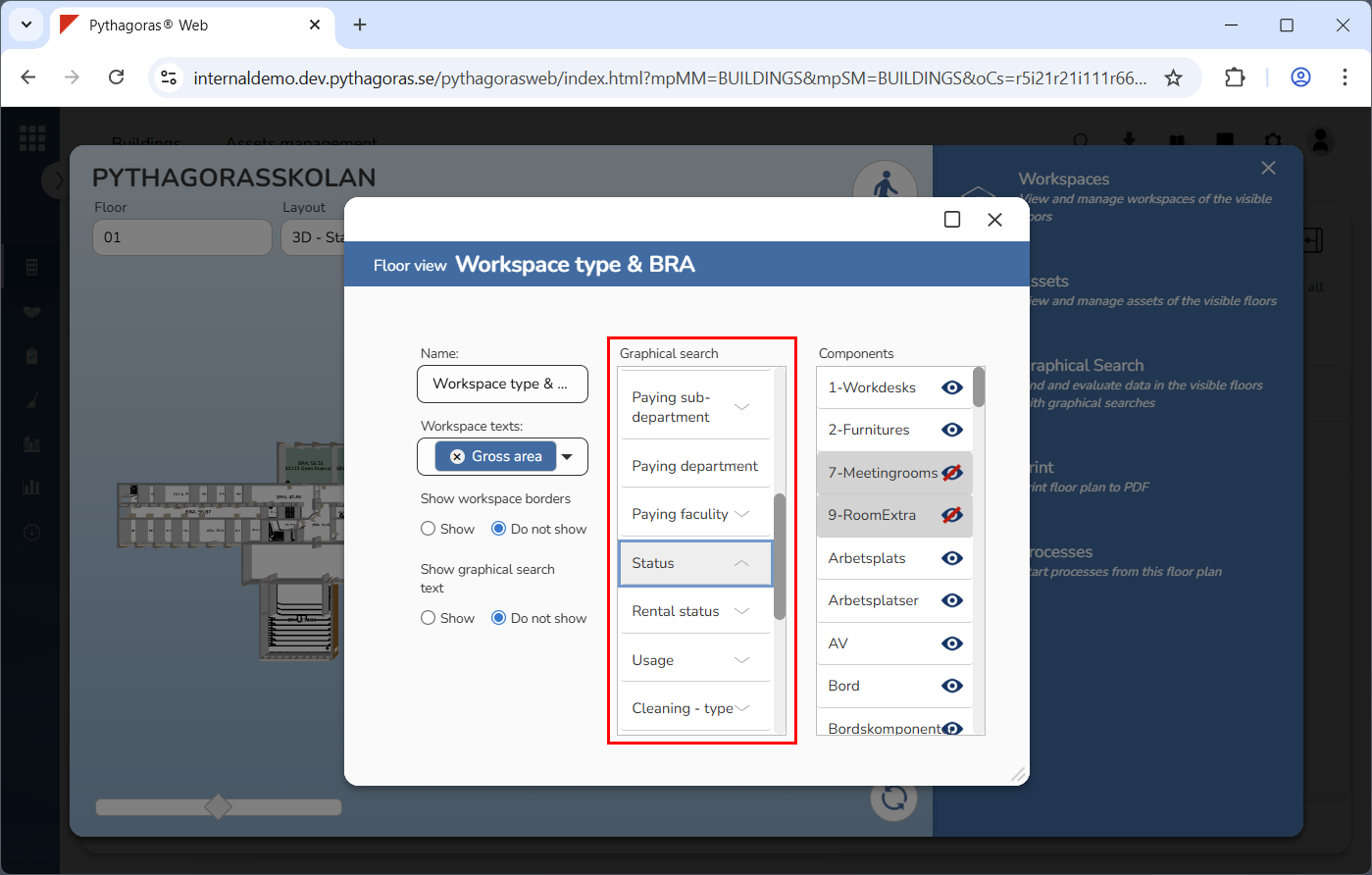
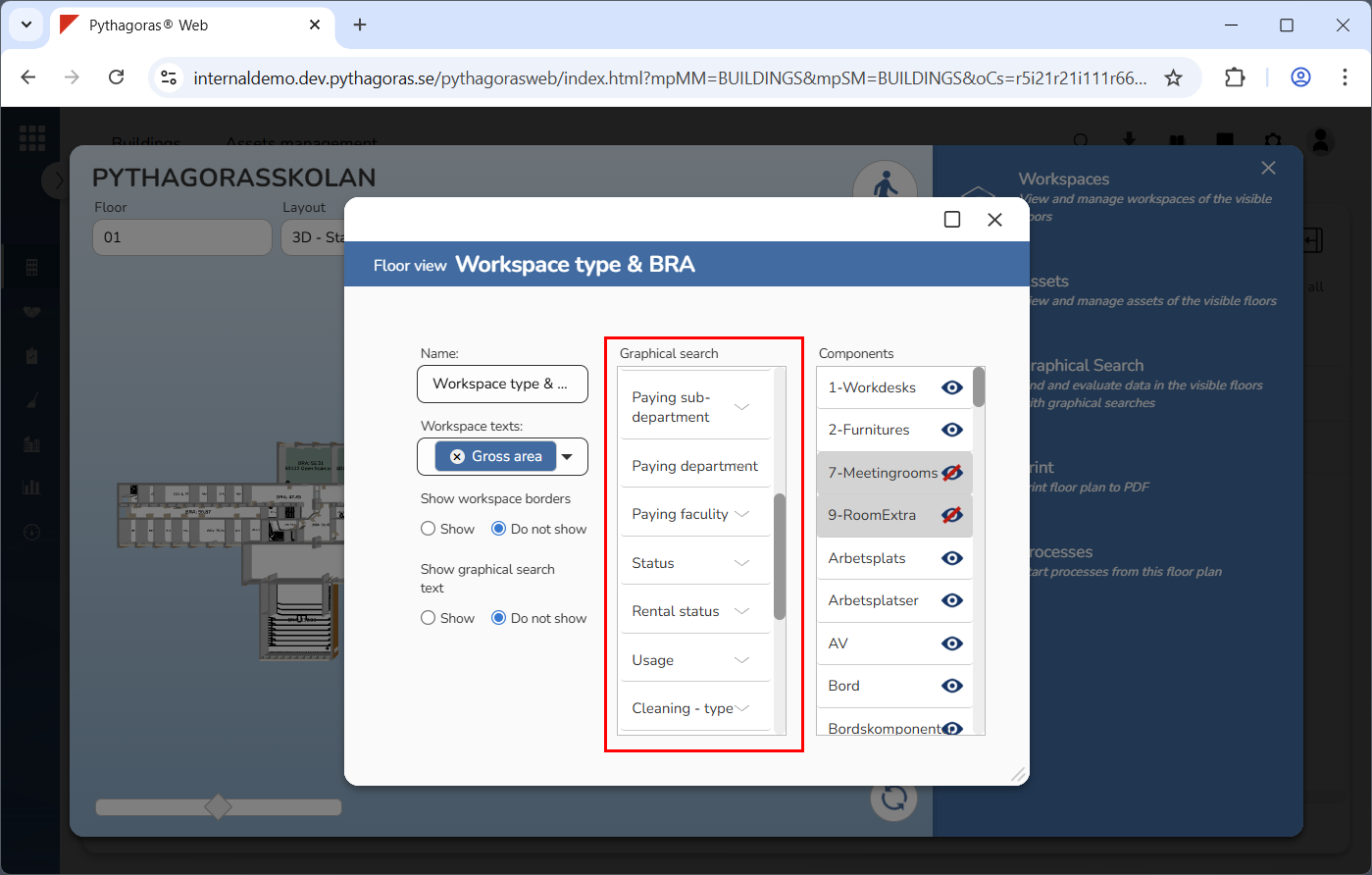
Add a graphical search to the floor view you are working with (see image below). Click a graphical search in the list "Graphical search".
Remove the graphical search from the floor view you are working with (see image below). Deselect the graphical search in the list "Graphical search".
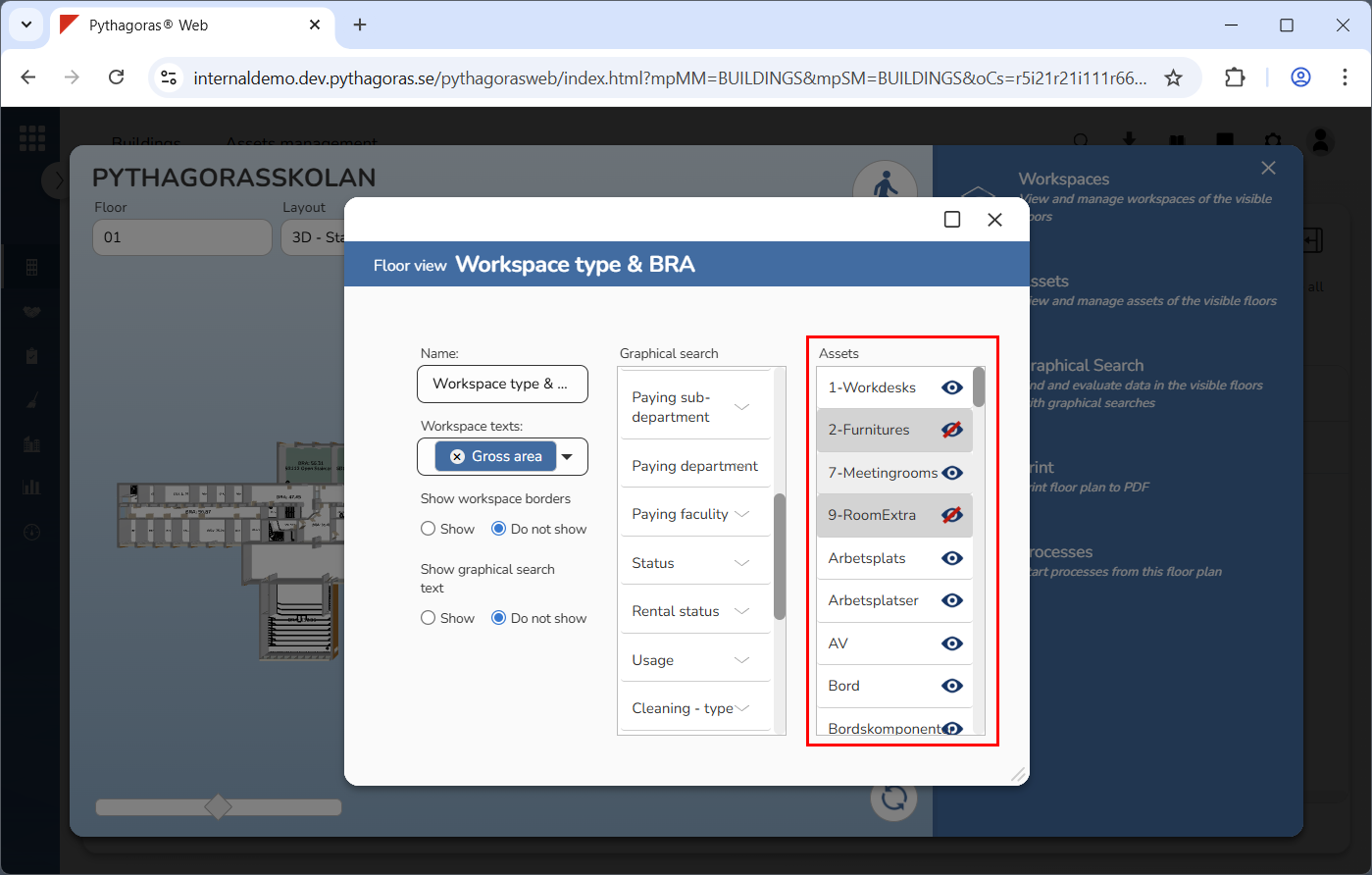
Show or hide asset groups in the view you are working with (see image below). Select or deselct one or more asset groups in the list "Assets".
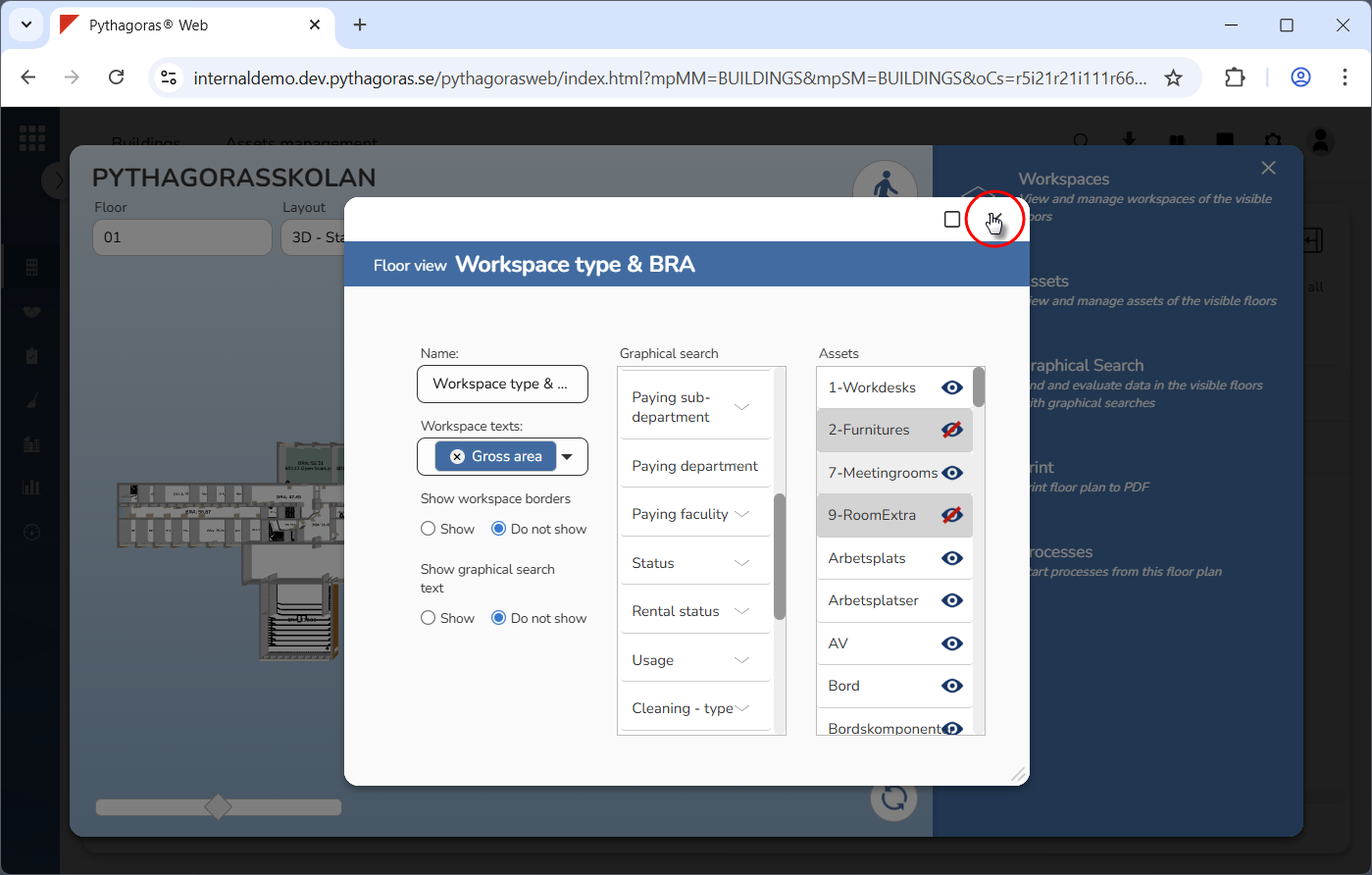
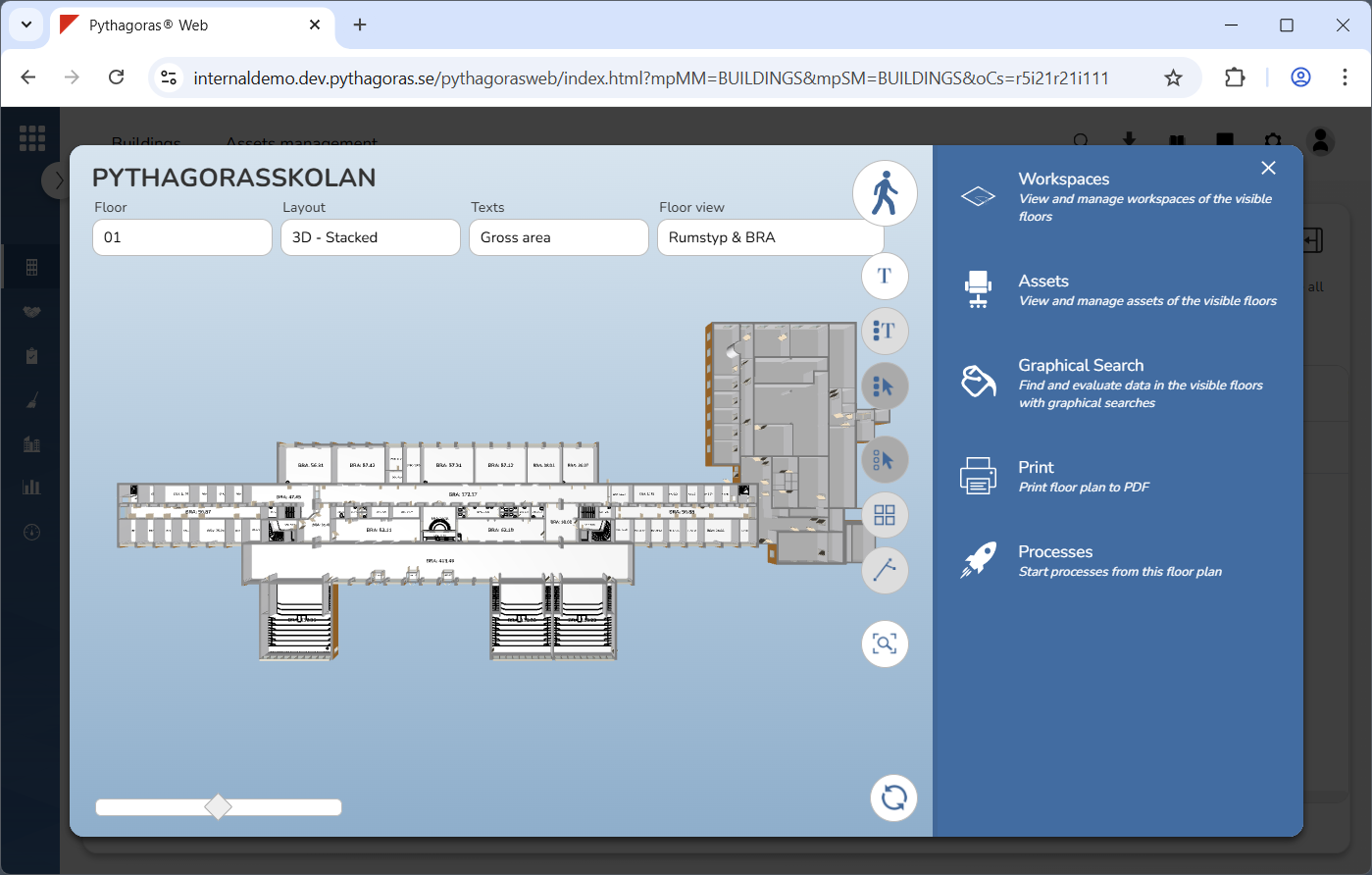
Close the view card (see the first image below). When you do so, you will be redirect back to the floor plan card (see the second image below).