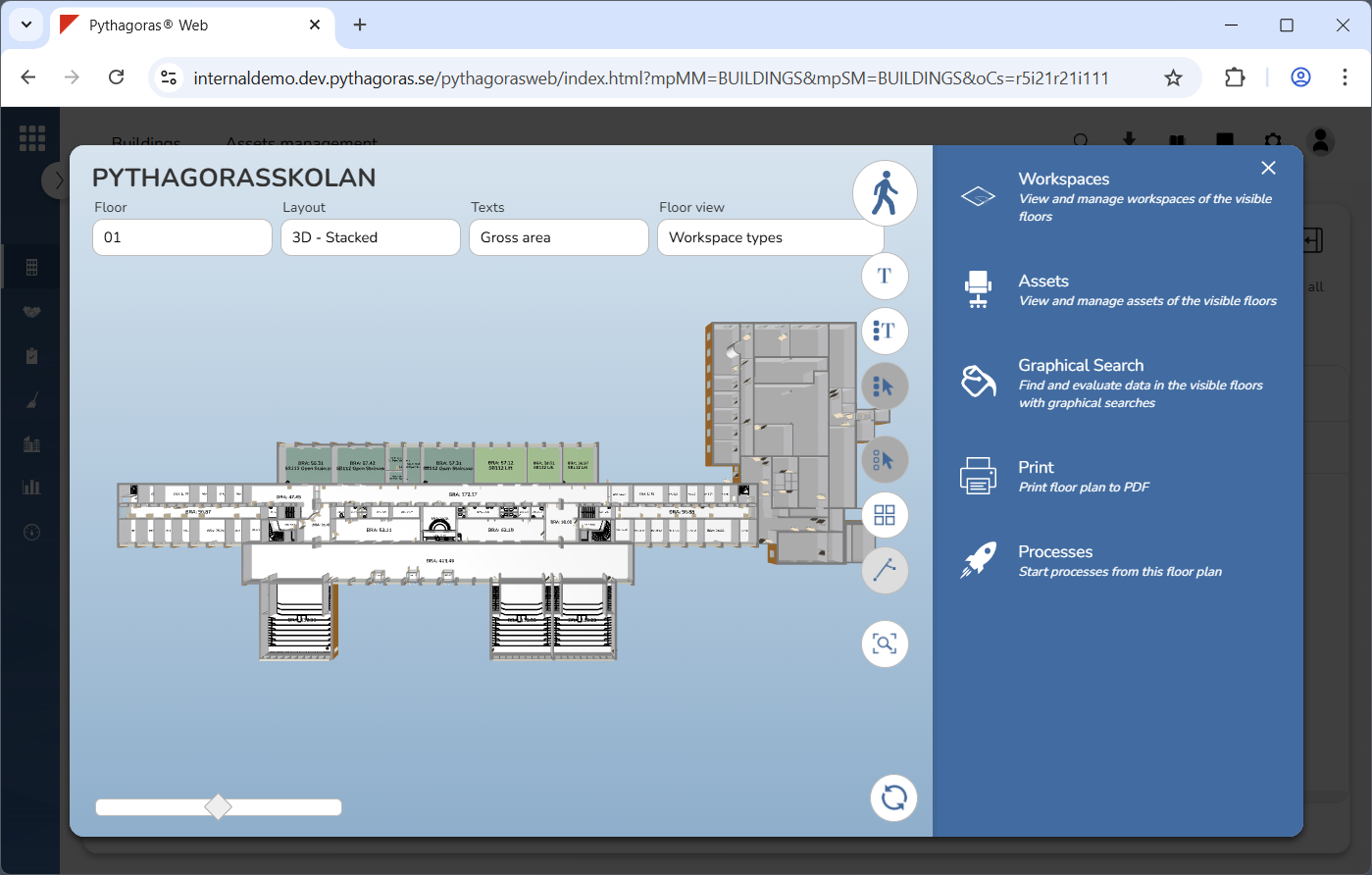
In order to create a floor view you must belong to a user group which has permission to create floor views. If you do not, you can disregard the information in this section. When you create a floor view, it becomes available to all users in your organisation. Note that, after step 4, you choose for yourself which steps to follow and which not to follow. Which instruction steps you should follow depends on the settings you want to make for the floor view you are creating. Simply skip the steps you are nor interested in.
To create a floor view:
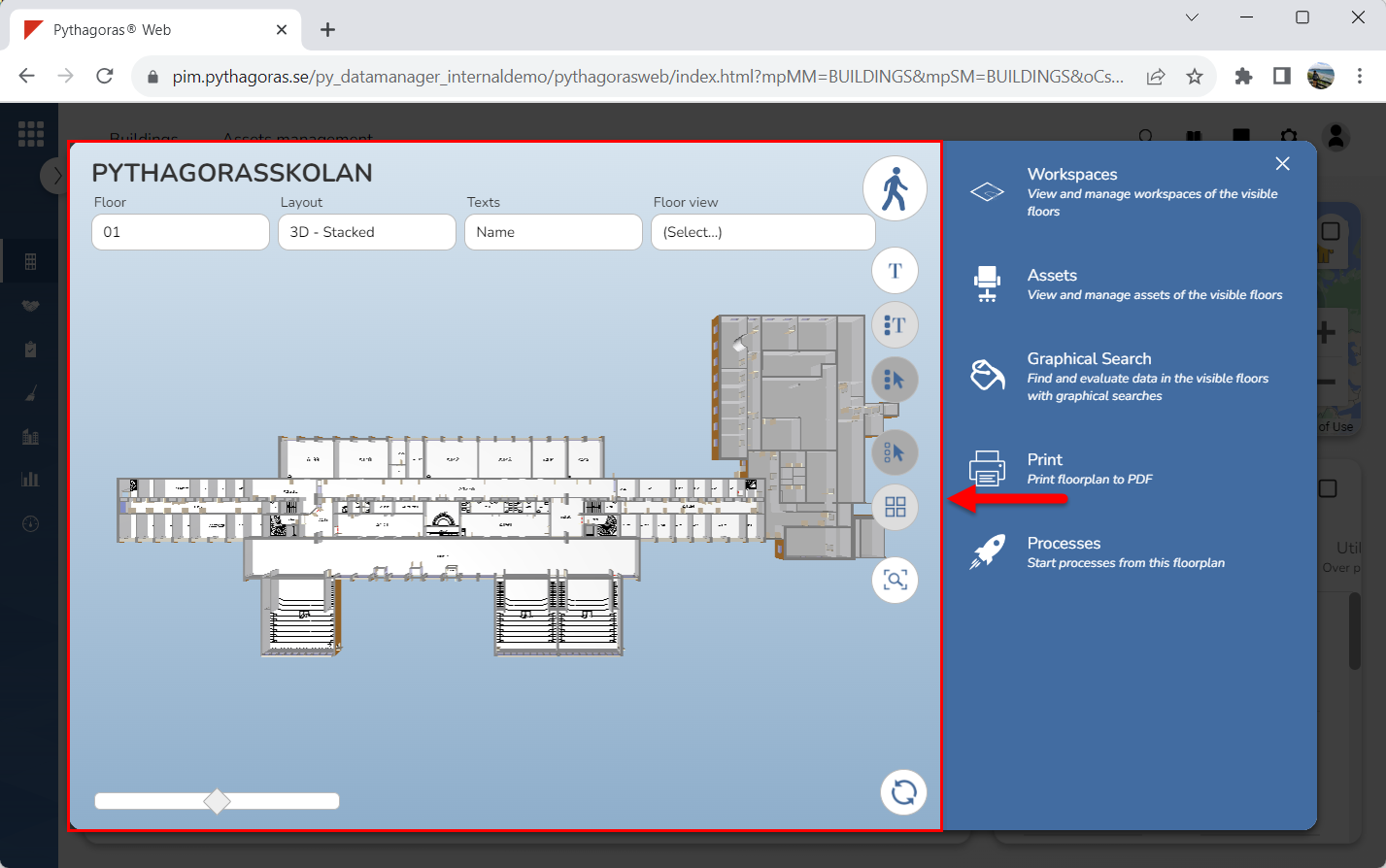
Go to the drawing window (see image below).
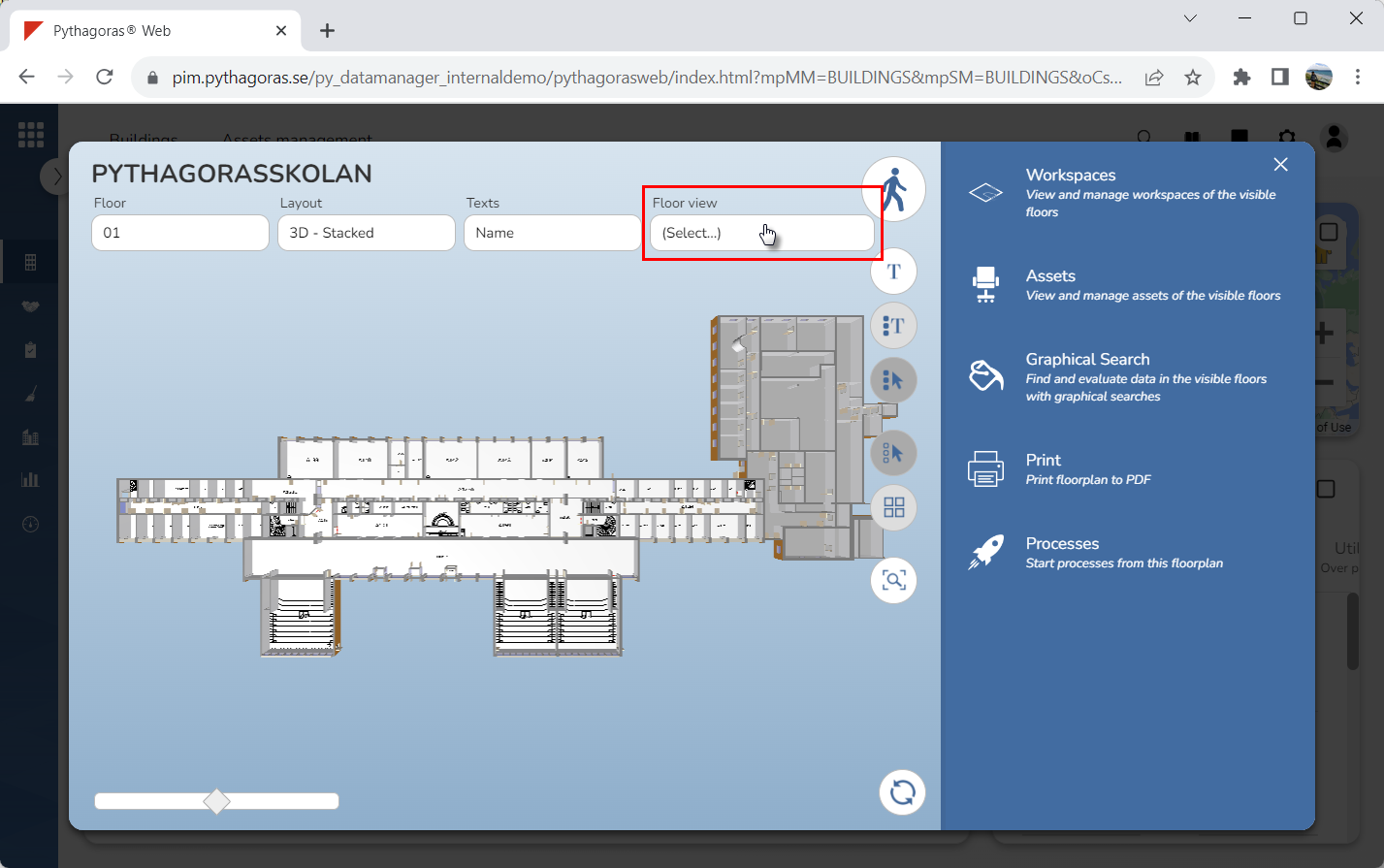
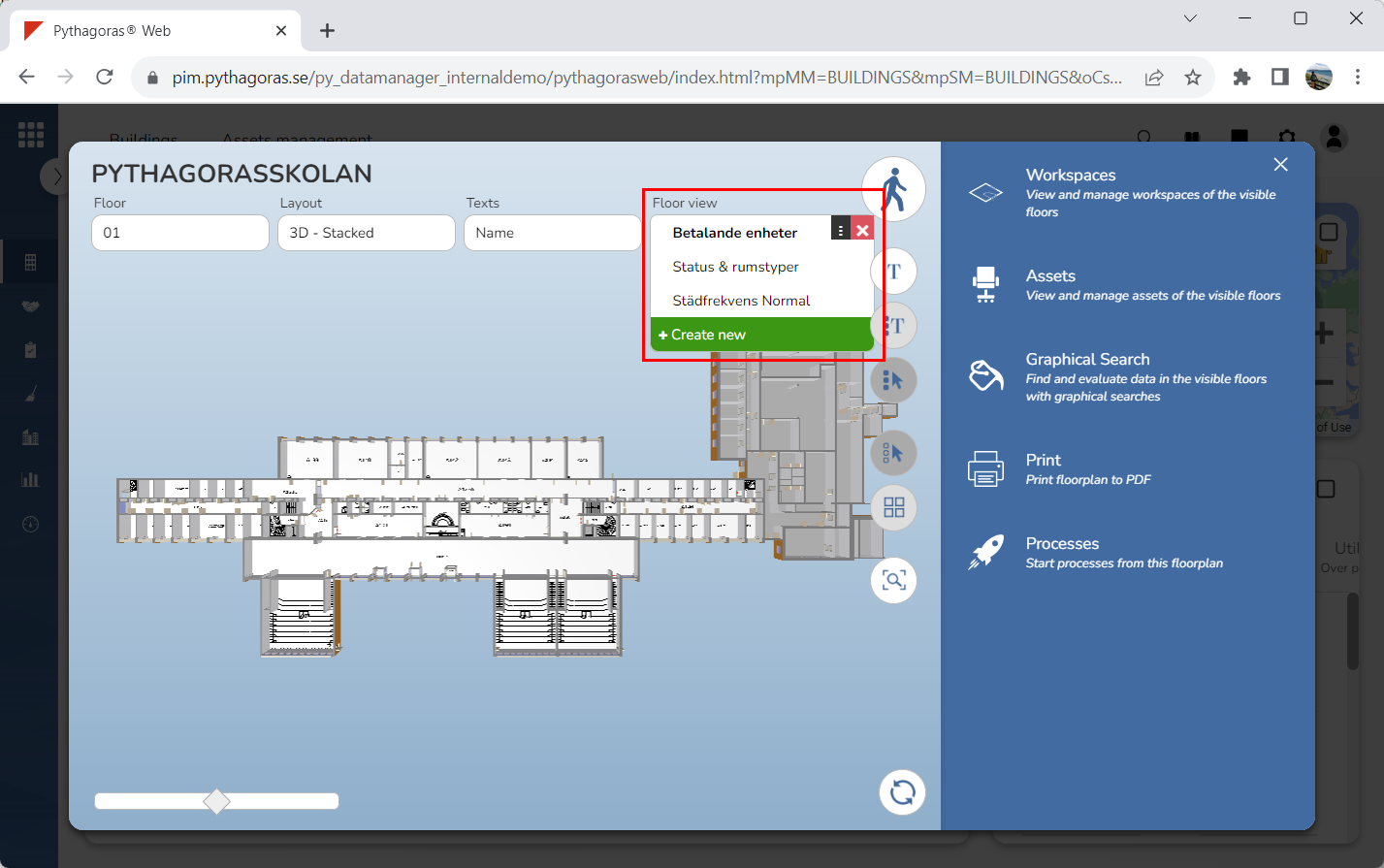
Click the field "Floor view" (see the first image below). When you do so, a list of floor views available in Pythagoras Web will open (see the second image below).
Go to the list of floor views.
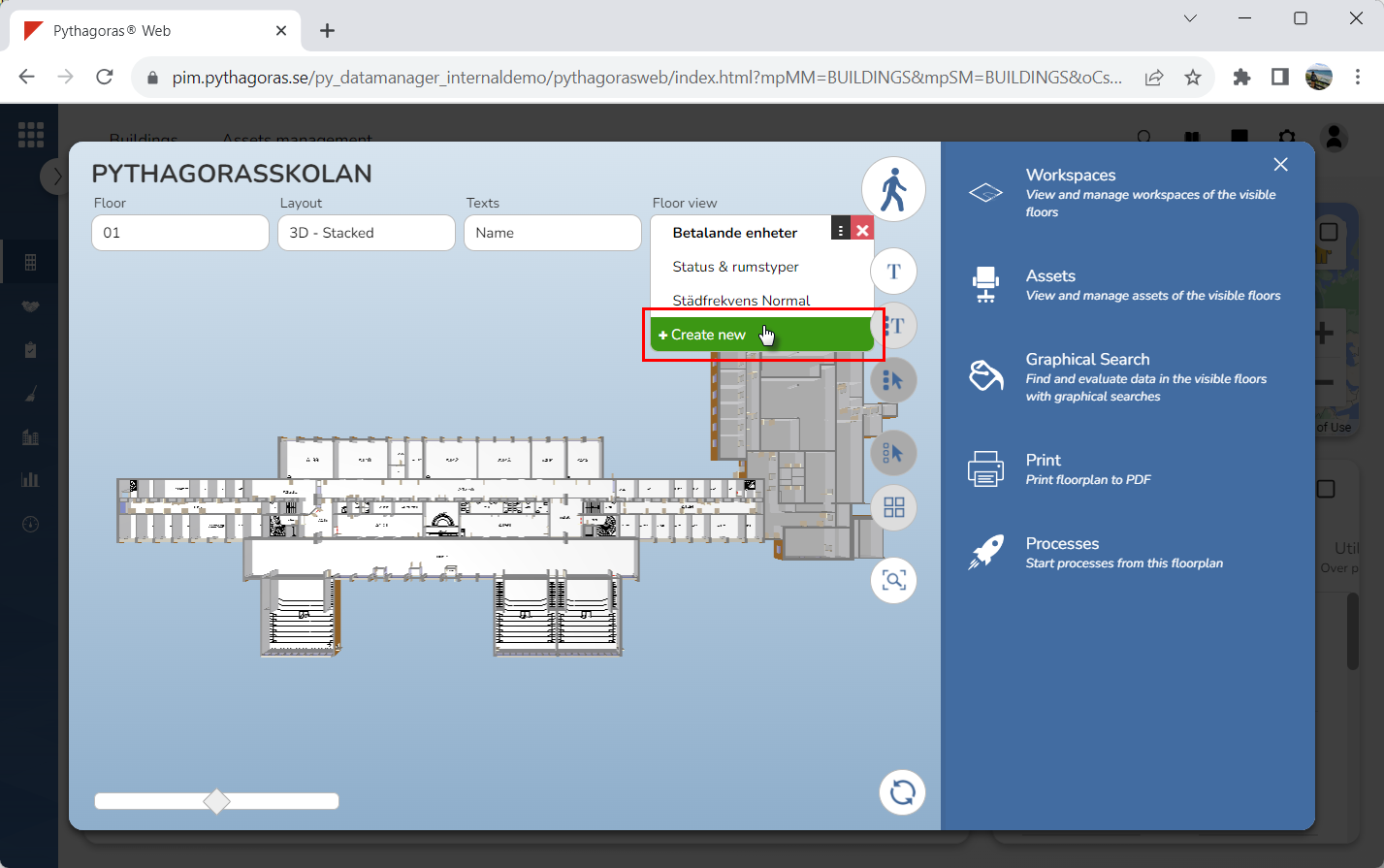
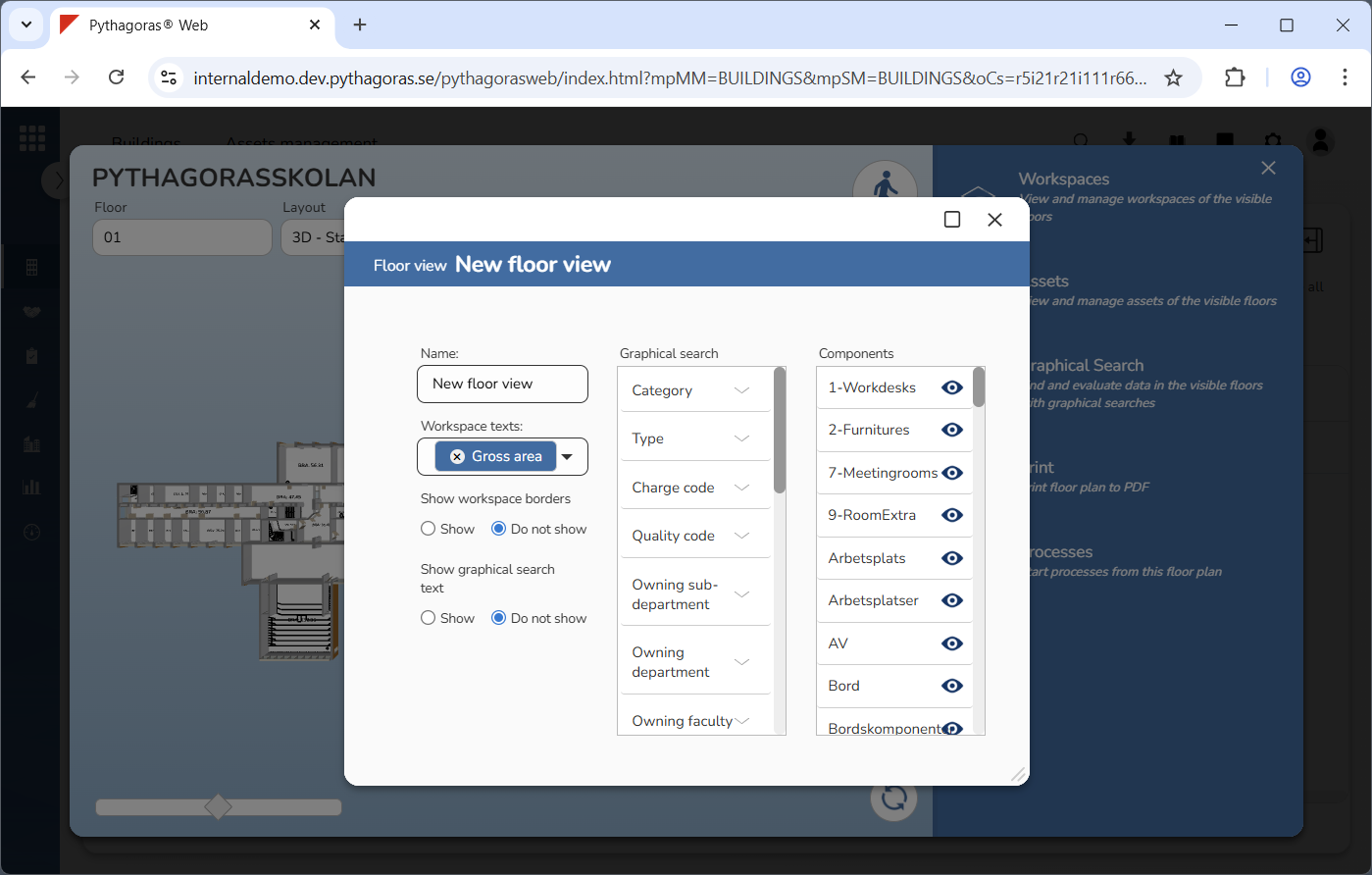
Click "Create new" (see the first image below). When you do so, a floor view will be created. When a floor view is created, its view card will open (see the second image below).
Go to the view card.
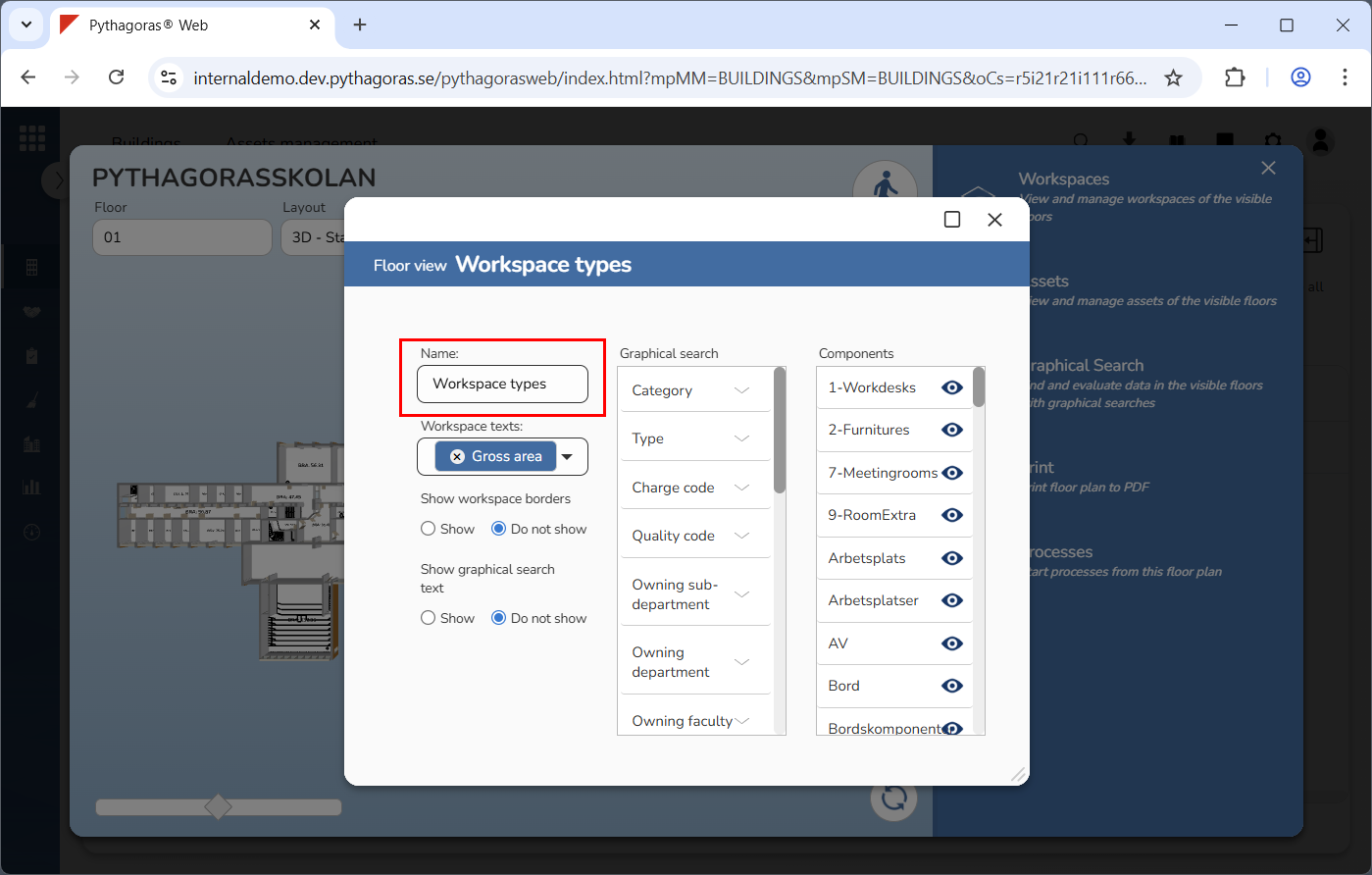
Set a name for the floor view you have created (see image below). Enter a name for it in the name field.
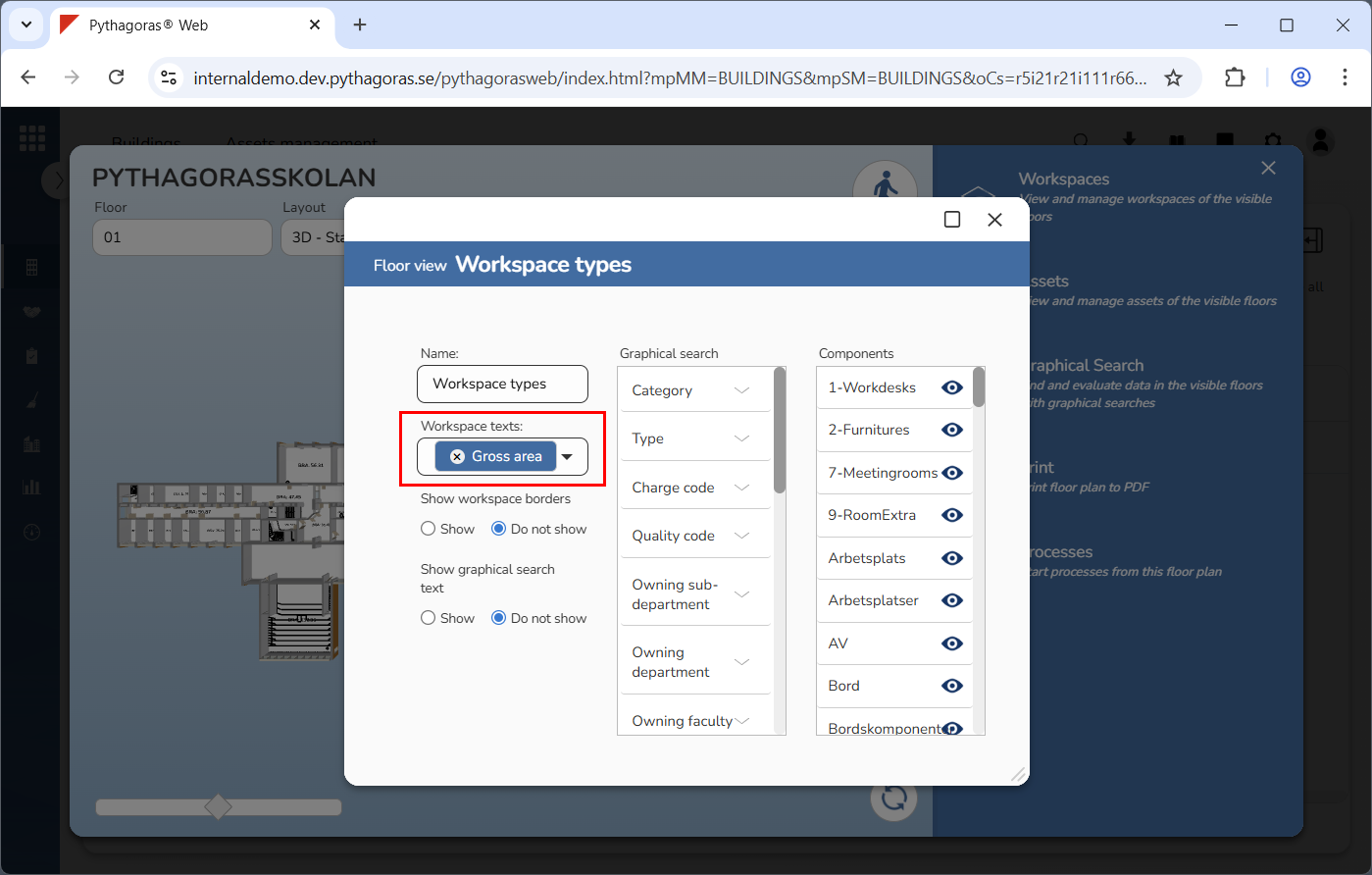
Specify which workspace texts to show in the model when the floor view you have created is active (see image below). Click the field "Workspace texts" and select one or more workspace texts in the list that opens. Then click outside the list to close it.
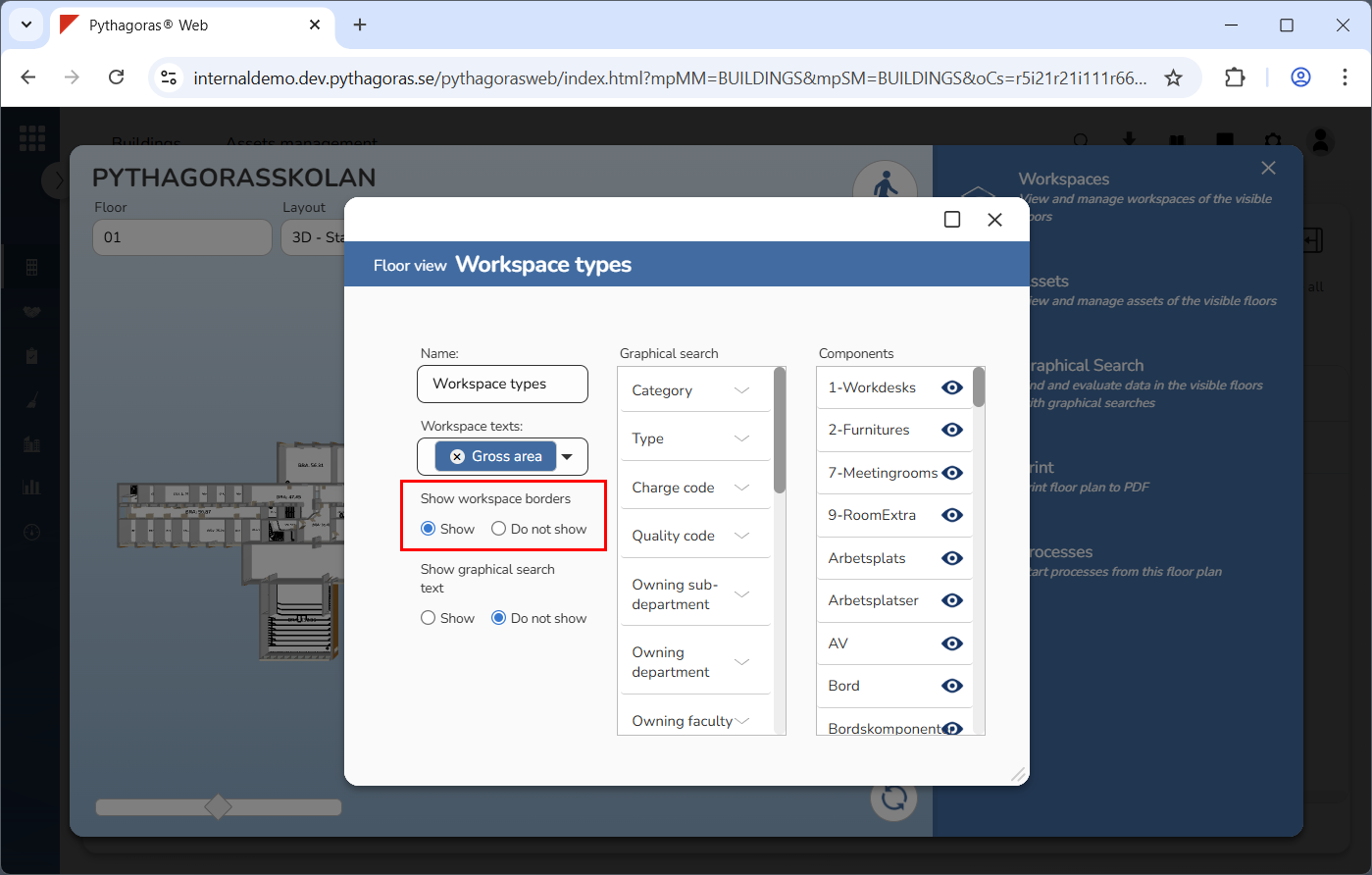
Specify that workspace borders should be shown in the model when the floor view you created is active (see image below). Select "Show" below the label "Show workspace borders".
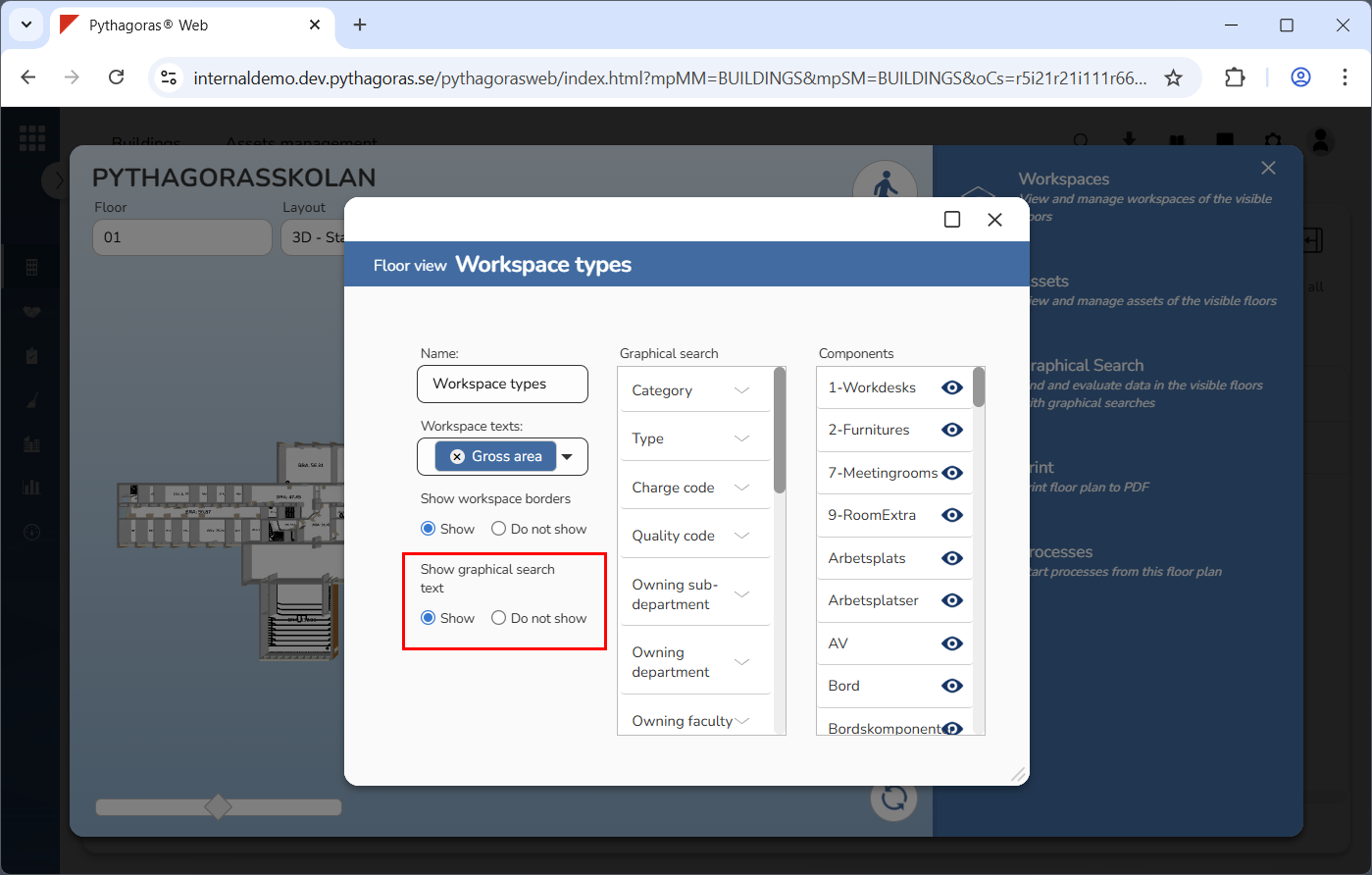
Specify that the texts from a graphical search should be shown in the model when the floor view you have created is active (see image below). Select "Show" below the label "Show graphical search text". Note that this only has to be done if you wish to link a graphical search to the floor view you have created.
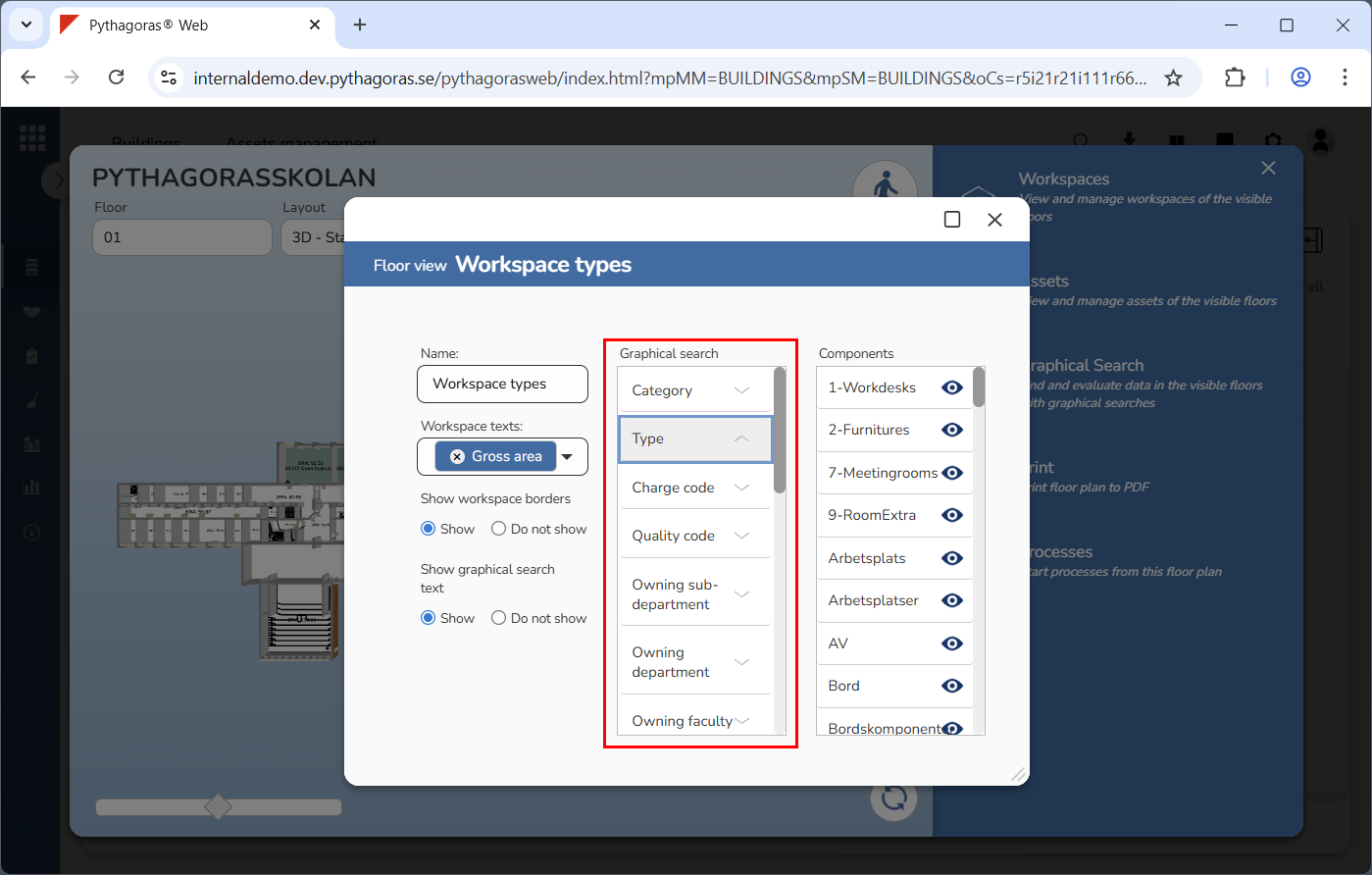
Link a graphical search to the floor view you have created (see image below). Click a graphical search in the list "Graphical search". If you do not wish to link a graphical search to the floor view you have created, skip this step and go straight to step 11.
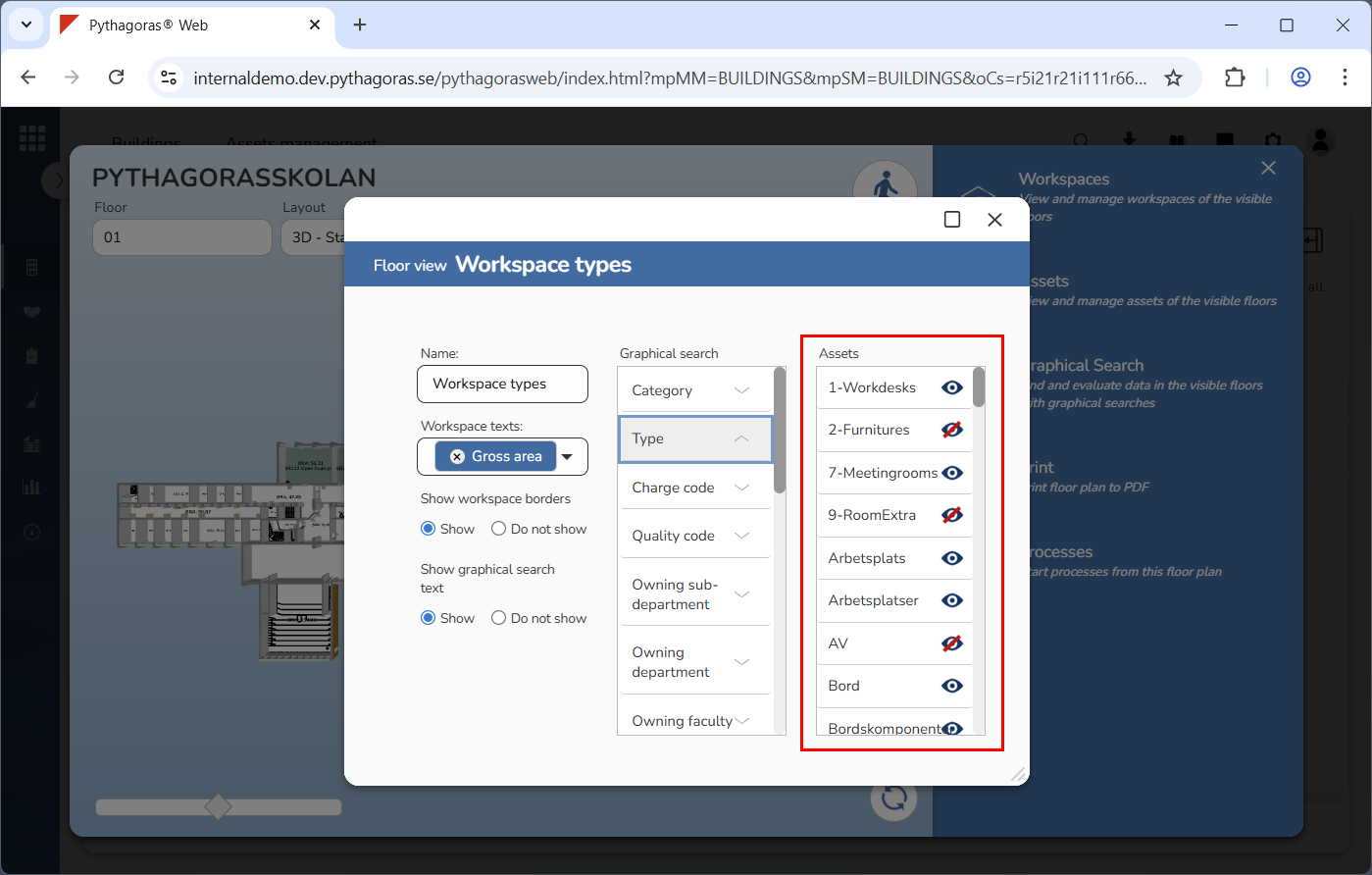
Hide the asset groups that should not be shown in the model when the floor view you have created is active. Click one or more asset groups in the list "Assets". The asset groups you hide will be greyed out (see image below).
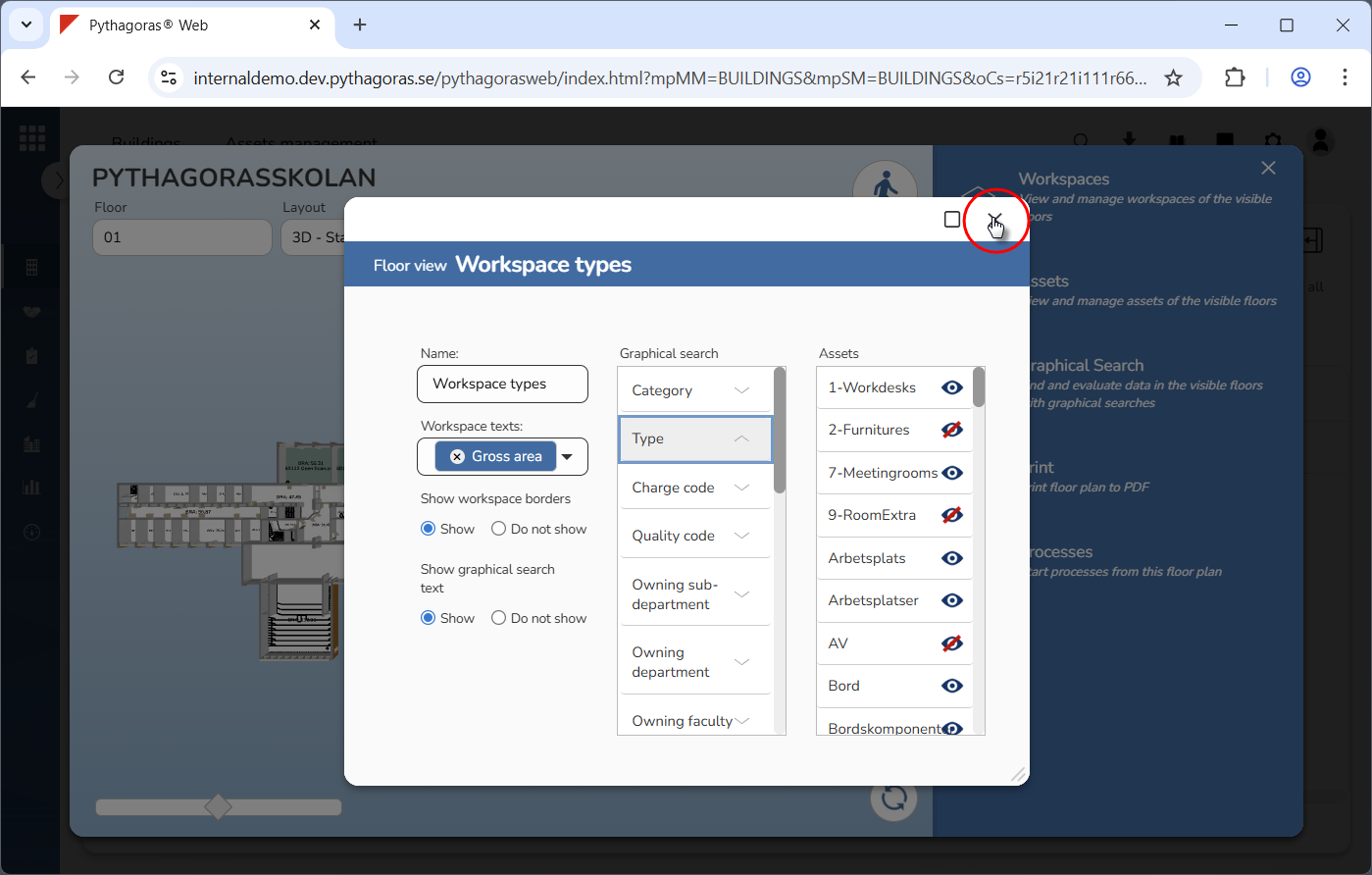
Close the view card (see the first image below). When you do so, you will be redirect back to the floor plan card where you will see that the floor view you have created has been applied to the model (see the second image below).