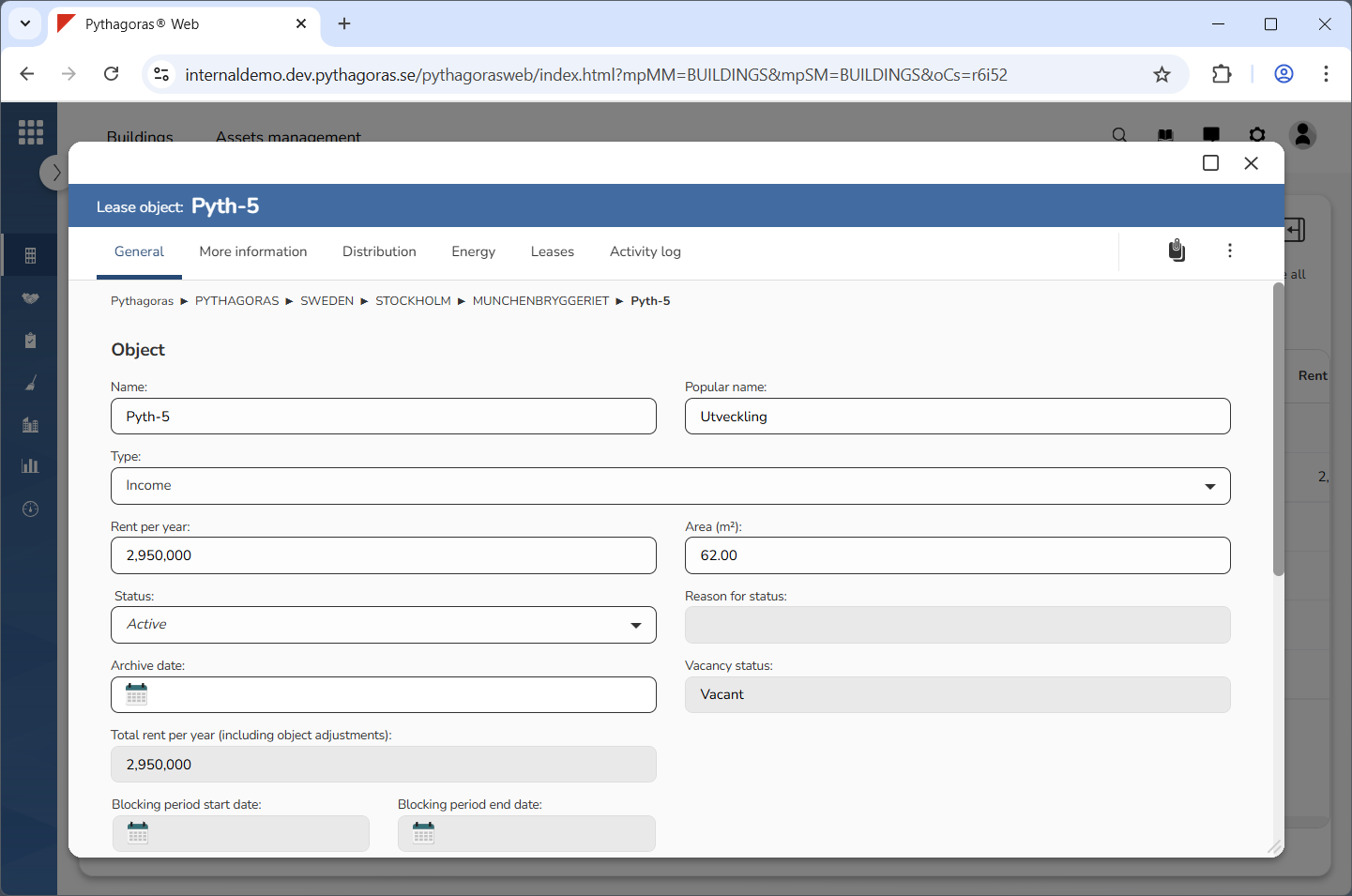
Open a lease object. For more information on how to do so, see section 11.1.
Go to the lease object card (see image below).
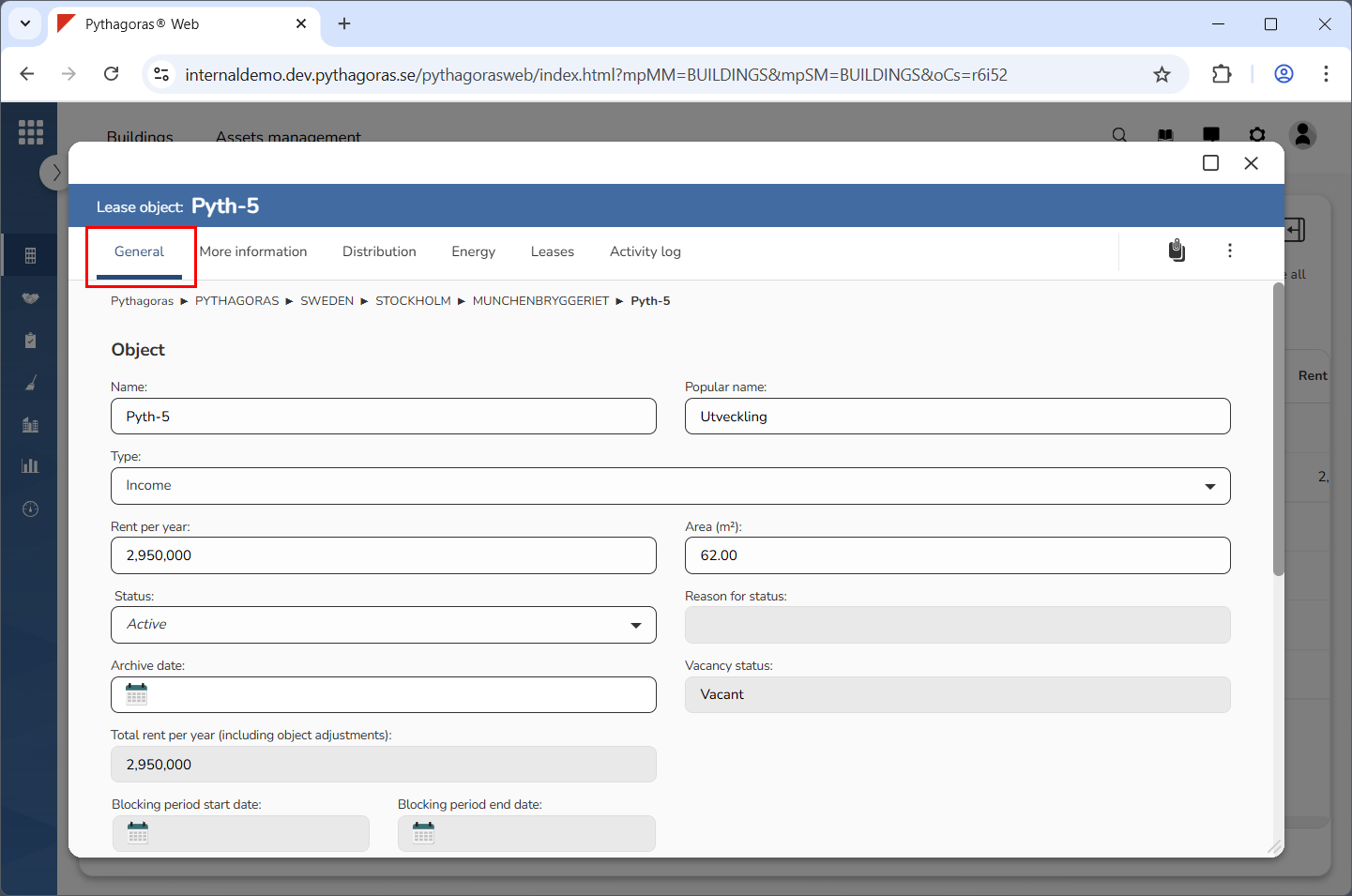
Click the tab called "General" (see image below).
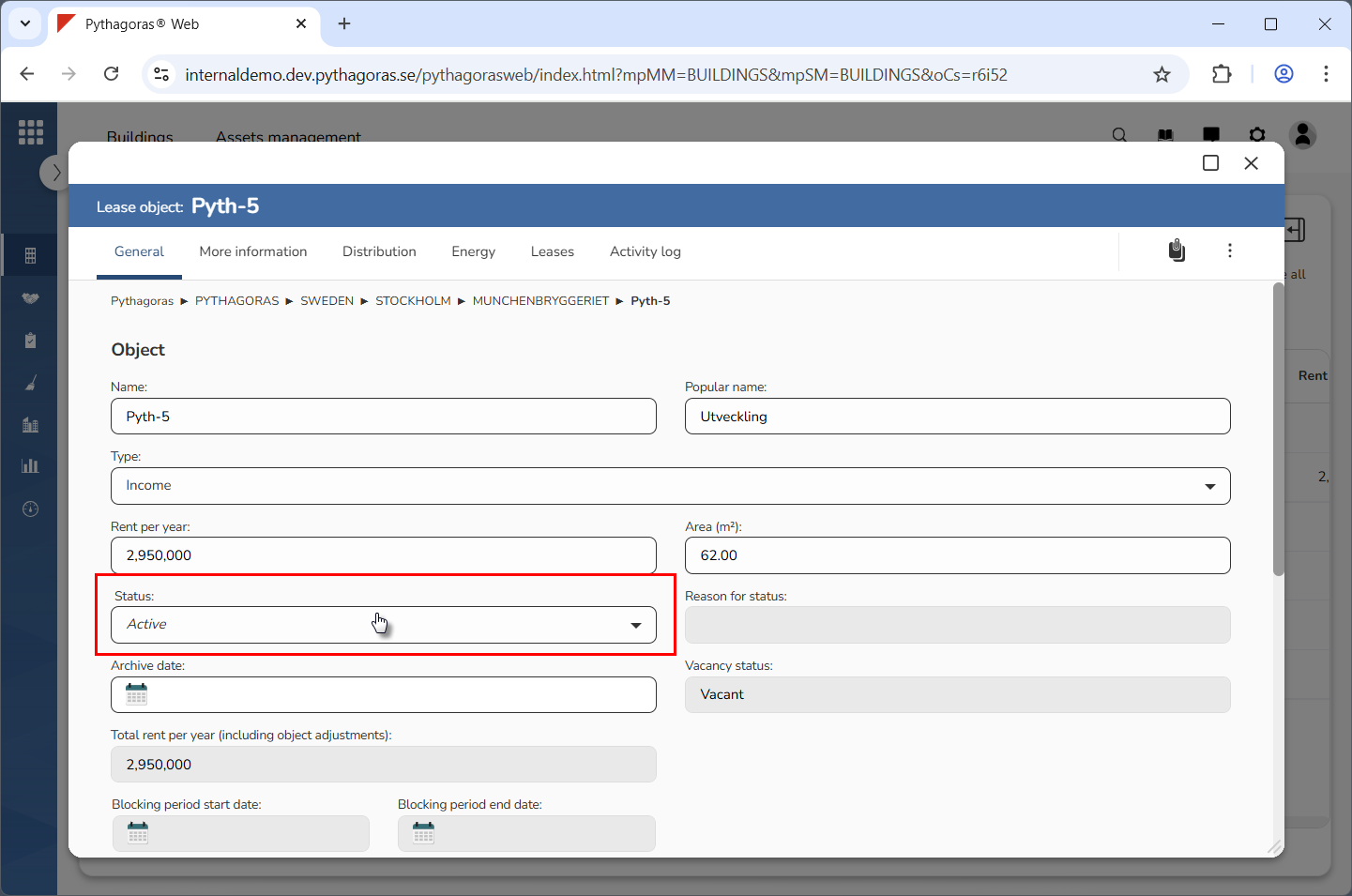
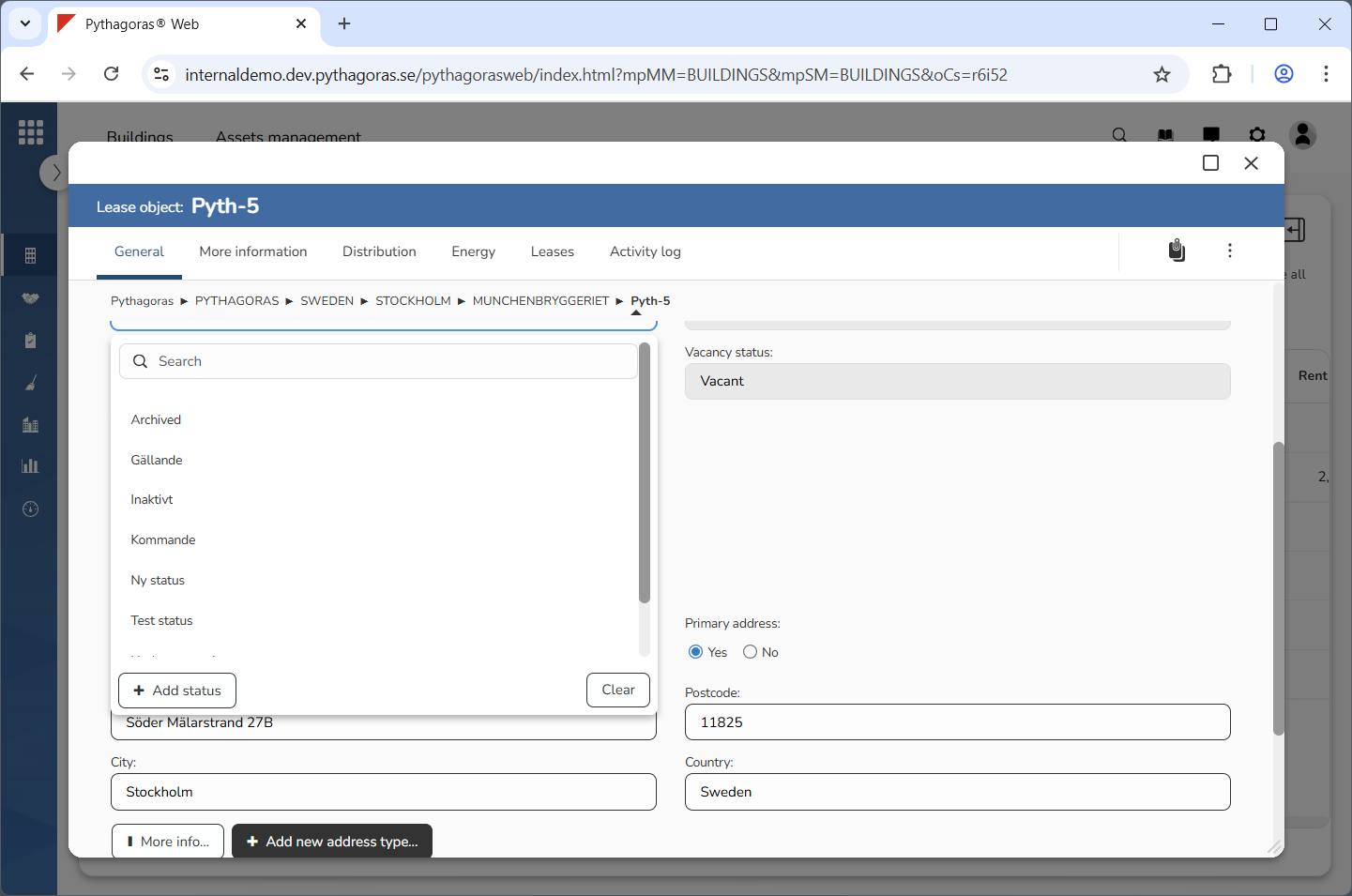
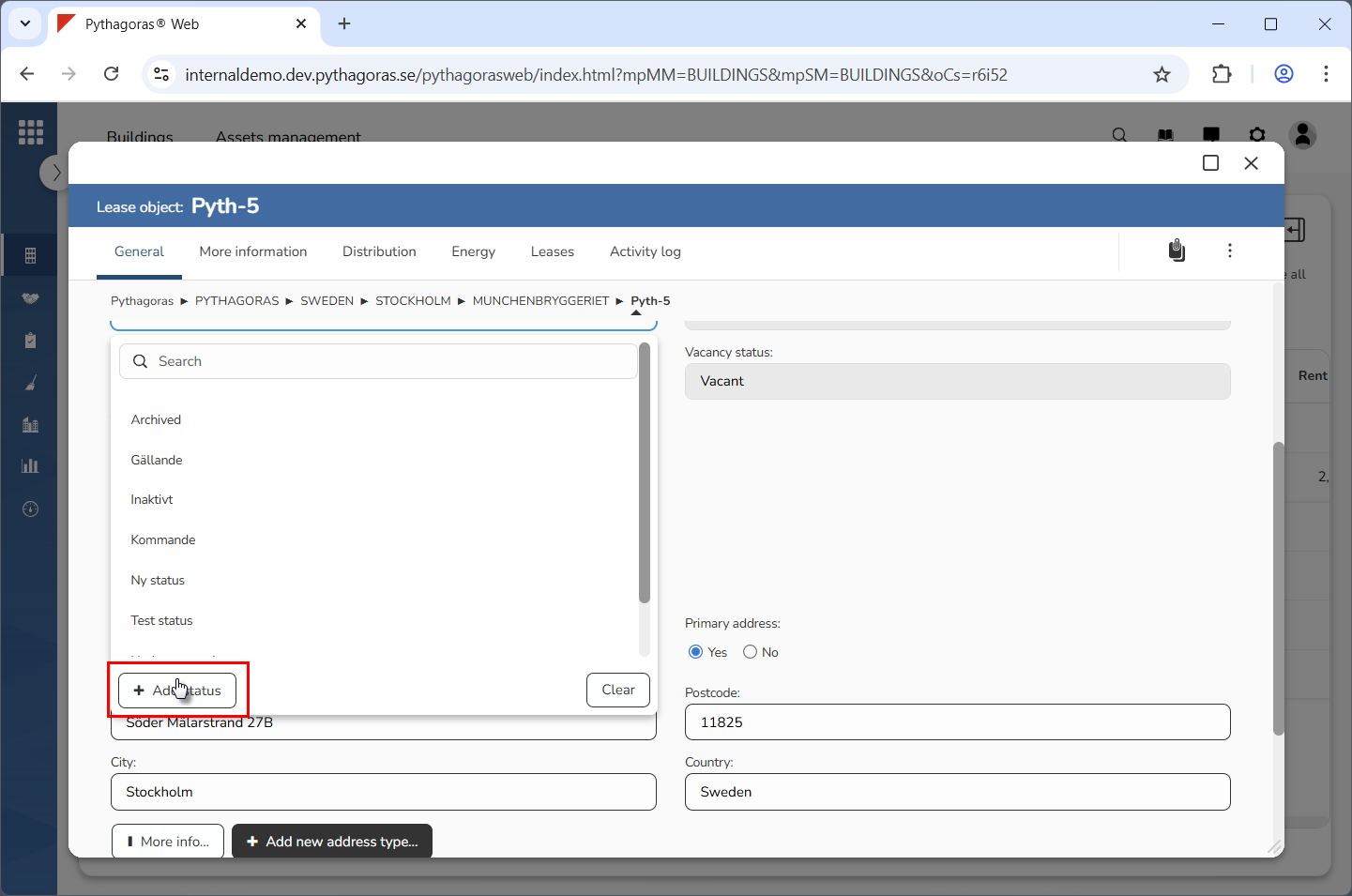
Click the field "Status" (see the first image below). When you do so, a list of statuses available in Pythagoras Web will open (see the second image below).
Go to the list of statuses.
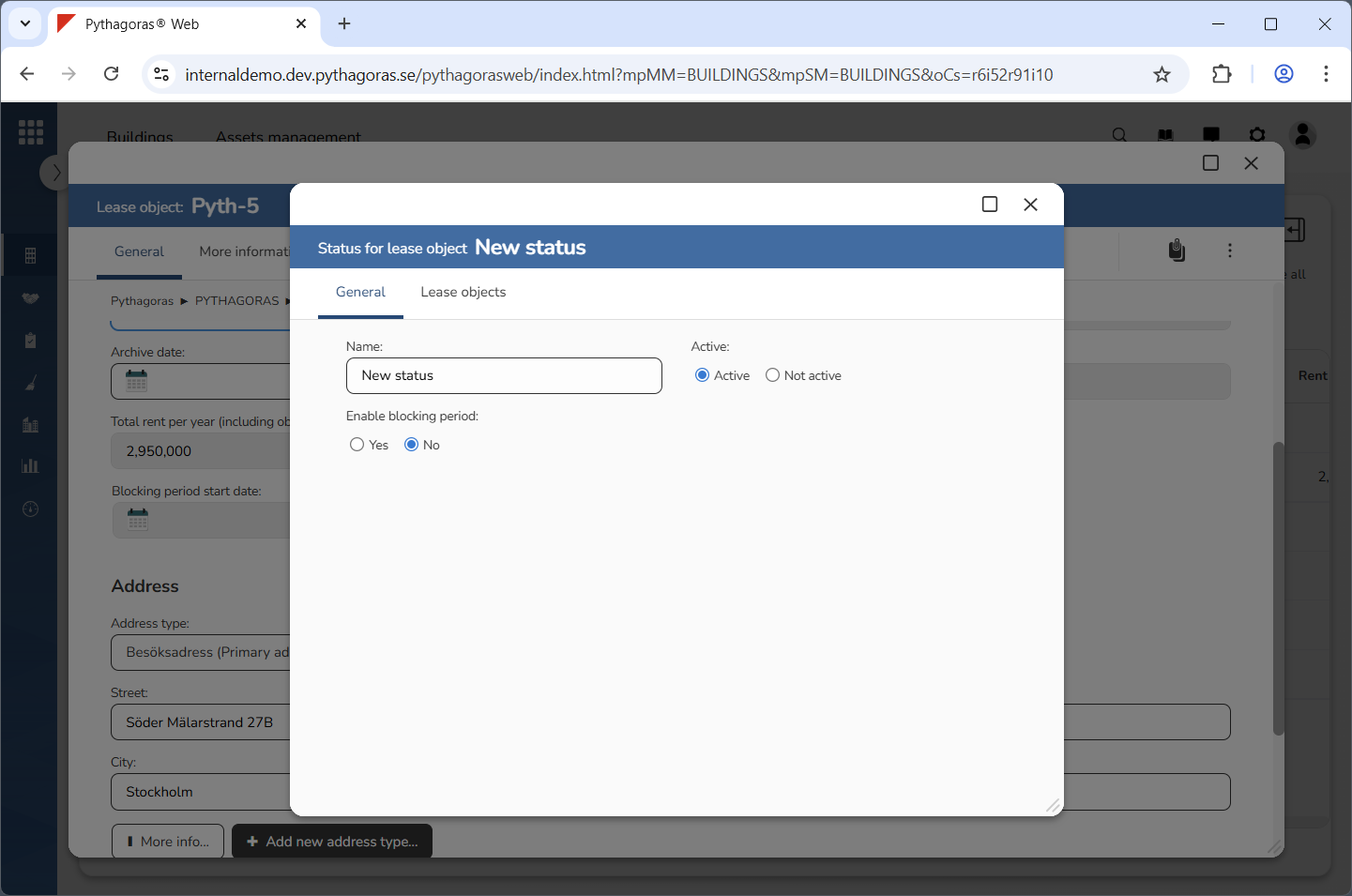
Click "Add status" (see the first image below). When you do so, a new status will be added in Pythagoras Web. When a status is added in Pythagoras Web, its status card will open (see the second image below).
Go to the status card.
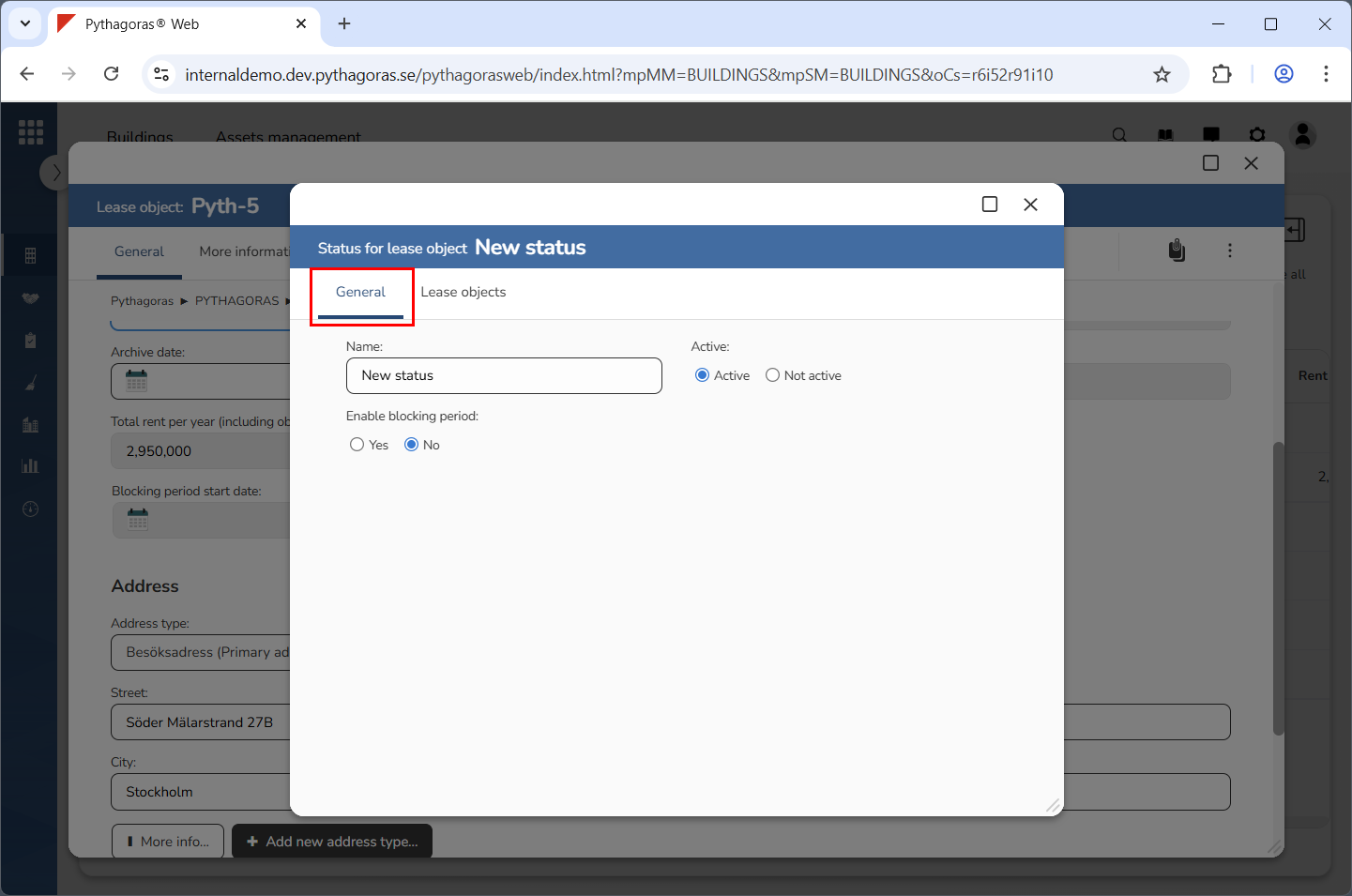
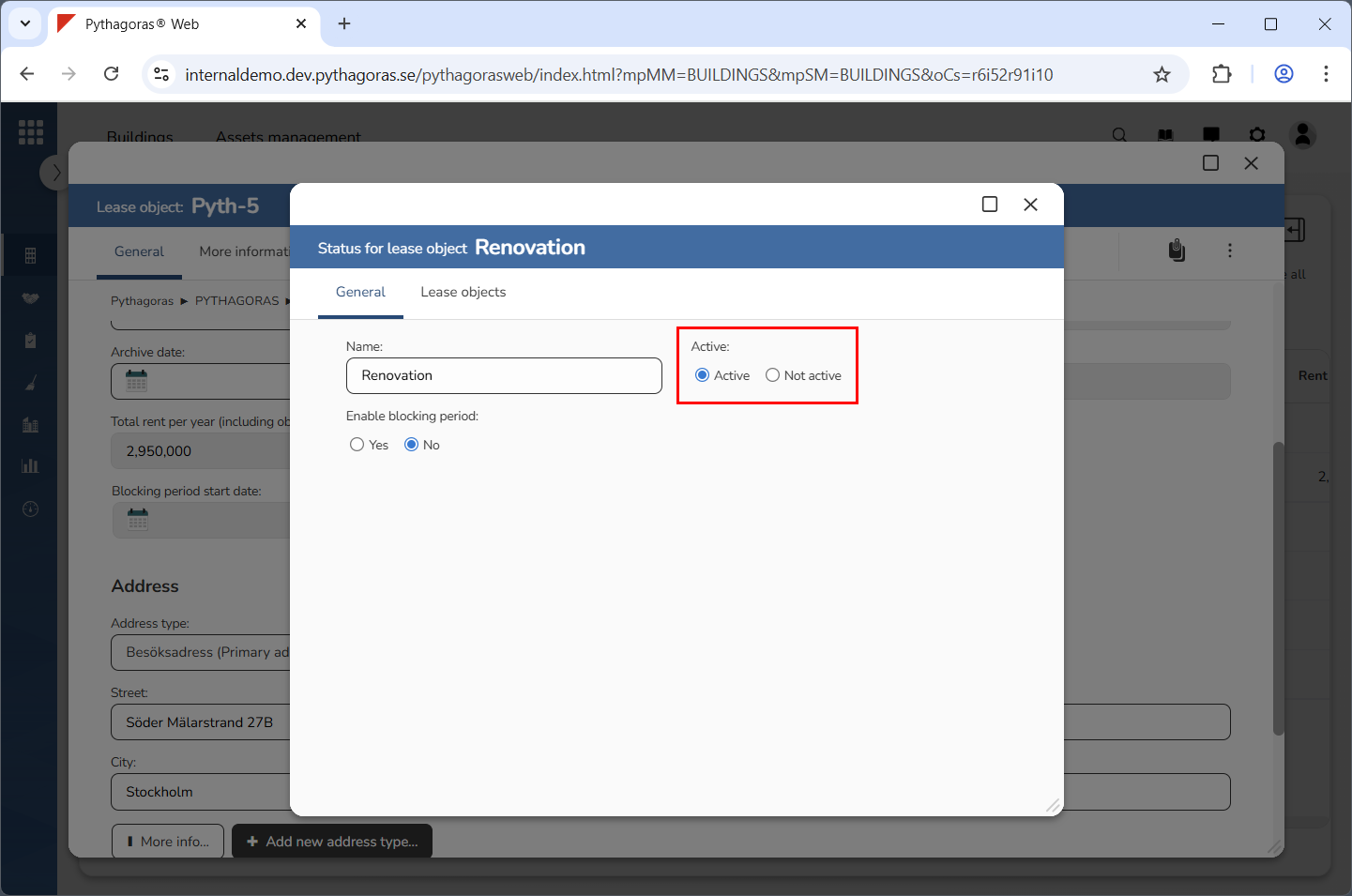
Click the tab called "General" (see image below).
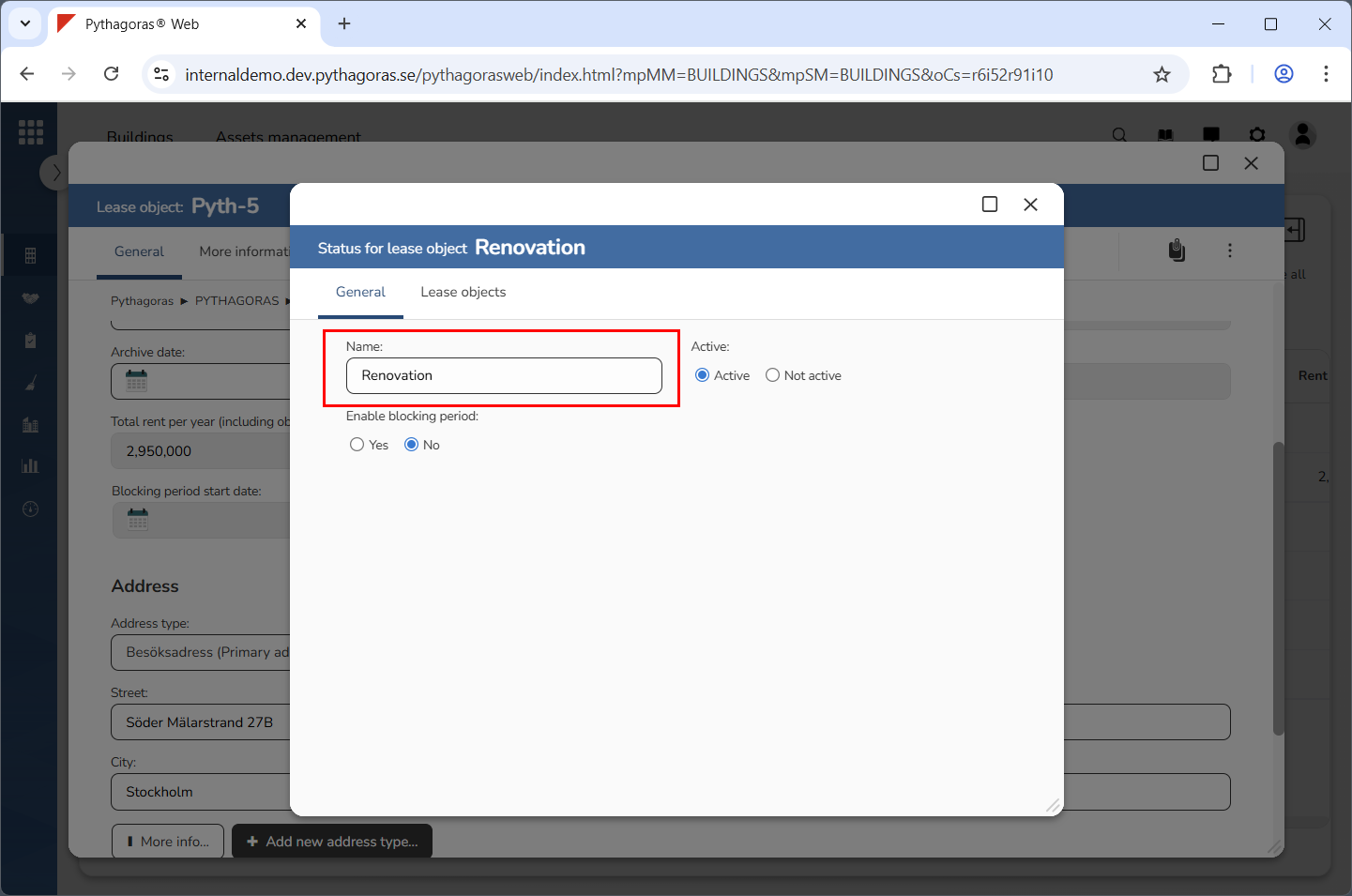
Set a name for the status you added in Pythagoras Web (see image below). Enter a name for it in the field "Name".
Specify whether the status you added in Pythagoras Web, should, or should not, be active (see image below). Select "Active" or "Not active" below the label "Active".
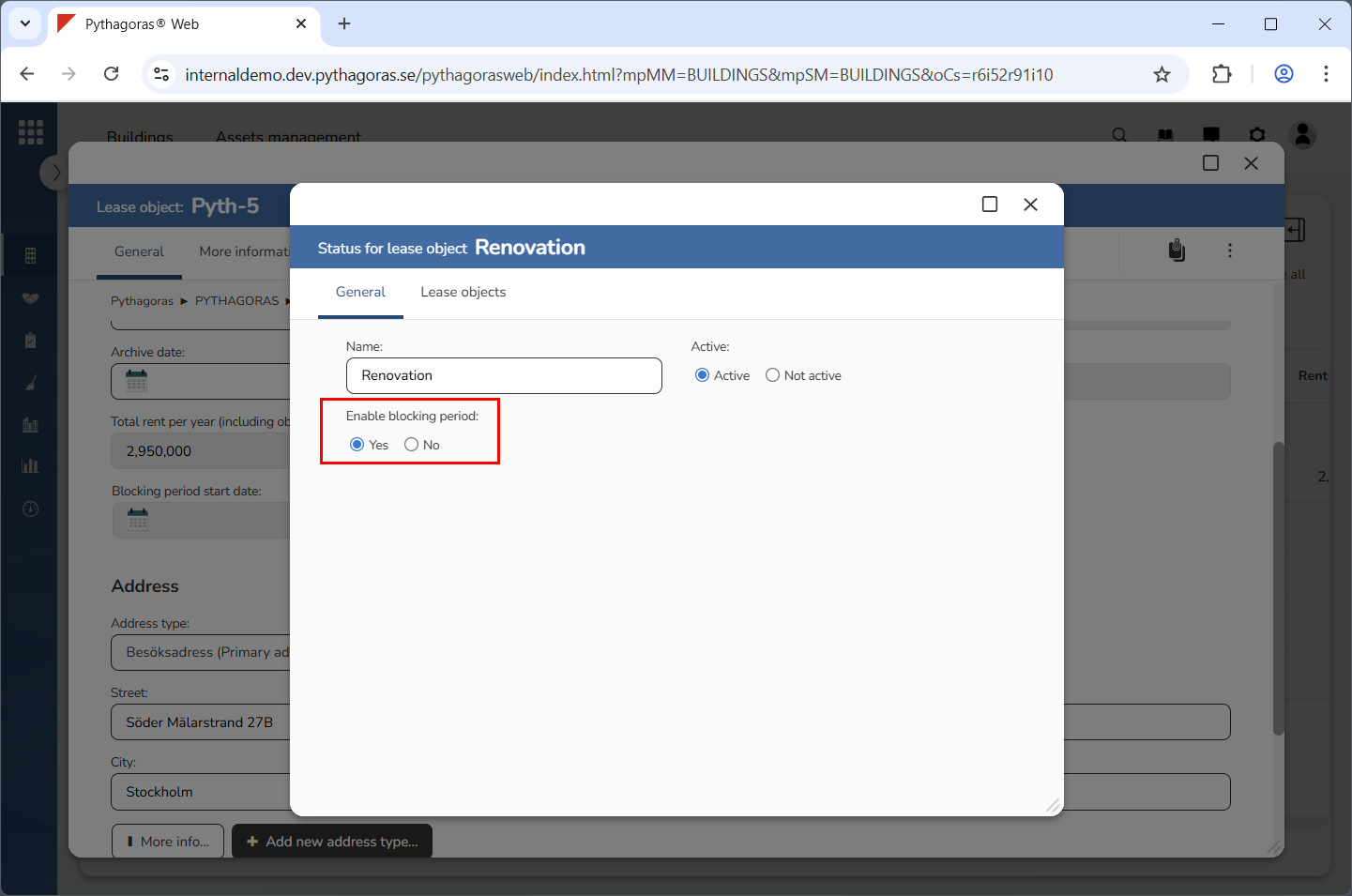
Specify whether the status you added in Pythagoras Web, should, or should not, enable a blocking period (see image below). Select "Yes" or "No" below the label "Enable blocking period".
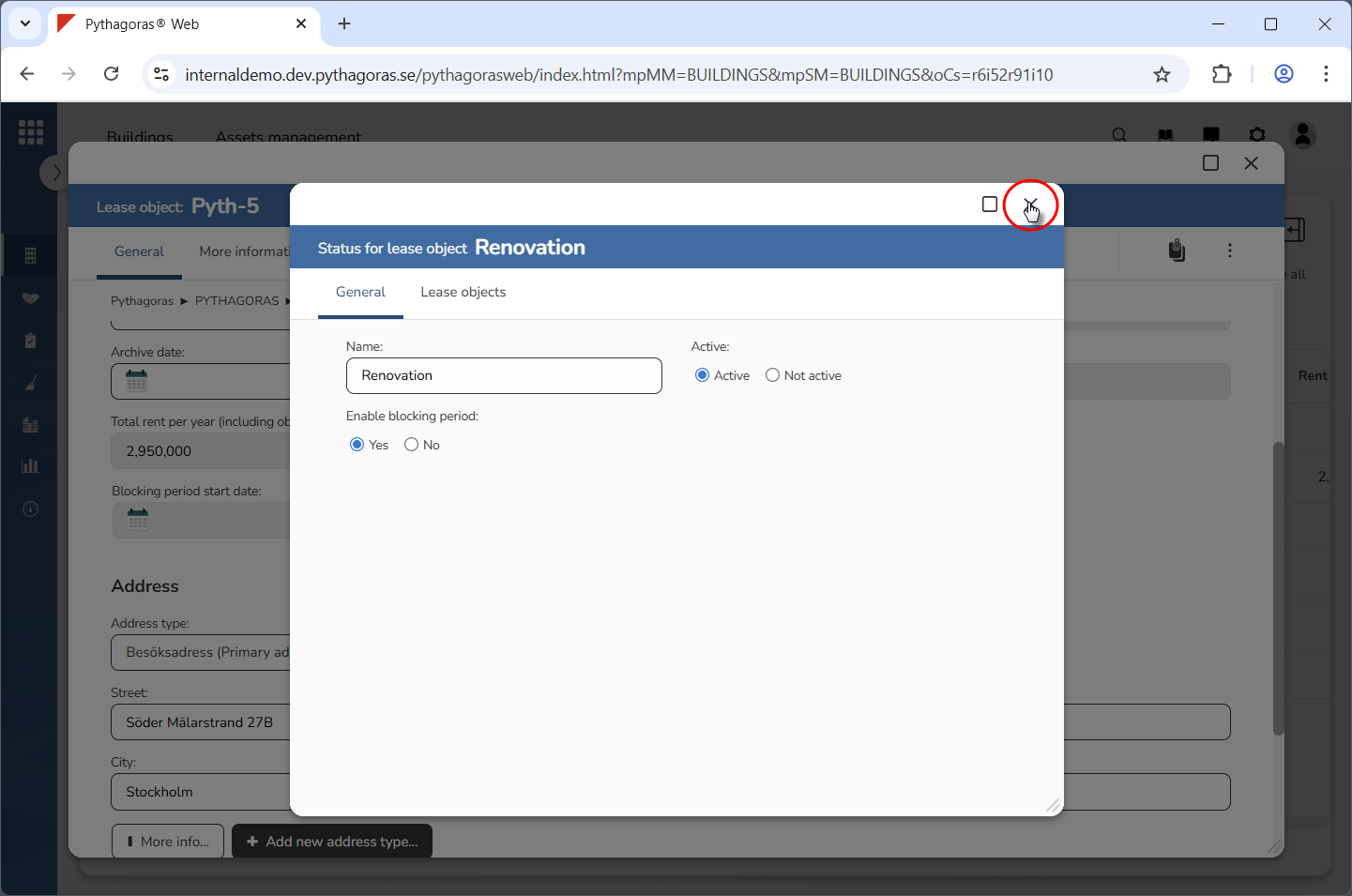
Close the status card (see the first image below). When you do so, you will be redirected back to the lease object card (see the second image below).