Open a lease object. For more information on how to do so, see section 11.1.
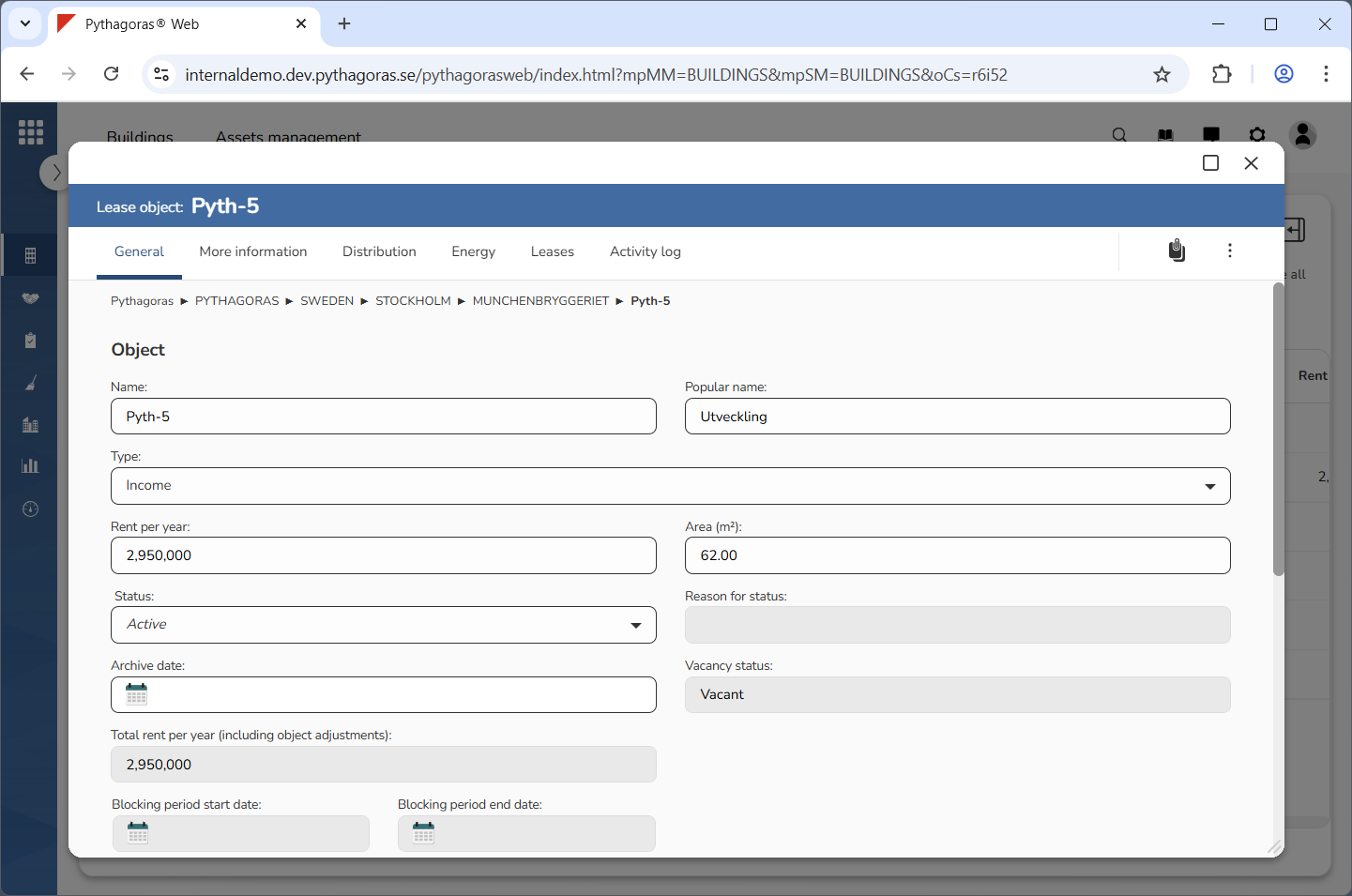
Go to the lease object card (see image below).
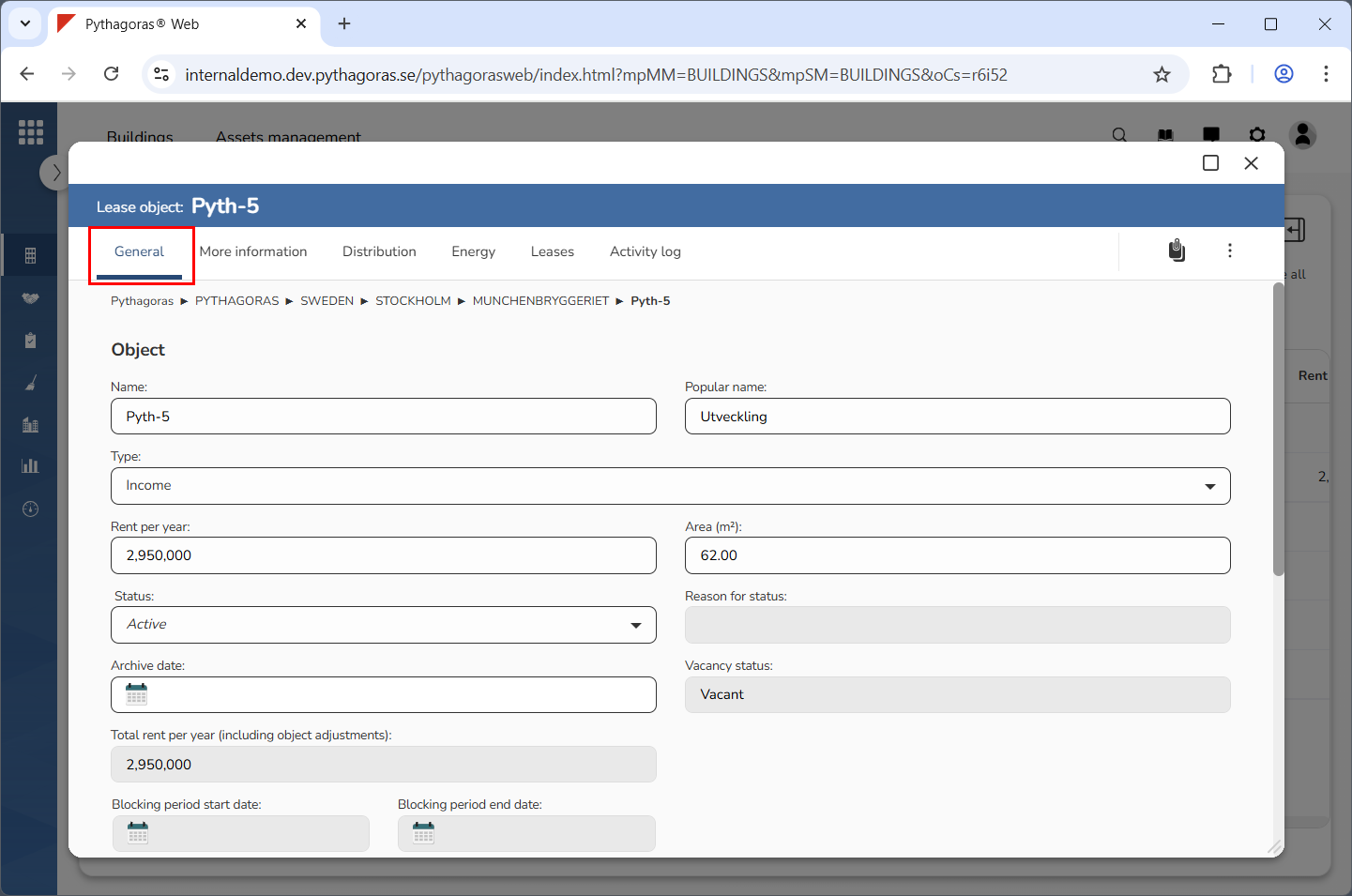
Click the tab called "General" (see image below).
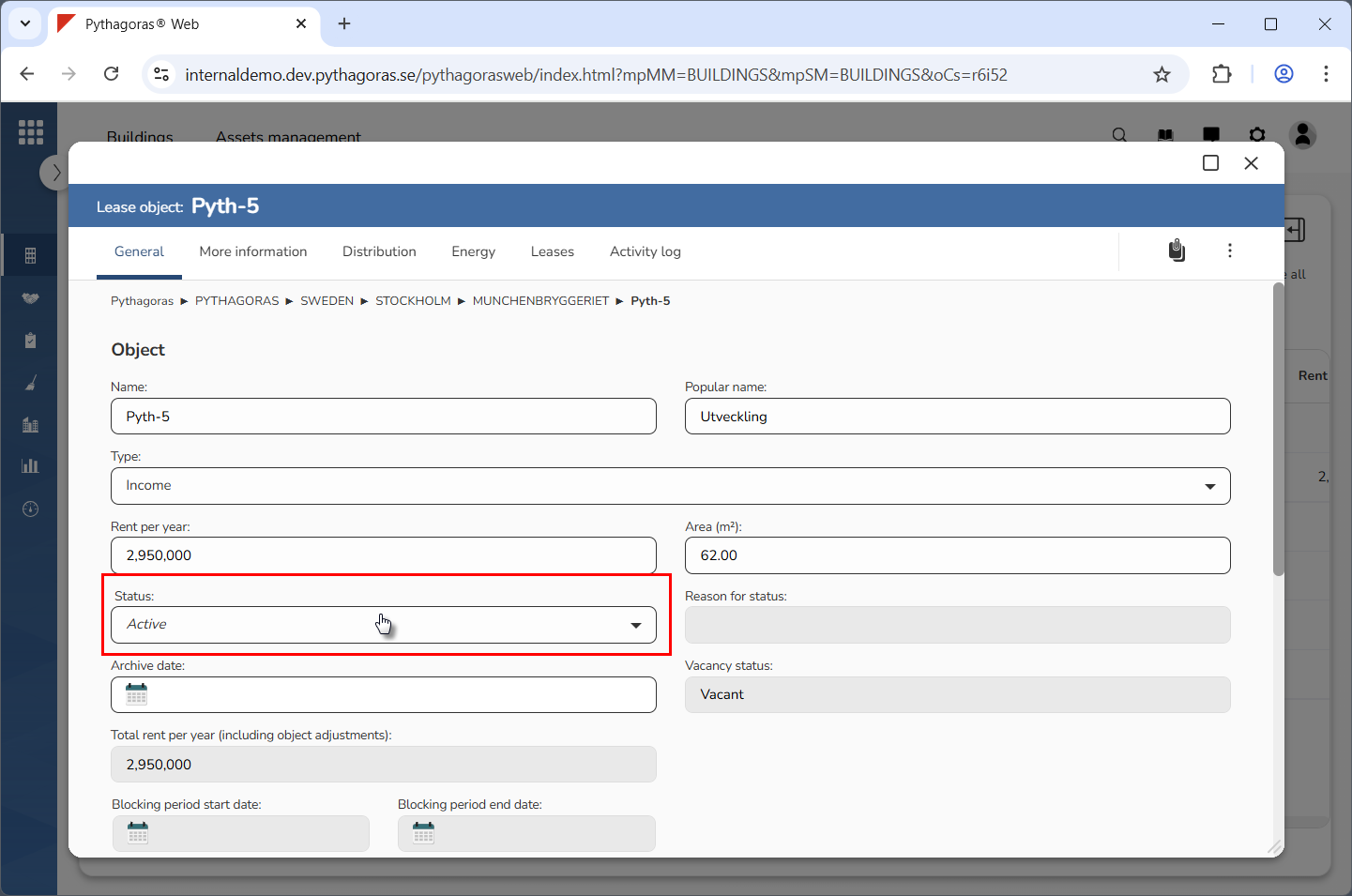
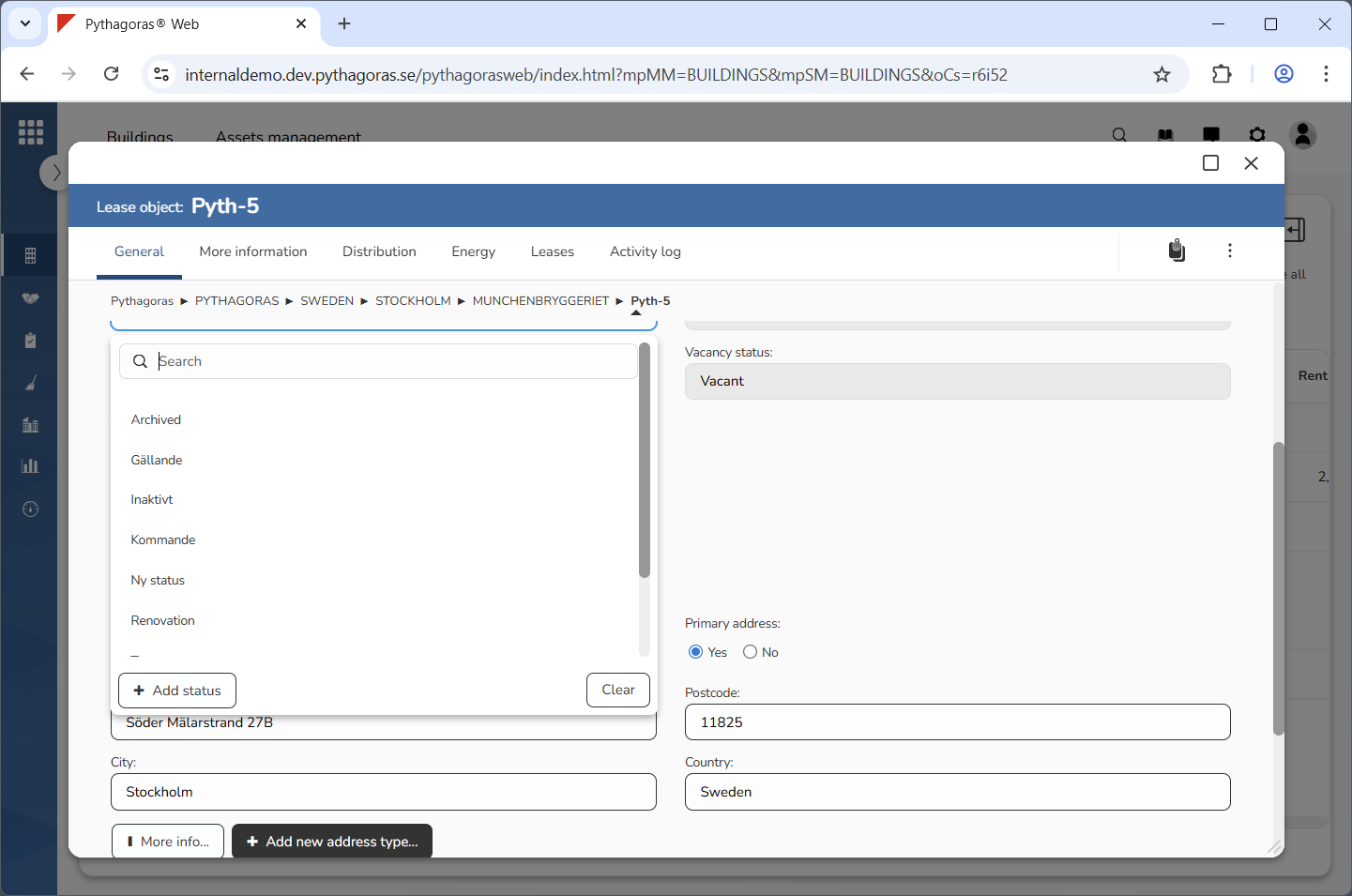
Click the field "Status" (see the first image below). When you do so, a list of statuses available in Pythagoras Web will open (see the second image below).
Go to the list of statuses.
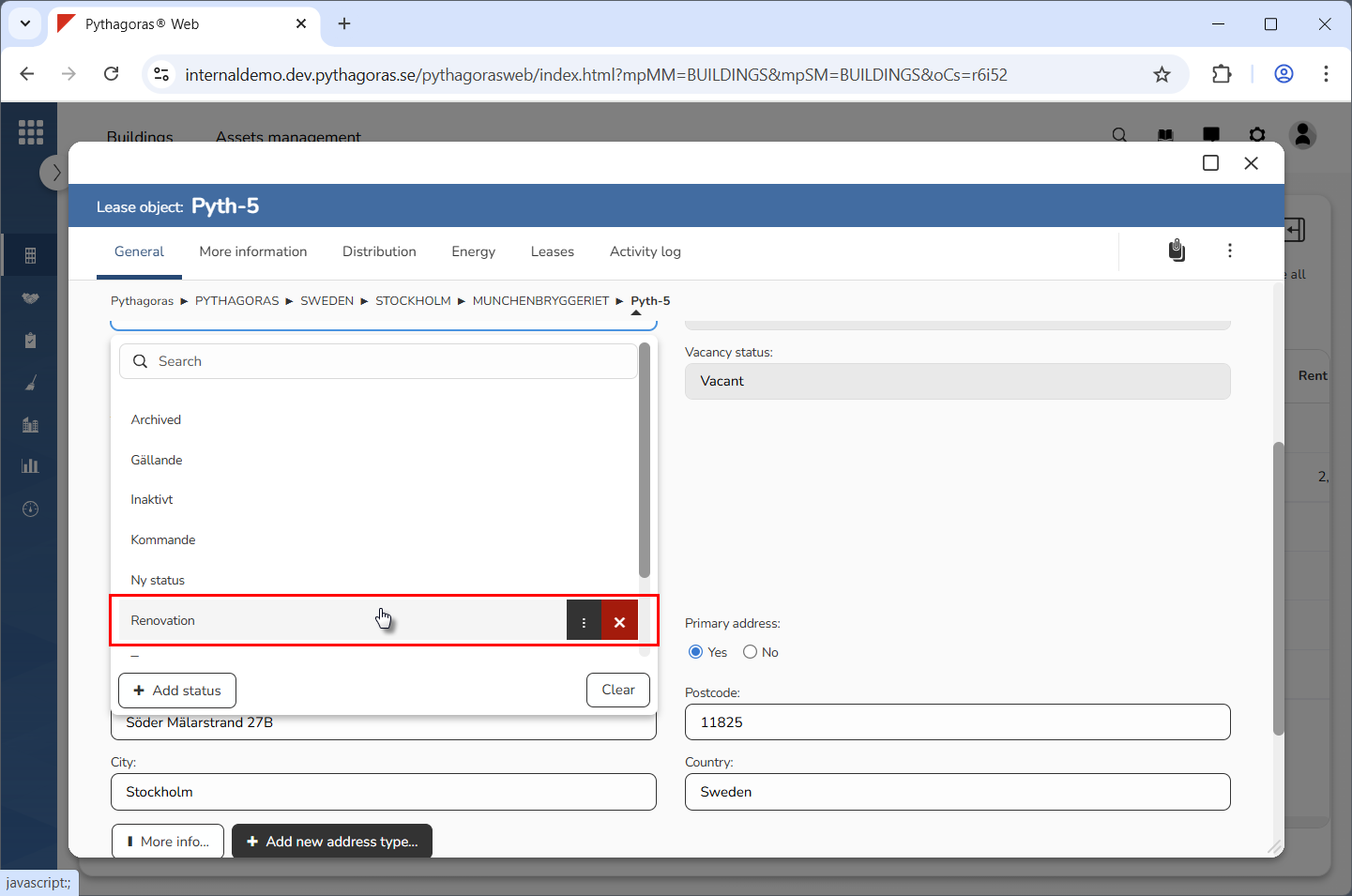
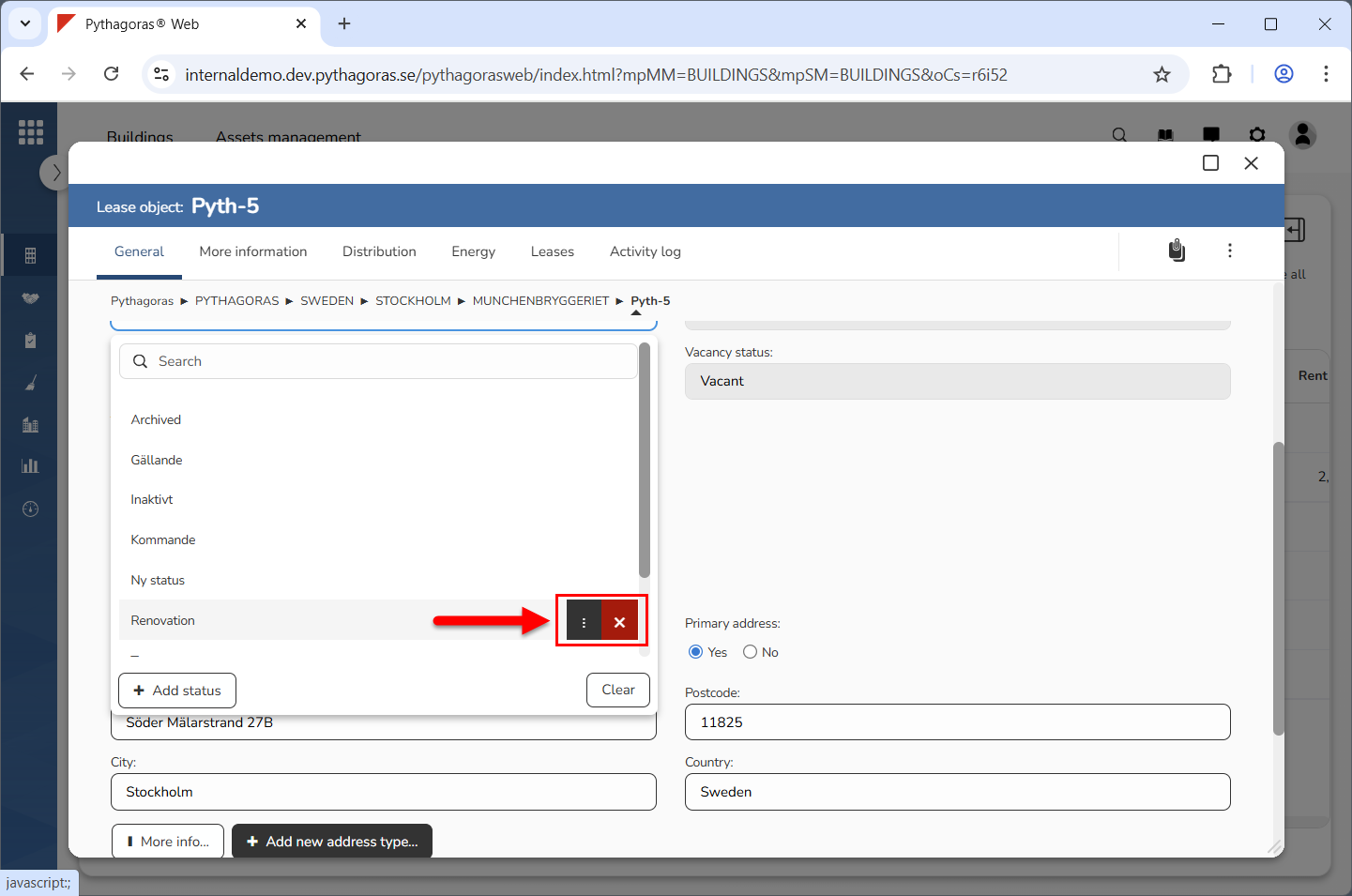
Place your cursor on the status you wish to edit (see the first image below). When you do so, you will be shown two icons: "Open" and "Delete" (see the second image below).
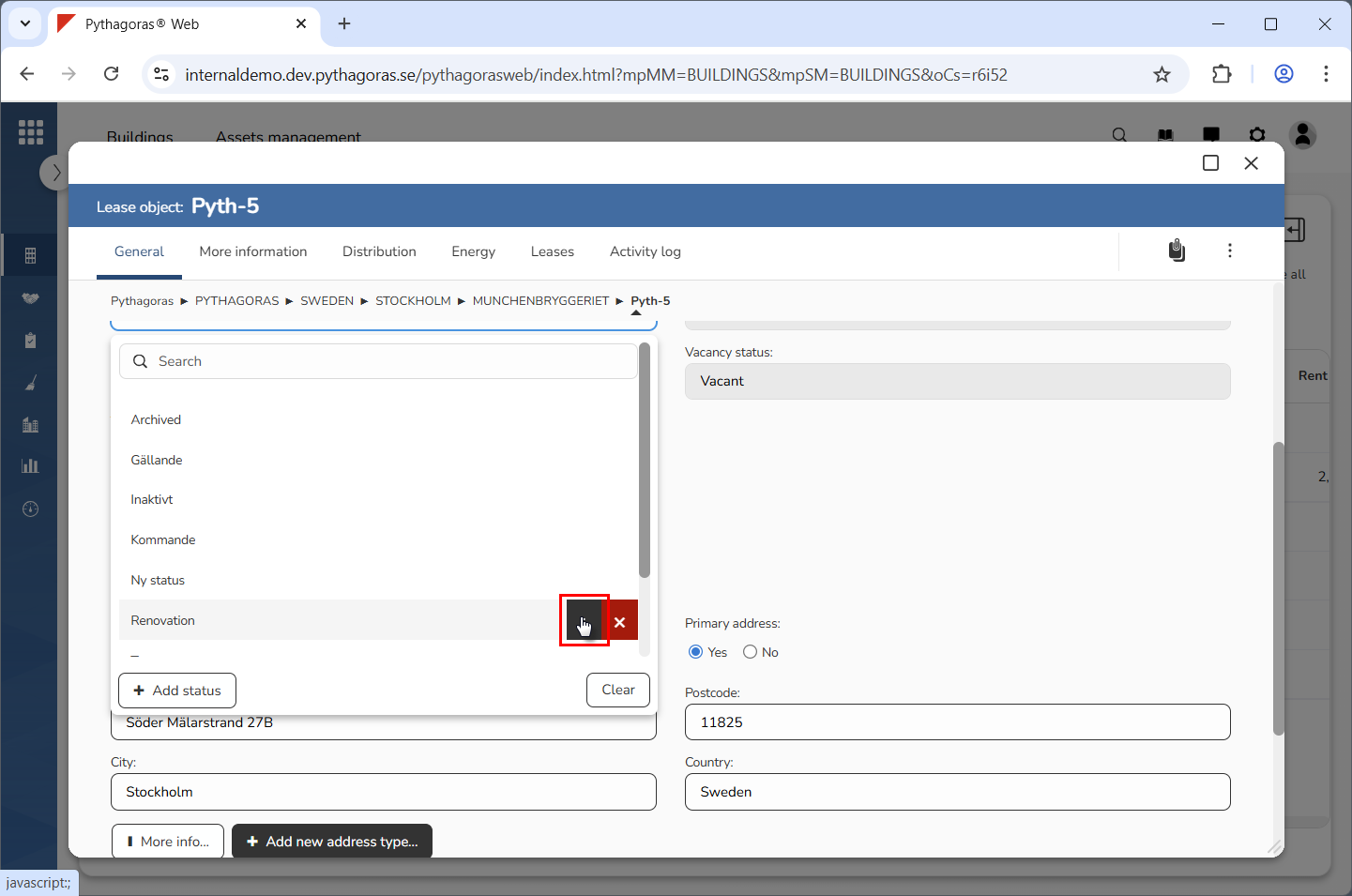
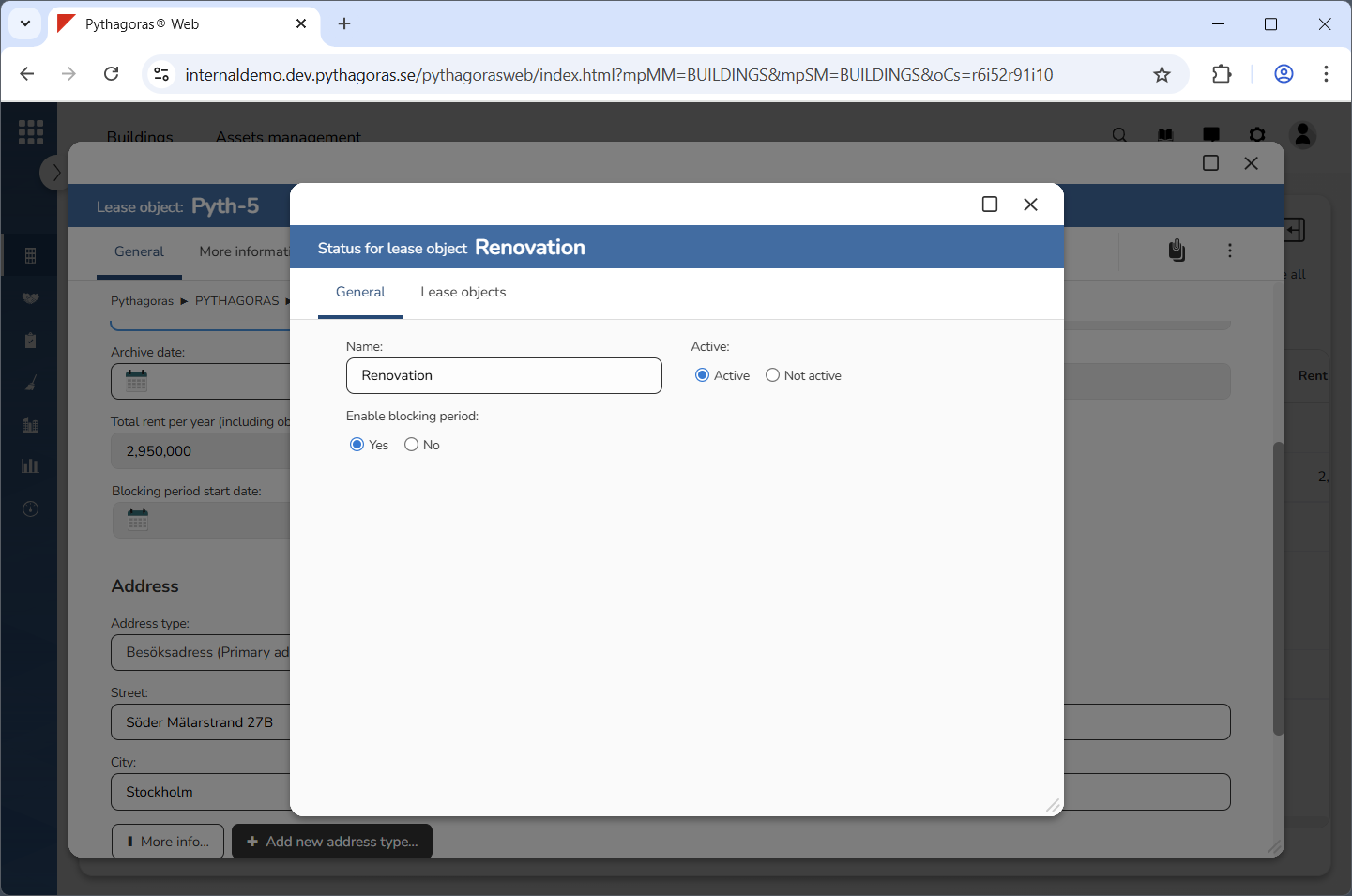
Click "Open" (see the first image below). When you do so, the status you are working with will open. When a status opens, so does its status card (see the second image below).
Go to the status card.
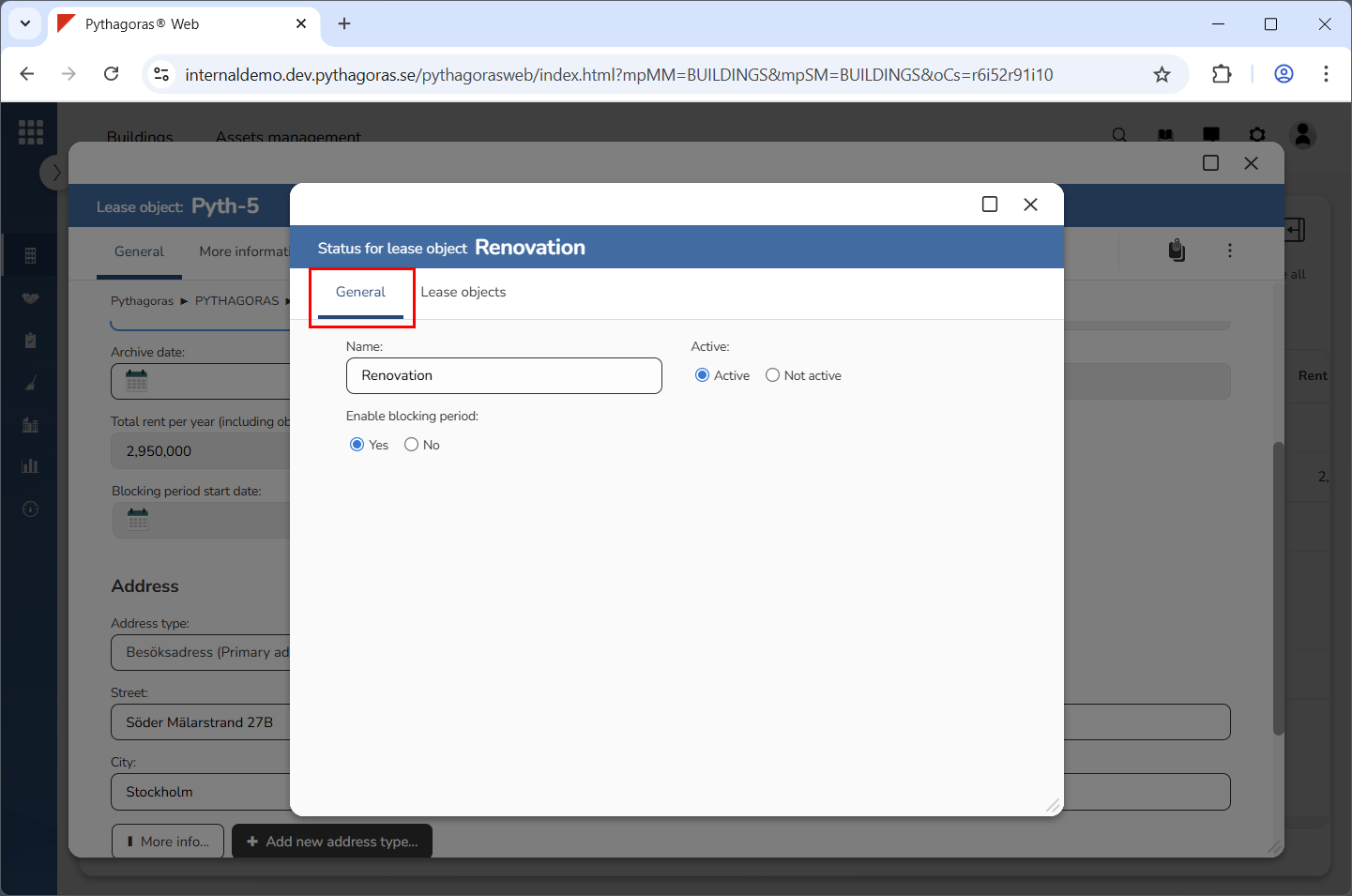
Click the tab called "General" (see image below).
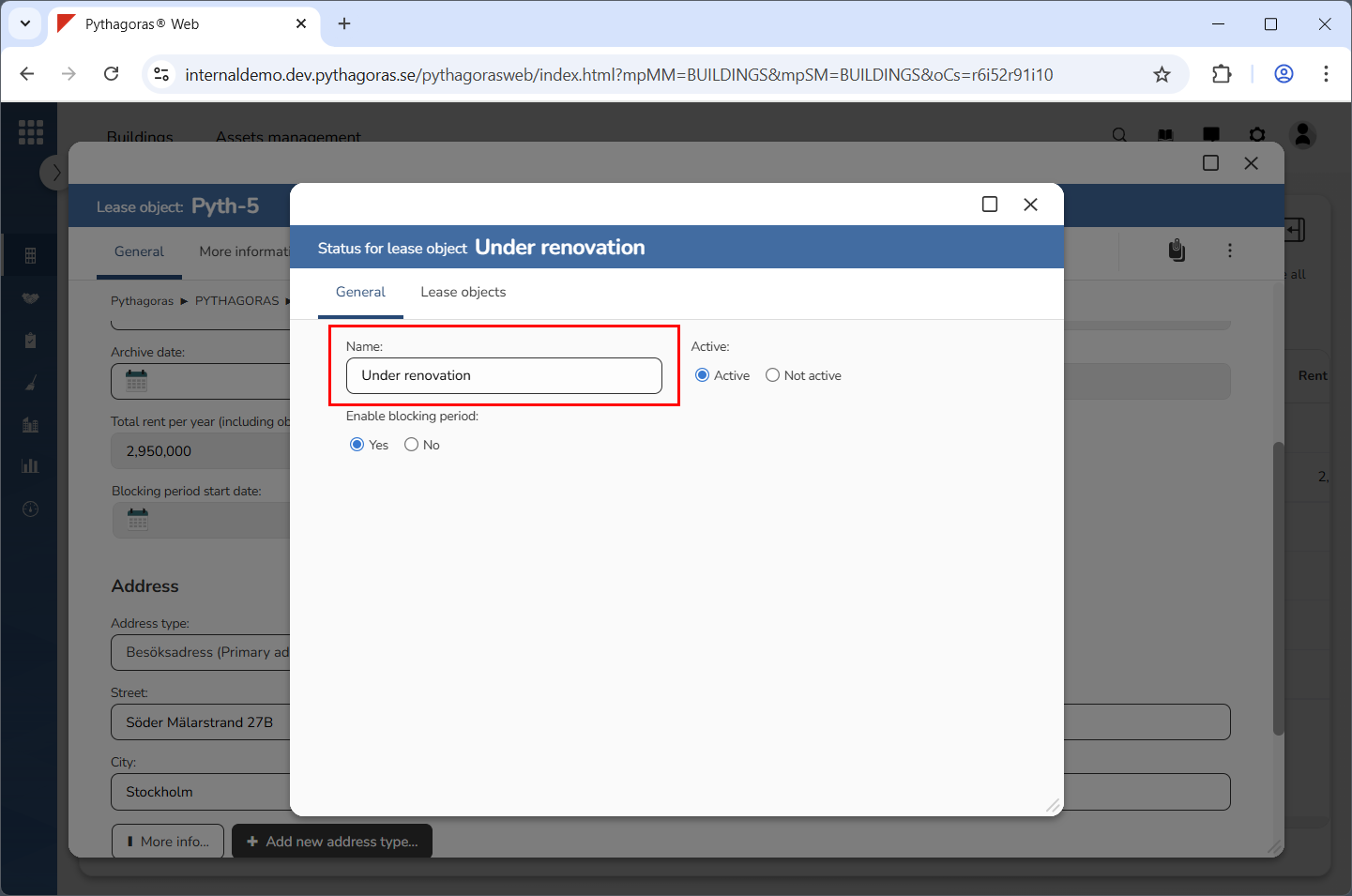
Rename the status you are working with (see image below). Enter a new name for it in the field "Name". If you do not wish to rename the status you are working with, you can skip this step and go straight to step 11.
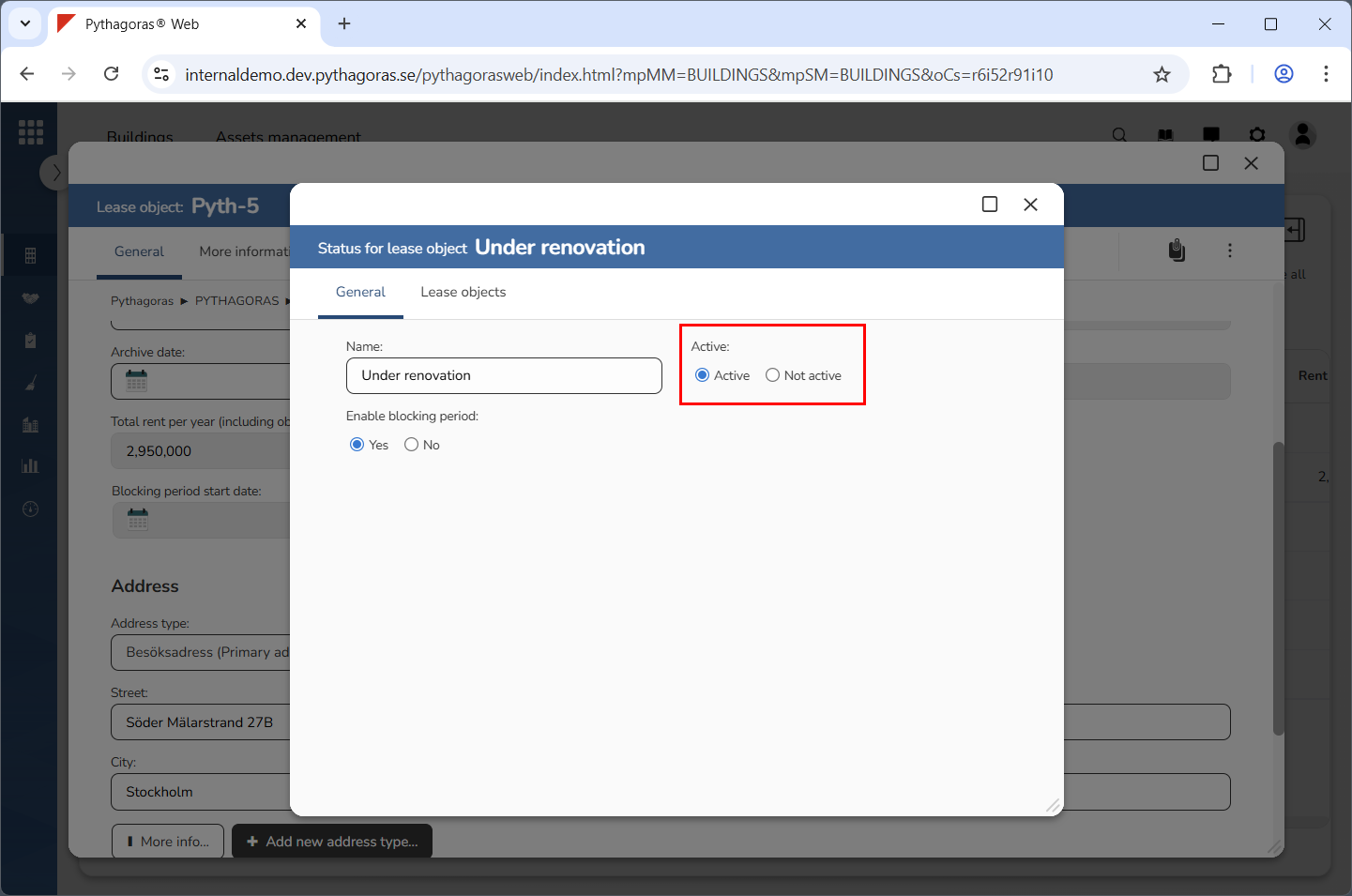
Specify that the status you are working with should be active (see image below). Select "Active" below the label "Active". If the status you are working with should not be active, you can skip this step and go straight to step 12.
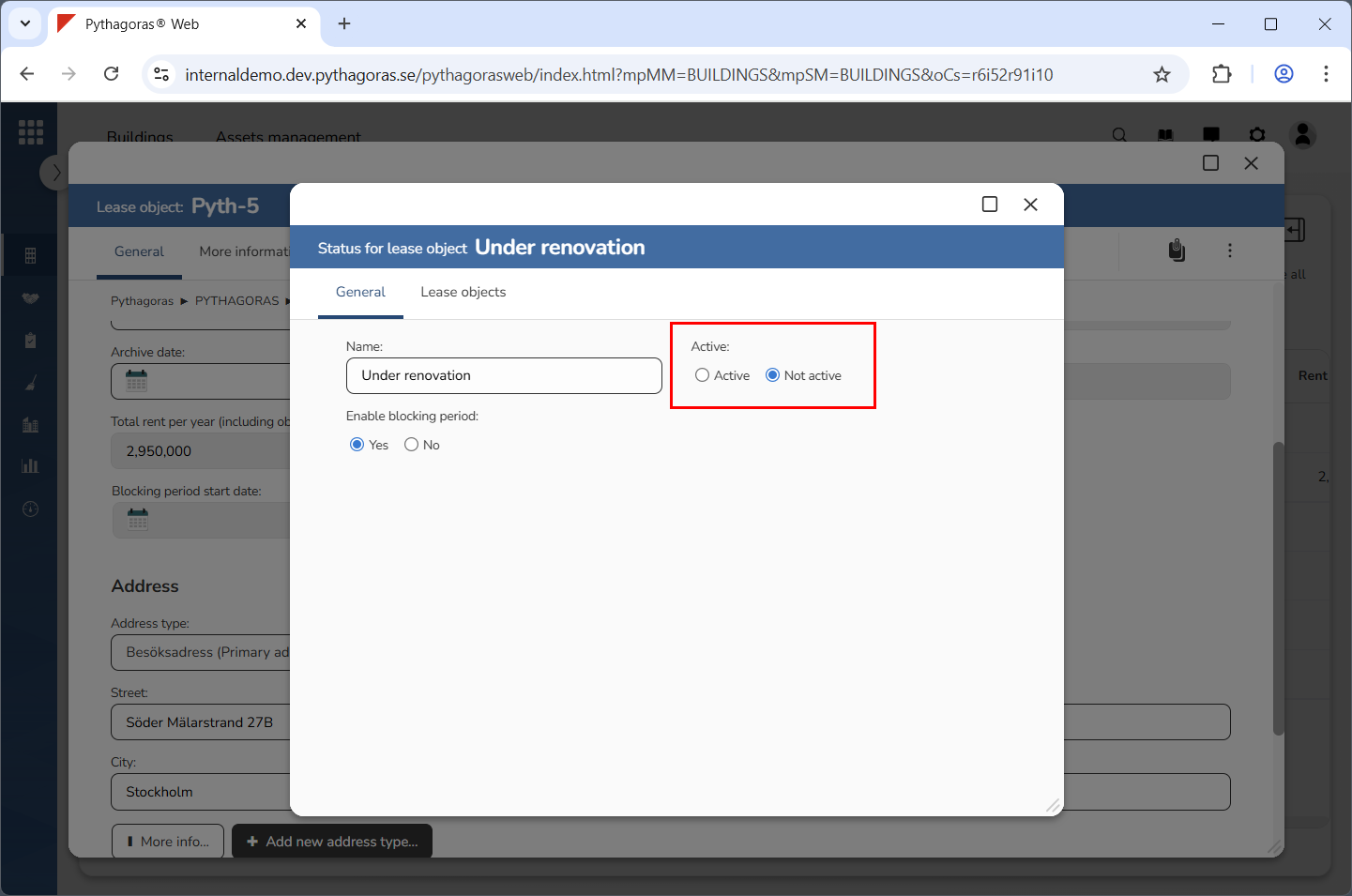
Specify that the status you are working with should not be active (see image below). Select "Not active" below the label "Active". If the status you are working with should be active, you can skip this step and go straight to step 13.
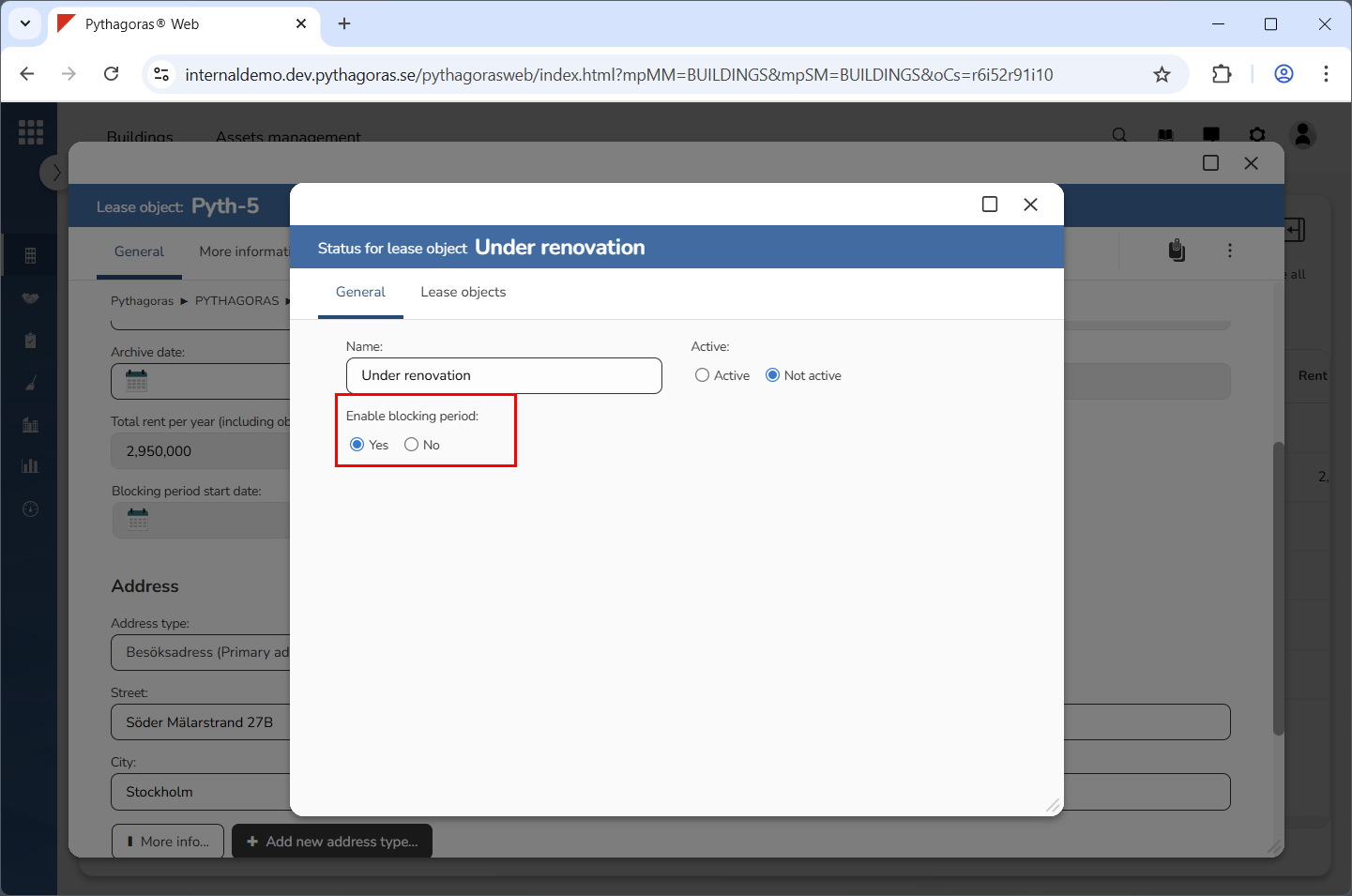
Enable the blocking period function for the status you are working with (see image below). Select "Yes" below the label "Enable blocking period". If you do not wish to enable the blocking period for the status you are working with, you can skip this step and go straight to step 14. The same applies if the blocking period function for it is already enabled.
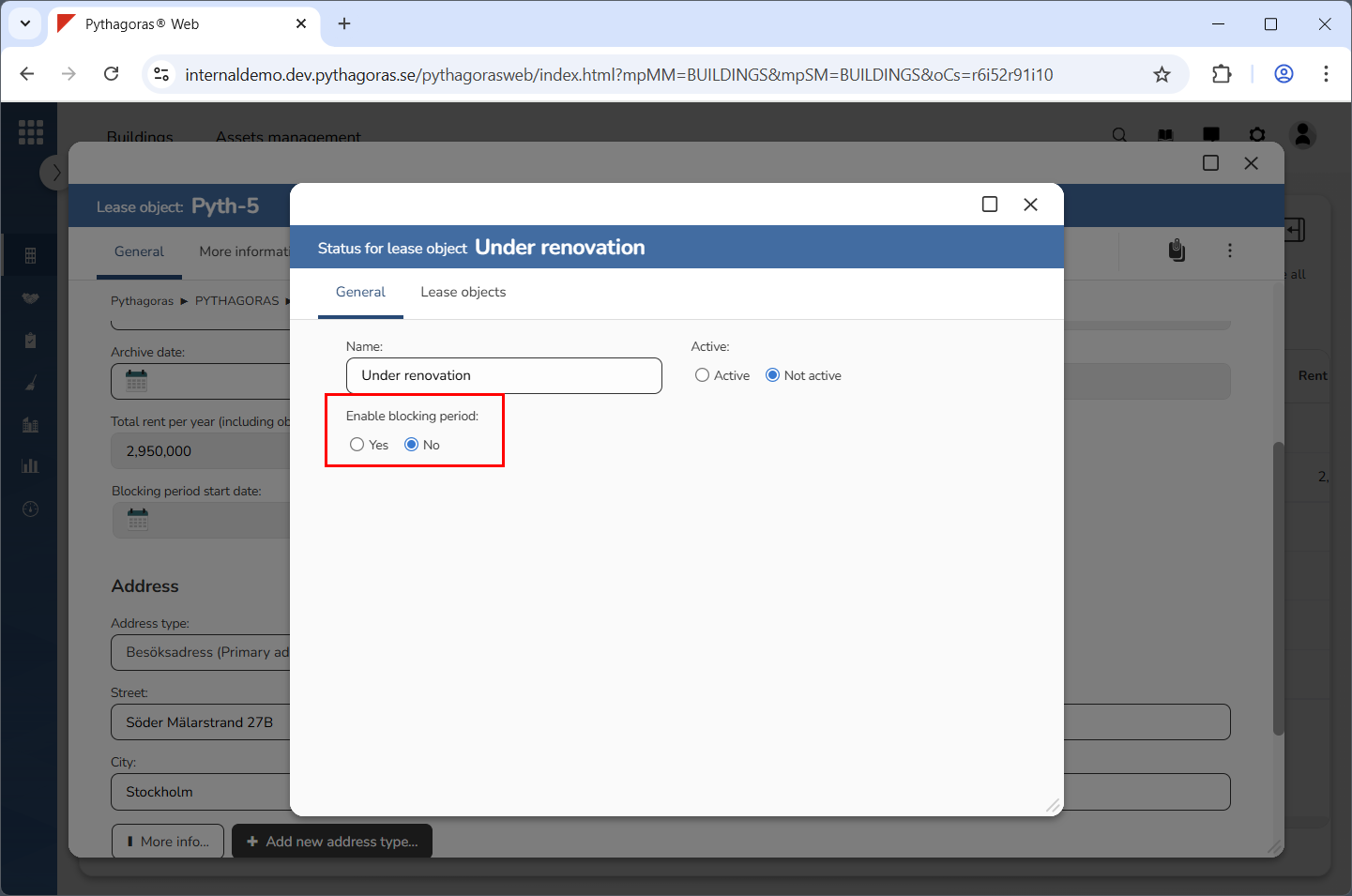
Disable the blocking period function for the status you are working with (see image below). Select "No" below the label "Enable blocking period". If you do not wish to disable the blocking period for the status you are working with, you can skip this step and go straight to step 15.
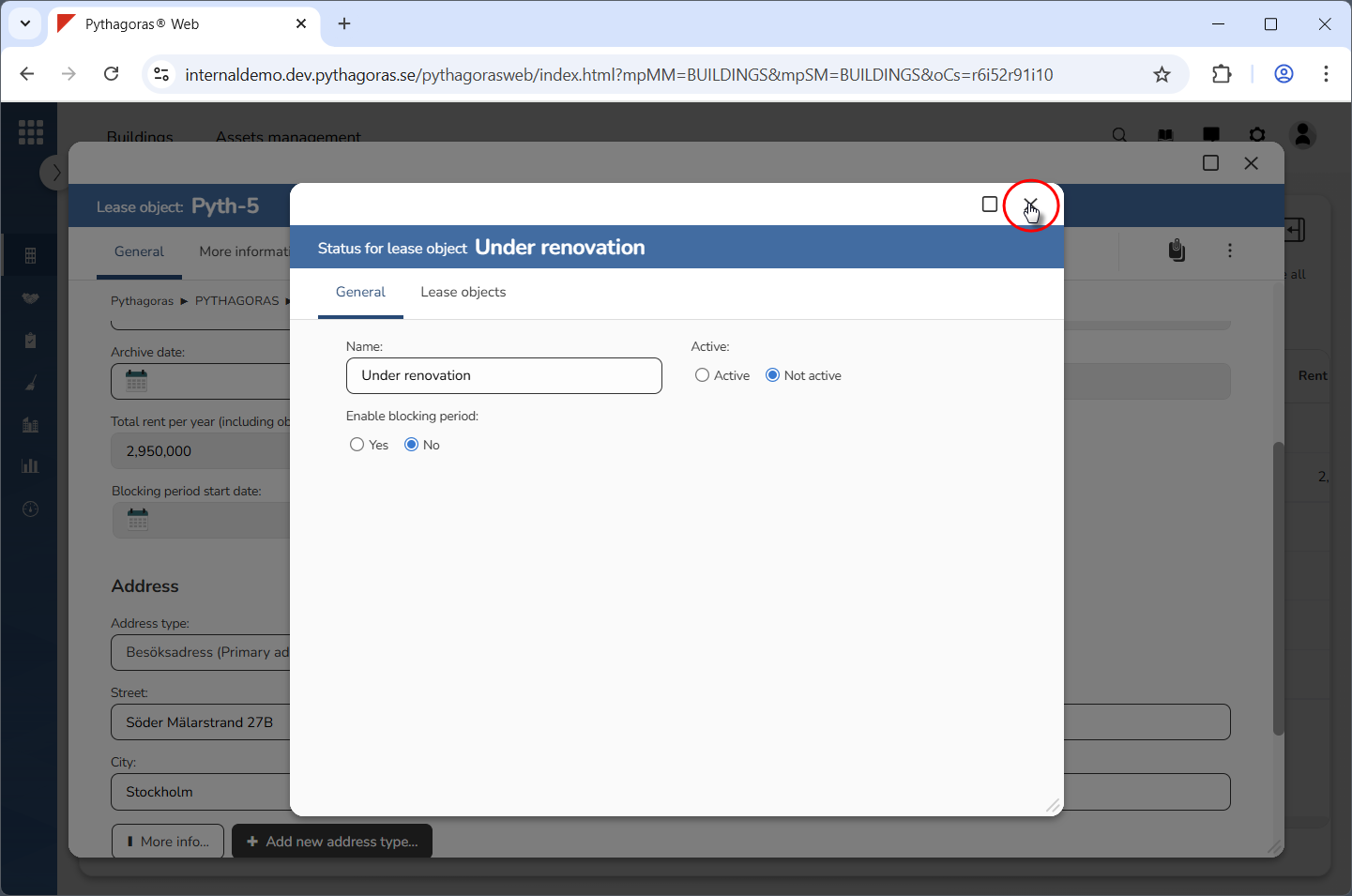
Close the status card (see the first image below). When you do so, you will be redirected back to the lease object card (see the second image below).