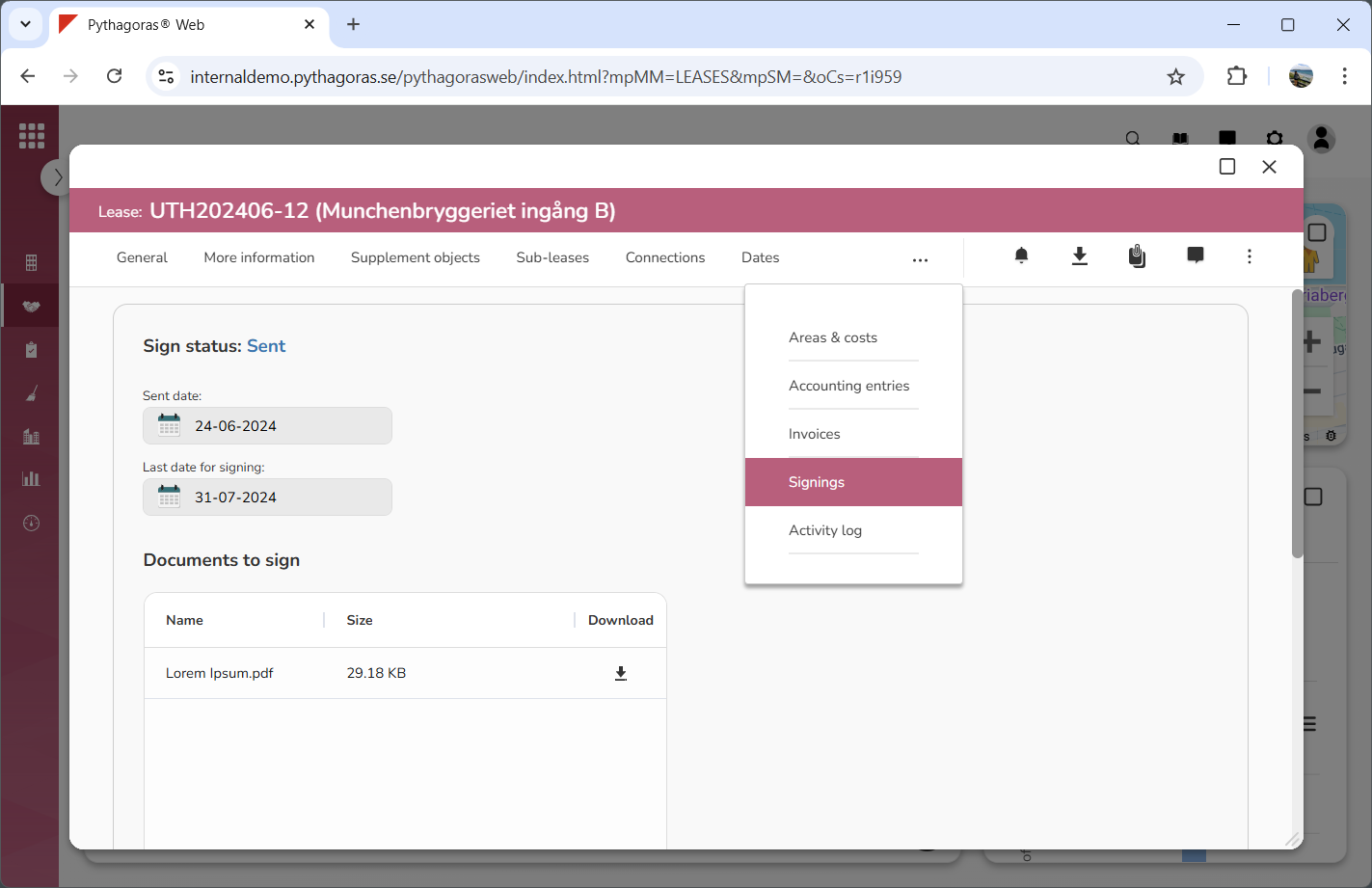
Via the tab called "Signings" you will be able to send a lease to digital signing.
In order to send a lease to digital signing you must add a signing to the lease. Note that you can add multiple signings to a lease and that after you have added a signing to a lease, you can remove or cancel the signing at any time by going to the signing and then clicking "Delete signing" or "Cancel signing".
Once you have added a signing to a lease, you can view the status of the signing in the lease card. A signing can have the status "Draft", "Sent", "Approved", "Rejected" or "Cancelled".
To add a signing to a lease:
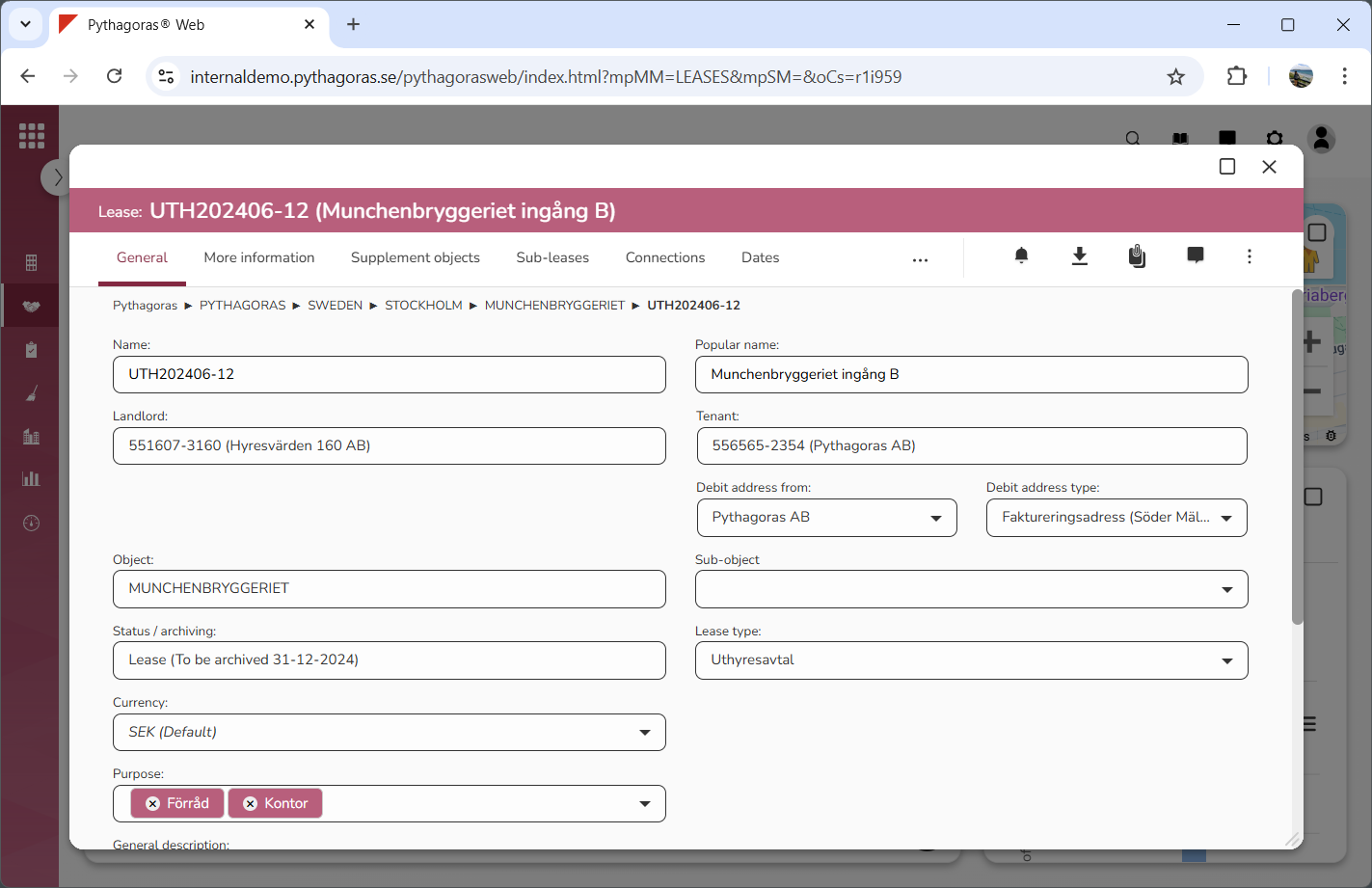
Open a lease. For more information on how to do so, see section 4.6. or 6.1.
Go to the lease card (see image below).
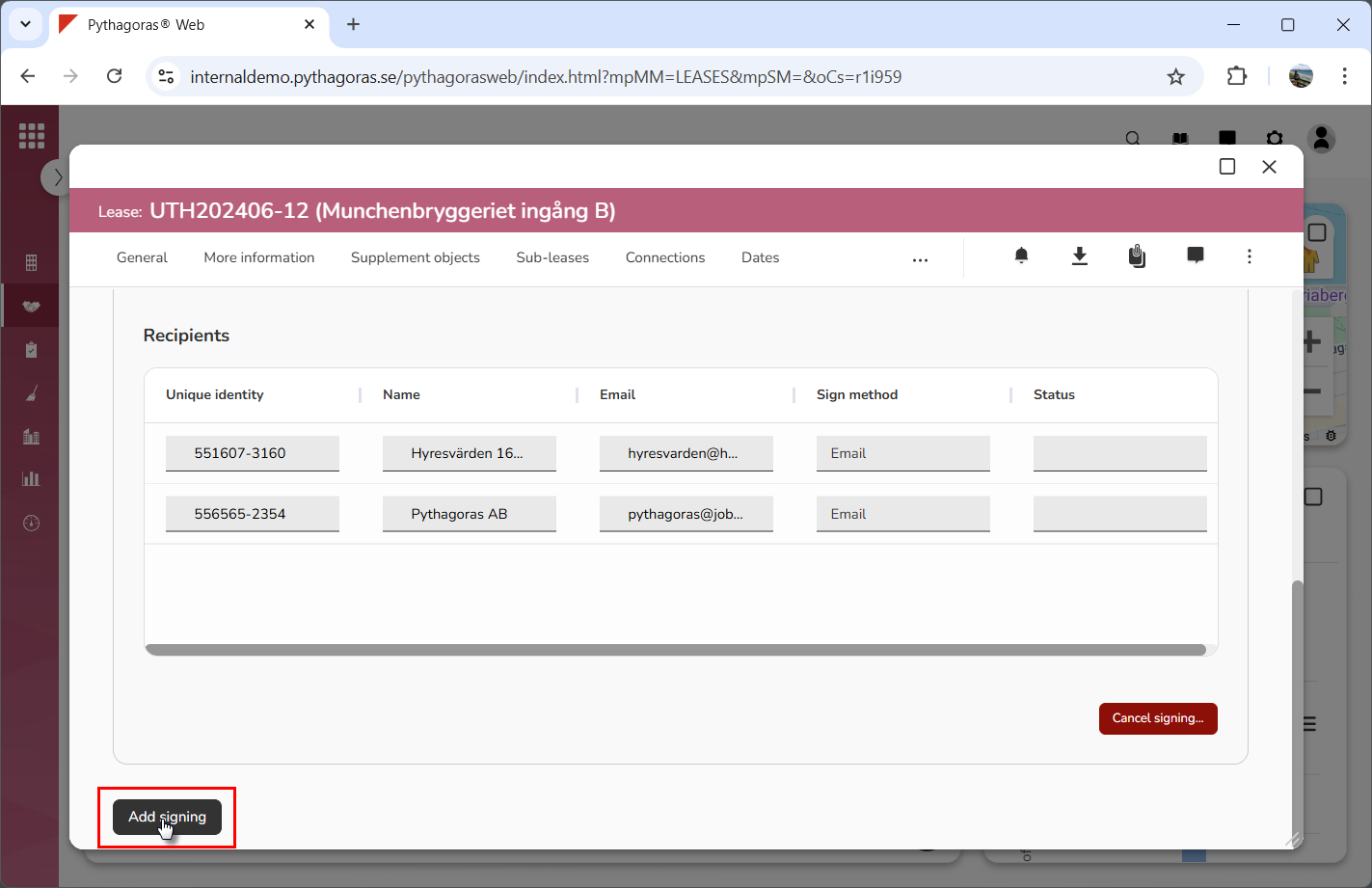
Click the tab called "Signings" (see image below). Within the tab called "Signings", you will, among other things, find a button called "Add signing". Note that if one or more signings has already been added to the lease you are working with you might have to scroll the lease card to find the button called "Add signing".
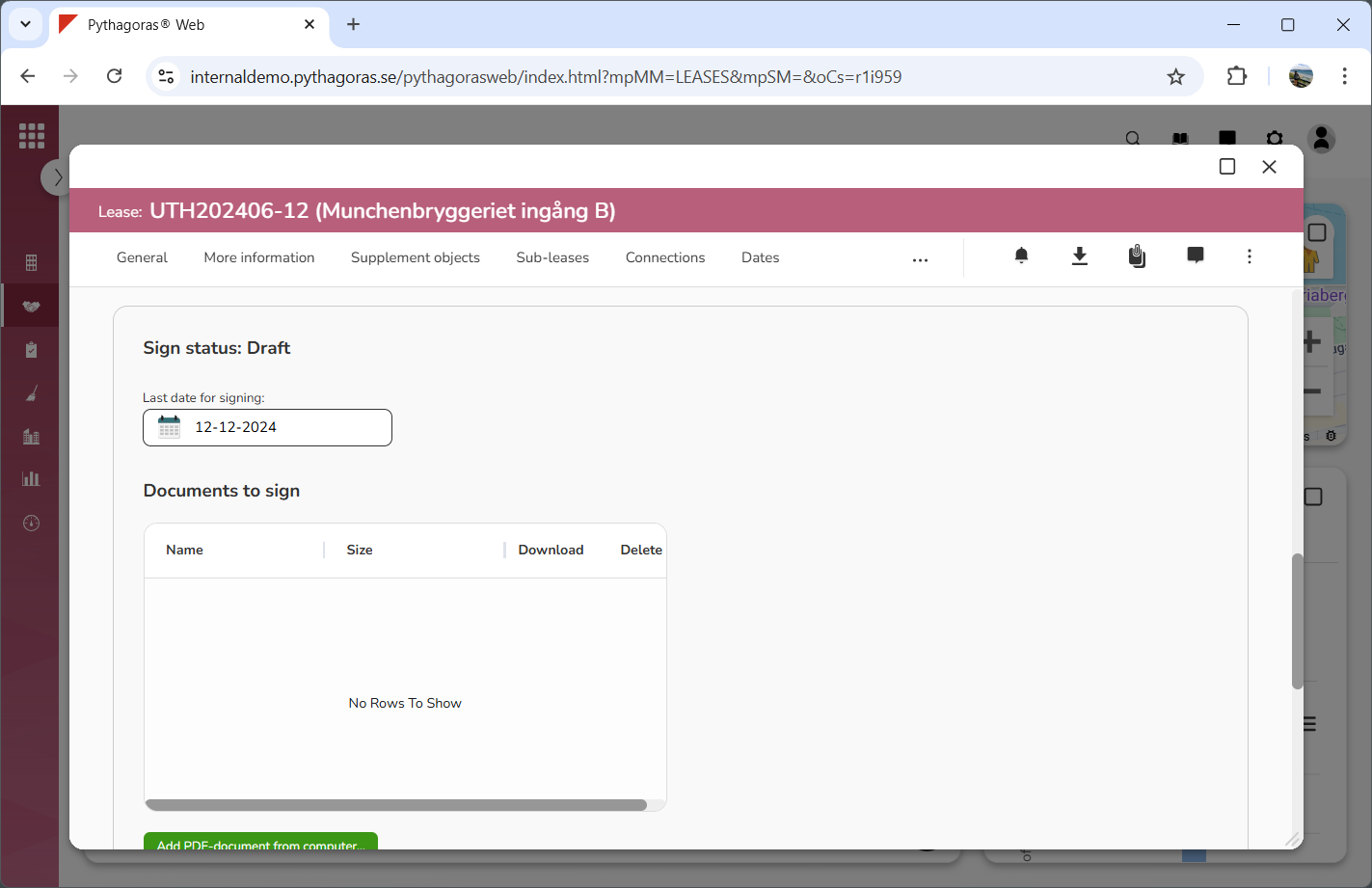
Click "Add signing" (see the first image below). When you do so, a signing will be added to the lease you are working with (see the second image below).
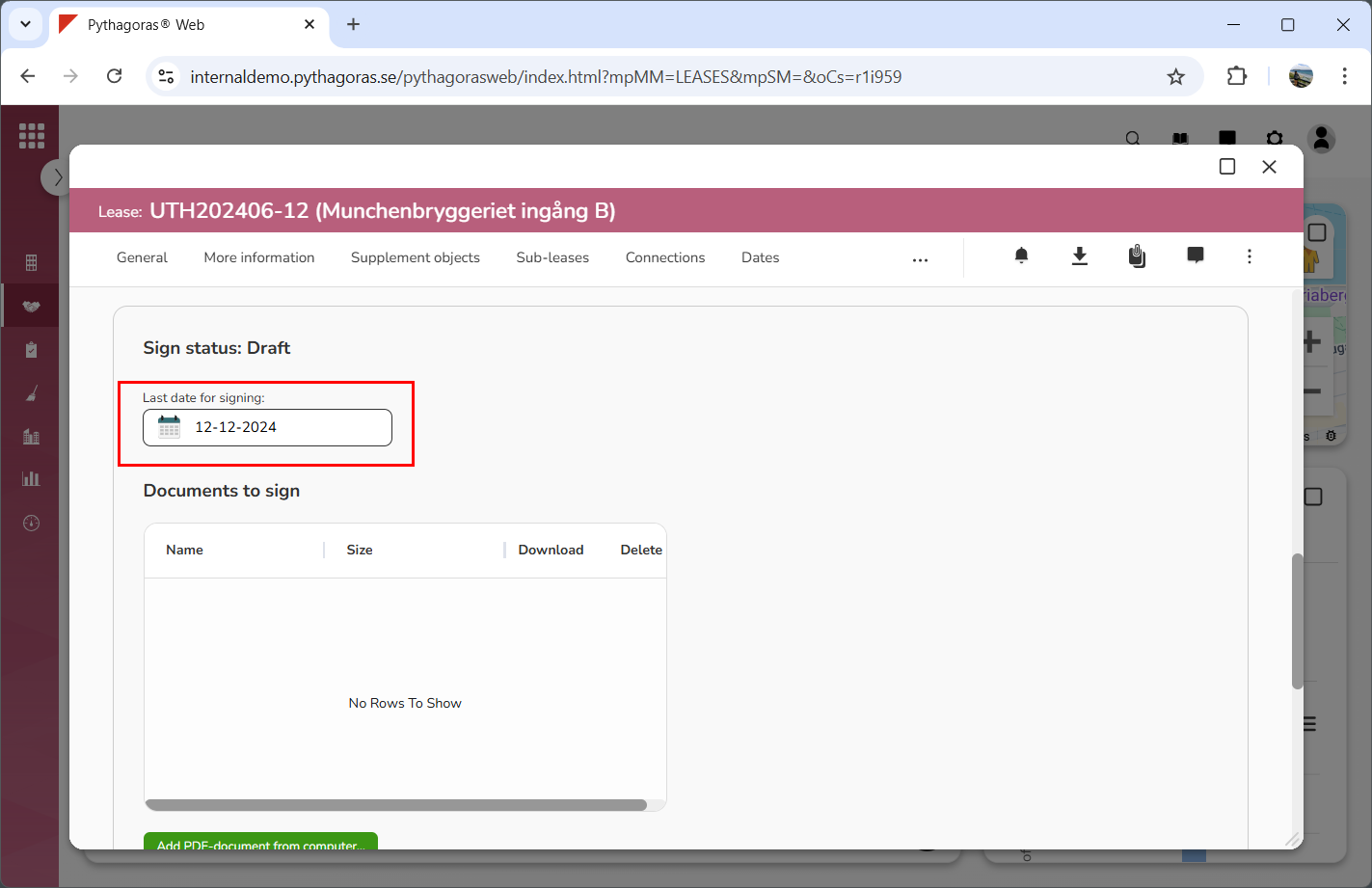
Select a last signing date (see image below). Click the field "Last date for signing" and then select a date in the calendar that opens.
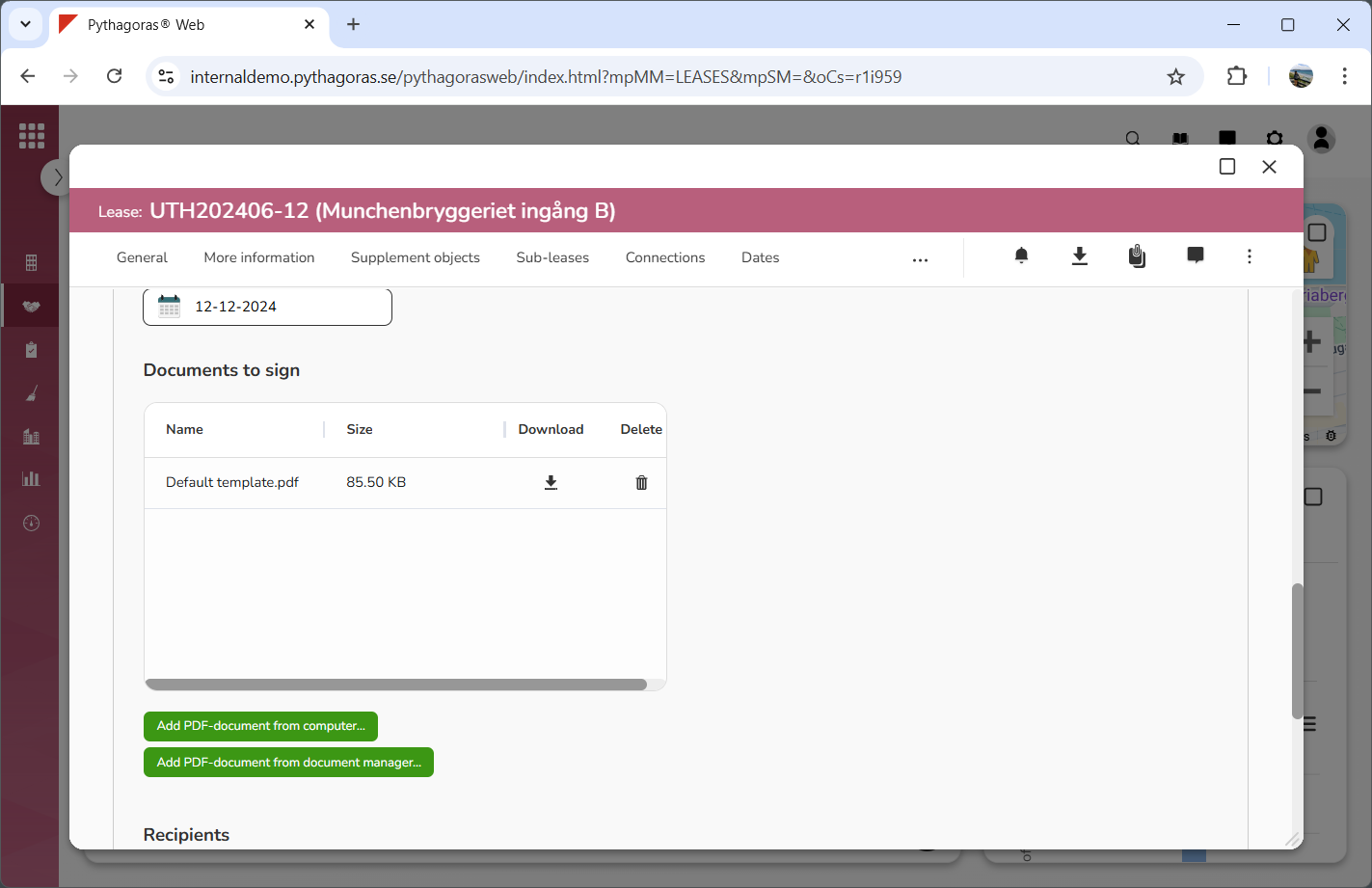
Upload the document or documents to be signed (see image below). Click "Add PDF-document from computer" or the button called "Add PDF-document from document manager" and then select one or more documents in the Explorer or the document manager.
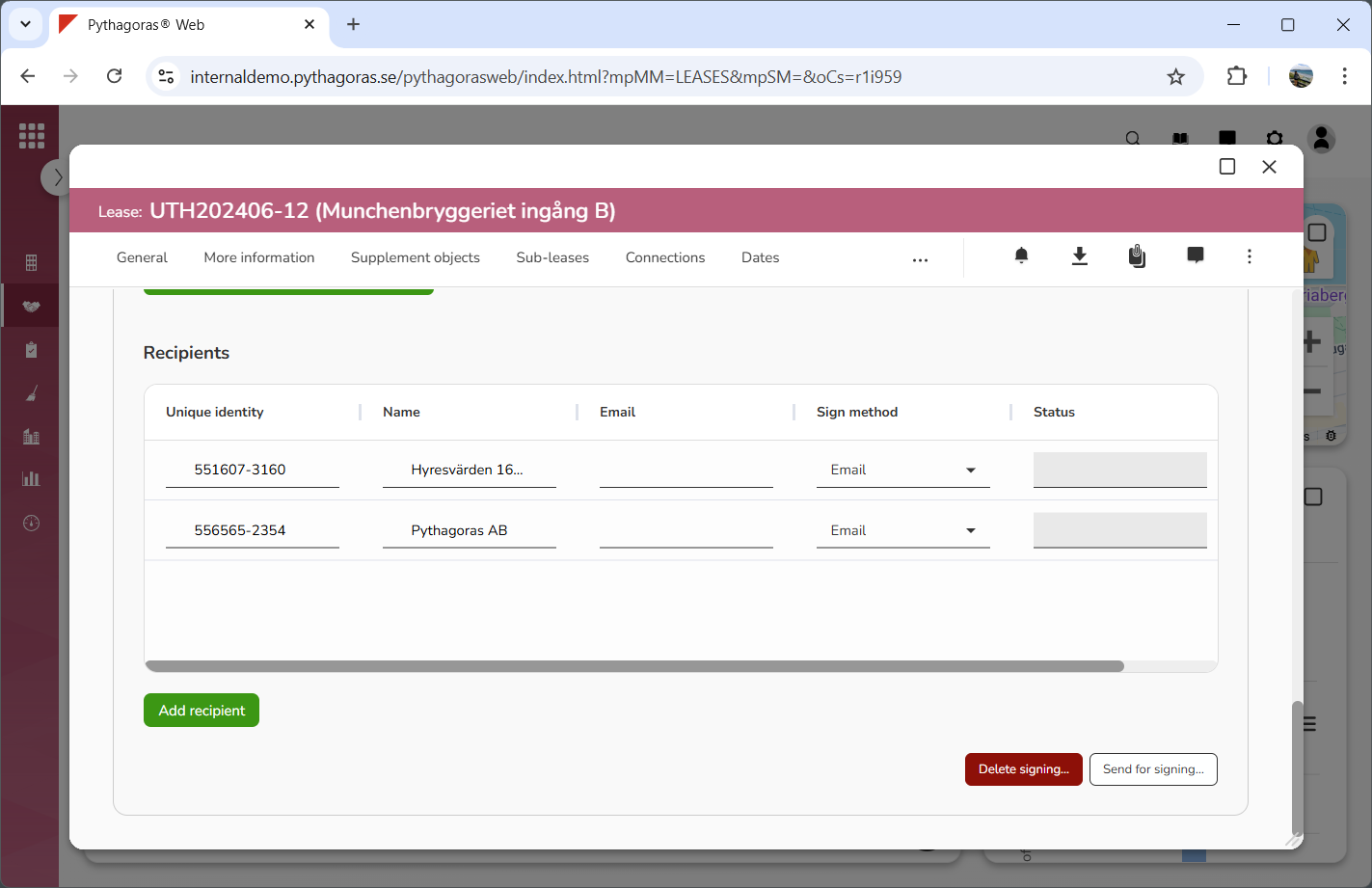
Specify who should sign the document or documents you uploaded (see image below). Add one or more recipients to the signing. Note that the organisations set as landlord and tenant for the lease you are working with will be added automatically.
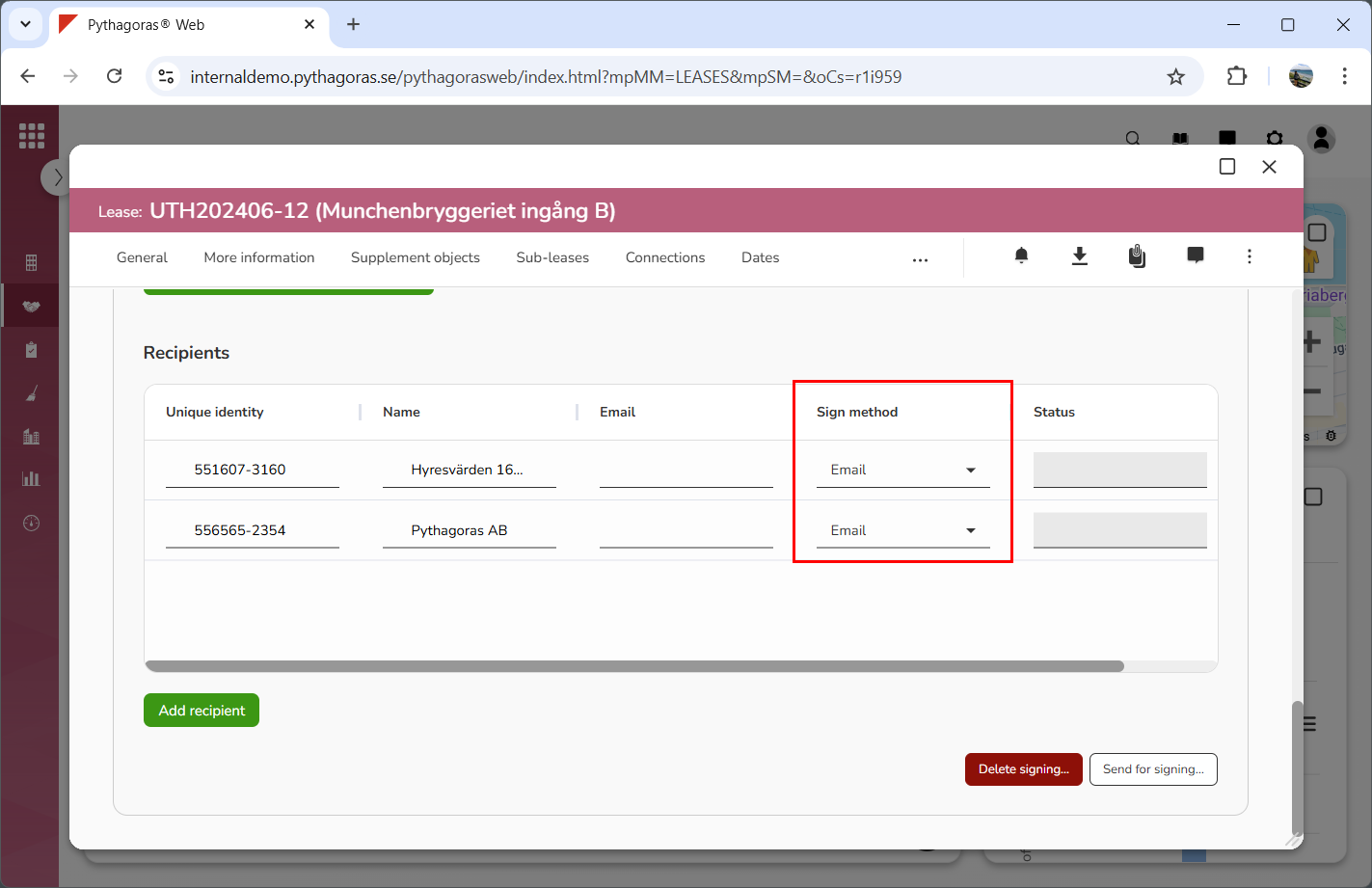
Specify how the uploaded document or documents should be signed (see image below). Select one signing method per recipient. To select a signing method for a recipient, click the field "Sign method" and then select email or Swedish E-Id in the list that opens.
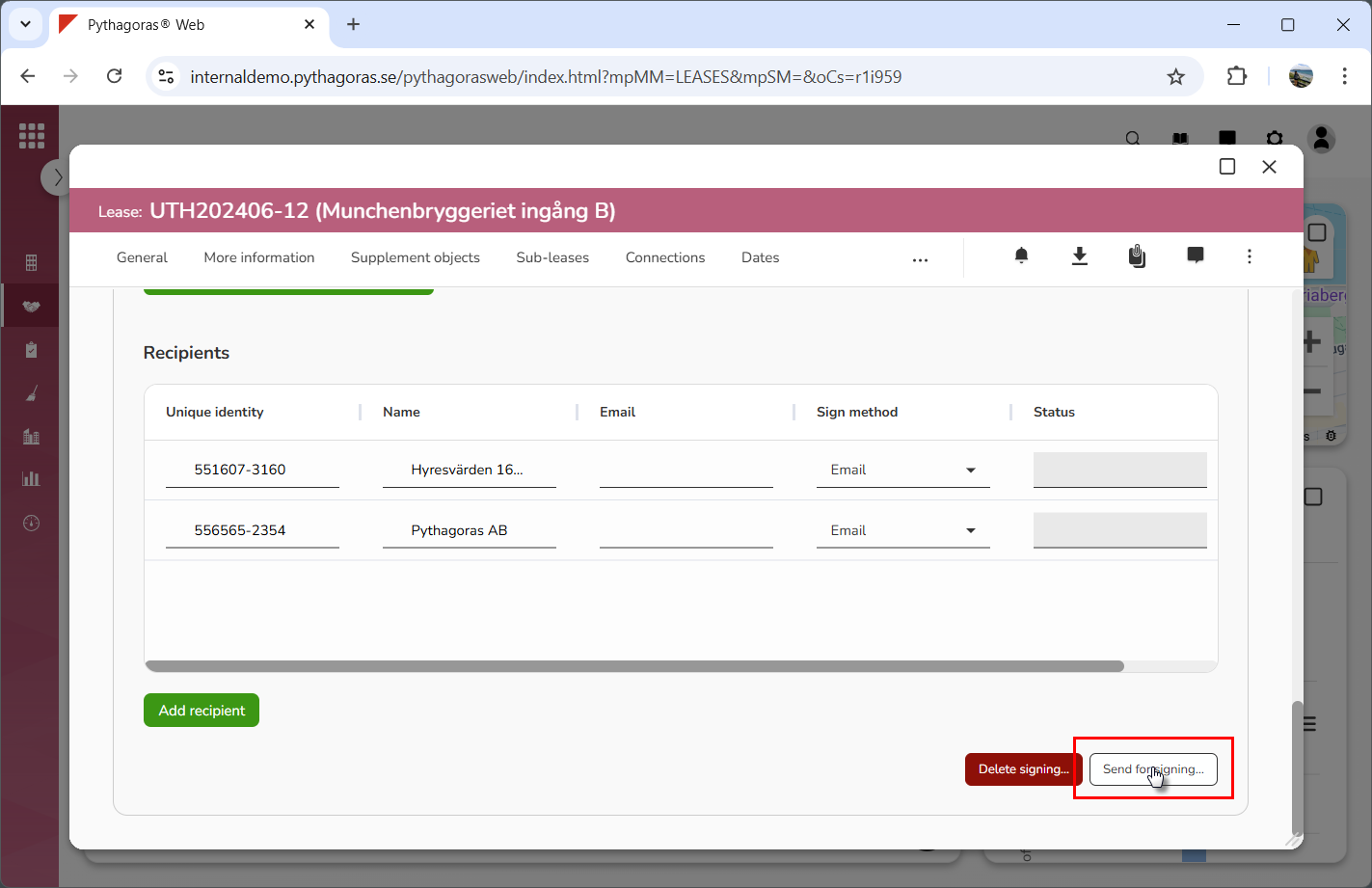
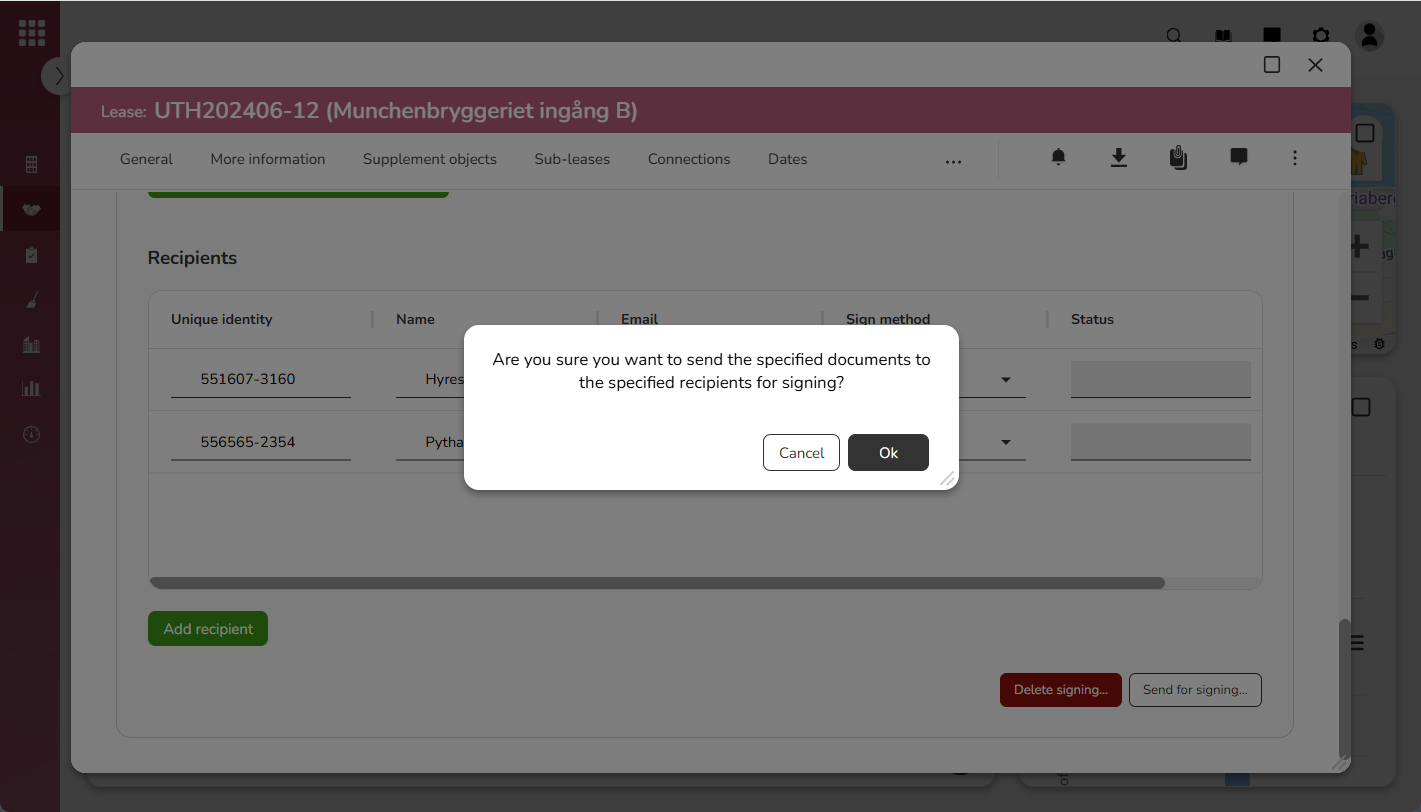
Click "Send for signing" (see the first image below). When you do so, a dialog will open (see the second image below).
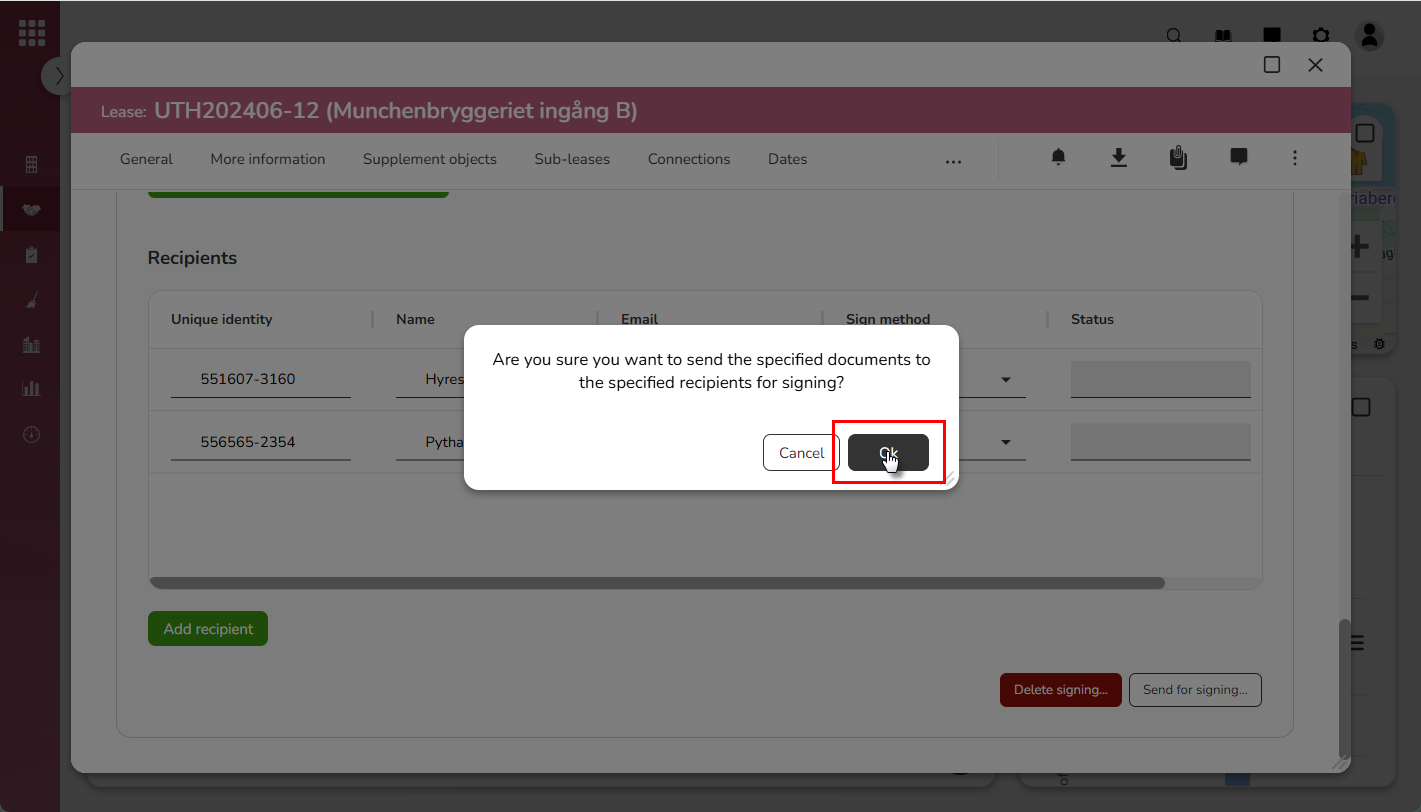
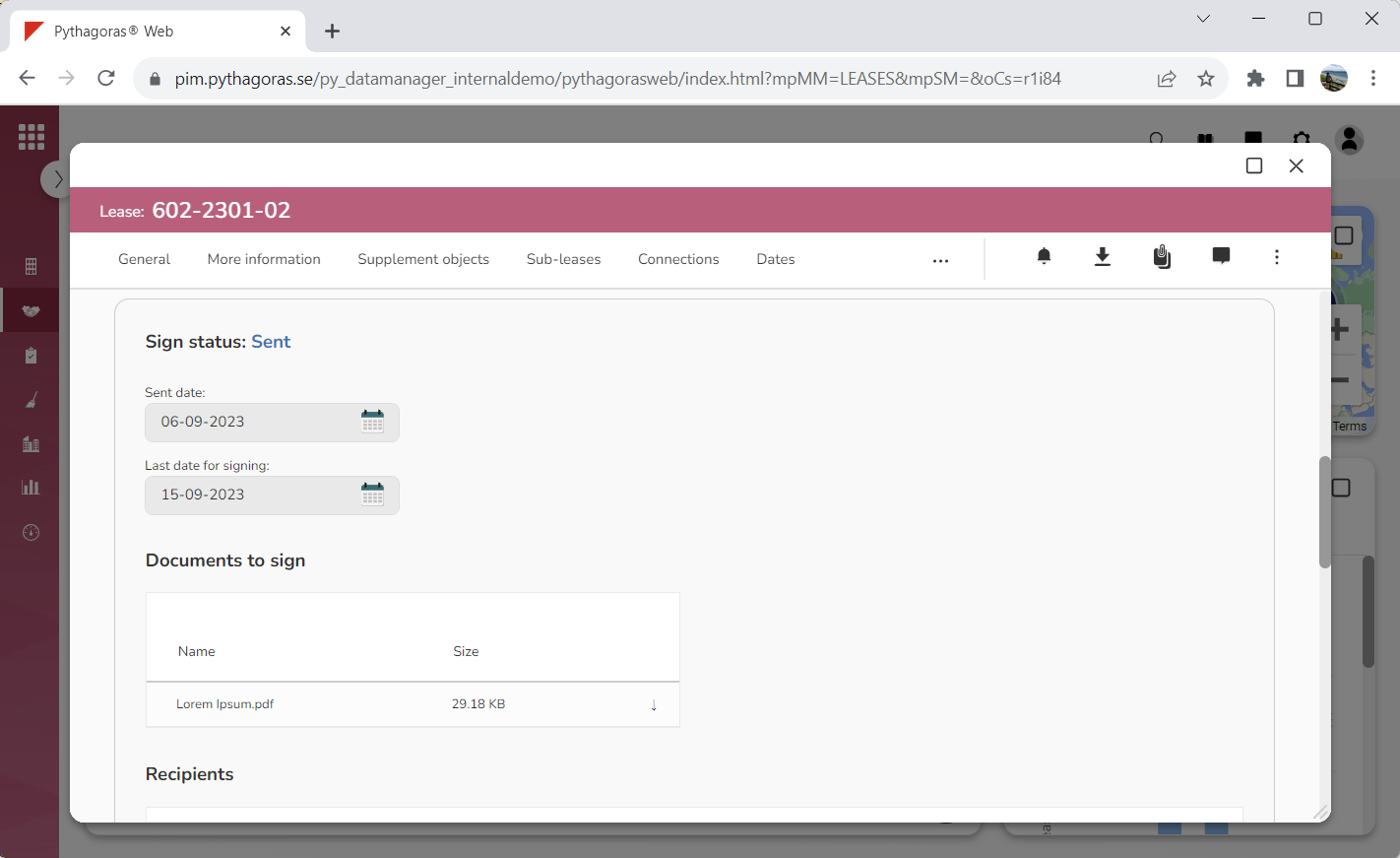
Click "OK" in the dialog (see the first image below). When you do so, the signing you added to the lease you are working with will be sent to a digital signing service (see the second image below). The digital signing service will then send the document or documents you uploaded for signing to your selected recipient or recipients.