To properly display this page you need a browser with JavaScript support.
×
Meny
Sök
Sök
Sök
8. Working with a lease
8.1. General
8.1.4. Tenant
Set a tenant for a lease
Set a tenant for a lease
Föregående sida
Nästa sida
User manual for Pythagoras Leases. Copyright © Pythagoras AB
To properly display this page you need a browser with JavaScript support.
Set a tenant for a lease
To set a tenant for a lease:
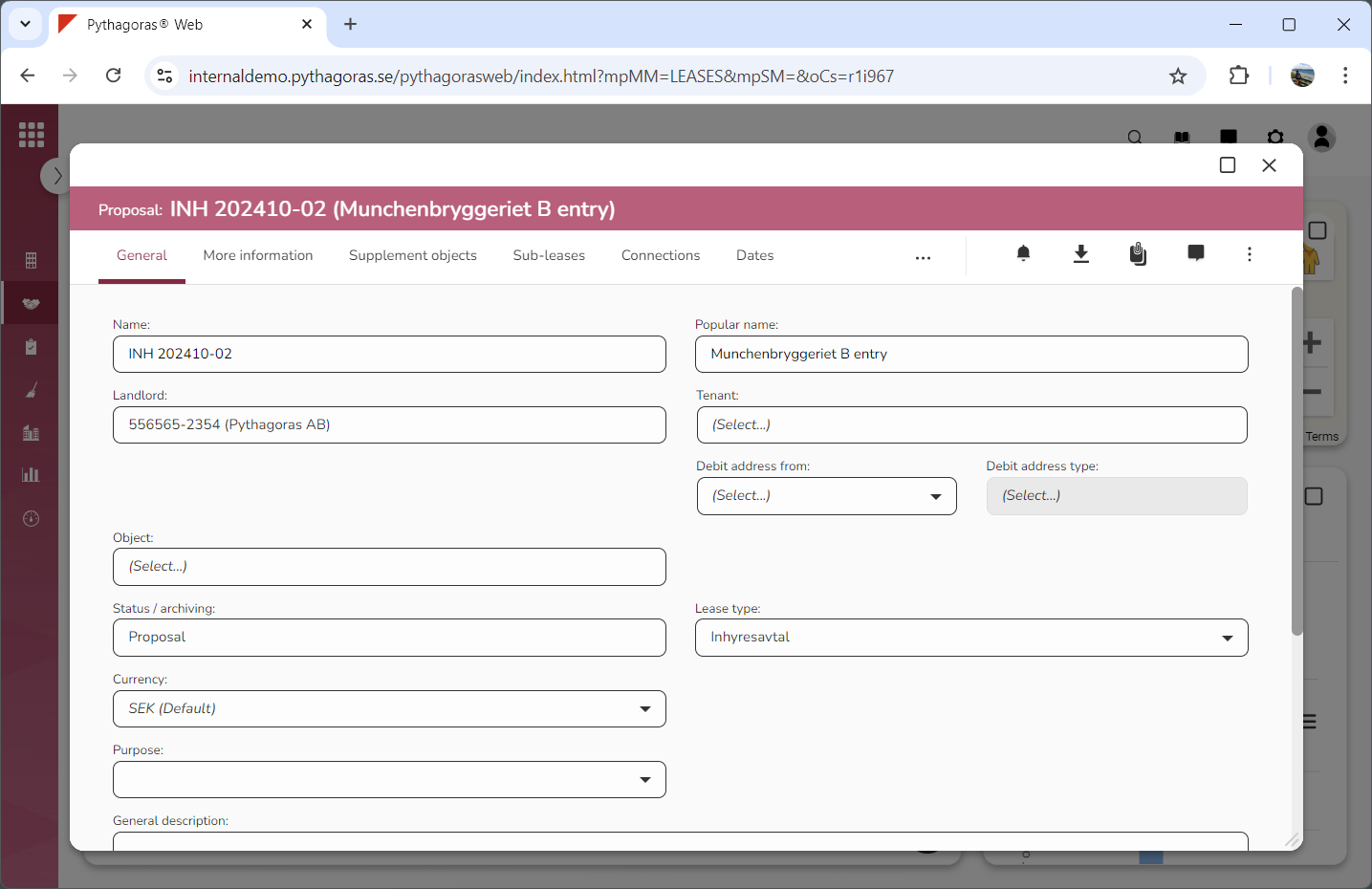
Open a lease. For more information on how to do so, see section 4.6. or 6.1.
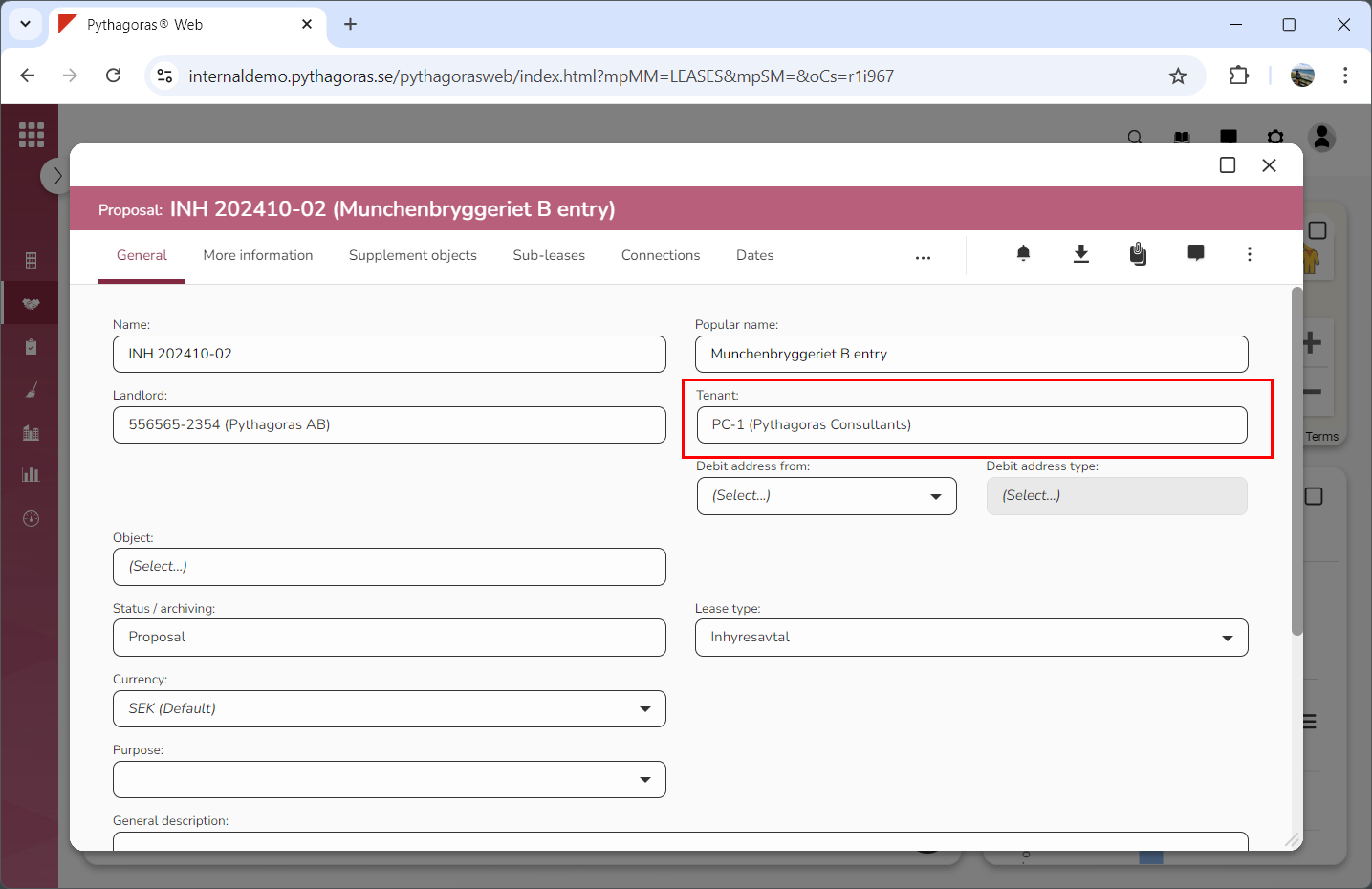
Go to the lease card (see image below).
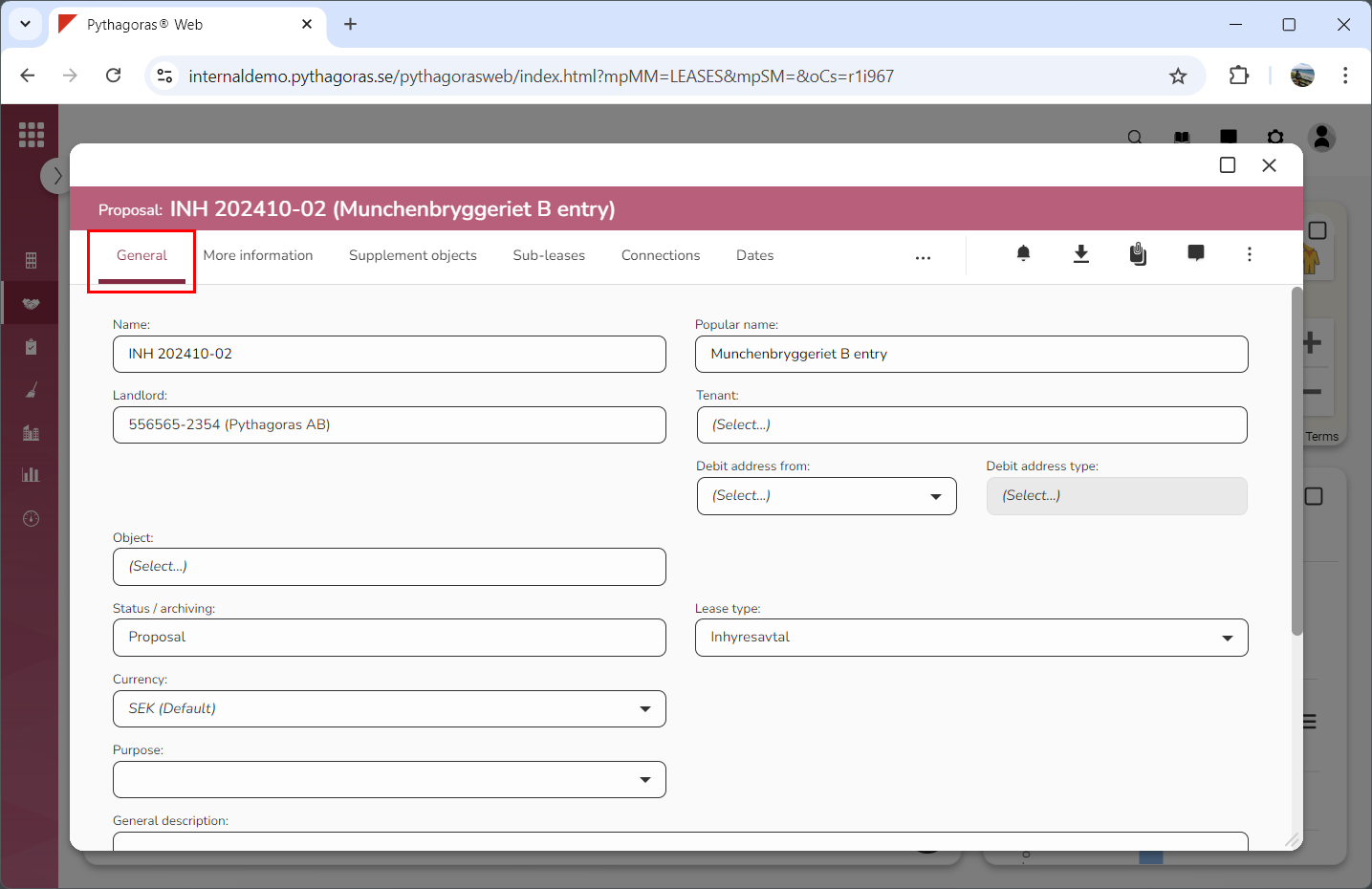
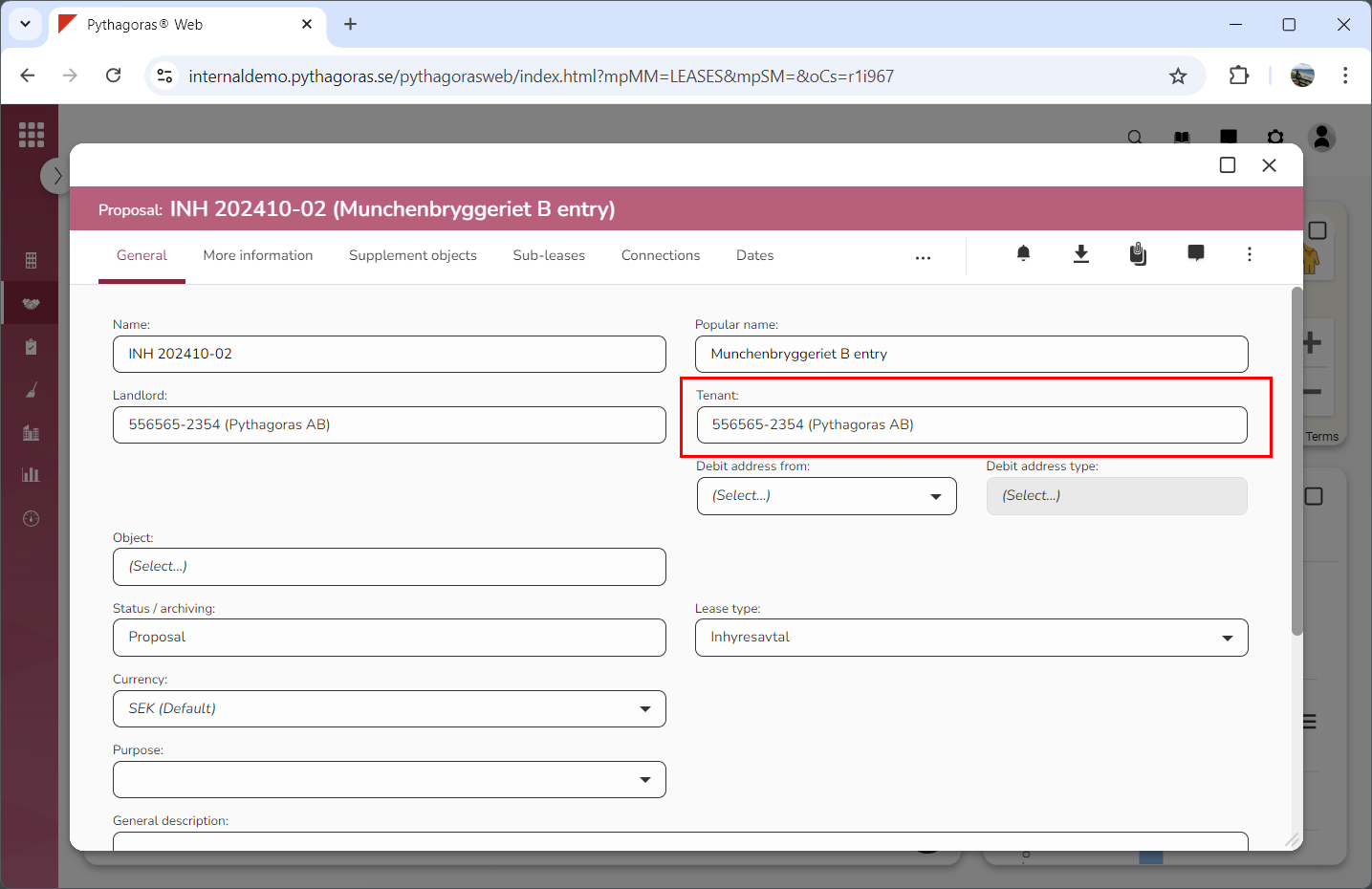
Click the tab called "General" (see image below).
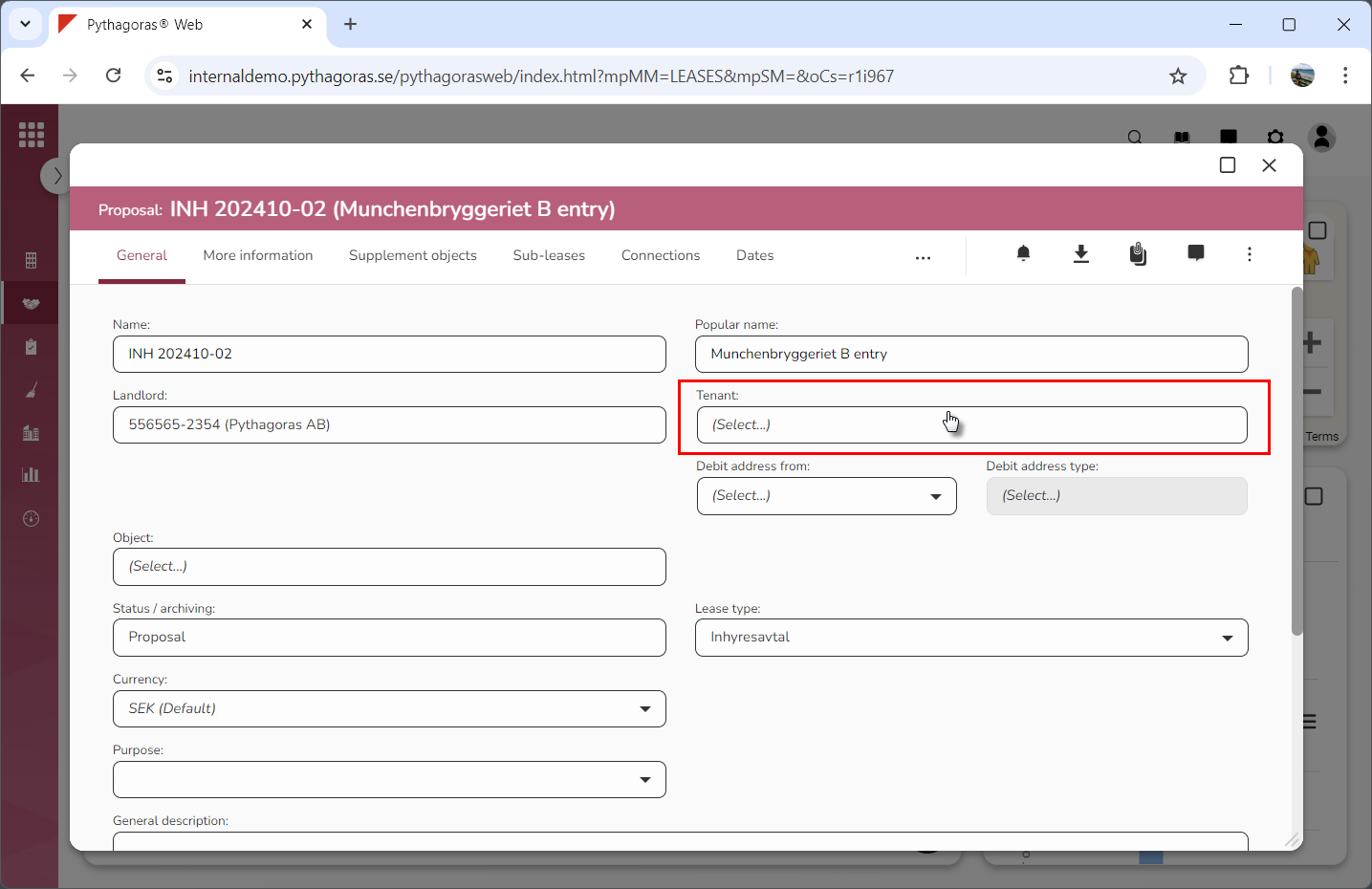
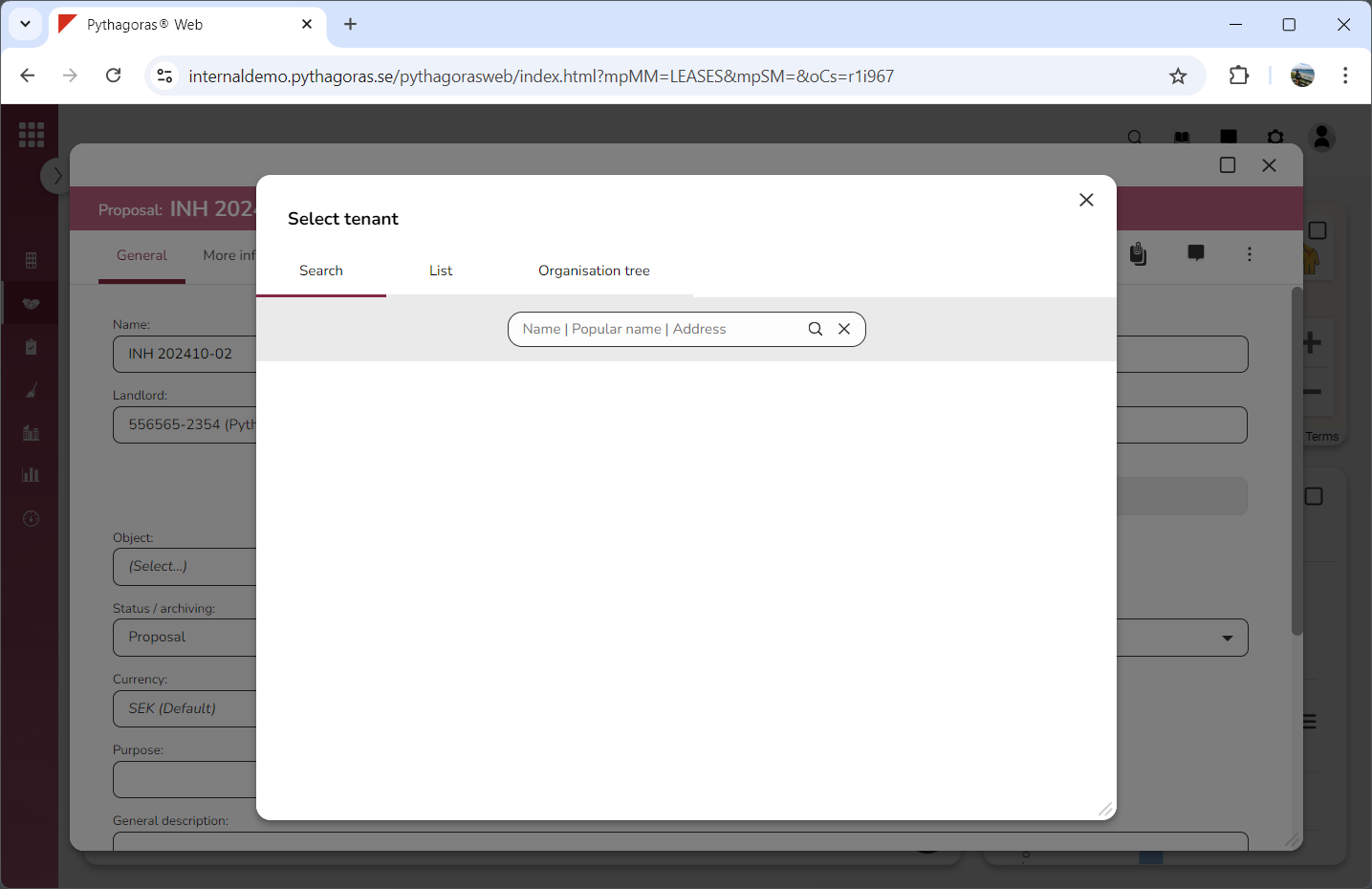
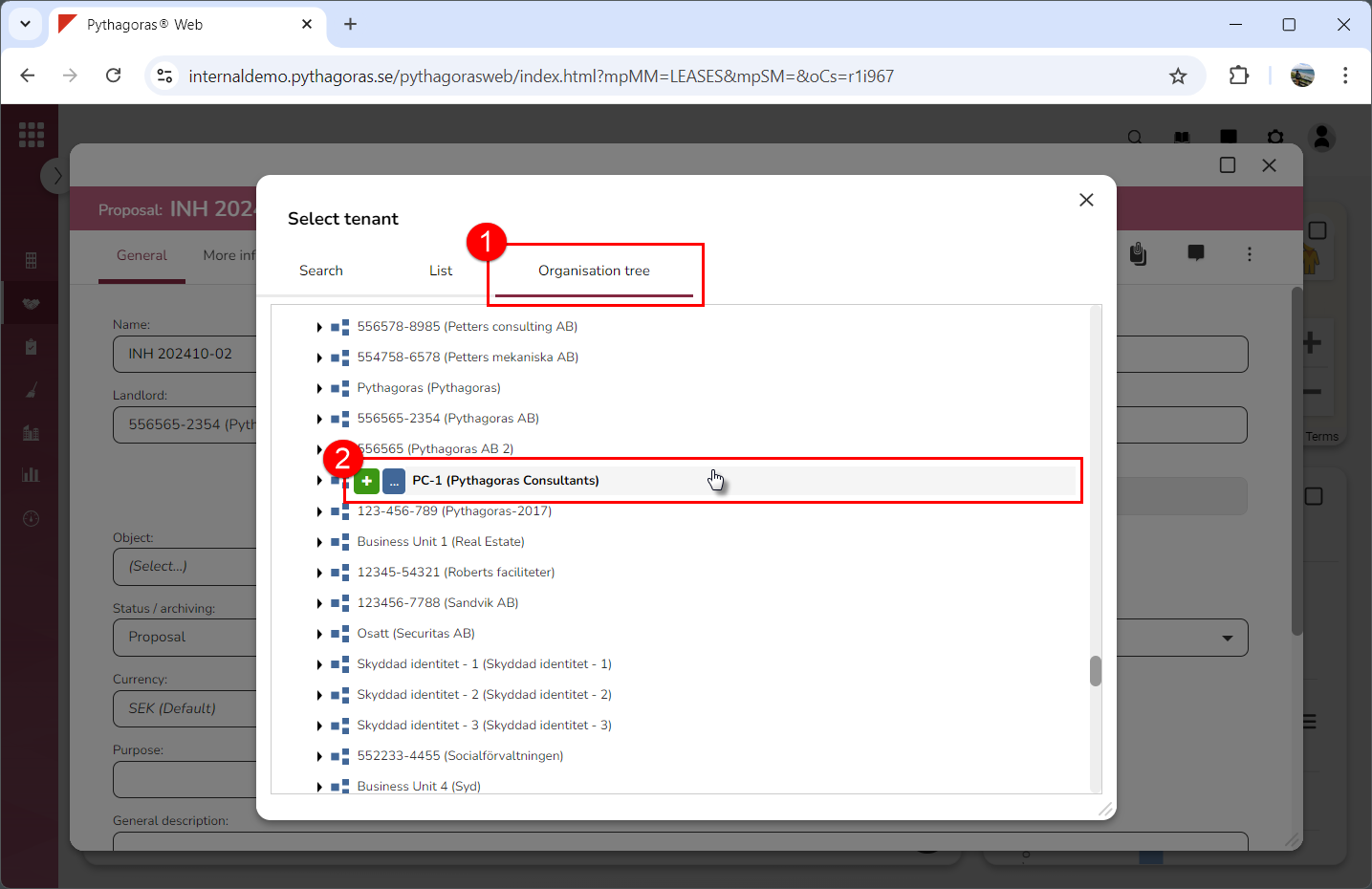
Click the field "Tenant" (see the first image below). When you do so, a window called "Select tenant" will open (see the second image below).
Go to the window called "Select tenant".
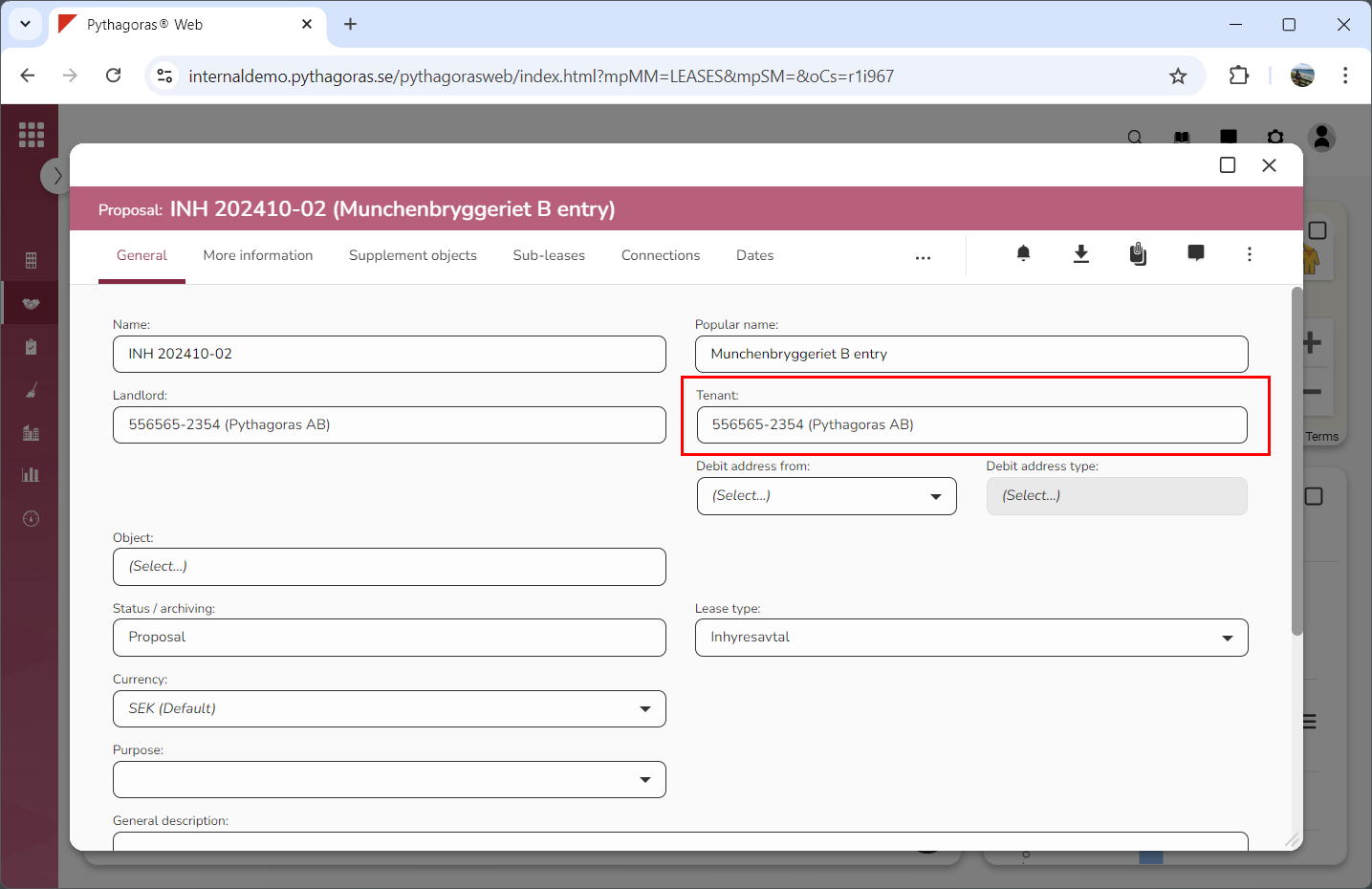
Set a tenant for the lease you are working with:
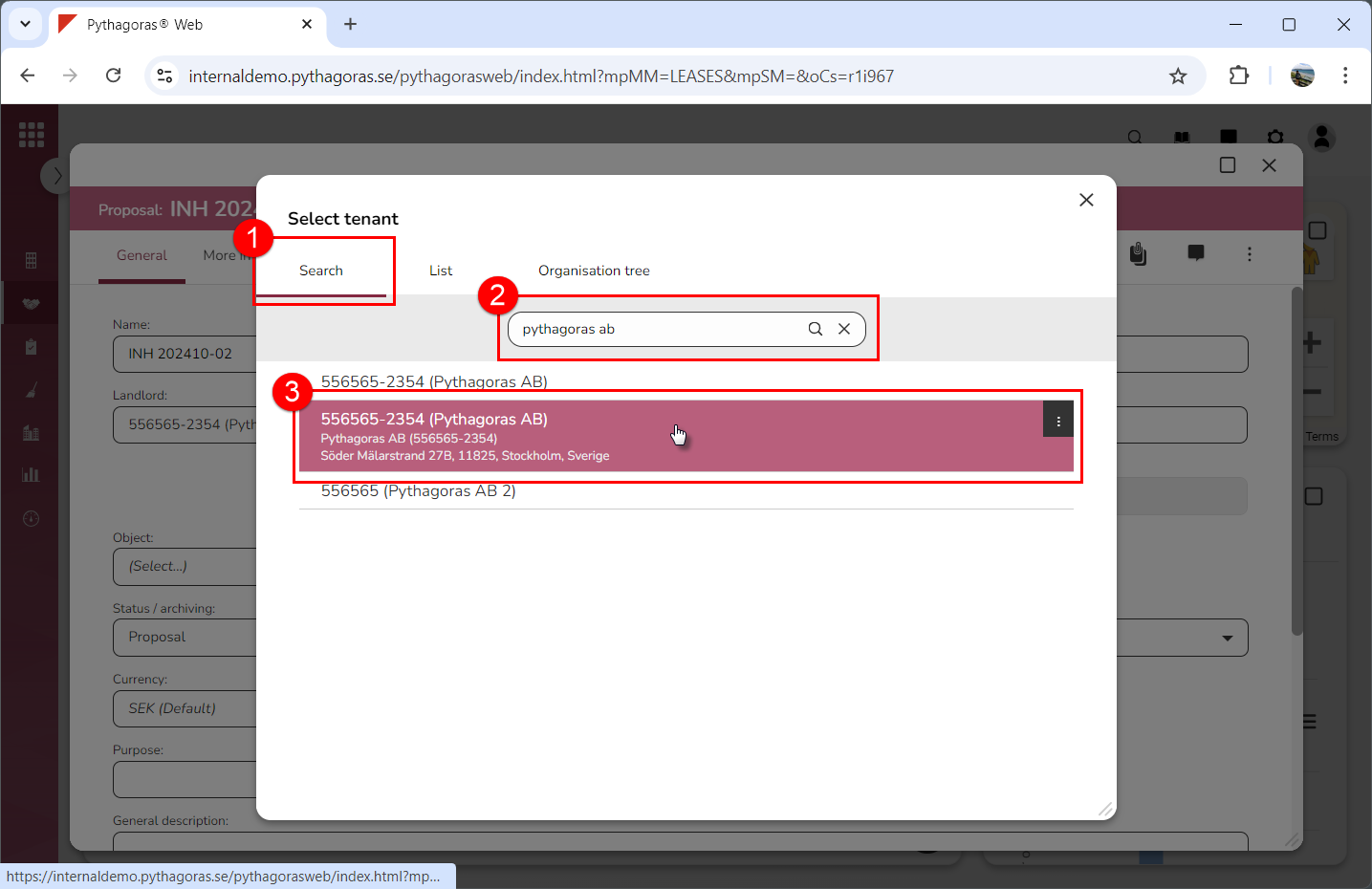
Click the tab called "Search", perform a search and select an organisation among your search results (see images below).
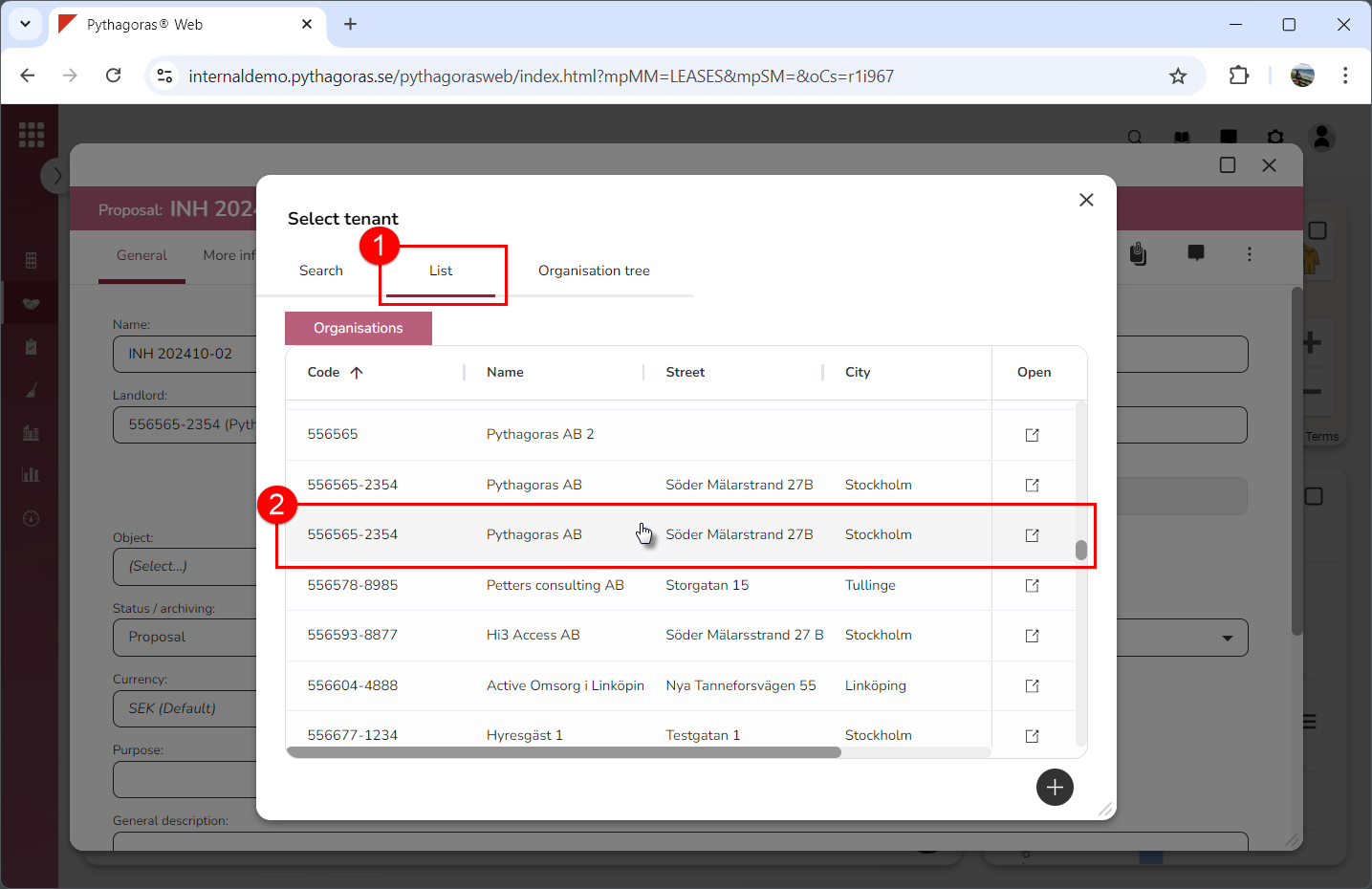
Click the tab called "List" and select an organisation in the list of organisations (see images below)
Click the tab called "Organisation tree" and select an organisation in the organisation tree (see images below).
7. Set a debit address for the lease you are working with. For more information on how to do so, see the section "Set a debit address for a lease".