Open a lease. For more information on how to do so, see section 4.6. or 6.1.
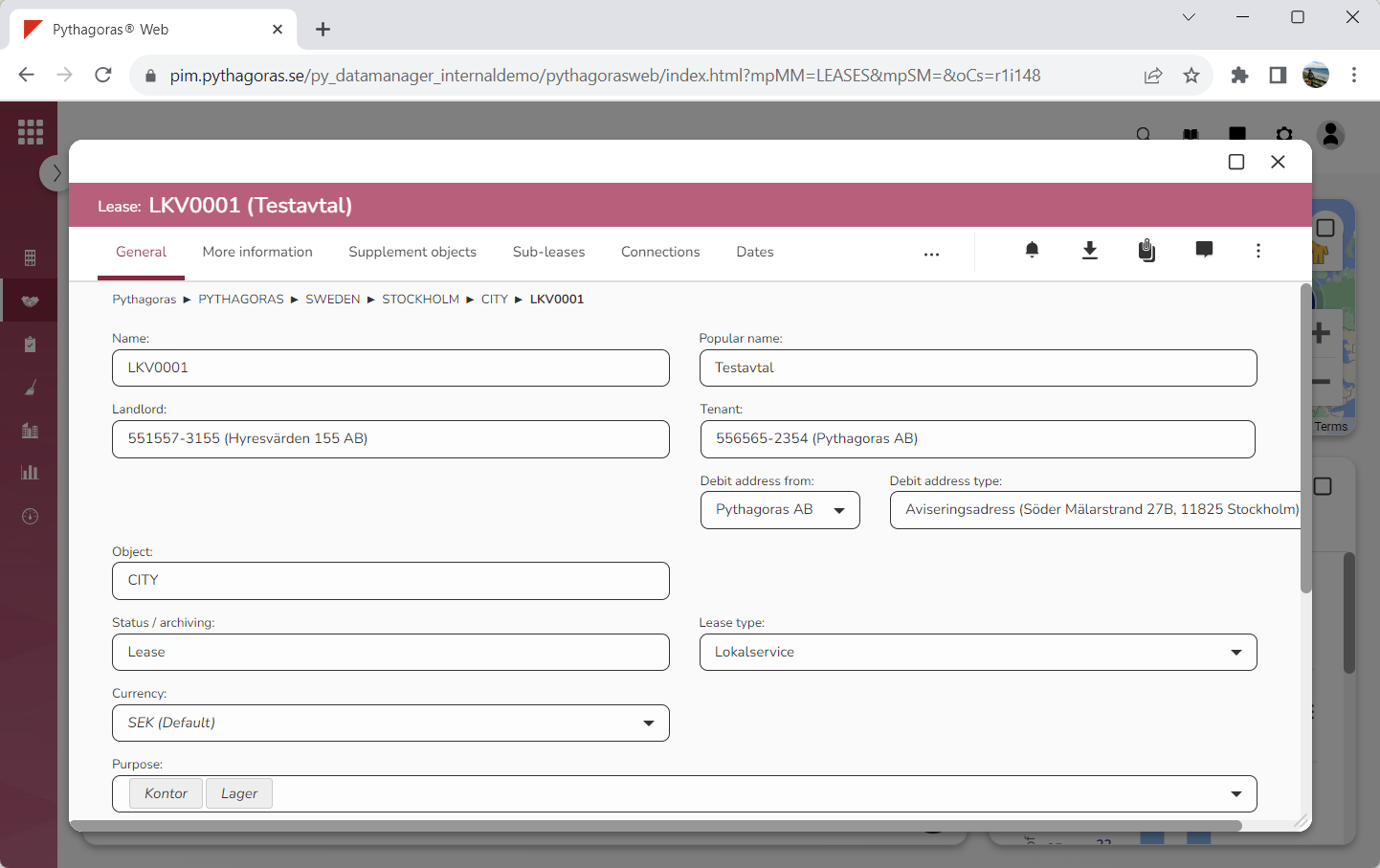
Go to the lease card (see image below).
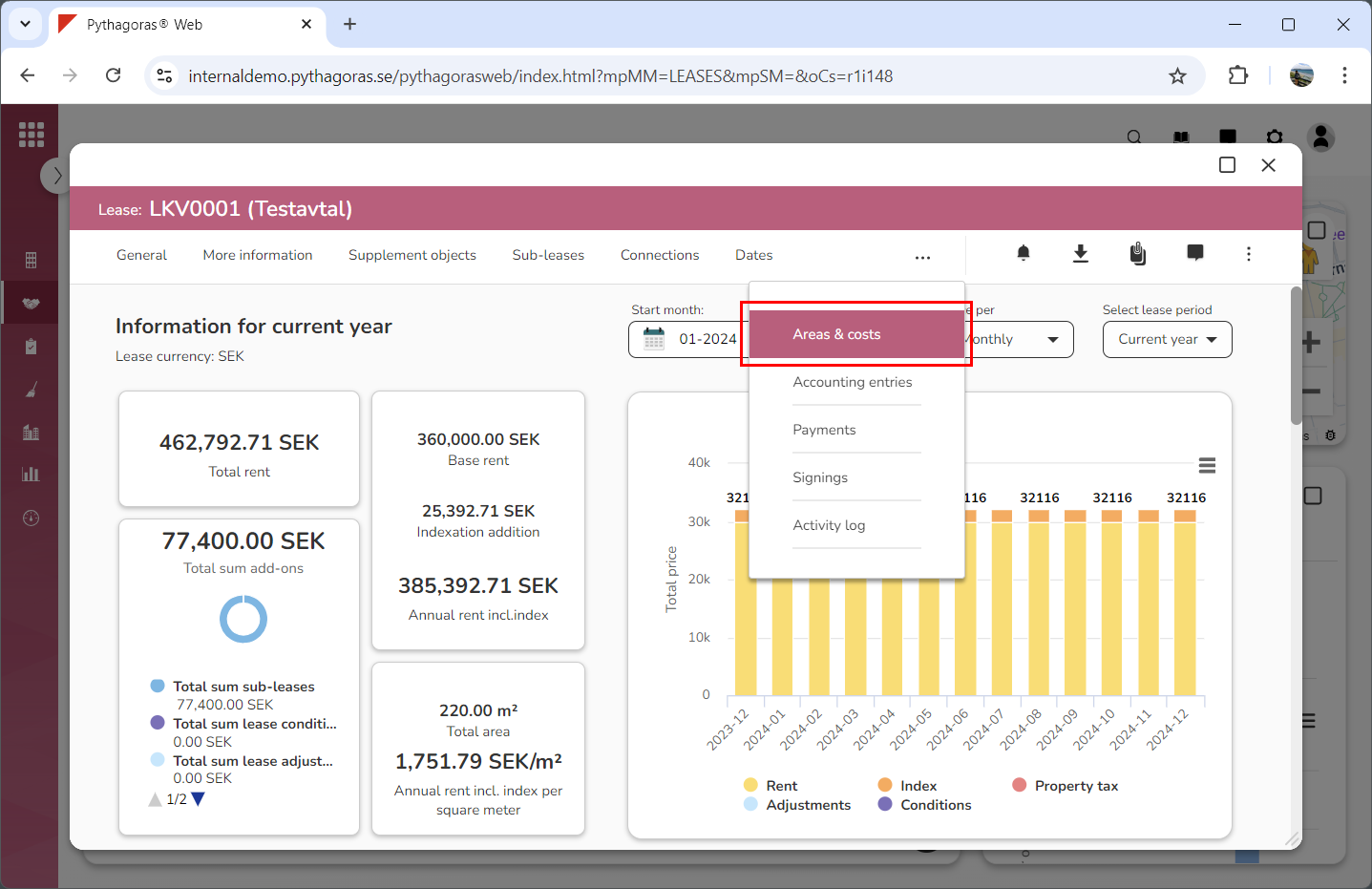
3. Click the tab called "Areas & costs" (see image below). Within the tab called "Areas & costs" you will, among other things, find one field called "Payment break start date" and one field called "Payment break end date". Note that you will have to scroll the lease card to find the fields called "Payment break start date" and "Payment break end date".
4. Set a payment break for the the lease you are working with:
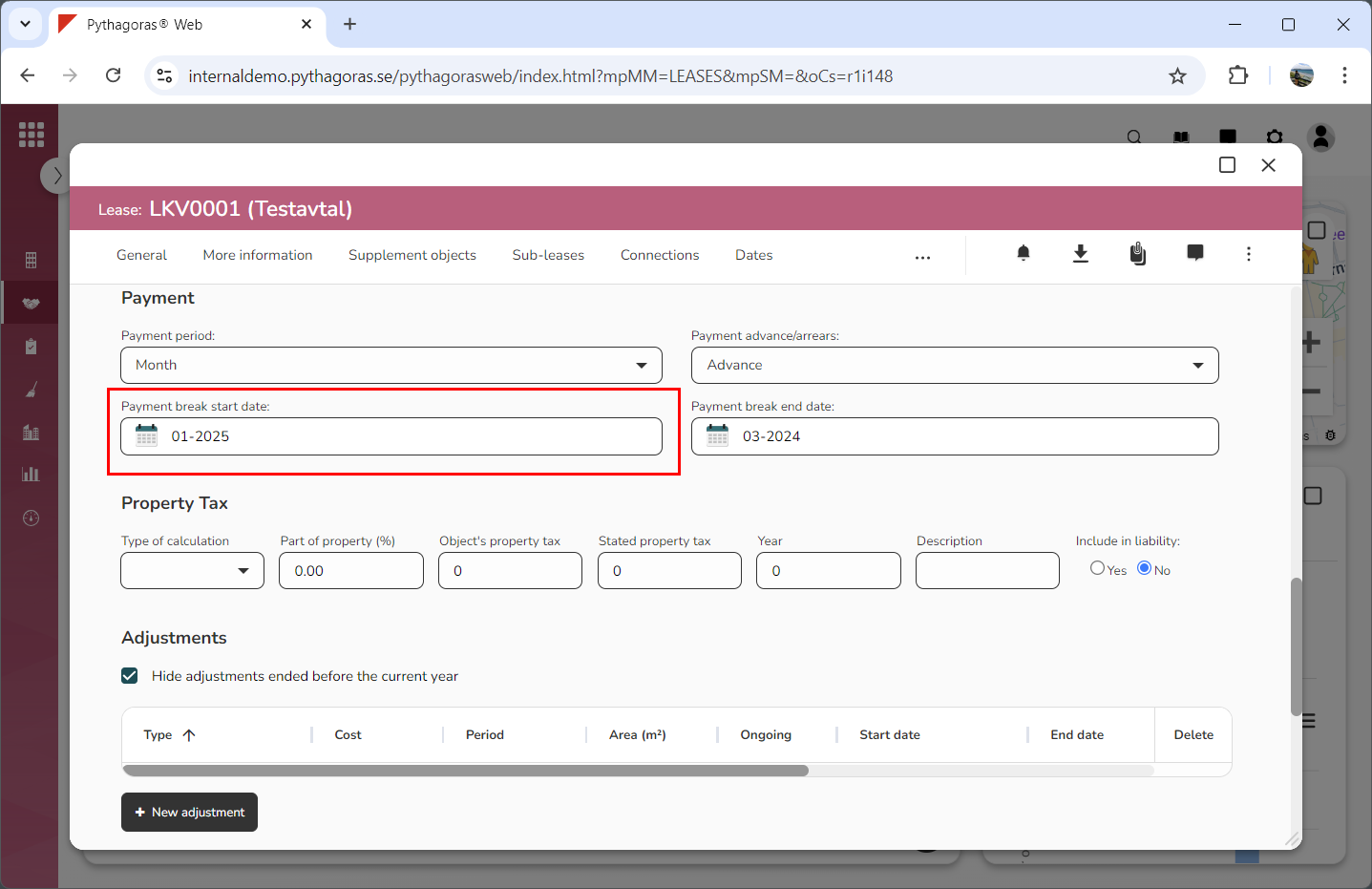
Set a start date for the payment break by clicking the field "Payment break start date" and then selecting a start date in the calendar that opens (see image below).
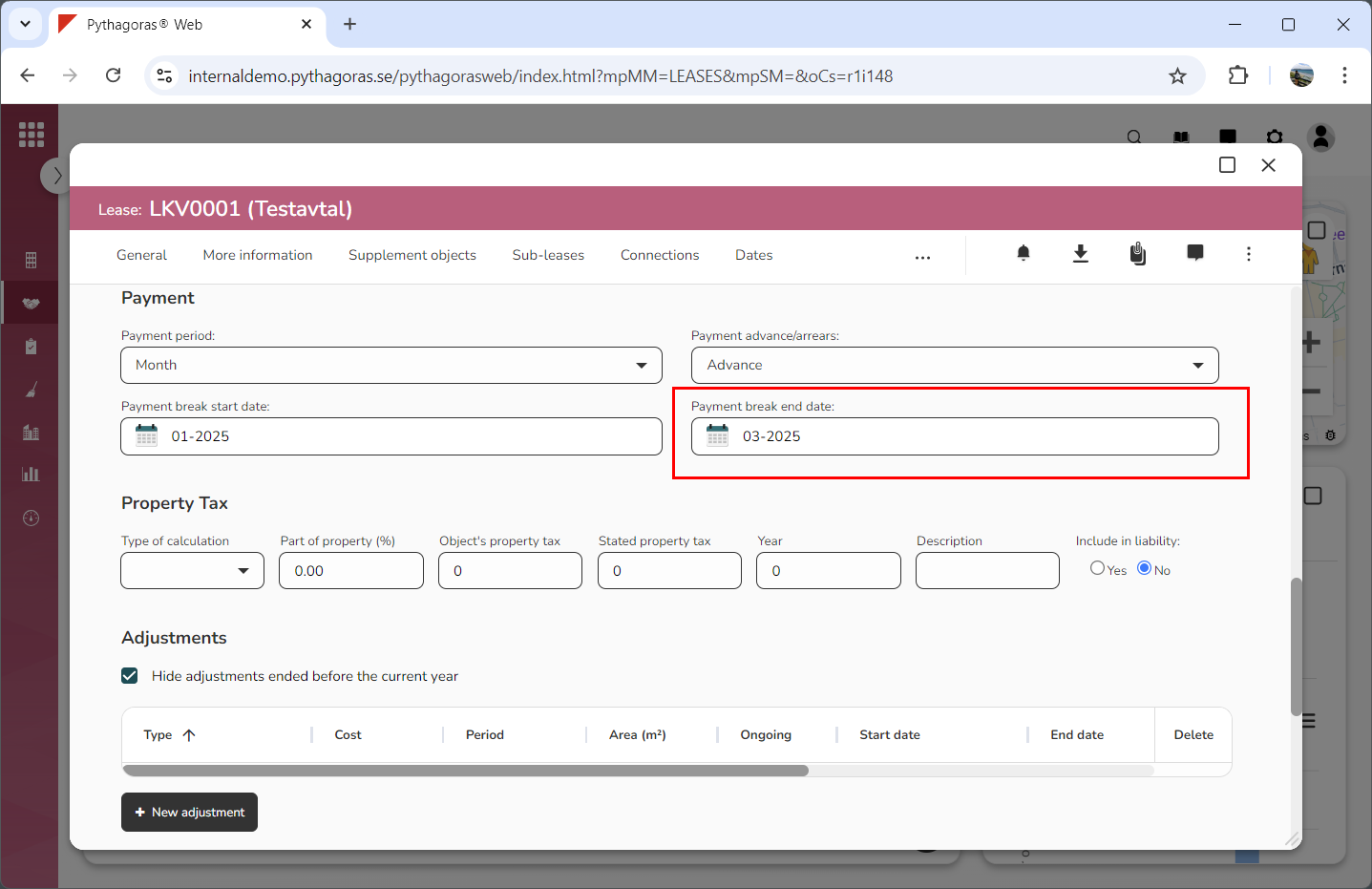
Set an end date for the payment break by clicking the field "Payment break end date" and then selecting an end date in the calendar called that opens (see image below). Note that if you do not know when a payment break should end you do not have to set an end date. If you do not set an end date, the payment break will apply until further notice, that is, until you or one of your colleagues removes it from the lease it is set for.
You have now set a payment break for the lease you are working with.