If you remove a lease purpose from Leases, it will be removed from all leases assigned to that purpose.
To remove a lease purpose from Leases:
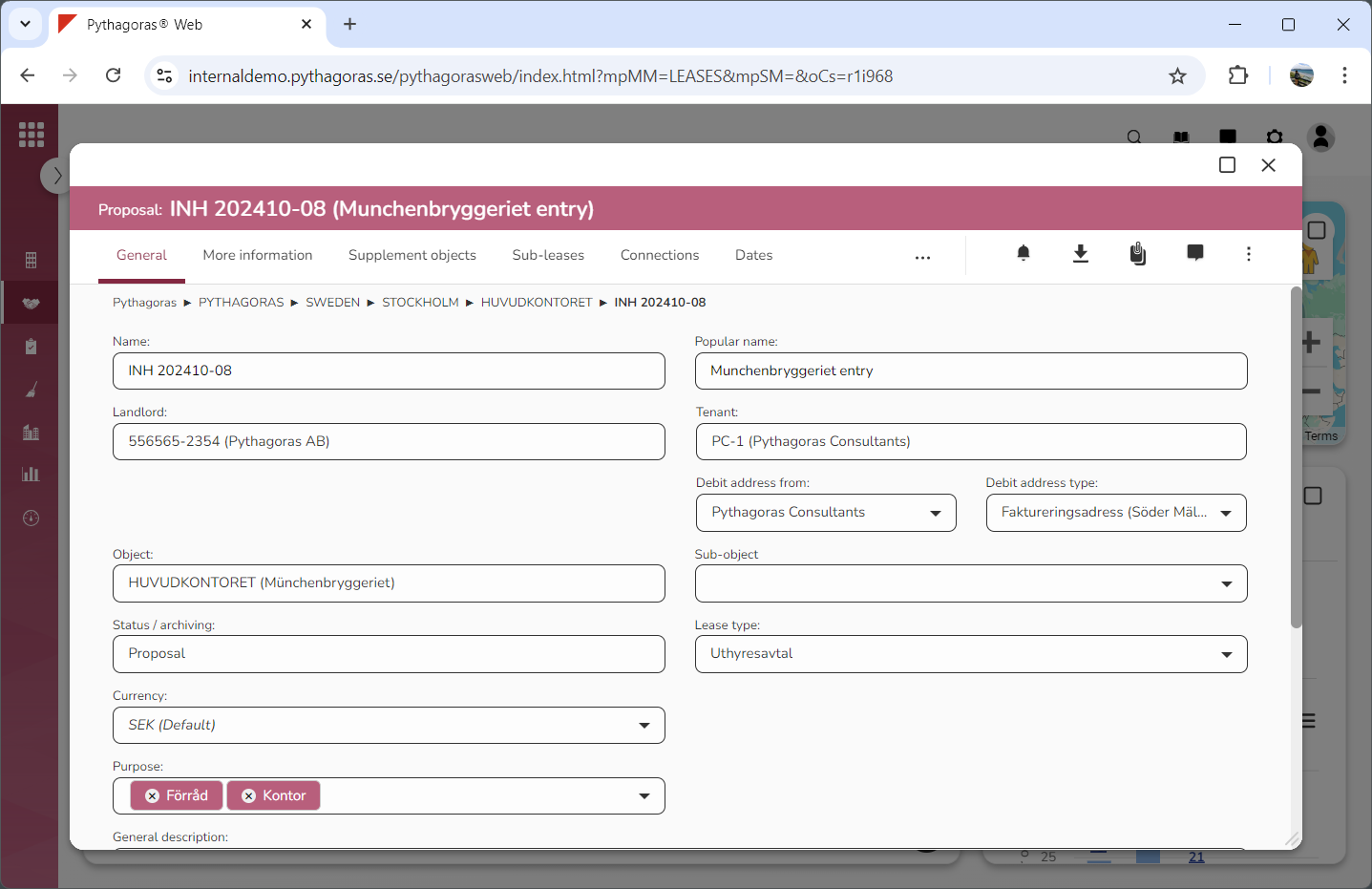
Open a lease. For more information on how to do so, see section 4.6. or 6.1.
Go to the lease card (see image below).
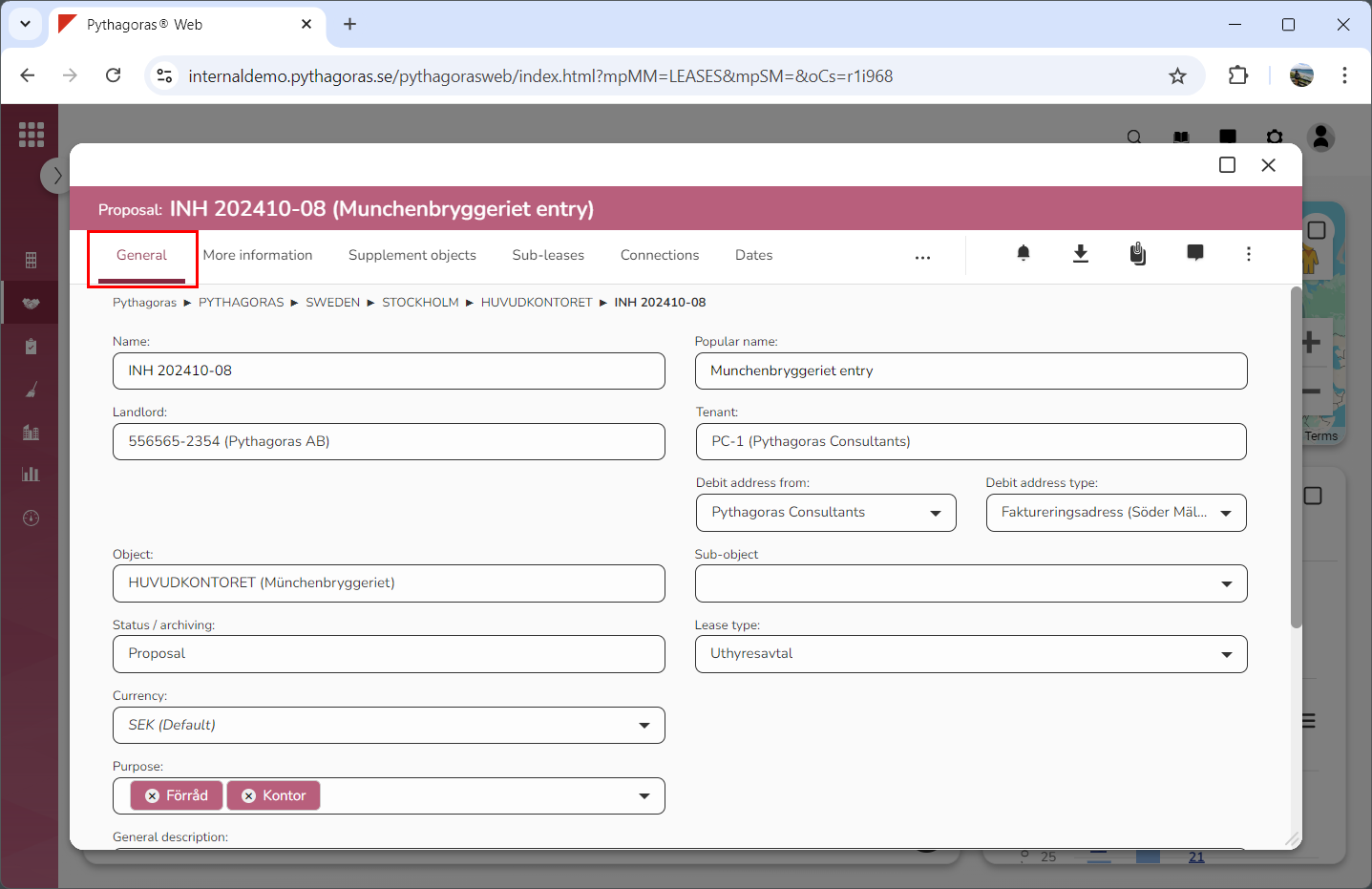
Click the tab called "General" (see image below).
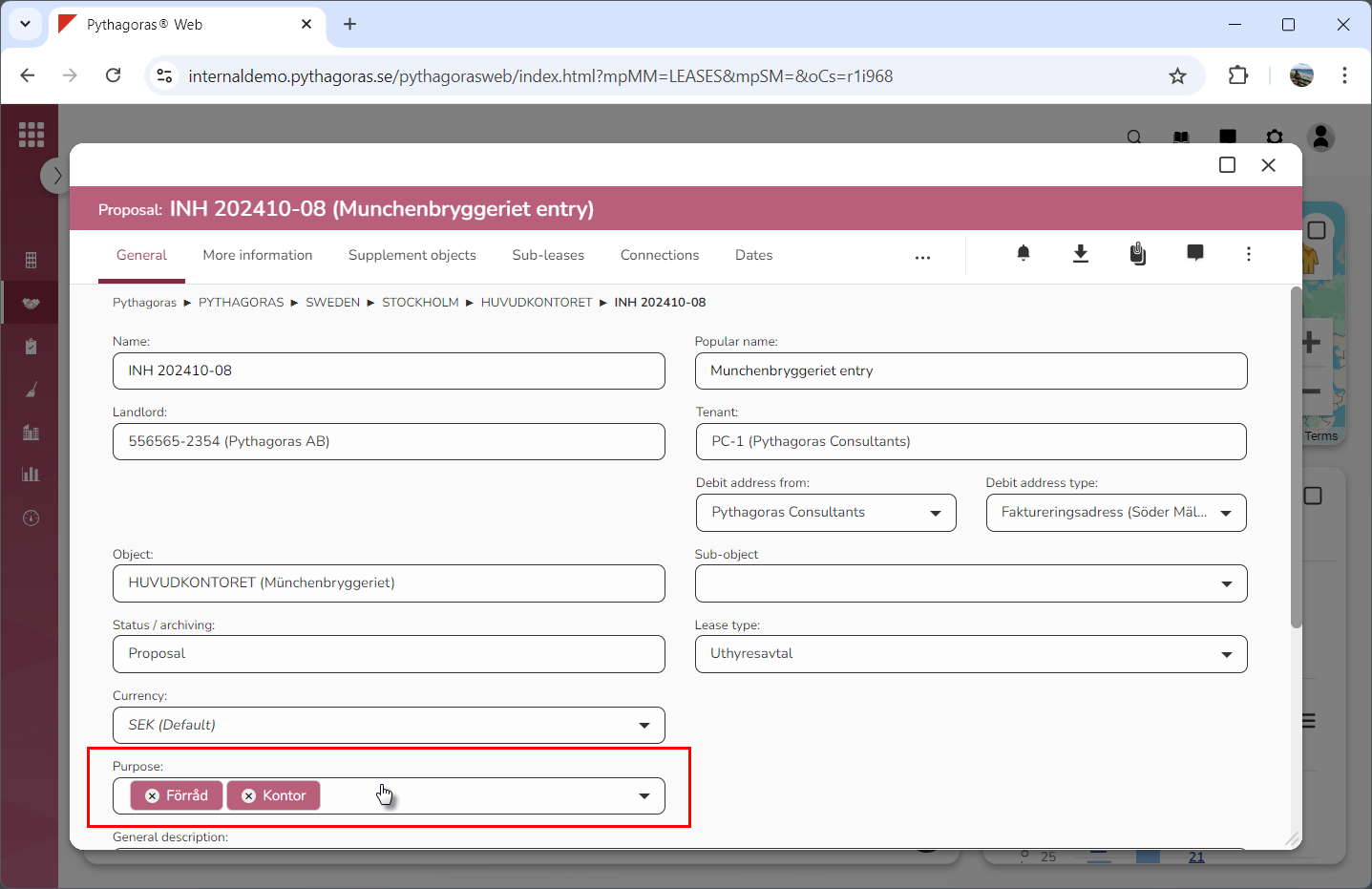
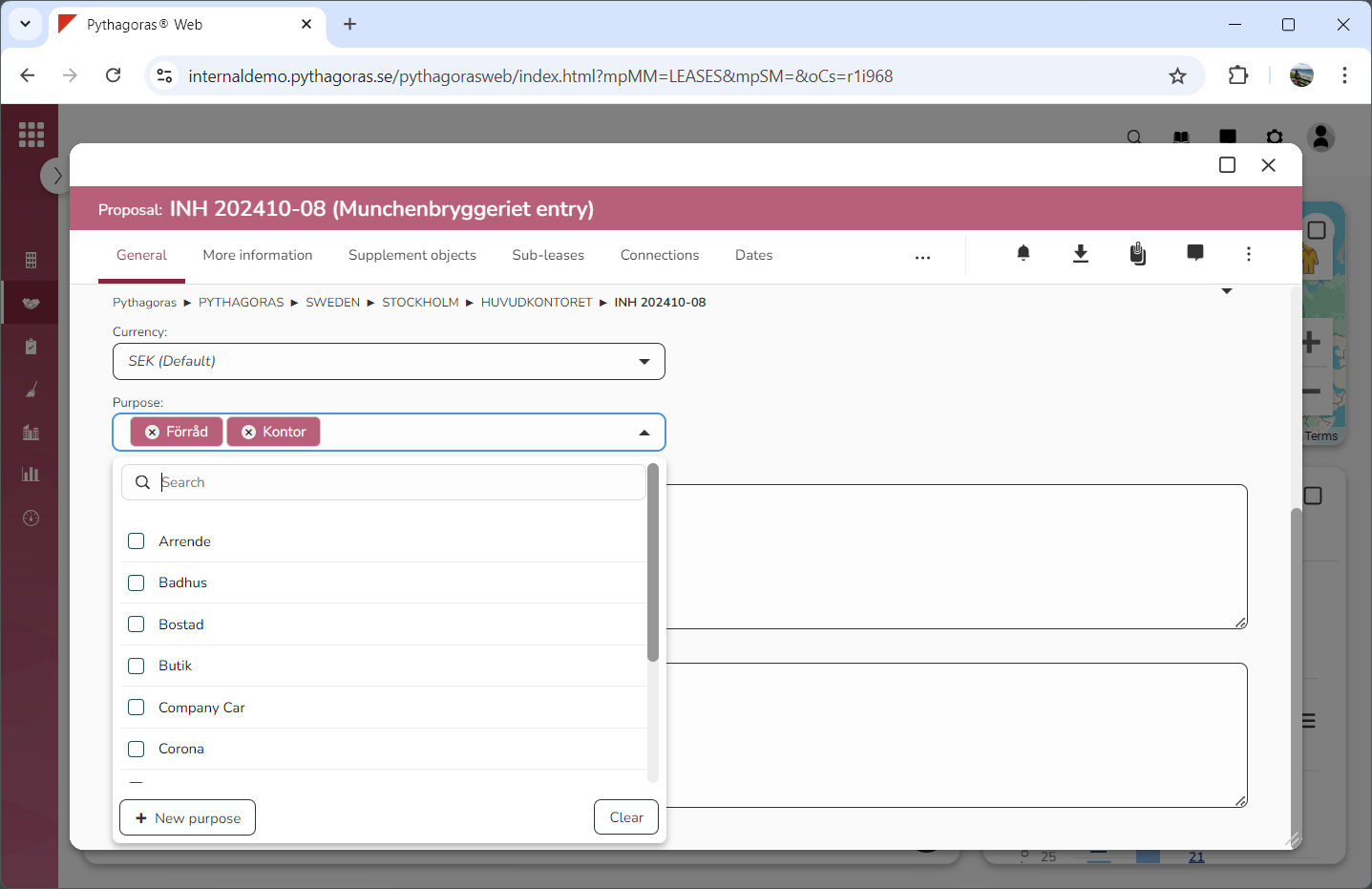
Click the field "Purpose" (see the first image below). When you do so, a list of lease purposes will open (see the second image below). In the list of lease purposes you will see which lease purposes are available in Leases.
Go to the list of lease purposes.
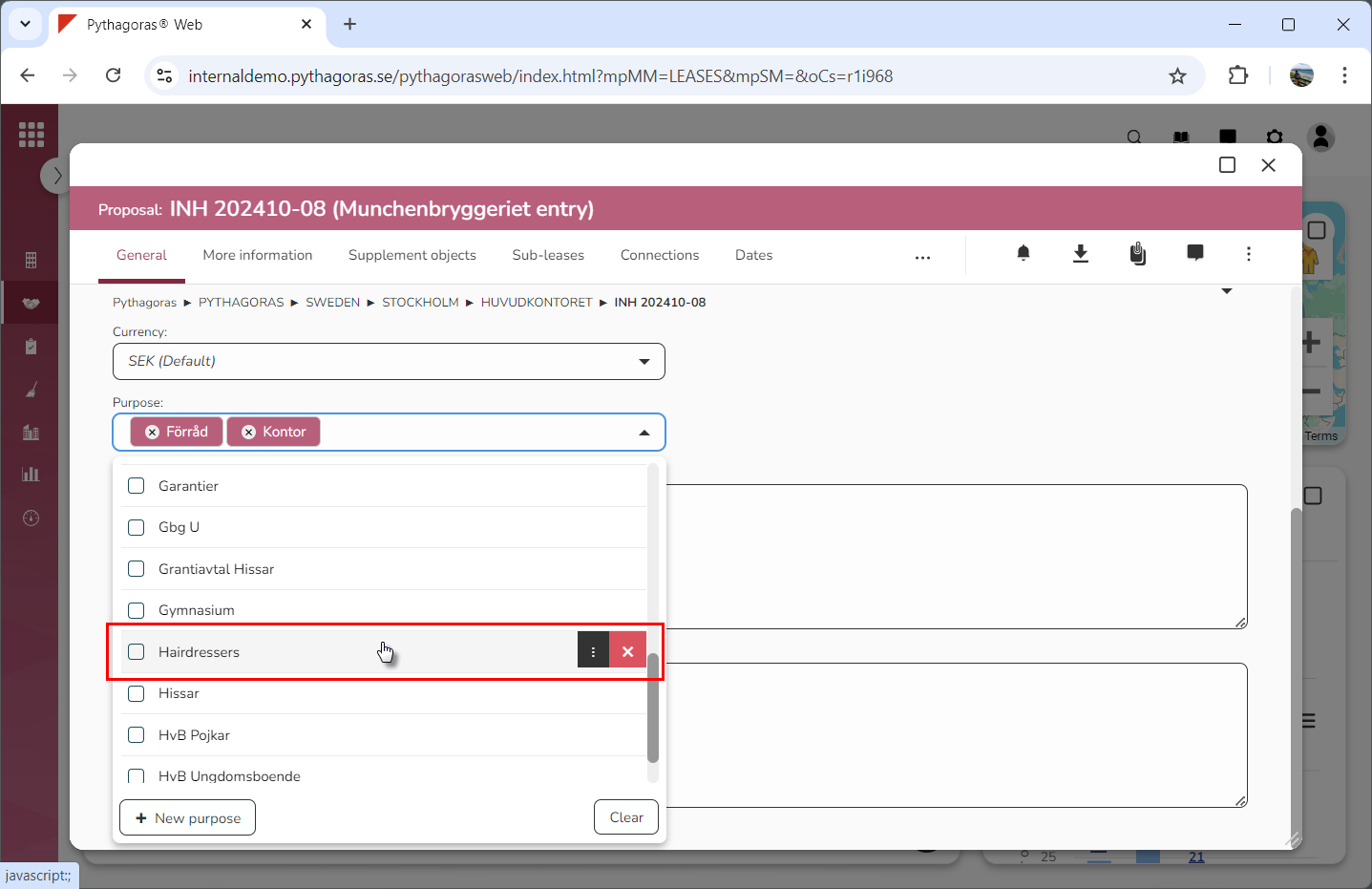
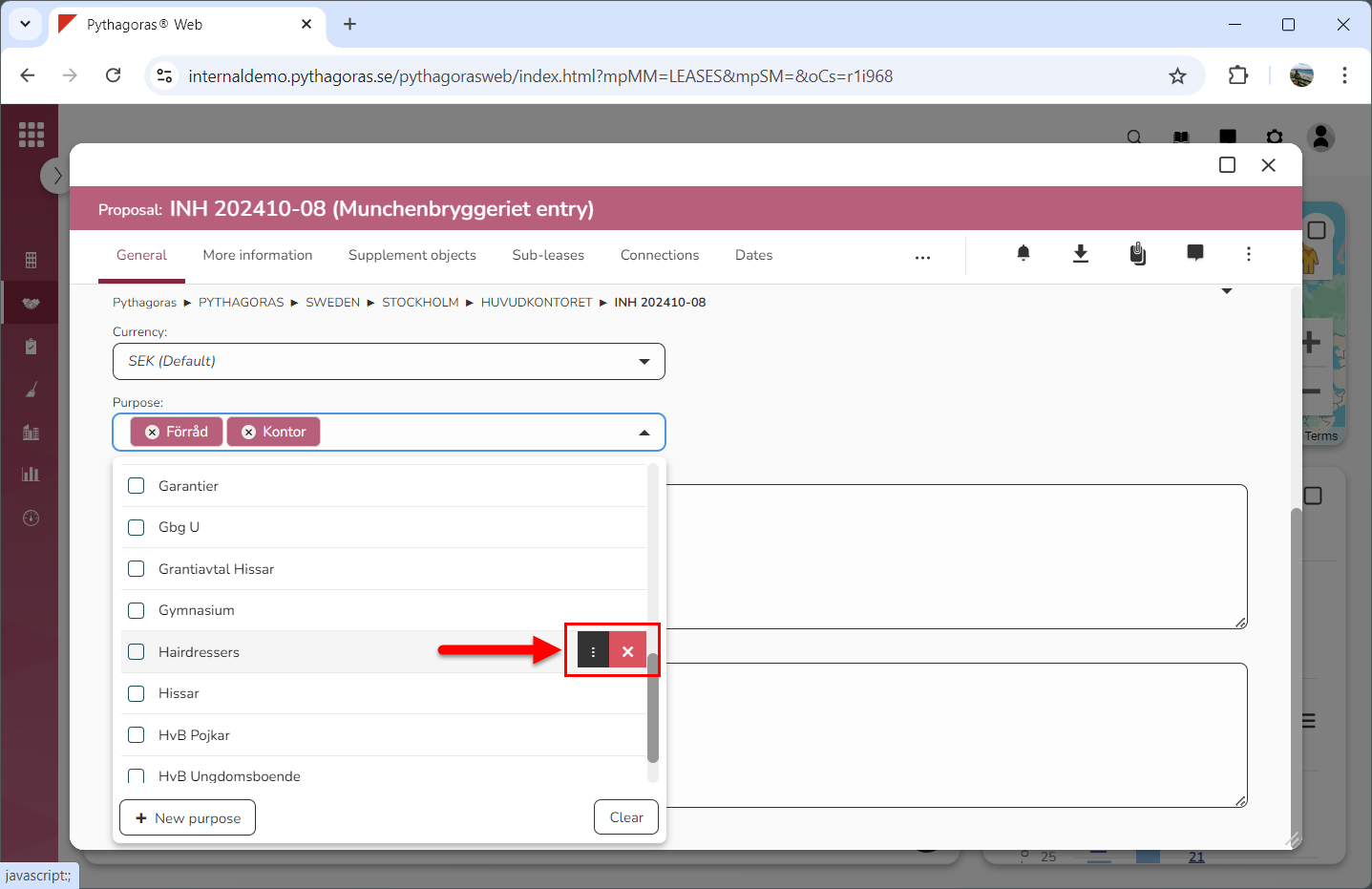
Place your cursor on the lease purpose you wish to remove from Leases (see the first image below). When you do so, you will be shown two icons: "Open" and "Delete" (see the second image below).
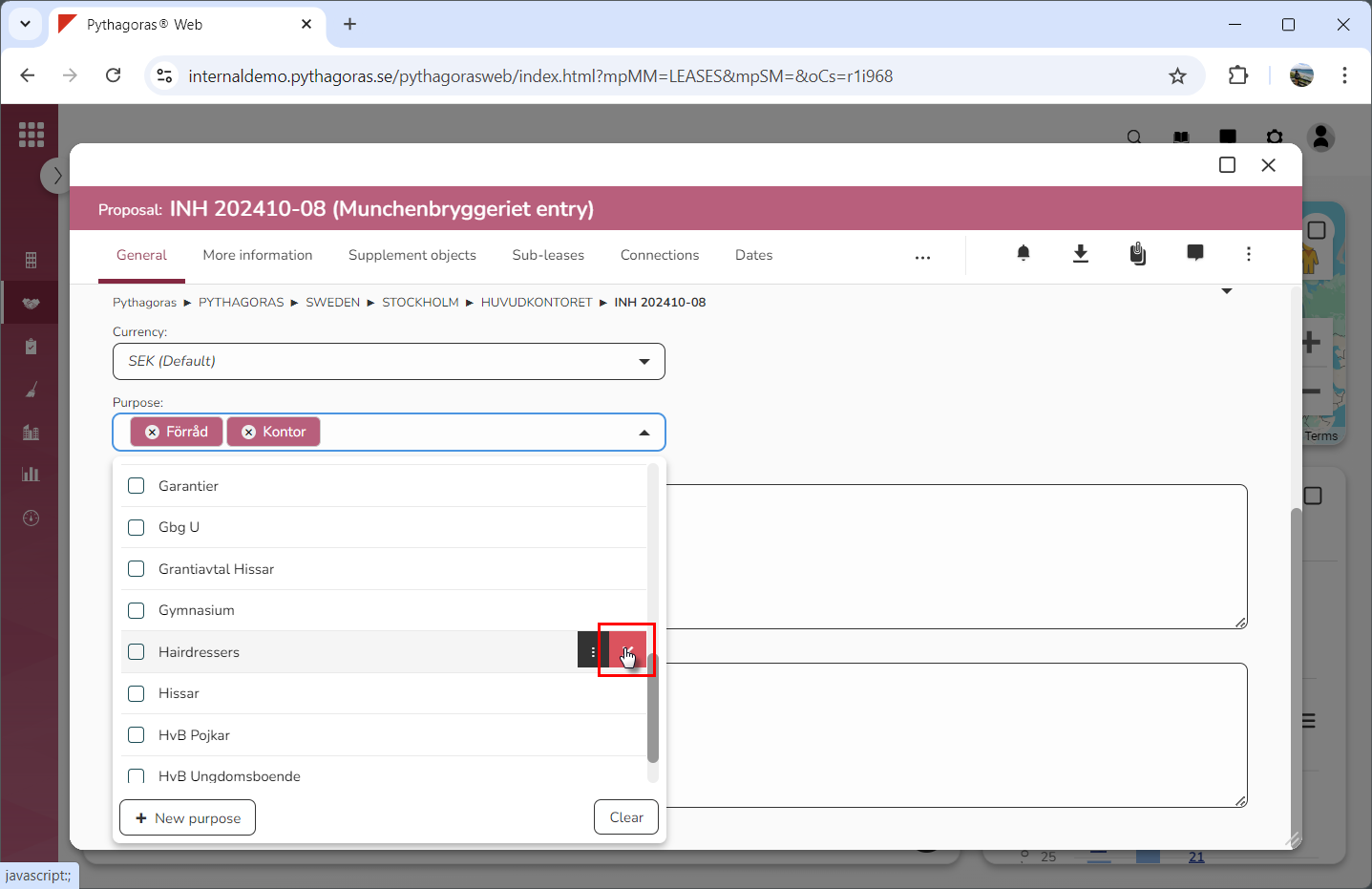
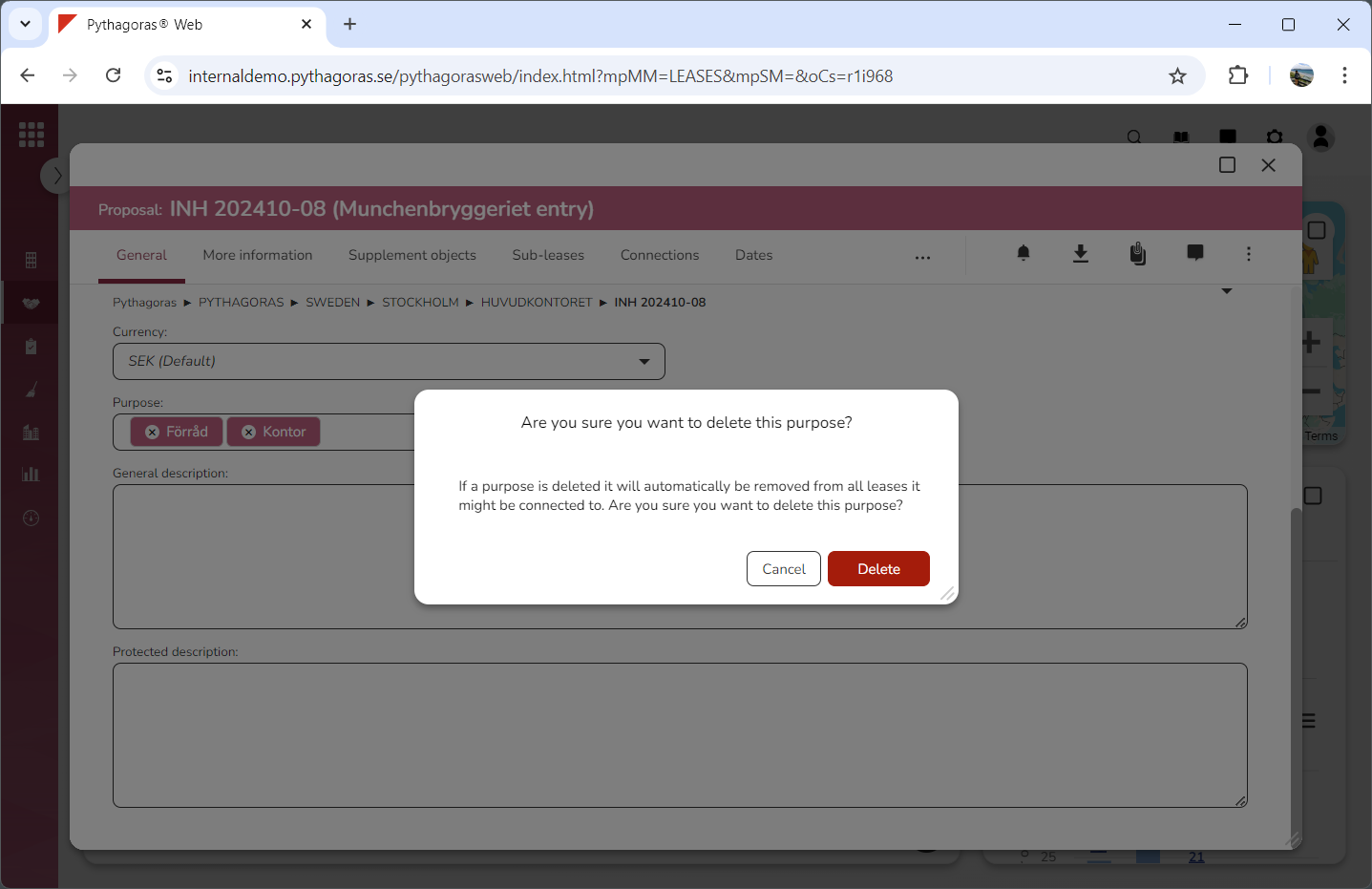
Click "Delete" (see the first image below). When you do so, a dialog will open asking the following question: "Are you sure you want to delete this purpose?" (see the second image below).
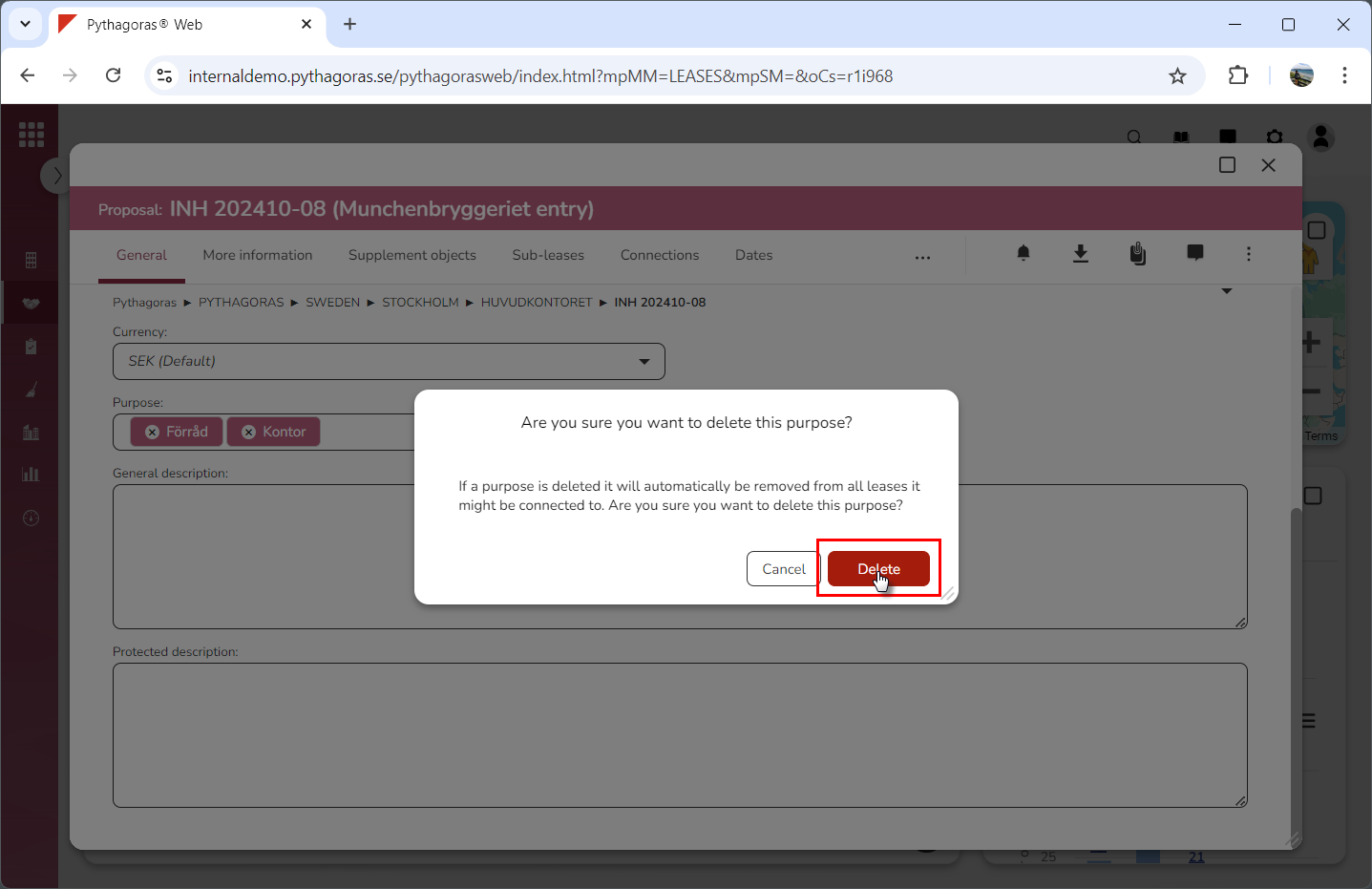
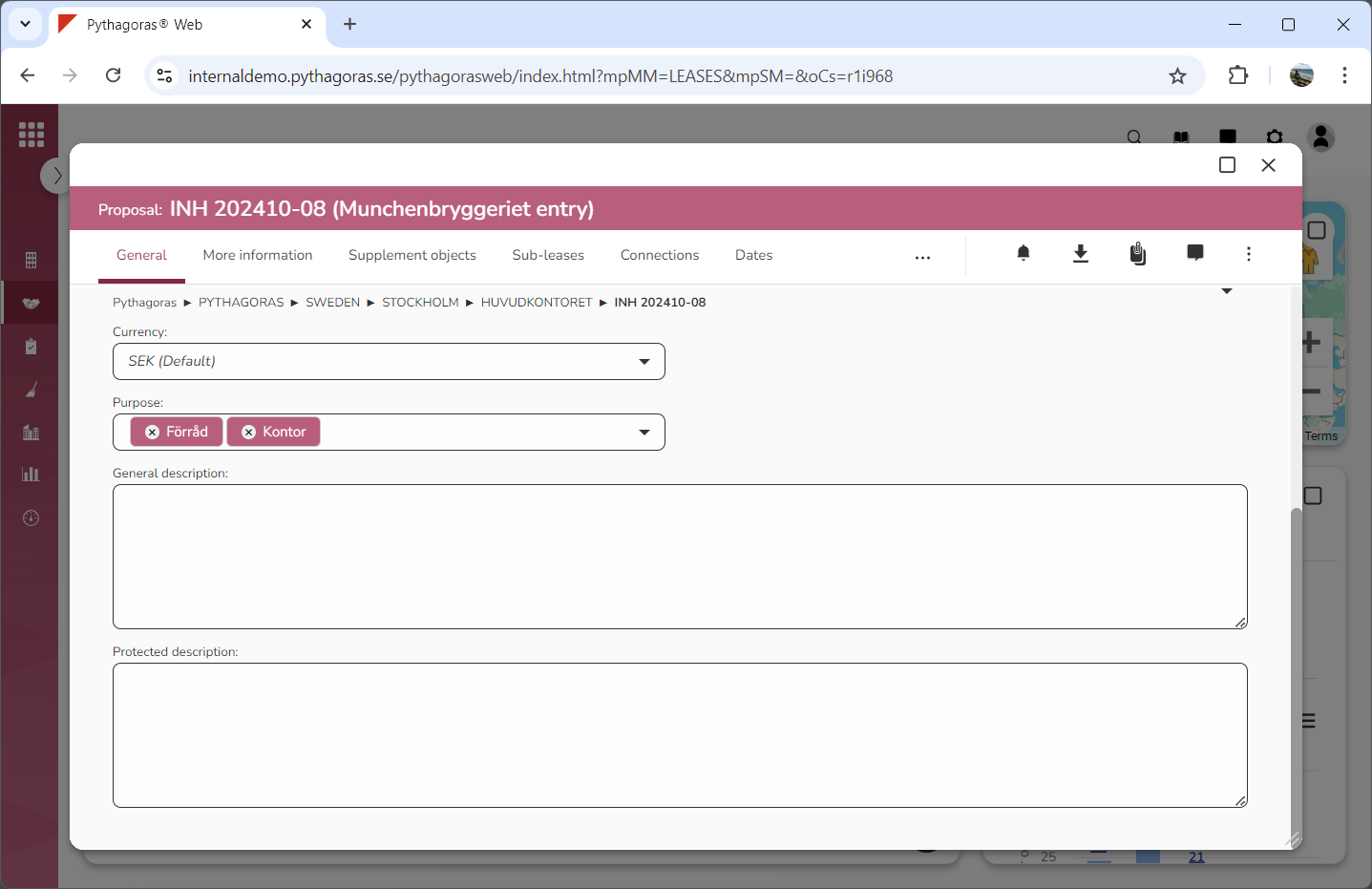
Click "Delete" in the dialog (see the first image below). When you do so, the purpose you are working with will be removed from Leases. At the same time you will be redirected back to the lease card (see the second image below).