Open a lease. For more information on how to do so, see section 4.6. or 6.1.
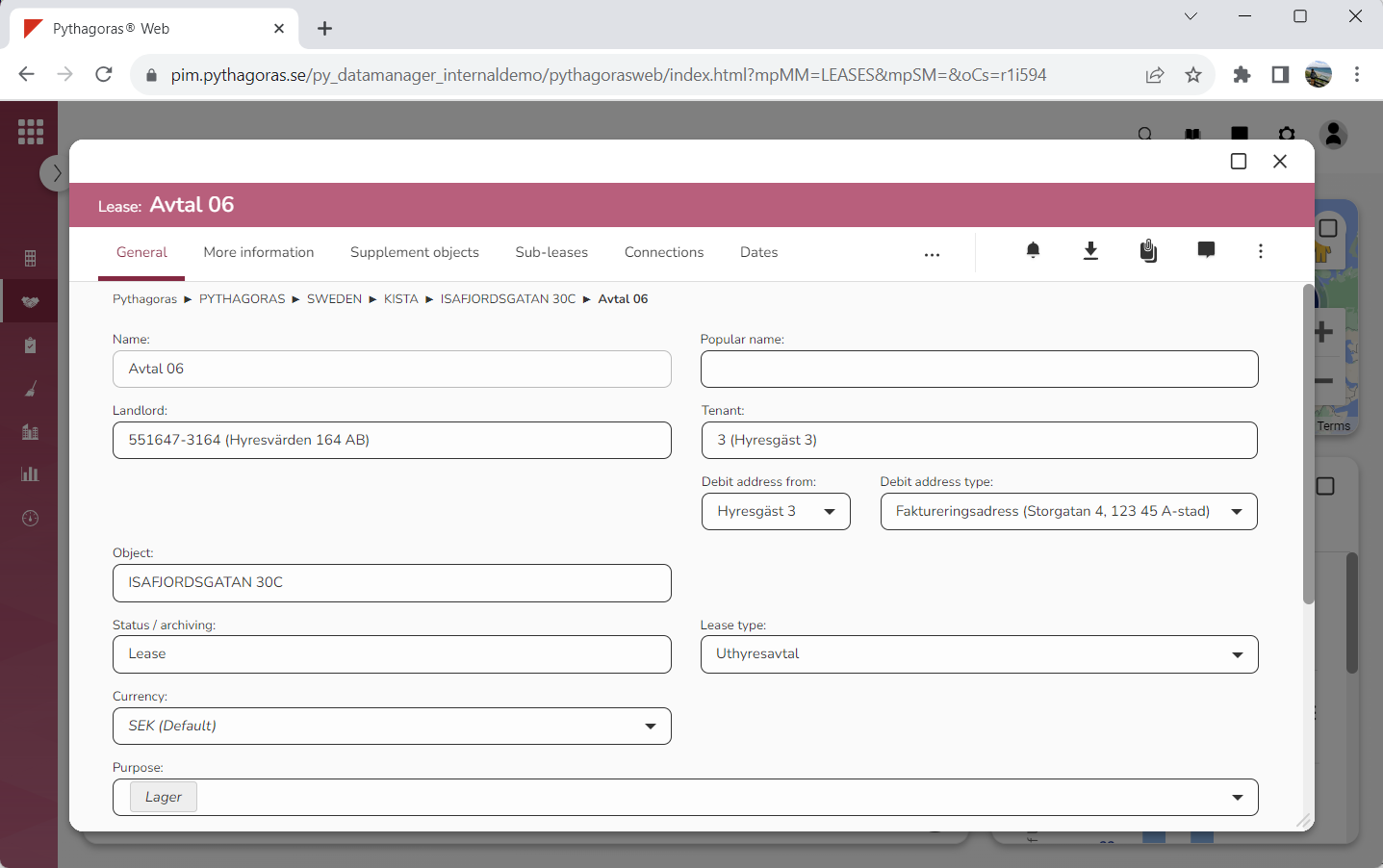
Go to the lease card (see image below).
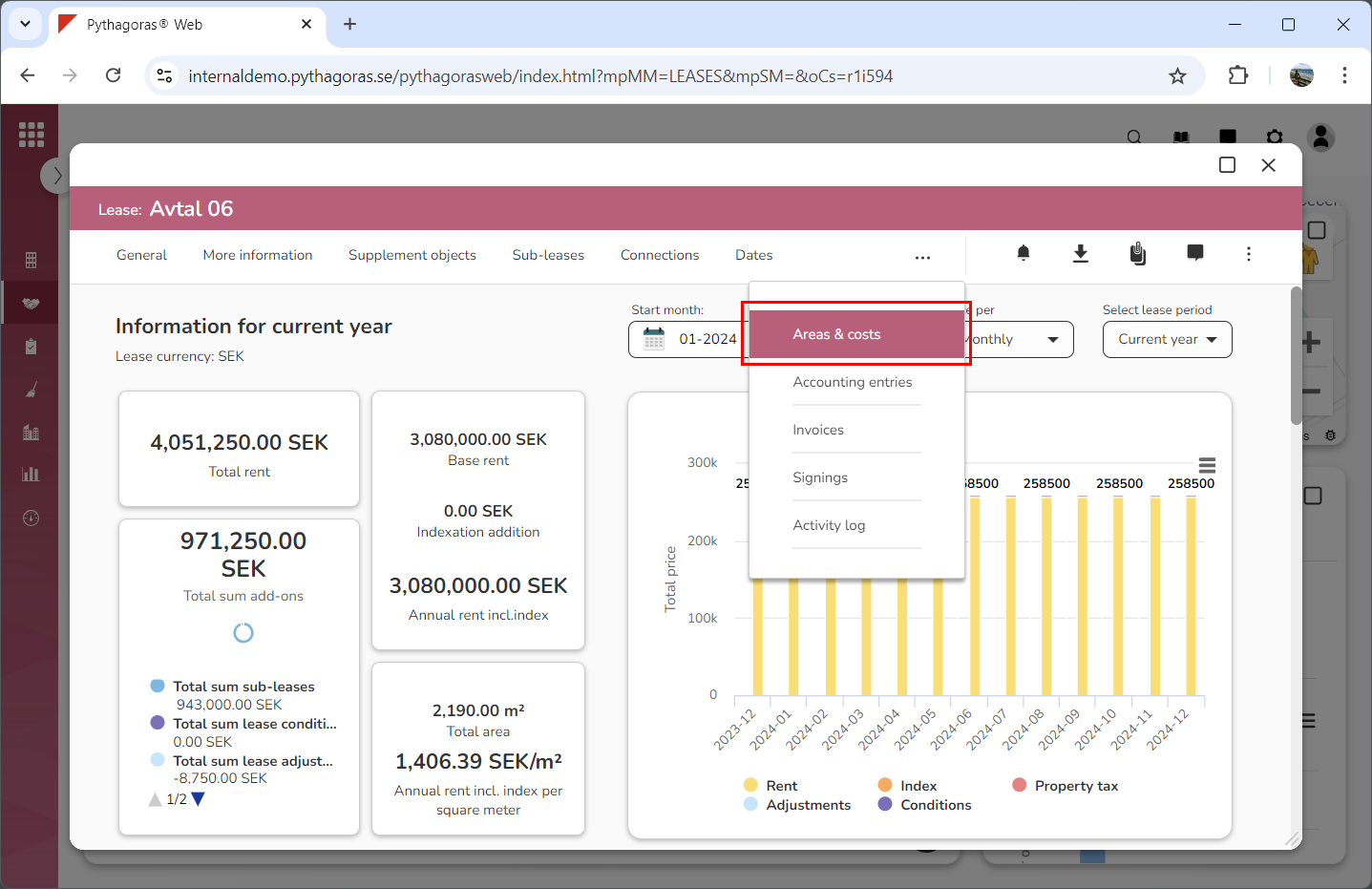
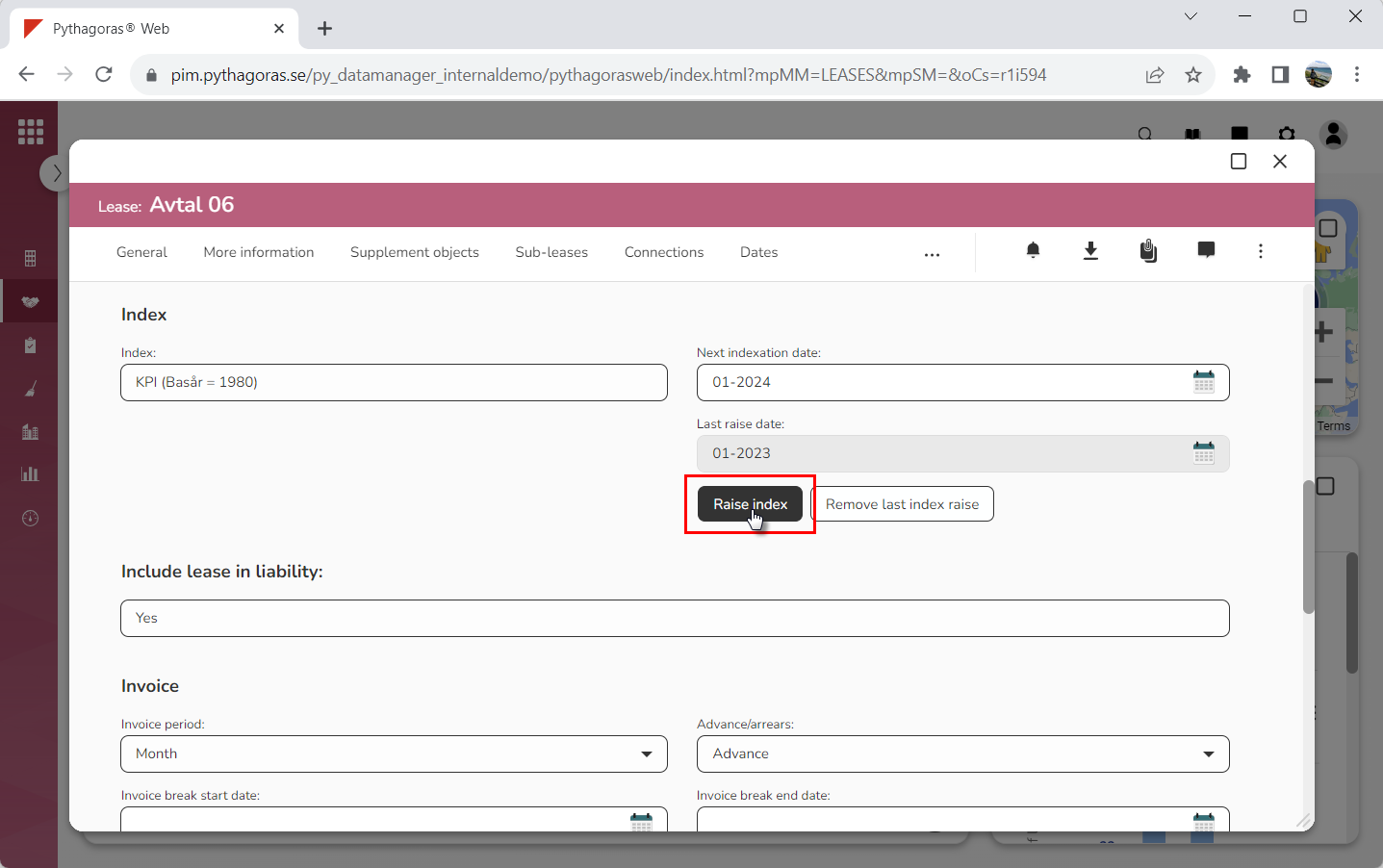
Click the tab called "Areas & costs" (see image below). Within the tab called "Areas & costs" you will, among other things, find a button called "Raise index". Note that you will have to scroll the lease card to find the button called "Raise index". Also note that, if it is possible to perform an index raise for the lease you are working with, the button called "Raise index" will be active. If the button called "Raise index" is active, it is black.
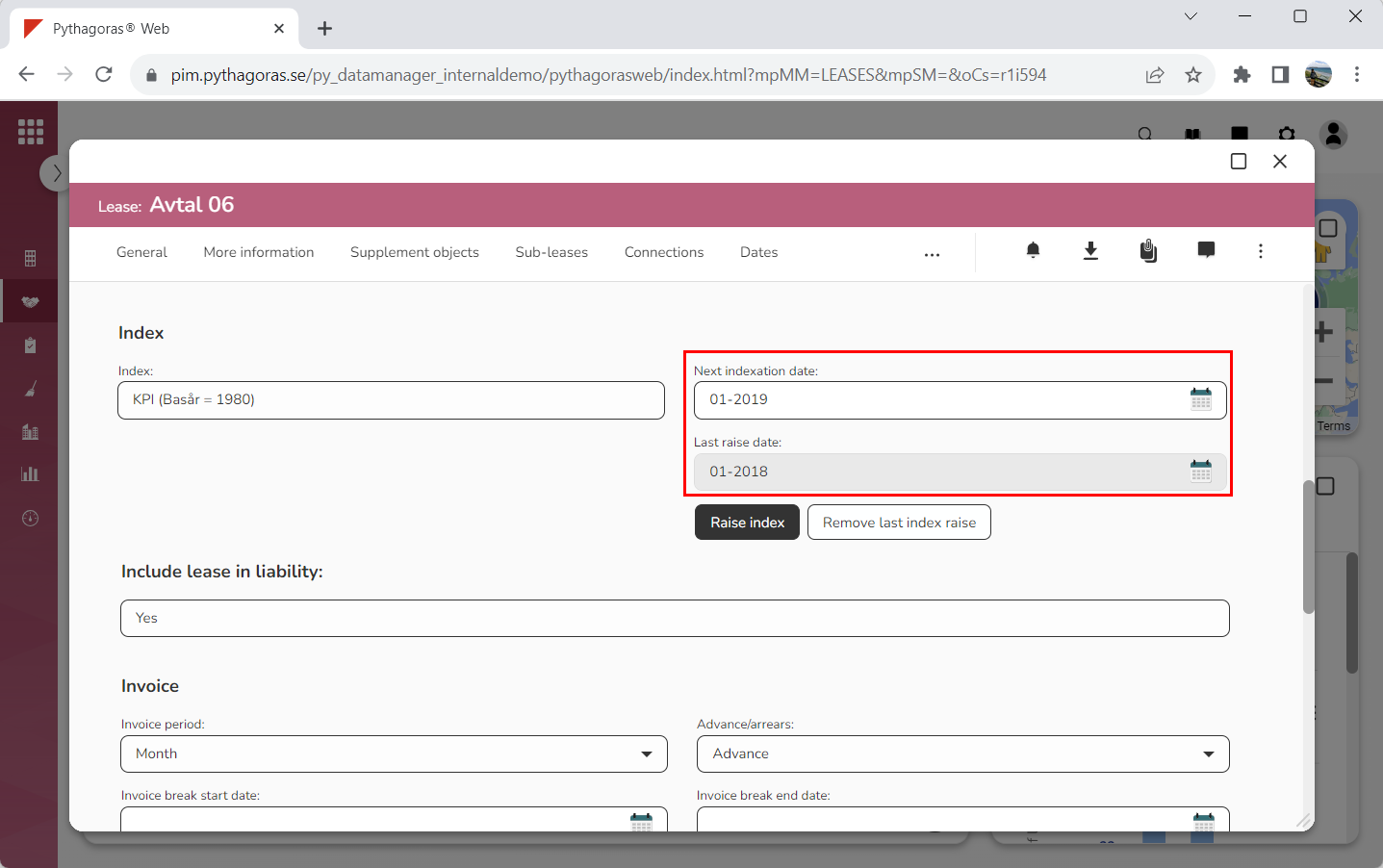
Click "Raise index" (see the first image below). When you do so, an index raise will be performed for the lease you are working with. Once an index raise has been performed, you will be able to view the next index raise date and the most recent index raise date in the fields called "Next indexation date" and "Last raise date" (see the second image below).