When opening a lease type you can either open the lease type set for the lease you are working with, or another lease type. If you wish to open the lease type set for the lease you are working with, you can skip step 5 in the instructions below. If you wish to open another lease type you can skip step 4 in the instructions below.
To open a lease type:
Open a lease. For more information on how to do so, see section 4.6. or 6.1.
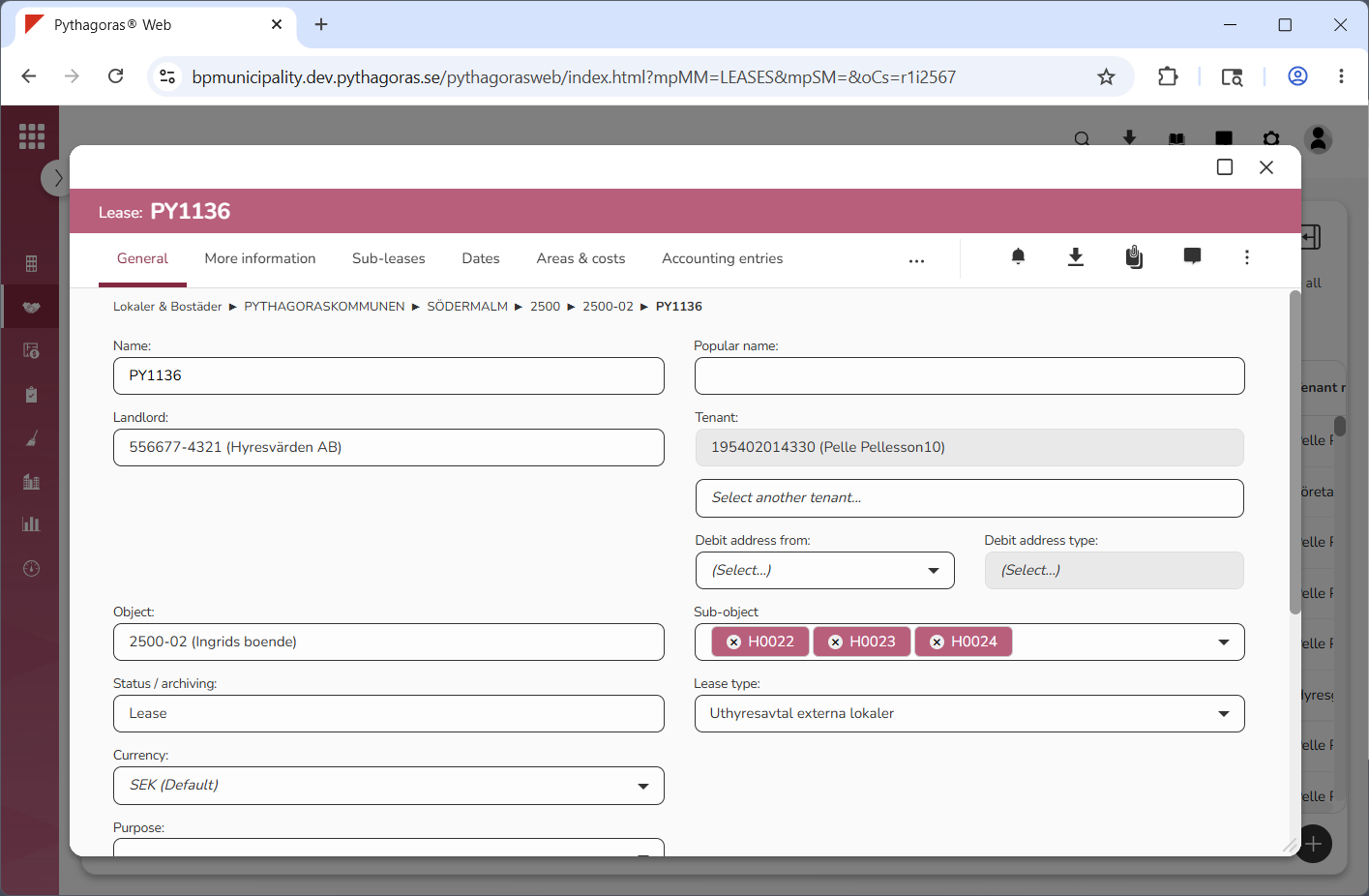
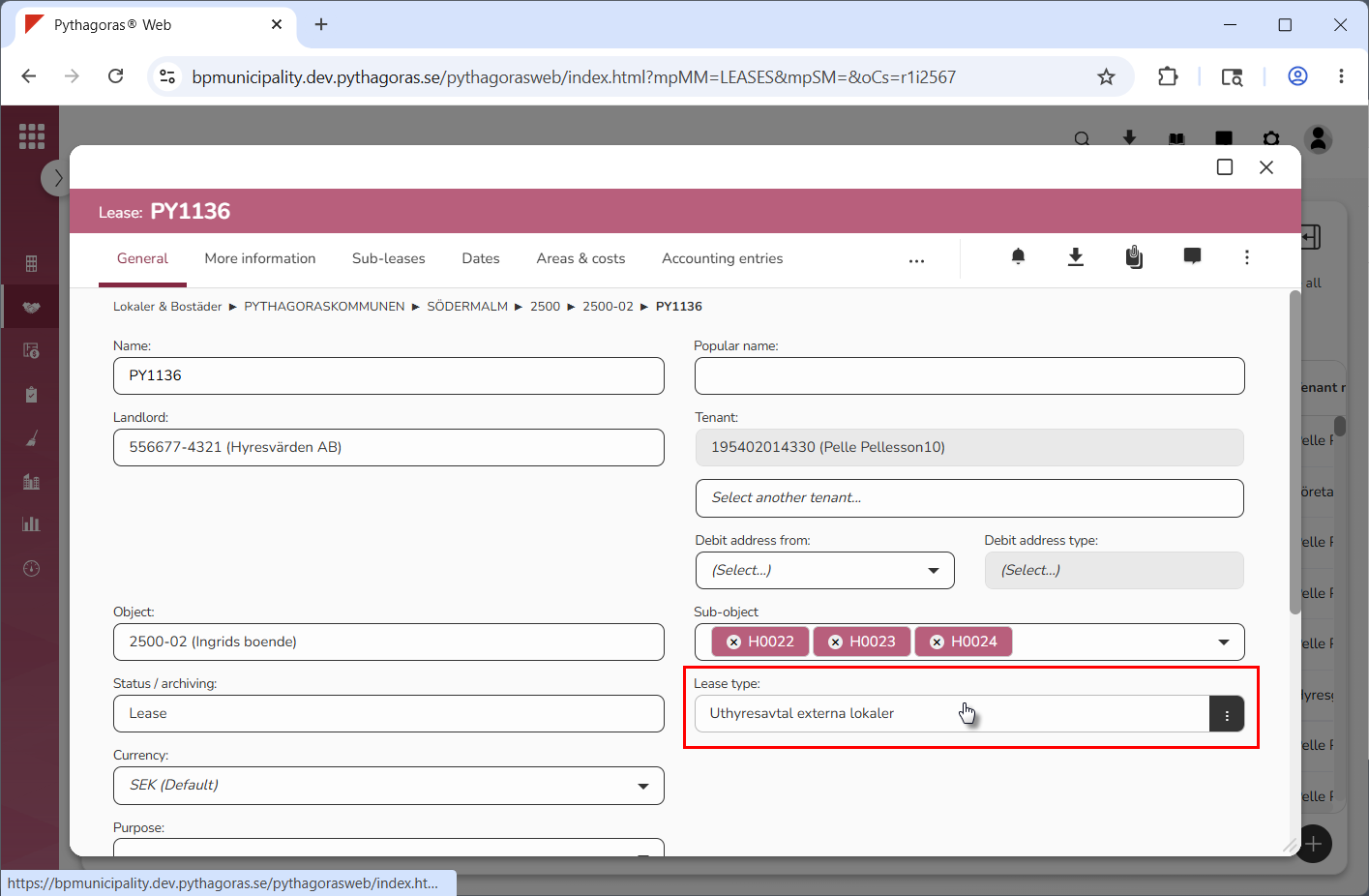
Go to the lease card (see image below).
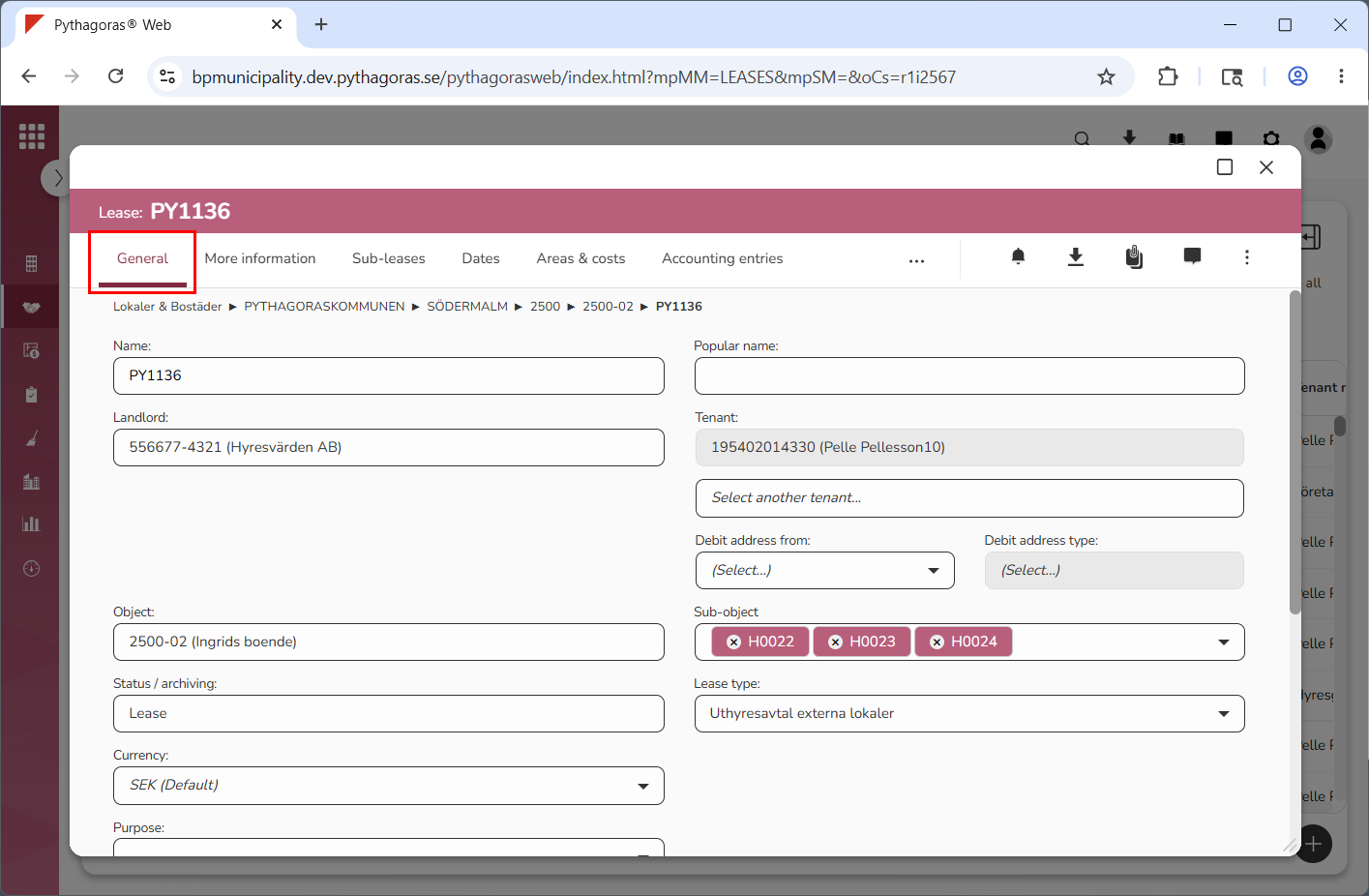
Click the tab called "General" (see image below).
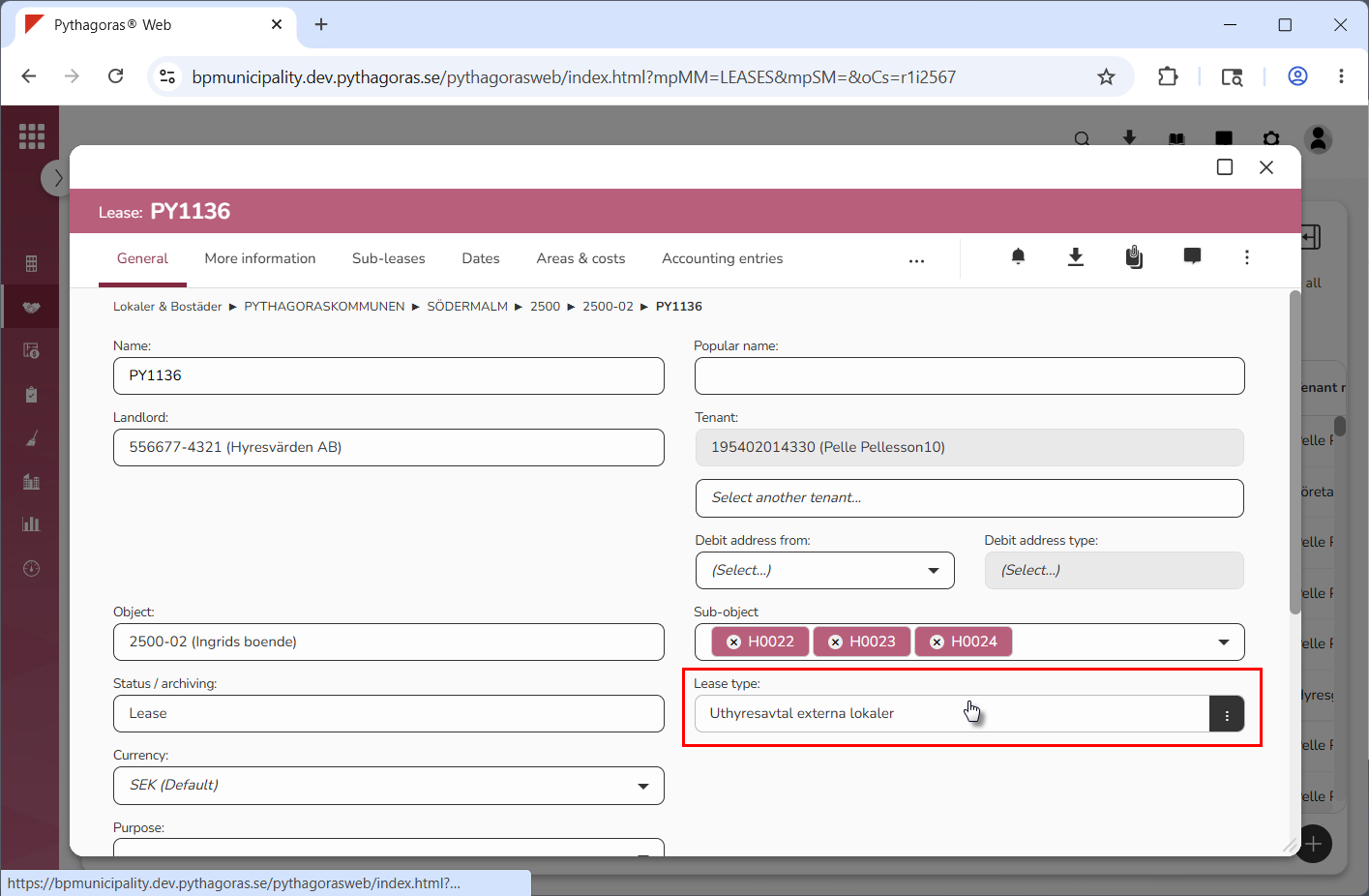
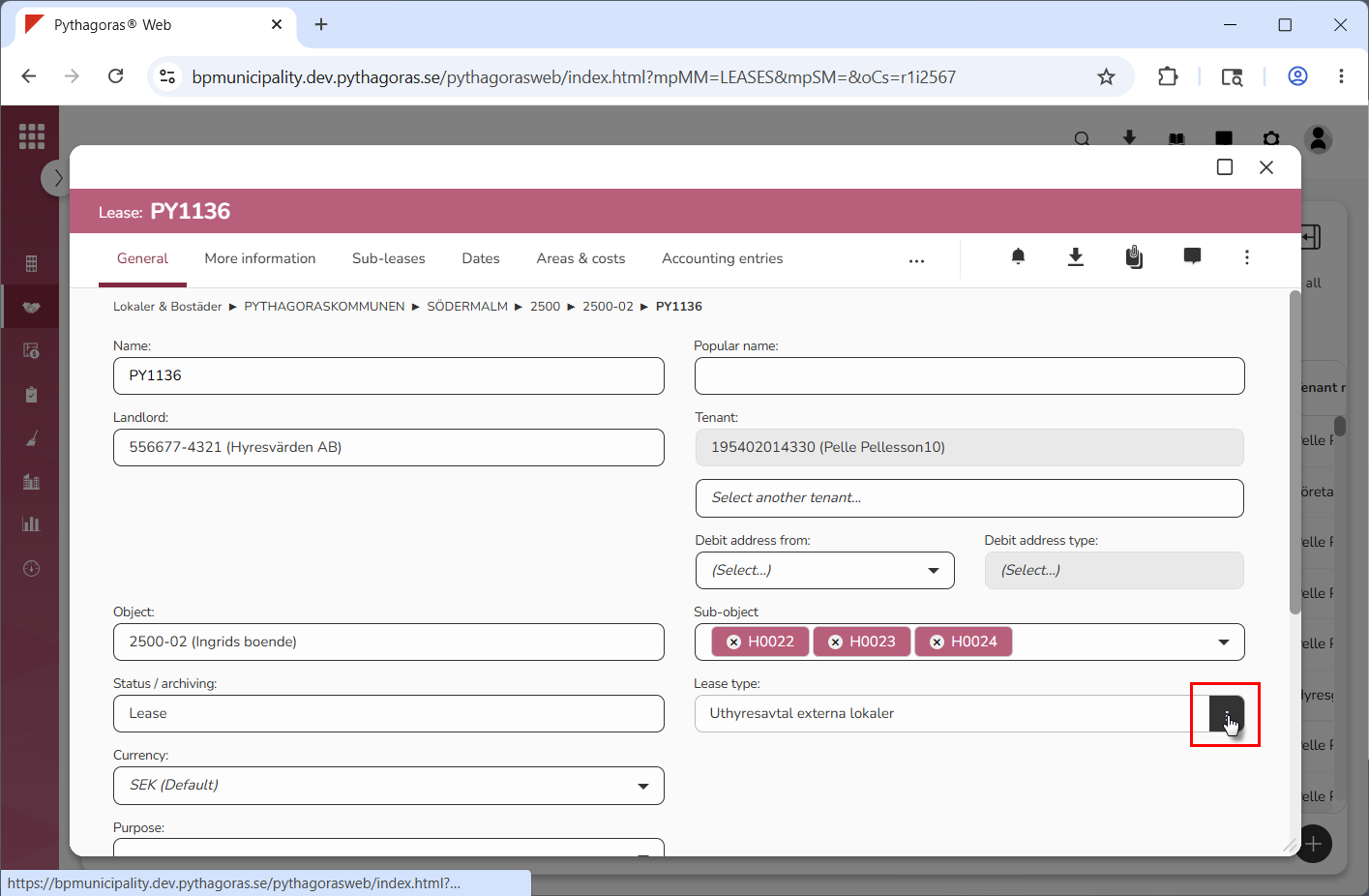
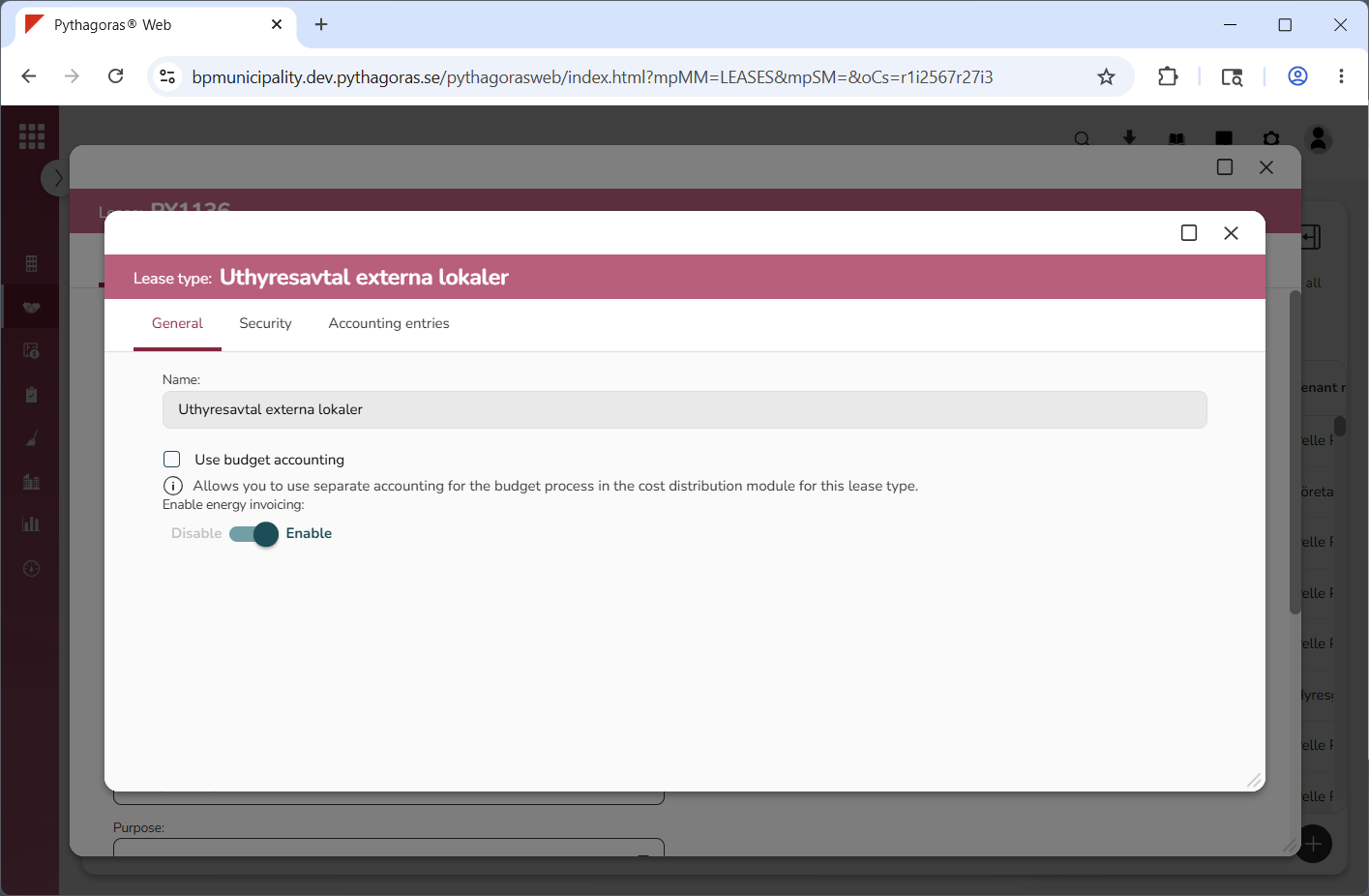
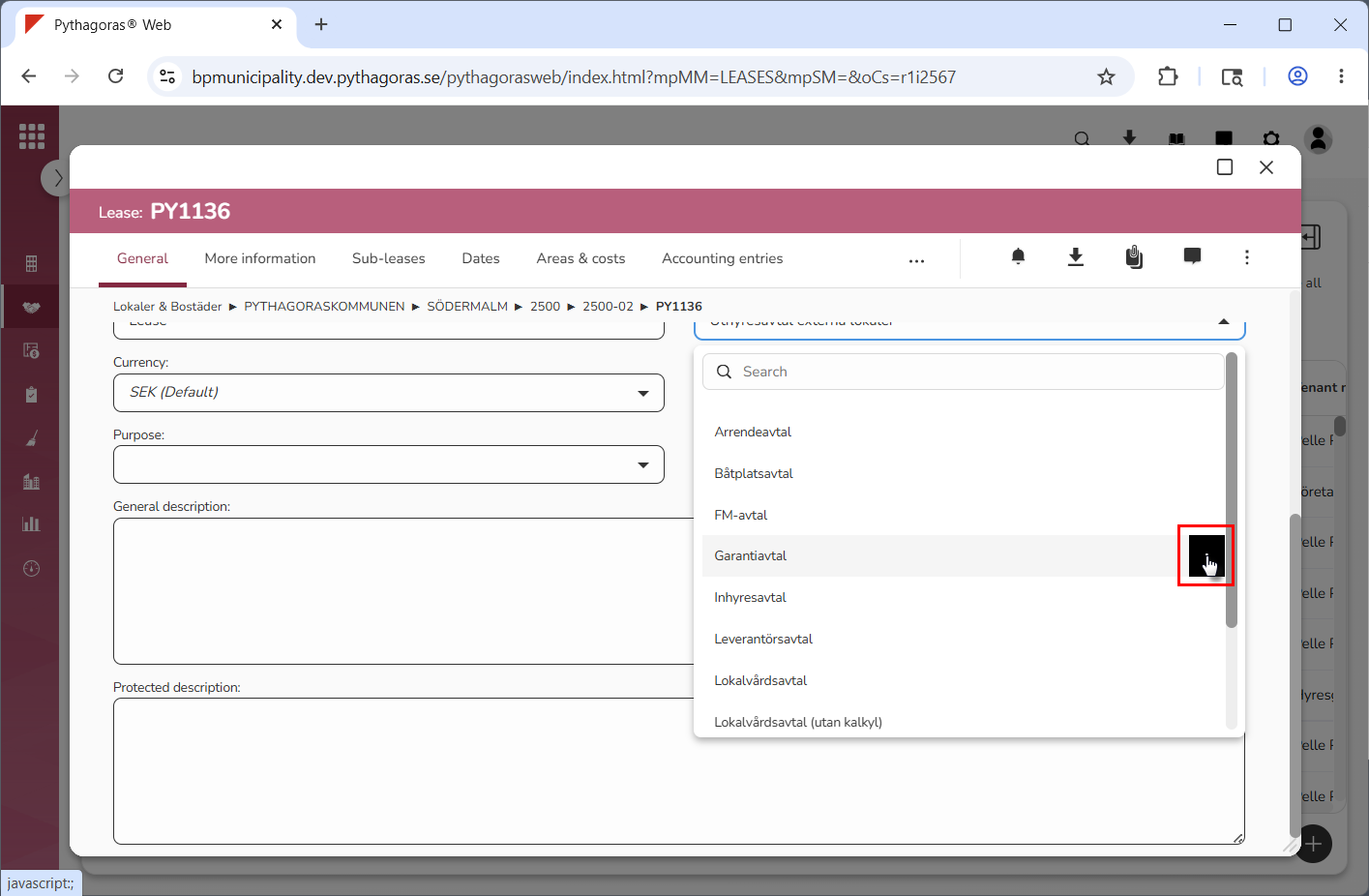
Open the lease type set for the lease you are working with. Place your cursor in the field "Lease type" (see the first image below). Then click "Open" (see the second image below). When you click "Open", the lease type set for the lease you are working with will open. When a lease type opens, so does its type card (see the third image below). Via the type card you can work with a lease type.
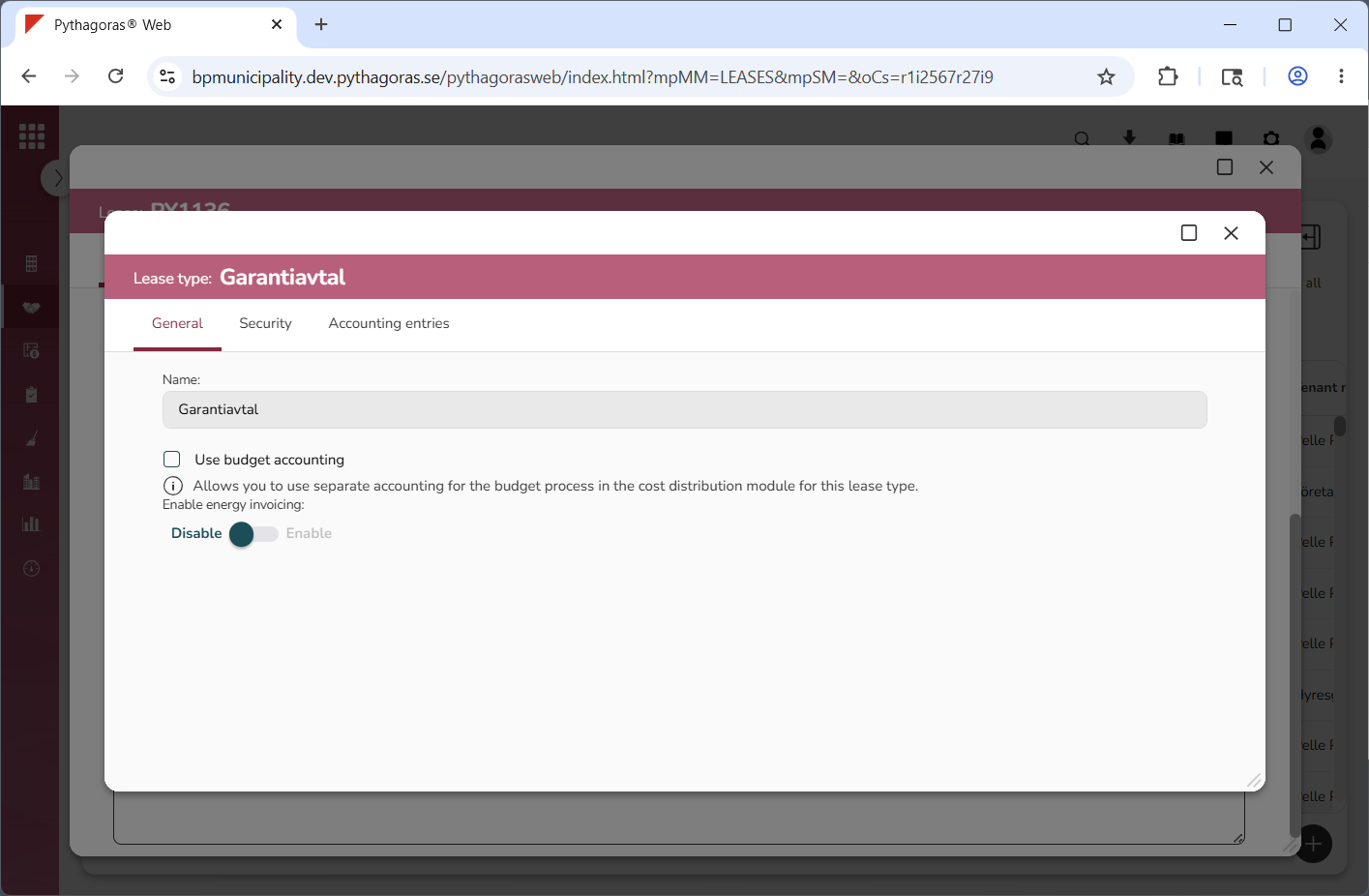
Open a lease type. Click the field "Lease type" (see the first image below). Go to the lease type you wish to open. Then click "Open" (see the second image below). When you click "Open", the lease type you are working with will open. When a lease type opens, so does its type card (see the third image below). Via the type card you can work with a lease type.