In order to extend a lease, the lease must be time limited and have an extension length. For more information on how to set an extension length for a lease, see section 8.6.8.
To extend a lease:
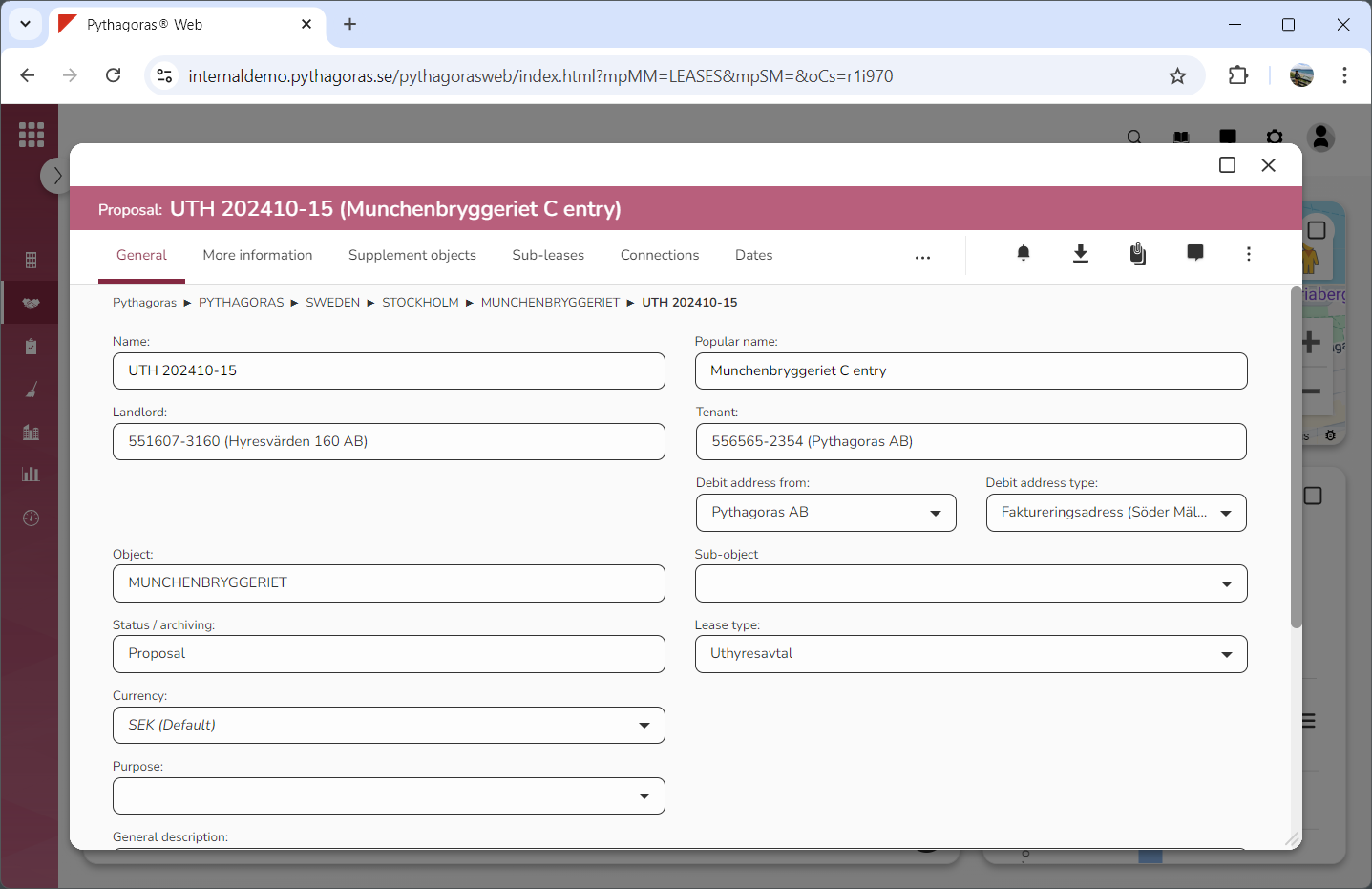
Open a lease. For more information on how to do so, see section 4.6. or 6.1.
Go to the lease card (see image below).
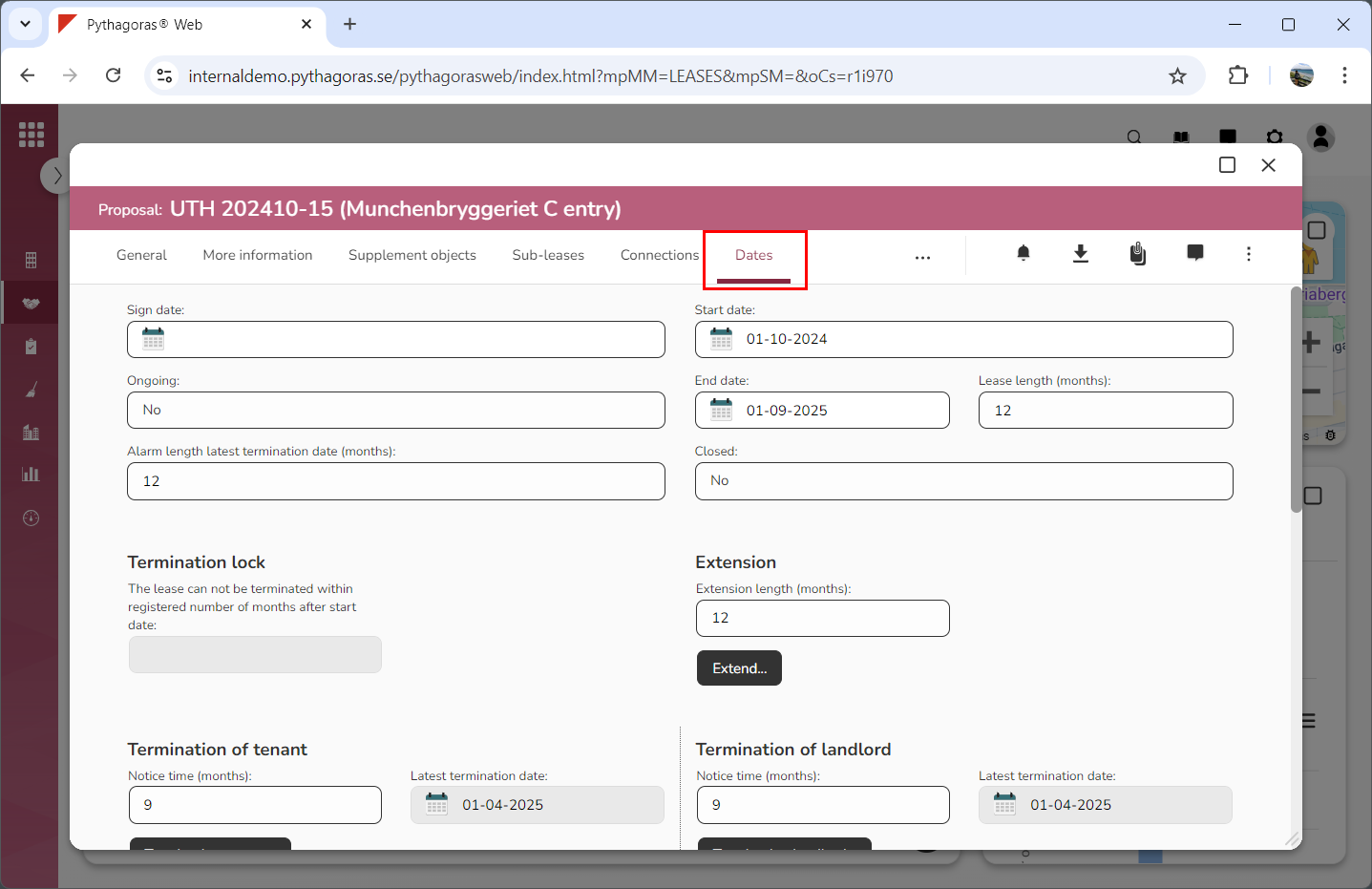
Click the tab called "Dates" (see image below). Within the tab called "Dates" you will, among other things, find a button called "Extend".
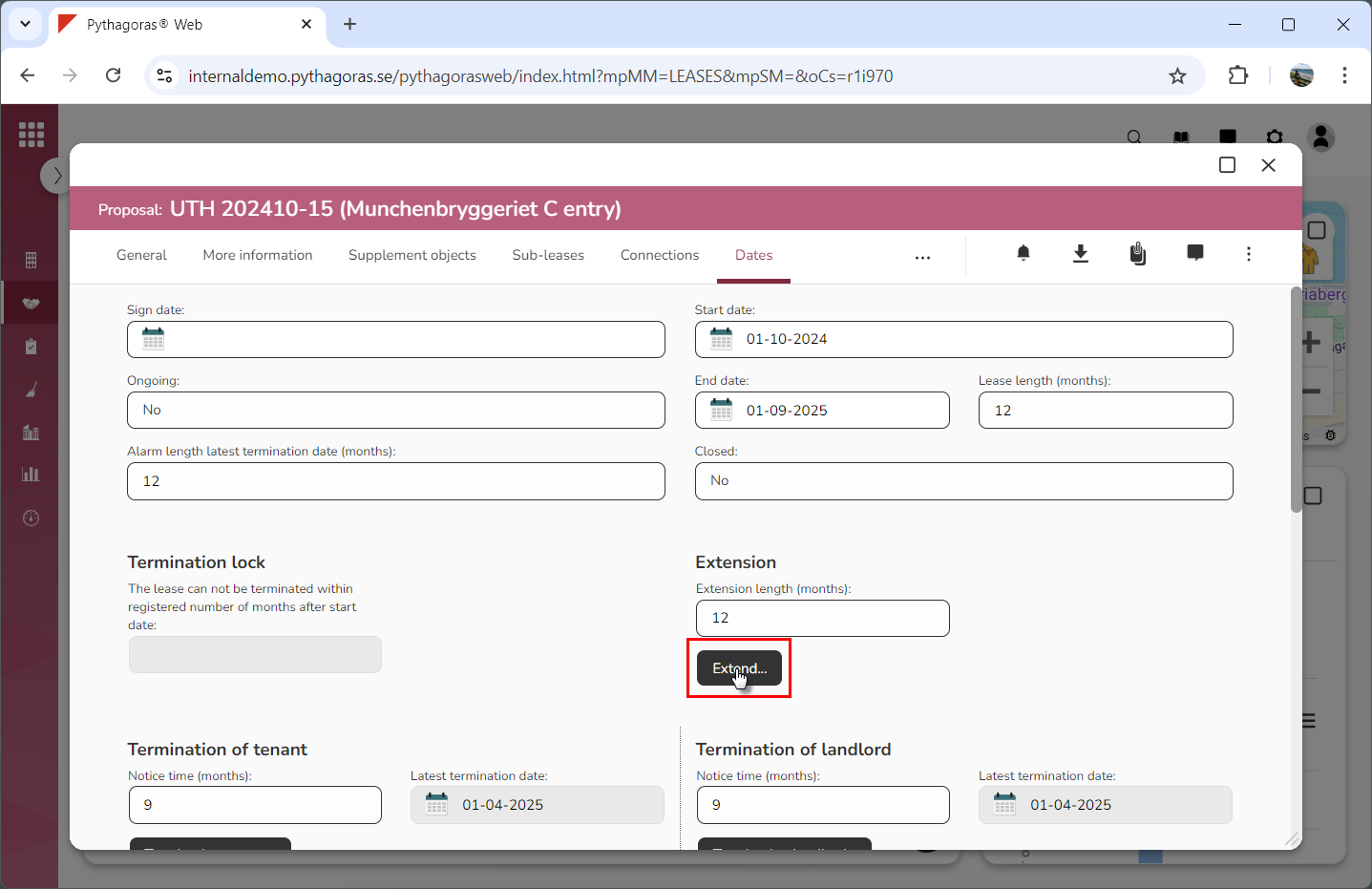
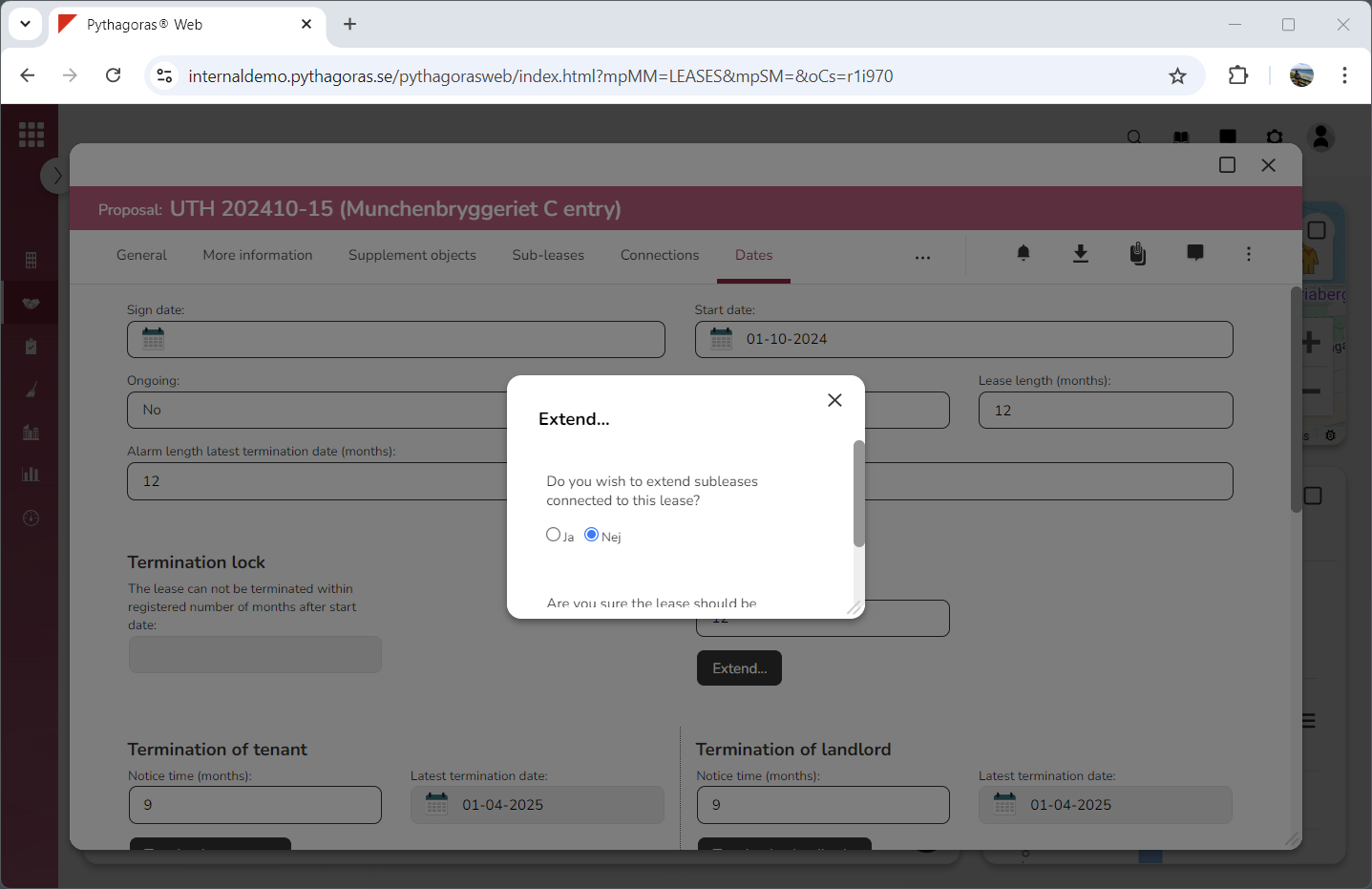
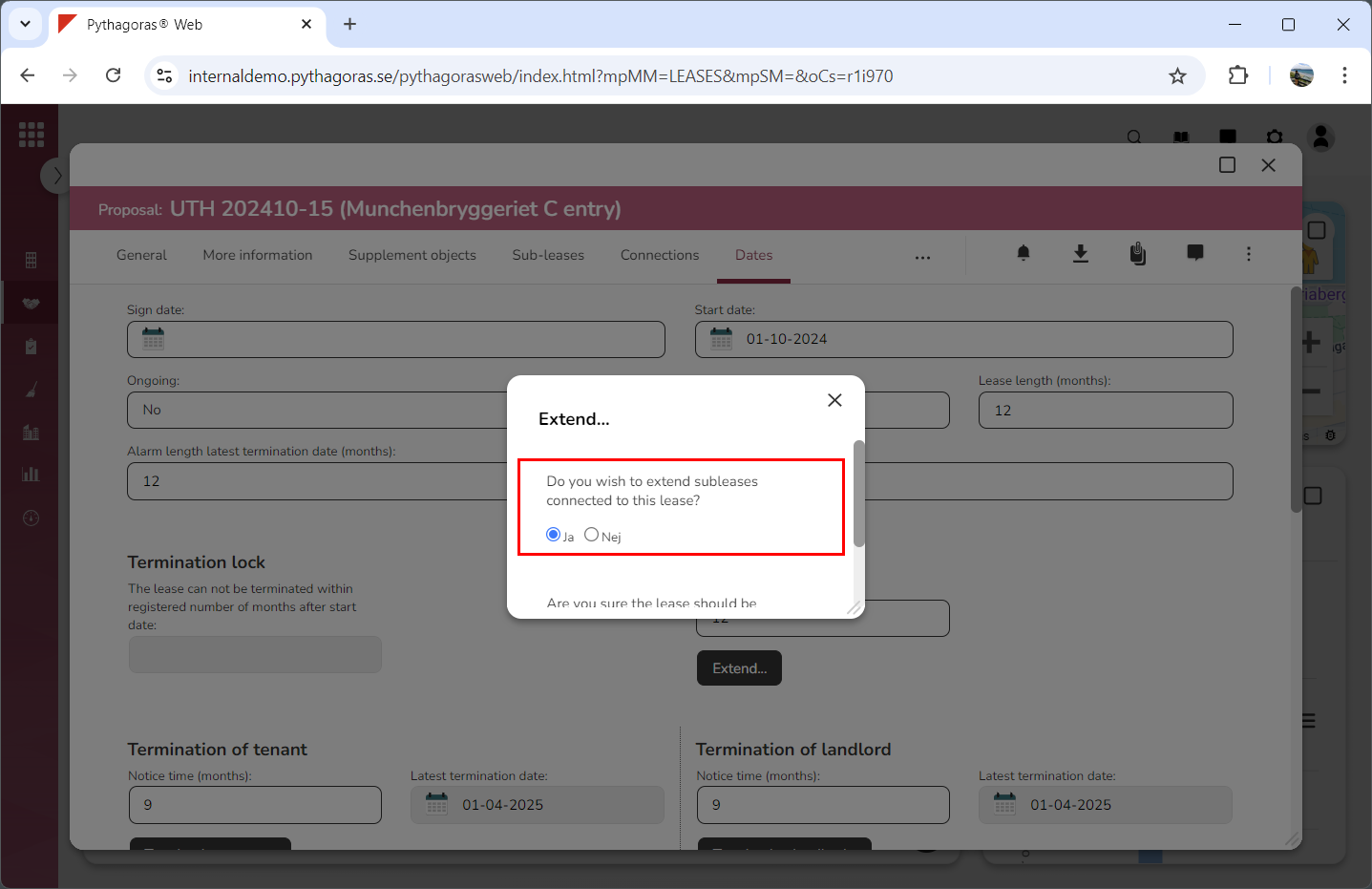
Click "Extend" (see the first image below). When you do so, a window called "Extend..." will open (see the second image below).
Go to the window called "Extend...".
Specify whether or not the sub-leases connected to the lease you are working with should be extended when the lease you are working with is extended by selecting "Yes" or "No" below the following question: "Do you wish to extend subleases connected to this lease?" (see image below). Note that this can only be done if the lease you are working with has one or more sub-leases connected to it. If it does not, you can skip this step and go straight to step 7.
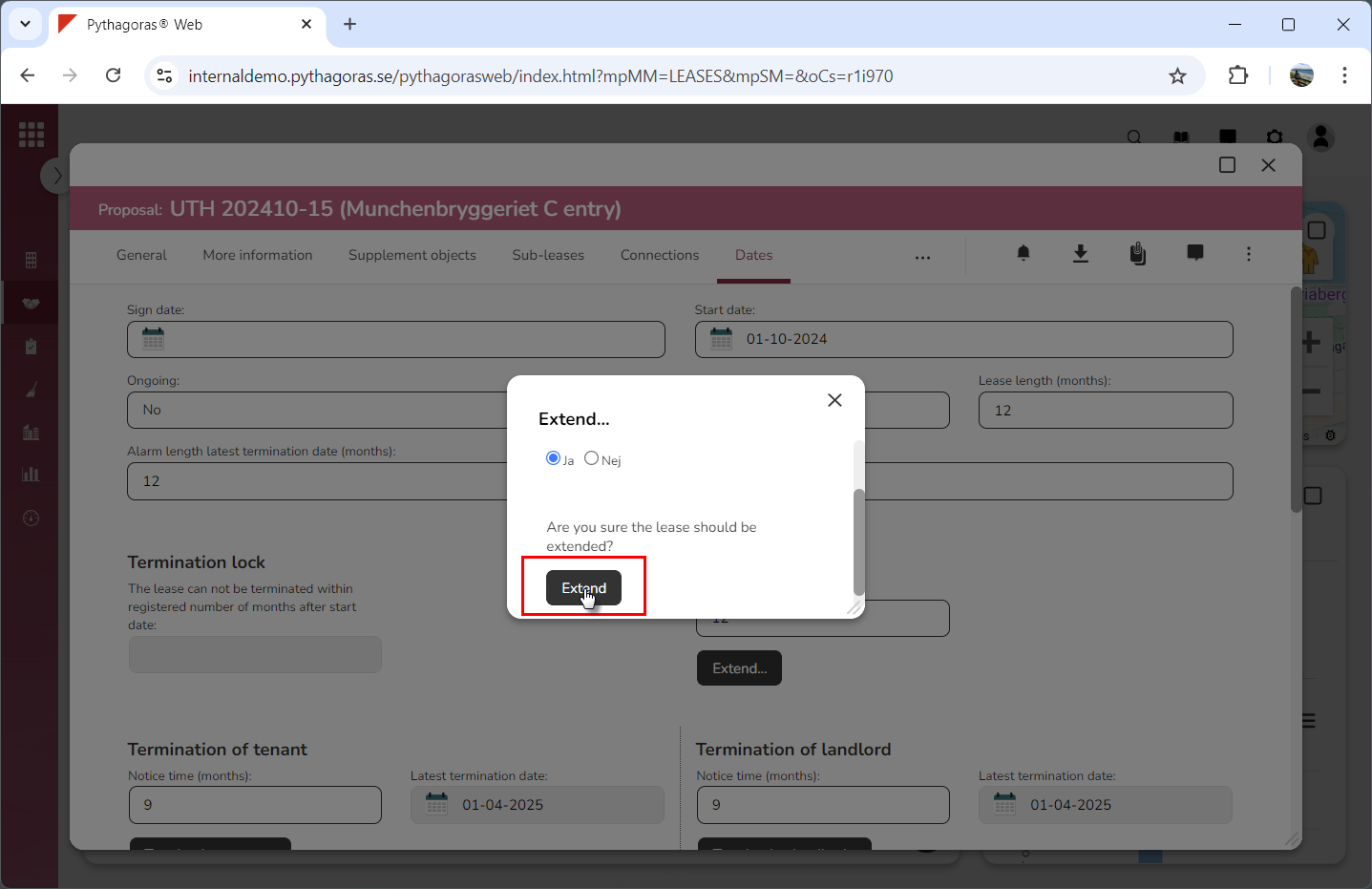
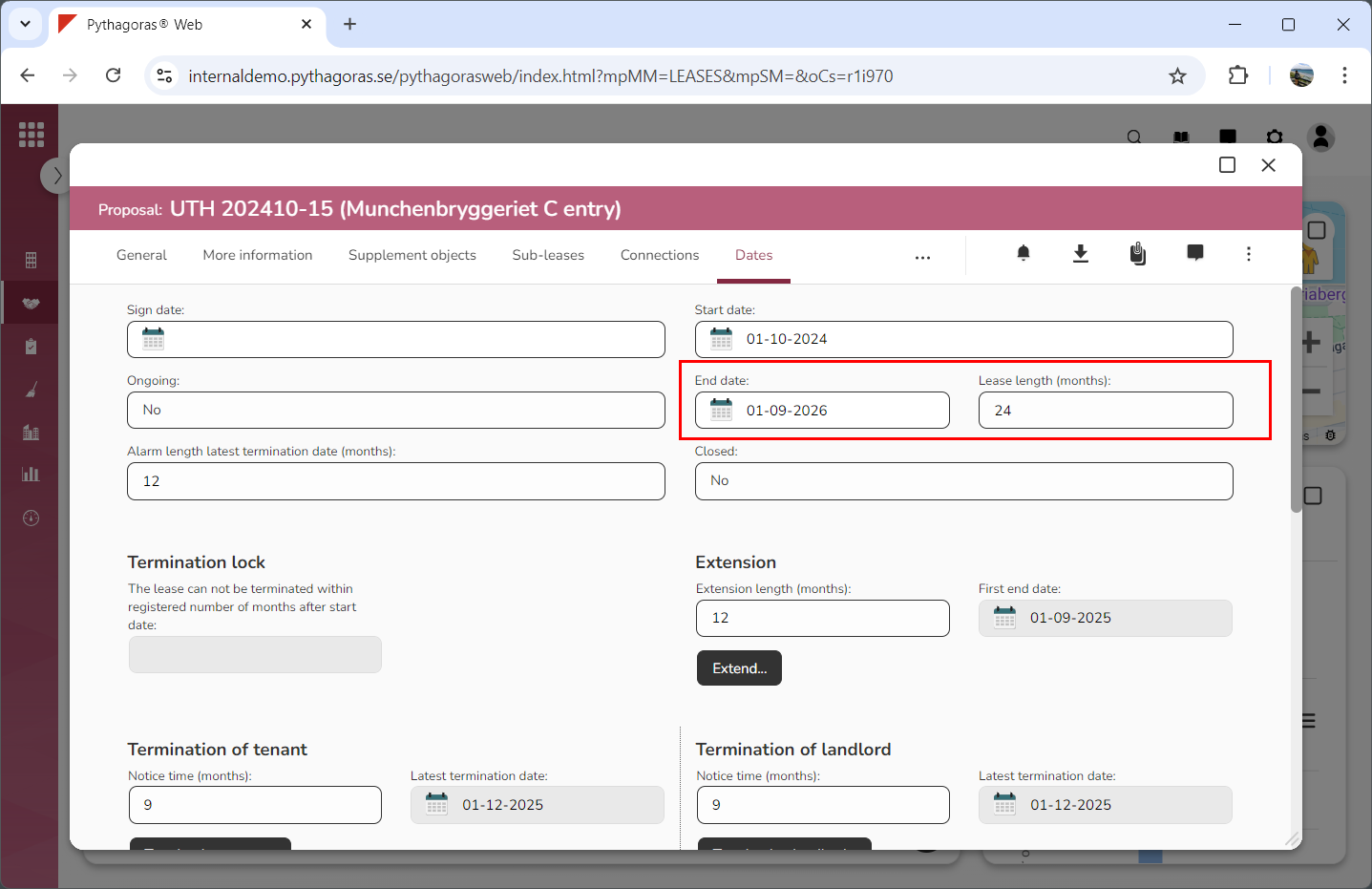
Click "Extend" (see the first image below). When you do so, you will be redirected back to the lease card where you will see that the lease you are working with has been extended. The end date and lease length has changed (see the second image below). Note that when a lease has been extended you will be able to view its original end date in the field "First end date".