Open a lease. For more information on how to do so, see section 4.6. or 6.1.
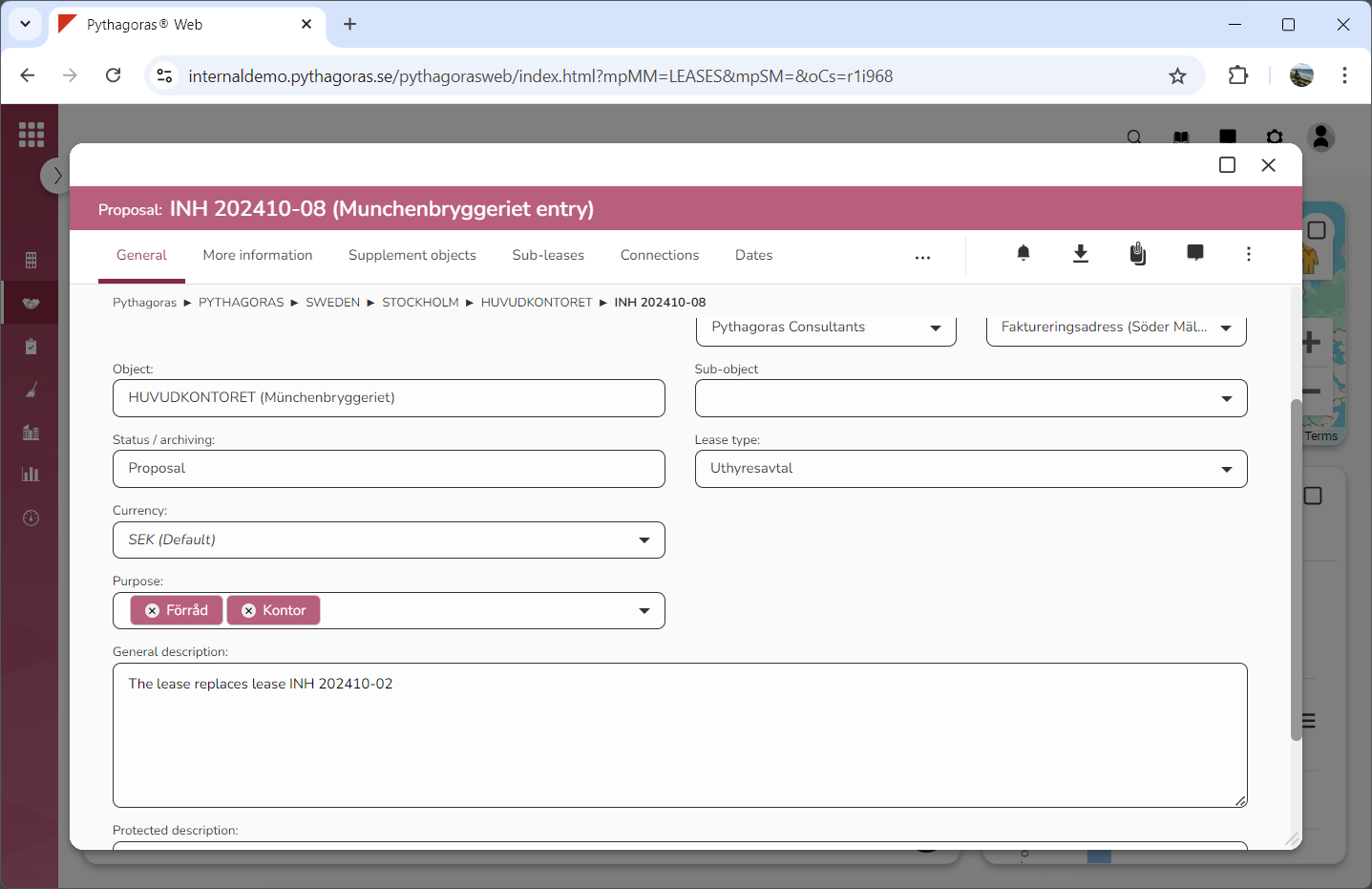
Go to the lease card (see image below).
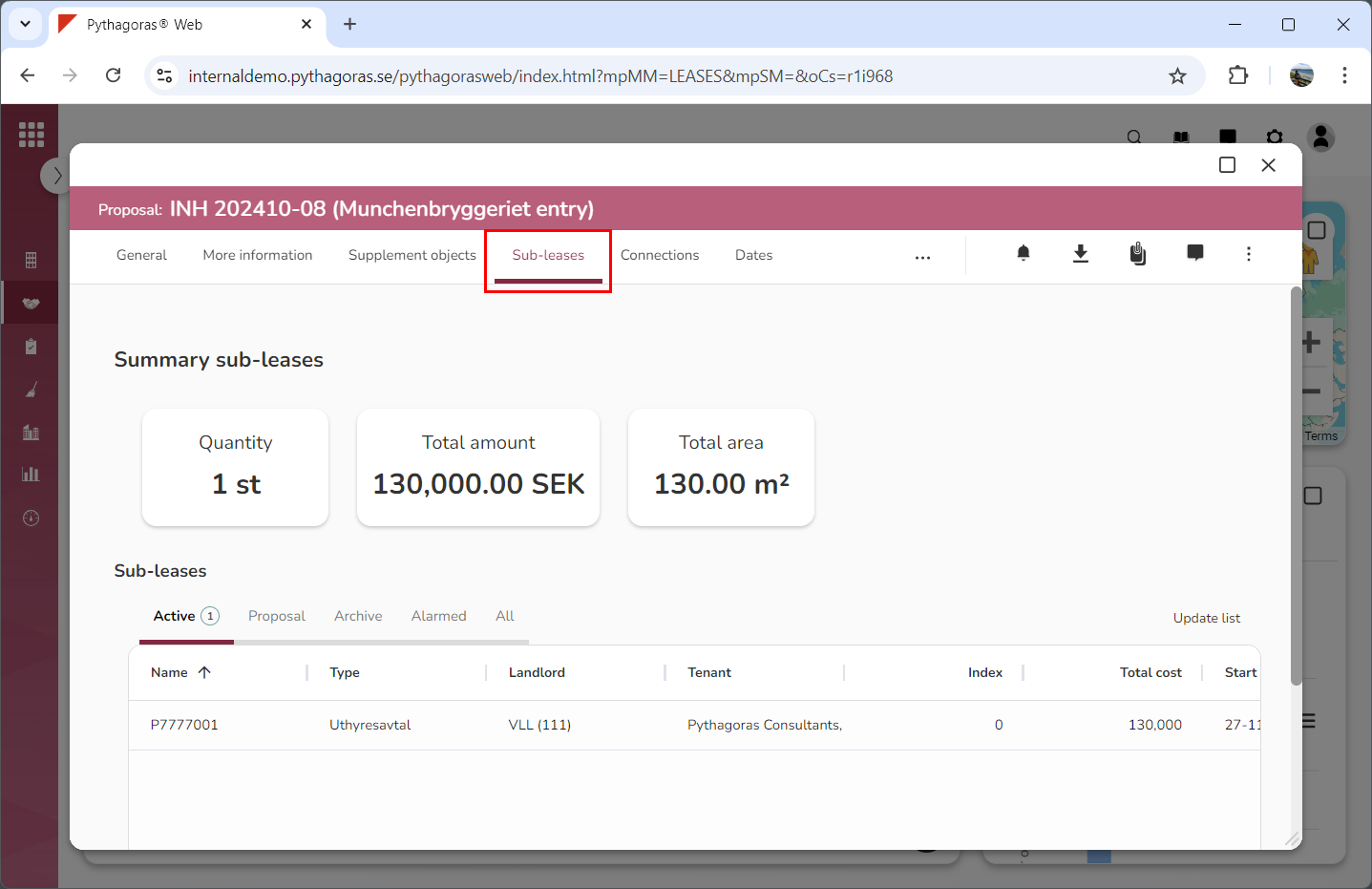
Click the tab called "Sub-leases" (see image below). Within the tab called "Sub-leases" you will find a list of sub-leases associated with the lease you are working with. If there are no sub-leases associated with the lease you are working with, the sub-leases list will be empty.
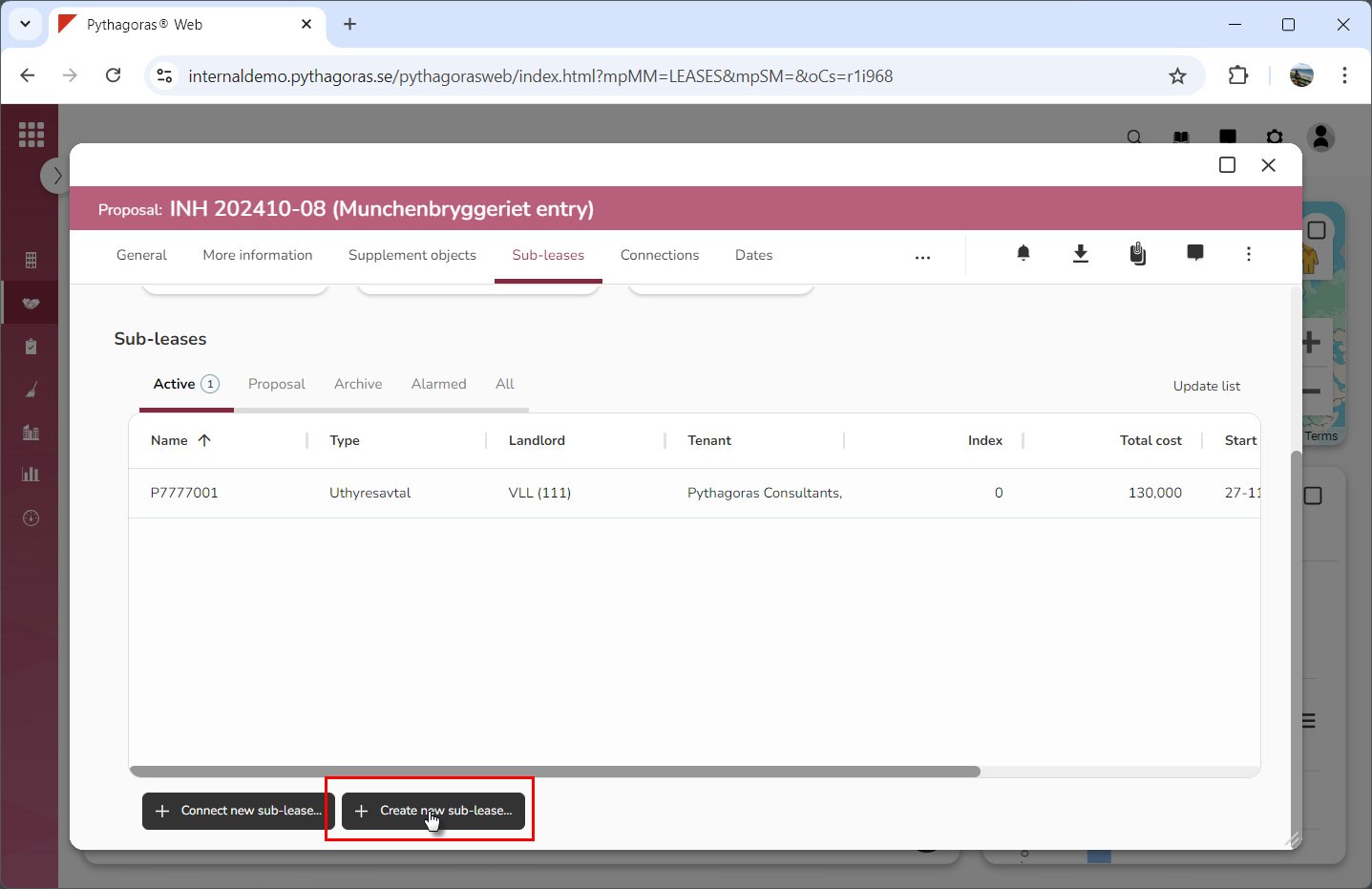
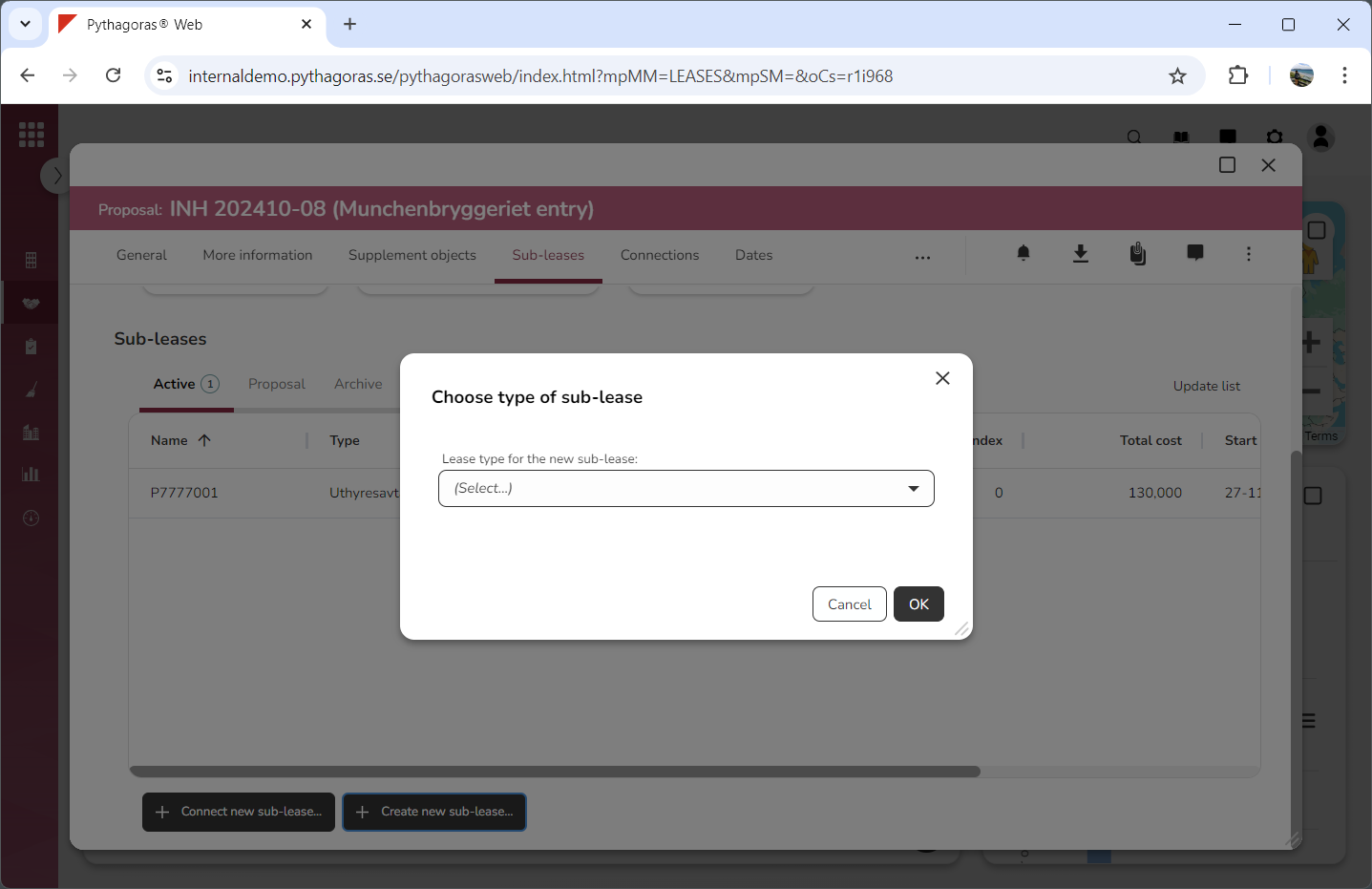
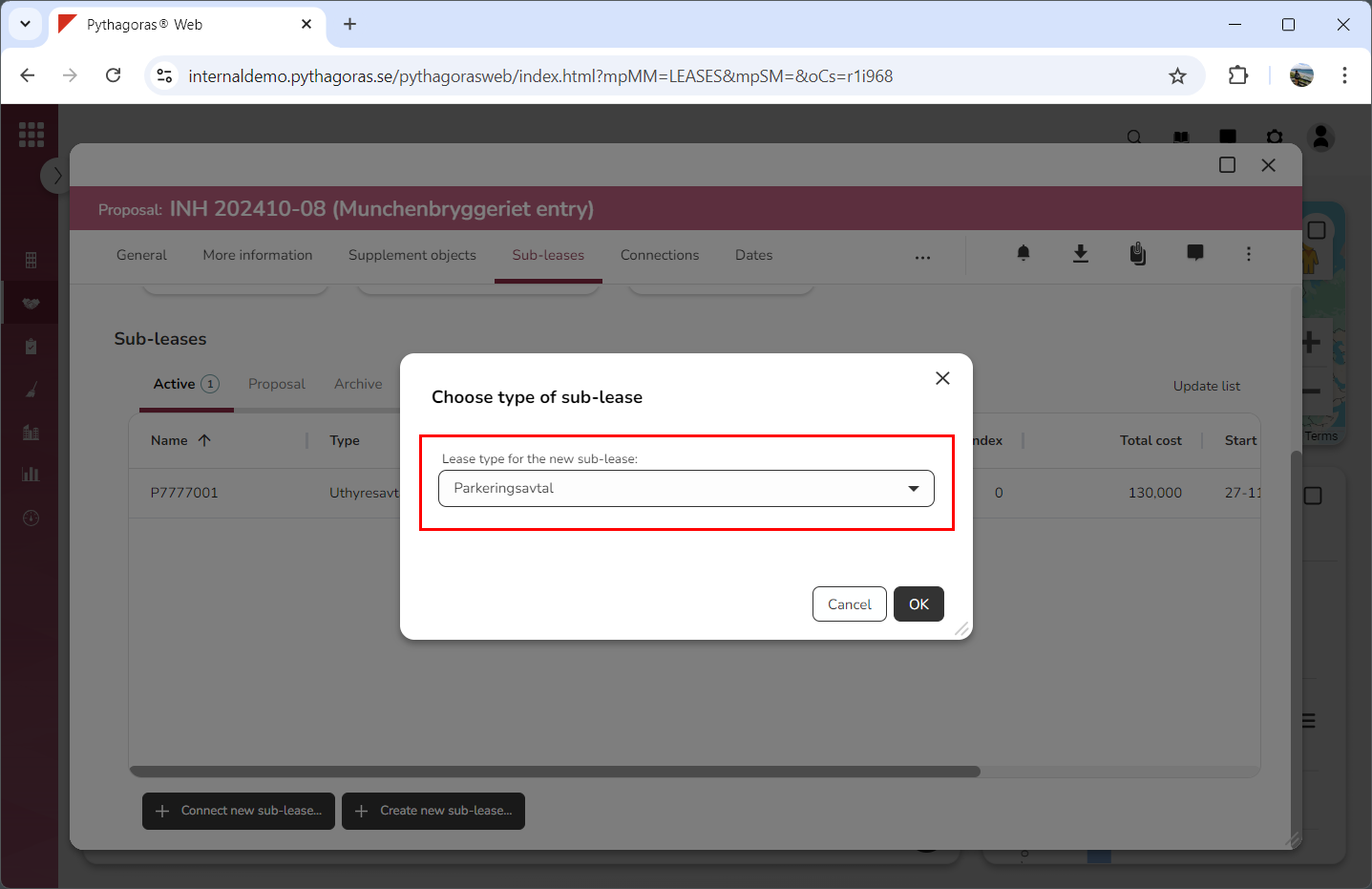
Click "Create new sub-lease" (see the first image below). When you do so, a window called "Choose type of sub-lease" will open (see the second image below).
Go to the window called "Choose type of sub-lease".
Set a lease type for the sub-lease you are creating by clicking the field "Lease type for the new sub-lease" and then selecting a lease type in the list that opens (see image below).
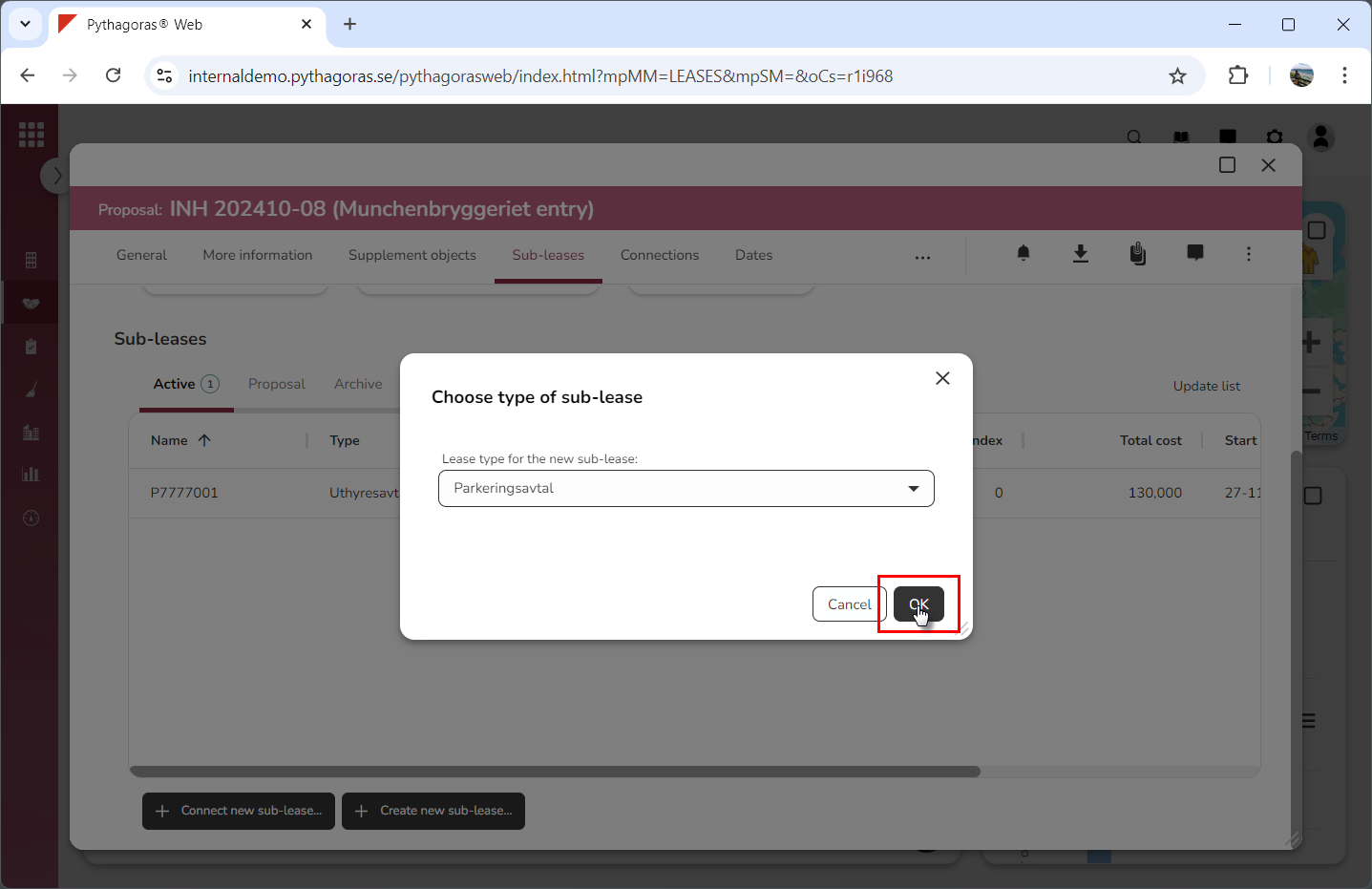
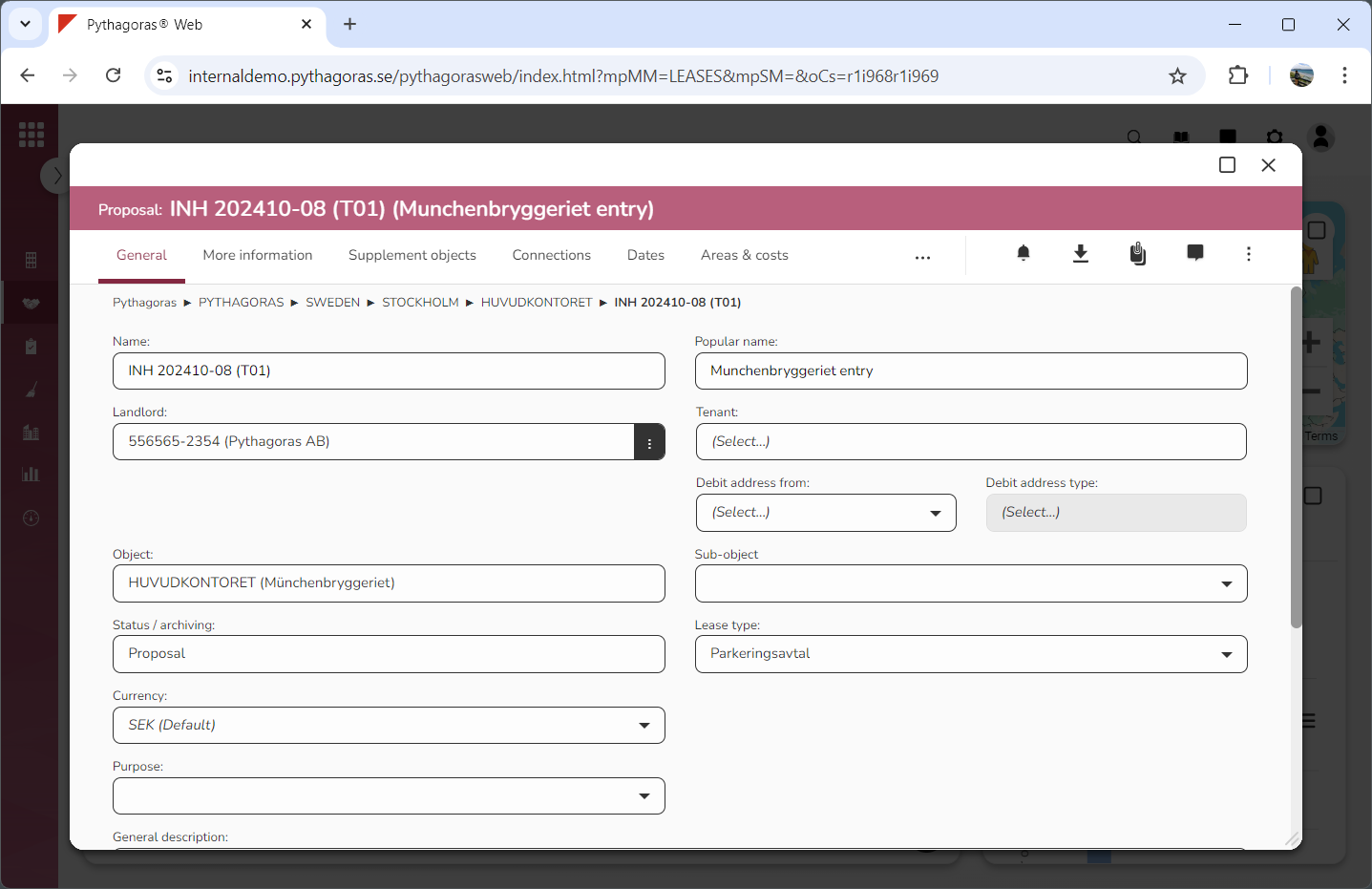
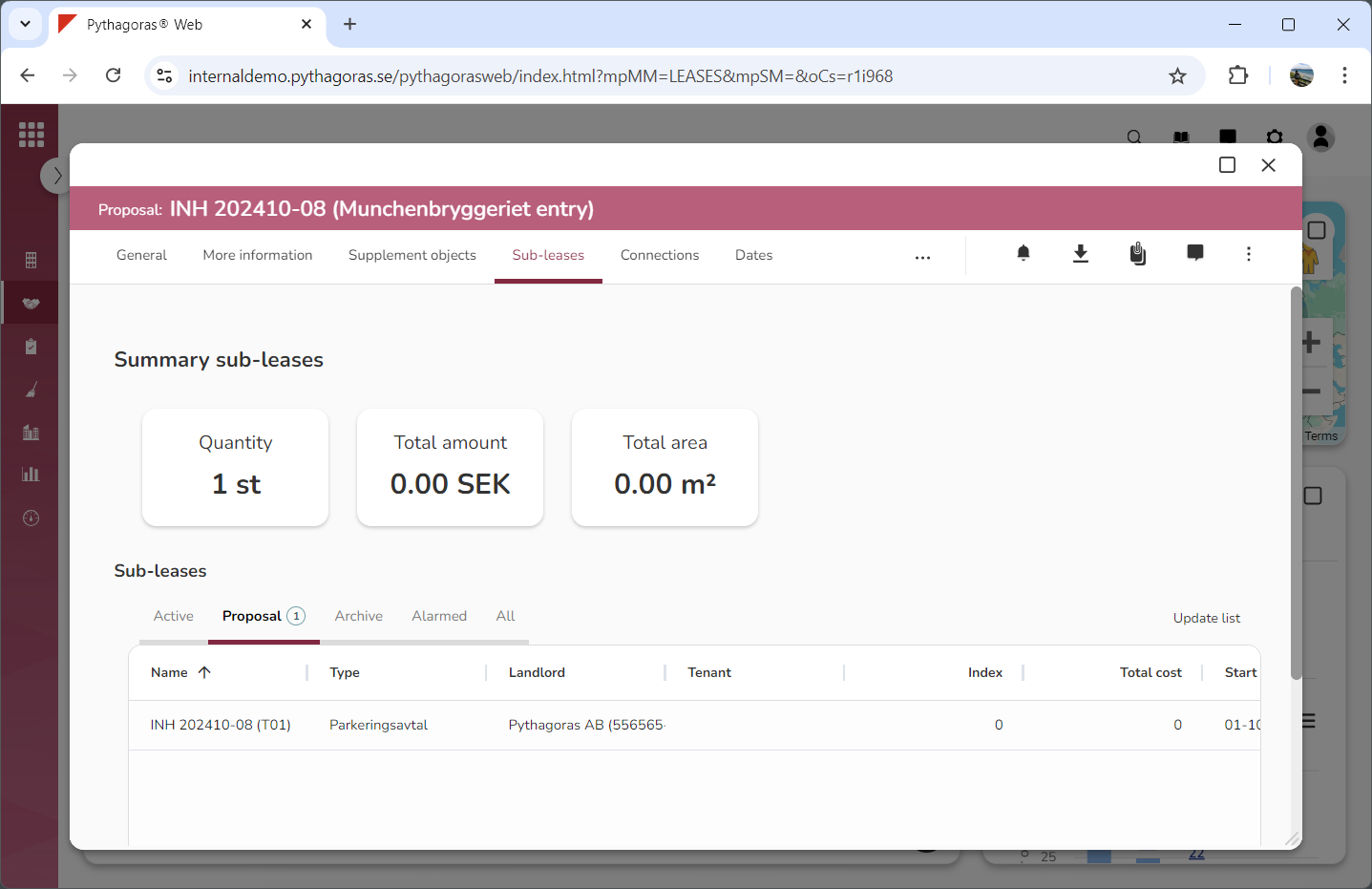
Click "OK" (see the first image below). When you do so, a sub-lease of the selected lease type will be created. When a sub-lease is created, its lease card will open (see the second image below). Note that, if you close the lease card you will see that the created sub-lease has been connected to the lease you are working with. This is shown in the sub-leases list (see the third image below).