Open a lease. For more information on how to do so, see section 4.6. or 6.1.
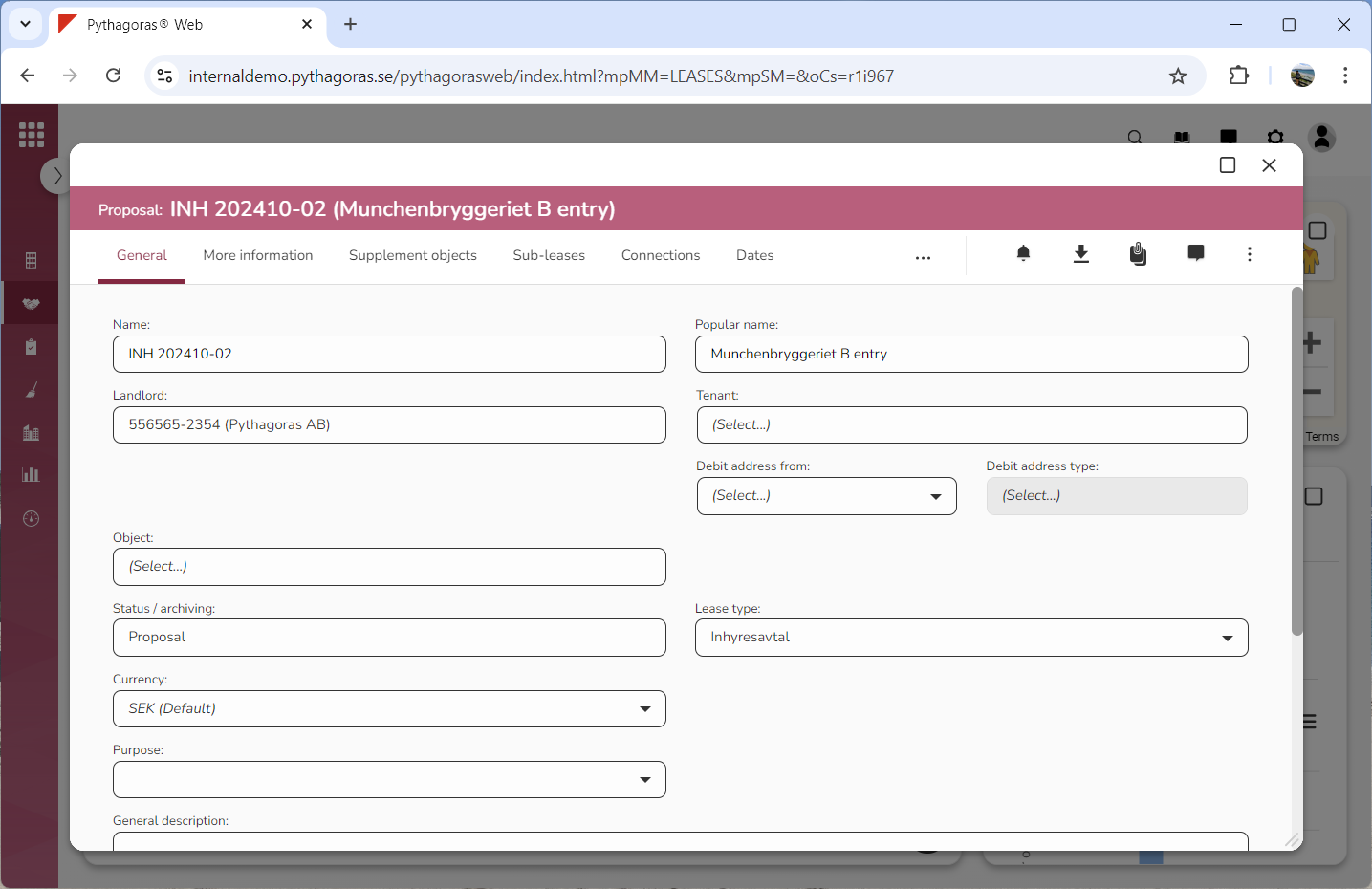
Go to the lease card (see image below).
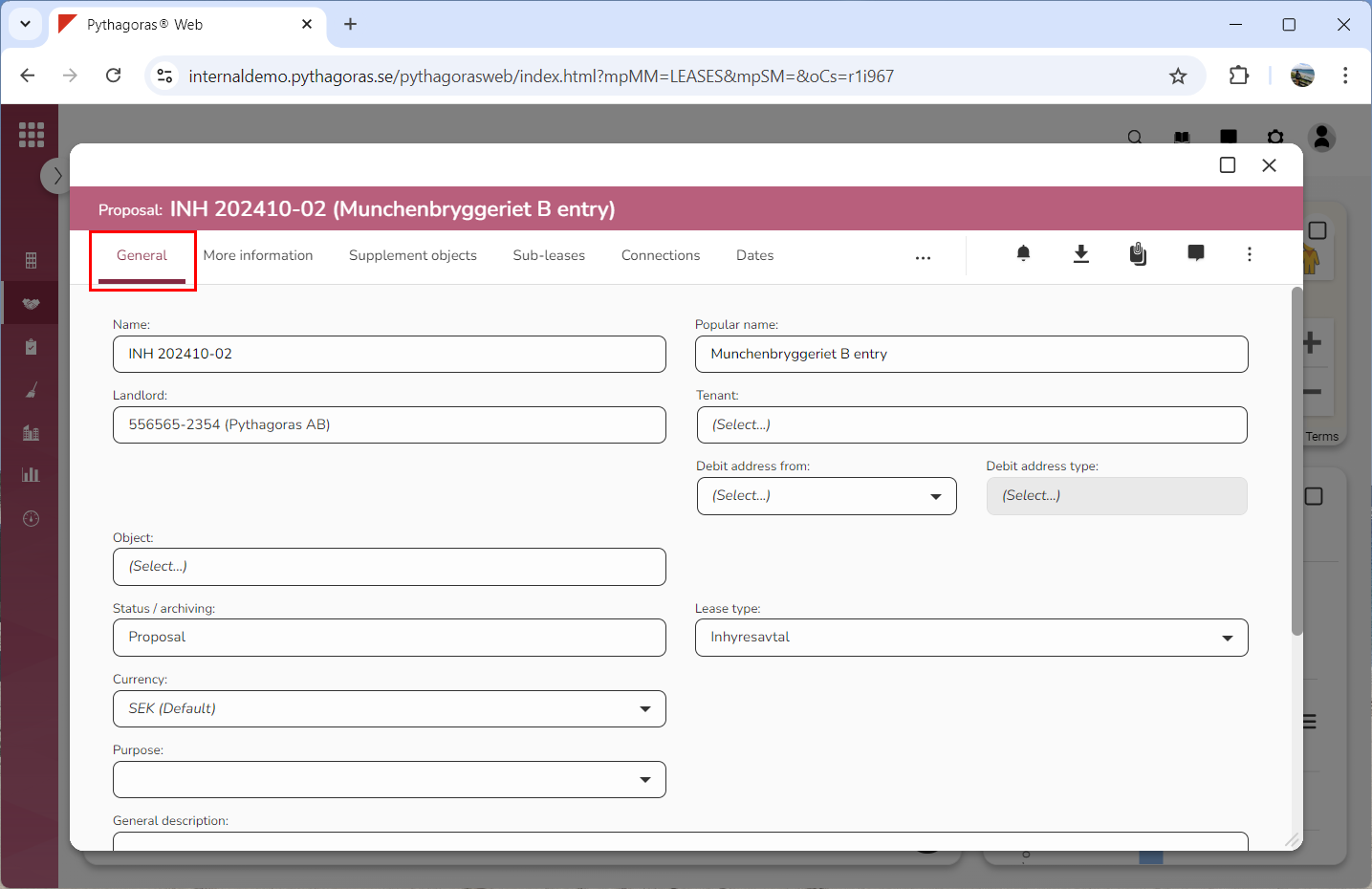
Click the tab called "General" (see image below).
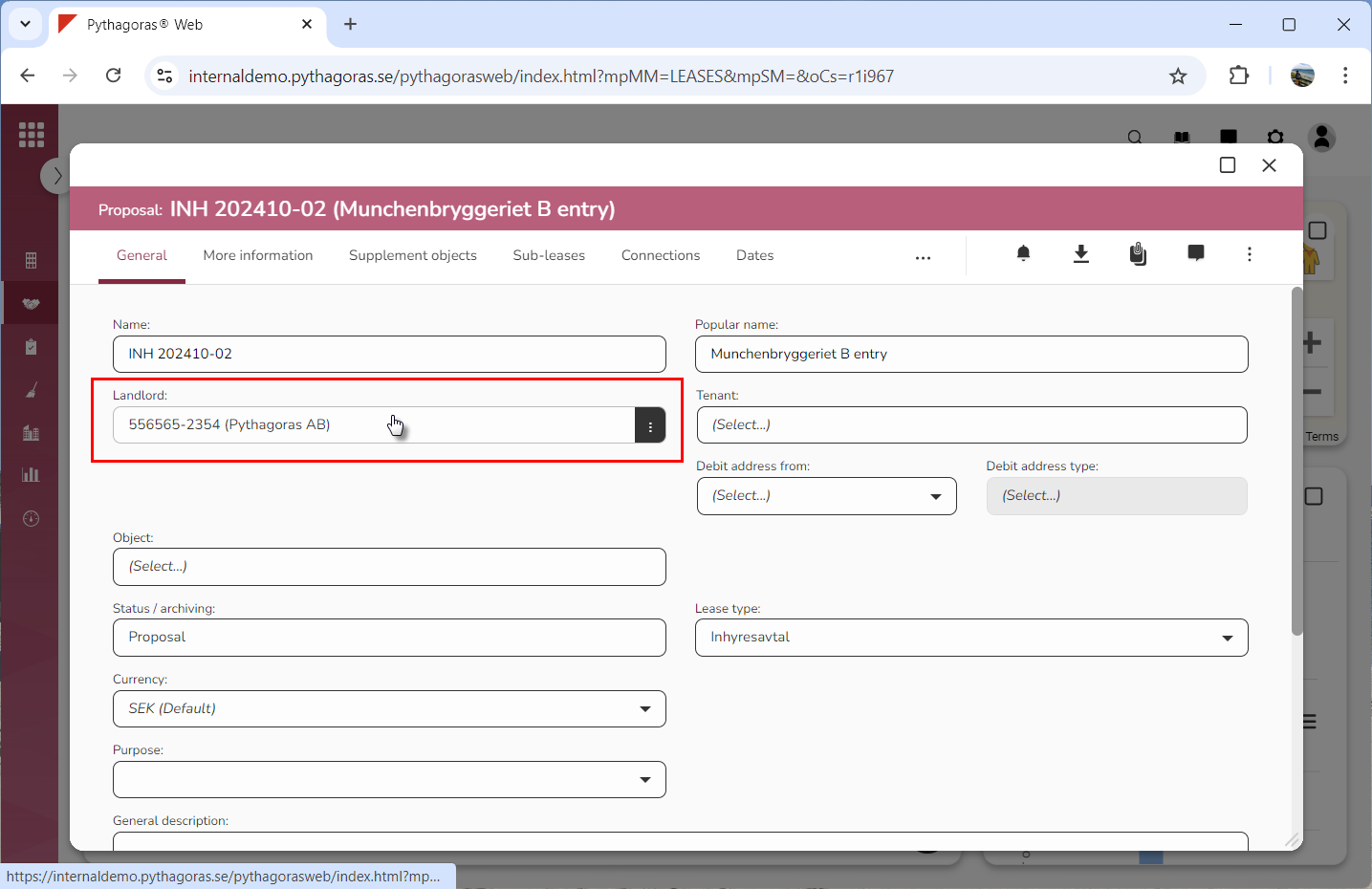
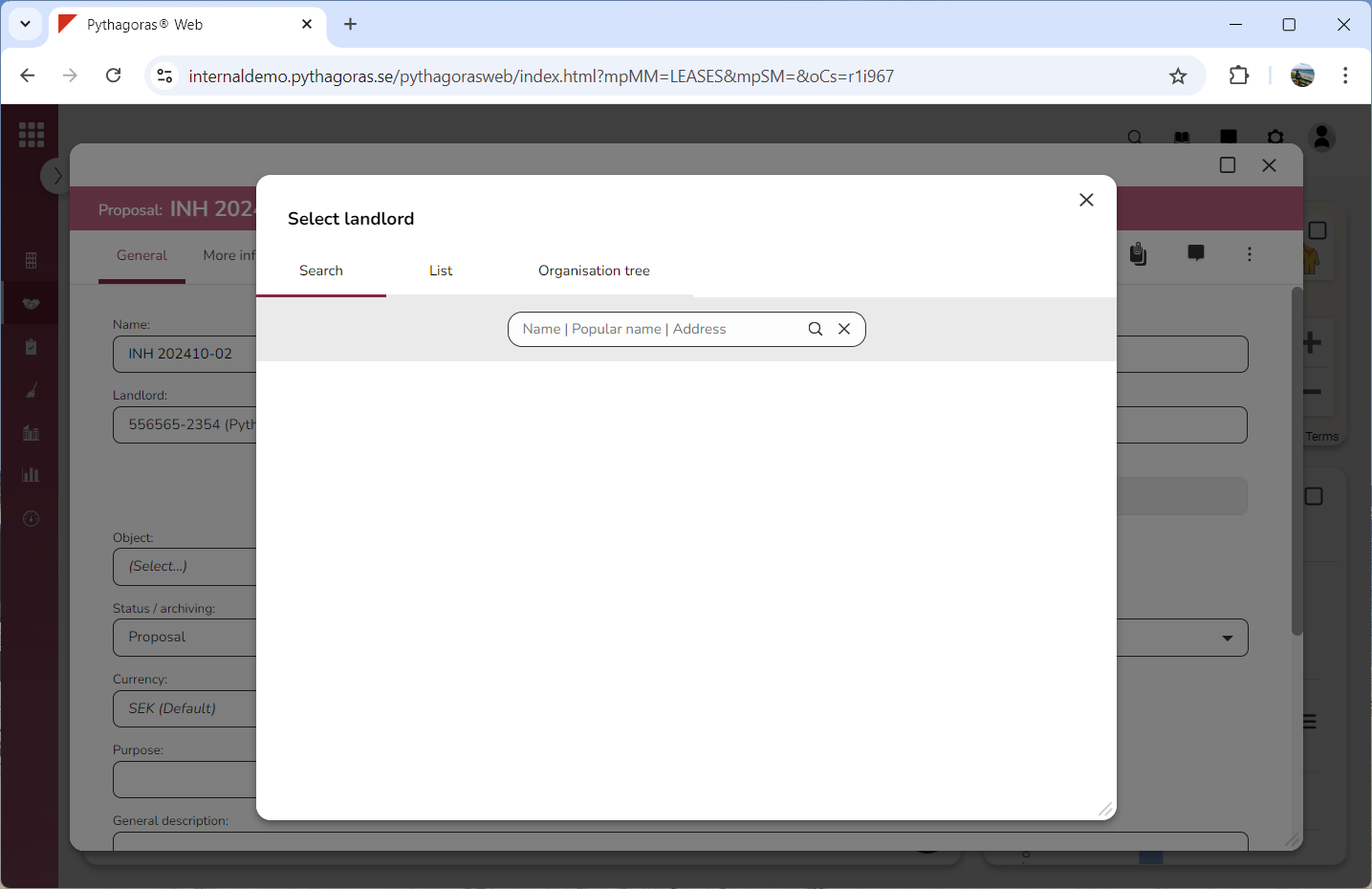
Click the field "Landlord" (see the first image below). When you do so, a window called "Select landlord" will open (see the second image below).
Go to the window called "Select landlord".
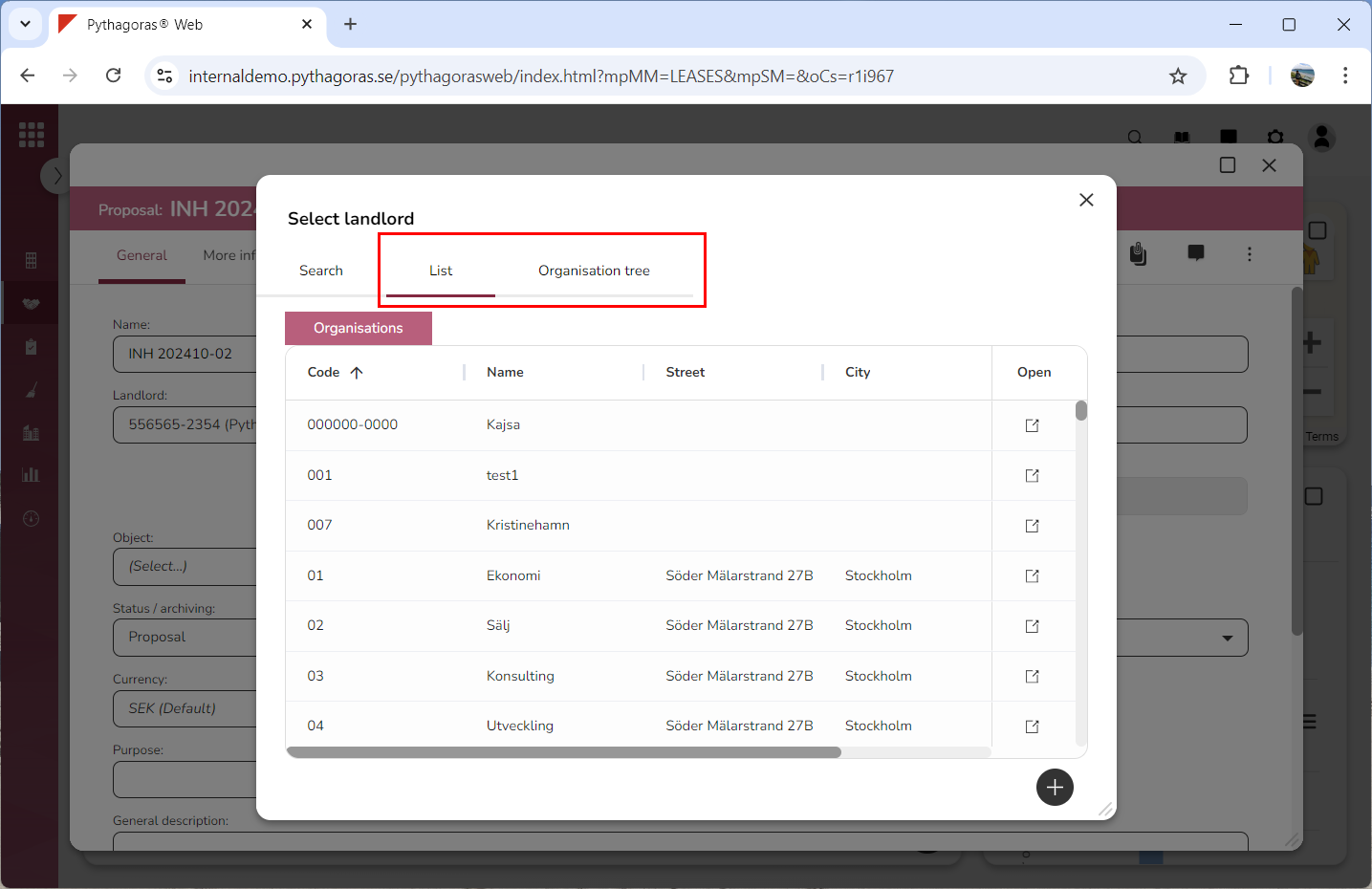
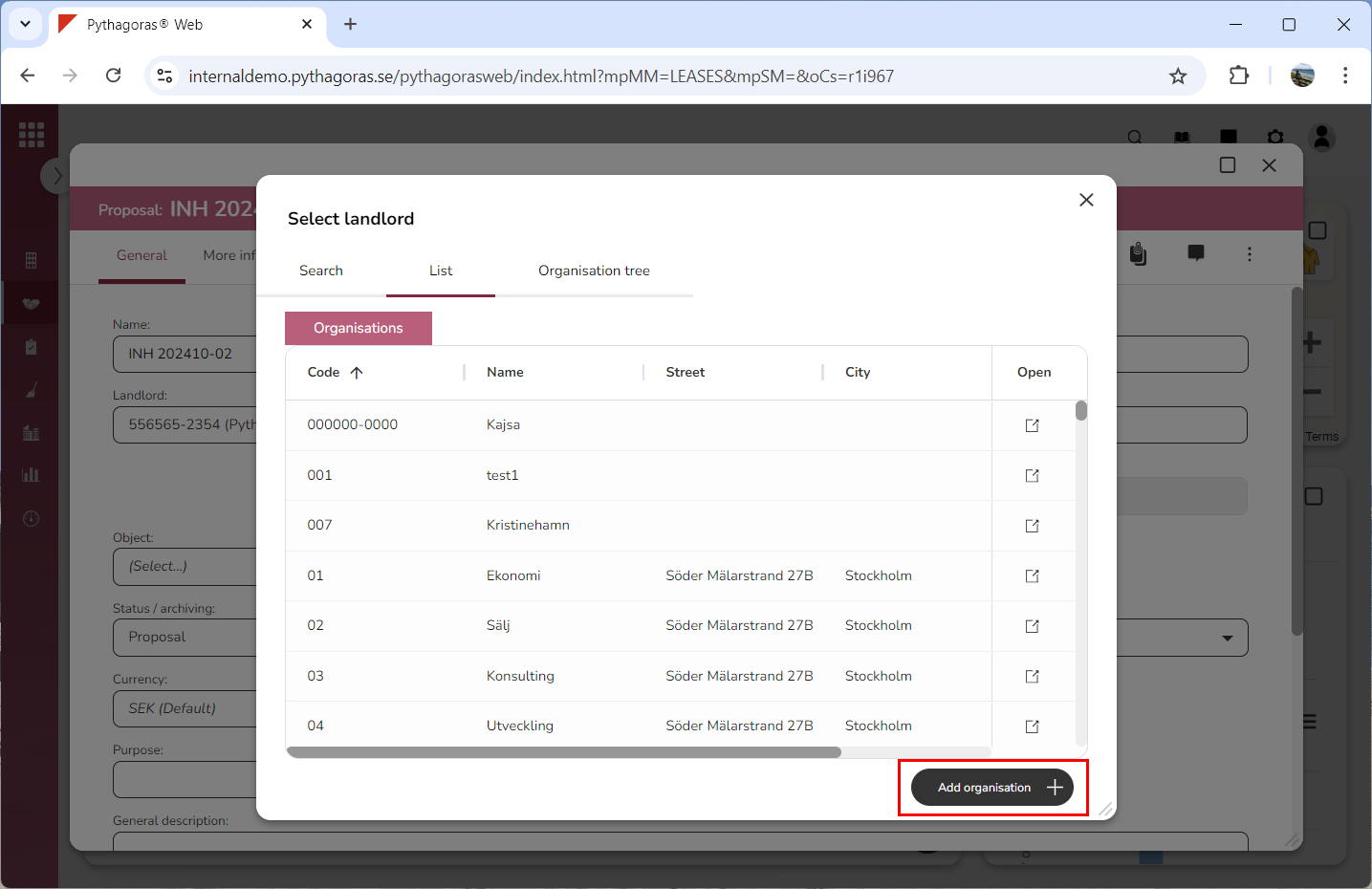
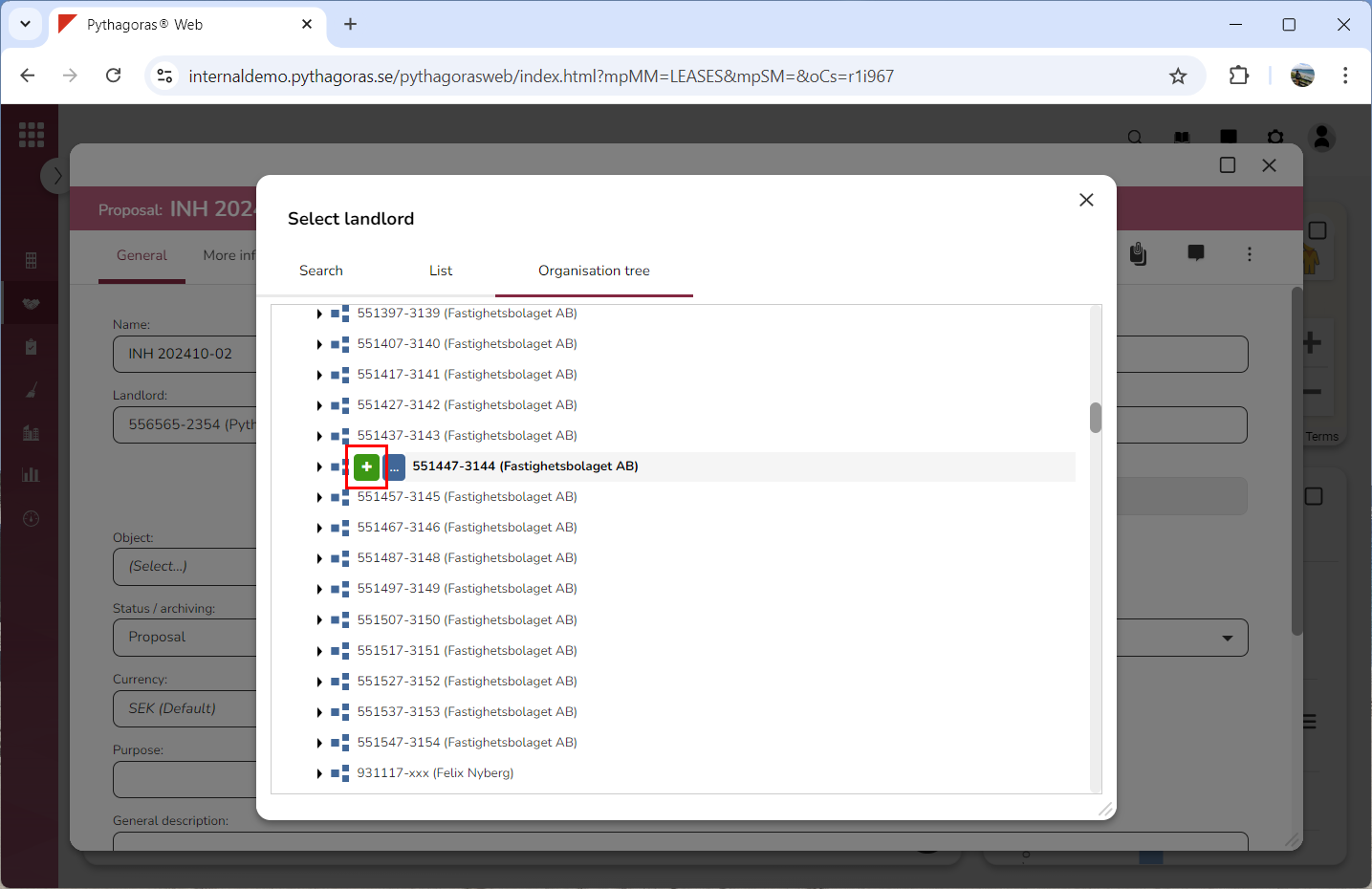
Click one of the following tabs: "List" or "Organisation tree" (see the first image below). No matter which tab you click, you will be shown a button called "Add organisation" (see the second and third image below). Note that if you click the tab called "Organisation tree", you must then place your cursor on an organisation to be shown the button called "Add organisation".
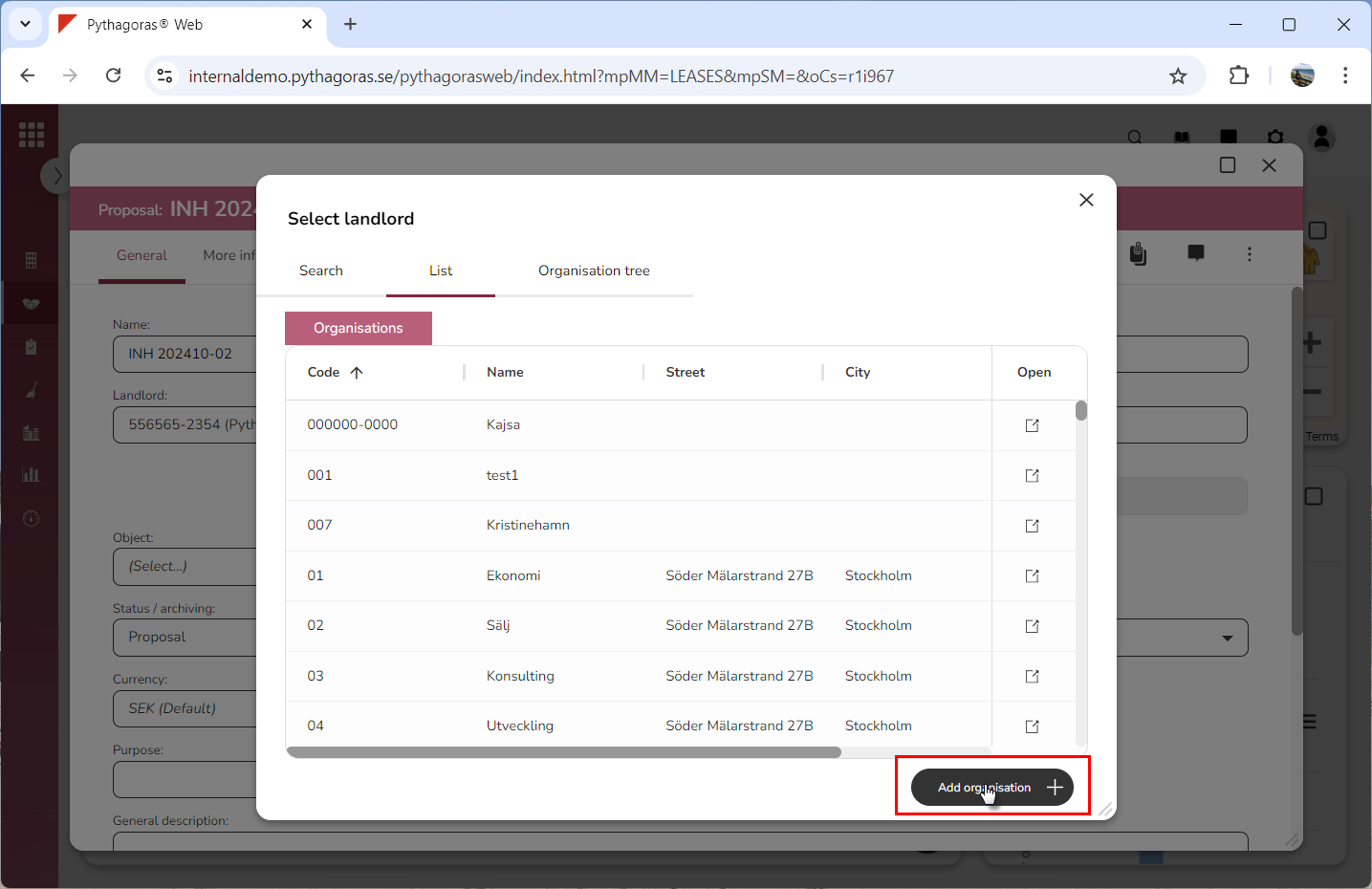
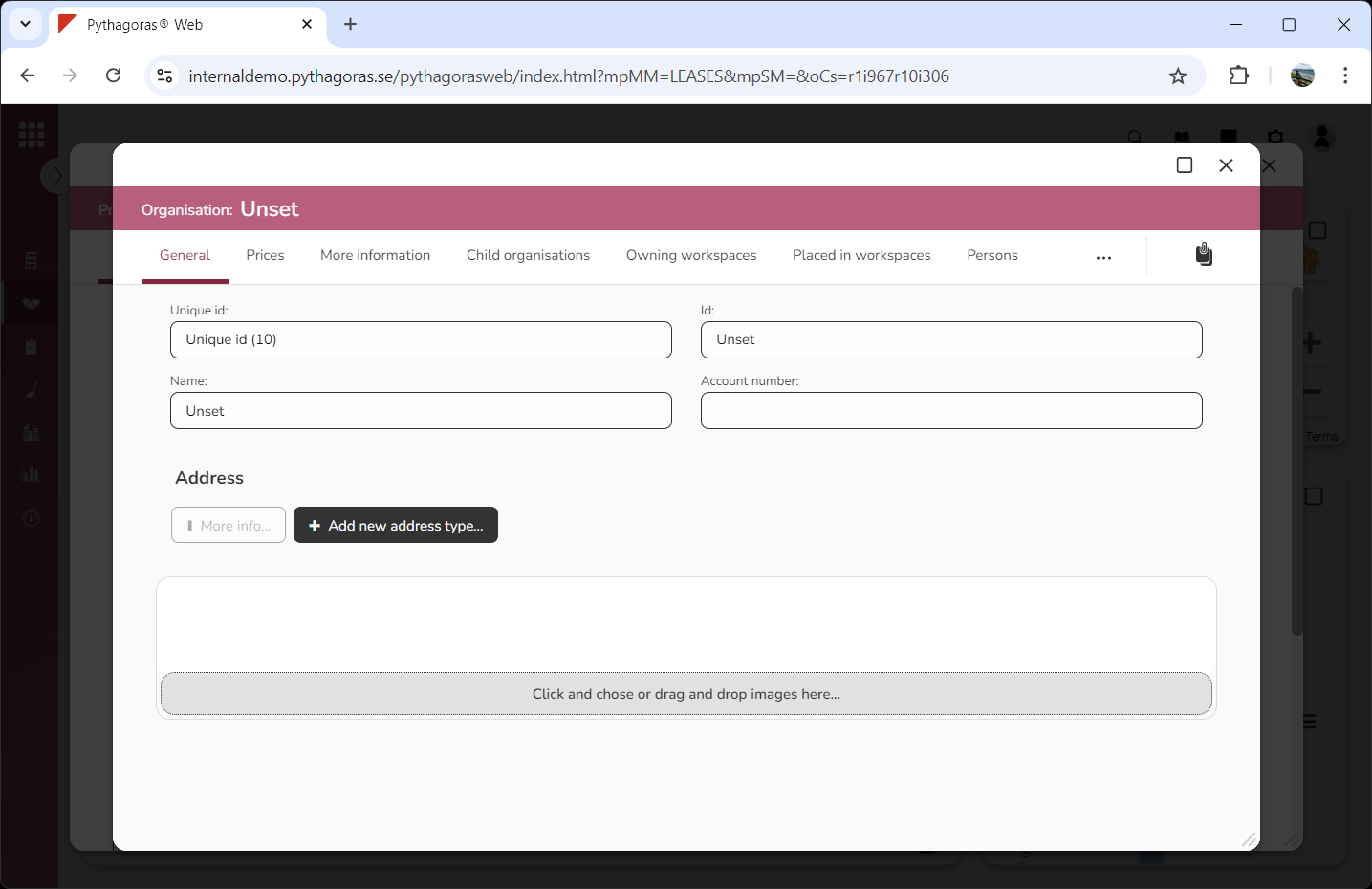
Click "Add organisation" (see the first image below). When you do so, an organisation will be added in Leases. When an organisation is added in Leases, its organisation card opens (see the second image below). Via the organisation card you can work with an organisation.