By drawing a polygon on the map, you can show the area of a supplement object on the map.
To draw a polygon on the map:
Open a supplement object. For more information on how to do so, see section 8.3.2. In order for you to draw a polygon on the map, the supplement object you are working with must be of a type that allows it to have a shape.
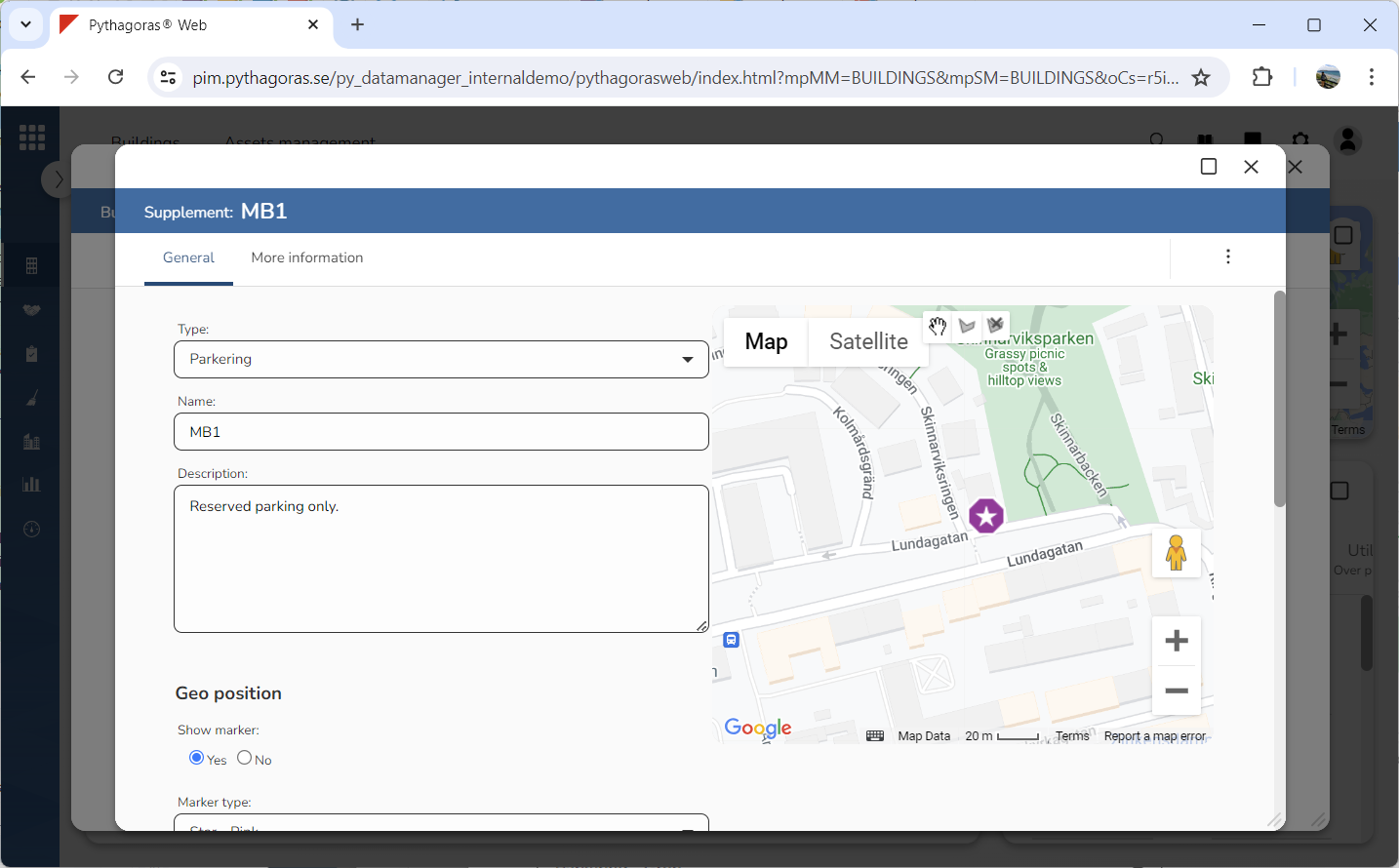
Go to the object card (see image below).
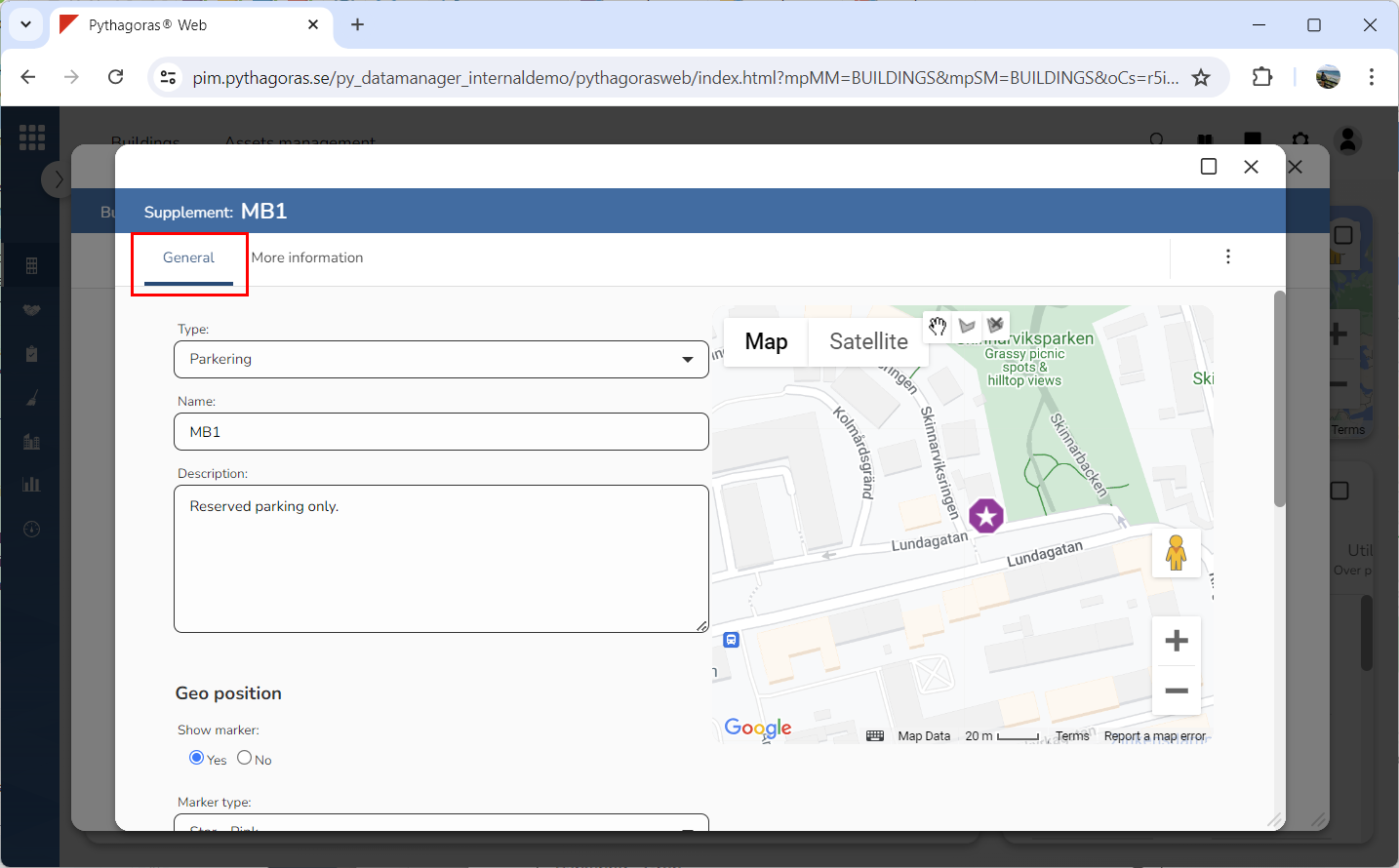
Click the tab called "General" (see image below).
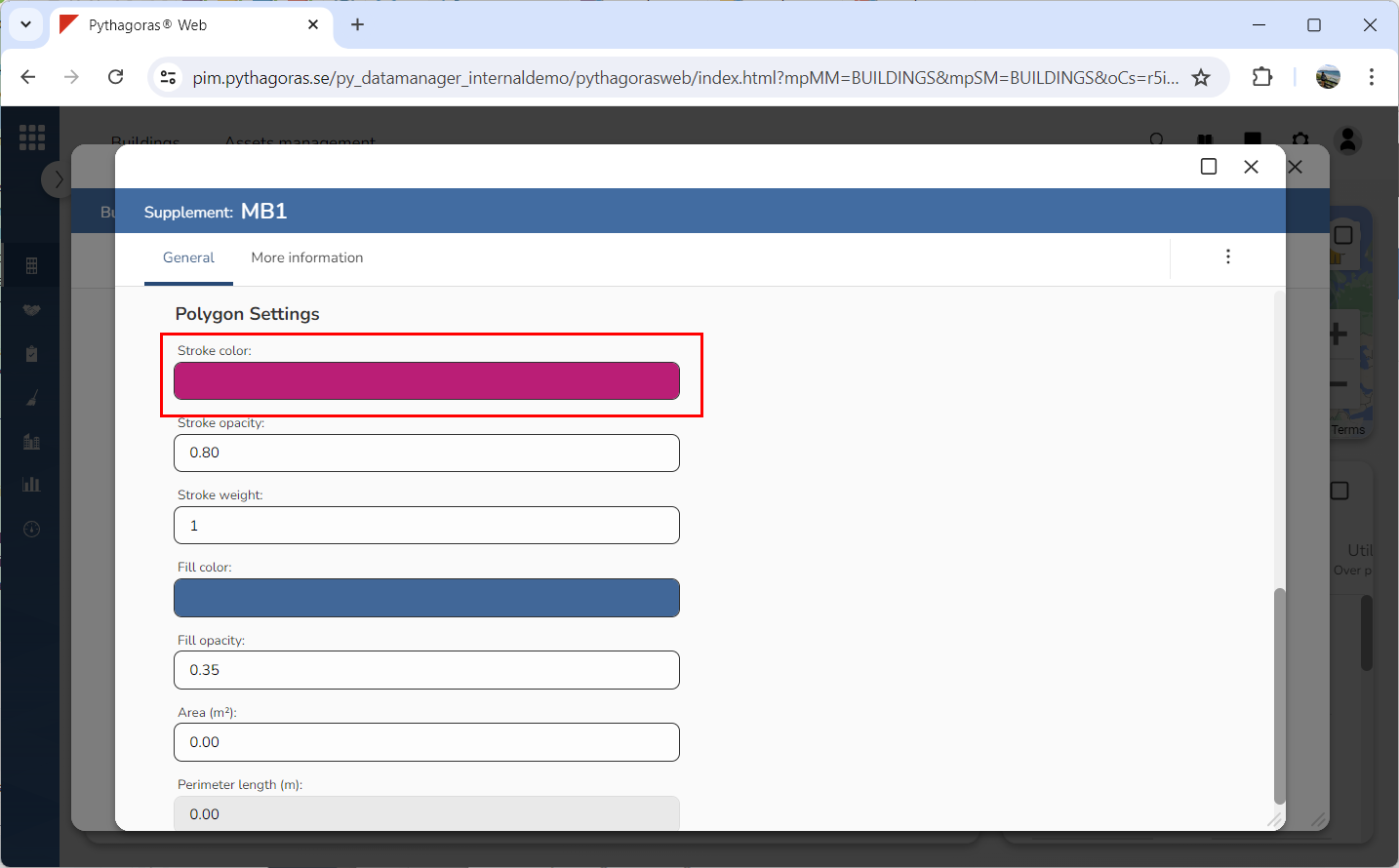
Set a stroke color for the polygon you are drawing on the map by clicking the field "Stroke color" and then selecting a stroke color in the window called "Stroke color" (see image below). You only need to do this if you want the stroke color of the polygon to be different from the color set as default.
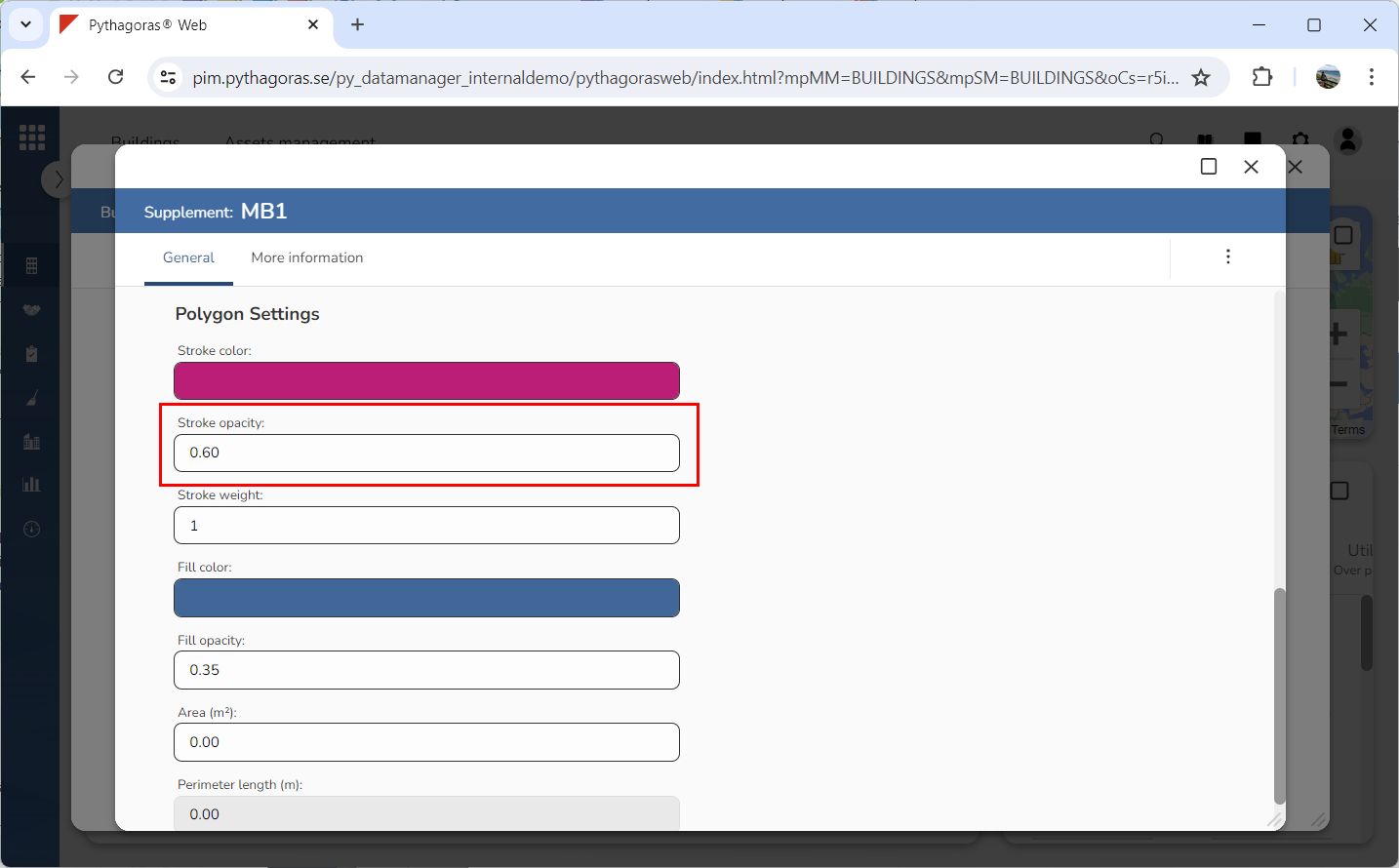
Specify the opacity of the lines for the polygon you are drawing on the map by entering an opacity in the field "Stroke opacity" (see image below). The lower the opacity, the more transparent the lines will be.
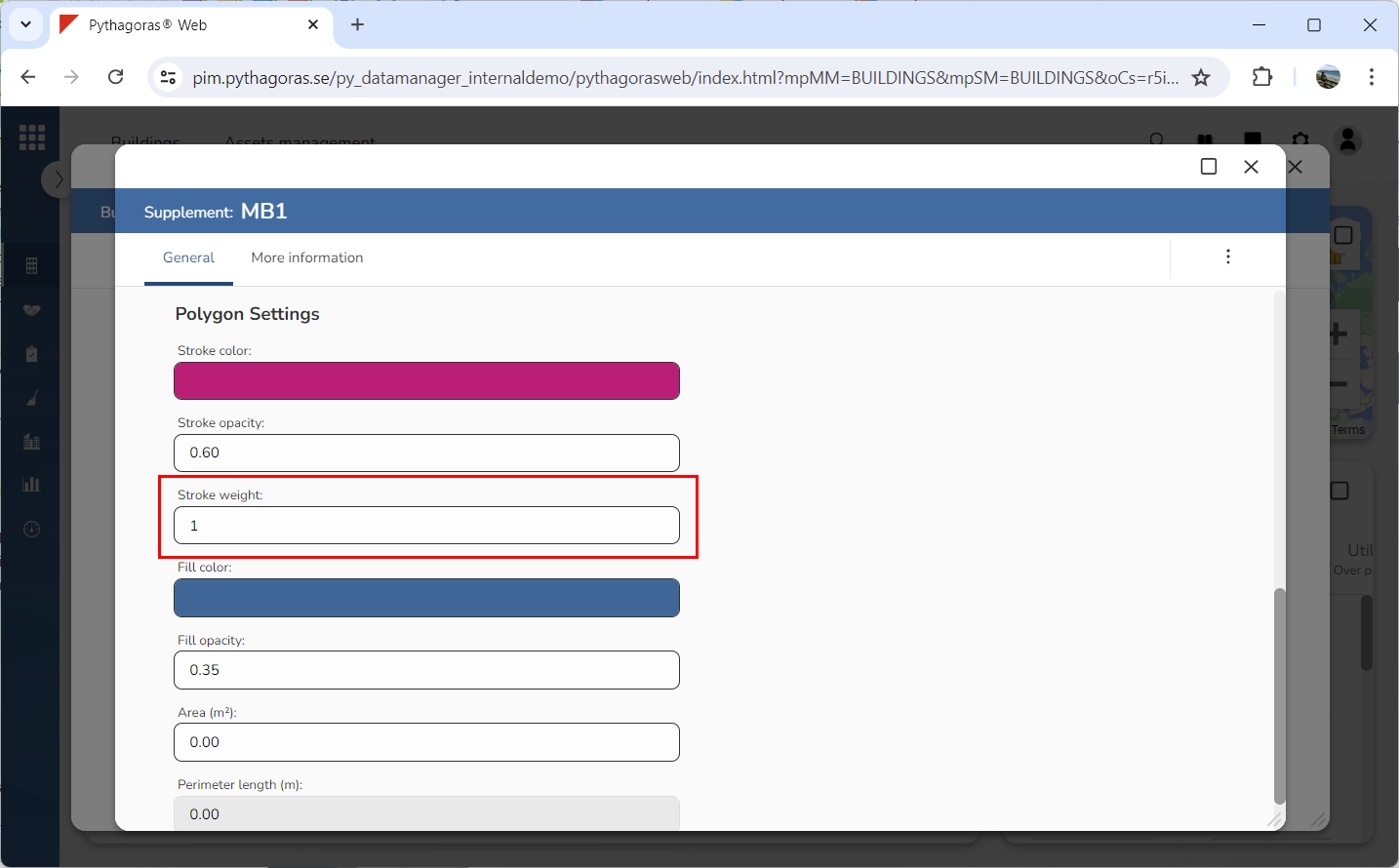
Specify the width of the lines for the polygon you are drawing on the map by entering a line width in the field "Stroke weight" (see image below). The greater the width, the wider the lines will be.
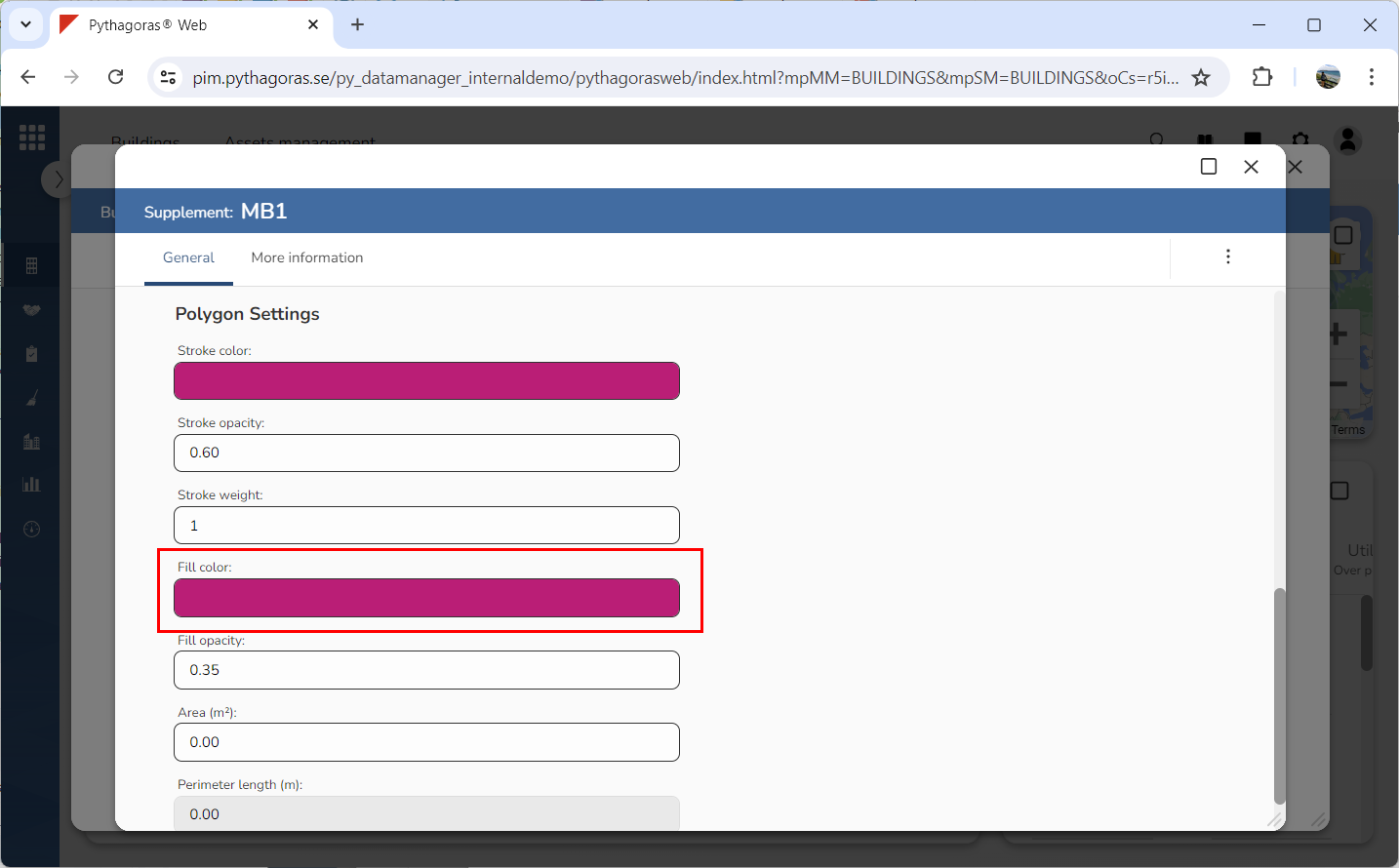
Set a fill color for the polygon you are drawing on the map by clicking the field "Fill color" and then selecting a fill color in the window called "Fill color" (see image below). You only need to do this if you want the fill color of the polygon to be different from the color set as default.
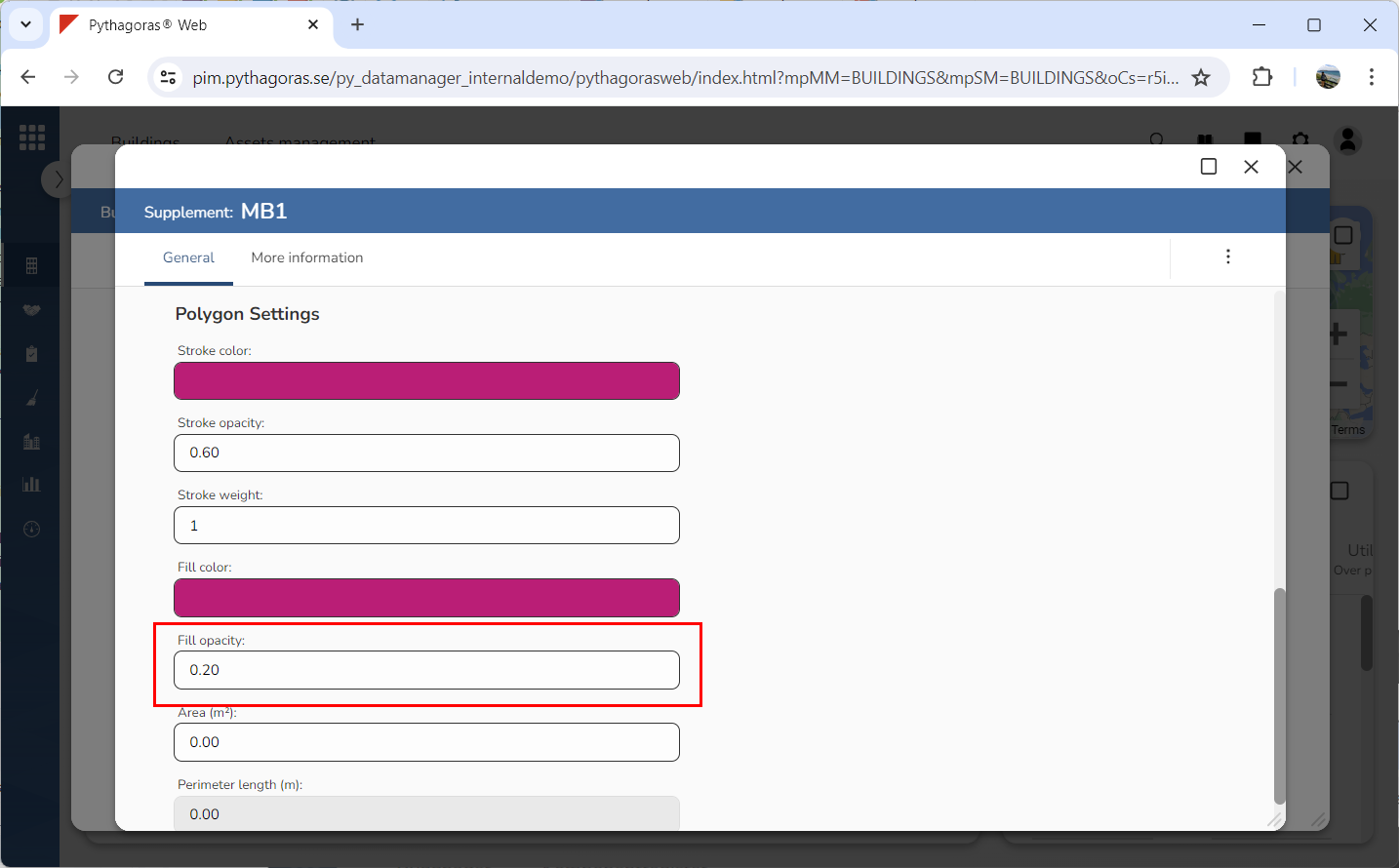
Specify the fill opacity for the polygon you are drawing on the map by entering an opacity in the field "Fill opacity" (see image below). The lower the opacity, the more transparent the fill will be.
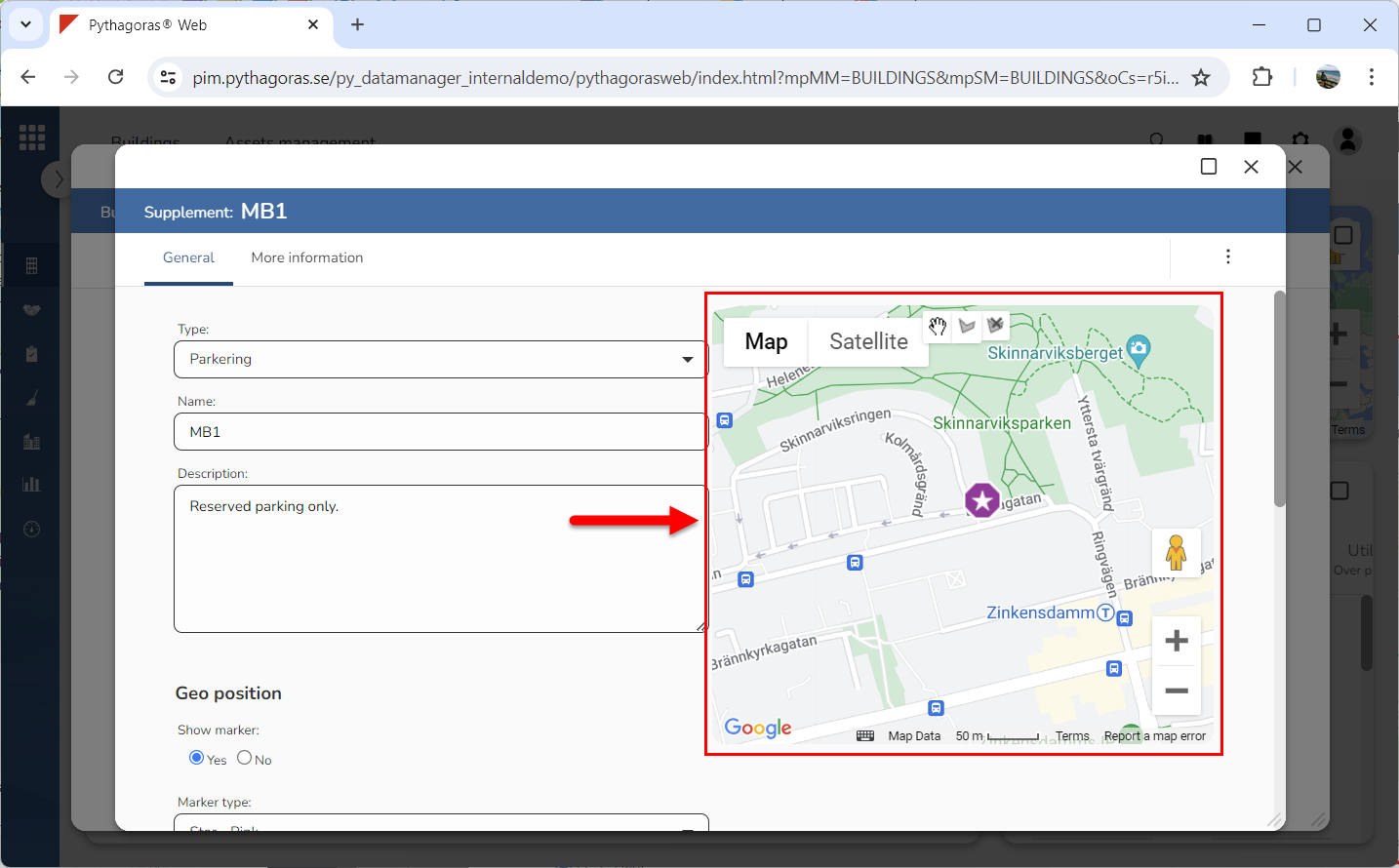
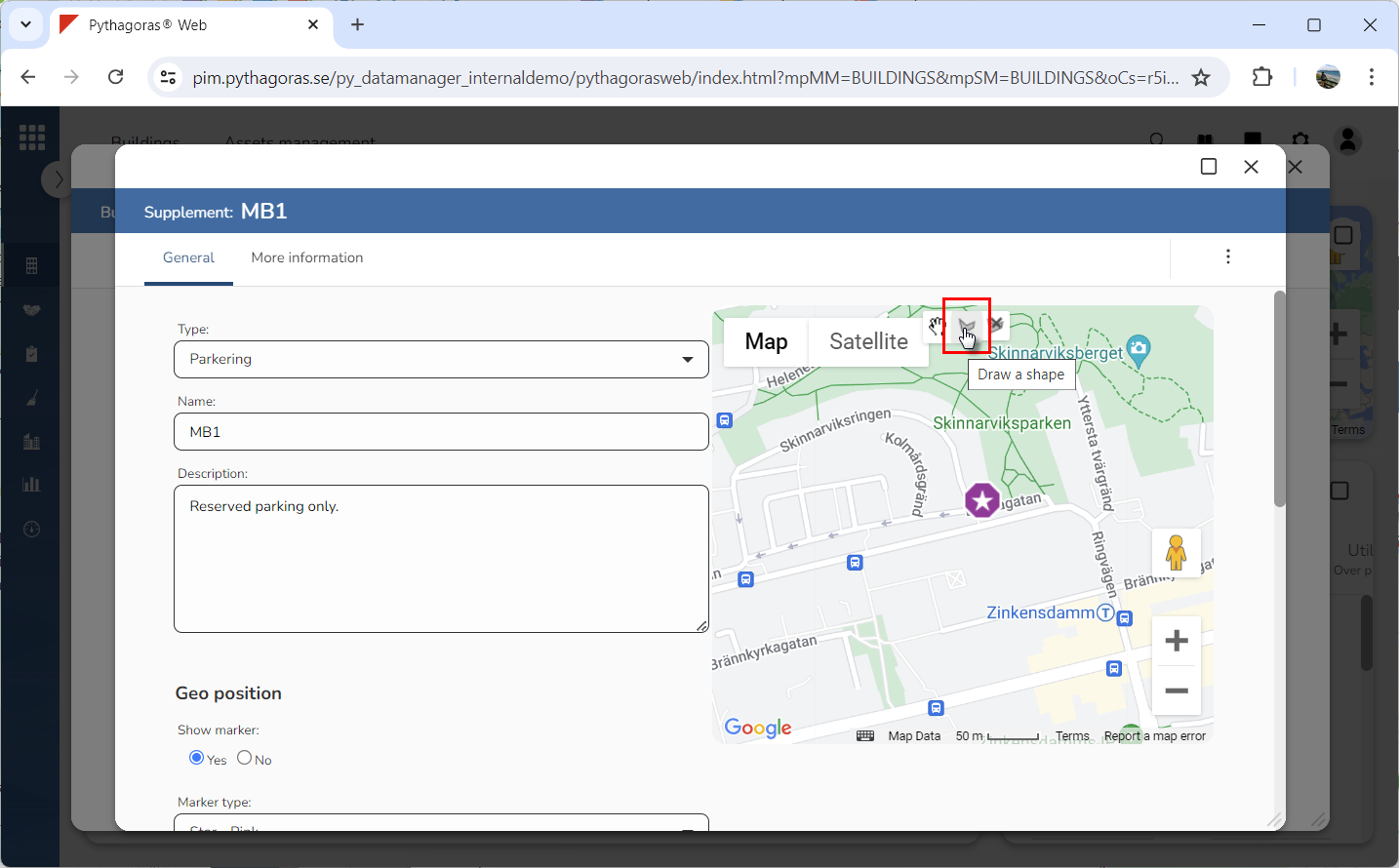
Go to the map (see image below).
Click "Draw a shape" (see image below).
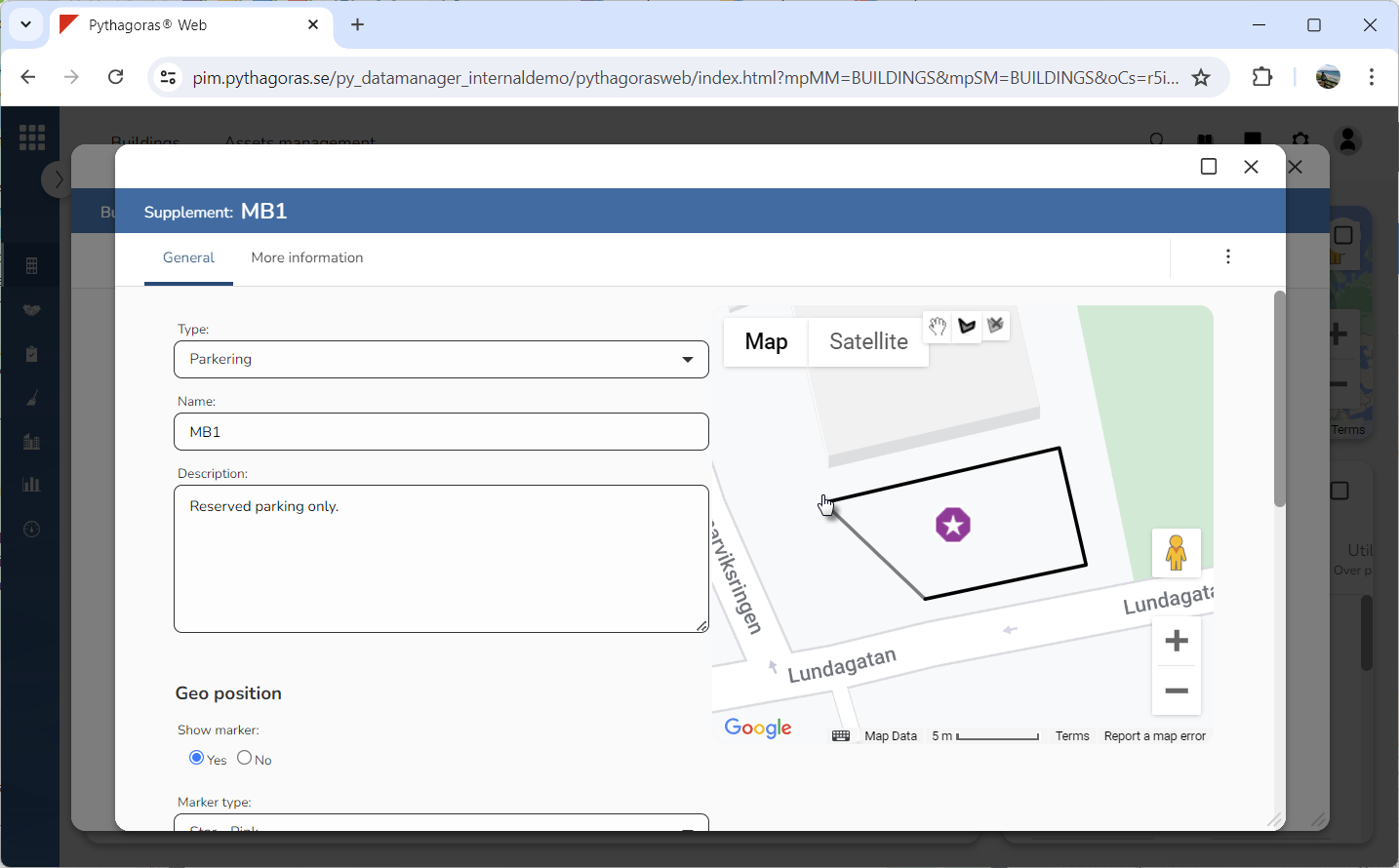
Zoom in or out on the map to get an overview of the area your polygon should cover.
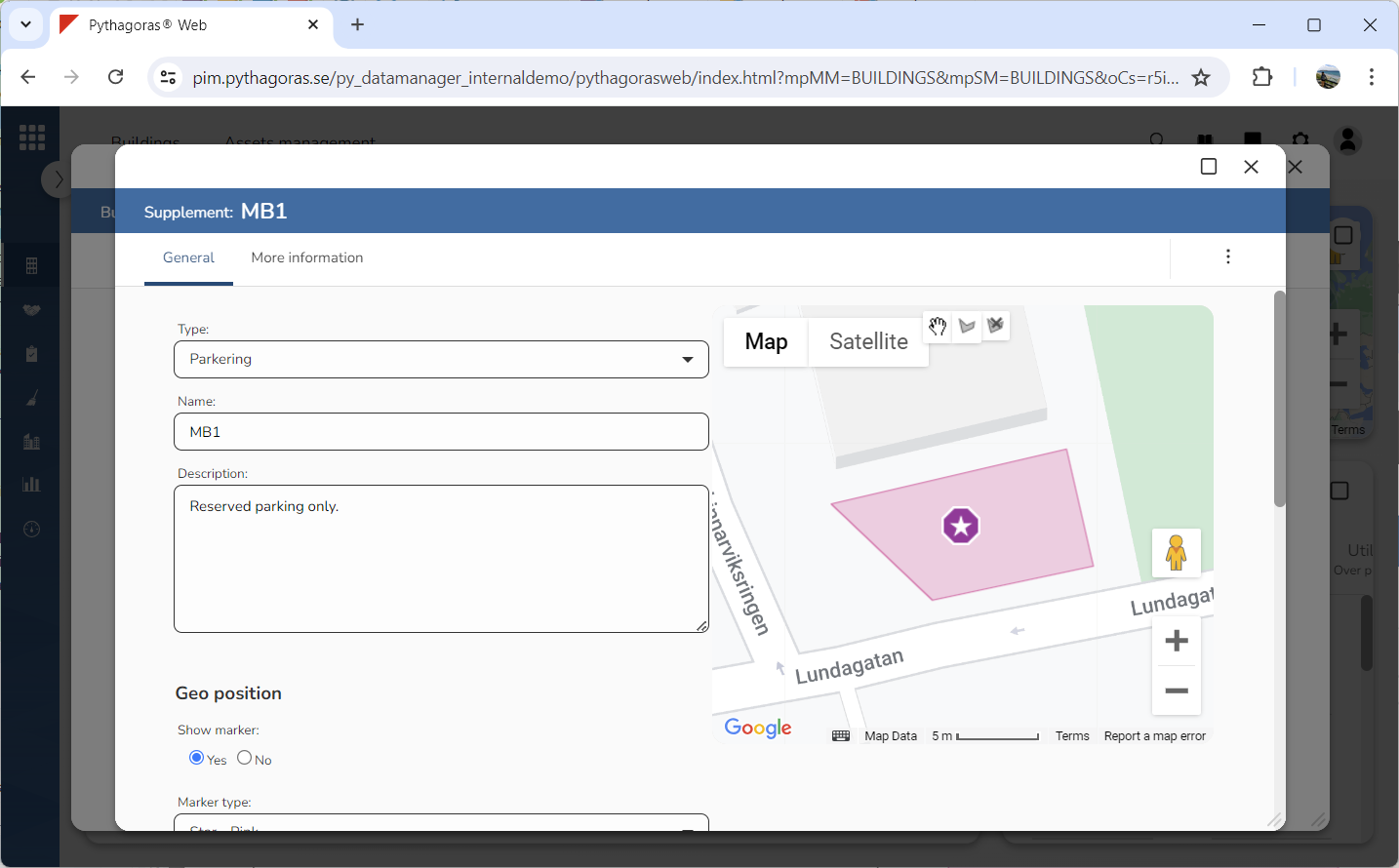
Use your mouse to draw a polygon on the map (see images below).
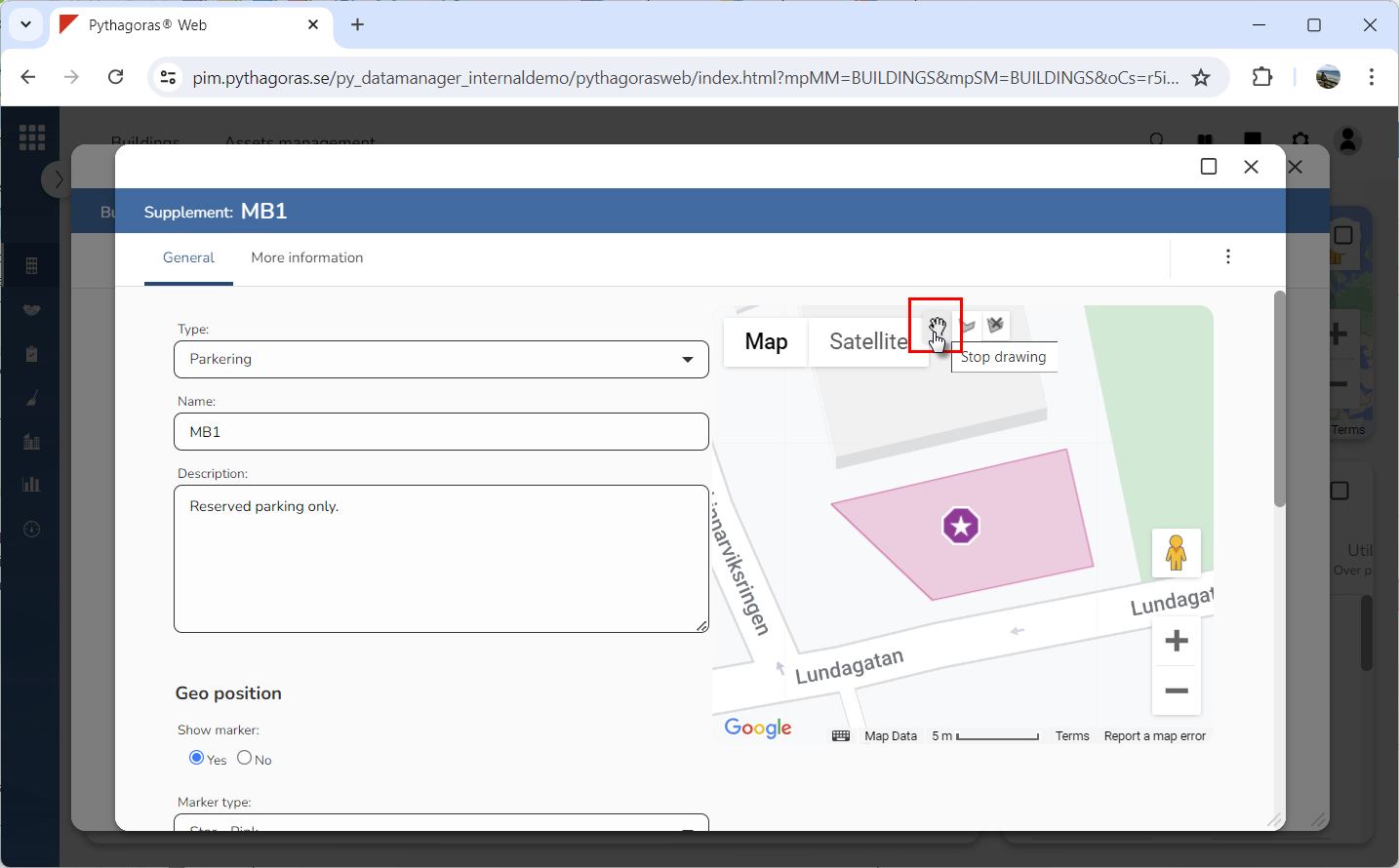
Click "Stop drawing" (see image below).
If the supplement object you are working with has a map marker shown on the map, you can move the map marker by dragging it to a new location on the map. Note that moving a map marker associated with a supplement object will update the geoposition of the supplement object.