When you make permanent column customisations in a view, you can activate and deactivate columns for it. You can also reposition and change the width of the columns that are active in it.
To make permanent column customisations in a view:
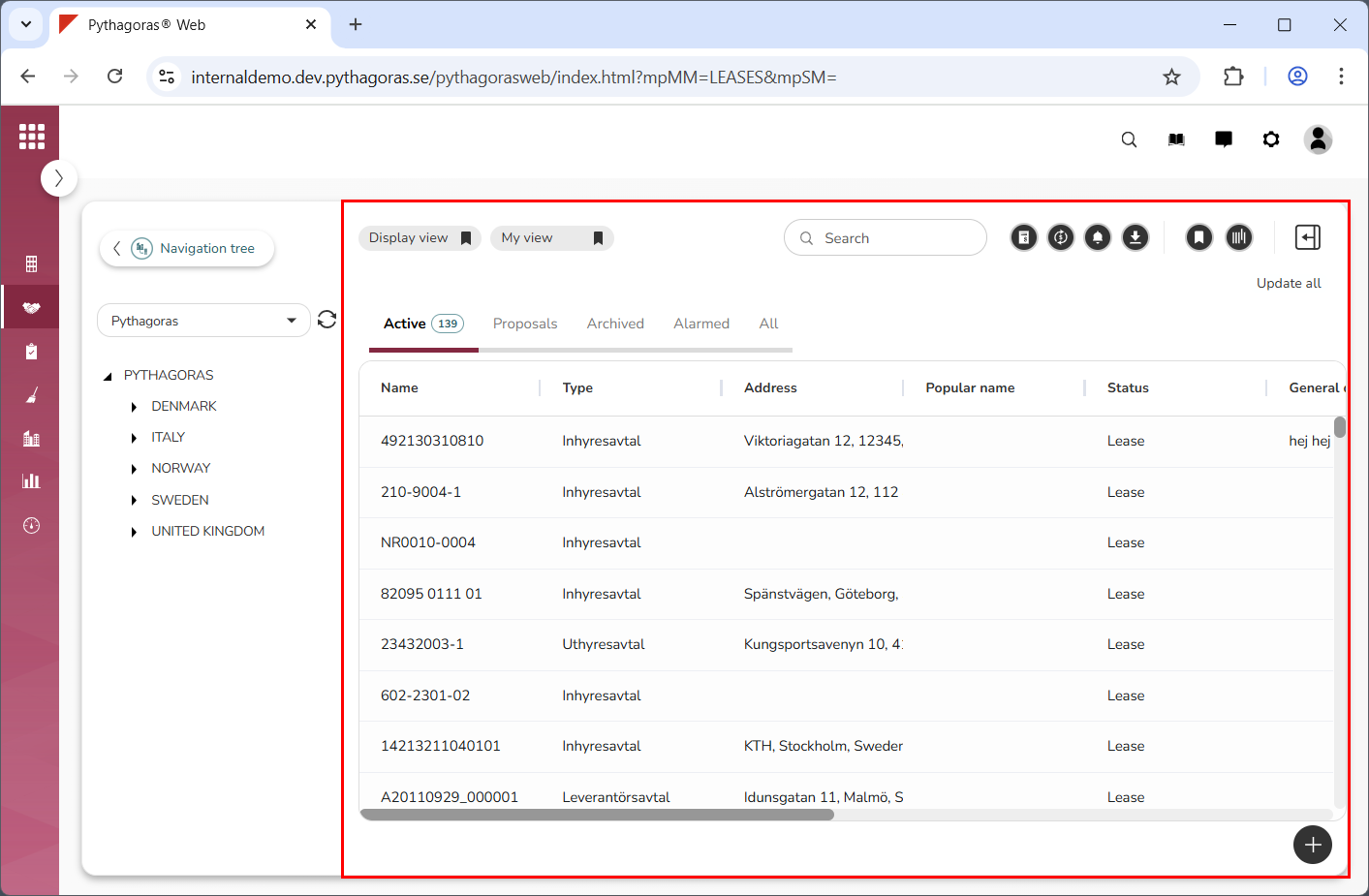
Go to the object list (see image below).
Specify that the view you wish to make permanent column customisations to is to be shown in the object list. For more information on how to do so, see section 2.1.
Open the view card for the view shown in the object list:
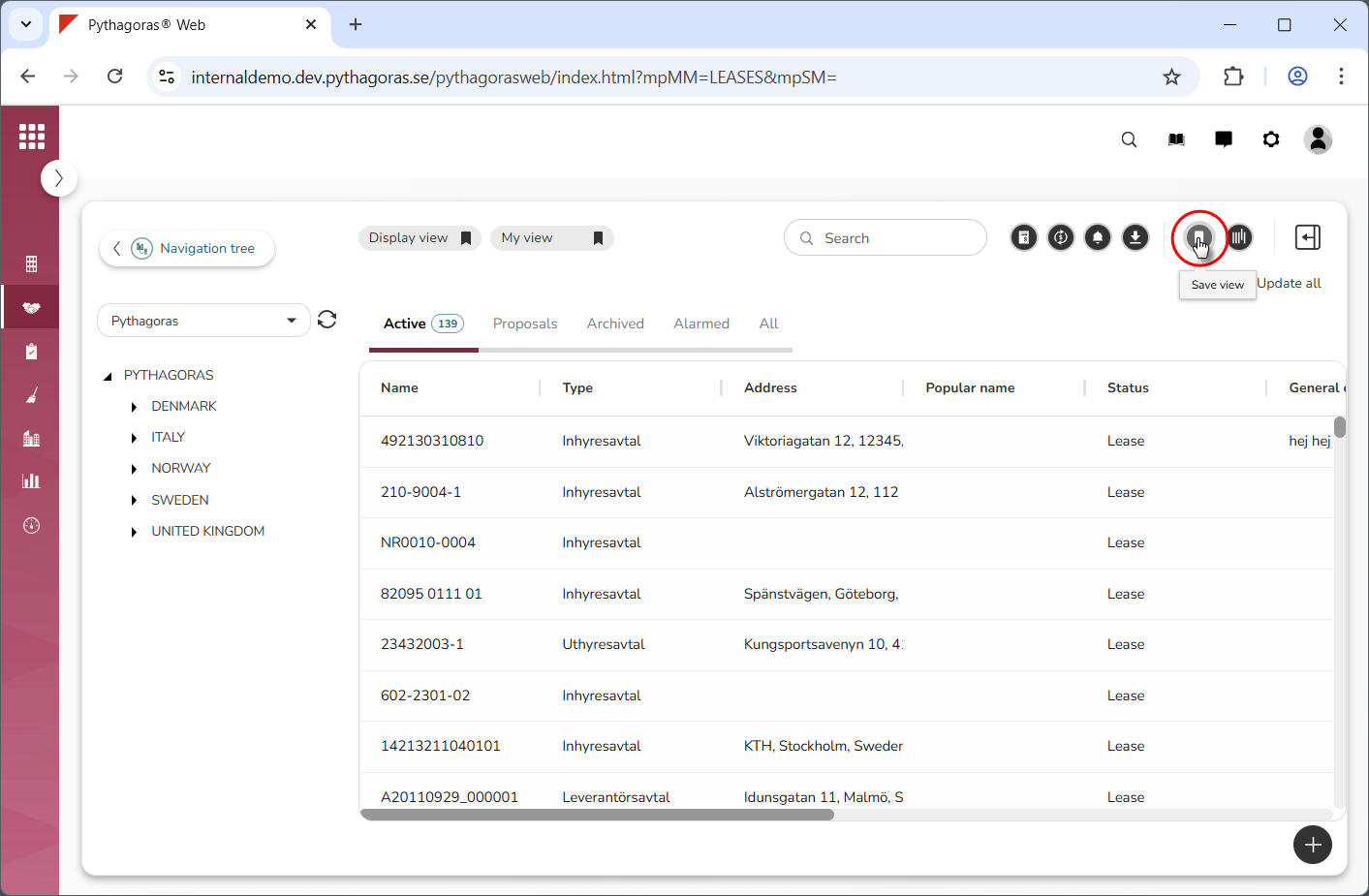
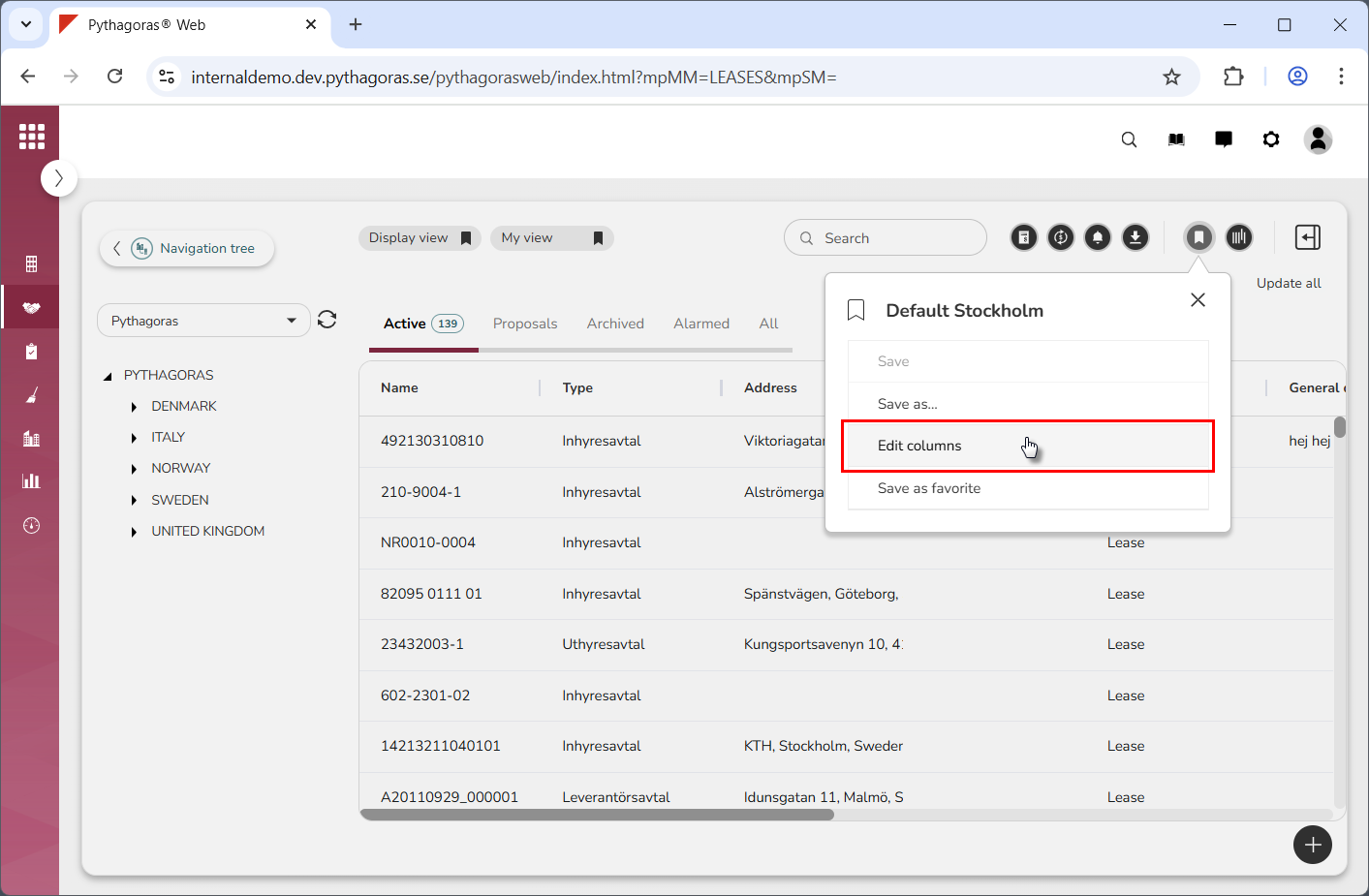
Click "Save view" (see the first image below). Then click "Edit columns" (see the second image below).
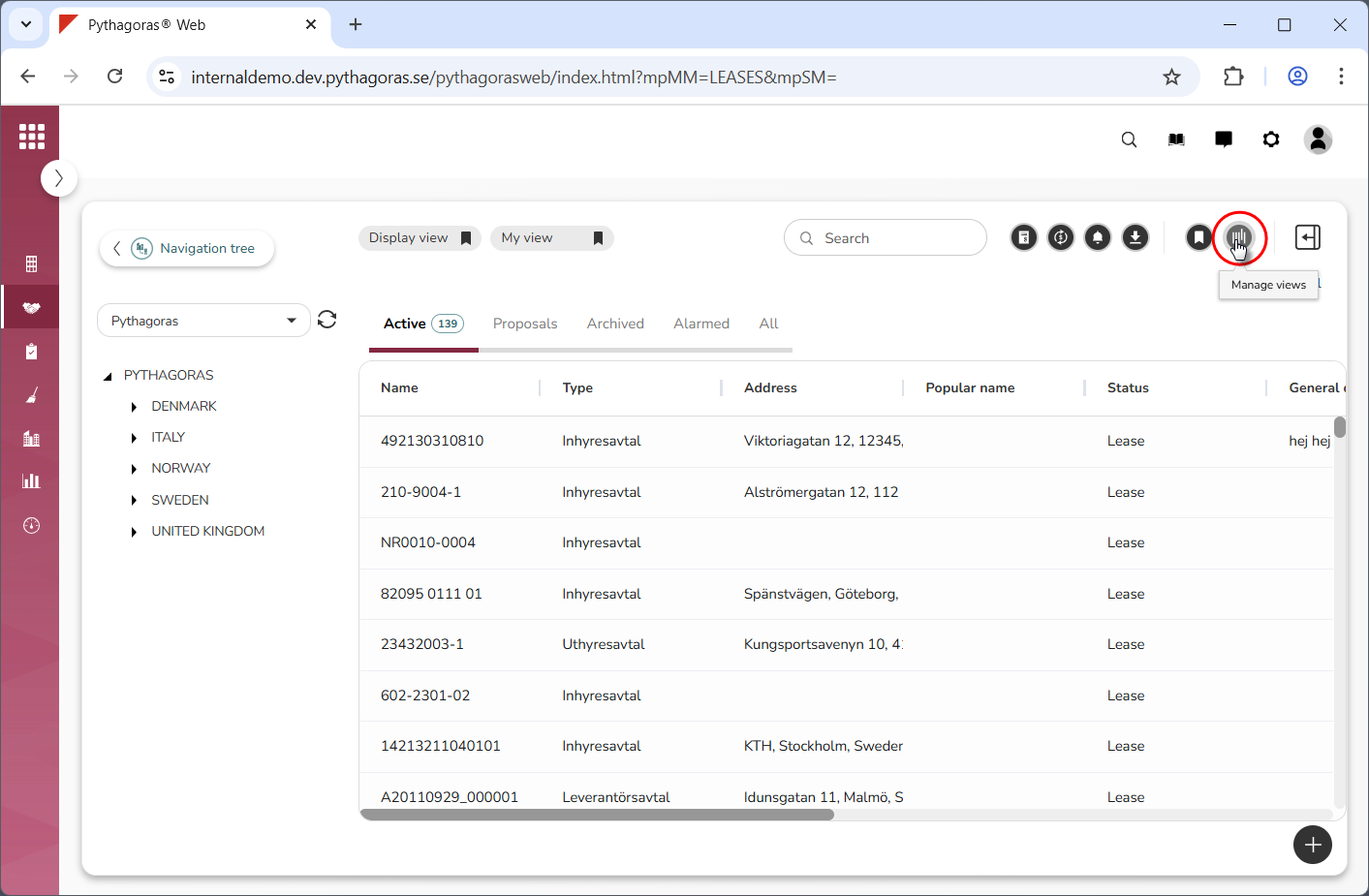
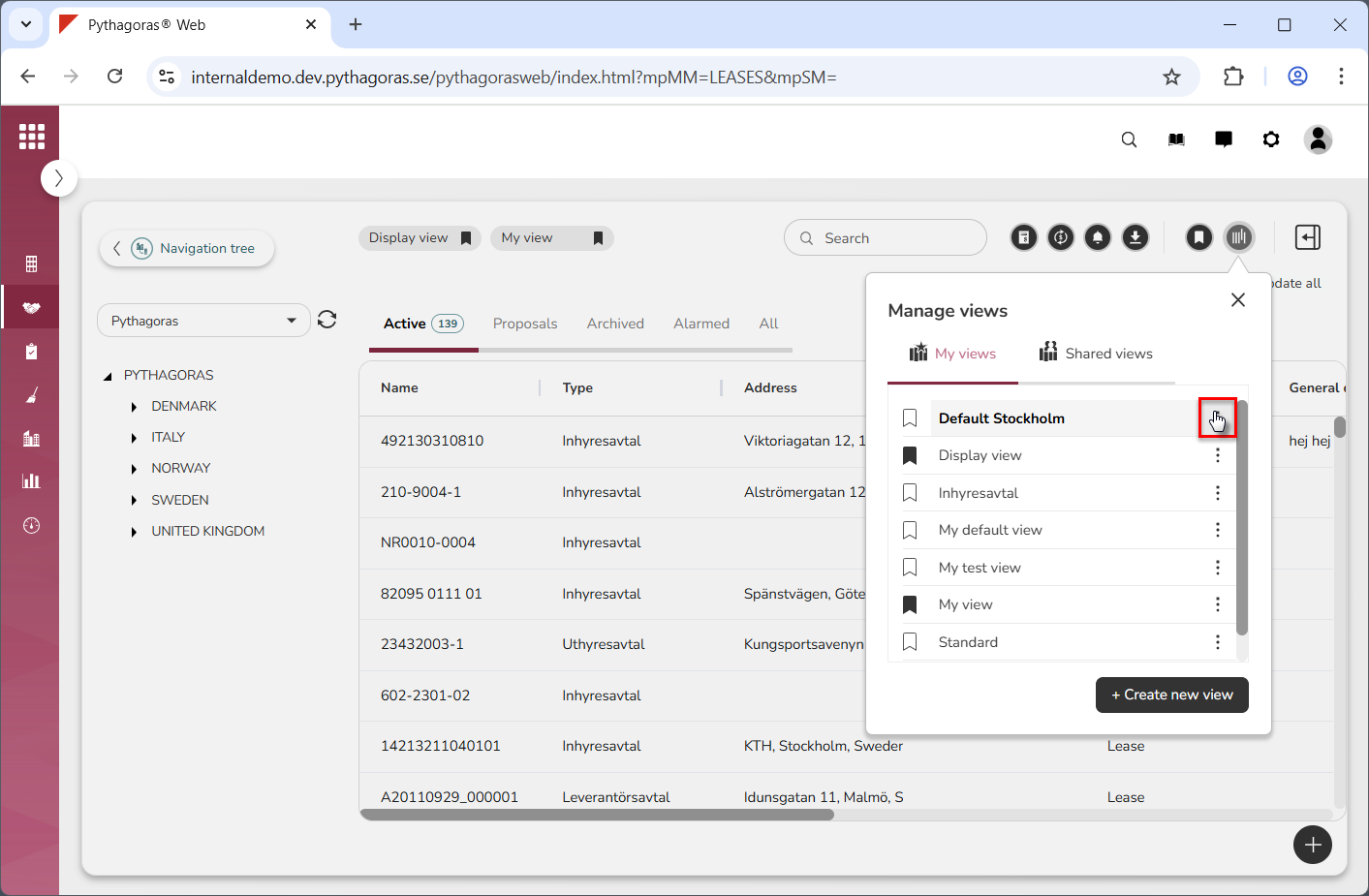
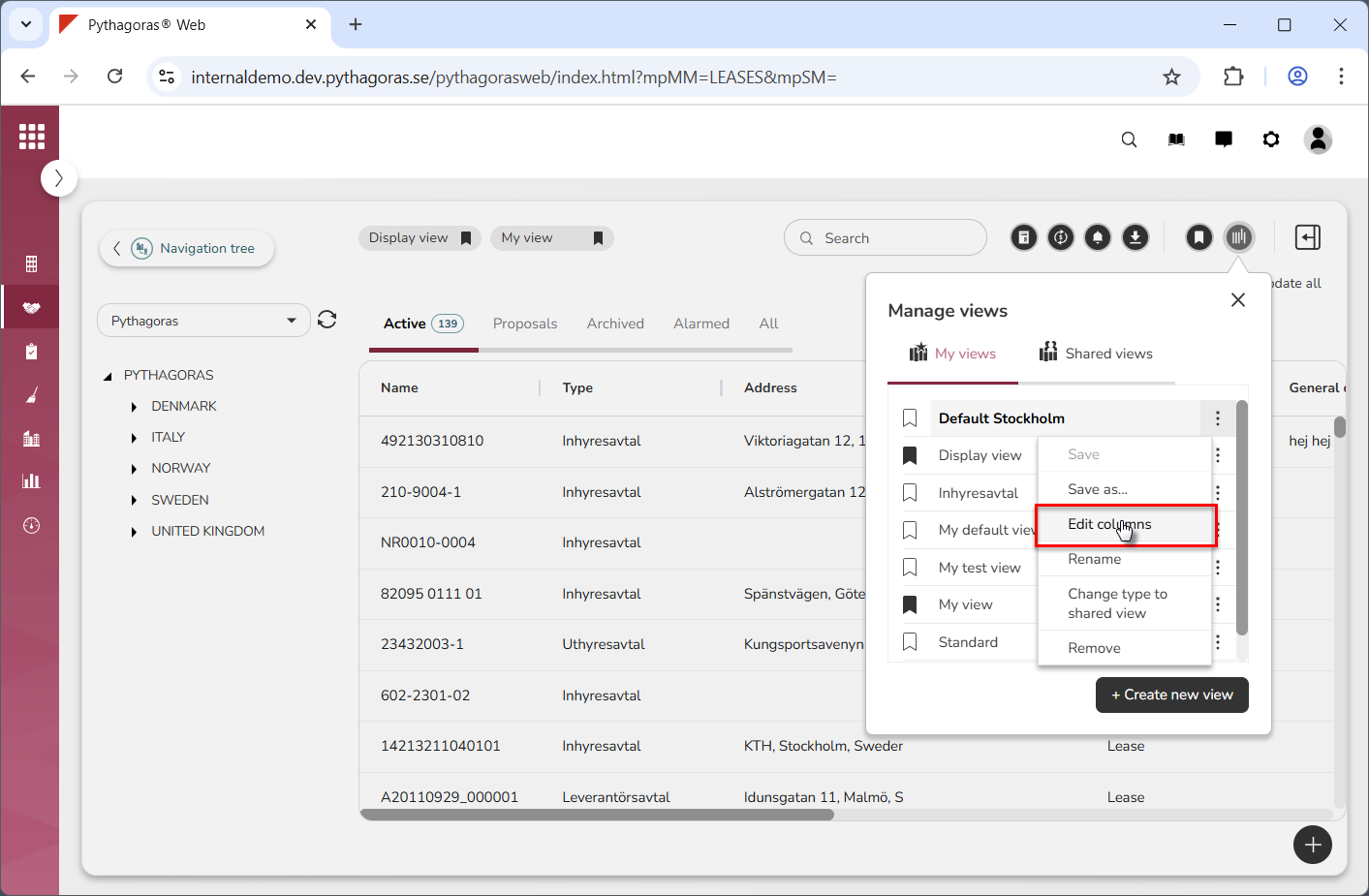
Click "Manage views" (see the first image below). Then click "More options" and "Edit columns" (see the second and third image below).
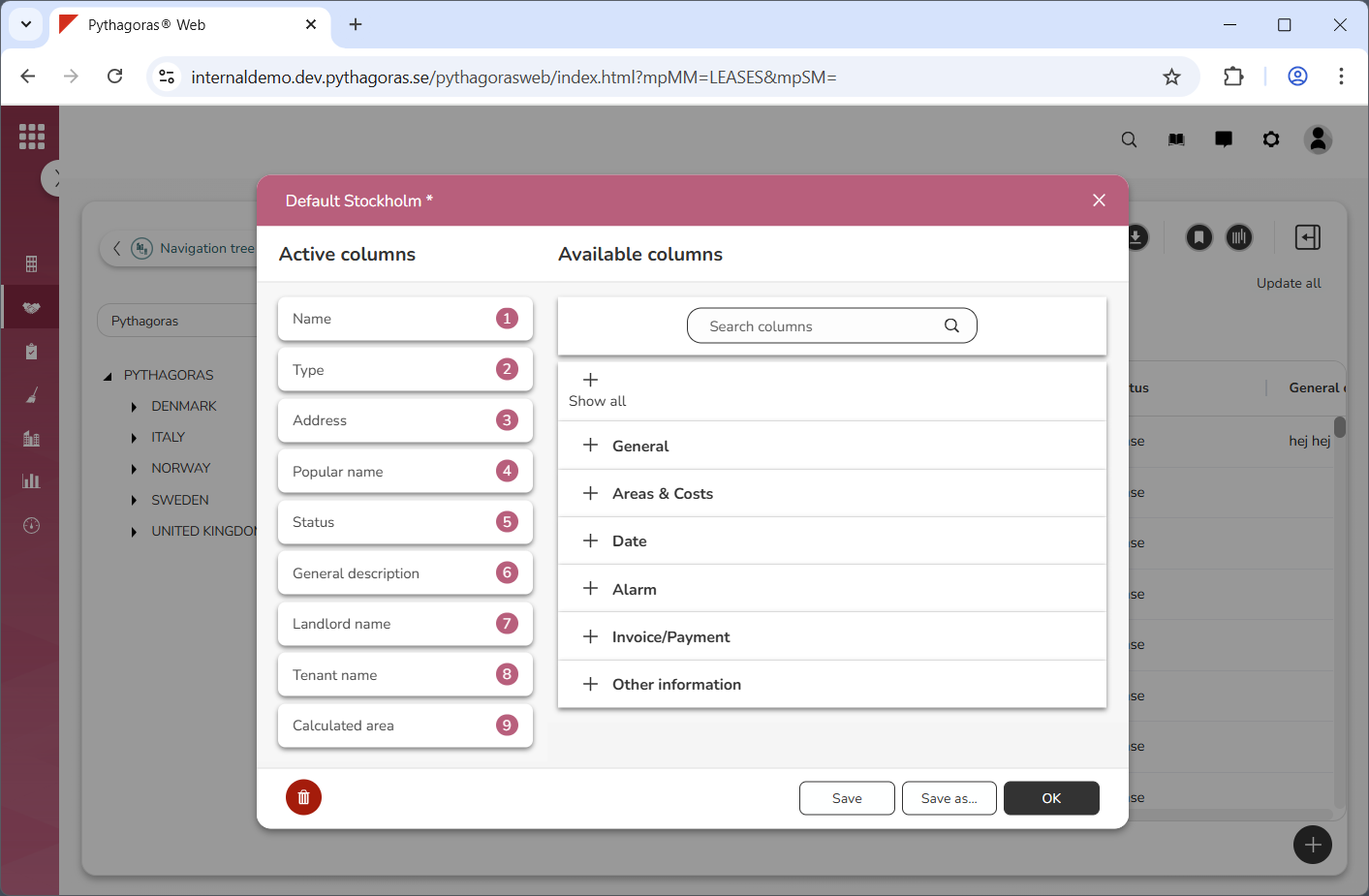
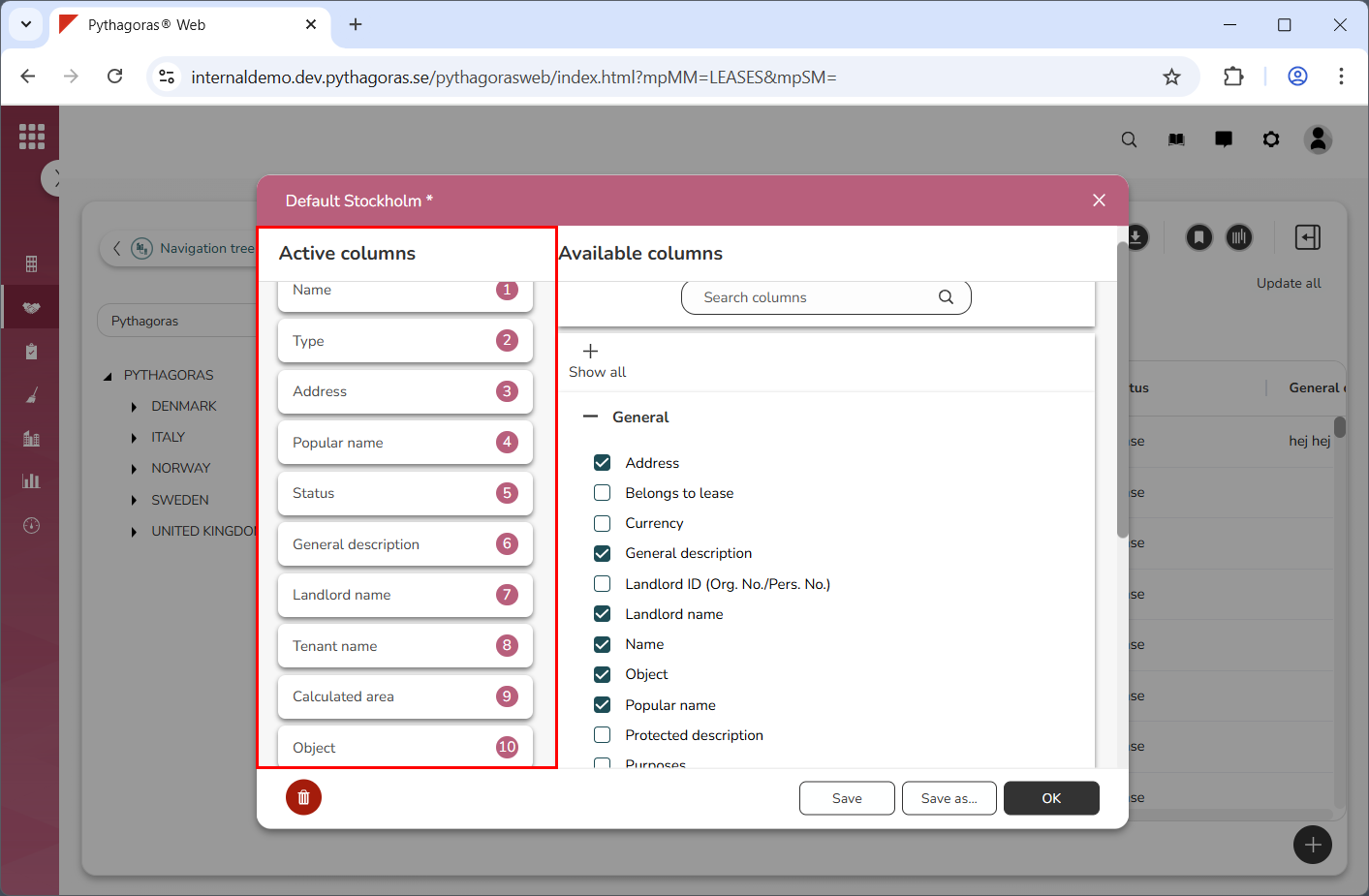
Go to the view card (see image below). In the view card you will find two lists: one of active columns and one of available columns. In the list of active columns, you see which columns are active in the view you are working with. In the list of available columns, you can see all the columns available to you when working with the object list – both active and inactive.
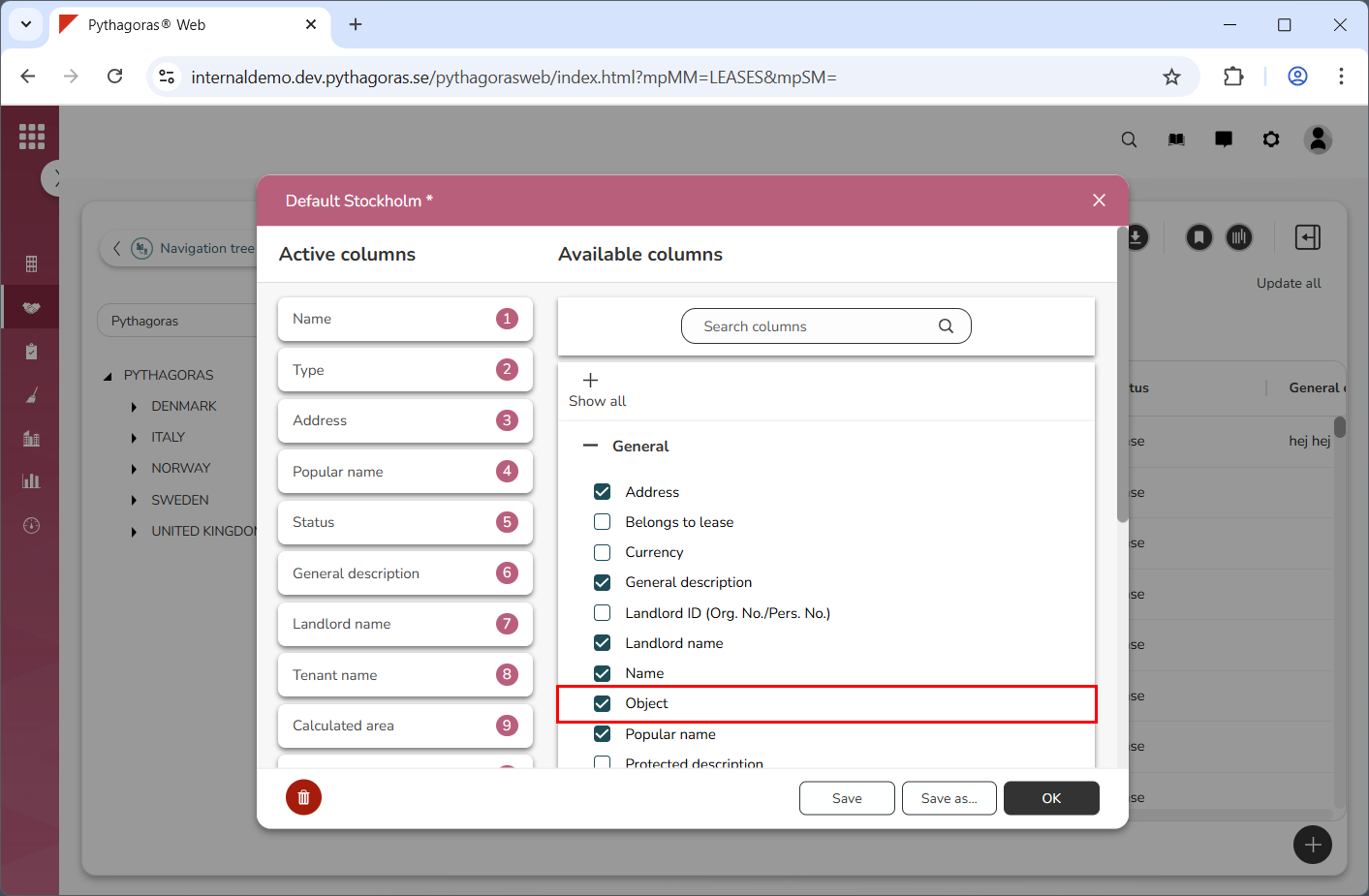
Activate one or more columns for the view you are working with by checking one or more columns in the list of available columns (see the first image below). The column or columns you activate will be added to the end of the list of active columns (see the second image below).
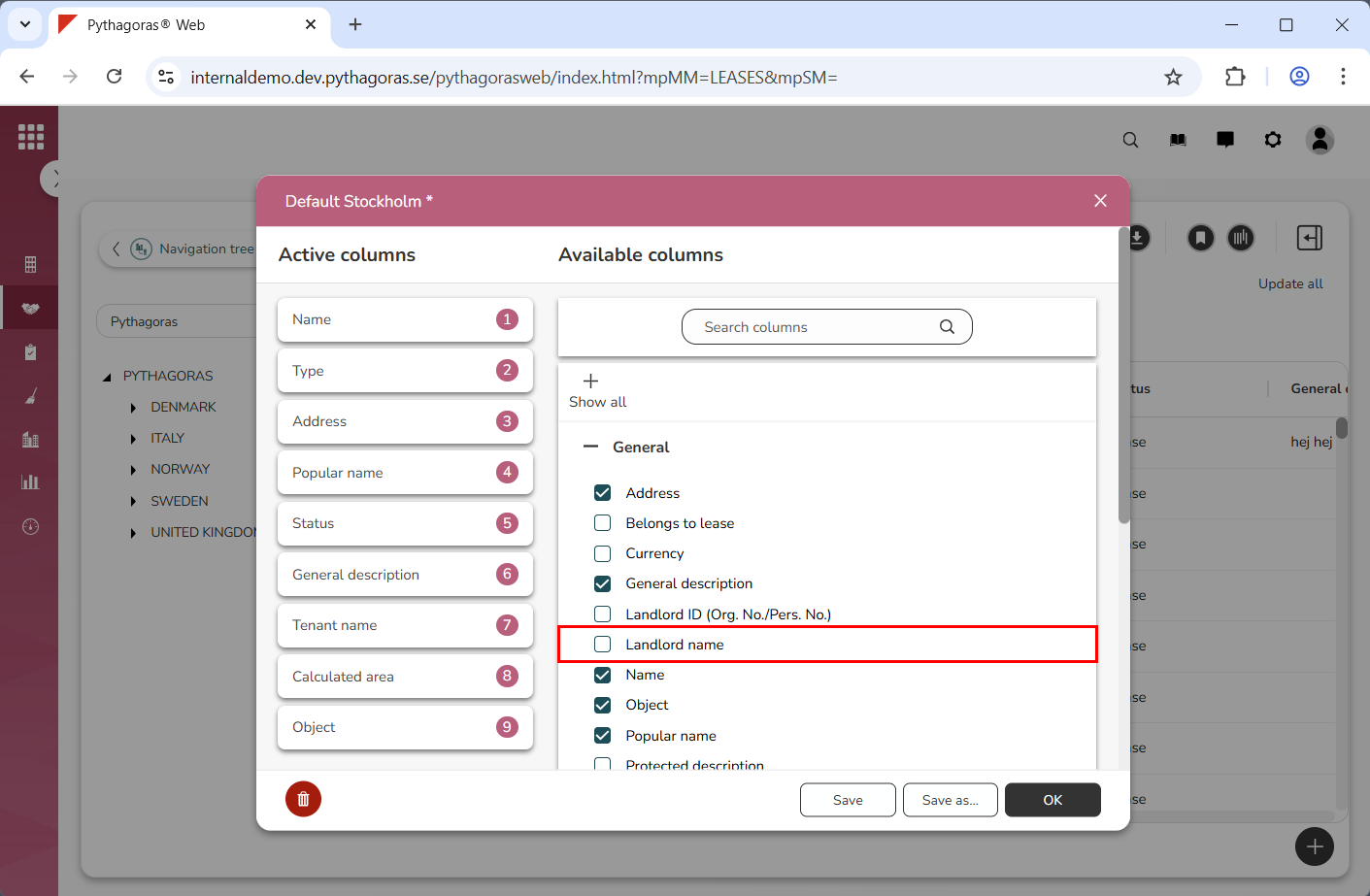
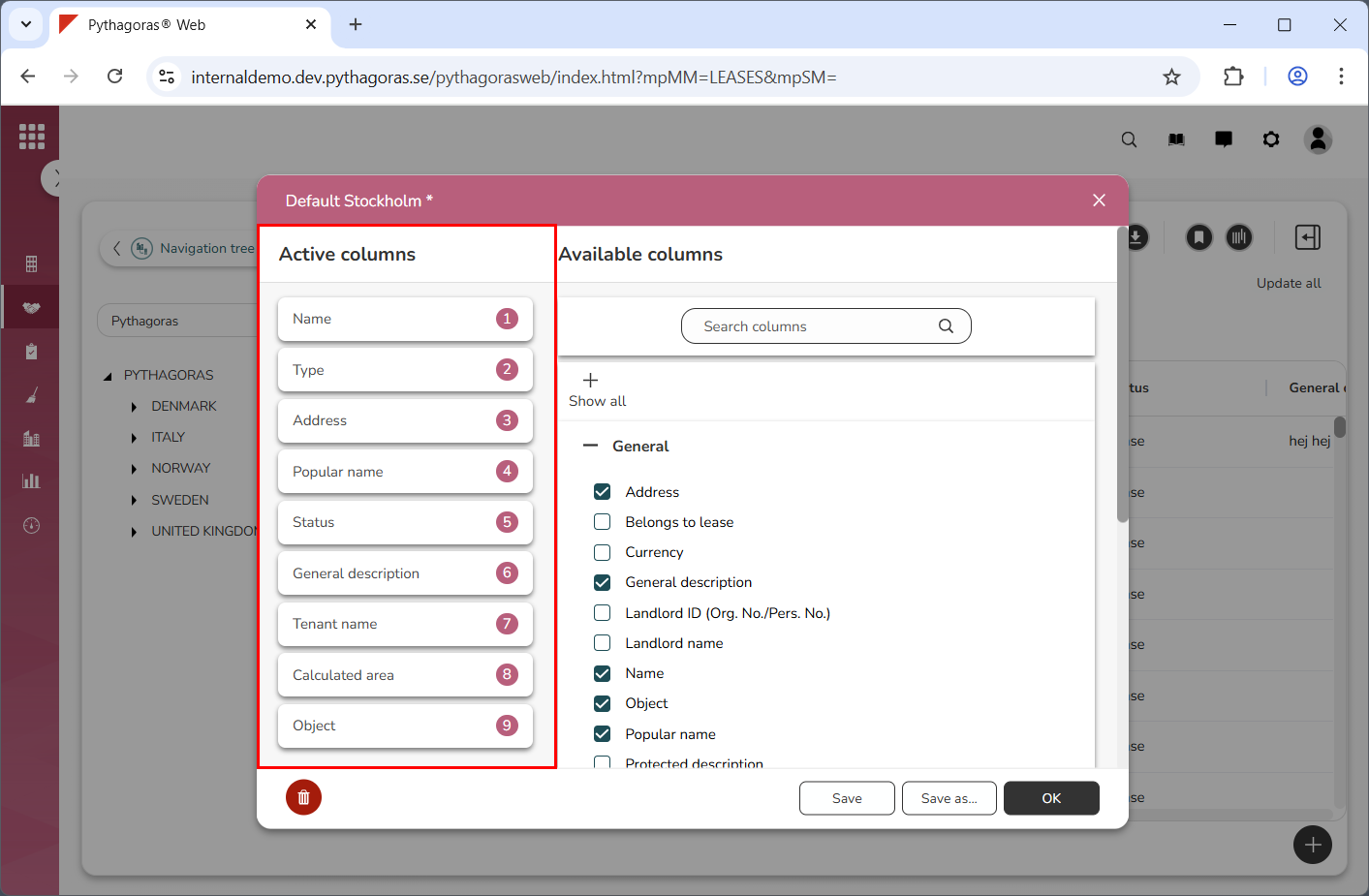
Deactivate one or more columns for the view you are working with by unchecking one or more columns in the list of available columns (see the first image below). The column or columns you deactivate will be removed from the list of active columns (see the second image below).
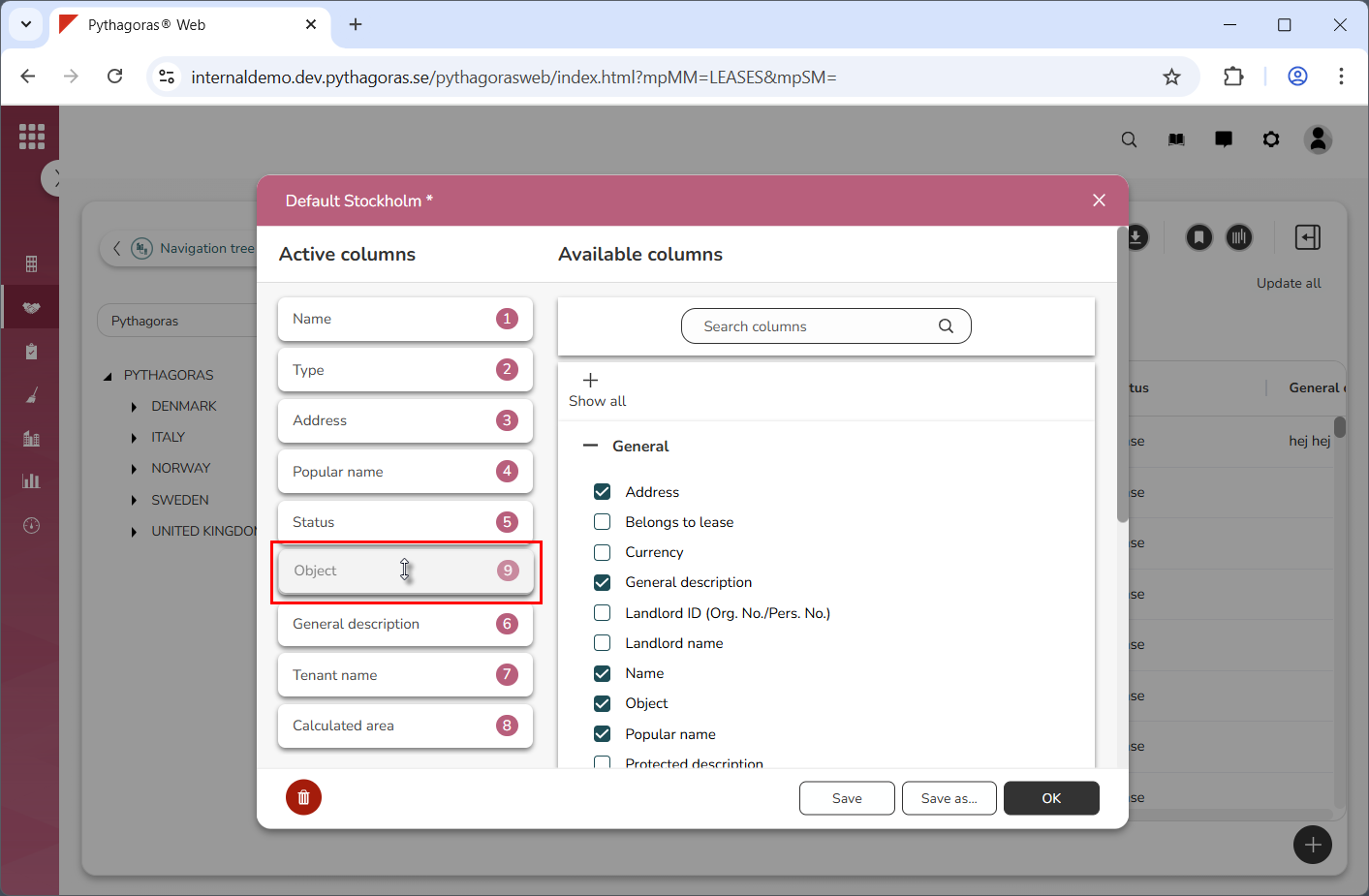
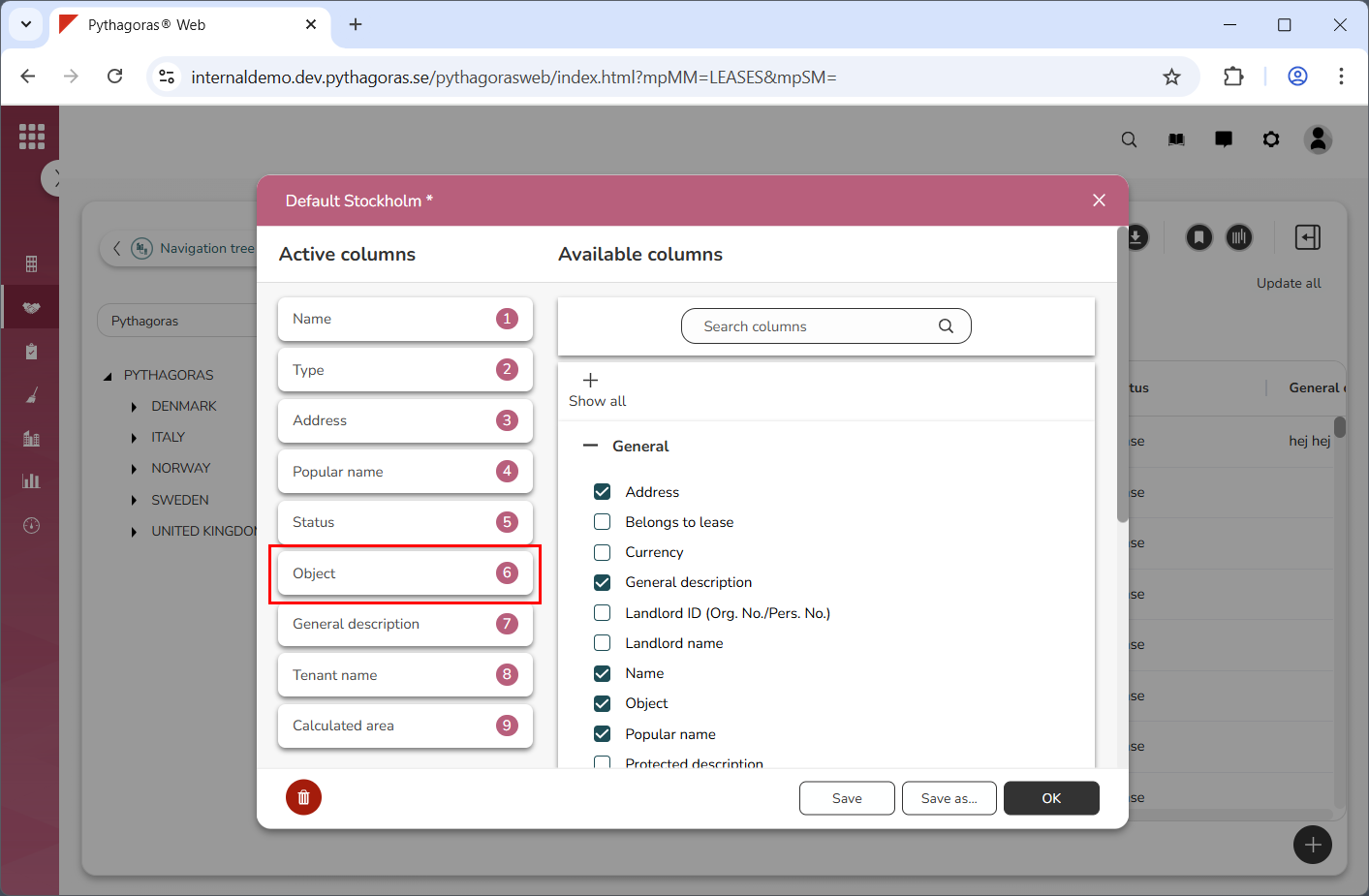
Reposition the columns that are active in view you are working with by moving one or more of them in the list of active columns:
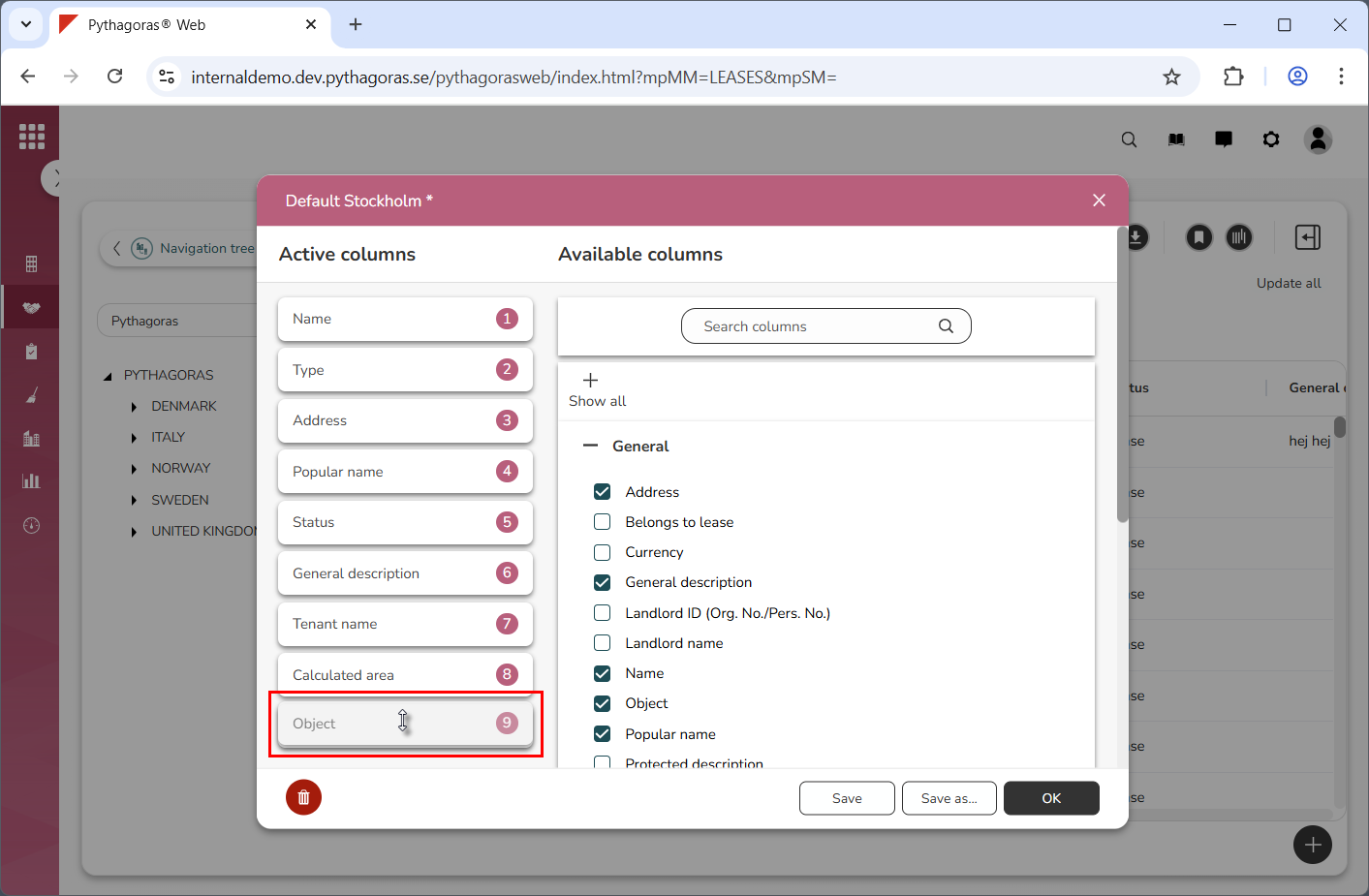
Grab a column (see image below).
Drag the column to the position you wish to move it to (see image below).
Drop the column in the desired position (see image below).
Repeat the instructions in step i-iii until you are satisfied with the placement of the columns that are active in the view you are working with.
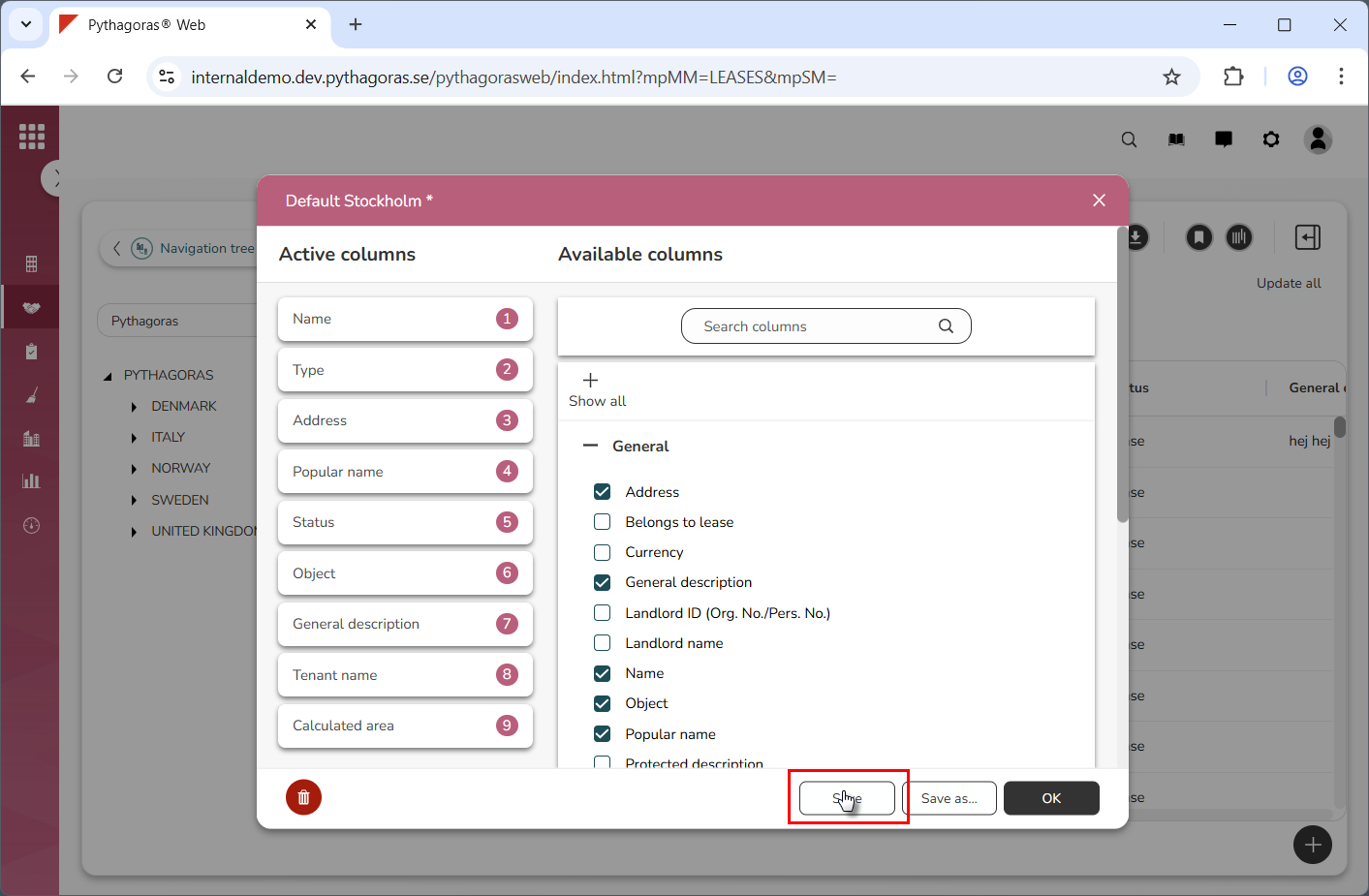
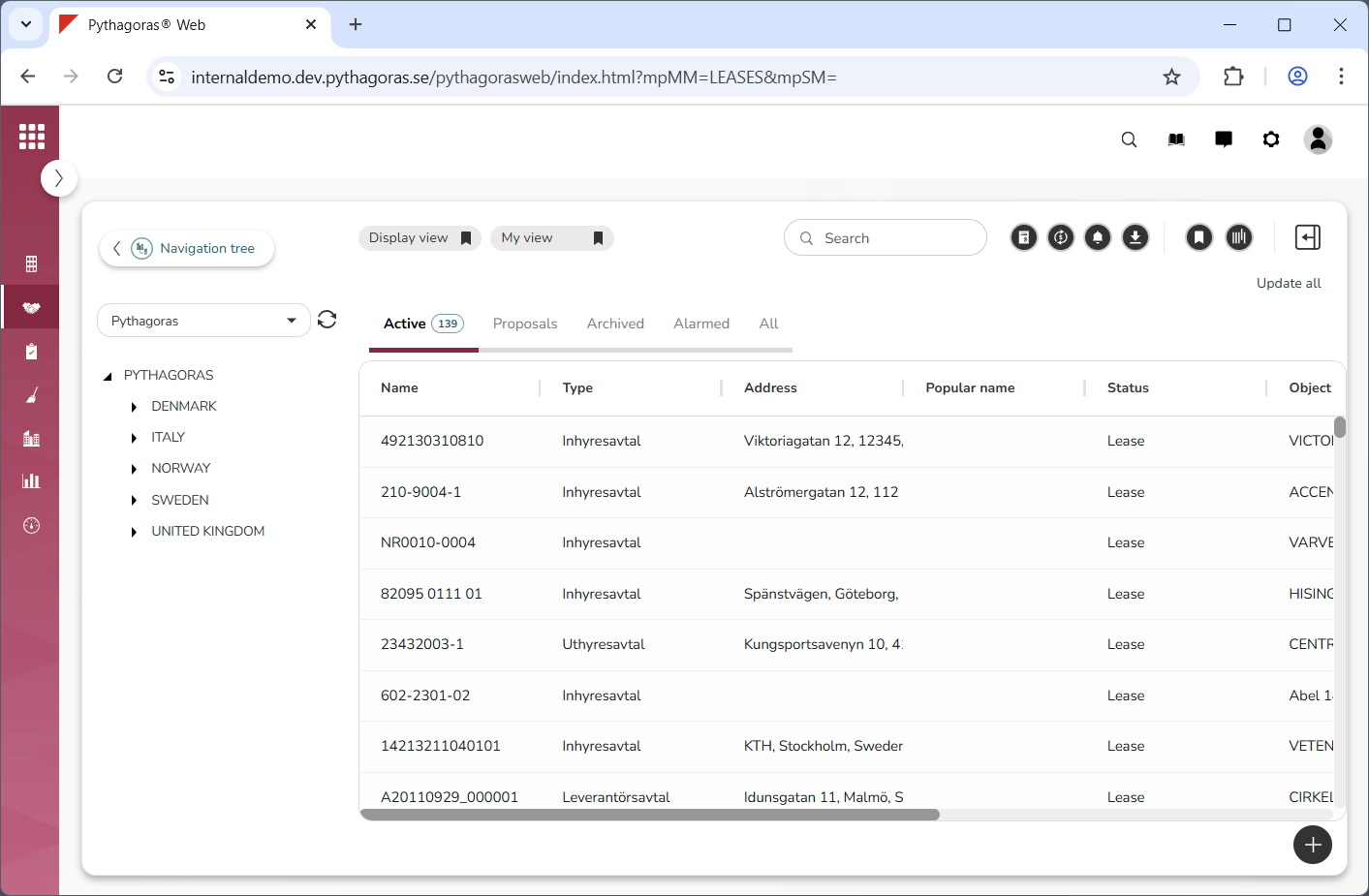
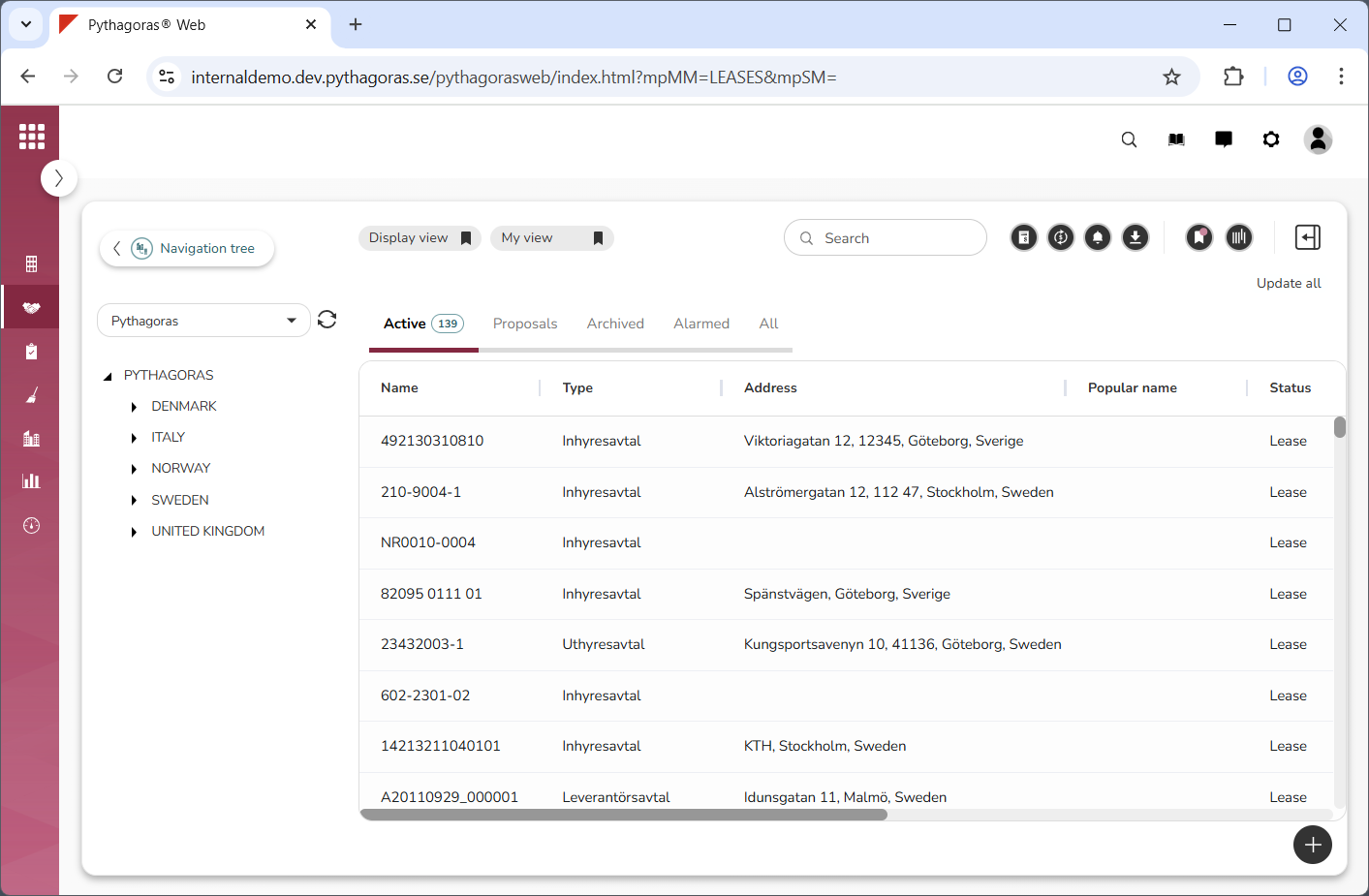
Click "Save" (see the first image below). When you do so, the column customisations you made in the view you are working with will be saved. When the column customisations have been saved, you will be redirected back to the object list where you will see that they have taken effect (see the second image below). If you wish to change the width of one or more columns, see step 9 and 10.
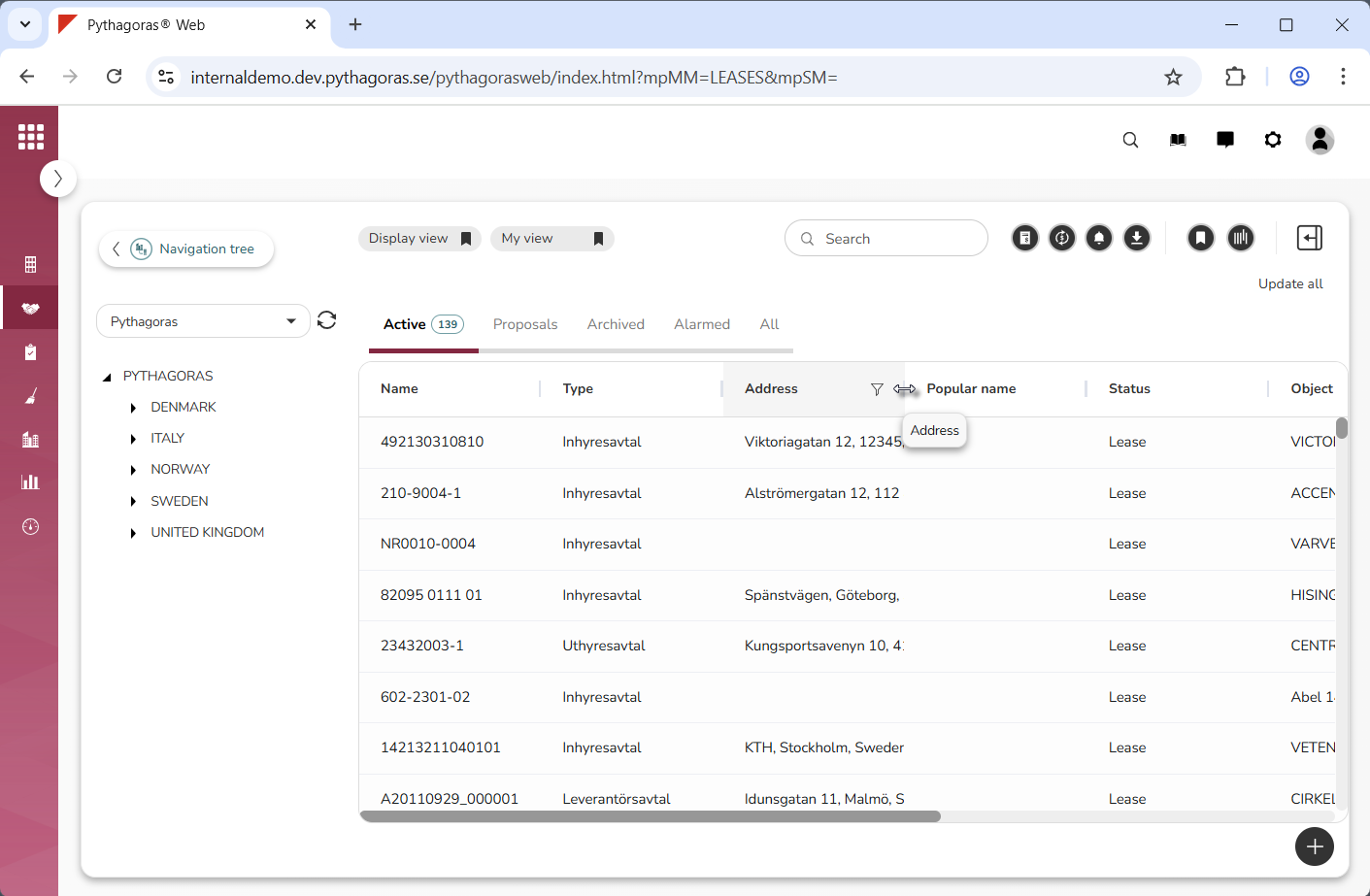
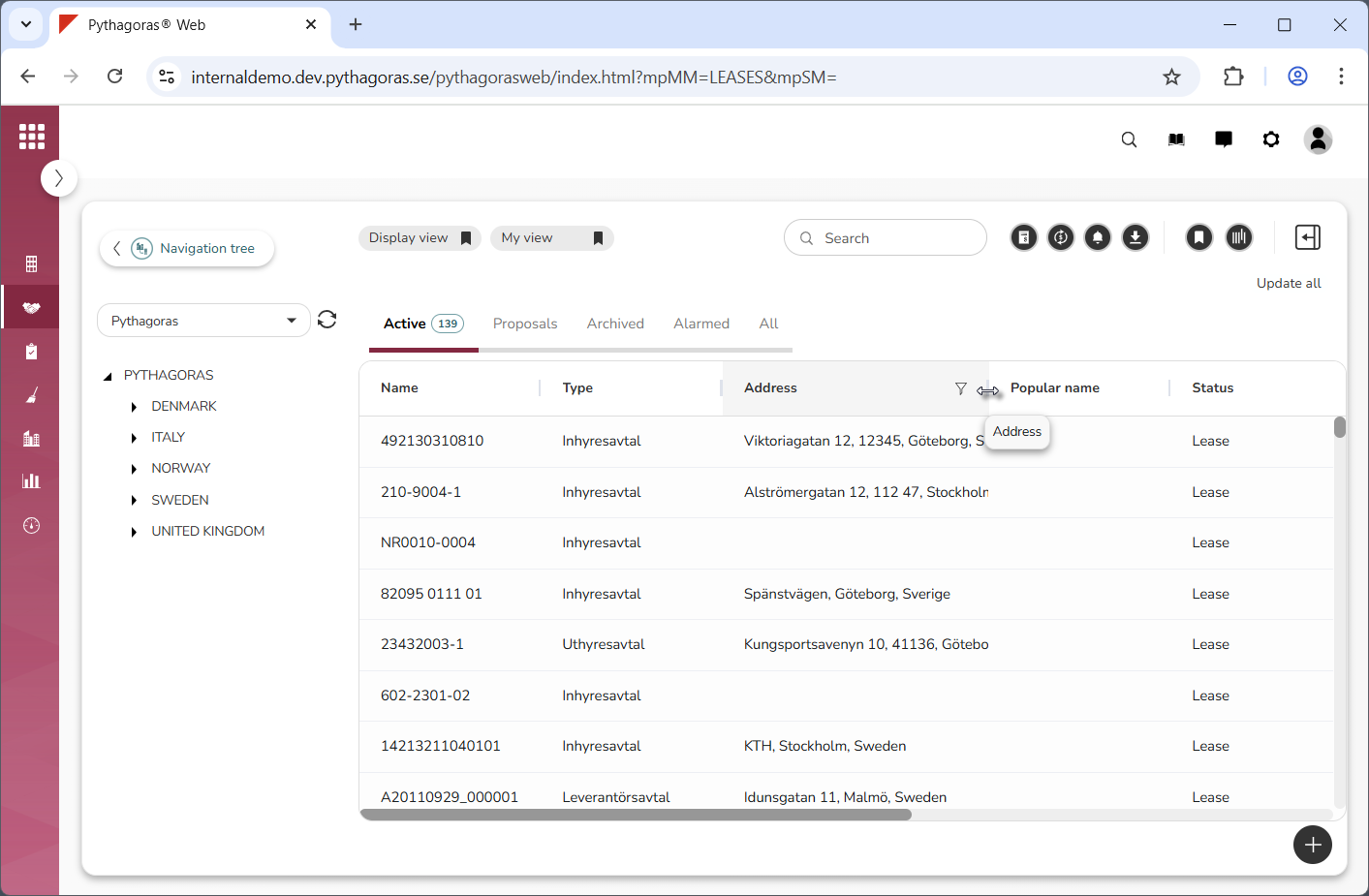
Change the width of a column by placing your cursor at the start or end point of the column and then dragging your mouse to the right or left to make the column wider or narrower (see images below). Repeat the instructions in this step until you are satisfied with the width of the columns that are active in view you are working with.
Save the changes you have made in the view you are working with. For more information on how to do so, see section 2.4. Note that you only need to do this if you have changed the width of one or more columns. If you have not done so, you can disregard this instruction step.