The columns found in the activity log depend on the selected view. If you have access to more than one view, you can select which view to show in the activity log. For more information on how to do so, see section 2.1. in this manual. Note that when you filter the activity log, your filter will be registered as a change in the view shown in it. The filter however, will not be saved in the view unless you save the changes made in it. For more information on how to do so, see section 2.4.in this manual.
To filter the activity log:
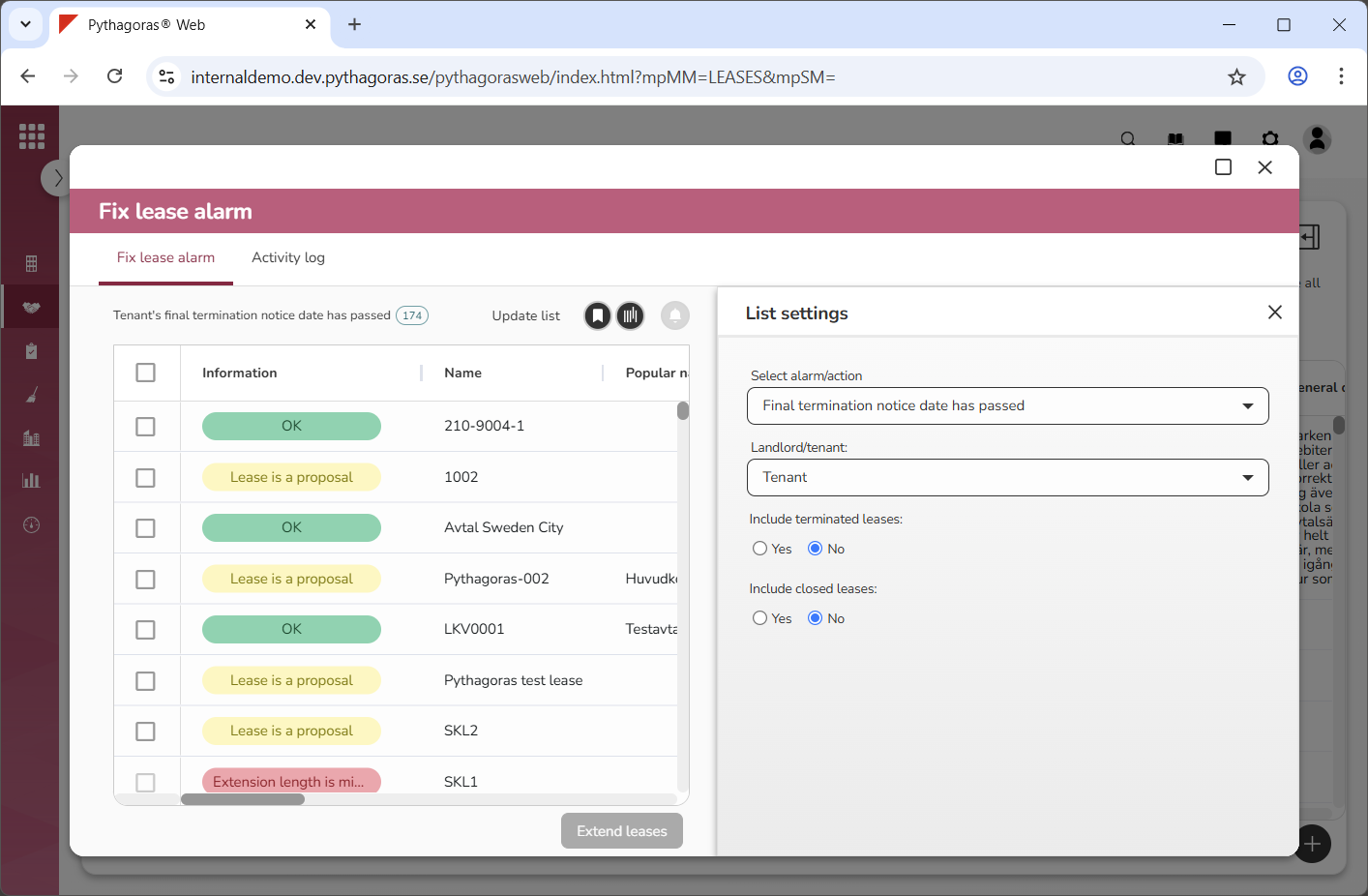
Open the fix leases card. For more information on how to do so, see section 6.5.1.
Go to the fix leases card (see image below).
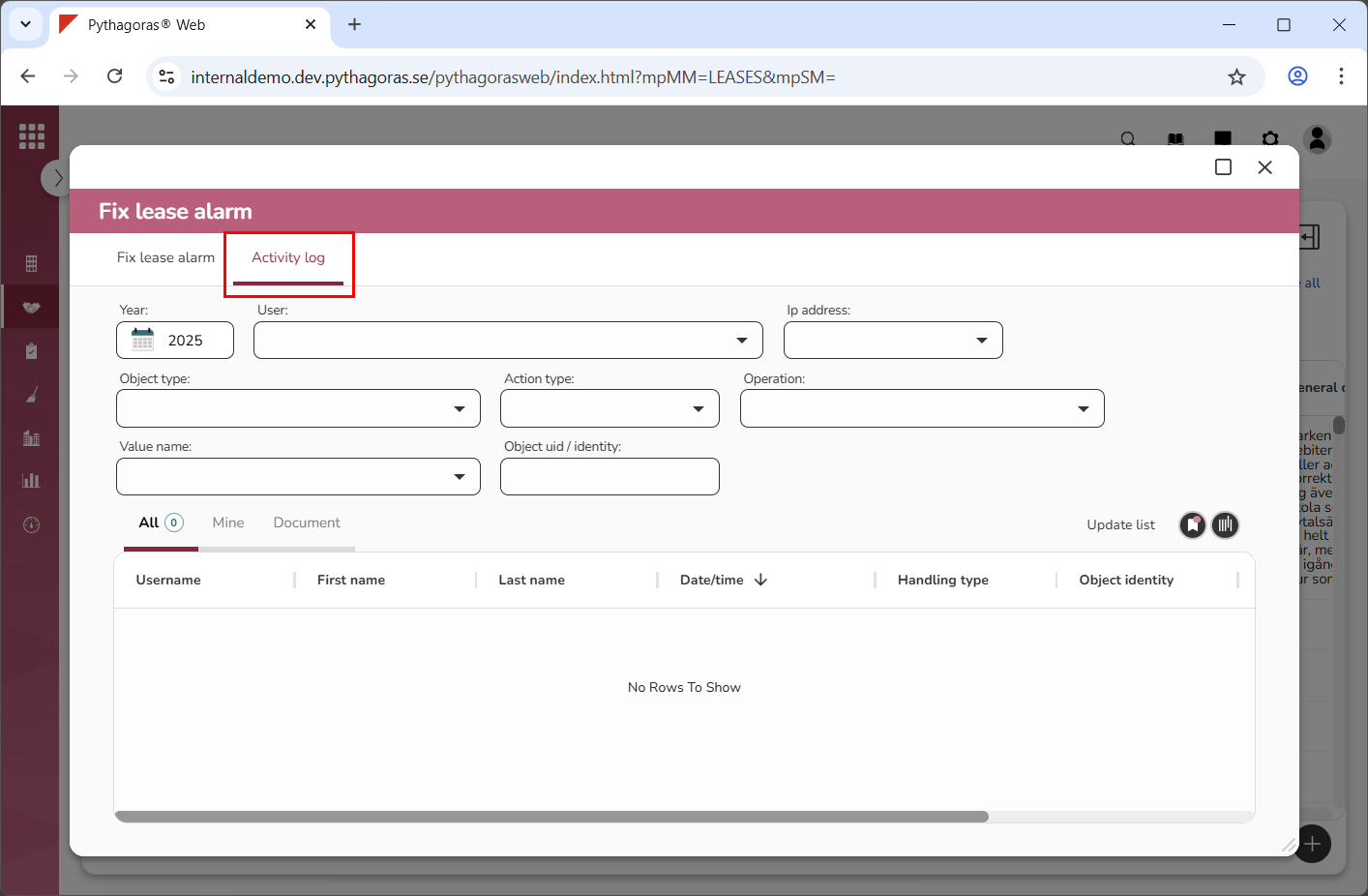
Click the tab called "Activity log" (see image below).
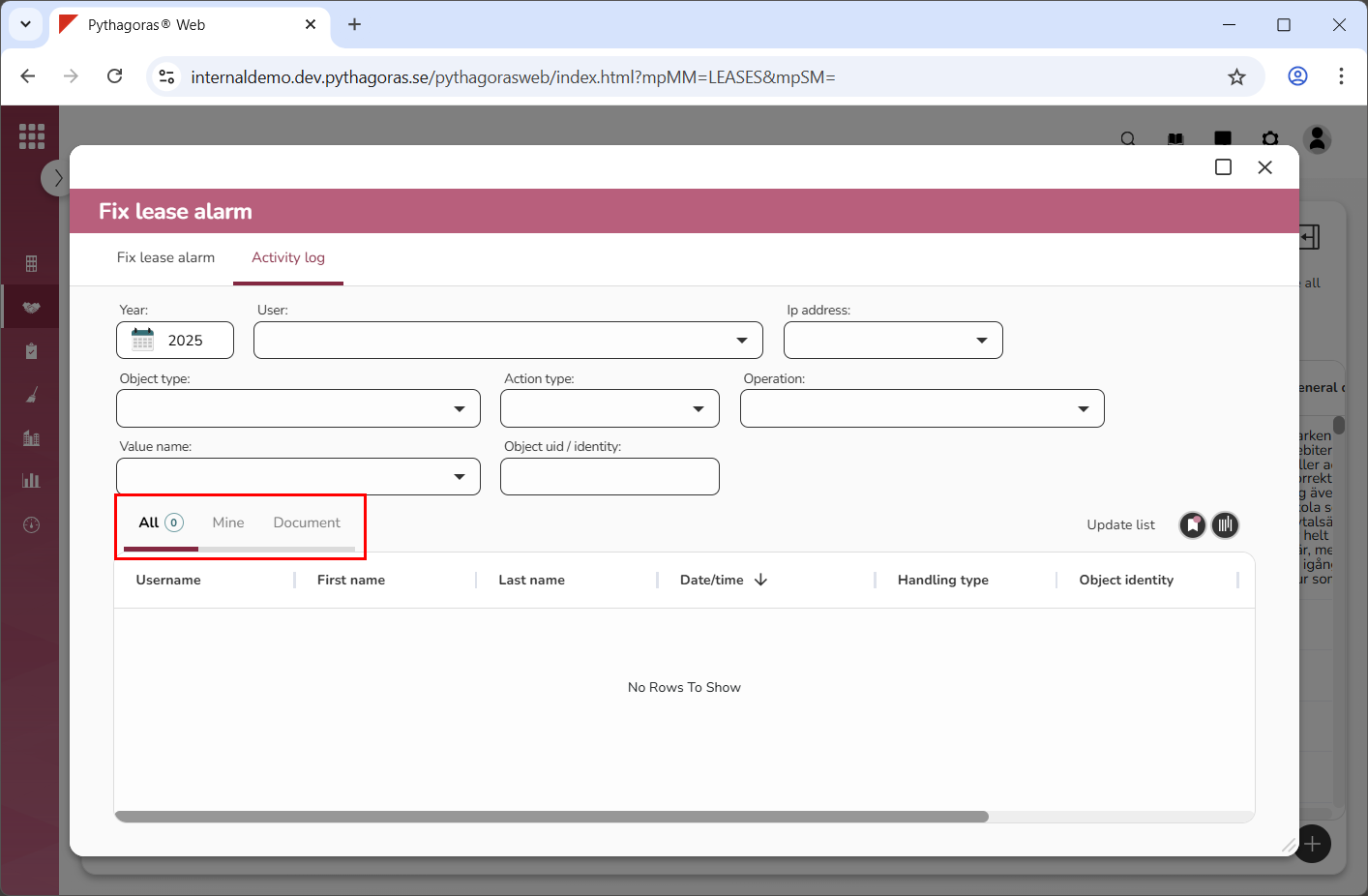
Click the tab within which you wish to filter: "All", "Mine" or "Document" (see image below).
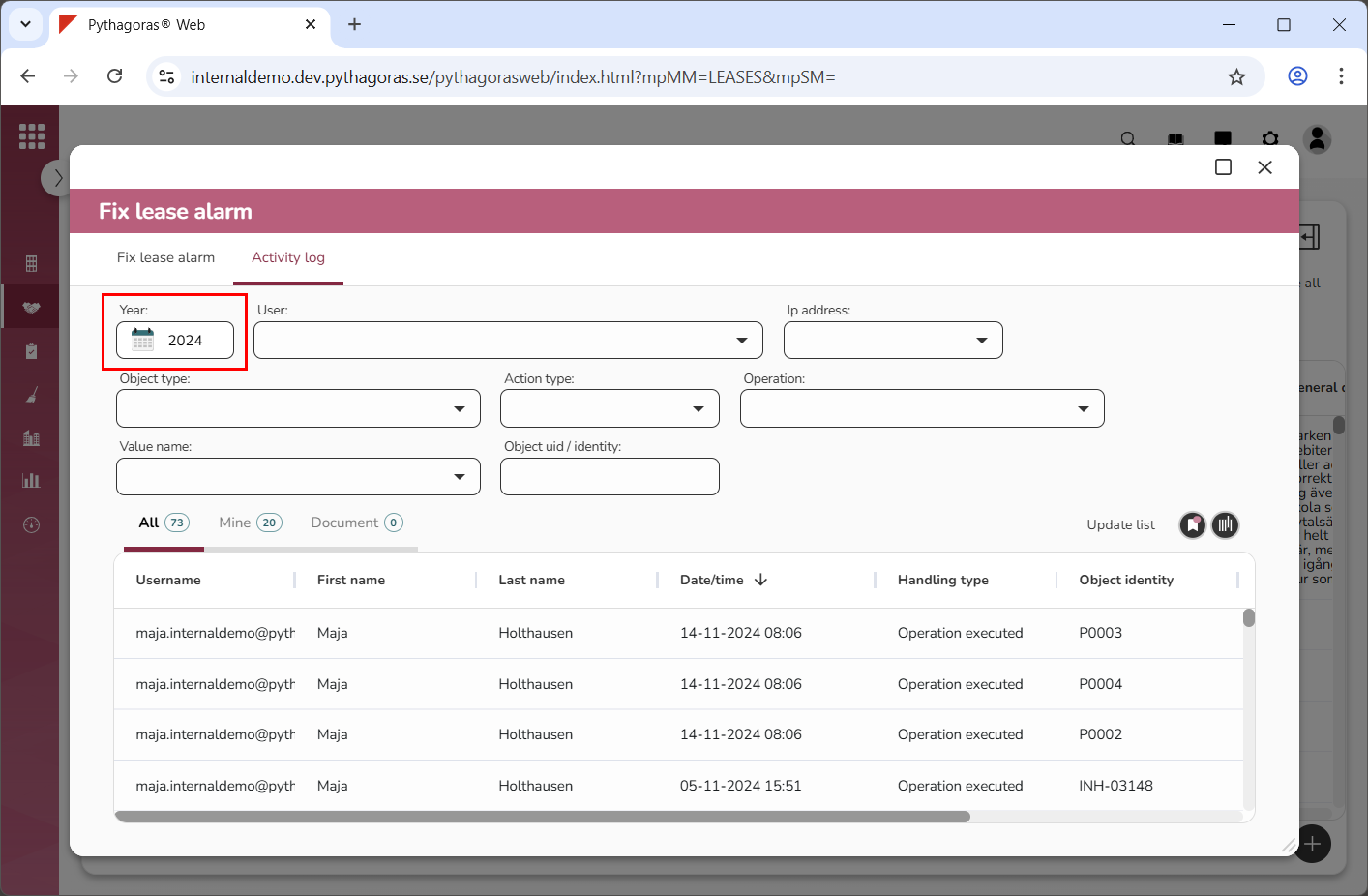
Select which year the activity log should show activities for by clicking the field "Select year" and then selecting a year in the calendar that opens (see image below).
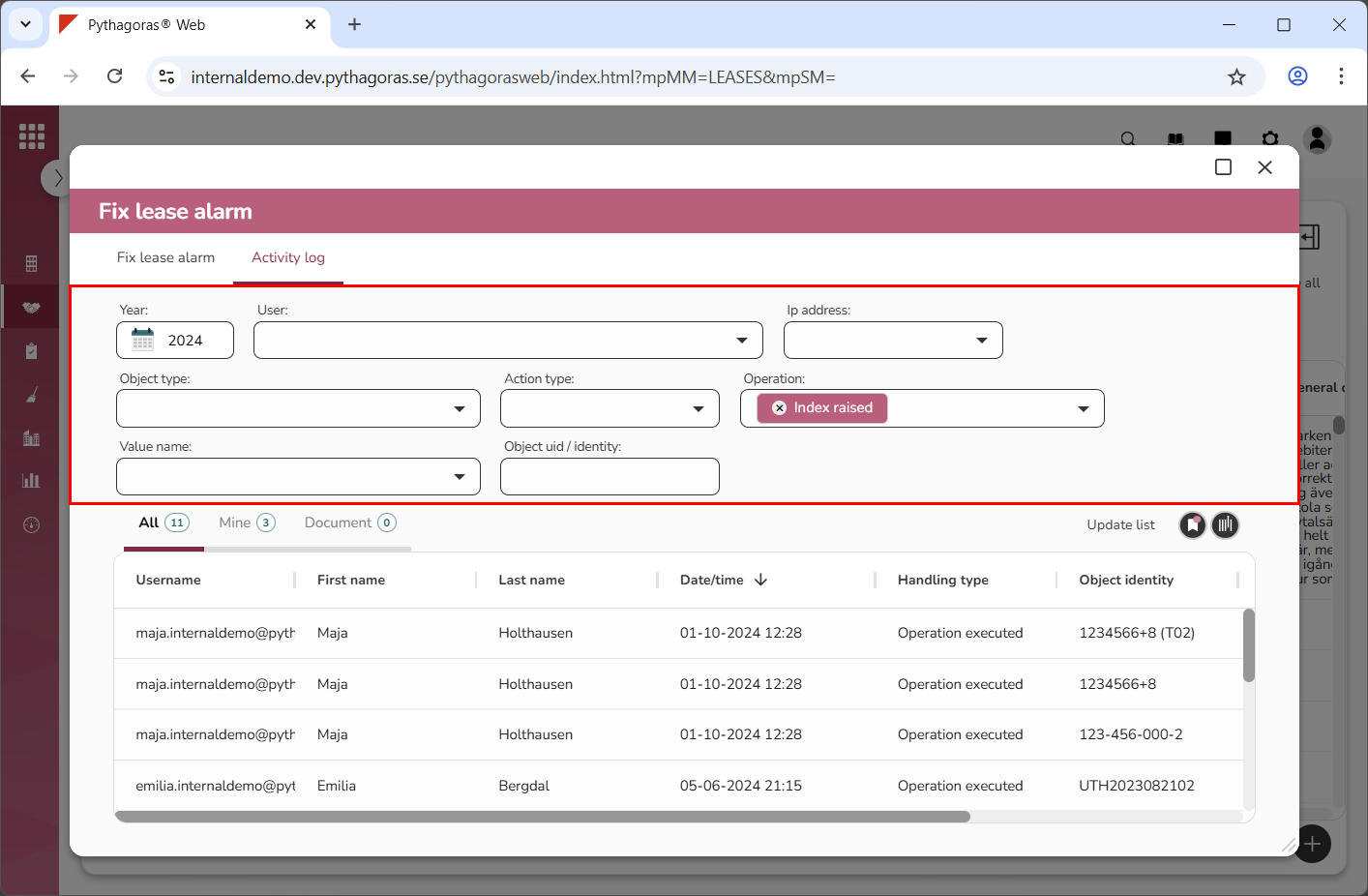
Filter one or more standard filters if you wish to limit the content of the activity log before filtering a column (see image below). For more information on how to do so, see the section "Filter a standard filter". If you do not wish to filter the standard filters you can skip this step and go straight to step 7.
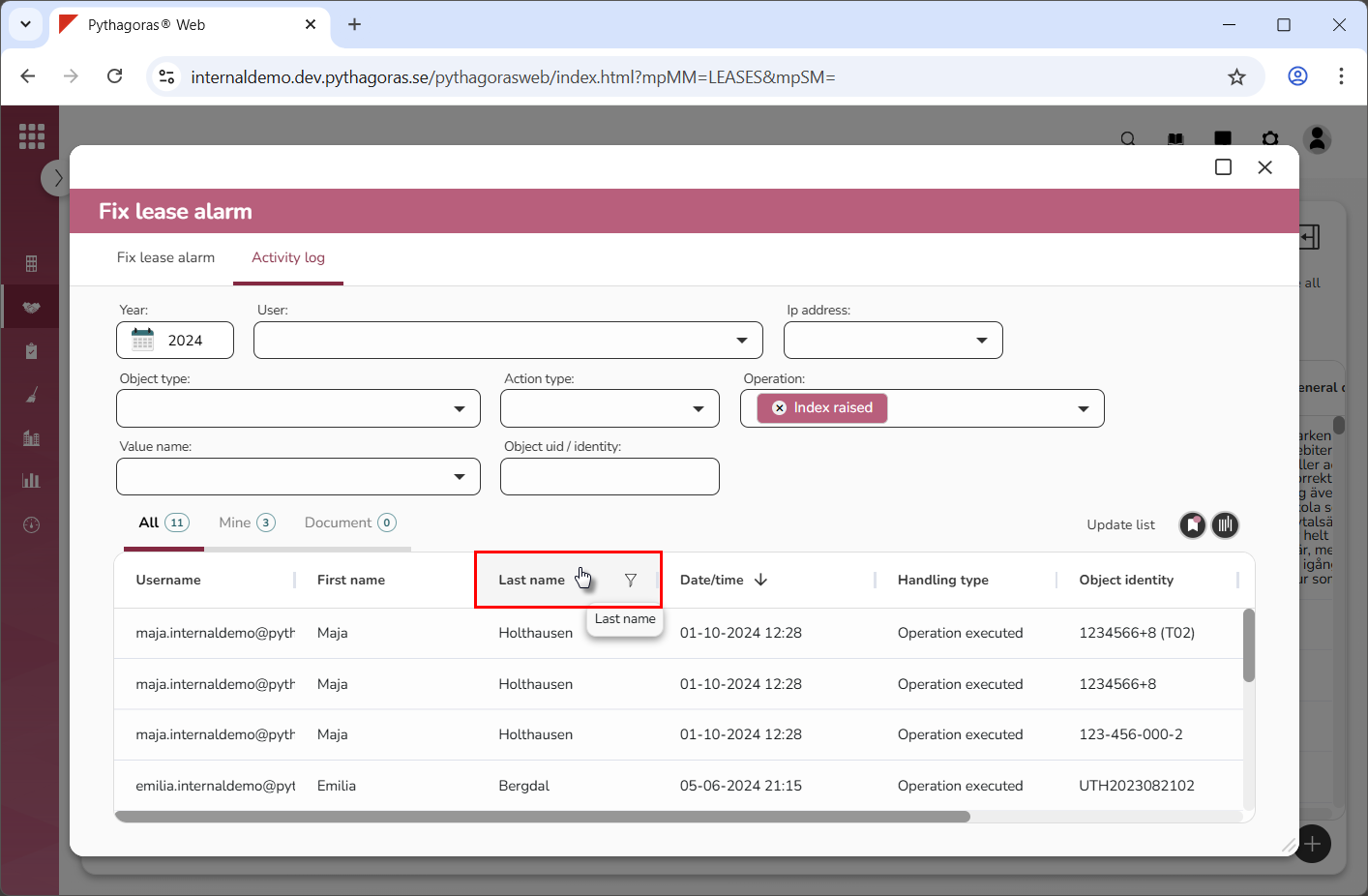
Place your cursor on the name of the column you wish to filter (see the first image below). When you do so, a filter icon will be shown (see the second image below).
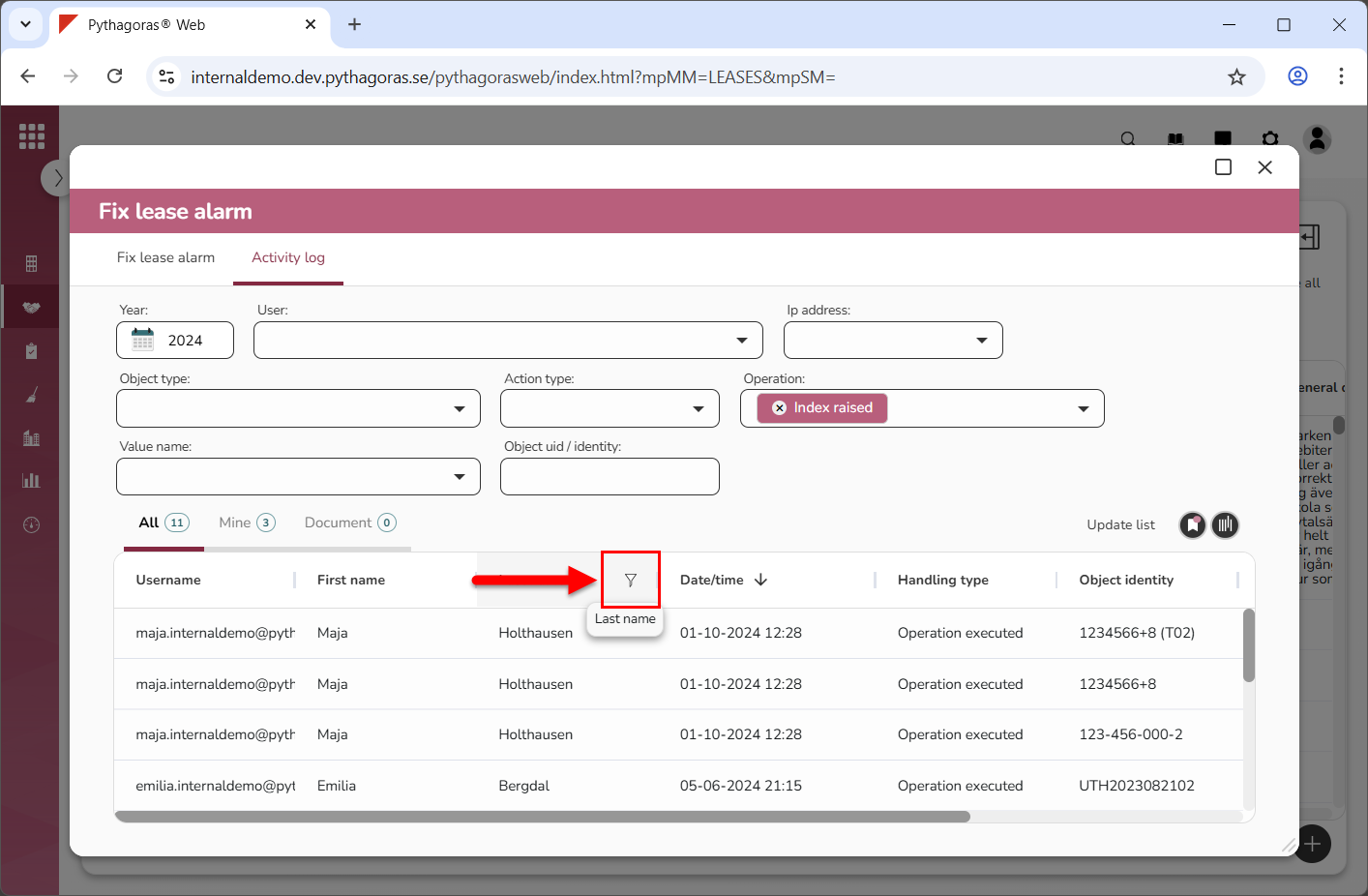
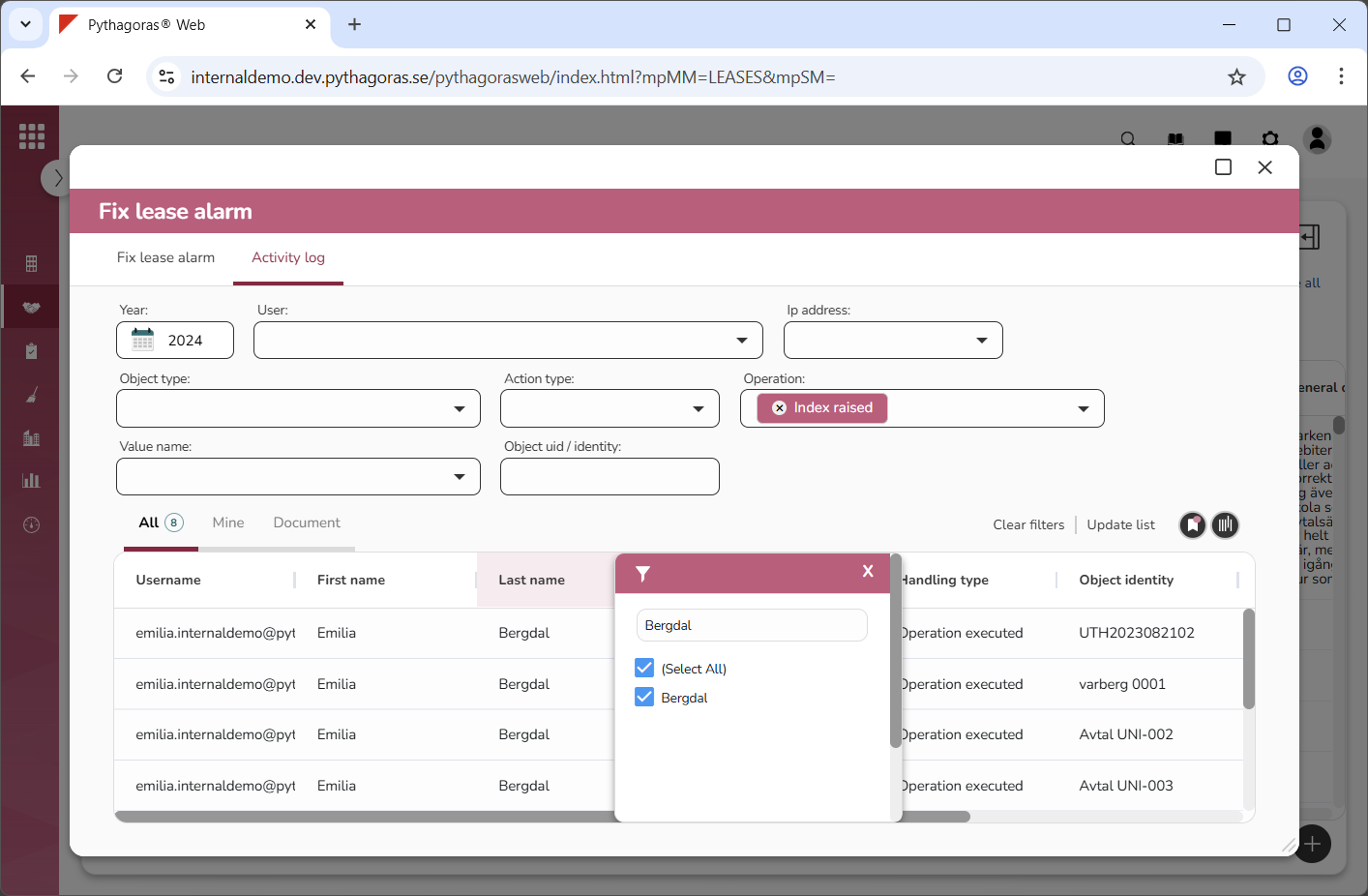
Click the filter icon (see the first image below). When you do so, a column specific filter window will open via which you can filter activities by filtering one or more objects or values (see the second and third image below). For more information on how to filter one or more objects or values, continue reading below the images below.
To filter one or more objects:
Go to the filter window (see image below).
2. Select the object or objects you wish to filter by entering a search string in the search field and/or selecting one or more individual objects in the list of objects (see image below). When you enter a search string in the search field and/or select one or more individual objects in the list of objects, a filter will be performed.
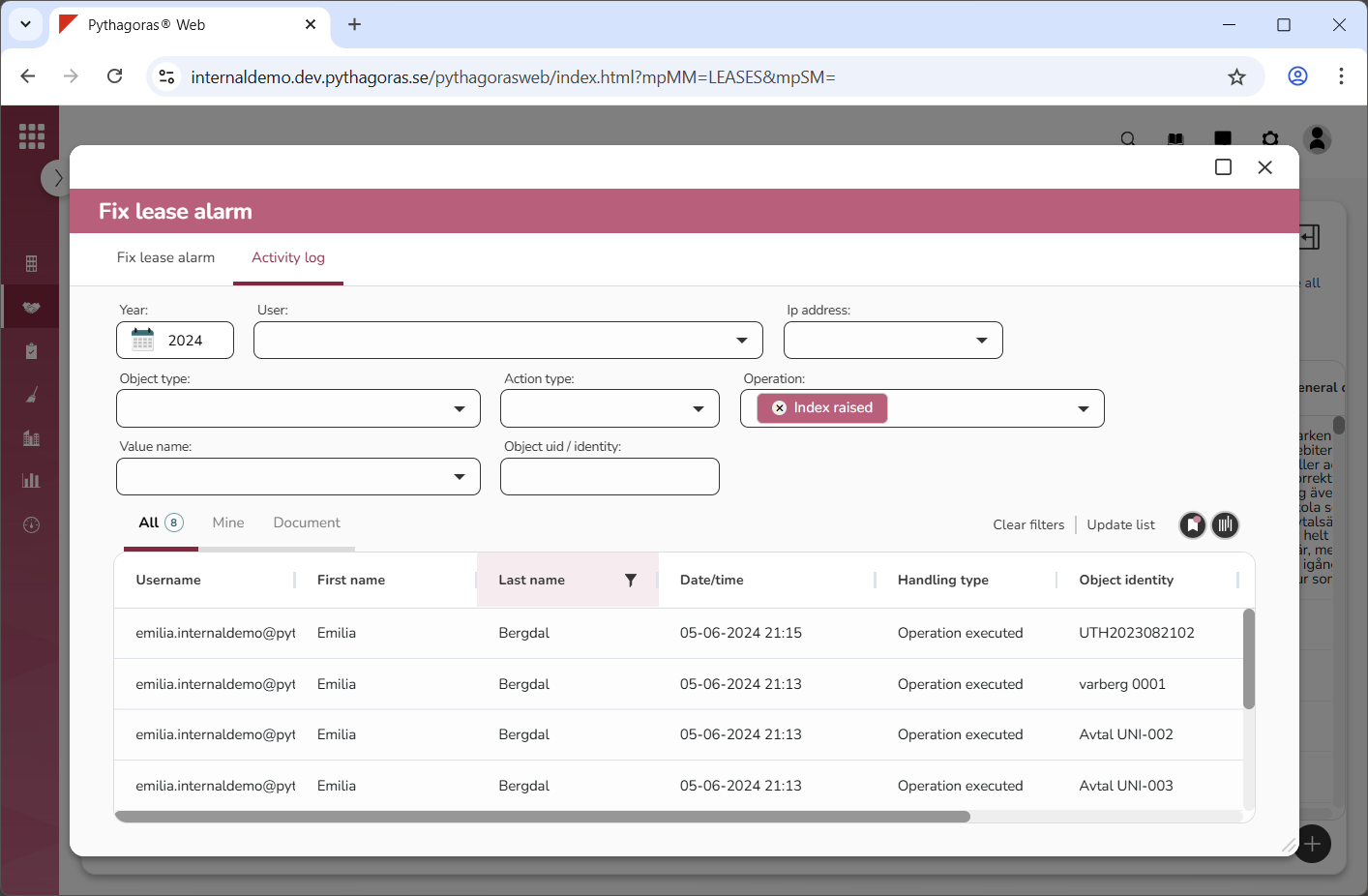
3. Close the filter window (see the first image below). When you close the filter window you will be redirected back to the activity log where you will find the activities associated with the object or objects you filtered. Our filter for activities associated with the last name "Bergdal" returned eight results (see the second image below). Note that if you wish to make your filter more specific, you can filter one or more of the columns you have not yet filtered. For more information on how to clear filters in the activity log or how to reset a column, see the end of this section.
To filter one or more values:
Go to the filter window (see image below).
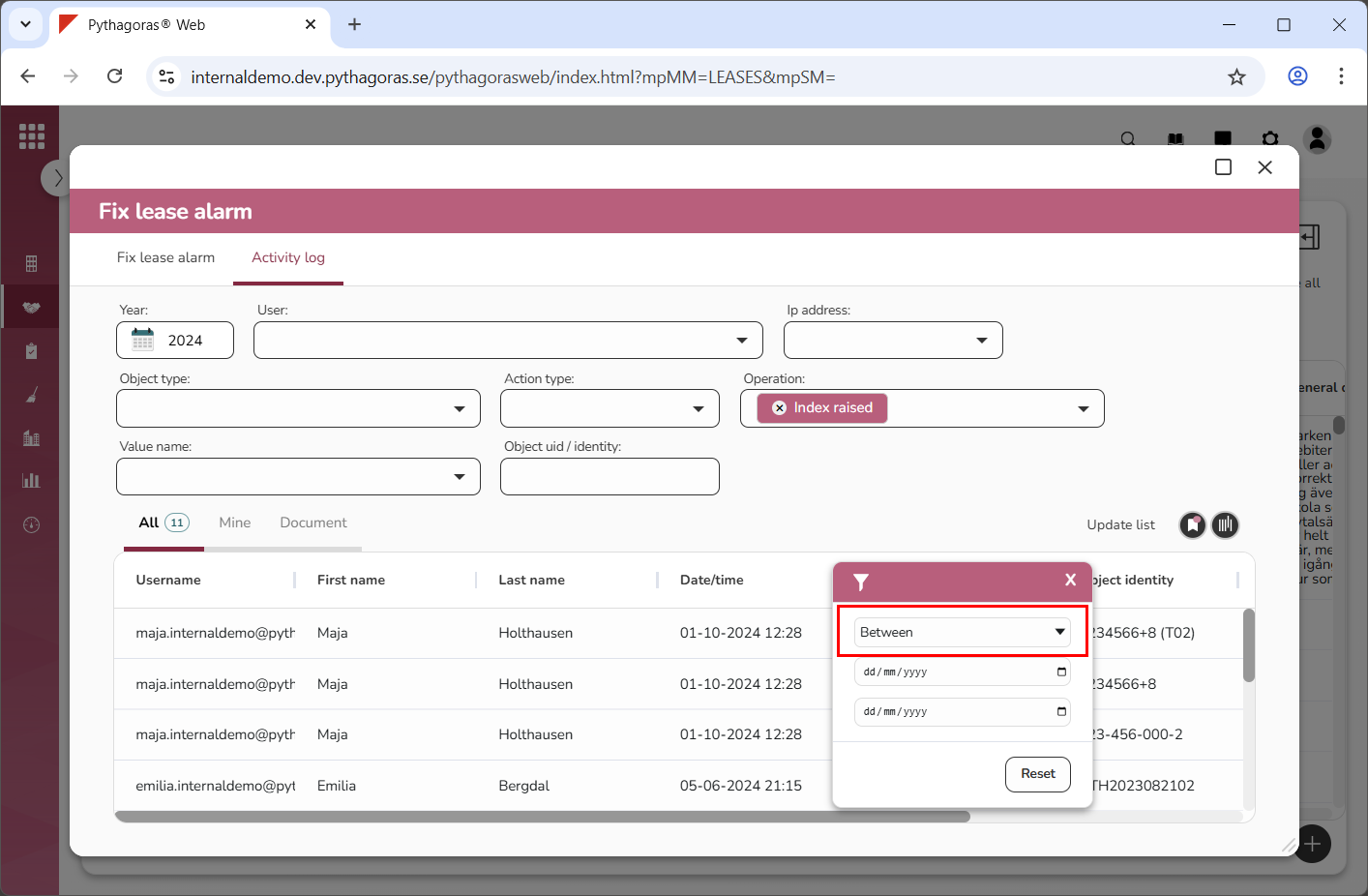
Enter the type of values you wish to filter by clicking the upper field and then selecting a type of value in the list that opens (see image below).
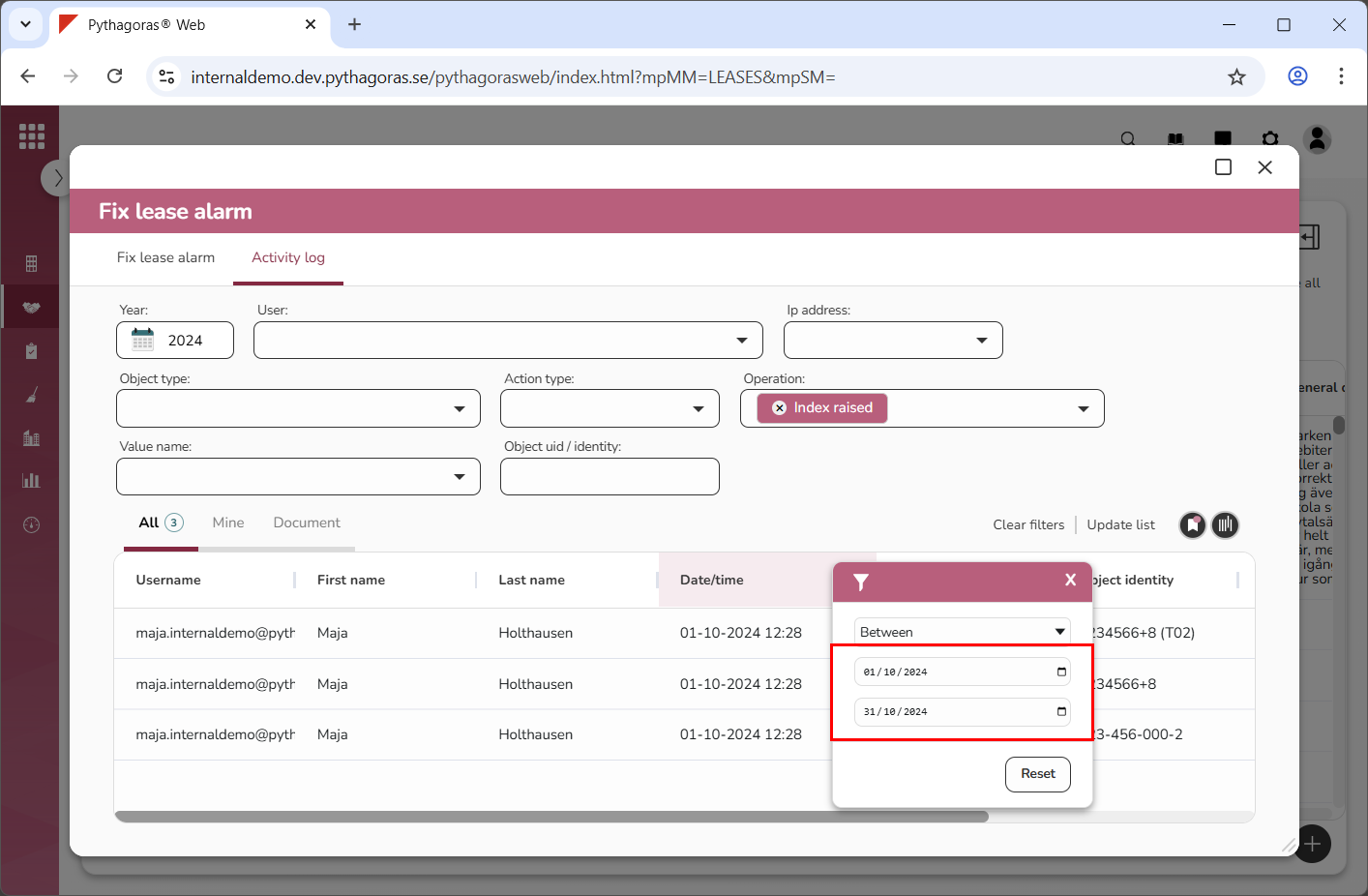
Specify which value or values to filter (see image below). When you specify which value or values you wish to filter, a filter will be performed. Note that if you selected "Blank" or "Not blank" in step 2, you can skip this step and go straight to step 4.
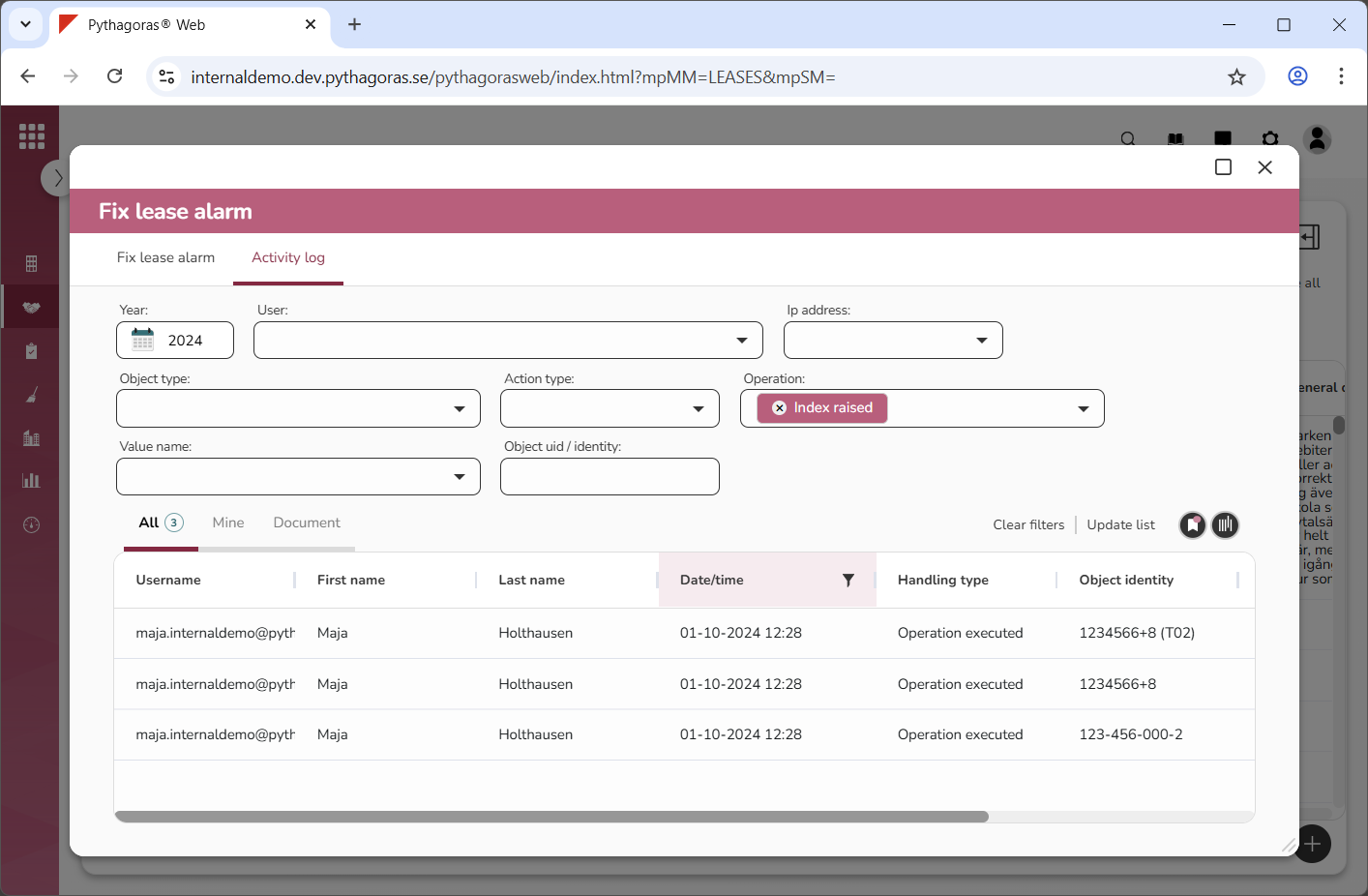
Close the filter window (see the first image below). When you close the filter window you will be redirected back to the activity log where you will find the activities associated with the value or values you filtered. Our filter for activities performed between 01/10/2024 and 31/10/2024 returned three results (see the second image below). Note that if you wish to make your filter more specific, you can filter one or more of the columns you have not yet filtered. For more information on how to clear filters in the activity log or how to reset a column after filtering, continue reading below the images below.
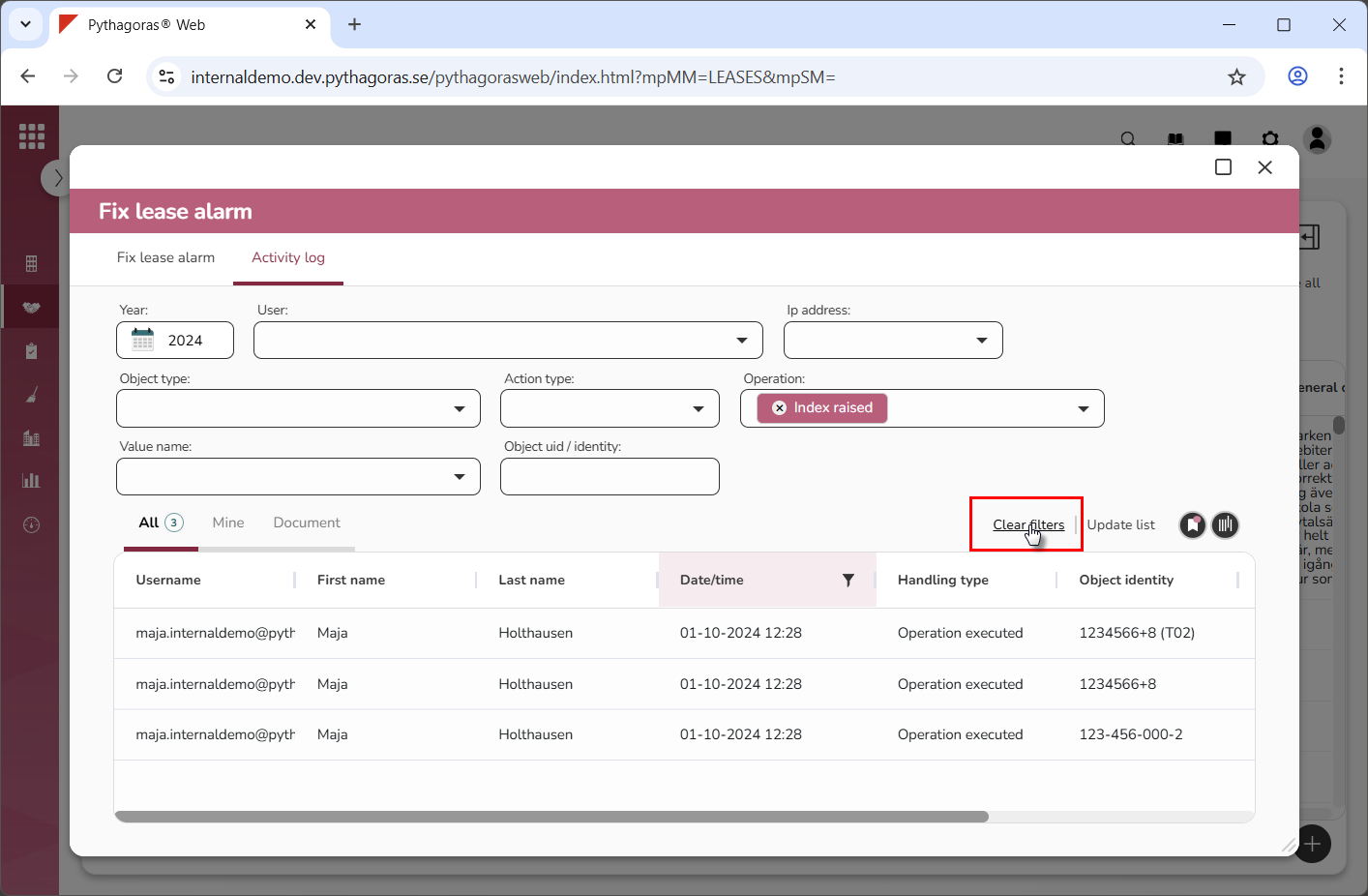
To clear the activity log of column filtering, click "Clear filters" (see image below). When you clear the activity log of column filtering, the entire activity log will be reset, meaning all column filtering will be removed from it.
To reset a column after filtering, click its filter icon (see the first image below). Then click "Reset" in its filter window (see the second image below). When you reset a column, only the individual column is reset. If you have filtered more than one column, the filtering will remain in the column or columns you do not reset.