8.13.6. Edit a report template available in Pythagoras Leases
To edit a report template available in Leases:
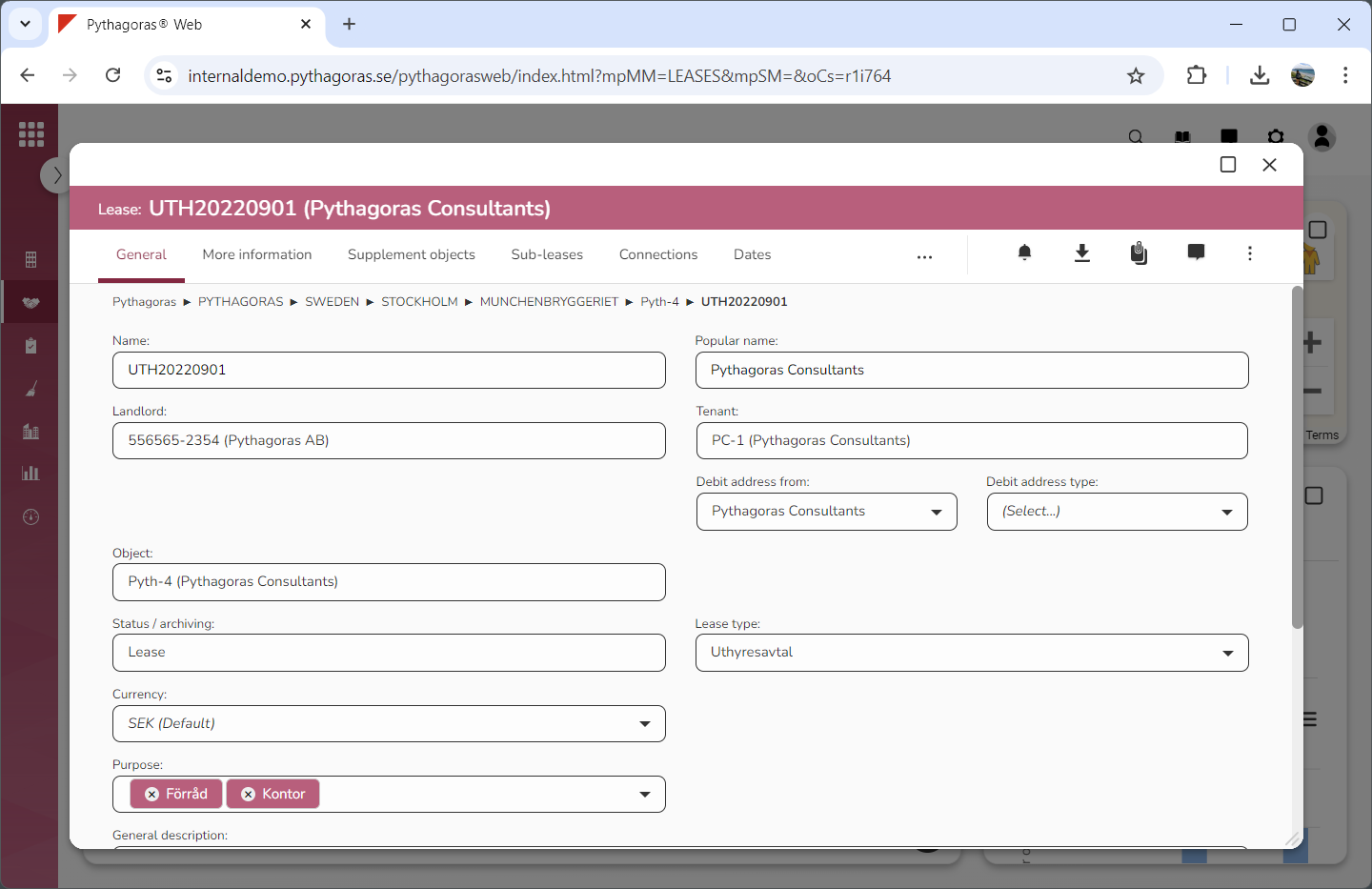
Open a lease. For more information on how to do so, see section 4.6. or 6.1.
Go to the lease card (see image below).
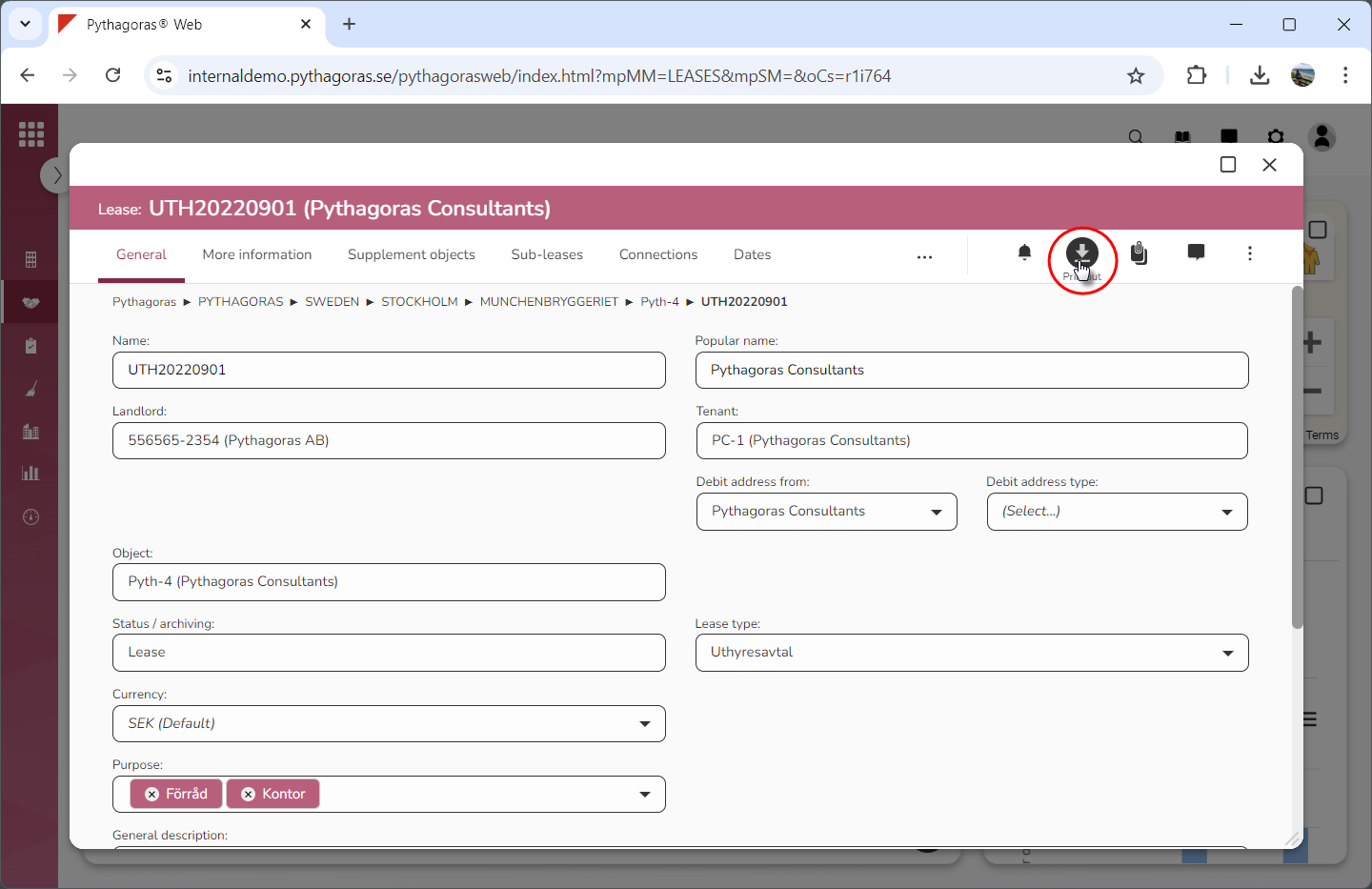
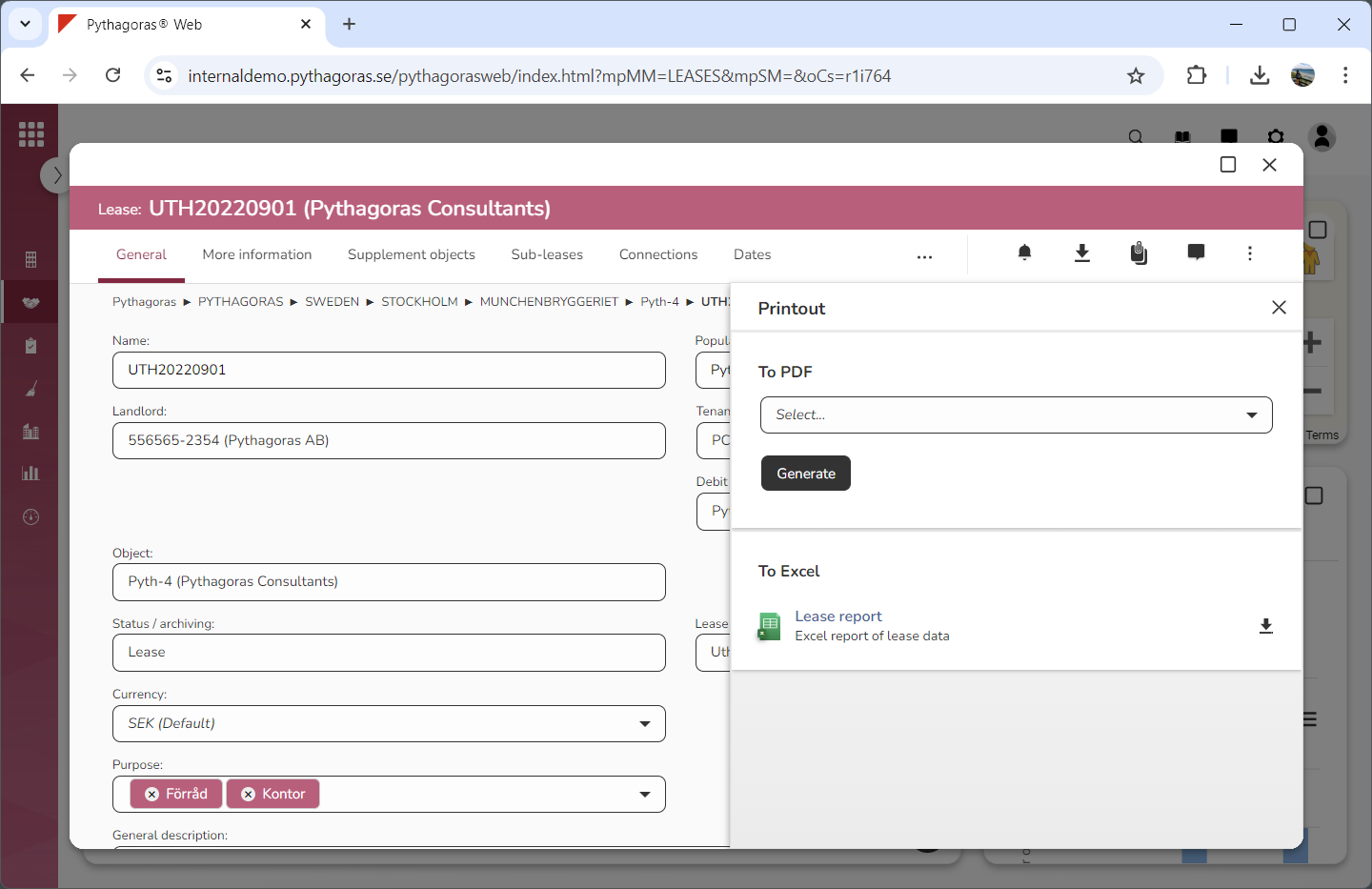
Click the icon "Printout" (see the first image below). When you do so, a window called "Printout" will open (see the second image below).
Go to the window called "Printout".
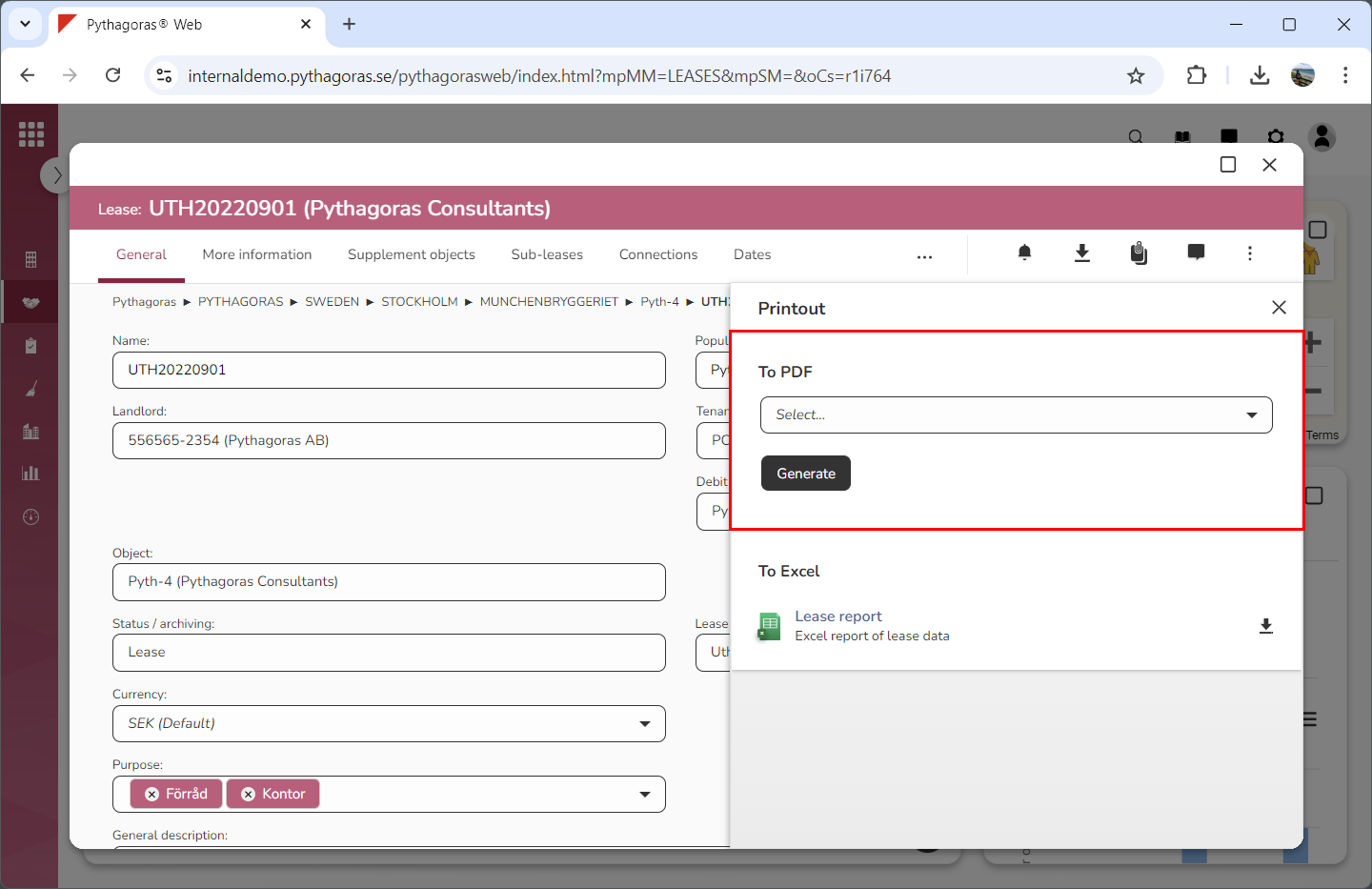
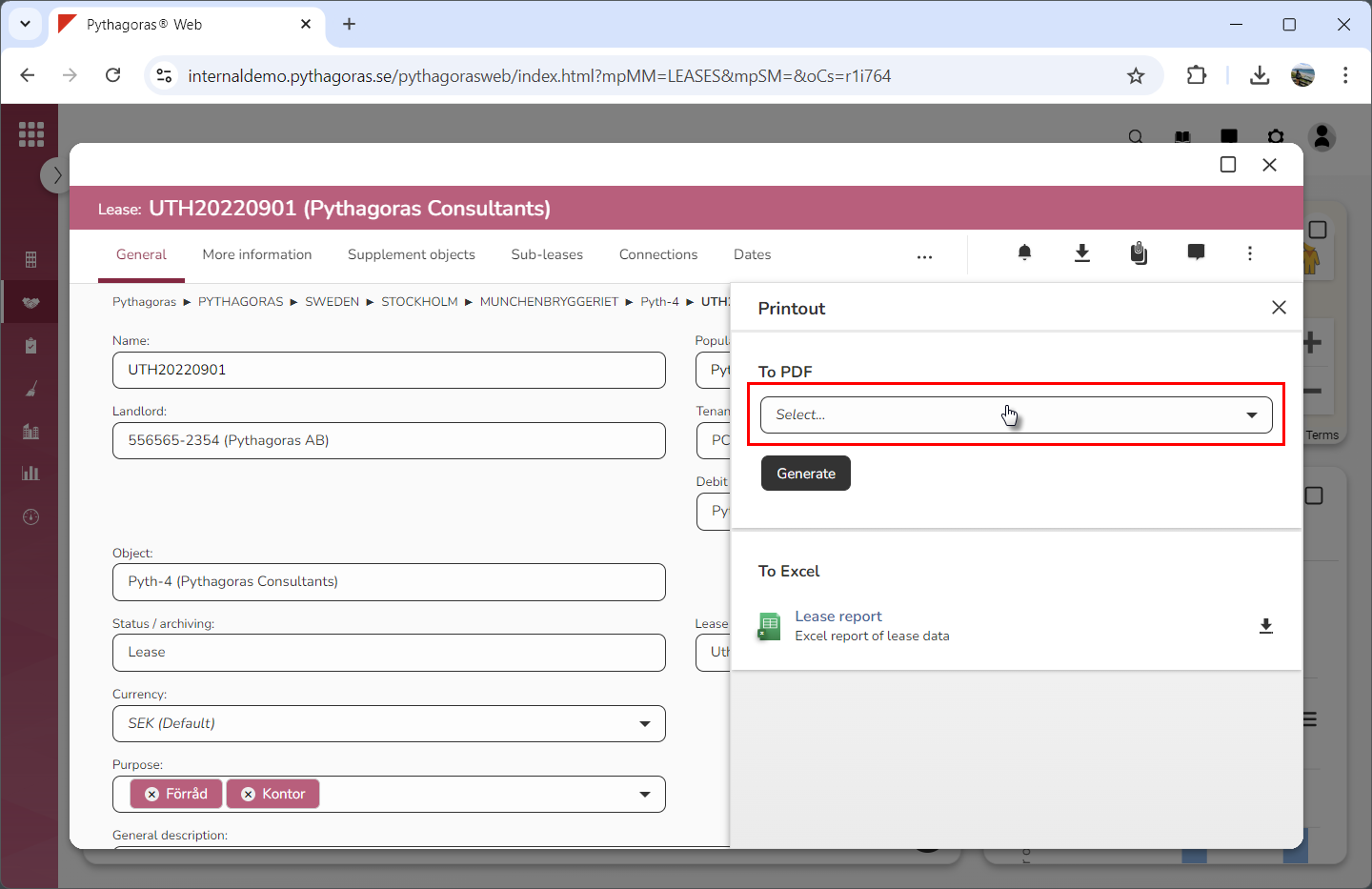
Go to the heading "To PDF" (see image below).
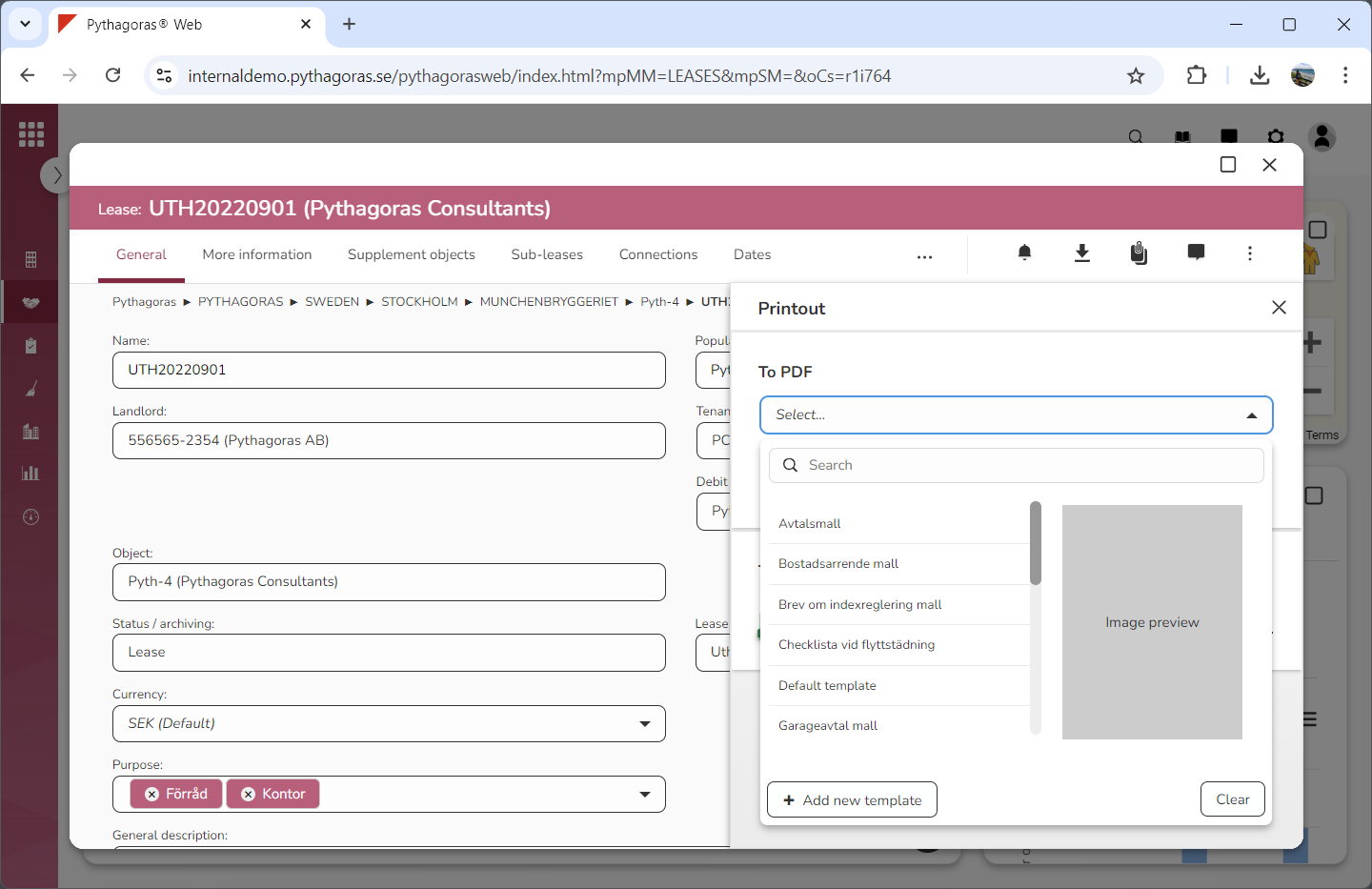
Click the field "Select" (see the first image below). When you do so, a list of report templates will open (see the second image below). In the list of report templates you will find the report templates available in Leases.
Go to the list of report templates.
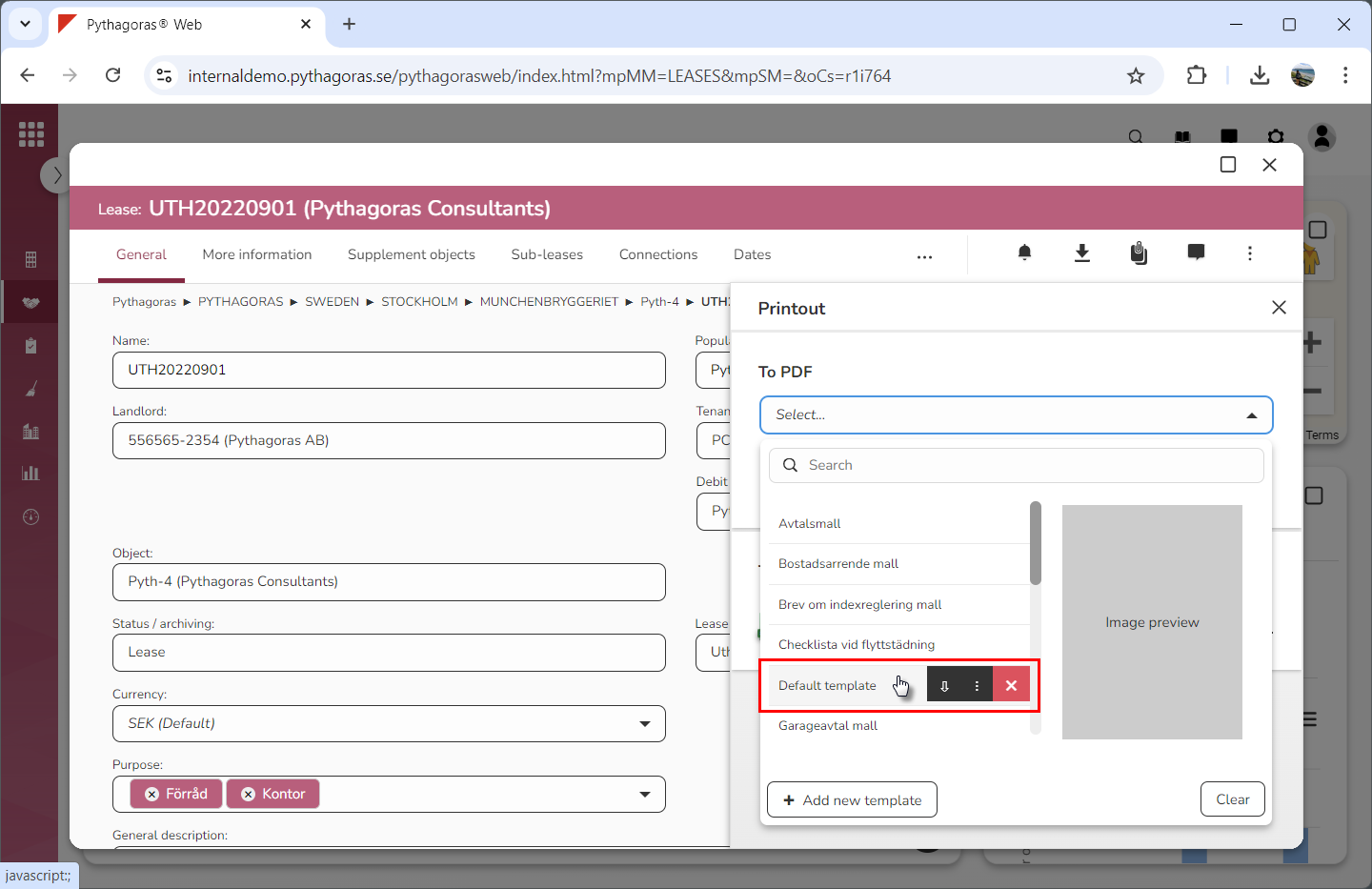
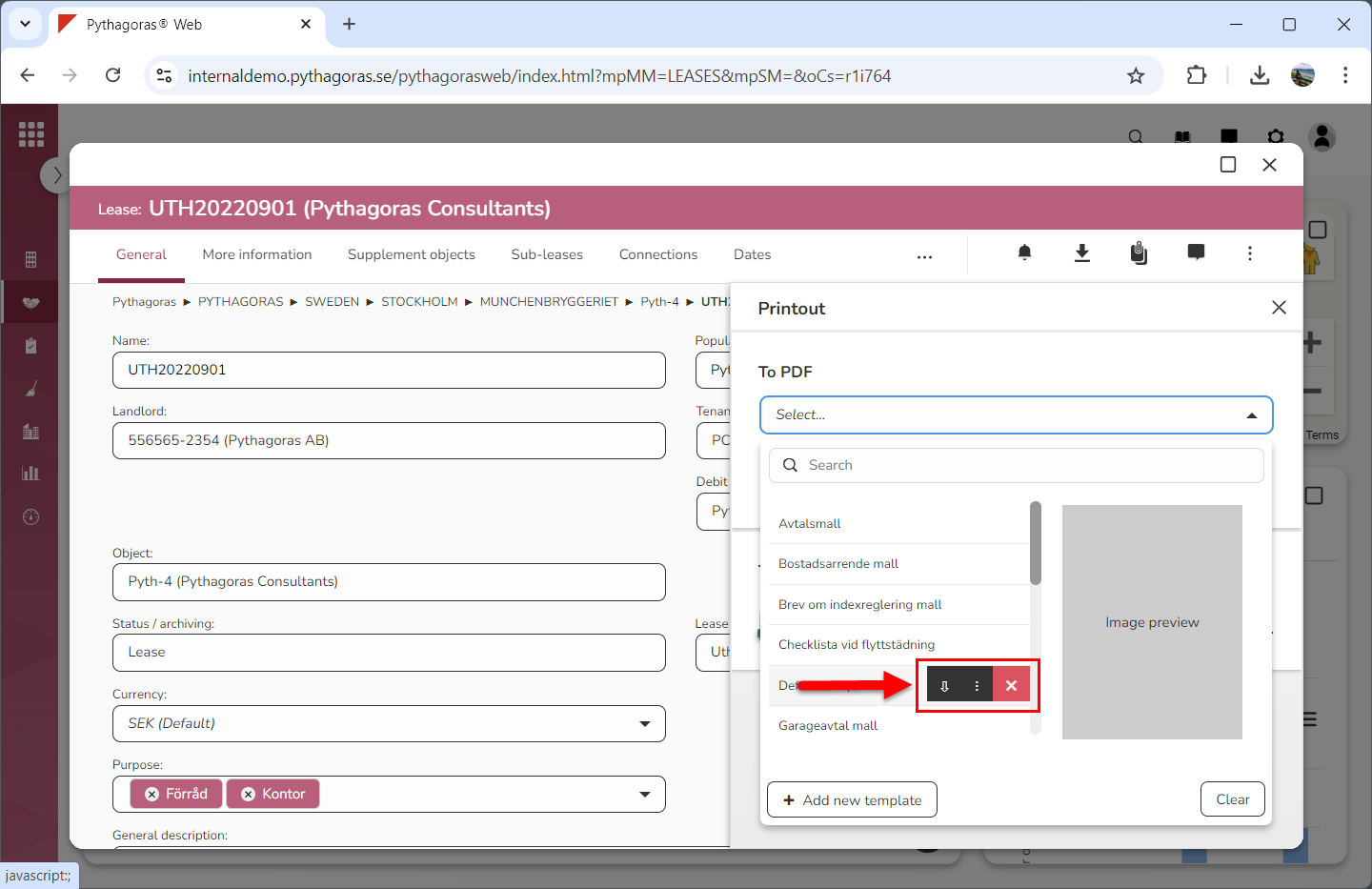
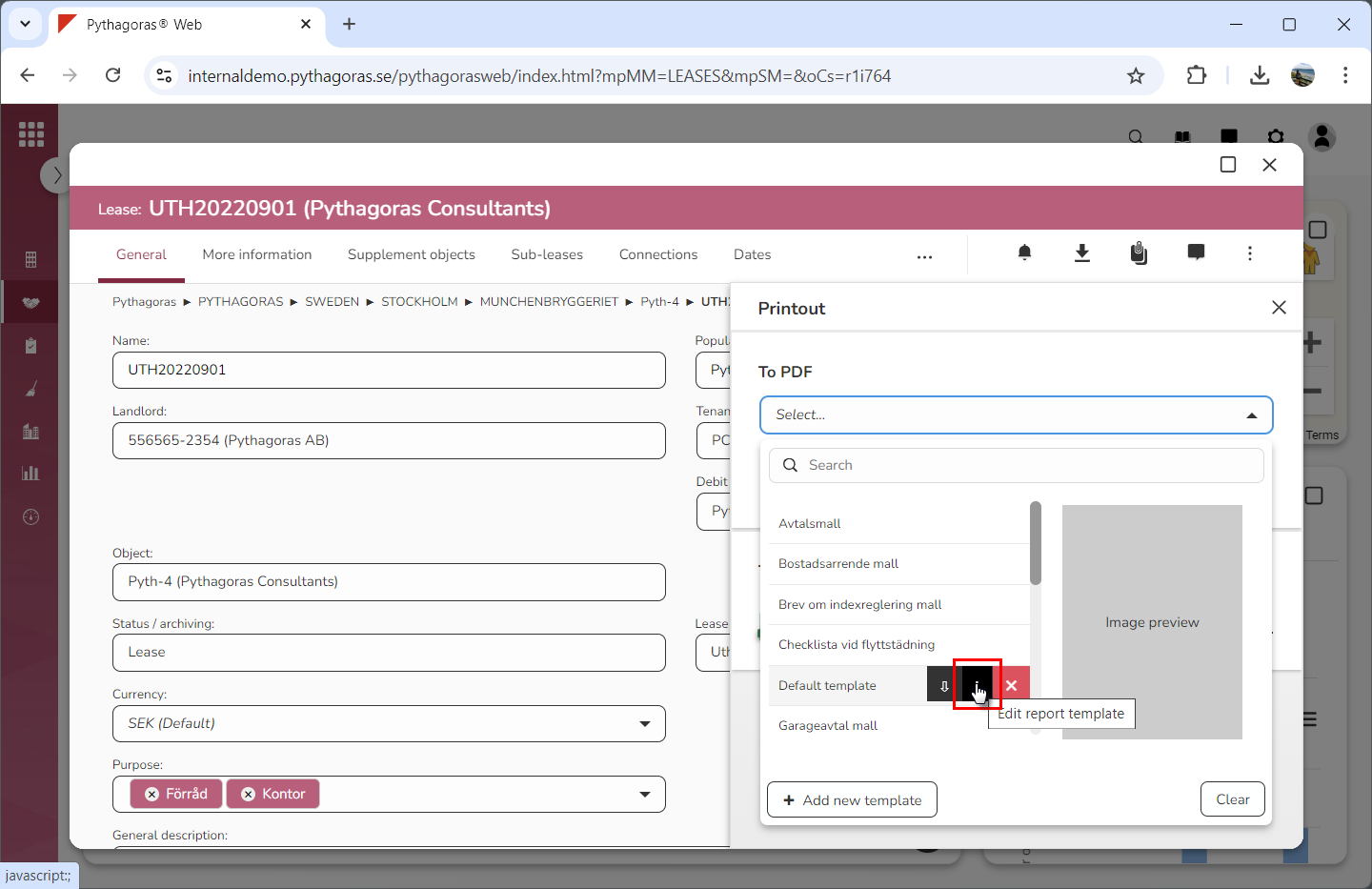
Place your cursor on the report template you wish to edit (see the first image below). When you do so, you will be shown three icons: "Download", "Edit printout template" and "Delete" (see the second image below).
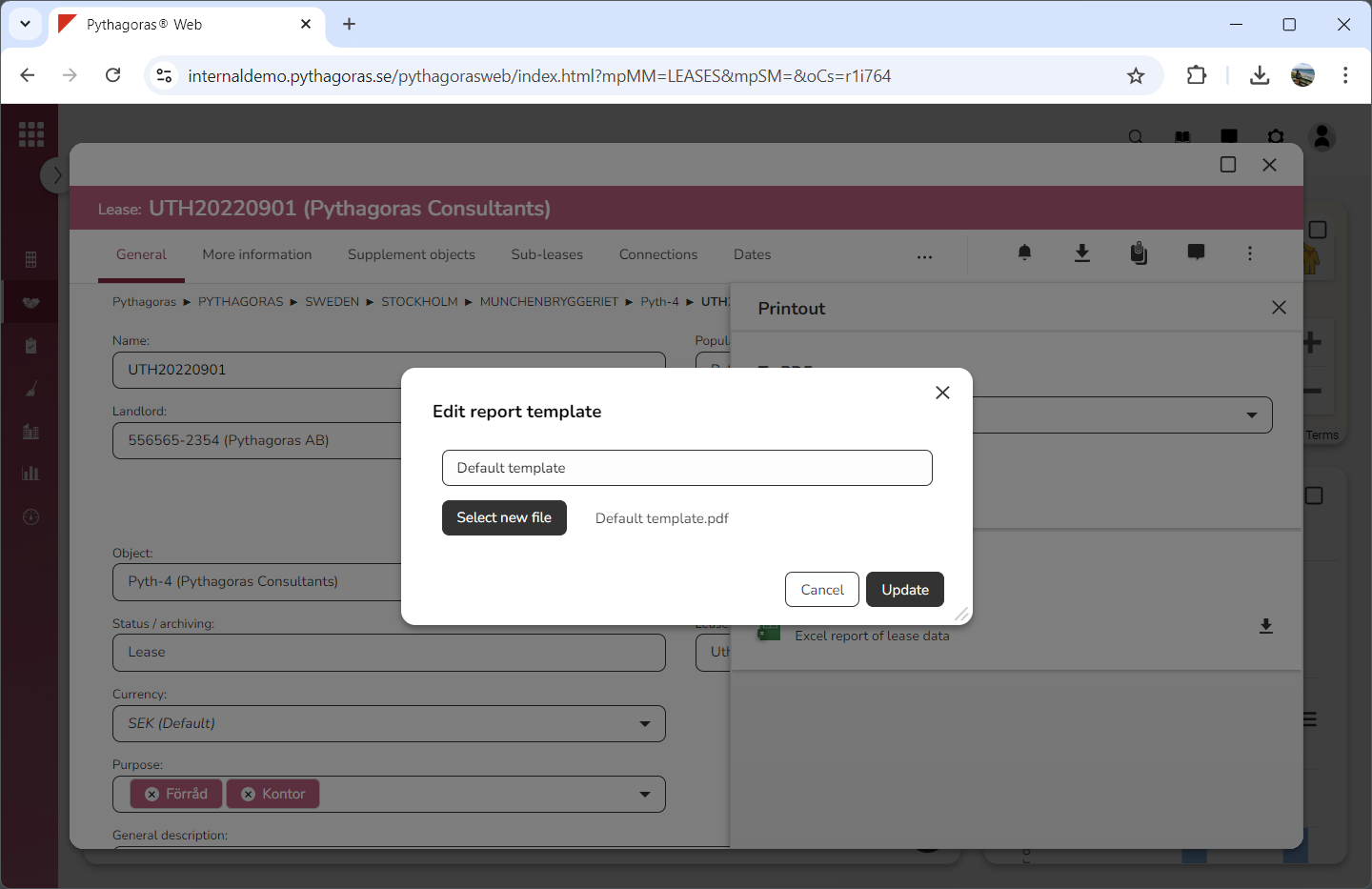
Click "Edit printout template" (see the first image below). When you do so, a window called "Edit printout template" will open (see the second image below).
Go to the window called "Edit printout template".
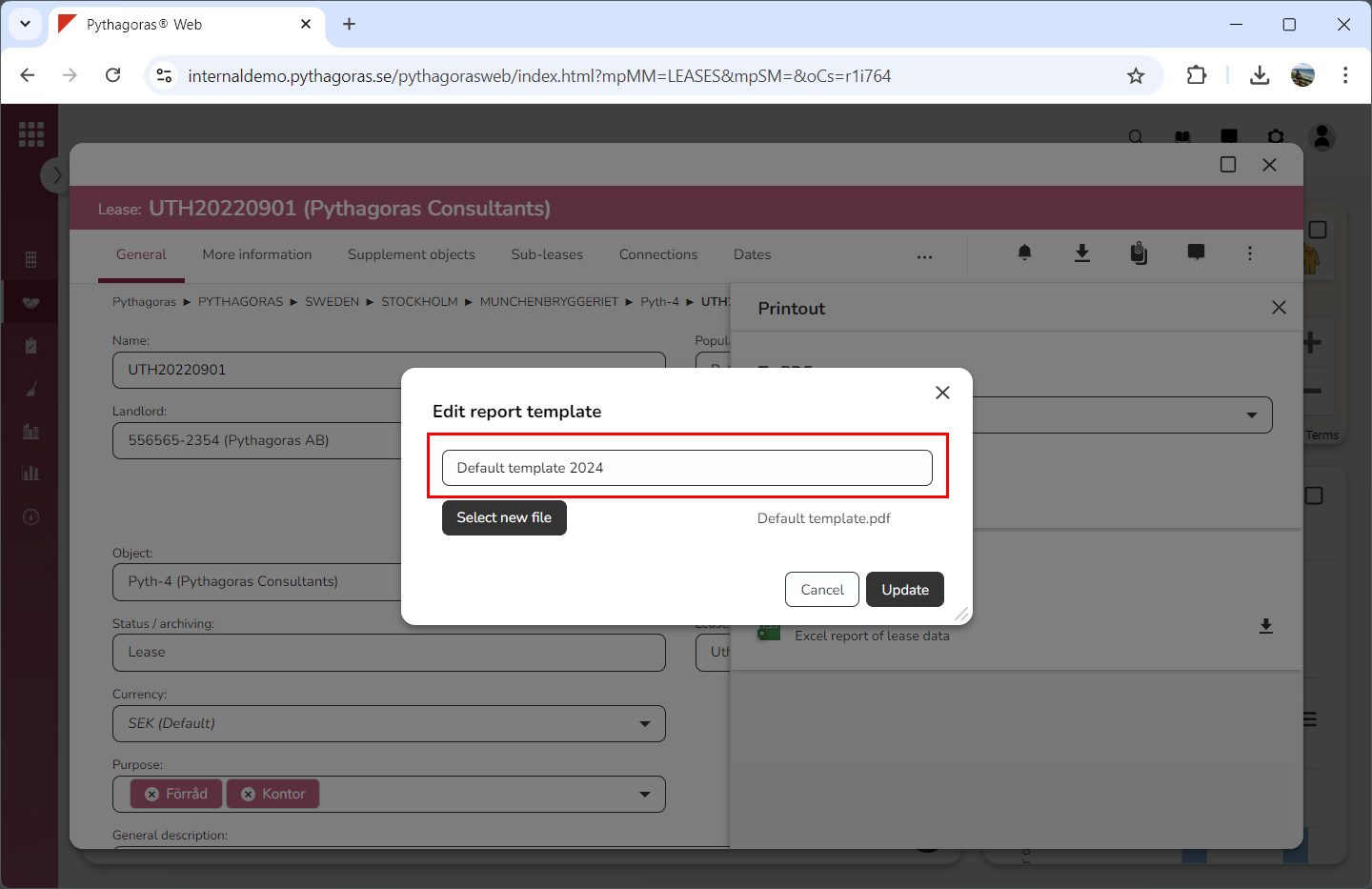
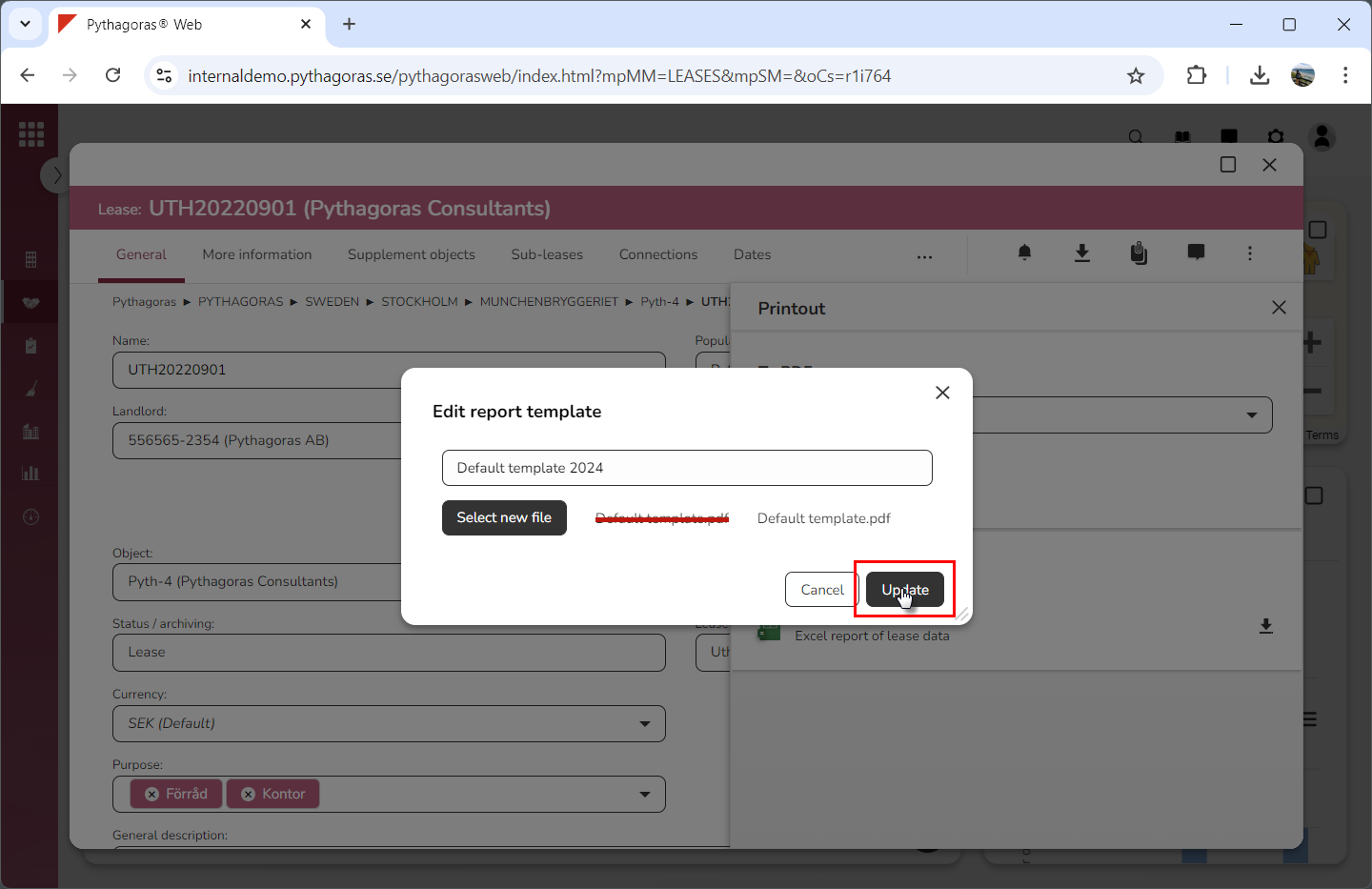
Rename the template you are working with by entering a new name in the field "Name" (see image below). Note that if you do not wish to rename the template you are working with, you can skip this step and go straight to step 12.
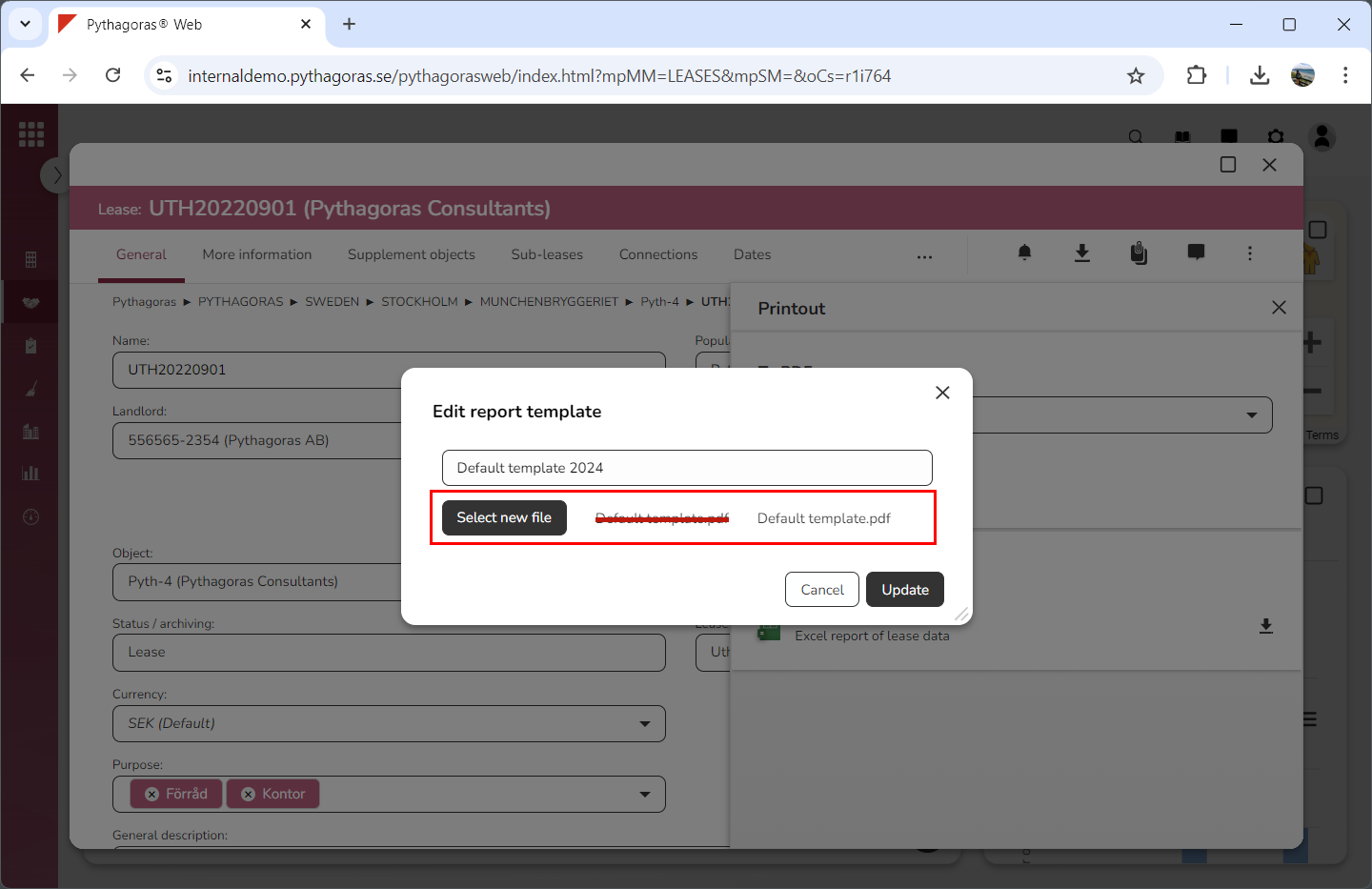
Replace the PDF that is linked to the template you are working with by clicking the button called "Select new file" and then selecting a new PDF in the Explorer (see image below). If you do not wish to replace the PDF that is linked to the template you are working with, you can skip this step and go straight to step 13.
Click "Update" (see image below). When you do so, the changes made for the template you are working with will be saved.