Create a lease adjustment with an amount based adjustment value
To create a lease adjustment with an amount based adjustment value:
Open the fix leases card. For more information on how to do so, see section 6.5.1.
Go to the fix leases card (see image below).
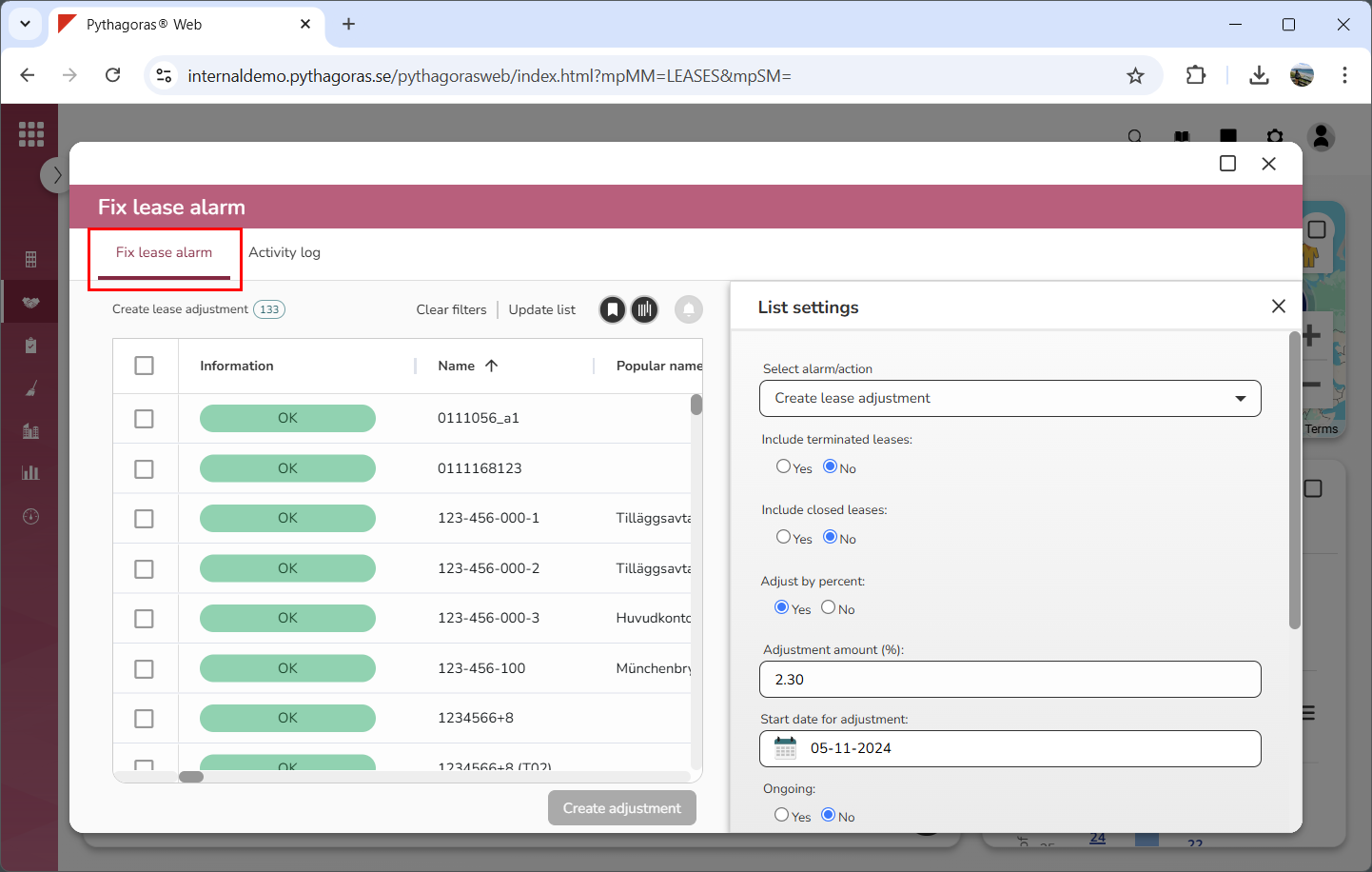
Click the tab called "Fix lease alarms" (see image below). Within the tab called "Fix lease alarms" you will find a leases list. The leases displayed in the leases list depend on which alarm type is active.
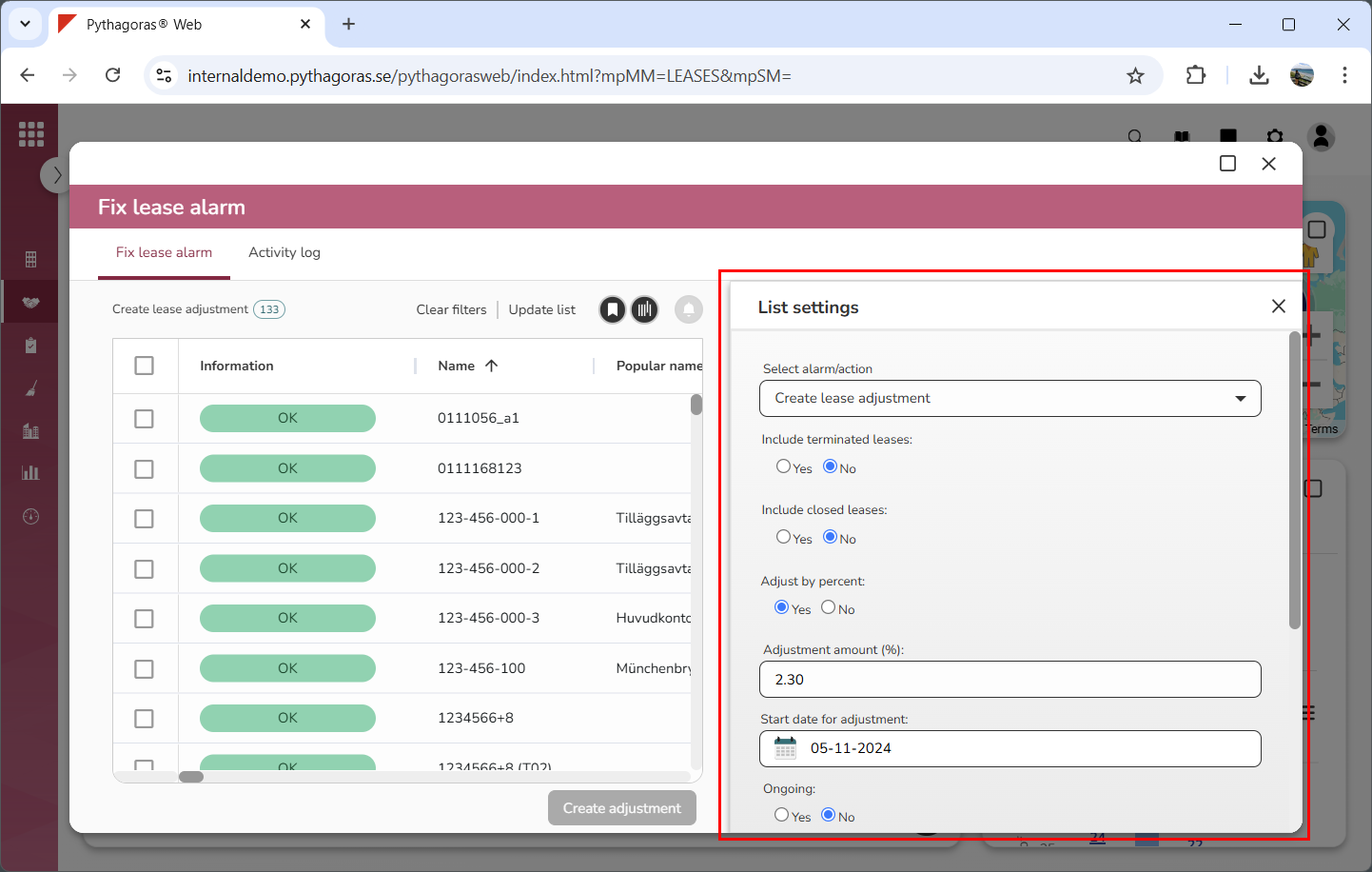
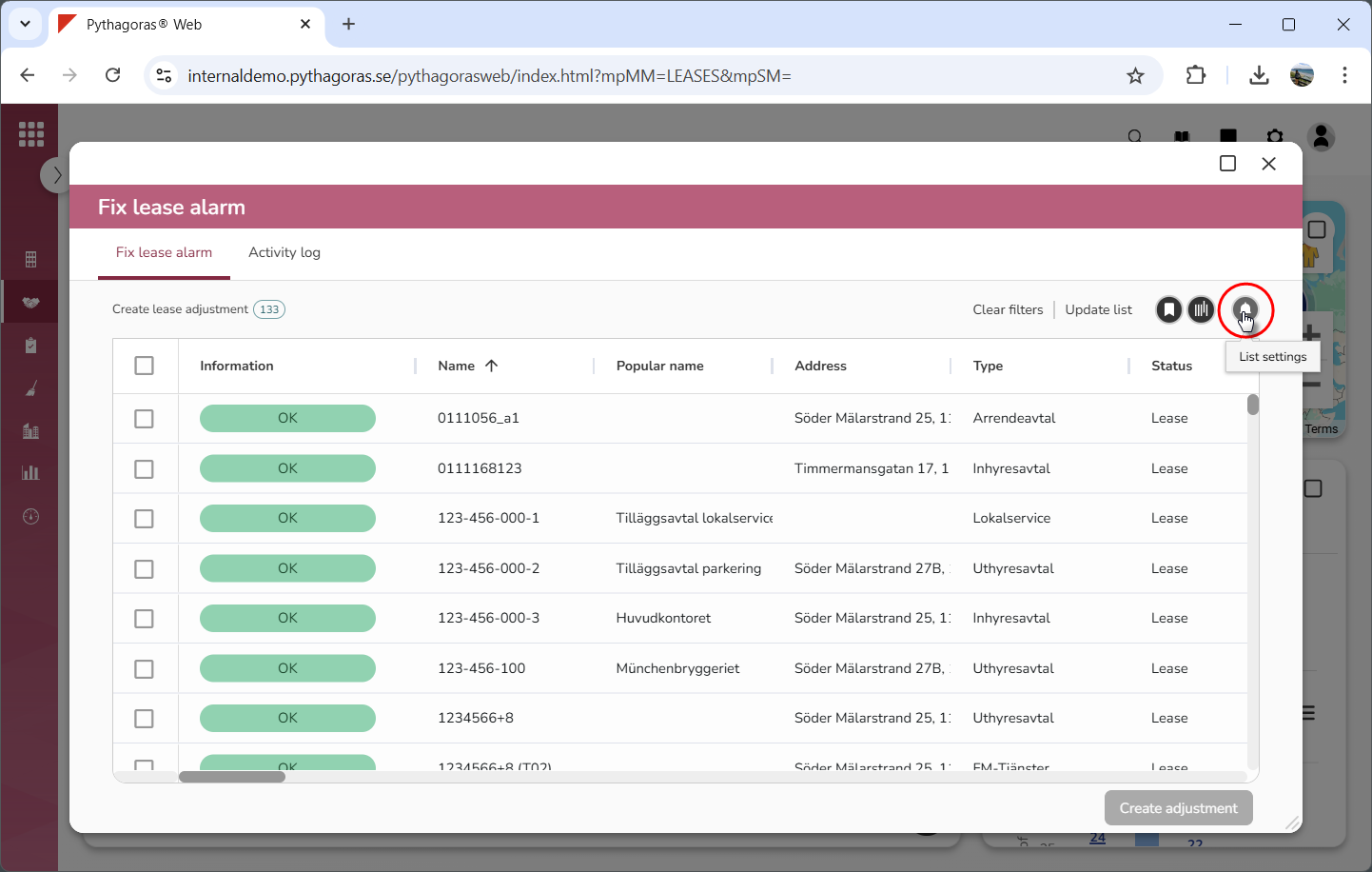
Go to the list settings menu (see the first image below). Note that if the list settings menu is not open, click the list settings icon to open it (see the second image below).
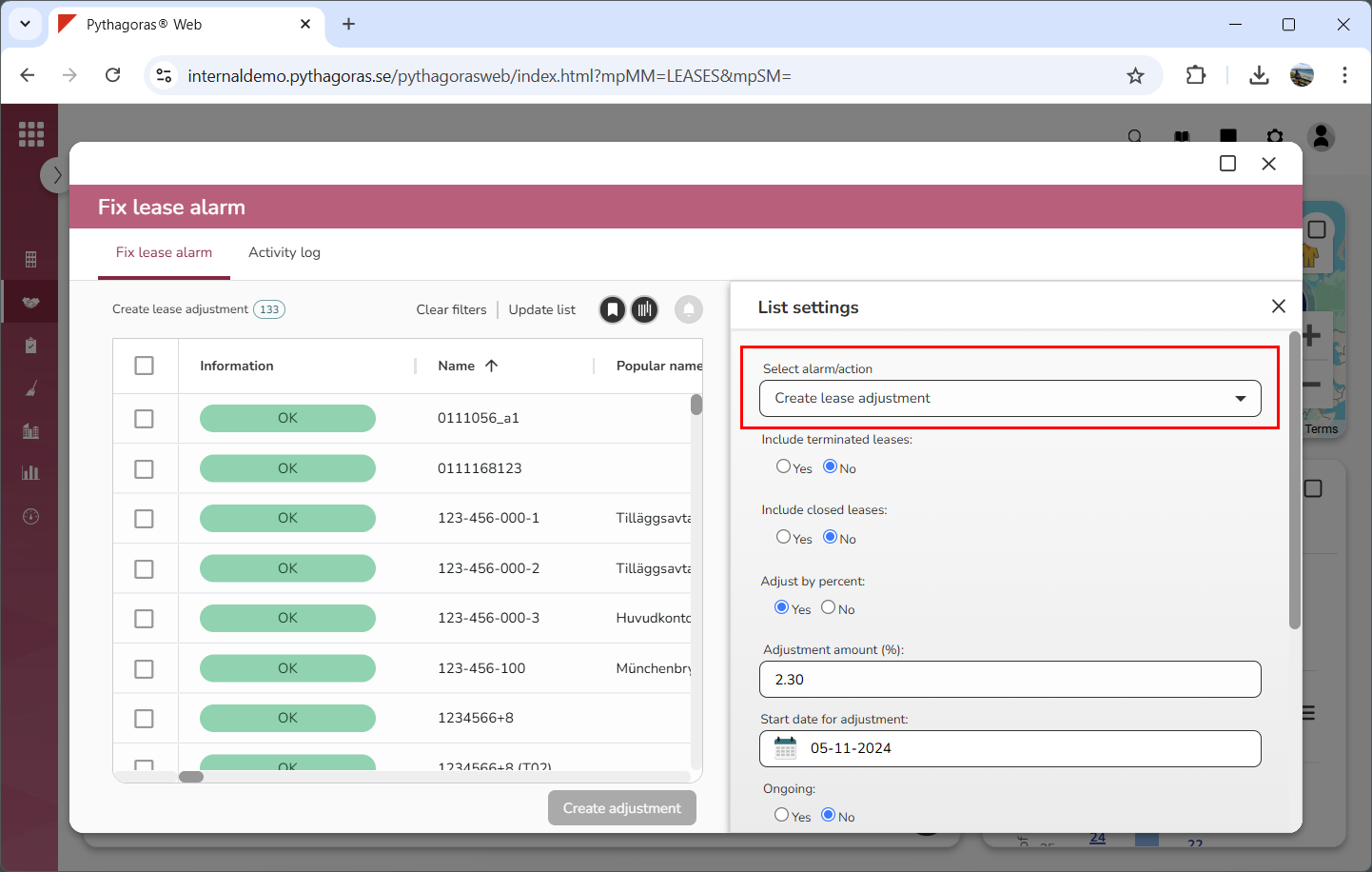
Specify that you wish to create a lease adjustment by clicking the field "Select alarm/action" and then selecting "Create lease adjustment" in the list that opens (see image below).
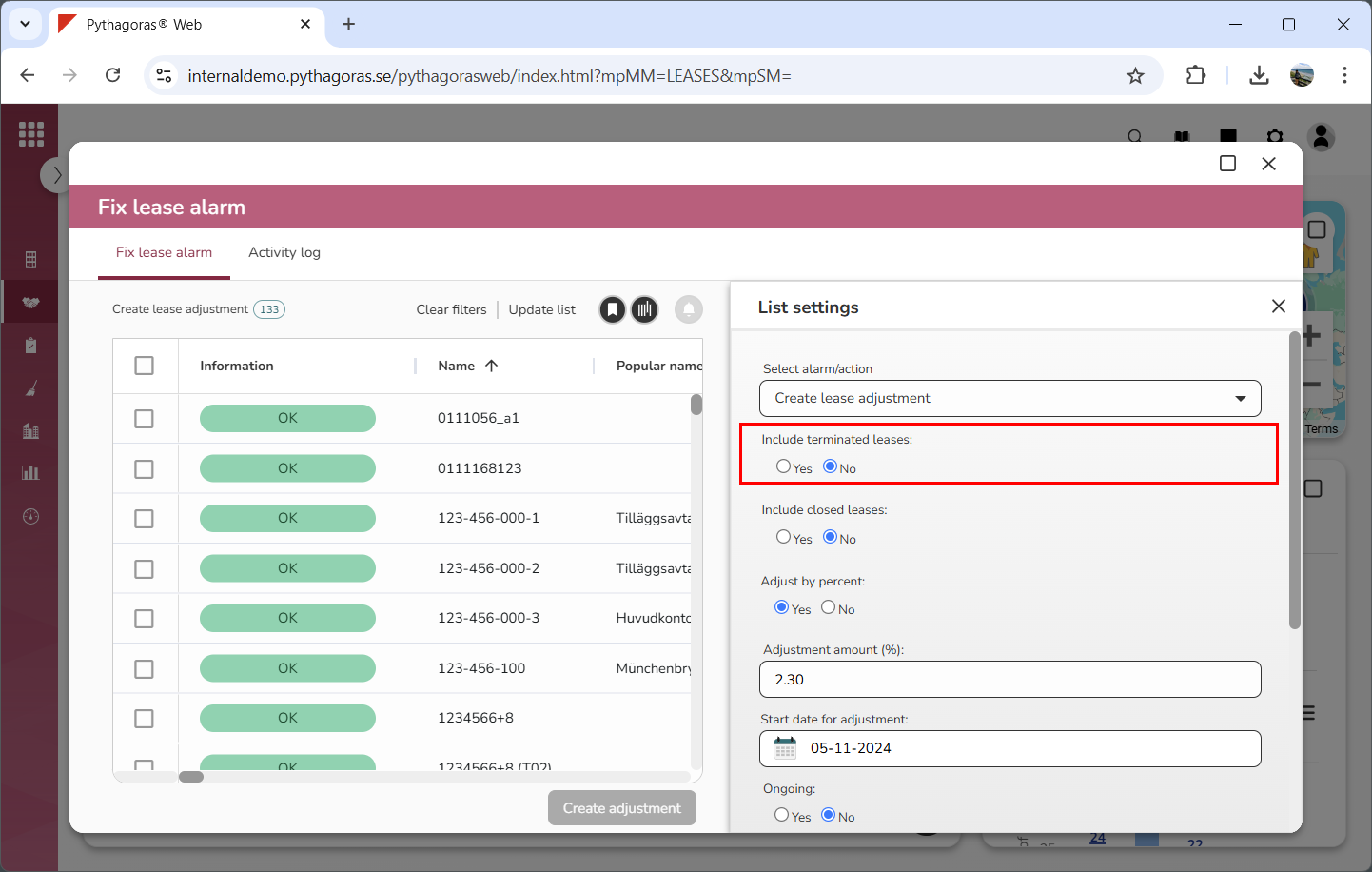
Specify whether or not terminated leases should be shown in the leases list by selecting "Yes" or "No" below the label "Include terminated leases" (see image below).
Specify whether or not closed leases should be shown in the leases list by selecting "Yes" or "No" below the label "Include closed leases" (see image below).
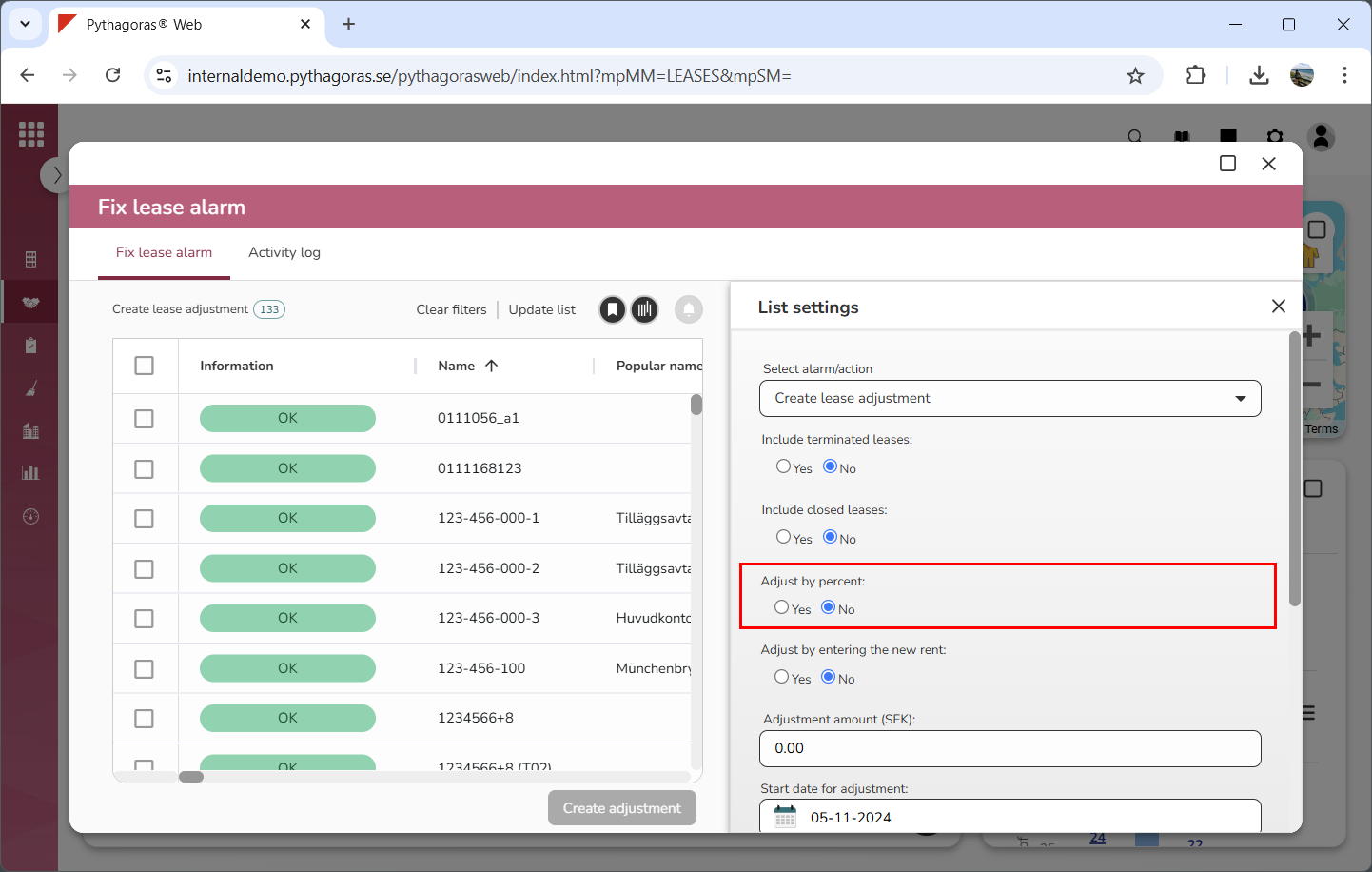
Specify that the lease adjustment you are creating should not be adjusted by percent by selecting "No" below the label "Adjust by percent" (see image below).
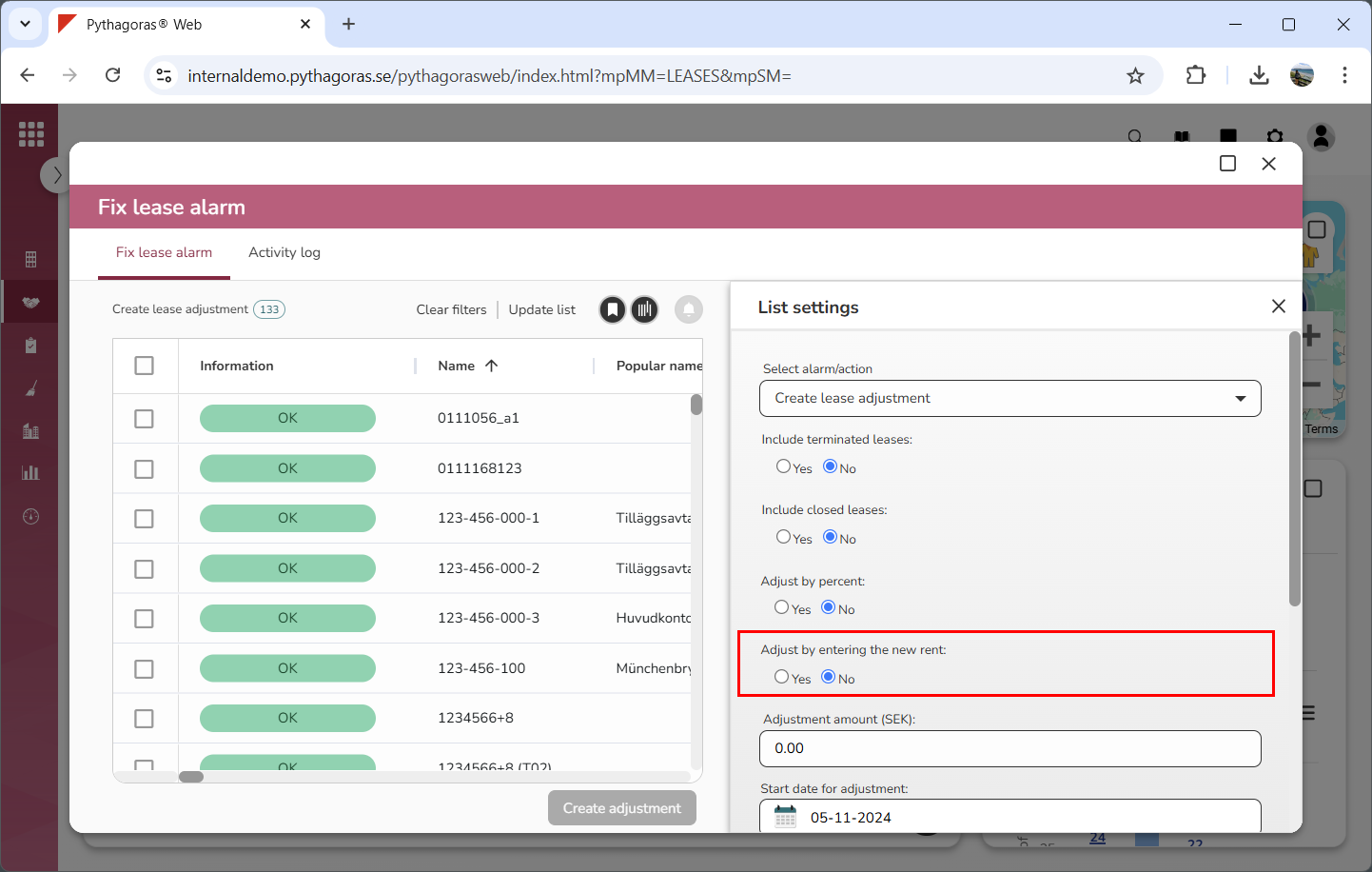
Specify that you do not wish to set a new rent for the lease or leases for which you are creating a lease adjustment by selecting "No" below the label "Adjust by entering the new rent" (see image below).
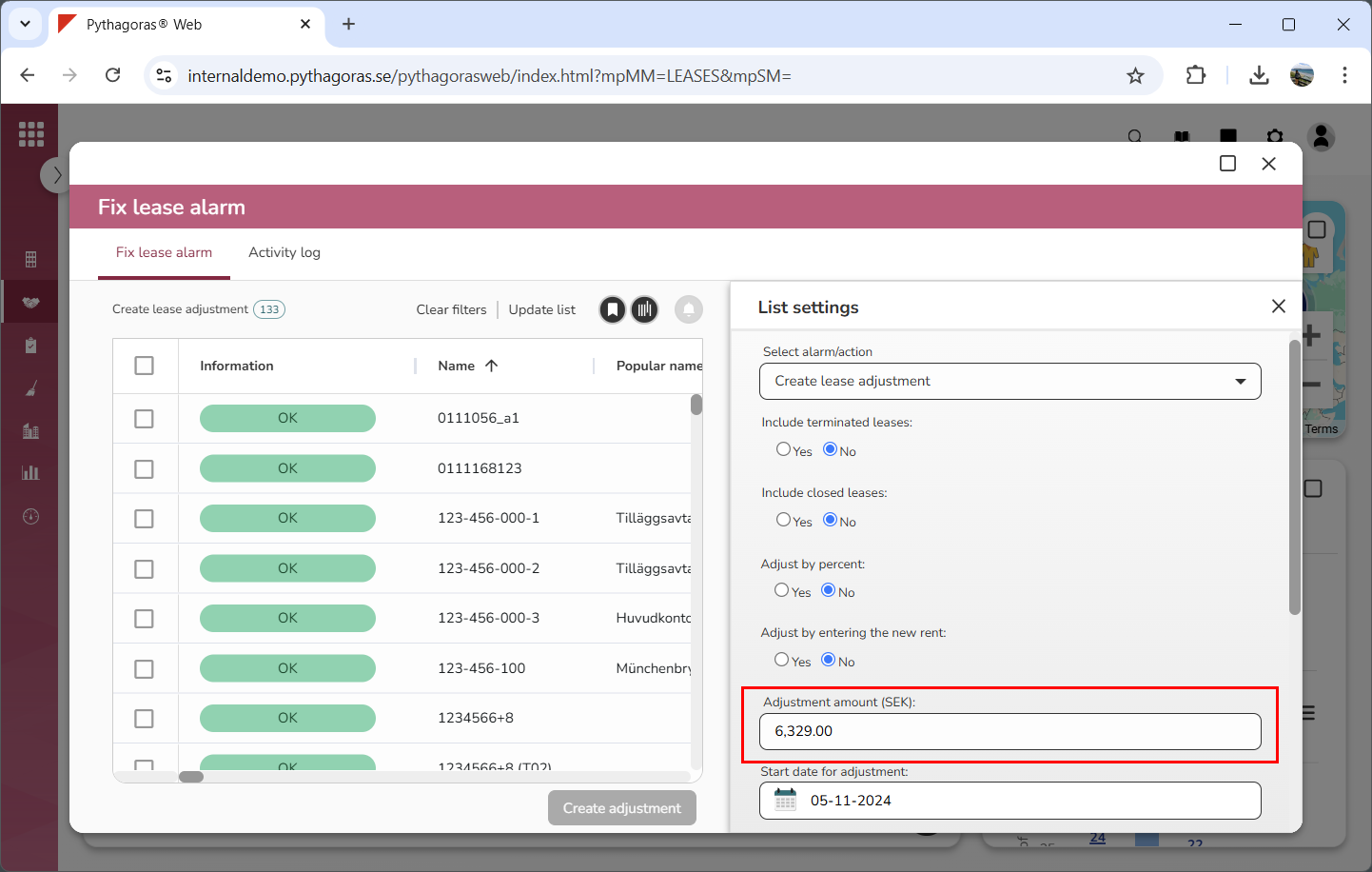
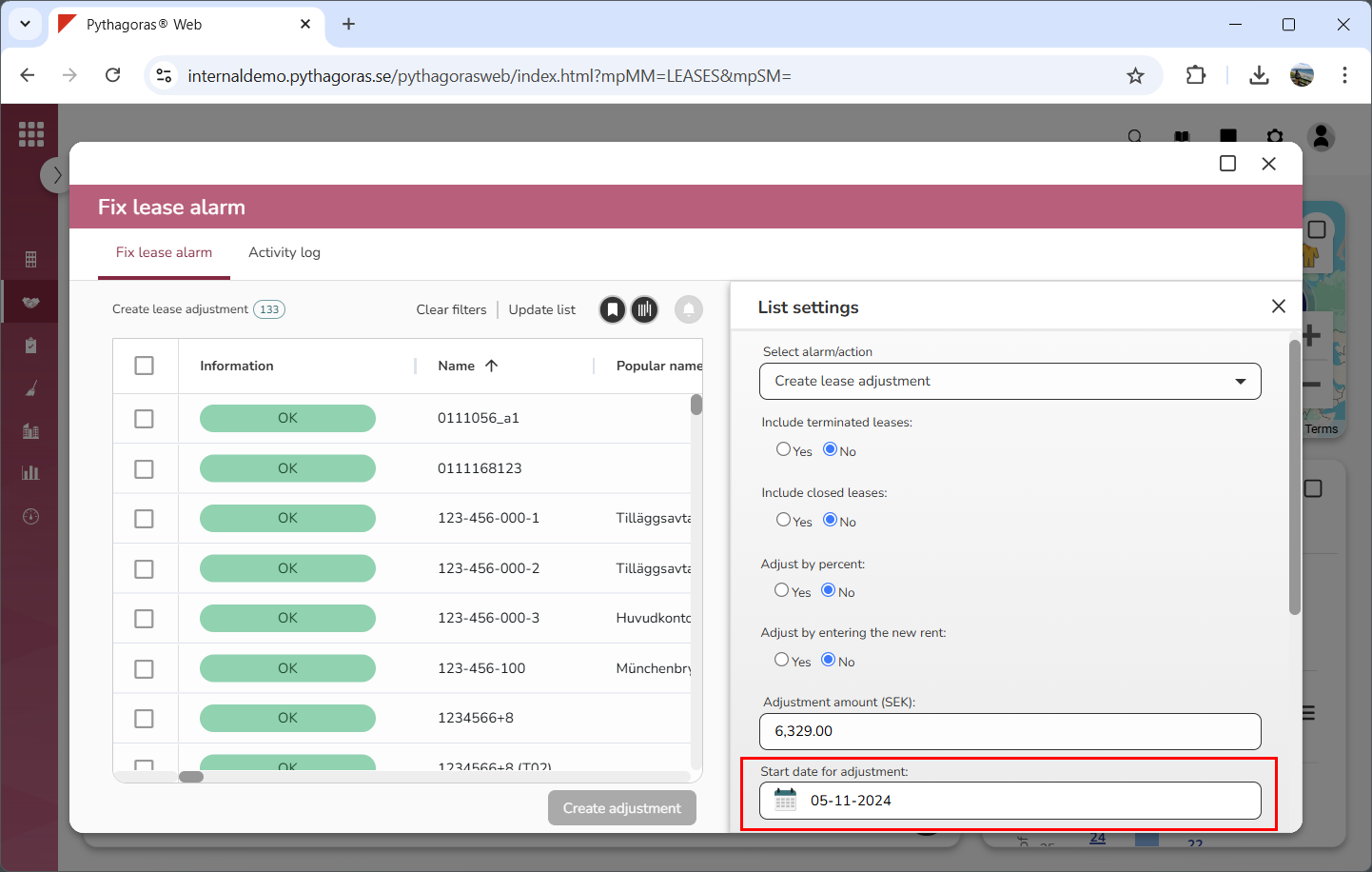
Set an adjustment amount for the lease adjustment you are creating by entering an amount in the field "Adjustment amount" (see image below).
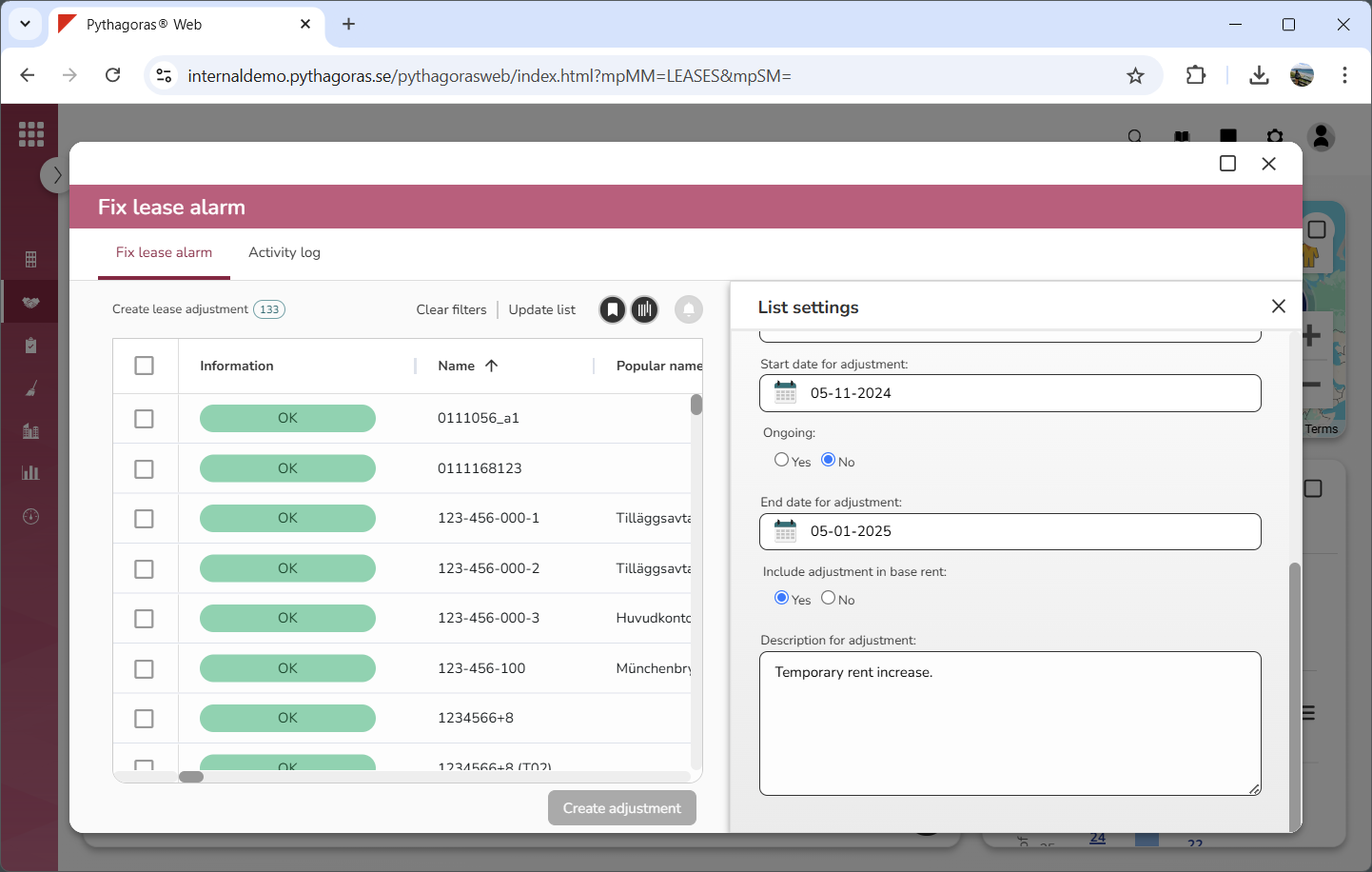
Specify the start date for the lease adjustment by clicking the field "Start date for adjustment" and then select a start date in the calender that opens (see image below).
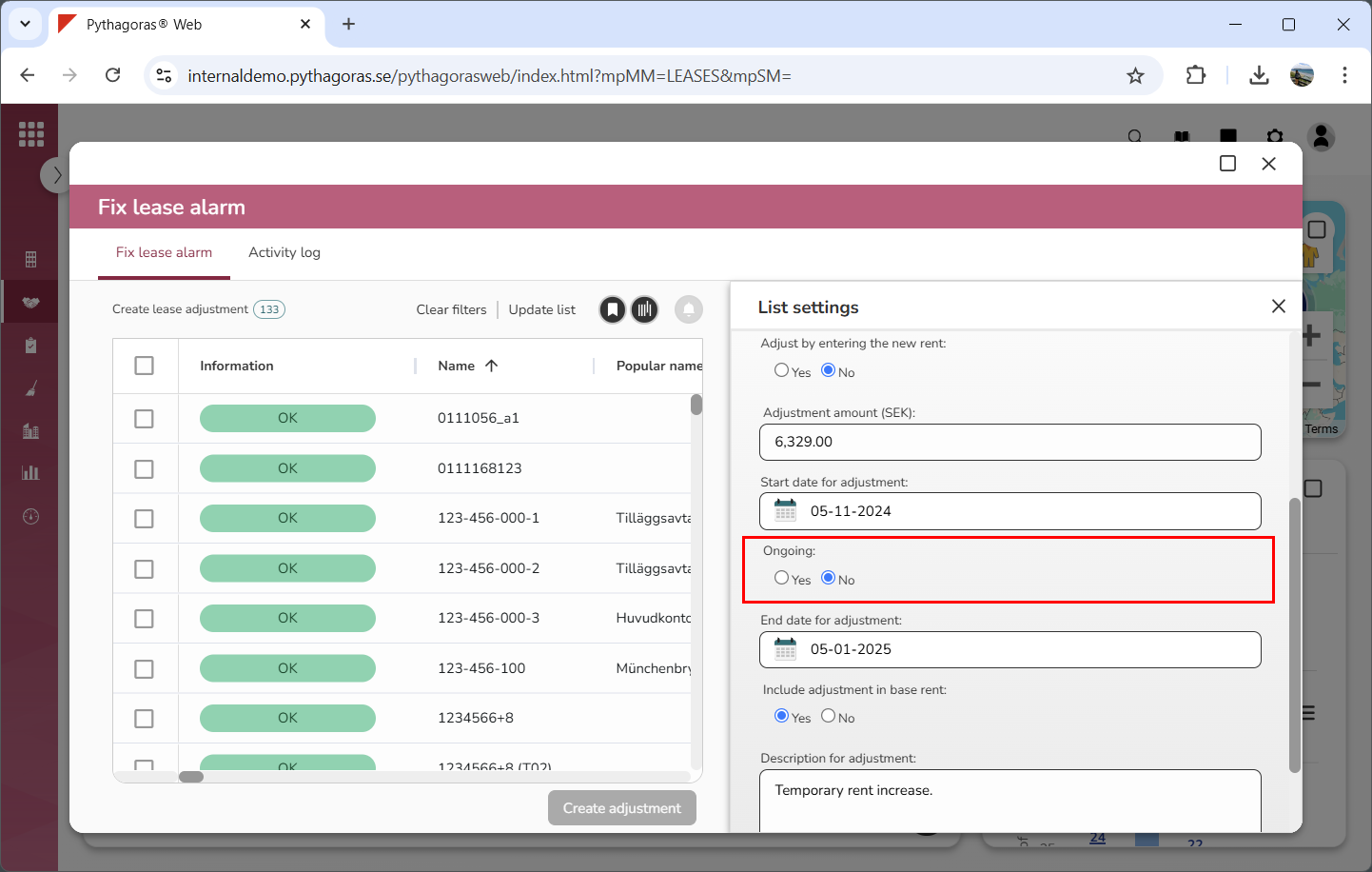
Specify whether or not the lease adjustment you are creating should be ongoing by selecting "Yes" or "No" below the label "Ongoing" (see image below).
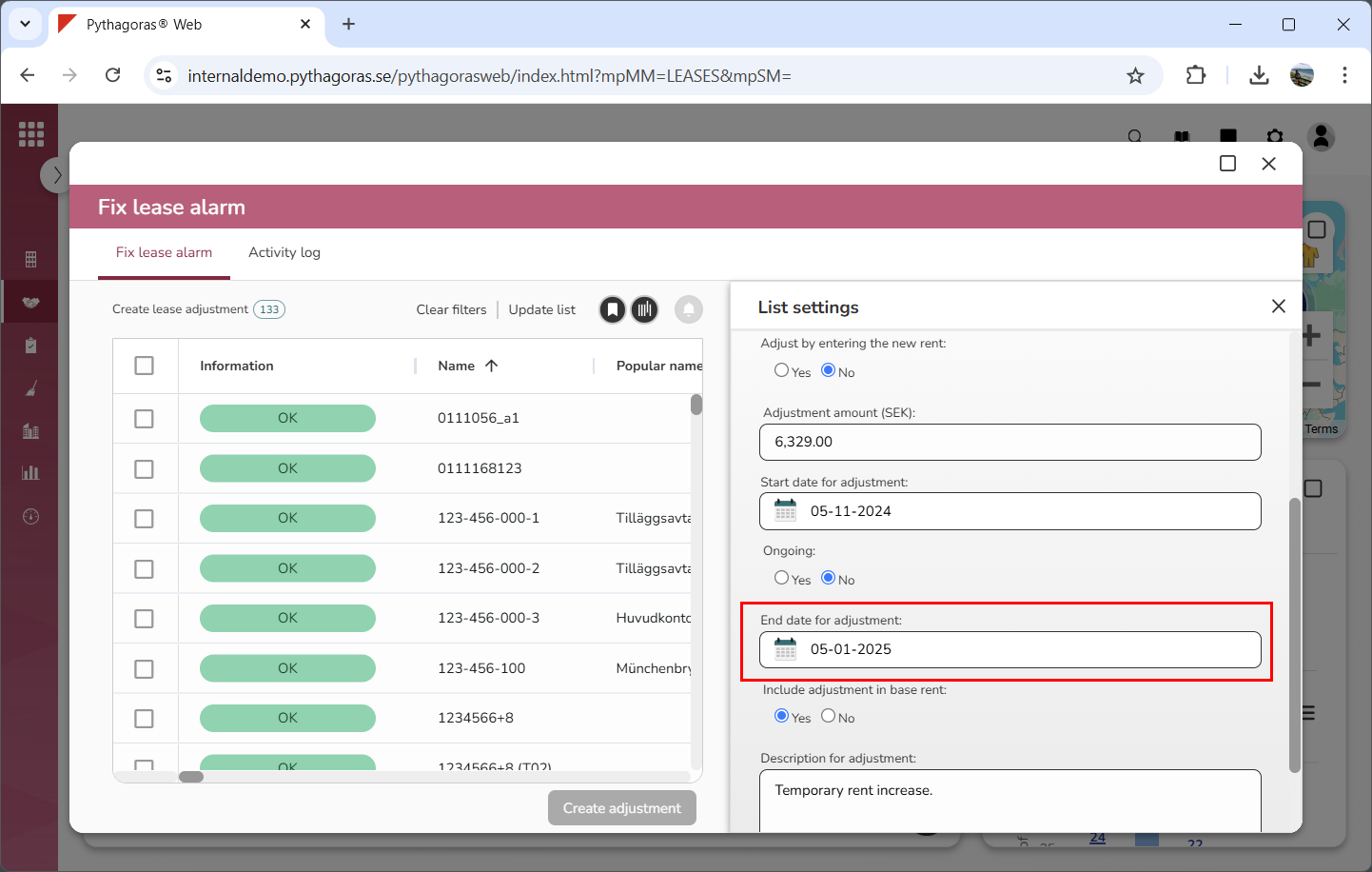
Set an end date for the lease adjustment you are creating by clicking the field "End date for adjustment" and selecting an end date in the calender that opens (see image below). Note that this can only be done if you have specified that the lease adjustment you are creating is not ongoing. If you have specified that the lease adjustment you are creating is ongoing you can skip this step and go straight to step 14.
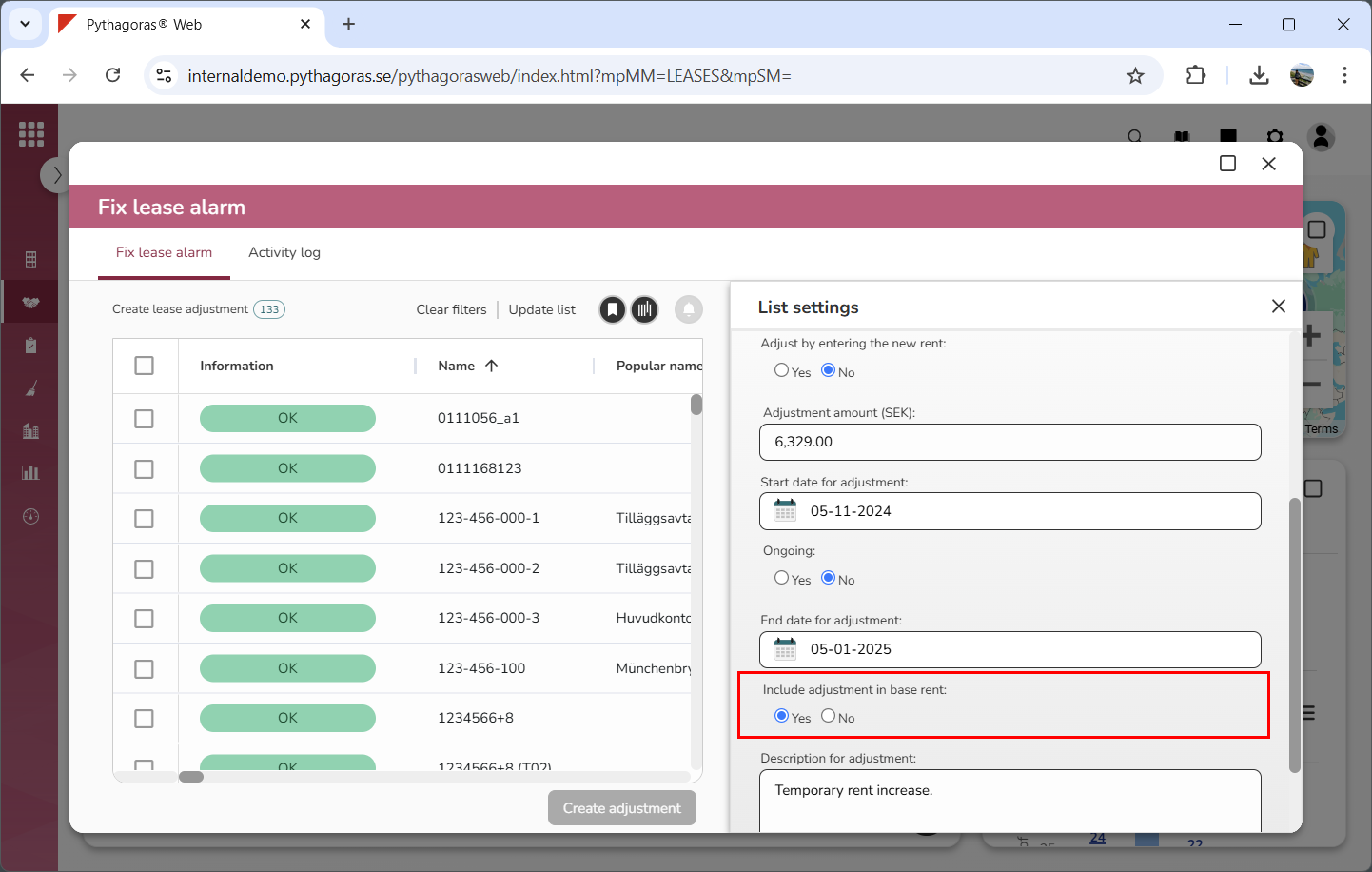
Specify whether or not the lease adjustment you are creating should be included in the base rent of the leases associated with the adjustment by selecting "Yes" or "No" below the label "Include adjustment in base rent" (see image below).
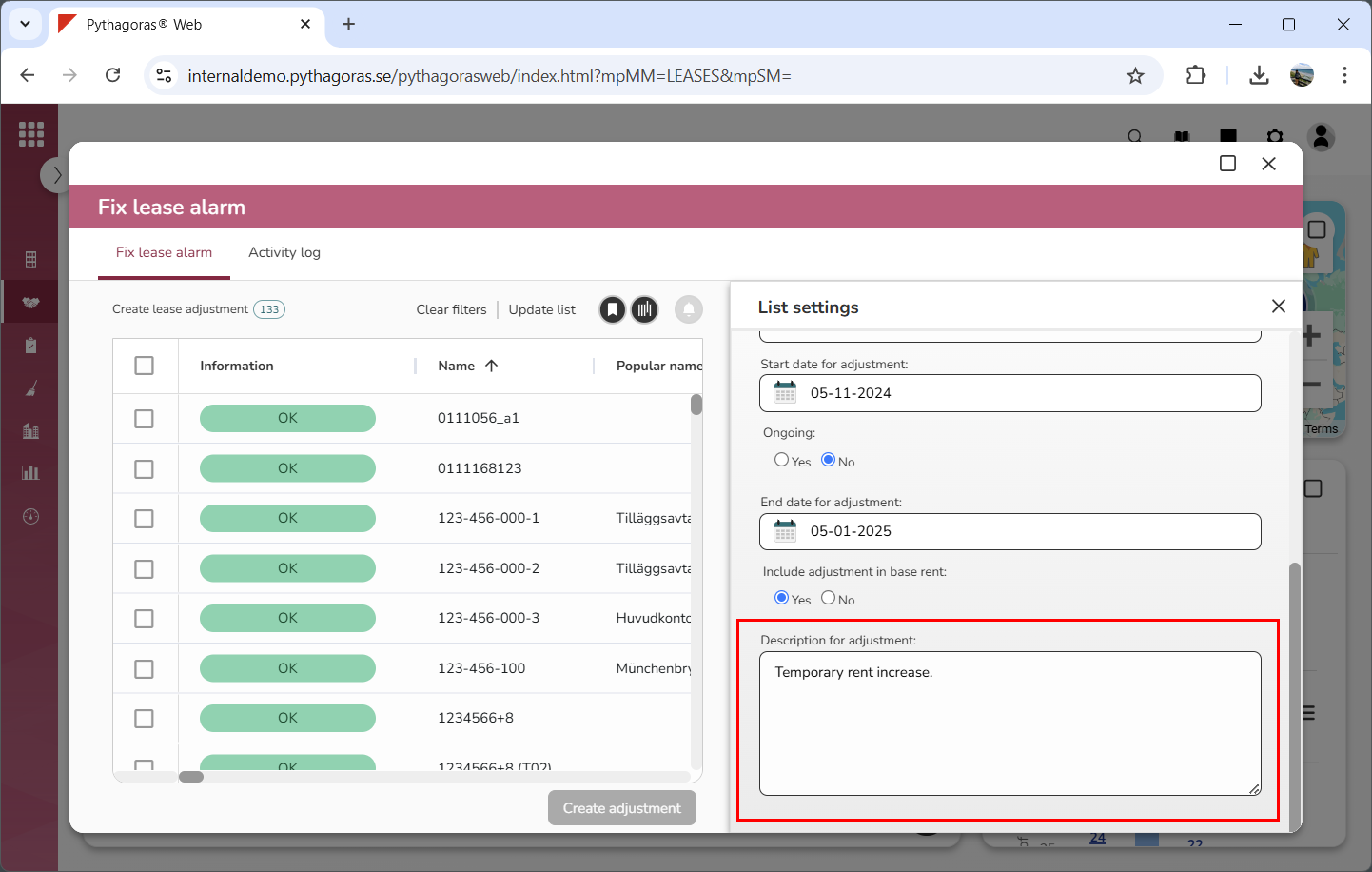
Describe the lease adjustment you are creating by writing something in the field "Description for adjustment" (see image below). Note that if you do not wish to describe the lease adjustment you are creating you can skip this step and go straight to step 16.
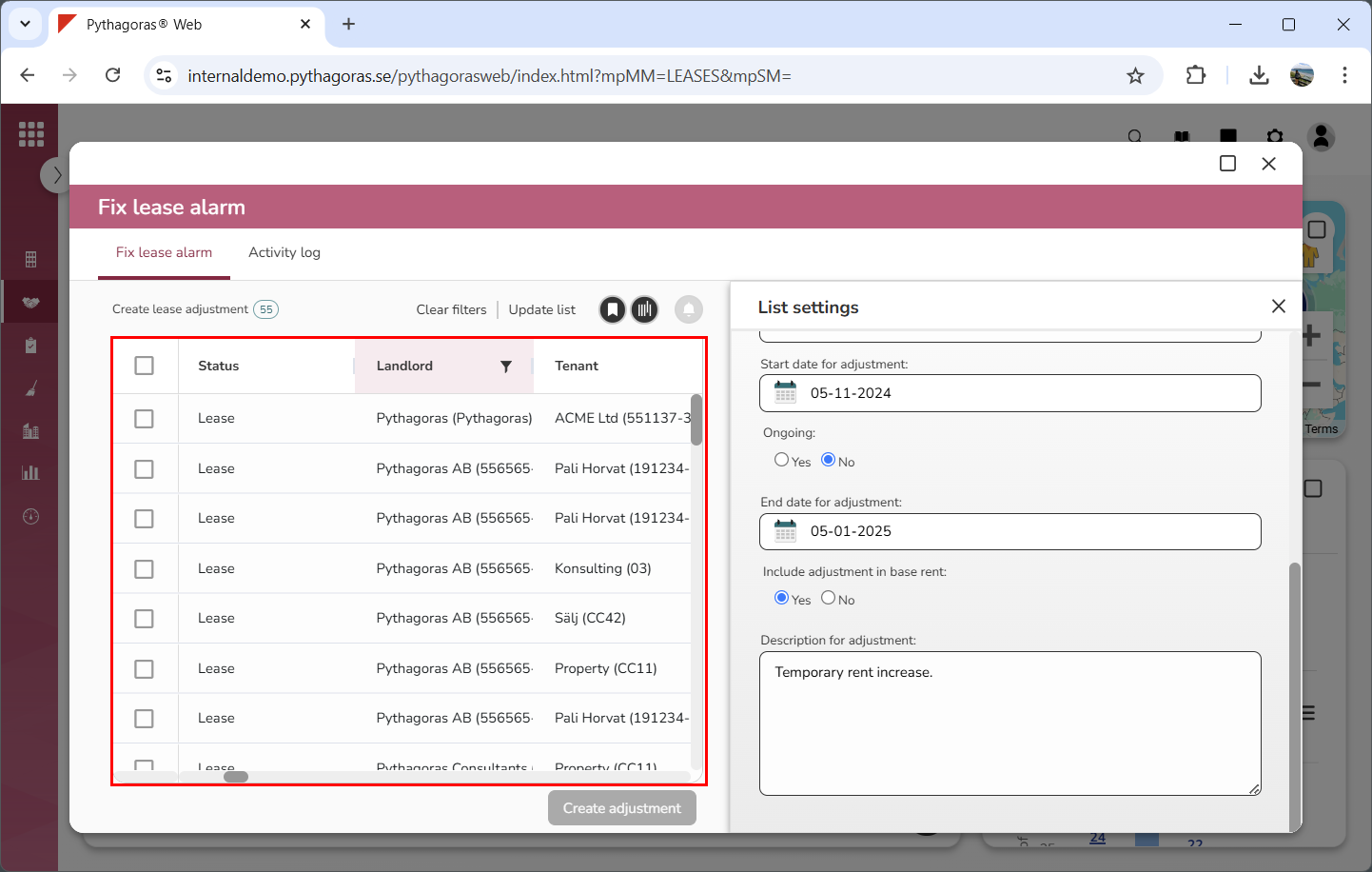
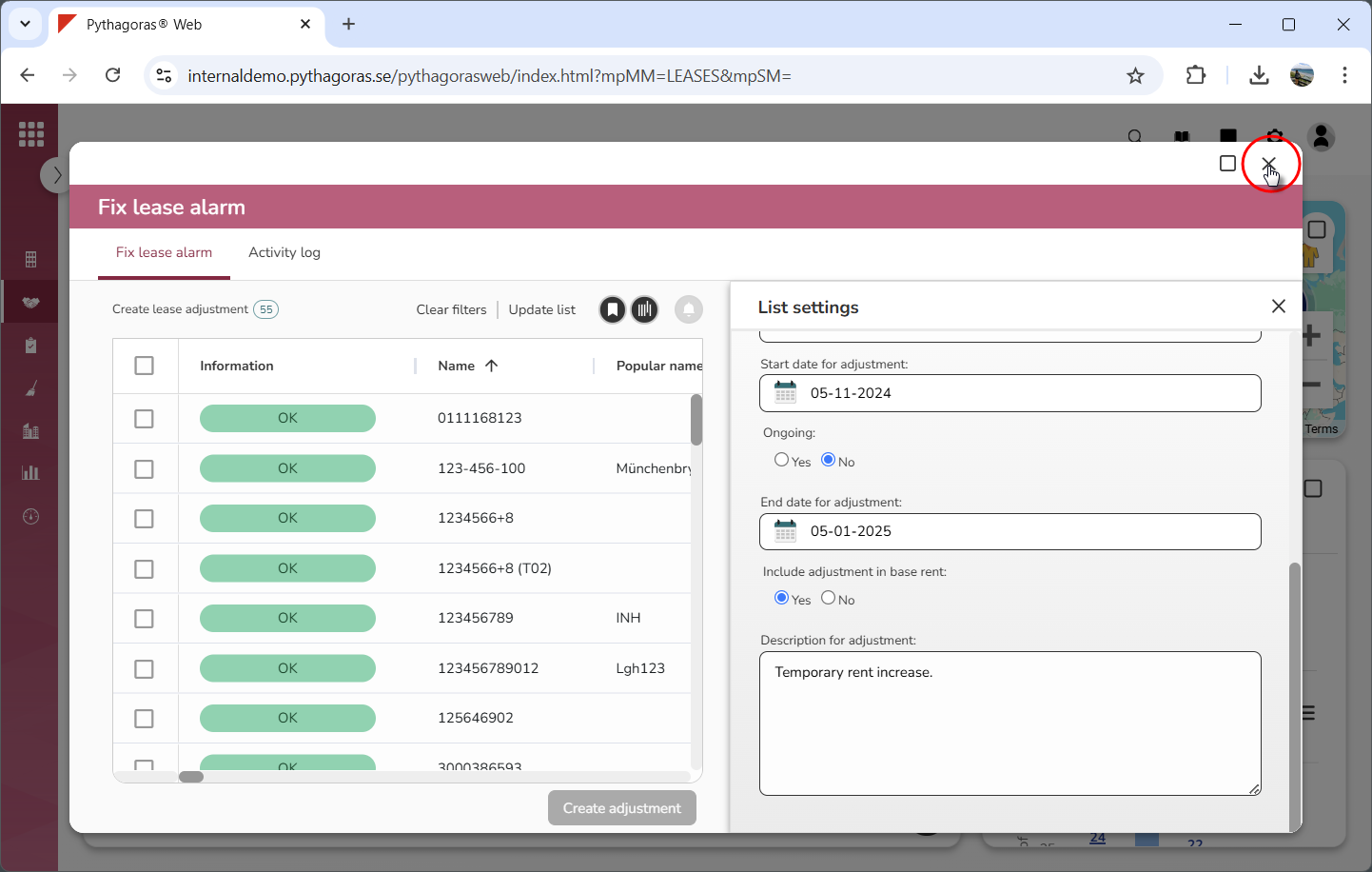
Filter the leases list if you wish to limit its contents (see the first image below). For more information on how to do so, see section 6.5.9. Continue reading in the sub-section "Filter the leases list". If you do not wish to filter the leases list you can skip this step and go straight to step 17. Note that if you wish to increase the size of the leases list (and by doing so, make the fix leases card's workspace larger), you can close the list settings menu (see the second image below).
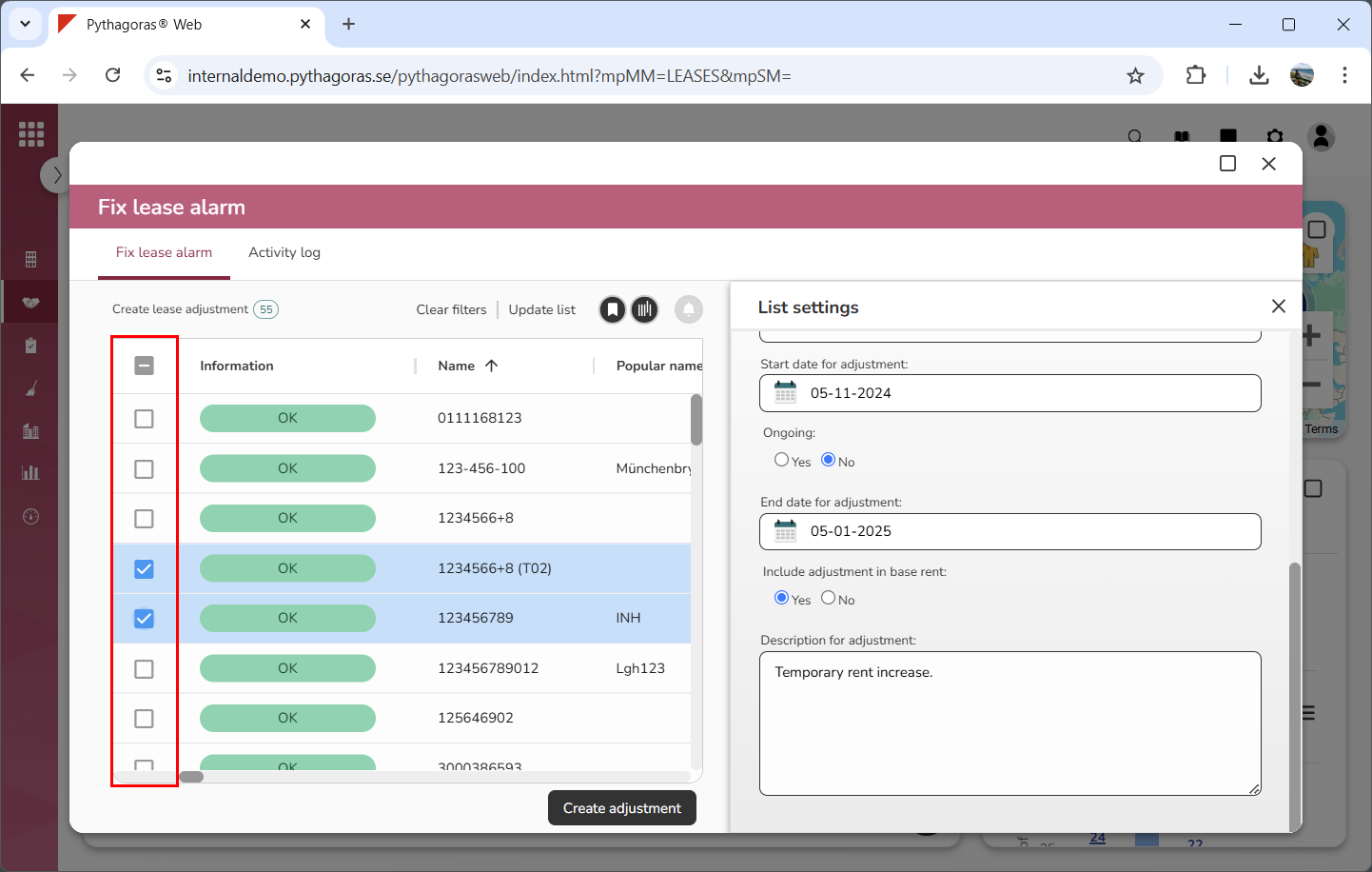
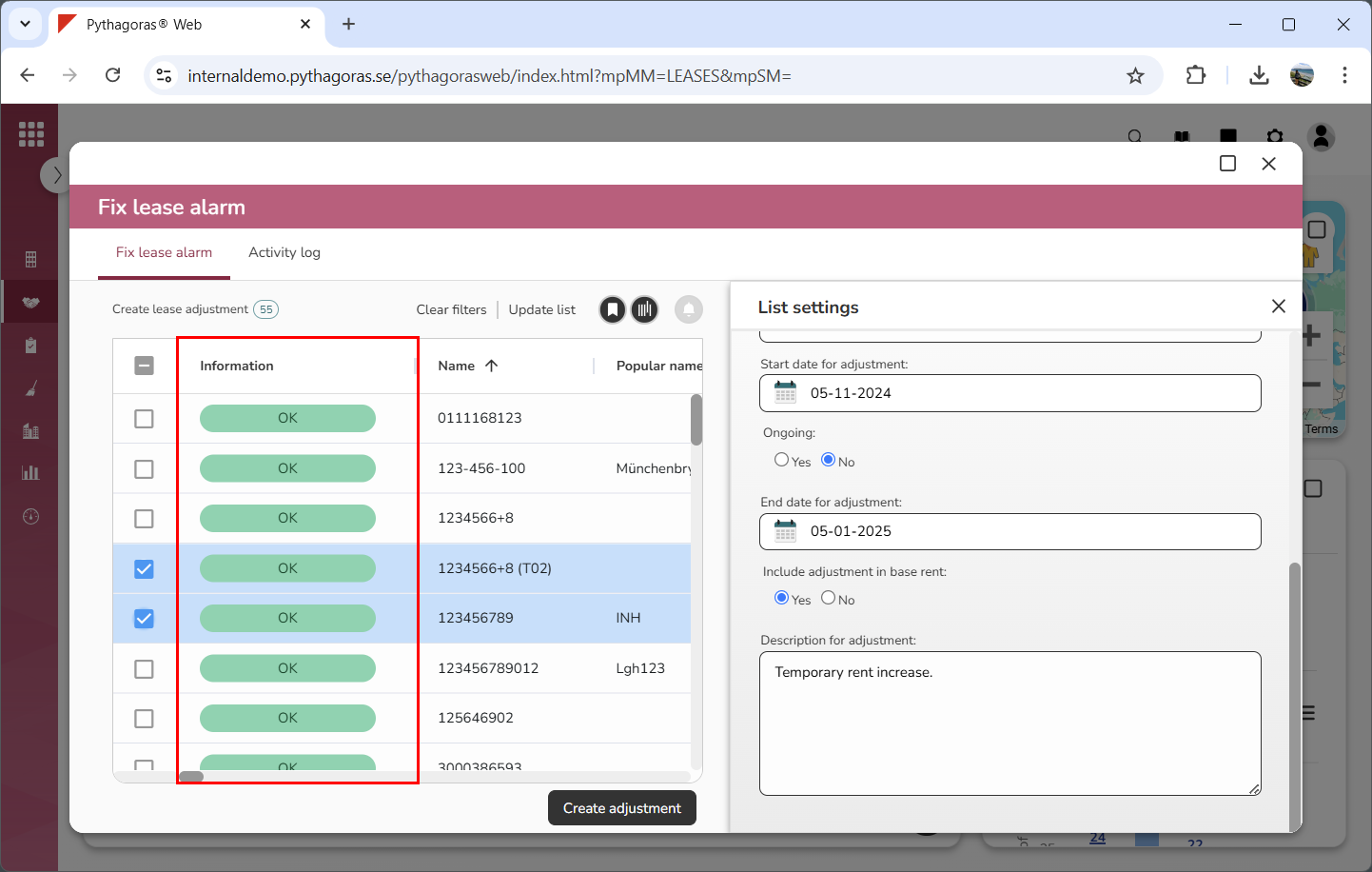
Select the lease or leases you wish to create a lease adjustment for by checking the checkbox of one or more leases in the leases list (see the first image below). Note that you can only select leases marked "OK" in the information column (see the second image below).
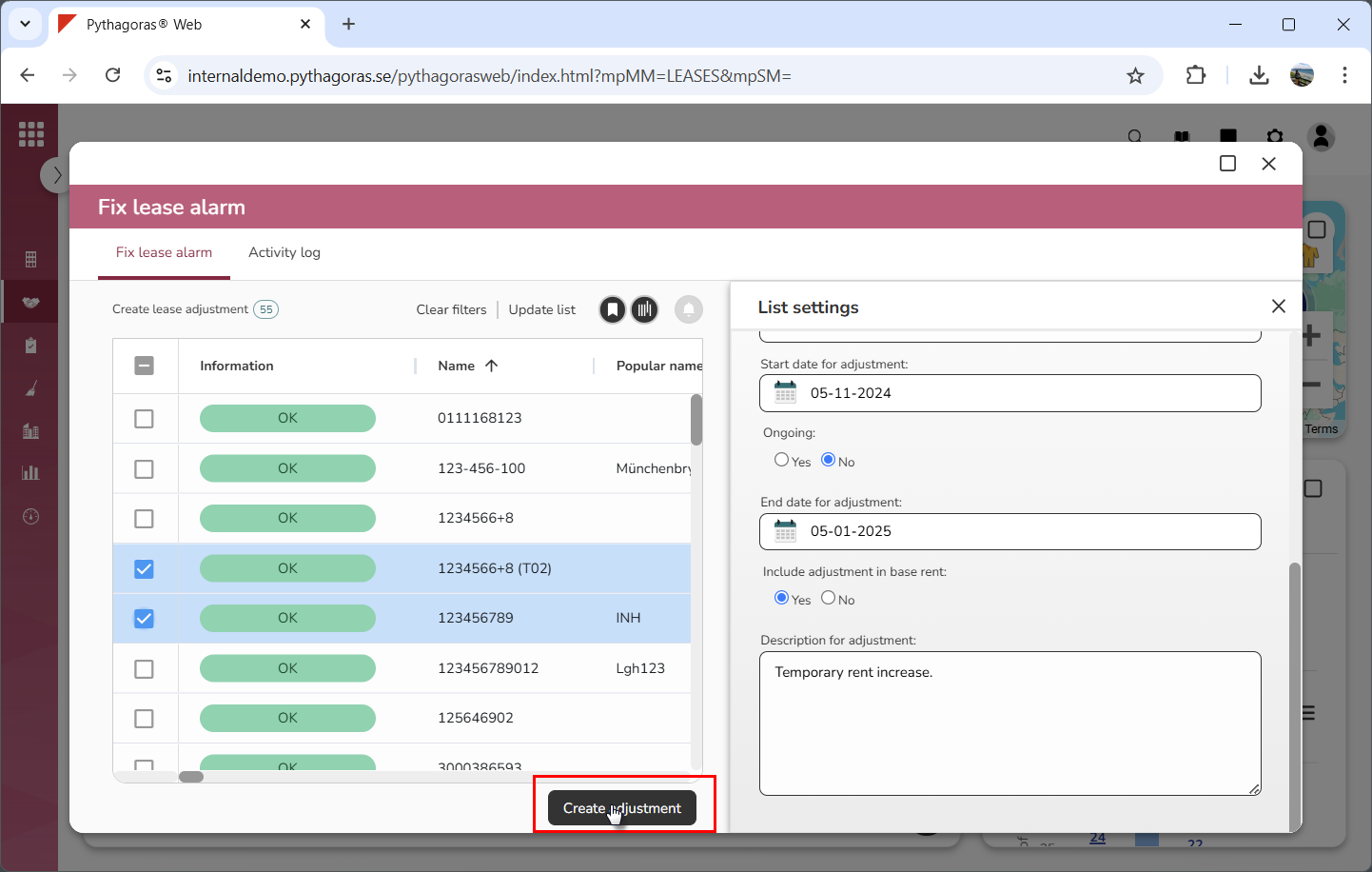
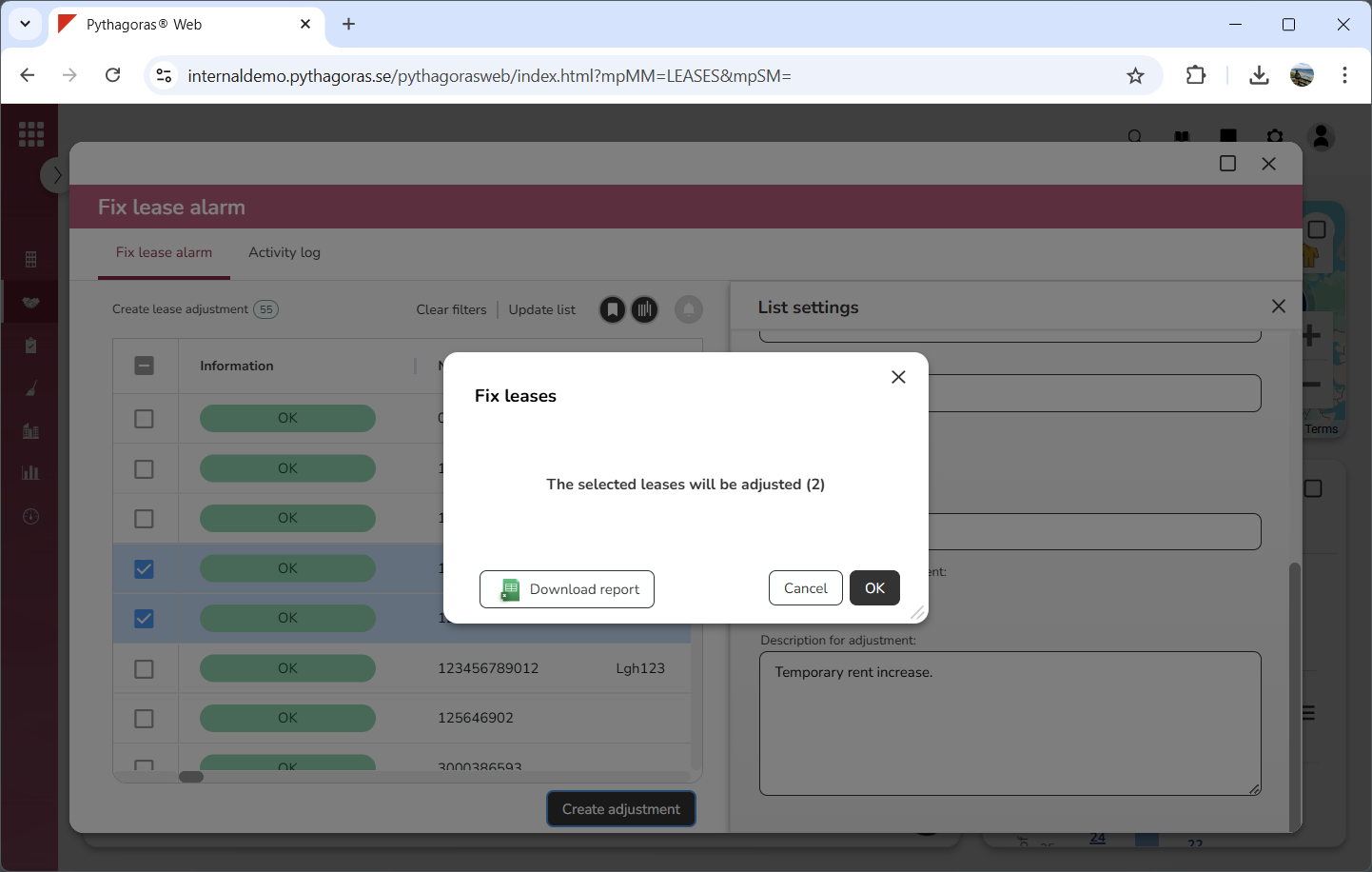
Click "Create adjustment" (see the first image below). When you do so, a window called "Fix lease" will open (see the second image below).
Go to the window called "Fix lease".
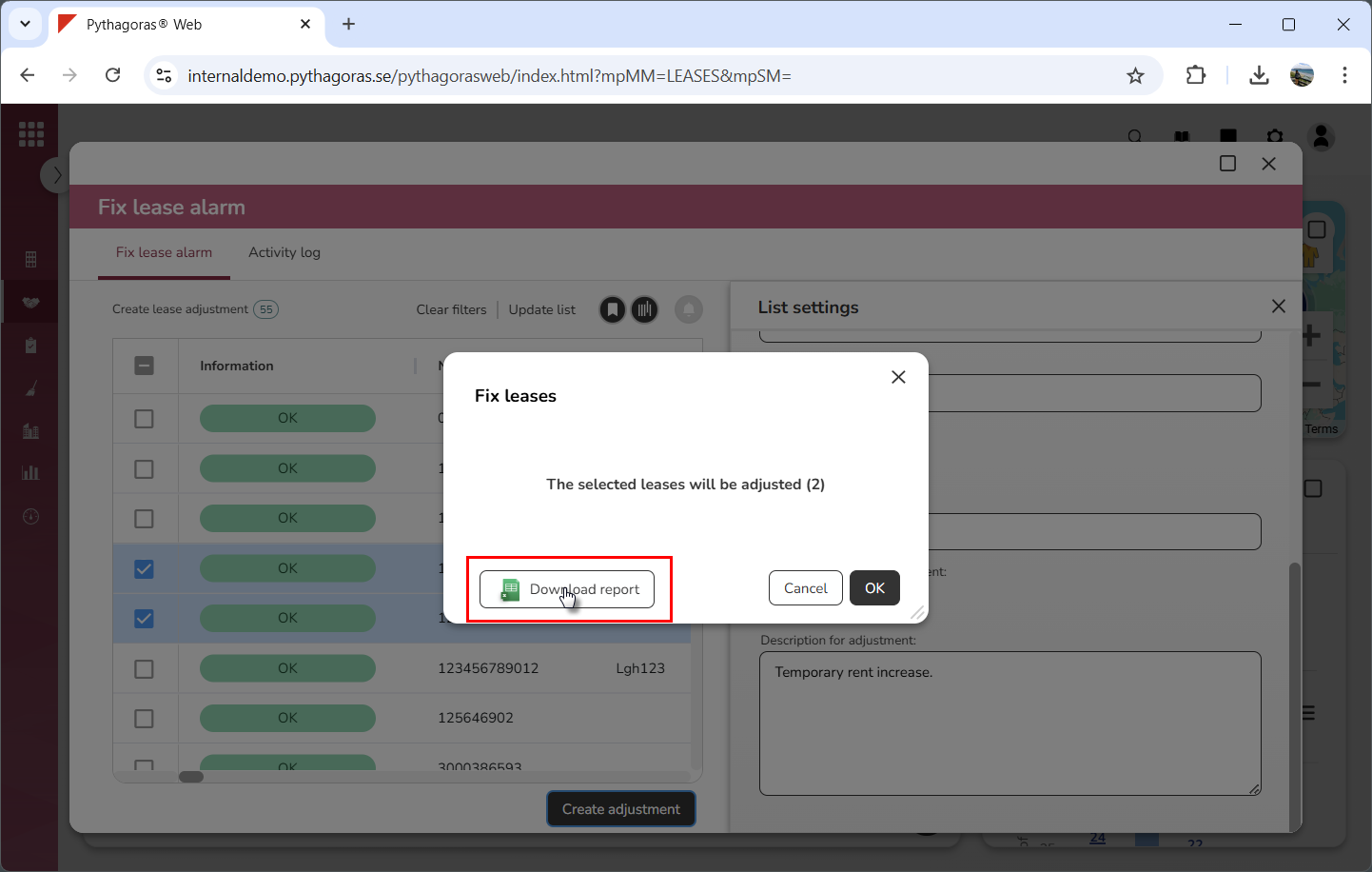
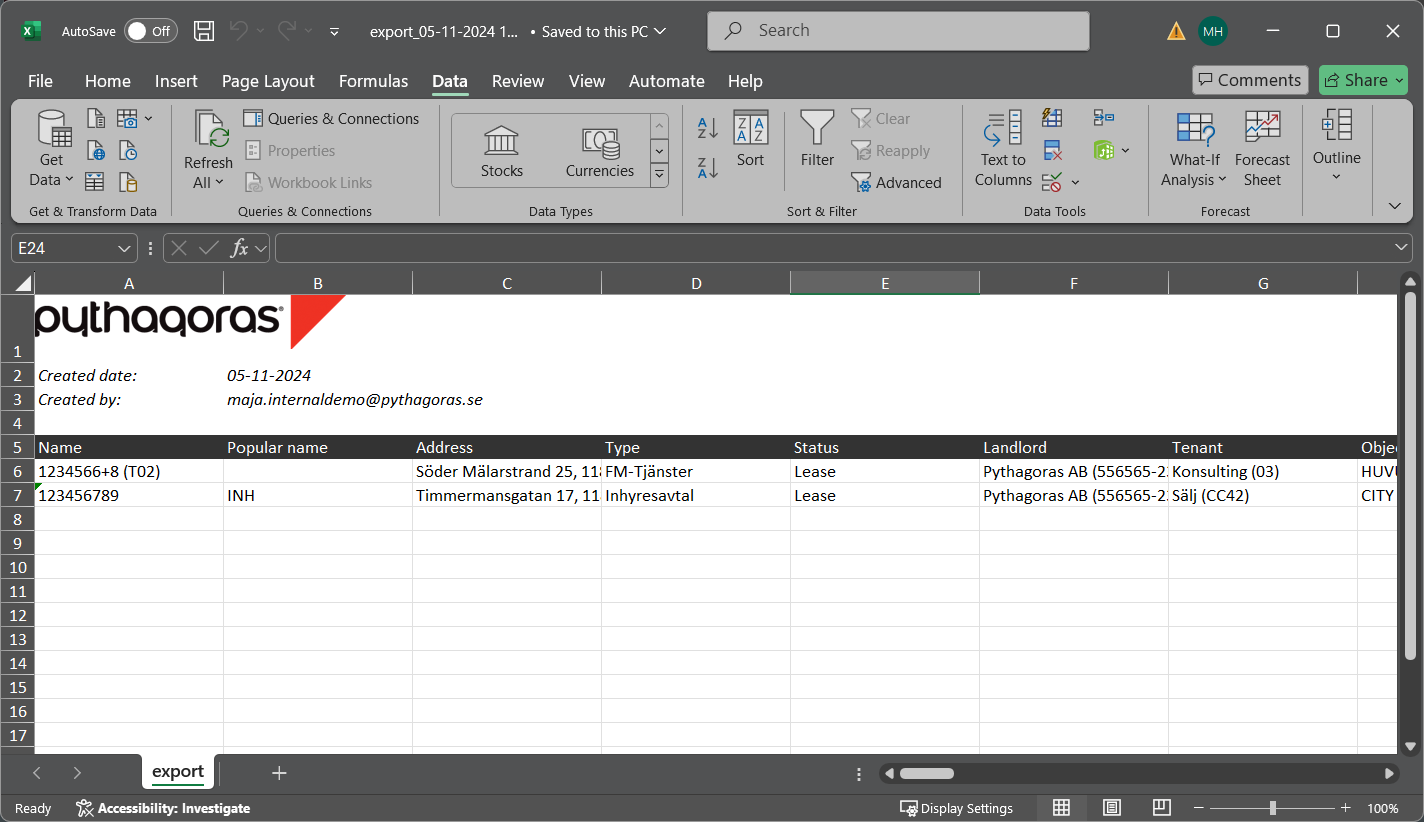
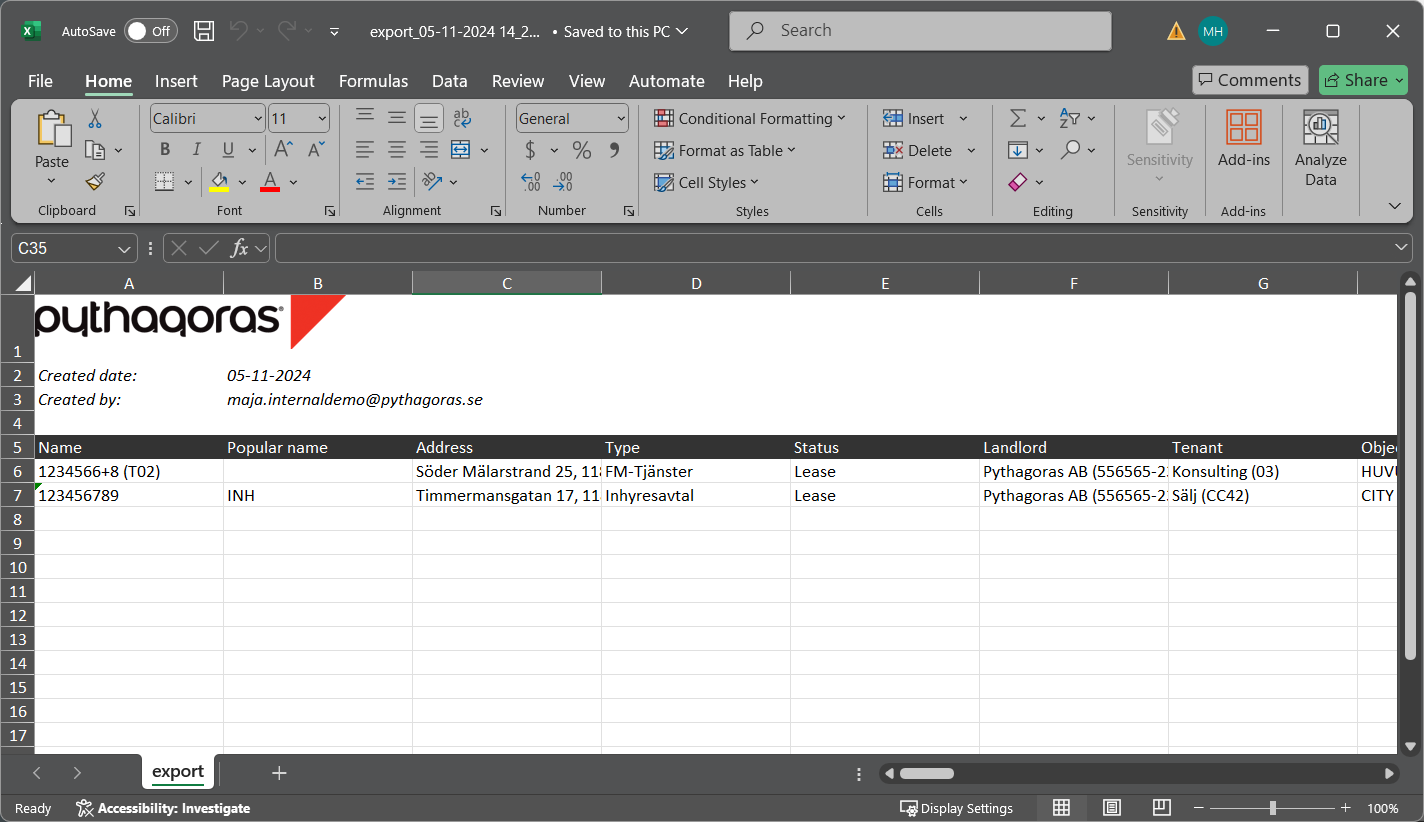
Click "Download report" to create a report showing which leases you are about to create a lease adjustment for, that is the selected lease or leases (see images below). Note that if you do not wish to create a report, you can skip this step and go straight to step 21.
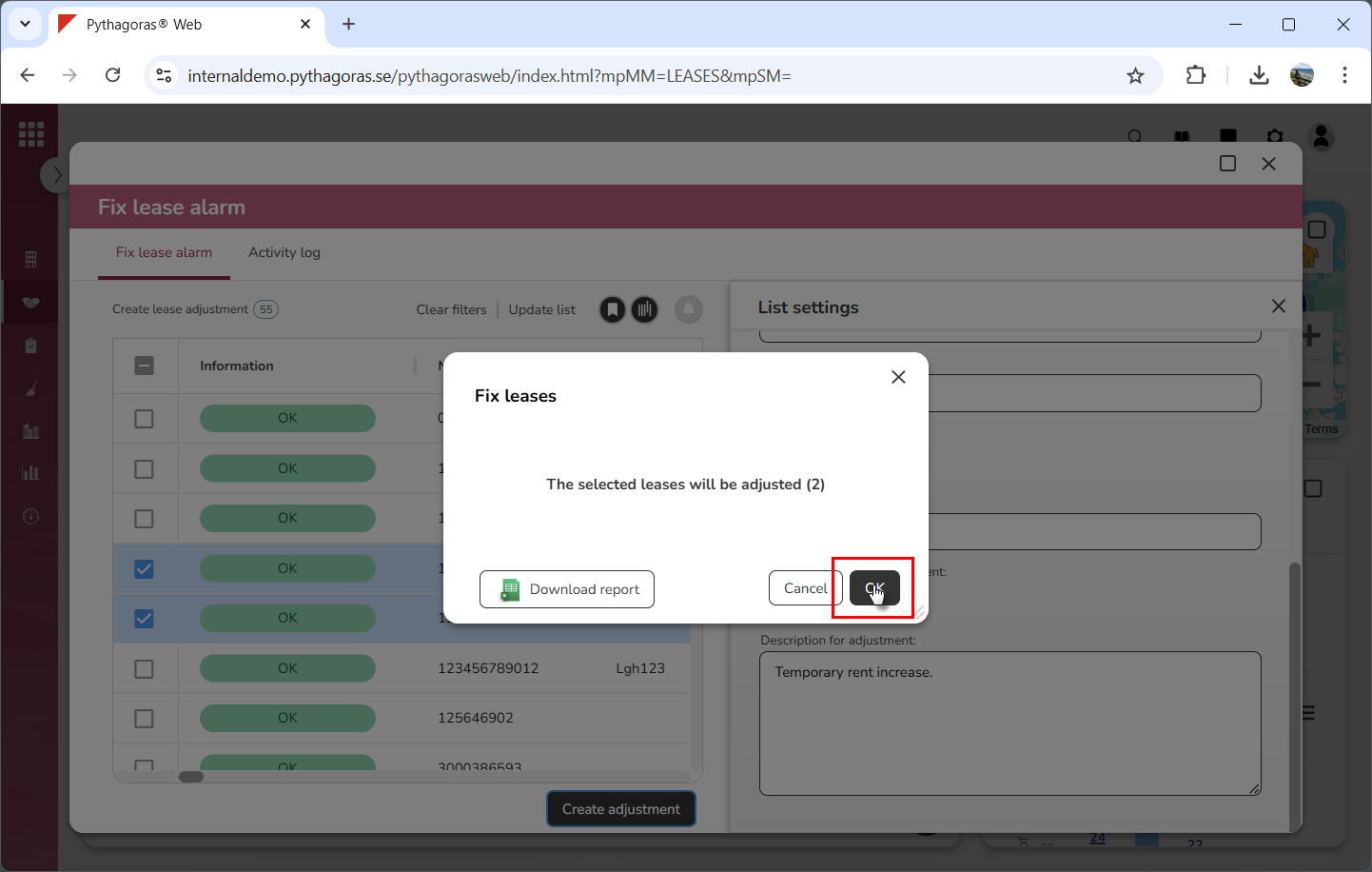
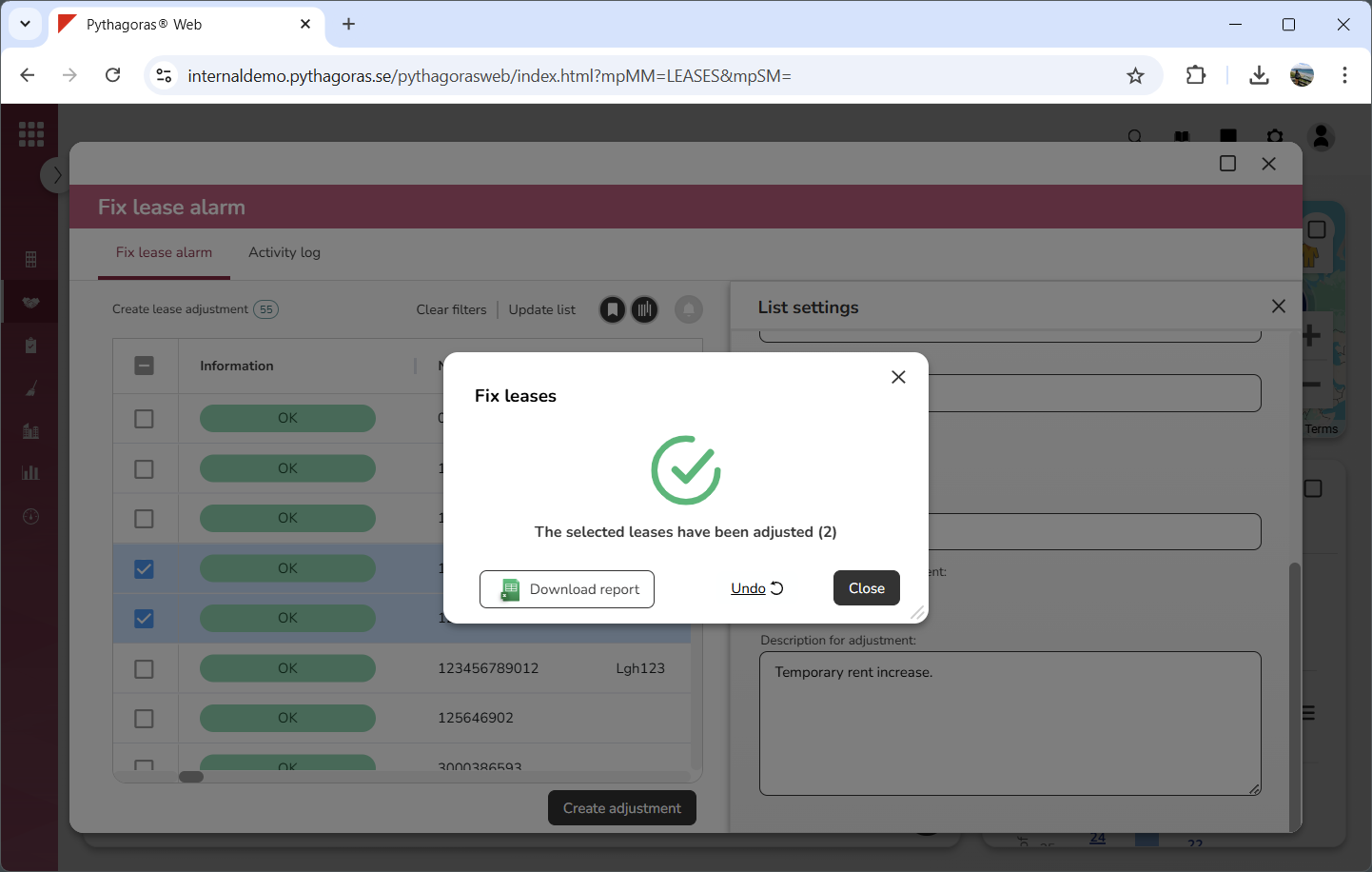
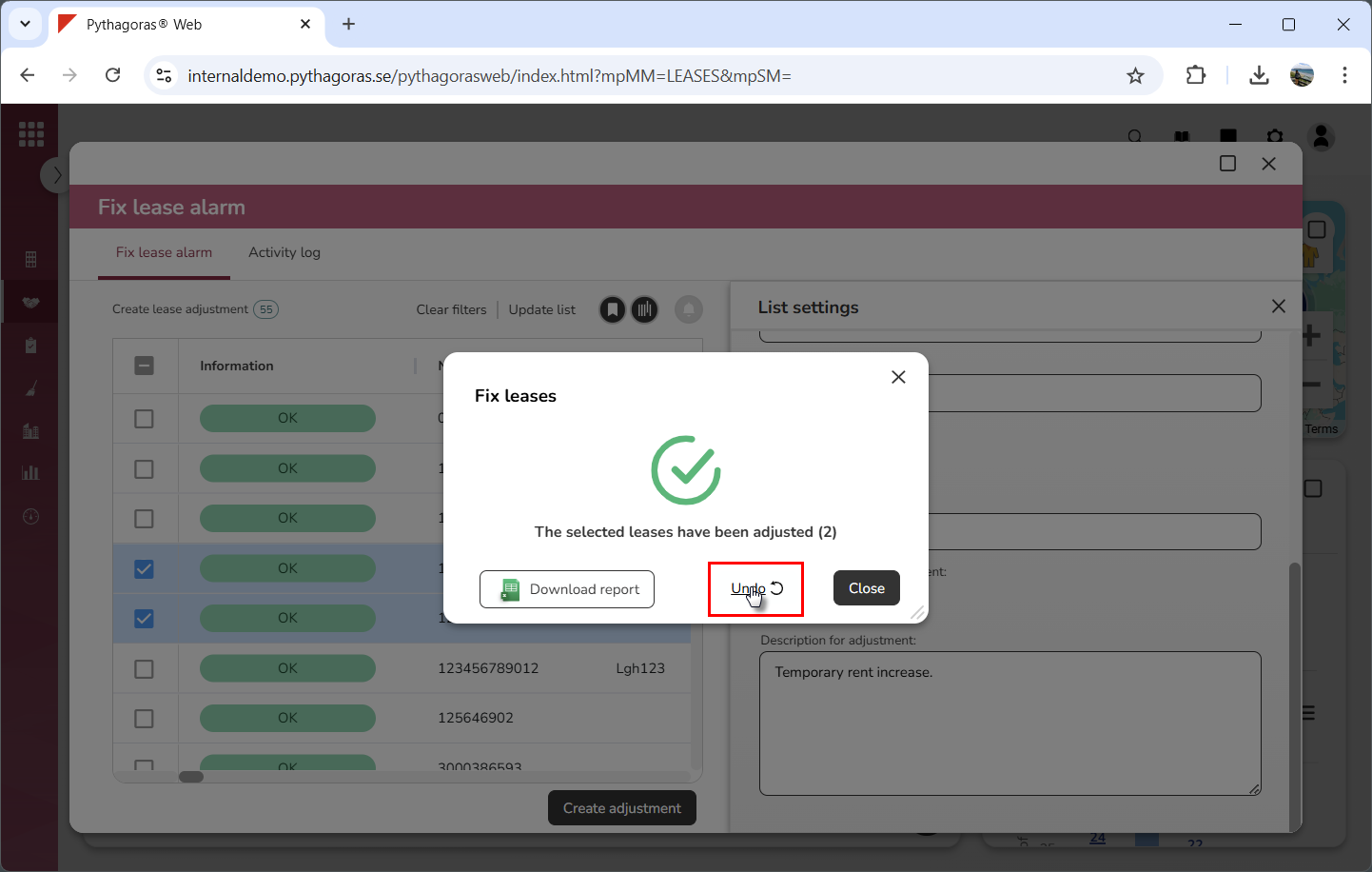
Click "OK" to create a lease adjustment for the selected lease or leases (see the first image below). When a lease adjustment has been created you will be shown the following message: "The selected leases have been adjusted" (see the second image below).
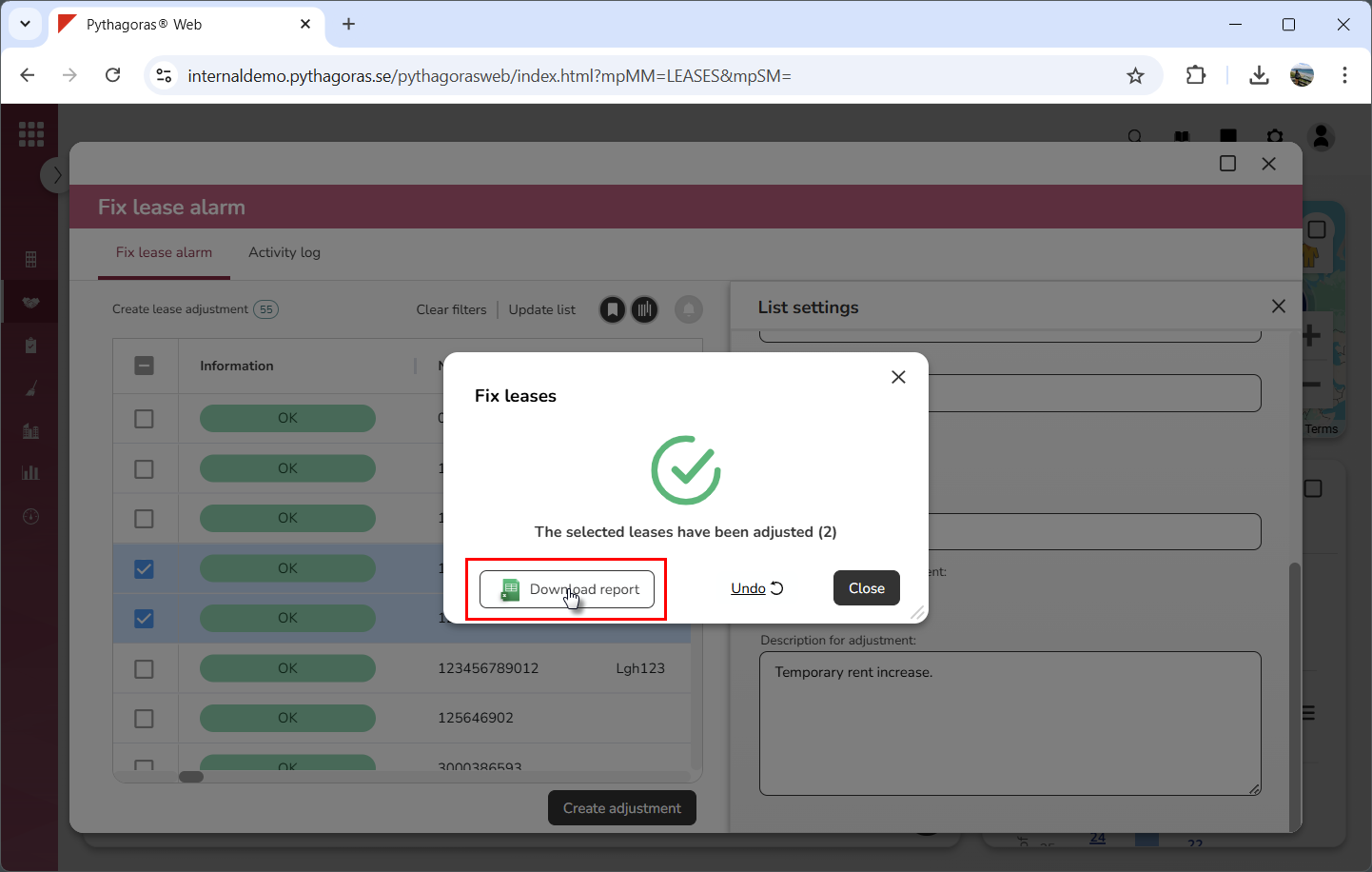
Click "Download report" to create a report showing which leases you have created a lease adjustment for (see images below). Note that if you do not wish to create a report, you can skip this step and go straight to step 23.
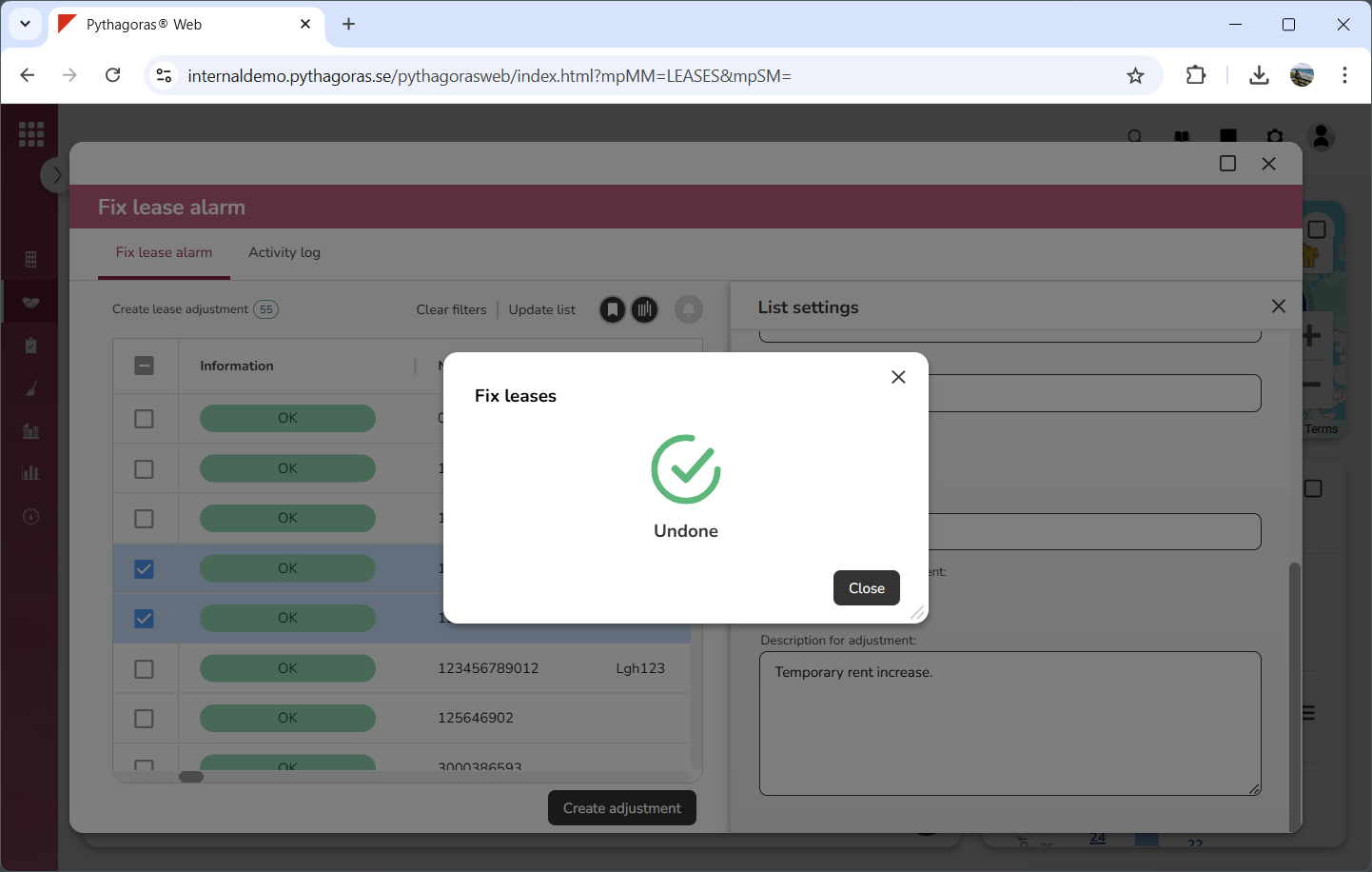
Click "Undo" to remove the lease adjustment created, from the leases associated with it (see images below). If you do not wish to remove the lease adjustment created, you can skip this step and go straight to step 24.
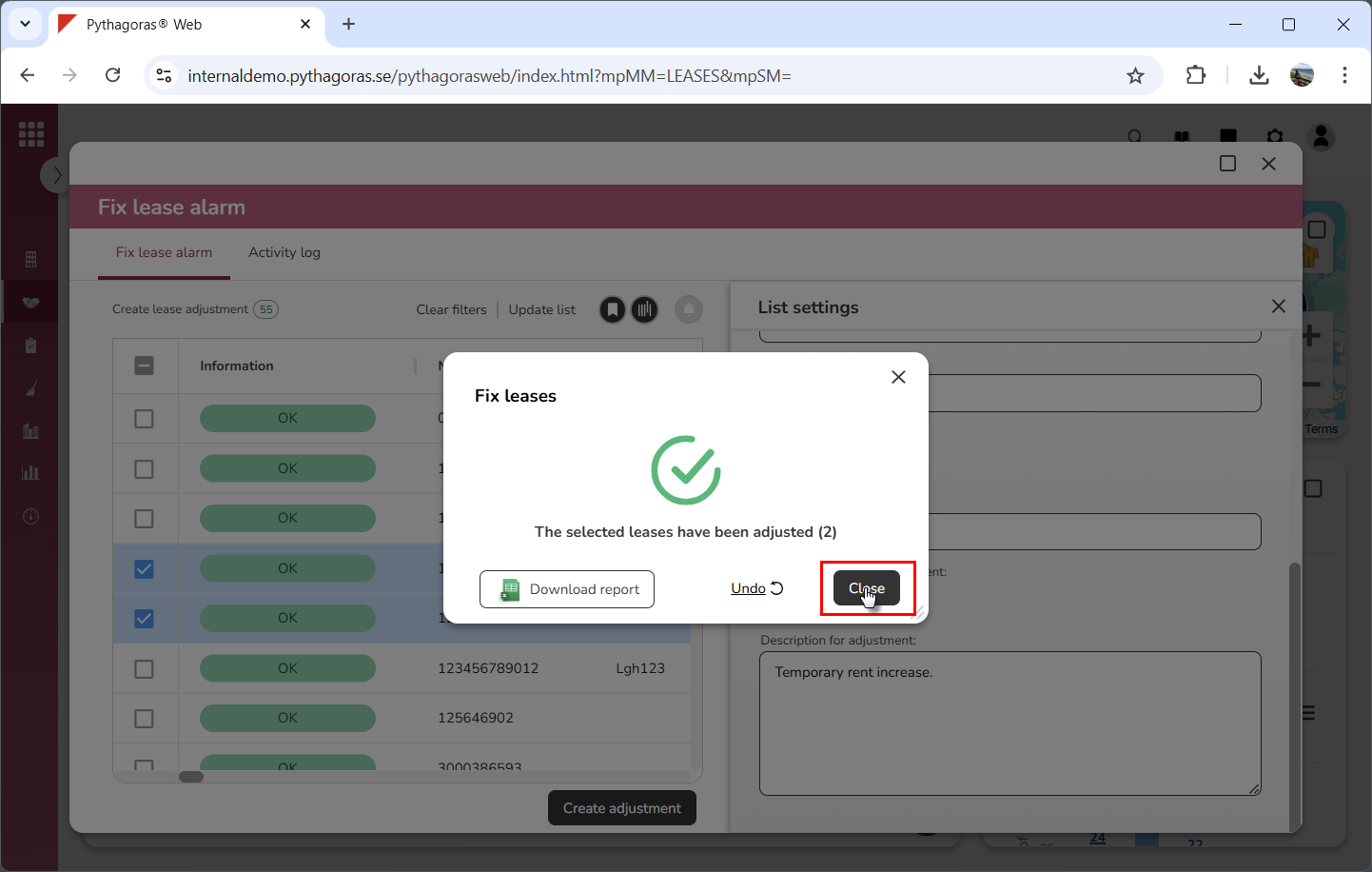
Click "Close" (see the first image below). When you do so, the window called "Fix lease" will close. At the same time you will be redirected back to the fix leases card (see the second image below).