When copying a lease, it doesn't matter what status the lease has: "Lease" or "Proposal". You can copy the lease regardless of its status.
To copy a lease:
Open a lease. For more information on how to do so, see section 4.6. or 6.1.
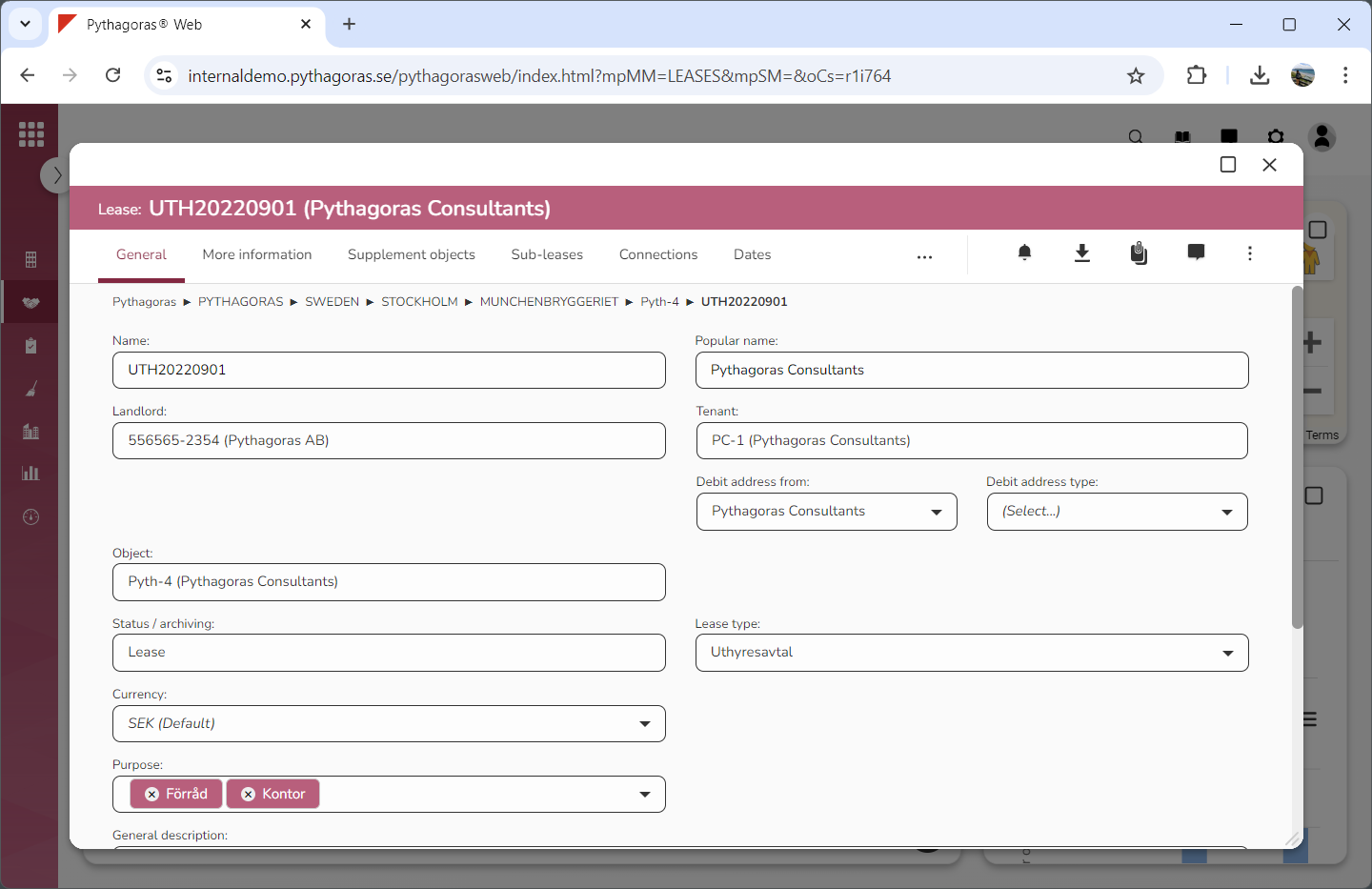
Go to the lease card (see image below).
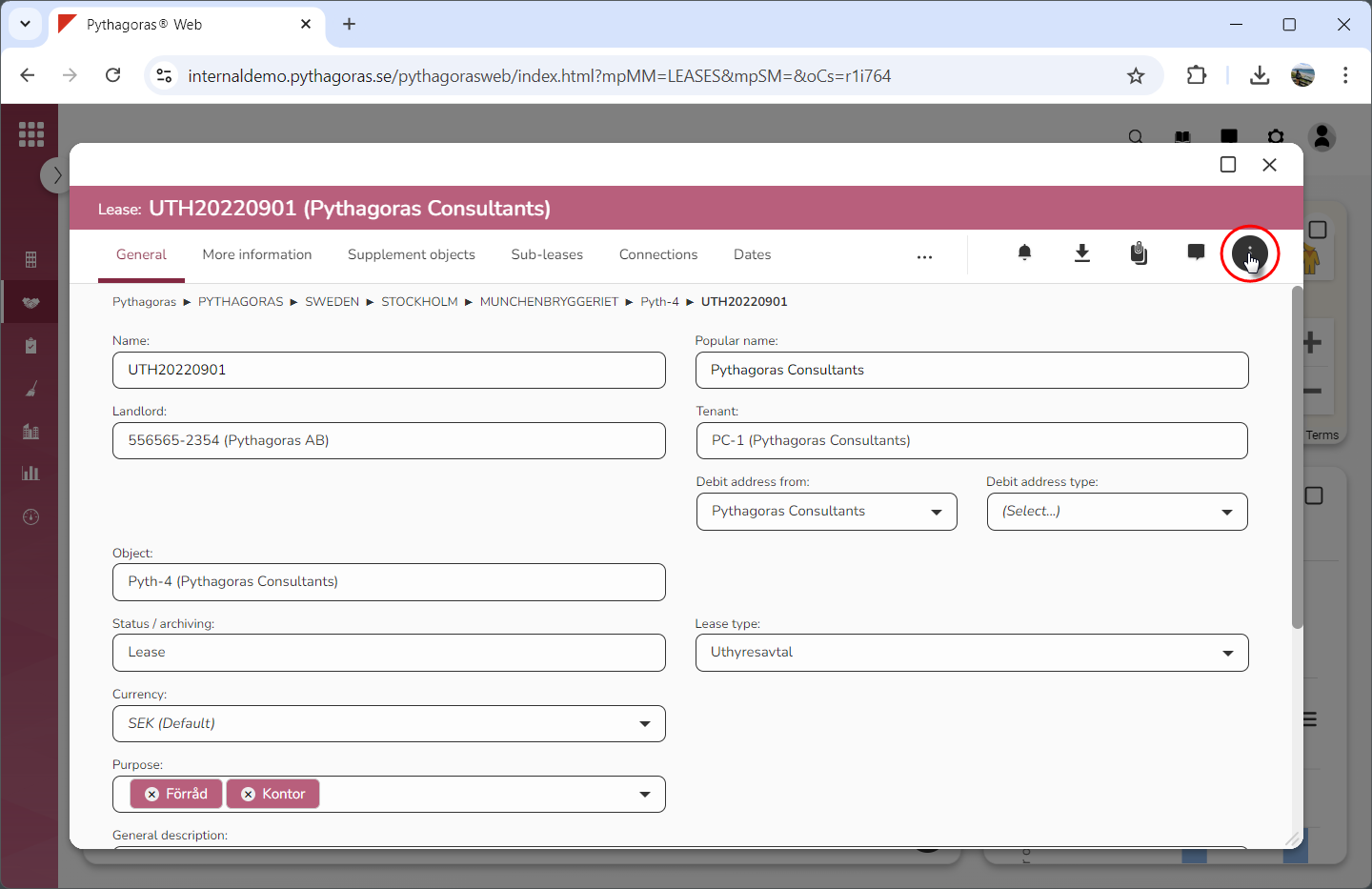
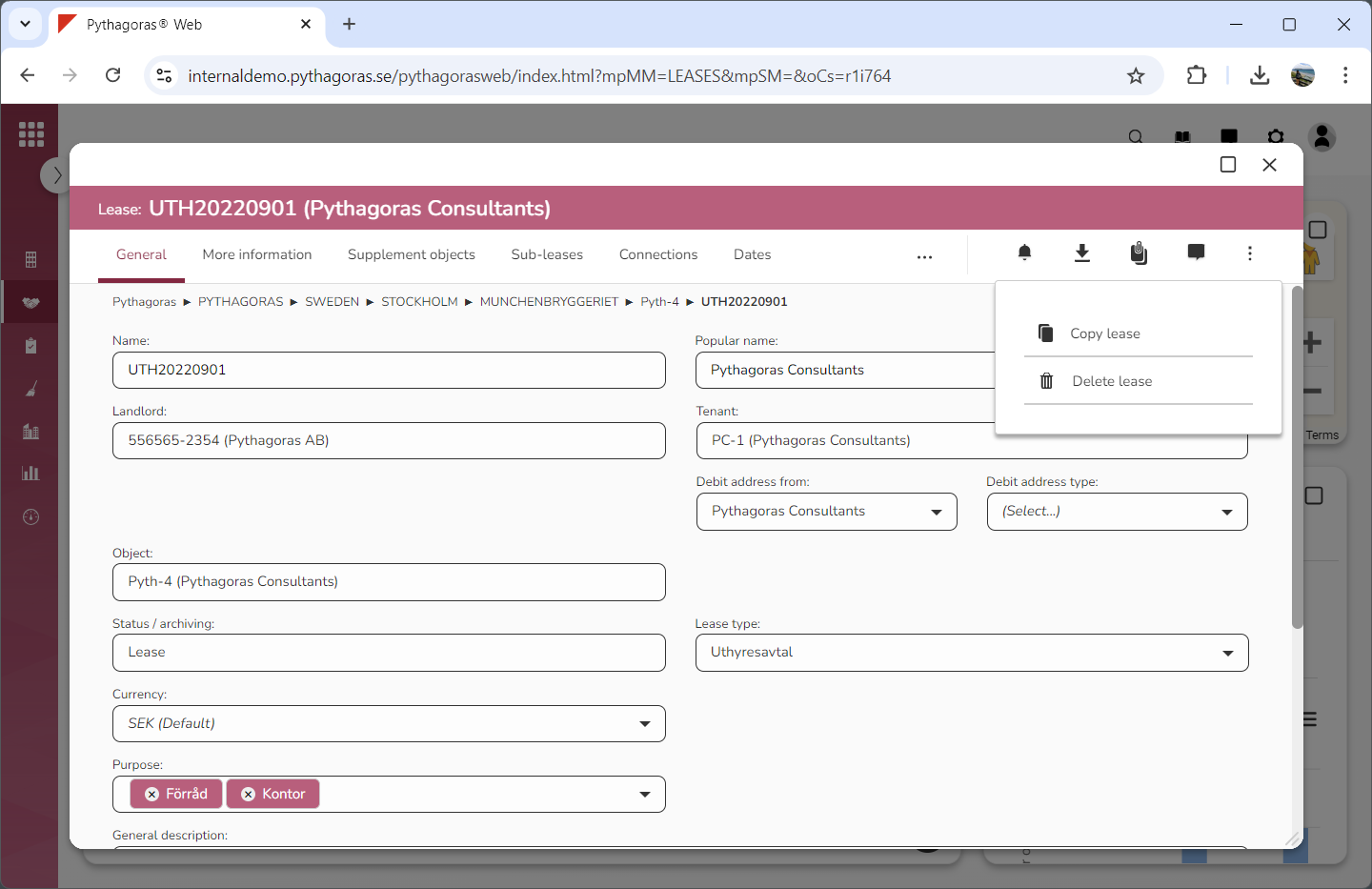
Click "More options" (see the first image below). When you do so, a menu will open (see the second image below).
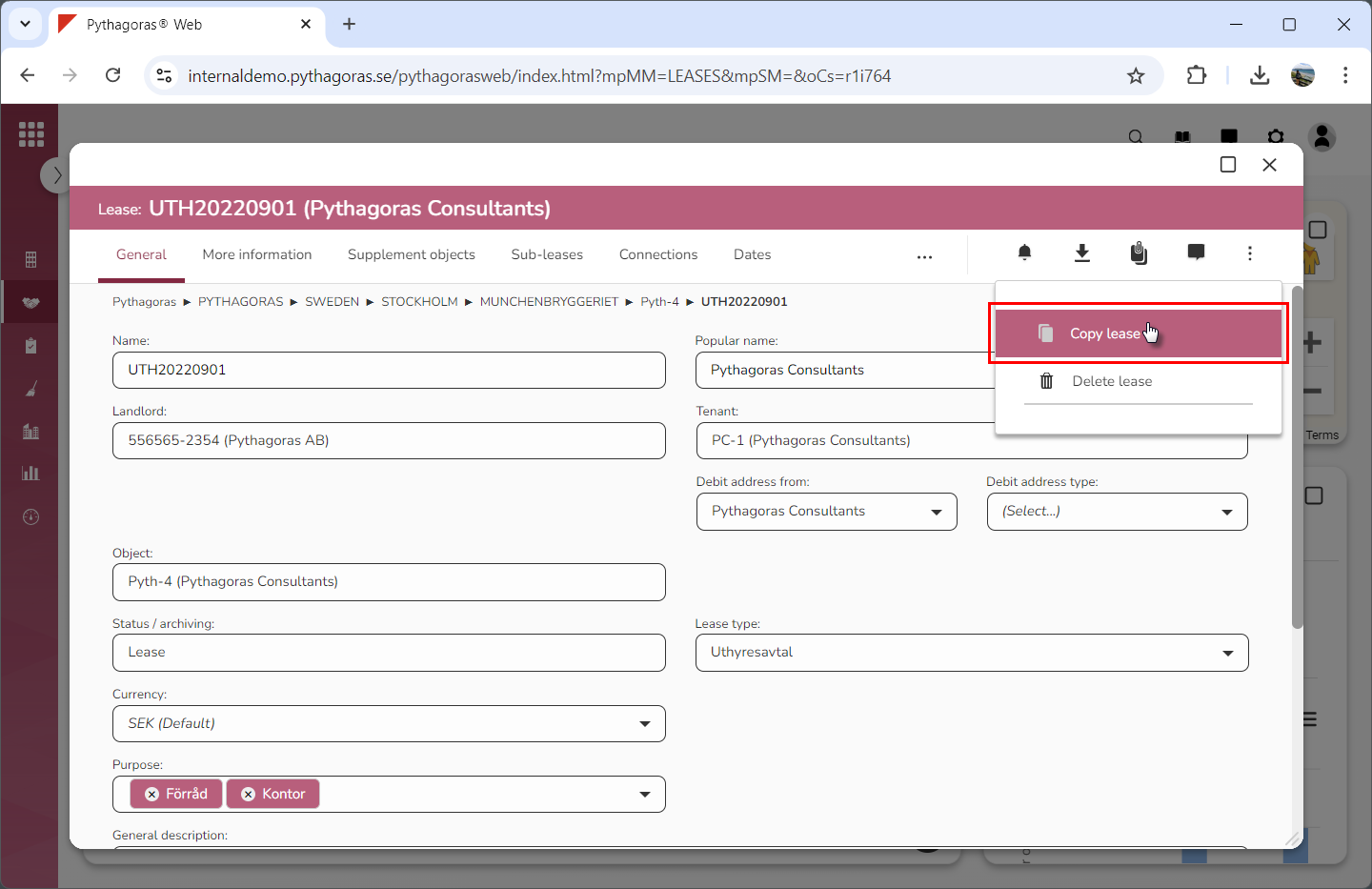
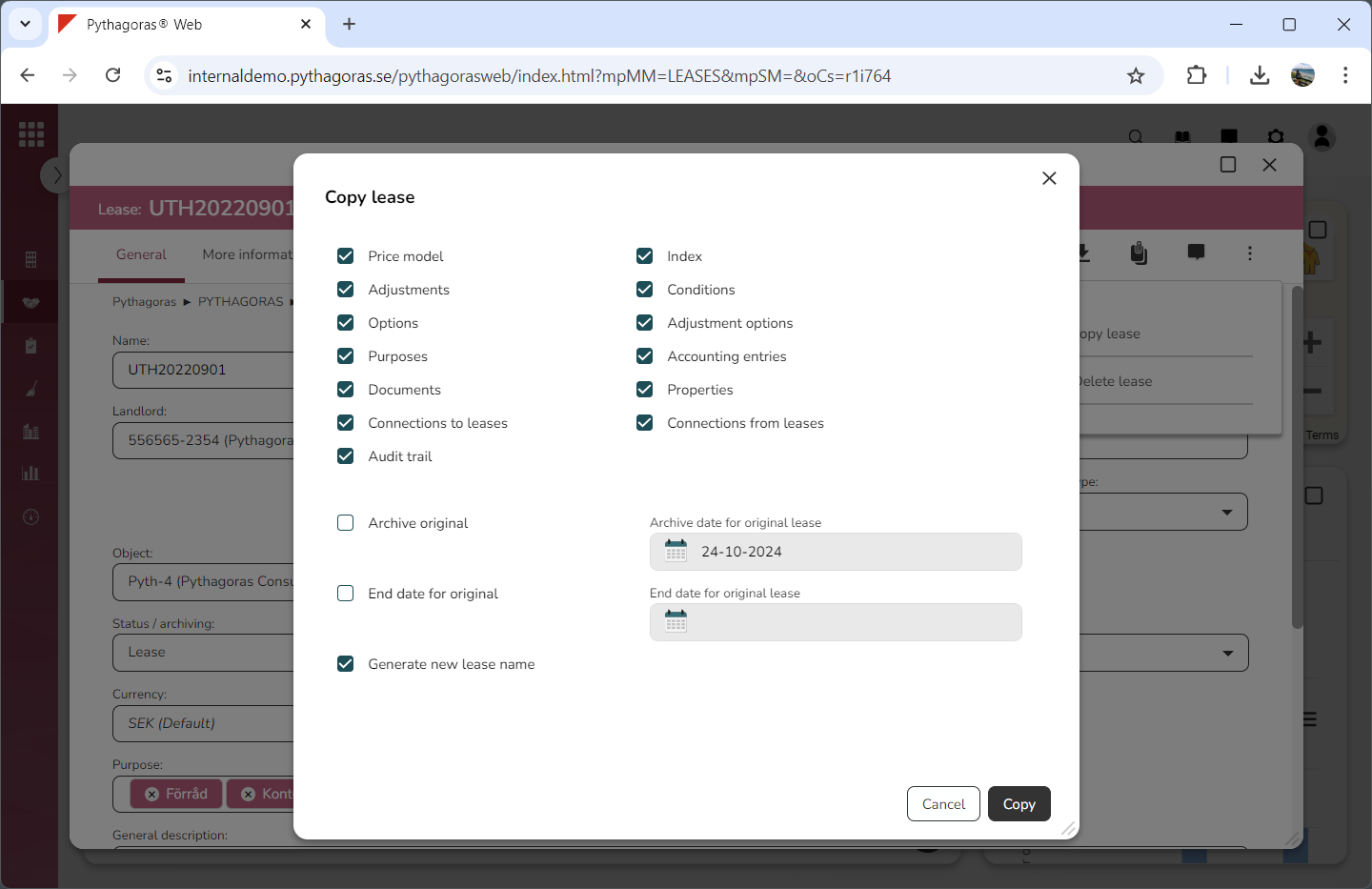
Click "Copy lease" in the menu (see the first image below). When you do so, a window called "Copy lease" will open (see the second image below).
Go to the window called "Copy lease".
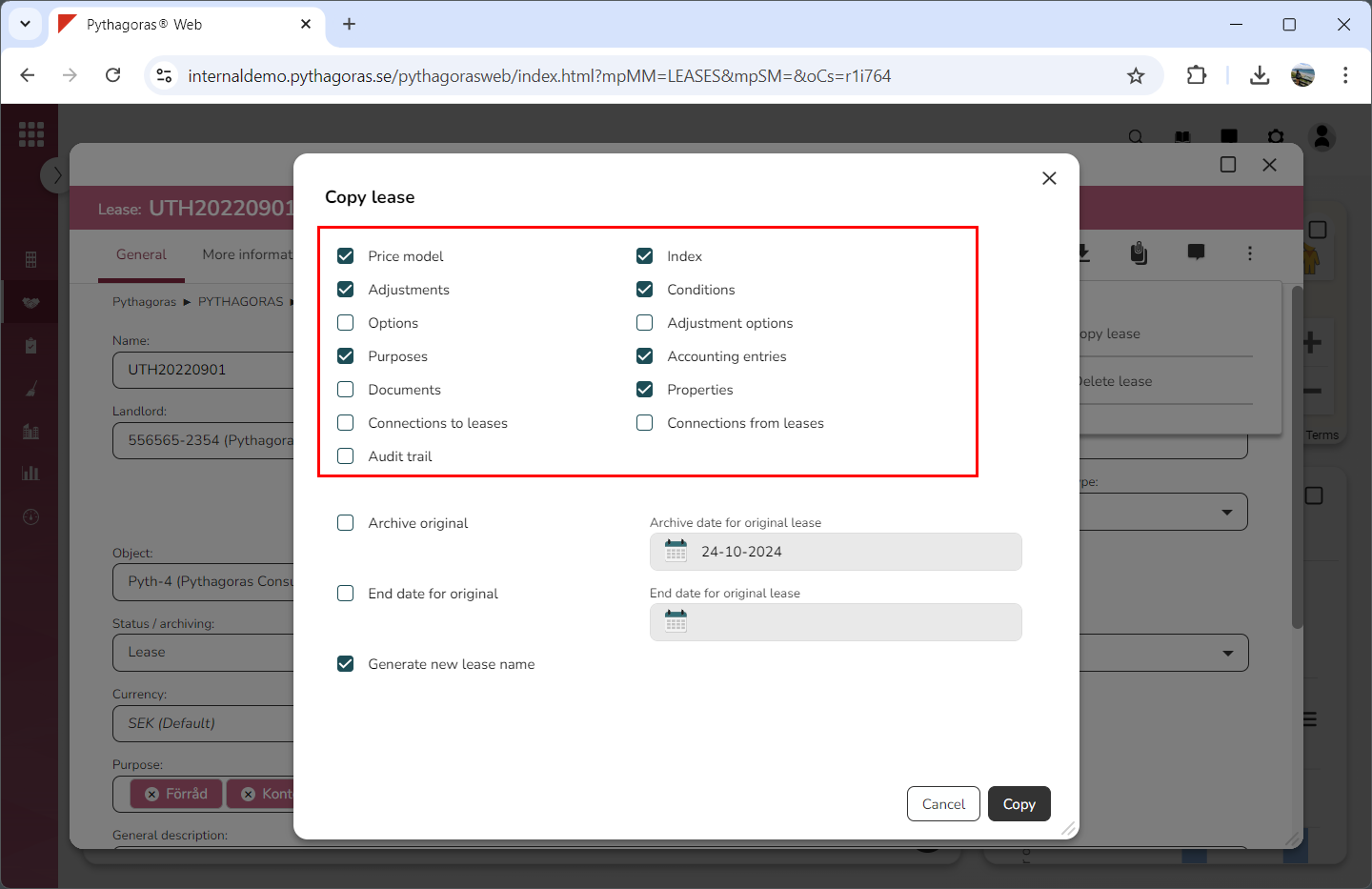
Uncheck the checkbox or checkboxes associated with the lease parts you do not wish to copy (see image below).
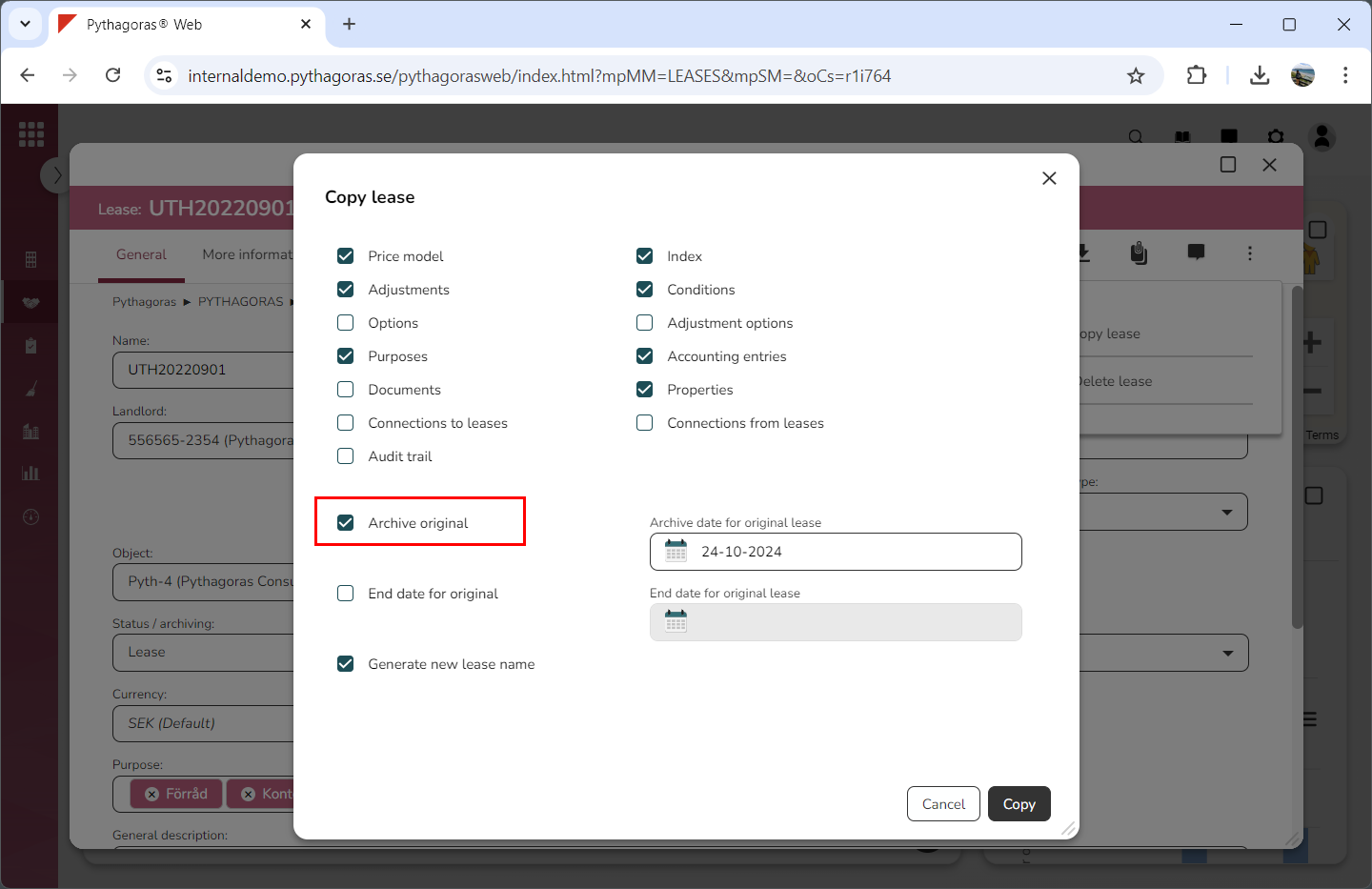
Check the checkbox called "Archive original" (see image below). Note that you only need to do this if the lease you are working with should be archived after you have copied it. If the lease you are working with should not be archived after you have copied it you can skip this step and the next and go straight to step 8.
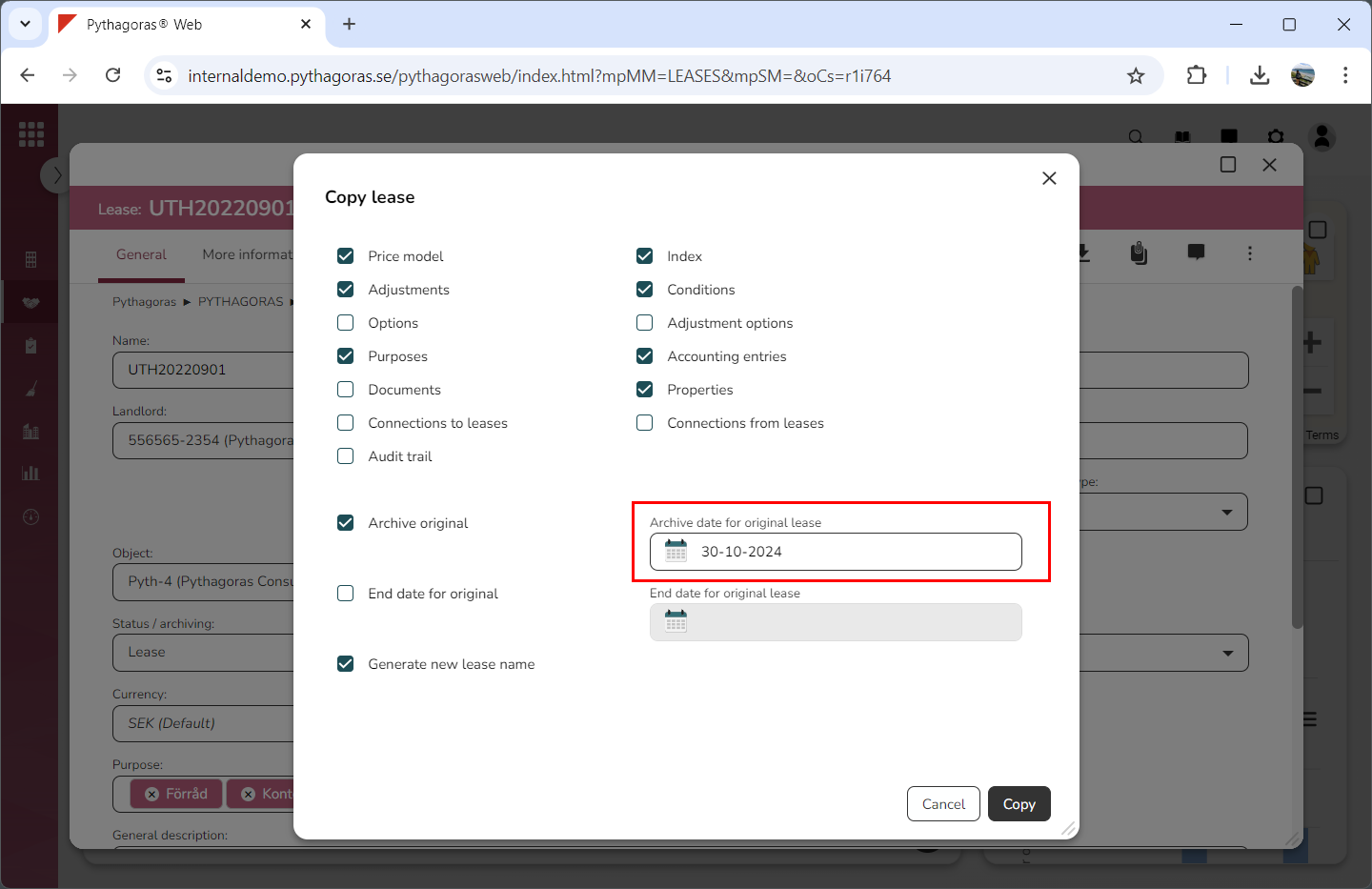
Set an archive date for the lease you are working with by clicking the field "Archive date for original lease" and then selecting an archive date in the calendar that opens (see image below). Note that you only need to do this if you specified that the lease you are working with should be archived after you have copied it.
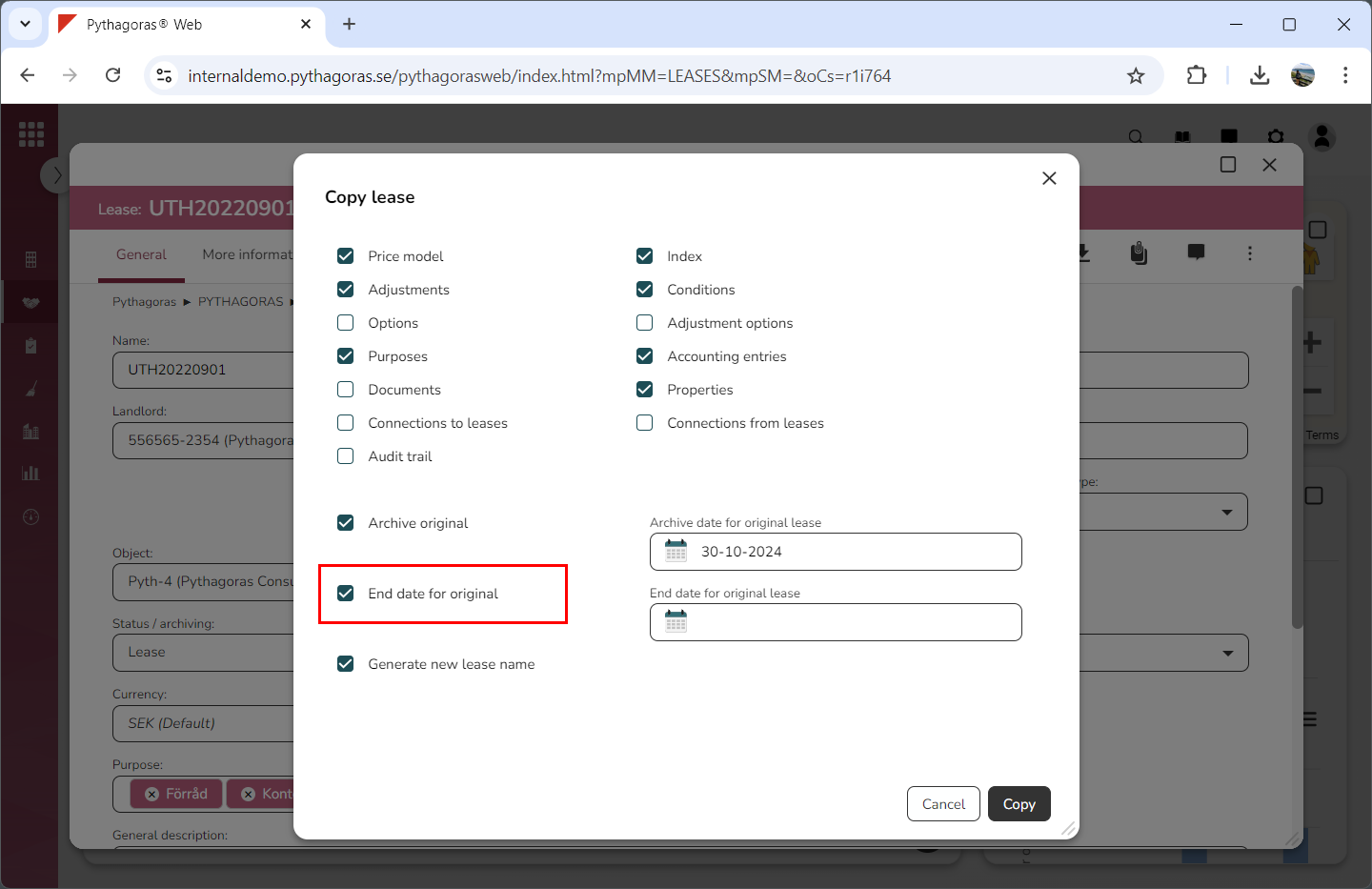
Check the checkbox called "End date for original lease" (see image below). Note that you only need to do this if you wish to set a new end date for the lease you are working with. If you do not wish to do so you can skip this step and the next and go straight to step 10.
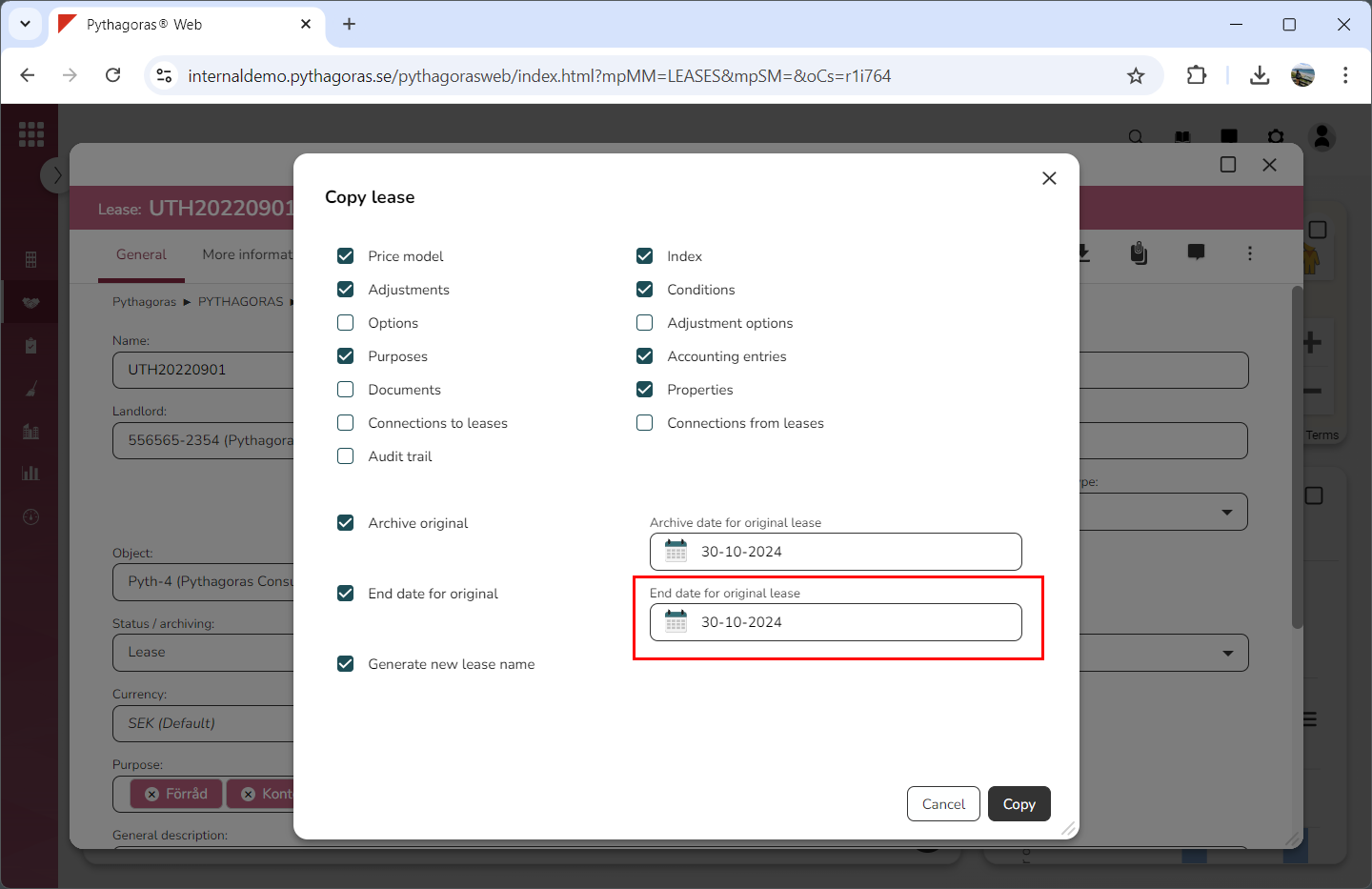
Set a new end date for the lease you are working with by clicking the field "End date for original lease" and then selecting an end date in the calendar that opens (see image below). Note that you only need to do this if you specified that wish to set a new end date for the lease you are working with.
Uncheck the checkbox called "Generate new lease name". You only need to do this if you do not wish to generate a new lease name for the copy of the lease you are working with. If you do wish to generate a new lease name for the copy you can skip this step and go straight to step 12. Note that in order for you to benefit from unchecking the checkbox called "Generate new lease name", a prefix for how lease names should be formatted must be set in the database. Otherwise, you will get the same result regardless of whether the checkbox called "Generate new lease name" is checked or unchecked.
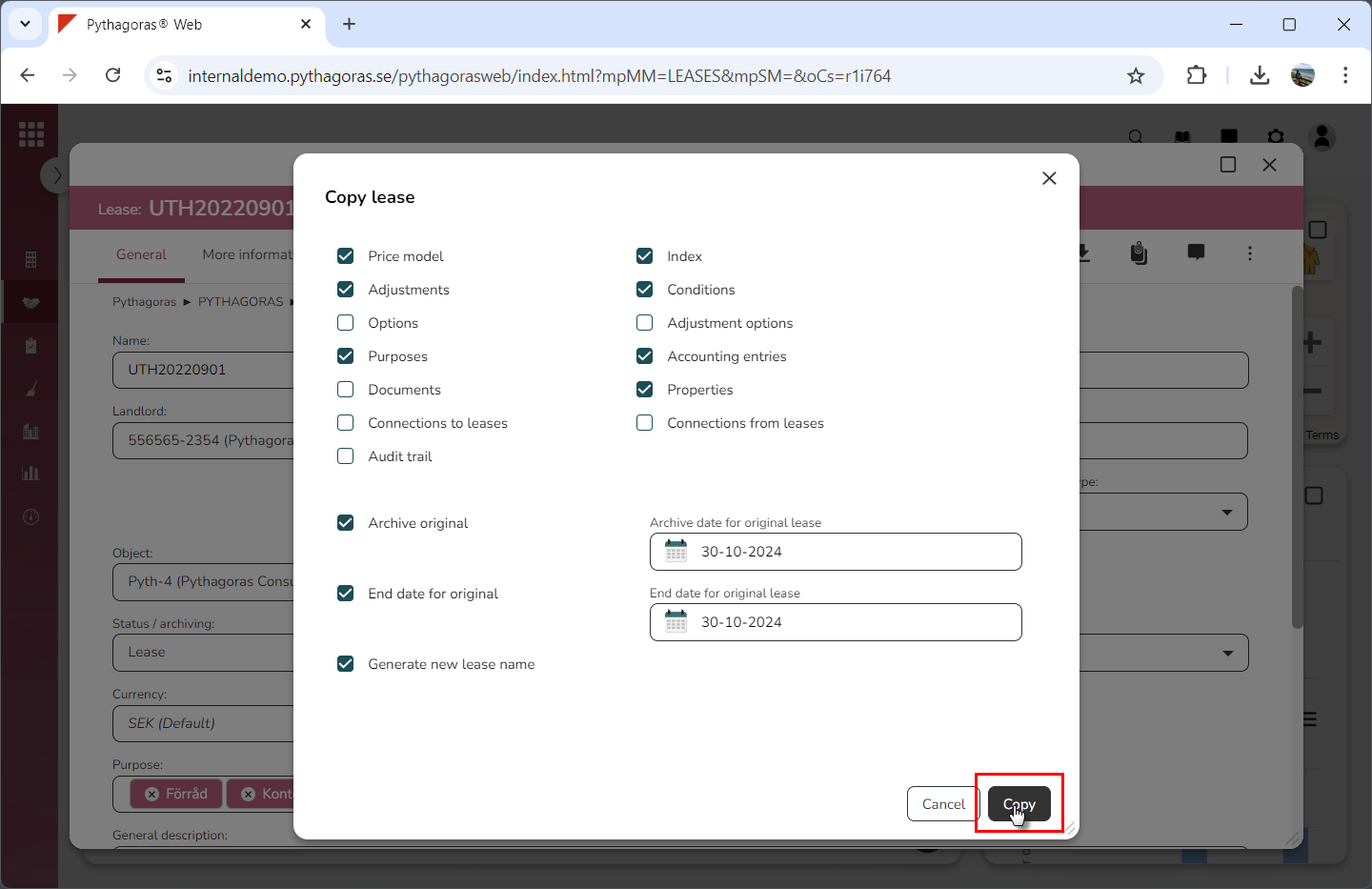
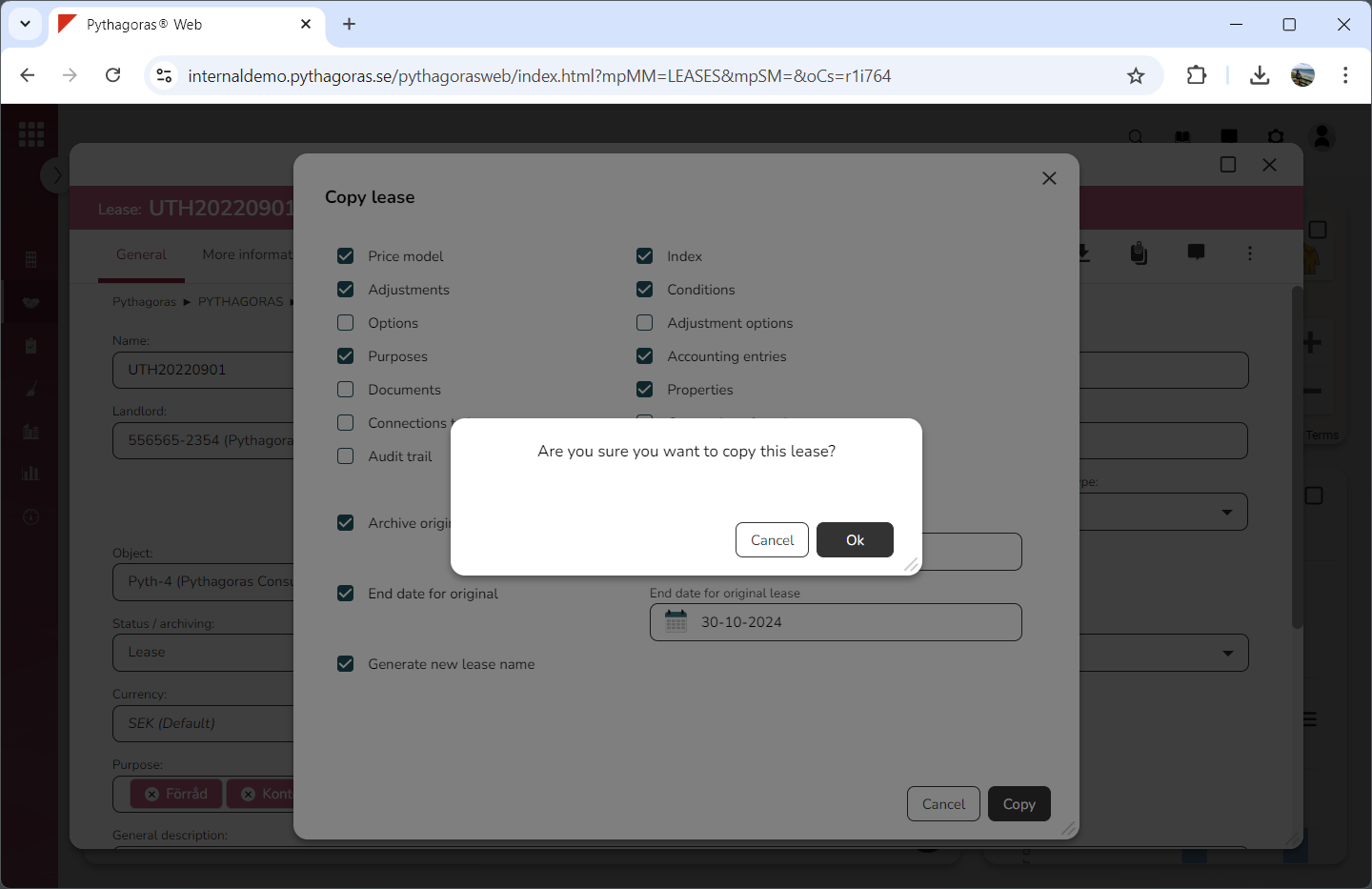
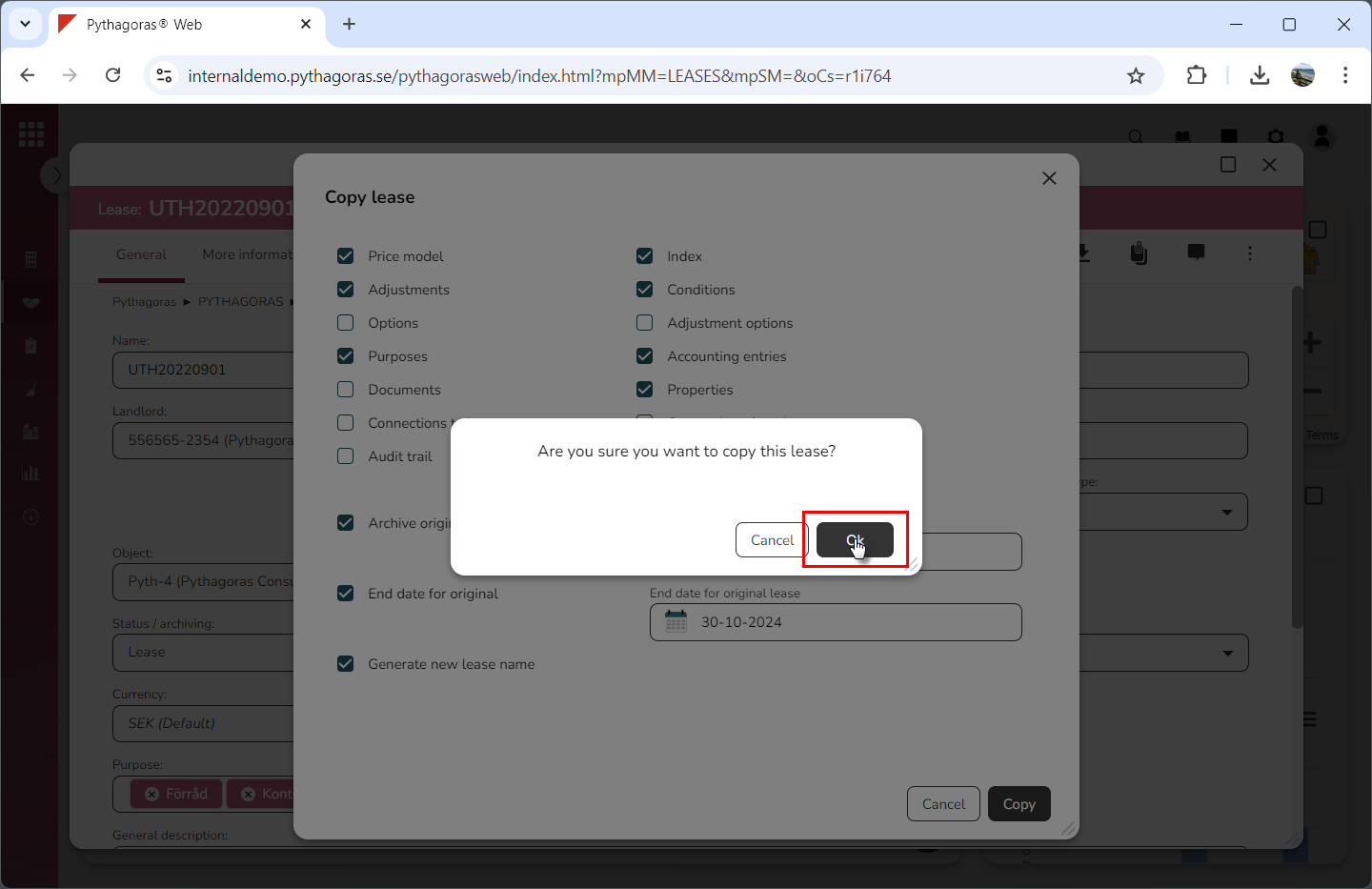
Click on the button called "Copy" (see the first image below). When you do so, a dialog will open asking the following question: "Are you sure you want to copy this lease?" (see the second image below).
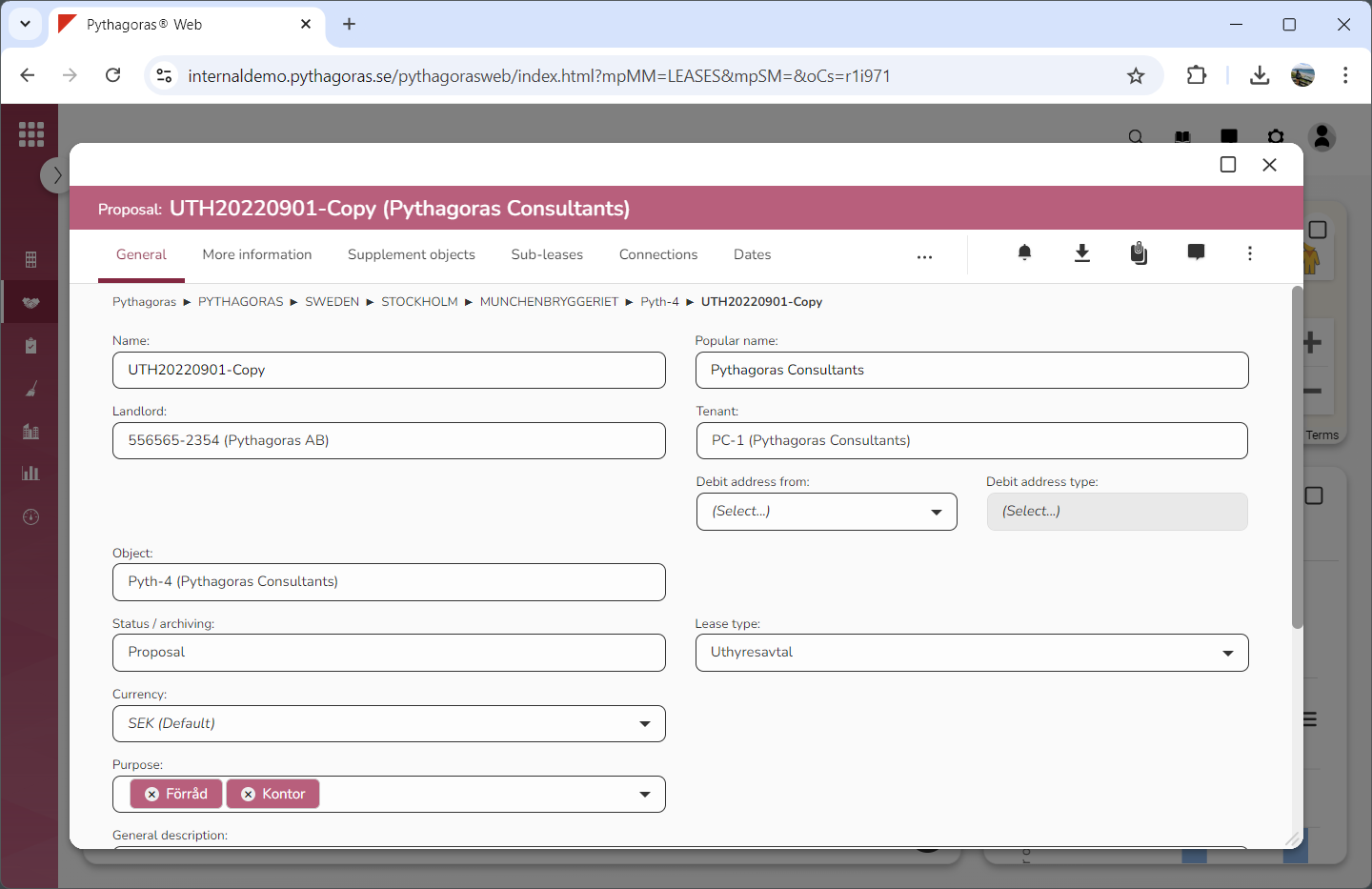
Click "OK" in the dialog (see the first image below). When you do so, the lease you are working with will be copied. When a lease is copied, the copy's lease card will open (see the second image below). Note that the copy will receive the status "Proposal" regardless of whether the lease you copy has the status "Lease" or "Proposal".