8.13.4. Add a report template in Pythagoras Leases
To add a report template in Leases:
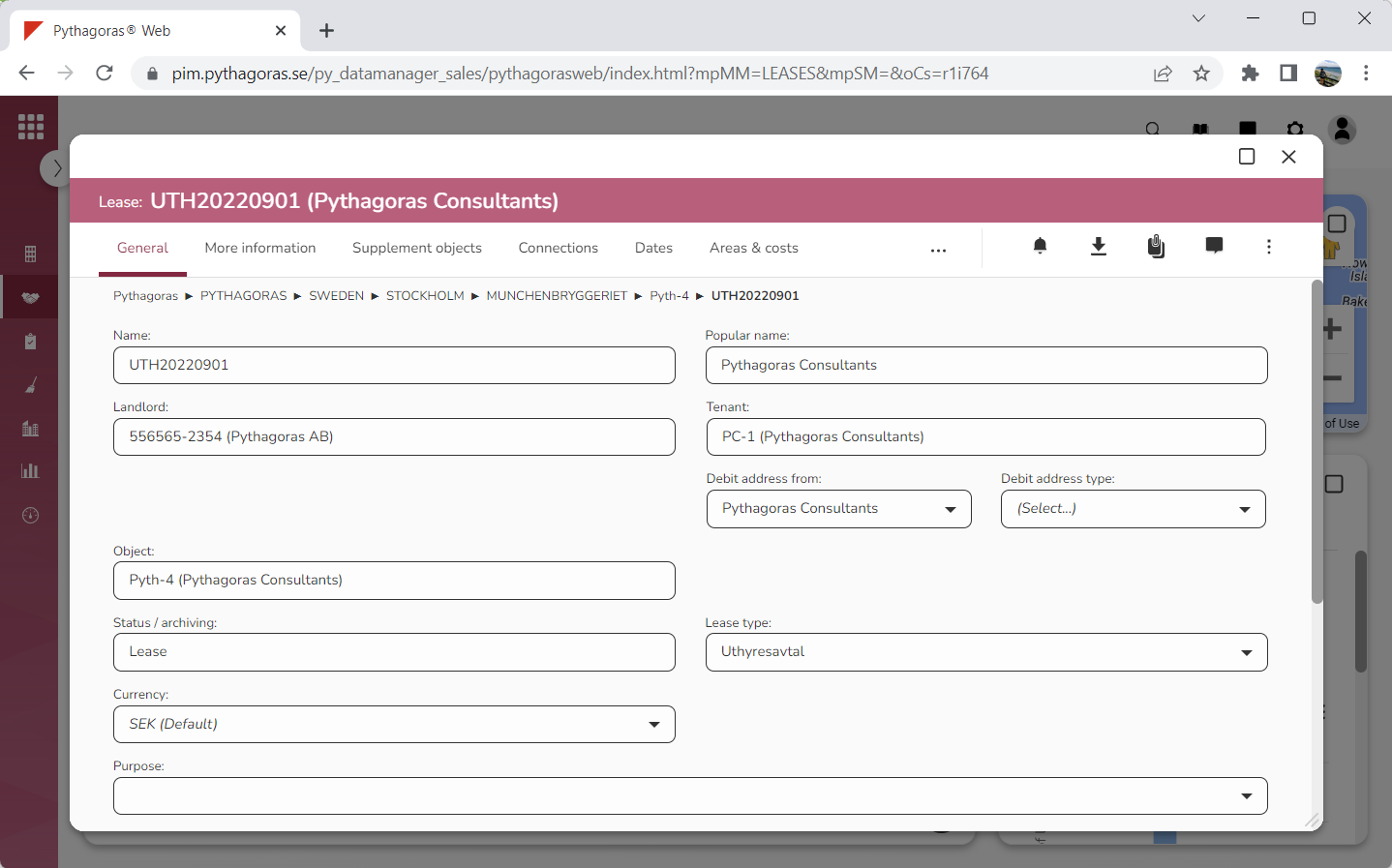
Open a lease. For more information on how to do so, see section 4.6. or 6.1.
Go to the lease card (see image below).
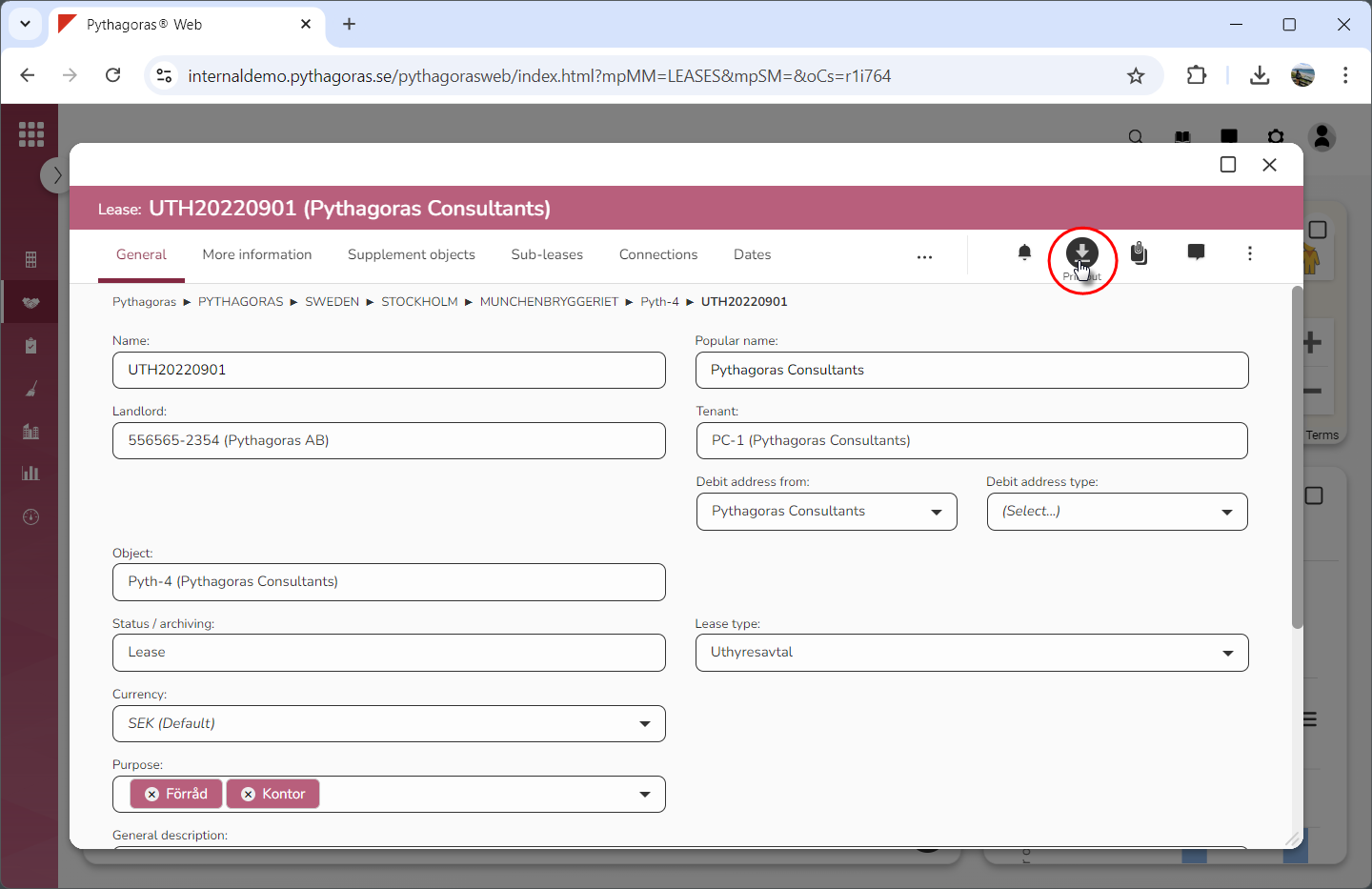
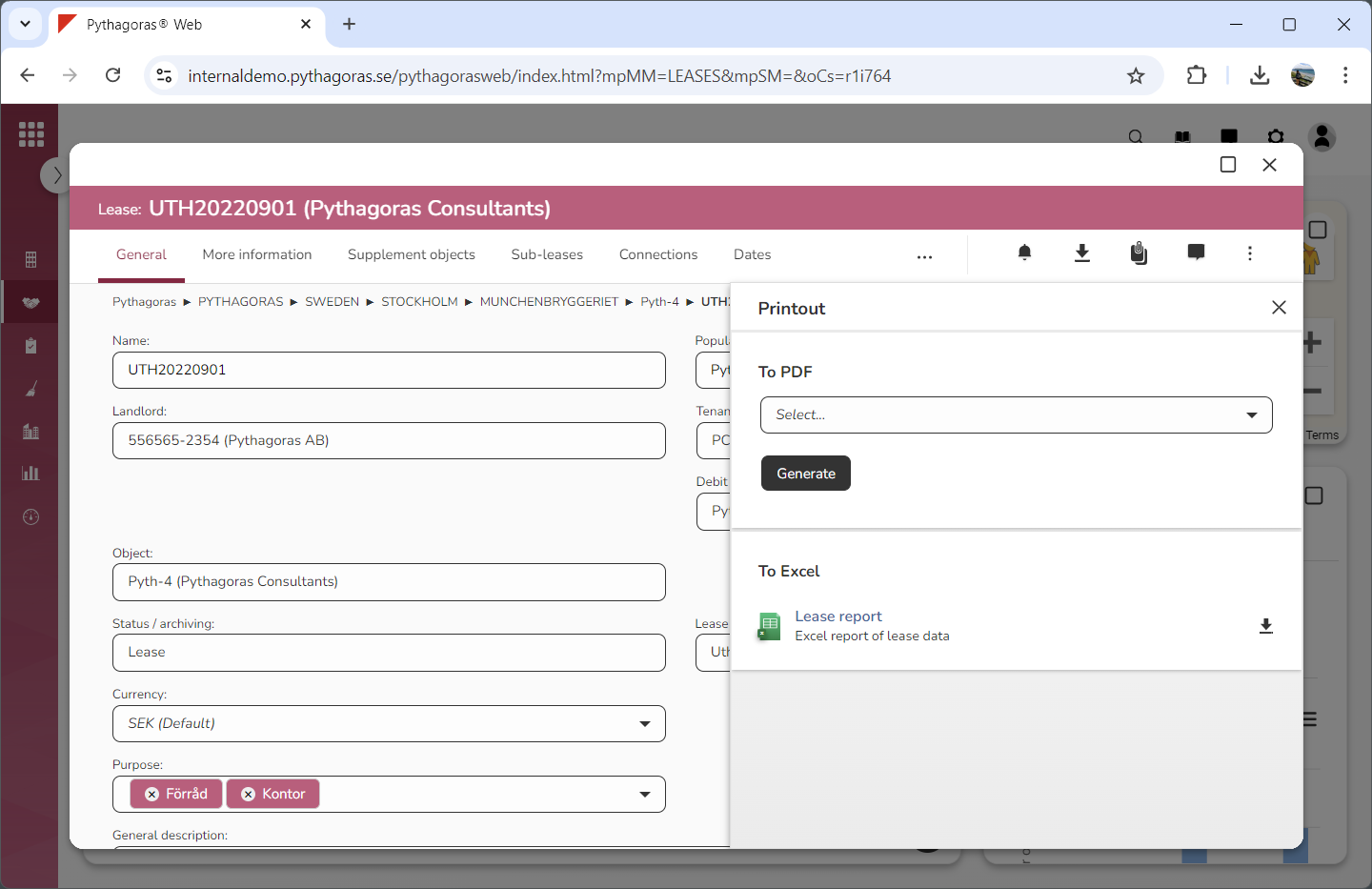
Click the icon "Printout" (see the first image below). When you do so, a window called "Printout" will open (see the second image below).
Go to the window called "Printout".
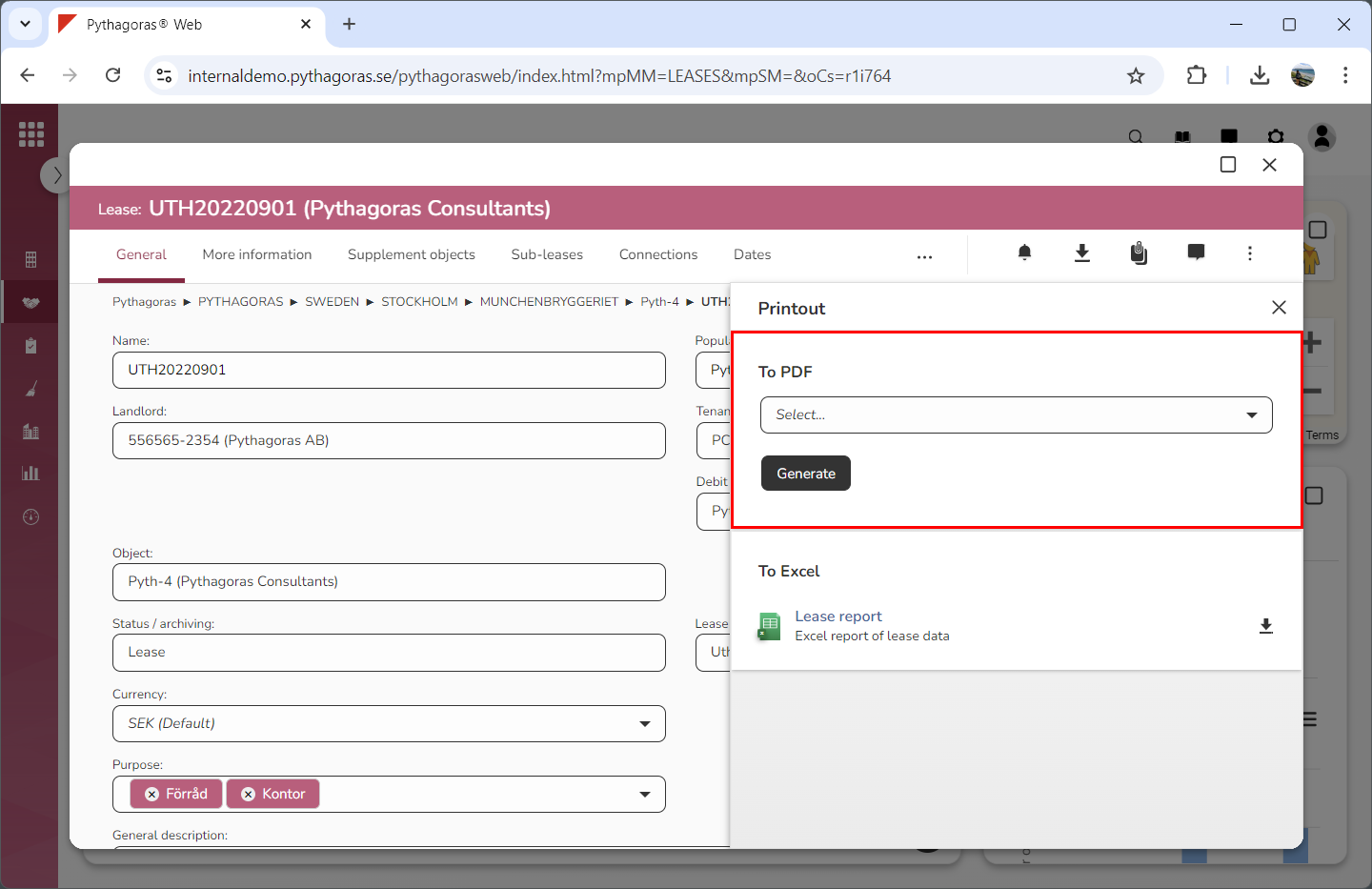
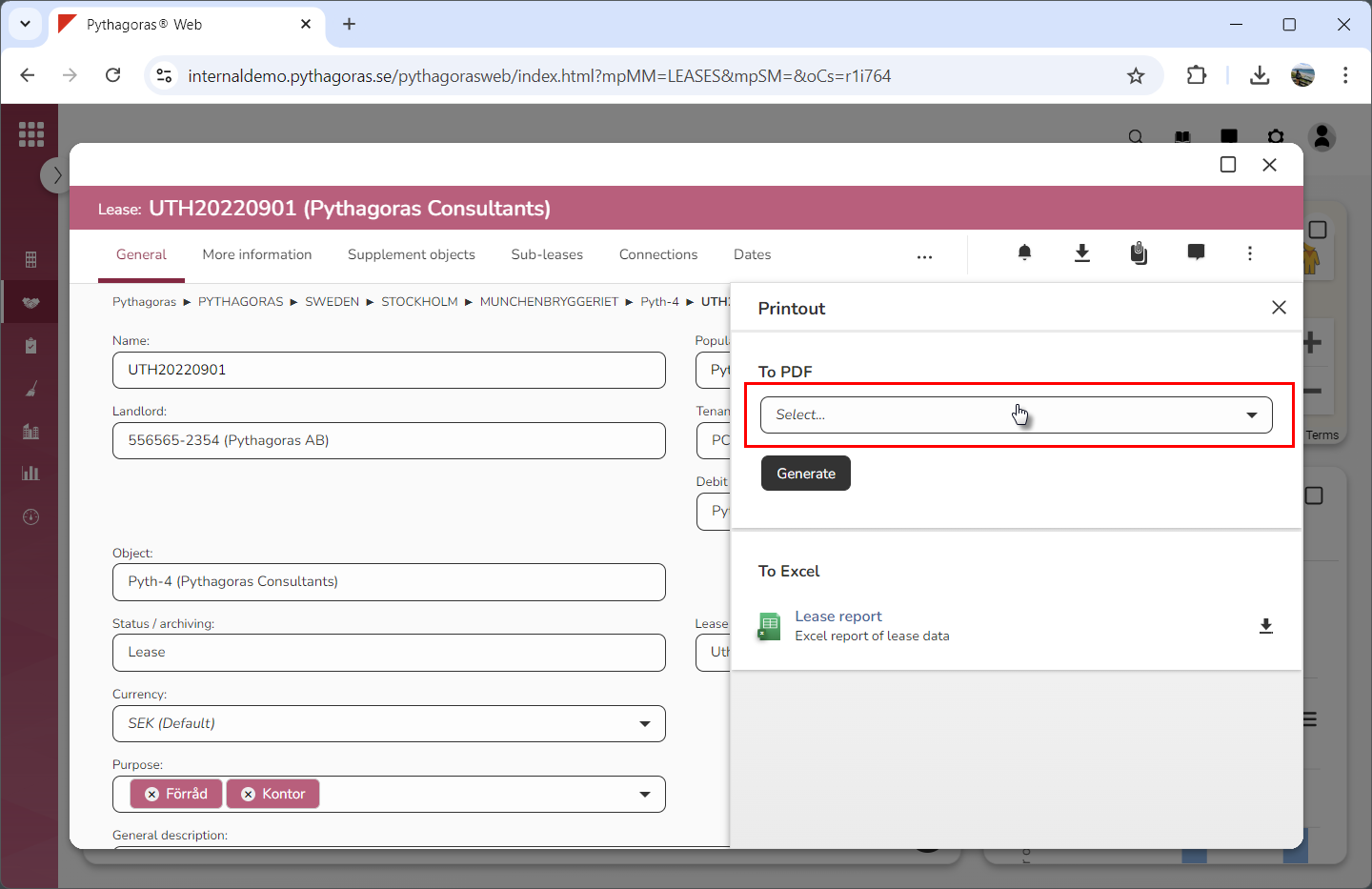
Go to the heading "To PDF" (see image below).
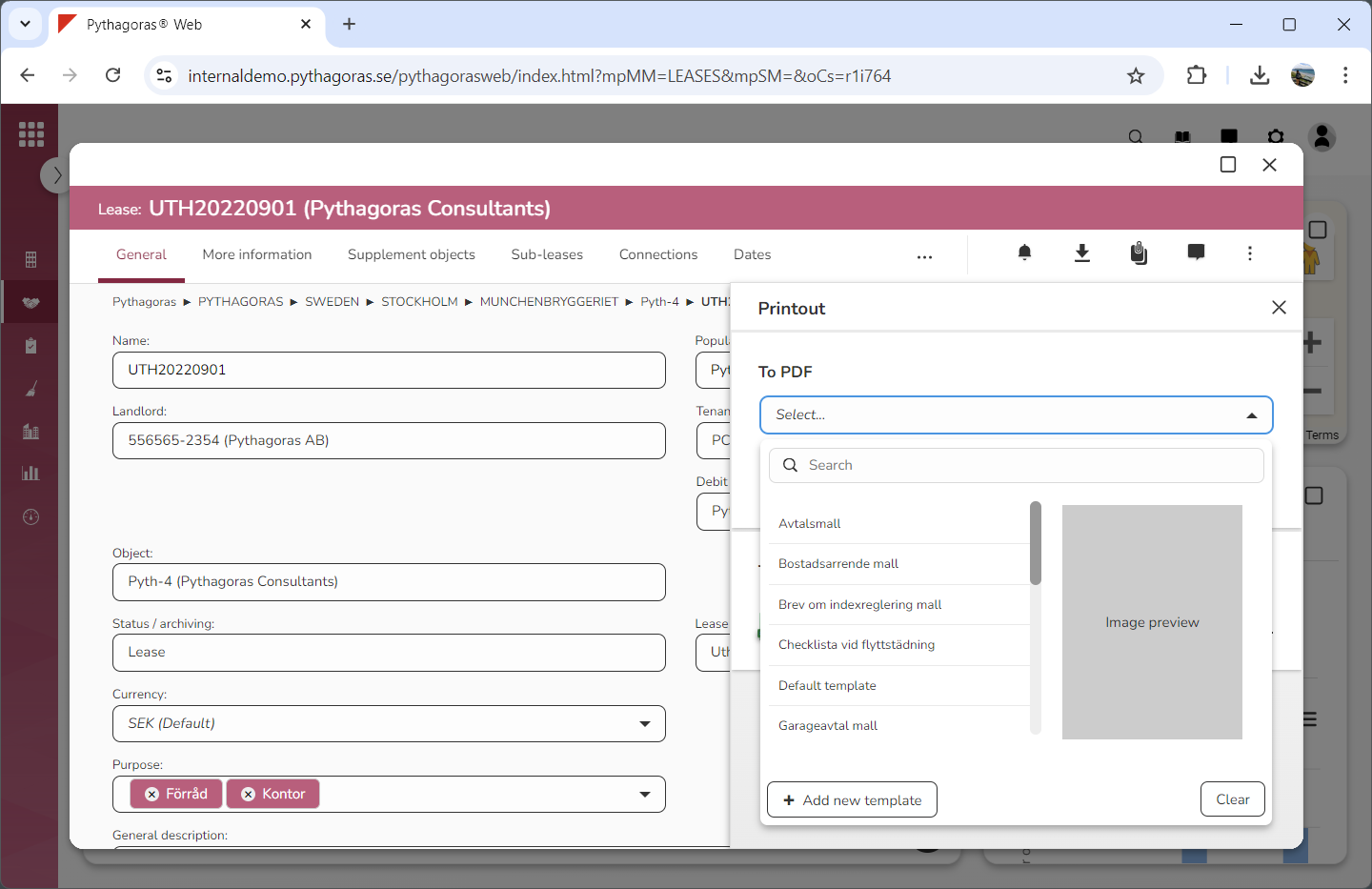
Click the field "Select" (see the first image below). When you do so, a list of report templates will open (see the second image below). In the list of report templates you will find the report templates available in Leases.
Go to the list of report templates.
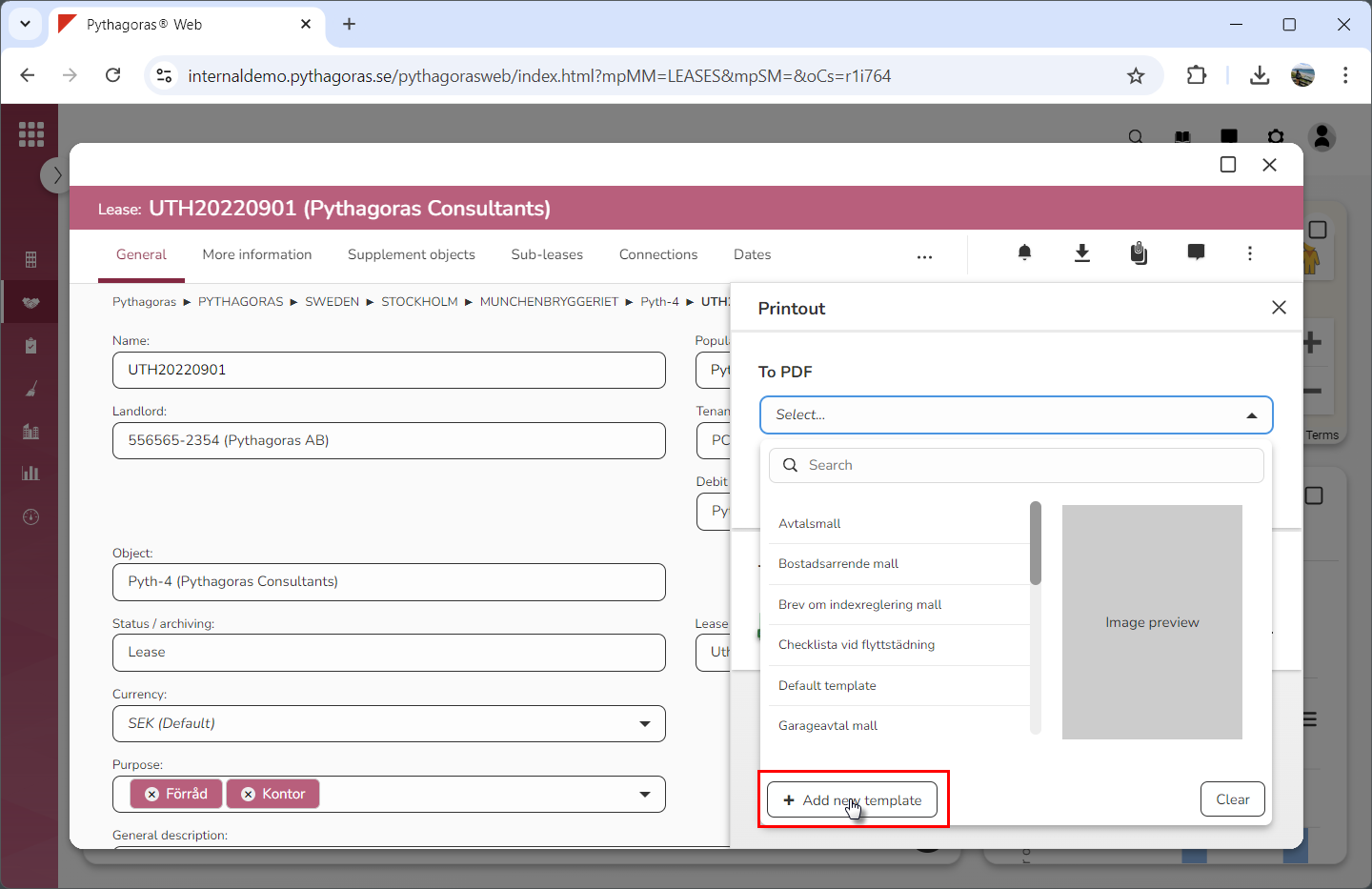
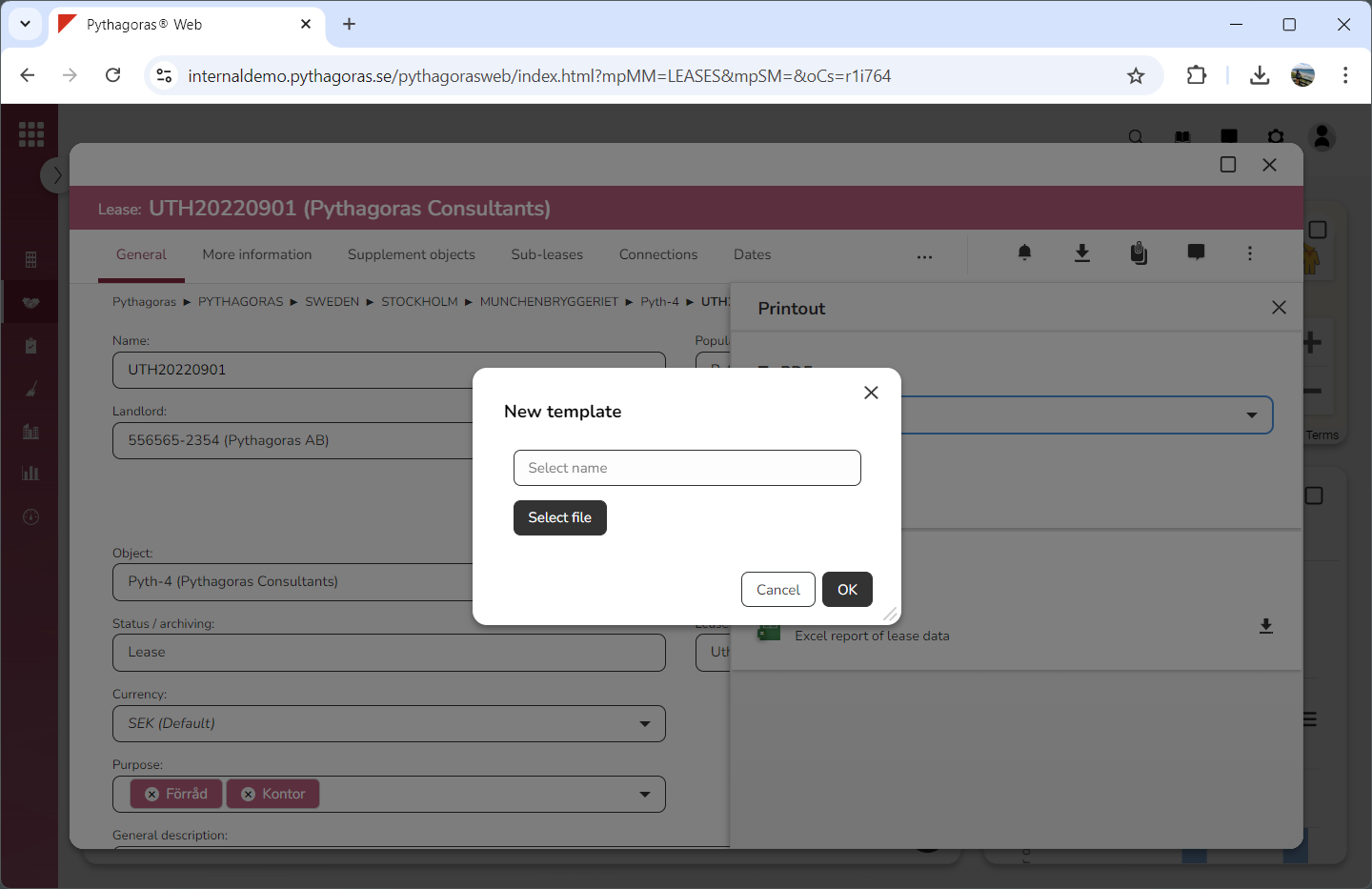
Click "Add new template" (see the first image below). When you do so, a window called "New template" will open (see the second image below).
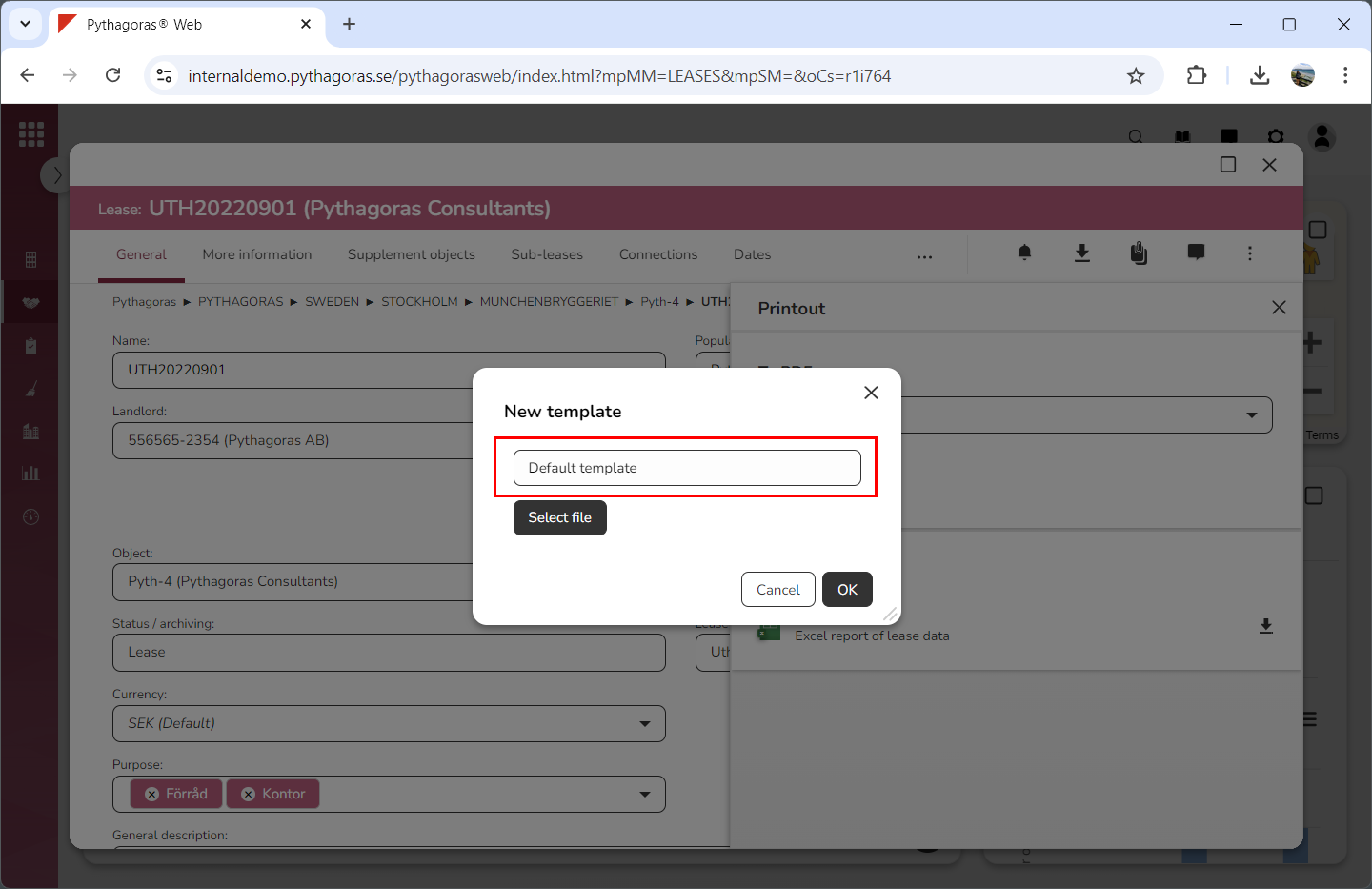
Go to the window called "New template".
Enter a name for the template you are adding in Leases by entering a name in the field "Select name" (see image below).
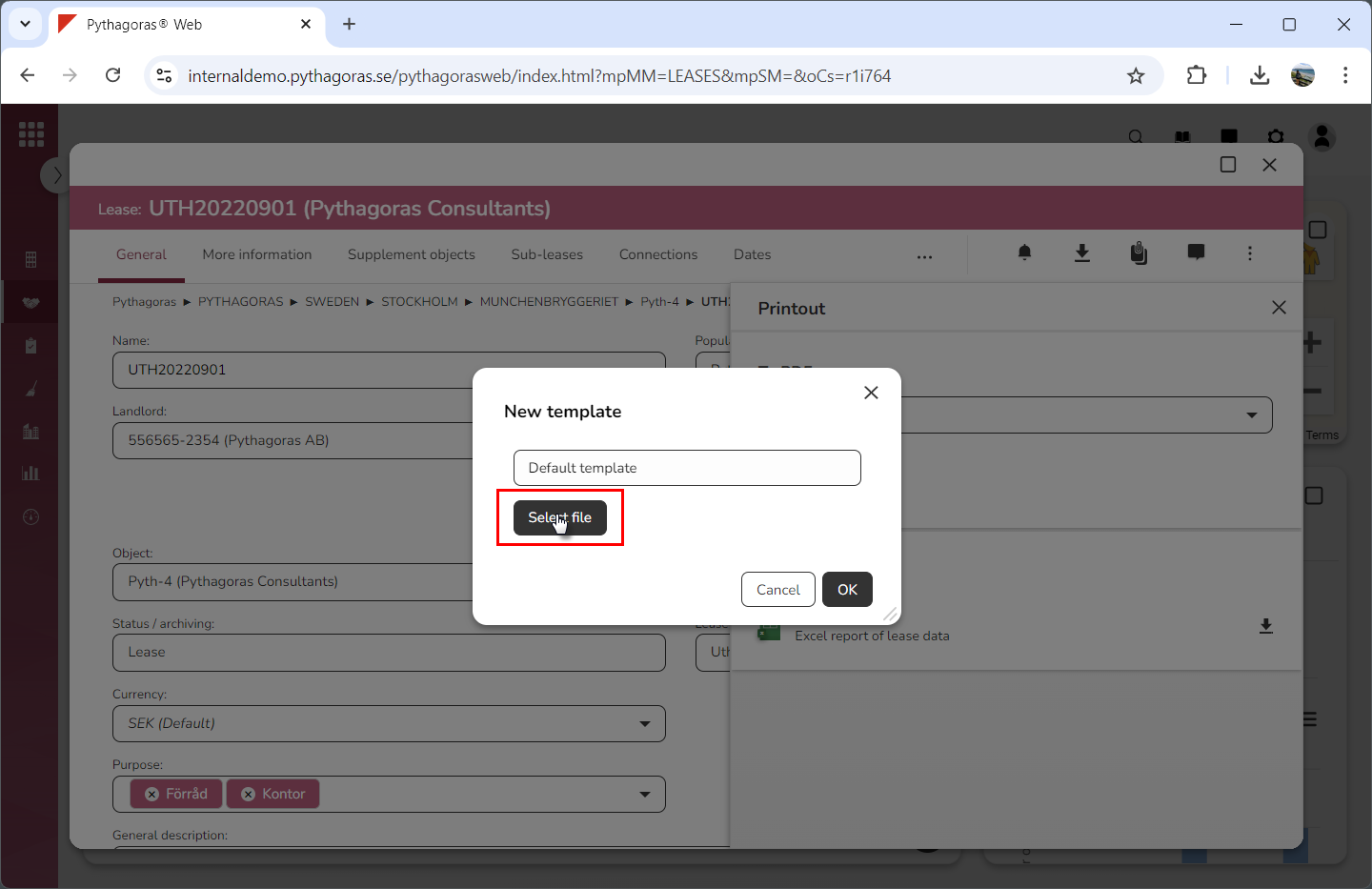
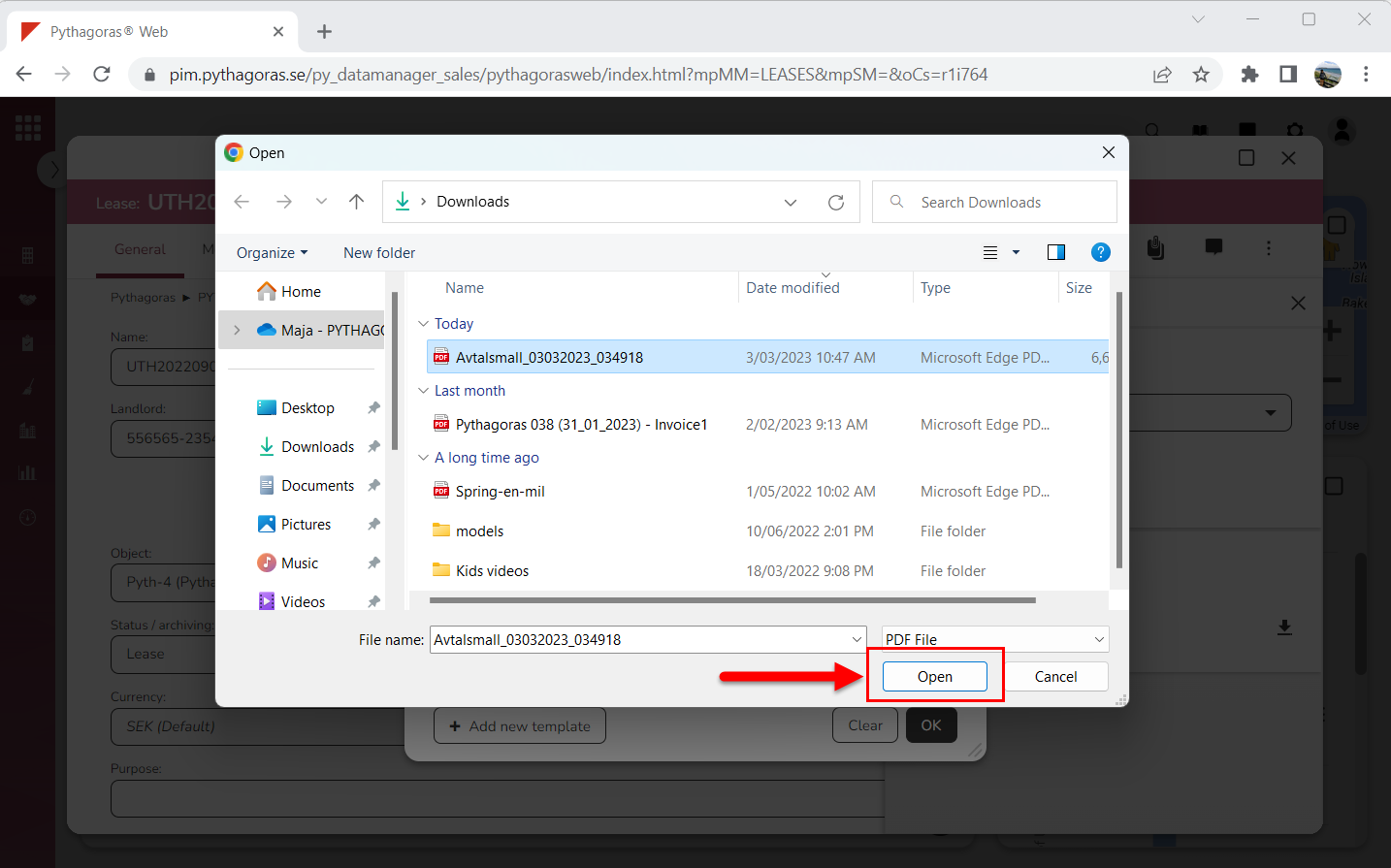
Click "Select file" (see the first image below). When you do so, the Explorer will open (see the second image below).
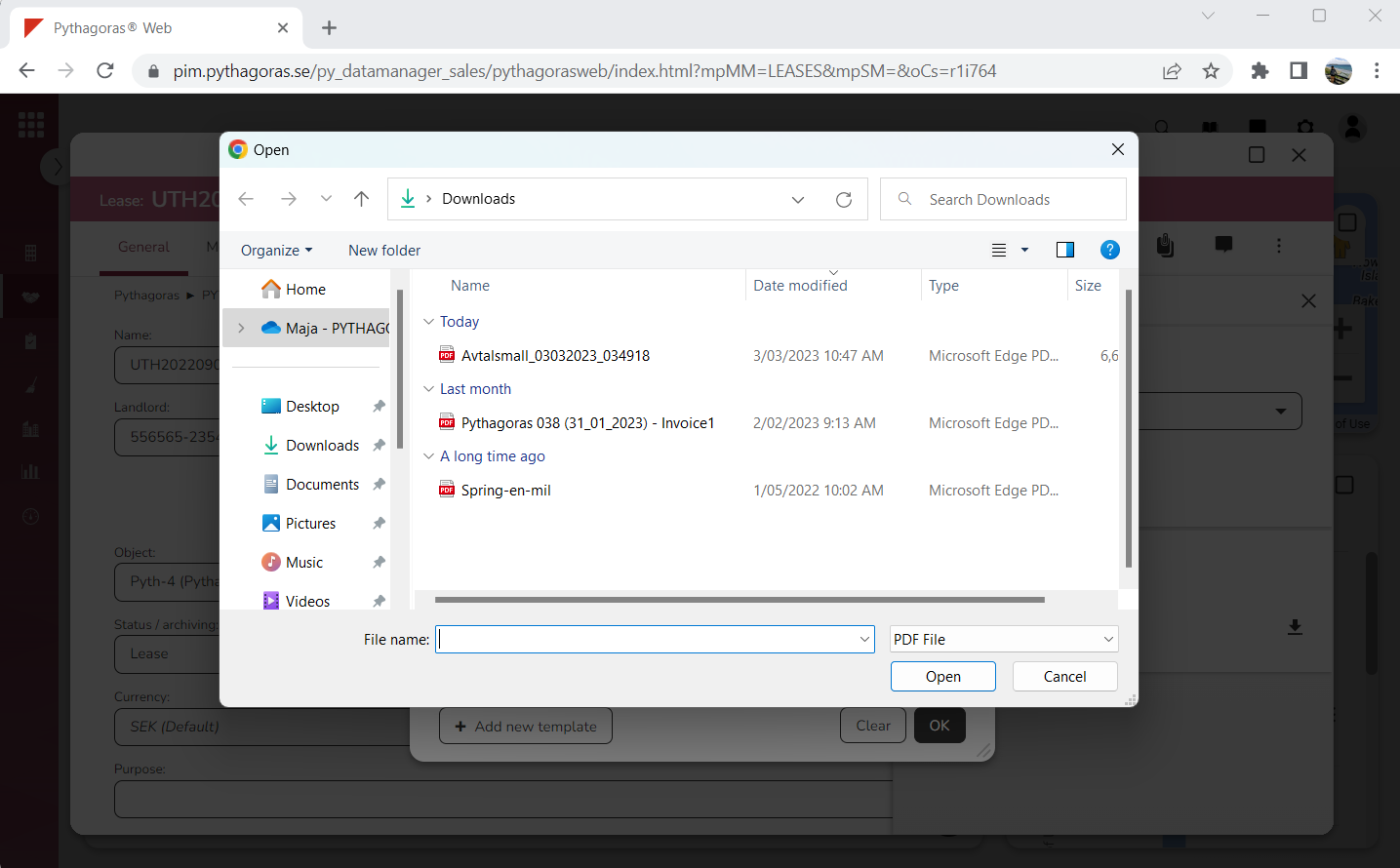
Go to the Explorer.
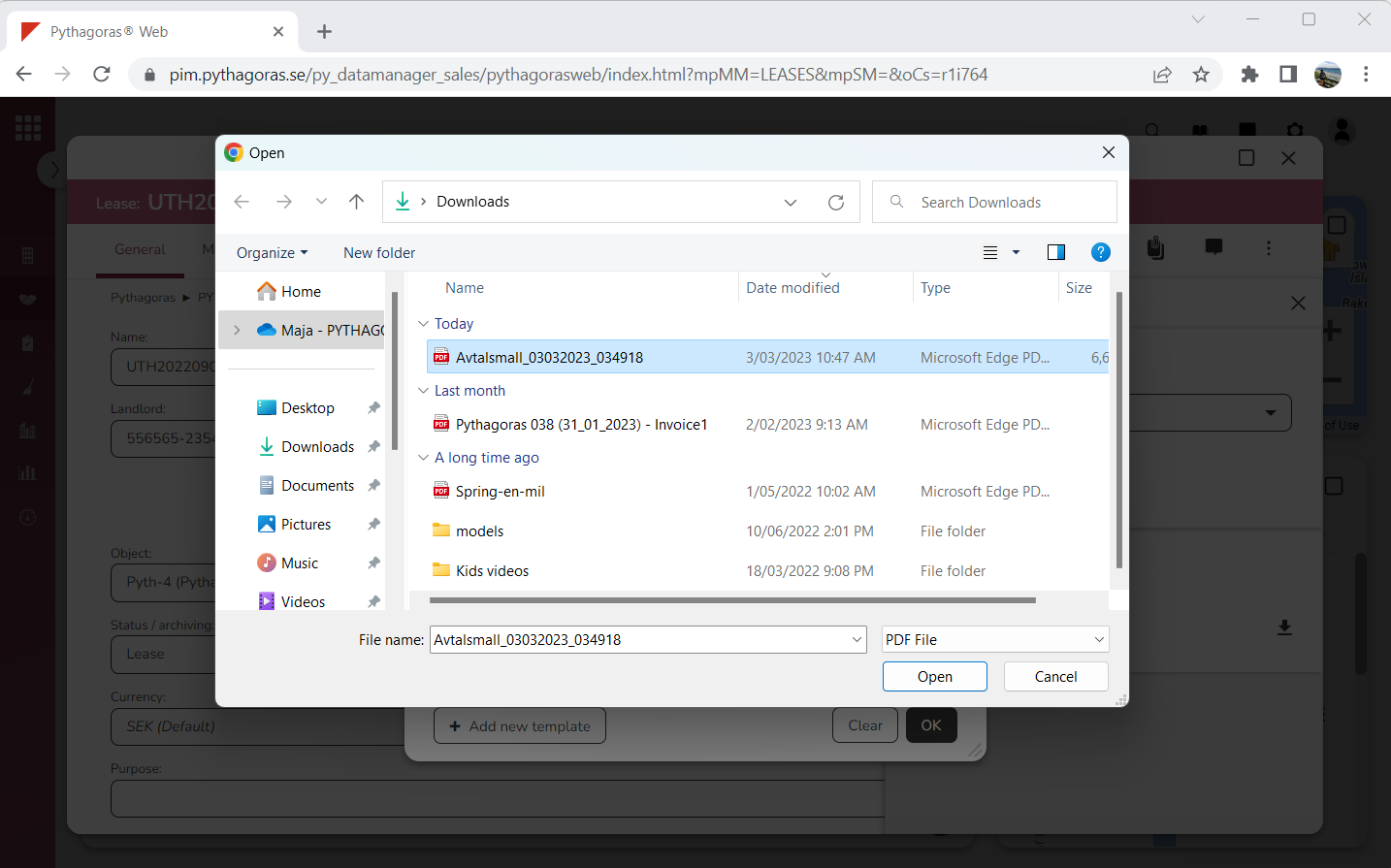
Select a PDF you wish to add as a template in Leases. Note that the selected PDF will be marked blue (see image below).
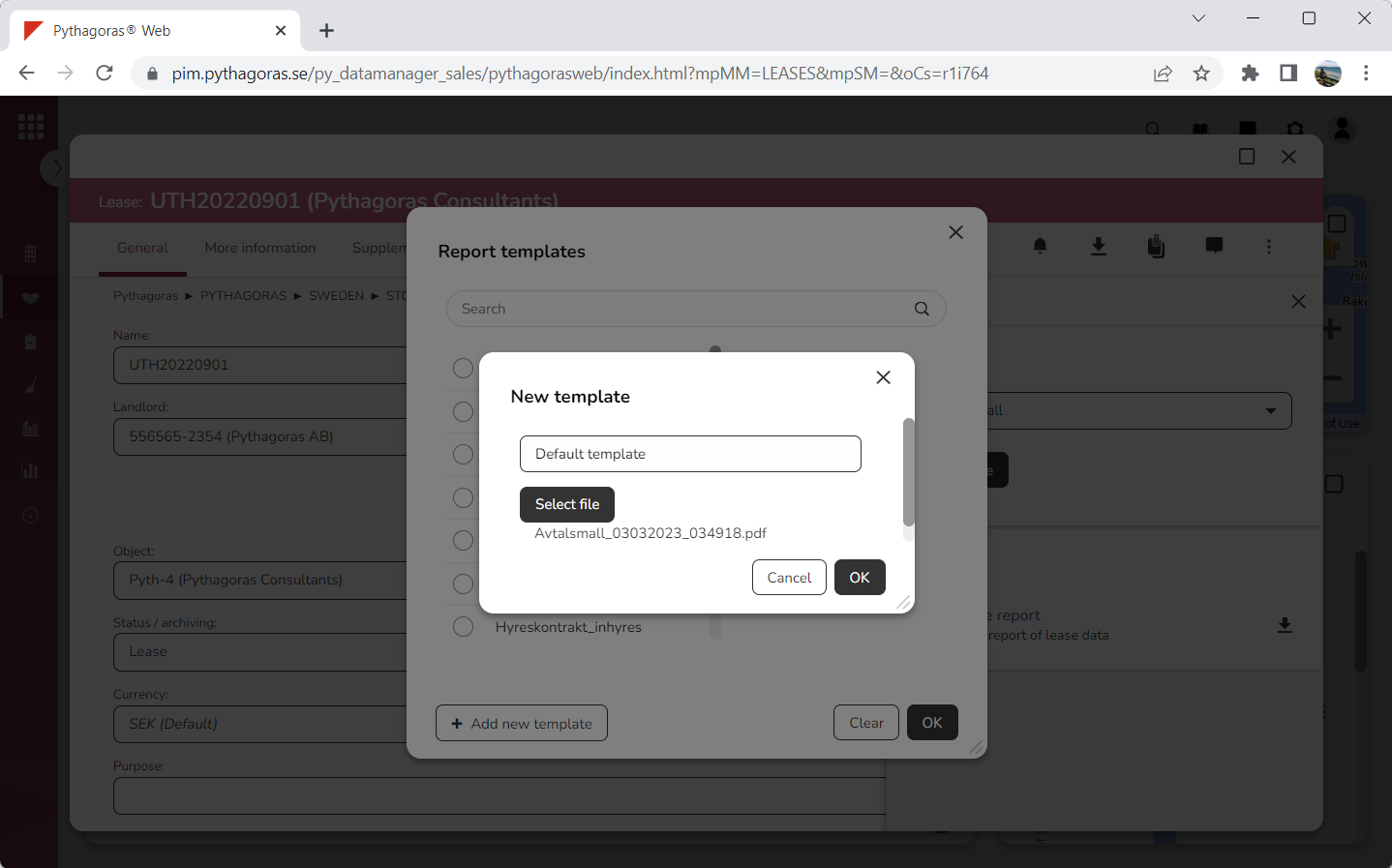
Click "Open" (see the first image below). When you do so, the Explorer will close. At the same time you will be redirected back to the window called "New template" (see the second image below).
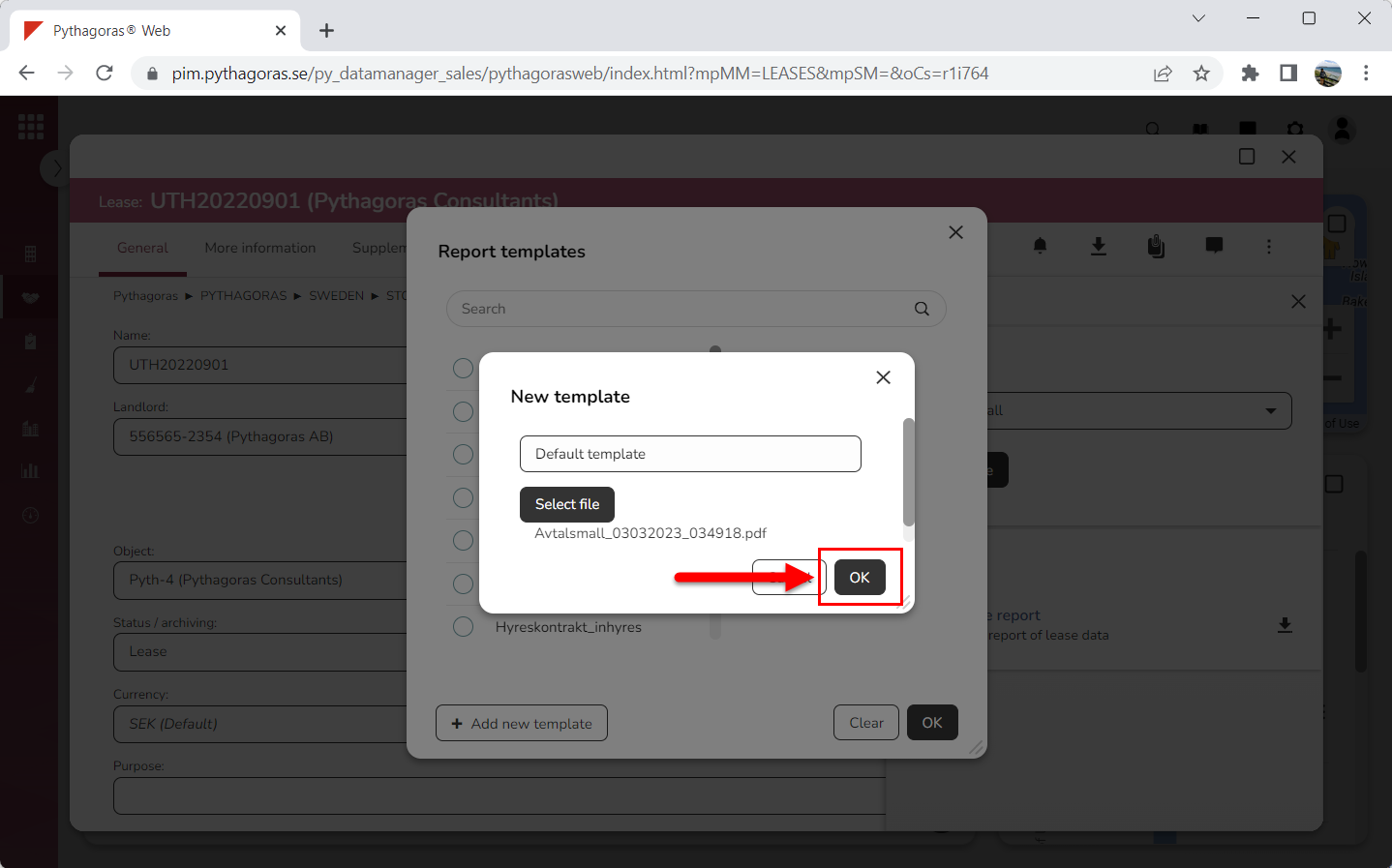
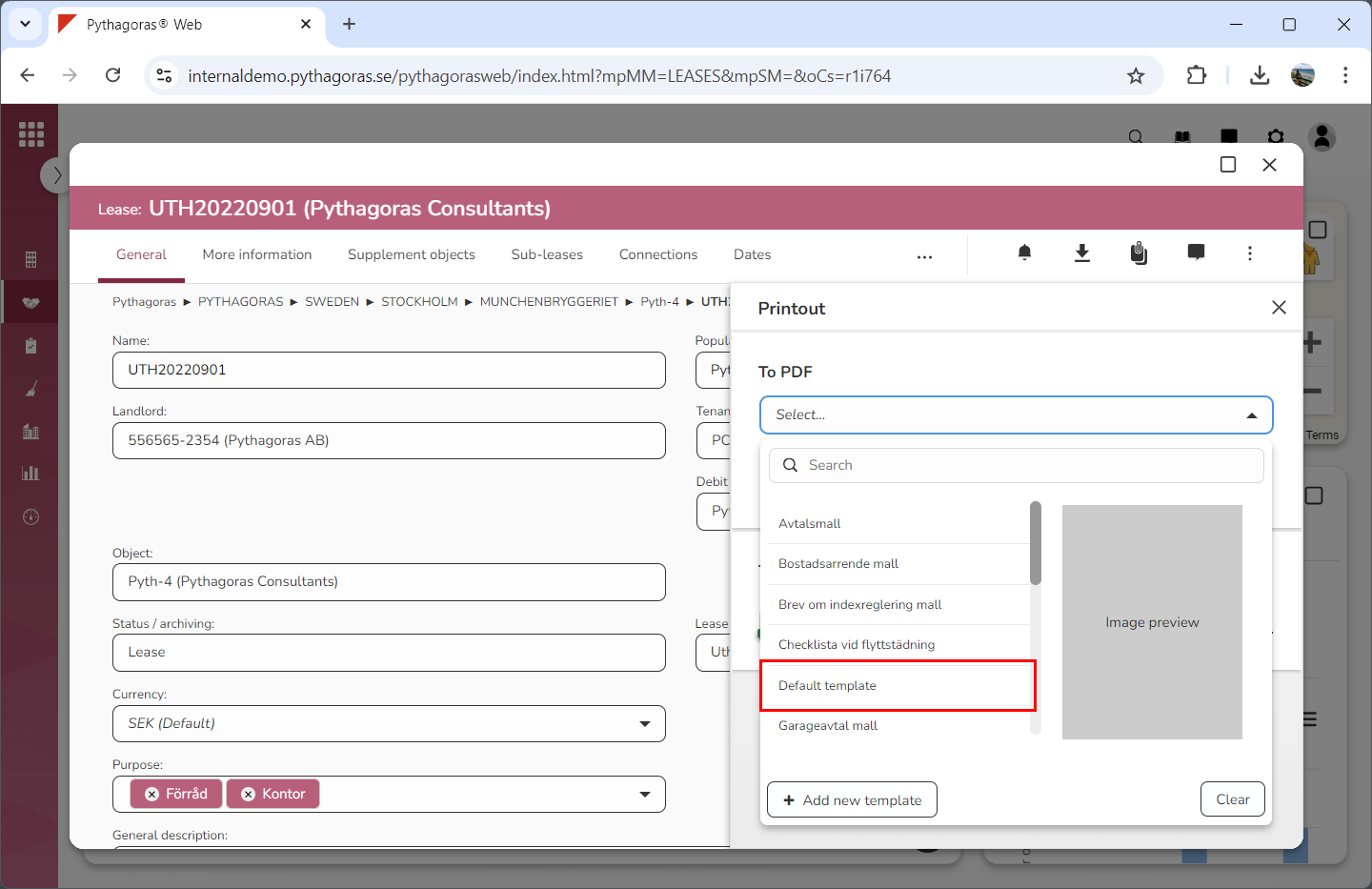
Click "OK" in the window called "New template" (see the first image below). When you do so, a template with the name and the PDF you have selected will be added in Leases meaning it will become available in in the list of reports templates (see the second image below). To open the list of report templated, click the field "Select".