2.11.2. Perform a narrow search within the document manager
When performing a narrow search within the document manager, you must limit your search to a single folder.
To perform a narrow search within the document manager:
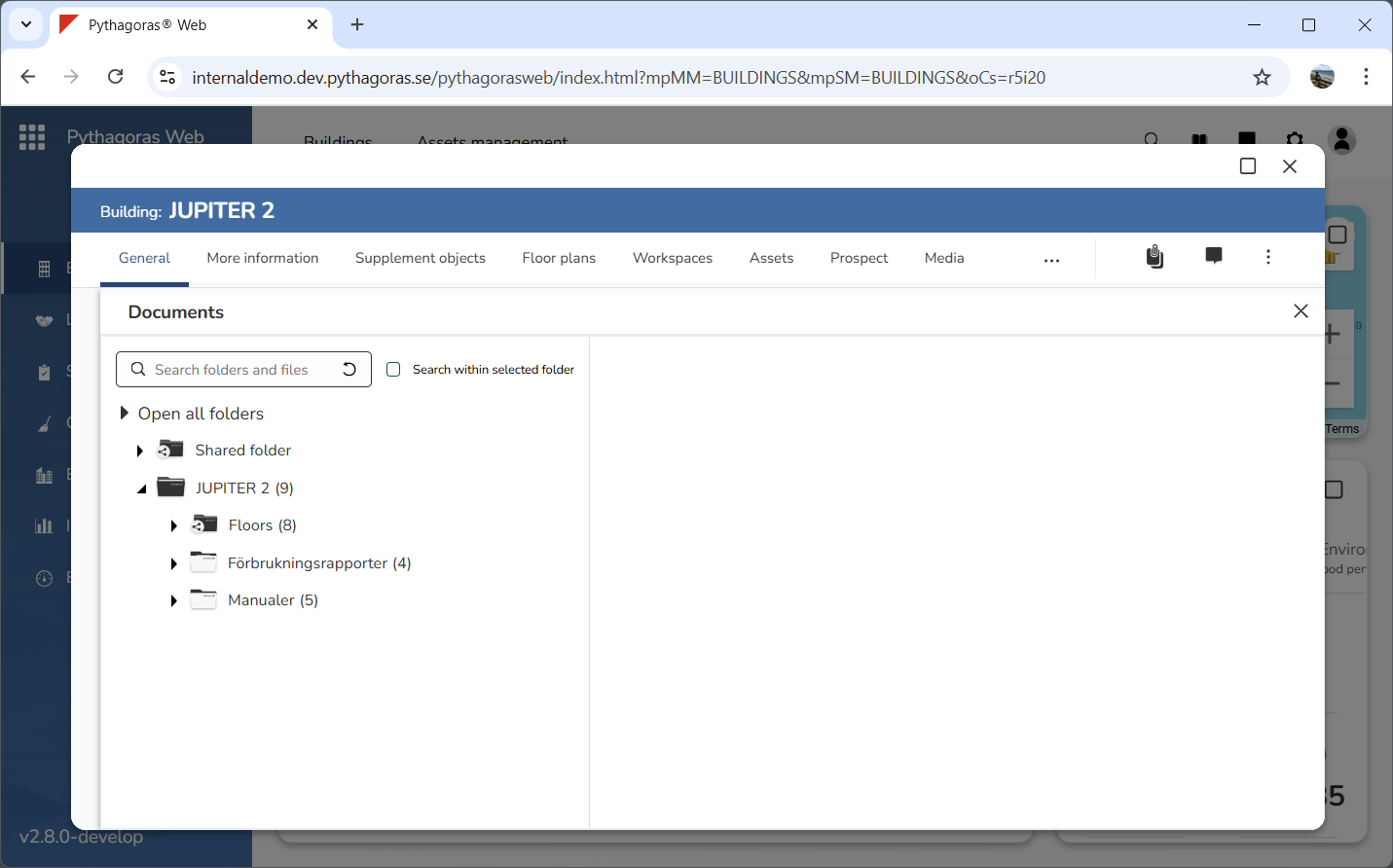
Open the document manager. For more information on how to do so, see section 2.1.
Go to the document manager (see image below).
Make sure that the folder you wish to narrow your search to is visible in the document manager by working your way down the structure of the document manager.
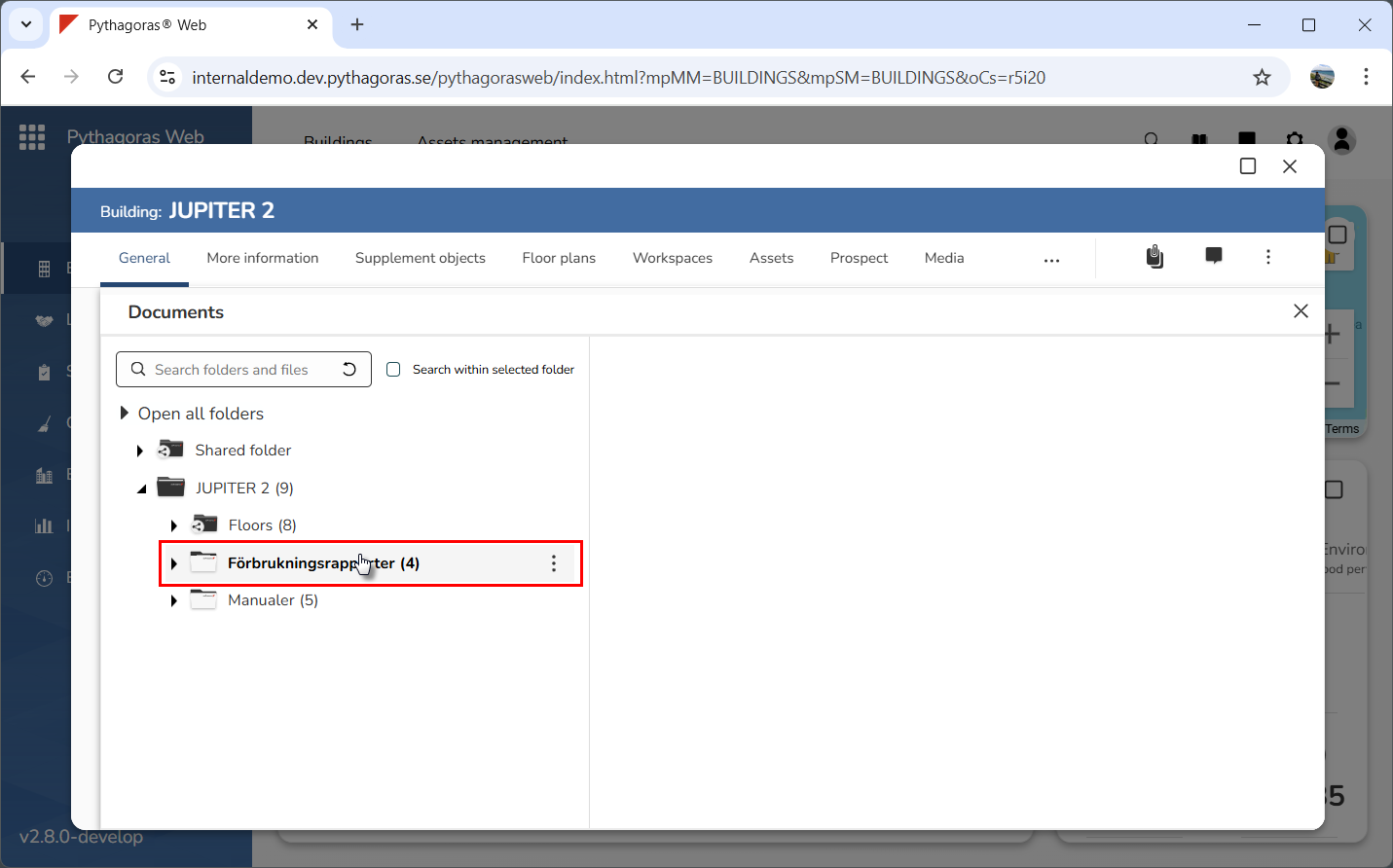
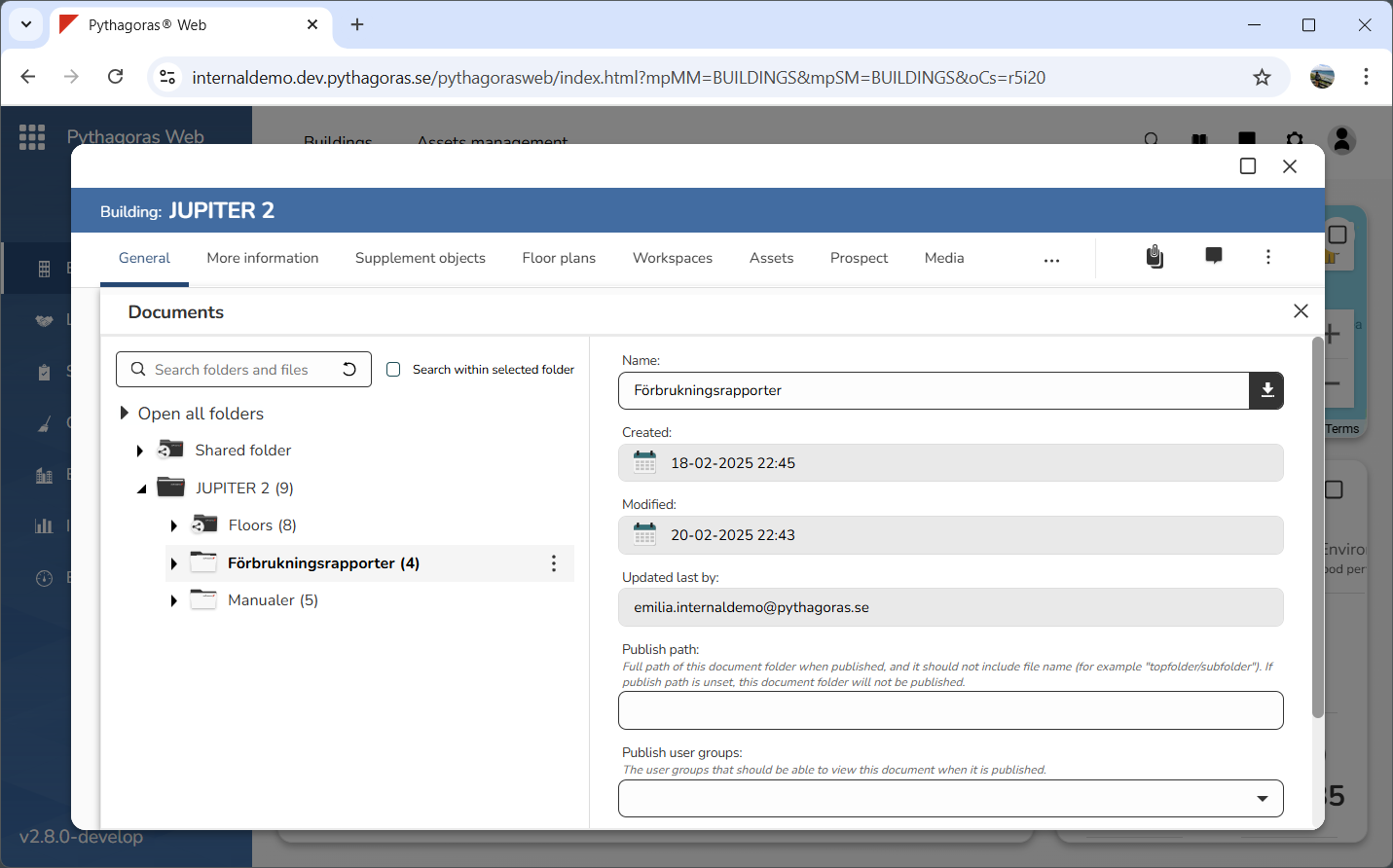
Select the folder you wish to narrow your search to by clicking the folder in the document manager (see the first image below). When you do so, the folder menu will open (see the second image below).
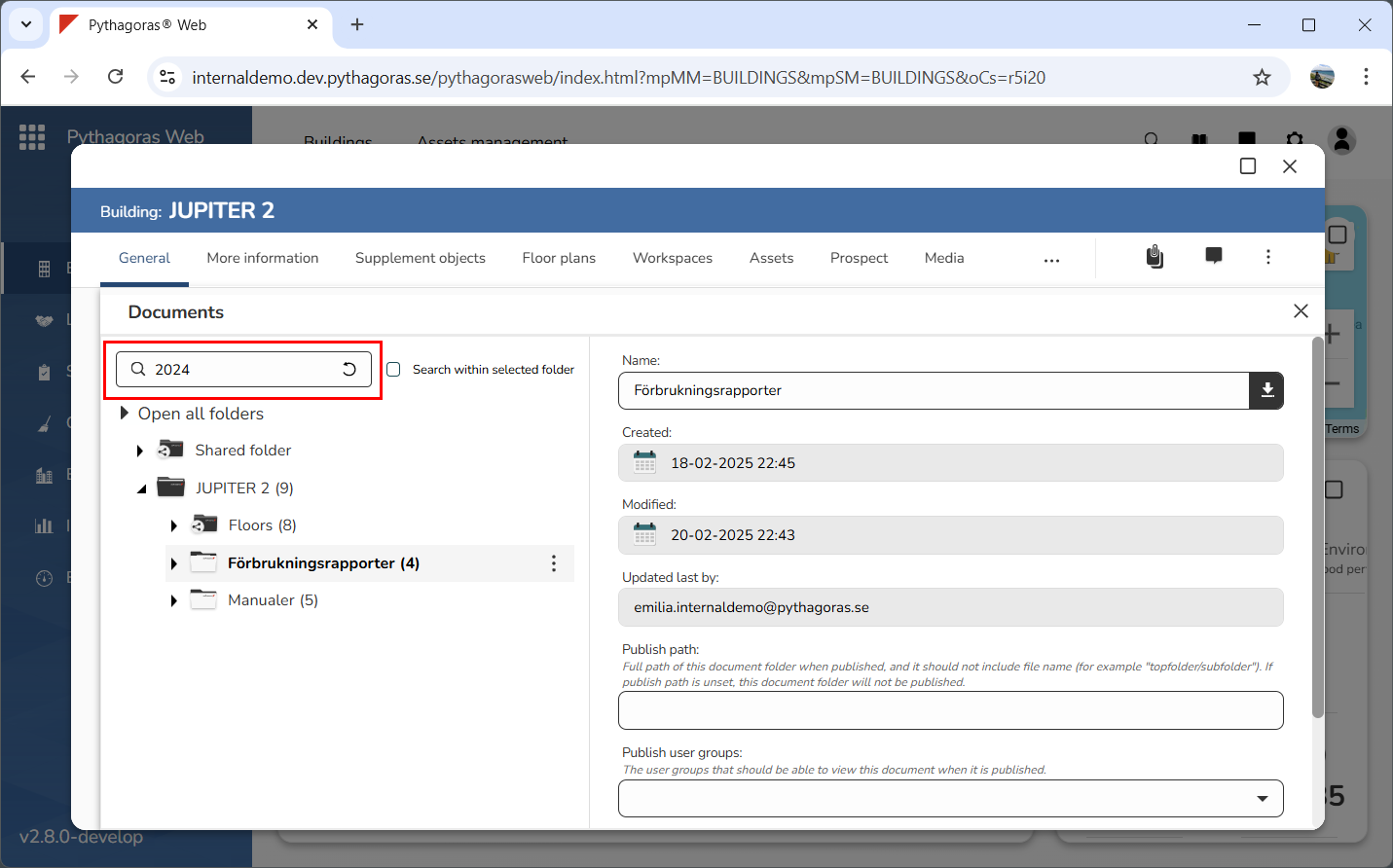
Enter a search string in the search field (see image below).
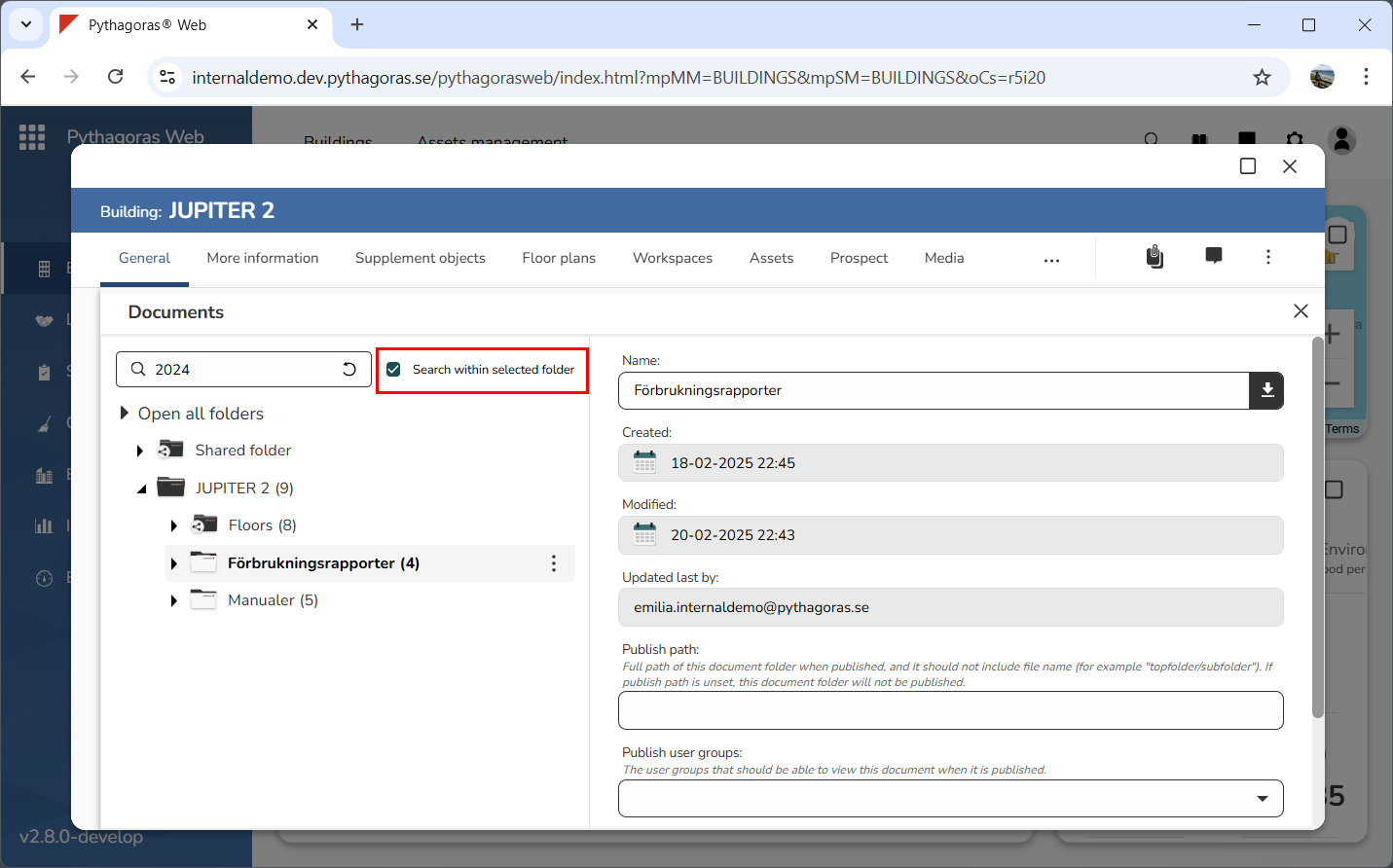
Tick the check box called "Search within selected folder" (see image below).
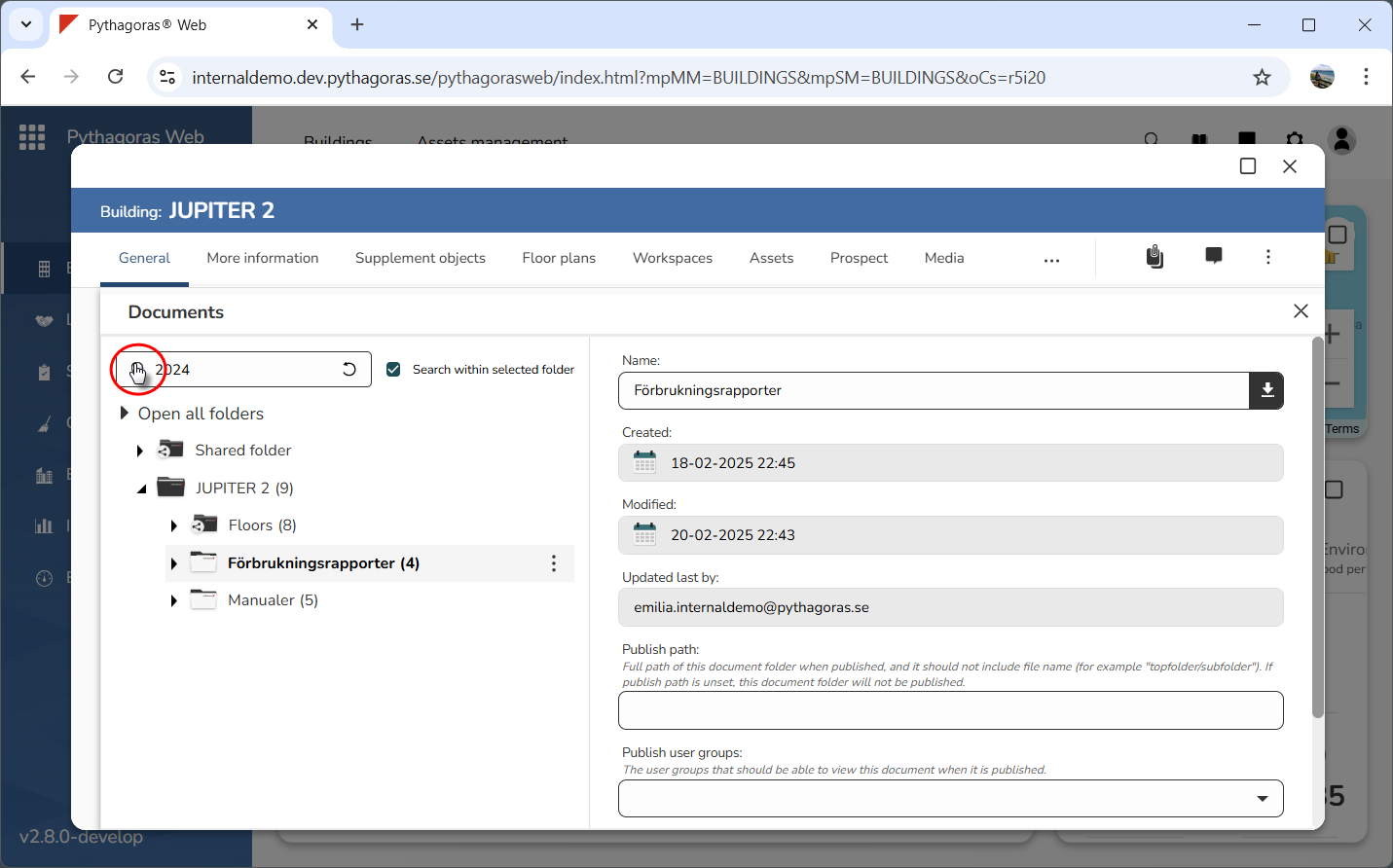
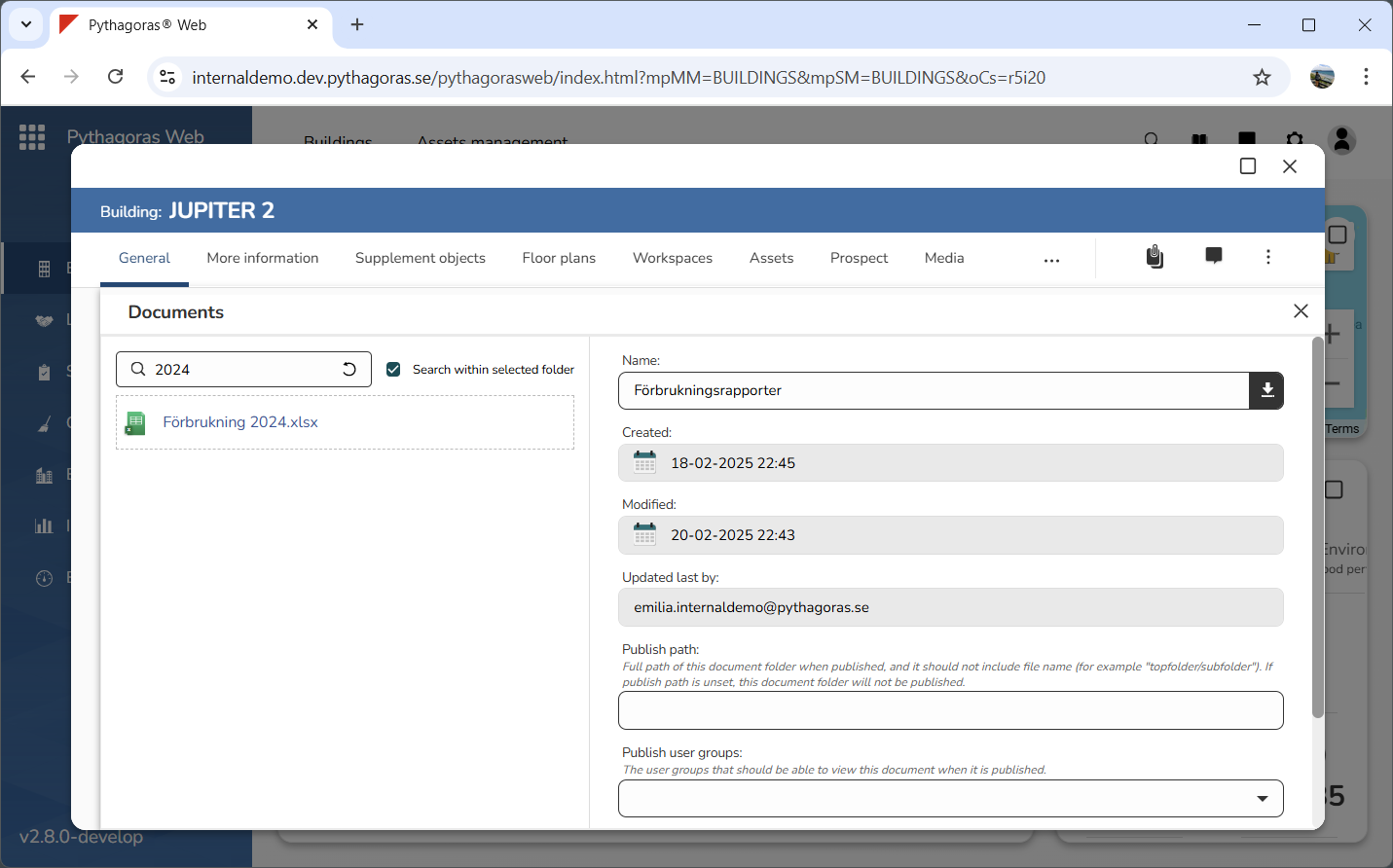
Click the Search icon or the Enter key on your keyboard (see the first image below). When you do so, a search within the selected folder will be performed. Once a search has been performed, a list of search results will open (see the second image below). For more information on how to reset the document manager after performing a search within it, continue reading below the images below.
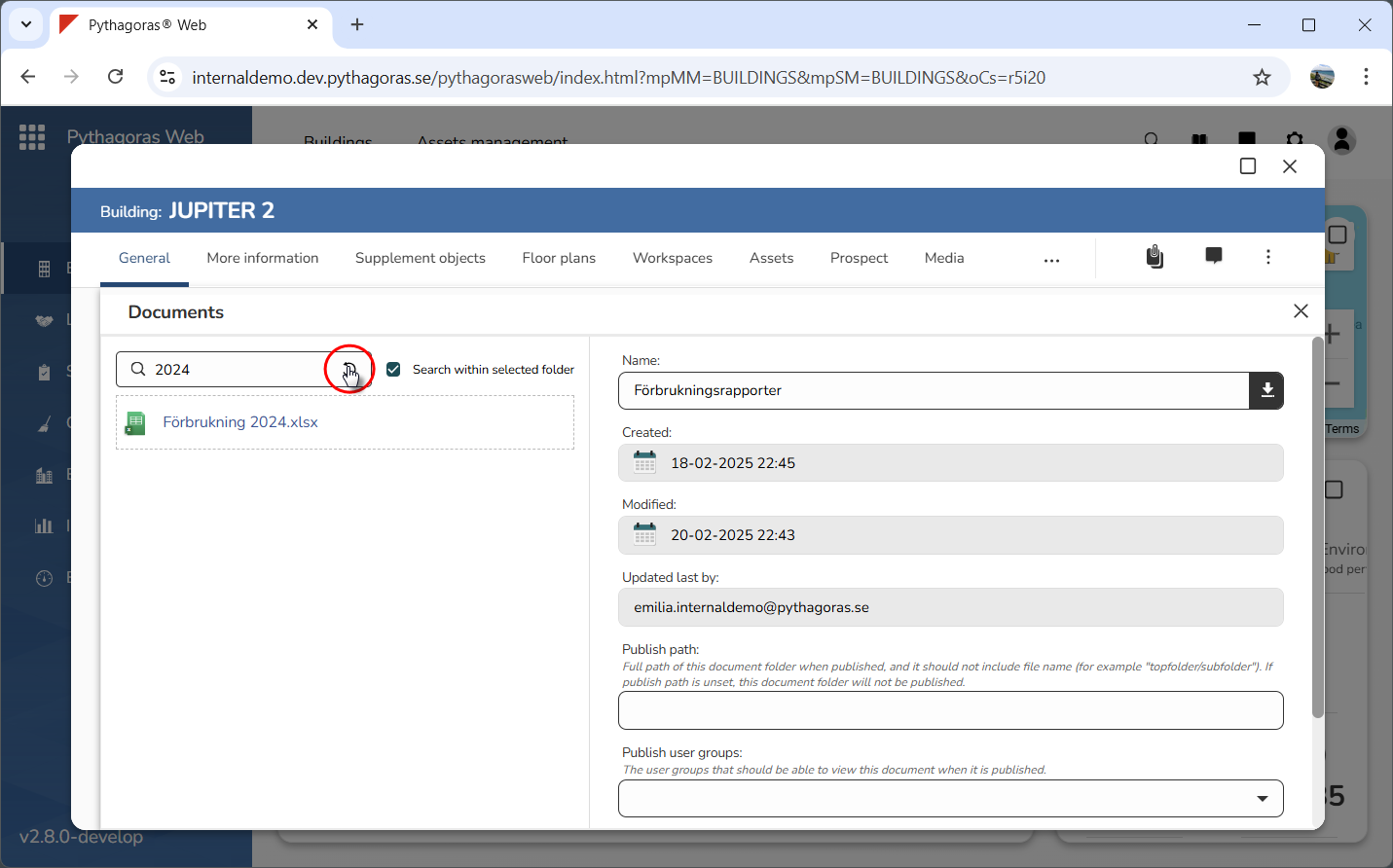
To reset the document manager after performing a search within it, click "Reset" (see images below).