Activate the workspace command. For more information on how to do so, see section 9.11.1.
Go to the graphical search field (see image below).
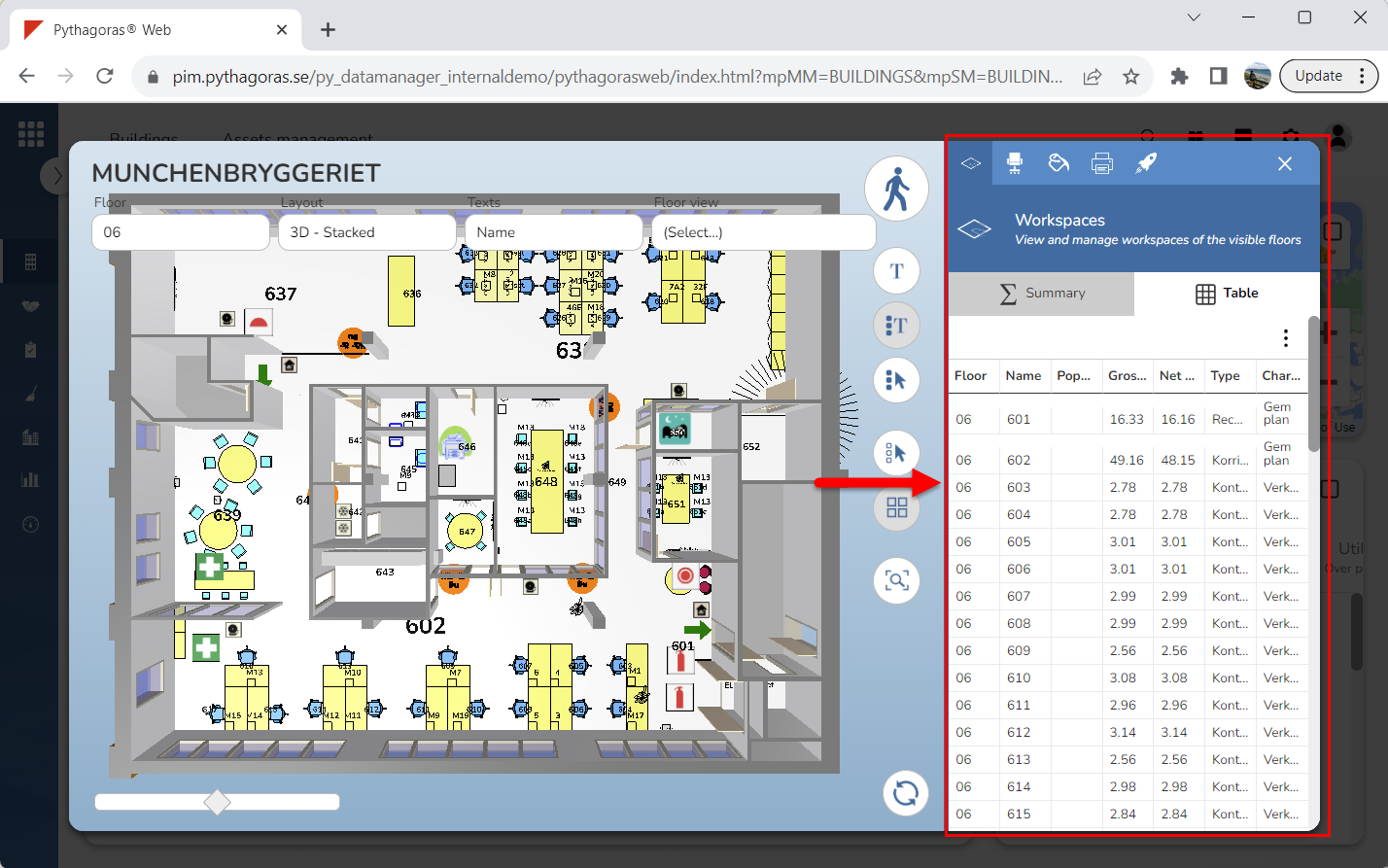
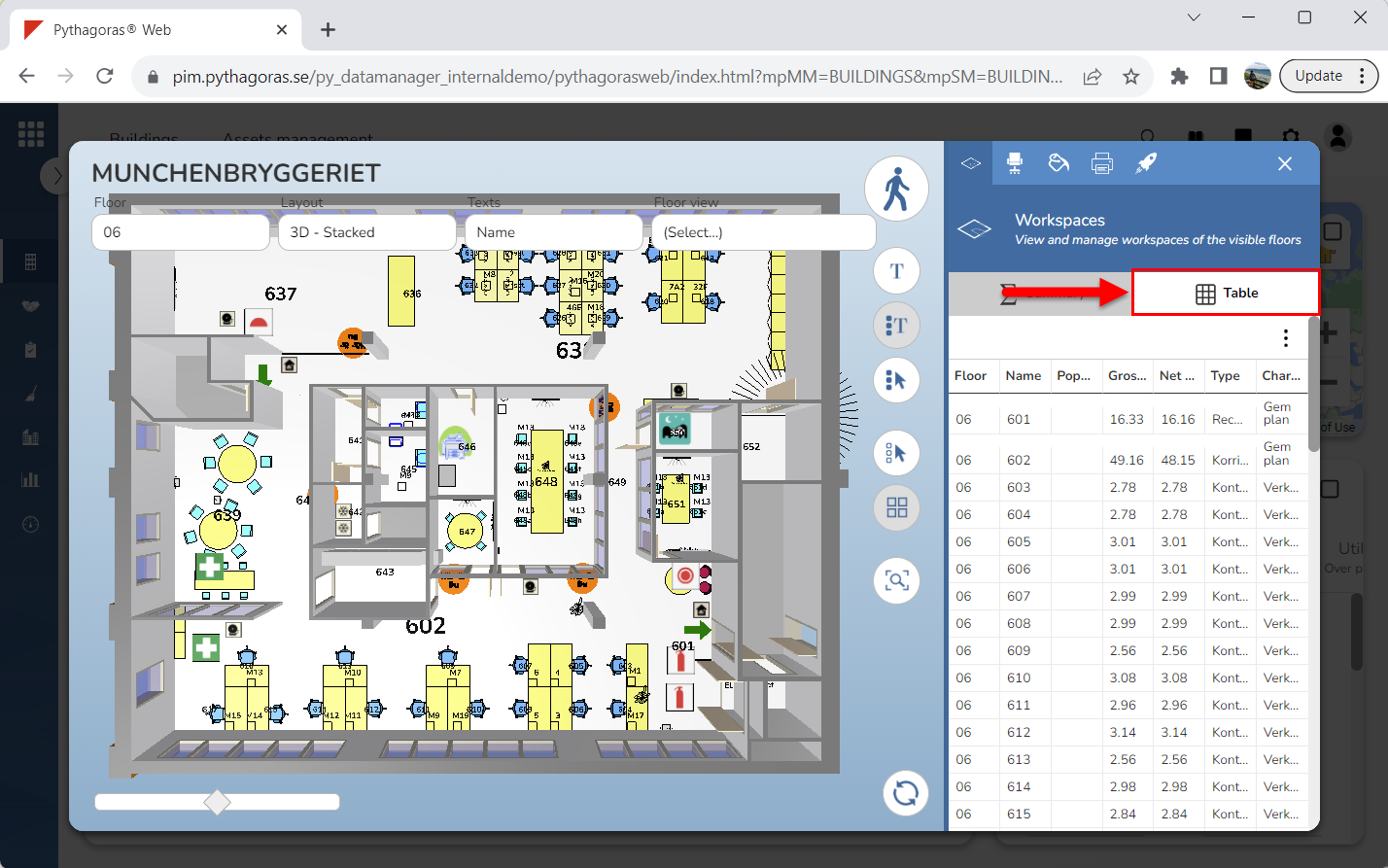
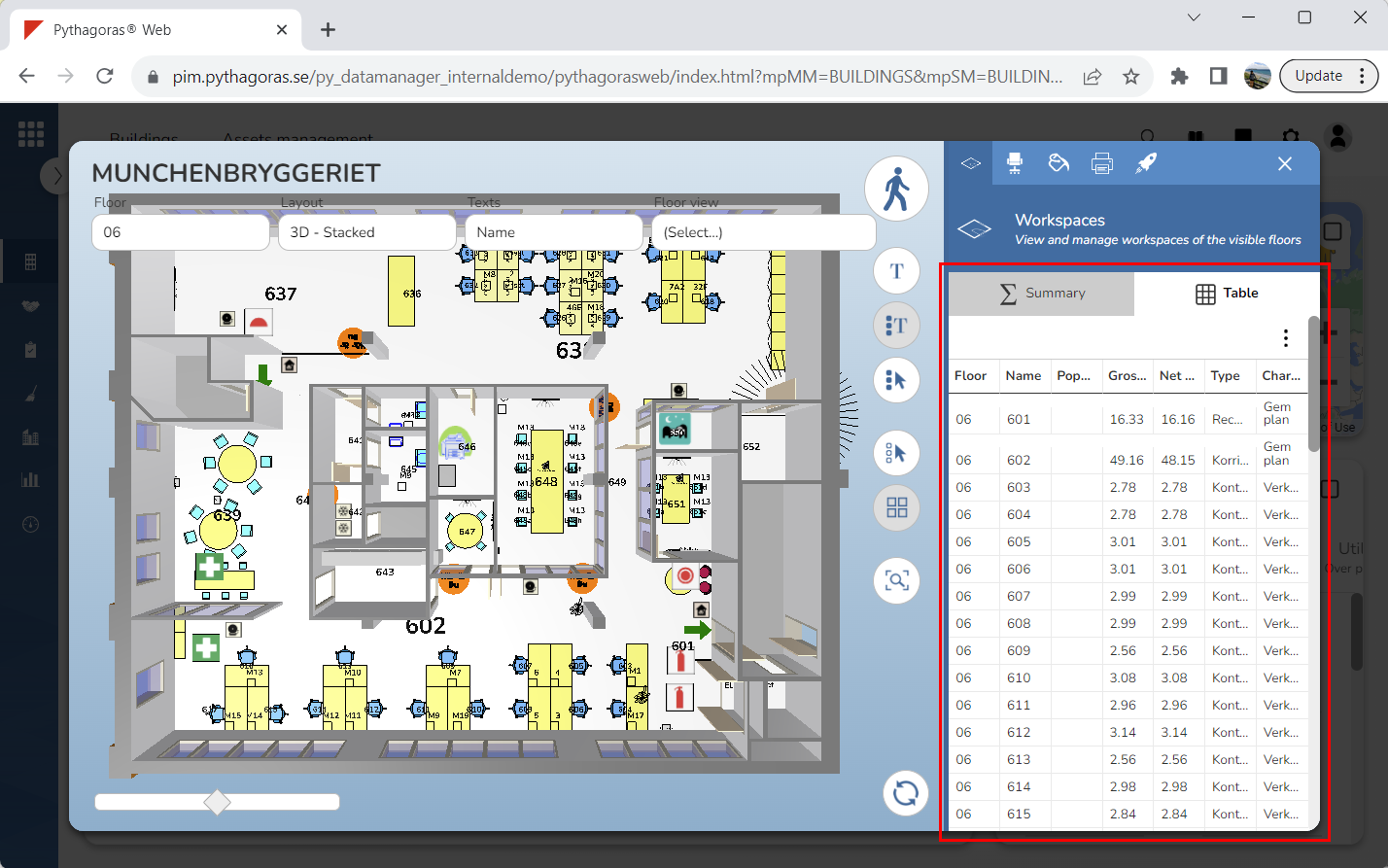
3. Click the tab called "Table" (see the first image below). When you do so, a list of workspaces available in the model will open (see the second image below).
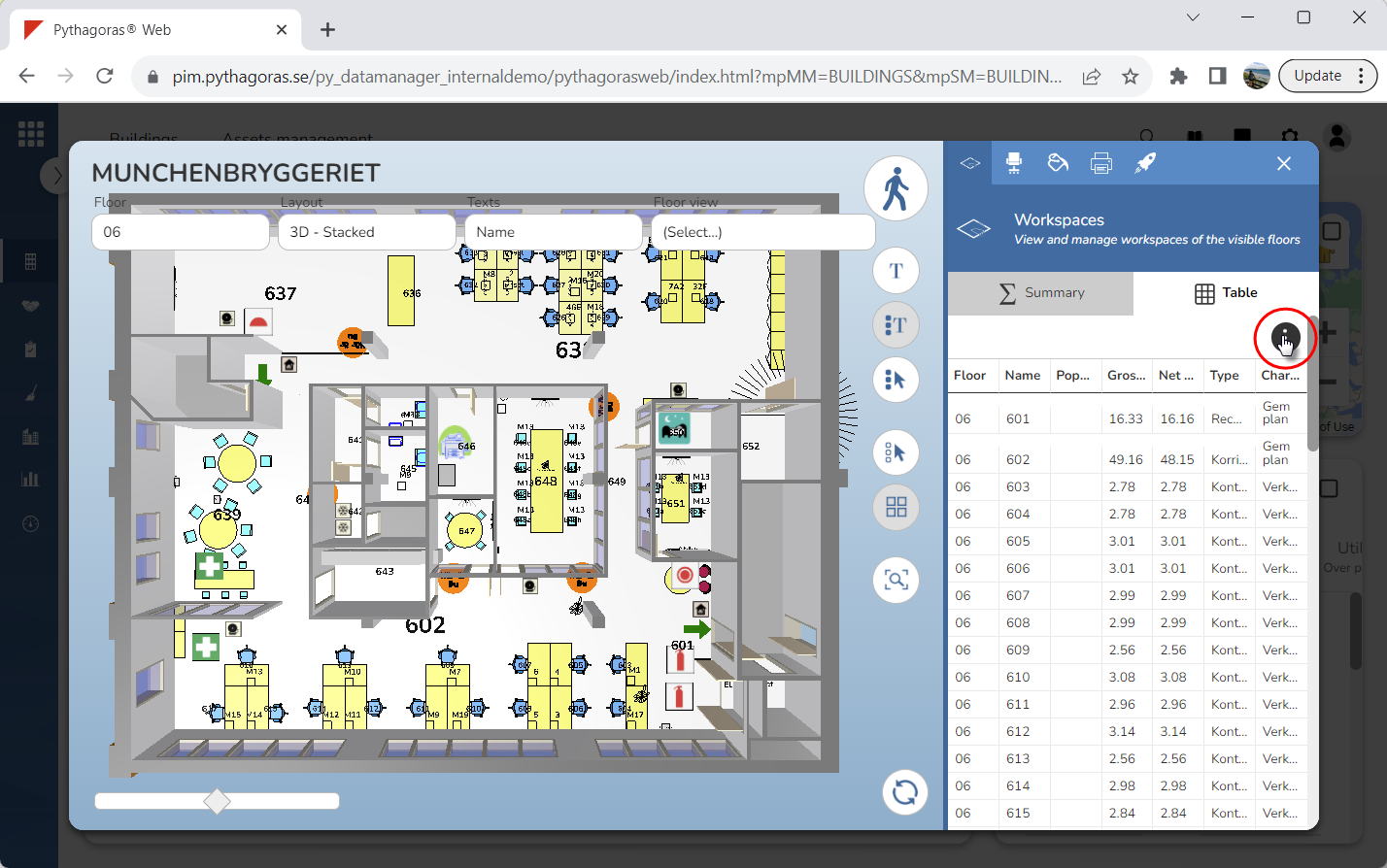
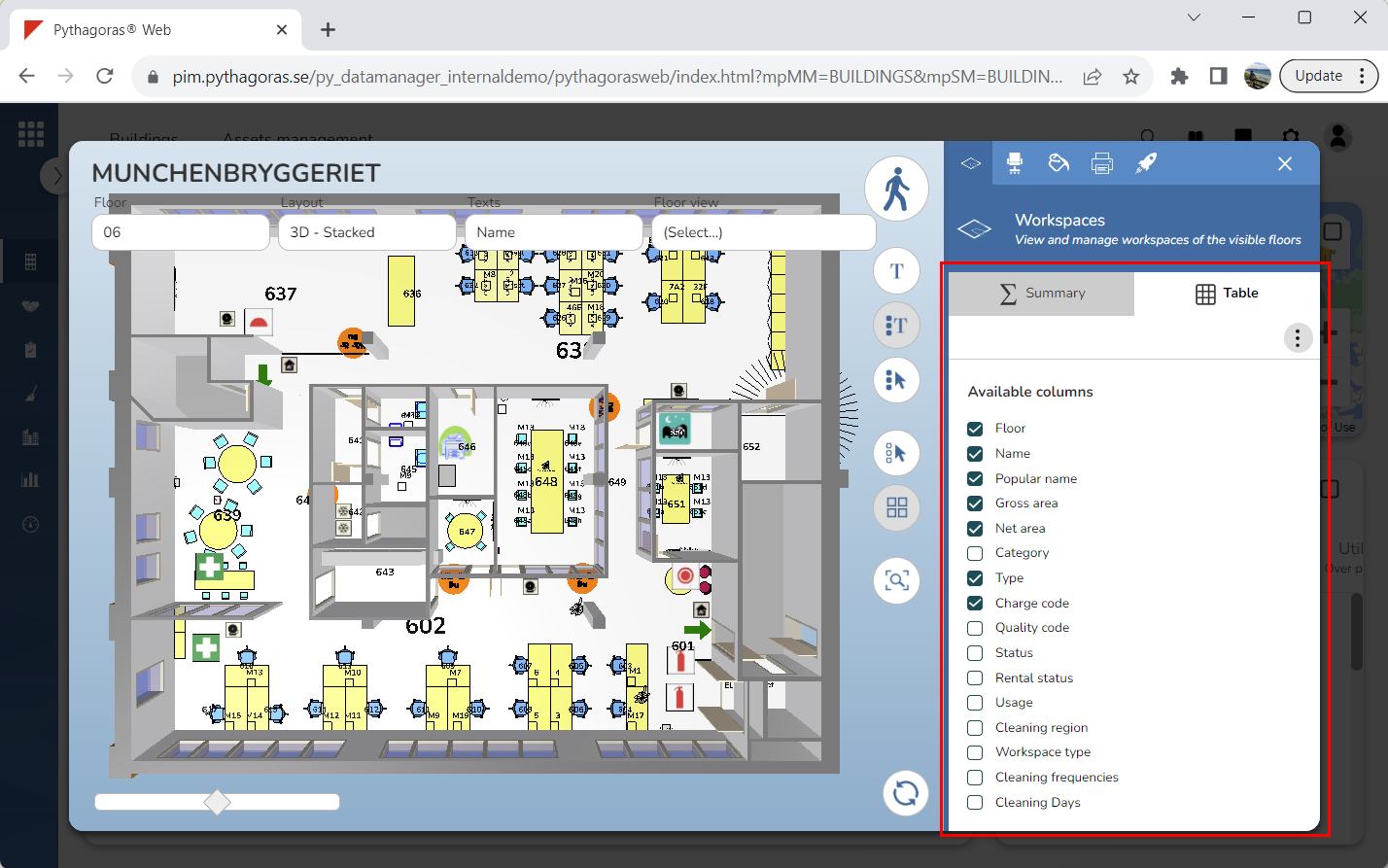
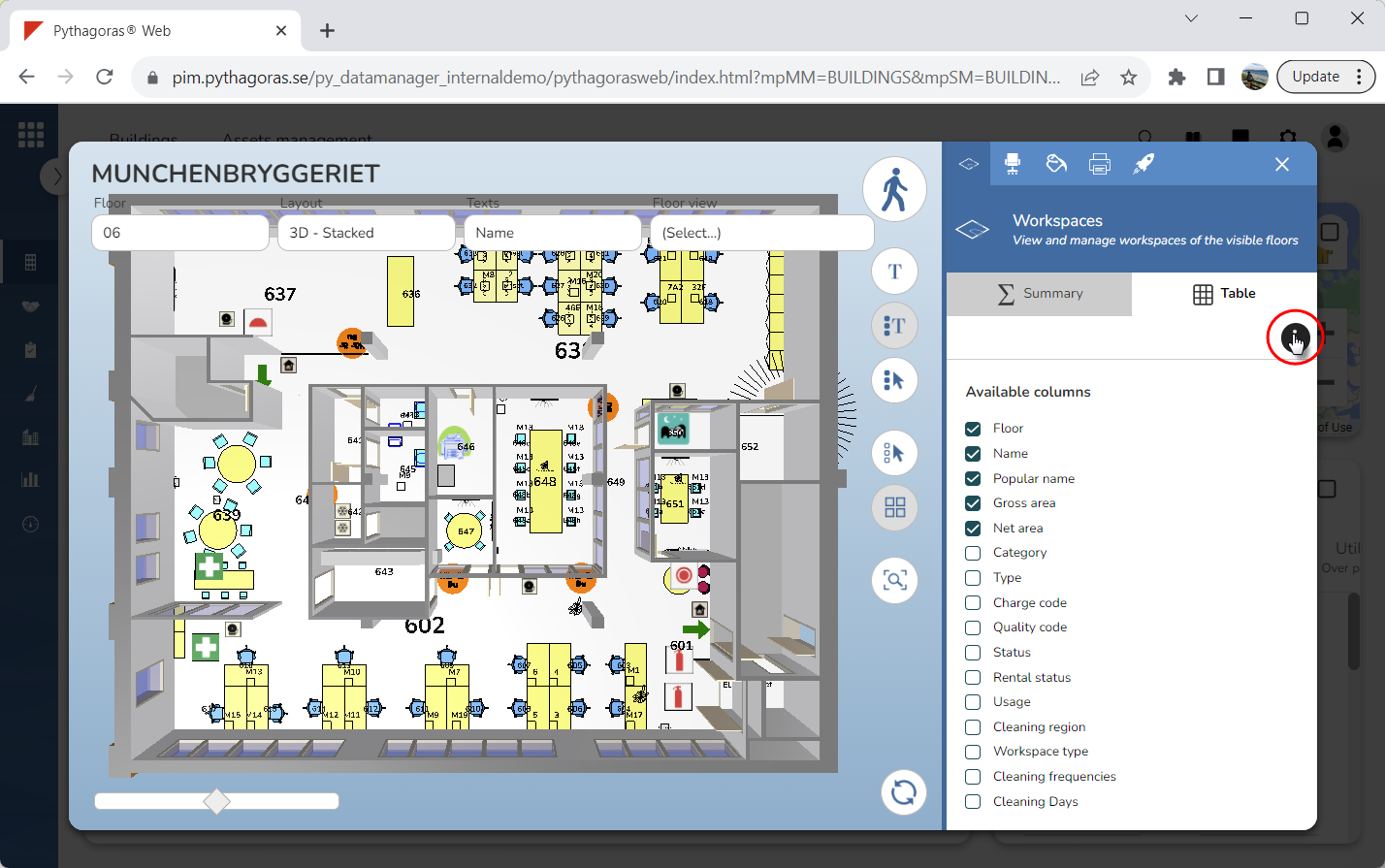
4. Click "More options" (see the first image below). When you do so, a list of columns associated with the workspaces list will open. The checkboxes of the columns currently shown in the workspaces list are checked (see the second image below).
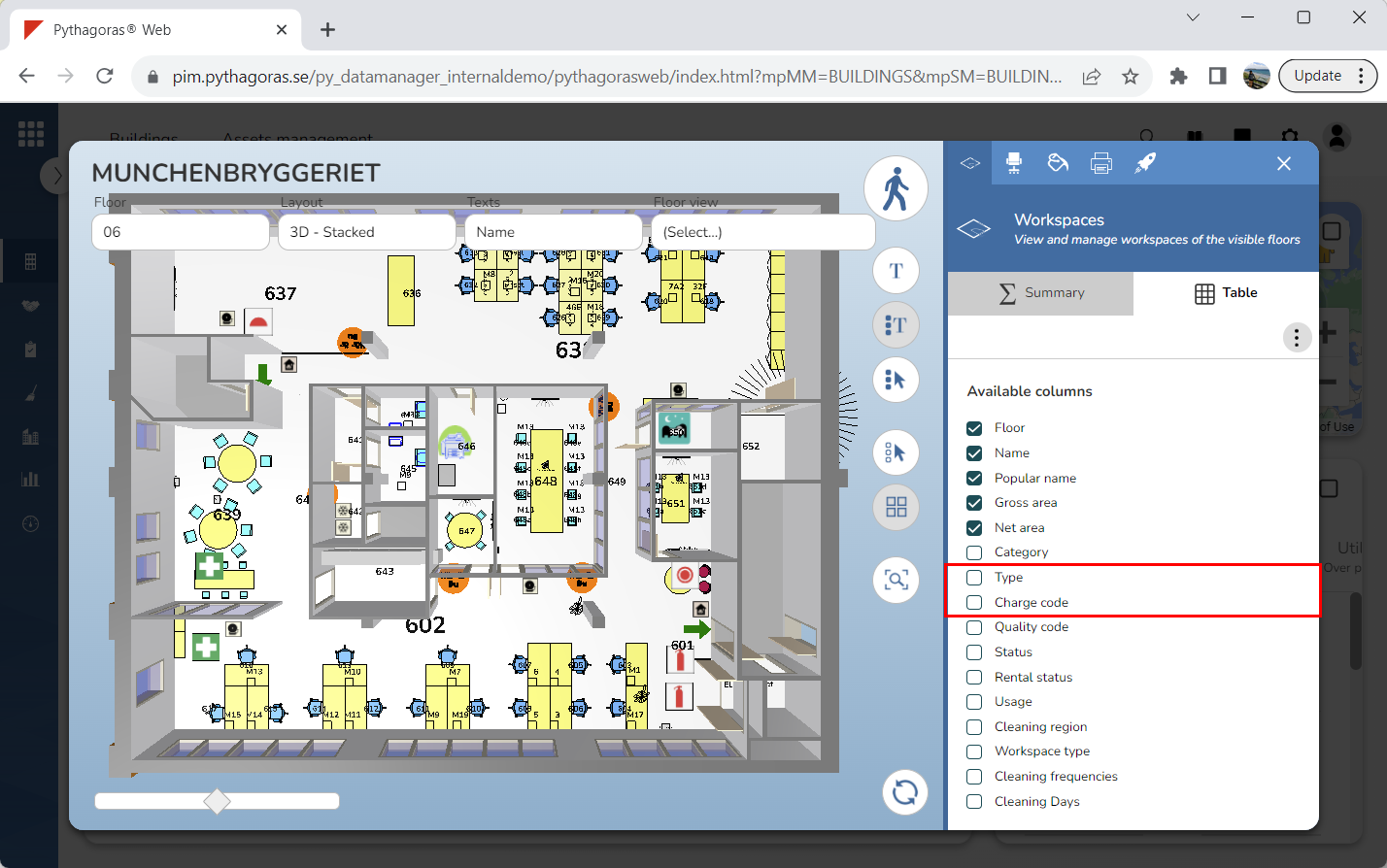
5. Deselect the column or columns you wish to remove the workspaces list by unchecking the checkboxes of one or more columns in the list of columns (see image below). The column or columns you deselect will be removed from the workspaces list.
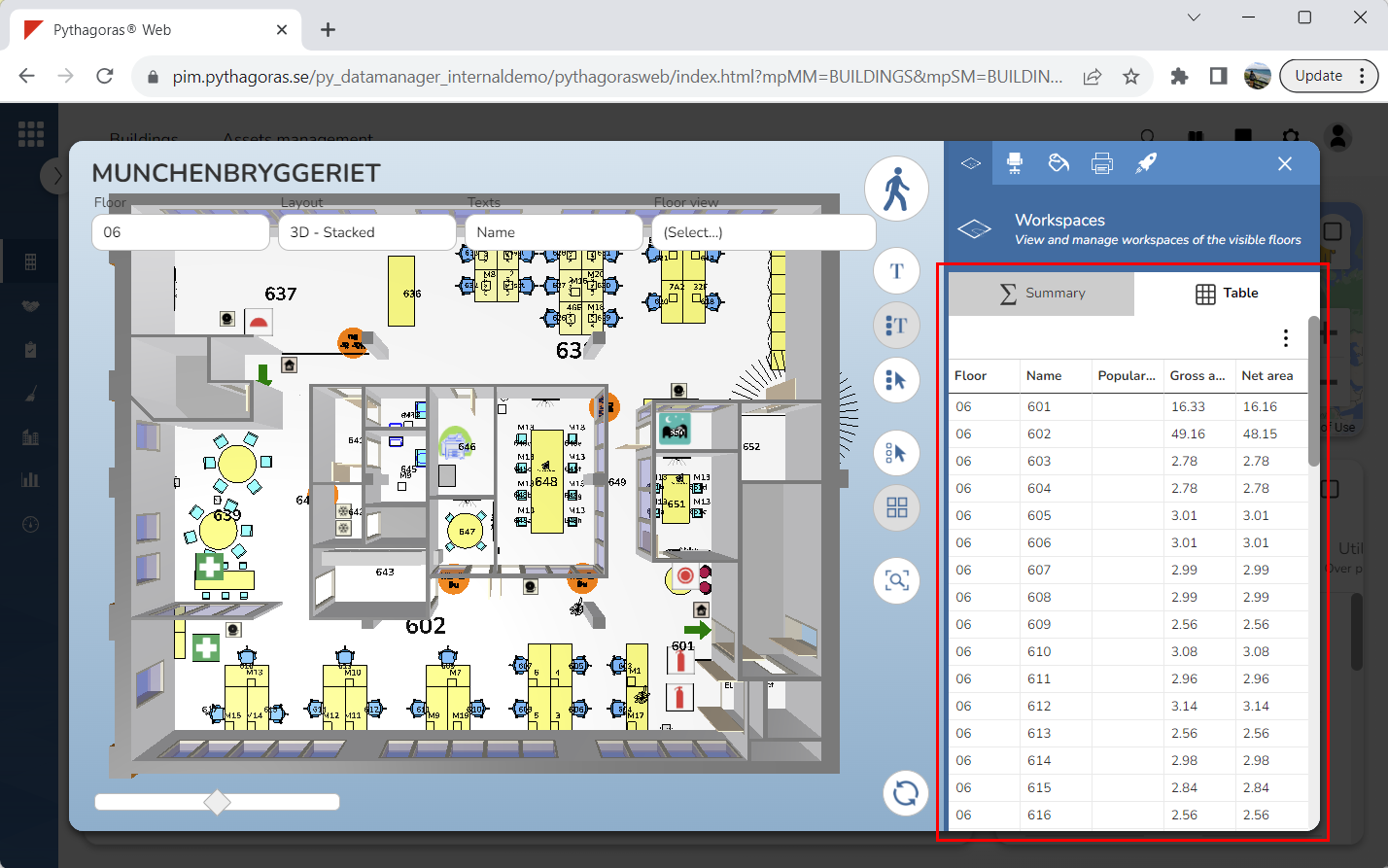
6. Click "More options" (see the first image below). When you do so, you will be redirected back to the workspaces list. In the workspaces list you will no longer find the column or columns you deselected in step 5 (see the second image below).