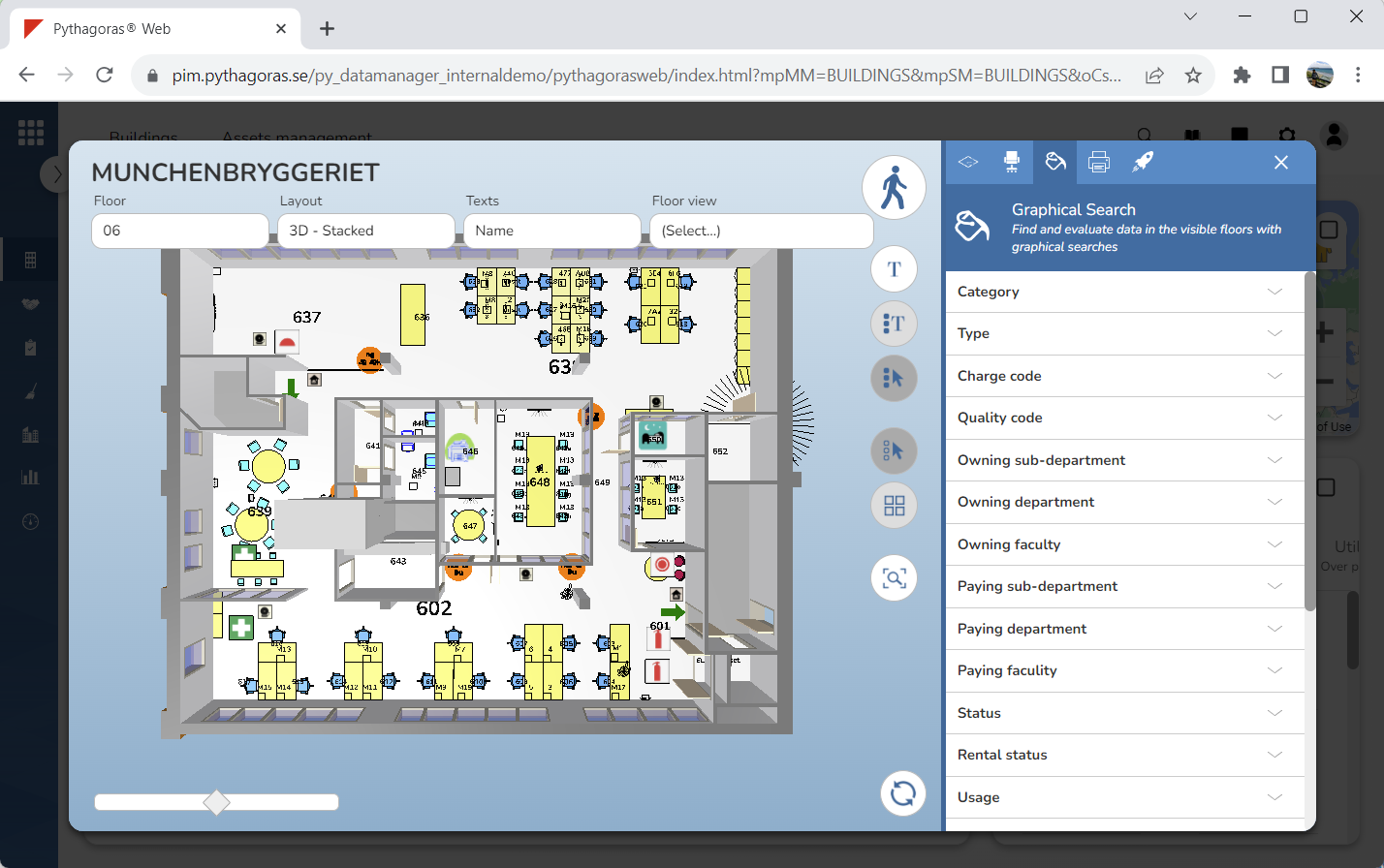
Using graphical searches, you can show different values in the model. A value can be, for example "Category", "Type", "Distribution code", "Quality code", "Paying cost center" or "Status".
To perform a graphical search in the model:
Activate the graphical search command. For more information on how to do so, see section 9.11.3.
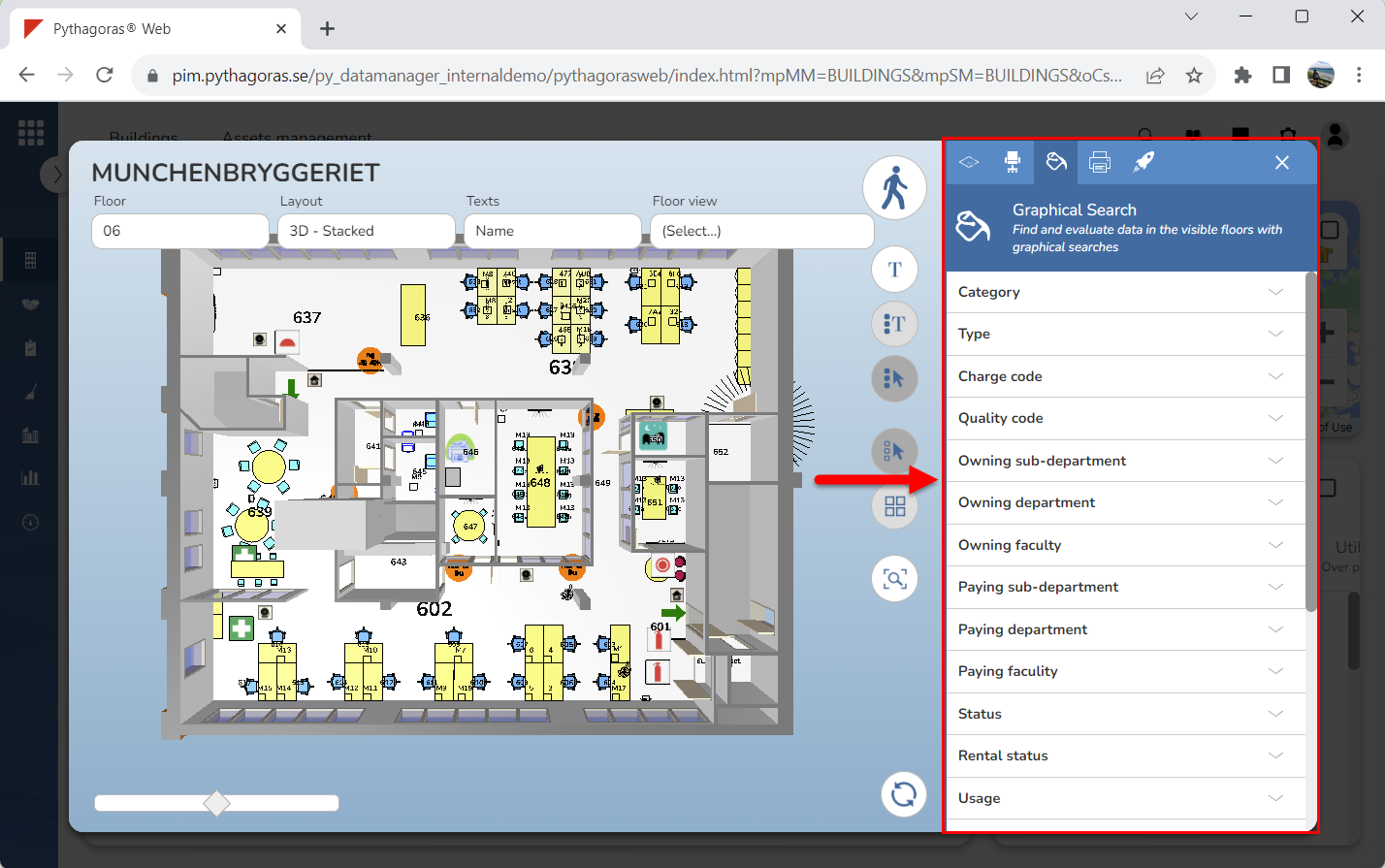
Go to the graphical search field (see image below).
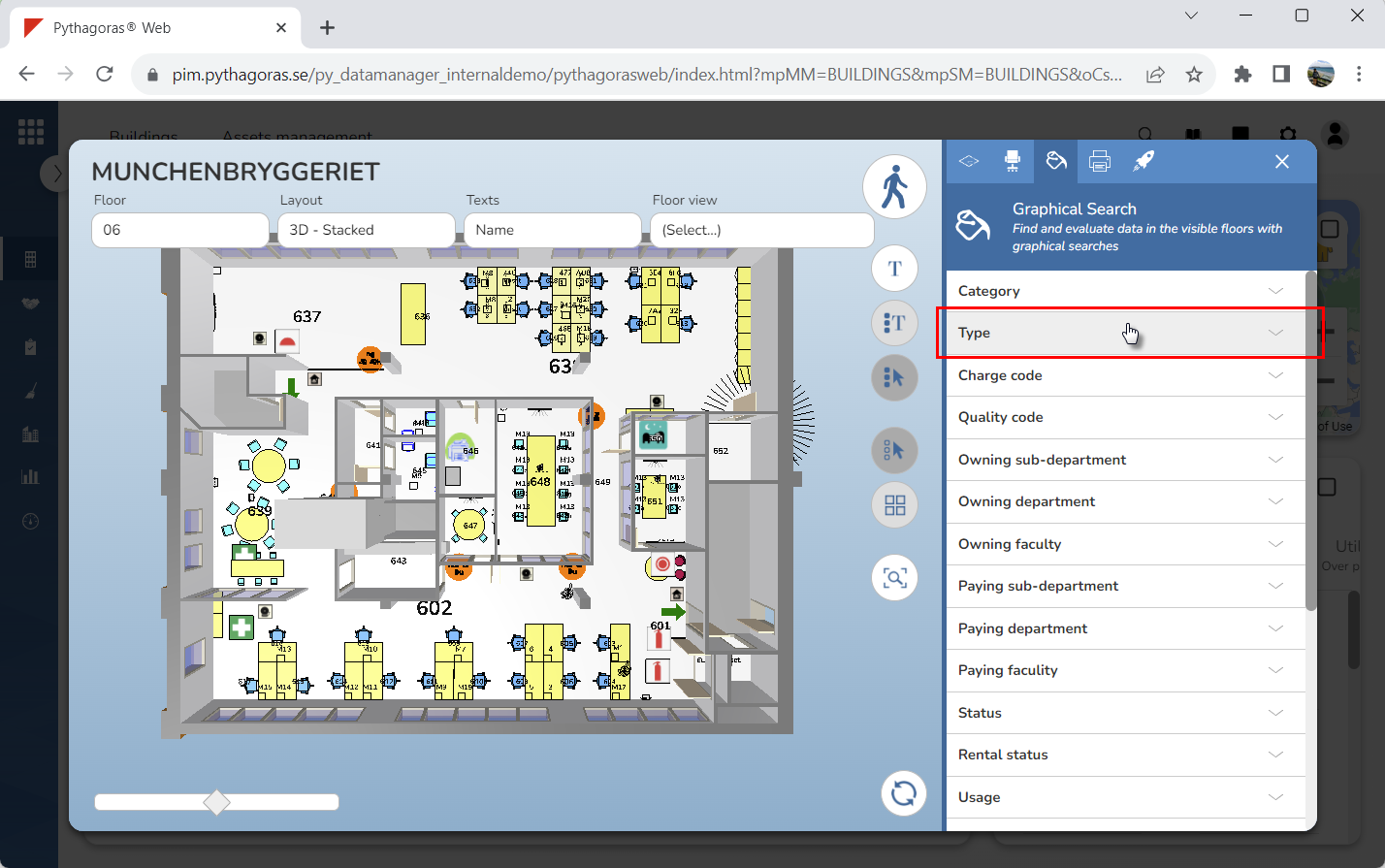
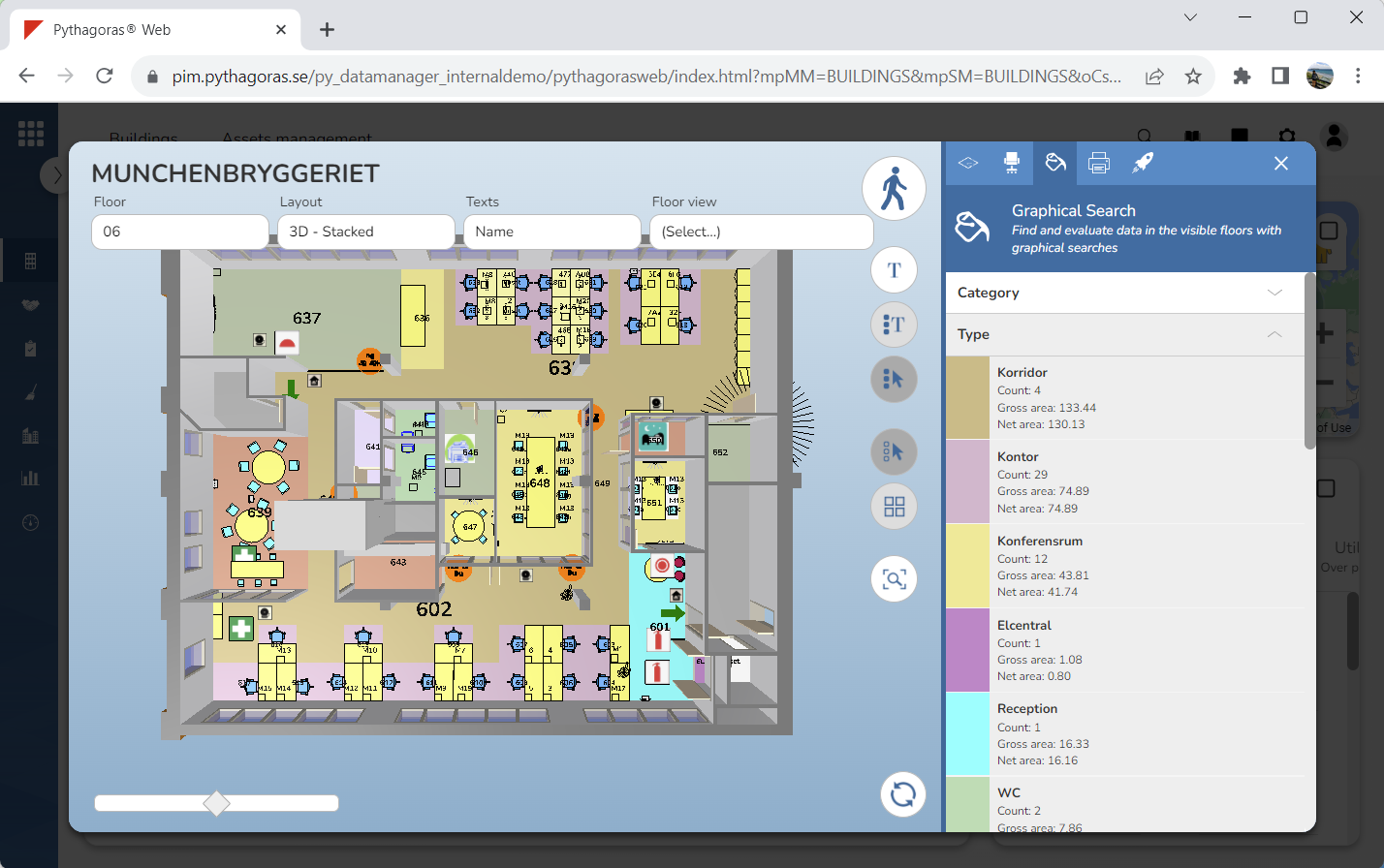
Click the value you wish to view in the model (see the first image below). When you do so, a graphical search will be performed. When a graphical search has been performed, its values will be shown in the model (see the second image below). After performing a graphical search you can show and hide value names in the model. For more information on how to do so, see section 9.15.
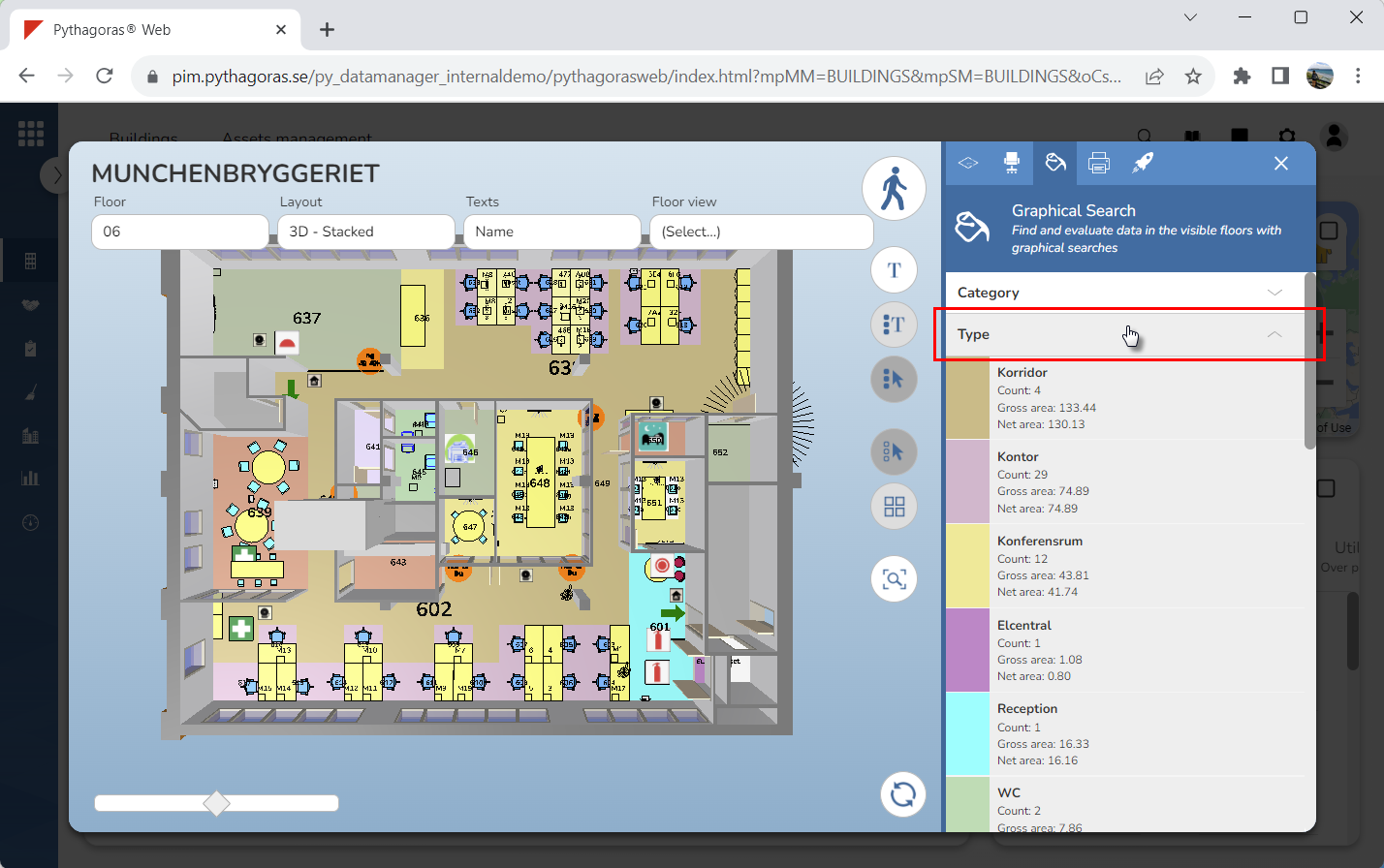
To reset the model after performing a graphical search in it, click the value you selected to view in the model (see the first image below). When the model has been reset, the values from the graphical search you performed will be removed from it (see the second image below).