Open a building. For more information on how to do so, see section 4.6.1., 5.4.3. or 6.1.1.
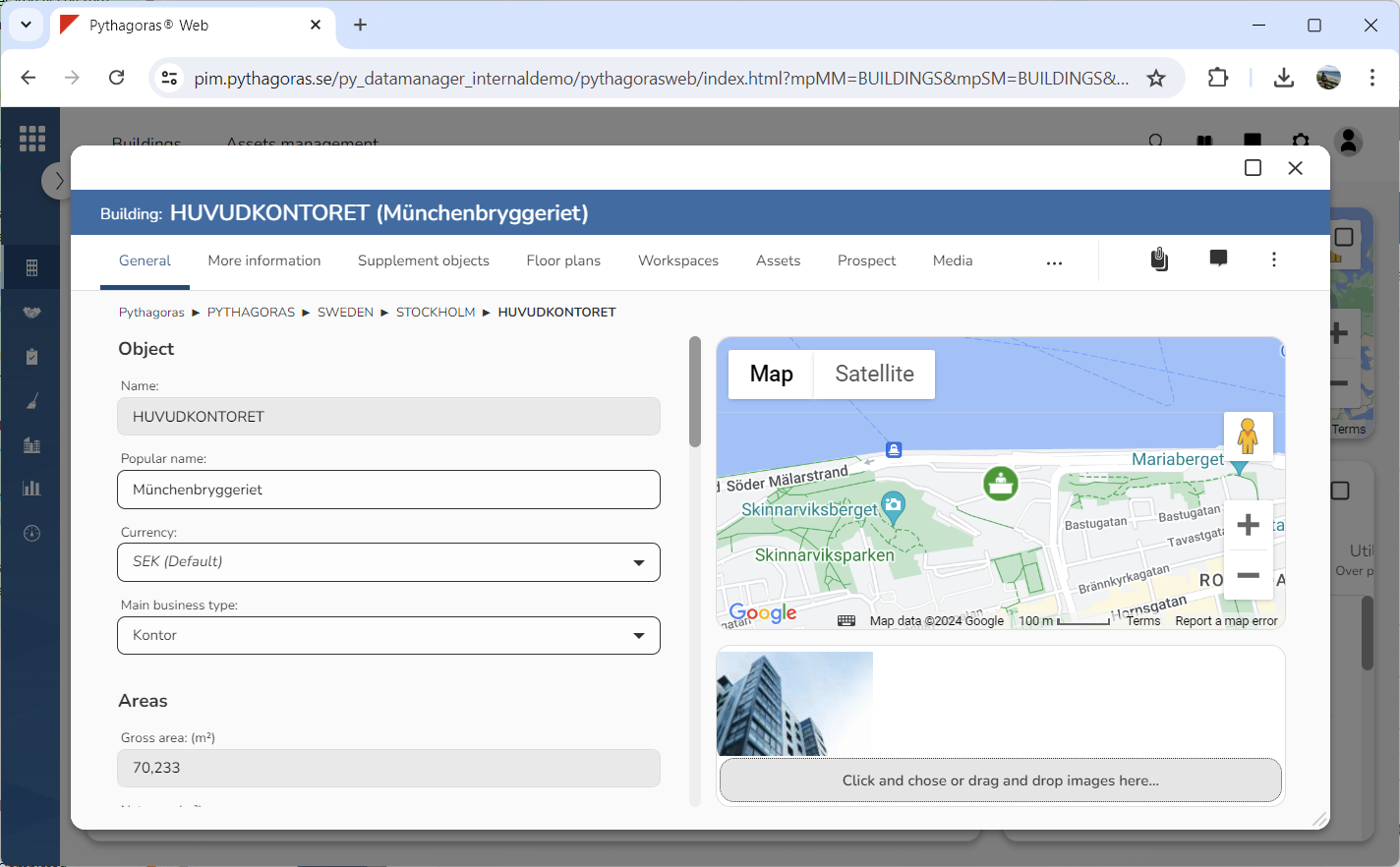
Go to the building card (see image below).
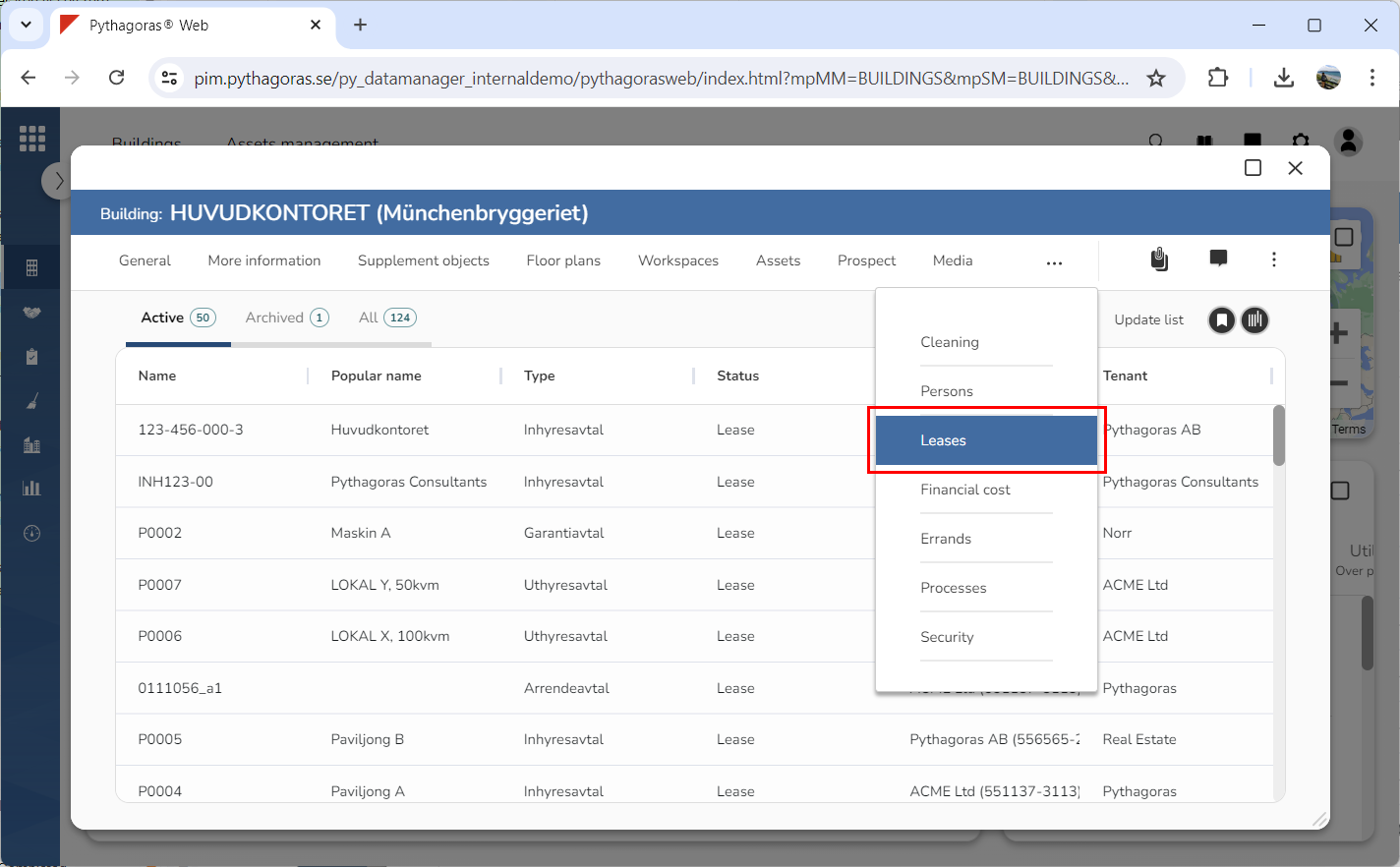
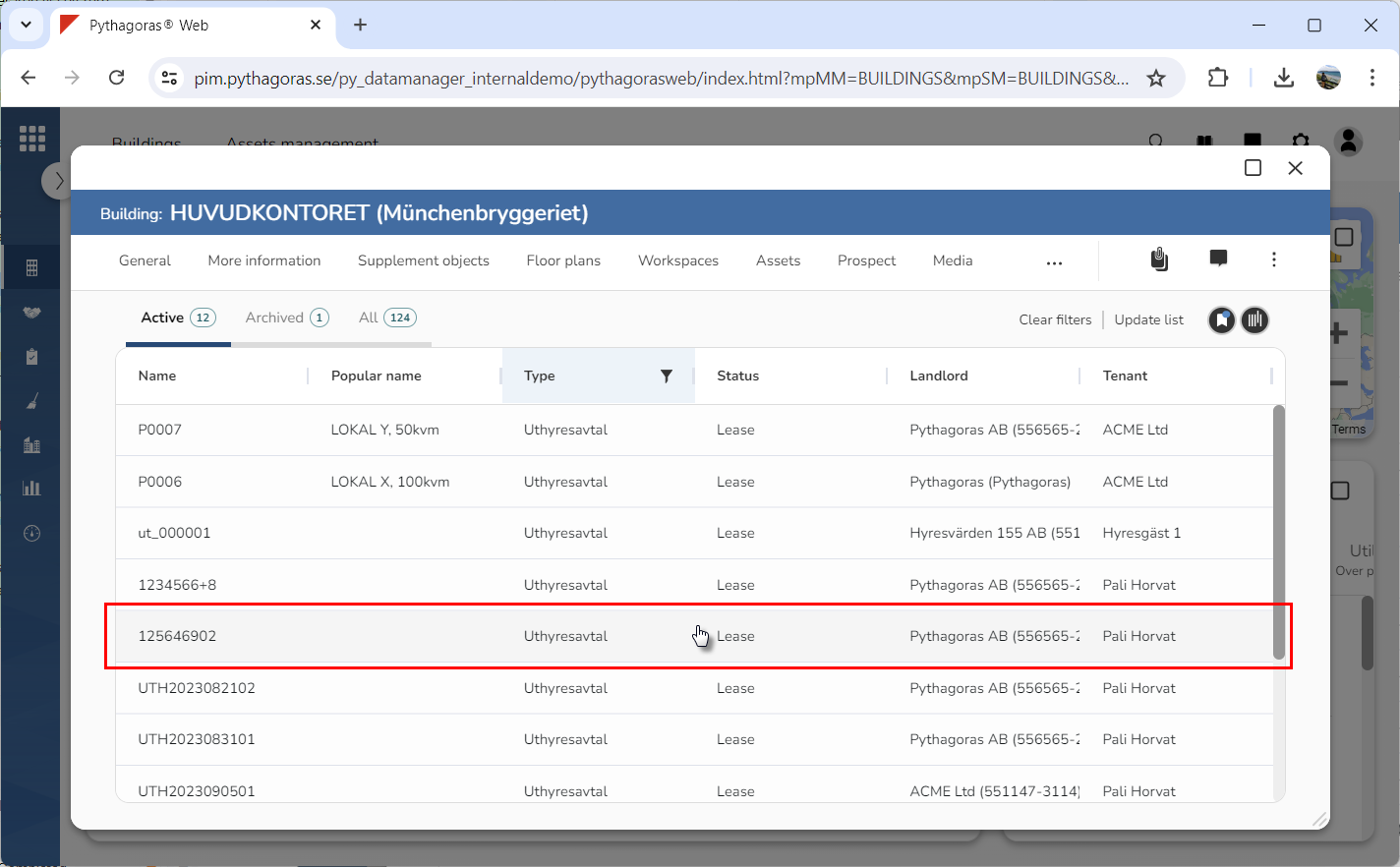
Click the tab called "Leases" (see image below). Within the tab called "Leases" you will find a leases list. In the leases list you will see the leases associated with the building you are working with.
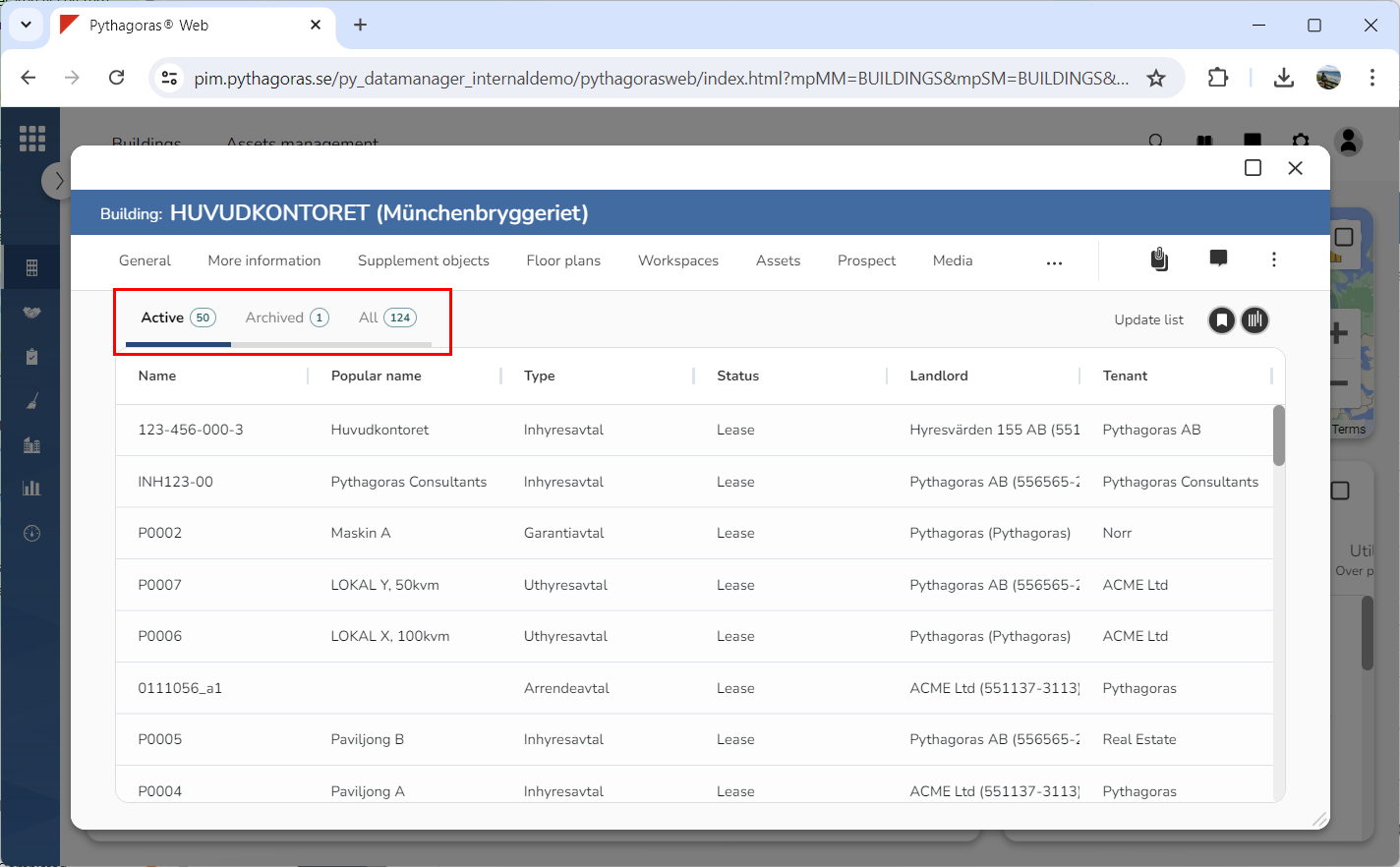
Go to the leases list.
Click the tab within which the lease you wish to open is available: "Active", "Archived" or "All" (see image below).
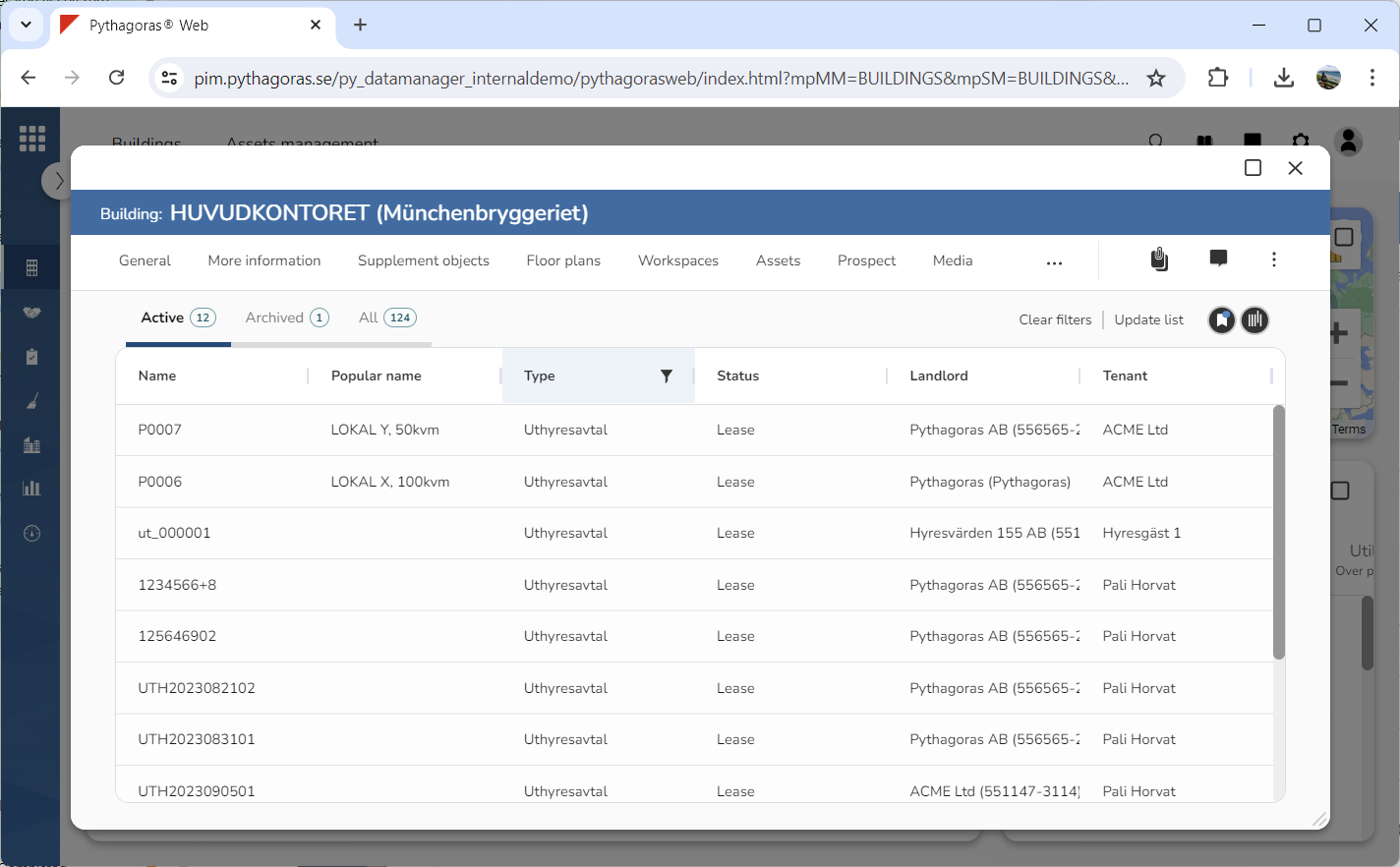
Filter the leases list if the number of leases makes it hard for you to find the lease you wish to open (see image below). For more information on how to do so, see section 8.12.3. If you do not wish to filter the leases list you can skip this step and go straight to step 7.
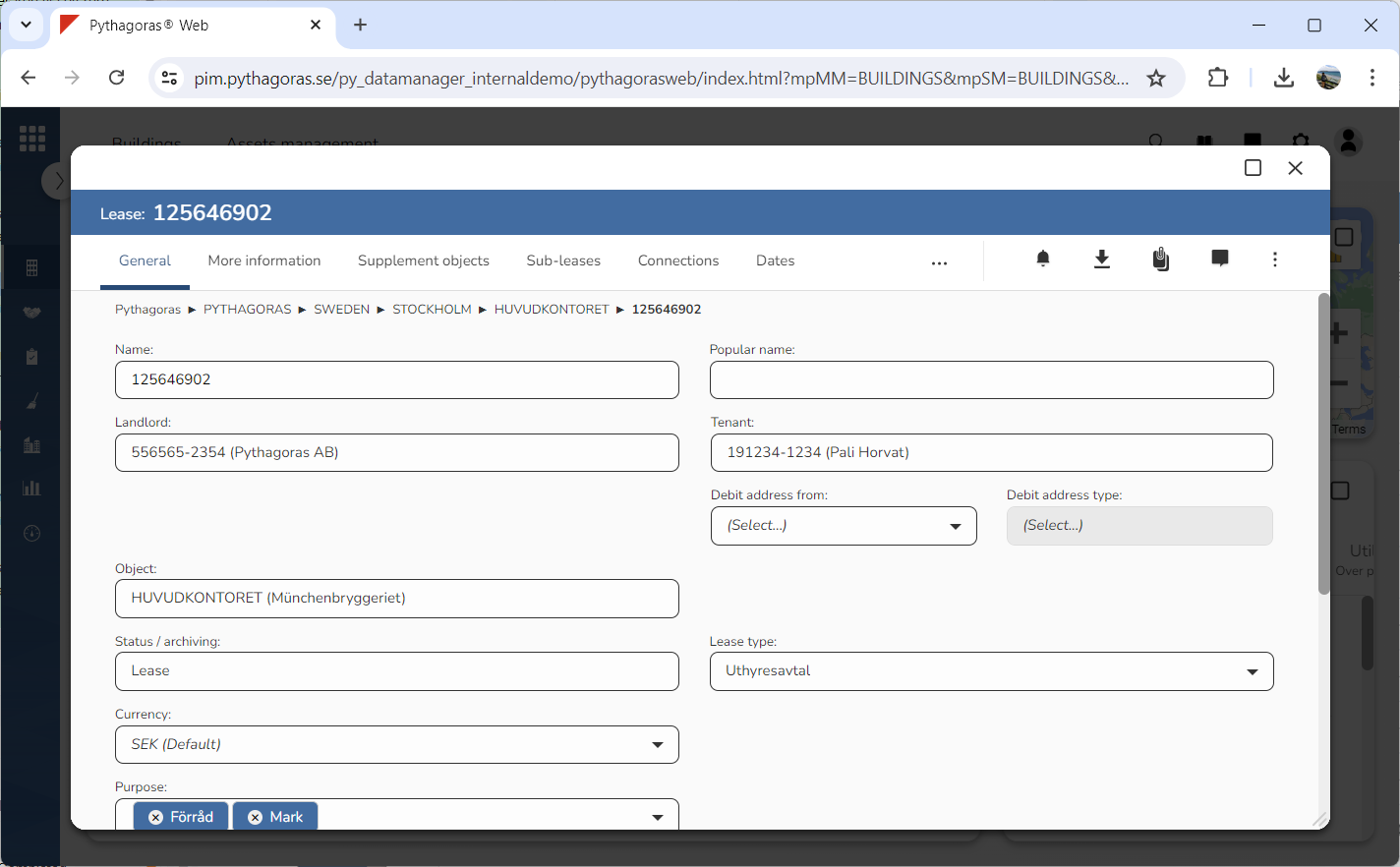
Click the lease you wish to open (see the first image below). The lease you click will open. When a lease opens, so does its lease card (see the second image below). Via the lease card you can work with a lease. For more information on how to do so, see chapter 8 in the manual for Leases. To open the manual for Leases, either click here or open Leases and then click the Manual icon in the global settings area.