There are three ways in which to open a building: via the map, the navigation tree and the object list. In this section you will find information on how to open a building via the map. For more information on how to open a building via the navigation tree, see section 5.4.3. For more information on how to open a building via the object list, see section 6.1.1.
To open a building via the map:
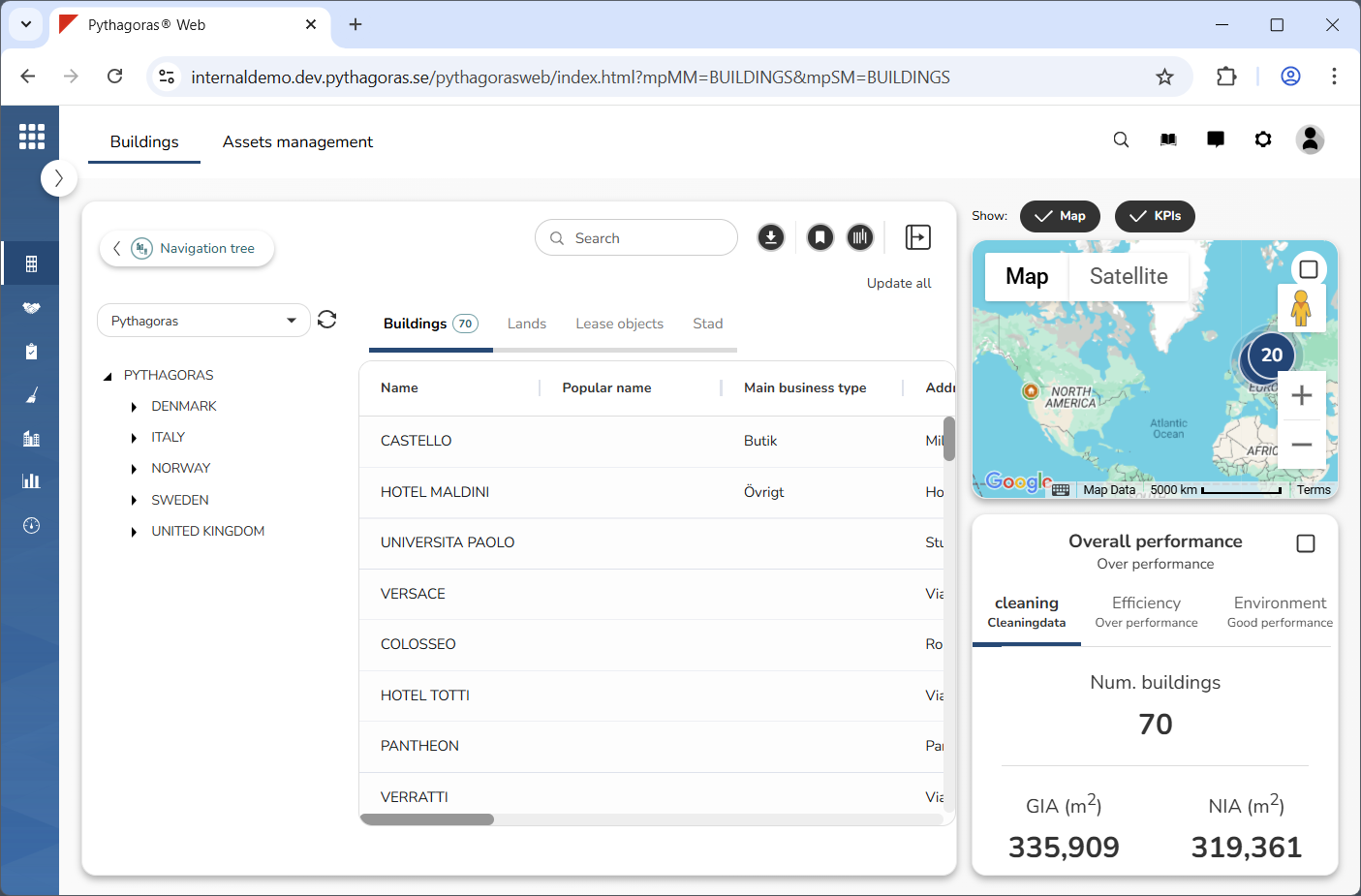
Show the map and the KPIs (see image below). For more information on how to do so, see section 4.1.
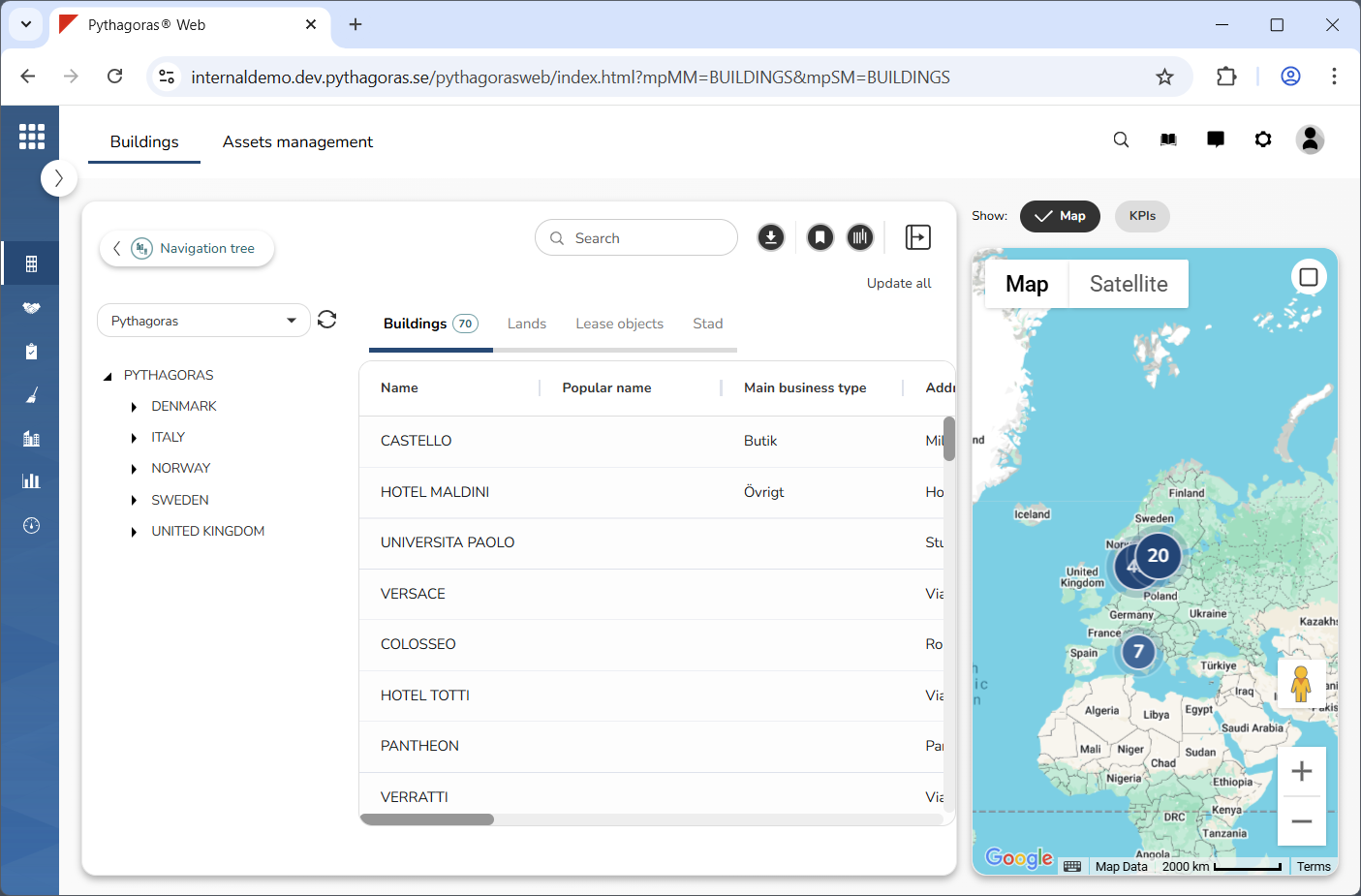
Show only the map (see image below). For more information on how to do so, see section 4.3. If you wish to show both the map and the KPIs you can skip this step and go straight to step 3.
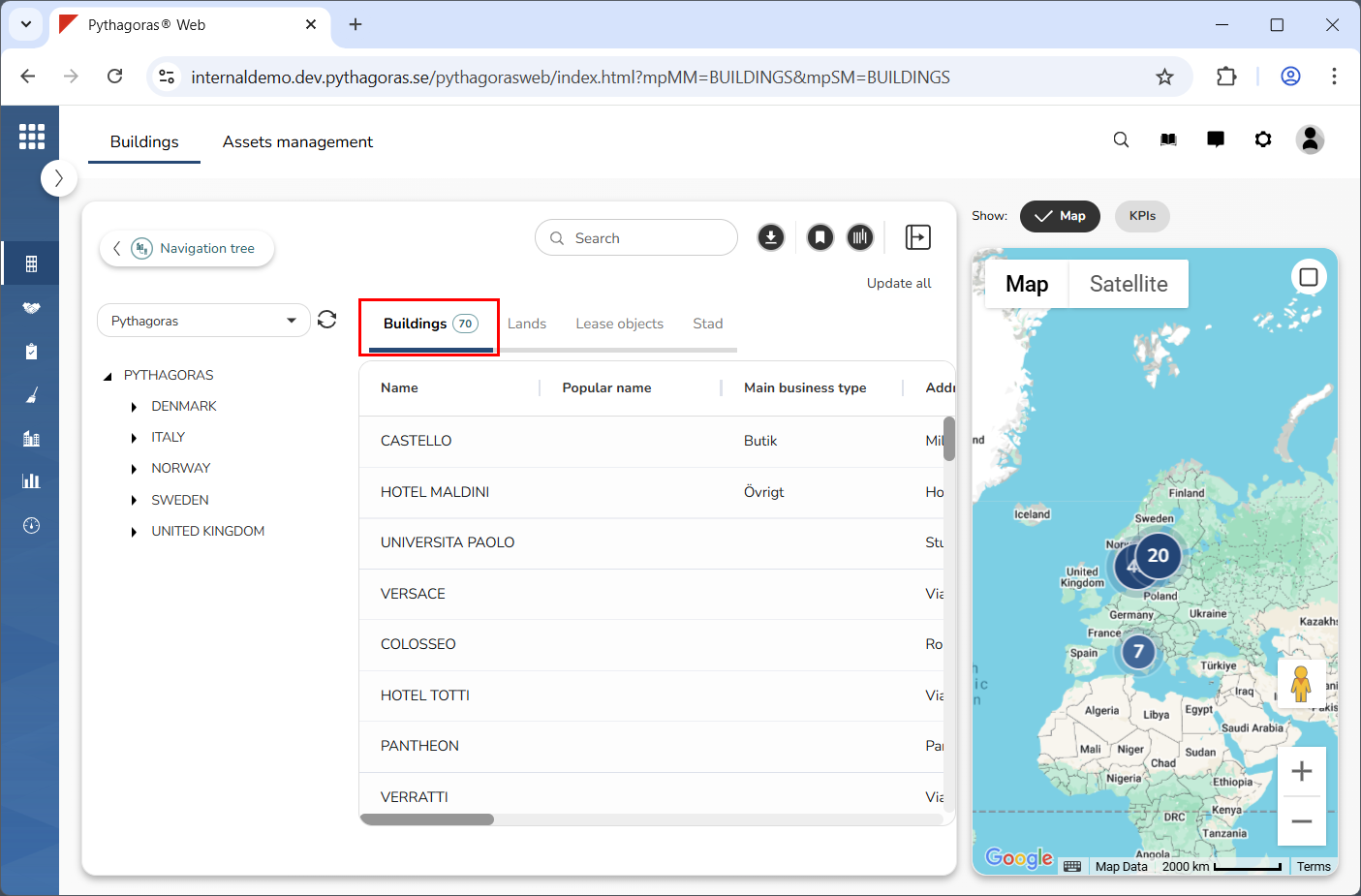
Click the buildings tab in the object list (see image below).
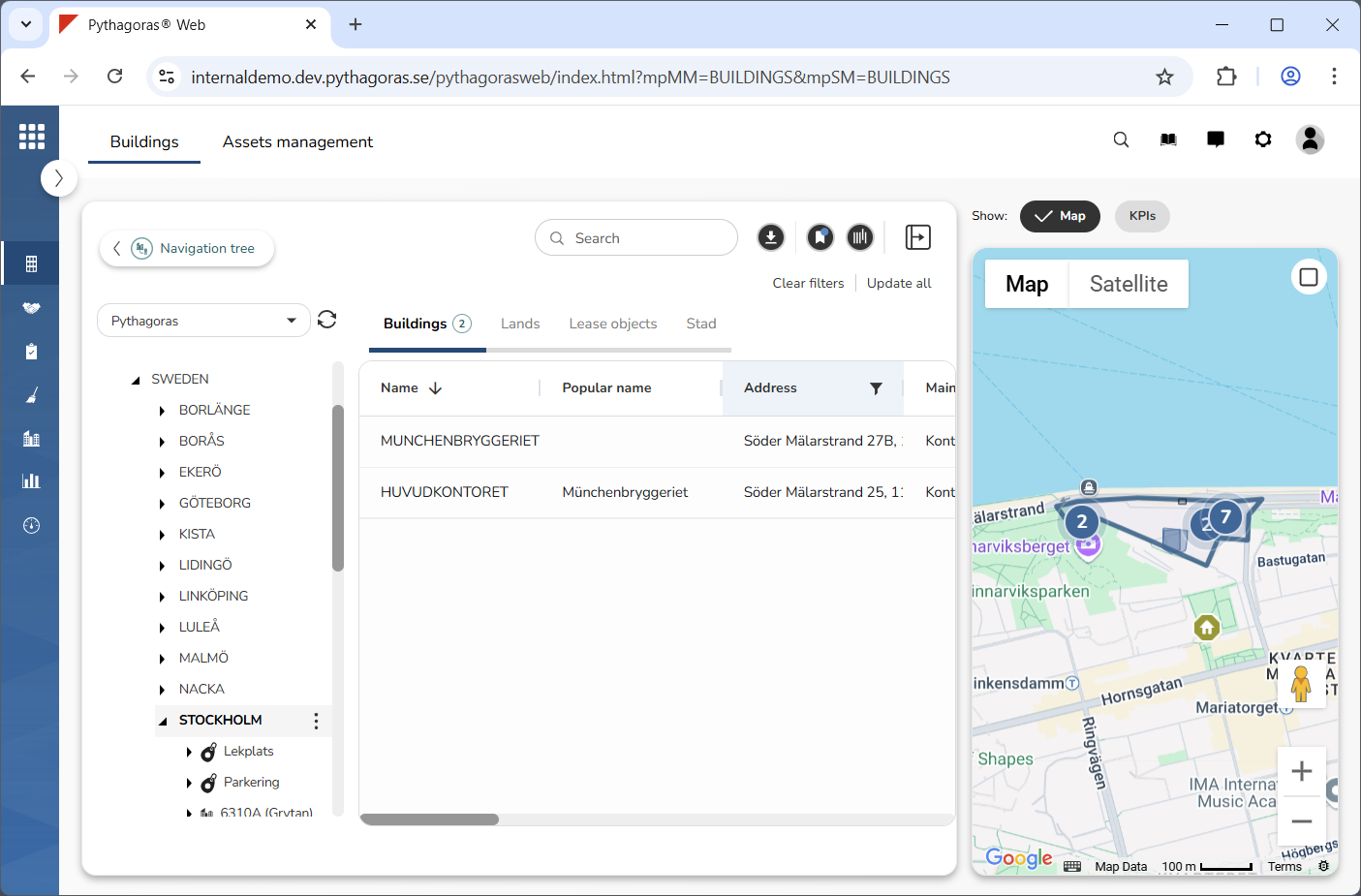
Make sure that the building you wish to open is visible on the map by filtering buildings on the map. To filter buildings on the map you can either use the navigation tree or filter the object list (see image below). For more information on how to filter the object list, see section 6.2. If the building you wish to open already is visible on the map you can skip this step and go straight to step 5.
5. Go to the map.
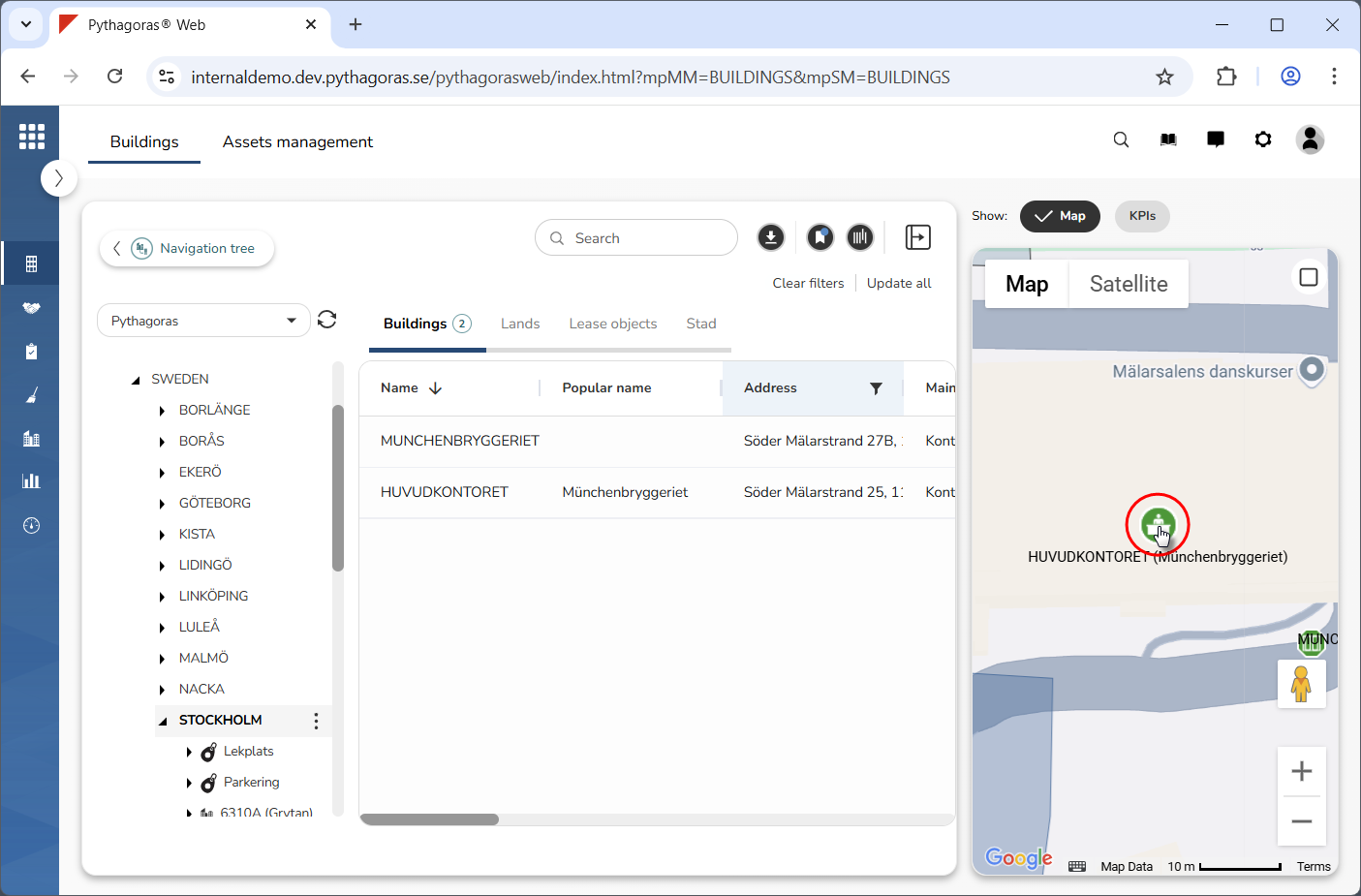
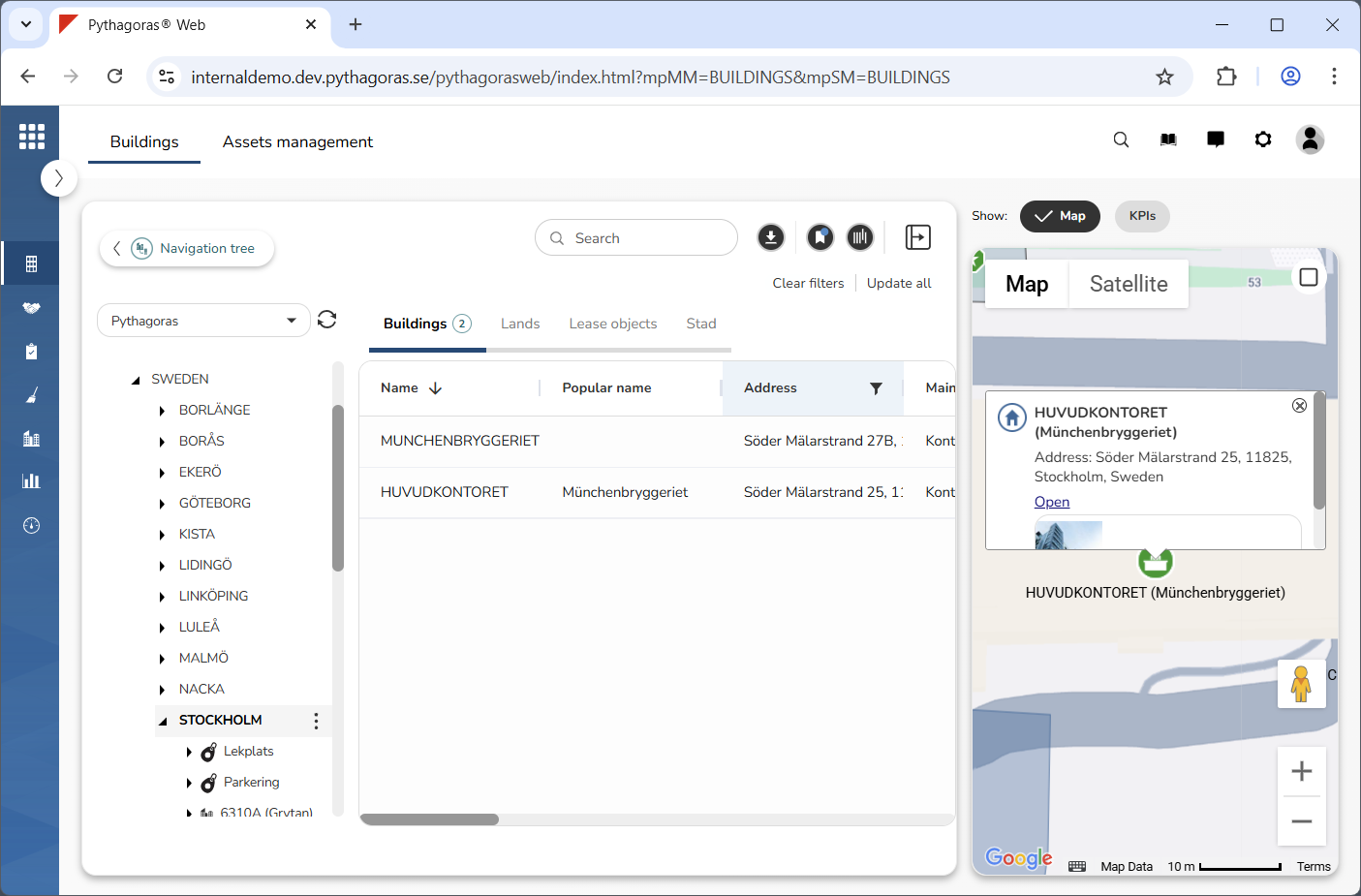
6. Click the map marker belonging to the building you wish to open (see the first image below). When you do so, a window linked to the building you are working with will open (see the second image below).
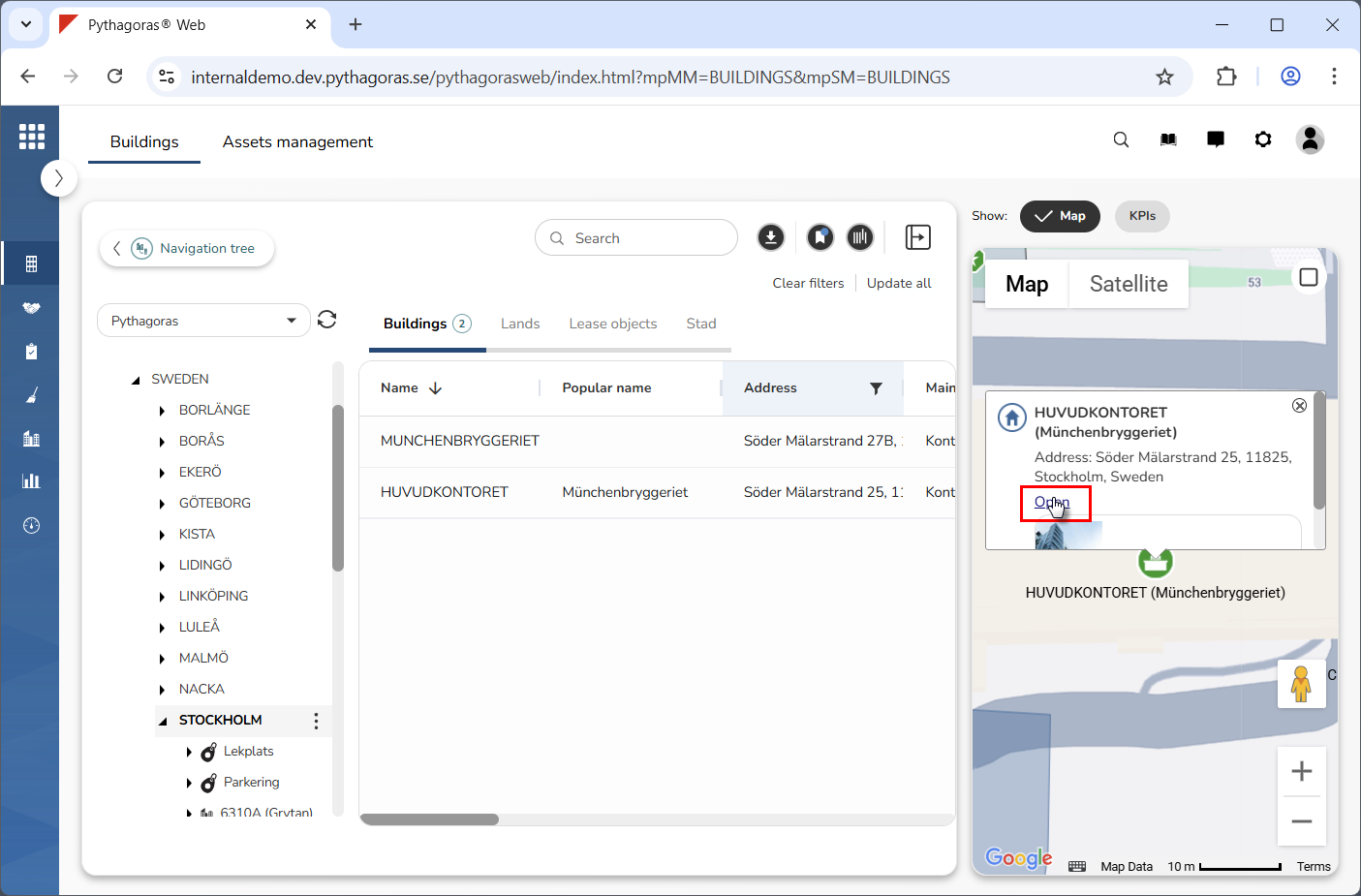
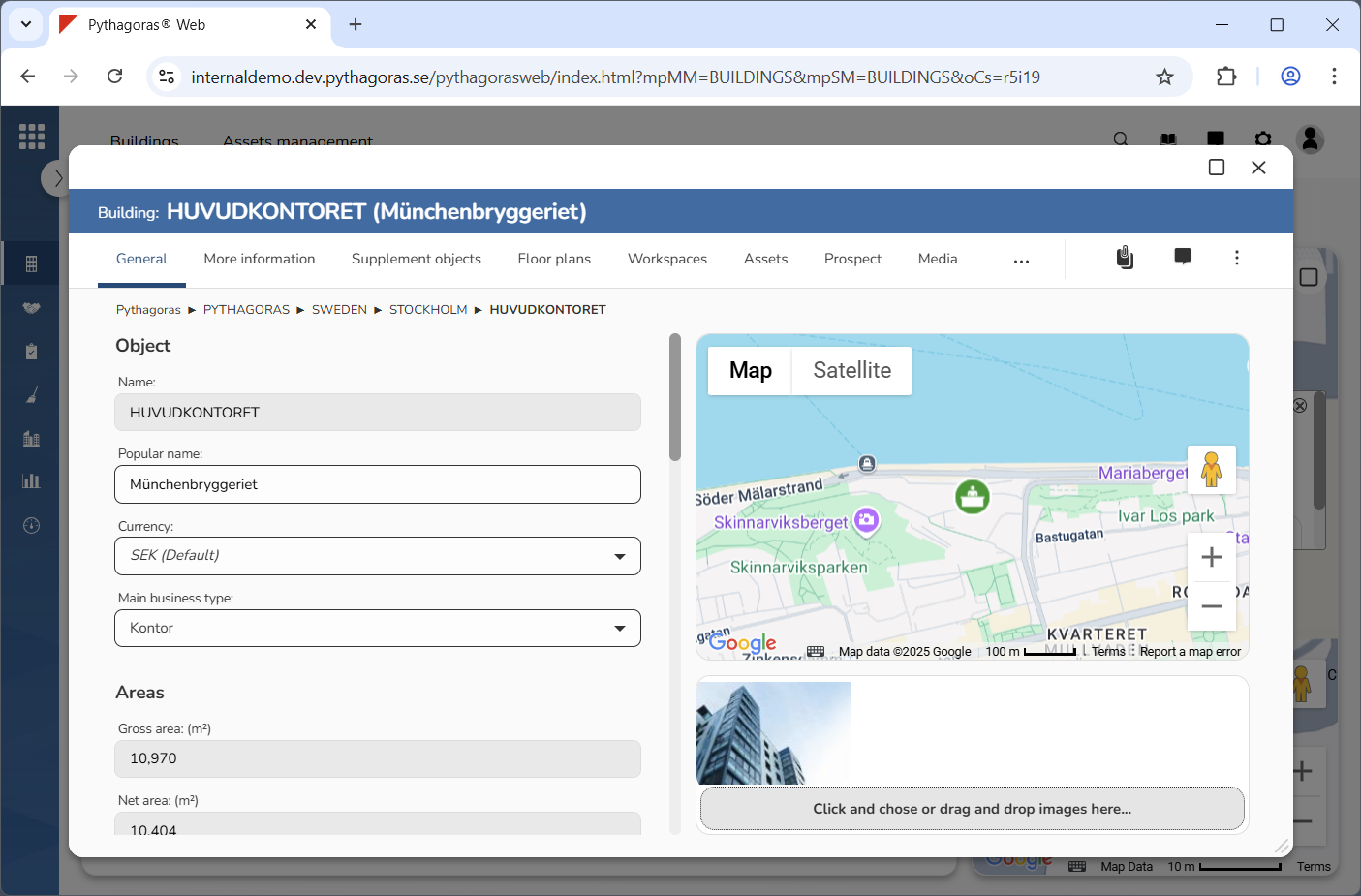
7. Click "Open" in the window (see the first image below). When you do so, the building you are working with will open. When a building opens, so does its building card (see the second image below). Via the building card you can work with a building. For more information on how to do so, see chapter 8.