Open a lease object. For more information on how to do so, see section 11.1.
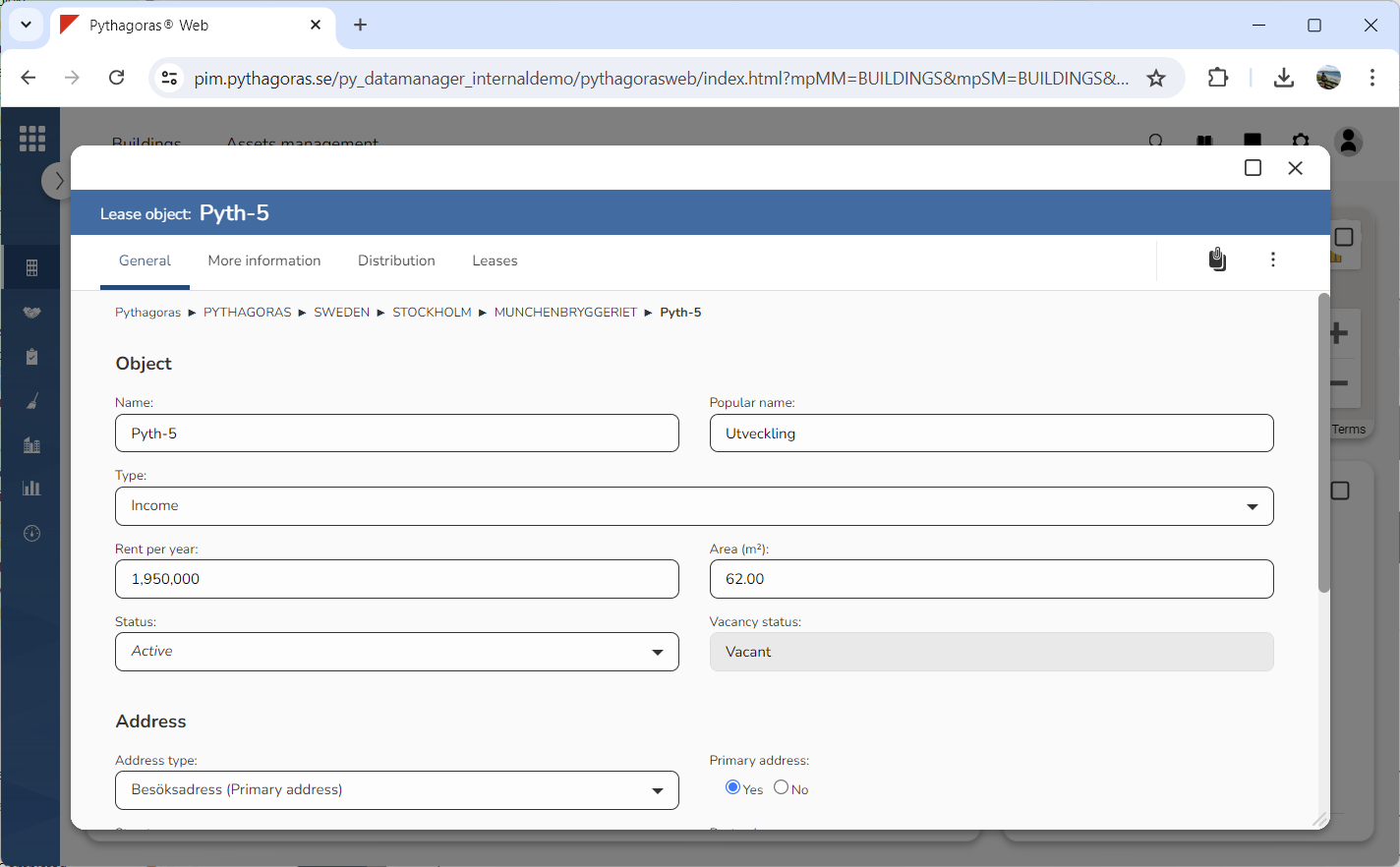
Go to the lease object card (see image below).
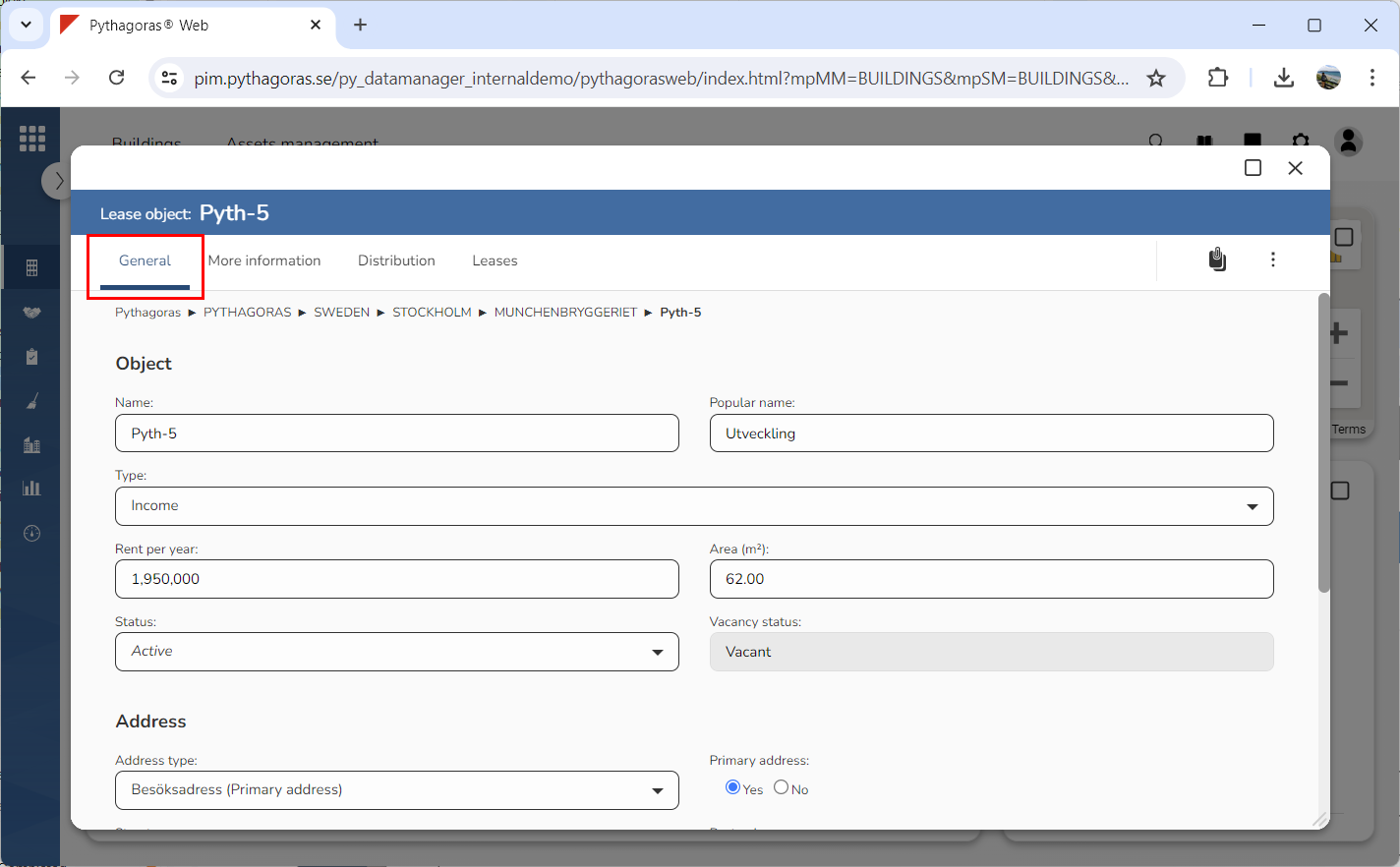
Click the tab called "General" (see image below).
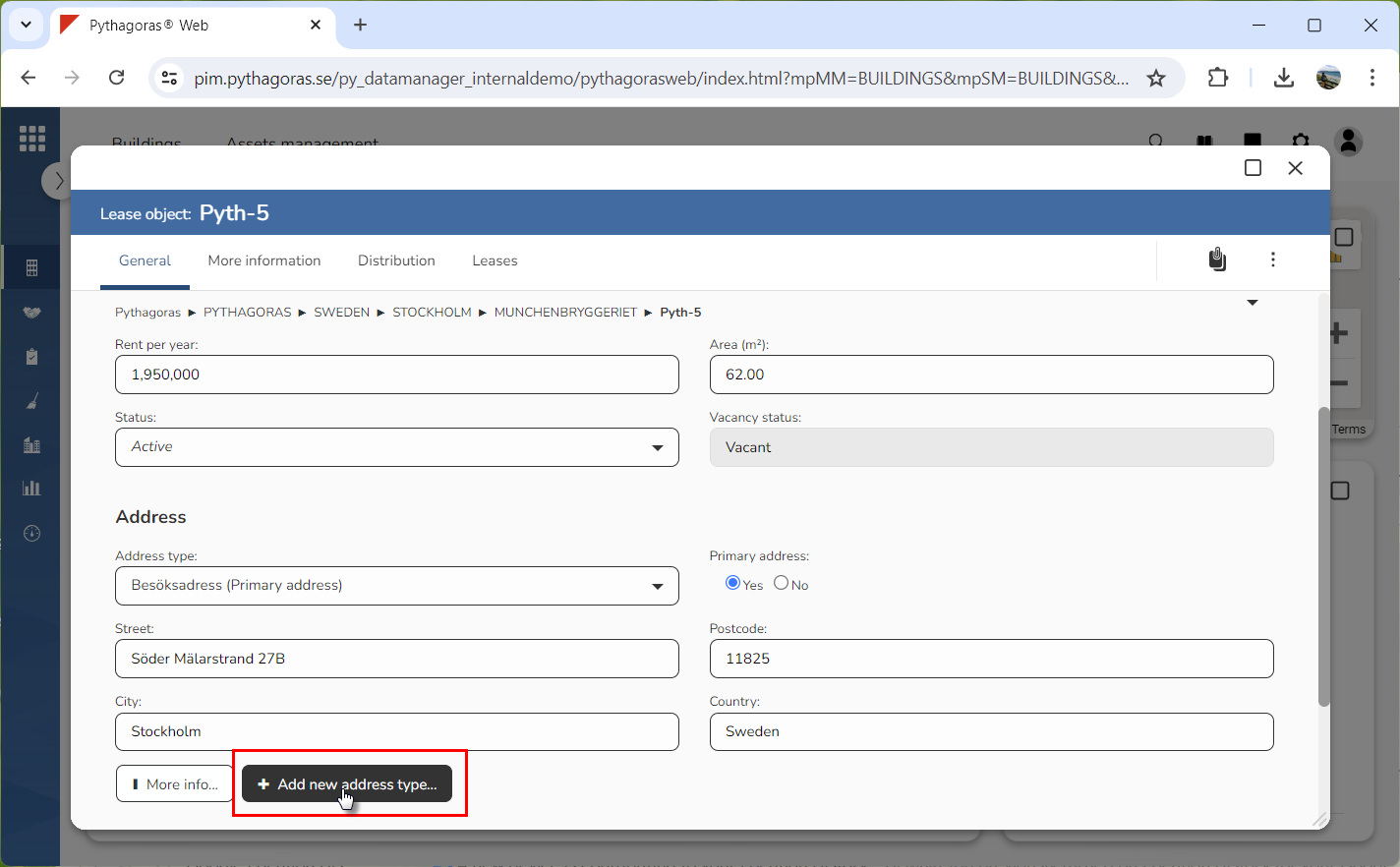
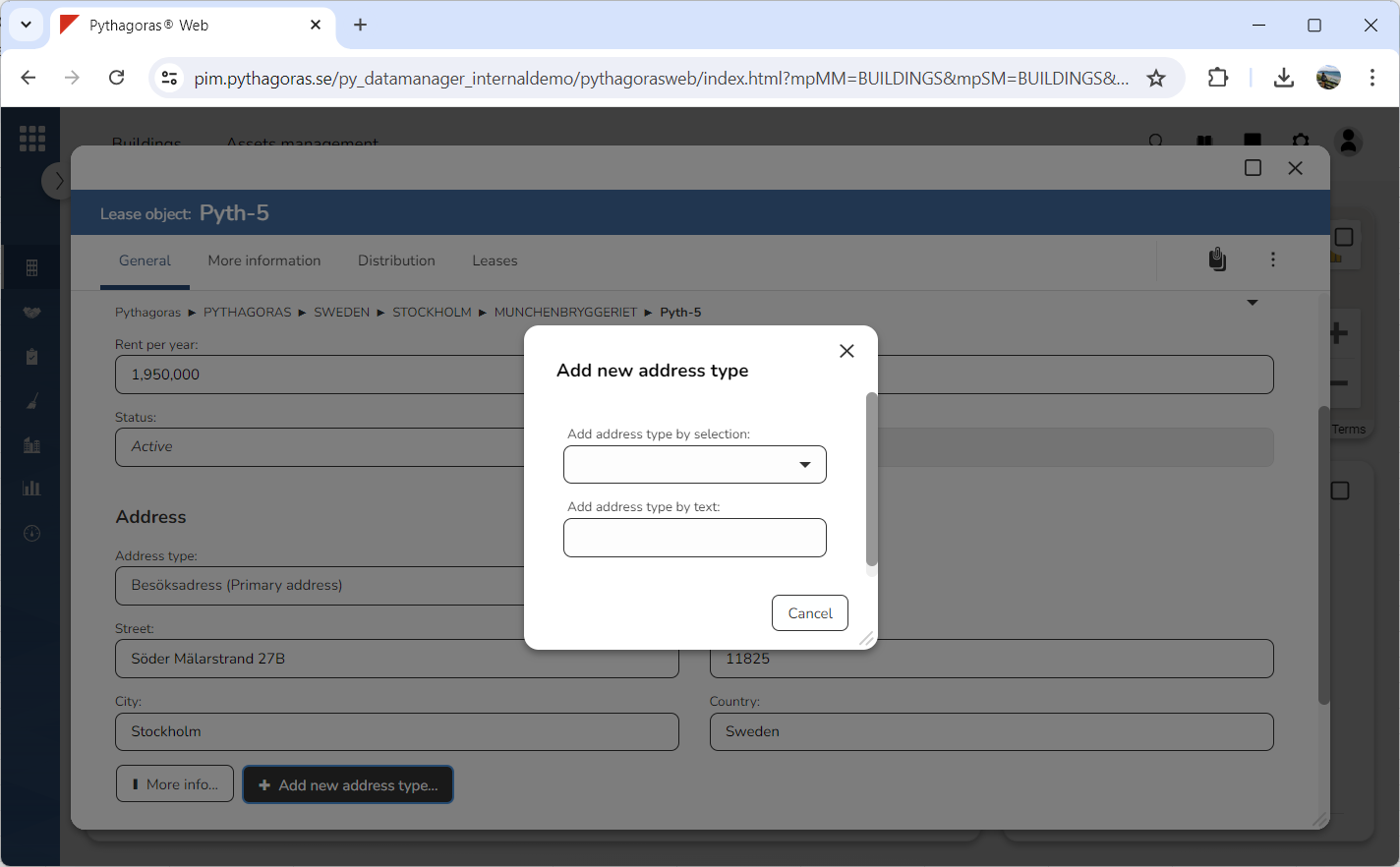
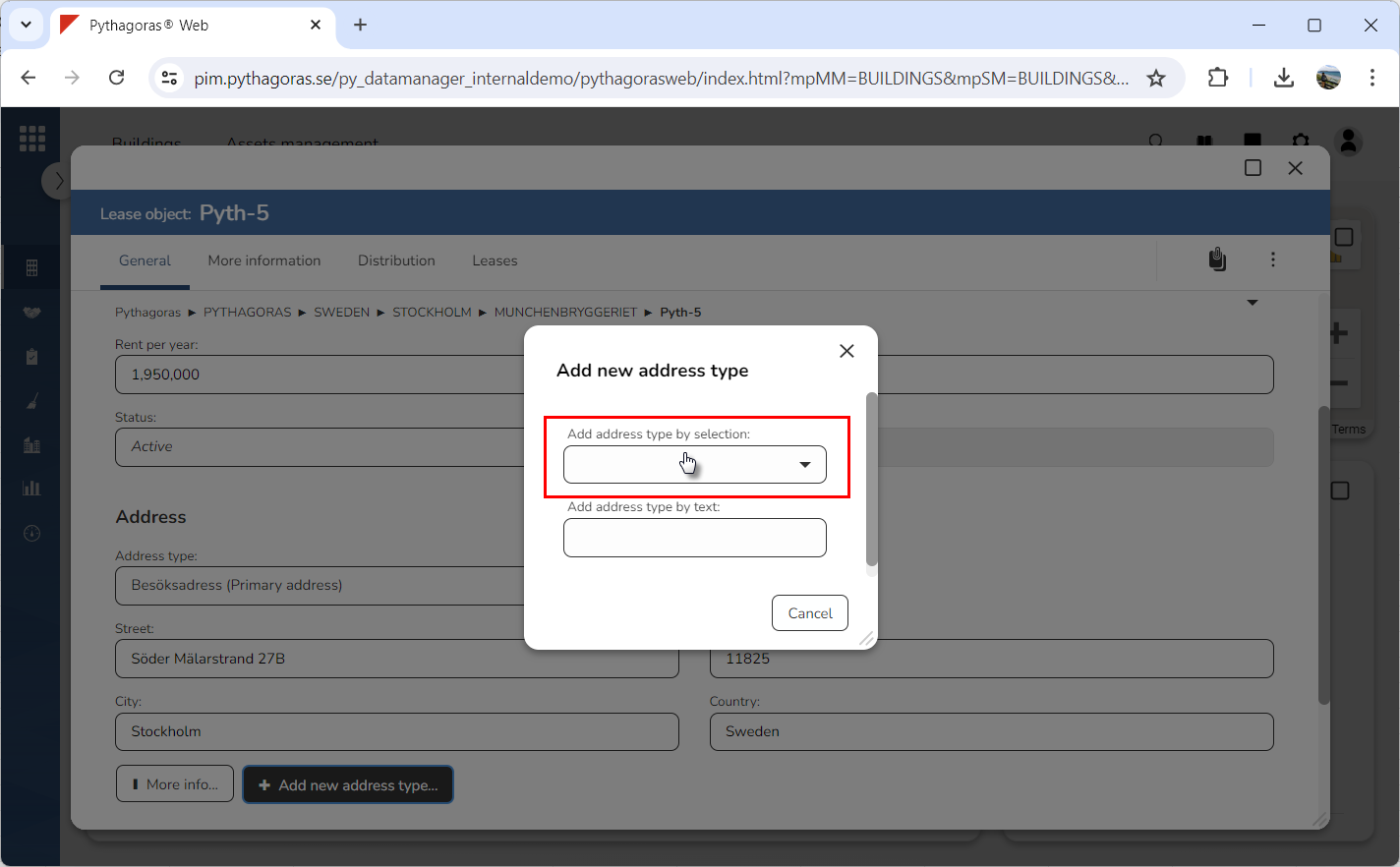
Click "Add new address type" (see the first image below). When you do so, a window called "Add new address type" will open (see the second image below).
Go to the window called "Add new address type".
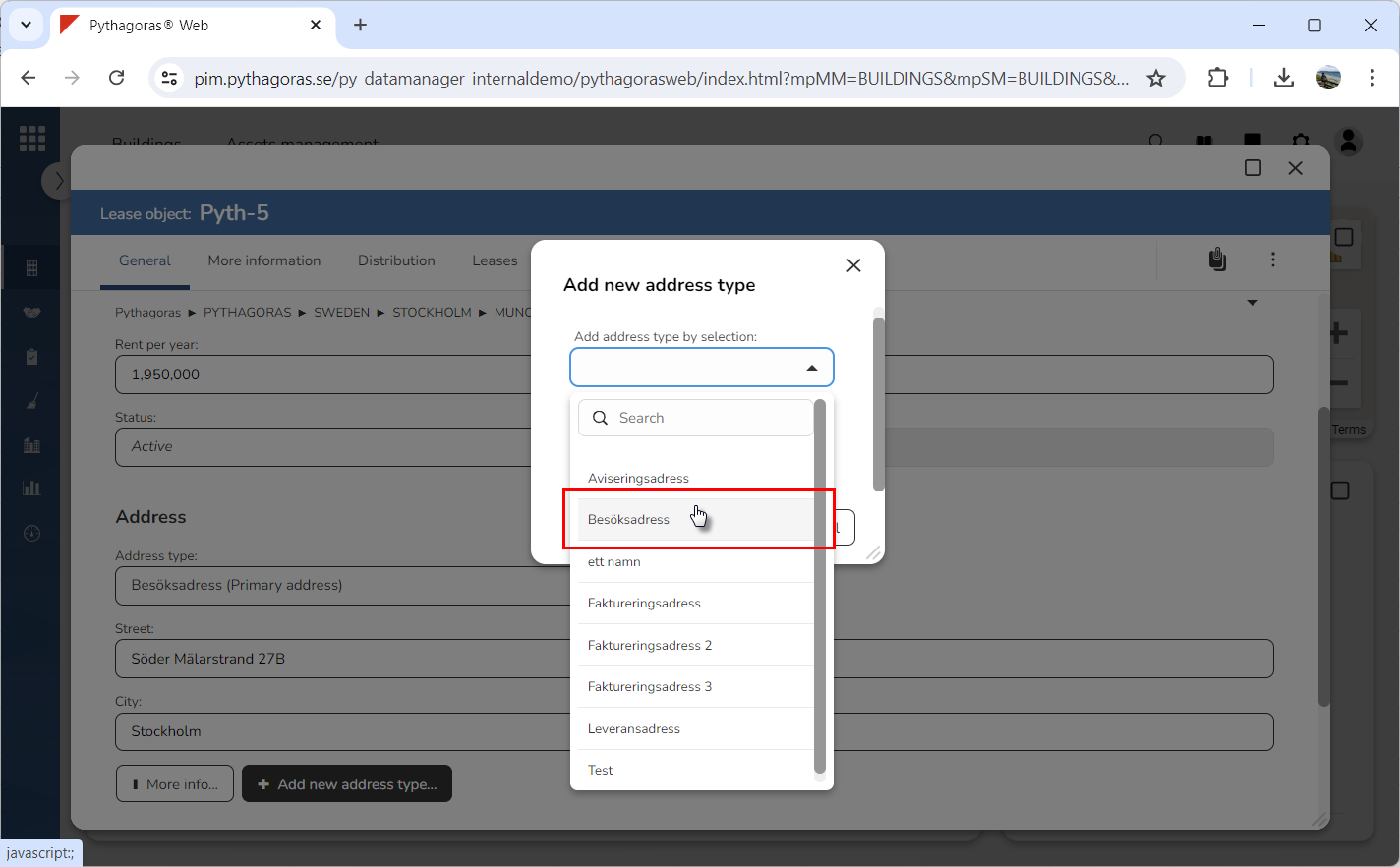
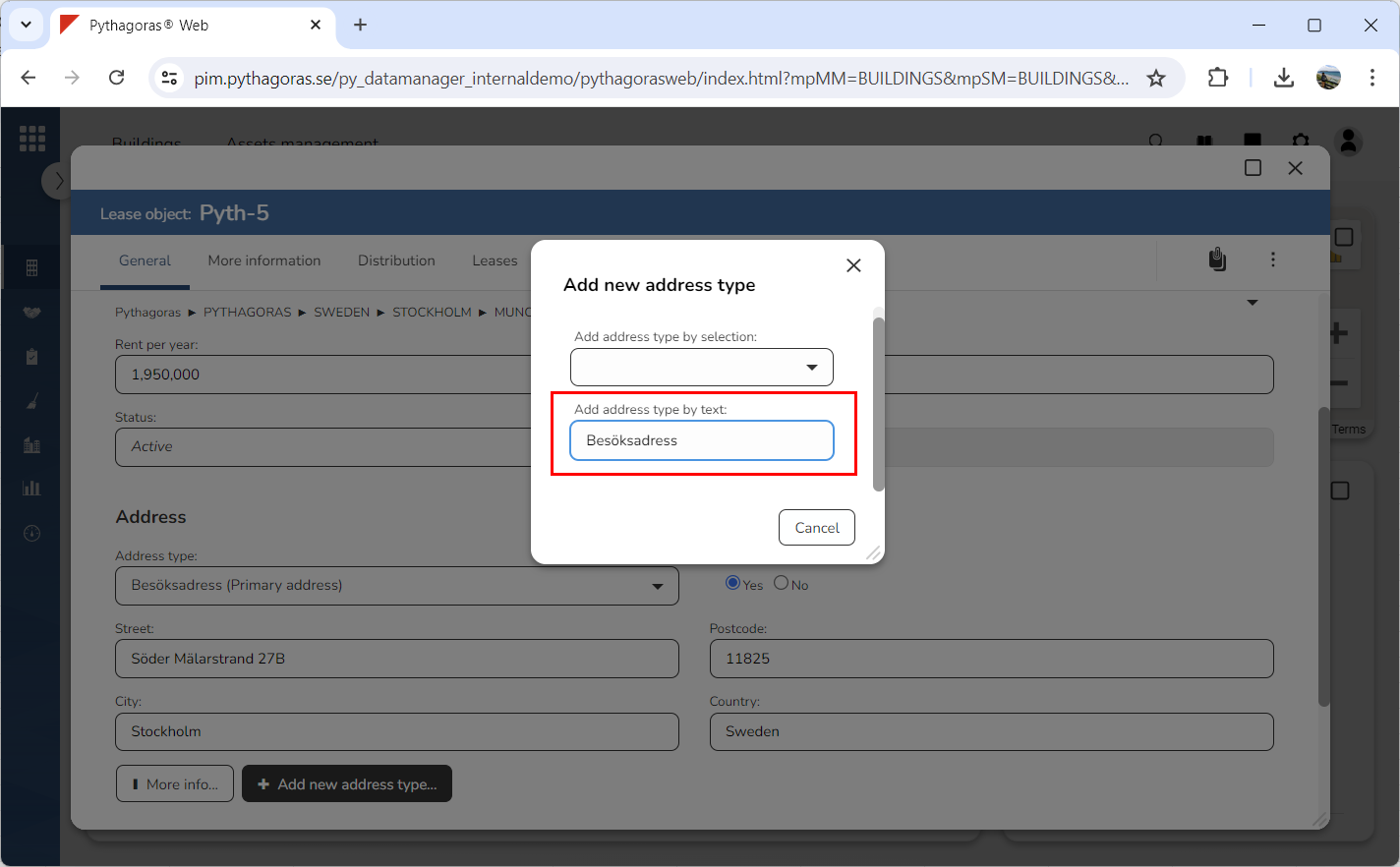
Specify which type of address you wish to link to the lease object you are working with by:
a. clicking the field "Add address type by selection" and then clicking an address type in the list that opens (see images below)
b. entering an address type in the field "Add address type by text" (see image below).
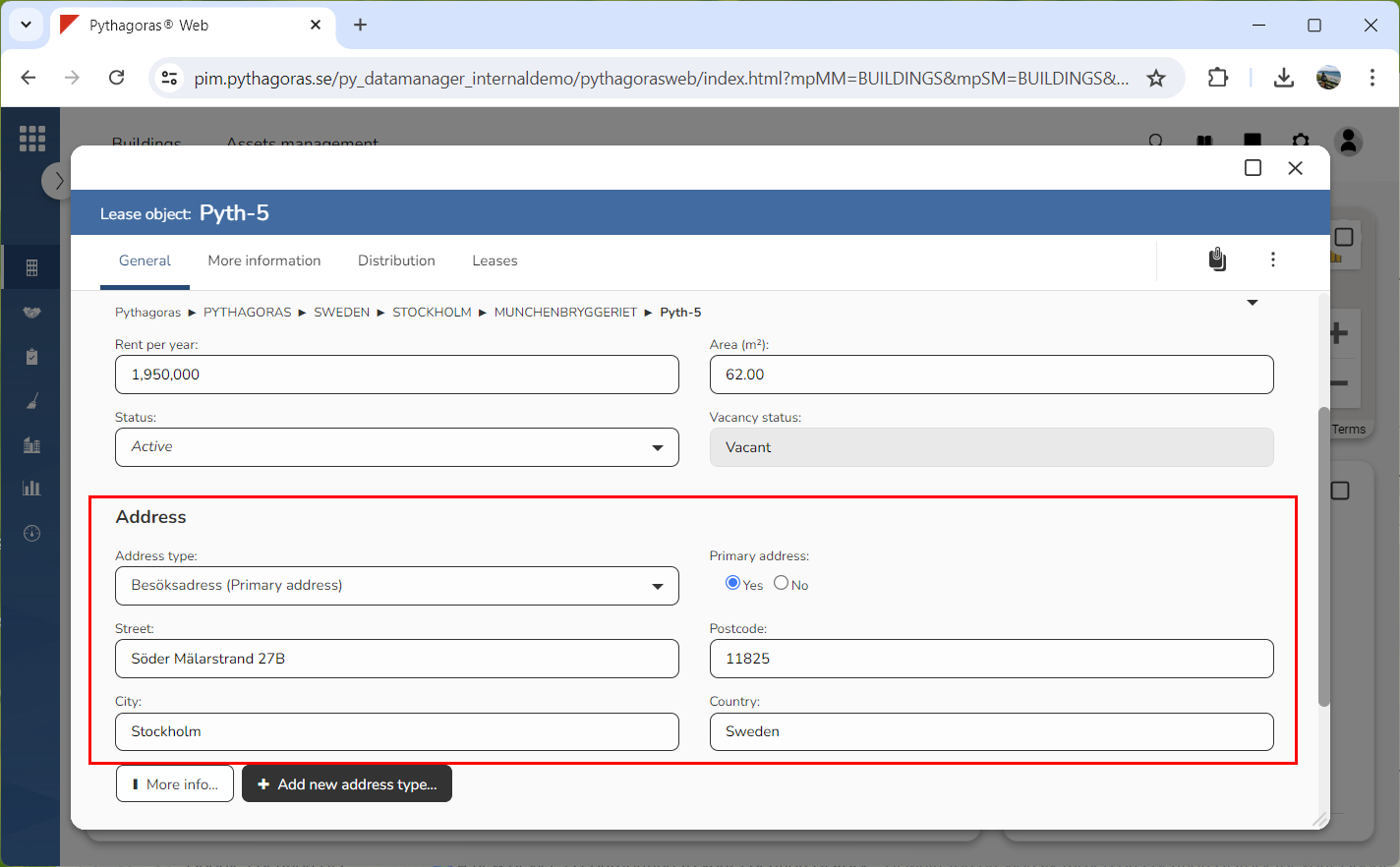
Go to the lease object card. In the lease object card, you will see that an address of the type you specified that you wanted to link to the lease object you are working with, has been linked to the lease object (see image below).
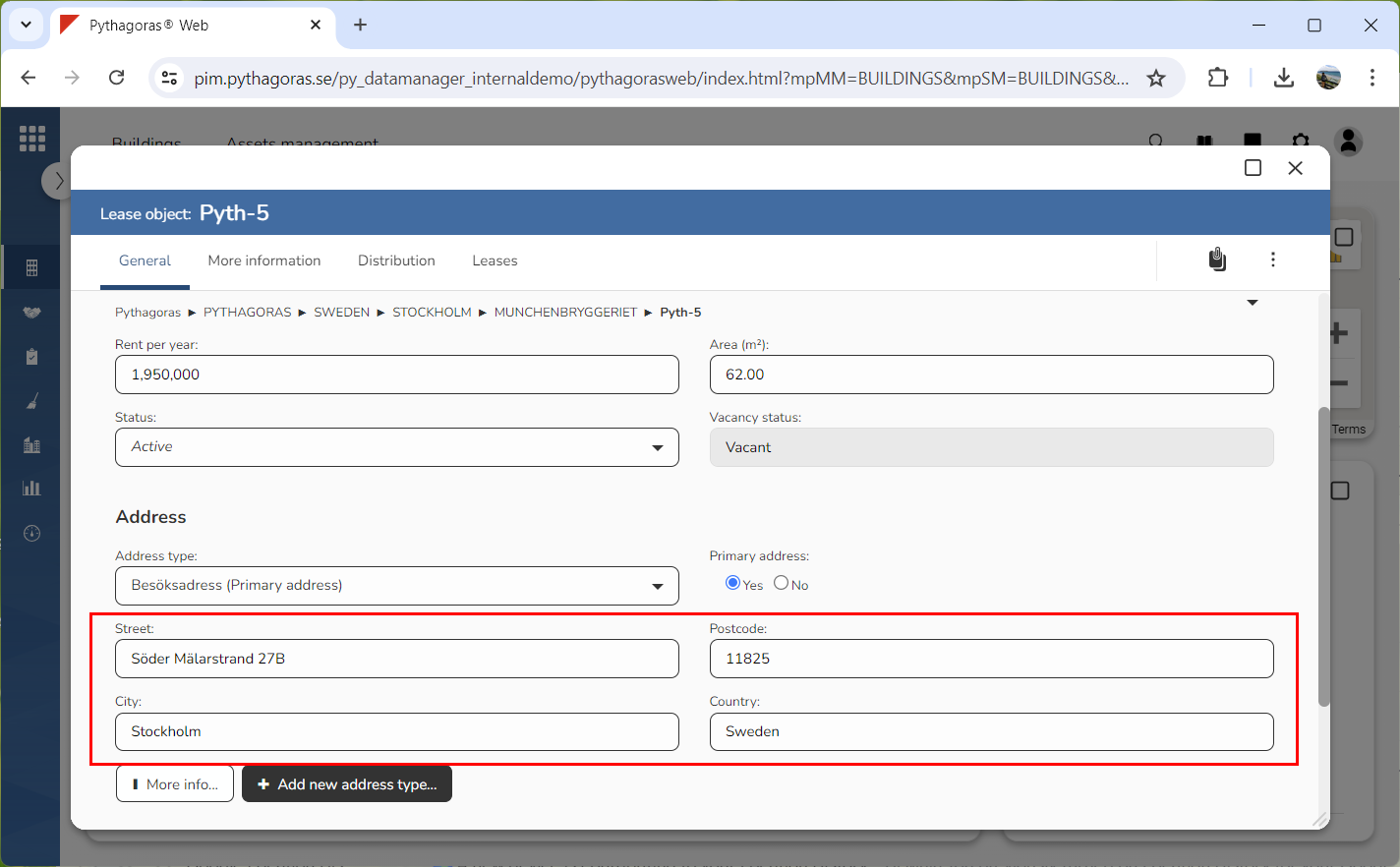
Set a street address, a postcode, a city and a country for the address you linked to the land object you are working with via the fields called "Street", "Postcode", "City" and "Country" (see image below).
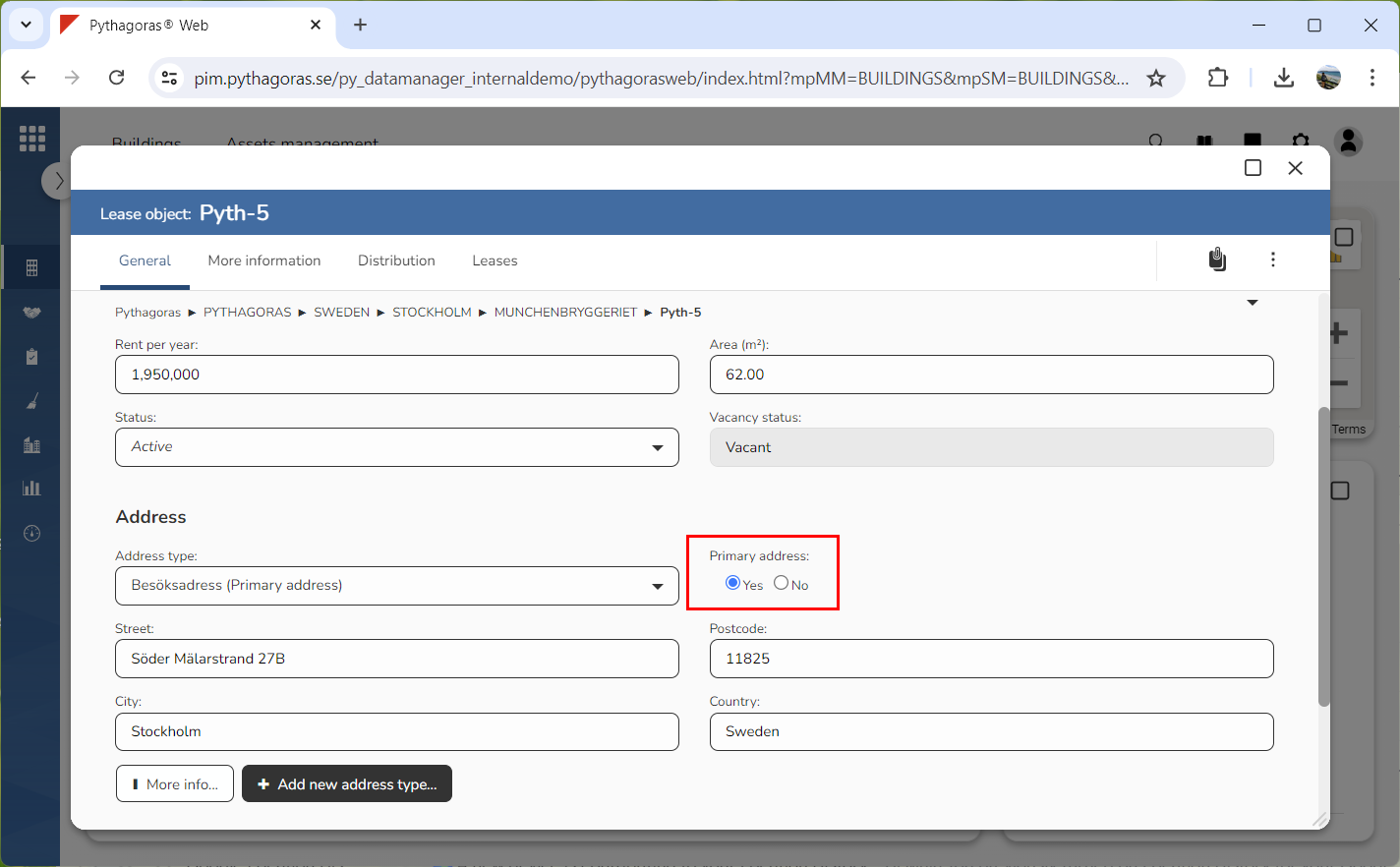
Specify whether the address you linked to the lease object you are working with, should, or should not, be the lease objects primary address by selecting "Yes" or "No" below the label "Primary address".
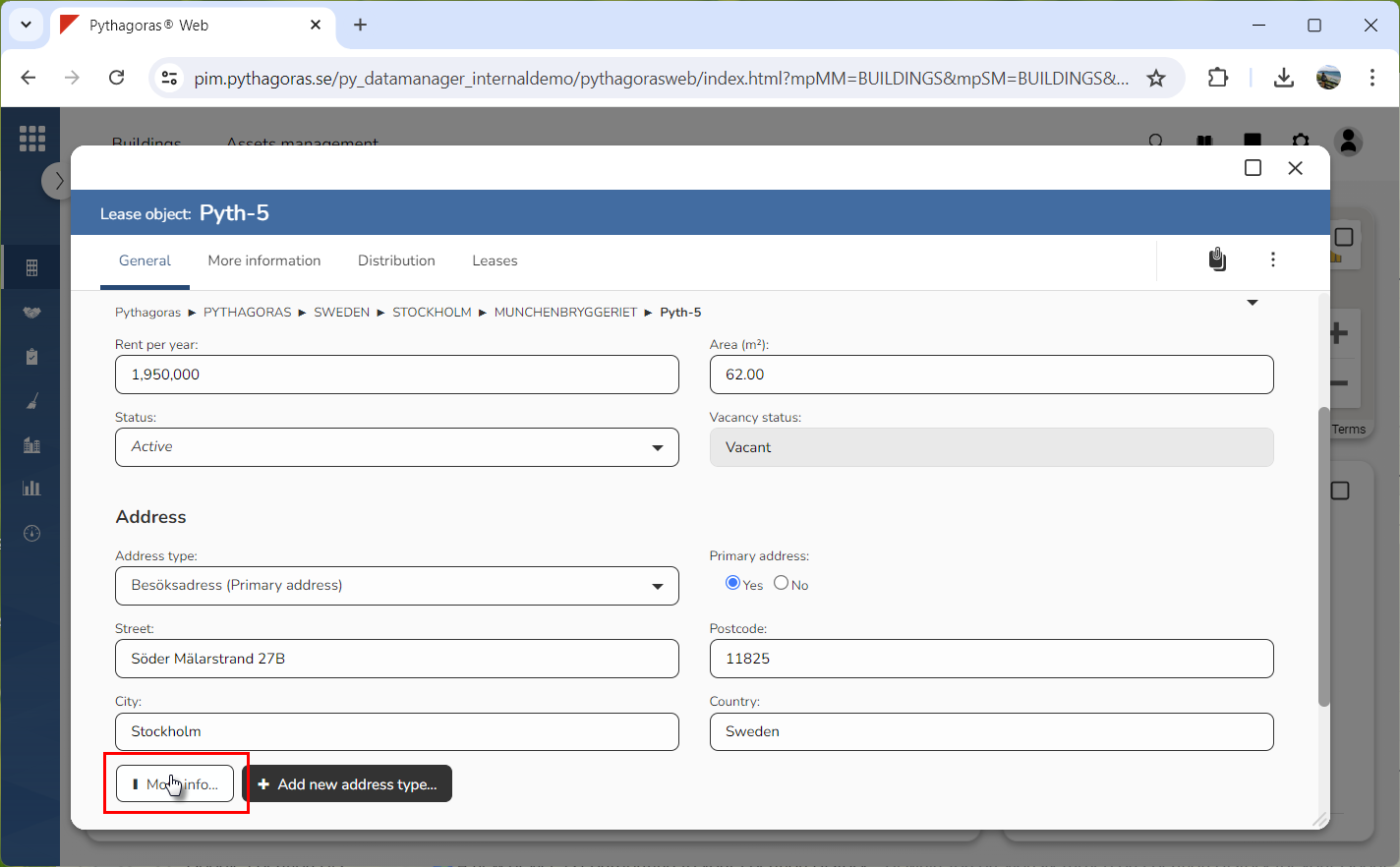
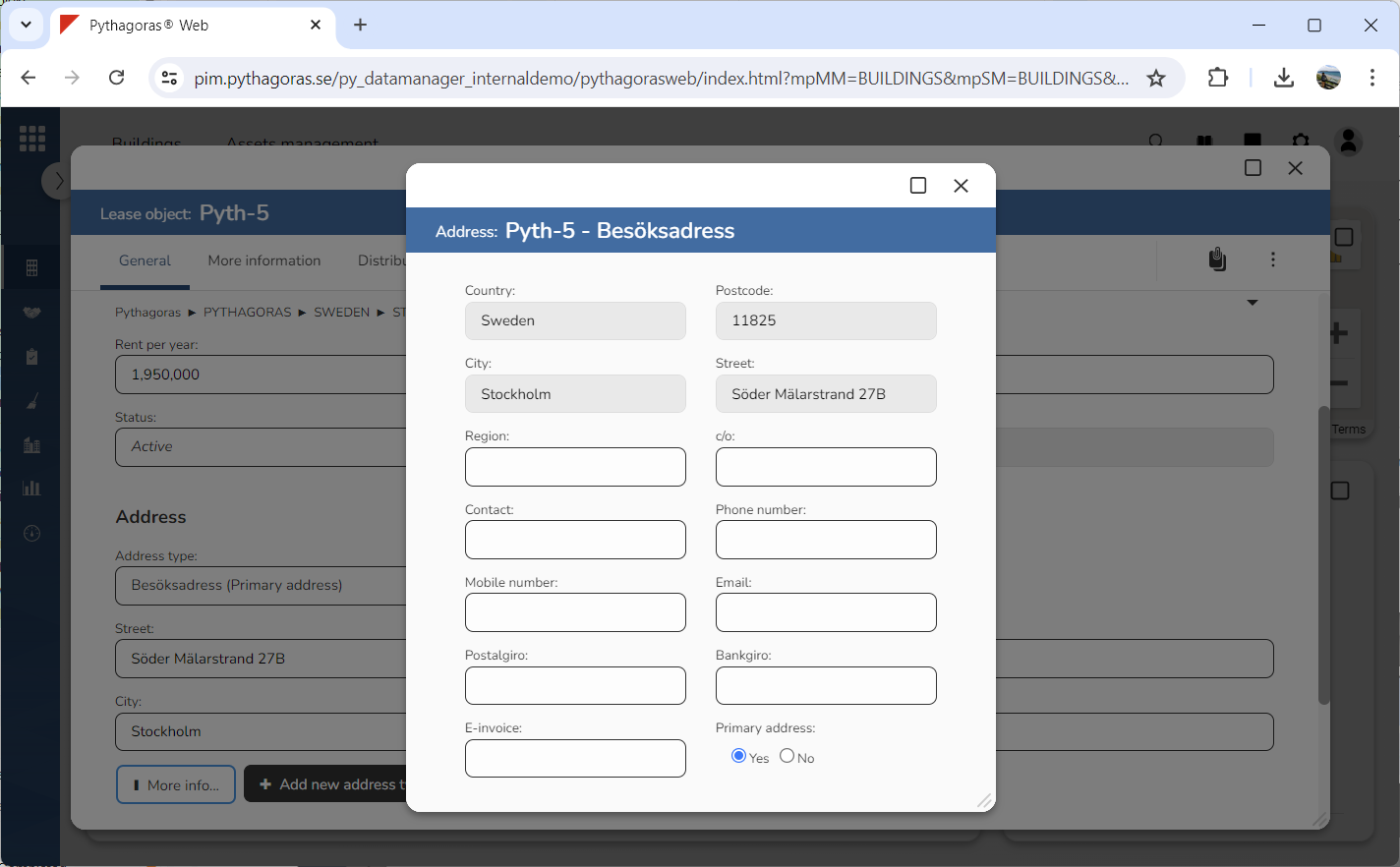
Click "More info" (see the first image below). When you do so, an address card via which you can add more information to the address you linked to the lease object you are working with will open (see the second image below). If you do not wish to add more information to the address you linked to the lease object you are working with, you can skip this step.