When using a building to add an asset in Pythagoras Web, the asset you add in the application will be associated with the building you are working with.
To add an asset in Pythagoras Web:
Open a building. For more information on how to do so, see section 4.6.1., 5.4.3. or 6.1.1.
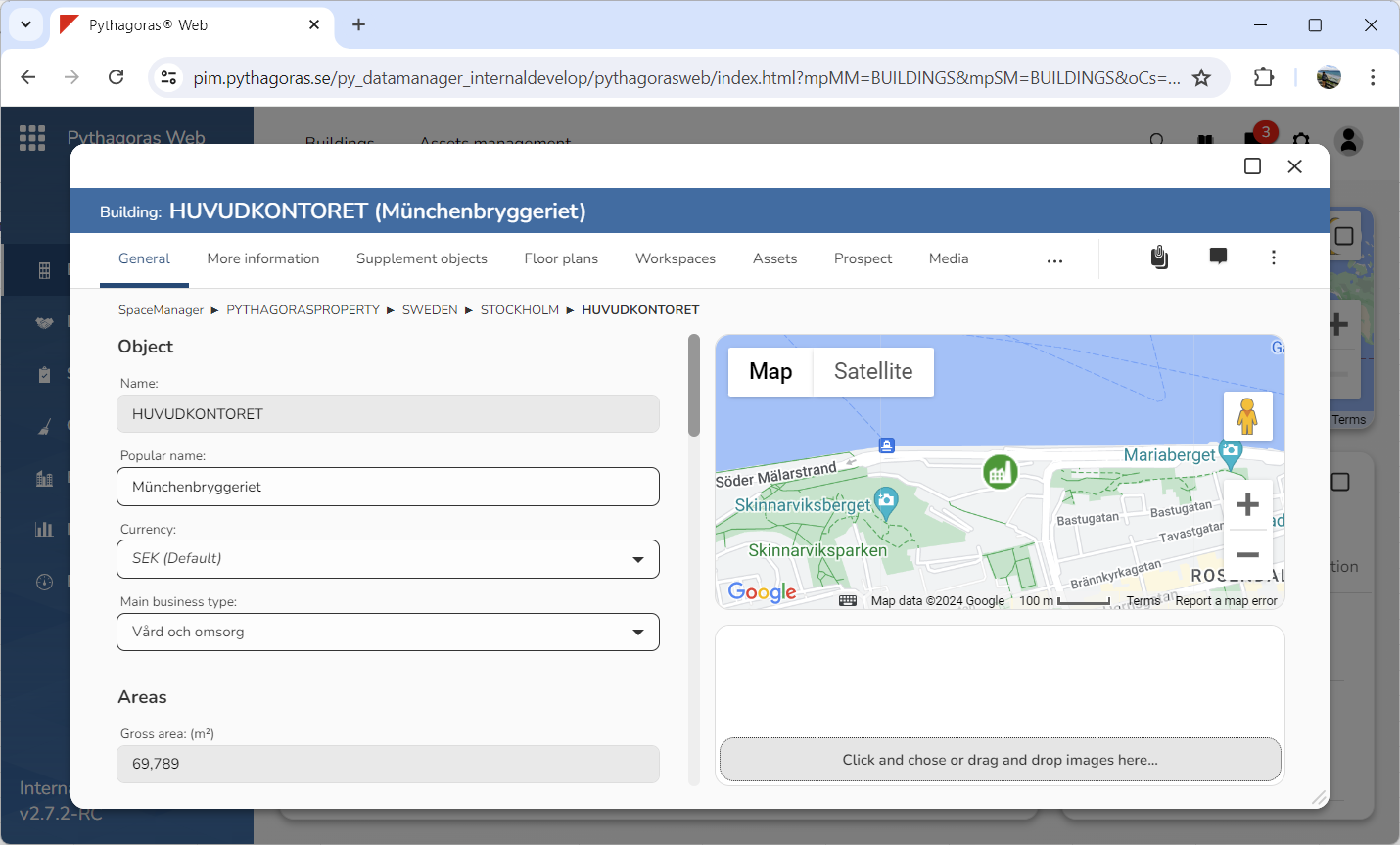
Go to the building card (see image below).
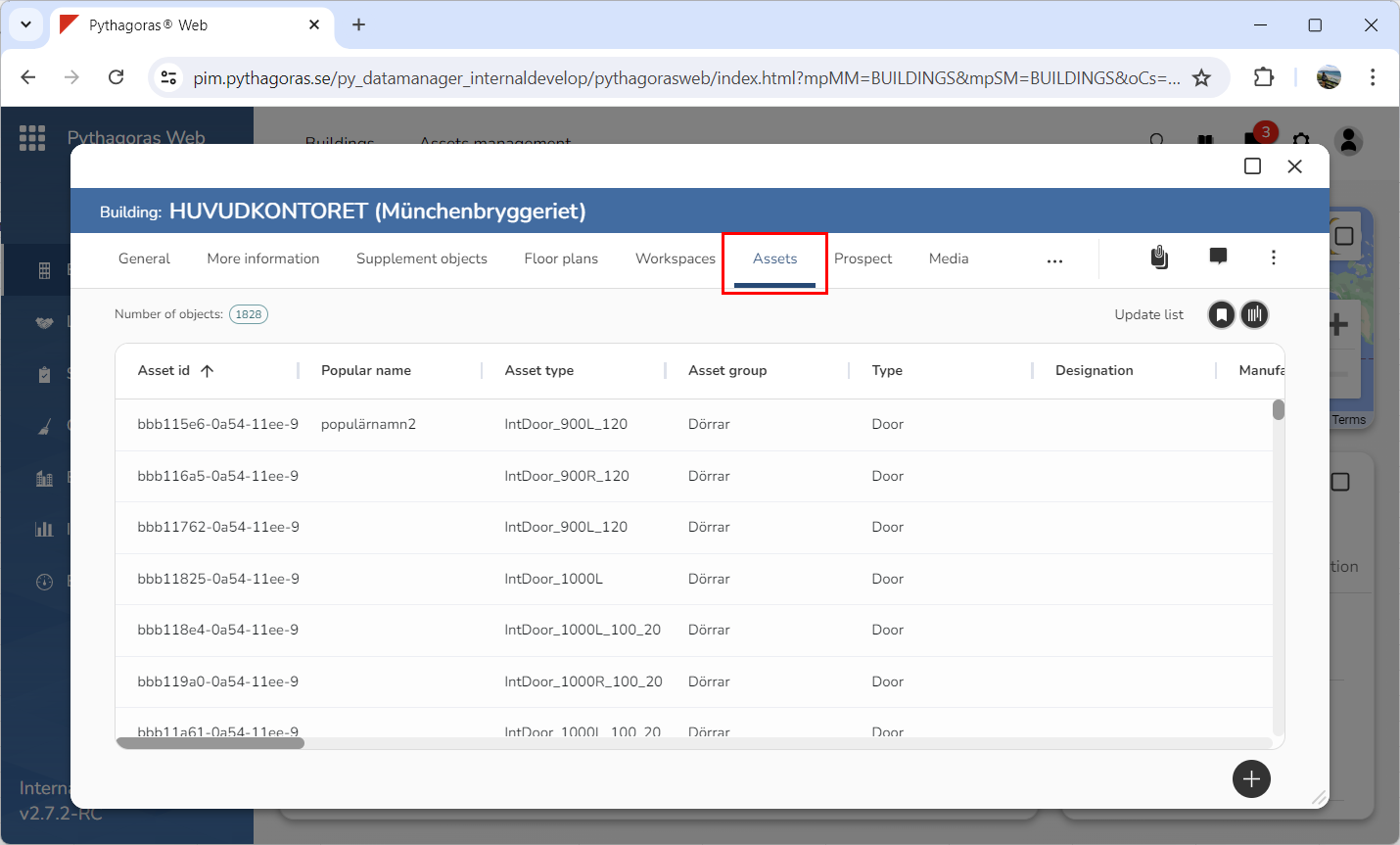
Click the tab called "Assets" (see image below). Within the tab called "Assets" you will find a list of the assets. In the assets list you can see the assets associated with the building you are working with.
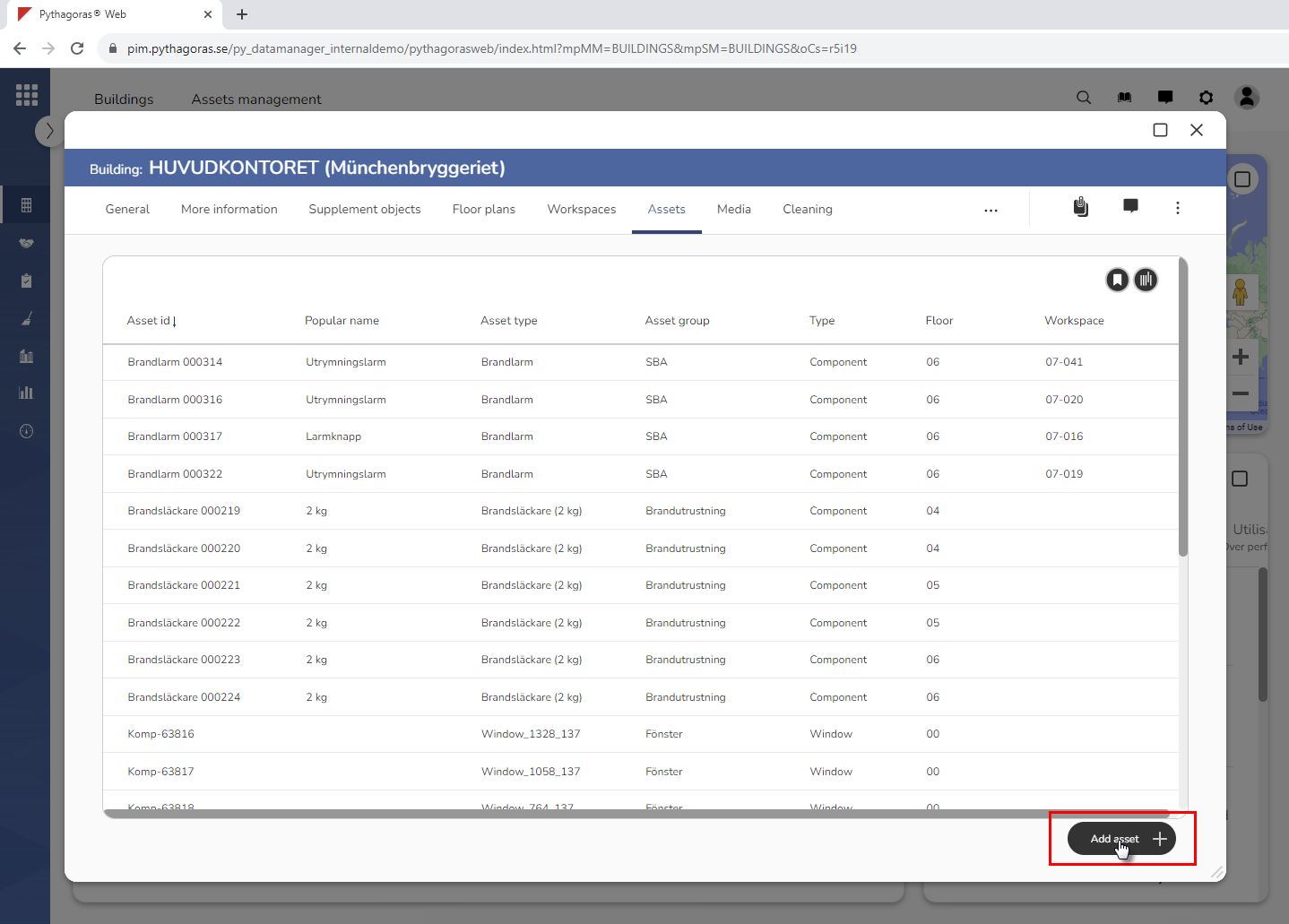
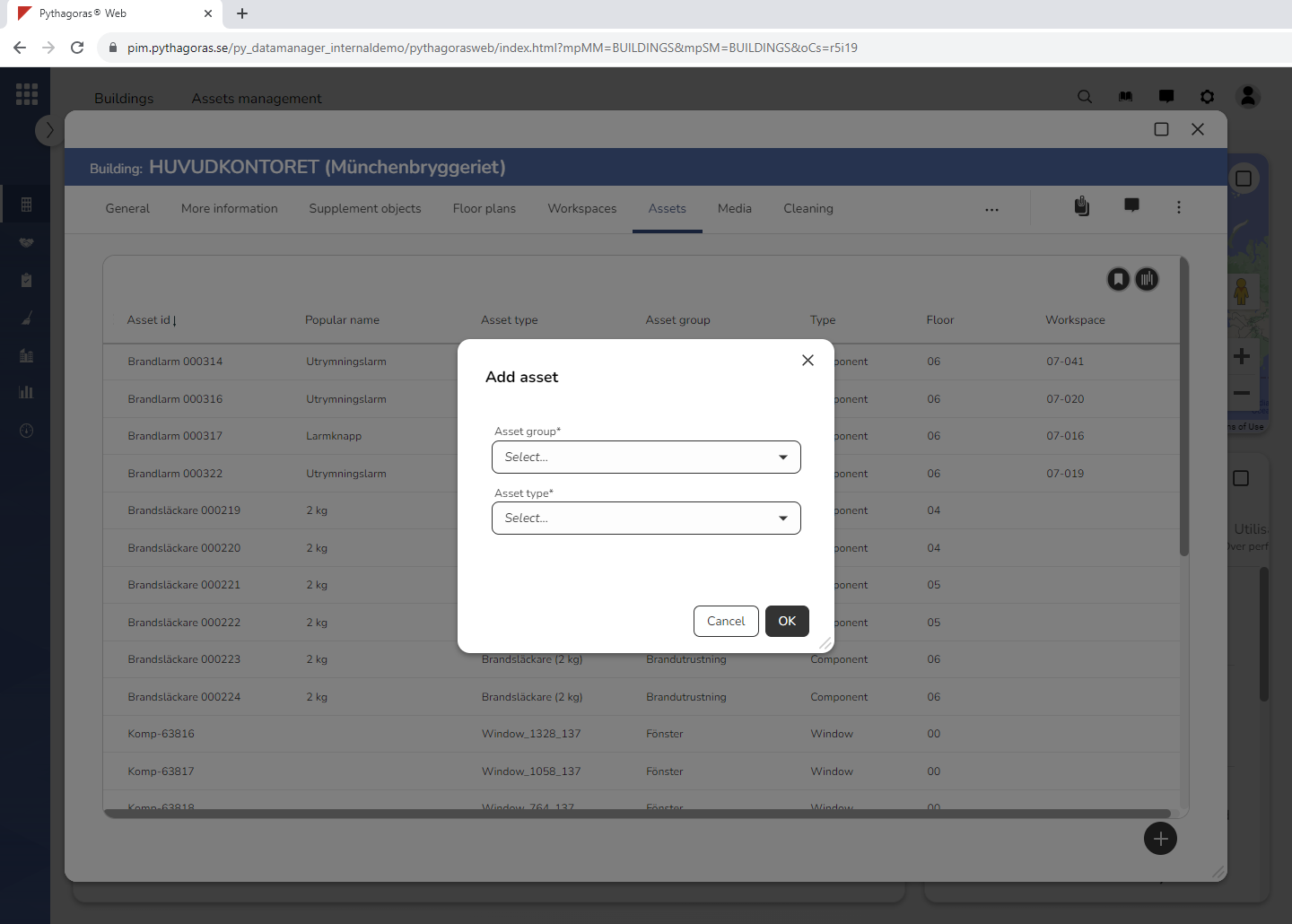
Click "Add asset" (see the first image below). When you do so, a window called "Add asset" will open (see the second image below).
Go to the window called "Add asset".
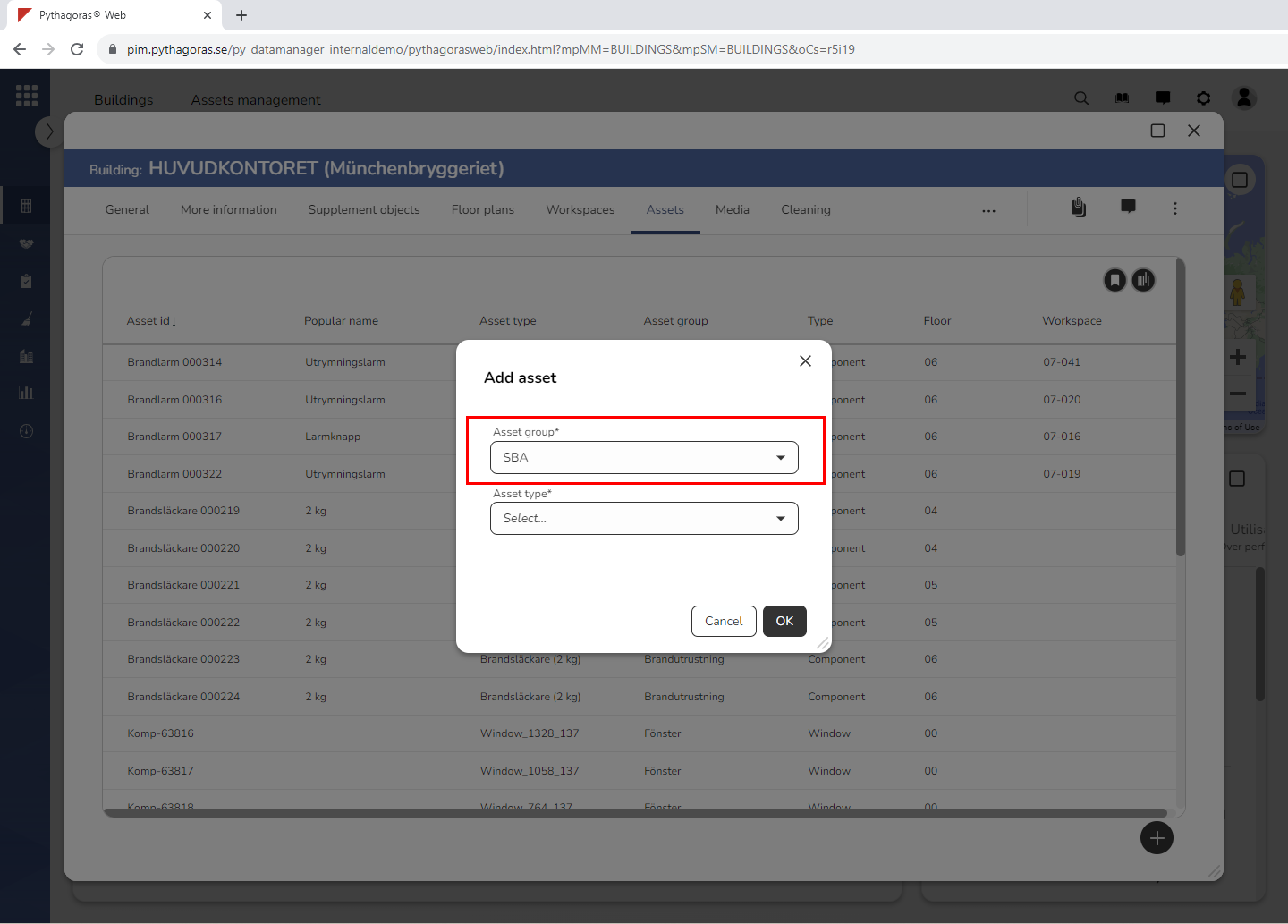
Specify to which asset group the asset you are adding in Pythagoras Web should belong by clicking the field "Asset group" and then selecting an asset group in the list "Select asset group" (see image below).
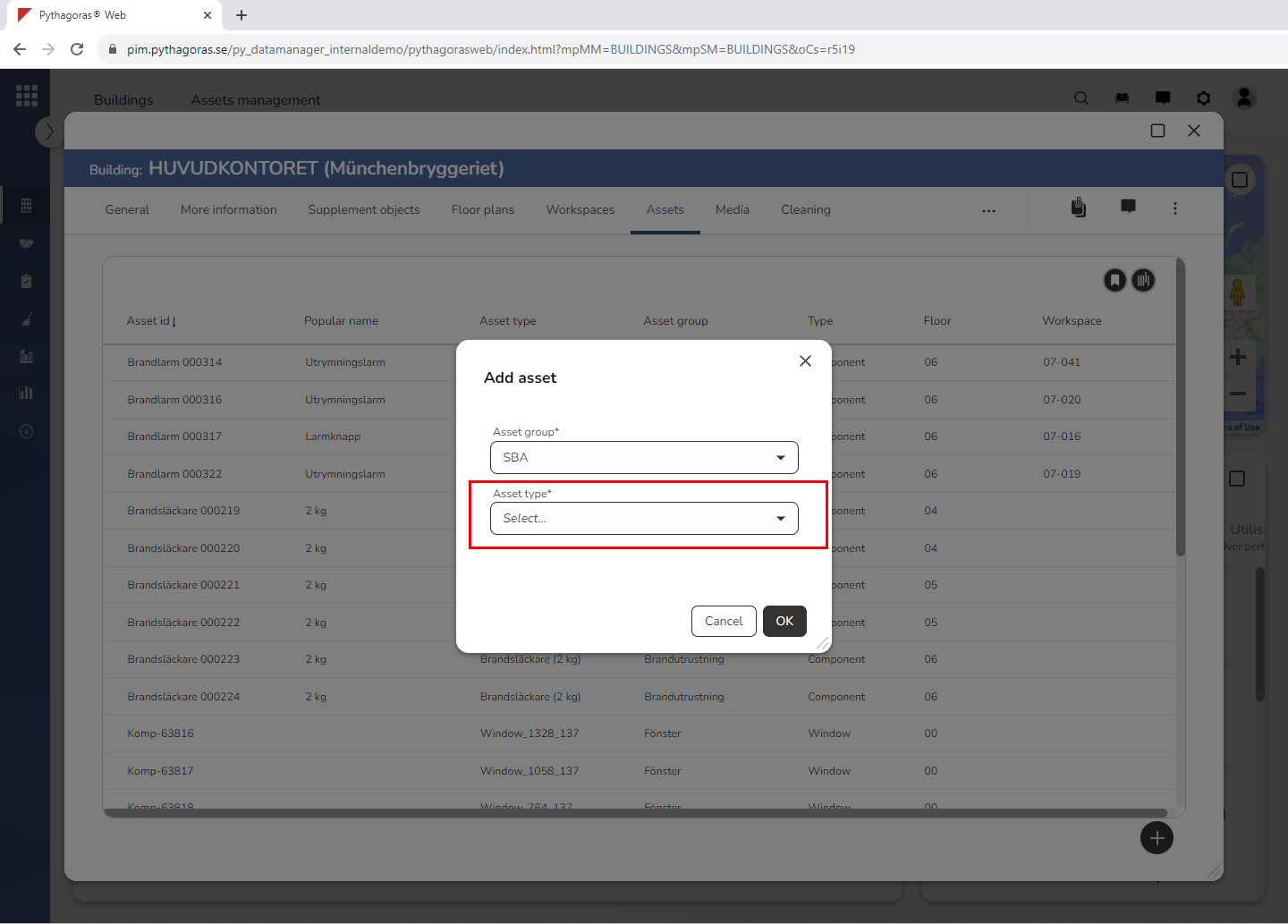
Specify which type of asset you are adding in Pythagoras Web by clicking the field "Asset type" and then selecting an asset type in the list "Select asset type" (see image below).
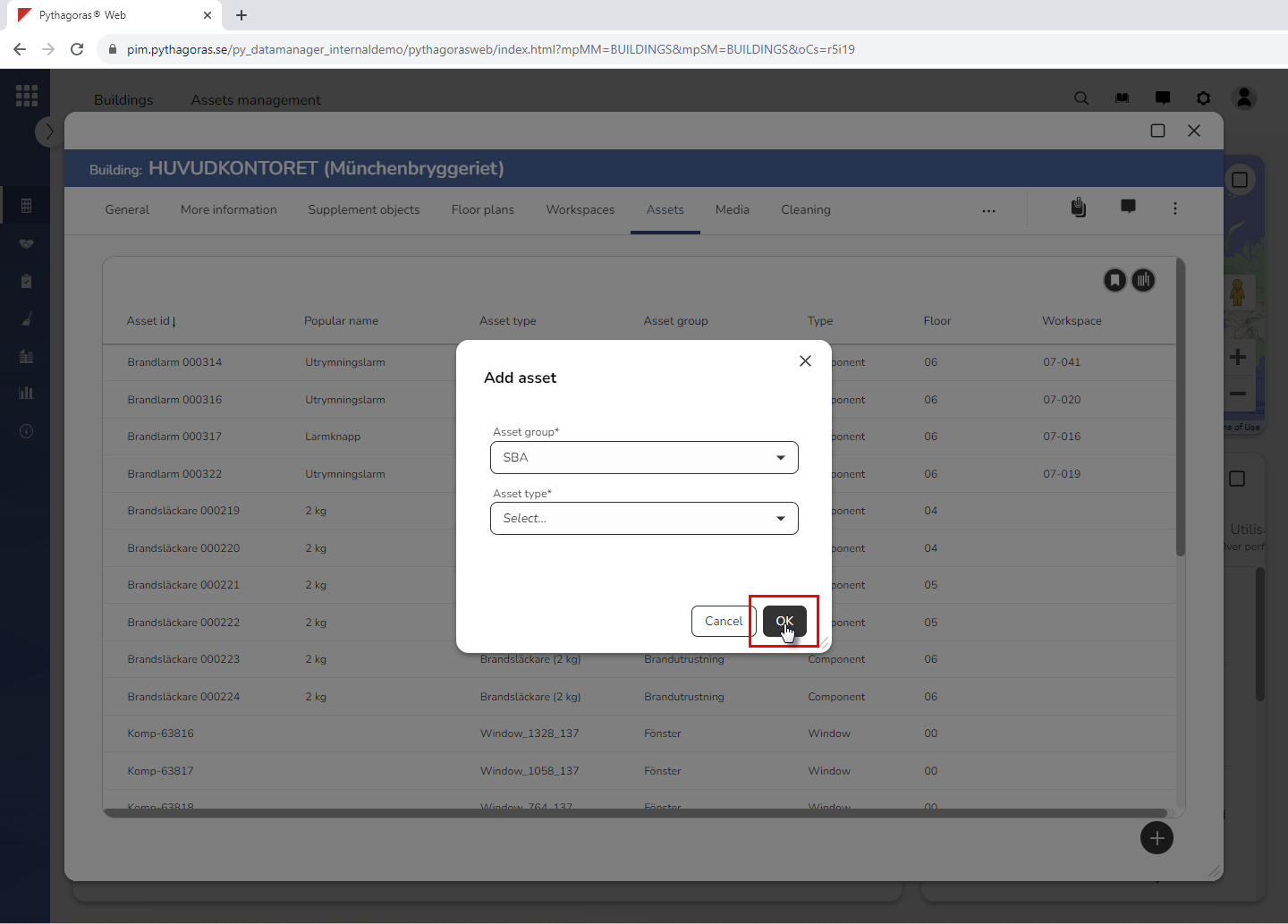
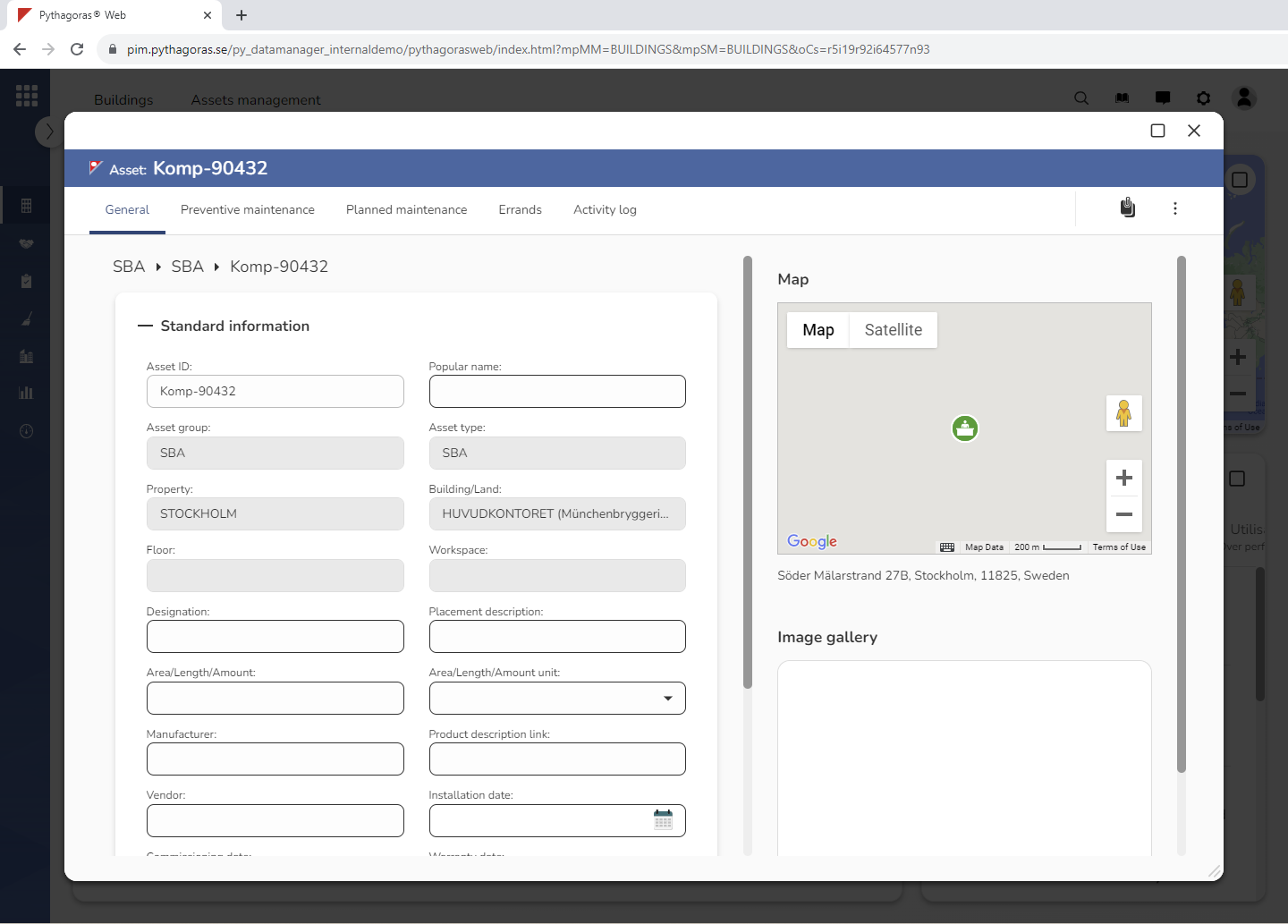
Click "OK" (see the first image below). When you do so, an asset associated with the building you are working with will be added in Pythagoras Web. When an asset has been added in Pythagoras Web, its asset card will open (see the second image below). Via the asset card you can work with an asset. For more information on how to work with assets in Pythagoras Web, see the manual for the Asset Management module. You will find it here.