When you add a 3D model in Pythagoras Web, you and your colleagues will be able to select the 3D model when defining 3D models for the asset types you have access to.
To add a 3D model in Pythagoras Web:
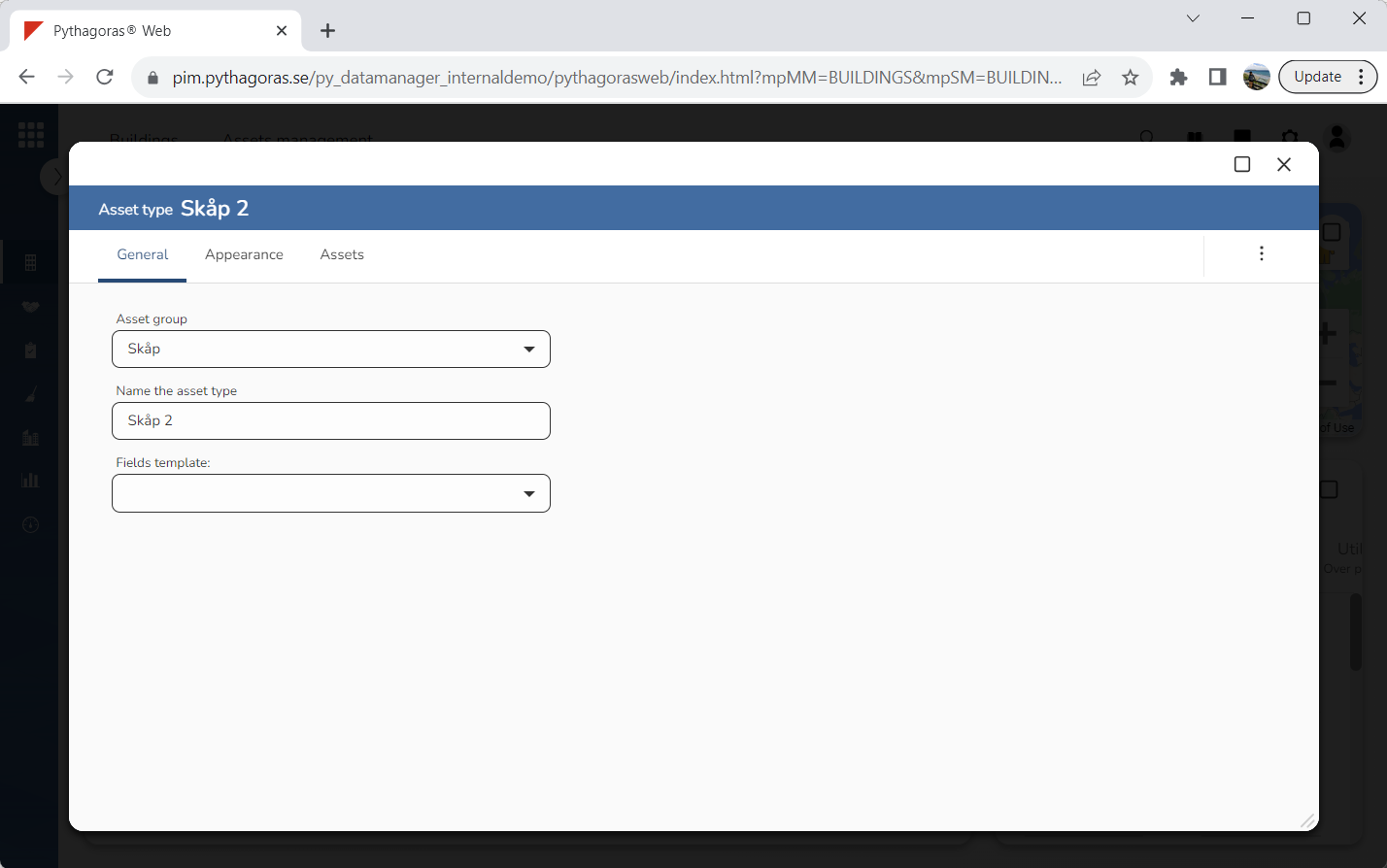
Open an asset type. For more information on how to do so, see the section "Open an asset type".
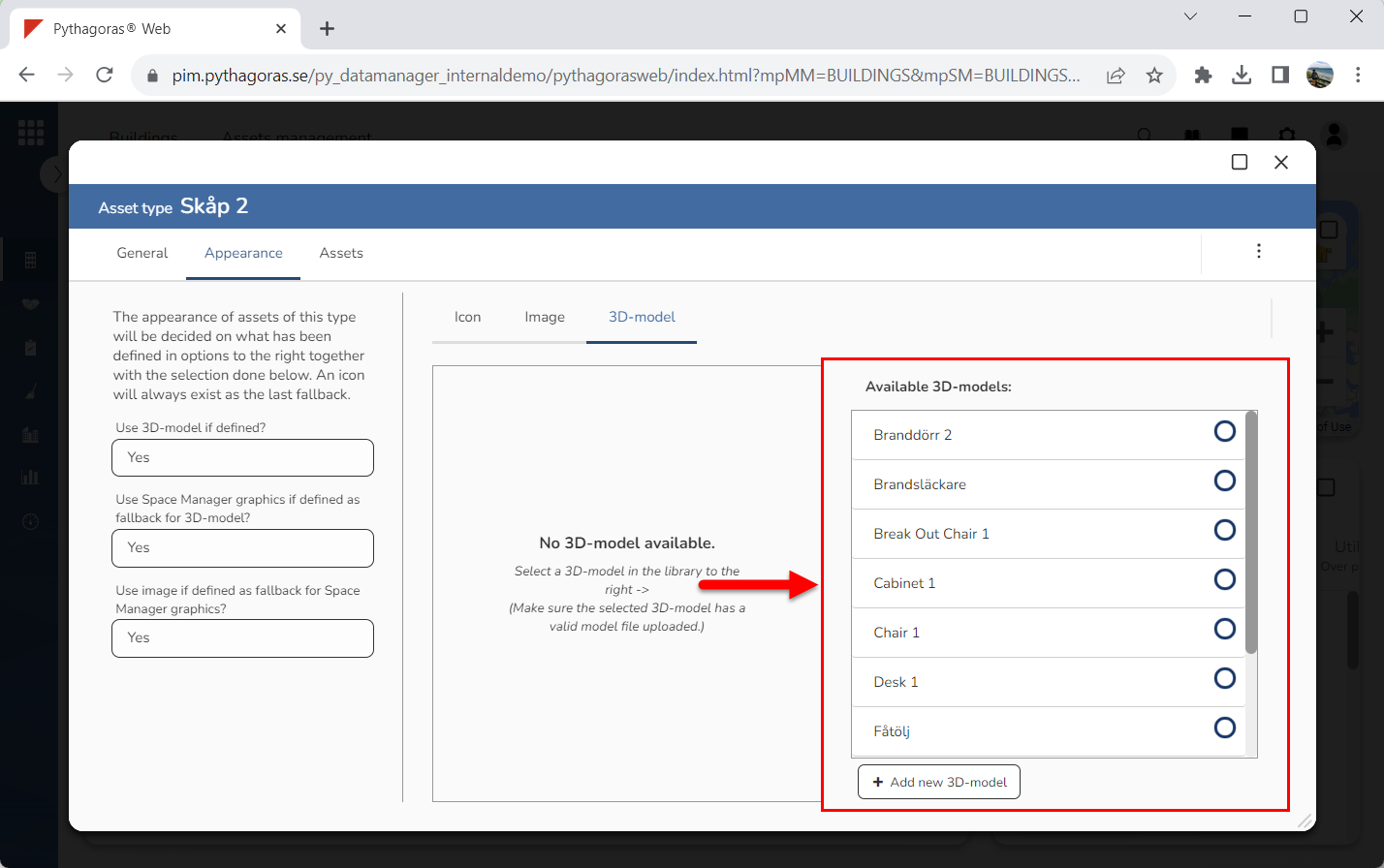
Go to the asset type card (see image below).
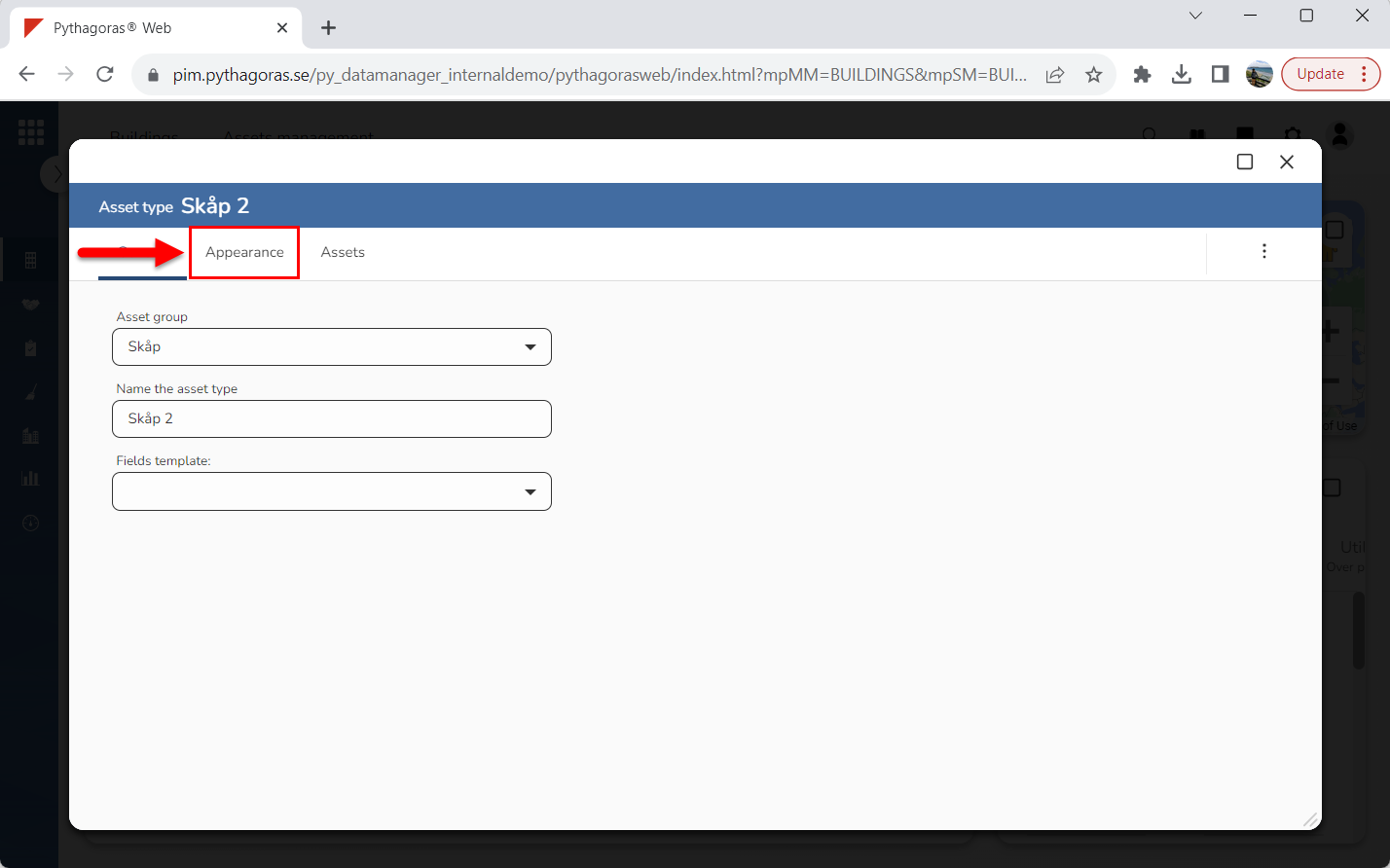
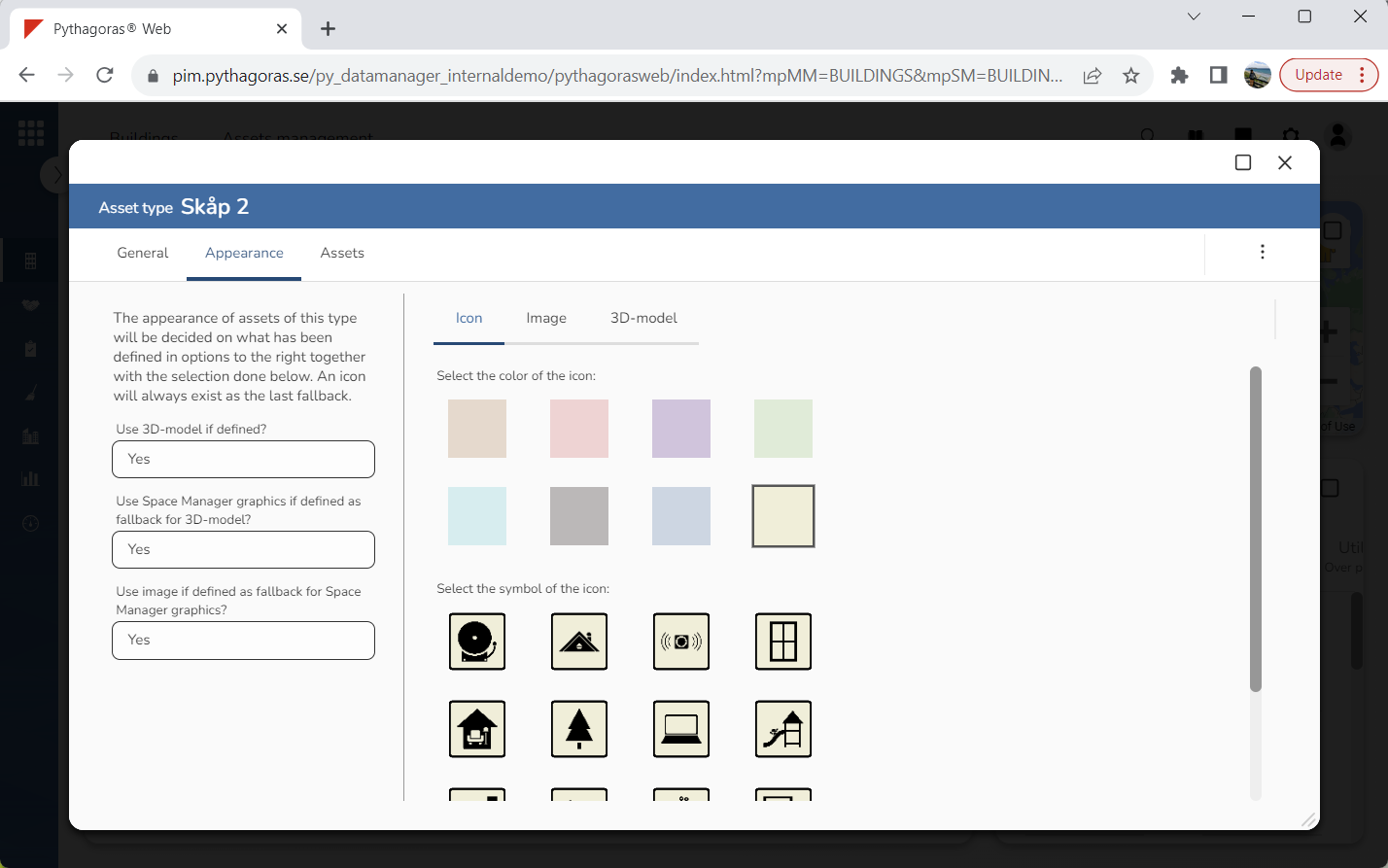
Click the tab called "Appearance" (see the first image below). Clicking the tab called "Appearance" will allow you to define the appearance of the asset type you are working with (see the second image below).
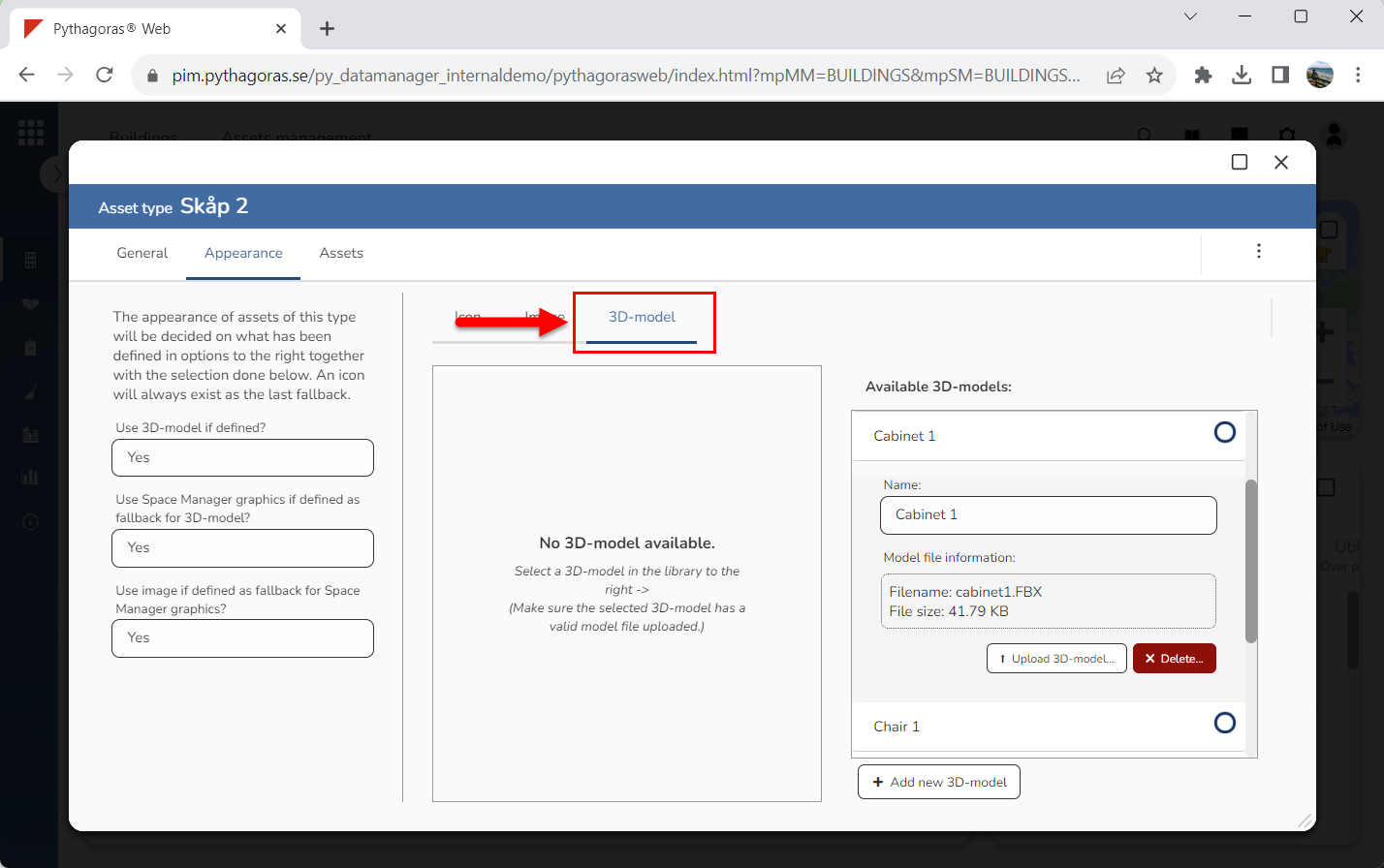
Click the tab called "3D model" (see image below).
Go to the list of available 3D models (see image below).
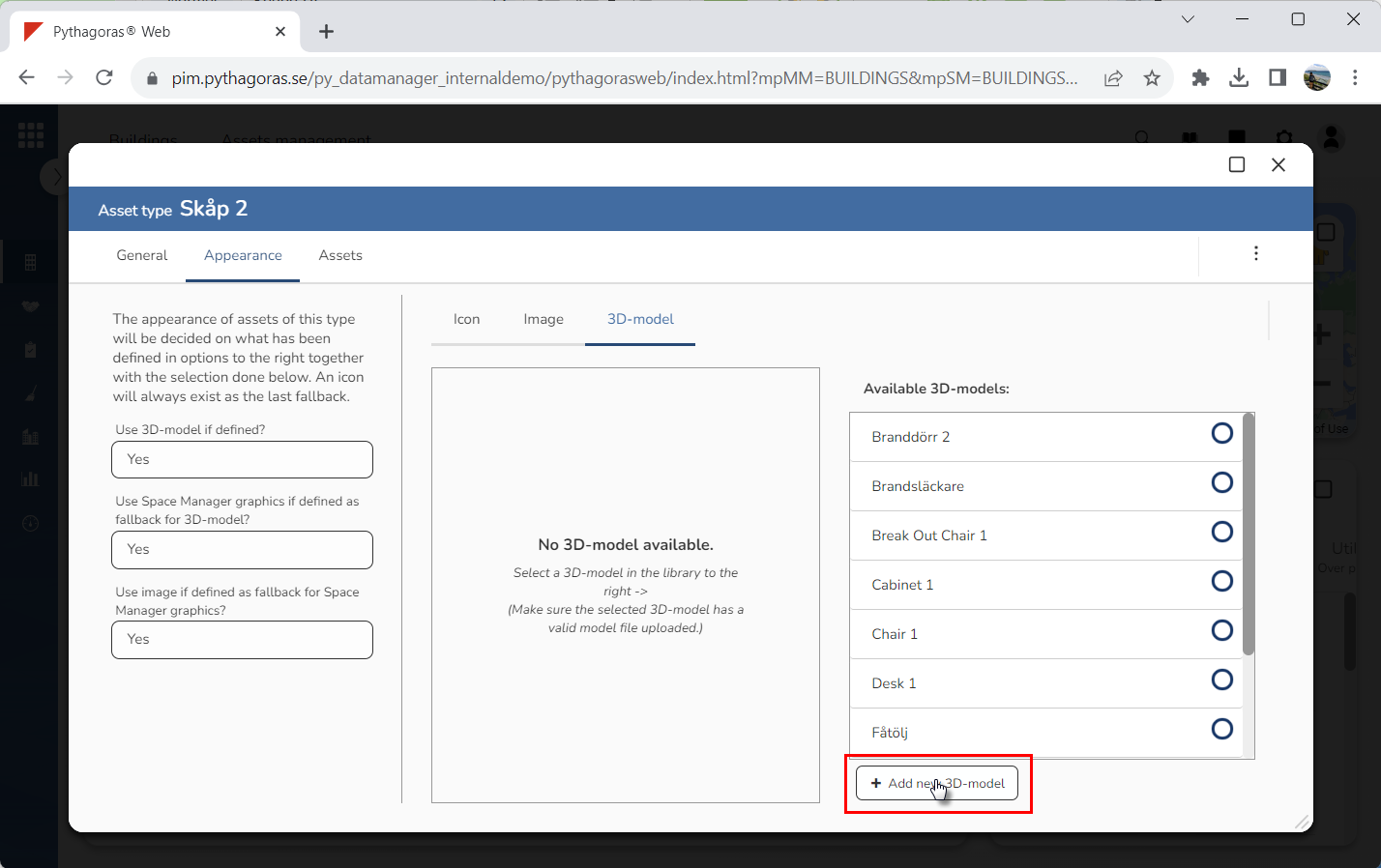
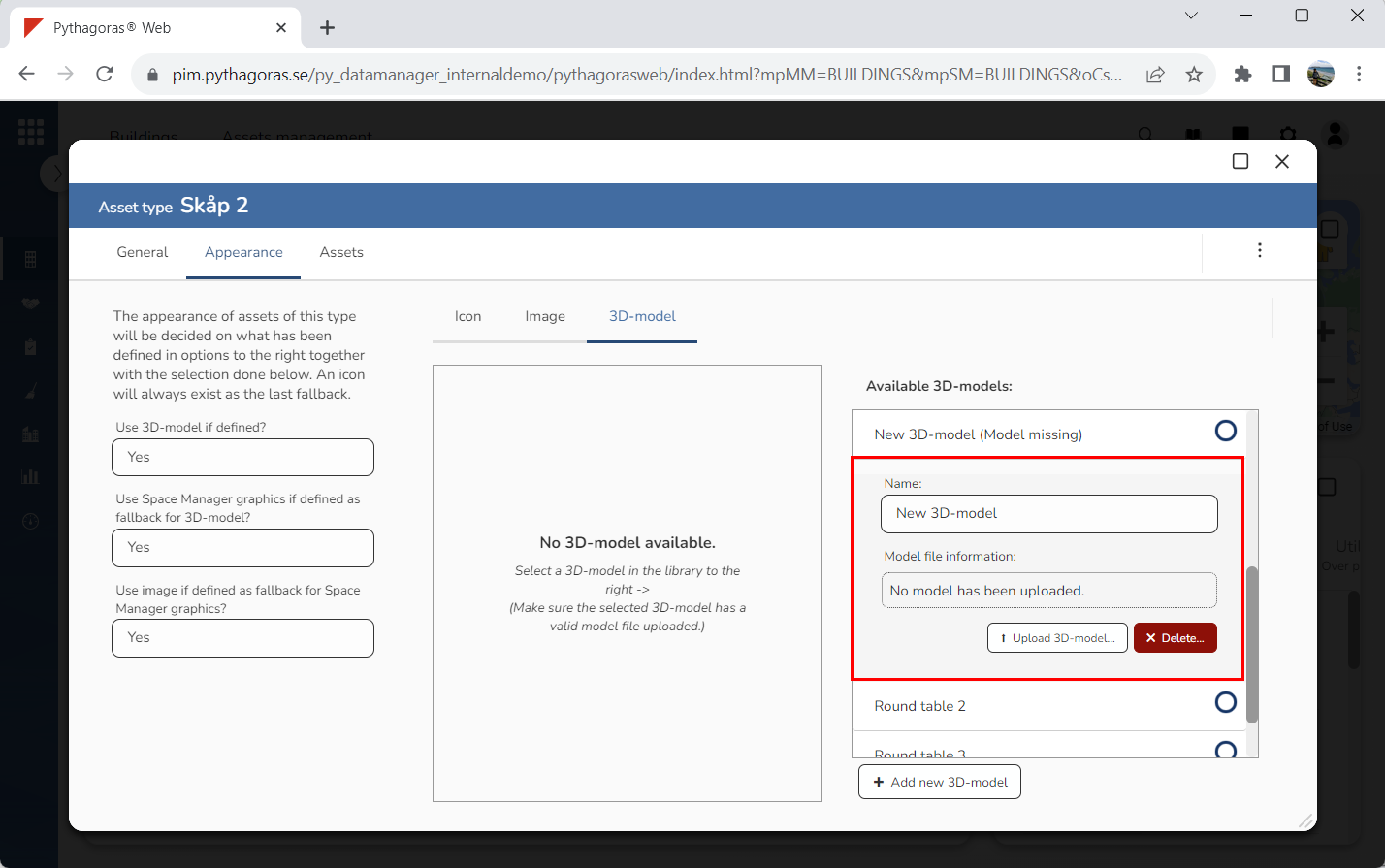
Click "Add new 3D-model" (see the first image below). When you do so, a 3D model called "New 3D-model (Model missing)" will be added in Pythagoras Web (see the second image below). Note that, you must now name and attach a model file to the 3D model you added in the application. For more information on how to do so, see step 7 and 8.
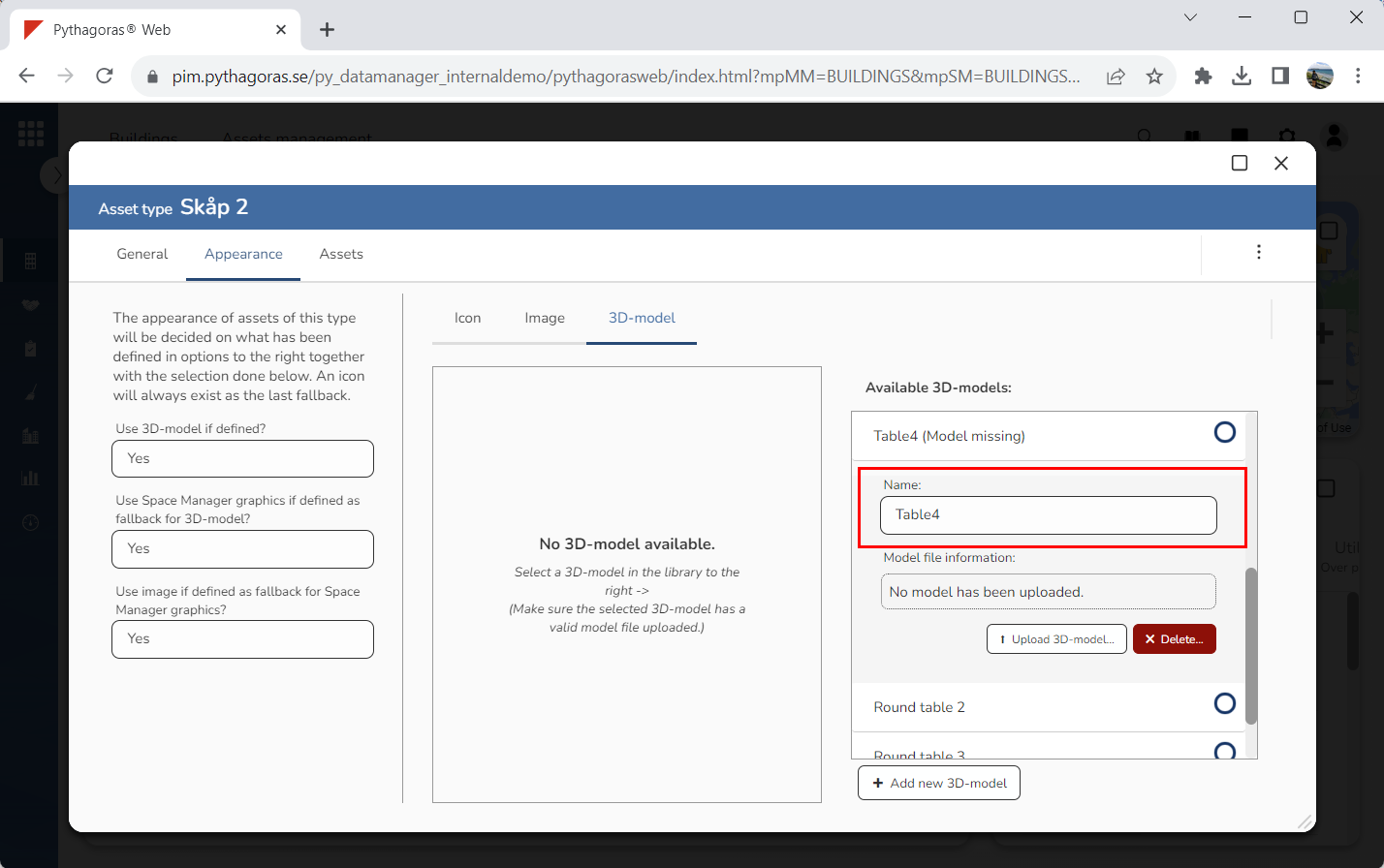
Name the 3D model you added in Pythagoras Web by entering a name in the field "Name" (see image below).
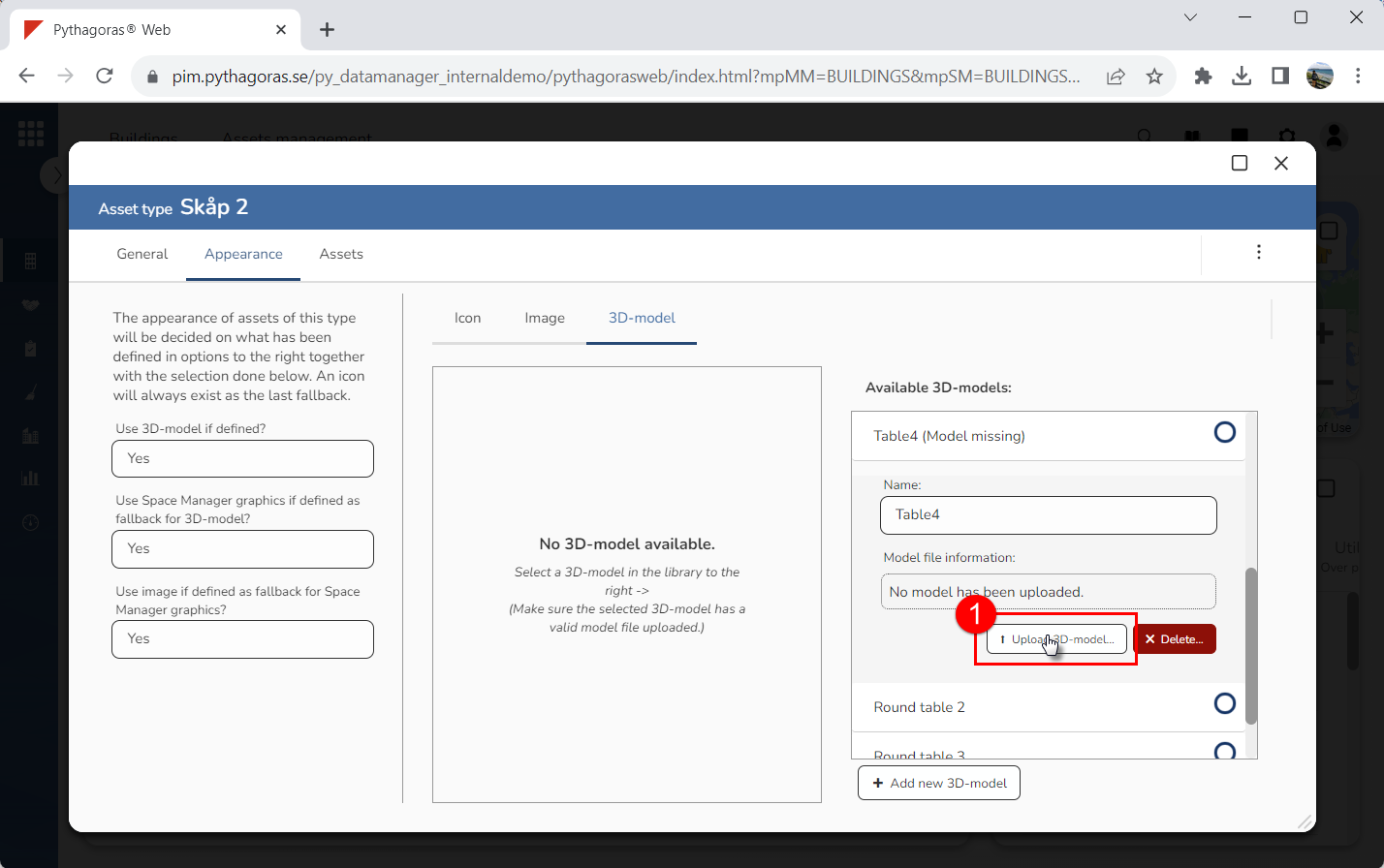
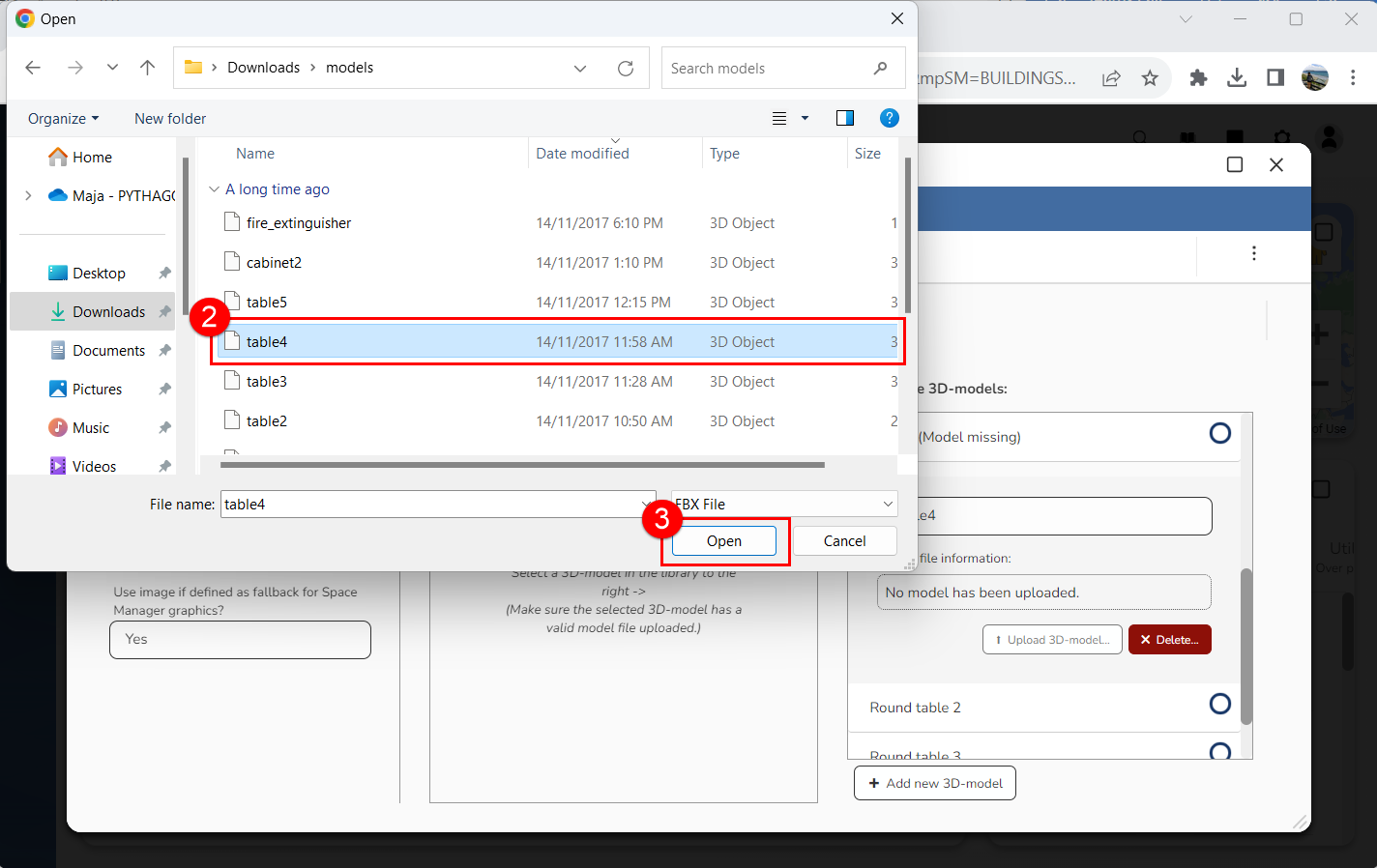
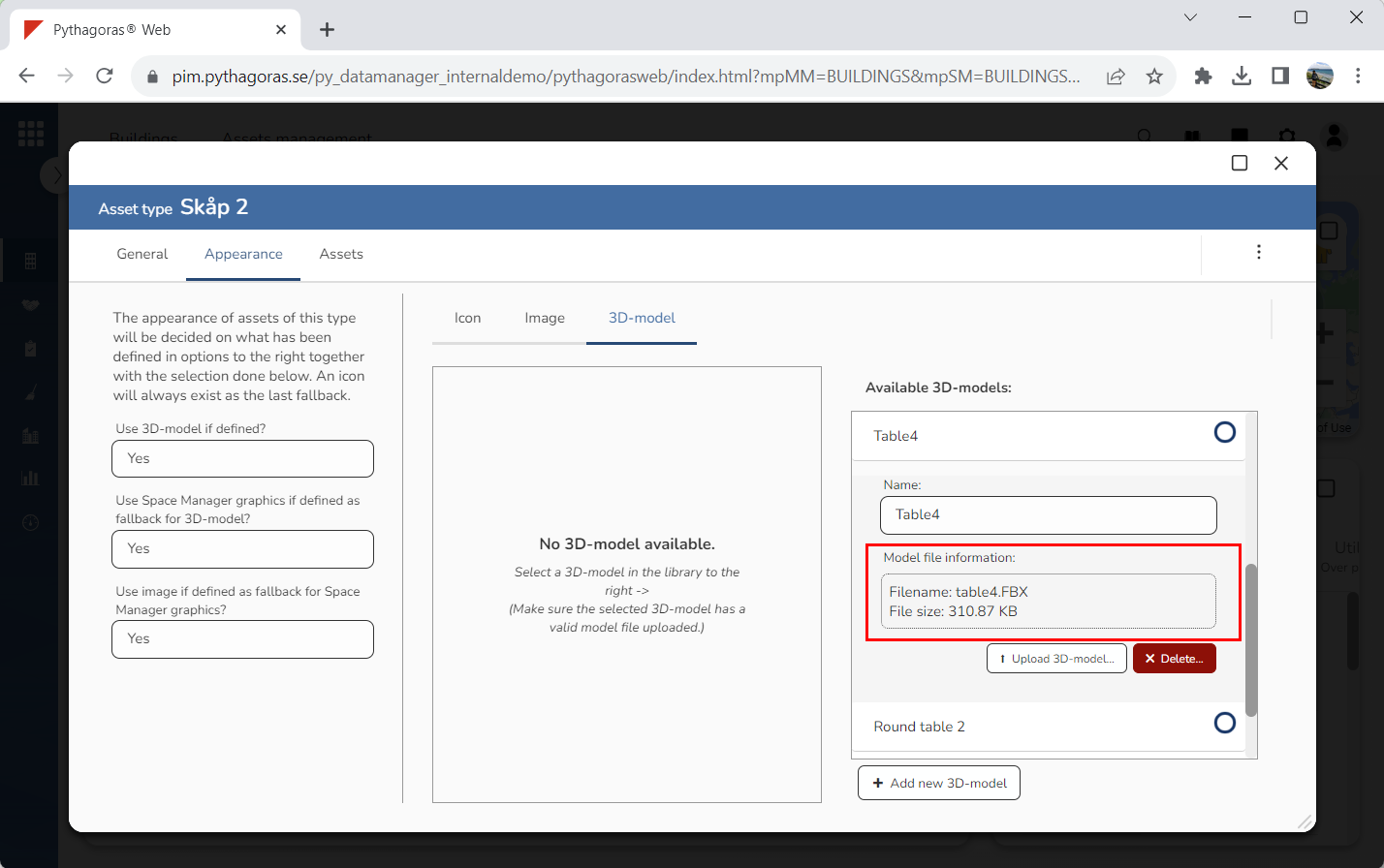
Attach a model file to the 3D model you added in Pythagoras Web by clicking "Upload 3D model" and then selecting a model file in the window called "Open" (see the images below). Note that, the model file must be of the type FBX.