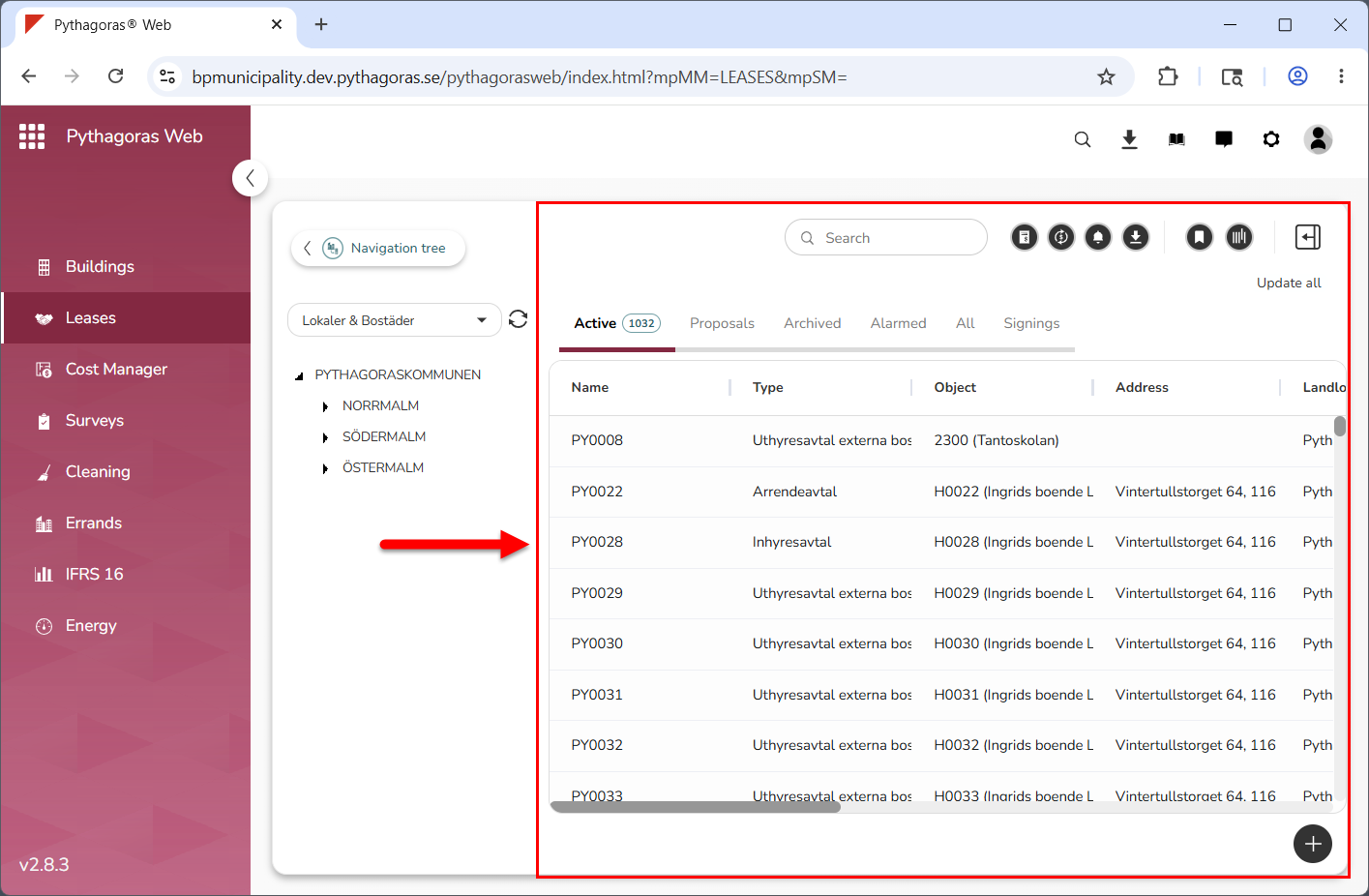
The object list is located to the right of the menu and the navigation window, below the global settings area (see image below).
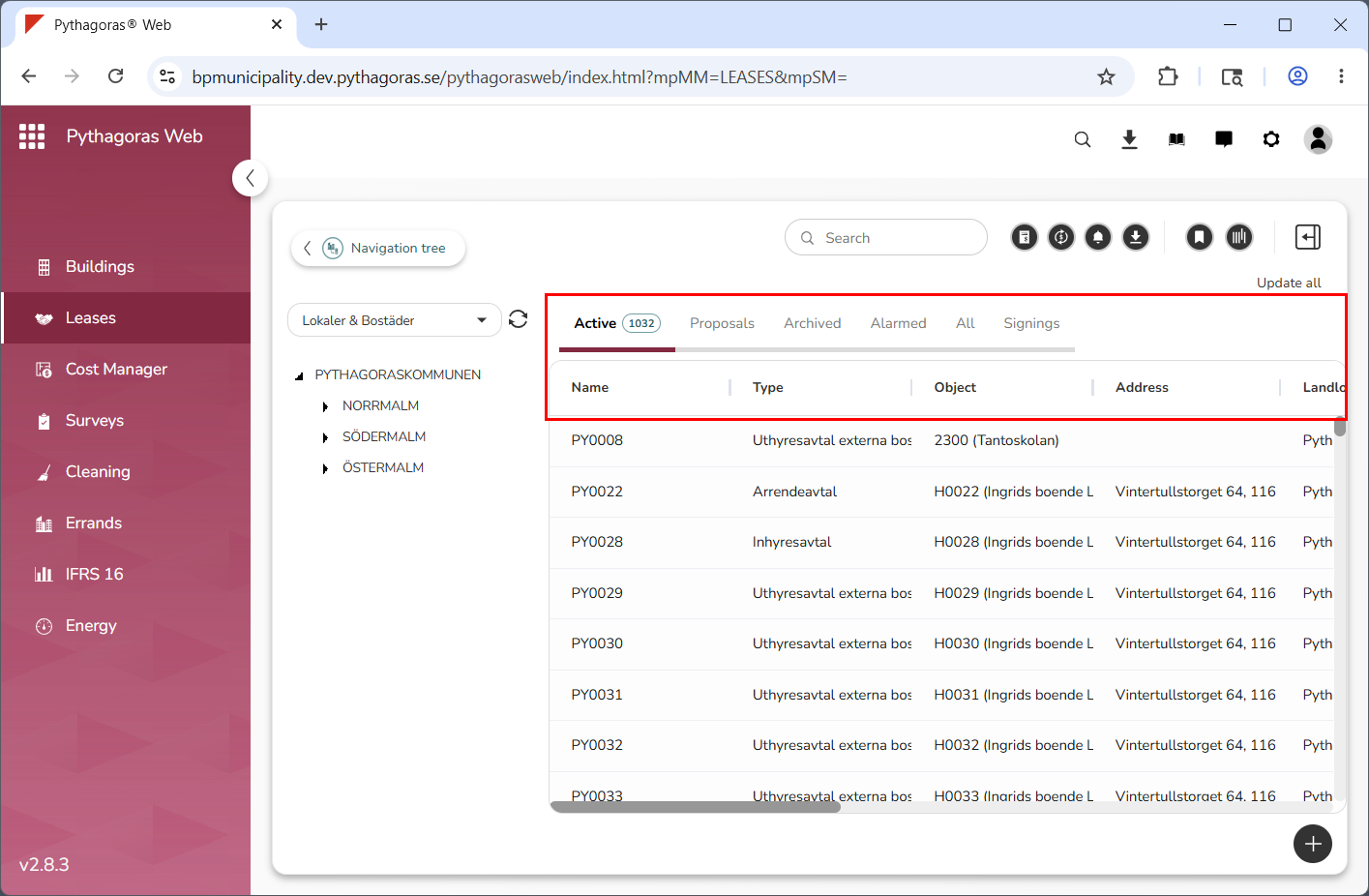
In the object list you will find the leases available to you, as well as a number of tabs and columns (see image below). The tabs are always the same: "Active", "Proposals", "Archived", "Alarmed", "All" and "Signings". The columns can vary depending on which view is shown in the object list. Note that, to have access to the Signings tab, your organisation must use digital signing with Scrive in Leases.
The object list is linked to the map and the navigation tree. For more information about the connection between the object list, the map and the navigation tree, see section 2.7.
When working with the object list you can:
open leases
create leases
filter it
update it
fix leases
create lease information reports
export it to Excel
work with payment basis and create reports with payment information
work with invoicing basis and create reports with payment and invoicing information
work with views for it.
For more information on how to:
open a lease via the object list, see section 6.1.
create a lease, see section 6.2.
filter the object list, see section 6.3.
update the object list, see section 6.4.
fix leases, see section 6.5.
create lease information reports, see section 6.6.
export the object list to Excel, see section 6.7.
work with payment basis and create reports with payment information, see section 6.8.
work with invoicing basis and create reports with payment and invoicing information, see section 6.9.
work with views for the object list, see chapter 2 in this manual.