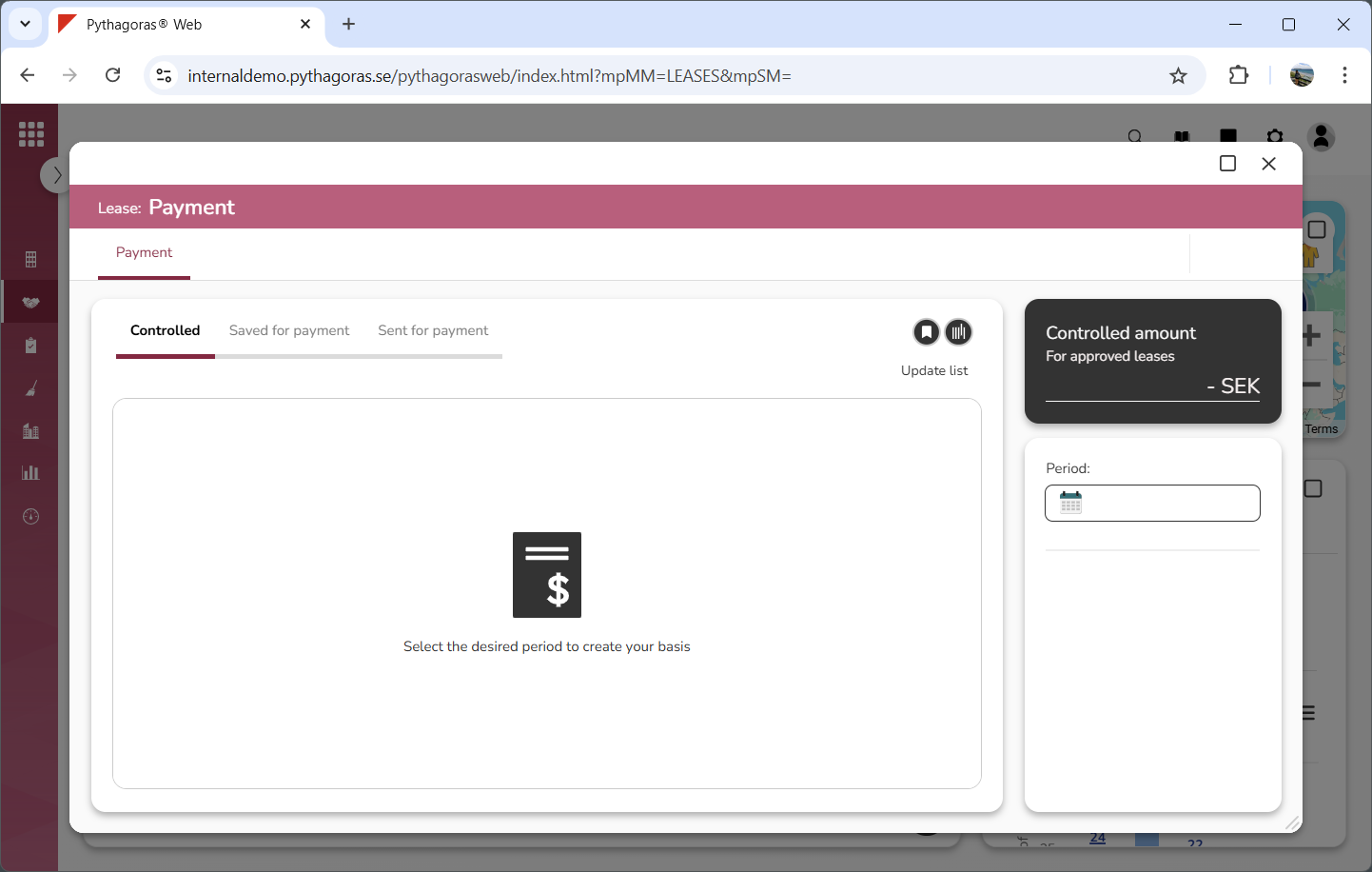
Open the payment window. For more information on how to do so, see section 6.8.1.
Go to the payment window (see image below).
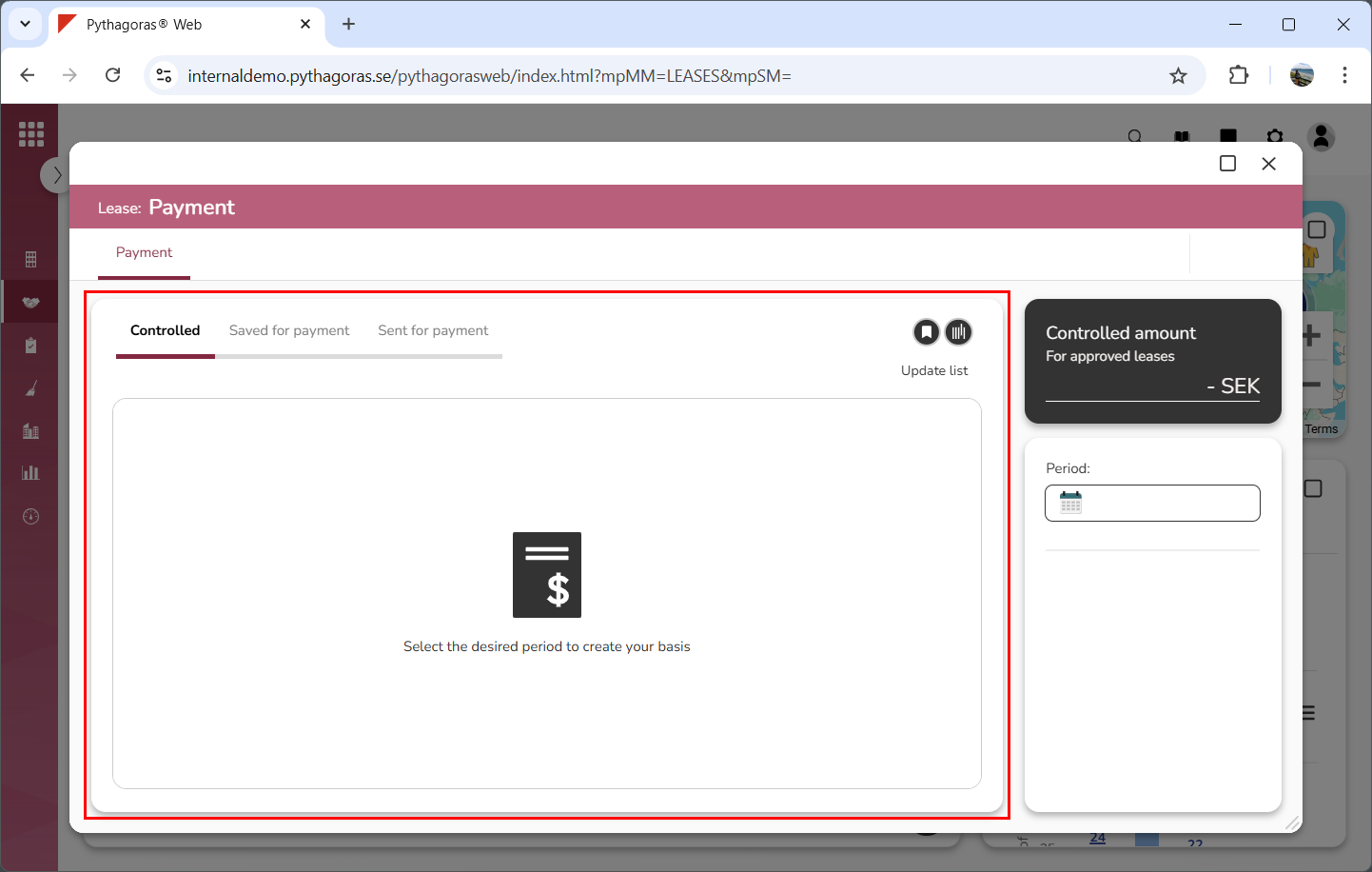
Go to the leases list (see image below).
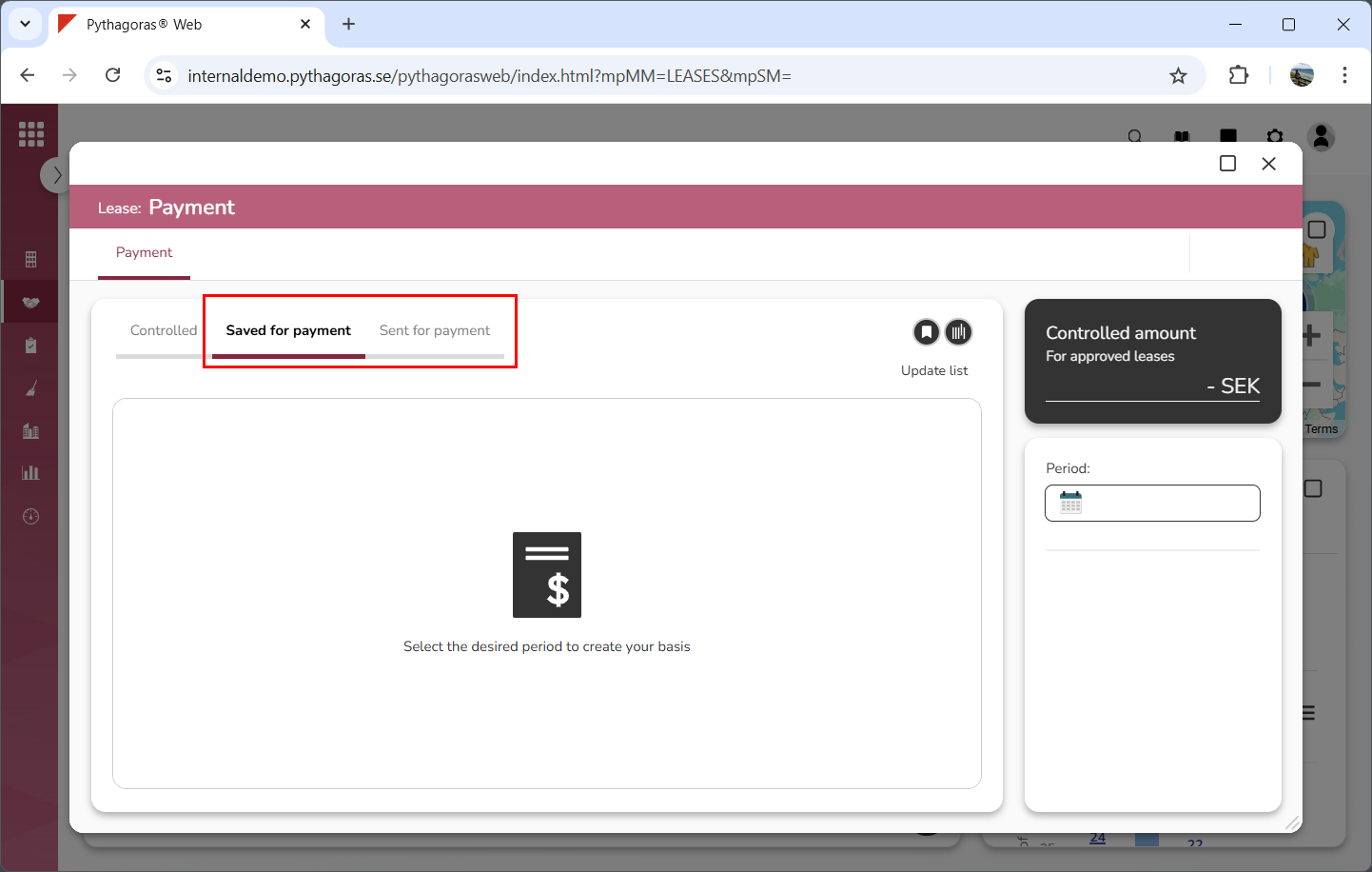
Click the tab for which you wish to create a report: "Saved for payment" or "Sent for payment" (see image below).
Specify the period for which you wish to create a report by clicking the field "Period" and selecting a period in the calendar that opens (see image below). When you select a period, the leases for which a payment basis has been created or sent during the selected period will be filtered in the leases list (see the second image below).
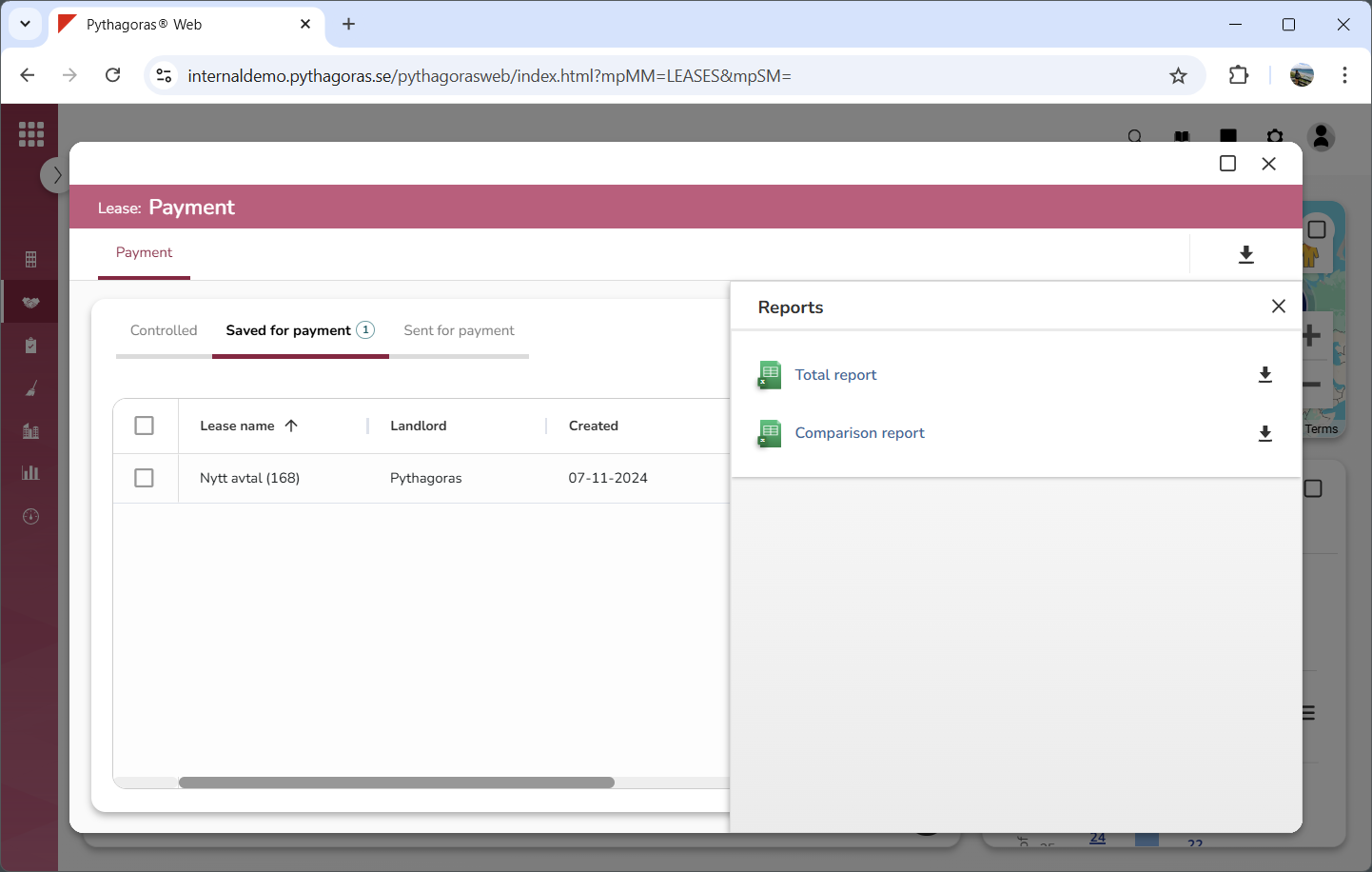
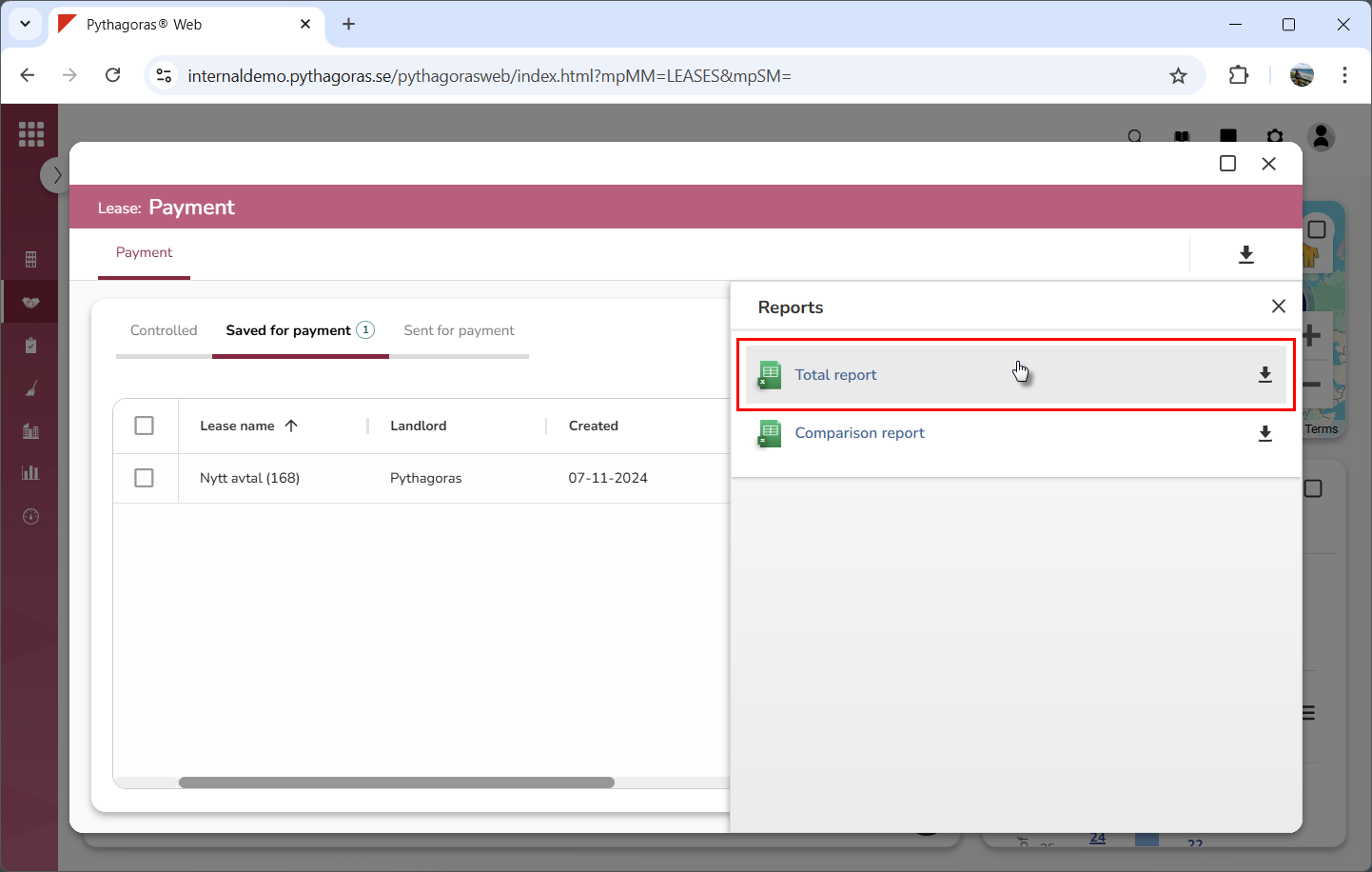
Click the icon "Reports" (see the first image below). When you do so, a reports card will open (see the second image below).
Go to the reports card.
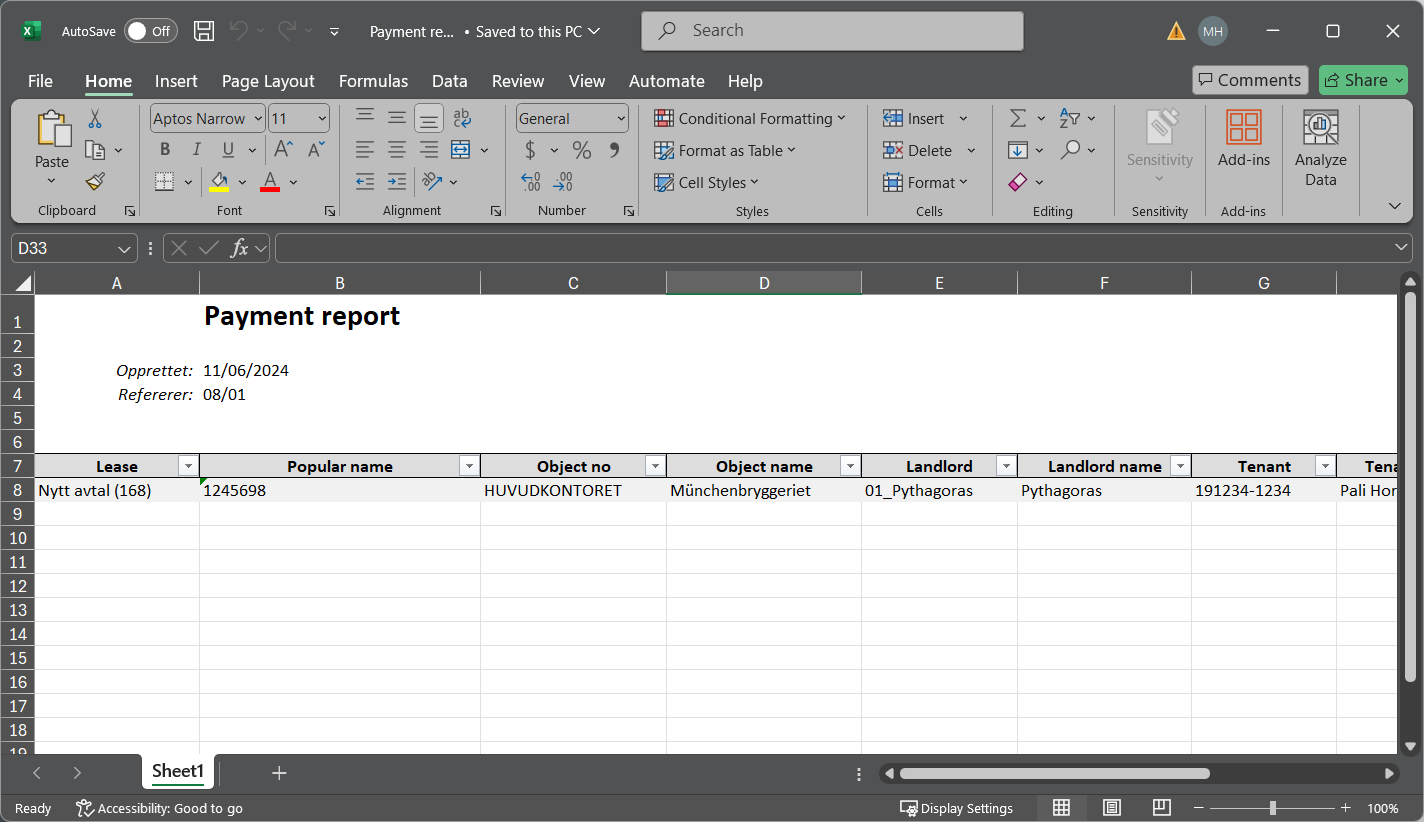
Click the report you wish to create (see the first image below). Note that a report of the type you click will be created (see the second image below). For more information about the different reports, continue reading below the images below.
The report called "Total report" will include all the leases for which payment basis were created or sent during the selected period.
The report called "Comparison report" will compare the payment amount of the selected period and the previous period that is closest in time. The comparison is based on new leases, leases that are no longer invoiced and leases whose costs have been invoiced.