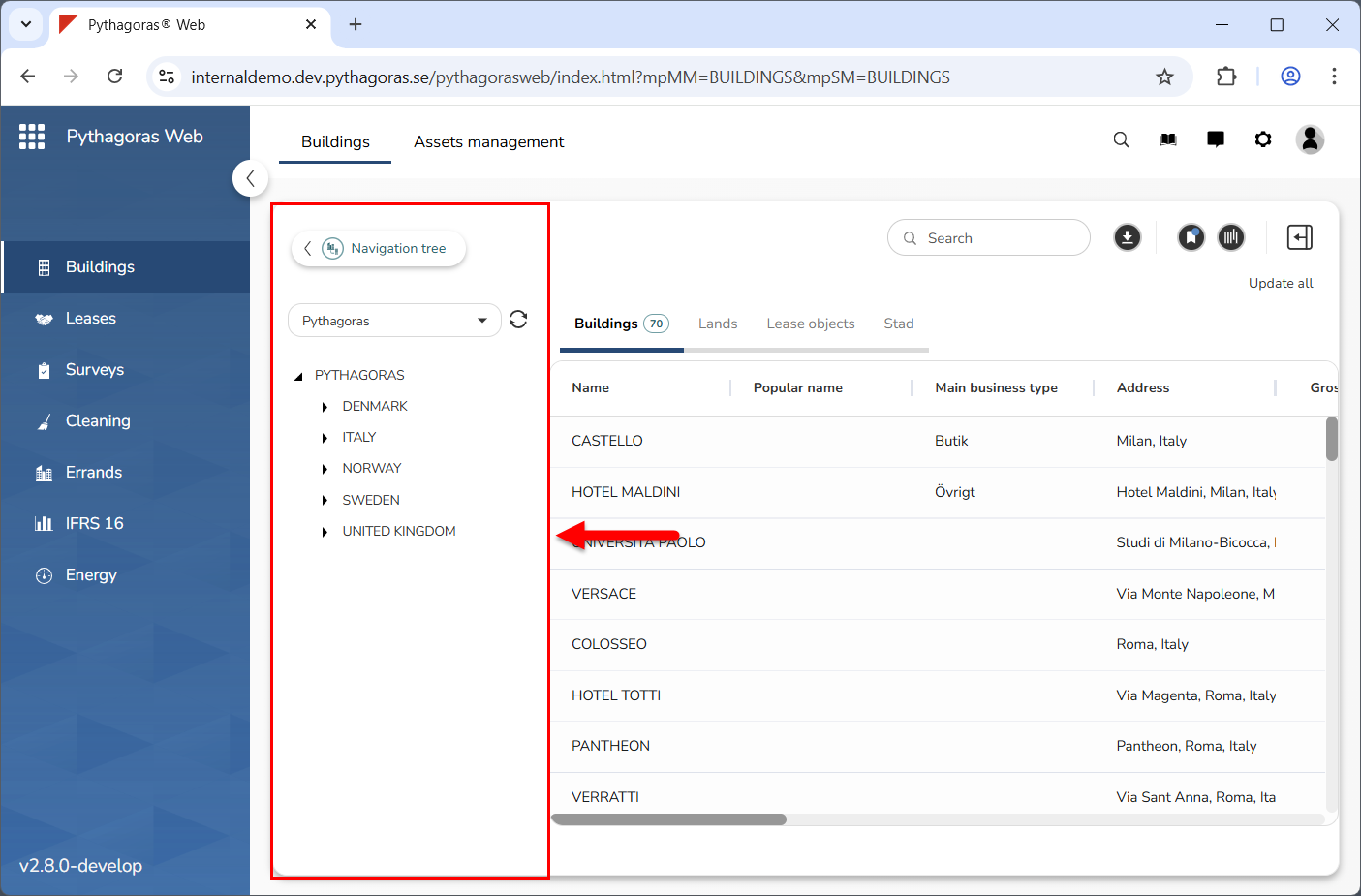
2.5. This is the navigation window and the navigation tree
The navigation window is located between the menu and the object list (see image below). In the navigation window you will find a navigation tree. Which navigation tree you find in the navigation window depends on which navigation tree is set as default in Pythagoras Web or which navigation tree you have chosen to work with.
The navigation tree is linked to the object list and the map. For more information about the connection between the object list, the map, and the navigation tree, see section 2.7.
When working with the navigation window and the navigation tree you can:
show and hide the navigation tree
select which navigation tree to work with
update the navigation tree you are working with
open the navigation trees, navigation folders, buildings, floors, land and/or supplement objects that you have access to
create new navigation trees
work with the settings for the navigation trees you have access to
remove navigation trees from Pythagoras Web.
For more information on how to:
show and hide the navigation tree, see section 5.1.
select which navigation tree to work with, see section 5.2.
update the navigation tree you are working with, see section 5.3.
open a navigation tree, a navigation folder, a building, a floor, a land object or a supplement object via the navigation tree, see section 5.4.
create a navigation tree, see section 5.5.
work with the navigation tree settings, see section 5.6.
remove a navigation tree from Pythagoras Web, see section 5.7.