When you remove a navigation folder from a navigation tree the navigation folder is removed from Pythagoras Web, meaning that, after you remove it, it does no longer exist anywhere in the application. Note that if you remove a navigation folder that has underlying objects such as buildings, land and/or lease objects attached to it, the underlying objects will also be removed from the navigation tree. However, the underlying objects are not removed from Pythagoras Web, but remain in the application.
To remove a navigation folder from a navigation tree:
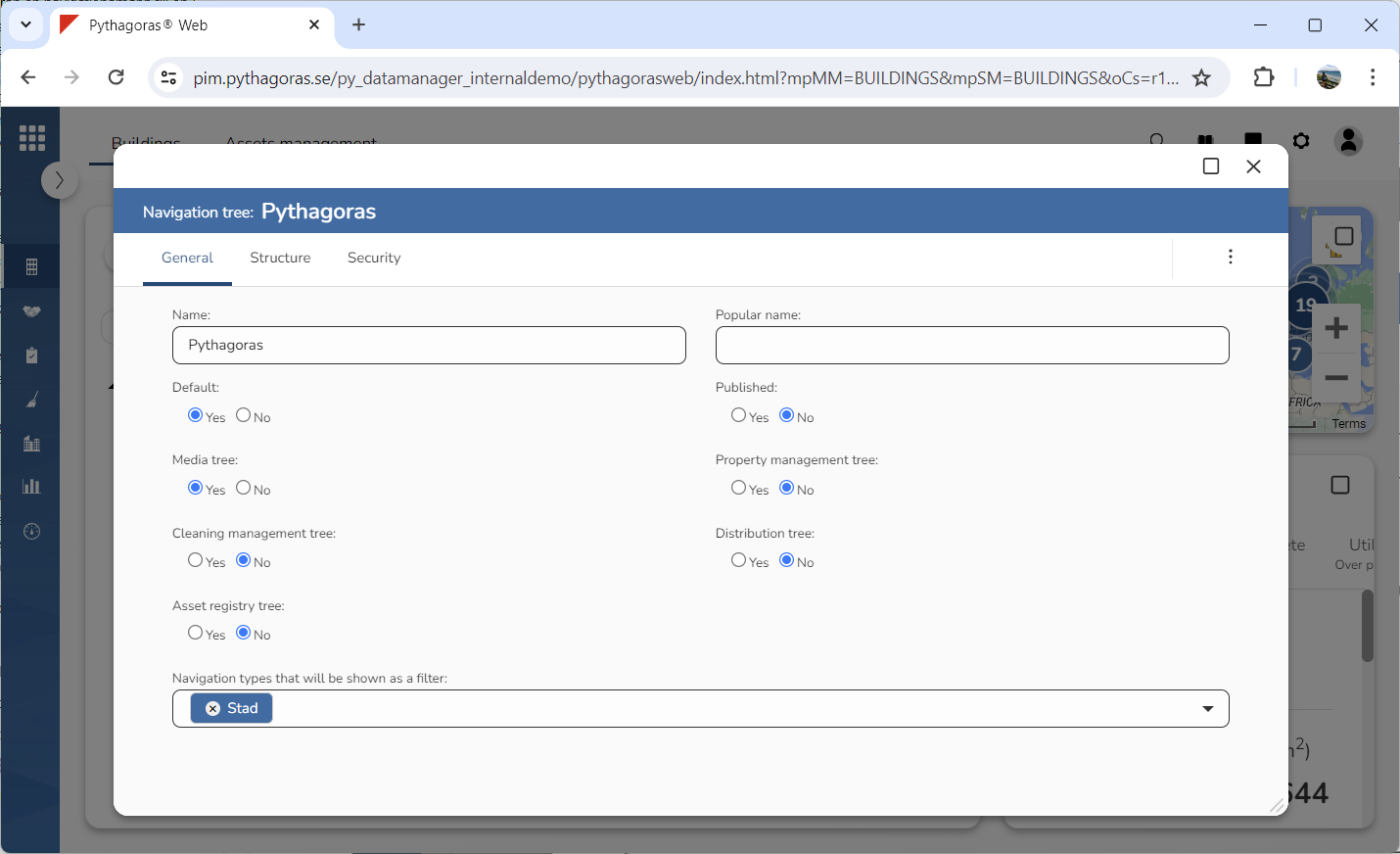
Open a navigation tree. For more information on how to do so, see section 5.4.1.
Go to the navigation tree card (see image below).
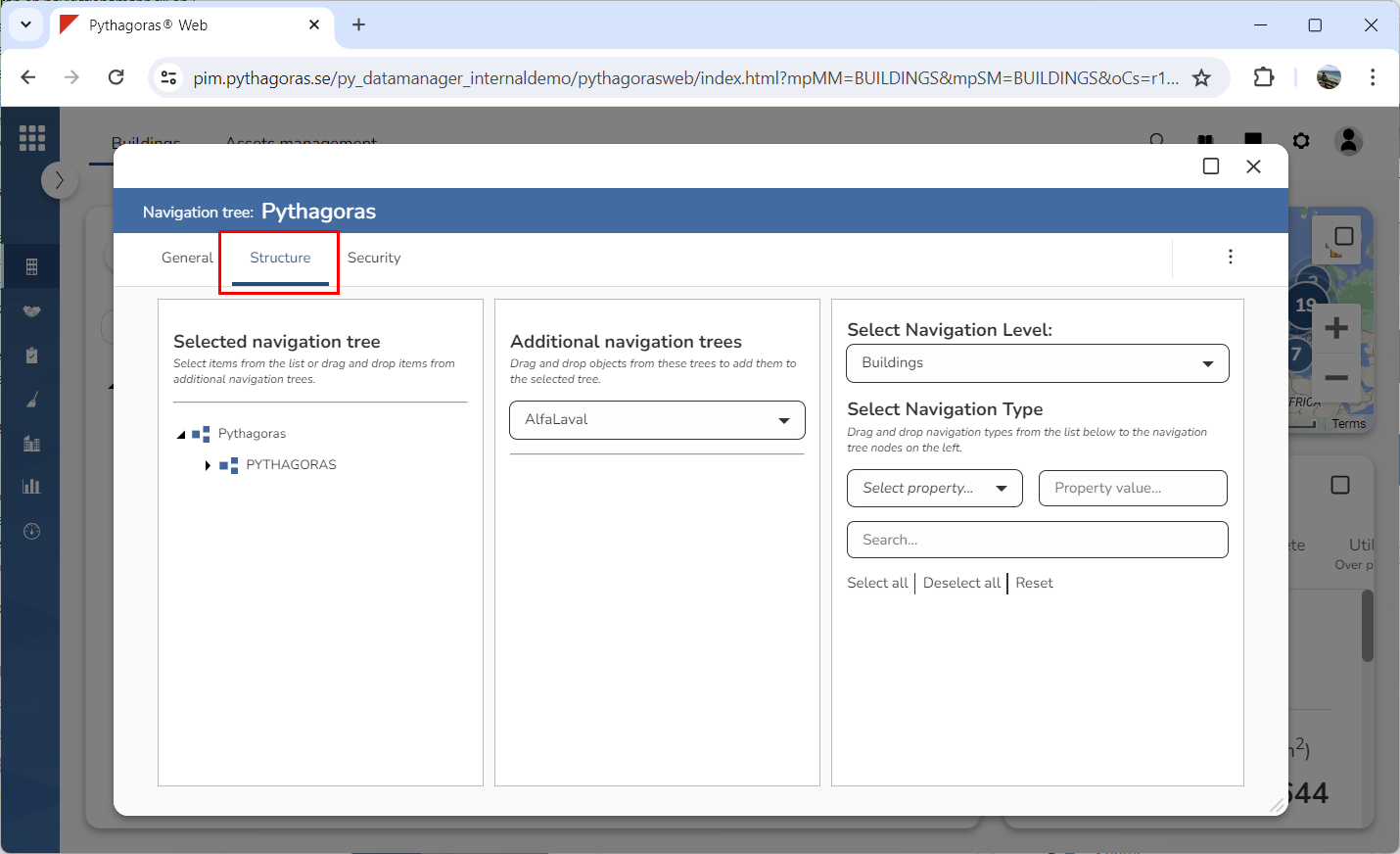
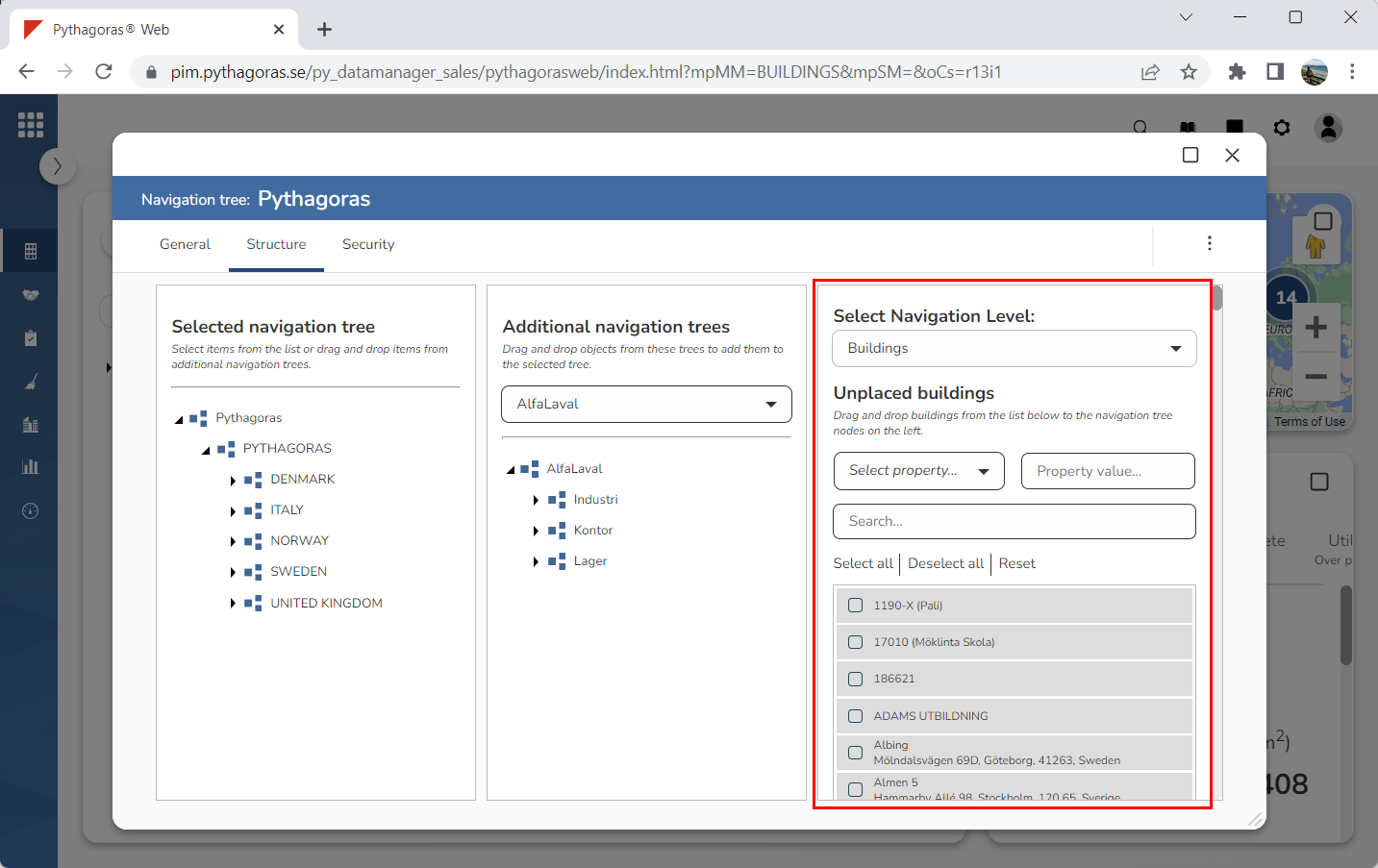
Click the tab called "Structure" (see image below). Clicking the tab called "Structure" will give you access to three columns: "Selected Navigation Tree", "Additional Navigation Trees" and "Select Navigation Level".
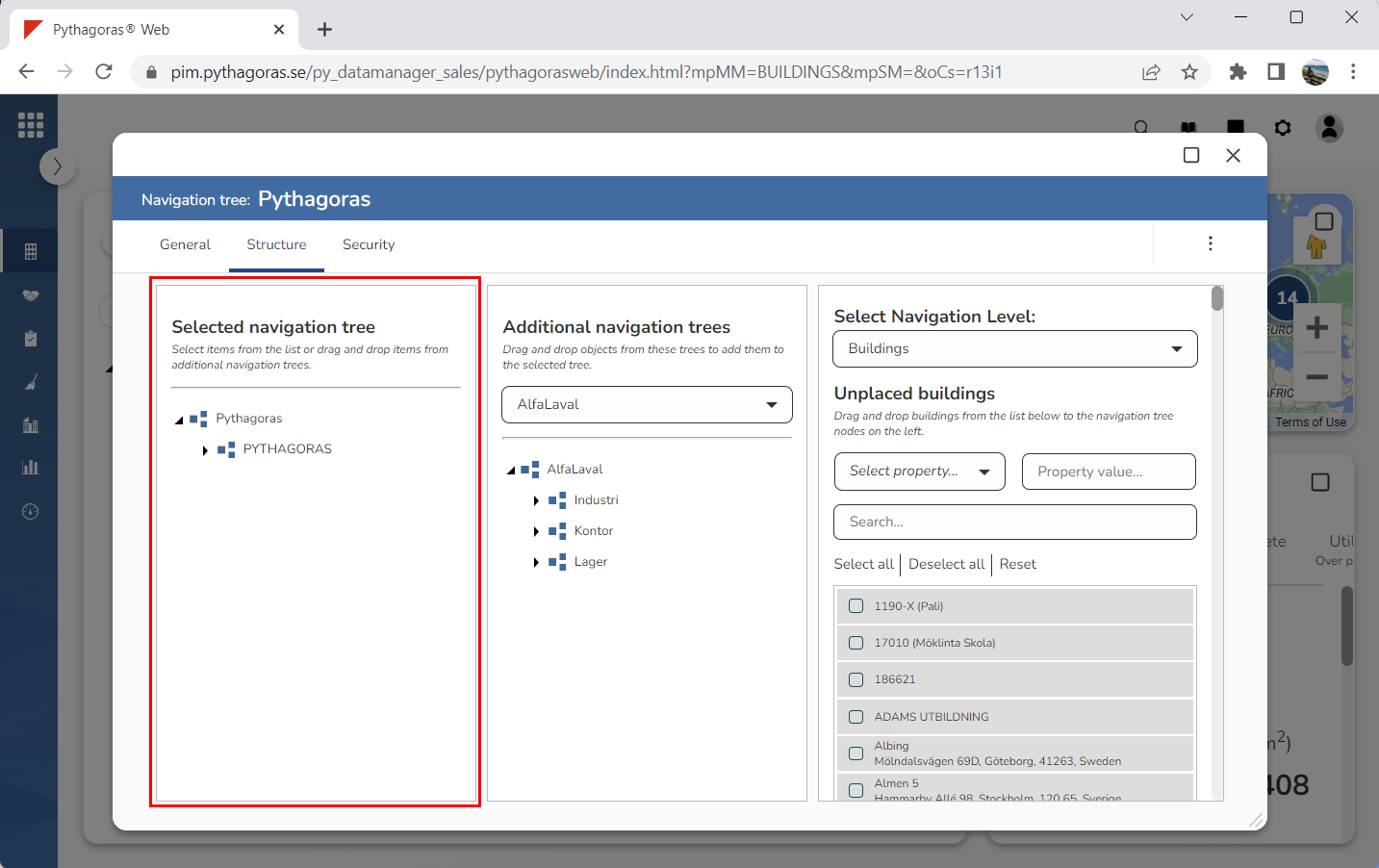
Go to the column called "Selected Navigation Tree". In the column called "Selected navigation tree" you will find the navigation tree you are working with (see image below).
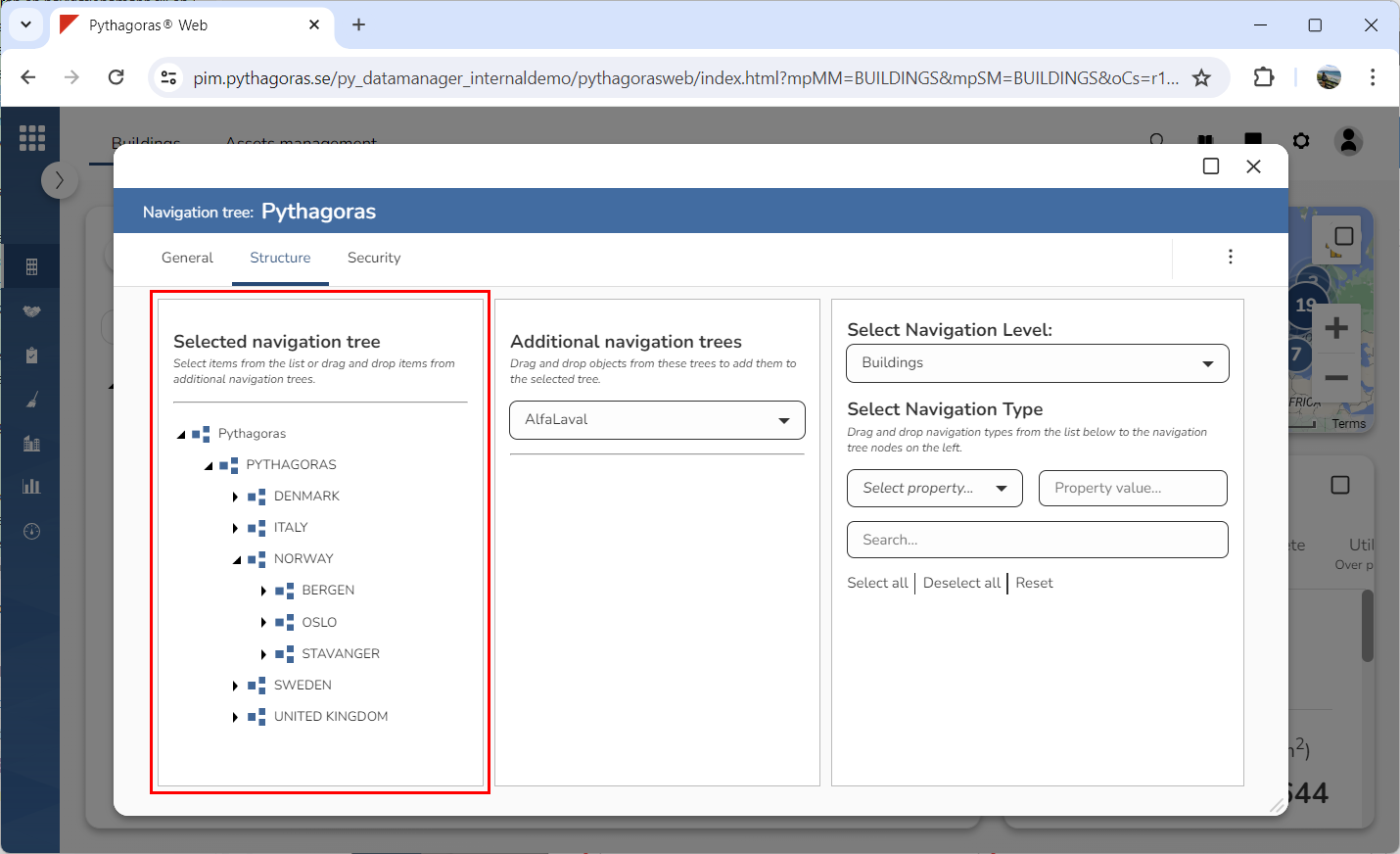
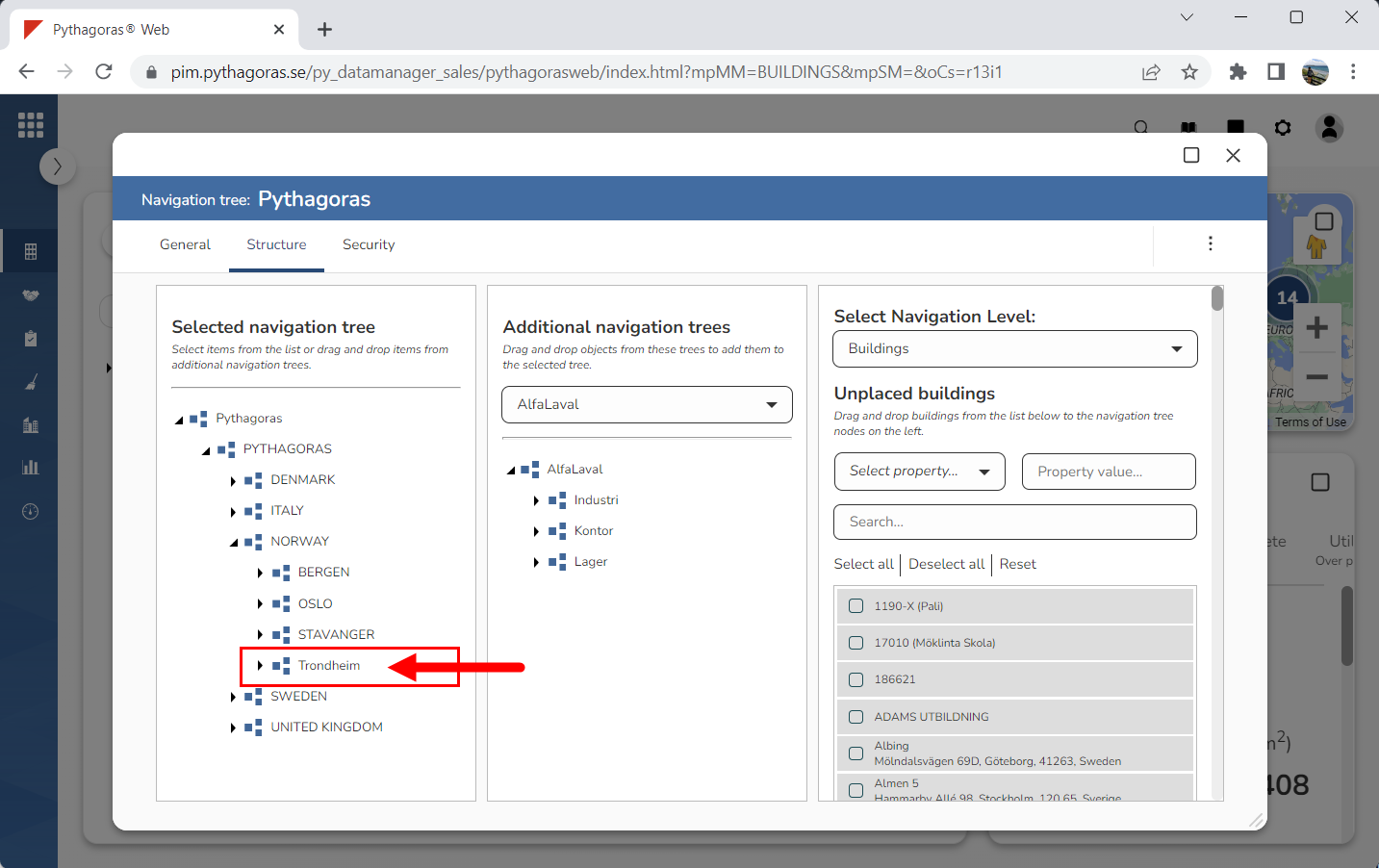
Make sure the navigation folder you wish to remove from the navigation tree you are working with is visible in the navigation tree by working your way down the navigation tree structure (see image below).
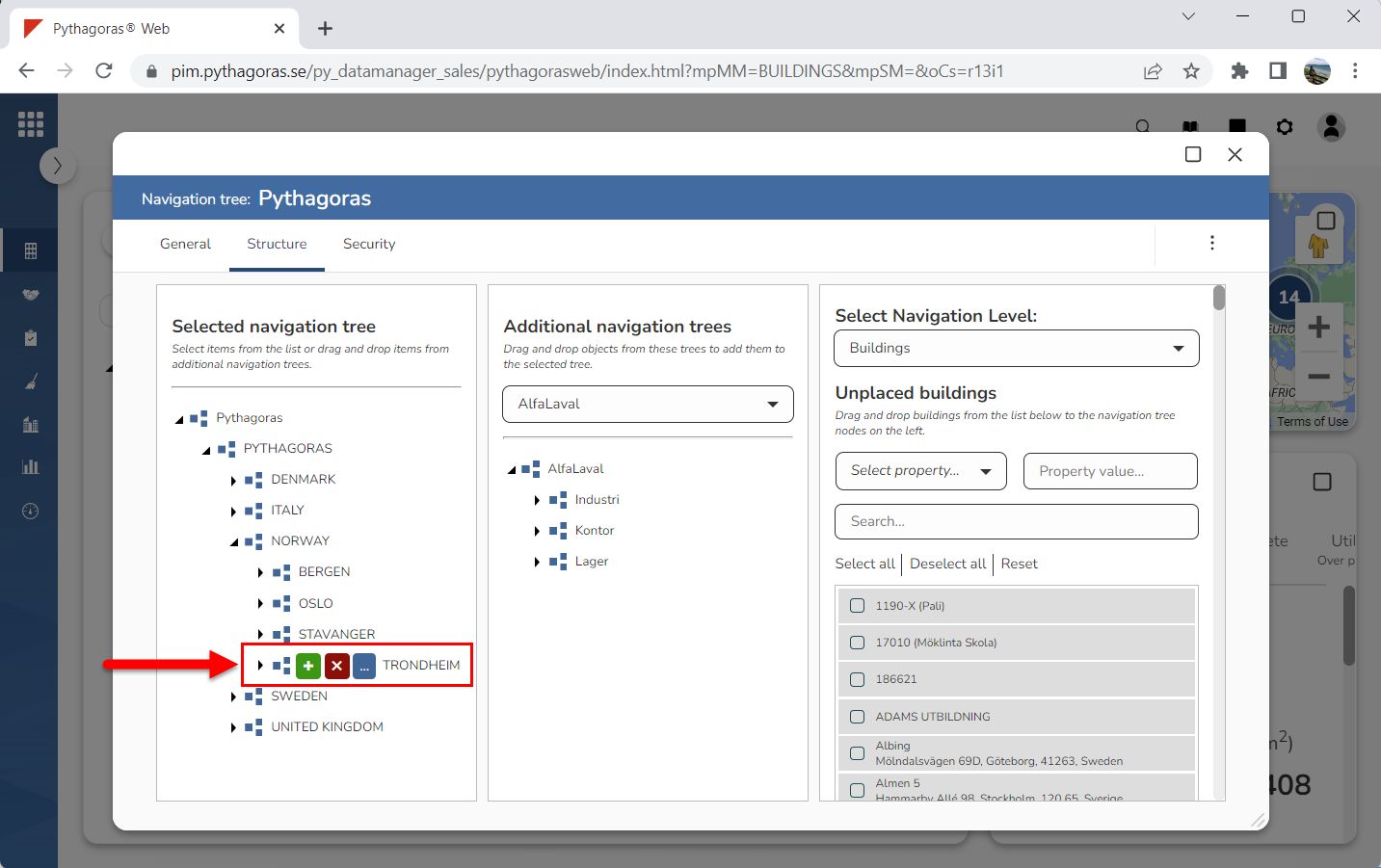
Place your cursor on the navigation folder you wish to remove from the navigation tree you are working with (see the first image below). When you place your cursor on a navigation folder, you get access to three icons: "Add Folder", "Delete" and "Open" (see the second image below). Note that you can not remove the folder that is at the top level of the navigation tree!
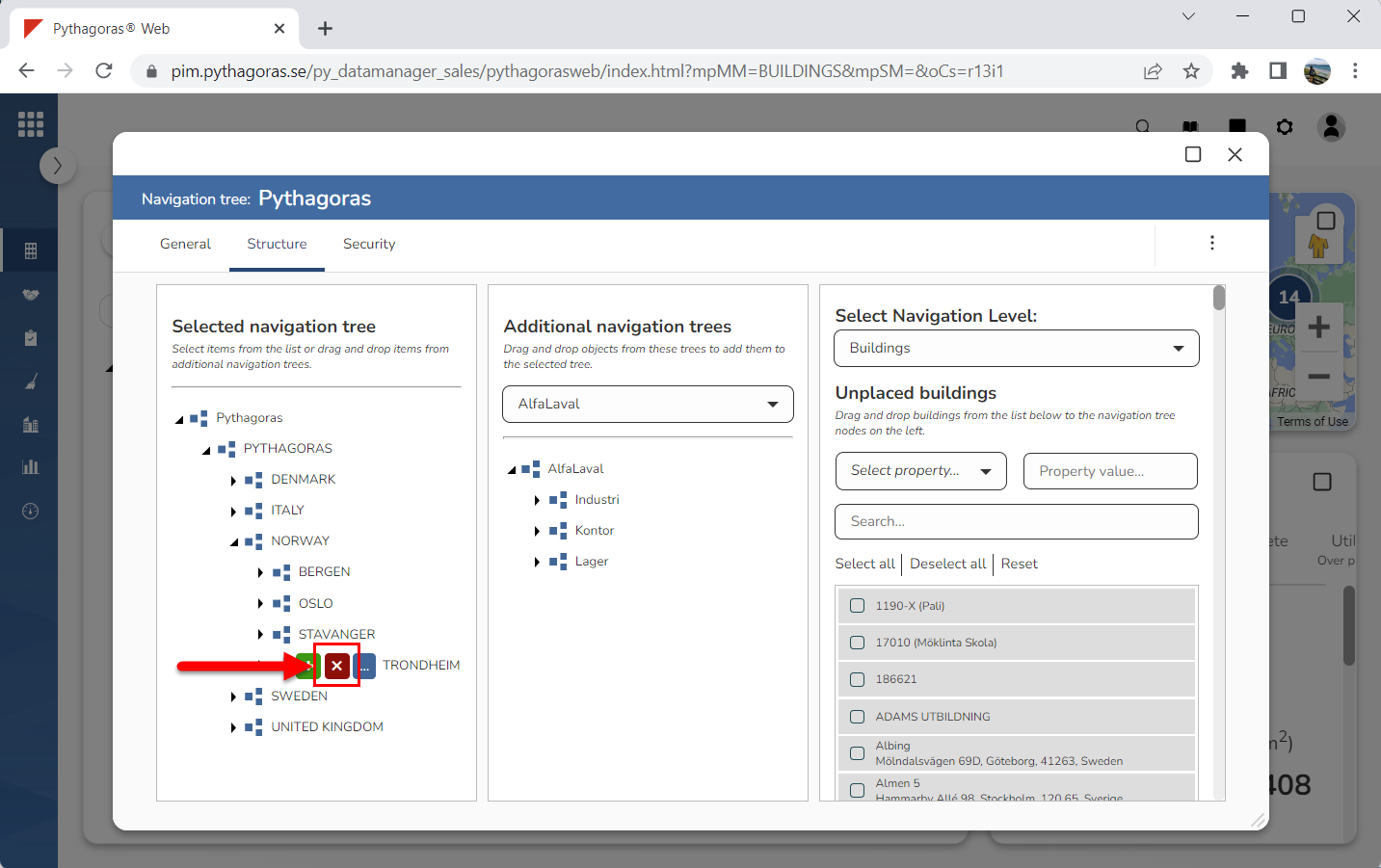
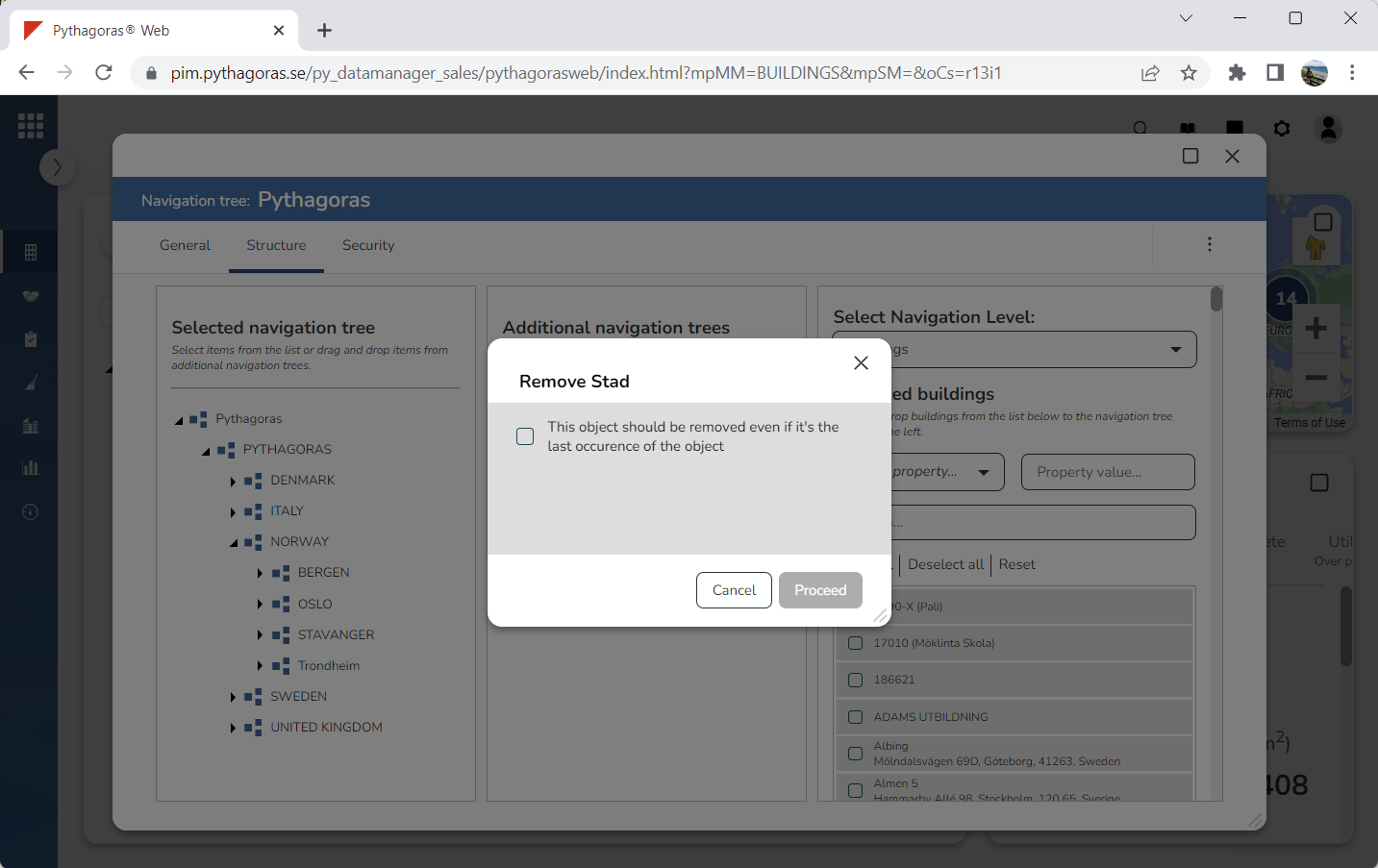
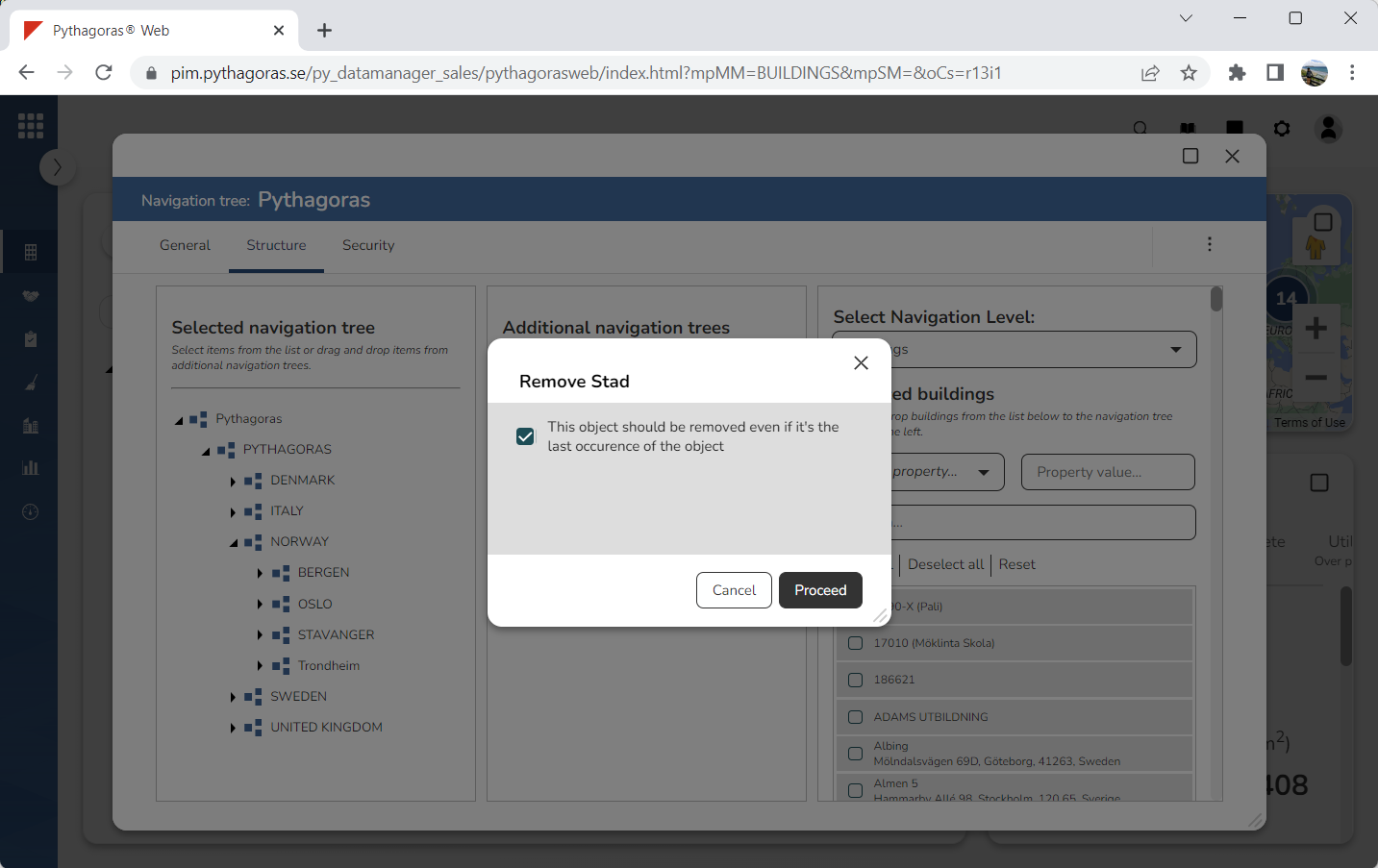
Click "Delete" (see the first image below). When you do so, a dialog will open via which you must confirm that you wish to remove the navigation folder you are working with (see the second image below). The dialog contains either one or two checkboxes.
Confirm that you wish to remove the navigation folder you are working with by checking the check box or check boxes in the dialog that opened (see image below).
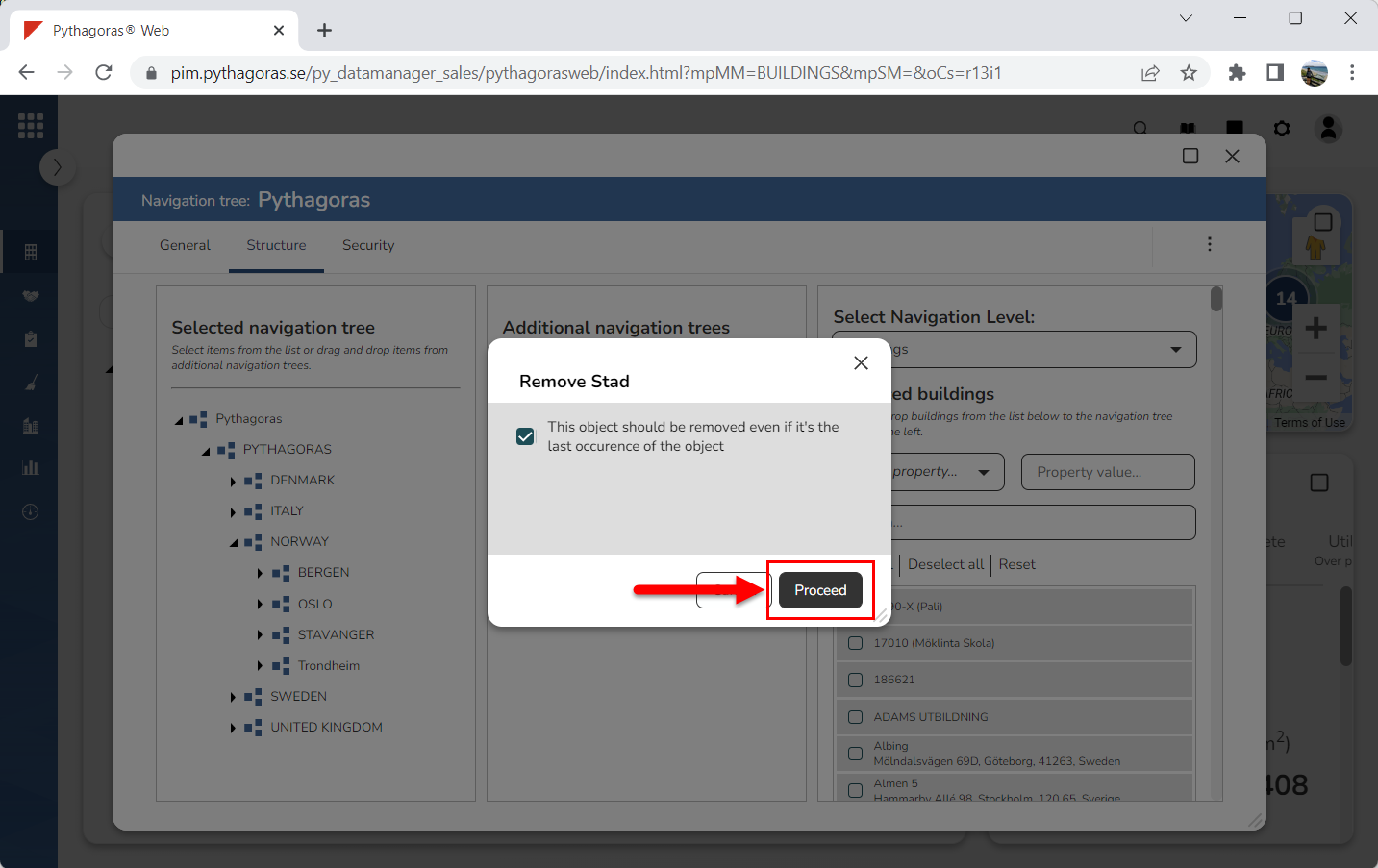
Click "Proceed" (see the first image below). When you do so, the navigation folder you are working with will be removed from the navigation tree you are working with. At the same time you will be redirected back to the navigation tree card (see the second image below).