If you wish to remove more than one land object from a navigation tree, repeat the instructions in step 5-7 below.
To remove a land object from a navigation tree:
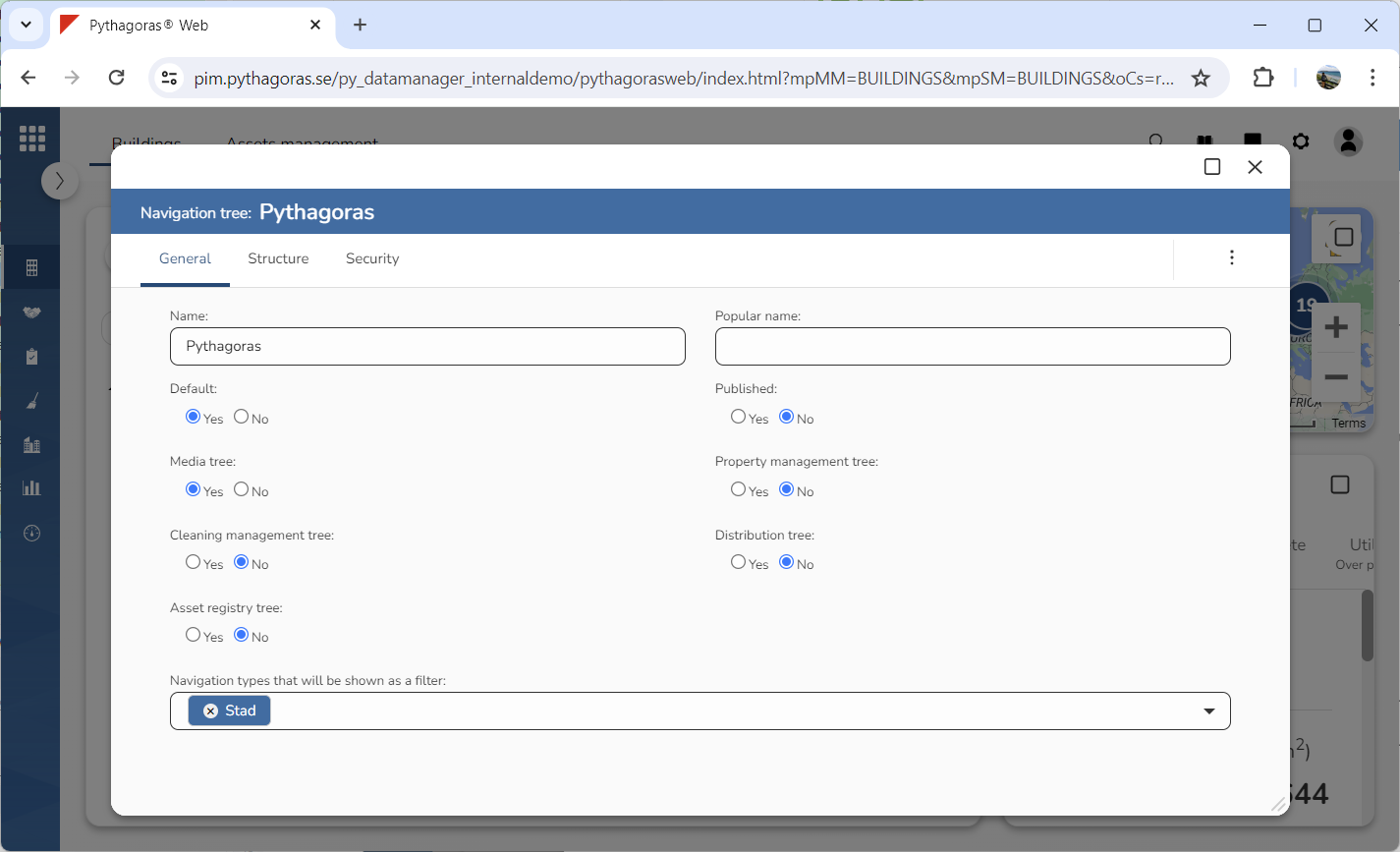
Open a navigation tree. For more information on how to do so, see section 5.4.1.
Go to the navigation tree card (see image below).
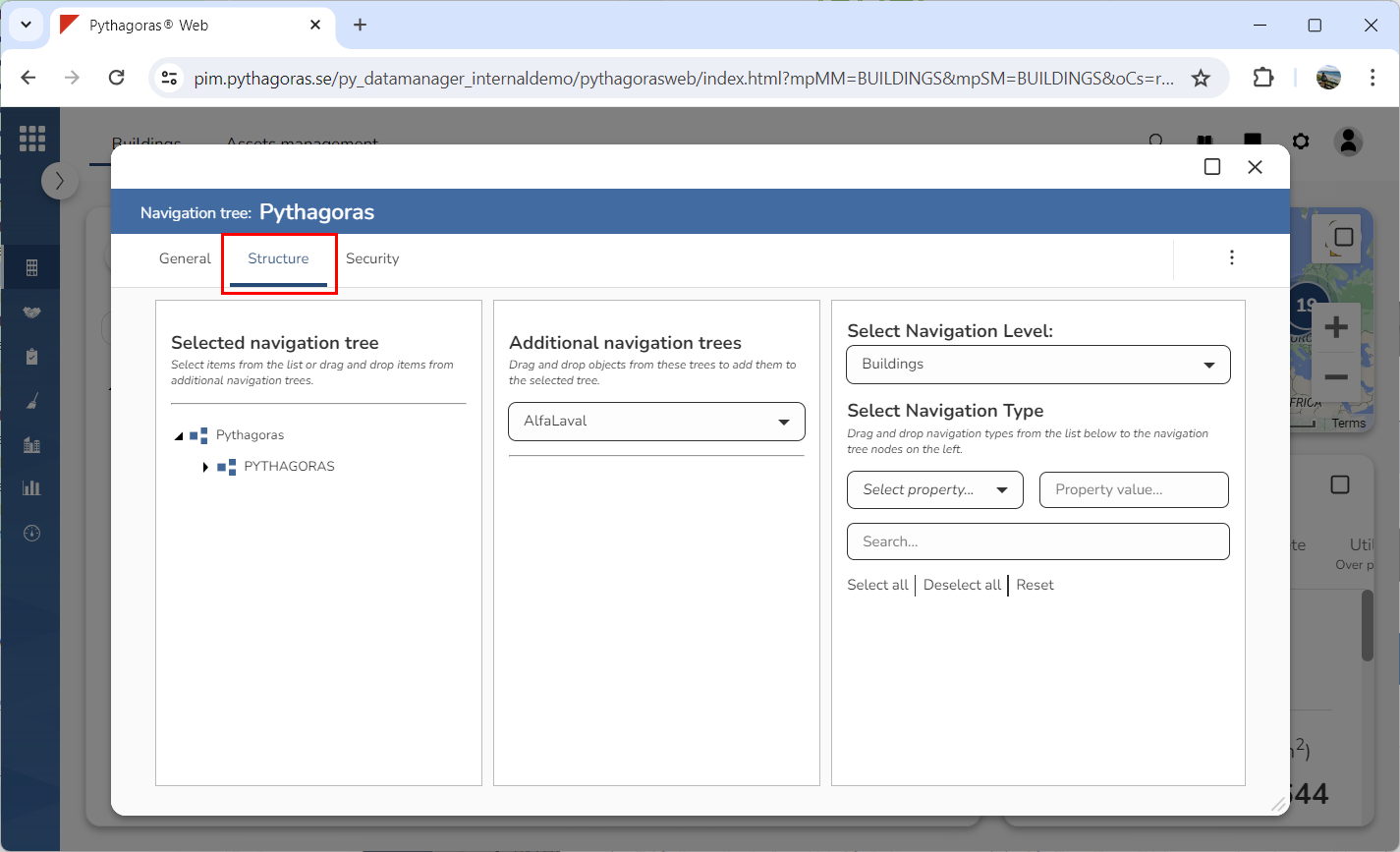
Click the tab called "Structure" (see image below). Clicking the tab called "Structure" will give you access to three columns: "Selected Navigation Tree", "Additional Navigation Trees" and "Select Navigation Level".
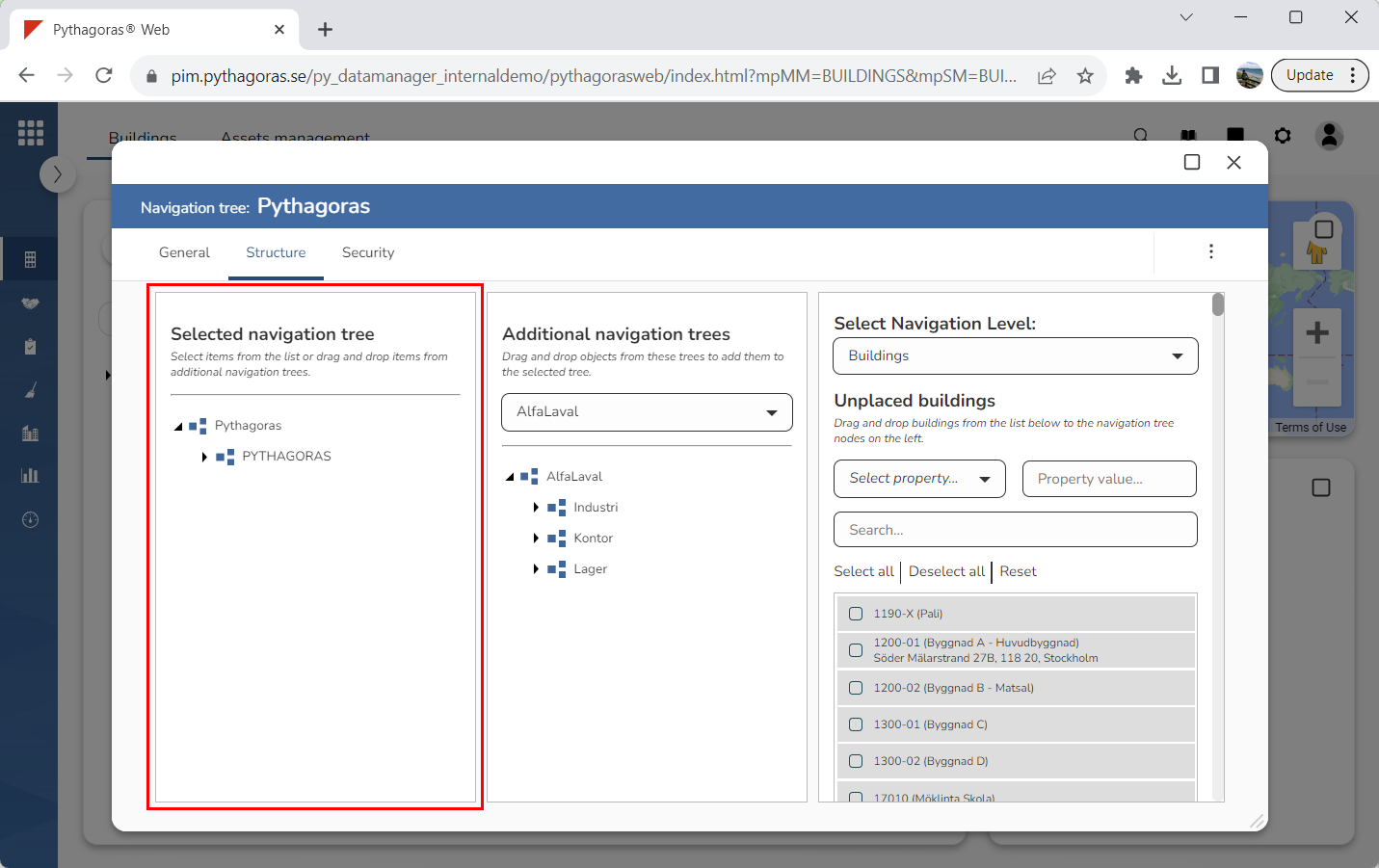
Go to the column called "Selected Navigation Tree". In the column called "Selected navigation tree" you will find the navigation tree you are working with (see image below).
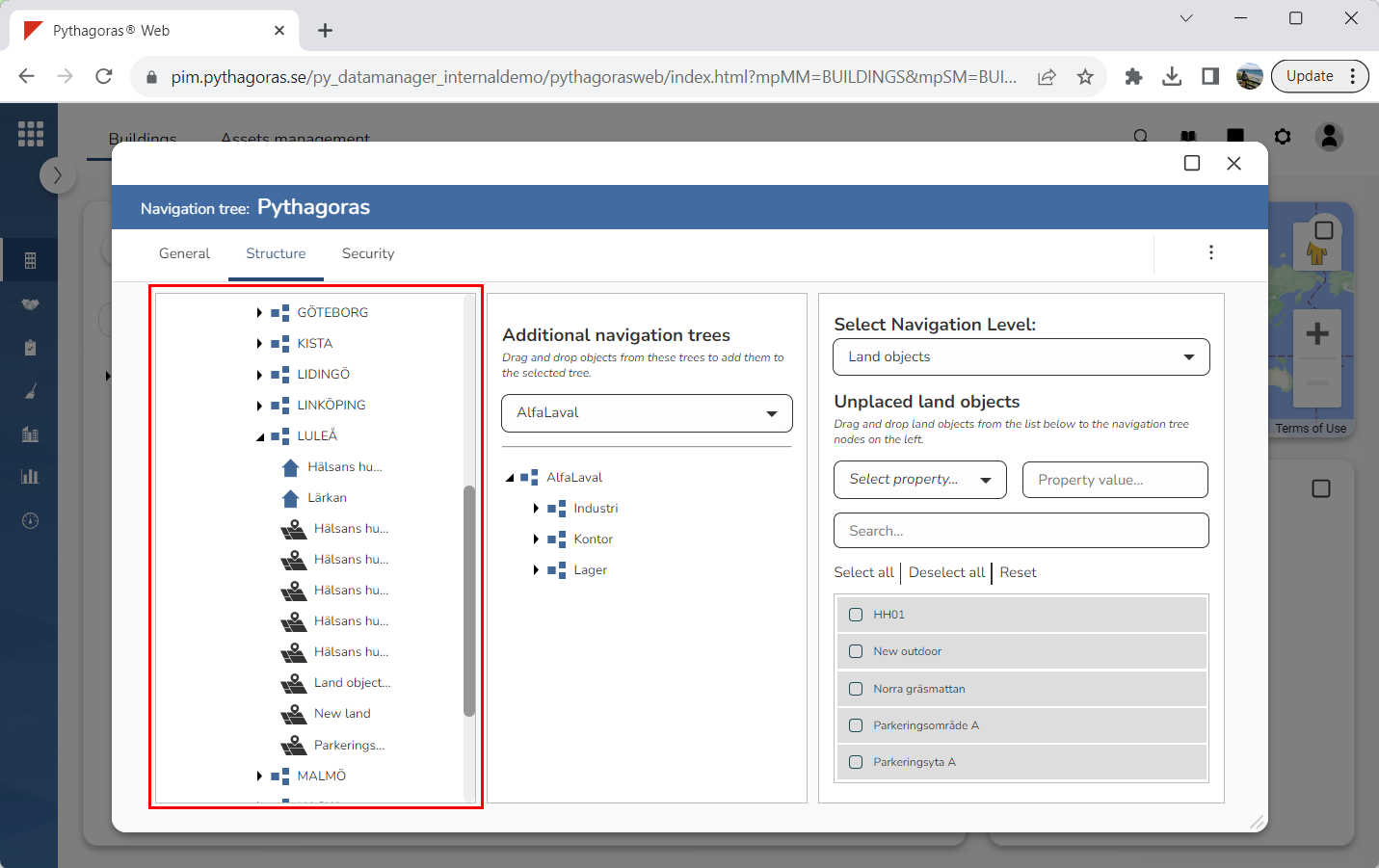
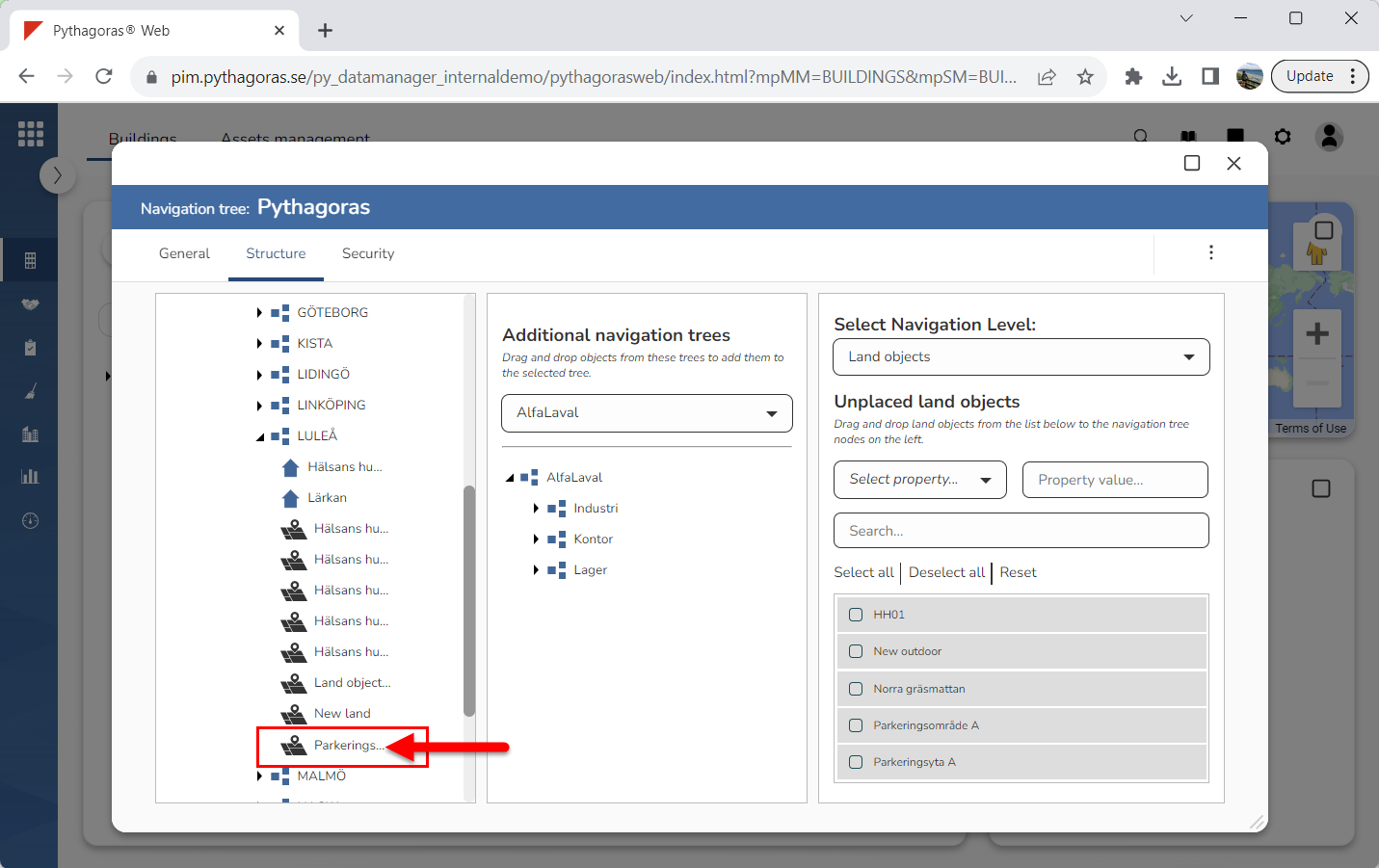
Make sure the land object you wish to remove from the navigation tree you are working with is visible by working your way down the navigation tree structure (see image below).
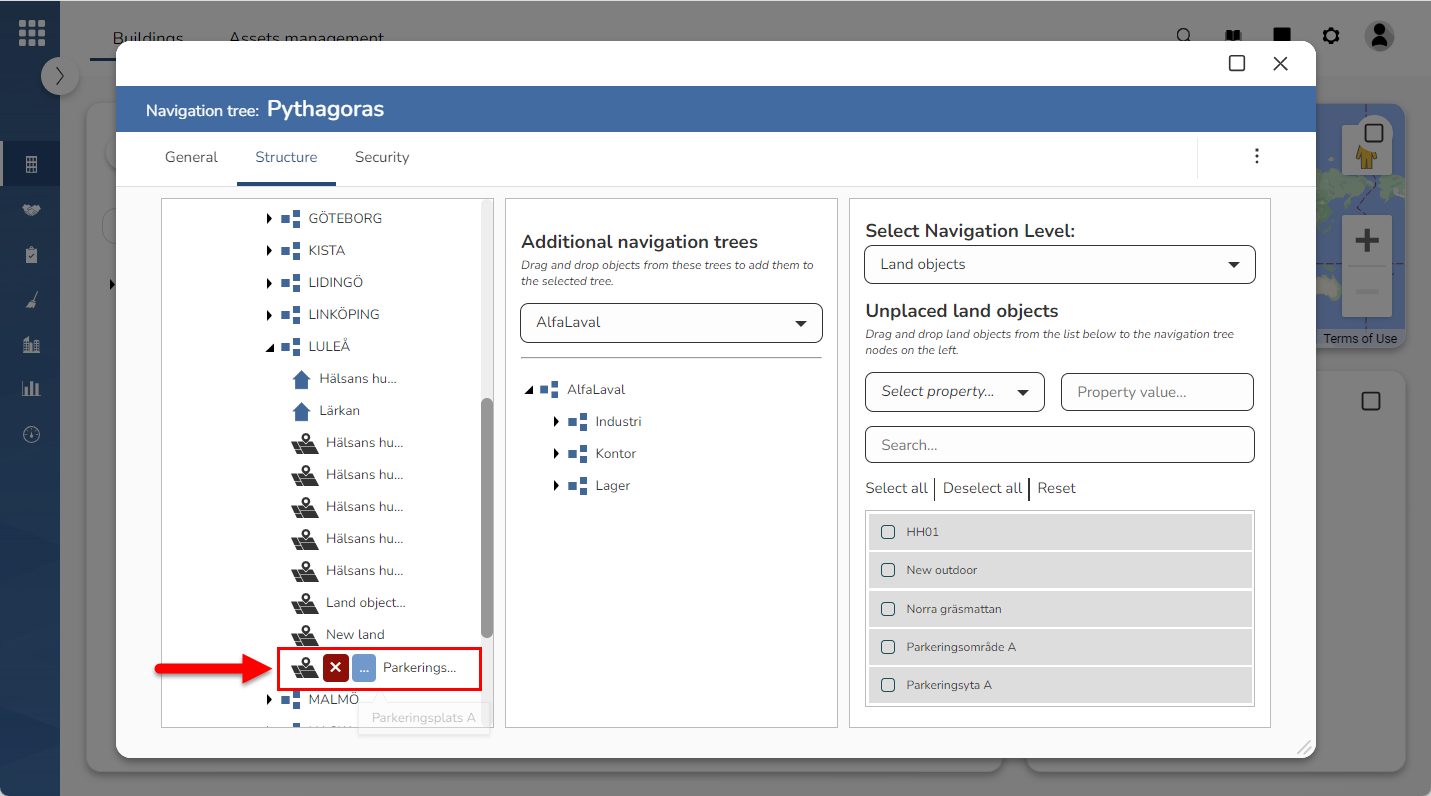
Place your cursor on the land object you wish to remove from the navigation tree you are working with (see the first image below). When you place your cursor on a land object you will be shown three icons: "Add object", "Delete" and "Open" (see the second image below).
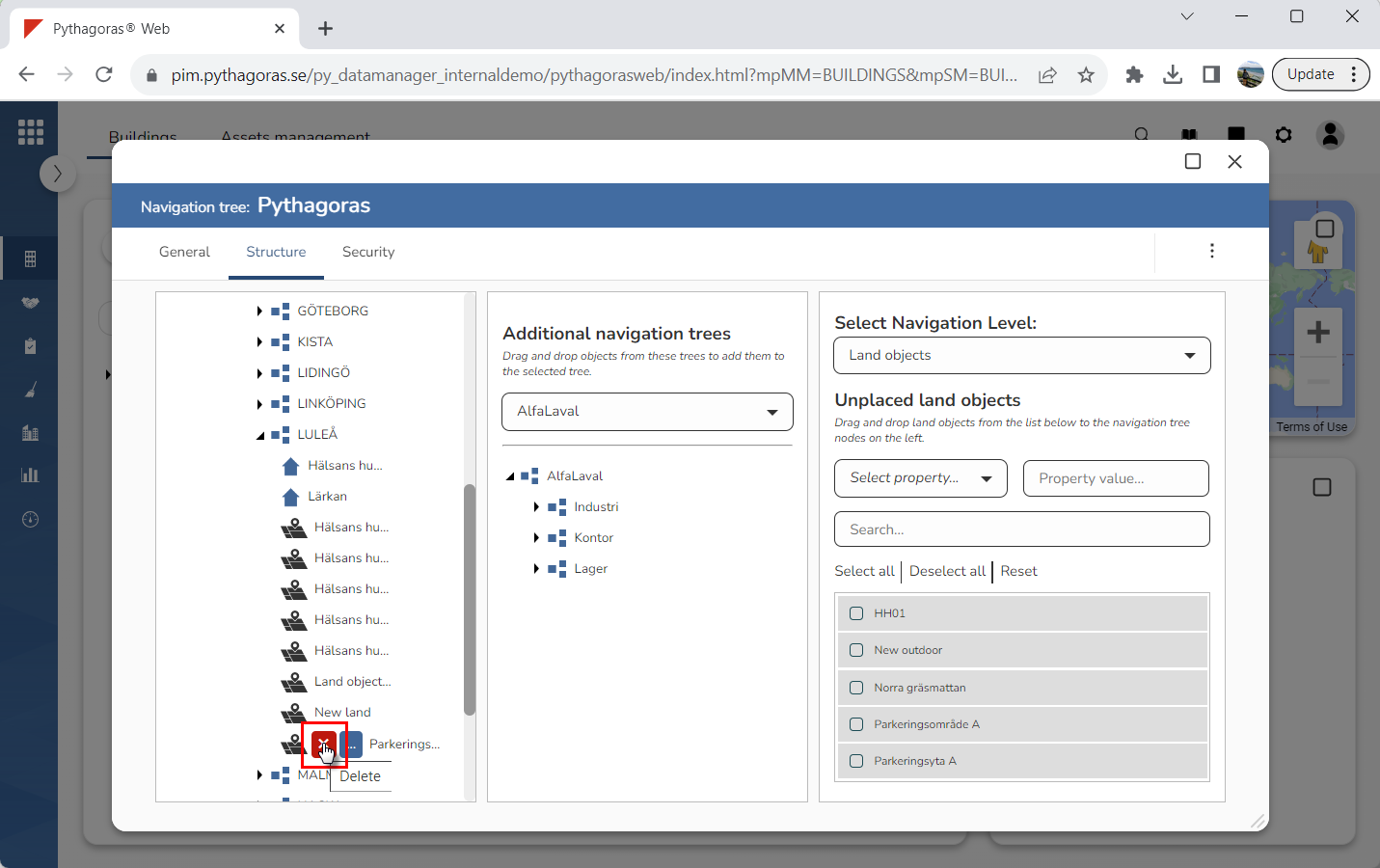
Click "Delete" (see the first image below). When you do so, the land object you are working with will be removed from the navigation tree you are working with. Note that when a land object is removed from a navigation tree, it will not be removed from Pythagoras Web but moved to a list of unplaced land objects (see the second image below). In order to open the list of unplaced land objects, go to the column called "Select Navigation Level", click the field "Select Navigation Level" and select "Land" in the list "Select Navigation Level". This is if it does not already say "Land" in the field "Select Navigation Level". For more information on how to remove a land object from Pythagoras Web, see section 10.11.
Repeat the instructions in step 5-7 to remove another land object from the navigation tree you are working with.