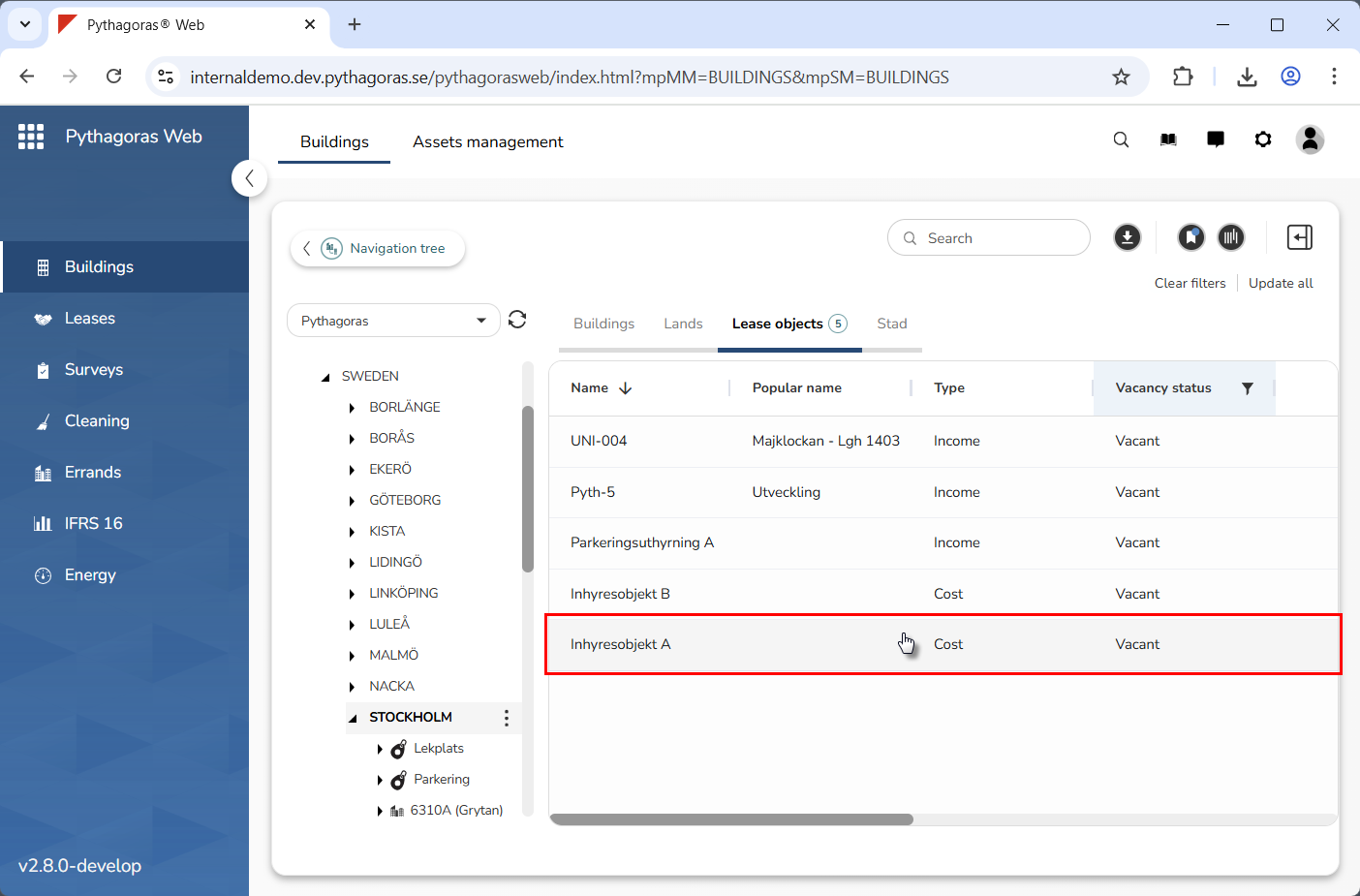
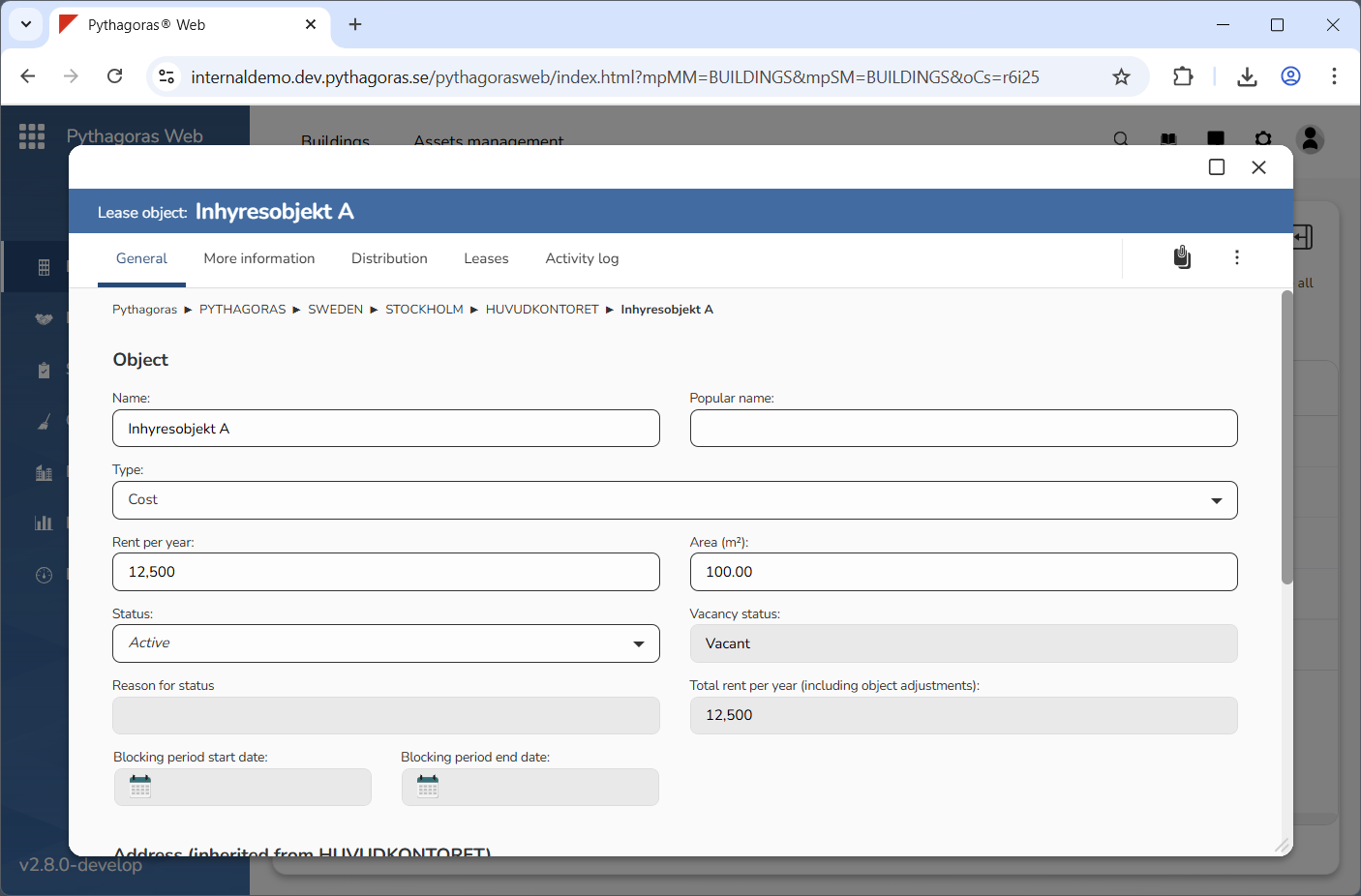
There are two ways in which to open a lease object: via the map and the object list. In this section you will find information on how to open a lease object via the object list. For more information on how to open a lease object via the map, see section 4.6.3.
To open a lease object via the object list:
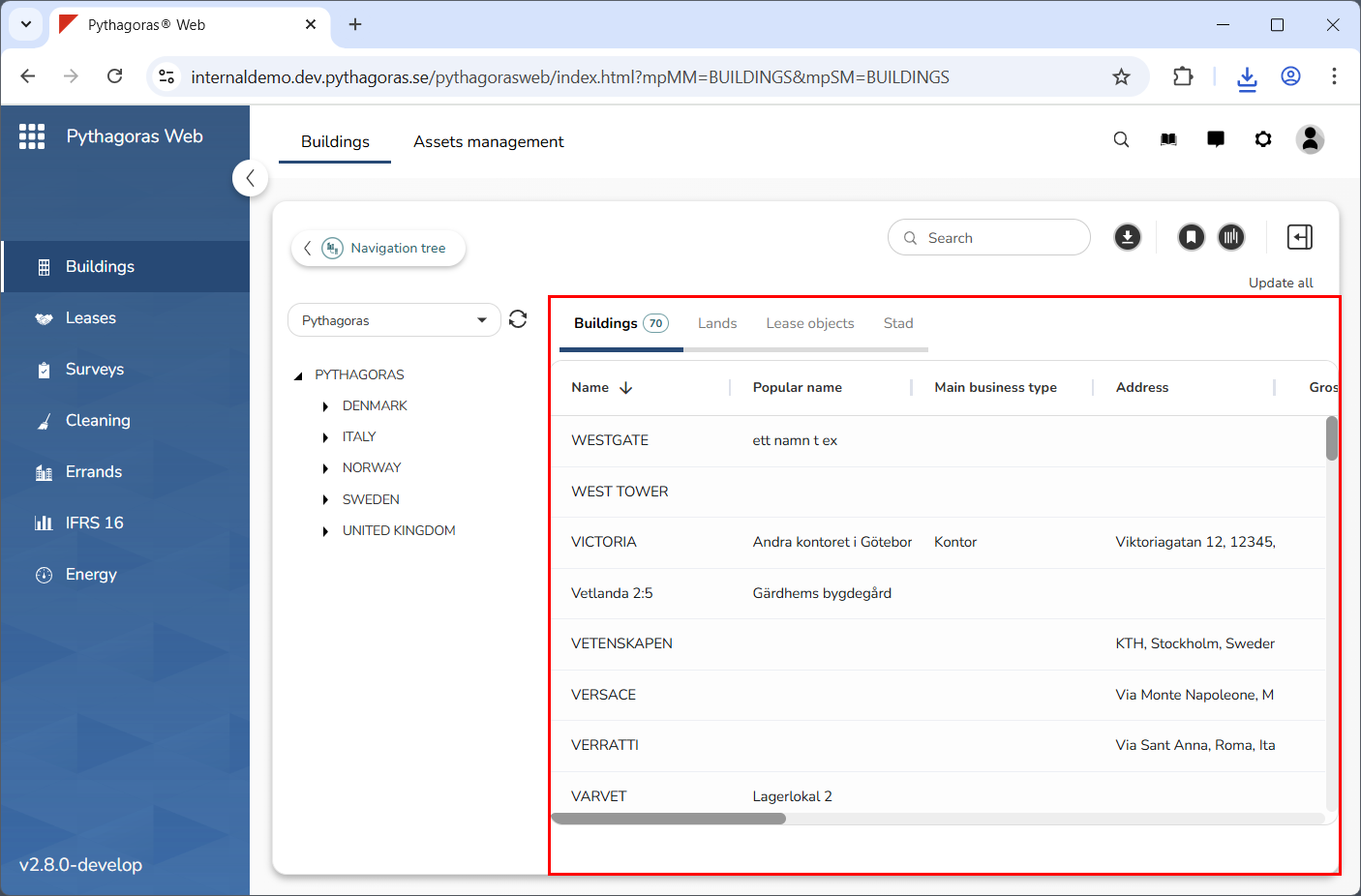
Go to the object list (see image below).
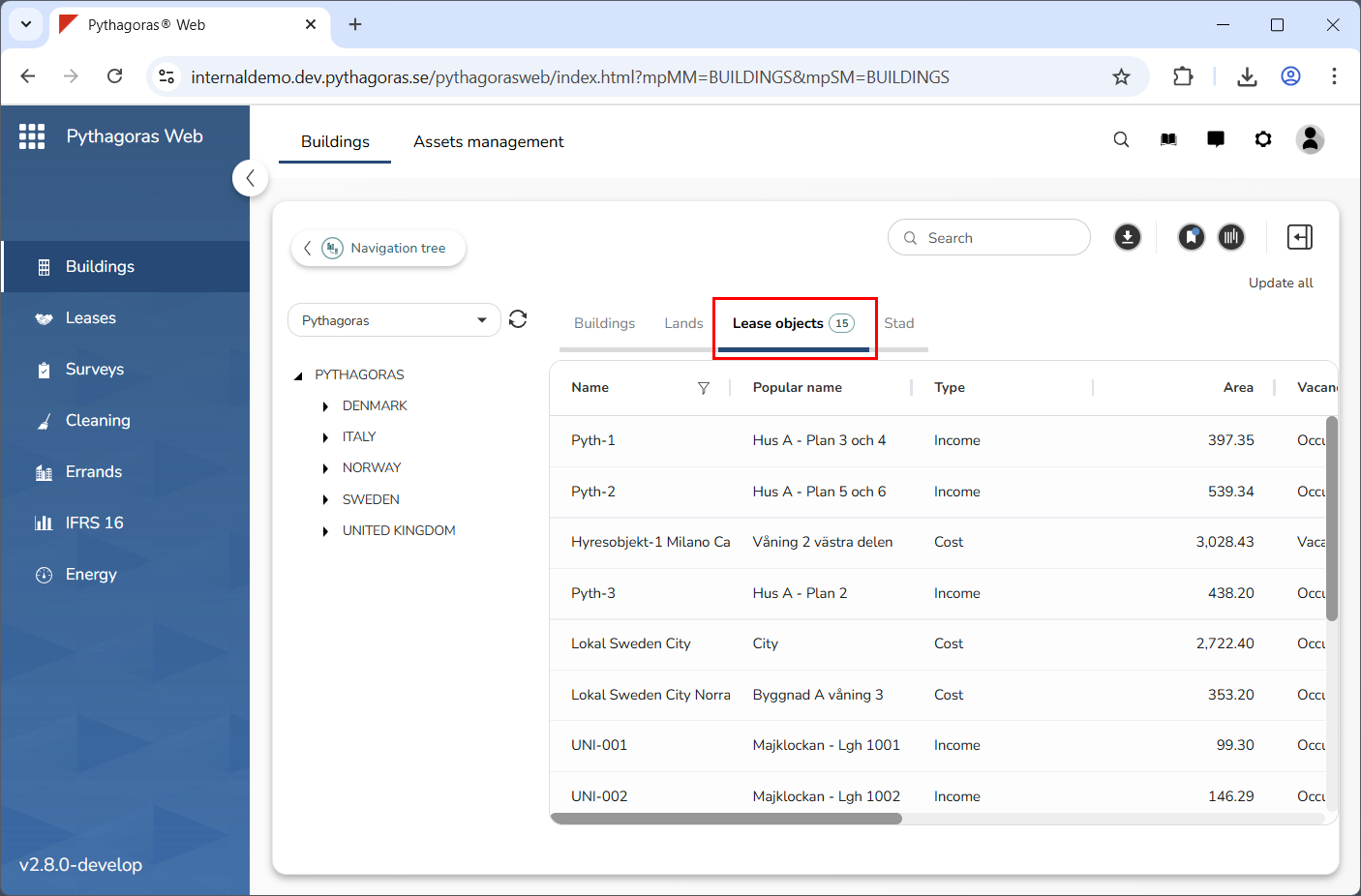
Click the tab called "Lease objects" (see image below).
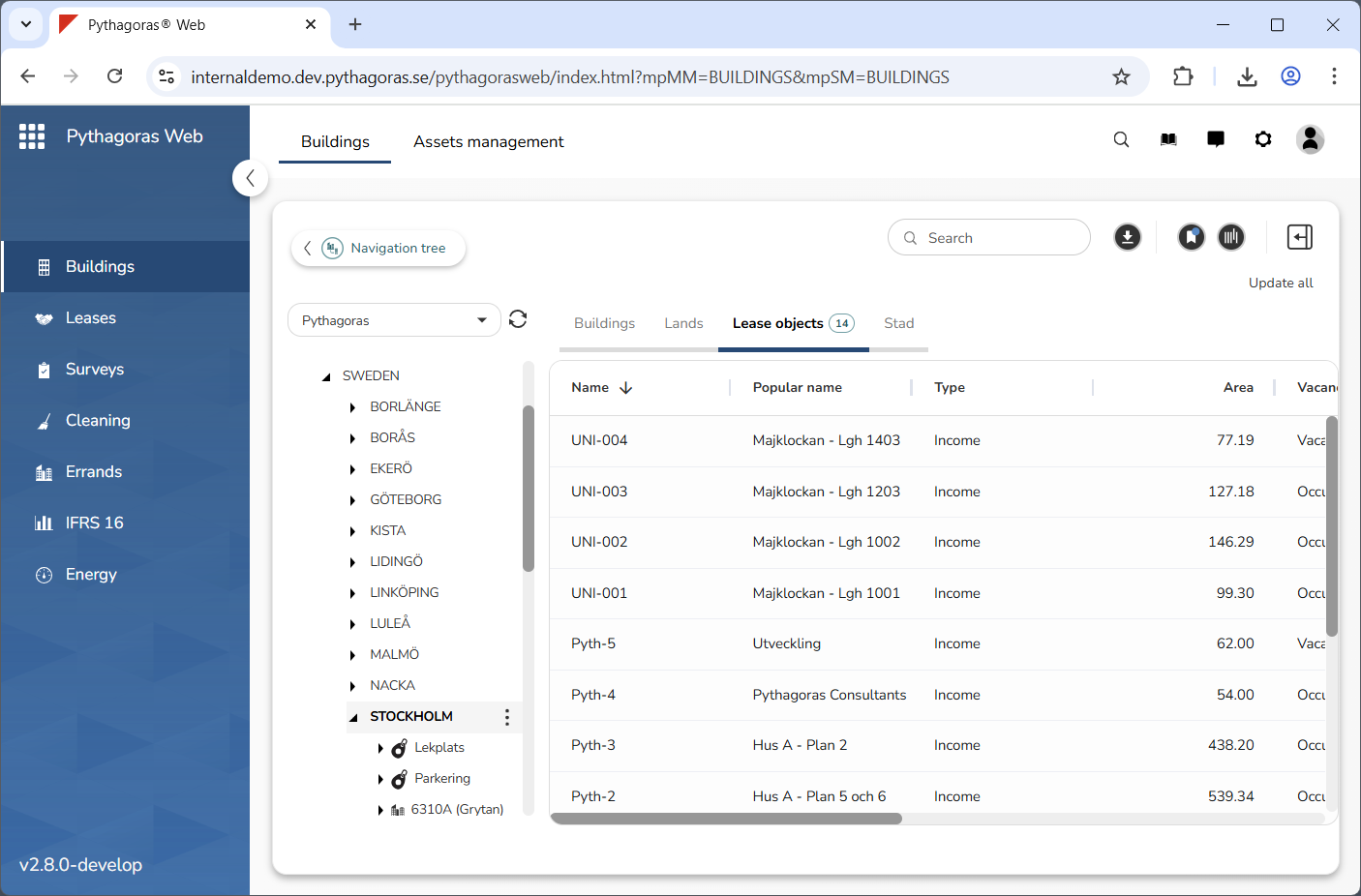
Make sure you have selected the correct navigation folder or building in the navigation tree (see image below). The object list will filter the lease objects available in the selected navigation folder or building.
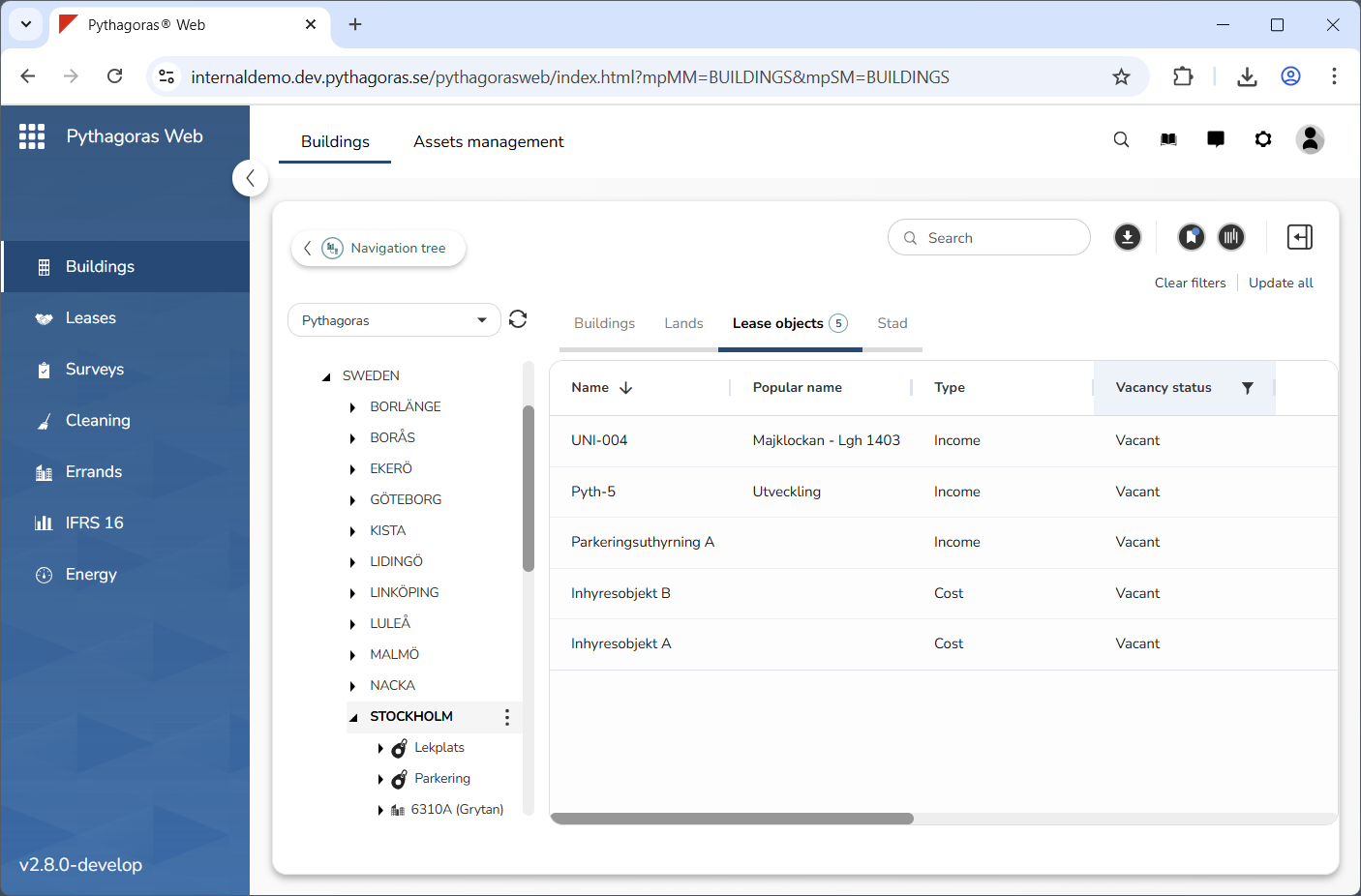
If you wish to limit the content of the object list, filter the object list (see image below). For more information how to filter the object list, see section 6.2. If you do not wish to filter the object list you can skip this step and go straight to step 5.
Click the lease object you wish to open (see the first image below). Note that the lease object you click will open. When a lease object opens, so does its object card (see the second image below). Via the object card, you can work with a lease object. For more information on how to do so, see chapter 11.