Move a building from one navigation folder to another
To move a building from one navigation folder to another:
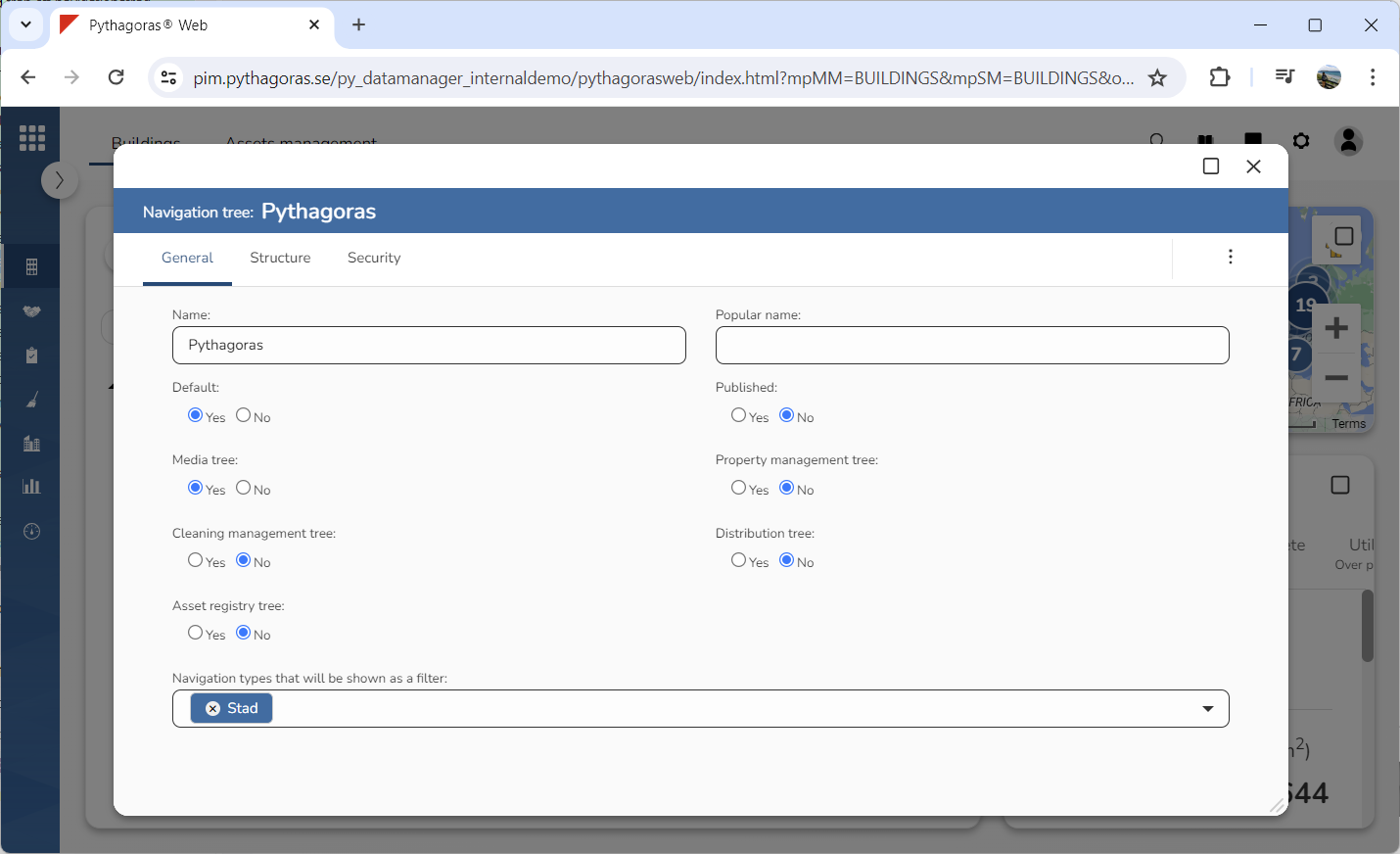
Open a navigation tree. For more information on how to do so, see section 5.4.1.
Go to the navigation tree card (see image below).
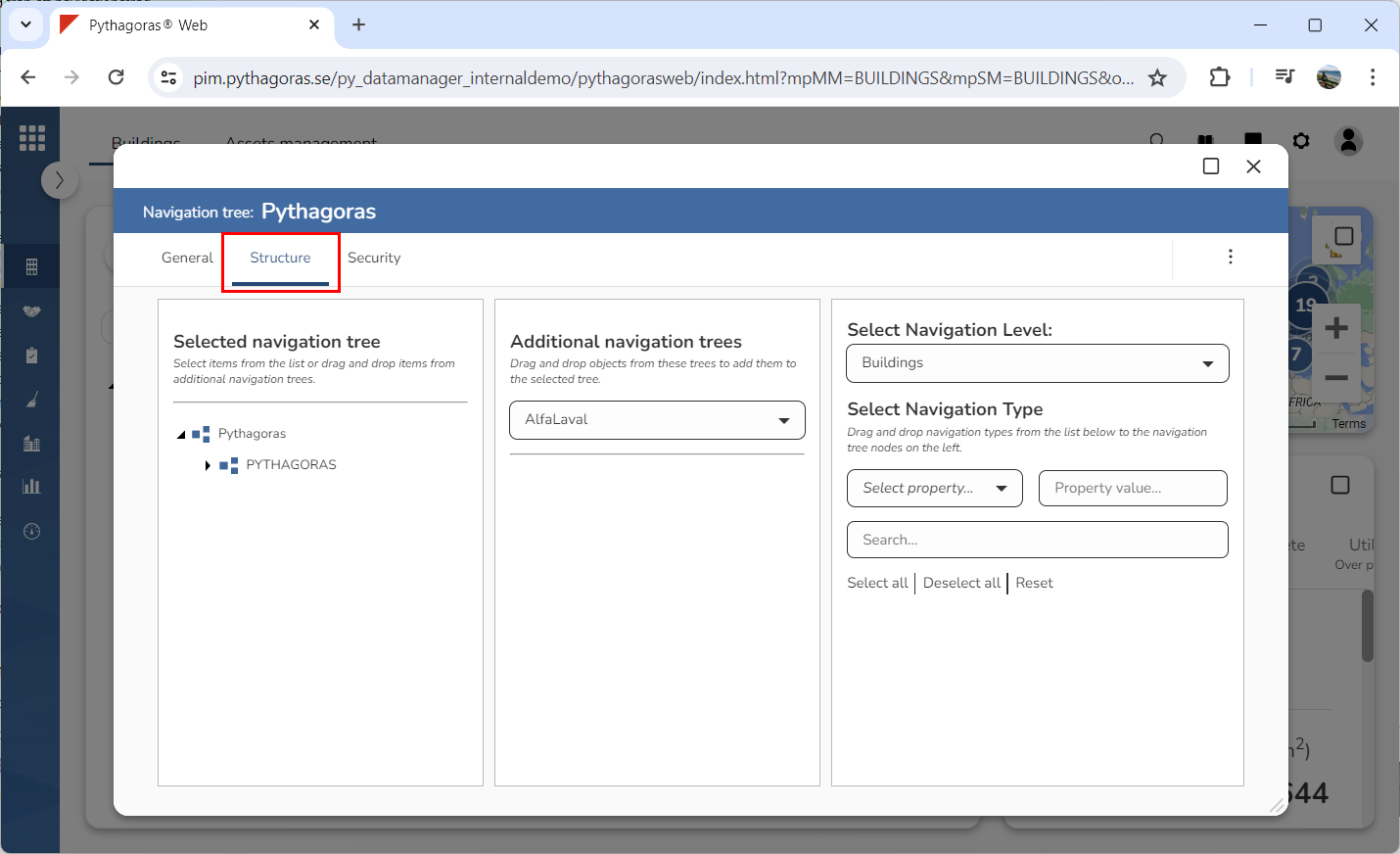
Click the tab called "Structure" (see image below). Clicking the tab called "Structure" will give you access to three columns: "Selected Navigation Tree", "Additional Navigation Trees" and "Select Navigation Level".
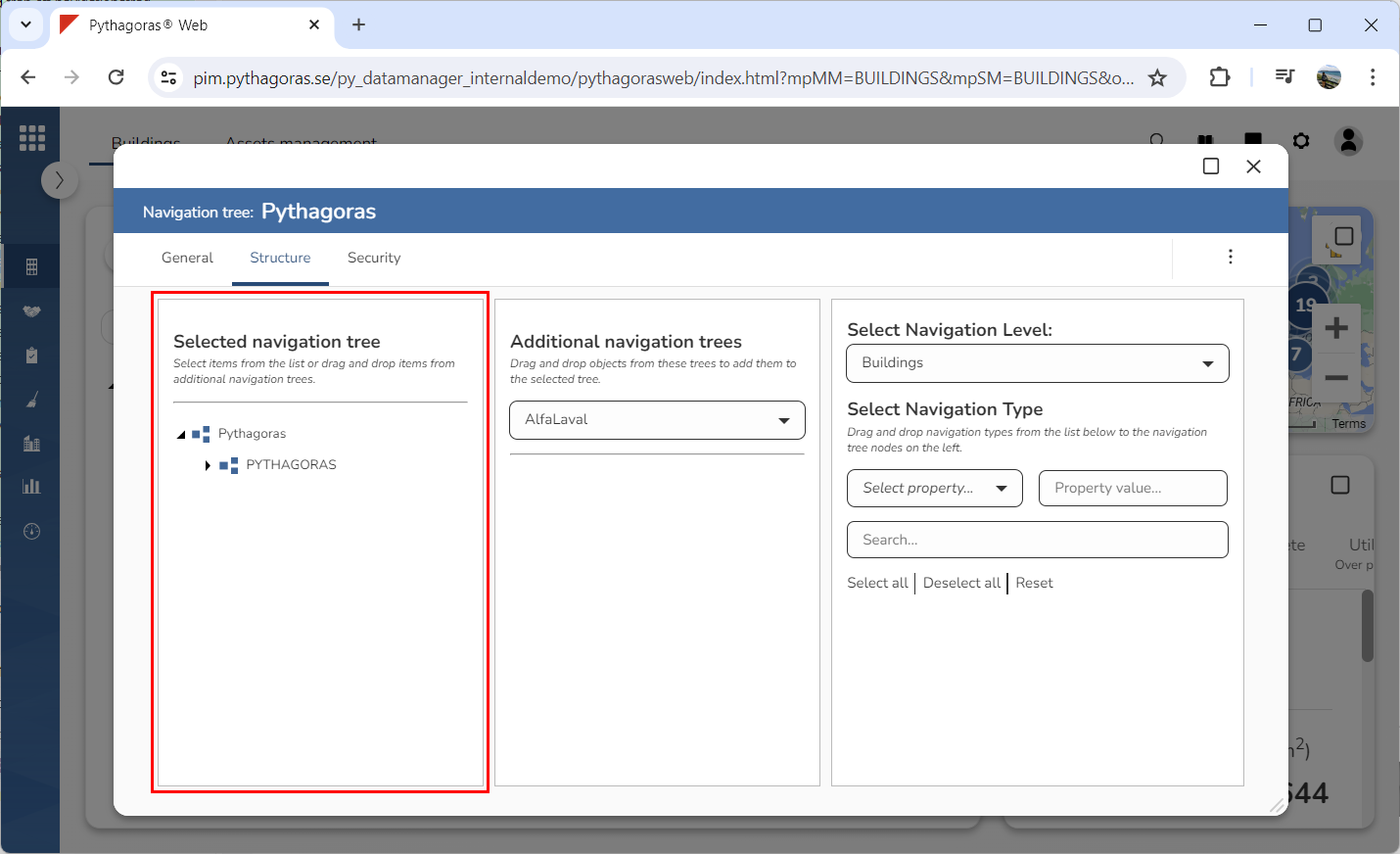
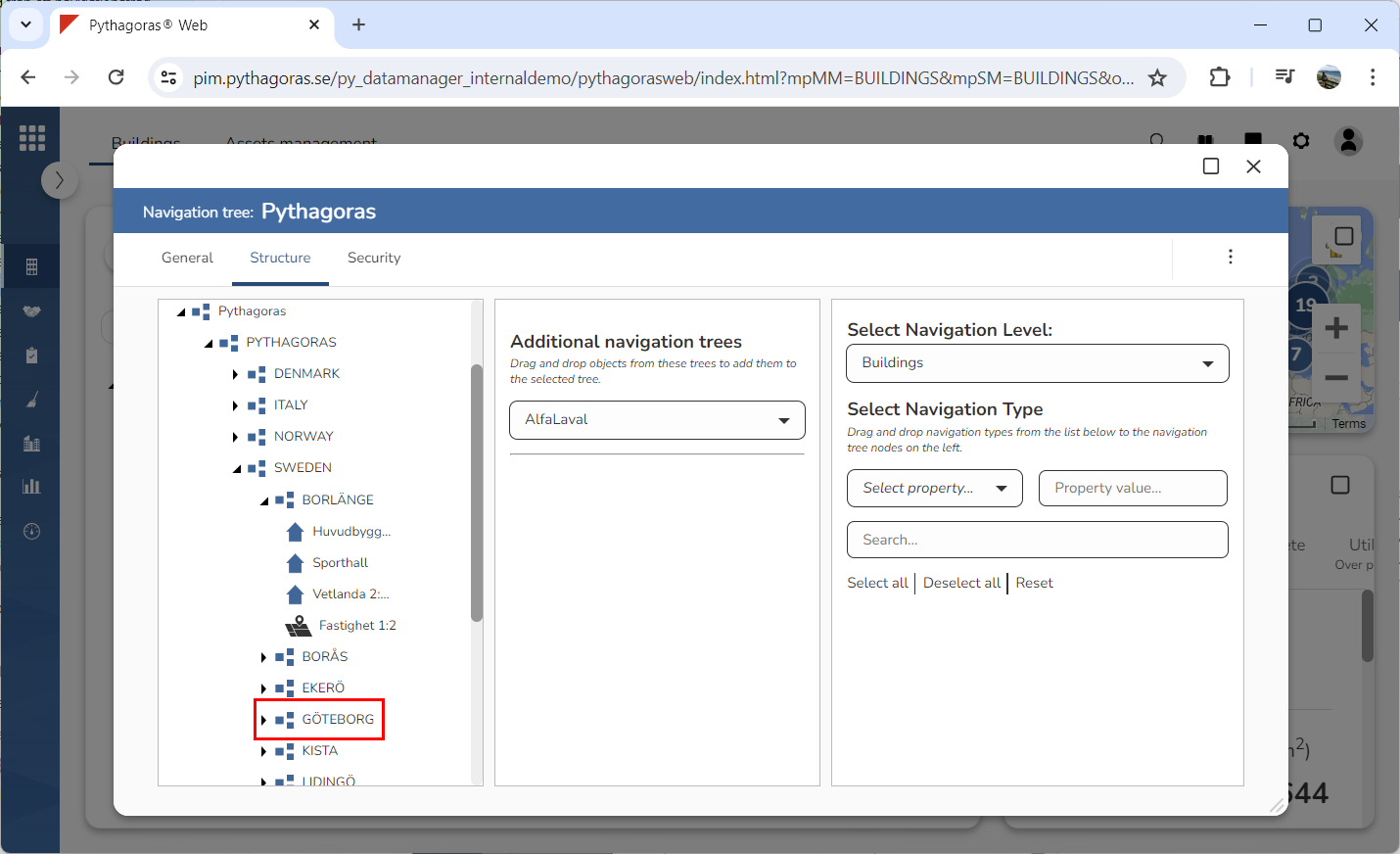
Go to the column called "Selected Navigation Tree". In the column called "Selected navigation tree" you will find the navigation tree you are working with (see image below).
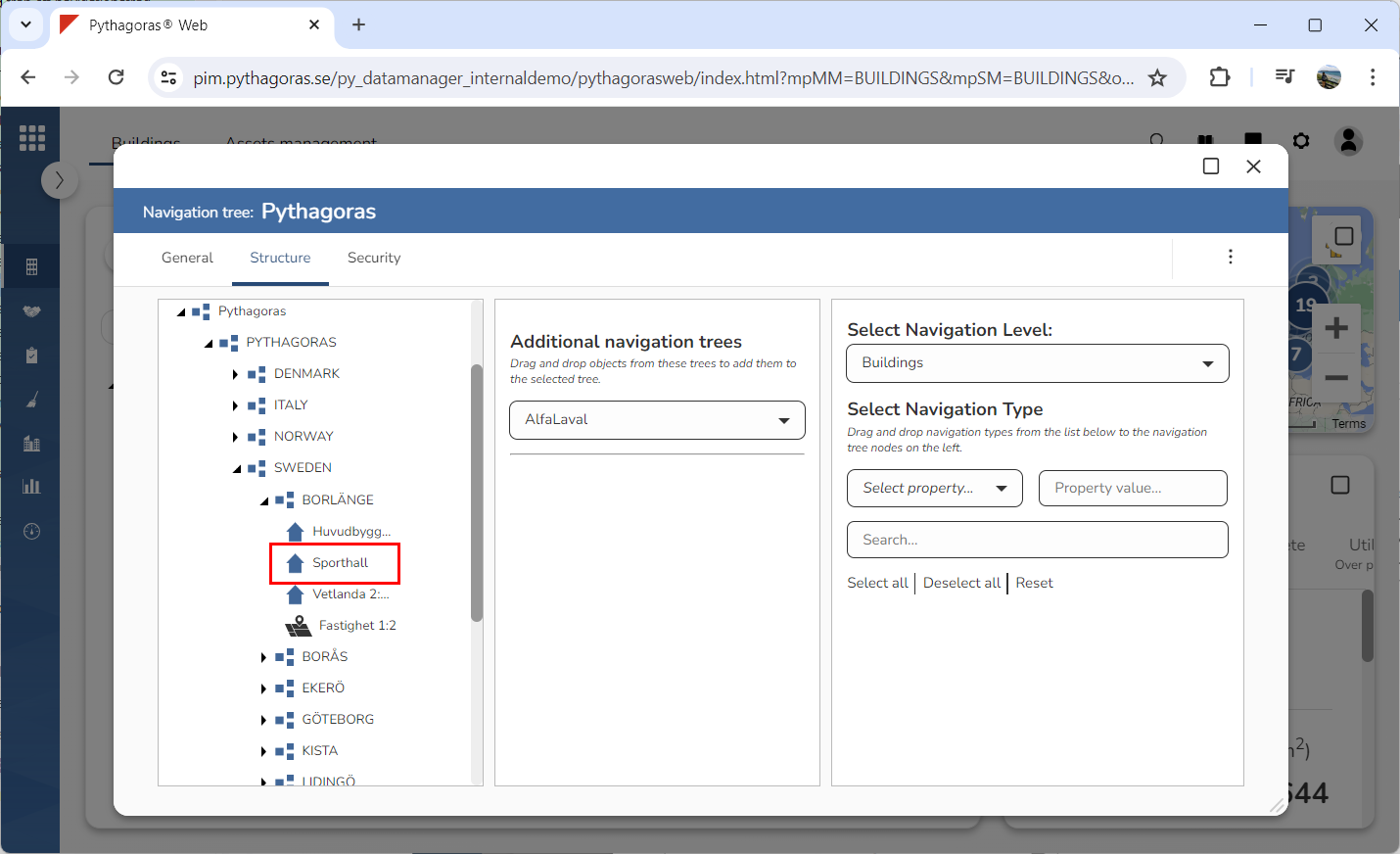
Make sure that i. the building you wish to move from one navigation folder to another is visible in the navigation tree ii. that the navigation folder you wish to move the building to is also visible in the navigation tree (see image below).
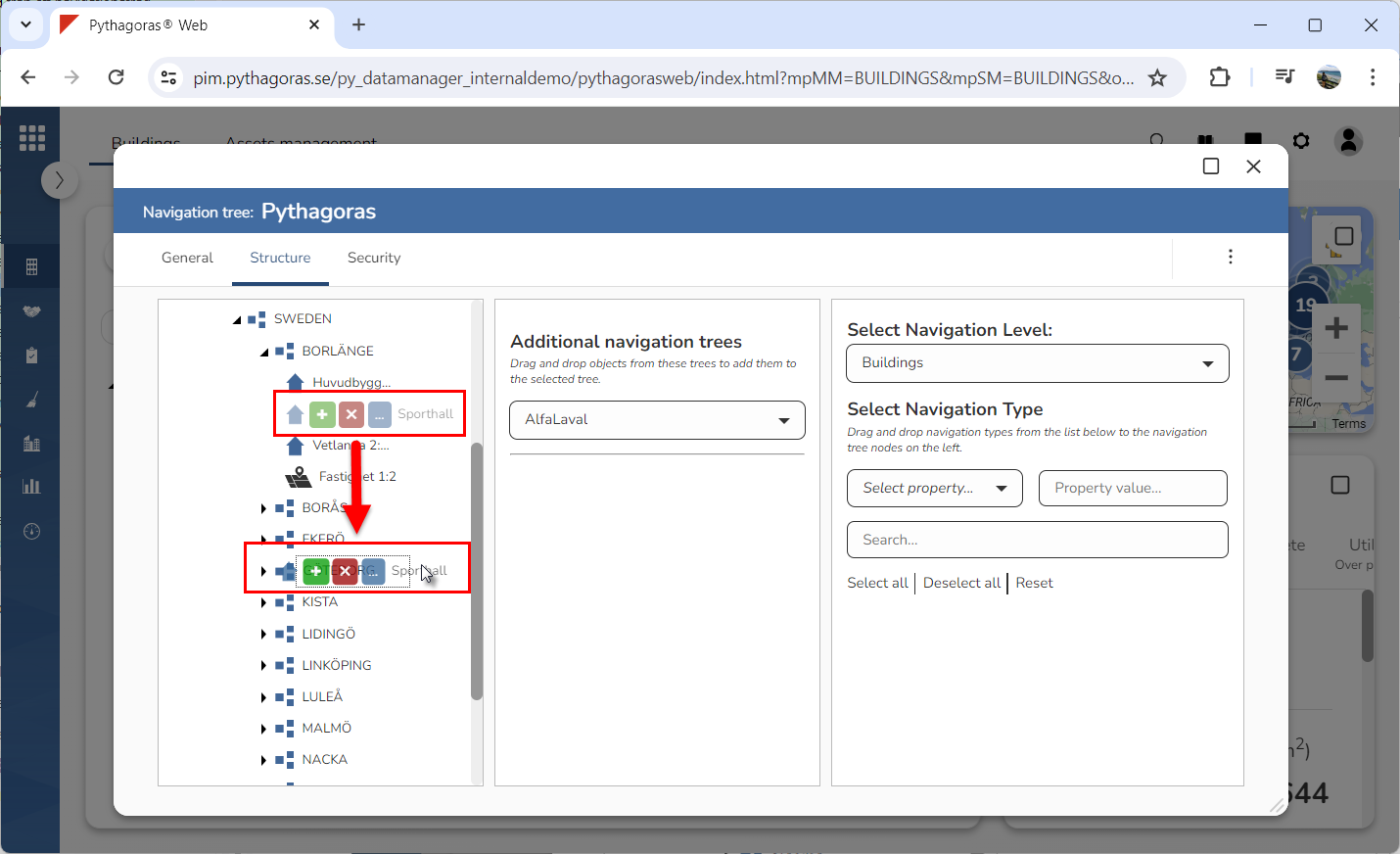
Drag the building you wish to move from the navigation folder it is currently in, to the navigation folder you wish to move it to (see image below).
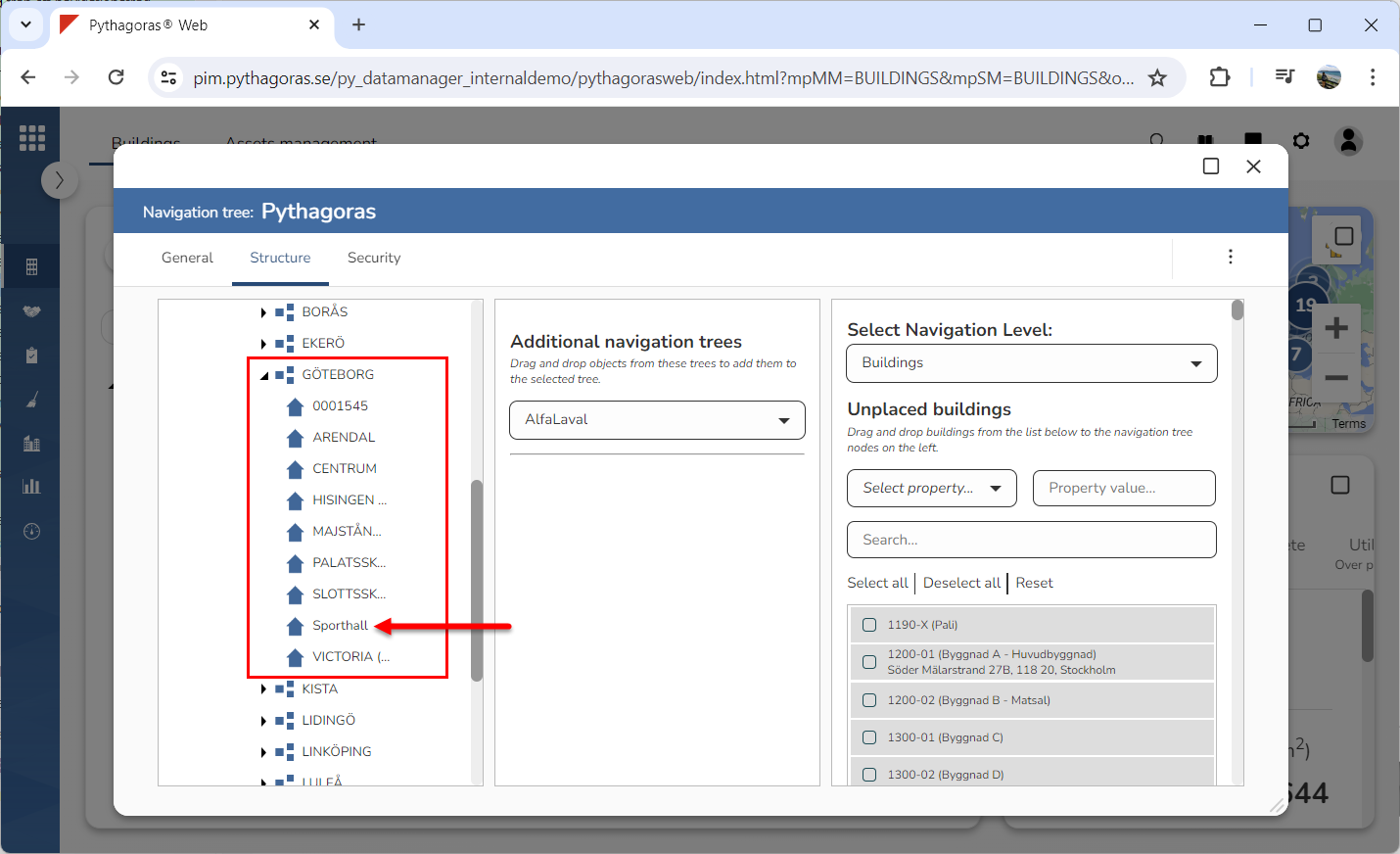
Drop the building you are working with in the navigation folder you dragged it to. Note that the building you are working with will be moved to the navigation folder you drop it in.