When creating a lease for a lease object it is easiest to create the lease in Leases. However, you can also create a lease via Buildings. For more information on how to create a lease in Leases, see section 6.3. in the manual for Leases. To open the manual for Leases, click here or open Leases and then click the Manual icon in the global settings area. Note that, usually there can only be one active lease per lease object but this can be changed using a setting.
To create a lease for a lease object:
Open a lease object. For more information on how to do so, see section 11.1.
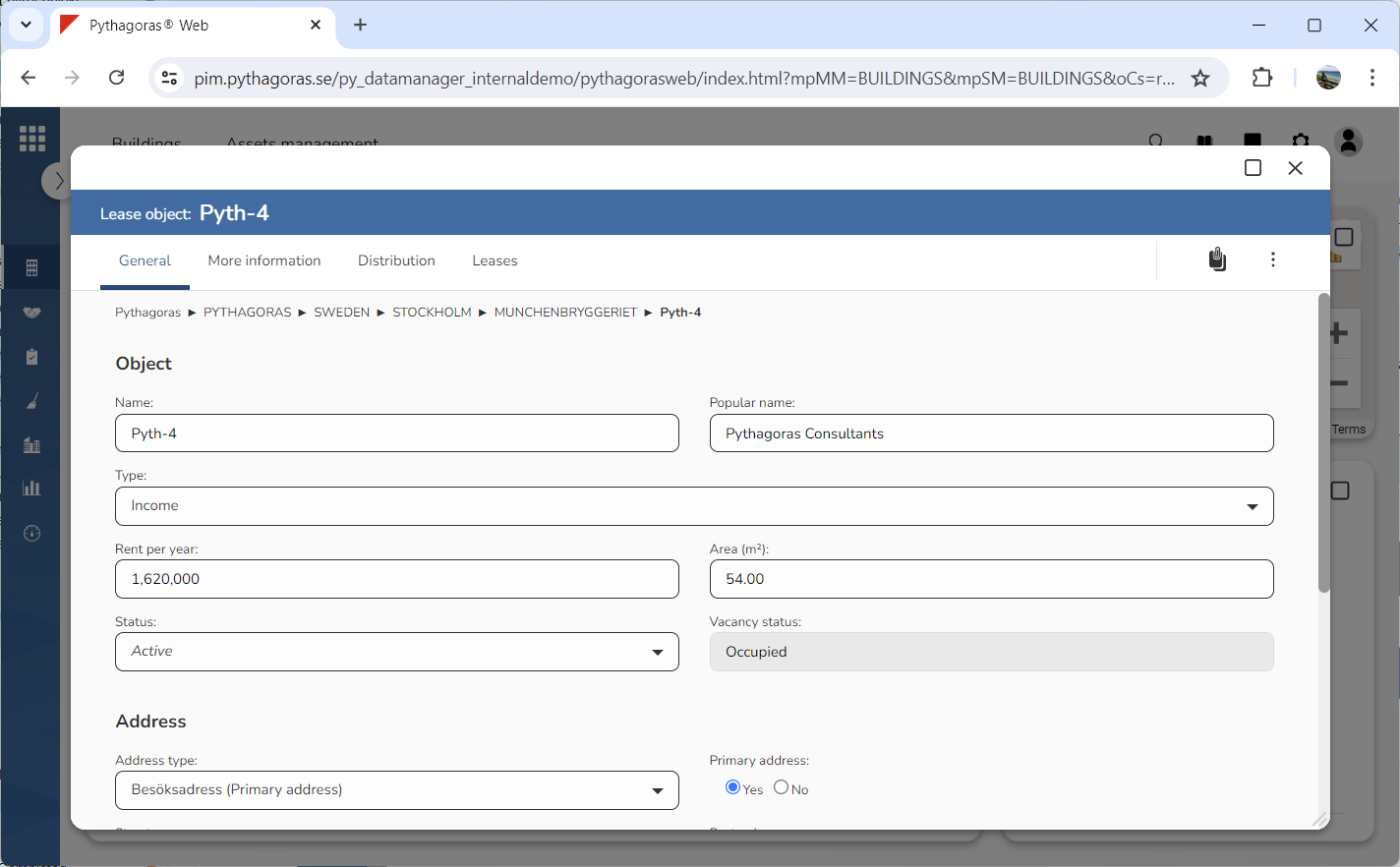
Go to the lease object card (see image below).
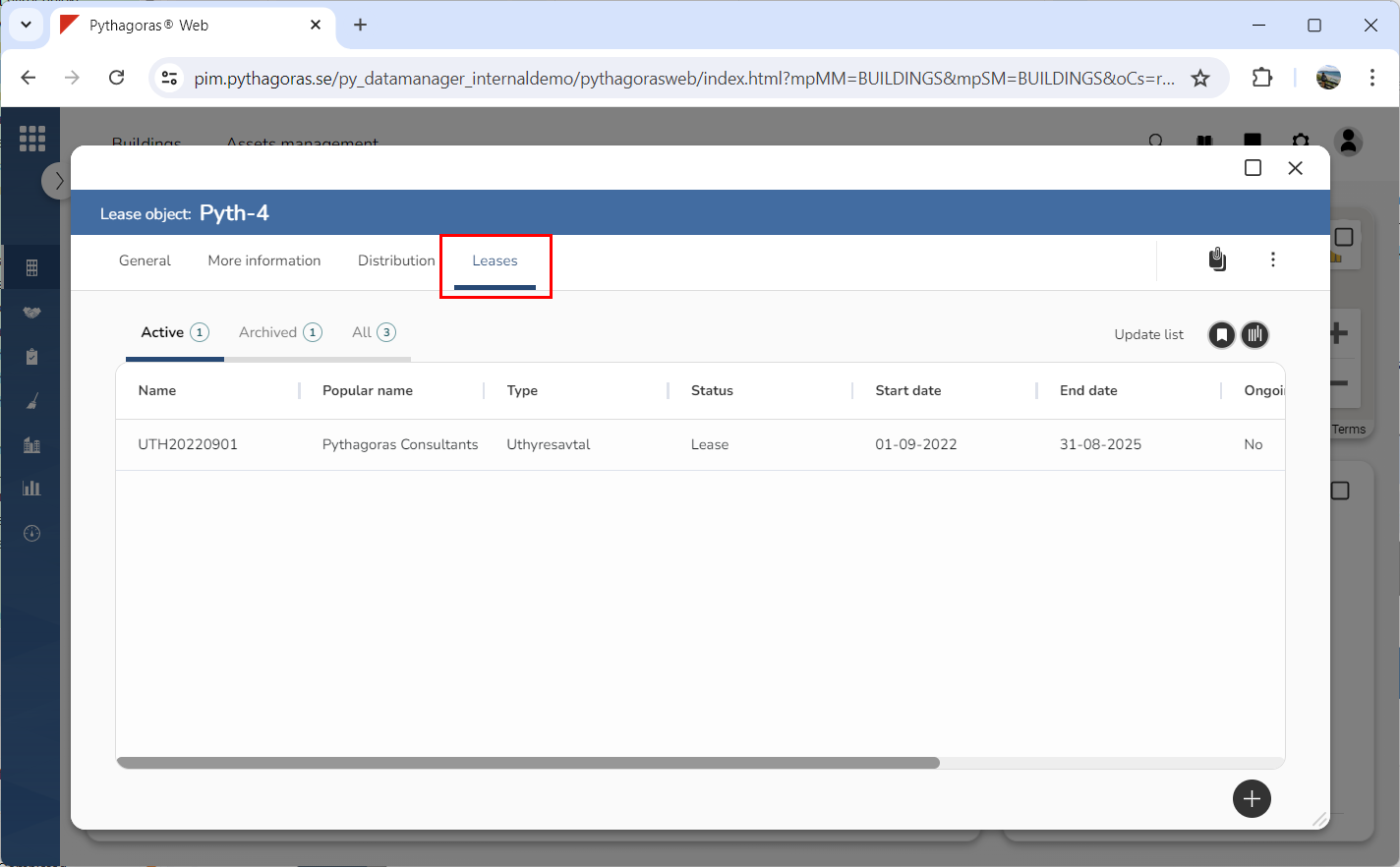
Click the tab called "Leases" (see image below). Within the tab called "Leases" you will find a leases list. In the leases list you will see which leases are associated with the lease object you are working with.
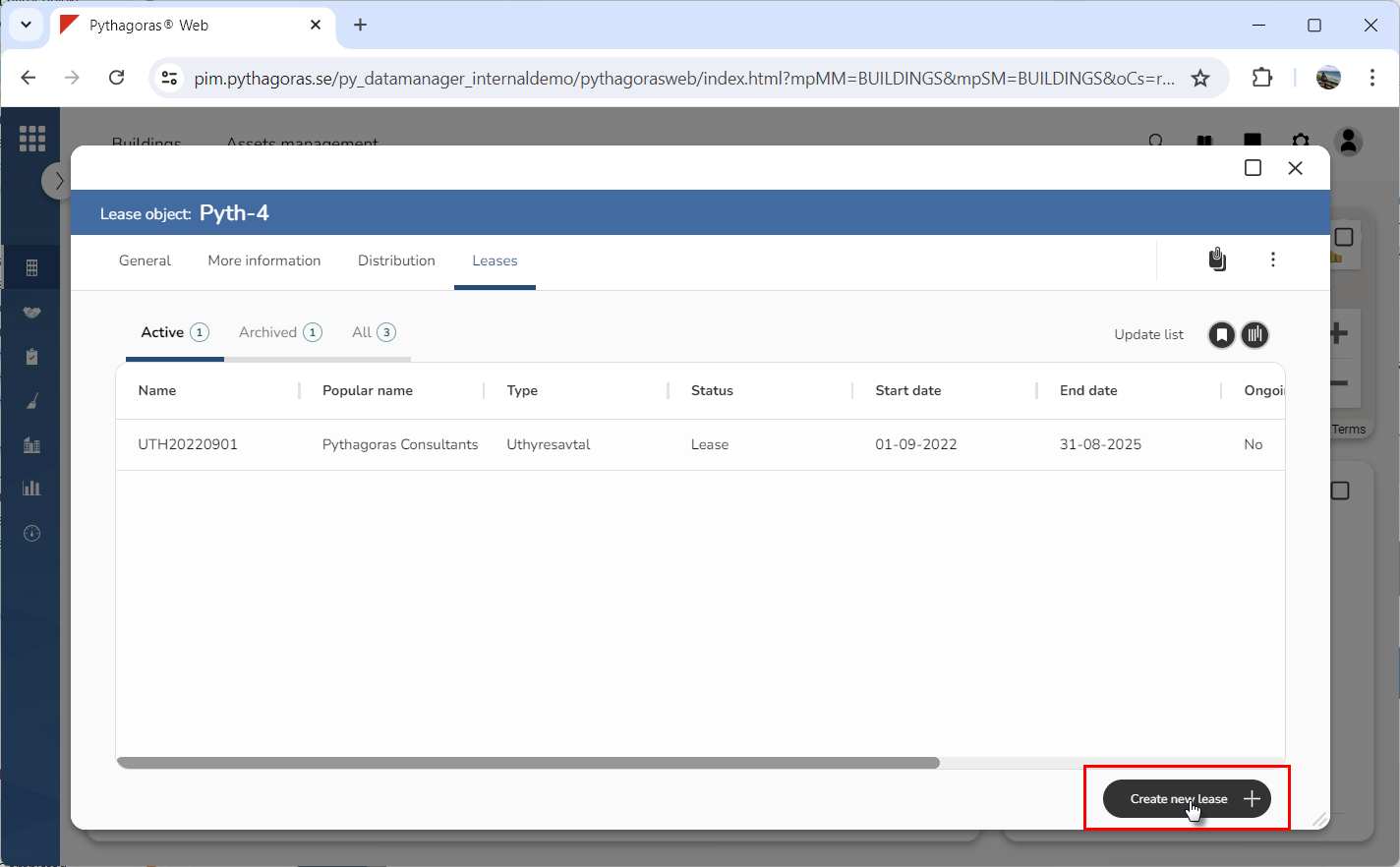
Click "Create new lease" (see the first image below). When you do so, a window called "Create new lease" will open (see the second image below).
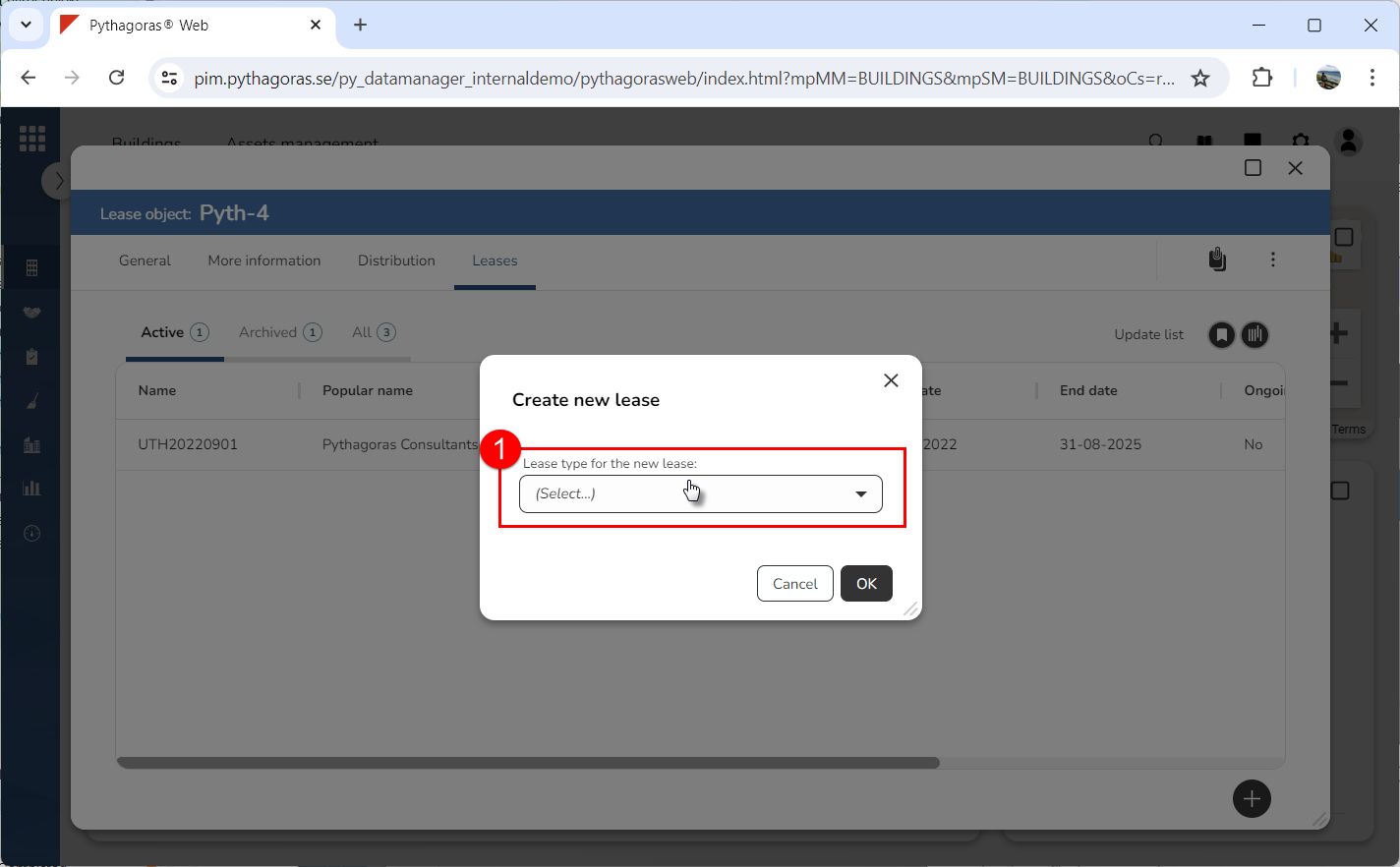
Go to the window called "Create new lease".
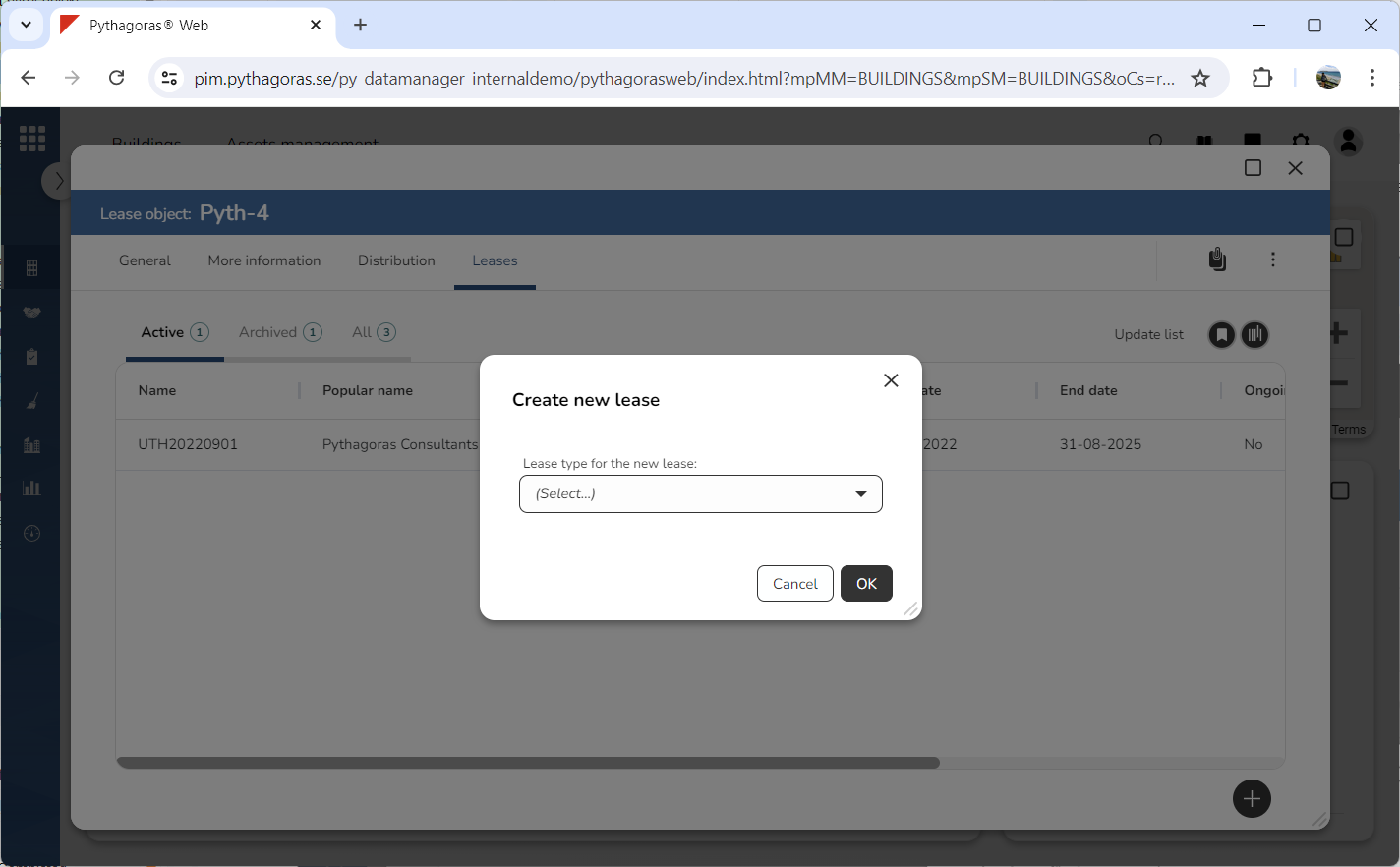
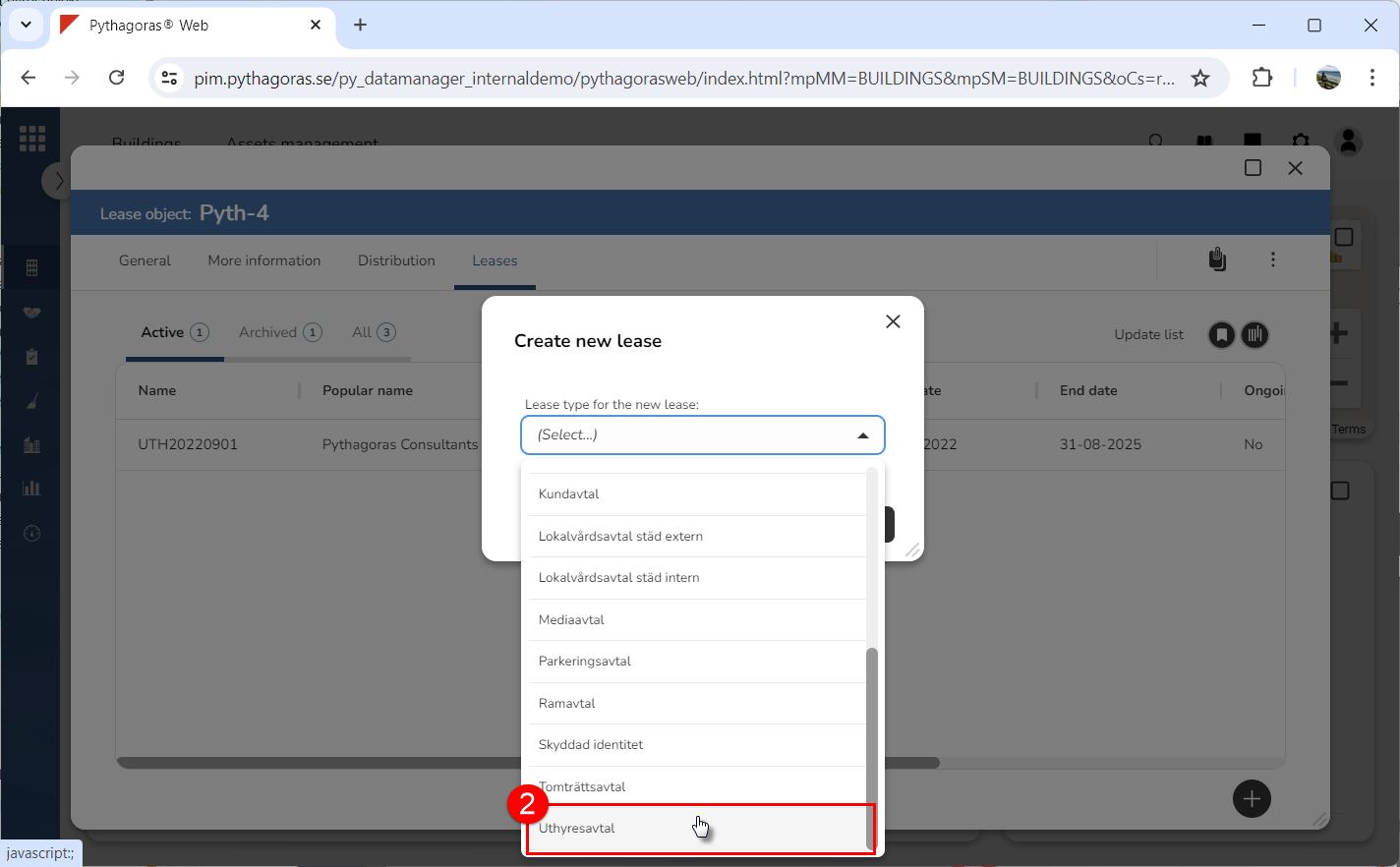
Select which type of lease you wish to create by clicking the field "Lease type for the new lease" and then click a lease type in the list that opens (see images below).
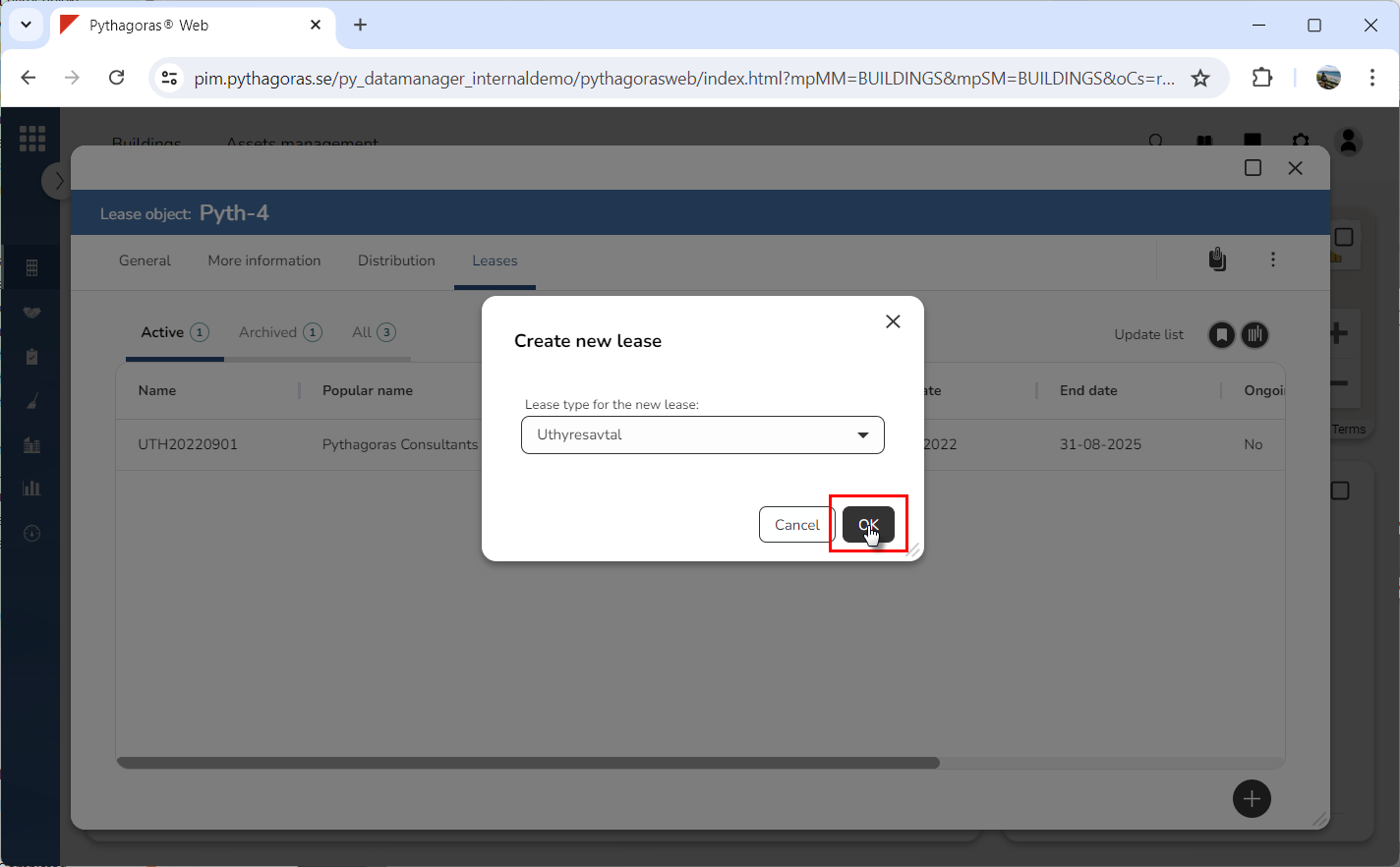
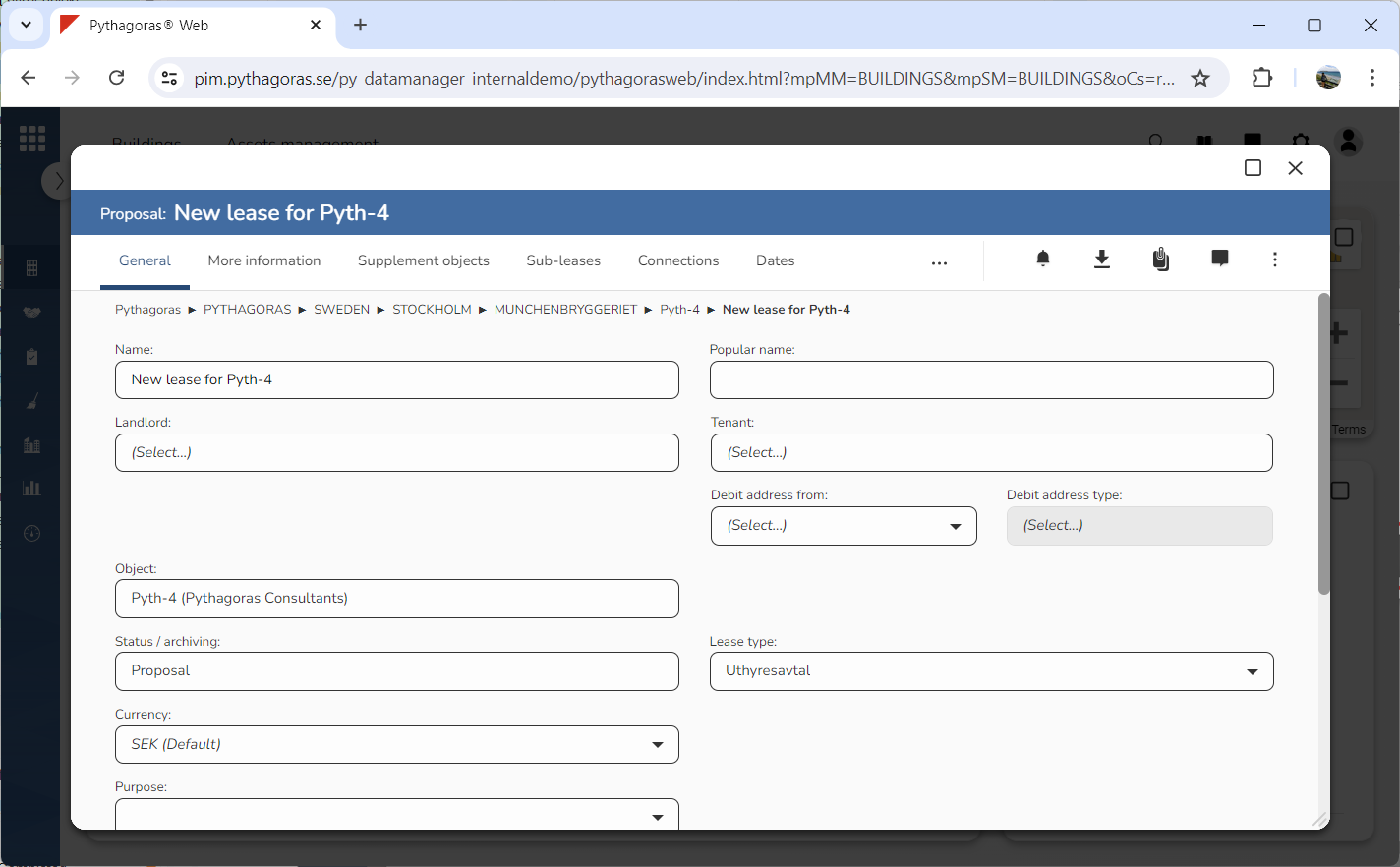
Click "OK" in the window called "Create new lease" (see the first image below). When you do so, a lease of the type selected in step 6 will be created and linked to the lease object you are working with. When a lease has been created, its lease card will open (see the second image below). Via the lease card you can work with a lease. For more information on how to do so, see chapter 8 in the manual for Leases. To open the manual for Leases, click here or open Leases and click the Manual icon in the global settings area. When you create a lease, the lease will receive the status "Proposal". For a lease to receive the status "Lease", the lease status must be changed from "Proposal" to "Lease". When the lease status is changed from "Proposal" to "Lease", the vacancy status of the lease object that it is associated with will change from "Vacant" to "Active". For more information on how to change the status of a lease, see section 8.1.8. in the manual for Leases, then continue reading the section "Change the status of a lease".