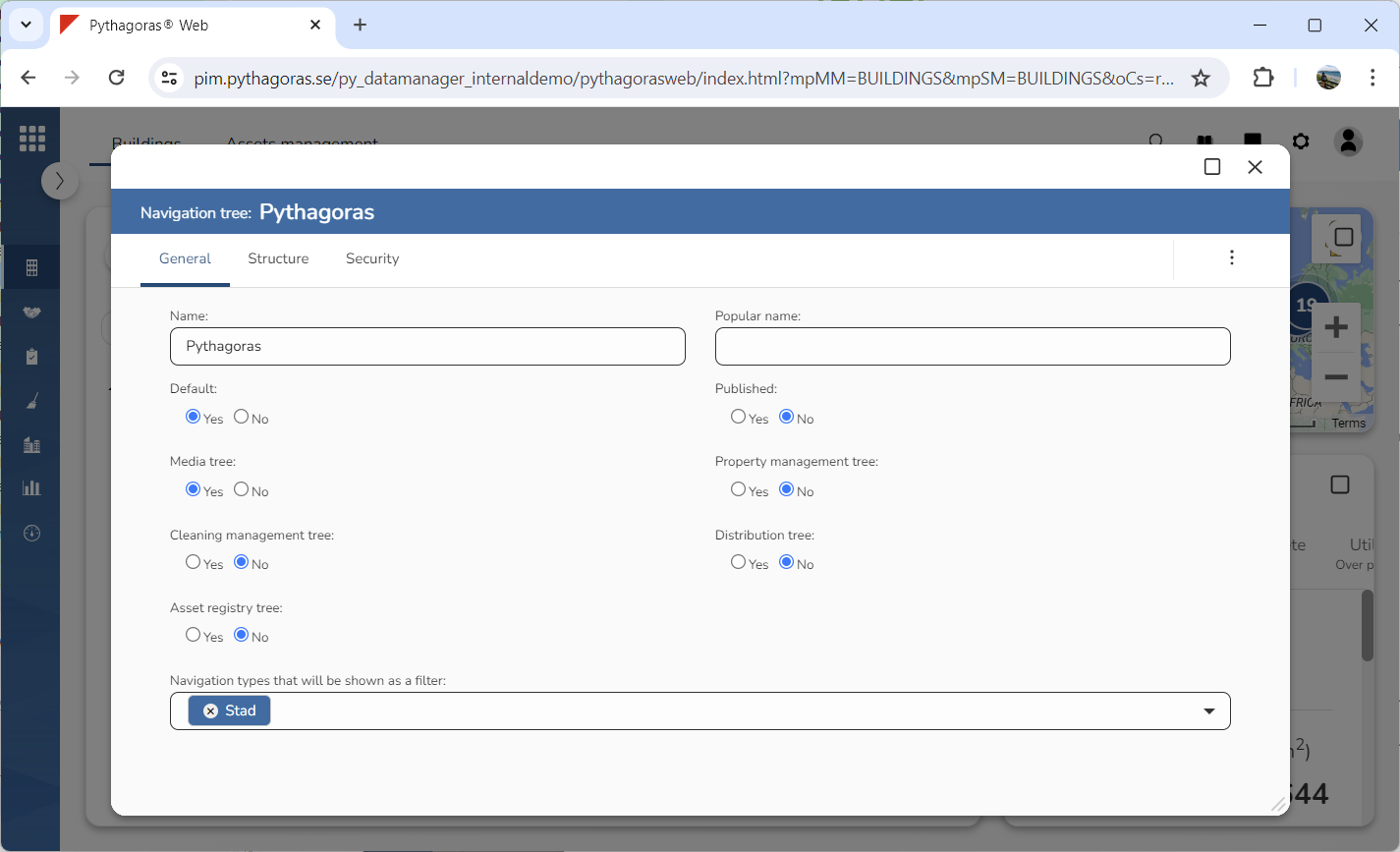
Open a navigation tree. For more information on how to do so, see section 5.4.1.
Go to the navigation tree card (see image below).
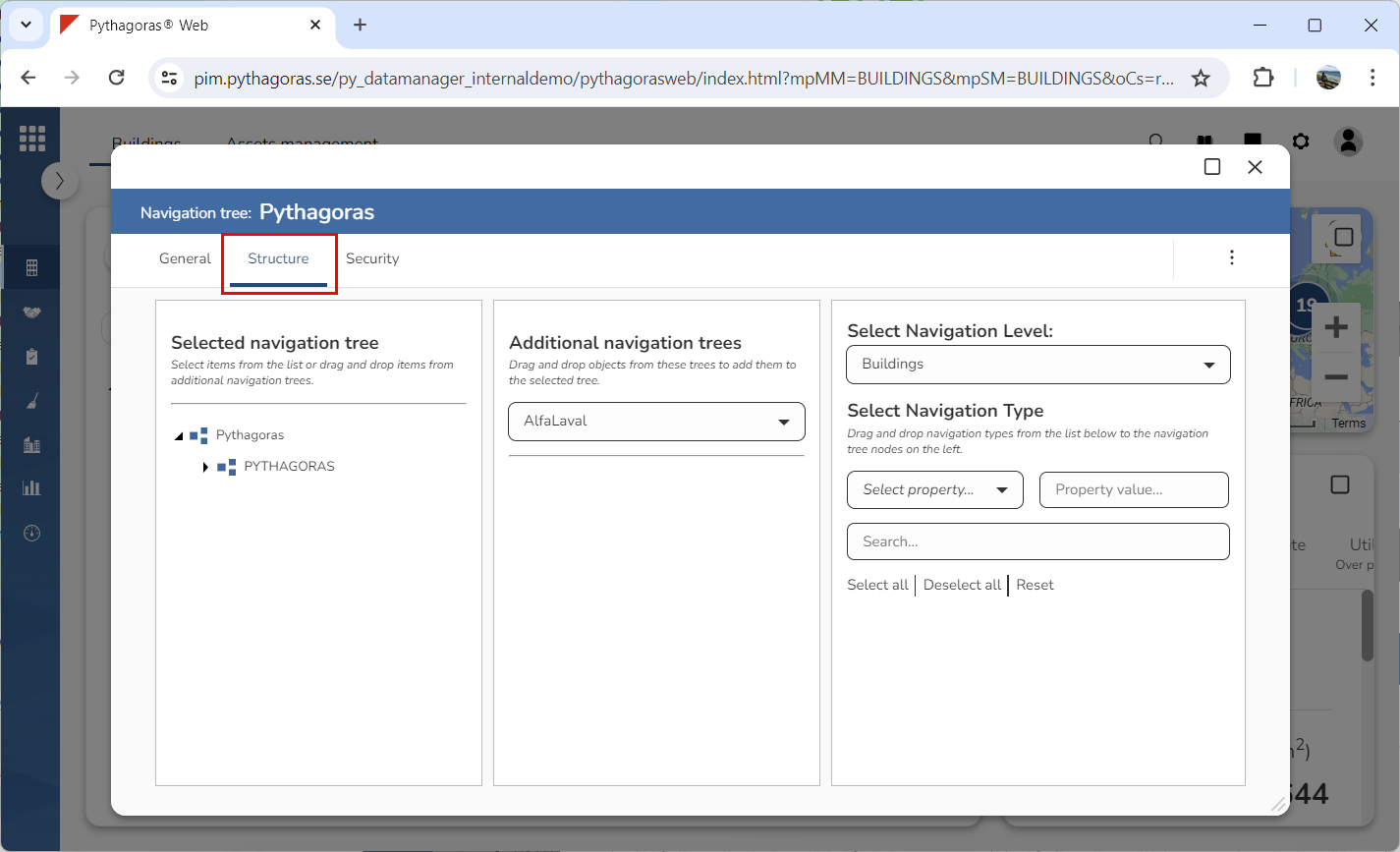
Click the tab called "Structure" (see image below). Clicking the tab called "Structure" will give you access to three columns: "Selected Navigation Tree", "Additional Navigation Trees" and "Select Navigation Level".
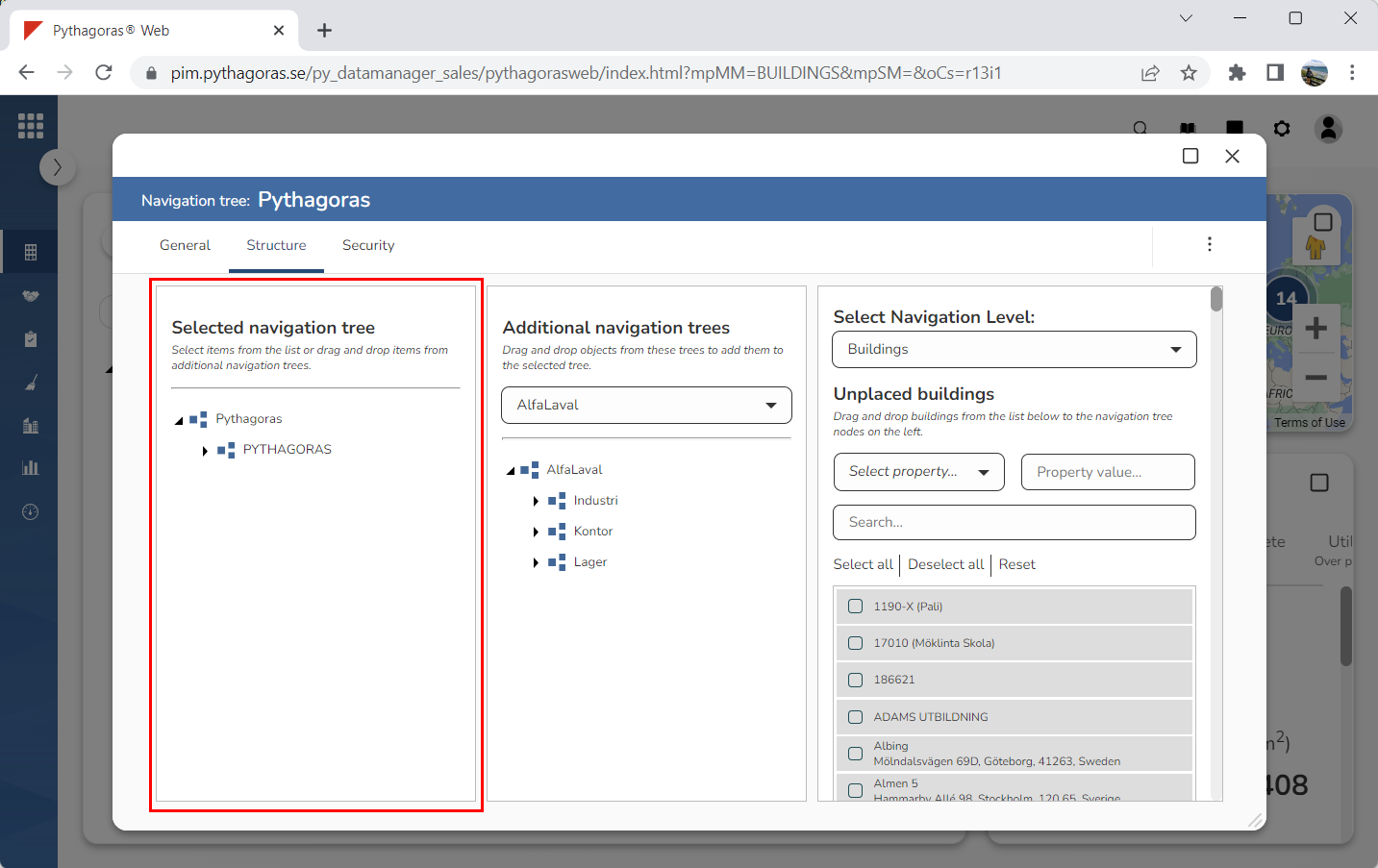
Go to the column called "Selected Navigation Tree". In the column called "Selected navigation tree" you will find the navigation tree you are working with (see image below).
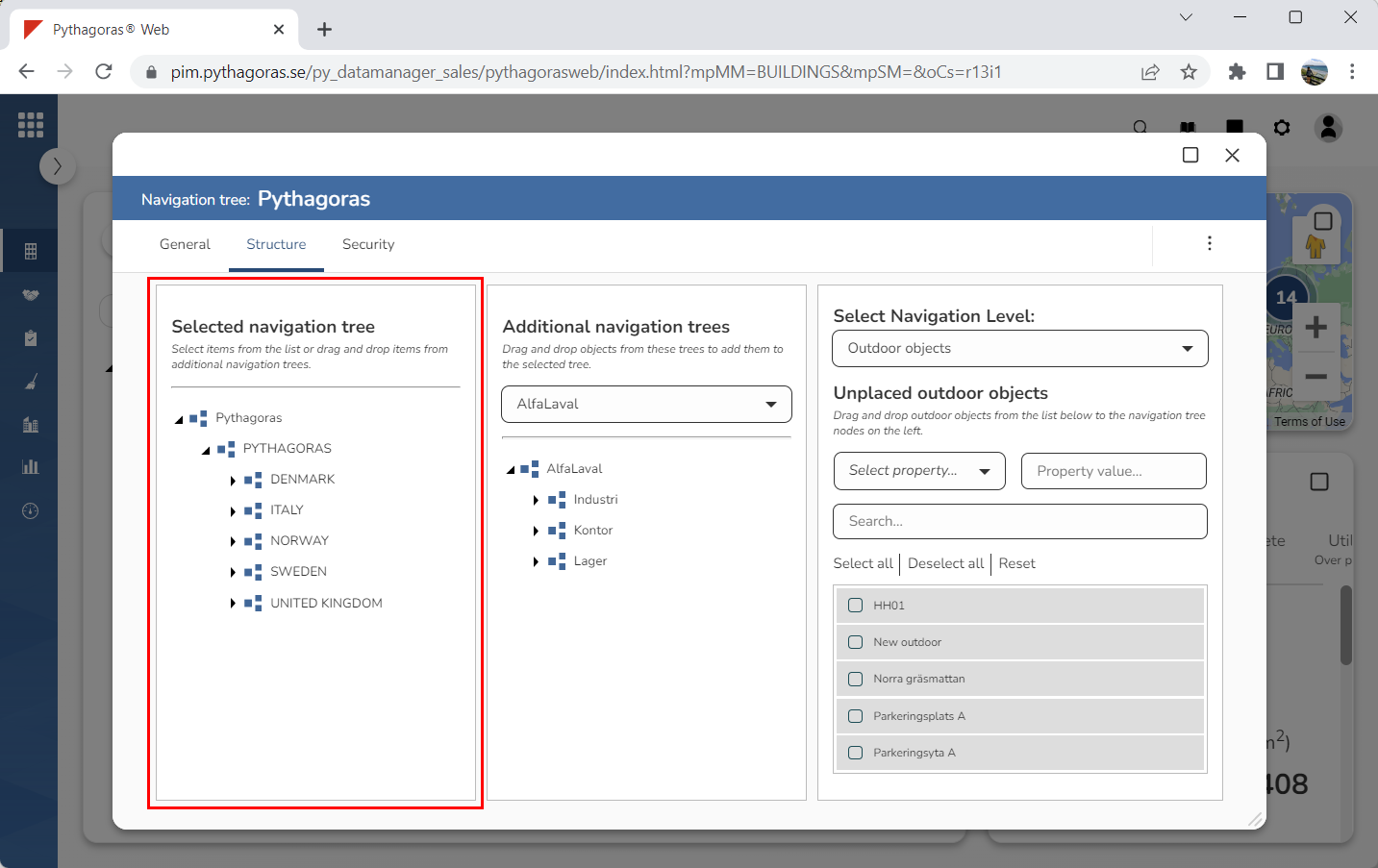
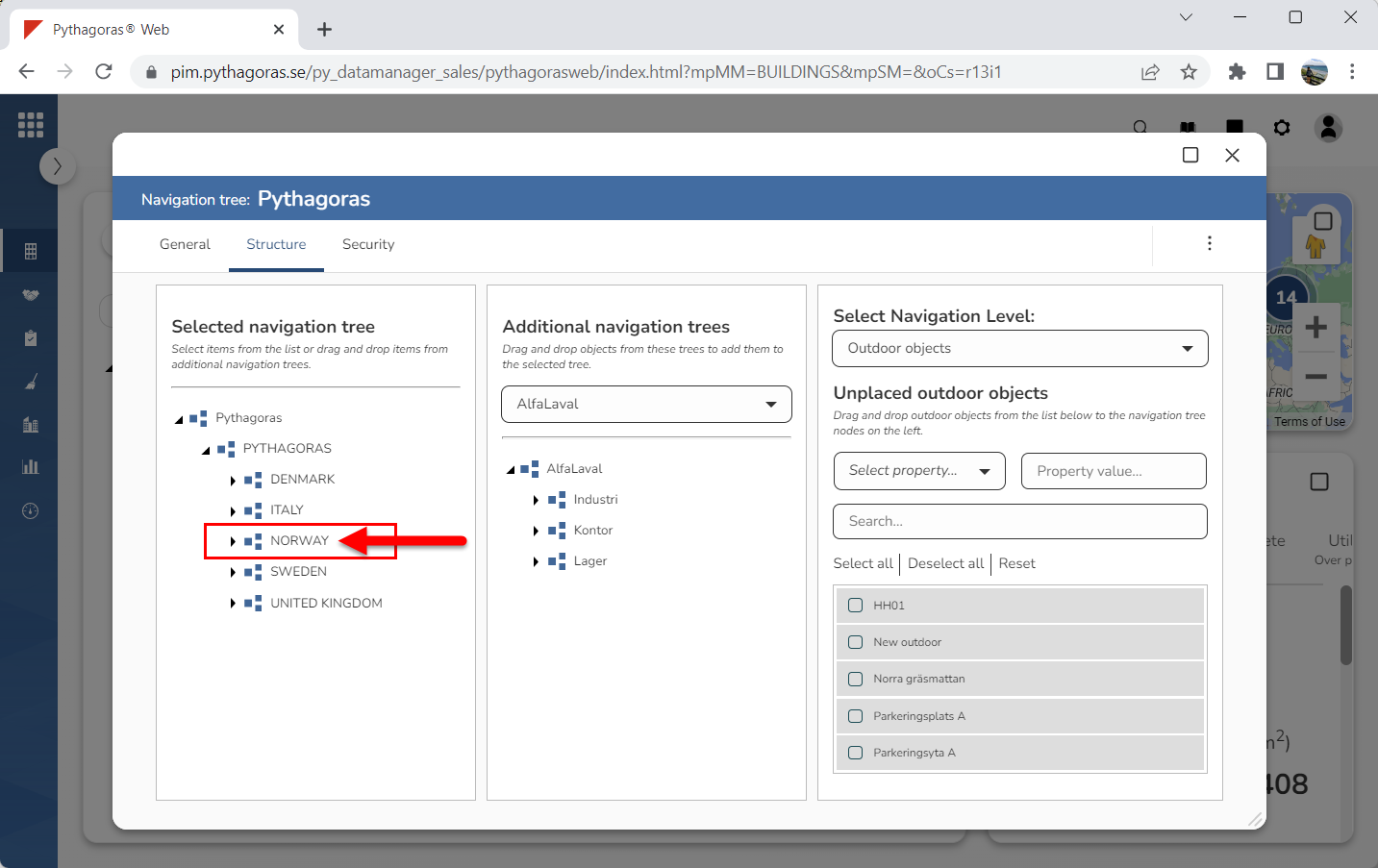
Make sure the navigation folder in which you wish to create a navigation folder is visible in the navigation tree by working your way down the navigation tree structure (see image below).
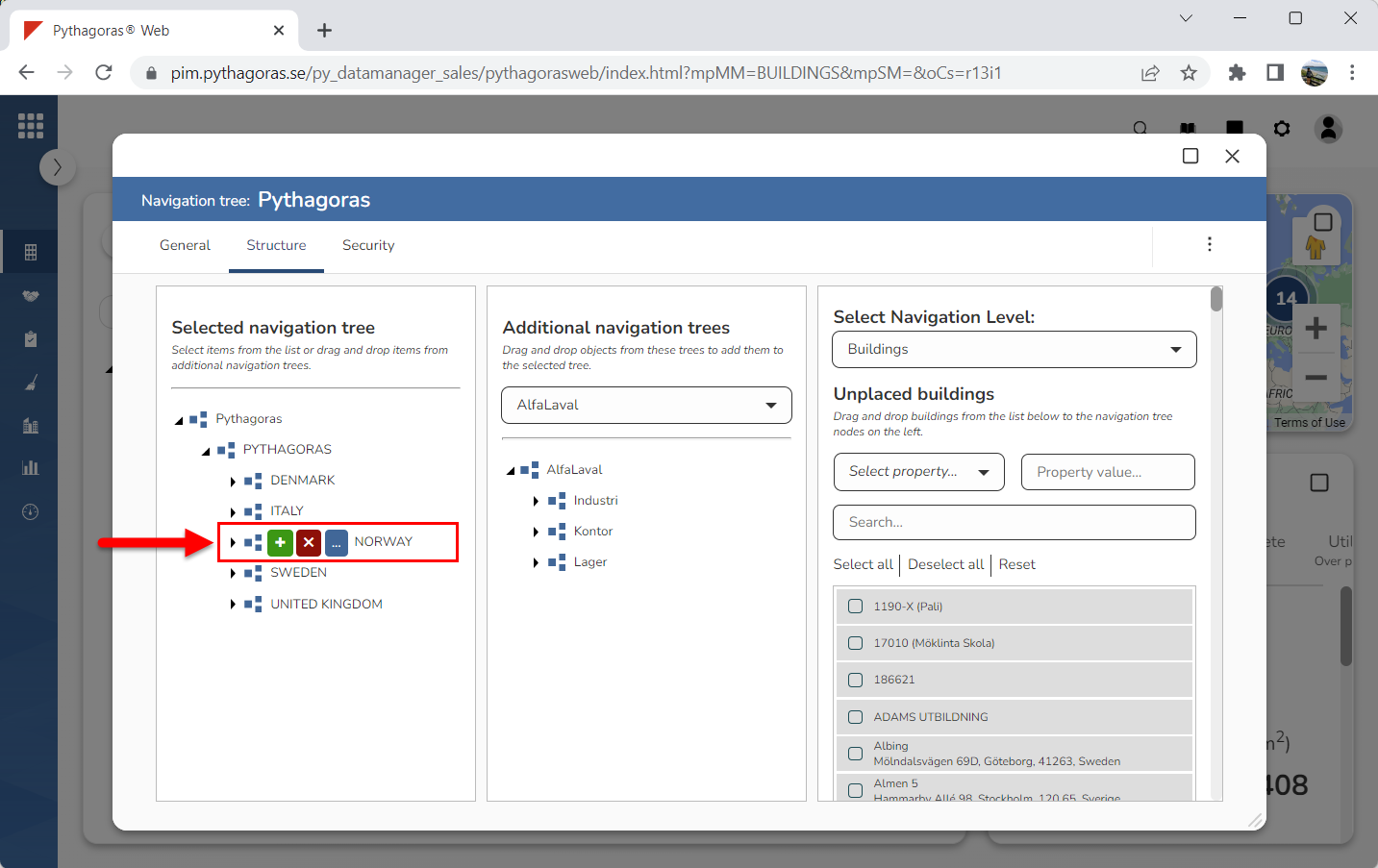
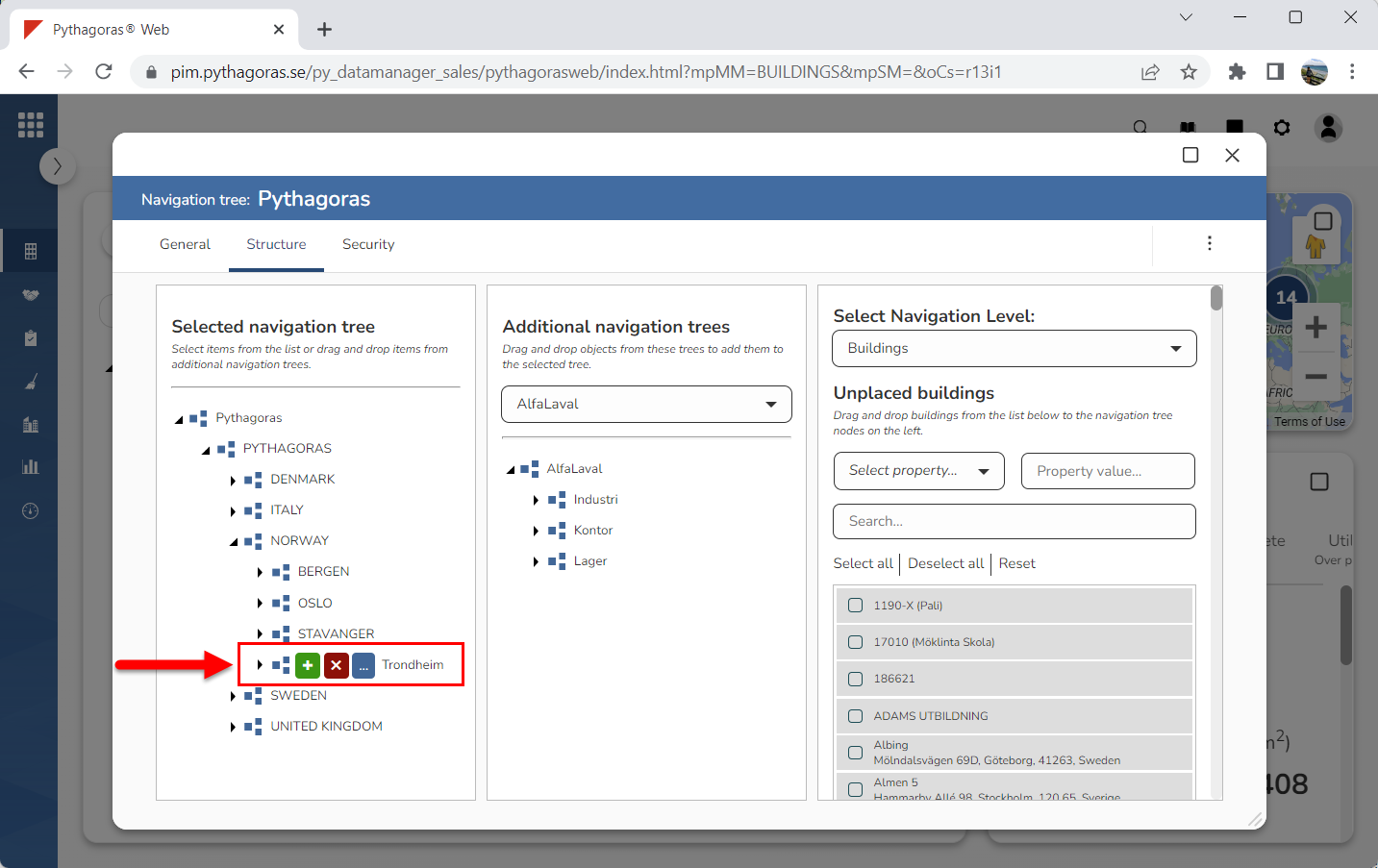
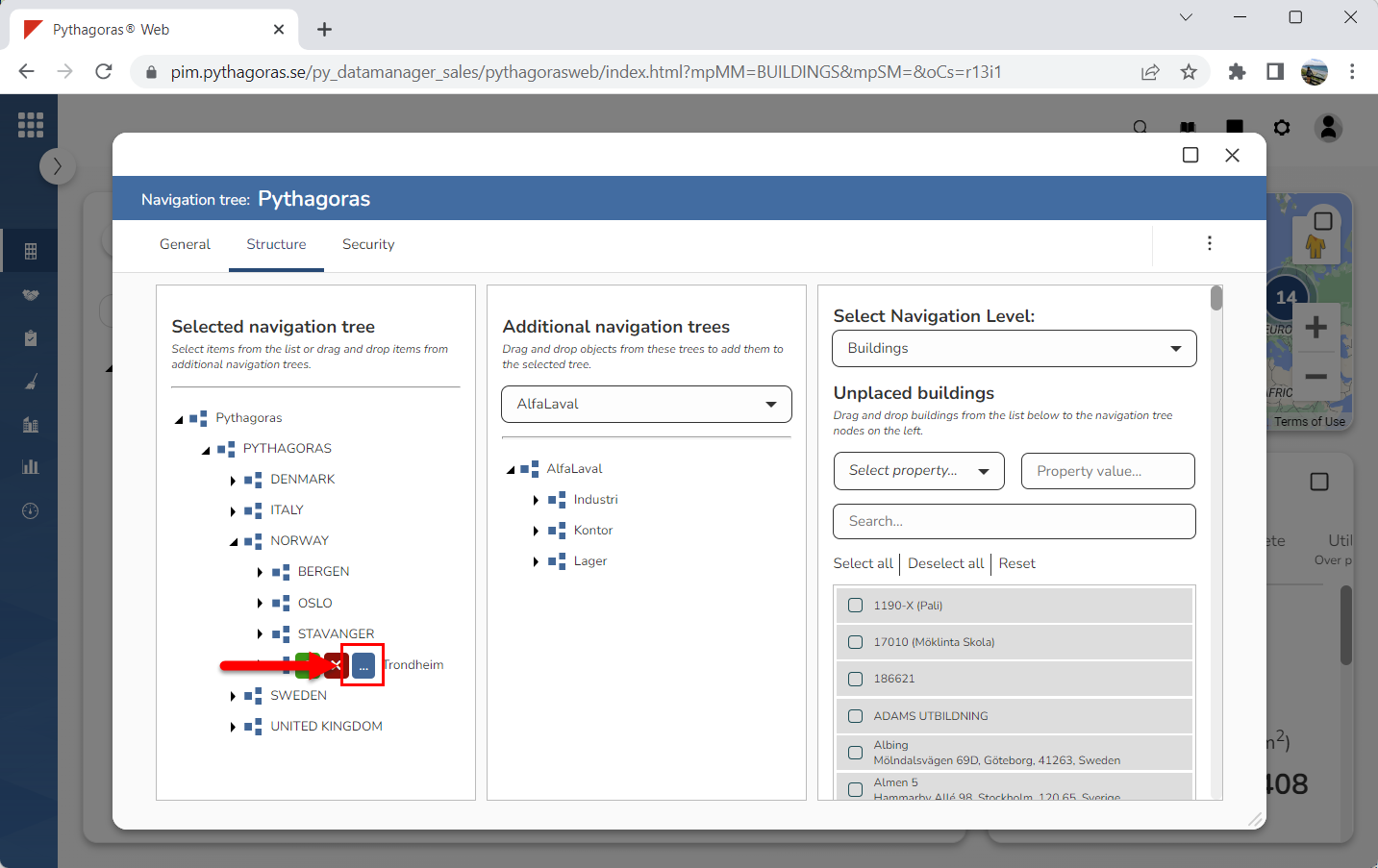
Place your cursor on the navigation folder you wish to create navigation folder in (see the first image below). When you place your cursor on a navigation folder, three icons will be shown: "Add object", "Delete" and "Open" (see the second image below). Note that if you place your cursor on the navigation folder at the top level of the navigation tree, you will only be shown one icon and that is the icon "Add object".
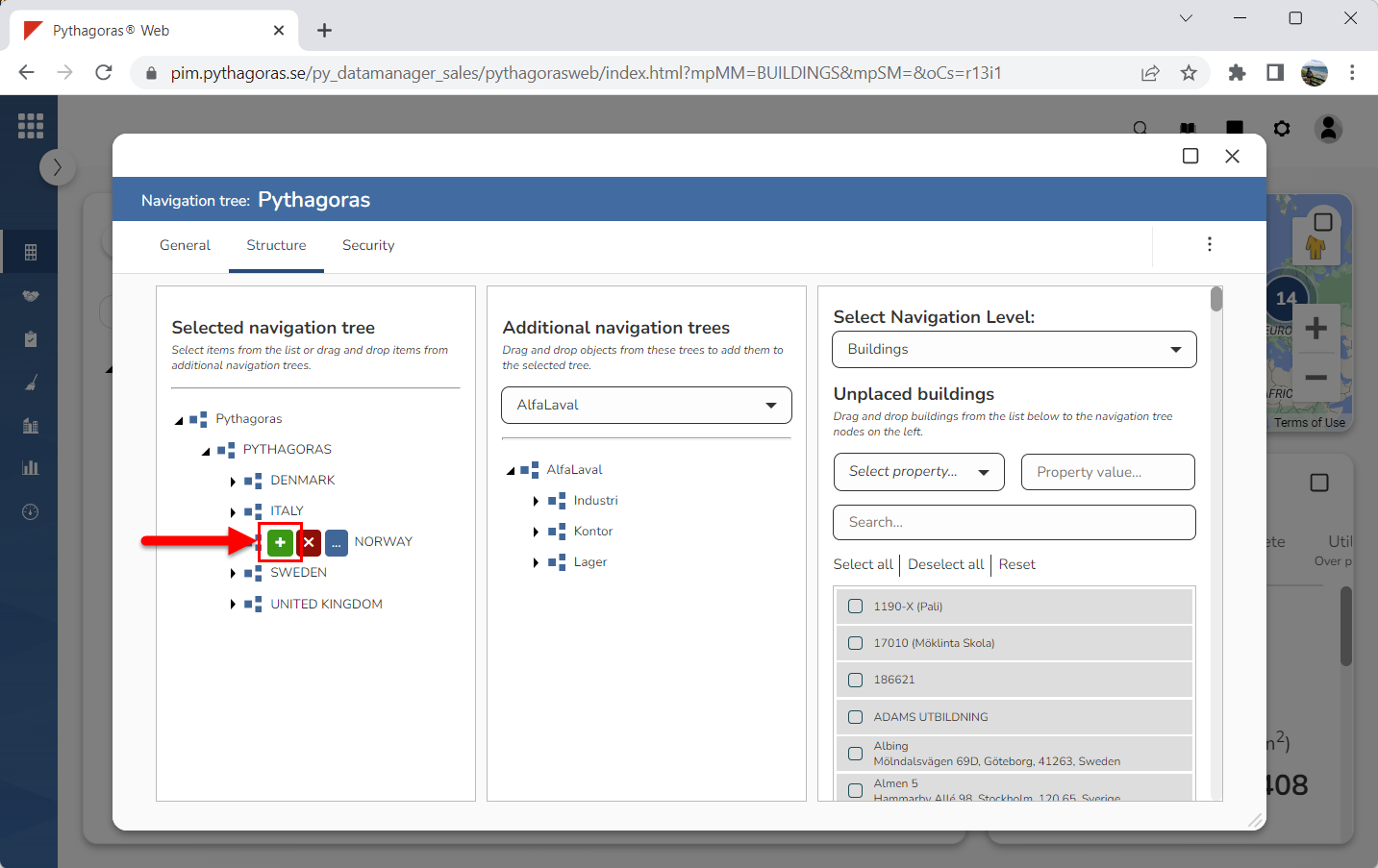
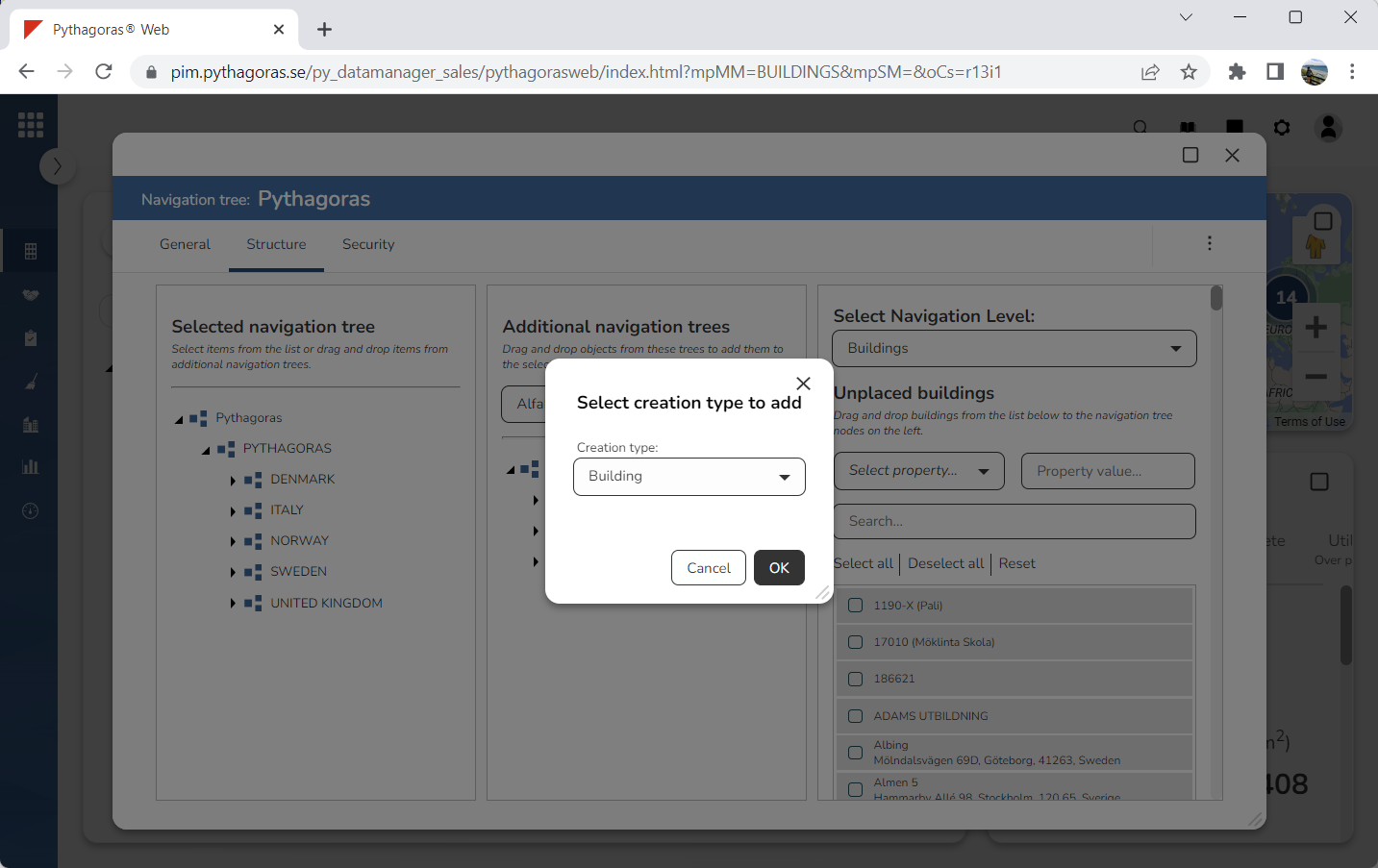
Click "Add object" (see the first image below). When you do so, a window called "Select creation type to add" will open (see the second image below).
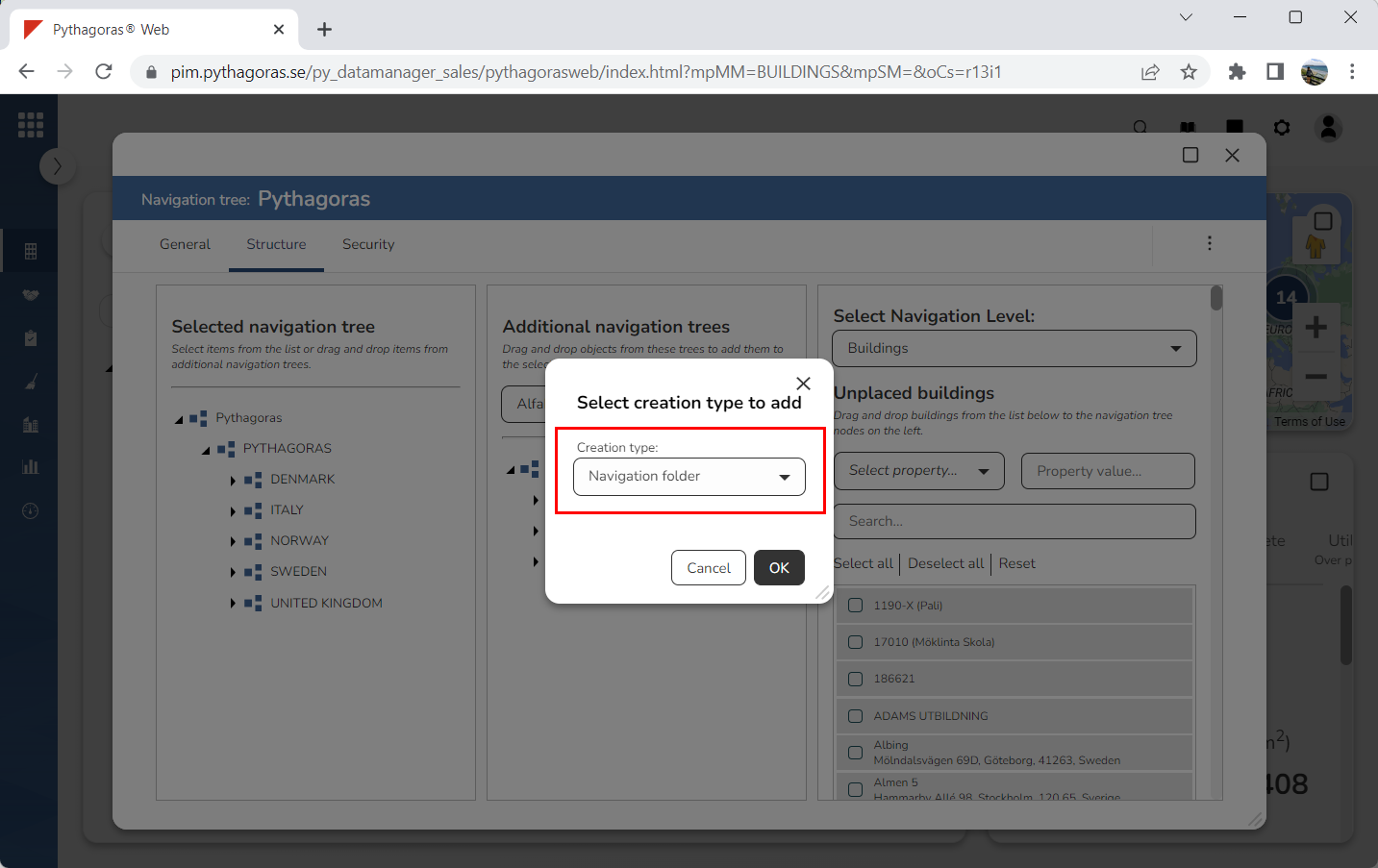
Go to the window called "Select creation type to add".
Specify that you wish to create a navigation folder by clicking the field "Creation type" and selecting "Navigation folder" in the list that opens (see image below).
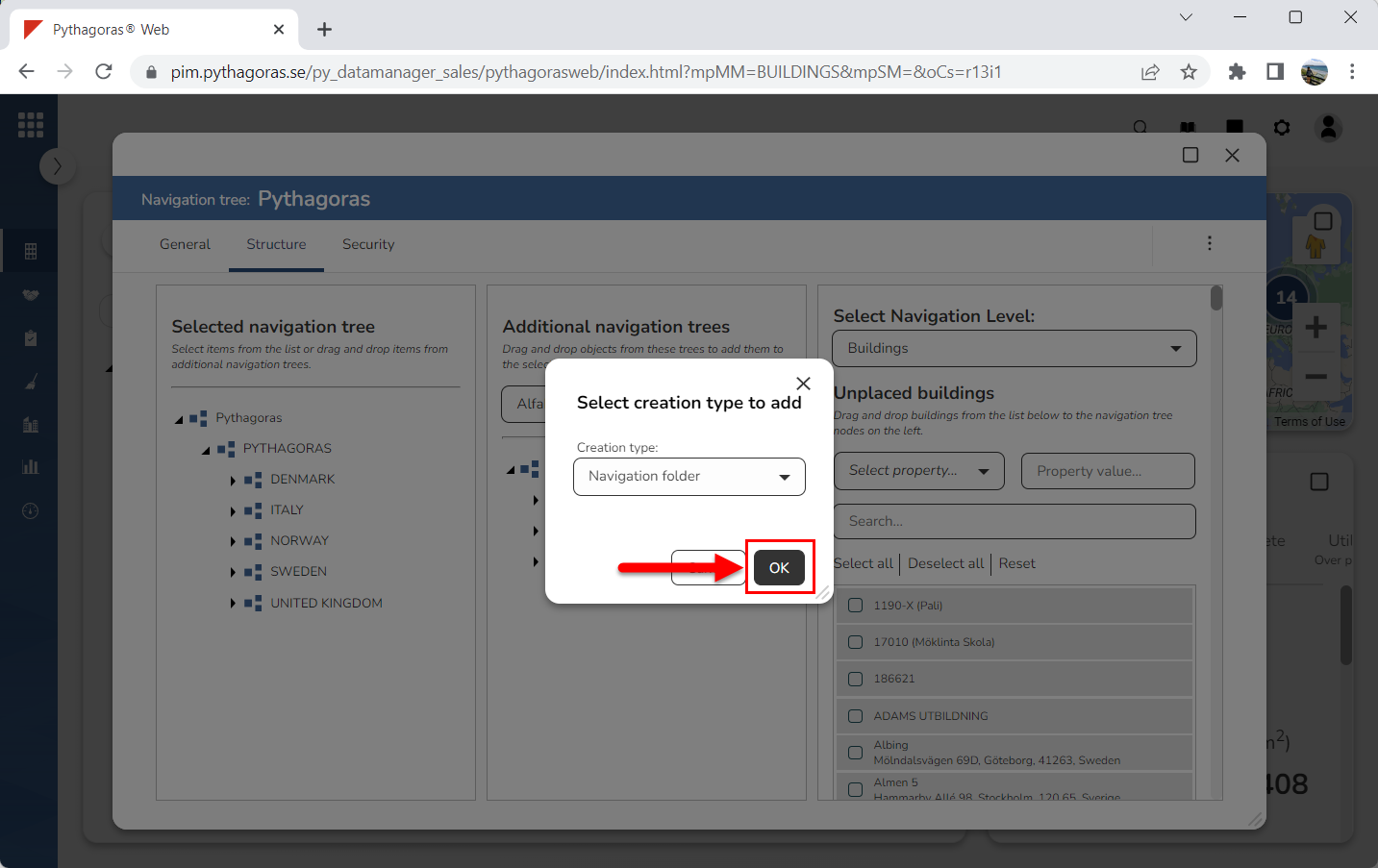
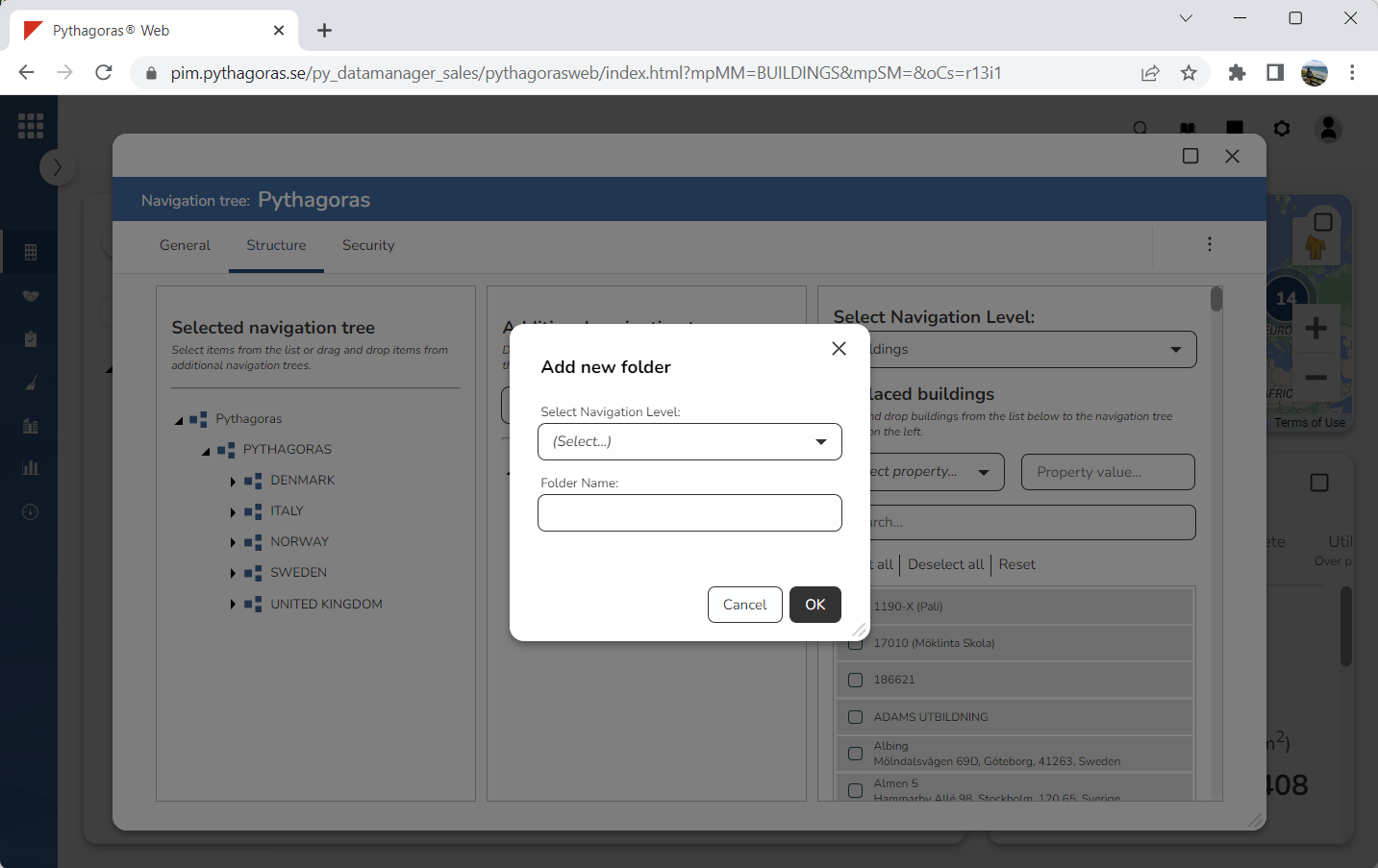
Click "OK" in the window called "Select creation type to add" (see the first image below). When you do so, a window called "Add new folder" will open (see the second image below).
Go to the window called "Add new folder".
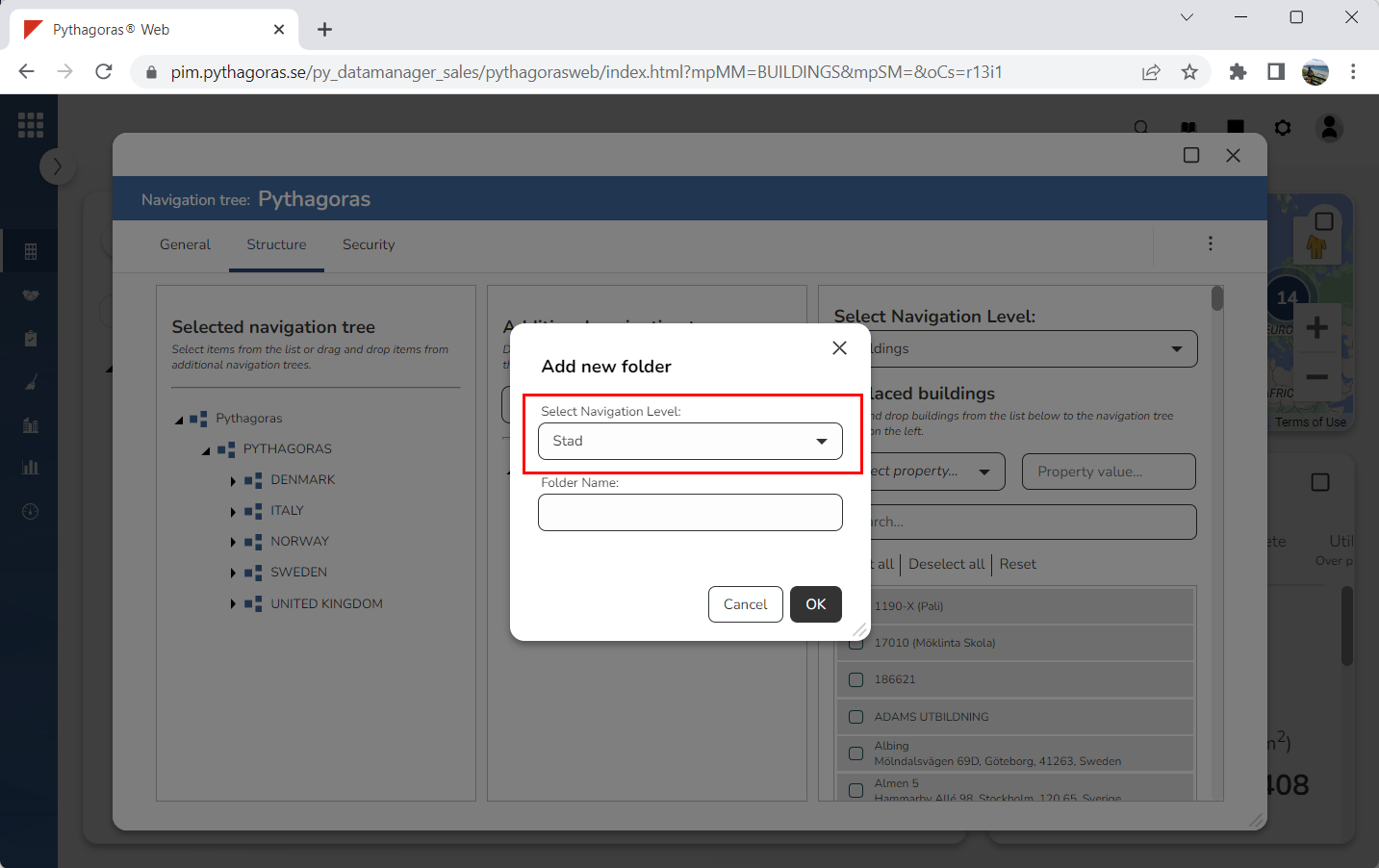
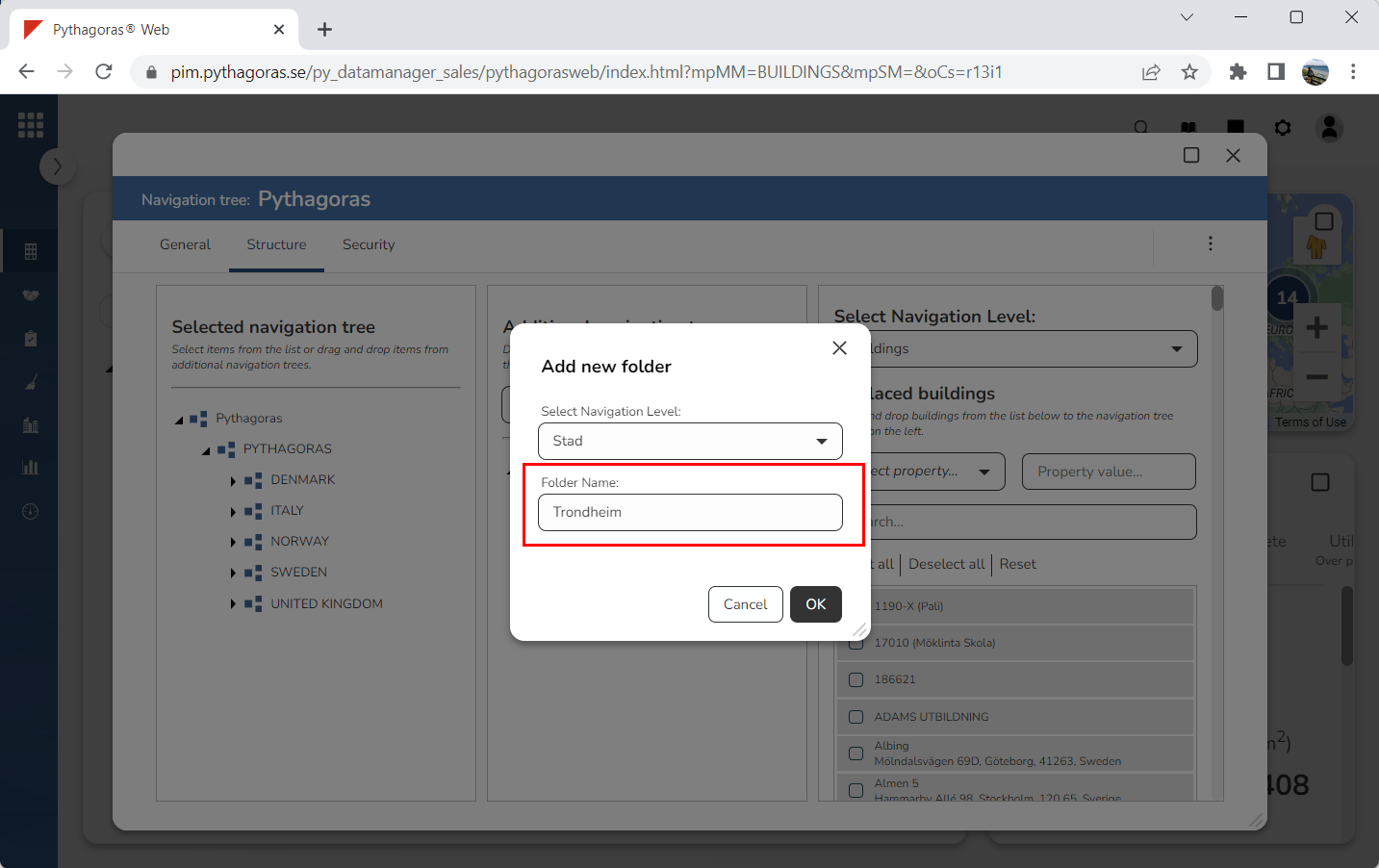
Set a navigation level for the navigation folder you are creating (see image below) Click the field "Select Navigation Level". Then select a navigation level in the list that opens.
Set a name for the navigation folder you are creating (see image below) by entering a name in the field "Folder Name".
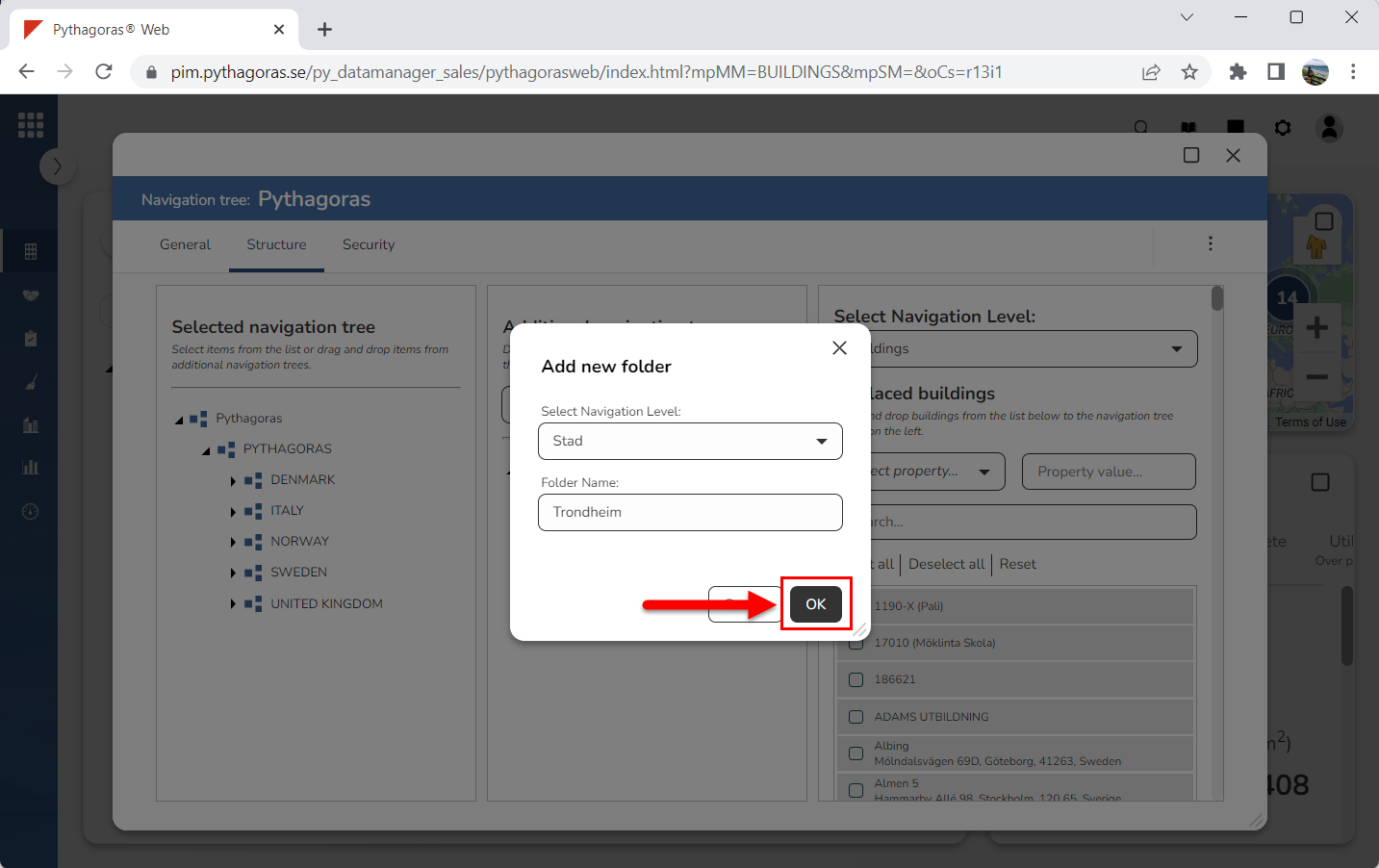
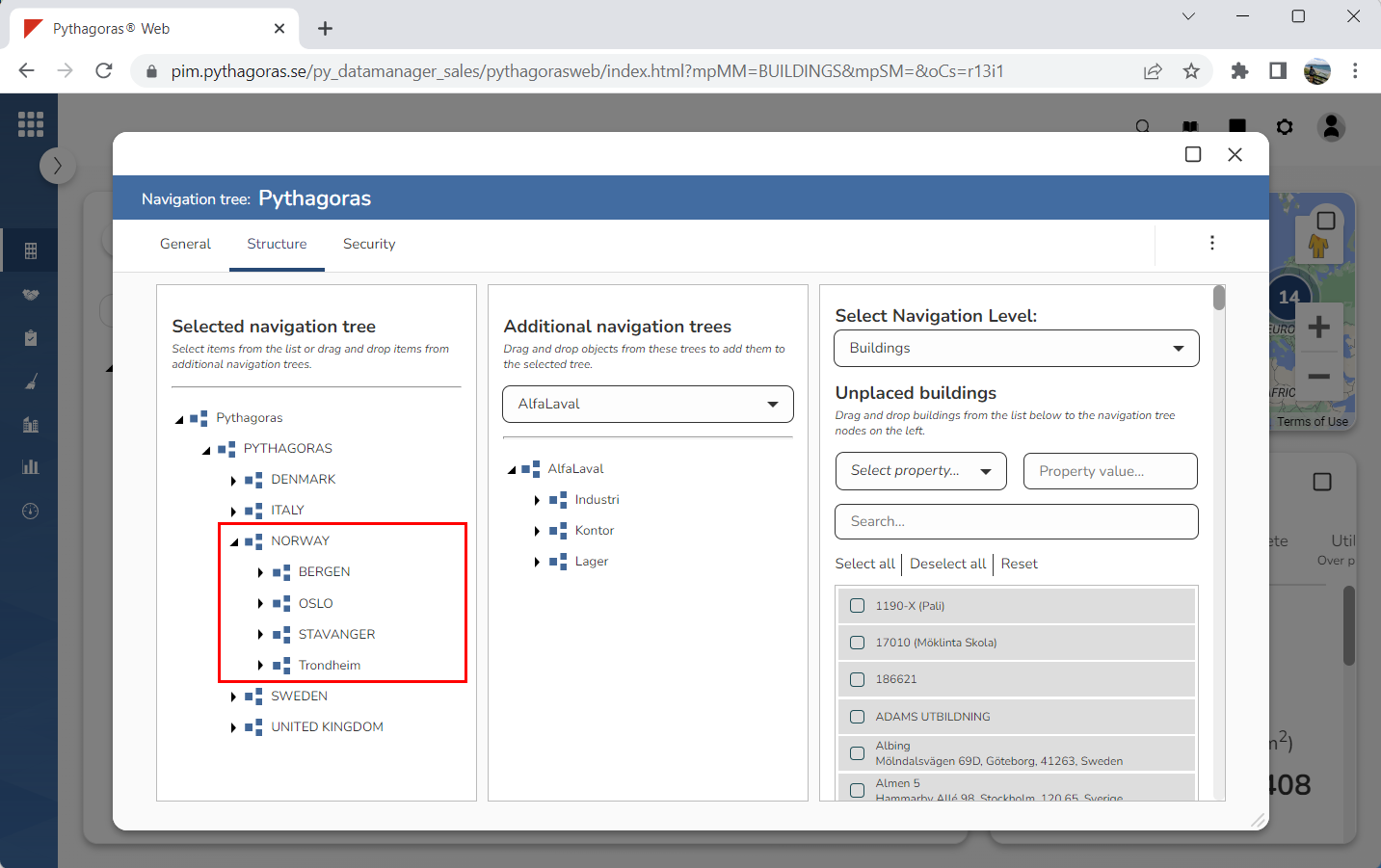
Click "OK" in the window called "Add new folder" (see the first image below). When you do so in the window called "Add new folder", a navigation folder will be created and added to the navigation folder you are working with (see the second image below).
Specify which user groups should have access to the navigation folder you have created.
To specify which user groups should have access to the navigation folder you have created:
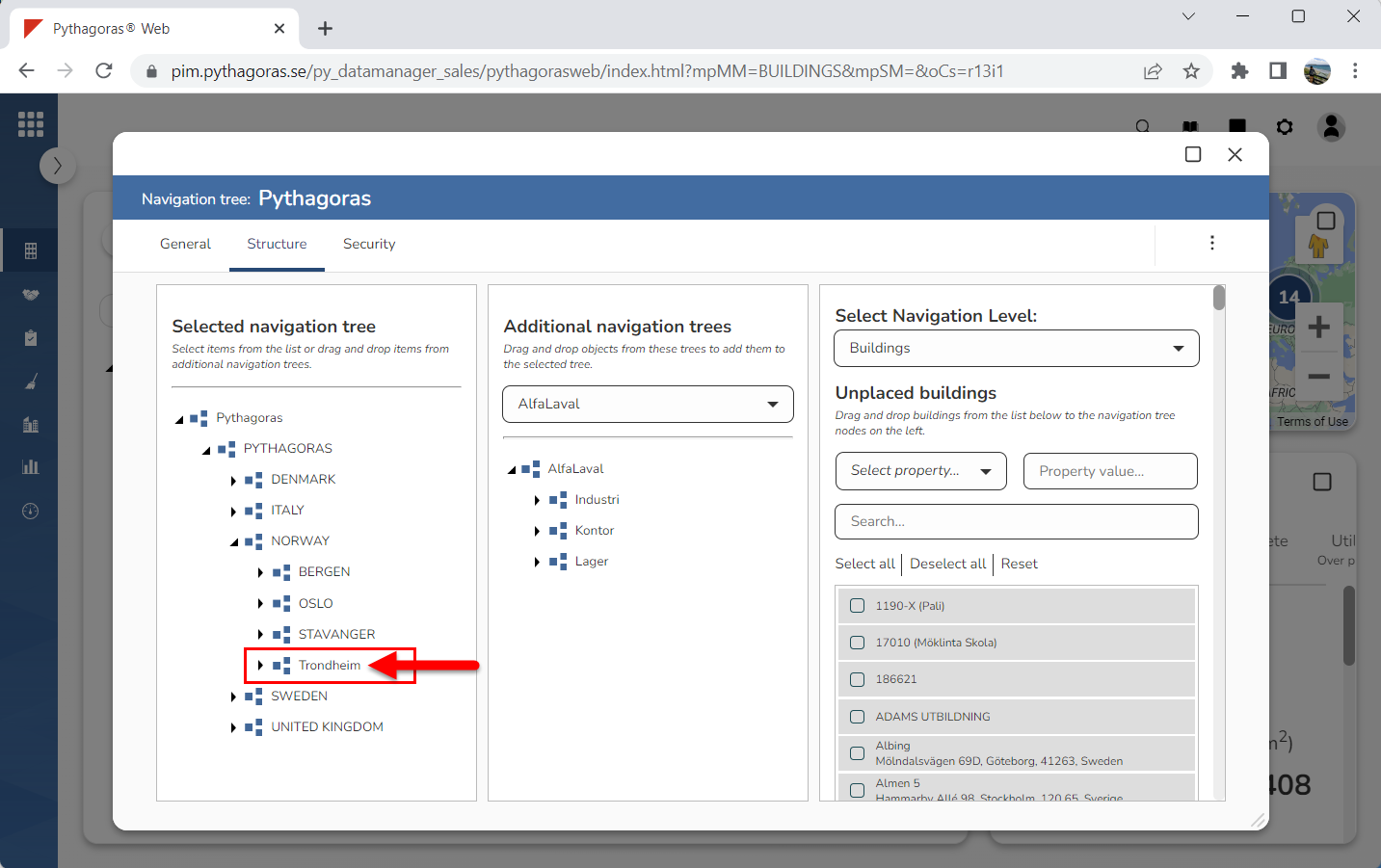
Place your cursor on the navigation folder you have created (see the first image below). When you place your cursor on the navigation folder you have created, three icons will be shown: "Add object", "Delete" and "Open" (see the second image below).
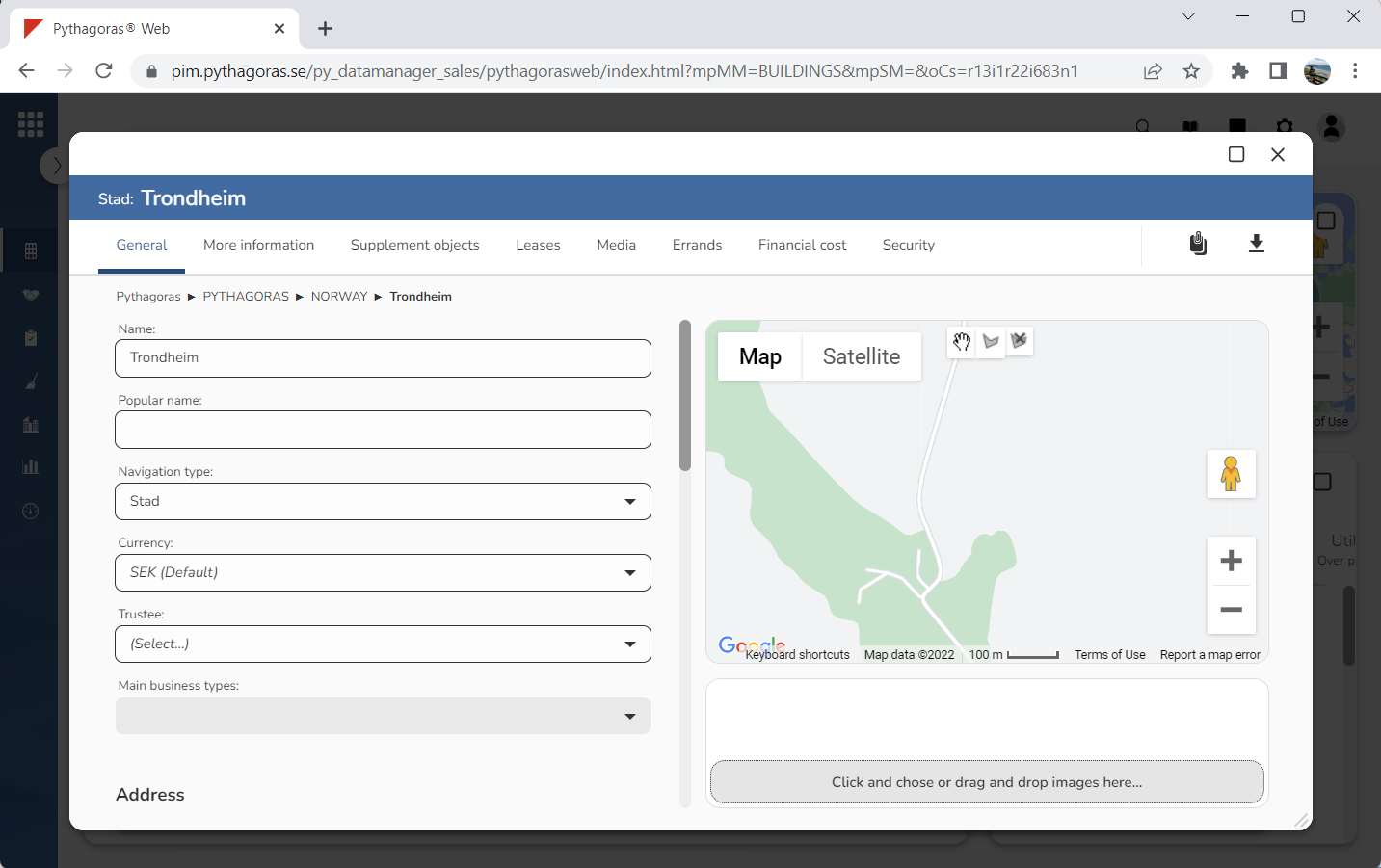
2. Click "Open" (see the first image below). When you do so, the navigation card linked to the navigation folder you have created will open (see the second image below).
3. Go to the navigation card.
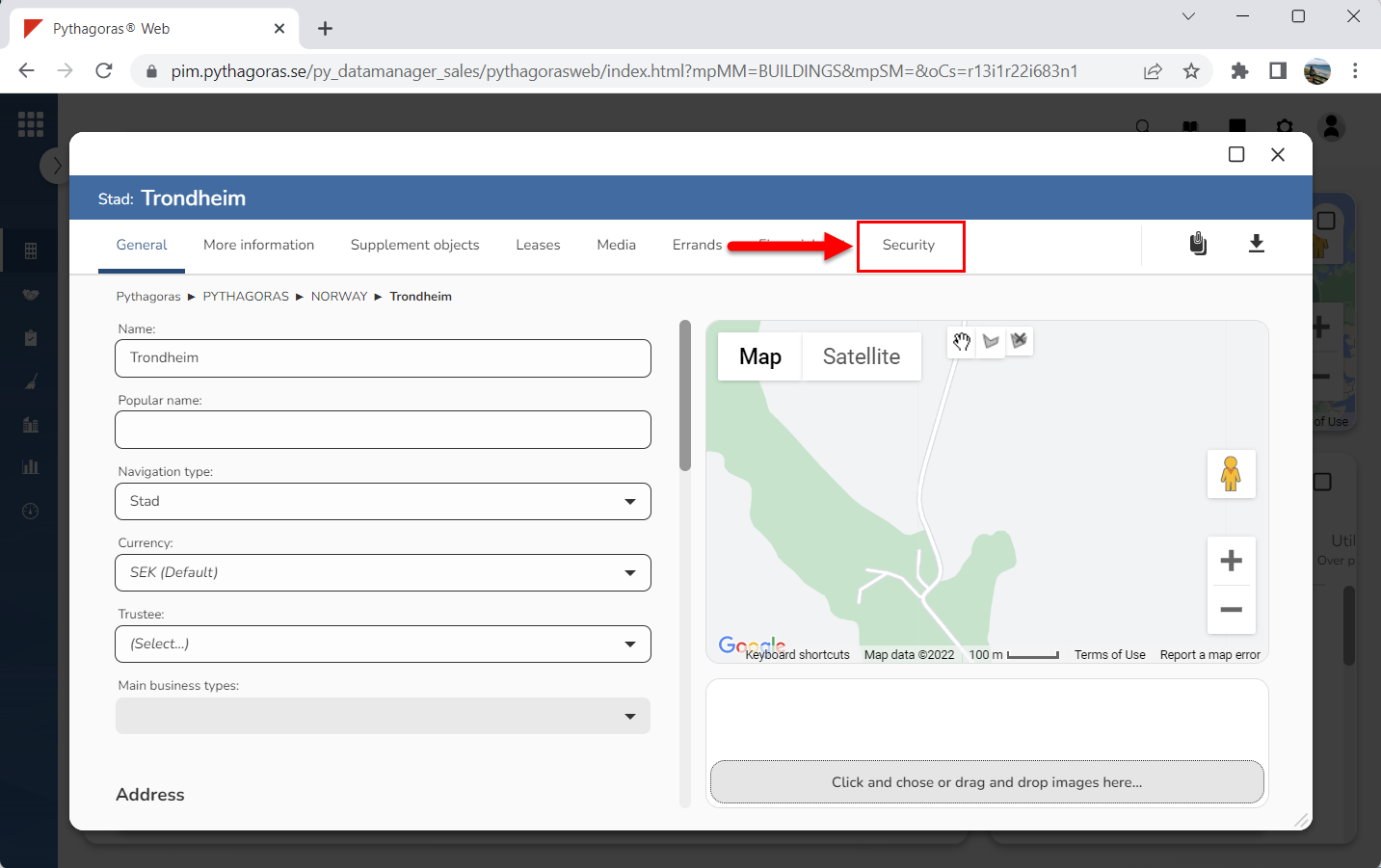
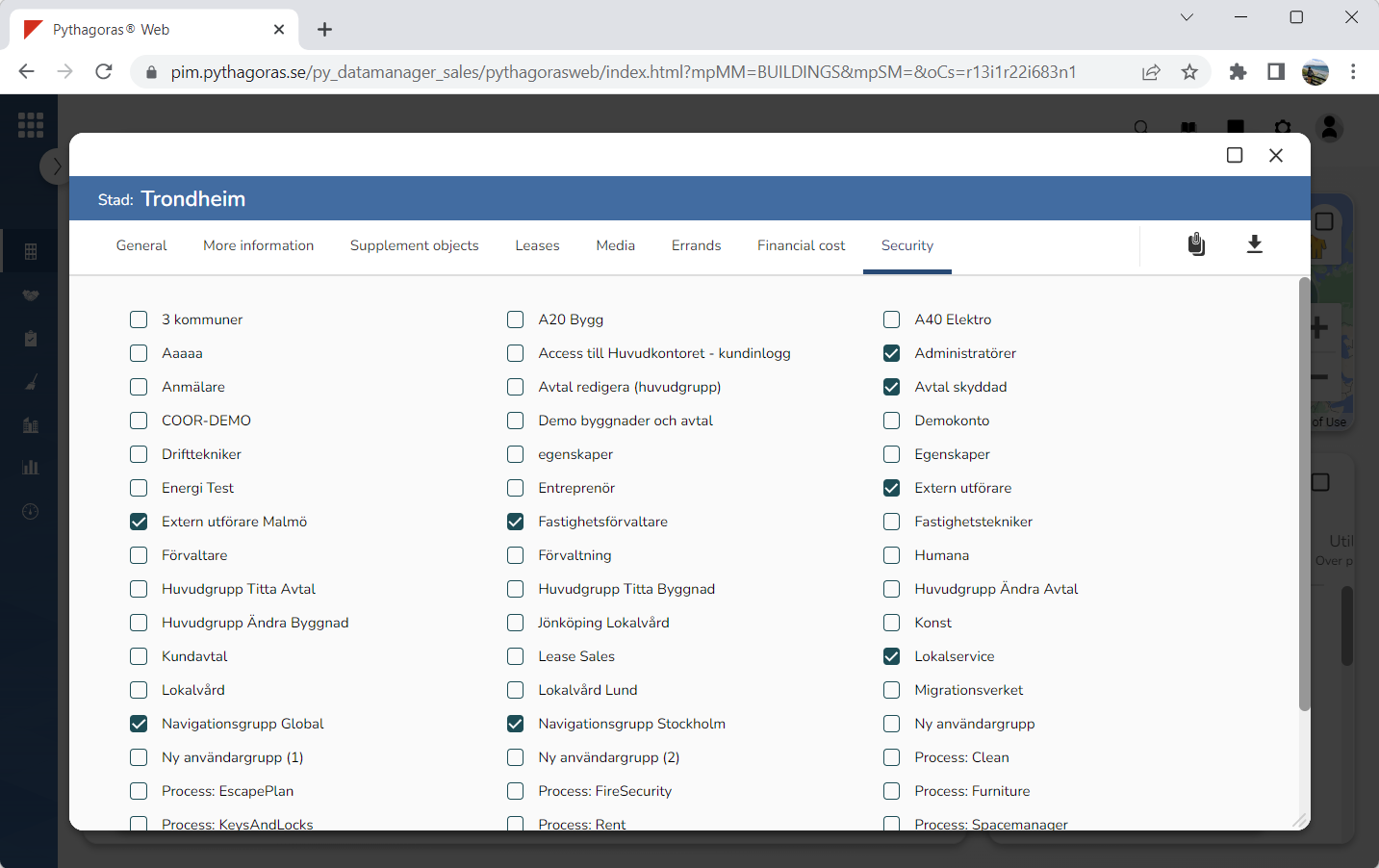
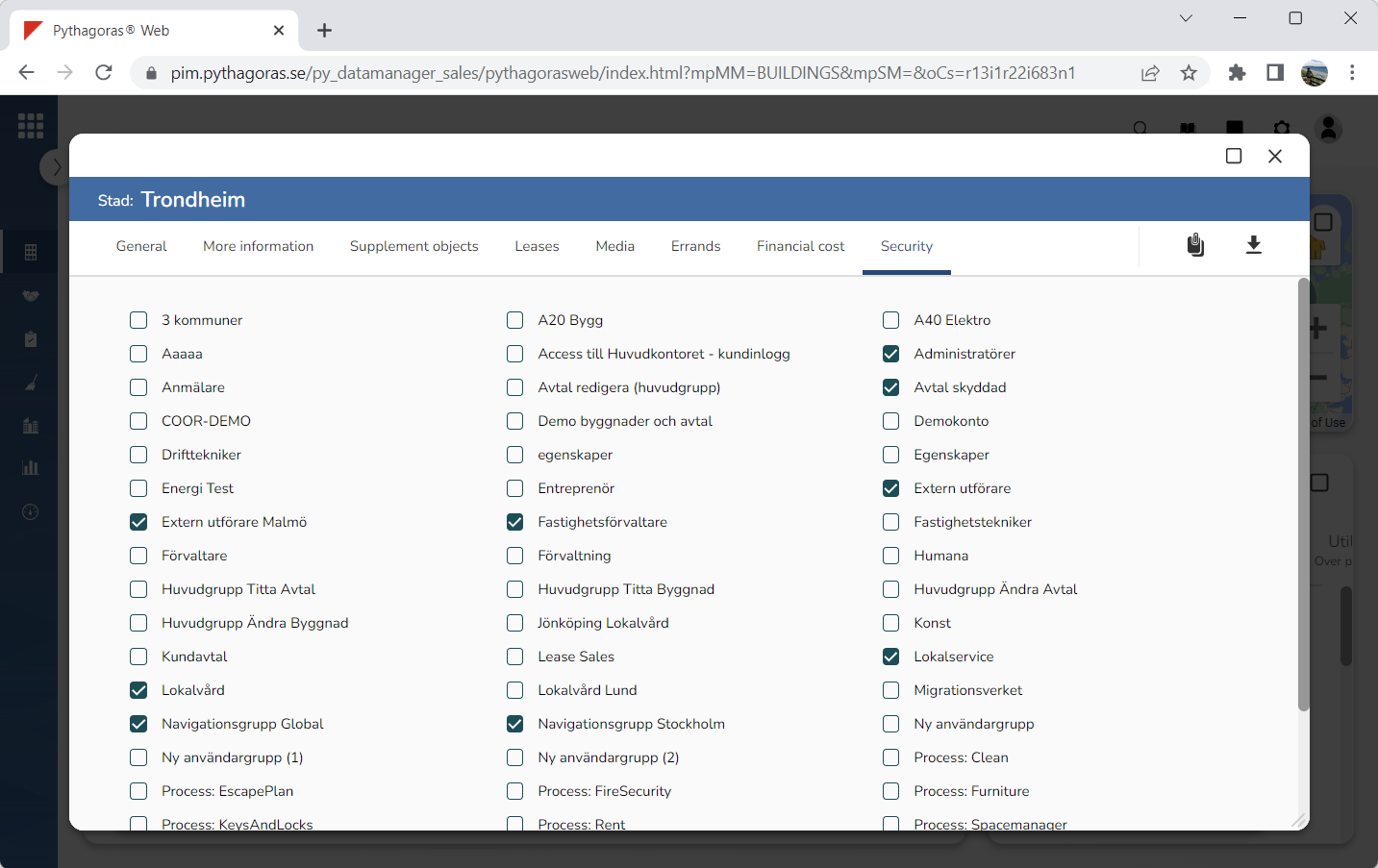
4. Click the tab called "Security" (see the first image below). Within the tab called "Security" you will get access to a list of user groups available in Pythagoras Web (see the second image below).
5. Check one or more user groups in the list of user groups (see image below). Note that the user group or groups you check will get access to the navigation folder you have created.